Configure Passkey Authentication in miniOrange
[To be released soon.]
Passkey authentication is a modern passwordless login method that allows users to sign in securely without entering traditional passwords. Instead of relying on memorized credentials, Passkeys use FIDO2-based cryptographic authentication and built-in device authenticators such as fingerprint, face recognition, or device PIN to verify user identity. This significantly improves login security while providing a faster and more seamless user experience.
miniOrange allows administrators to enable Sign in with Passkey on the login page, allowing users to authenticate instantly using trusted devices. Since Passkeys are resistant to phishing, credential theft, and password reuse attacks, they provide a stronger and more convenient alternative to conventional username-password logins.
Key Benefits of Passkey Authentication
- Faster and Passwordless Login: Users can sign in instantly using fingerprint, face recognition, or device PIN without entering passwords.
- Stronger Security: Passkeys use device-based cryptographic authentication, making them resistant to phishing and credential theft.
- Improved User Experience: Reduces login friction and eliminates dependency on password resets for a seamless authentication process.
How Passkey Authentication Works
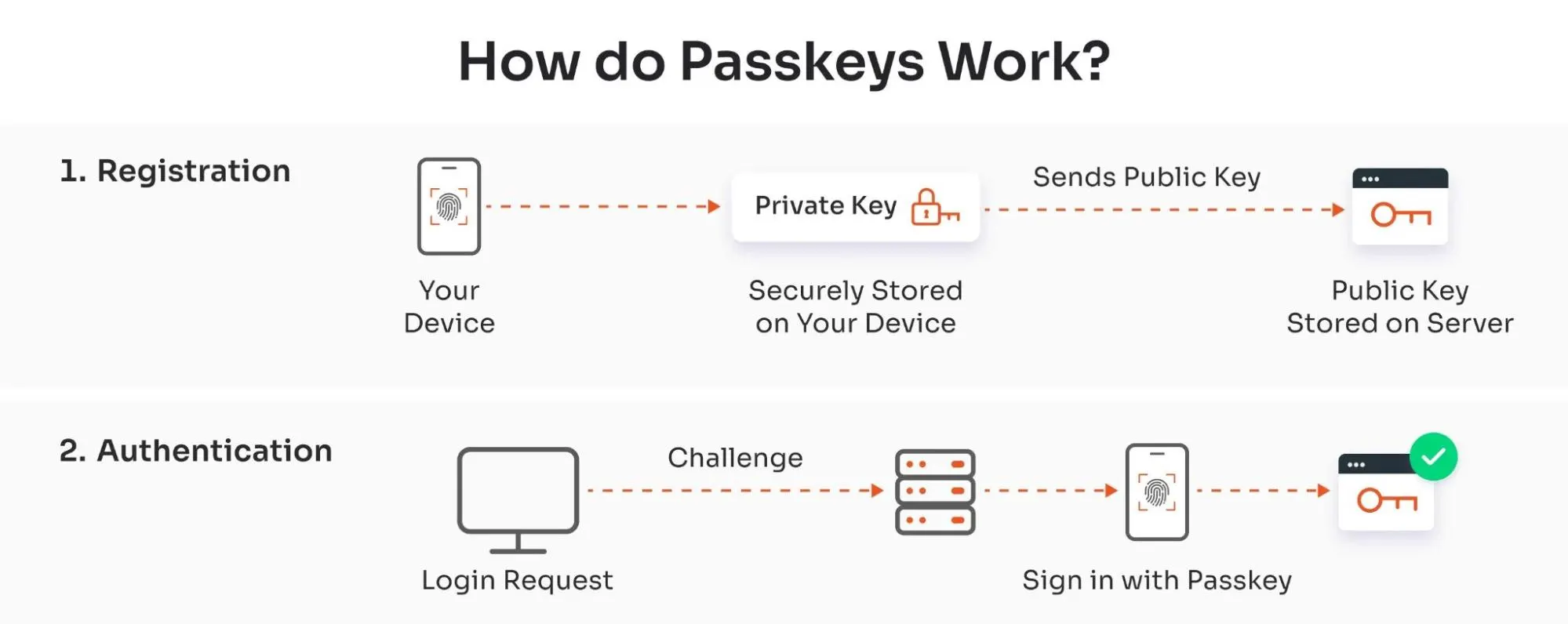
- The user clicks on the Sign in with Passkey button on the login page.
- A FIDO2 authentication prompt appears automatically on the user's device.
- The authenticator discovers the Passkey credentials stored securely on the device.
- If multiple credentials are available, the user selects the required account or verification method.
- The device prompts user verification through fingerprint, face recognition, or PIN.
- Once verification is completed, the signed authentication response is securely sent to miniOrange.
- The user is logged in instantly without entering a password.
Supported Platform Authenticators
Passkey authentication works primarily with platform authenticators, which are built-in authenticators available on the user's local device. These authenticators create and use Passkeys securely within the device environment.
Supported platform authenticators include:
- Device PIN – prompts the user to verify using the device PIN.
- Face ID / Face Recognition – prompts the user to verify using facial recognition.
- Touch ID / Fingerprint Authentication – prompts the user to verify using fingerprint authentication.
Follow the Step-by-Step Guide given below for Passkeys
1. Enable Passkey Authentication
- Click on Product Settings from the top right corner.
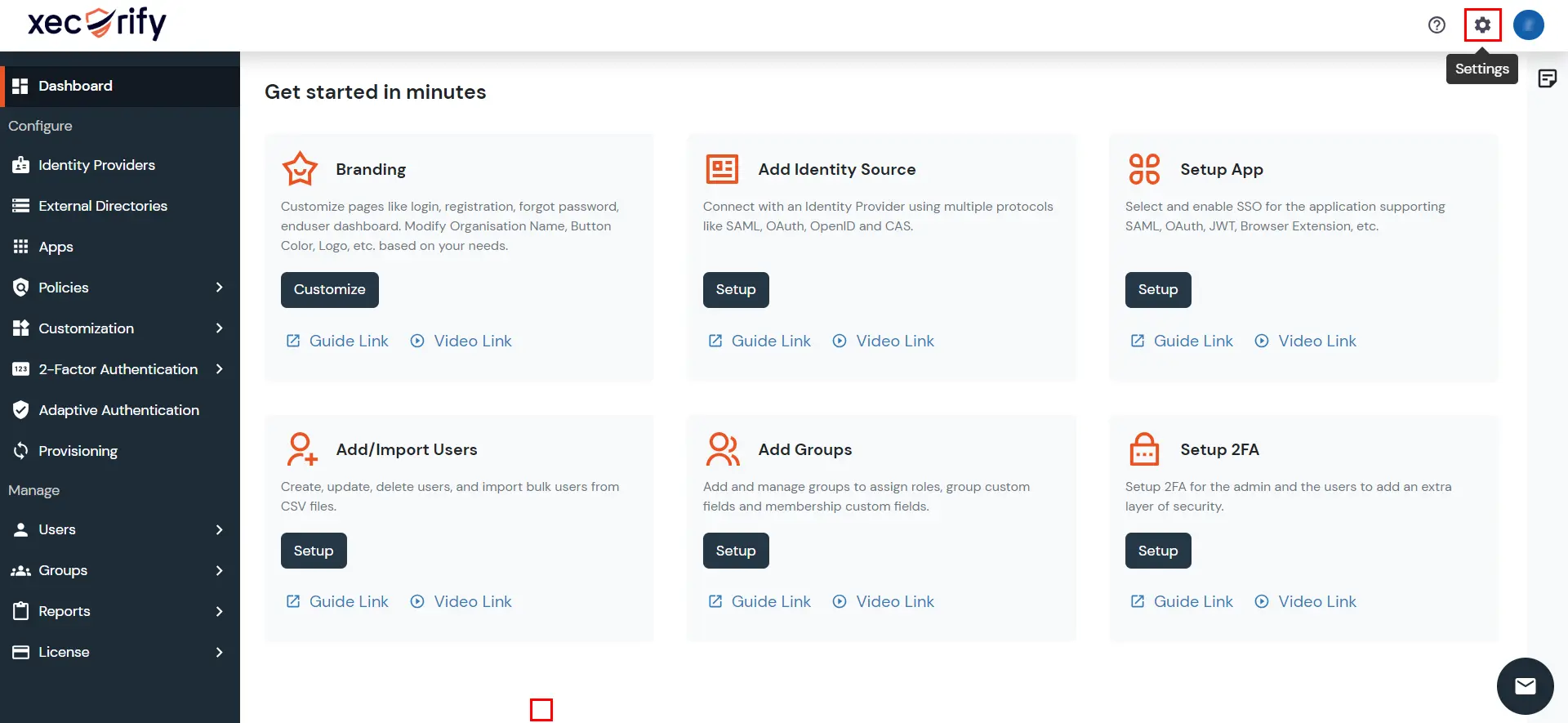
- Navigate to the Security >> Login & Logout section.
- Enable the Passkey Authentication checkbox.
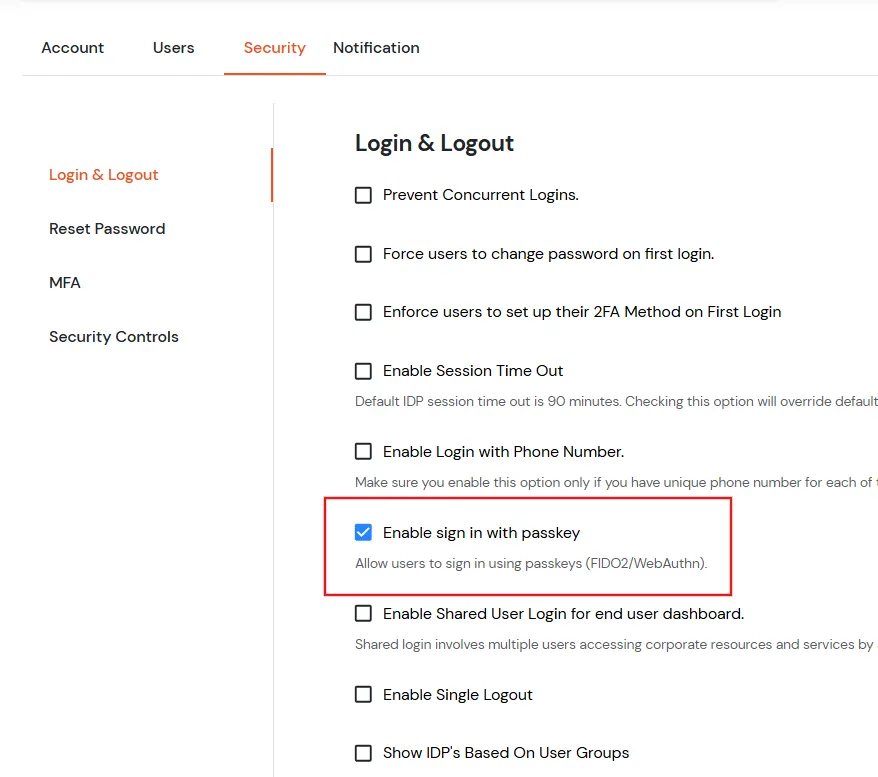
- Click on Save to apply the configuration.
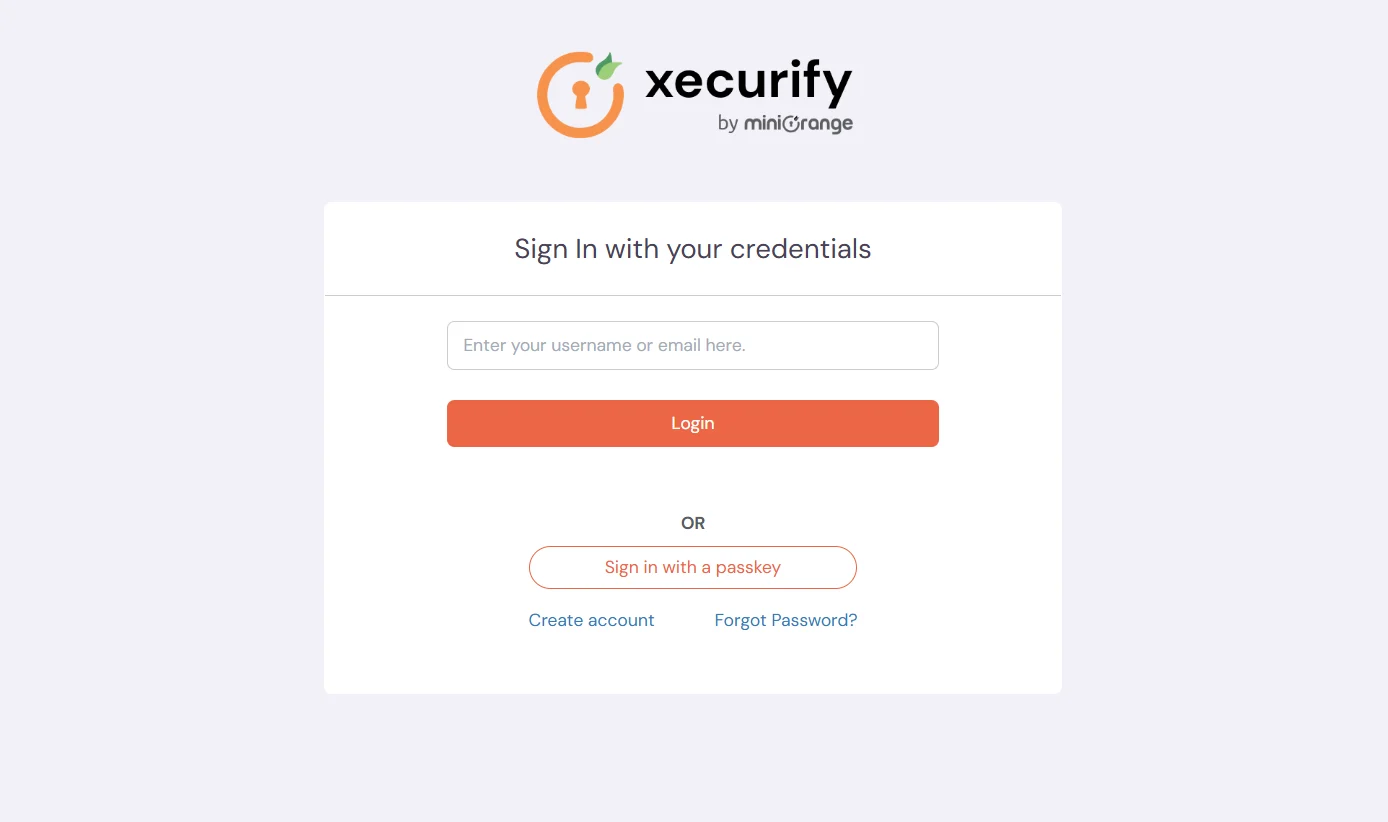
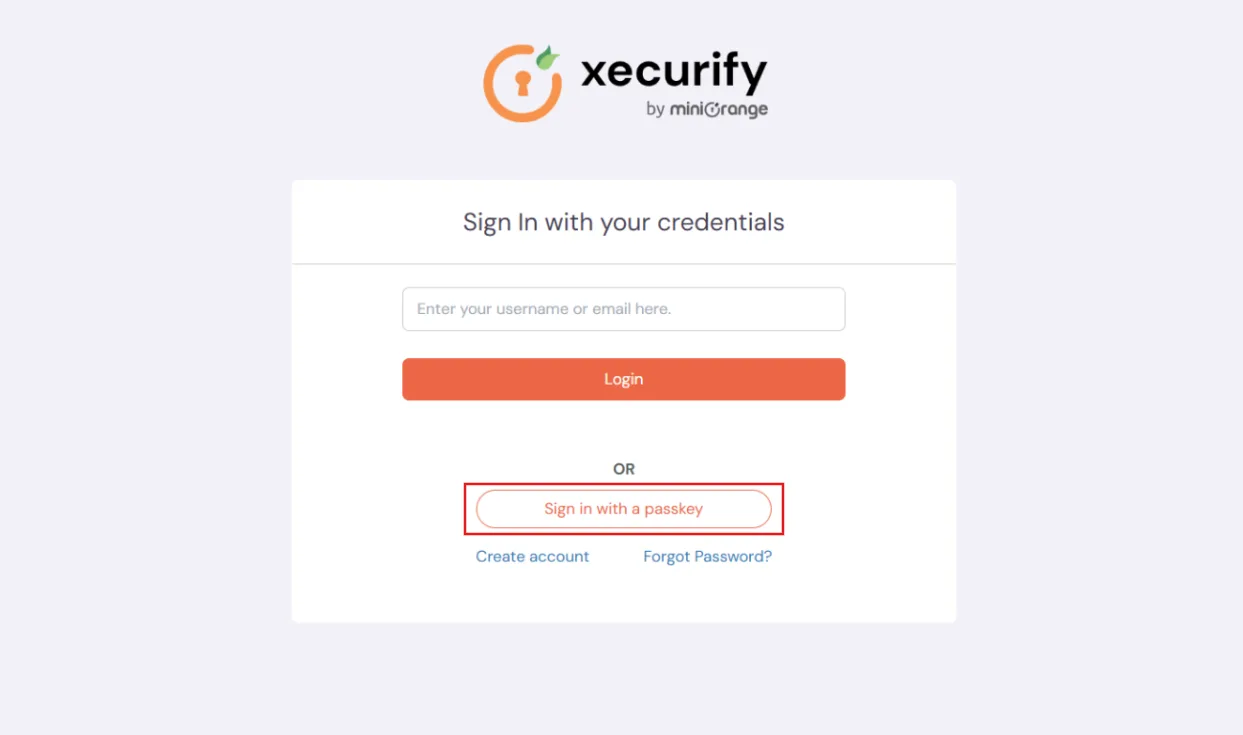
- Once enabled, a new Sign in with Passkey button will be displayed on the login page.
2. Passkey Registration in miniOrange
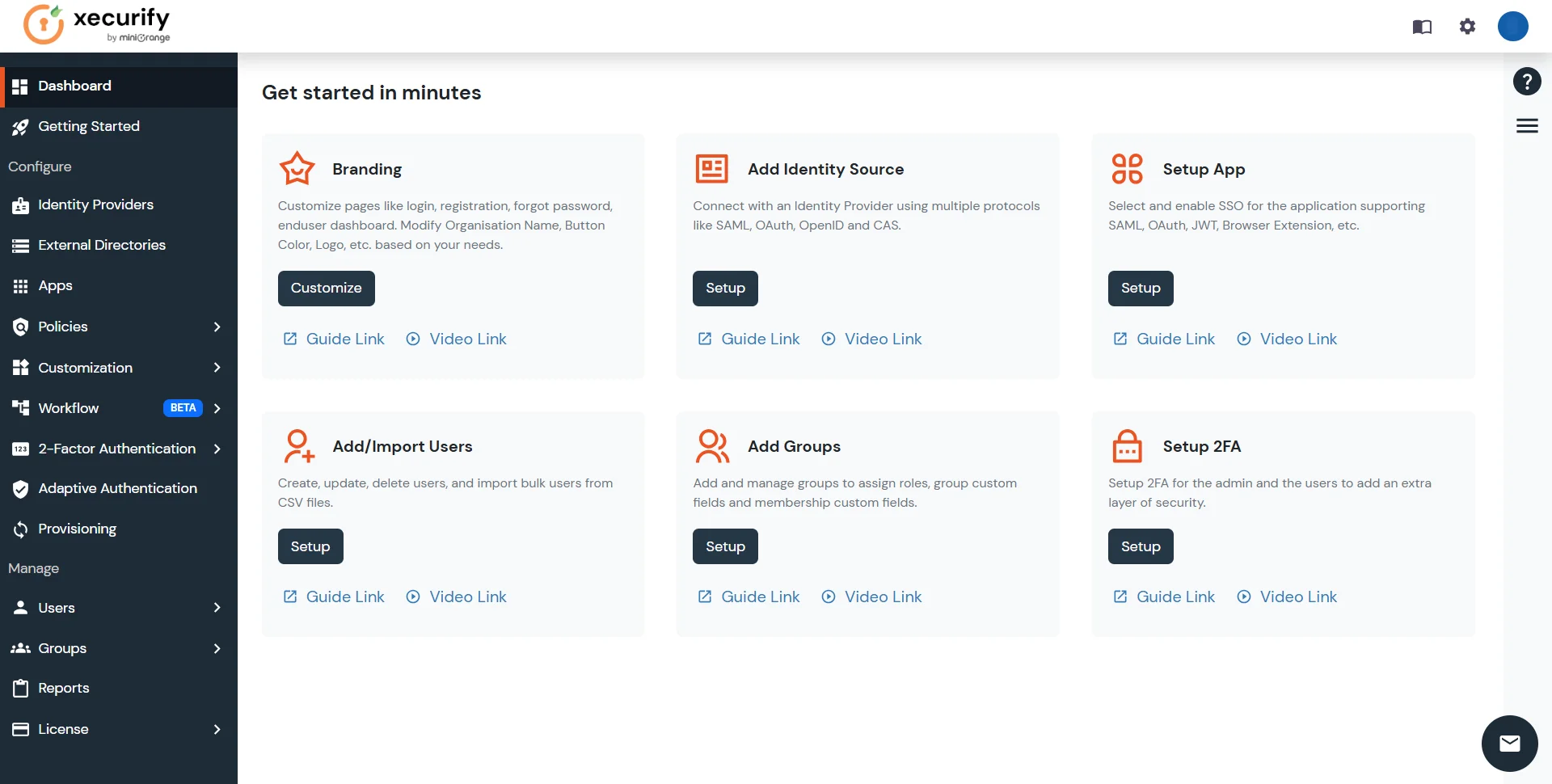
- Log in to the miniOrange Admin Console.
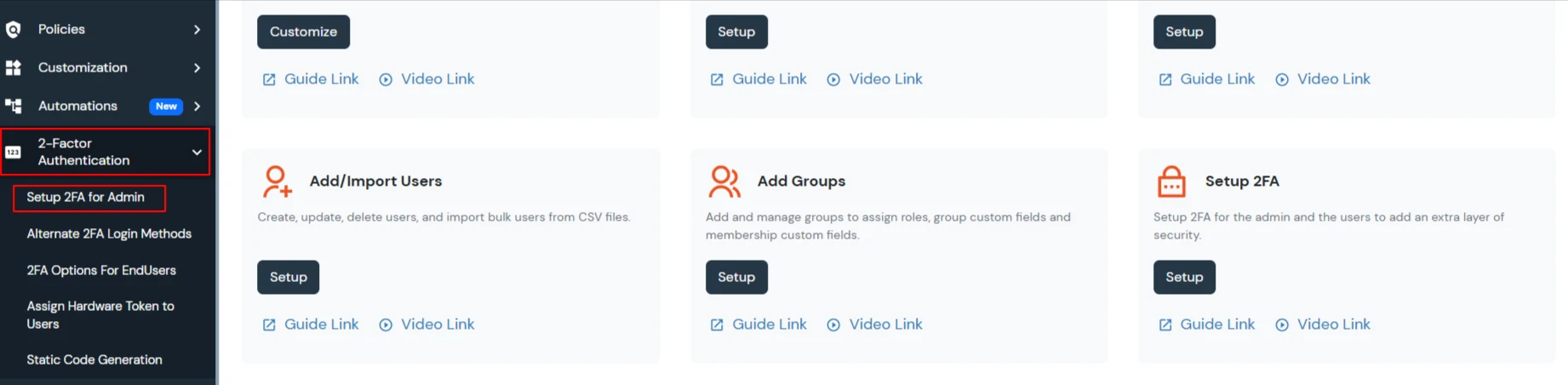
- Navigate to 2-Factor Authentication >> Setup 2FA for Admin from the left navigation menu.
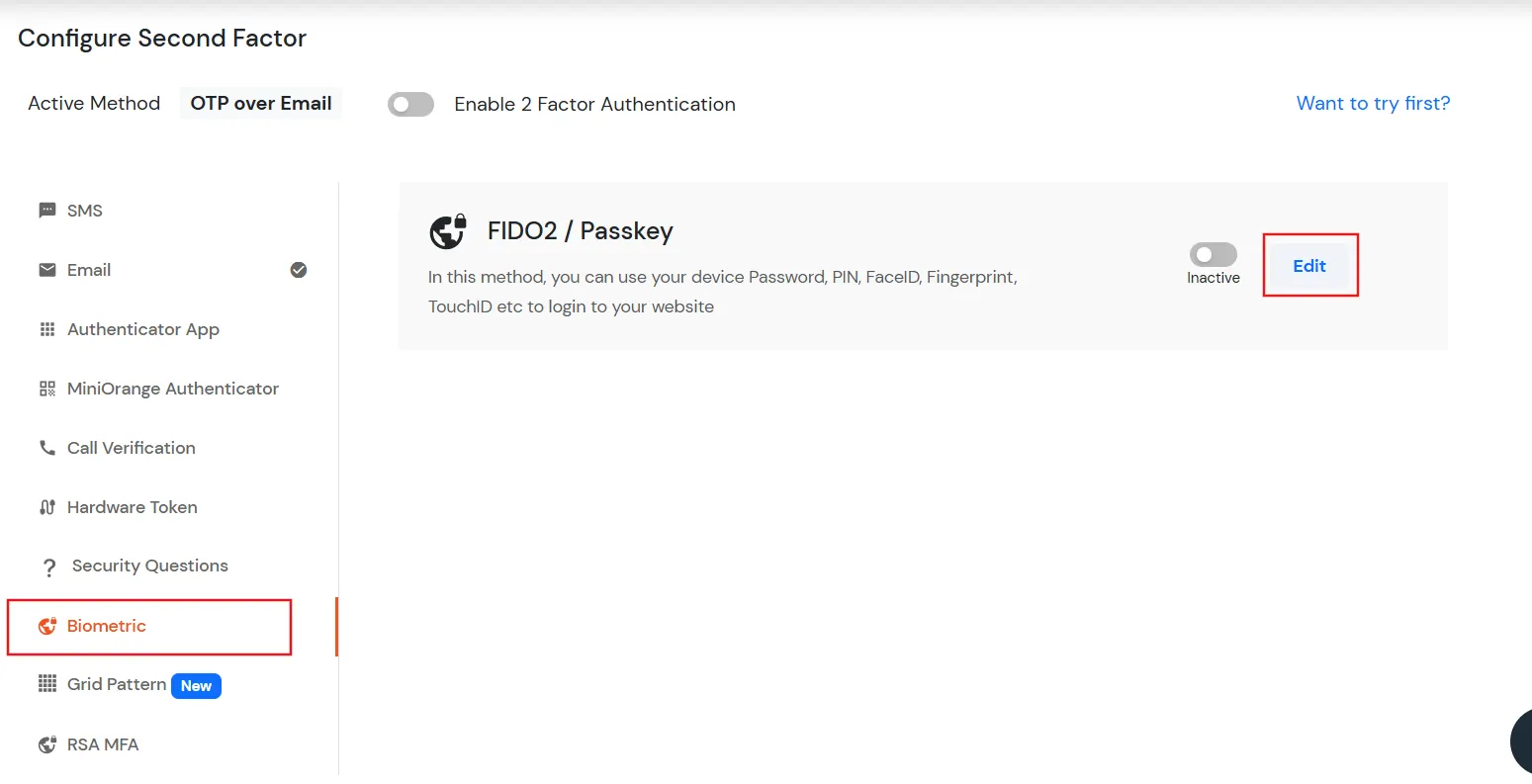
- Go to the Biometric authentication method and click Edit.
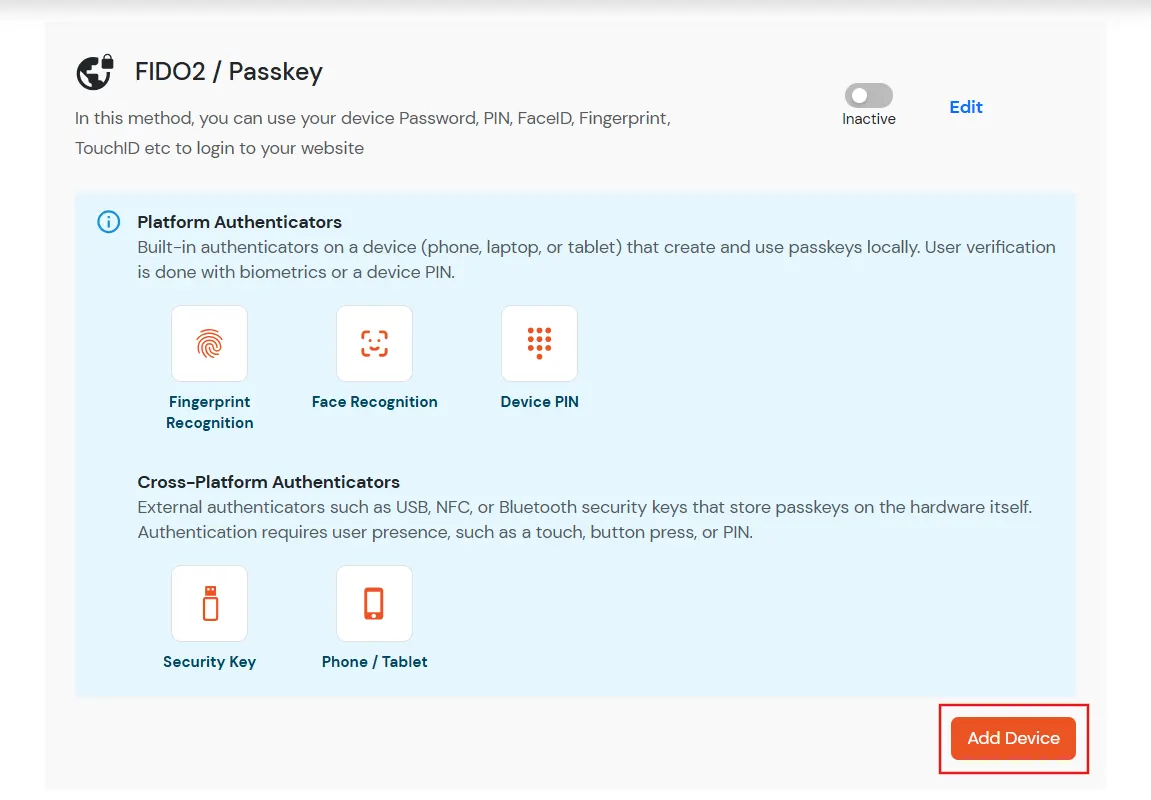
- Click on Add Device.
- Enter a Device Name and select Platform as Device Type for the Passkey device.
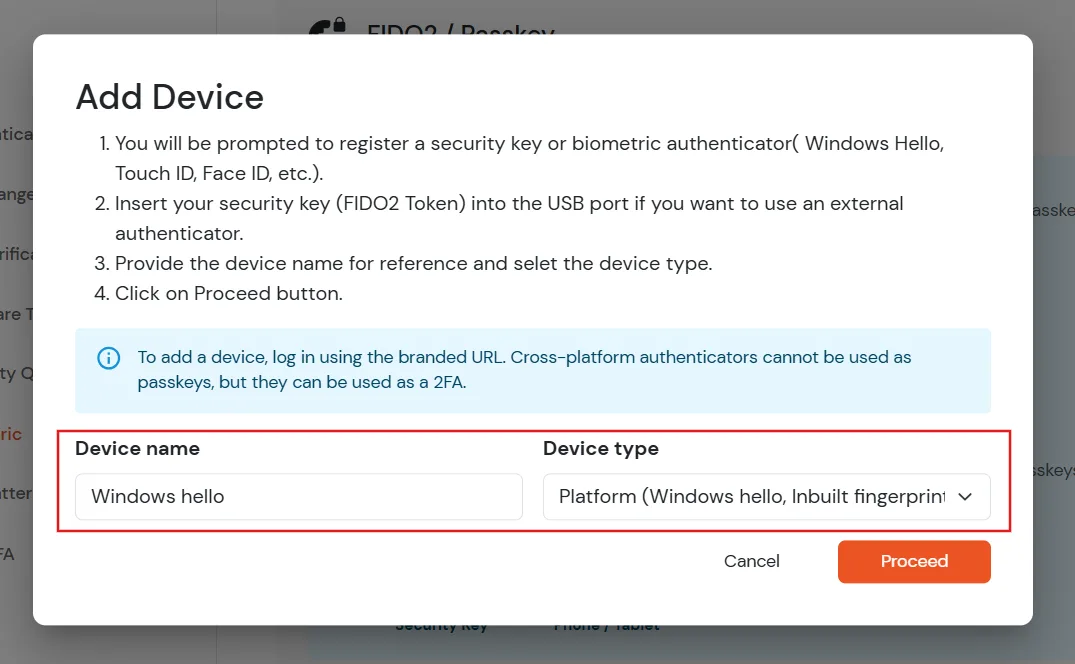
- Click on Proceed to complete device registration.
3. End User Login Using Passkey
- Navigate to the miniOrange login page.
- Click on Sign in with Passkey.
- Complete verification using the available passkeys or devices.
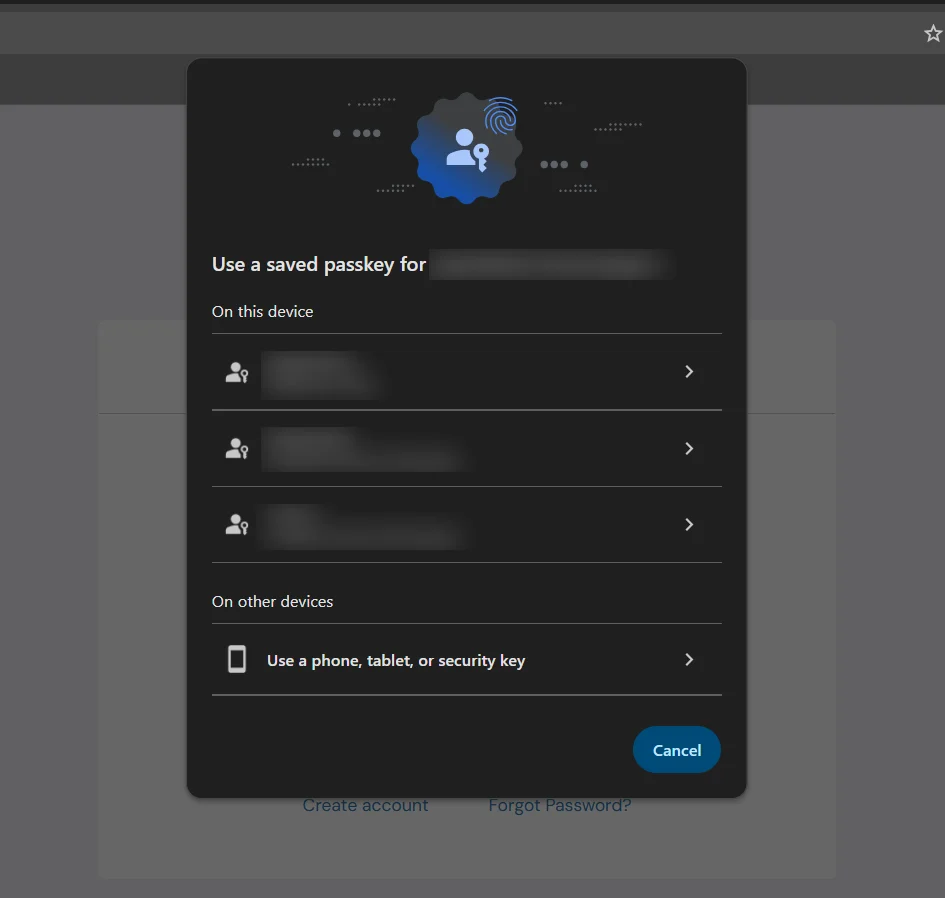
- After successful verification, the user is securely logged in to the account.


