Hello there!

Need Help? We are right here!

Support Icon
miniOrange Email Support
success

Thanks for your Enquiry. Our team will soon reach out to you.

If you don't hear from us within 24 hours, please feel free to send a follow-up email to info@xecurify.com

Search Results:

×

miniOrange SSO Vault Setup Guide for iOS and Android


miniOrange SSO Vault is an enterprise single sign-on app for iPhone, iPad, and Android. This guide shows you how to install the app, connect it to your organization, sign in, set an M-PIN, enable autofill, and manage the credentials saved on your device. Select Android or iOS for the steps that match your phone or tablet.

Follow the step-by-step guide below to configure SSO Vault for Android and iOS.


This guide covers miniOrange SSO Vault on Android: installing the app, signing in, and using your credential vault.

Android Splash Screen

1. What is SSO Vault?

miniOrange SSO Vault is an enterprise single sign-on (SSO) app for Android. Once your organization has set it up, it gives you one-tap access to all the business apps assigned to you, and it can automatically fill your saved usernames and passwords into other apps and browsers on your device — so you don't have to type or remember them.

With SSO Vault you can:

  • See every enterprise application assigned to you in one place
  • Store and organize login credentials securely (encrypted on-device)
  • Autofill credentials into other apps using Android's Autofill Framework
  • Autofill credentials into browsers using an Accessibility Service
  • Protect the app with an M-PIN and/or biometric (fingerprint/face) lock

2. Before You Begin

You will need:

  • An Android device running Android 8.0 (Oreo) or later
  • Your organization's server URL or Customer ID (provided by your IT/SSO administrator)
  • Your enterprise login credentials (email/username and password, or SSO login)

If you don't have your organization's URL or Customer ID, contact your IT administrator before continuing.
3. Installing the App

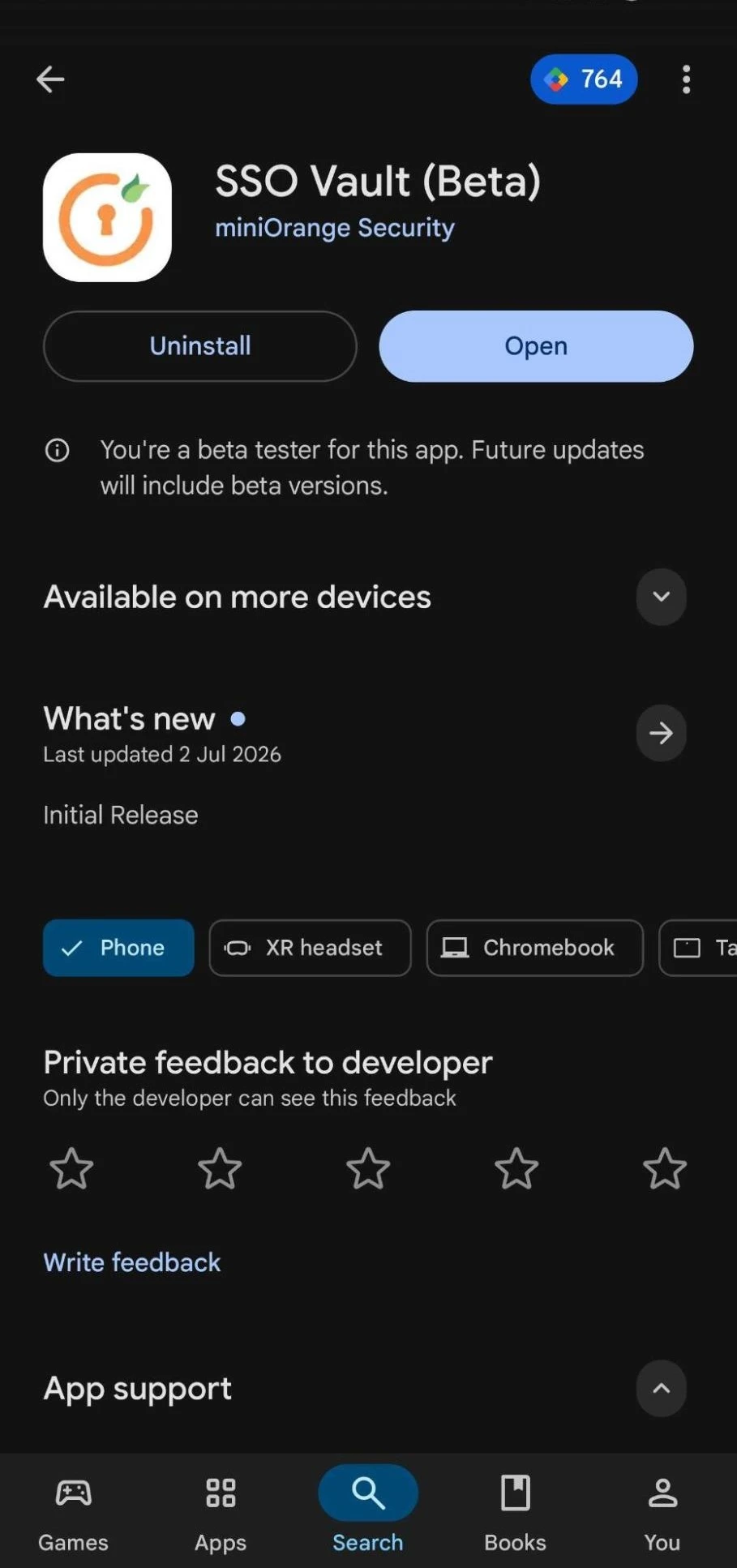
  • Install miniOrange SSO Vault from the Google Play Store, or install the APK provided by your organization.
  • Open the app once installation completes.
Android Install App

4. Device Security Check (Splash Screen)

When SSO Vault launches, it briefly checks your device for security risks such as root access, emulation, or an attached debugger. This protects your stored credentials. If a risk is detected, you'll see a warning screen explaining why the app cannot continue on that device. On a normal, unmodified device you'll simply pass through to setup.

5. First-Time Setup: Connecting to Your Organization

On first launch you'll be asked to connect the app to your organization: To get started please enter your Organization's URL.
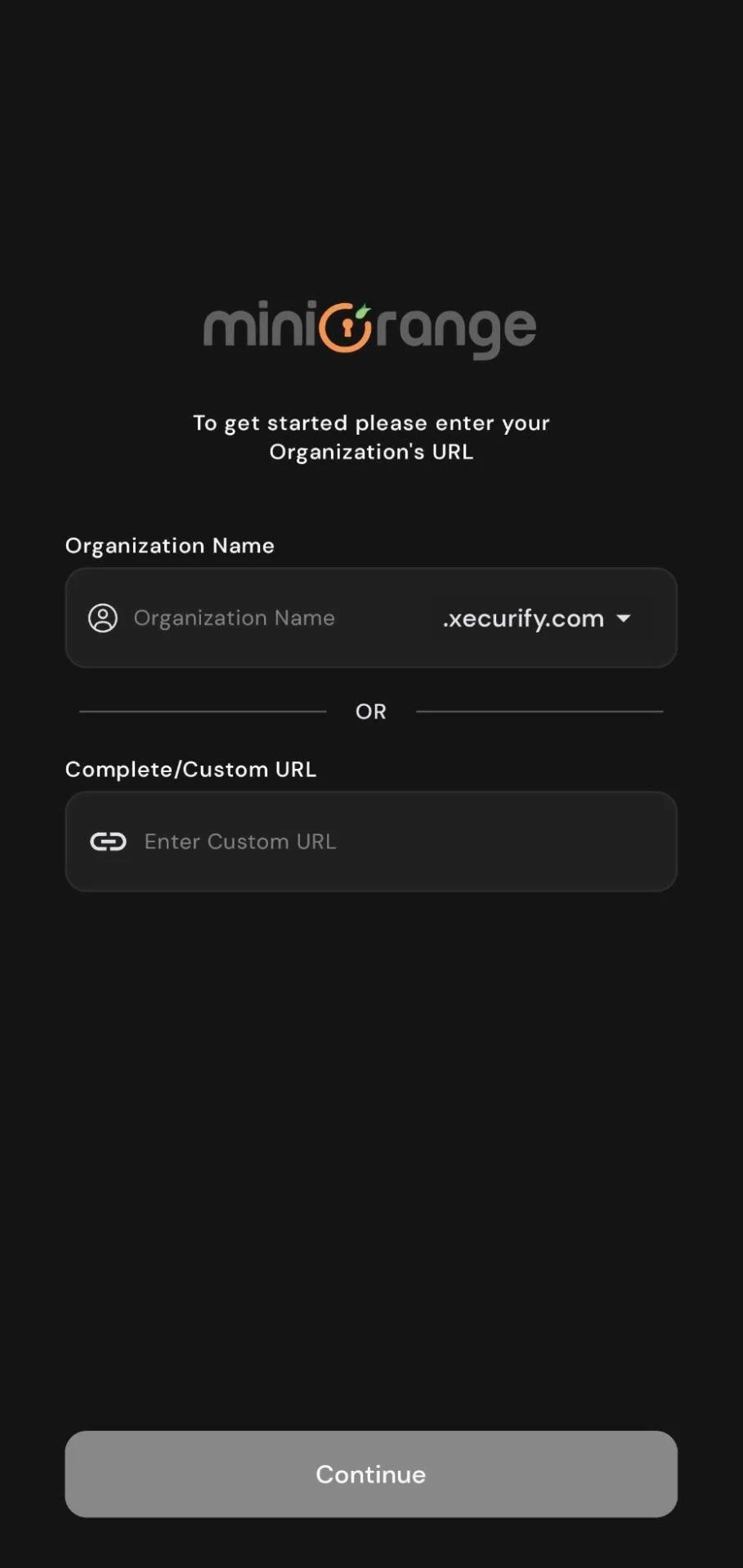
  • Enter your Organization Name in the first field. A dropdown next to the field lets you pick the correct base domain if your admin gave you a short name.
  • Alternatively, tap OR and enter your full Custom URL directly if that's what your administrator gave you.
  • Tap Continue to proceed.
Android Organization URL

6. Signing In

SSO Vault uses secure OAuth 2.0 login (with PKCE) via your browser — your password is never seen or stored by the app itself.
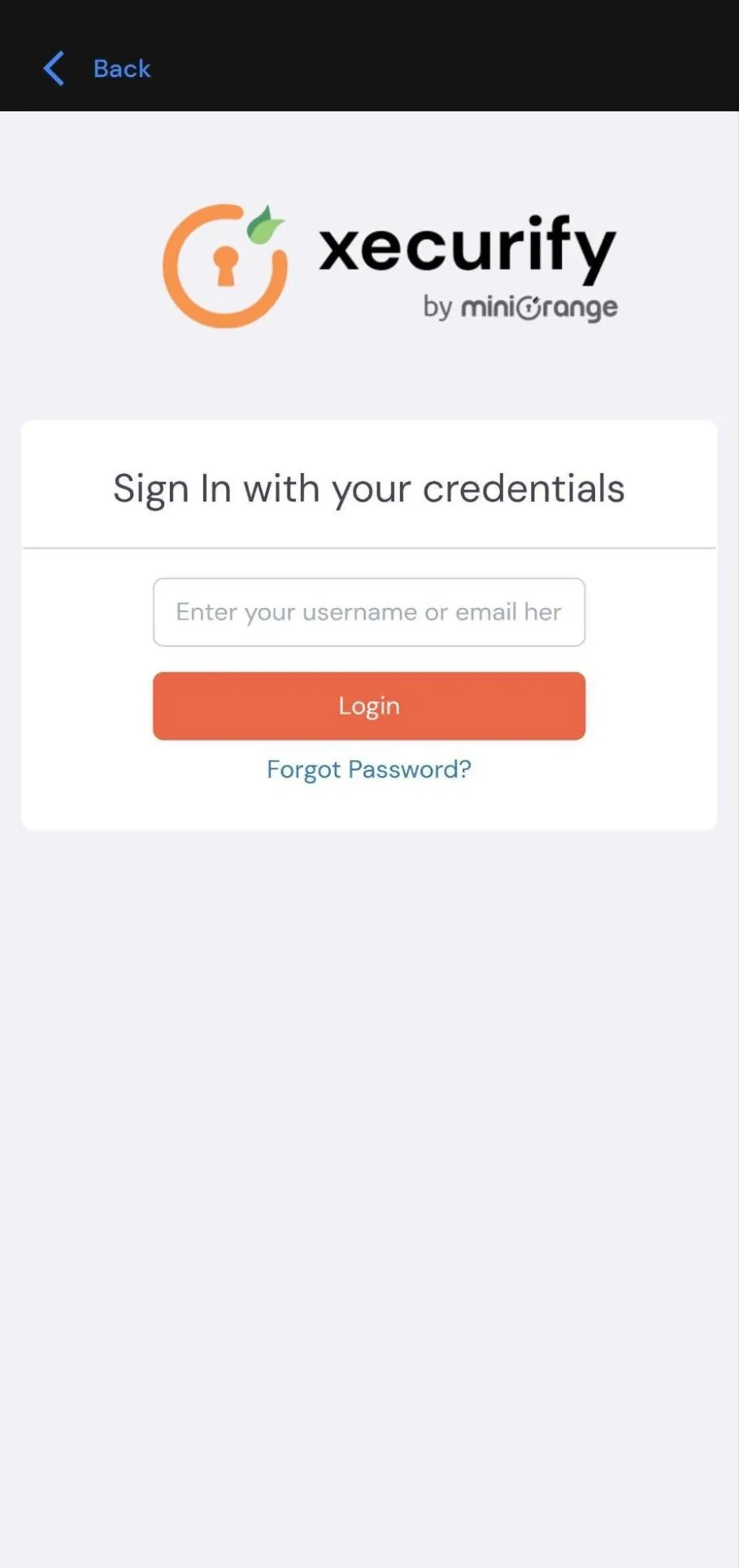
  • Tap Sign In / Continue. A secure browser tab opens showing your organization's login page.
  • Enter your enterprise username/email and password (or complete your organization's SSO flow, for example Google or Microsoft login).
  • Once authenticated, the browser redirects you back into SSO Vault automatically.
Android Organization Login

7. Setting Up Your M-PIN

After your first successful login, you'll be asked to Set up M-PIN — set a 4-digit M-PIN for app security.

  • Enter a 4-digit PIN.
  • Re-enter the same PIN to confirm it.

From now on, SSO Vault will ask for this M-PIN (Enter your M-PIN — Enter 4 Digit M-PIN for Secured Login) whenever you reopen the app. If you forget your PIN, use Forgot PIN? — note that this logs you out of your account and you'll need to sign in again.
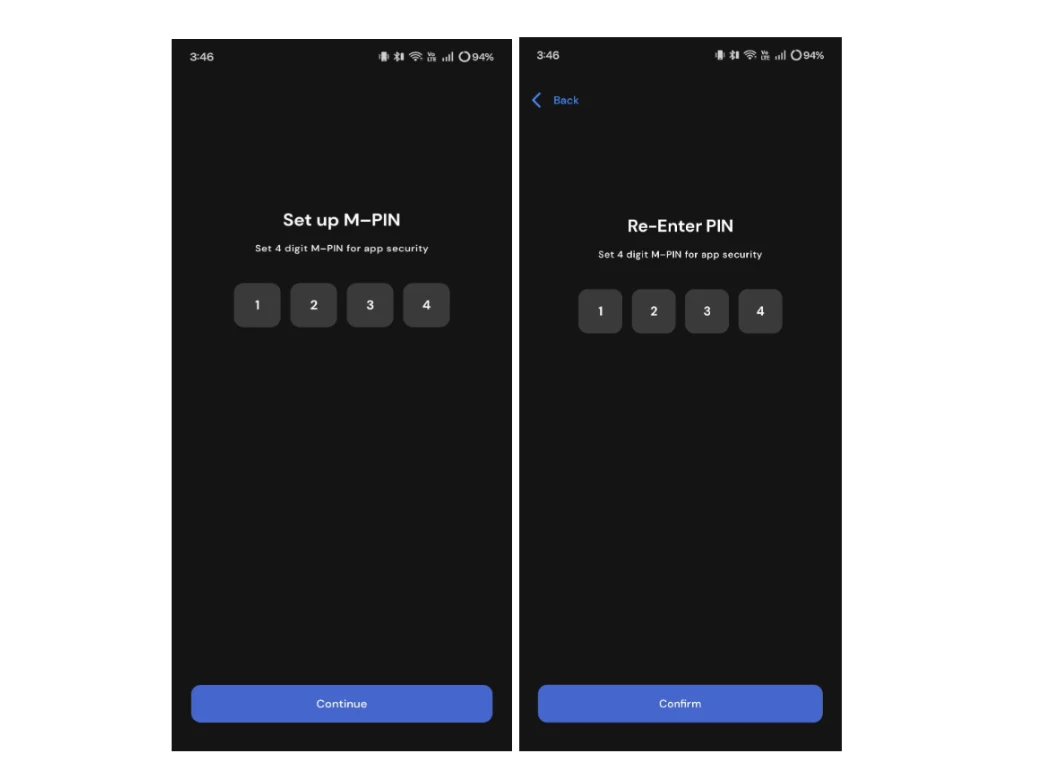
Android M-PIN Setup

8. Enabling Biometric Login (Optional)

You may be prompted: Would you like to enable biometrics for faster and secure login? Tap Enable and confirm with your device's fingerprint or face unlock. You can turn this on or off later from Settings.
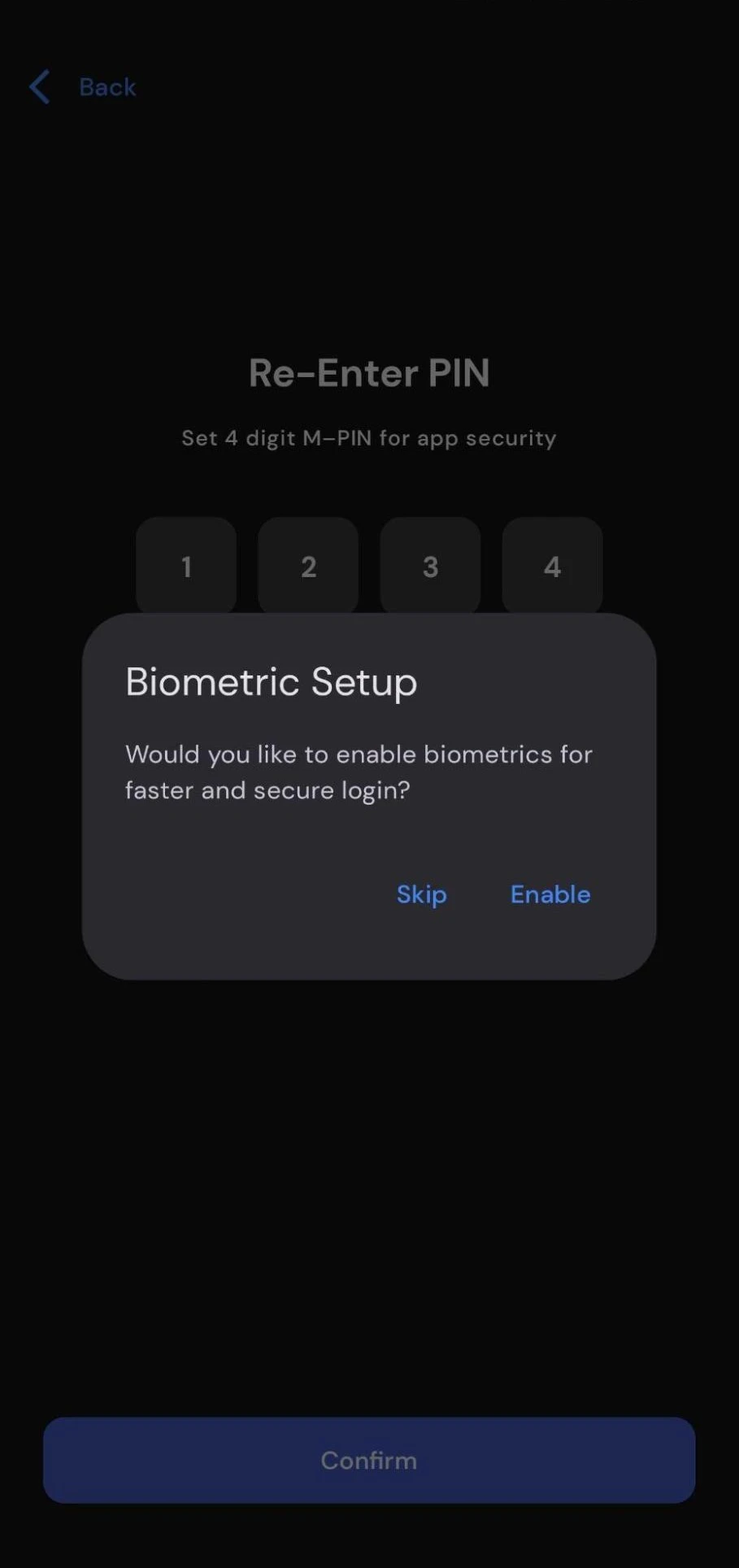
Android Biometric Setup

9. The Welcome Carousel: What SSO Vault Can Do

The first time through, a short set of intro slides walks you through the app's core features:

  • Welcome to your Enterprise Apps! — access all your organization-configured applications in one place
  • Lightning Fast Access — instant access to all your applications with intelligent single sign-on
  • Secure Autofill for Fast Authentication — automatic recognition and filling of login screens
  • Ready to Begin? — introduces Accessibility Autofill for one-tap sign-on

Tap Next to move through the slides, or Skip to jump straight to the app. The last slide shows a Get Started button.
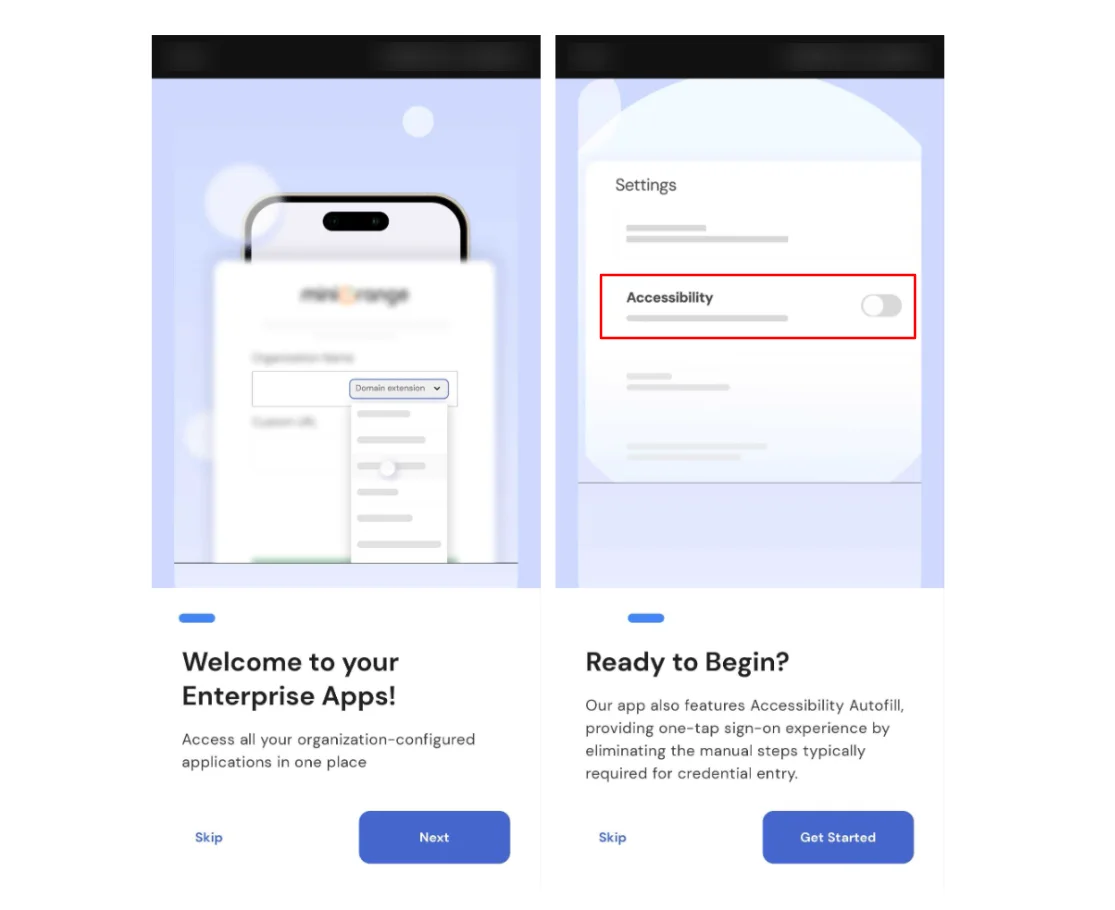
Android Welcome Carousel

10. Home Screen: Your Enterprise Apps

The Home tab lists every enterprise app assigned to you (Sign-In to your favourite cloud apps). From here you can:

  • Search for a specific app using the Search bar
  • Tap an app to sign in to it via SSO
  • Add or manage credentials for an app (Add Credentials)
  • View shared identities/credentials, if your organization has shared logins

If no apps are assigned yet, or a search returns nothing, you'll see a No apps found message with suggestions to check your spelling or keywords.
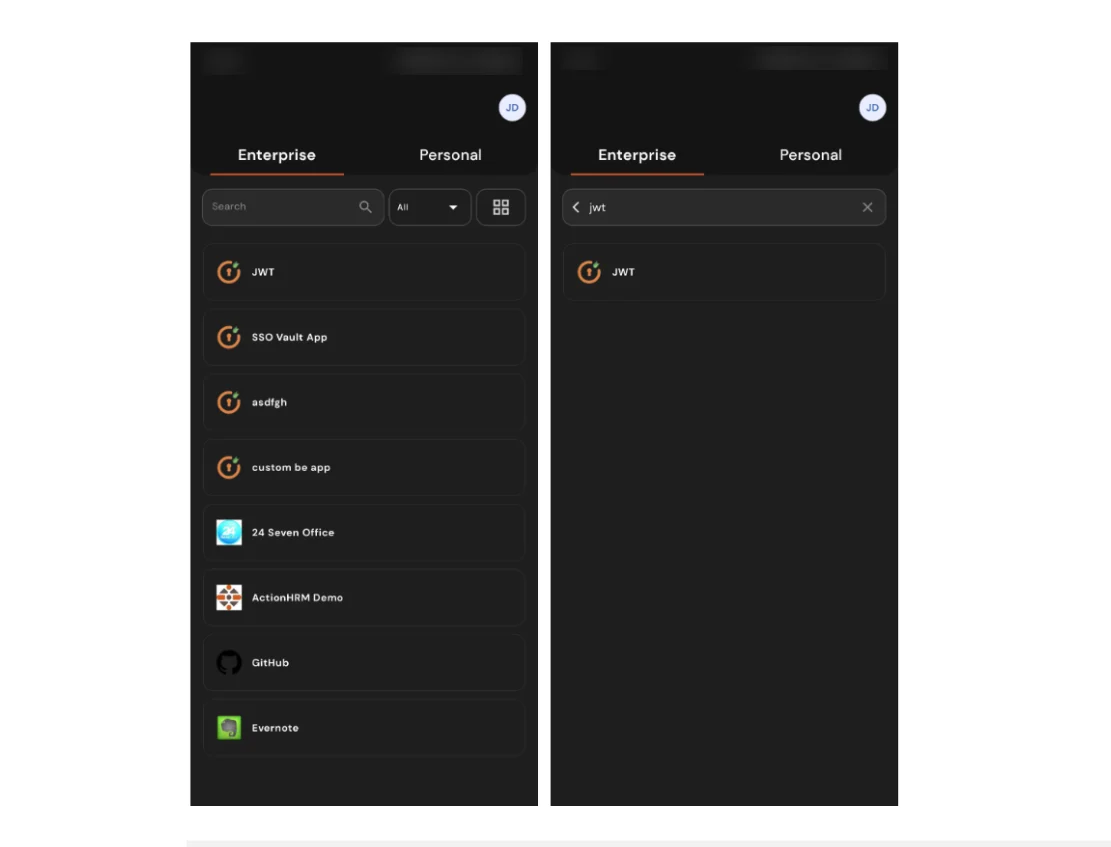
Android Home Screen

11. The Vault: Managing Saved Credentials

The Vault tab (Store your credentials securely) is where personal and per-app credentials you've saved are kept, encrypted on-device.
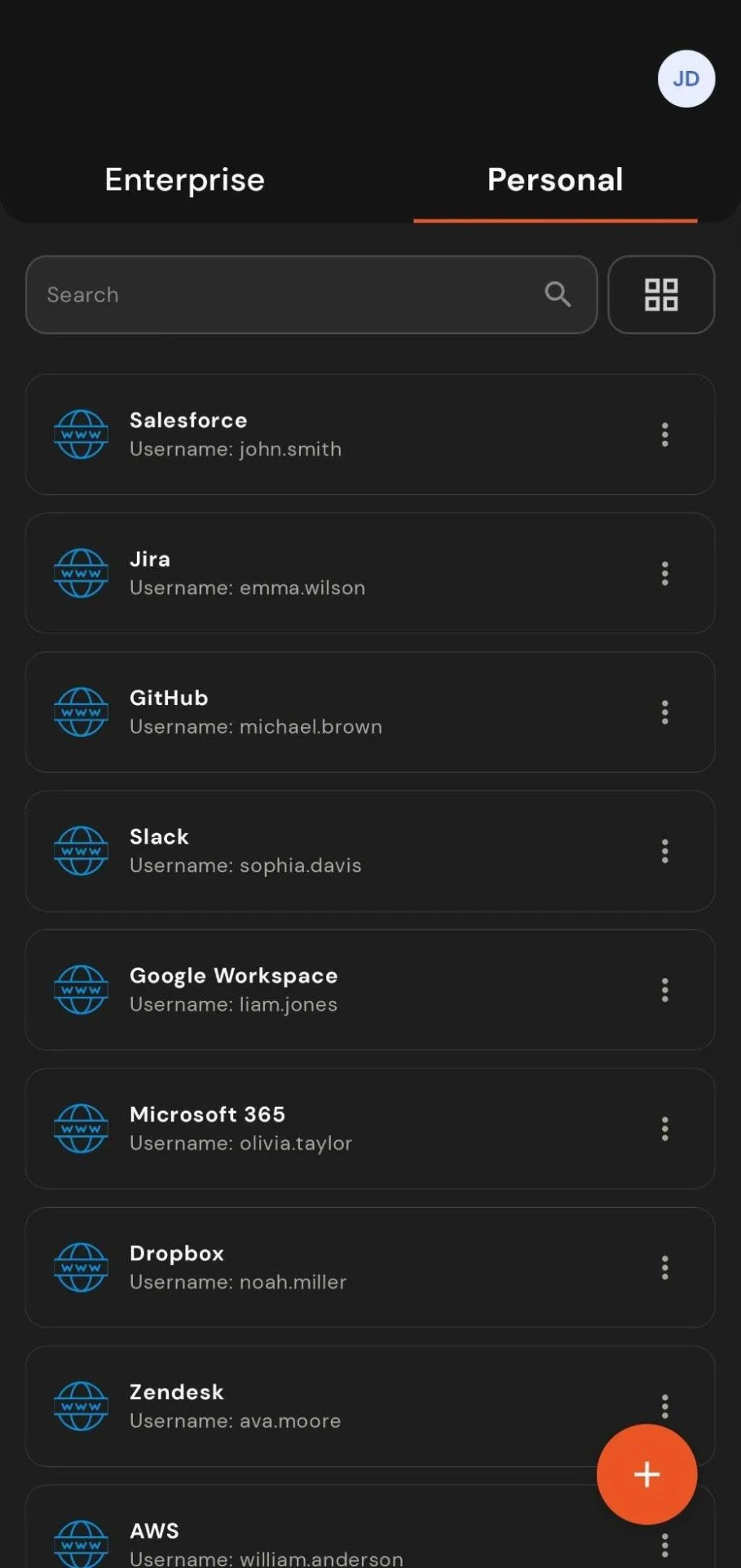
  • Tap Add Credential (or Add Credentials) and fill in the details for a login (site/app, username, password).
  • Tap Save — you'll see a Credential saved! confirmation.
  • Tap any existing credential to view, Edit Credentials, or delete it.
  • Deleting all credentials for an app requires confirmation, since this action cannot be undone.
Managing Saved Credentials

12. Enabling Autofill Service

To let SSO Vault fill your saved credentials into other apps automatically, you need to enable it as your device's Autofill provider.

  • Go to Settings → Autofill Settings → Auto Fill Services, or tap Enable Autofill Service when prompted.
  • Android will show a system dialog asking to confirm miniOrange (MO Autofill) as the autofill service — tap to confirm.
  • The app explains: The SSO autofill service uses the Android Autofill Framework to assist in filling login information into other apps on your device.

Once enabled, whenever you tap into a username/password field in another app, SSO Vault will offer to fill it. Selecting Choose Credential opens the credential picker; pick the right one and it's filled in automatically. You can turn this off any time via Turn Off Autofill Service.
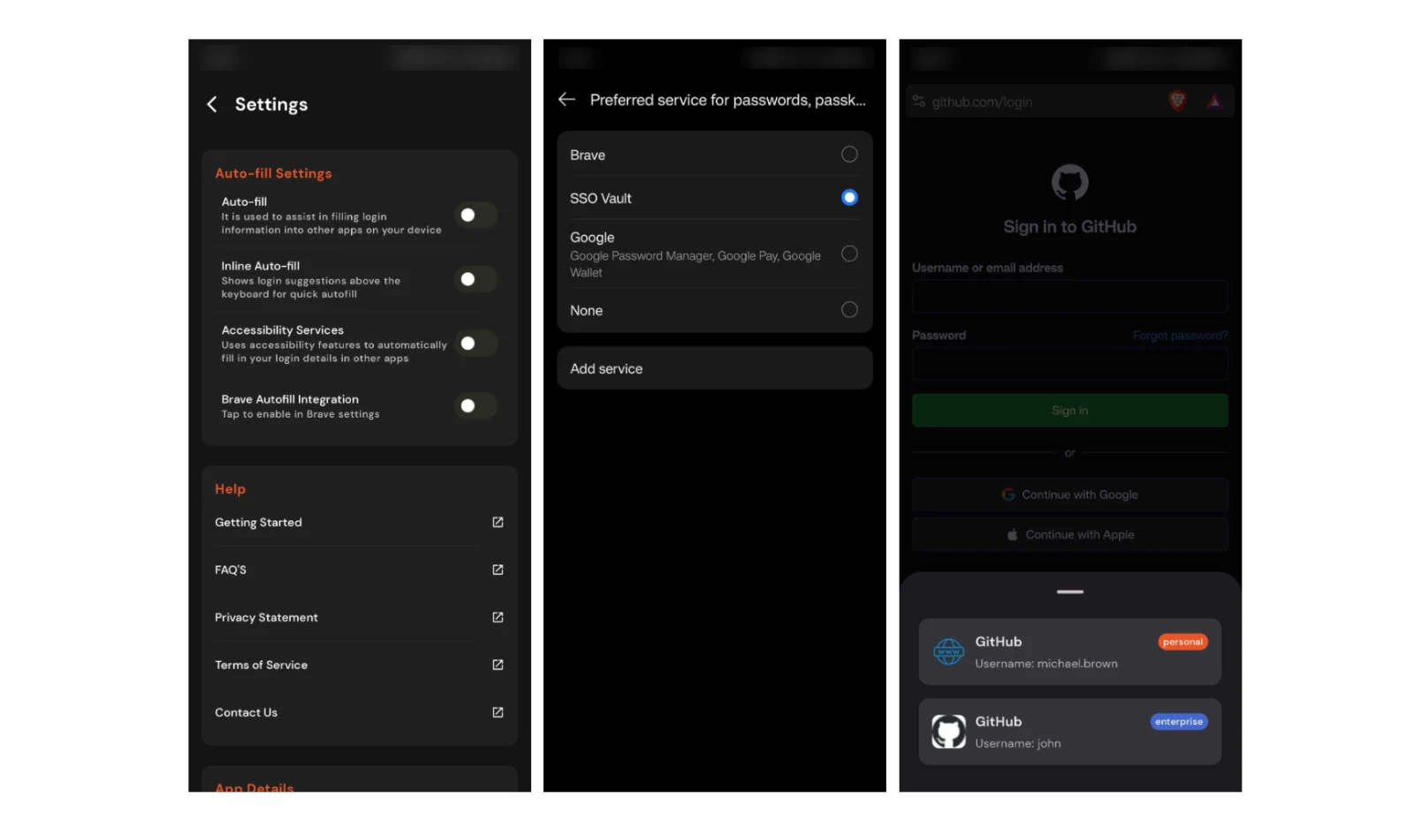
Enabling Autofill Service

13. Enabling Accessibility Service

For browsers that don't support the Autofill Framework, SSO Vault offers a fallback using Android's Accessibility Service.

  • Go to Settings → Autofill Settings → Accessibility Services, or tap Enable Accessibility Service when prompted.
  • You'll see a permission notice explaining exactly what the service does and does not do — it only reads visible screen content in supported browsers (Chrome, Firefox, Brave, and others) to find username/password fields, and does not record audio, video, screenshots, or send data off your device.
  • Tap Accept, then enable SSO Vault under Android Settings → Accessibility Services.

You can disable this service at any time from Android Settings → Accessibility.
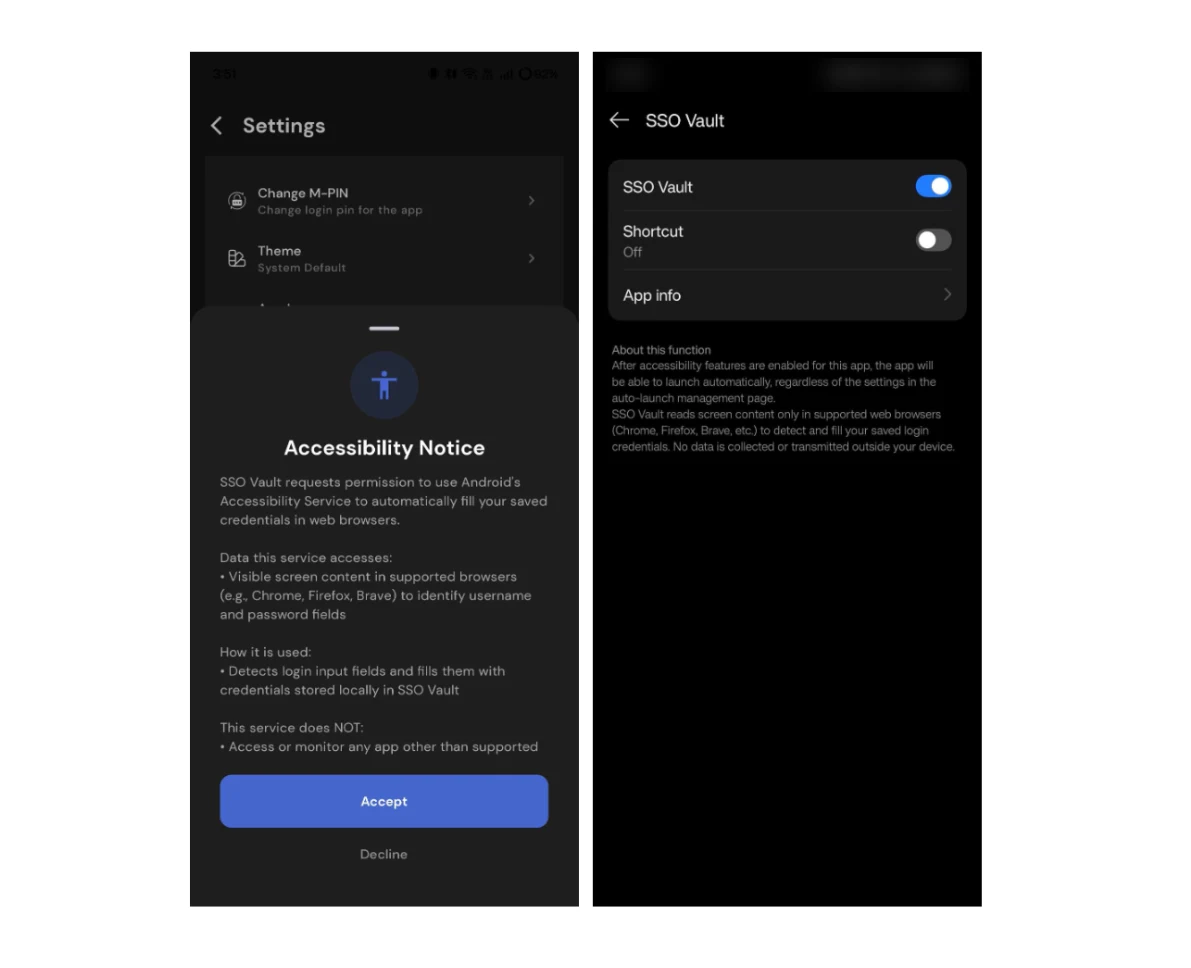
Enabling Accessibility Service

14. Profile & Settings

Open the Profile tab to see your name, email, and initials avatar at the top. From here:
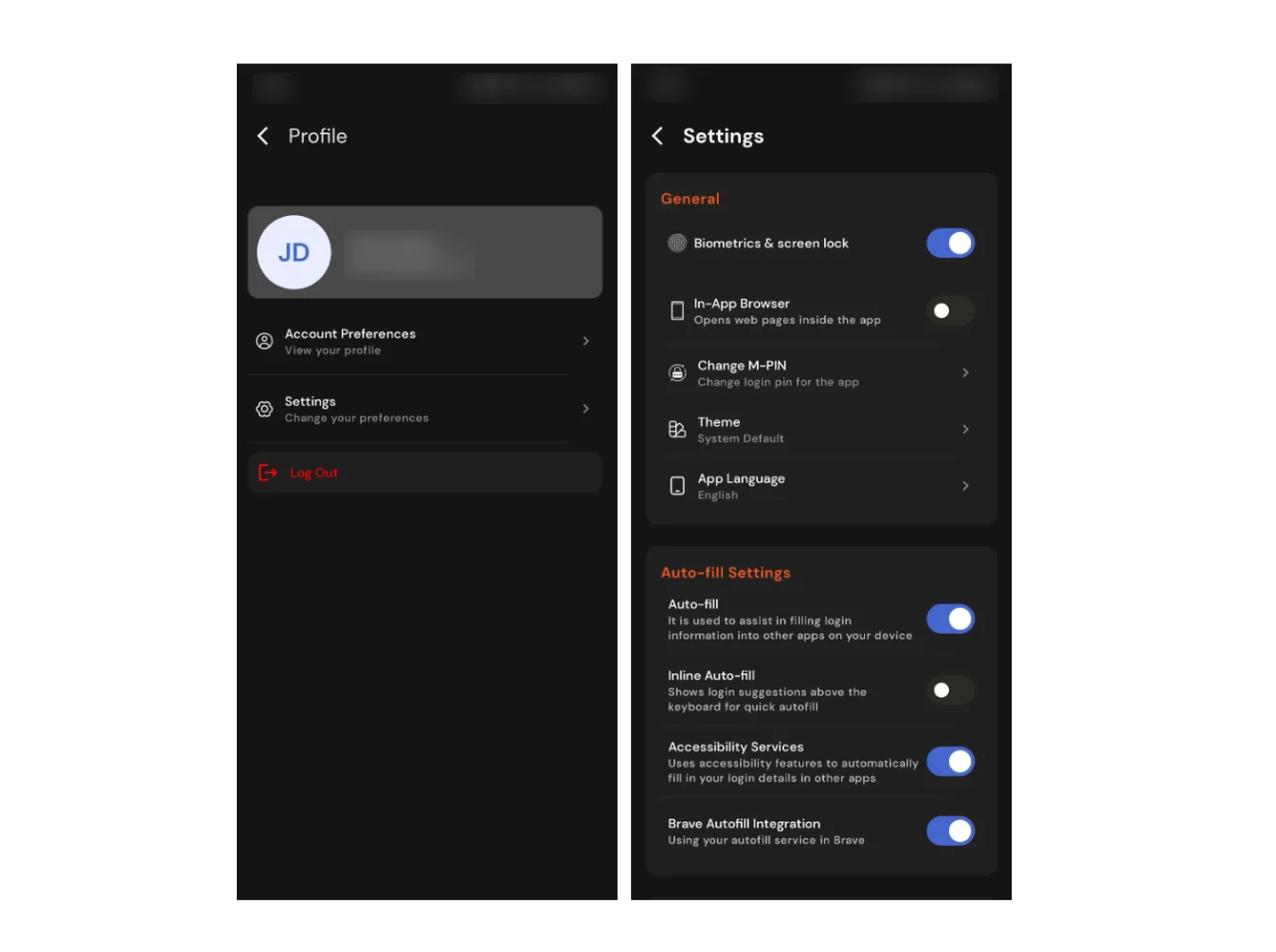
  • Account Preferences — view your profile details
  • Settings → General: Biometrics/Screen Lock, In-App Browser, Change M-PIN, App Language
  • Settings → Autofill Settings: Auto Fill Services, Inline Autofill, Accessibility Services, and per-browser integrations (Chrome, Brave)
  • App Details — app version and related information
Profile and Settings

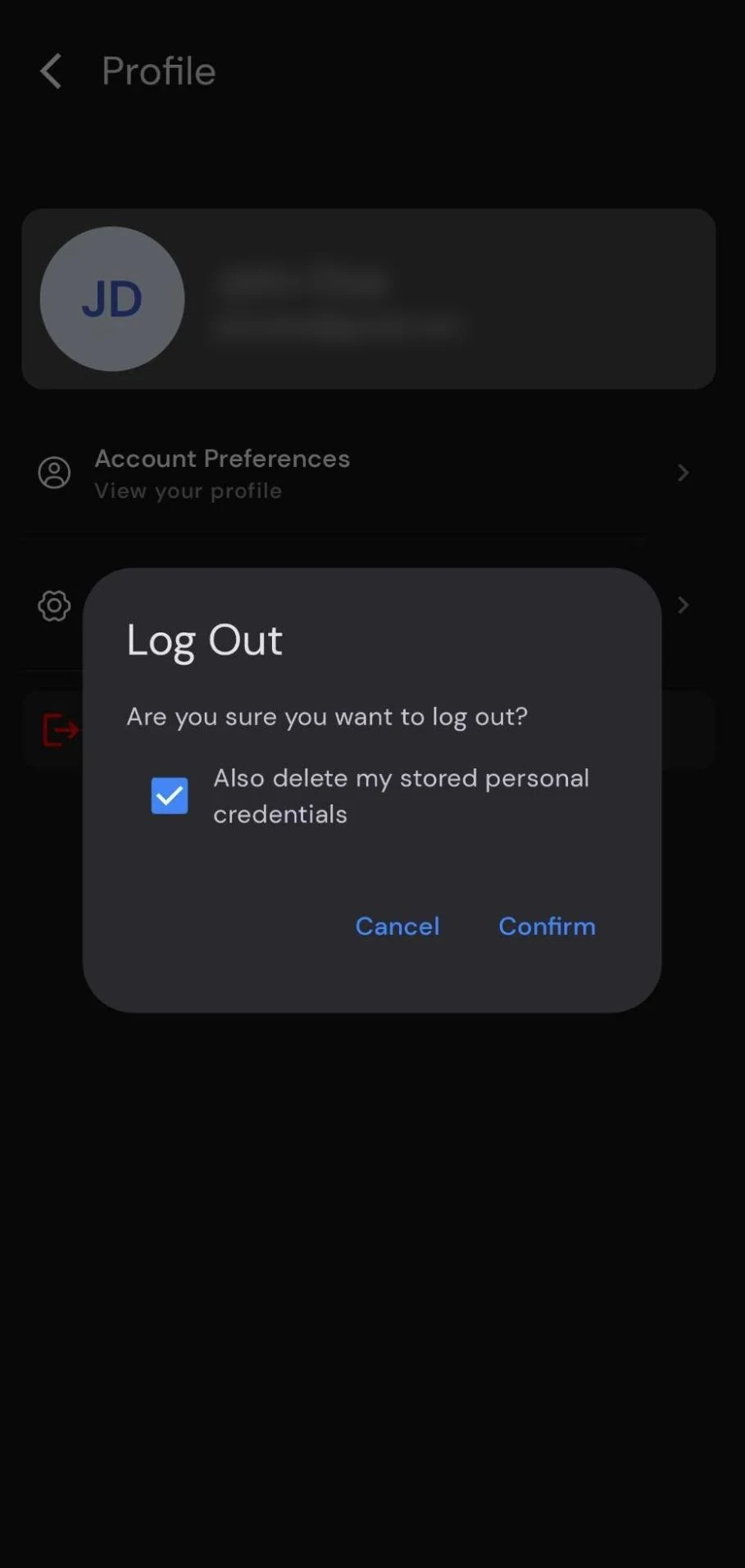
15. Signing Out

  • From the Profile tab, tap Log Out.
  • Confirm in the dialog: Are you sure you want to log out?
  • Optionally check Also delete my stored personal credentials if you want the Vault cleared on this device.
  • Tap Confirm.
Log Out Confirmation Dialog

16. Troubleshooting

Issue What to do
No internet connection banner Check your Wi-Fi or mobile data. The app will show Back Online! once connectivity returns.
Forgot your M-PIN Tap Forgot PIN? on the PIN entry screen. This logs you out and you'll need to sign in again.
Too many incorrect PIN attempts The app temporarily locks with a countdown (Try again in ...) before you can retry.
Autofill isn't offering credentials Confirm Auto Fill Services is enabled in Settings → Autofill Settings, and that a credential exists for that app or site in the Vault.
Accessibility autofill not working in a browser Confirm the service is enabled under Settings → Autofill Settings → Accessibility Services, and under Android Settings → Accessibility.
App won't open / security warning on launch SSO Vault blocks rooted, emulated, or debugged devices for security reasons. Use an unmodified physical device.

This guide covers miniOrange SSO Vault on iPhone and iPad: installing the app, signing in, and using your credential vault.

SSO Vault iOS Guide

1. What is SSO Vault?

miniOrange SSO Vault is an enterprise single sign-on (SSO) app for iPhone and iPad. Once your organization has set it up, it gives you one-tap access to all the business apps assigned to you, and it can automatically fill your saved usernames and passwords into other apps and websites on your device — so you don't have to type or remember them.

With SSO Vault you can:

  • See every enterprise application assigned to you in one place
  • Store and organize login credentials securely (encrypted on-device)
  • Autofill credentials into other apps and websites using iOS AutoFill
  • Launch enterprise apps with session-primed credentials for one-tap sign-in
  • Protect the app with an M-PIN and/or biometric (Face ID / Touch ID) lock

2. Before You Begin

You will need:

  • An iPhone or iPad running iOS 16.6 or later
  • Your organization's server URL or branding name (provided by your IT / SSO administrator)
  • Your enterprise login credentials (email / username and password, or SSO login)

If you don't have your organization's URL or branding name, contact your IT administrator before continuing.
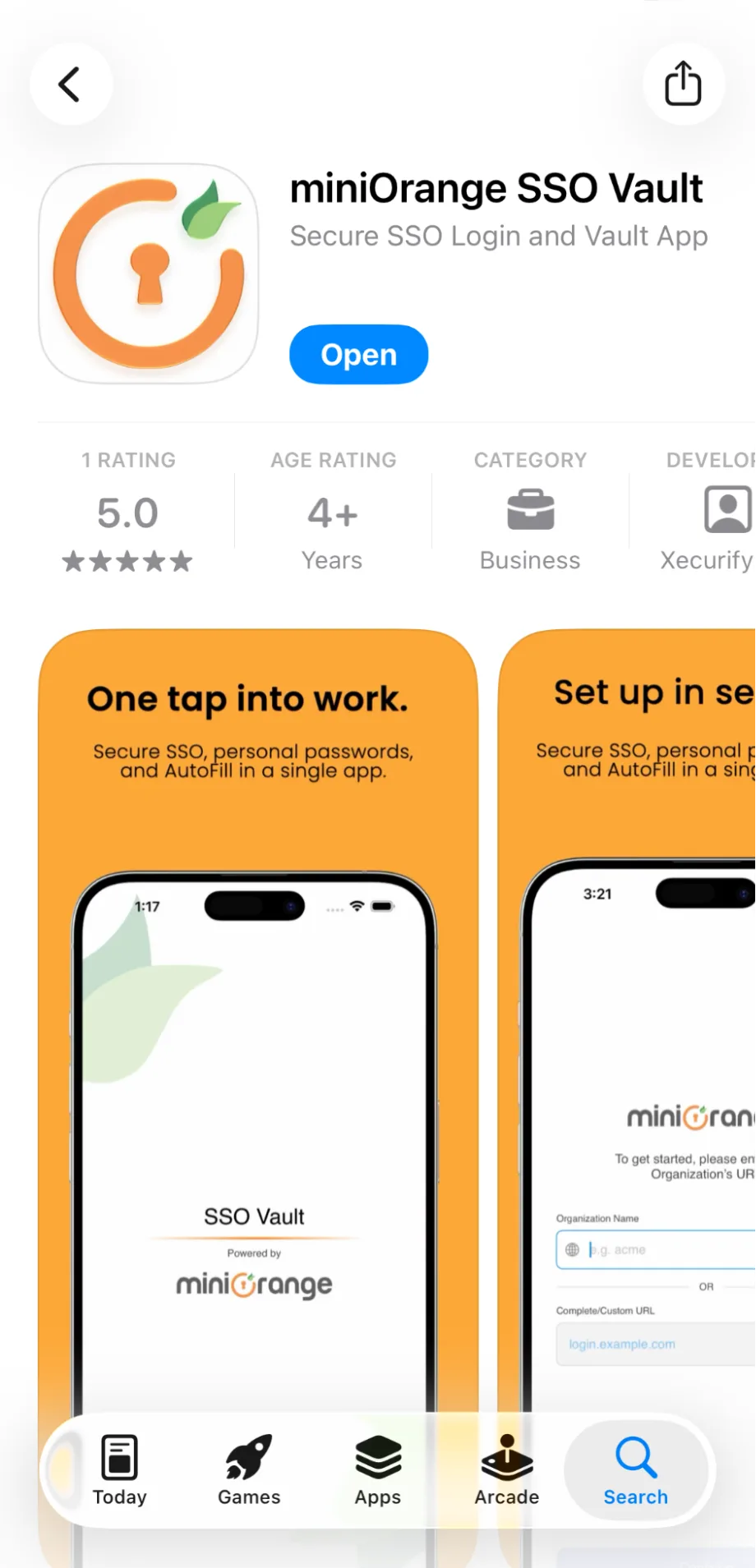
3. Installing the App

  • Install miniOrange SSO Vault from the App Store, or install the build provided by your organization via TestFlight if one has been shared with you.
  • Open the app once installation completes.
iOS Install App

4. Device Security Check (Splash Screen)

When SSO Vault launches, it briefly checks your device for security risks such as jailbreak, runtime instrumentation, or an attached debugger. This protects your stored credentials. If a risk is detected, you'll see a warning screen explaining why the app cannot continue safely on that device. On a normal, unmodified device you'll simply pass through to setup.

5. First-Time Setup: Connecting to Your Organization

On first launch you'll be asked to connect the app to your organization: To get started please enter your organization's URL.

You have two options — both lead to the same tenant:
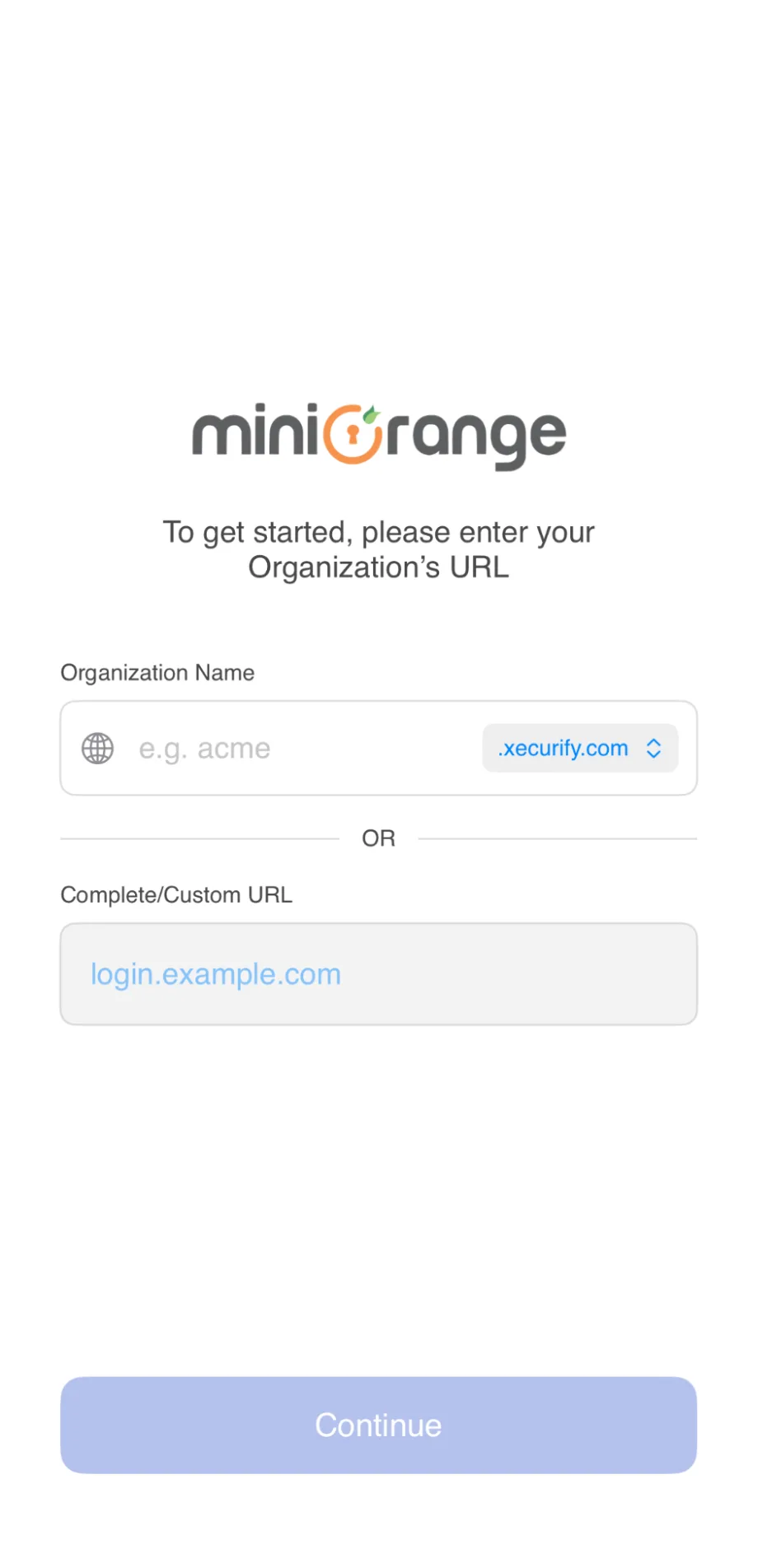
  • Branding + organization menu — enter your organization's branding name in the first field, then pick the correct base domain from the menu beside it (for example, select xecurify for a xecurify-hosted tenant).
  • Custom URL — tap OR and enter your full tenant URL directly if that's what your administrator gave you (for example tenantname.xecurify.com).
  • Tap Continue to proceed.
iOS Organization URL

6. Signing In

SSO Vault uses secure OAuth 2.0 login (with PKCE) through a web view — your password is never seen or stored by the app itself.
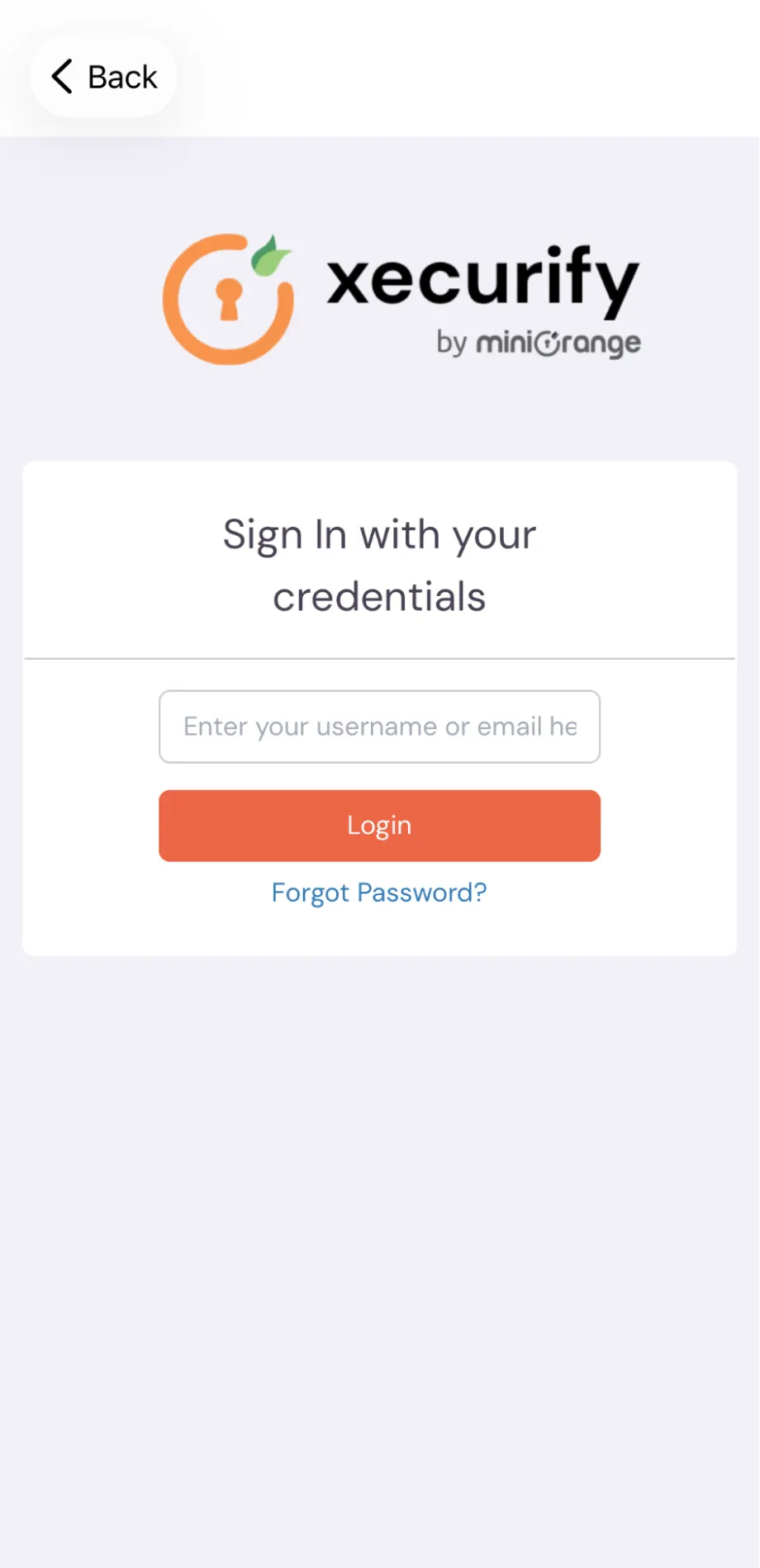
  • Tap Sign In / Continue. A secure web view opens showing your organization's login page.
  • Enter your enterprise username / email and password (or complete your organization's SSO flow, for example Google / Microsoft login).
  • Once authenticated, the web view closes automatically and SSO Vault takes over.
iOS Sign In

7. Setting Up Your M-PIN

After your first successful login, you'll be asked to Set up M-PIN — set a 4-digit M-PIN for app security.

  • Enter a 4-digit PIN. Digits appear masked as dots as you type.
  • Re-enter the same PIN to confirm it.

From now on, SSO Vault will ask for this M-PIN (Enter your M-PIN — Enter 4 Digit M-PIN for Secured Login) whenever you reopen the app. If you forget your PIN, tap Forgot PIN? — note that this logs you out of your account and you'll need to sign in again.
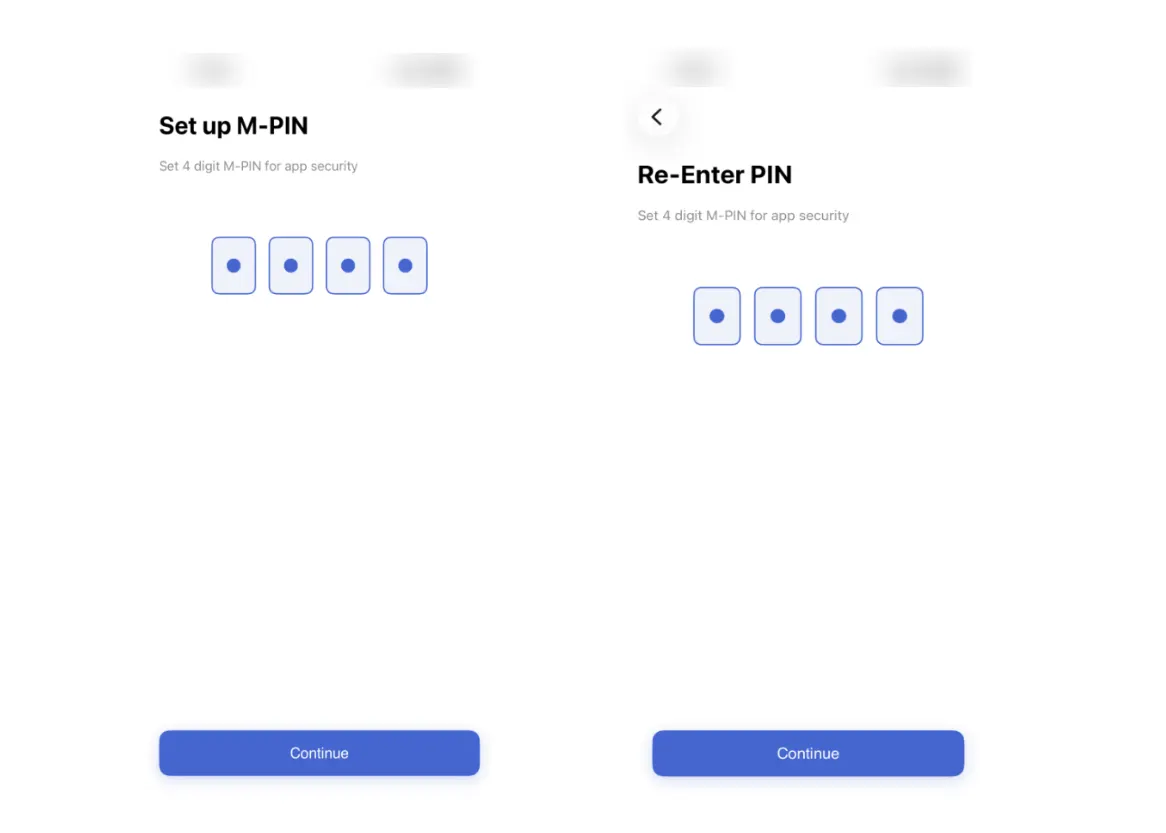
iOS M-PIN Setup

8. Enabling Biometric Login (Optional)

You may be prompted: Would you like to enable Face ID (or Touch ID) for faster and secure login? Tap Enable and confirm with your device's Face ID or Touch ID. You can turn this on or off later from Settings.

If your device uses Face ID, iOS will ask for permission the first time — tap OK to allow. On a device with Touch ID, place your enrolled finger on the sensor when prompted.
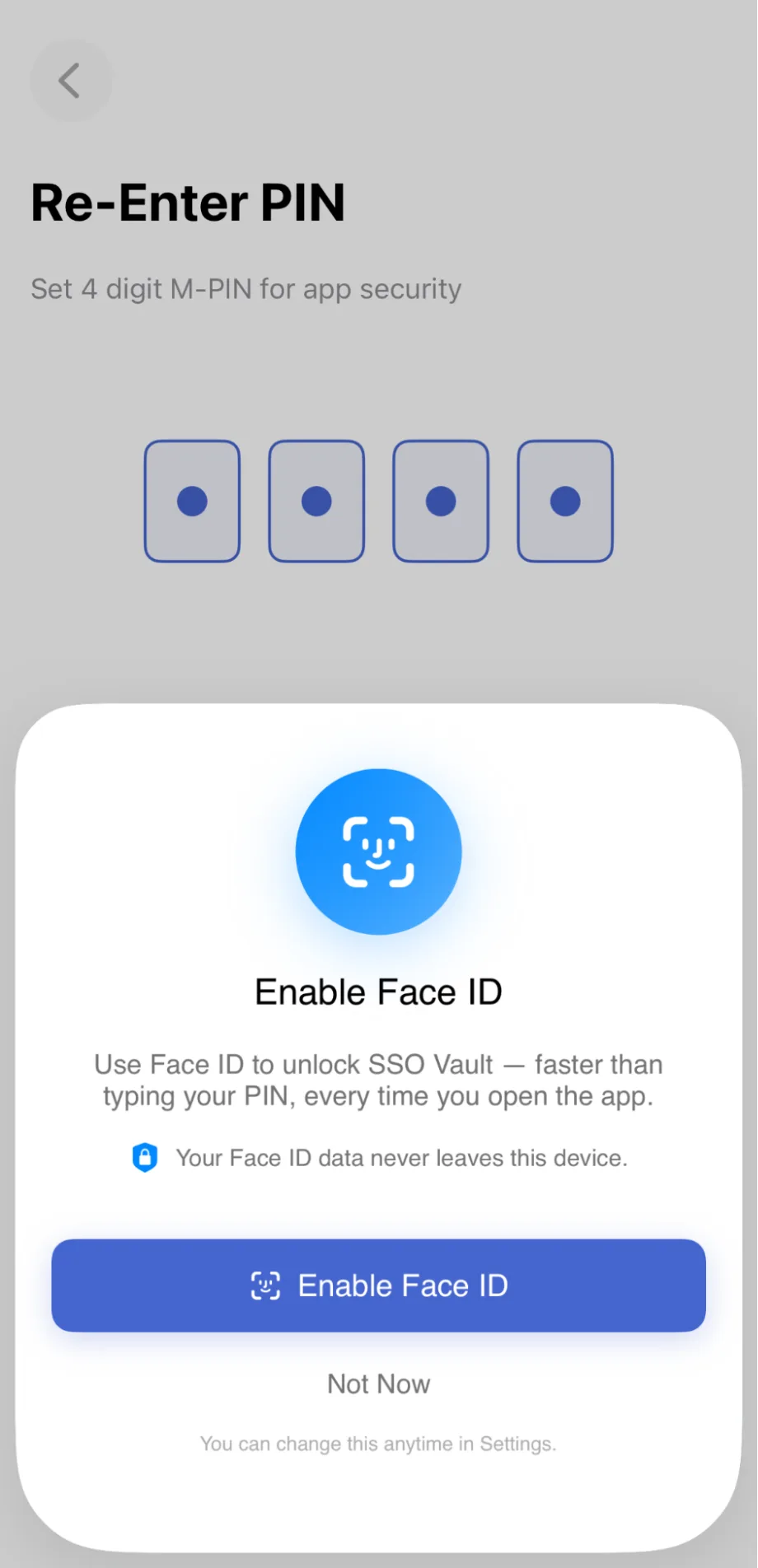
iOS Biometric Login

9. The Welcome Carousel: What SSO Vault Can Do

The first time through, a short set of intro slides walks you through the app's core features:

  • Welcome to your Enterprise Apps! — access all your organization-configured applications in one place
  • Lightning Fast Access — instant access to all your applications with intelligent single sign-on
  • Secure Autofill for Fast Authentication — automatic recognition and filling of login screens
  • Ready to Begin? — introduces iOS AutoFill for one-tap sign-on across apps and websites

Tap Next to move through the slides, or Skip to jump straight to the app. The last slide shows a Get Started button.
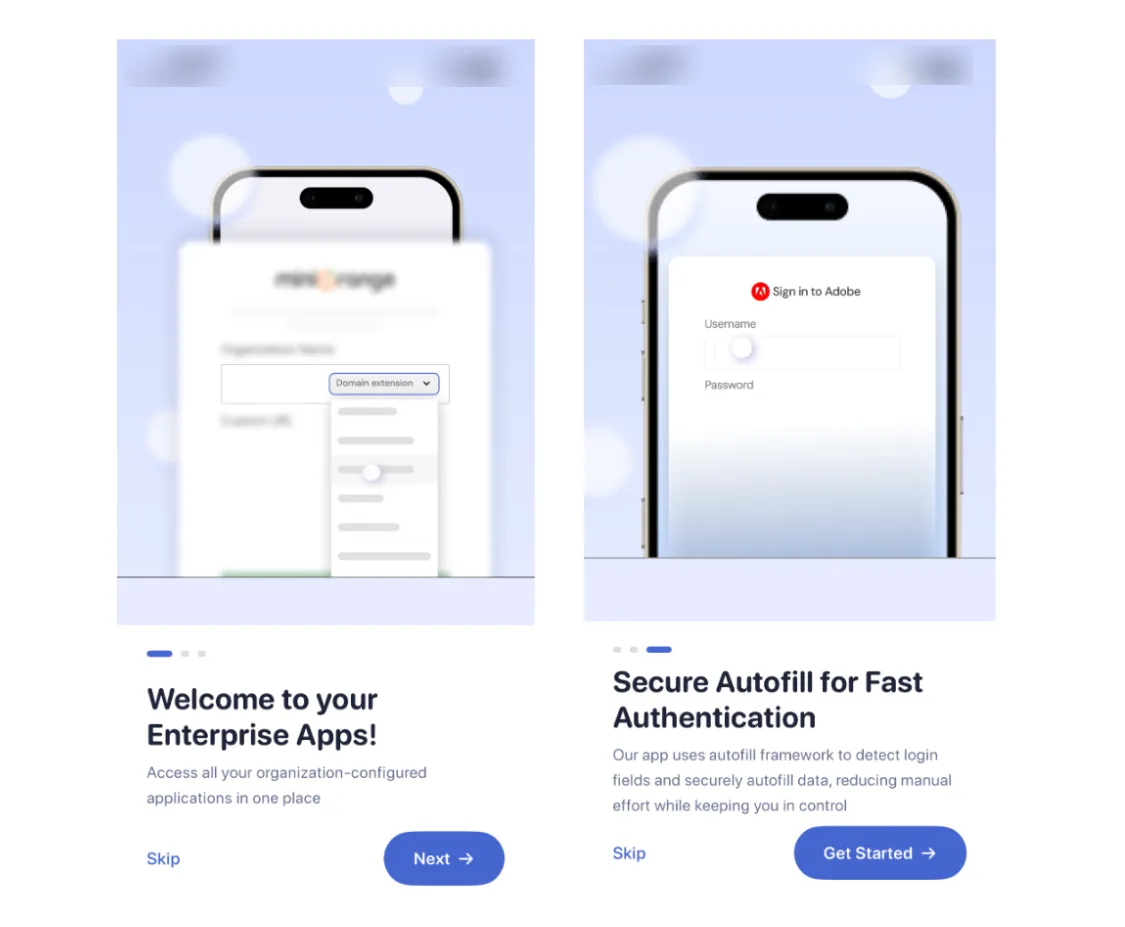
iOS Welcome Carousel

10. Home Screen: Your Enterprise Apps

The Enterprise tab lists every enterprise app assigned to you (Sign in to your favourite cloud apps). From here you can:

  • Search for a specific app using the search bar at the top
  • Tap an app to sign in to it via SSO
  • Add or manage credentials for an app (Add Credentials)
  • View shared identities / credentials, if your organization has shared logins
  • Switch between grid and list layouts using the toolbar toggle

If no apps are assigned yet, or a search returns nothing, you'll see a No apps found message with suggestions to check your spelling or keywords.
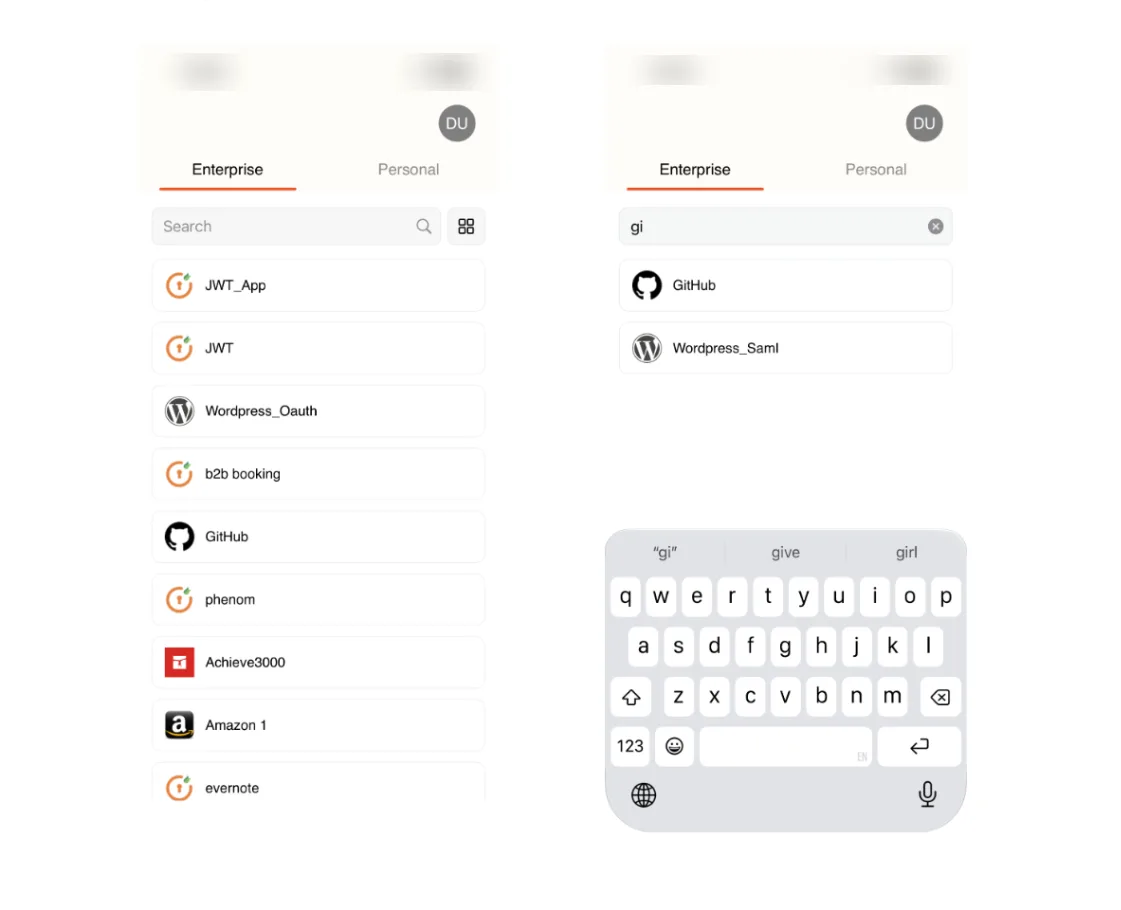
iOS Enterprise Apps

11. The Vault: Managing Saved Credentials

The Personal tab (Store your credentials securely) is where personal and per-app credentials you've saved are kept, encrypted on-device.
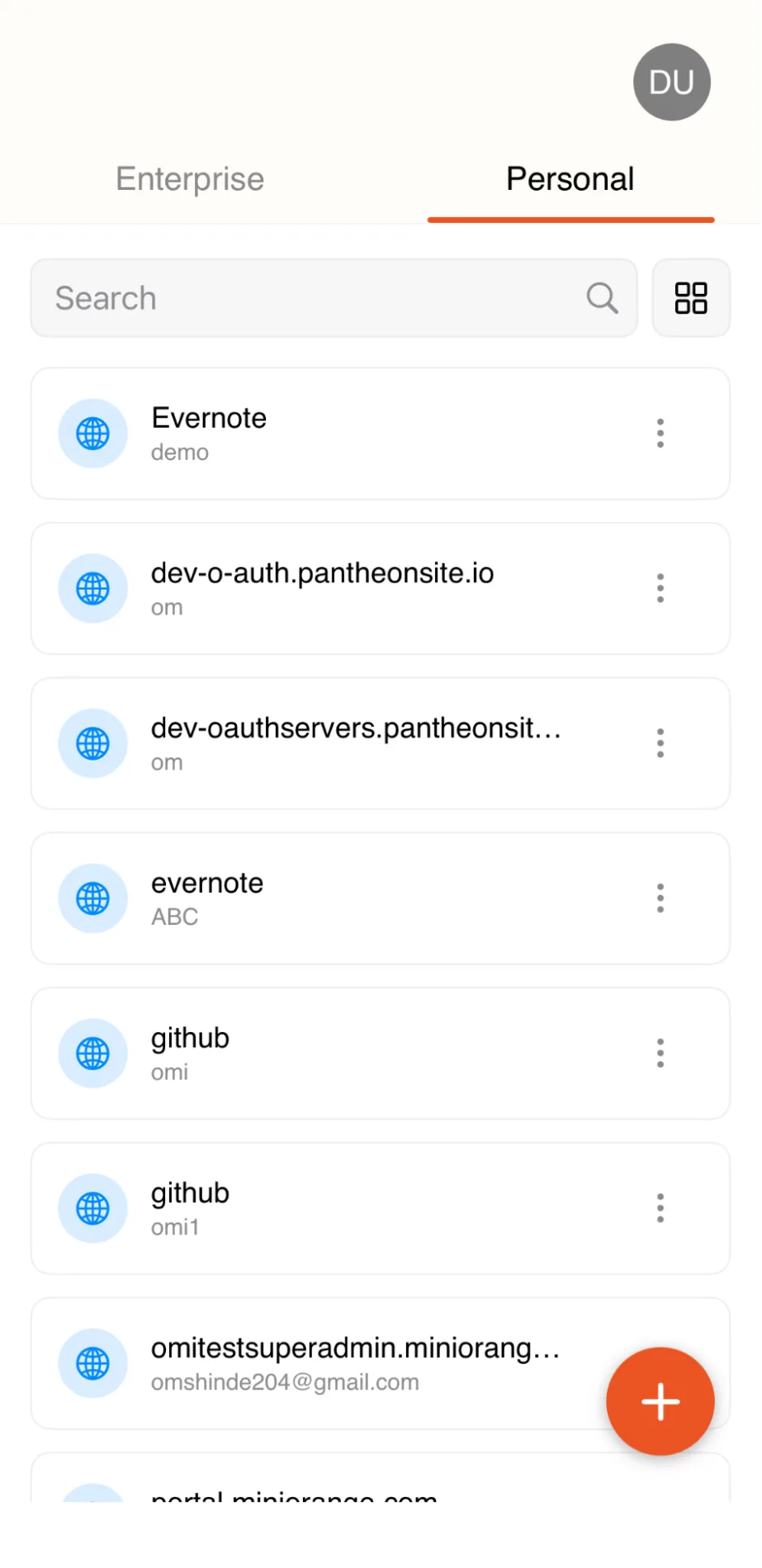
  • Tap Add Credential (or Add Credentials) and fill in the details for a login (name, website URL, username, password, notes).
  • Tap Save — you'll see a Credential saved! confirmation.
  • Tap any existing credential to view it, Edit, or Delete.
  • Deleting a credential asks for confirmation and offers a short undo, since this action cannot be reversed once dismissed.
  • You can also import credentials from another password manager — tap Import in the floating action menu and pick a CSV file exported from Google, Chrome, Safari, iCloud Passwords, LastPass, Bitwarden, 1Password, or Dashlane.
iOS Managing Saved Credentials

12. Enabling AutoFill

To let SSO Vault fill your saved credentials into other apps and websites automatically, you need to enable it as an AutoFill provider in iOS Settings.

  • Open the iOS Settings app.
  • Go to General → AutoFill & Passwords (on older iOS versions: Passwords → AutoFill Passwords).
  • Make sure AutoFill Passwords and Passkeys is turned on.
  • In the Use passwords and passkeys from list, tap SSO Vault so it's checked.
  • Alternatively, when SSO Vault prompts you on the Dashboard the first time, tap Enable AutoFill — the button deep-links you to the correct iOS Settings page.

Once enabled, whenever you tap into a username or password field in another app or in Safari, the SSO Vault credential matching that site will appear as a suggestion in the keyboard bar. Tap it to fill both fields instantly. You can turn SSO Vault off as a provider at any time from the same iOS Settings screen.

For enterprise app launches from the Dashboard, SSO Vault also primes the matching credential for 5 minutes so the keyboard-bar suggestion is ready the moment you land on the sign-in page.
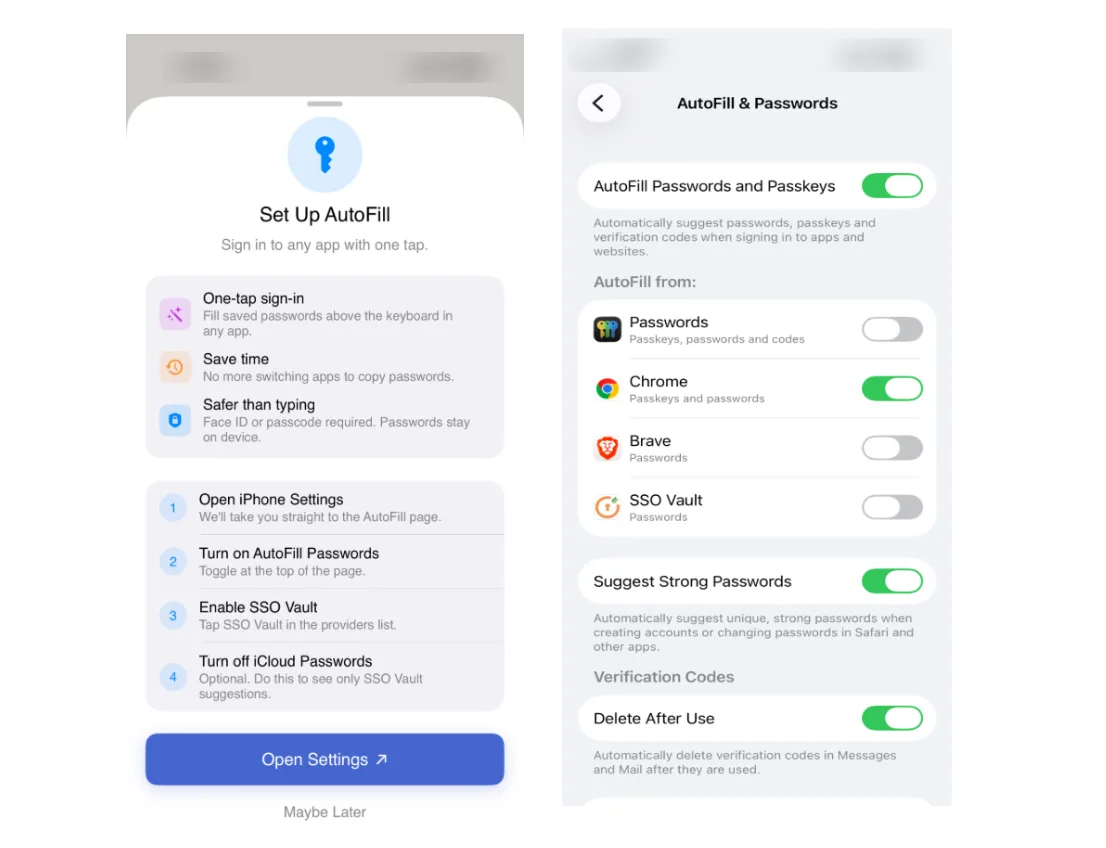
iOS Enabling AutoFill

13. Profile & Settings

Tap the profile icon in the top-right corner of the Dashboard to open the Profile view, which shows your initials avatar, your full name, and quick entry points to Personal Info, Settings, and Logout.

Inside Settings you'll find:

  • General — In-App Browser toggle (open enterprise links in-app vs external Safari), Theme (Light / Dark / System), App Language.
  • Security — Biometric unlock toggle (Face ID / Touch ID), Change M-PIN.
  • AutoFill — Suggest in Keyboard Bar toggle for Personal credentials, plus a deep-link shortcut to enable system-level AutoFill in iOS Settings.
  • App Details — version number and related information.

Every preference persists across app relaunches, and theme changes apply instantly without needing a restart.
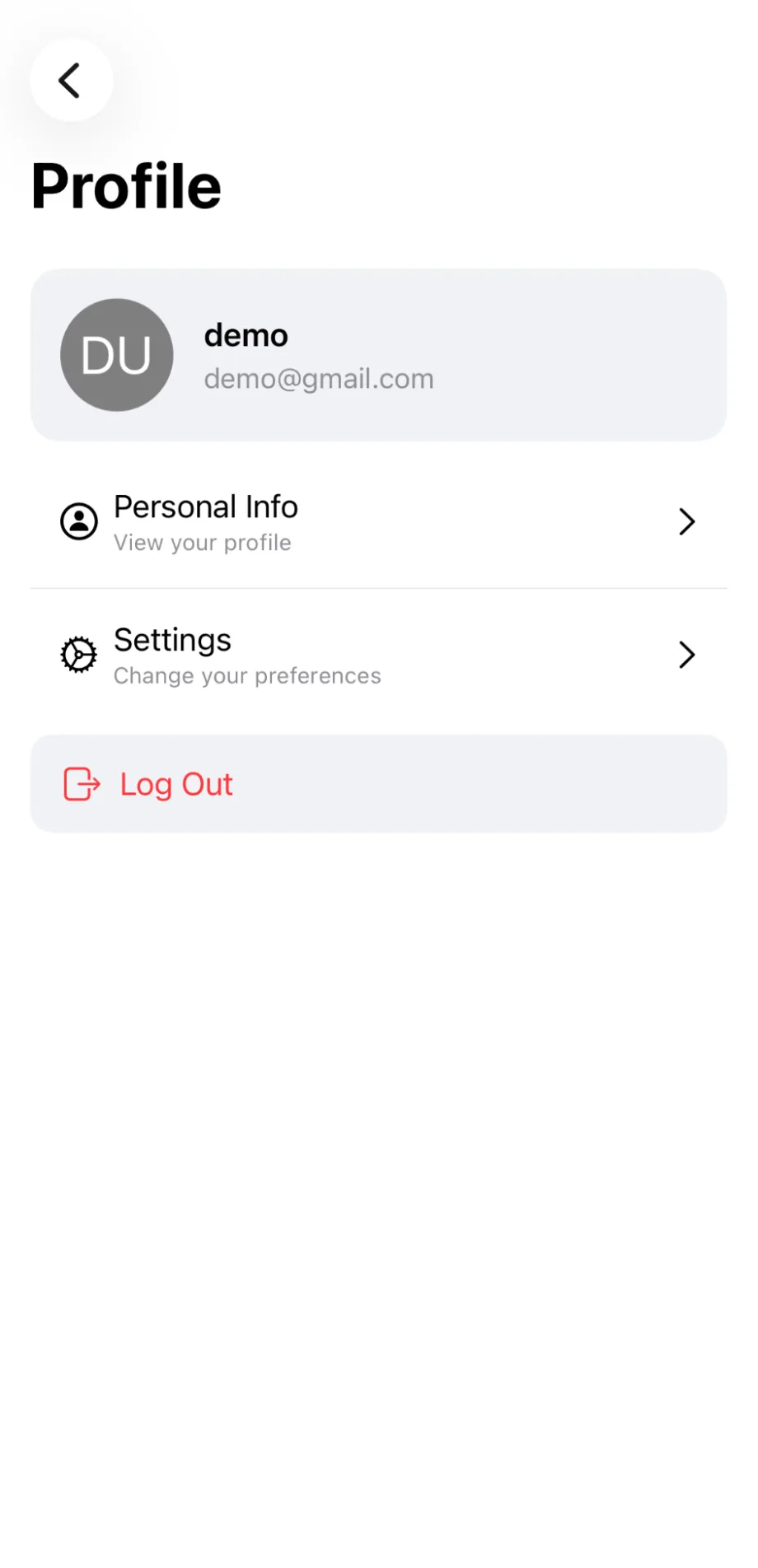
iOS Profile and Settings

14. Signing Out

From the Profile view, tap Log Out. SSO Vault asks you to confirm, and gives you two explicit modes:

  • Keep personal credentials — signs you out of your organization session but preserves your M-PIN, biometric preference, vault key, and personal credentials on this device. The next time you sign in, you'll go straight to Validate M-PIN and your vault is intact.
  • Erase personal credentials — signs you out and wipes everything: M-PIN, biometric preference, vault key, and every personal credential. The next sign-in starts a fresh M-PIN setup. This action cannot be undone.

Pick the one that matches your situation (temporary sign-out vs. permanent handoff) and tap Confirm. SSO Vault returns you to the Setup Branding screen cleanly without flicker.
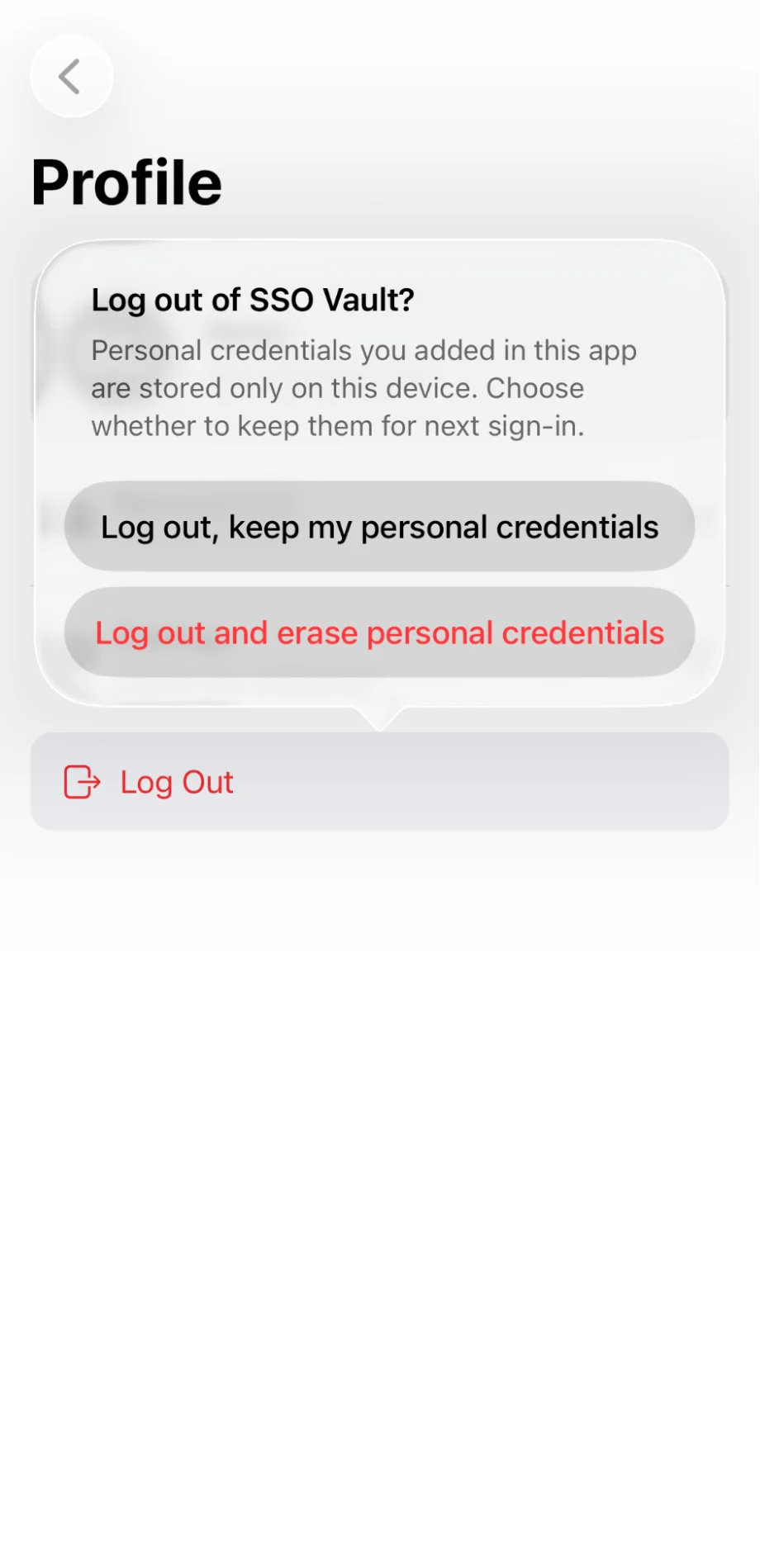
iOS Signing Out

15. Troubleshooting

Issue What to do
No internet connection banner Check your Wi-Fi or mobile data. SSO Vault auto-refreshes when connectivity returns.
Forgot your M-PIN Tap Forgot PIN? on the PIN entry screen. This logs you out and you'll need to sign in again.
Too many incorrect PIN attempts The app temporarily locks with a countdown (five wrong attempts, then a three-minute lockout) before you can retry.
AutoFill isn't offering credentials Confirm SSO Vault is enabled in iOS Settings → General → AutoFill & Passwords, that a credential exists for that app or site in the Vault, and that the Suggest in Keyboard Bar toggle is on in SSO Vault's own Settings.
Enterprise app launched but no AutoFill on the destination The 5-minute priming window may have expired — relaunch the app from the Dashboard. If your browser preference is set to In-App Browser, try switching to External Safari in Settings so the session carries over to other apps.
App won't open / security warning on launch SSO Vault blocks jailbroken, instrumented, or debugged devices to protect your credentials. Use an unmodified device.
Biometric prompt not appearing Open iOS Settings → Face ID & Passcode (or Touch ID & Passcode) and confirm SSO Vault is allowed to use biometrics. Re-enable the toggle inside SSO Vault's Settings if needed.


Want To Schedule A Demo?

Request a Demo


Our Other Identity & Access Management Products