Hello there!

Need Help? We are right here!

Support Icon
miniOrange Email Support
success

Thanks for your Enquiry. Our team will soon reach out to you.

If you don't hear from us within 24 hours, please feel free to send a follow-up email to info@xecurify.com

Search Results:

×

Fortinet (Fortigate) Single Sign-On (FSSO)


Fortinet Single Sign-On (FSSO) solution by miniOrange provides you with secure Single Sign-On access to multiple On-Premise and Cloud Applications using a single set of login credentials. With miniorange’s Identity Provider (IDP) service you can use SSO to login to multiple applications using a single Fortinet username and password. Looking at another way, if your users are in any third-party Identity Providers (Azure Active Directory, Okta, Auth0) and you want your users to log into Fortinet (Fortigate) using existing IDP credentials, you can easily allow them to use SSO to login securely.


miniOrange and Fortinet Single Sign-On (FSSO) integration supports the following features:

  • SP Initiated Single Sign-On (SSO)
  • IdP Initiated Single Sign-On (SSO)

Connect with External Source of Users


miniOrange provides user authentication from various external sources, which can be Directories (like ADFS, Microsoft Active Directory, OpenLDAP, AWS etc), Identity Providers (like Microsoft Entra ID, Okta, AWS), and many more. You can configure your existing directory/user store or add users in miniOrange.
Prerequisites:

  • To get the SP metadata details, Login to your Fortigate as admin.
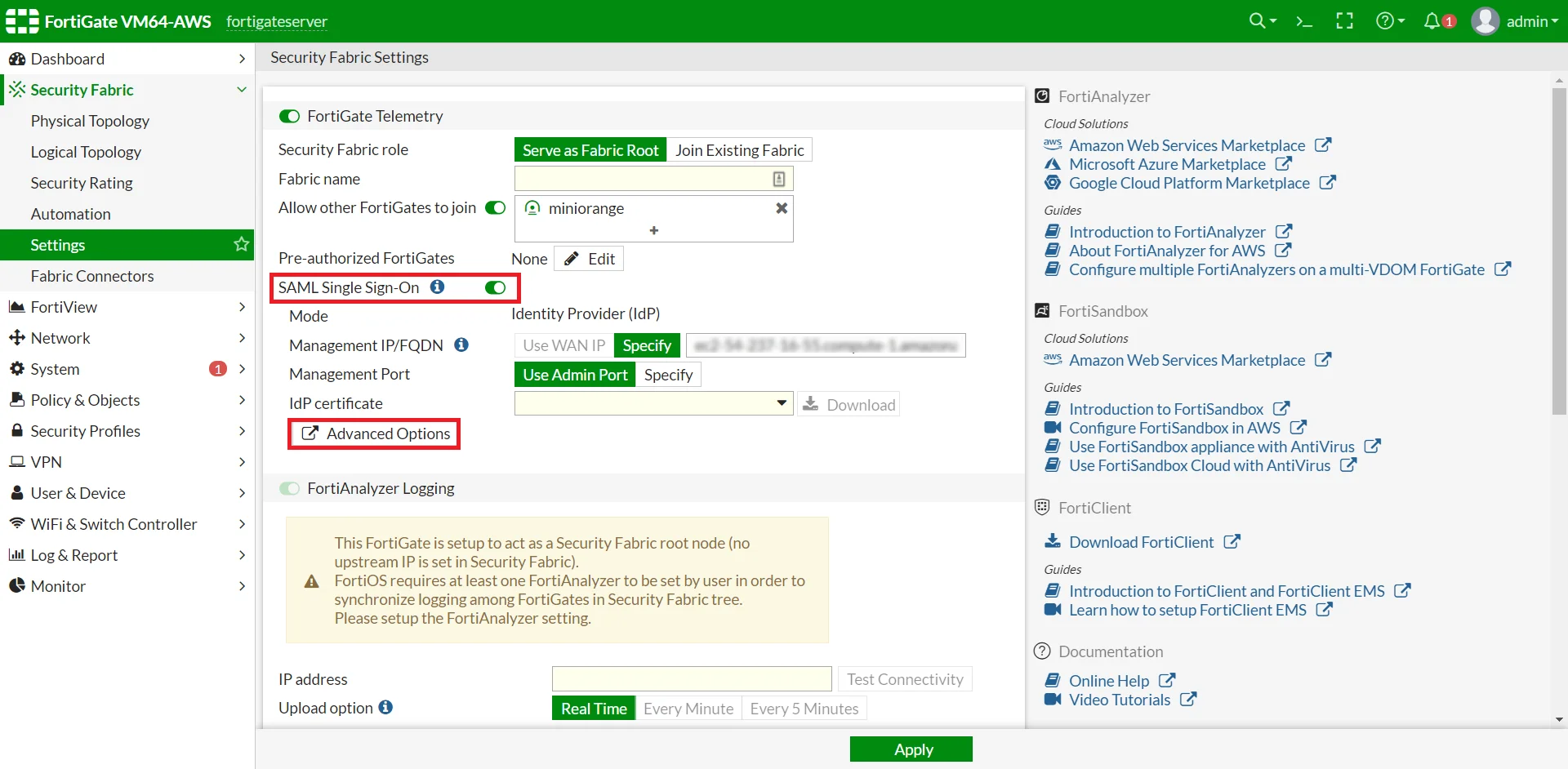
  • Go to Security Fabric >> Settings.
  • Enable SAML Single Sign-On and click on Advanced Options.
  • Fortigate Single Sign-On (FSSO): Enable SAML Single Sign-On

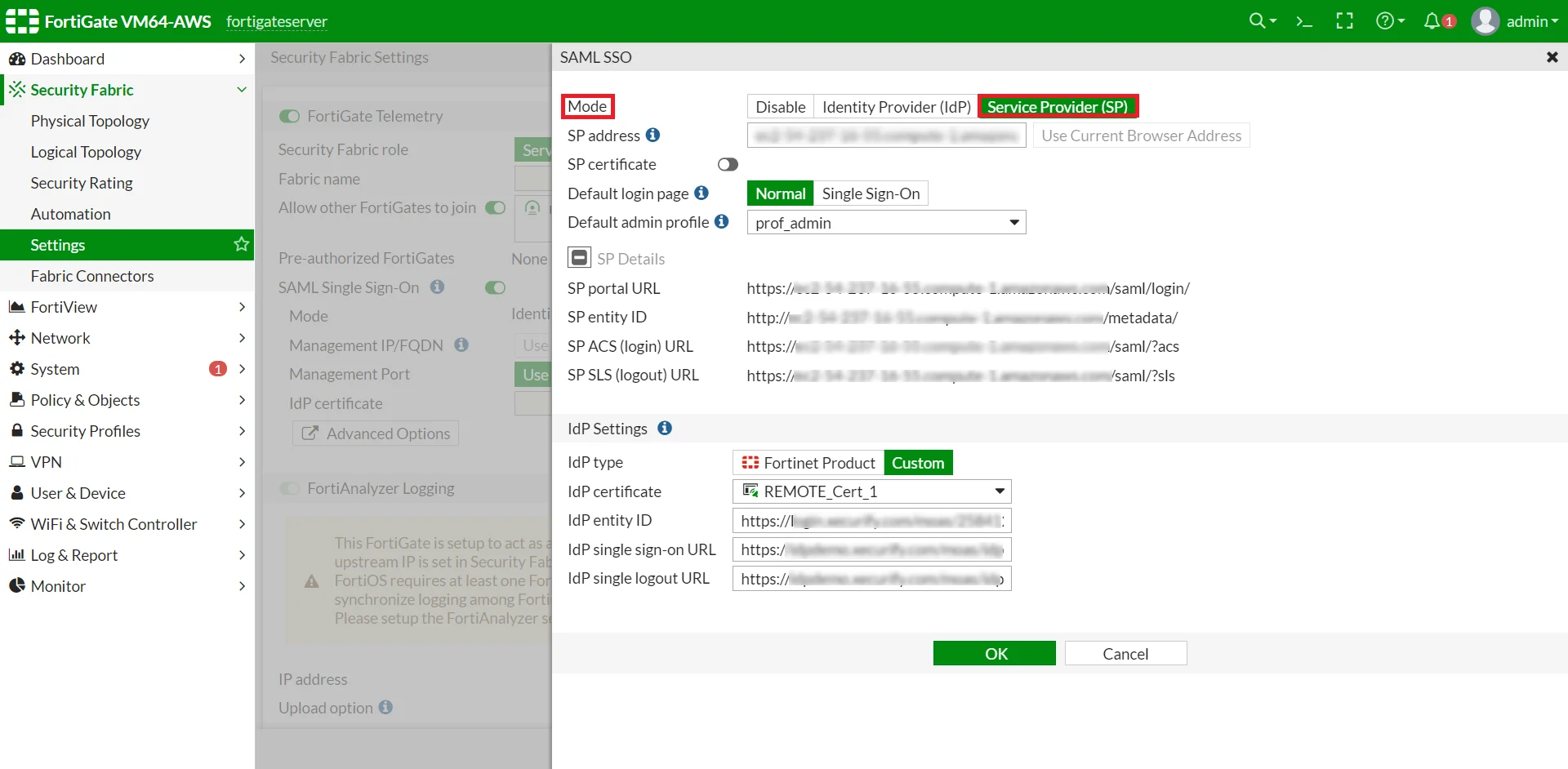
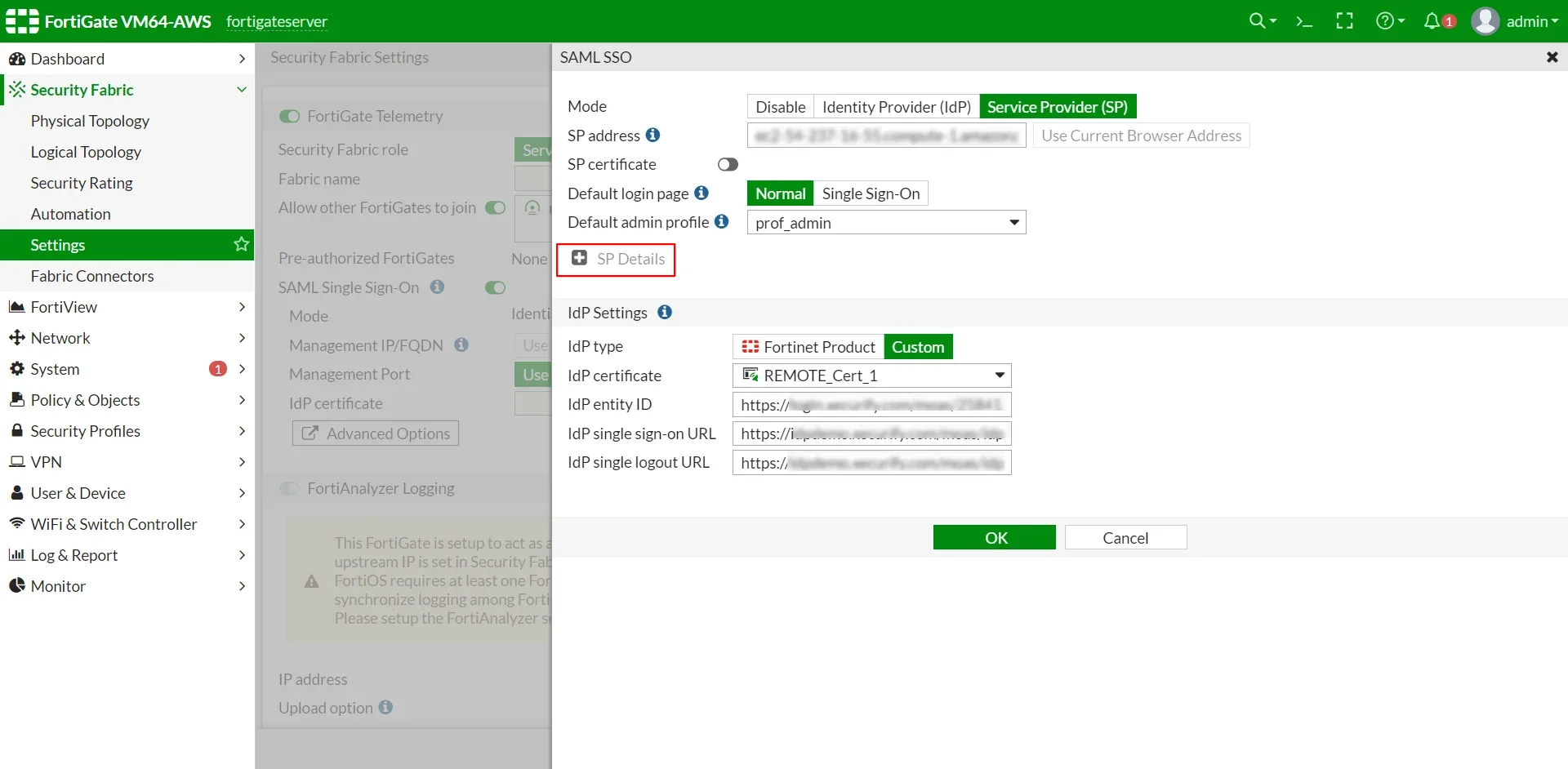
  • Choose Mode as Service Provider (SP), then click on SP Details.
  • Fortigate Single Sign-On: Click Advanced Options

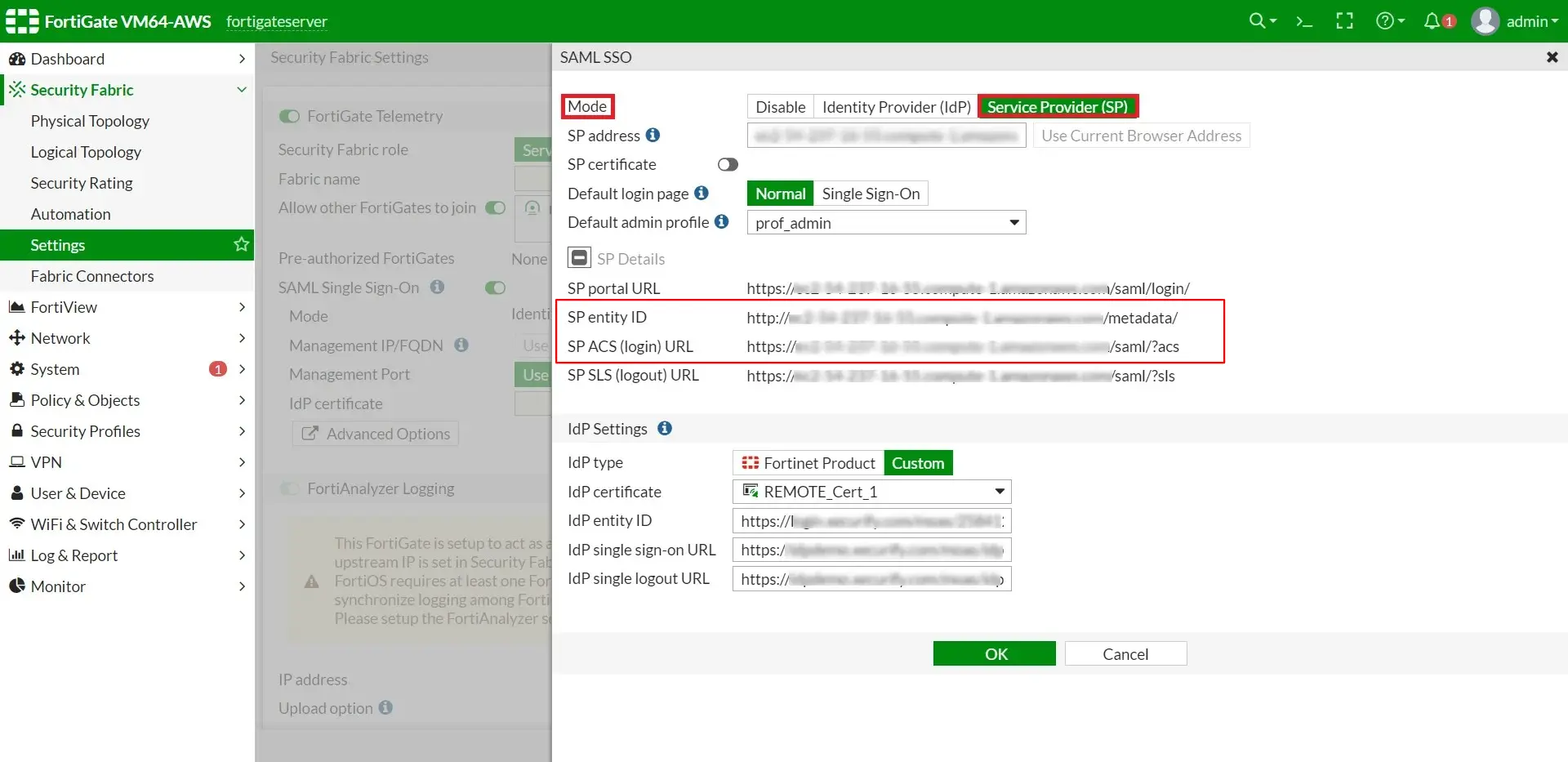
  • Copy the SP Entity ID and ACS URL, you will require in the Step 1 while configuring the SSO in miniOrange dashboard.
  • Fortigate Single Sign-On: Copy Entity ID and ACS URL from FortiGate SAML SSO

Follow the Step-by-Step Guide given below for Fortigate Single Sign-On (FSSO)

1. Configure Fortinet in miniOrange

  • Login into miniOrange Admin Console.
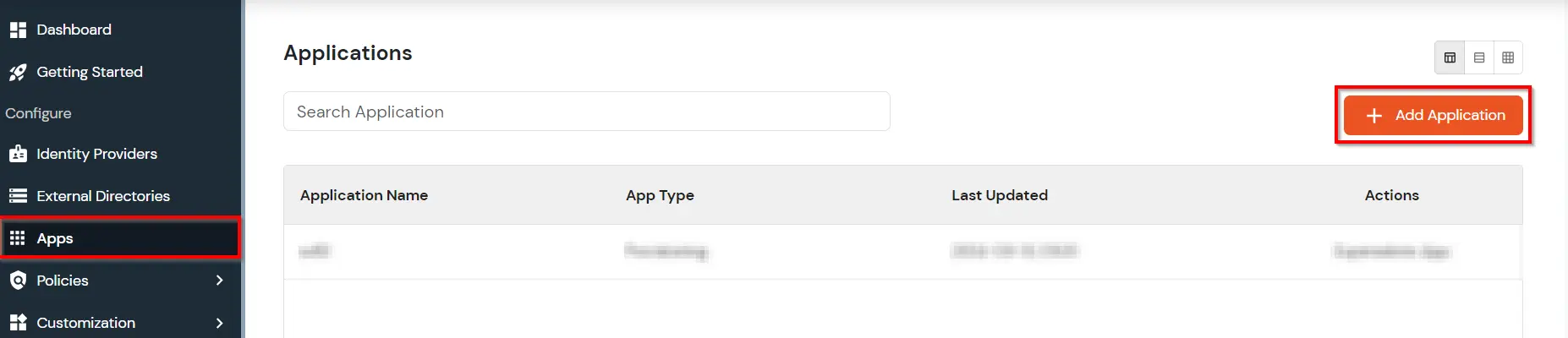
  • Go to Apps and click on Add Application button.
  • Fortinet Single Sign-On (SSO) add app

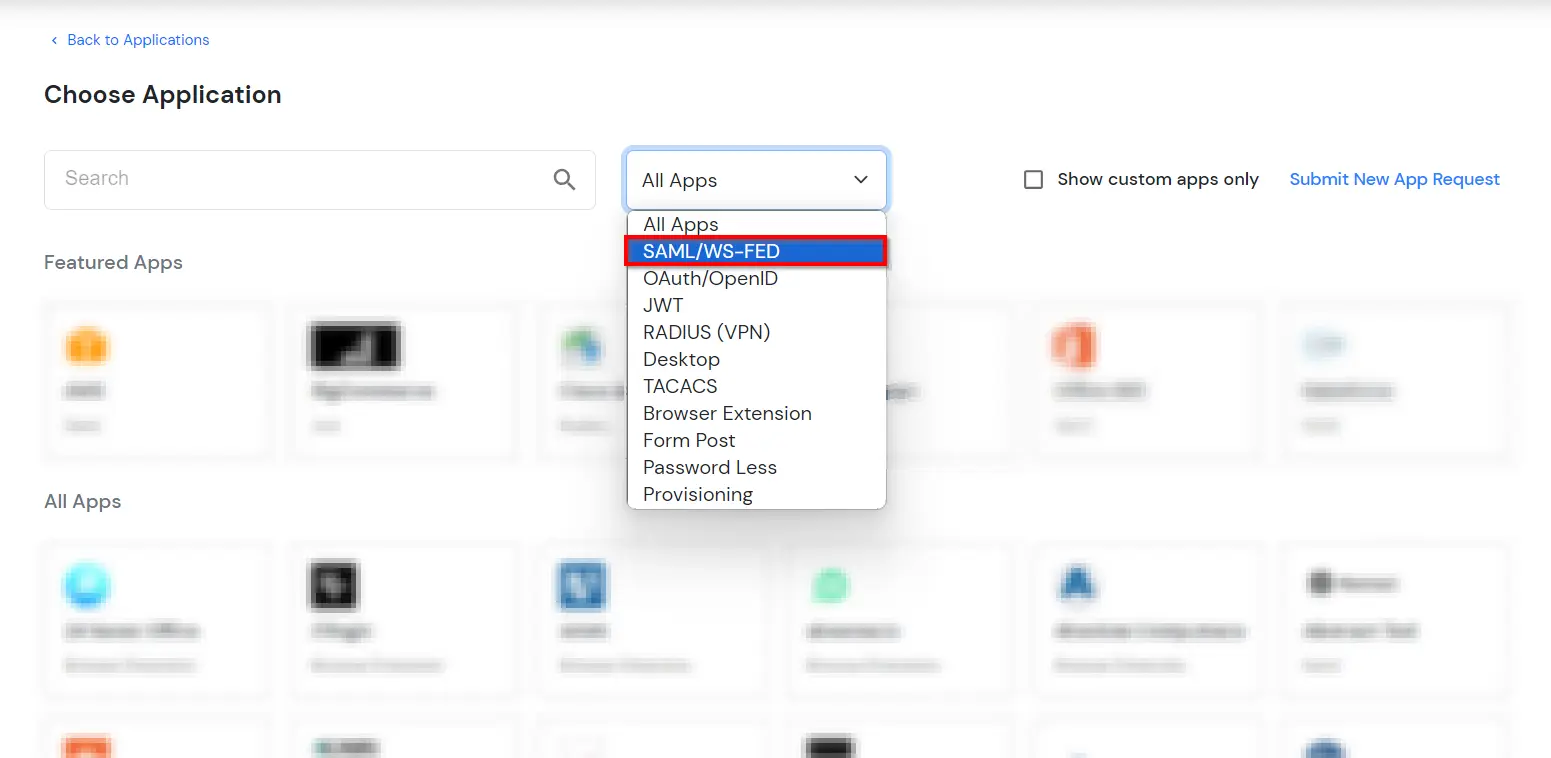
  • In Choose Application Type, select SAML/WS-FED from the All Apps dropdown.
  • Fortinet Single Sign-On (SSO) choose app type

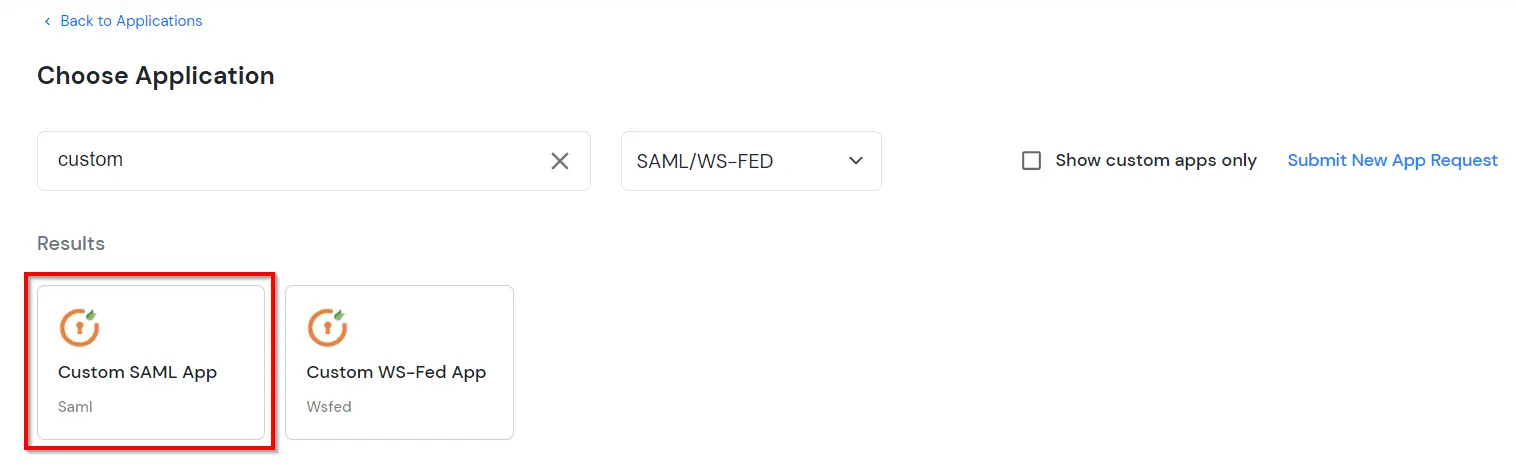
  • Search for Fortinet in the list, if you don't find Fortinet in the list then, search for custom and you can set up your application in Custom SAML App.
  • Fortinet Single Sign-On (SSO) manage apps

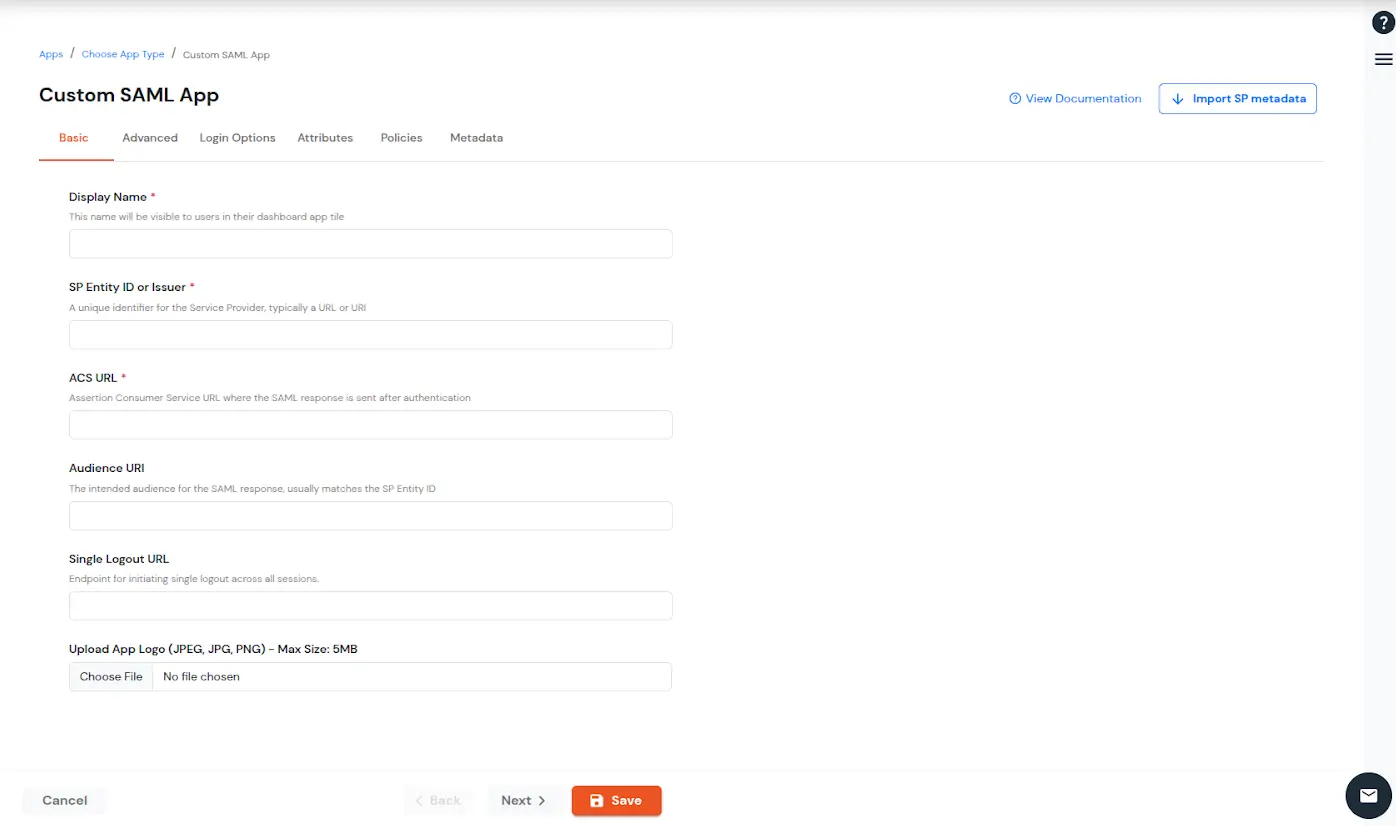
  • Enter the following values in the respective fields.
  • SP Entity ID SP Entity ID or Issuer from the Prerequisites.
    Assertion Consumer Service ACS URL from Prerequisites.
    Fortigate SSO: Basic Setting

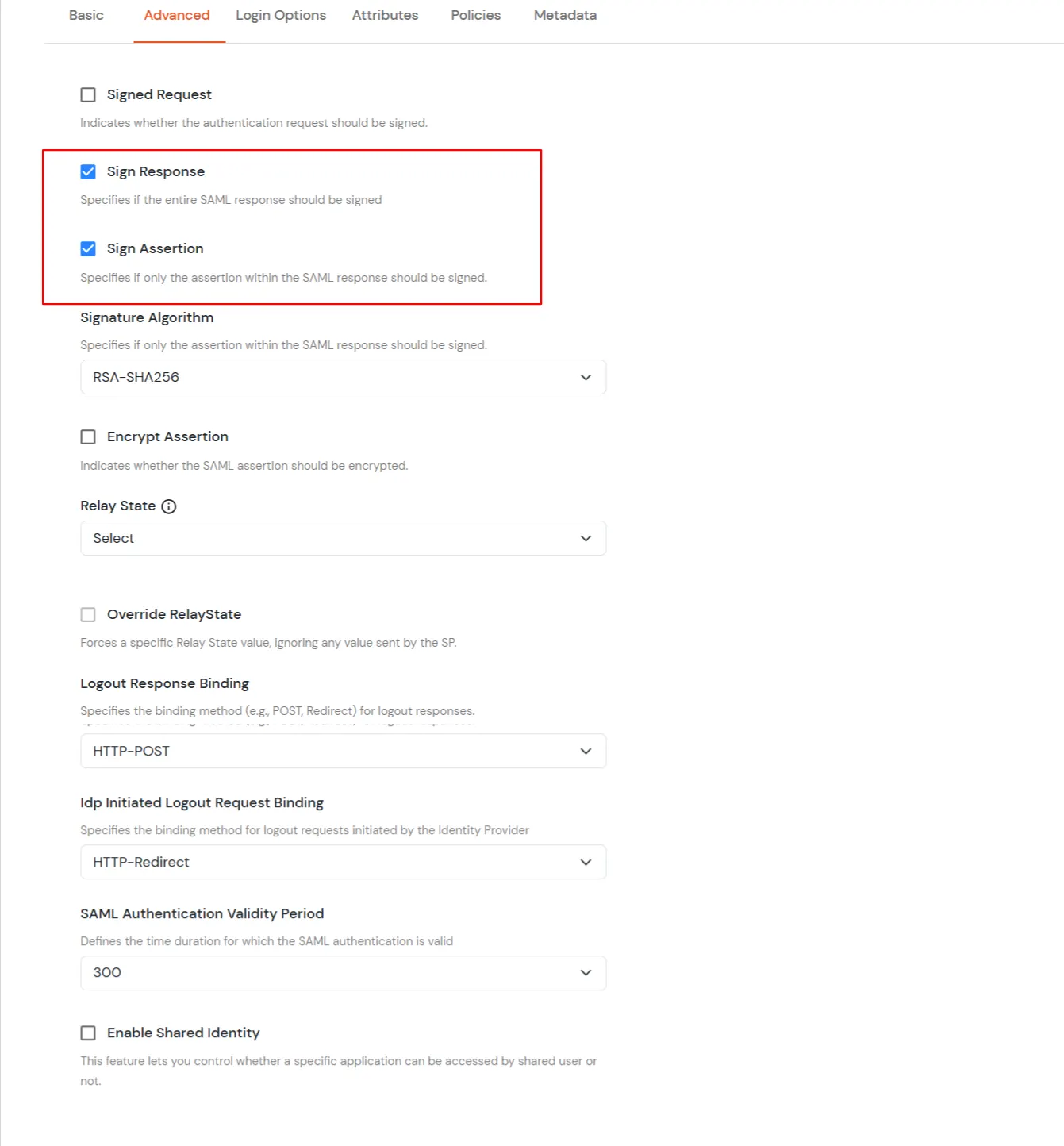
  • Click Next to go to the Advanced settings. Then select Sign Response and Sign Assertion.
  • Fortigate SSO: advanced settings

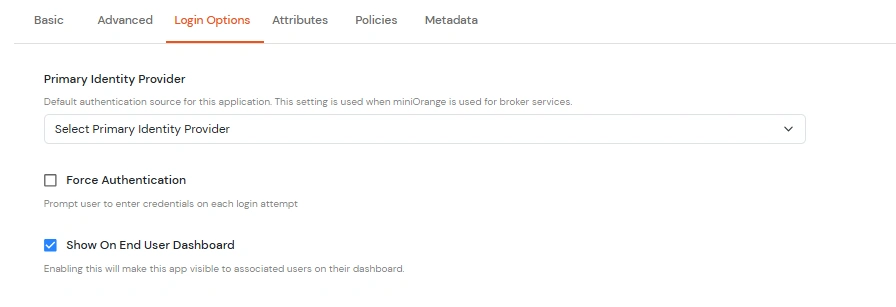
  • Click Next to go to the Login options tab. Here, you can configure the following settings:
  • Primary Identity Provider Select the identity source from where you want the authentication to happen. You will see the list of all configured sources.
    Force Authentication Enable this to enforce authentication on each request to access the application.
    Show On End User Dashboard Disable this if you do not want the app to be visible for all users on end user dashboard.
    Fortigate SSO: login Options

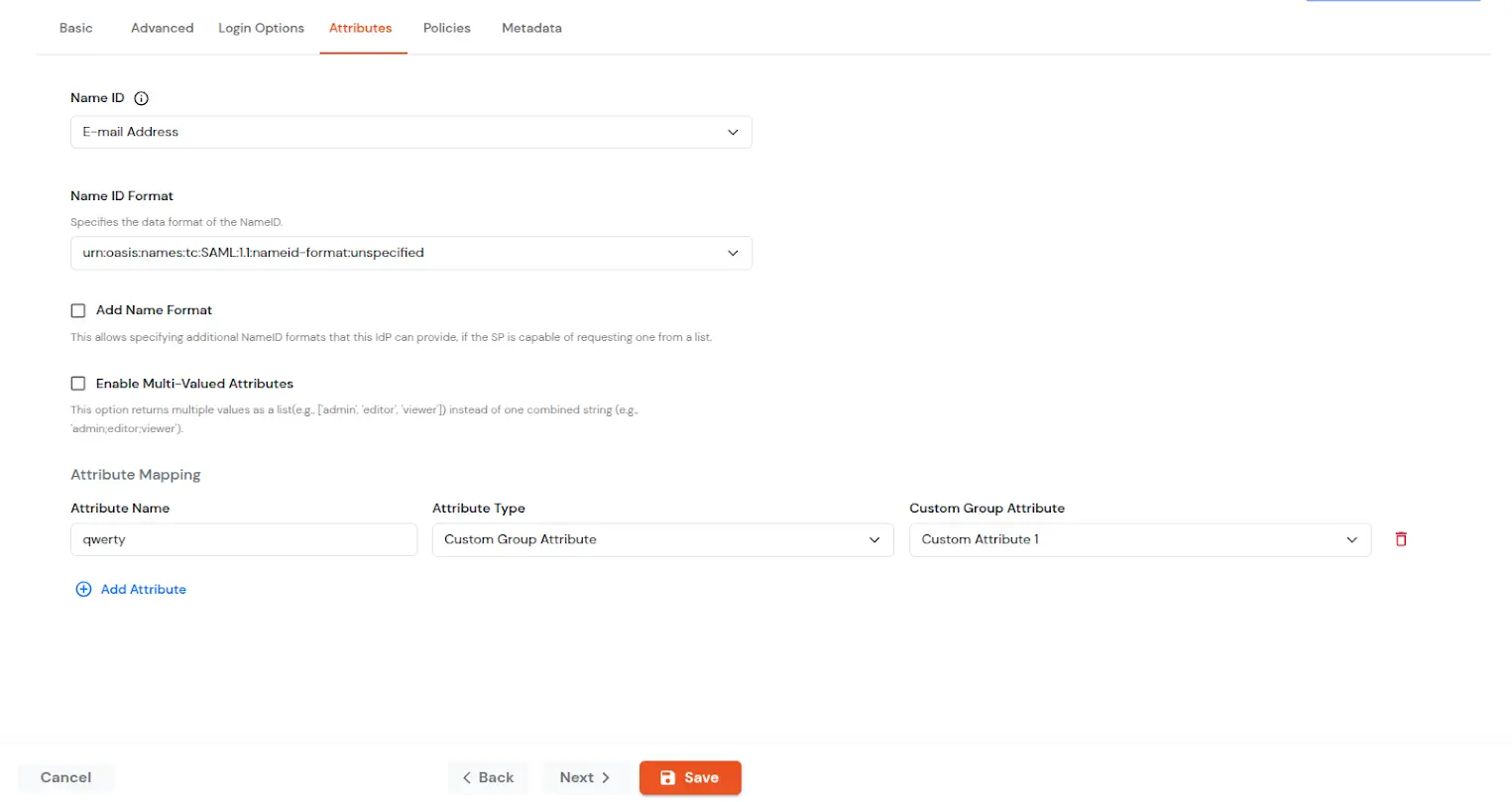
  • Click Next to go to the Attribute Mapping page. Here you can add and configure the attributes to be sent to the app.
  • NameID NameID is the unique identifier for the authenticated user included in the SAML assertion. It allows the Service Provider to recognize and map the user to an account. Generally, NameID is a username or Email Address.
    NameID format Defines what type of identifier is used in the NameID (e.g., email, persistent, transient) so the SP can correctly map the user. If the SP does not request a specific format, the IdP can leave it unspecified and use a default.
    Add Name Format Name Format defines how attribute names are represented in a SAML assertion (e.g., as simple strings or URIs). It helps the SP correctly interpret attribute naming and ensures consistency between IdP and SP.
    Enable Multi-Valued Attributes

    Enabled: Commas (,) and semicolons (;) are treated as separators, so the attribute is split into a clean list. Example: roles = ['admin', 'editor', 'viewer'].

    Disabled: Commas and semicolons are not treated as separators, so the attribute stays as one combined string. Example: roles = "admin;editor;viewer".

    Attribute Mapping You can Add Attributes to be sent in SAML Assertion to SP. The attributes include user’s profile attributes such as first name, last name, full name, username, email, custom profile attributes, and user groups, etc.
    Fortigate SSO: Add attributes

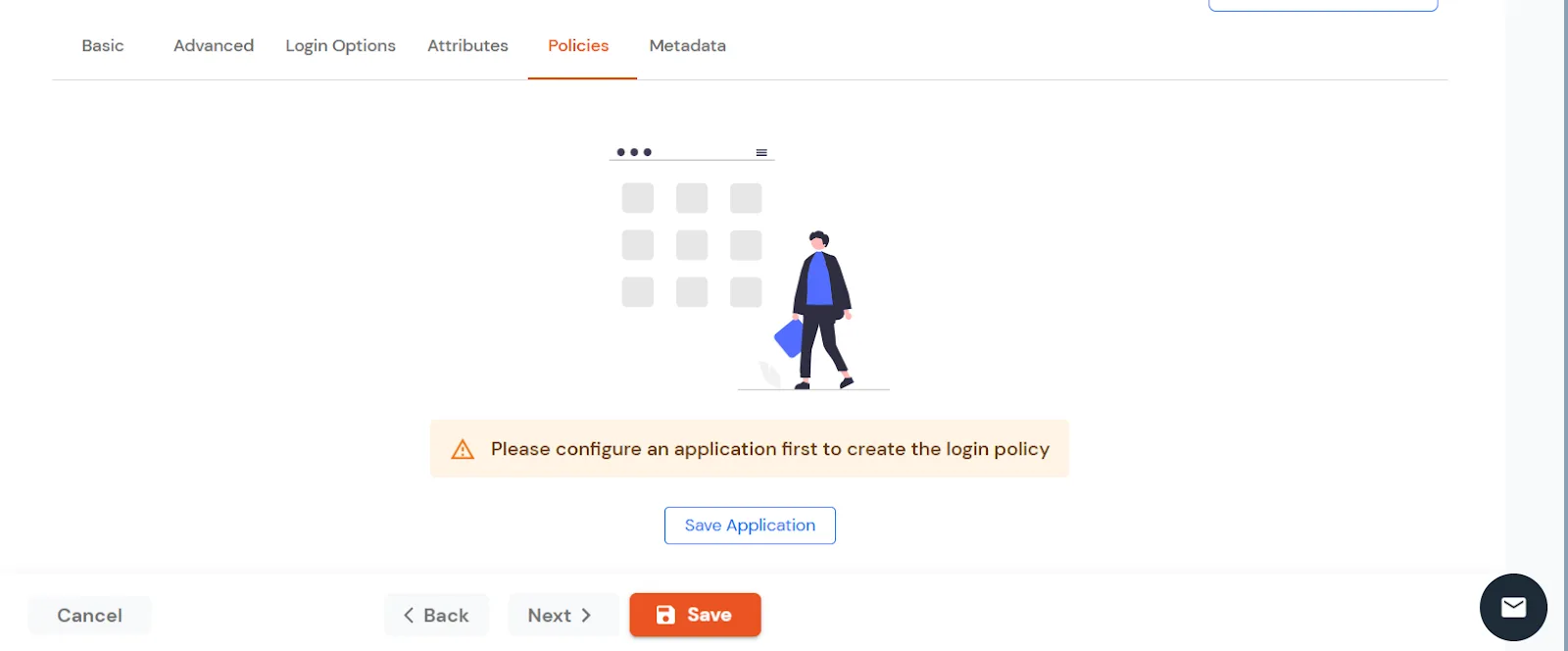
  • Click Next to go to the Login policy. You need to Save the Application first to configure the policy for the application.
  • Fortigate SSO: Save the application in the Policies section

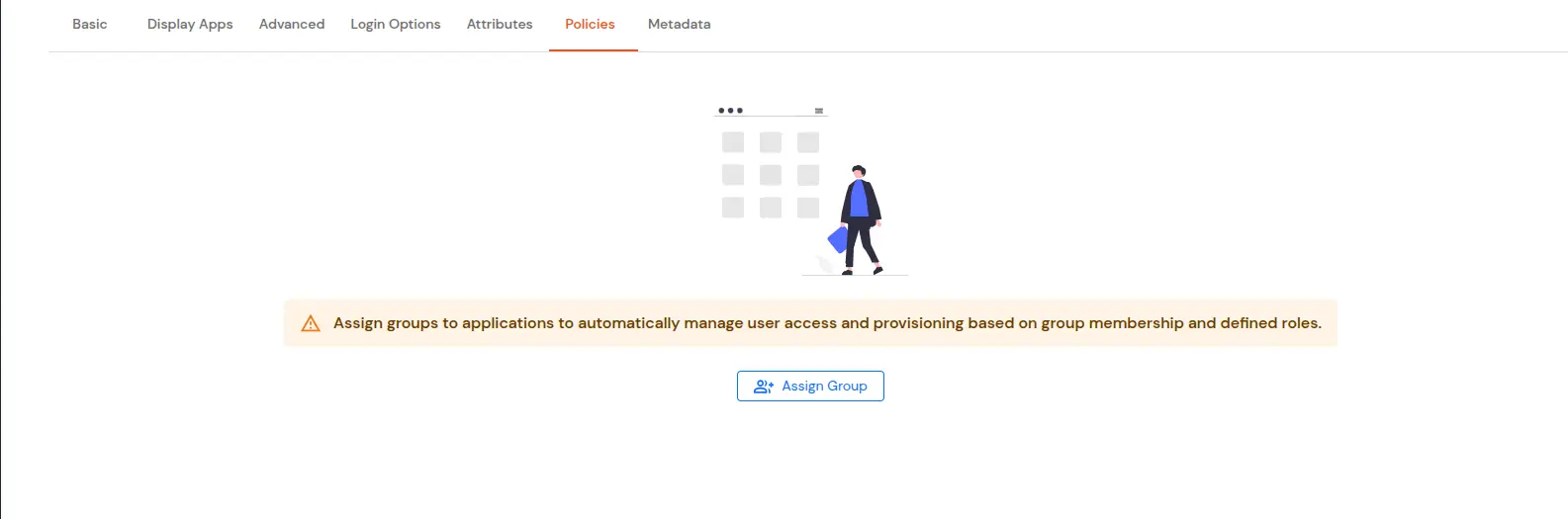
  • After the application is saved you can configure the policy for that application.
  • Fortigate SSO: Go to Policies and Assign Group

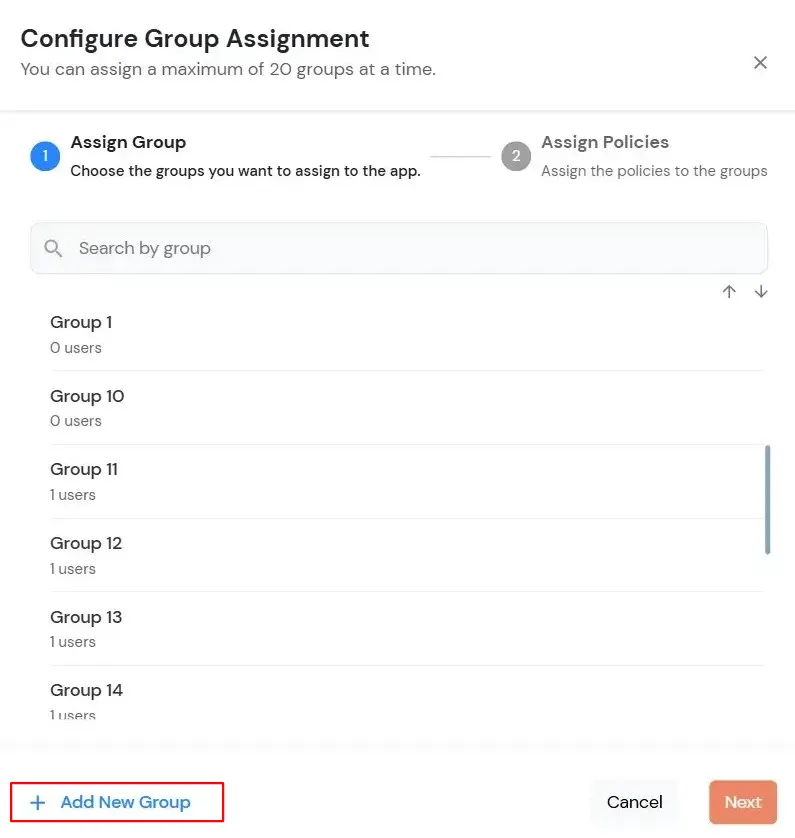
  • Click on the Assign group button. A new Configure Group Assignment Modal tab will open.
    • Assign Group: Select the groups you want to link with the application. You can select up to 20 groups at a time.
    • Fortigate SSO: Go to Policies and Add Policy

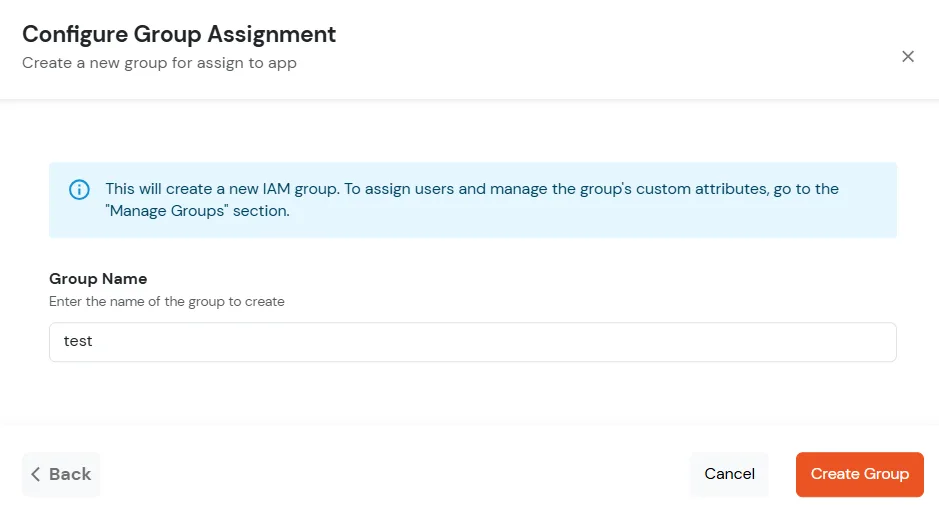
    • If you need to create a new group, click on Add New Group button.
    • Enter the Group name and click on Create Group.
    • Fortigate SSO: Go to Policies and Add Policy

    • Click on Next.
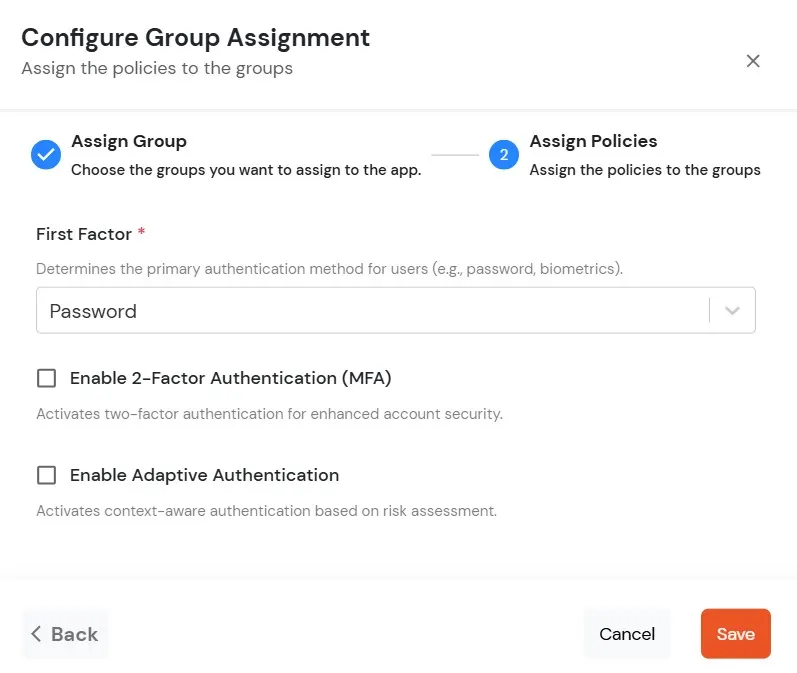
    • Assign Policies: Add the required policies to the selected groups. Enter the following details:
    • First Factor: Select the login method from the dropdown.
      • If you select Password as the login method, you can enable 2-Factor Authentication (MFA) and Adaptive Authentication, if needed.
      • If you select Password-less as login method, you can enable 2-Factor Authentication (MFA) if needed.
  • Fortigate SSO: Under the Add Login Policy, provide the details

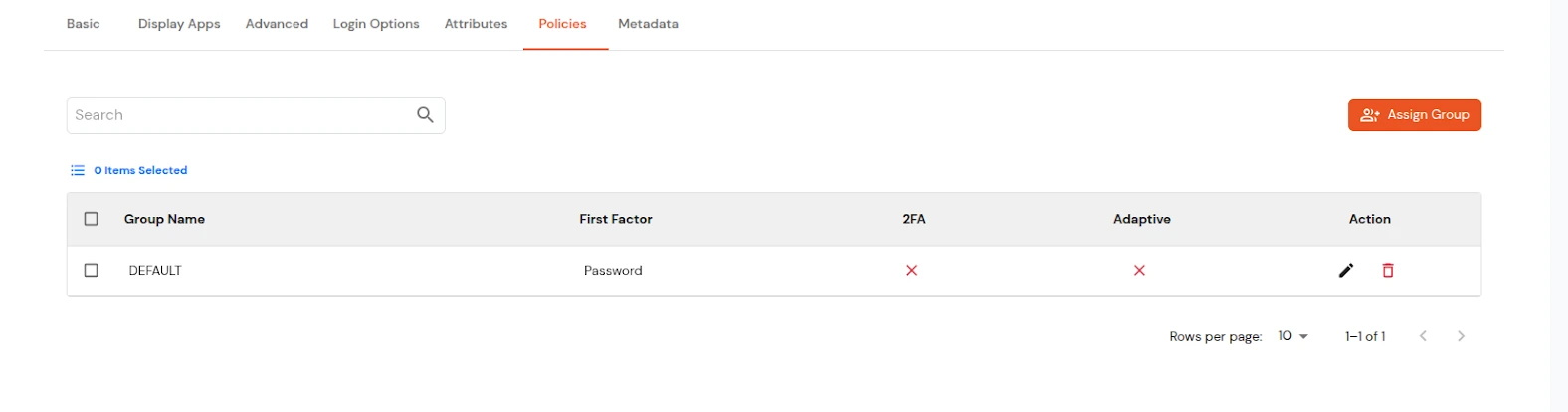
  • Click on Save. Policies will be created for all the selected groups.
  • You will see the policy listed once it’s successfully added.
  • Fortigate SSO: Add Multiple Login Policies

    To get miniOrange metadata details in order to configure Fortinet :
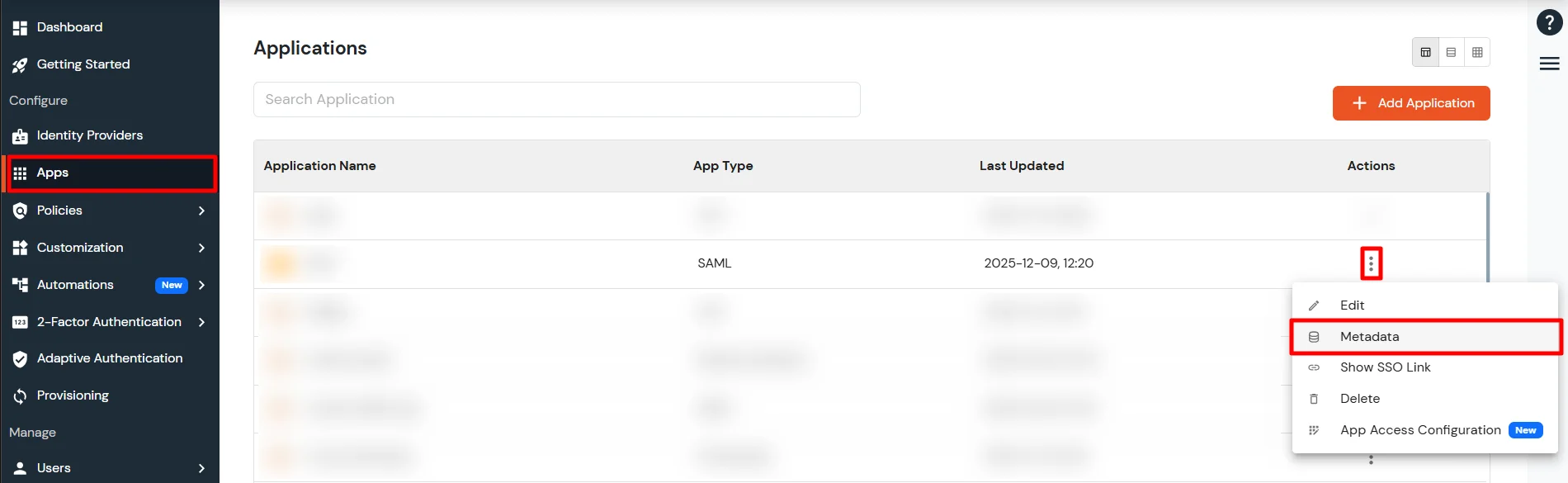
  • Go to Apps >> Applications.
  • Search for your app and click on the icon ' ' in Actions menu against your app.
  • Click on Metadata to get metadata details, which will be required later. Click on Show SSO Link to see the IDP initiated SSO link for Fortinet.
  • Go to Metadata link Fortinet SAML SSO

  • On the View IDP Metadata page -

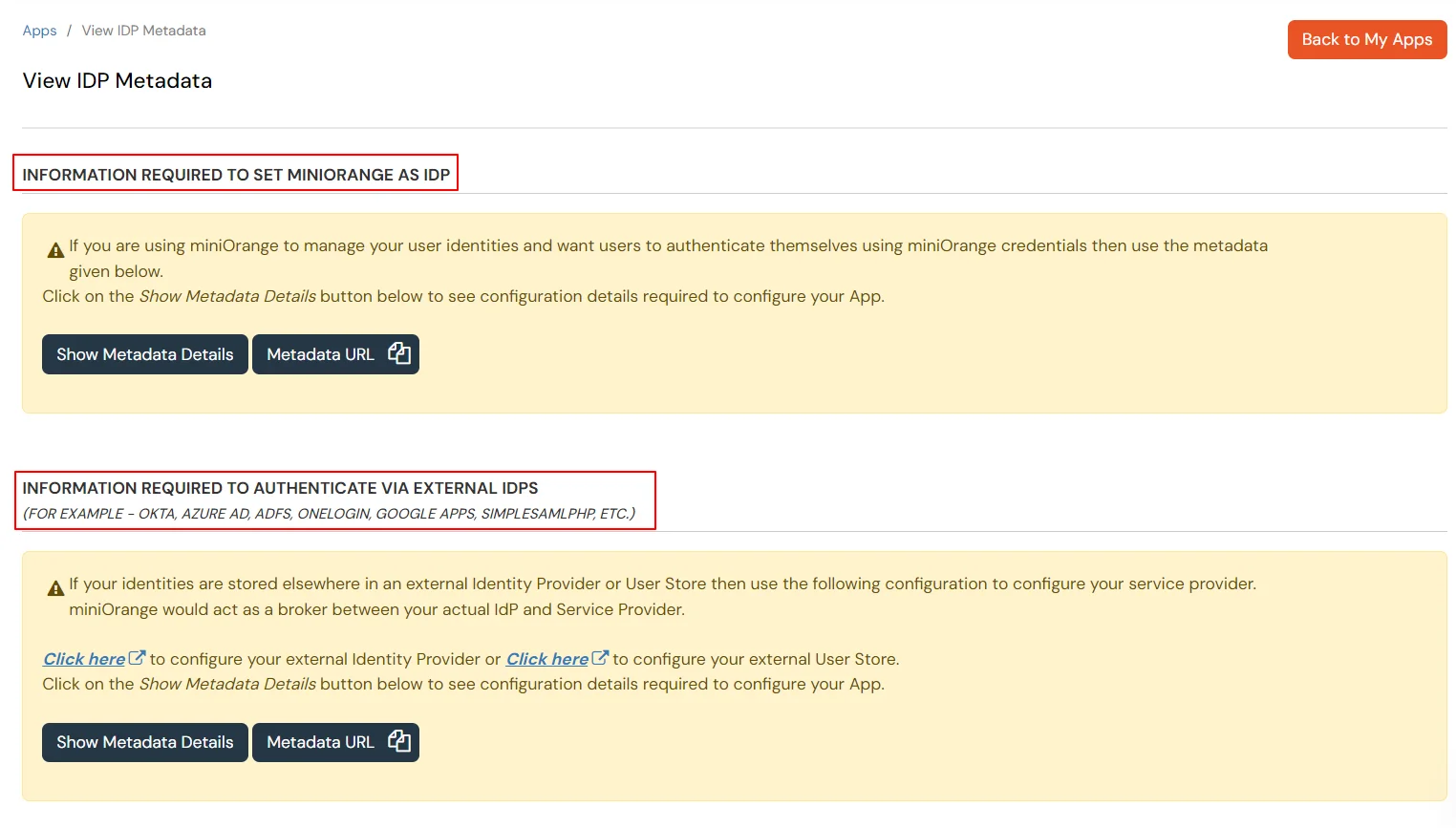
    1. If you want to use miniOrange as User-Store i.e., your user identities will be stored in miniOrange then download the metadata file under the heading 'INFORMATION REQUIRED TO SET MINIORANGE AS IDP'.

    2. If you want to authenticate your users via any external Identity Provider like Active Directory, Okta, OneLogin, Google, Apple ID, etc then download the Metadata file under the heading 'INFORMATION REQUIRED TO AUTHENTICATE VIA EXTERNAL IDPS'.
  • Fortinet Single Sign-On (SSO) On Metadata page

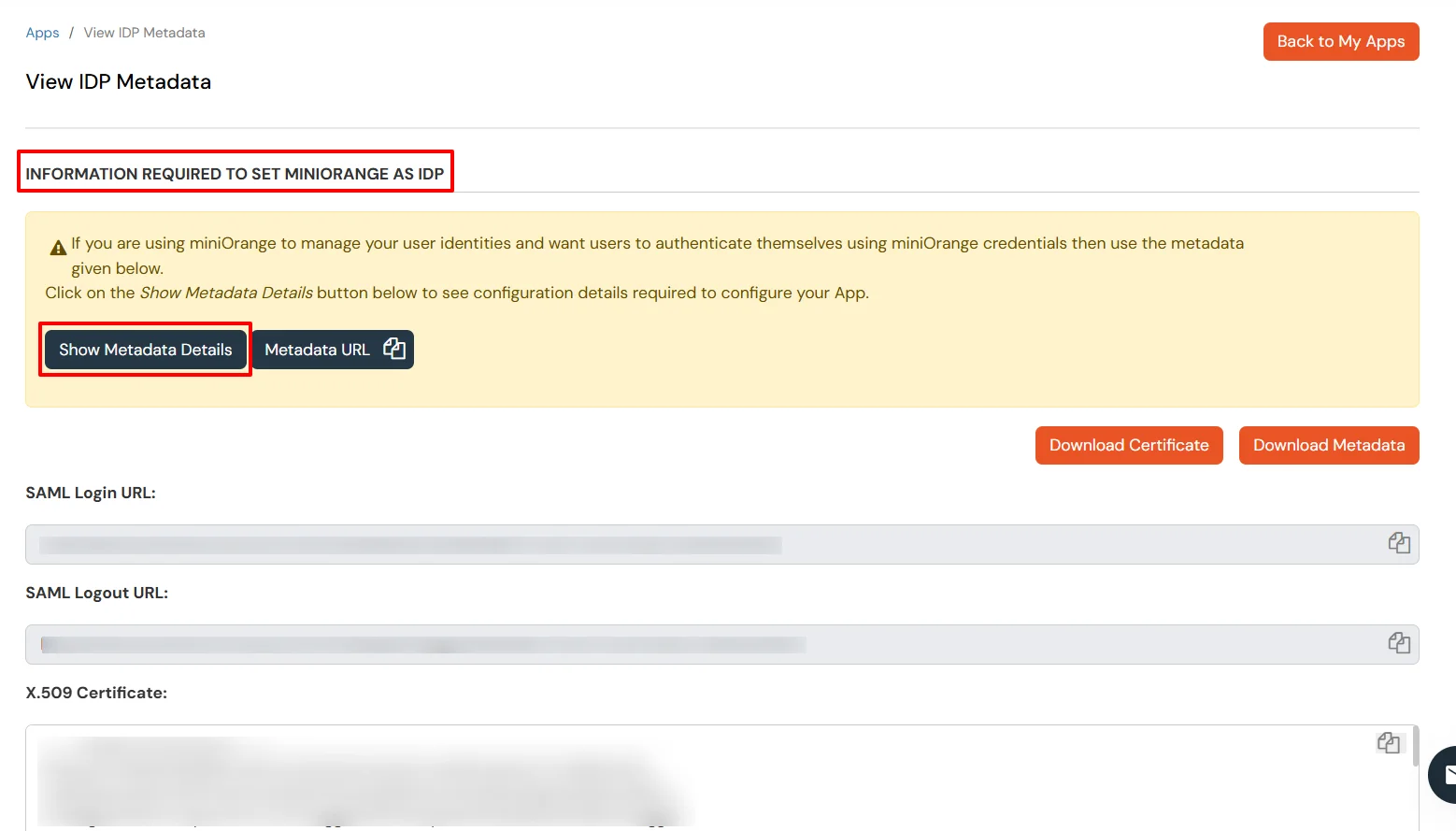
  • Then click on Download Metadata.
  • Fortinet Single Sign-On (SSO) Select Metadata details external IDP or miniOrange as IDP

2. Configure SSO in Fortinet Admin Account

  • Login to Fortigate as an admin.
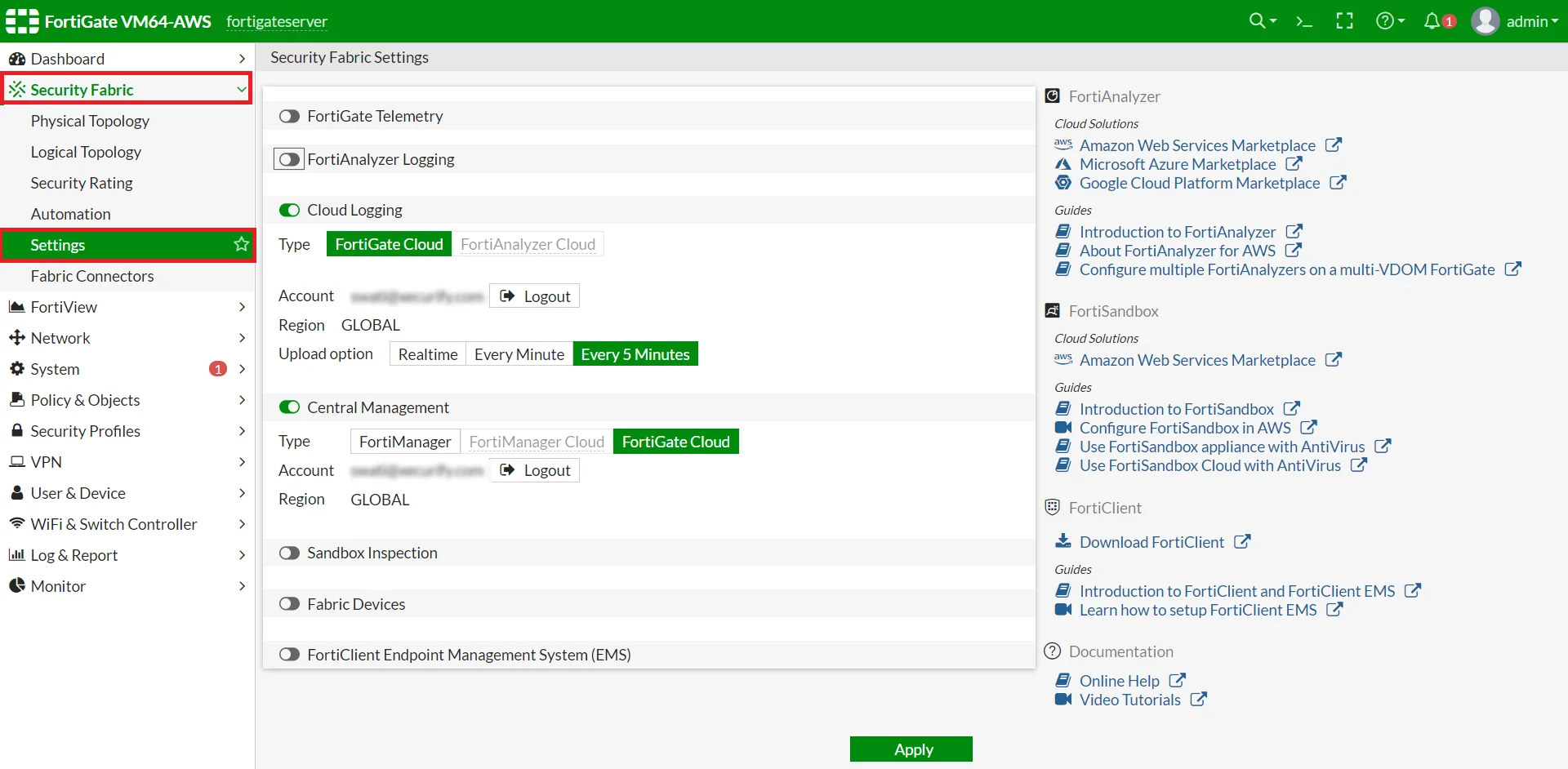
  • Go to Security Fabric -> Settings.
    GUI in version 6.2. Go to User & Device -> SAML SSO
    GUI in version 6.2.3 and above. Go to Security Fabric -> Settings Enable FortiGate Telemetry, choose a Fabric name and an IP for FortiAnalyzer (can be an unused address) Enable SAML Single Sign-On, Click on Advanced Options
    GUI in version 6.4 and above Go to Security Fabric -> Fabric Connectors -> Security Fabric Setup -> Single Sign-On Settings
  • Fortinet Single Sign-On (FSSO): Navigate Security Fabric and select Settings

  • Enable SAML Single Sign-On, Click on Advanced Options.
  • Fortigate Single Sign-On (FSSO): Enable SAML Single Sign-On

    Fortigate Single Sign-On: Click Advanced Options

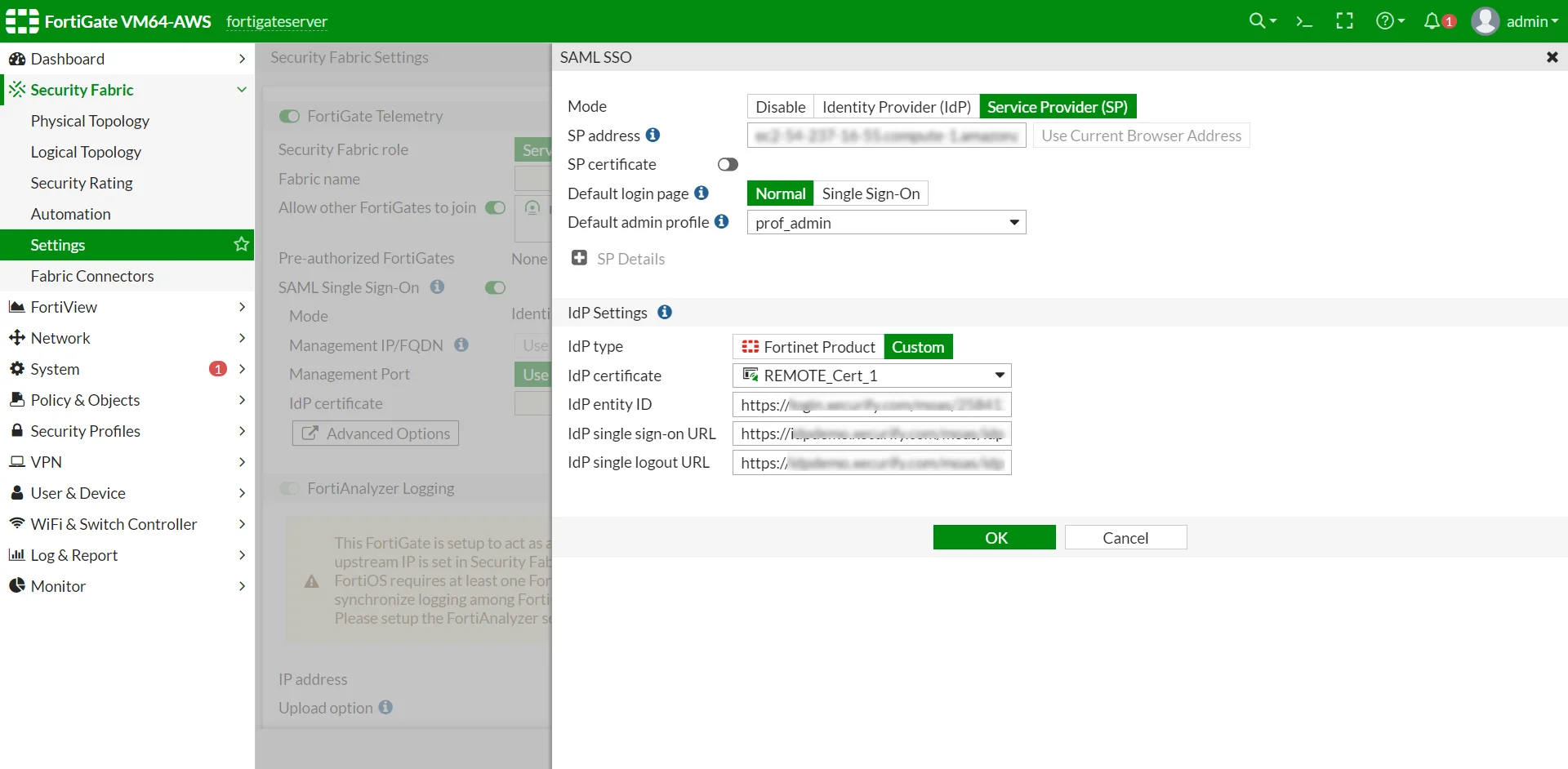
  • Choose Mode as Service Provider (SP).
  • Fortinet Single Sign-On (FSSO): Choose Mode as Service Provider

  • Fill the details as per the following table.
    IDP Entity ID Entity ID or Issuer in miniOrange
    IDP Single Sign-On URL SAML Login URL in miniOrange metadata
    IDP Single Logout URL SAML Logout URL in miniOrange metadata
  • Click on Apply to save changes.

3. Test SSO Configuration

Test SSO login to your Fortinet account with miniOrange IdP:
    Using SP Initiated Login

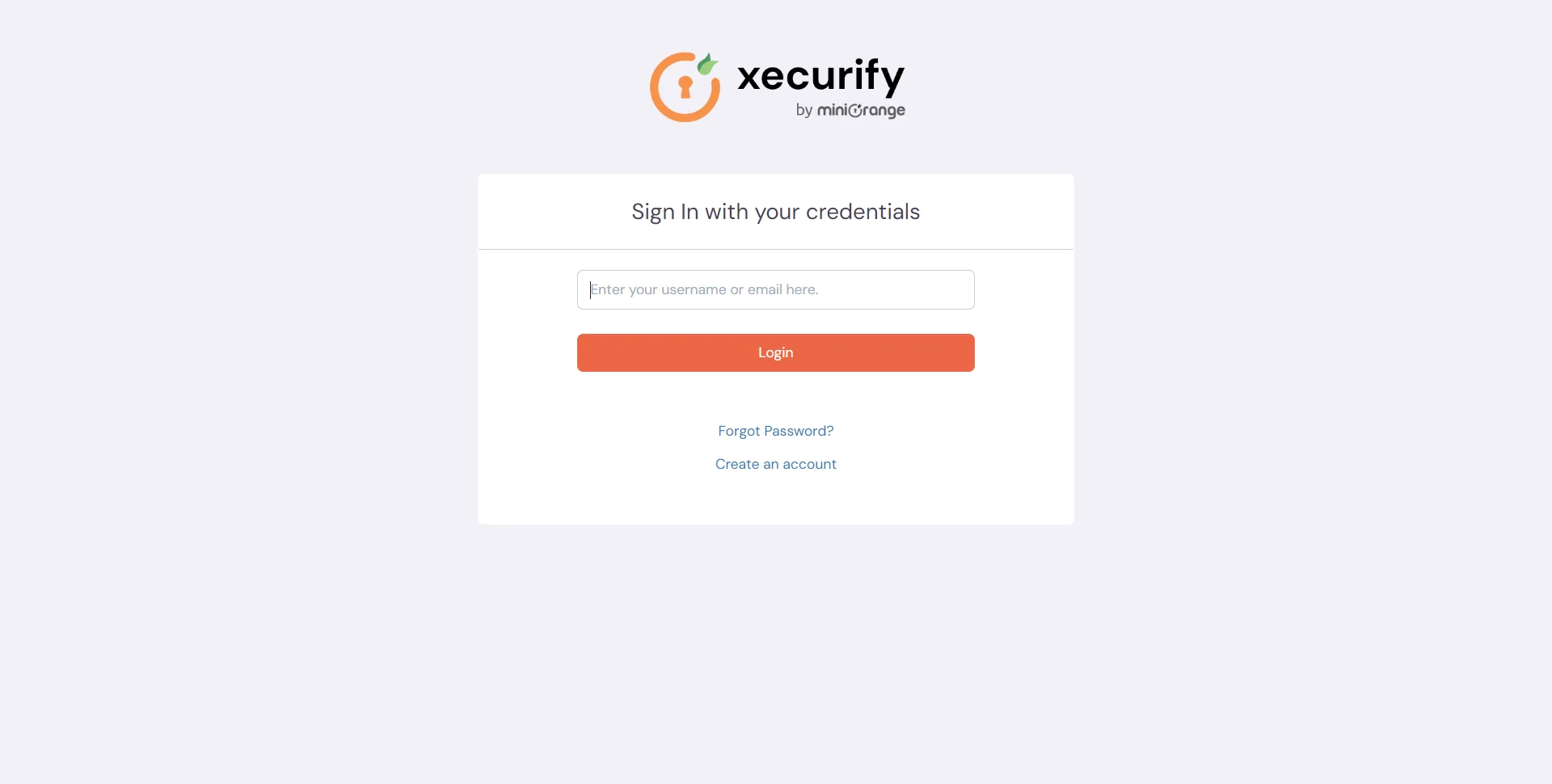
    • Go to your Fortinet URL, here you will be either asked to enter the username or click on the SSO link which will redirect you to miniOrange IdP Sign On Page.
    • Fortinet Single Sign-On (SSO) login

    • Enter your miniOrange login credential and click on Login. You will be automatically logged in to your Fortinet account.

    Using IDP Initiated Login

    • Login to miniOrange IdP using your credentials.
    • Fortinet Single Sign-On (SSO)

    • On the Dashboard, click on Fortinet application which you have added, to verify SSO configuration.
    • Fortinet Single Sign-On (SSO) manage apps


    Not able to configure or test SSO?


    Contact us or email us at idpsupport@xecurify.com and we'll help you setting it up in no time.


Frequently Asked Questions


What is Fortinet's Single Sign-On (FSSO)?

Fortinet Single Sign-On (FSSO) is an authentication protocol that enables Fortinet security products like FortiGate to transparently identify and authenticate users by monitoring login events within Active Directory or other supported identity stores.


External References

Want To Schedule A Demo?

Request a Demo


Our Other Identity & Access Management Products