Hello there!

Need Help? We are right here!

Support Icon
miniOrange Email Support
success

Thanks for your Enquiry. Our team will soon reach out to you.

If you don't hear from us within 24 hours, please feel free to send a follow-up email to info@xecurify.com

Search Results:

Ă—

Set Up GitHub Enterprise SAML Single Sign-On (SSO)


GitHub SAML Single Sign-On (SSO) for enterprise cloud solution by miniOrange provides secure Single Sign-On access to GitHub & multiple On-Premise and Cloud Applications using a single set of login credentials. With miniOrange IDP service you can SSO login to multiple applications using a single Github username and password. Github Single Sign-On (SSO) can also be enabled if your users are in any of the third-party Identity Providers and you want your users to log into Github uisng existing IdP credentials, you can easily allow them to SSO into Github in a secure manner.


With miniOrange GitHub SSO, you can:

  • Enable your users to automatically login to Github
  • Have centralized and easy access control of the users
  • Connect easily with any external identity source like Azure AD, ADFS, Cognito, etc

Get Free Installation Help


miniOrange offers free help through a consultation call with our System Engineers to Install or Setup Github SSO solution in your environment with 30-day free trial.

For this, you need to just send us an email at idpsupport@xecurify.com to book a slot and we'll help you in no time.


Supported SSO Features

miniOrange Github SAML integration supports the following features:

  • SP Initiated SSO Login: Users can access their Github account via a URL or bookmark. They will automatically be redirected to the miniOrange portal for login. Once they've signed on, they'll be automatically redirected and logged into Github.
  • IdP Initiated SSO Login: Users need to login to the miniOrange first , and then click on the Github icon on the applications dashboard to access Github.(If you have set up any more Identity Sources, you will log in to that platform).
  • JIT Provisioning: Enables the automatic creation of user accounts in Github when a person logs in for the first time via Desktop SSO, IDP, or Active Directory (AD) authentication.
  • Single Logout: With this feature, you will be automatically logged out of all the applications that are connected with Identity provider (IdP) when you log out from Github org or any other app.
  • Mandate users to Login using SSO: Single Sign-on can make it mandatory for all users to log in using SSO. This will prevent any person from login using any other source and bypassing the login system. No person will be able to have direct login making it a streamline and secure process.

Connect with External Source of Users


miniOrange provides user authentication from various external sources, which can be Directories (like ADFS, Microsoft Active Directory, OpenLDAP, AWS etc), Identity Providers (like Microsoft Entra ID, Okta, AWS), and many more. You can configure your existing directory/user store or add users in miniOrange.
Prerequisites

  • GitHub Administrator account is required to do the configuration and setup SAML Single sign-on (SSO)
  • GitHub Enterprise Gold plan is required. Other GitHub plans like Developer or Team do not support SAML Single Sign-on (SSO)
  • Note - Make sure you do not enable SSO for all users before testing and getting the Single Sign-on (SSO) recover codes from GitHub

Follow the step-by-step guide given below for GitHub SAML Single Sign-On (SSO) for your organization

1. Configure GitHub in miniOrange

  • Login into miniOrange Admin Console.
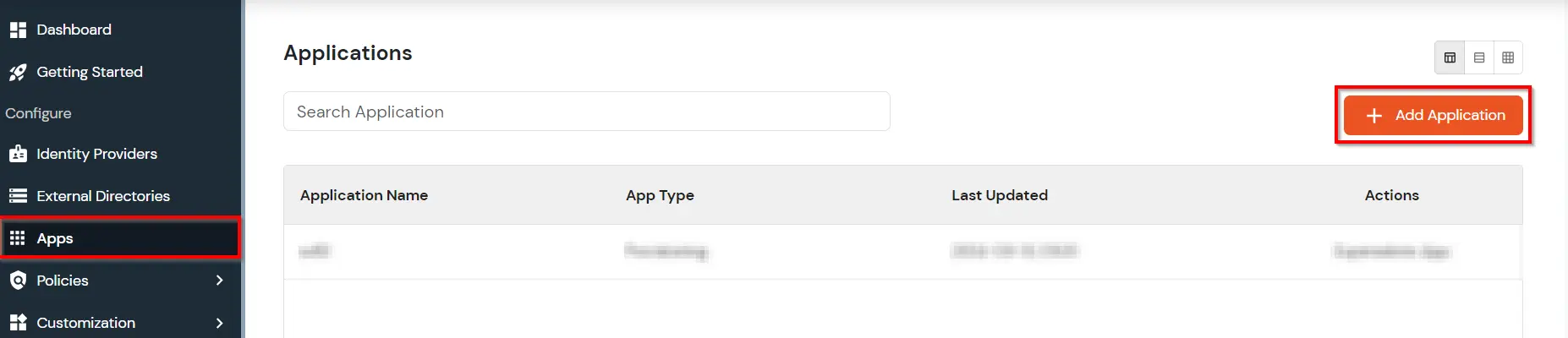
  • Go to Apps and click on Add Application button.
  • GitHub Single Sign-On (SSO) add app

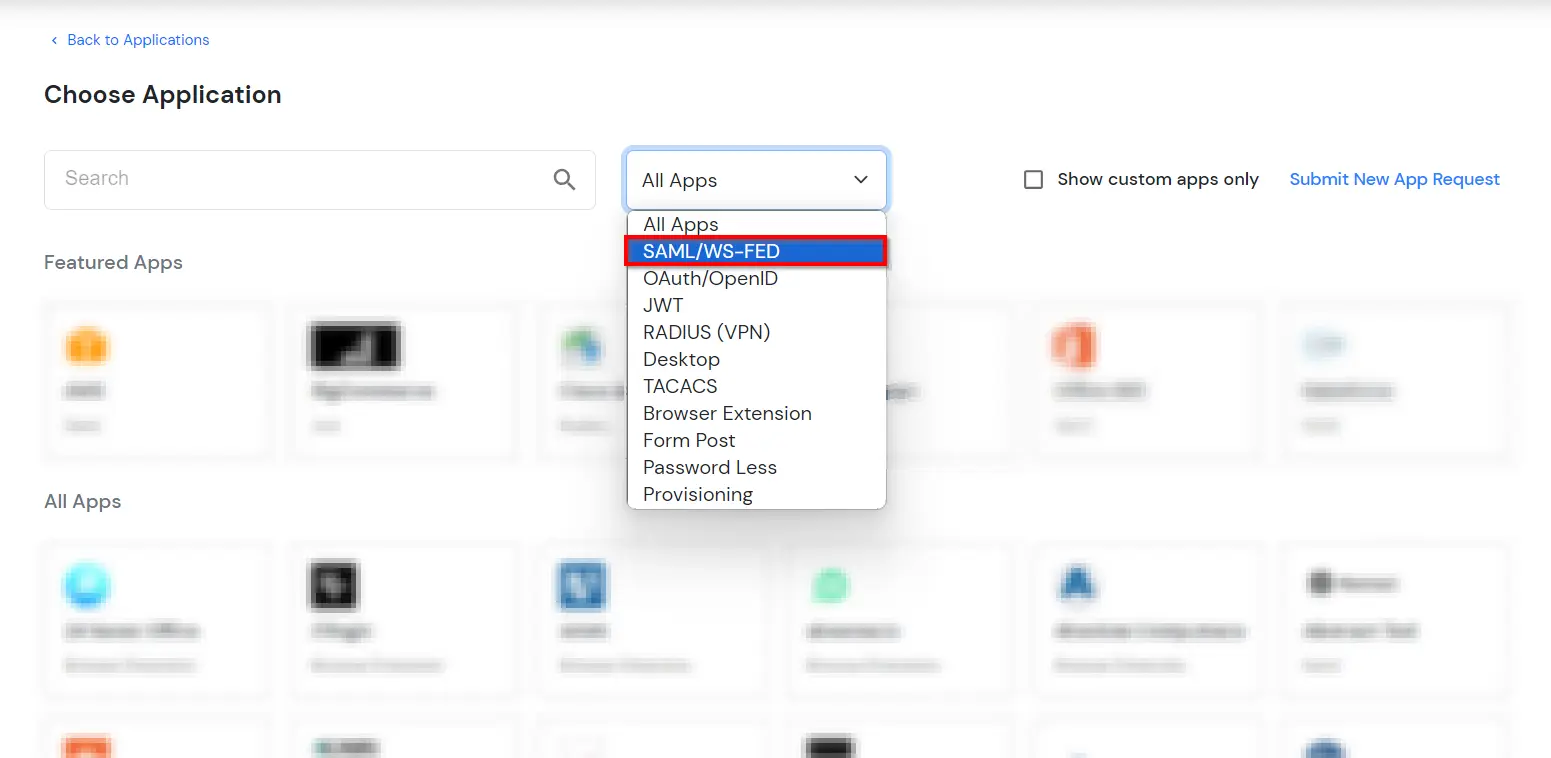
  • In Choose Application Type, select SAML/WS-FED from the All Apps dropdown.
  • GitHub Single Sign-On (SSO) choose app type

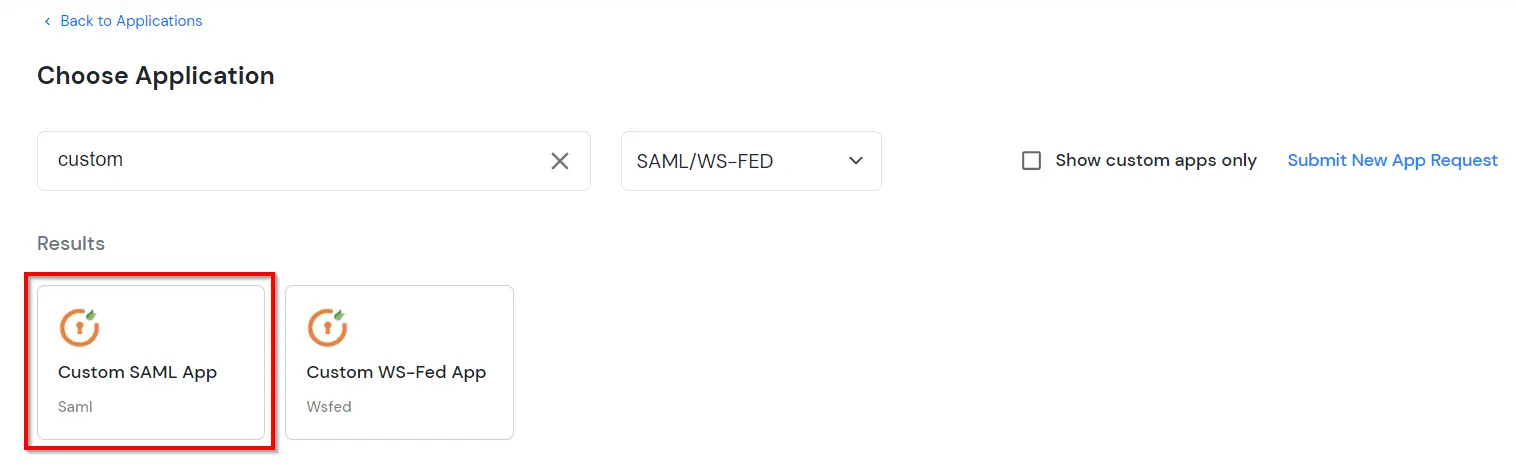
  • Search for GitHub in the list, if you don't find GitHub in the list then, search for custom and you can set up your application in Custom SAML App.
  • GitHub Single Sign-On (SSO) manage apps

  • In the Basic settings section, enter the following details:
    • Enter the Display Name as GitHub.
    • Enter the SP Entity ID or Issuer: https://github.com/enterprises/<custom_domain_name>
    • Enter the ACS URL: https://github.com/enterprises/<custom_domain_name>/saml/consume
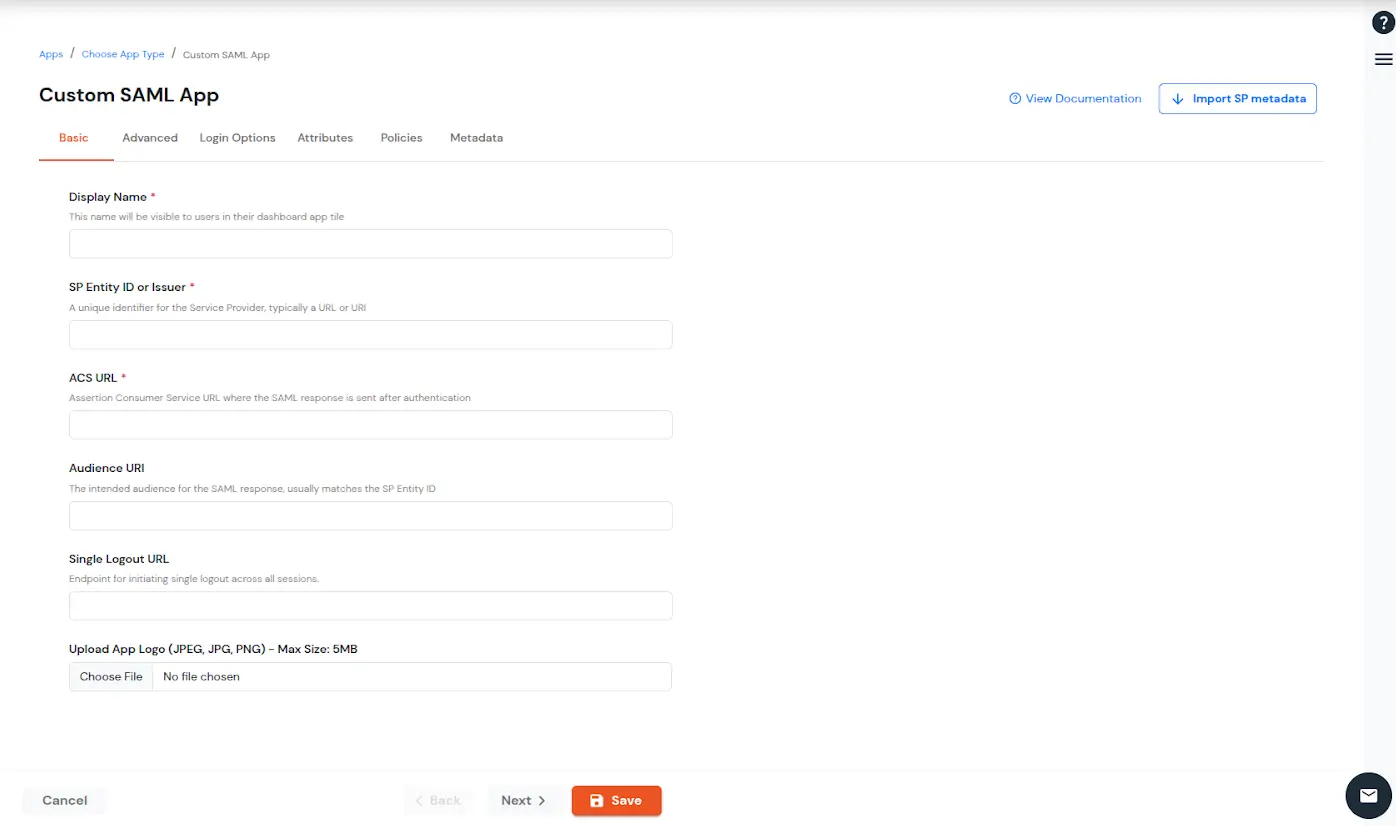
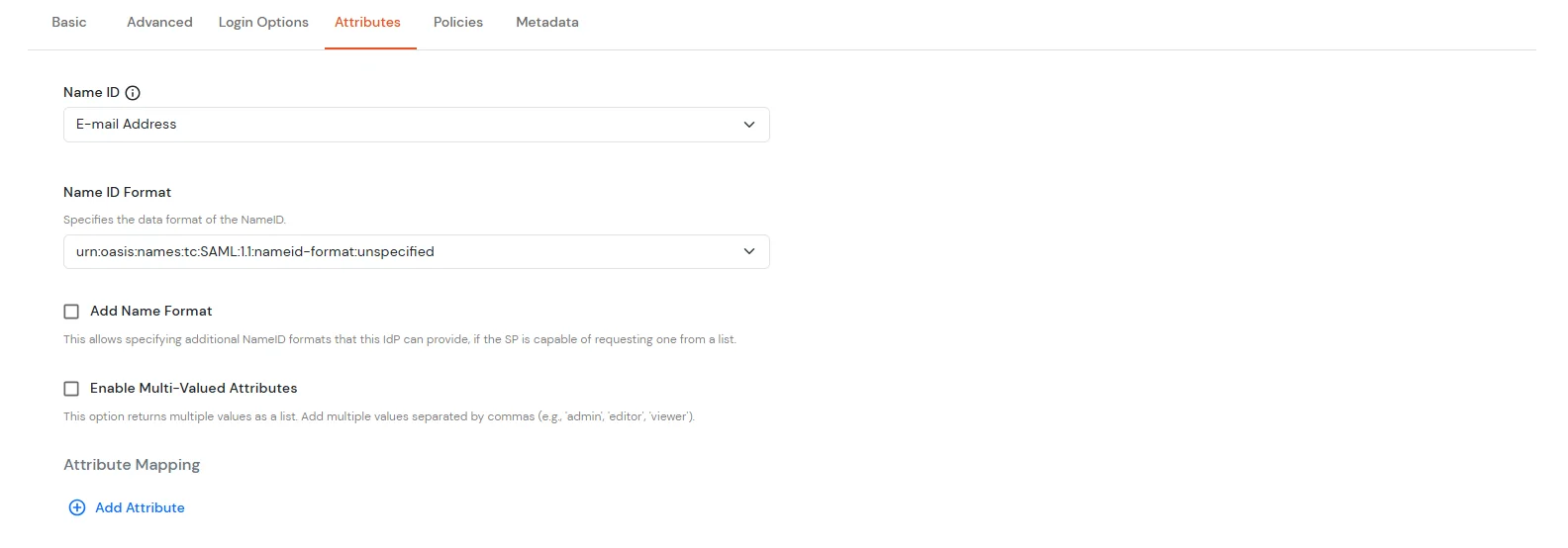
    • Enter the Single Logout URL (Optional).
    • Click on Choose File to upload the App Logo for your application.
    • Configure GitHub Single Sign-On (SSO)

  • Click on Next to proceed further.
  • In the Attribute Mapping tab configure the following attributes as shown in the image below.
  • GitHub Single Sign-On (sso) Add Attribute

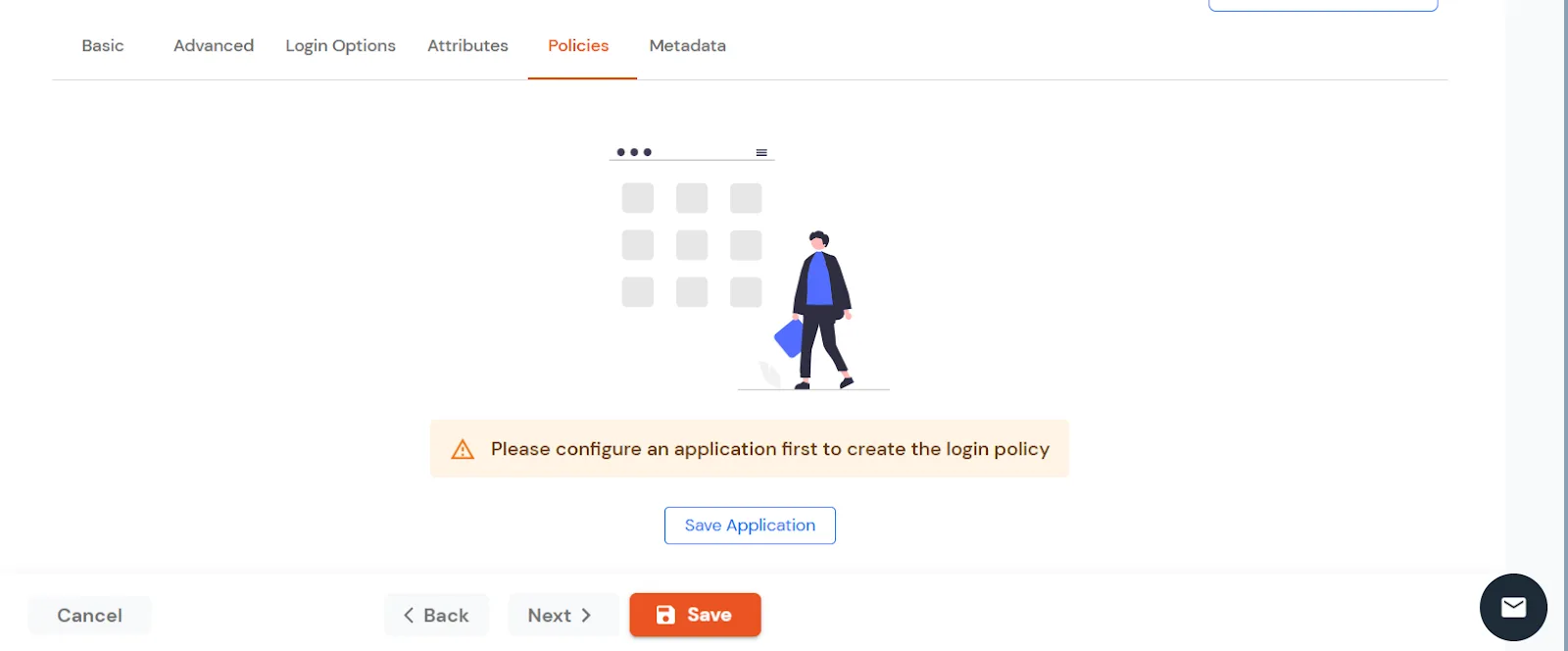
  • Click Next to go to the Policies. Save the application first to configure the policy.
  • Configure GitHub Single Sign-On (sso) Save the application

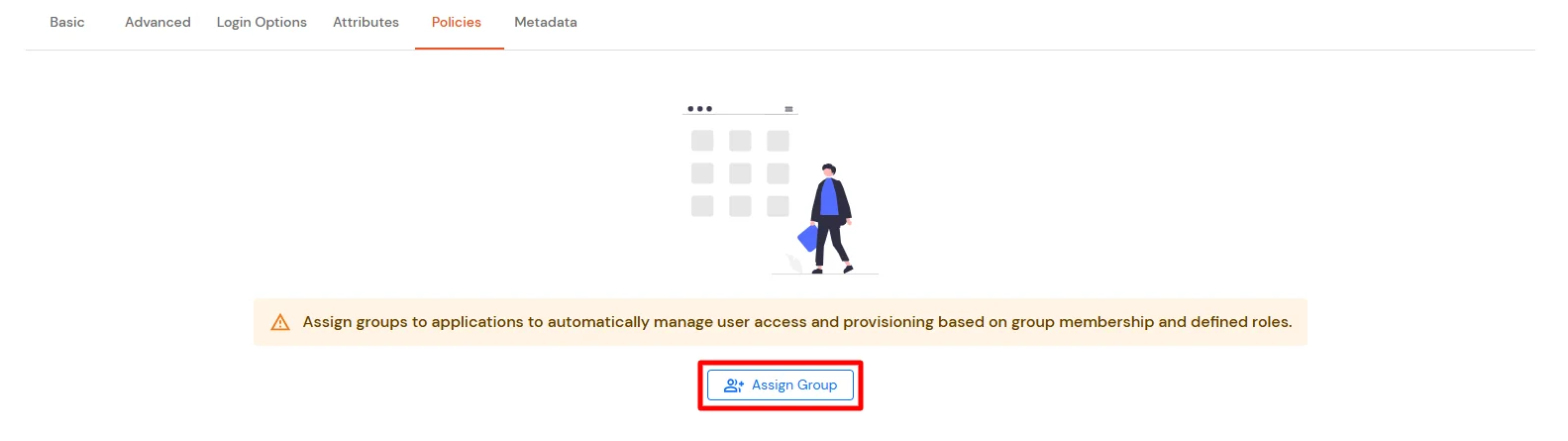
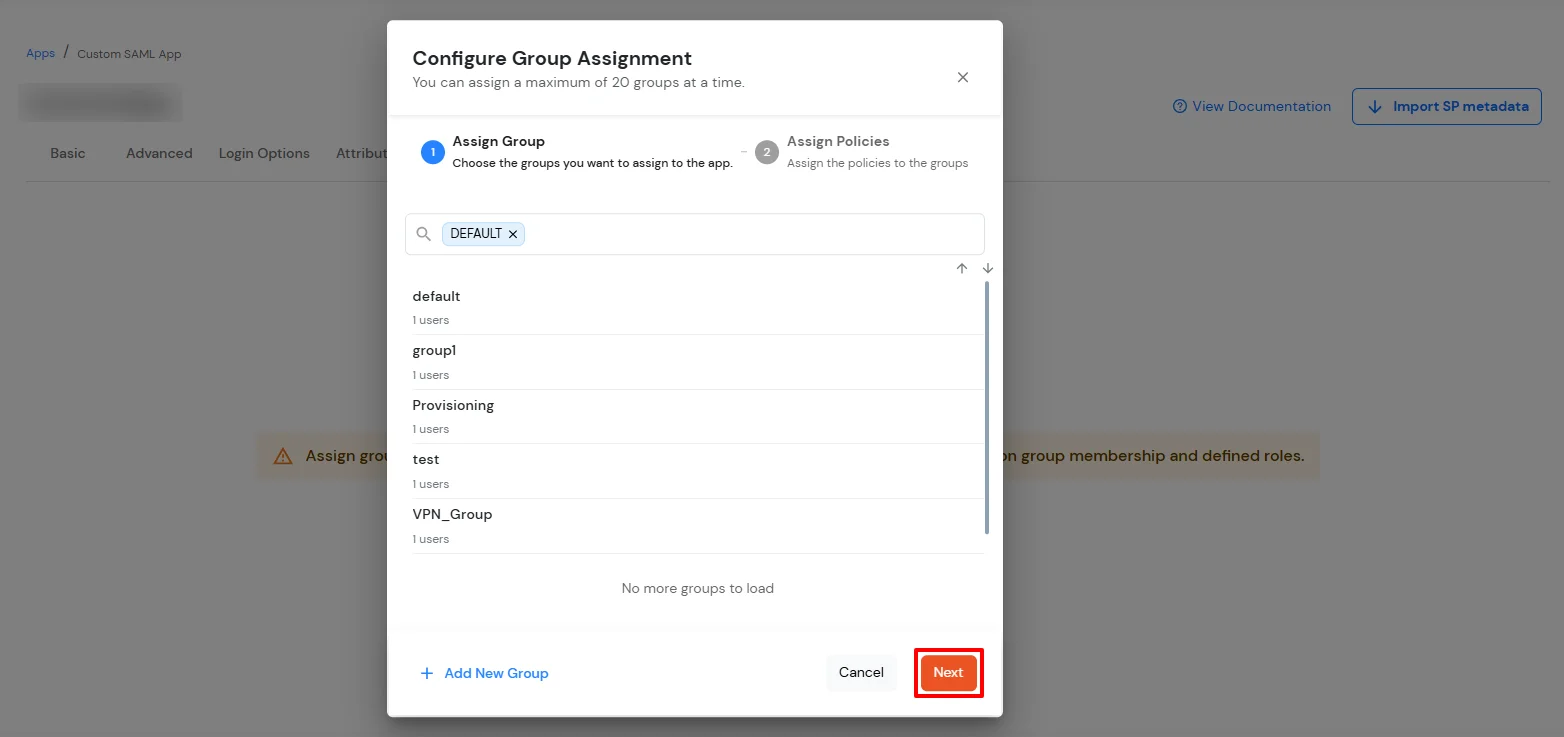
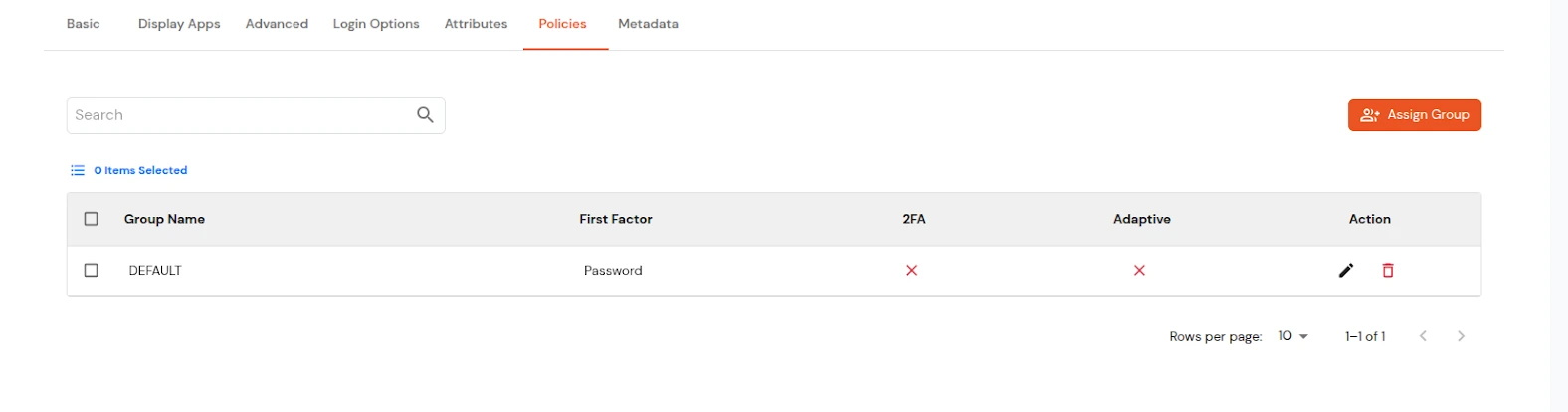
  • Click the Assign Group button. In the Configure Group Assignment dialog box, select DEFAULT as the group.
  • Configure GitHub Single Sign-On (sso) Click Assign Group

    Configure GitHub Single Sign-On (sso) Select Default as group

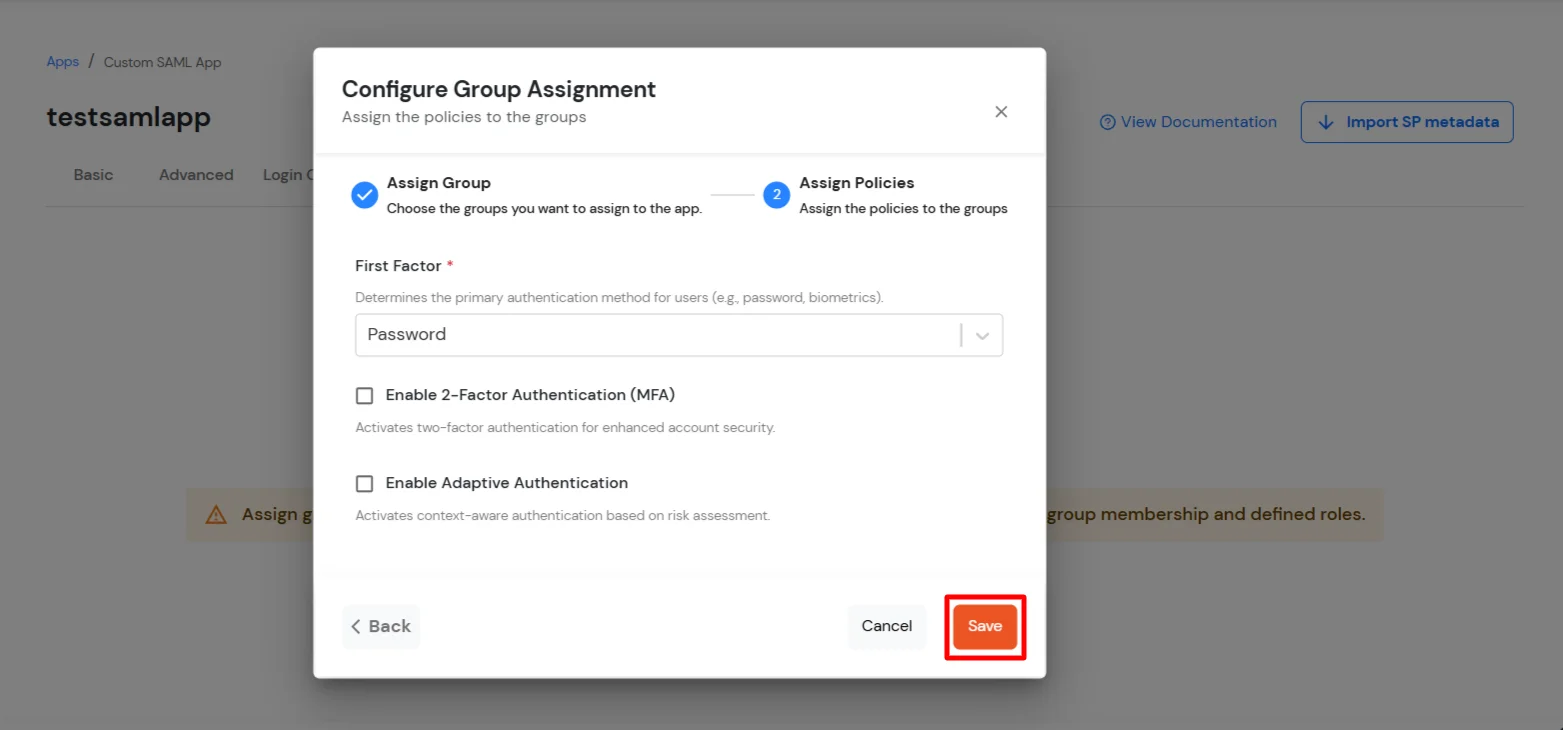
  • Click Next to go to the Assign Policies section. Select First Factor as Password.
  • Configure GitHub Single Sign-On (sso) Assign the Policise

  • Click Save.
  • Once done, policies will be created for all the selected groups.
  • Configure GitHub Single Sign-On (sso) Policies added succesfully

    To get miniOrange metadata details in order to configure GitHub:
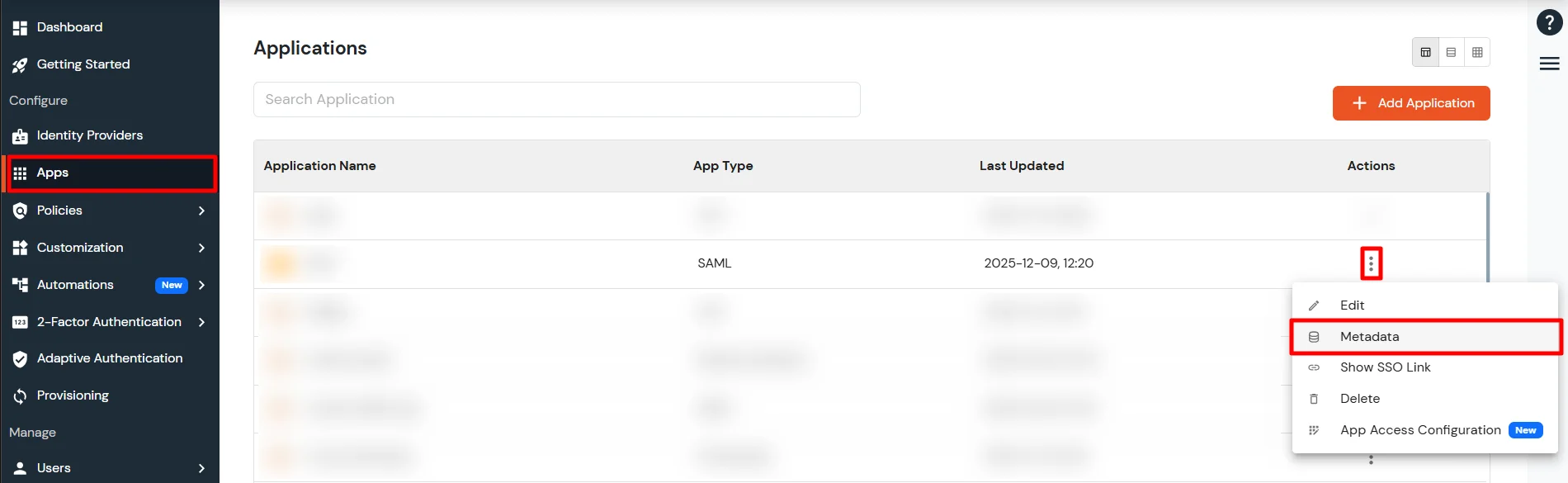
  • Go to Apps >> Applications.
  • Search for your app and click the three-dot icon in the Actions column.
  • Click Metadata to view the miniOrange metadata details. You can also click Show SSO Link to get the IdP-initiated SSO link for your application.
  • Go to Metadata link GitHub SAML SSO

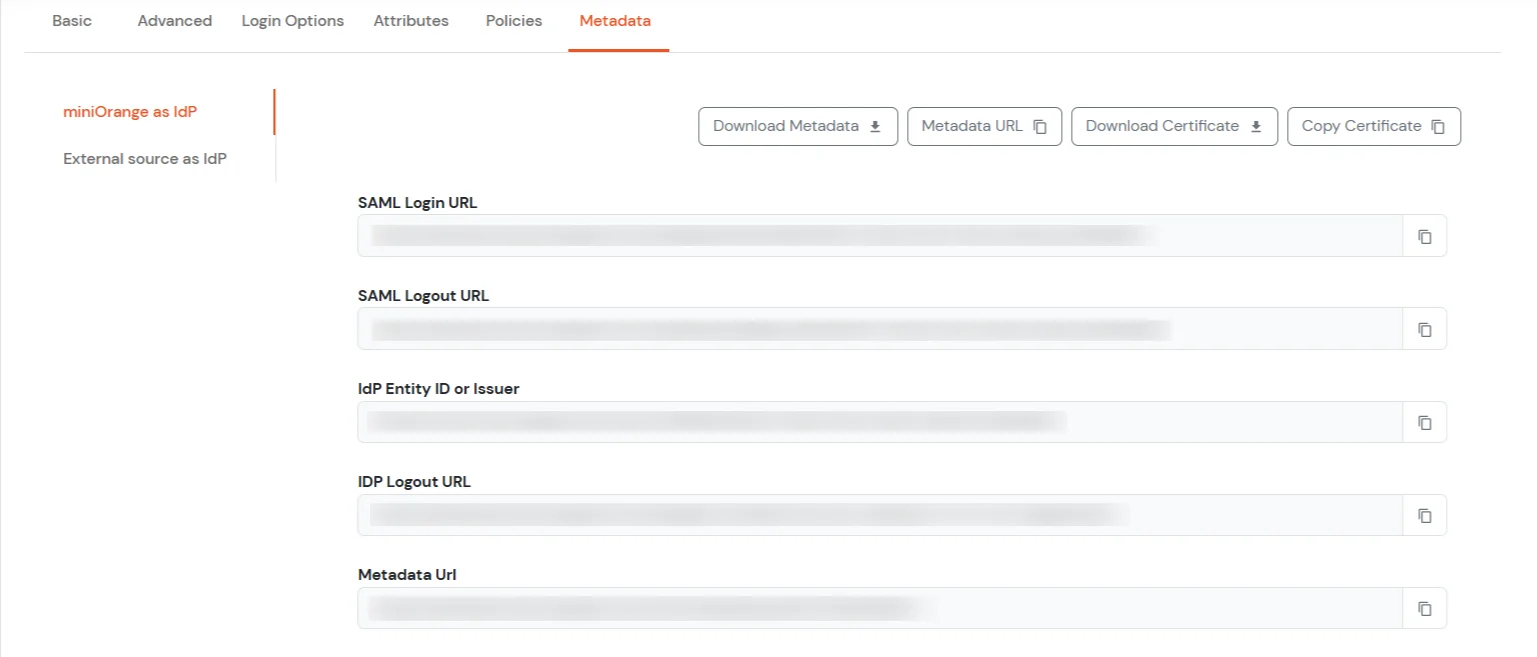
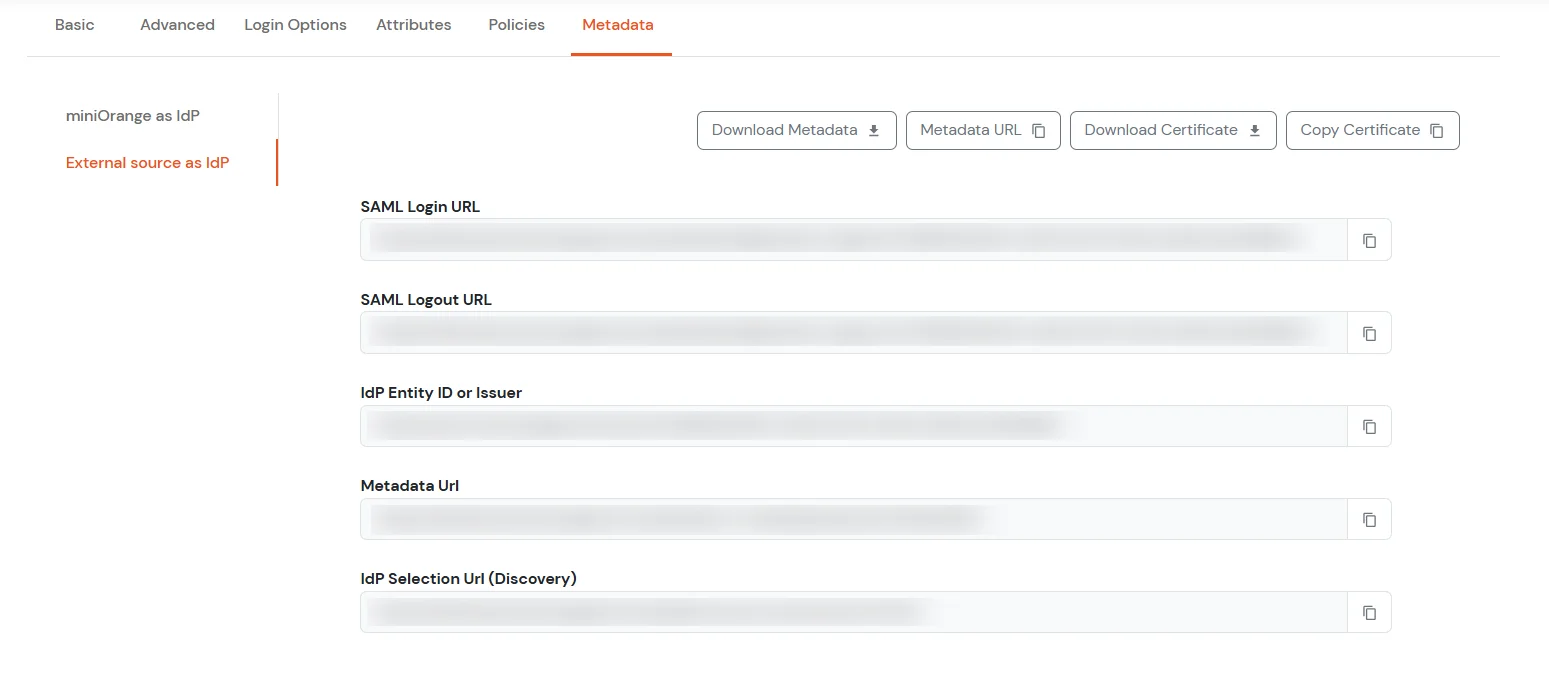
  • Now, go to the Metadata tab. Here you will see 2 sections. If you are setting up miniOrange as IdP, copy the metadata from the first section. If you need to authenticate via external IdPs (Okta, Azure AD, ADFS, OneLogin, Google Workspace), get the metadata from the External source as IdP section as shown below.
  • Configure GitHub Single Sign-On (sso) Select miniOrange as Idp

    Configure GitHub Single Sign-On (sso) Select External source as IdP

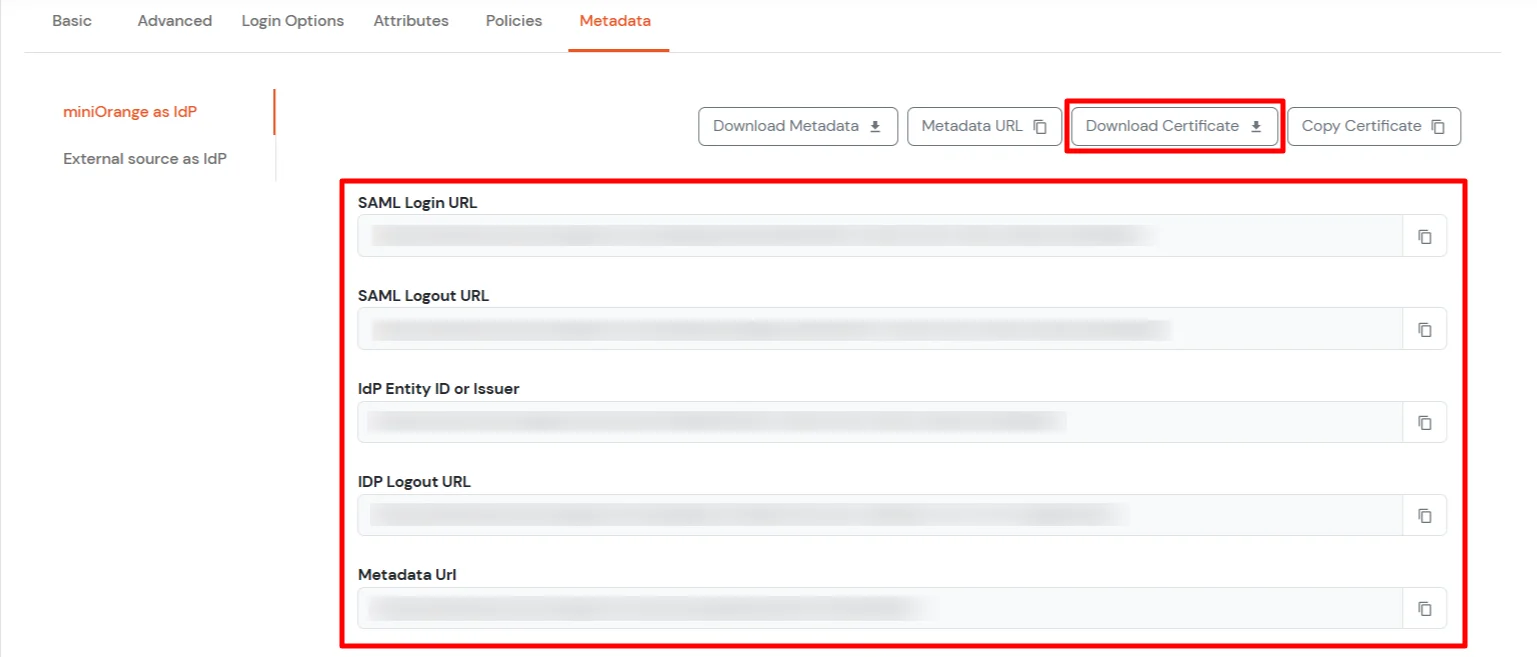
  • Keep SAML Login URL, IdP Entity ID or Issuer and click on the Download Certificate button to download certificate which you will require in Step 2.
  • GitHub Single Sign-On (SSO) Download Certificate


2. Configure SSO in GitHub Enterprise

  • Navigate to the top right corner of GitHub.
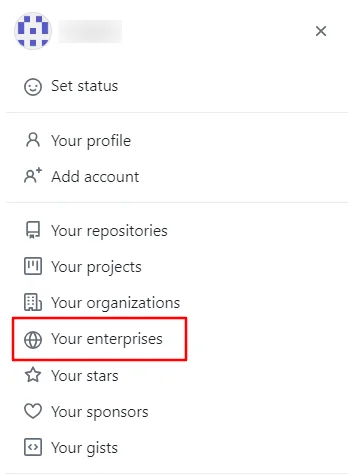
  • Click your profile photo >> then click your Enterprises.
  • GitHub Single Sign-On (SSO) Go to profile photo, click your Enterprises

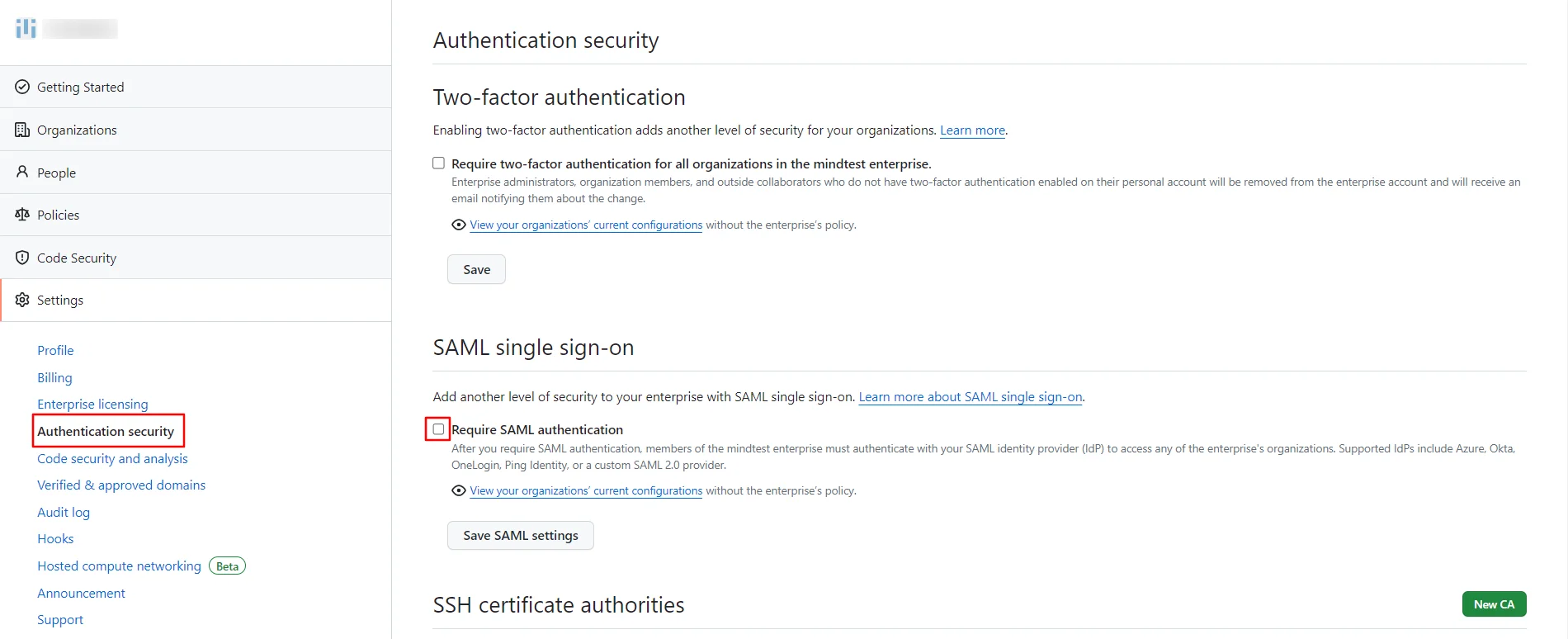
  • In the Enterprises account sidebar, click on Settings >> Authentication security.
  • Under SAML single sign-on, enable the checkbox Require SAML authentication.
  • GitHub Single Sign-On (SSO) Enable the SAML Authentication checkbox

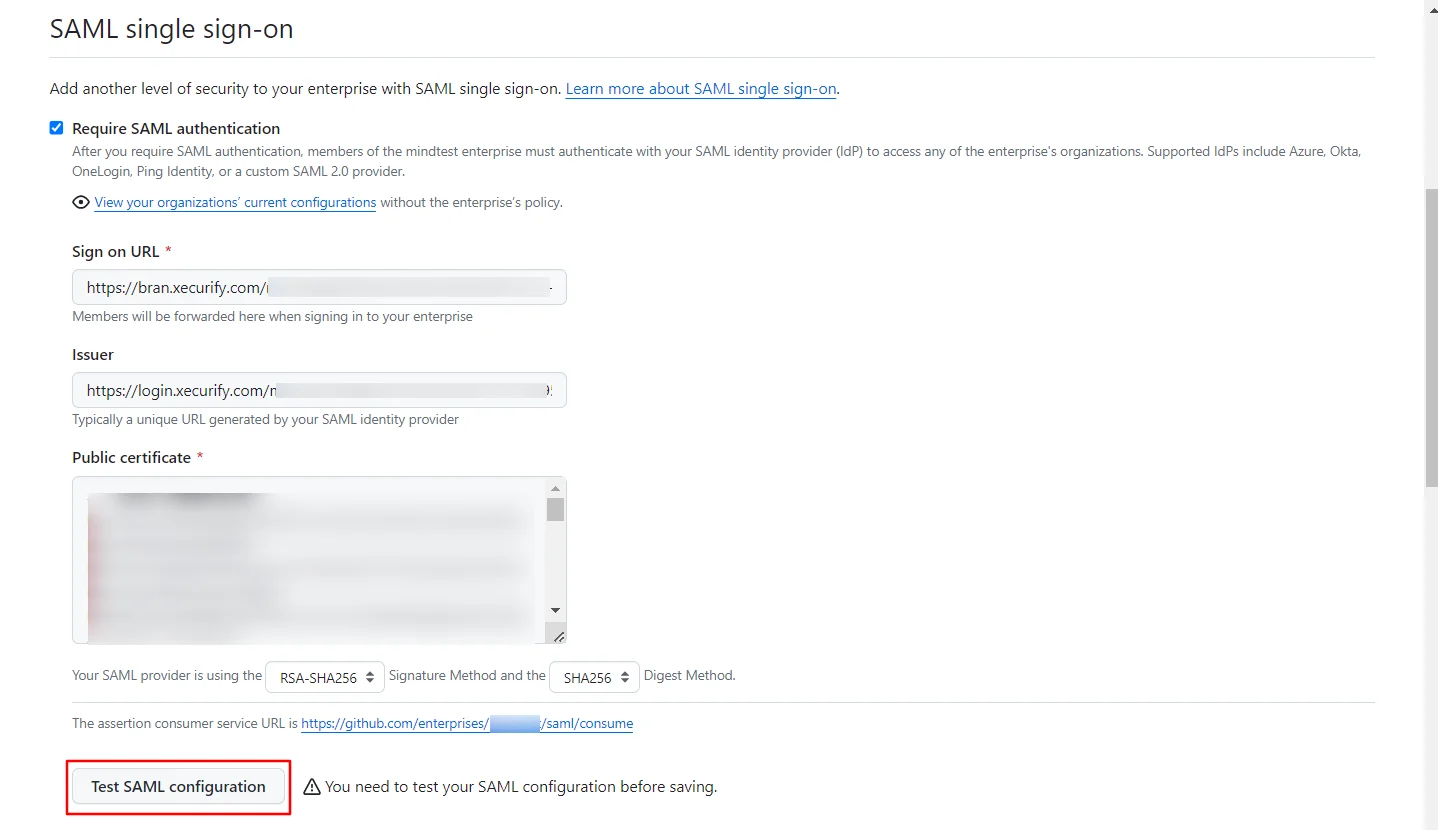
  • Enter the required details. You can get the following information via previous step.
  • Sign on URL Enter the SAML Login URLs for single sign-on requests.
    Issuer Enter the IdP Entity ID or Issuer. This verifies the authenticity of sent messages.
    Public certificate Paste the X.509 Certificate to verify SAML responses
  • Under public certificate, to the right of the current signature and digest methods, click on edit.
  • GitHub Single Sign-On (SSO) Signature Method and Digest Method

  • Select the Signature Method and Digest Method from the dropdown, then click the hashing algorithm used by your SAML issuer.
  • Before saving SAML SSO for your enterprise, click Test SAML configuration to ensure that the information you've entered is correct.
  • GitHub Single Sign-On (SSO) Click Test SAML Configuration

  • Click Save SAML settings.

3. Test SSO Configuration

Test SSO login to your GitHub account with miniOrange IdP:
    Using SP Initiated Login

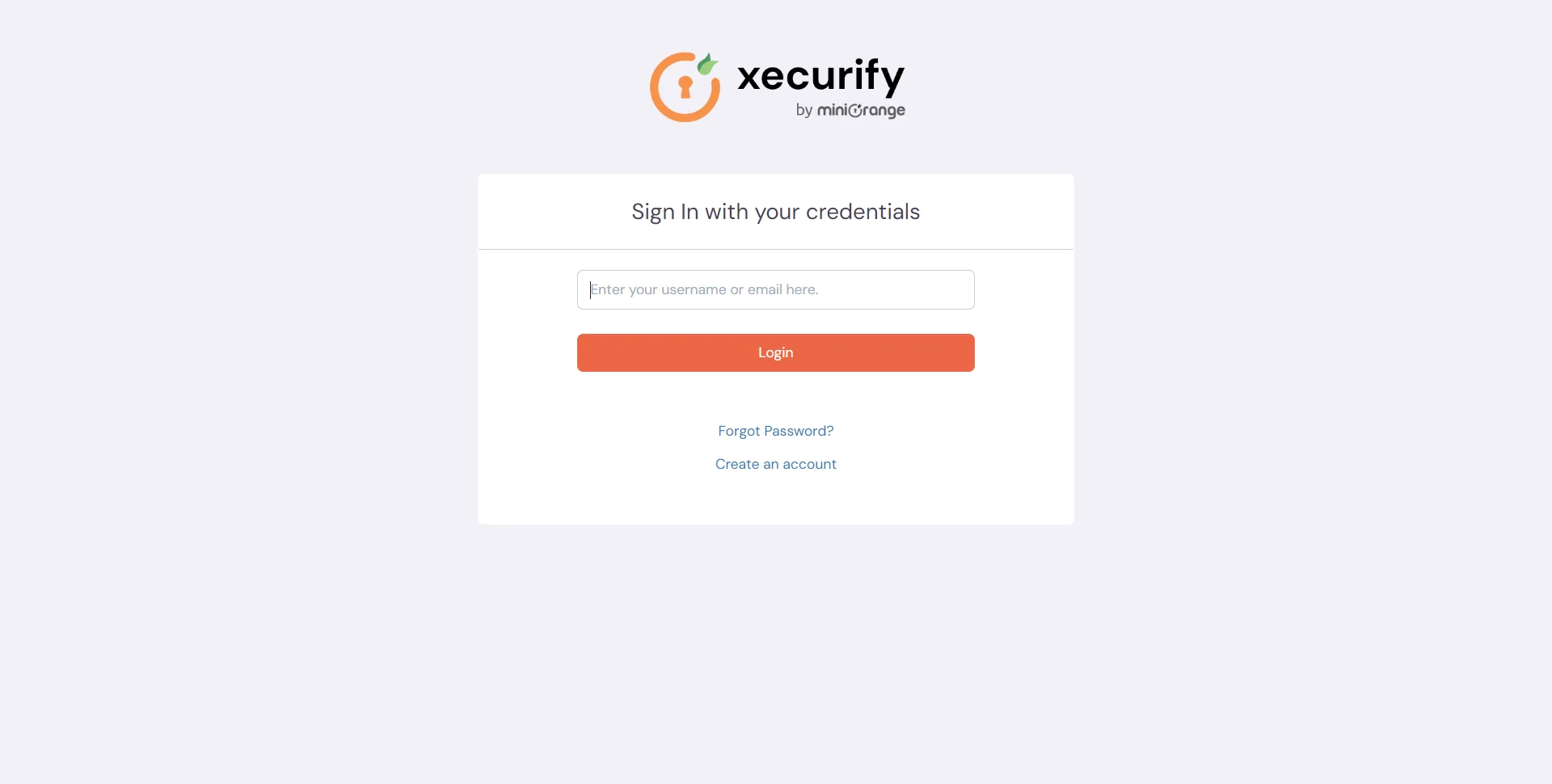
    • Go to your GitHub URL, here you will be either asked to enter the username or click on the SSO link which will redirect you to miniOrange IdP Sign On Page.
    • GitHub Single Sign-On (SSO) login

    • Enter your miniOrange login credential and click on Login. You will be automatically logged in to your GitHub account.

    Using IDP Initiated Login

    • Login to miniOrange IdP using your credentials.
    • GitHub Single Sign-On (SSO)

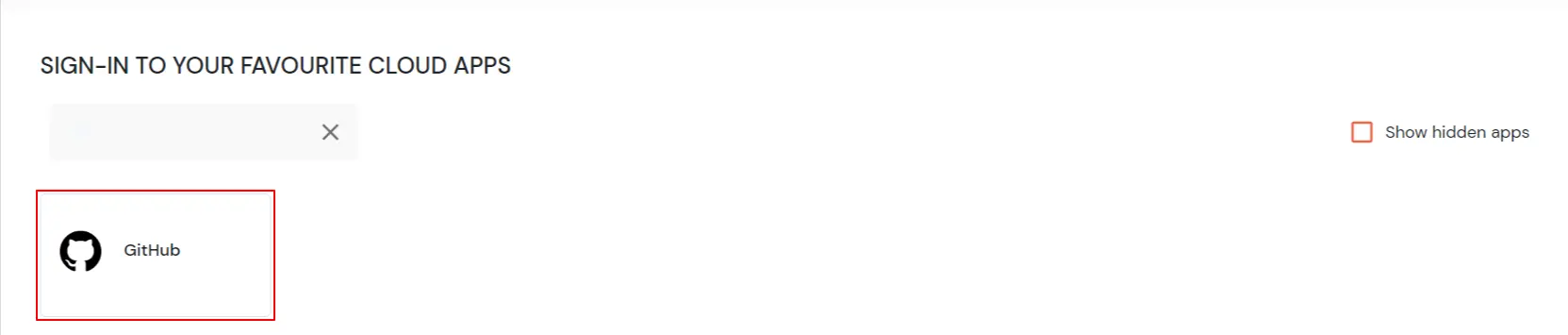
    • On the Dashboard, click on GitHub application which you have added, to verify SSO configuration.
    • GitHub Single Sign-On (SSO) manage apps


    Not able to configure or test SSO?


    Contact us or email us at idpsupport@xecurify.com and we'll help you setting it up in no time.


Frequently Asked Questions


Does GitHub support the SAML protocol?

Yes, GitHub supports the SAML 2.0 protocol for Single Sign-On (SSO). Organizations using GitHub Enterprise Cloud can configure SAML SSO to control and secure access to their organization’s repositories and resources.

How does GitHub SAML SSO work?

When SAML SSO is enabled, members accessing organization resources are redirected to their configured Identity Provider (IdP) for authentication. After successful login via the IdP, they are redirected back to GitHub with an active SAML session, permitting access.

Which Identity Providers (IdPs) are supported by GitHub?

GitHub officially supports and tests IdPs implementing the SAML 2.0 standard, including Microsoft Active Directory Federation Services (AD FS), Microsoft Entra ID (Azure AD), and Okta.


External References

Want To Schedule A Demo?

Request a Demo


Our Other Identity & Access Management Products