Hello there!

Need Help? We are right here!

Support Icon
miniOrange Email Support
success

Thanks for your Enquiry. Our team will soon reach out to you.

If you don't hear from us within 24 hours, please feel free to send a follow-up email to info@xecurify.com

Search Results:

×

BigCommerce SSO with Microsoft Entra ID


BigCommerce + Microsoft Entra ID solution by miniOrange allows a seamless Single Sign-On solution for BigCommerce. Since BigCommerce doesn’t support SSO via Azure, miniOrange provides an interface to generate JWT token and log users into BigCommerce using their Microsoft Entra ID credentials without migrating the users from their existing directory.
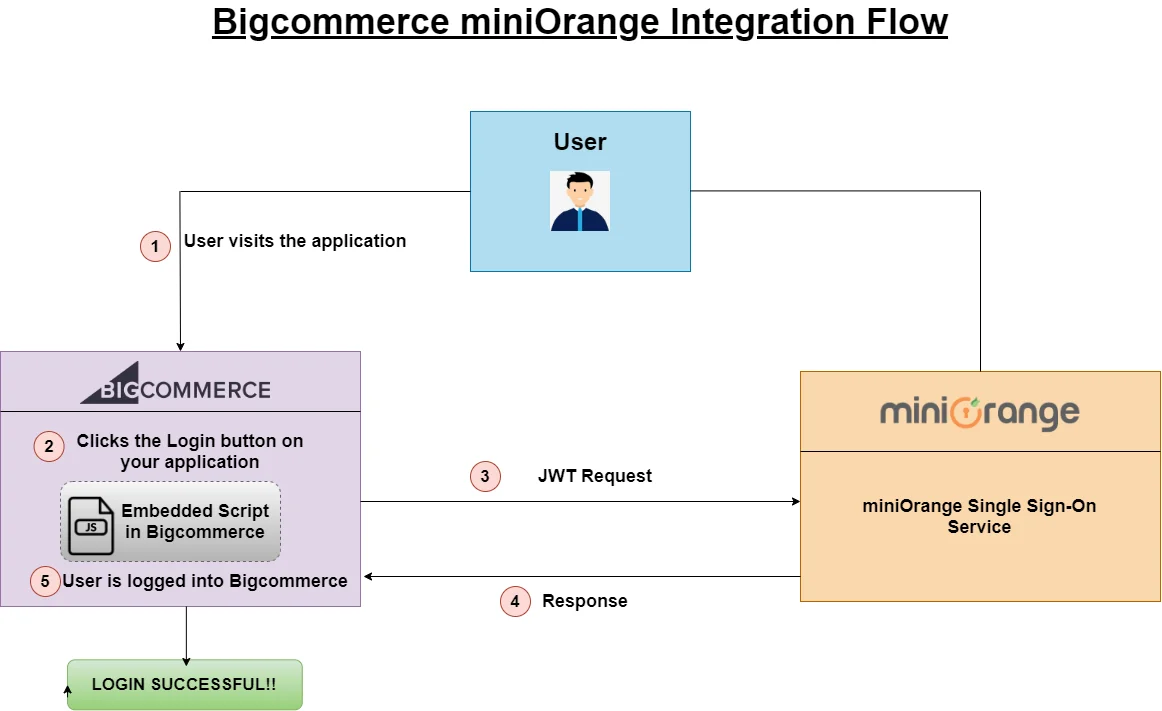
BigCommerce Single Sign-On (SSO)

Video Setup Guide


Prerequisites

Please make sure your organisation branding is already set under Customization >> Login and Registration Branding in the left menu of the dashboard.


Connect with External Source of Users


miniOrange provides user authentication from various external sources, which can be Directories (like ADFS, Microsoft Active Directory, OpenLDAP, AWS etc), Identity Providers (like Microsoft Entra ID, Okta, AWS), and many more. You can configure your existing directory/user store or add users in miniOrange.


Follow the Step-by-Step Guide given below for BigCommerce Single Sign-On (SSO)

1. Create BigCommerce API

  • Log in to BigCommerce Admin Panel.
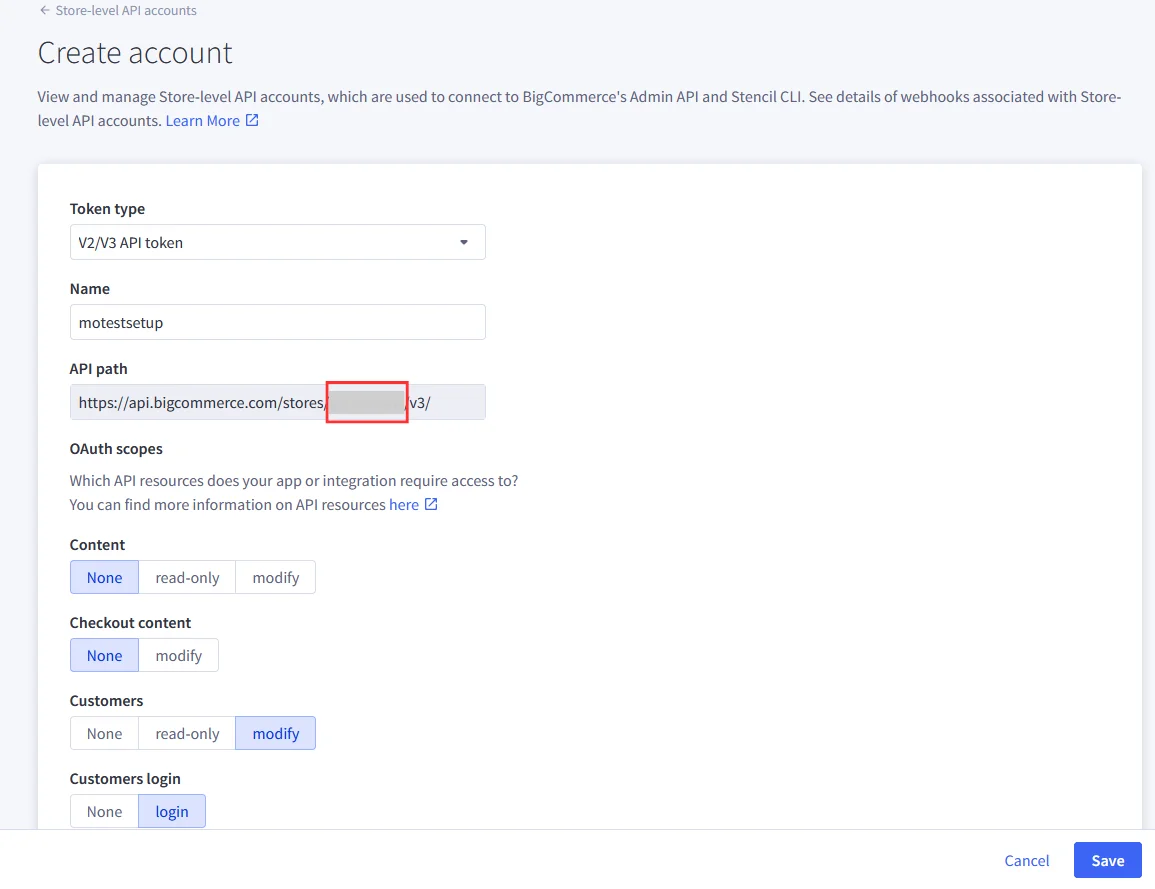
  • Go to Settings >> API >> Store-level API Accounts.
  • BigCommerce Single Sign-On (SSO): API account

  • Click Create API Account and choose the token type as V2/V3 API Token.
  • Add a suitable name for your API account.

    Note: In BigCommerce, the API Path is the base URL that your application or integration uses to connect to your store’s data through BigCommerce APIs. The Store Hash is a unique identifier automatically generated by BigCommerce for each store. It appears in the API Path.
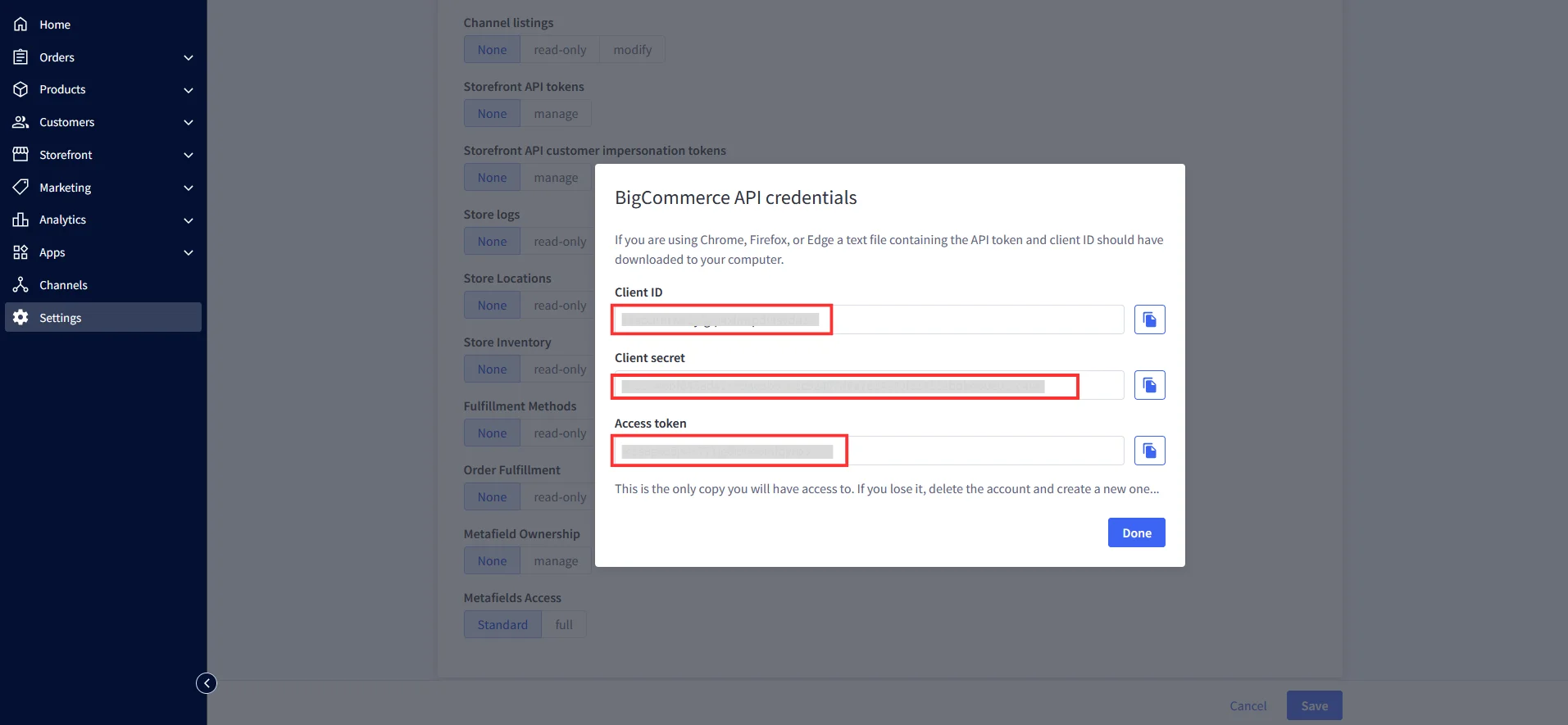
  • Copy the highlighted Store Hash from the API Path.
  • BigCommerce Single Sign-On (SSO): API Path

  • Enable the Customers option as Modify and Customers Login option as login. Keep rest of the settings as it is.
  • Click on Save. Download the API credentials file. It contains the API token, Client ID and Client Secret.
  • BigCommerce Single Sign-On (SSO): API Credential Download

2. Configure BigCommerce in miniOrange

  • Login into miniOrange Admin Console.
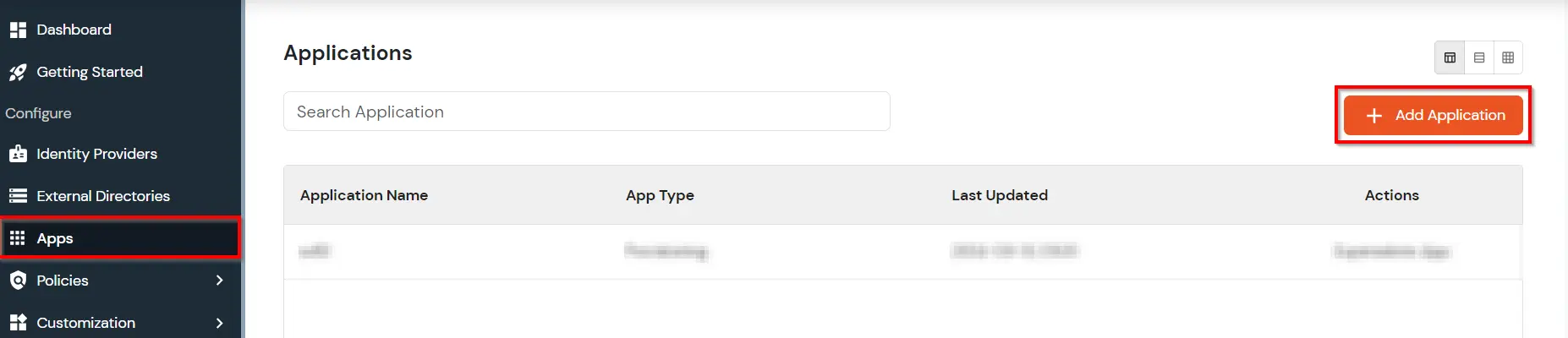
  • Go to Apps click on Add Application button.
  • BigCommerce Single Sign-On (SSO) add app

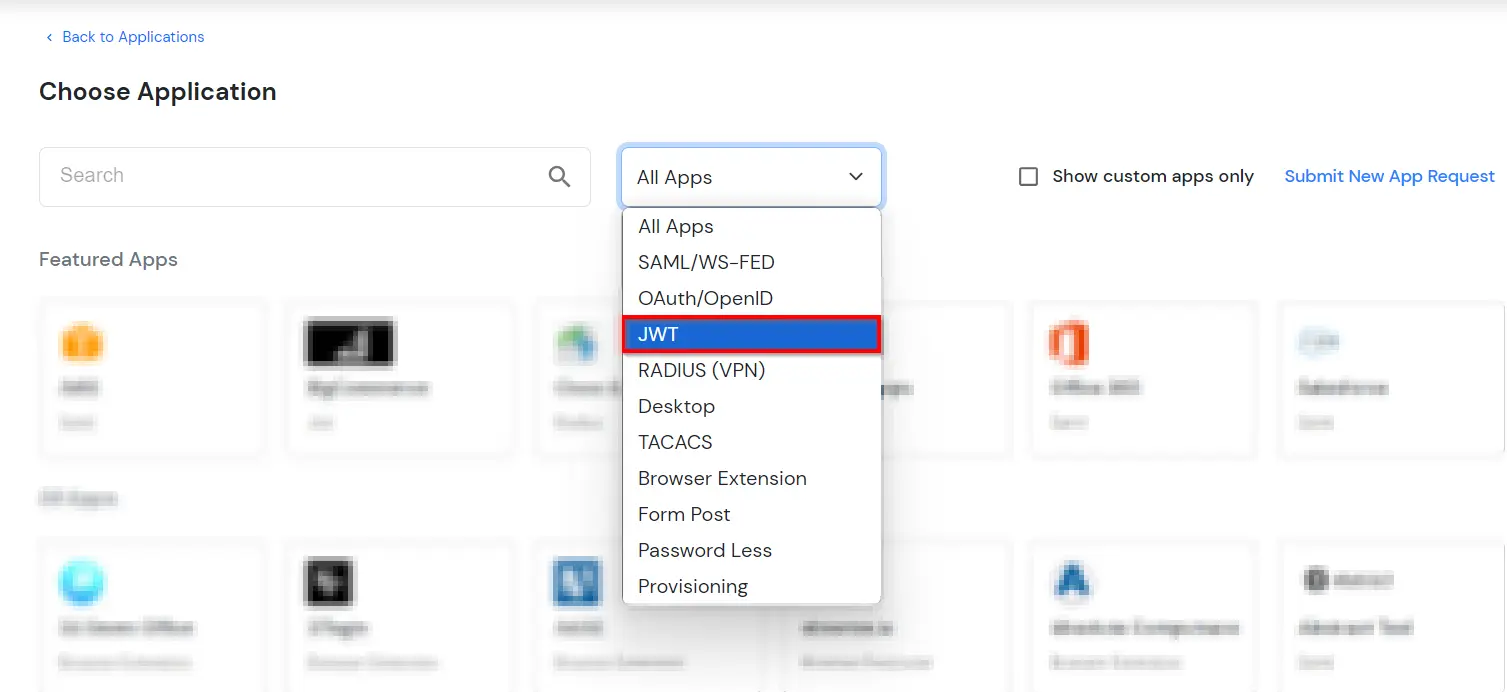
  • In the Choose Application section, open the dropdown list of All Apps and select JWT.
  • BigCommerce Single Sign-On (SSO) choose JWT as app type

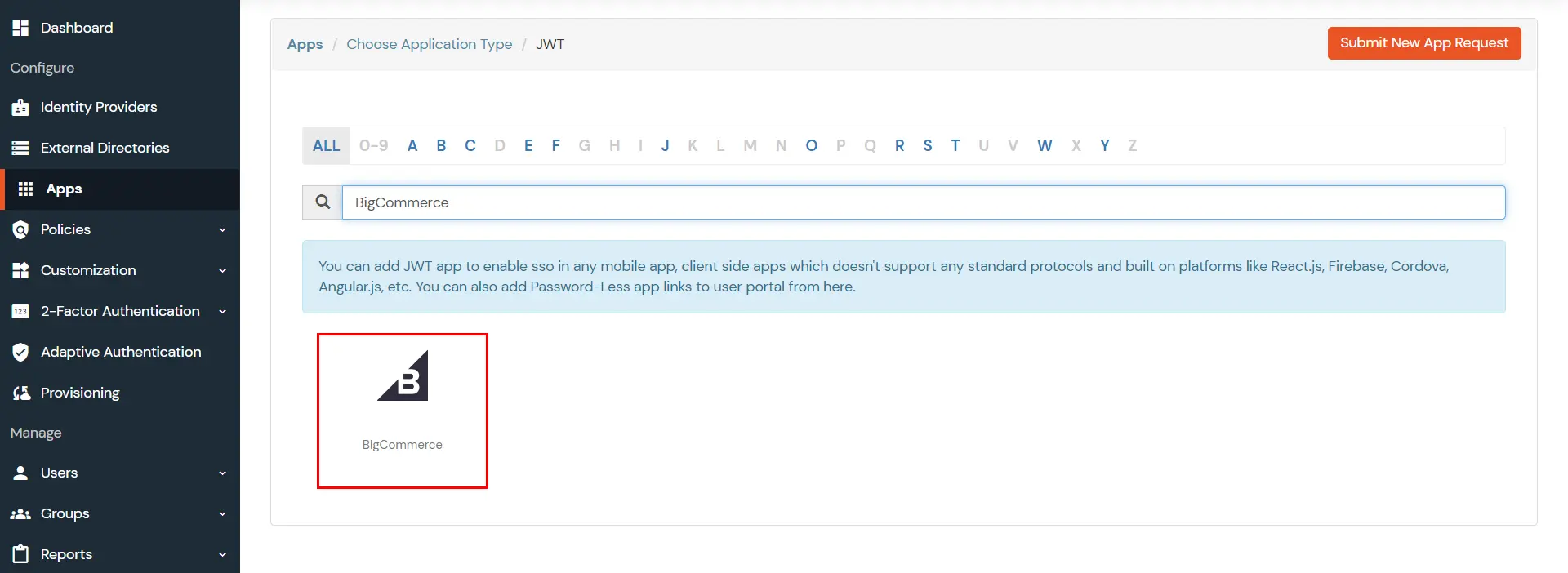
  • In the next step, search for BigCommerce application from the list and click on it.
  • BigCommerce Single Sign-On (SSO): Select BigCommerce Application

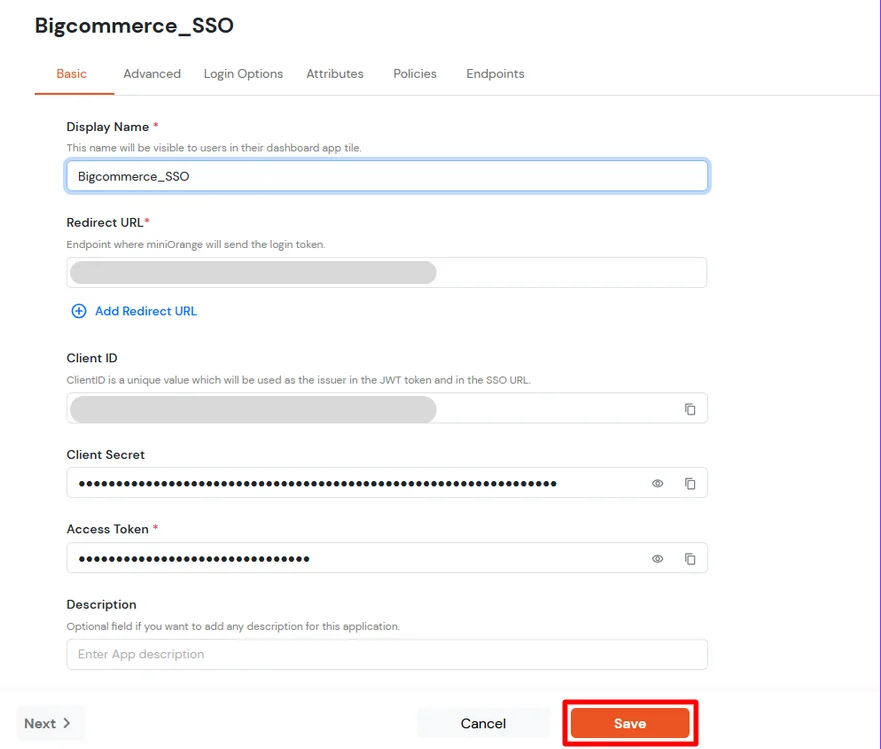
  • Enter the following values in the respective fields.
  • BigCommerce Single Sign-On (SSO): Enter Basic details

  • Enter the Client ID, Client secret and Access token which we have downloaded from step 1 during API creation in BigCommerce Console.
    Display Name [Required] BigCommerce (According to your choice)
    Redirect-URL [Required] Storefront URL, e.g. https://{{my-store}}.mybigcommerce.com/login/token/
    Client ID Copy from the downloaded file in Step 1
    Client Secret Copy from the downloaded file in Step 1
    Access Token Copy from the downloaded file in Step 1
    Description According to your choice

    Note: Your Redirect URL should be: <Storefront URL>/login/token/
    For Example: https://mystore.mybigcommerce.com/login/token/

  • To find your Storefront URL: Go to Channels >> Storefronts. Copy the URL listed for your store.
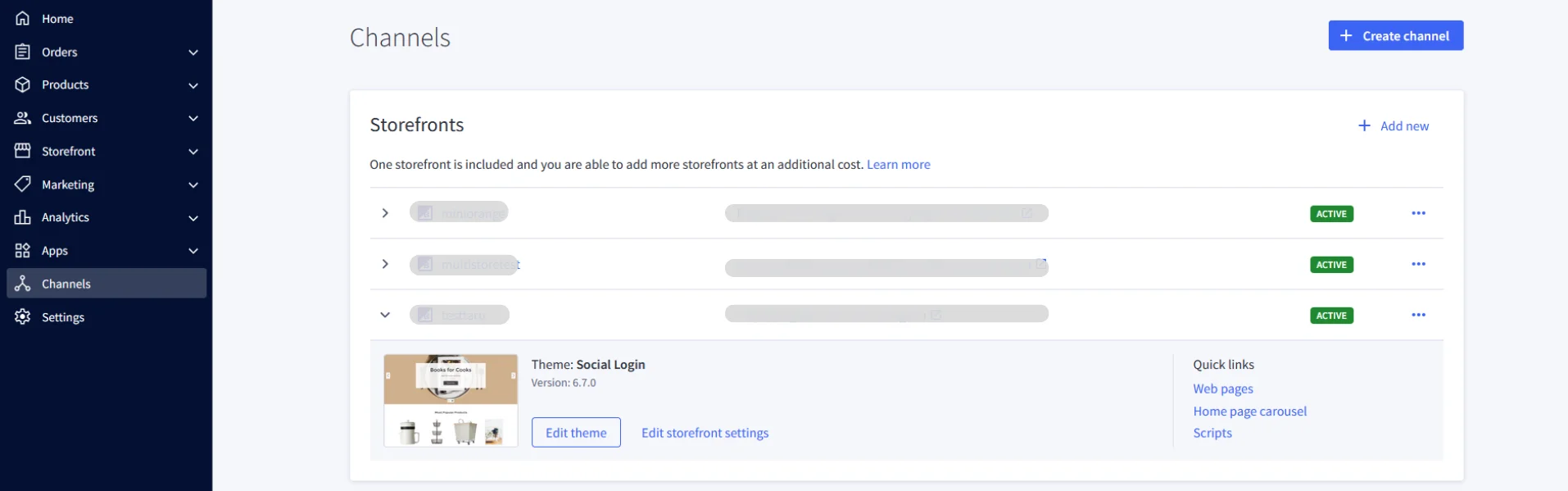
  • BigCommerce Single Sign-On (SSO): Go to Channels > Storefronts and copy listed URLs

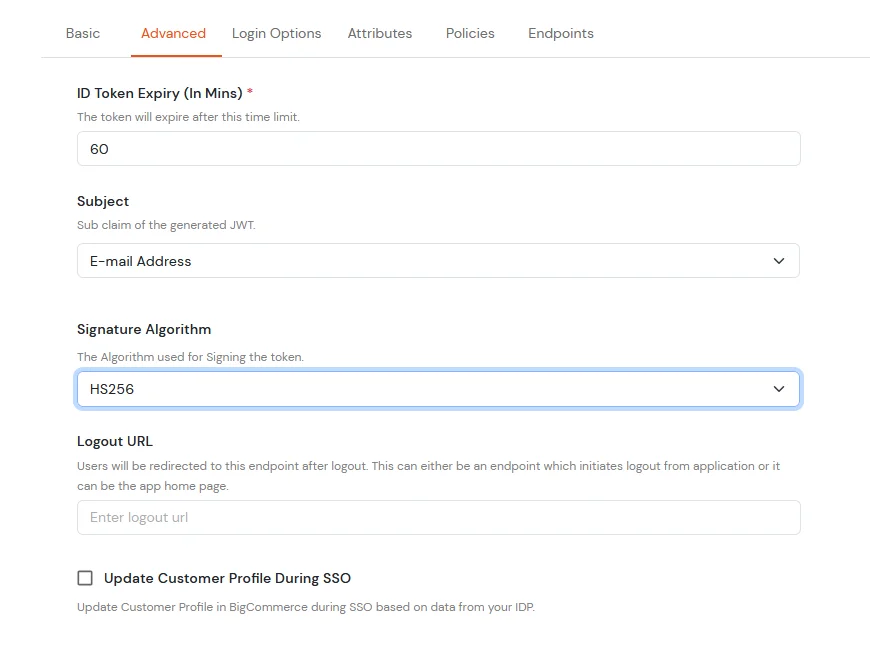
  • Now next move to Advanced tab.
  • BigCommerce Single Sign-On (SSO): Switch to Advanced tab

    Subject E-Mail Address.
    Signature Algorithm HS256
    Logout URL Copy the storefront URL as mentioned above and append /login.php?action=logout

    e.g., https://{{my-store}}.mybigcommerce.com/login.php?action=logout
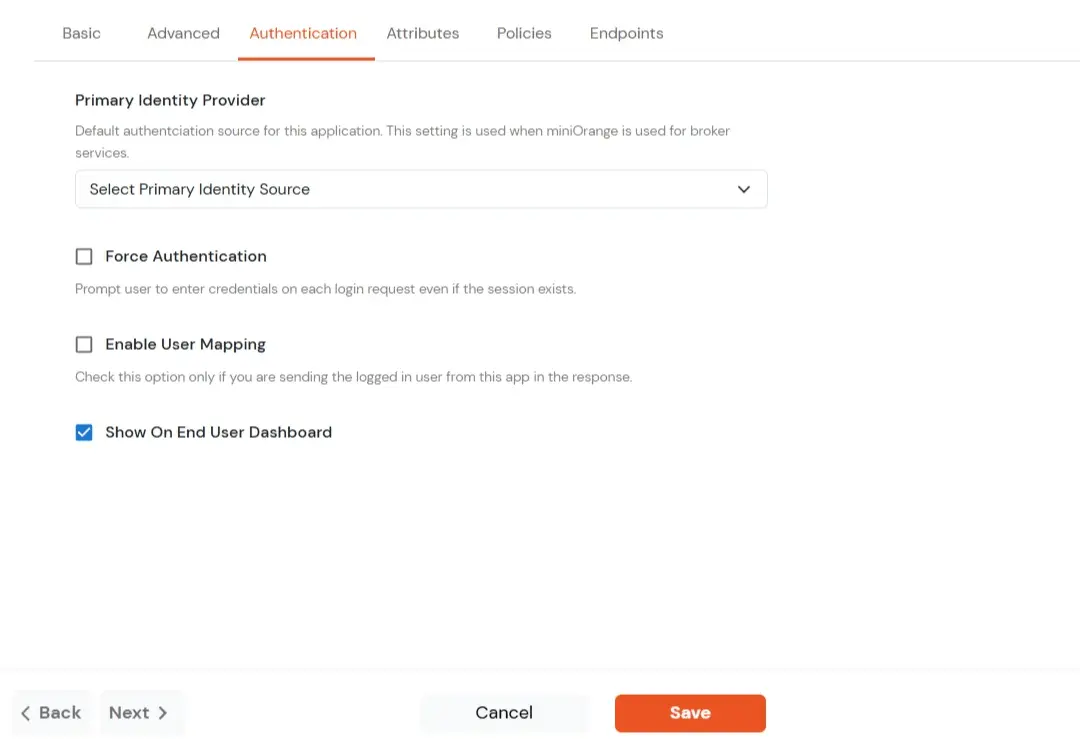
  • Click Next to go to the Login Options tab.
  • BigCommerce Single Sign-On (SSO): Go to Login Options

    Primary Identity Provider The identity source against which user will be authenticated
    Force Authentication Enable if you want user to authenticate even if the user has a session
    Enable User Mapping Enable if you are sending the logged-in user from this app in the response
  • Click on Next and proceed to the Attributes tab.
  • For Microsoft Entra ID as an external IDP:

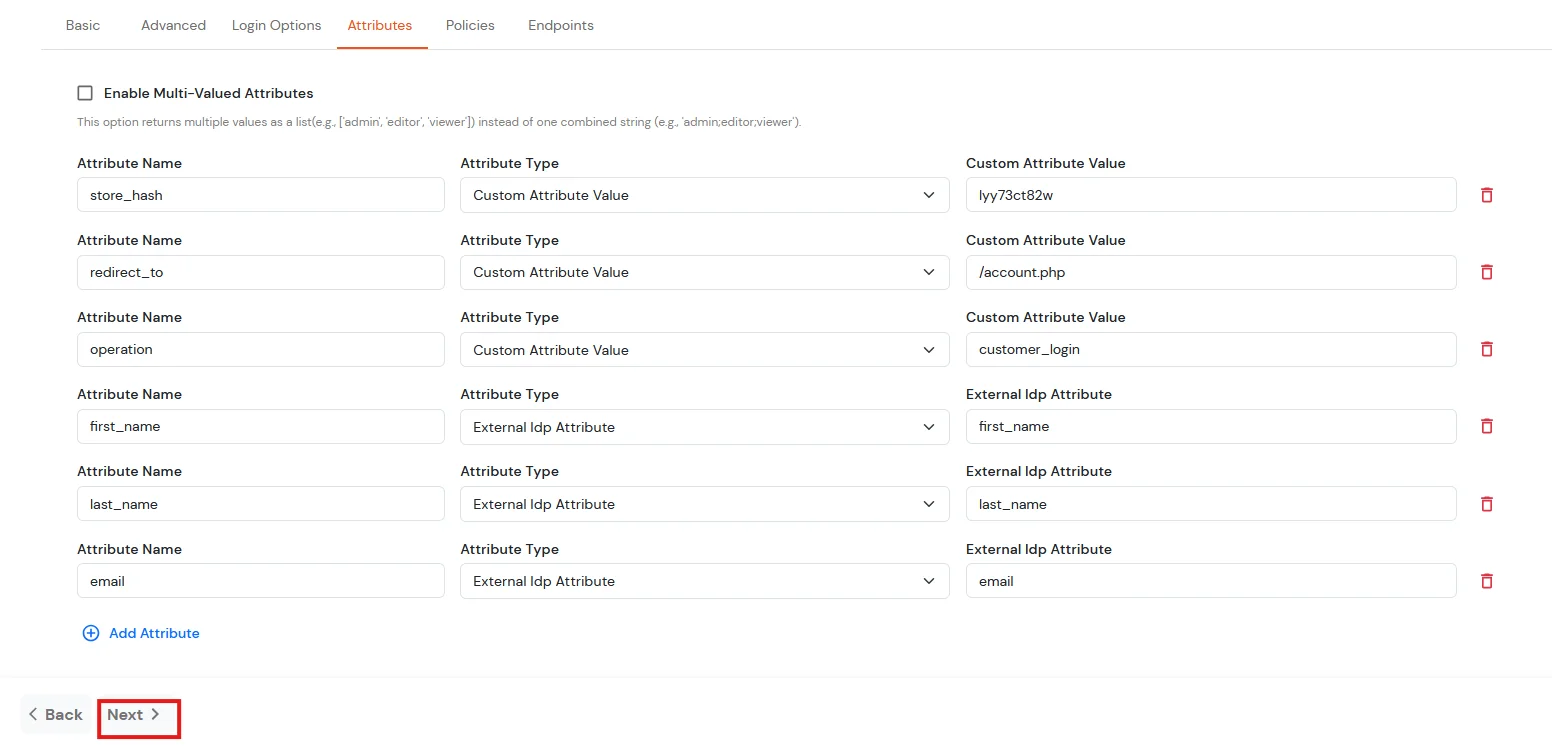
    • To map the attributes between the external IDP and BigCommerce application, navigate to Attributes tab. Click on the + Add Attribute button.
    • You need to map the attributes received from the IDP by selecting the External IDP option.
    • The first three attributes will be hard-coded values
      Attribute NameAttribute TypeAttribute Value
      store_hashCustom Attribute ValueRefer to Step 1 above.
      redirect_toCustom Attribute ValueEndpoint where you wish to redirect the user to after sso.
      [Homepage or account page e.g. /account.php]
      operationCustom Profile Attributecustomer_login
      first_nameExternal Idp Attributefirst_name
      last_nameExternal Idp Attributelast_name
      emailExternal Idp Attributeemail
    • BigCommerce Single Sign-On (SSO): Add custom attributes

  • Click on the Next button.
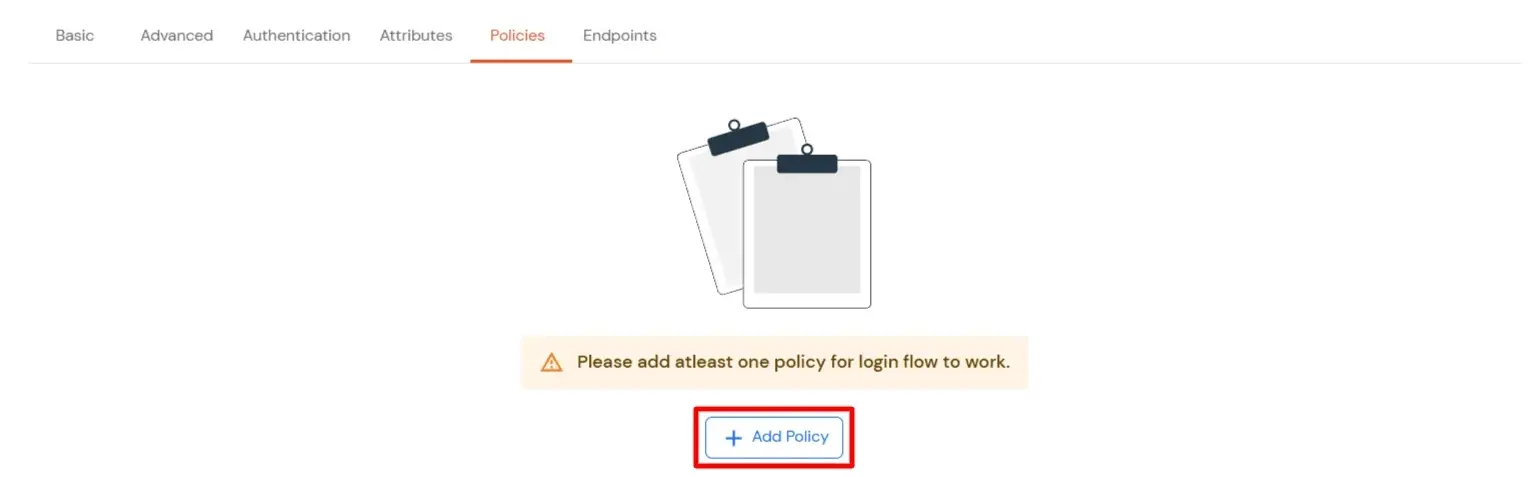
  • Navigate to Policies tab.
  • Click on Assign Group button.
  • BigCommerce Single Sign-On (SSO): Navigate to Policies and click Assign Group

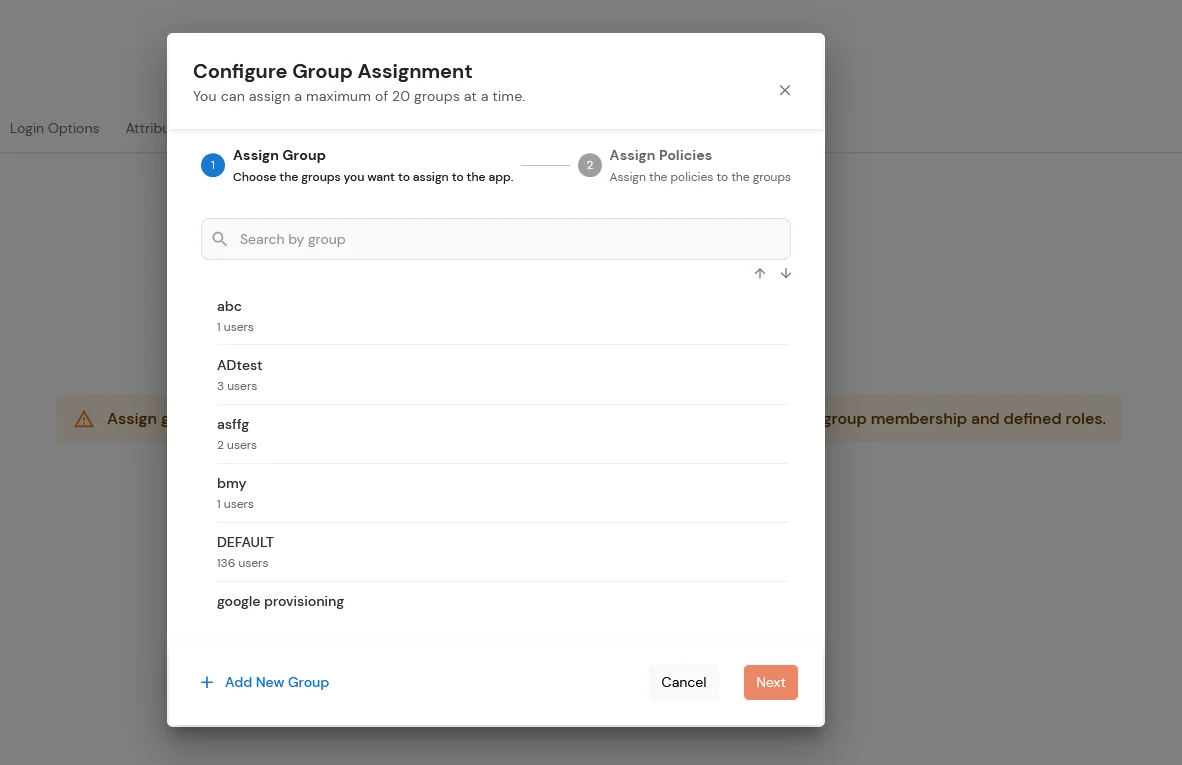
  • On the Assign Group section.
  • Choose the DEFAULT group.
  • Click on the Next button.
  • BigCommerce Single Sign-On (SSO): Choose Default as group

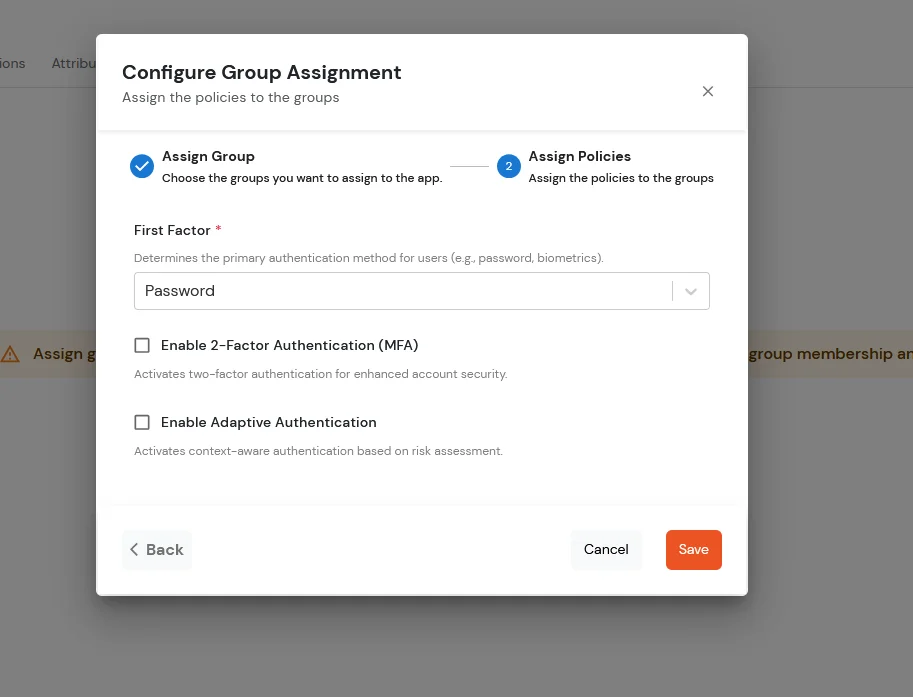
  • Assign the policies to the group. Here, you can choose the primary authentication method for users. From the dropdown under First Factor, select Password.
  • Click on Save.
  • BigCommerce Single Sign-On (SSO): Select First Factor as Password

3. Syncing Address, Form, and Custom Attribute Fields to BigCommerce (Optional)

To synchronize address, custom attributes, and form fields from the Identity Provider (IDP) to BigCommerce, the following details must be configured:

Address Fields

To successfully sync customer address information, the following attributes are required:

  • first_name
  • last_name
  • address1
  • city
  • country_code

In the below diagram, we are using miniOrange as the IDP.
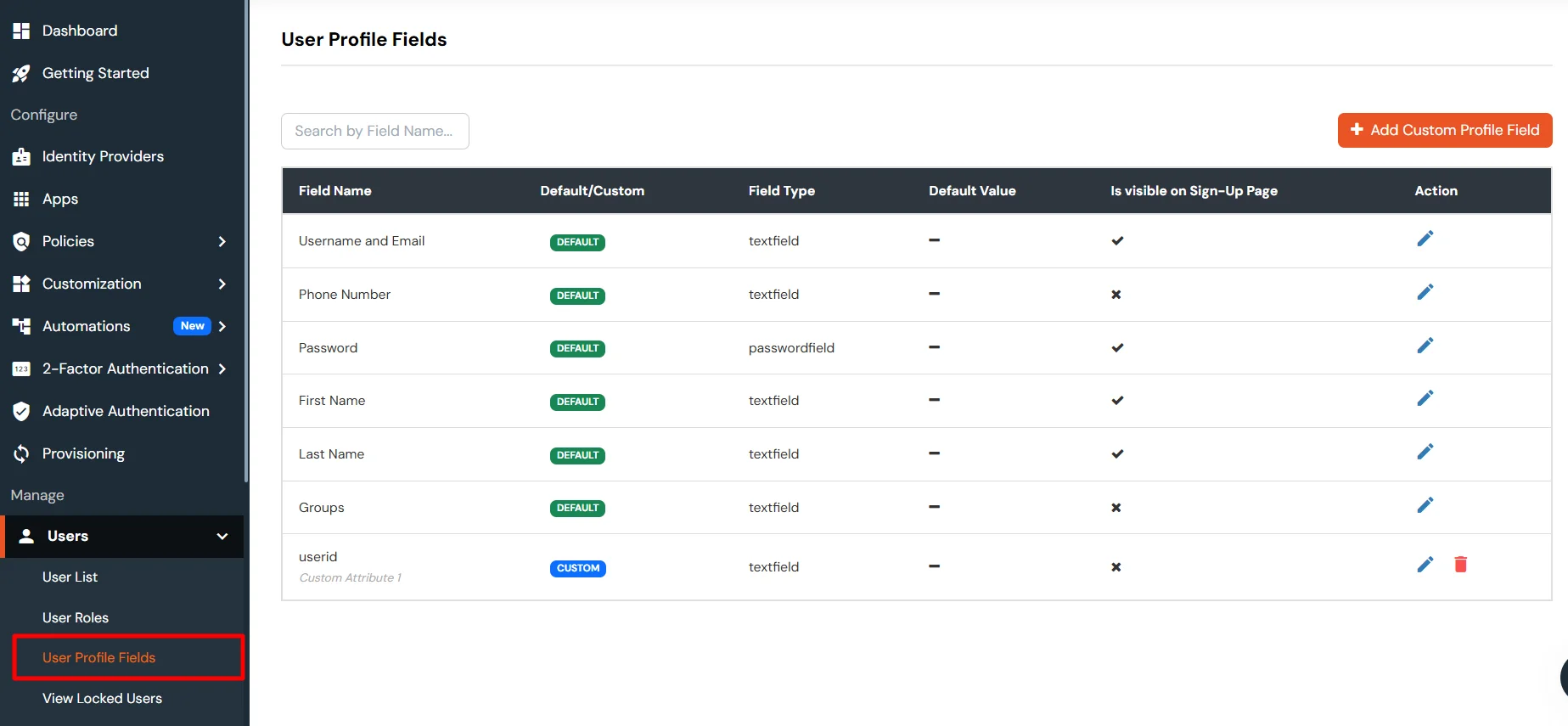
  • Before syncing these fields to BigCommerce, you must first create the corresponding attributes in the miniOrange user profile. These attributes will then be mapped and synced to BigCommerce.
  • BigCommerce Single Sign-On : Go to Users >> User Profile fields

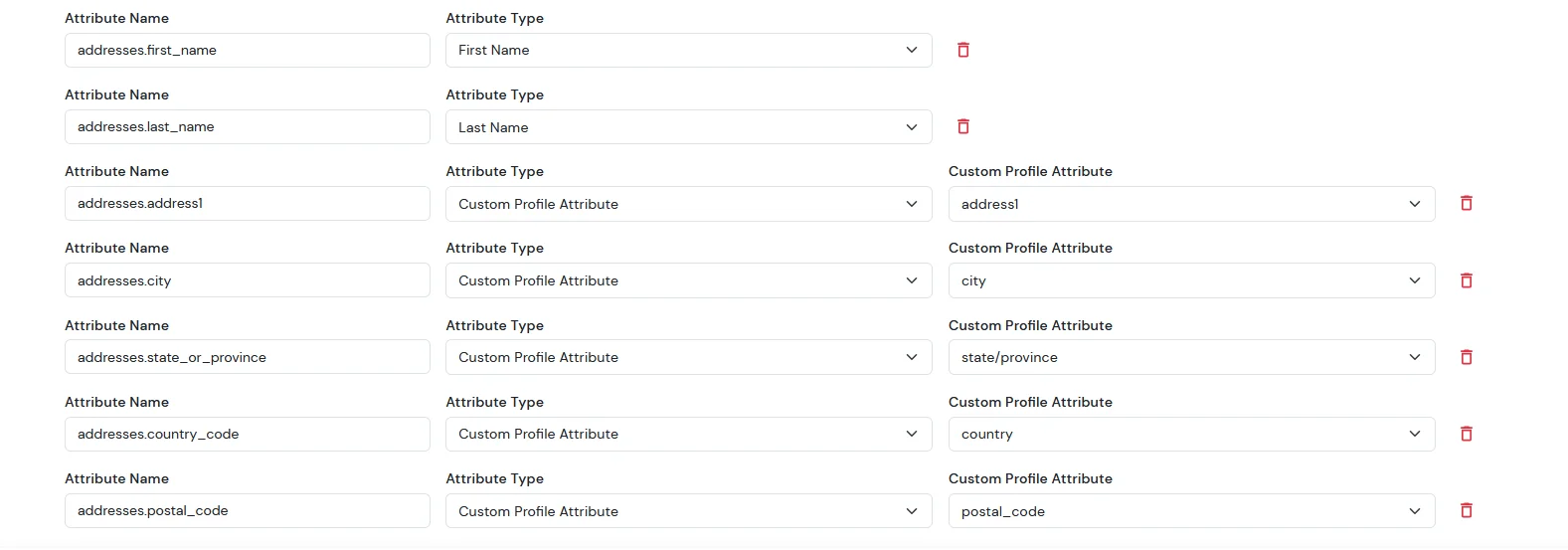
  • Then we need to configure the attribute mapping in the application.
    Attribute NameAttribute TypeValue
    addresses.first_nameFirst Name-
    addresses.last_nameLast Name-
    addresses.address1Custom Profile Attributeaddress1
    addresses.cityCustom Profile Attributecity
    addresses.state_or_provinceCustom Profile Attributestate/province
    addresses.country_codeCustom Profile Attributecountry
    addresses.postal_codeCustom Profile Attributepostal_code
  • BigCommerce Single Sign-On : Attributes in the miniOrange user profile

    Note: When sending the country value, always use the country code (e.g., US, IN). If you pass the full country name such as “United States”, the value will not be updated — only country codes are supported for correct mapping.

    While syncing address fields, ensure that the city, state, and country values you provide are valid options supported by BigCommerce and exist in their respective dropdown lists.
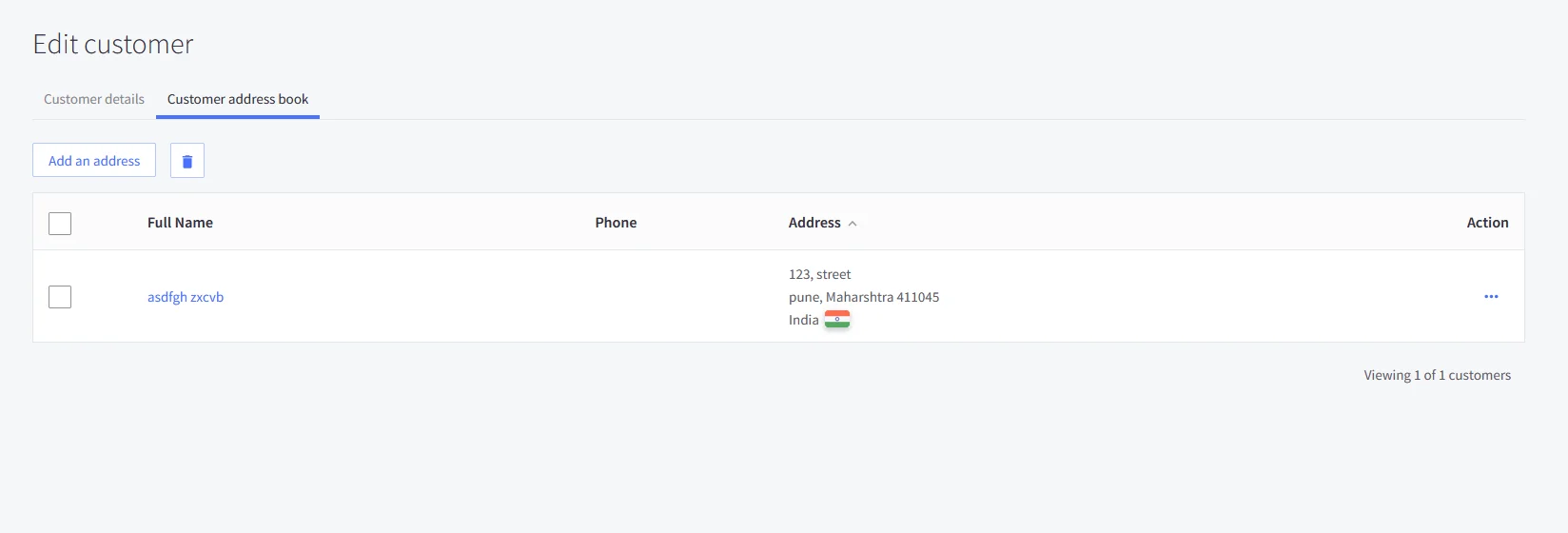

  • Now, after completing SSO, go to your BigCommerce dashboard. From the sidebar, click on Customers.
  • You will see the list of all customers. Search for the specific user and click on their name.
  • Next, open the Customer Address Book section — this is where you will be able to view the customer’s address details.
  • BigCommerce Single Sign-On : Edit Customer

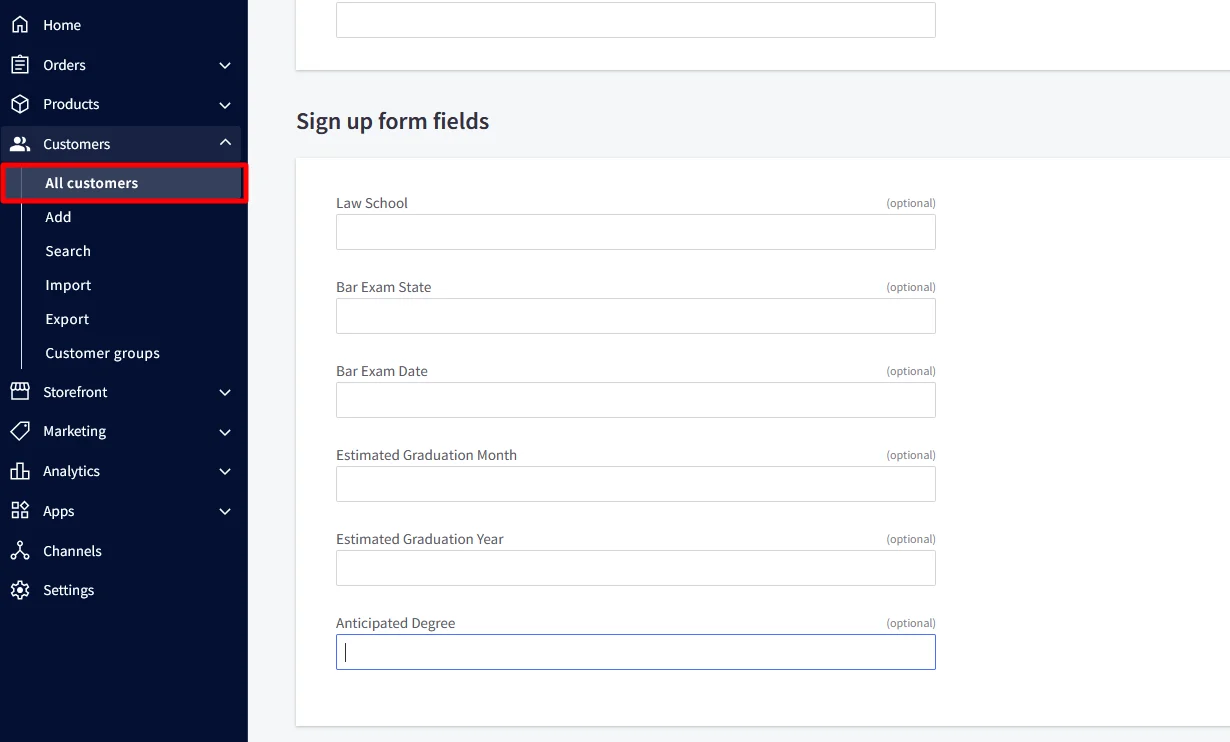
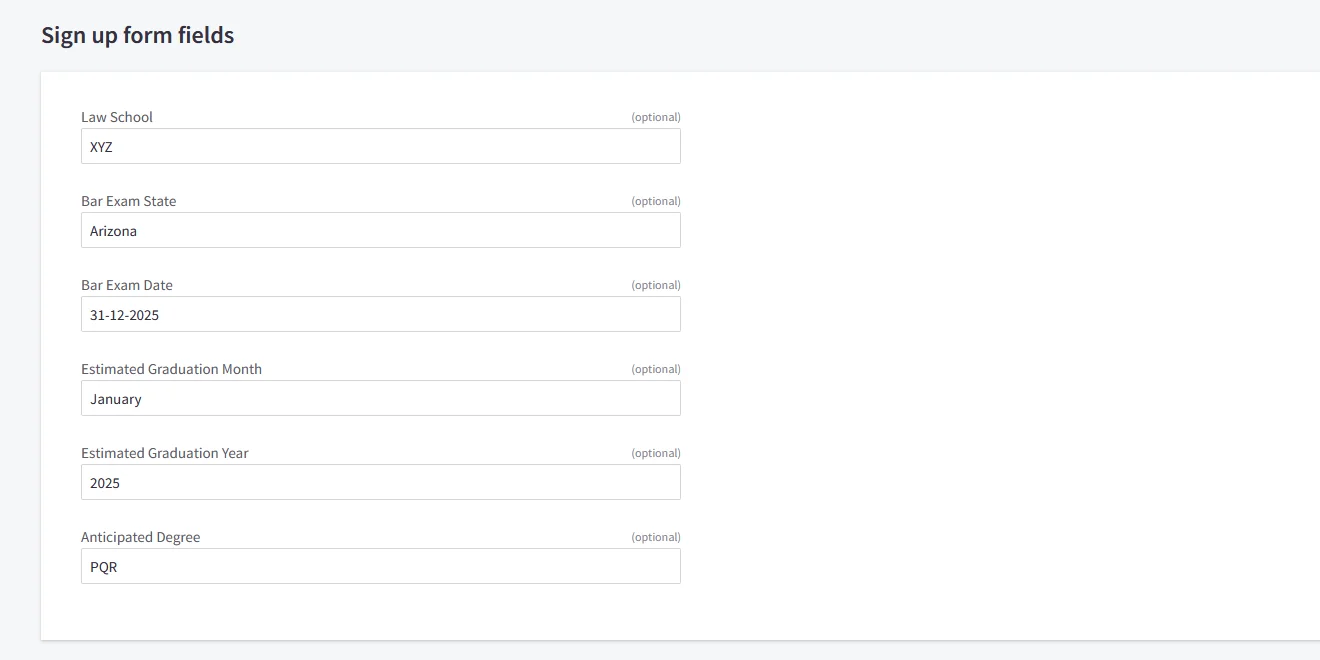
For the Sign up form fields:

  • In BigCommerce, the following form fields are available. We need to configure the corresponding attribute mappings in the application to ensure these fields are correctly synced to BigCommerce.
  • BigCommerce Single Sign-On : Go to Sign up form fields

  • Then we need to configure the attribute mapping in the application.
    Attribute NameAttribute TypeValue
    addresses.first_nameFirst Name-
    addresses.last_nameLast Name-
    addresses.address1Custom Profile Attributeaddress1
    addresses.cityCustom Profile Attributecity
    addresses.state_or_provinceCustom Profile Attributestate/province
    addresses.country_codeCustom Profile Attributecountry
    addresses.postal_codeCustom Profile Attributepostal_code
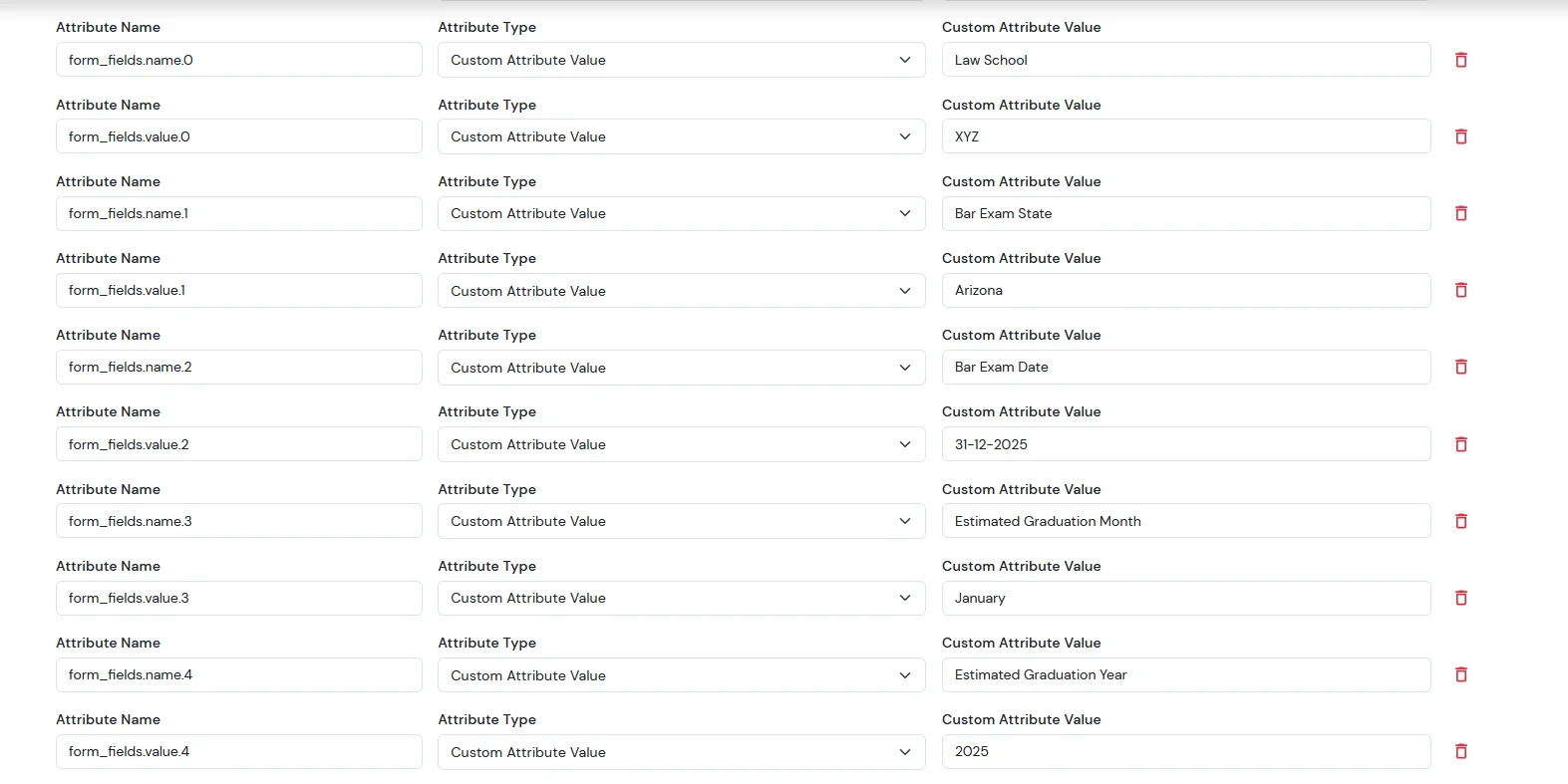
    form_fields.name.0Custom Attribute ValueLaw School
    form_fields.value.0Custom Attribute ValueXYZ
    form_fields.name.1Custom Attribute ValueBar Exam State
    form_fields.value.1Custom Attribute ValueArizona
    form_fields.name.2Custom Attribute ValueBar Exam Date
    form_fields.value.2Custom Attribute Value31-12-2025
    form_fields.name.3Custom Attribute ValueEstimated Graduation Month
    form_fields.value.3Custom Attribute ValueJanuary
    form_fields.name.4Custom Attribute ValueEstimated Graduation Year
    form_fields.value.4Custom Attribute Value2025
  • BigCommerce Single Sign-On : Configure Attribute Mapping

  • After completing SSO, go to your BigCommerce dashboard.
  • From the left sidebar, click on Customers.
  • You will now see the list of all customers.
  • Search for the specific user and click on their name.
  • The customer profile will open — scroll down to the Customer Details section.
  • Here, you will see the signup form fields, where you can view all the customer-submitted form-field details.
  • BigCommerce Single Sign-On : Provide the required details

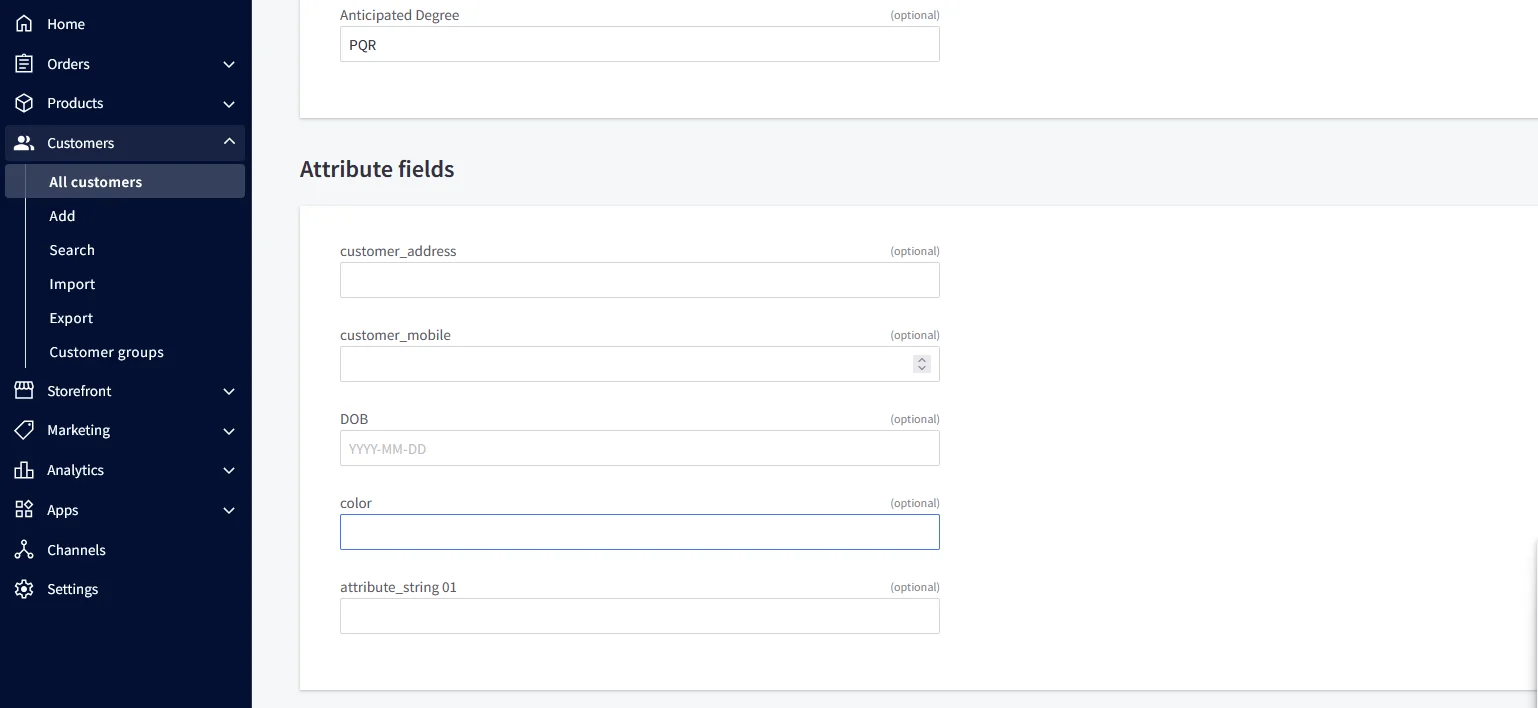
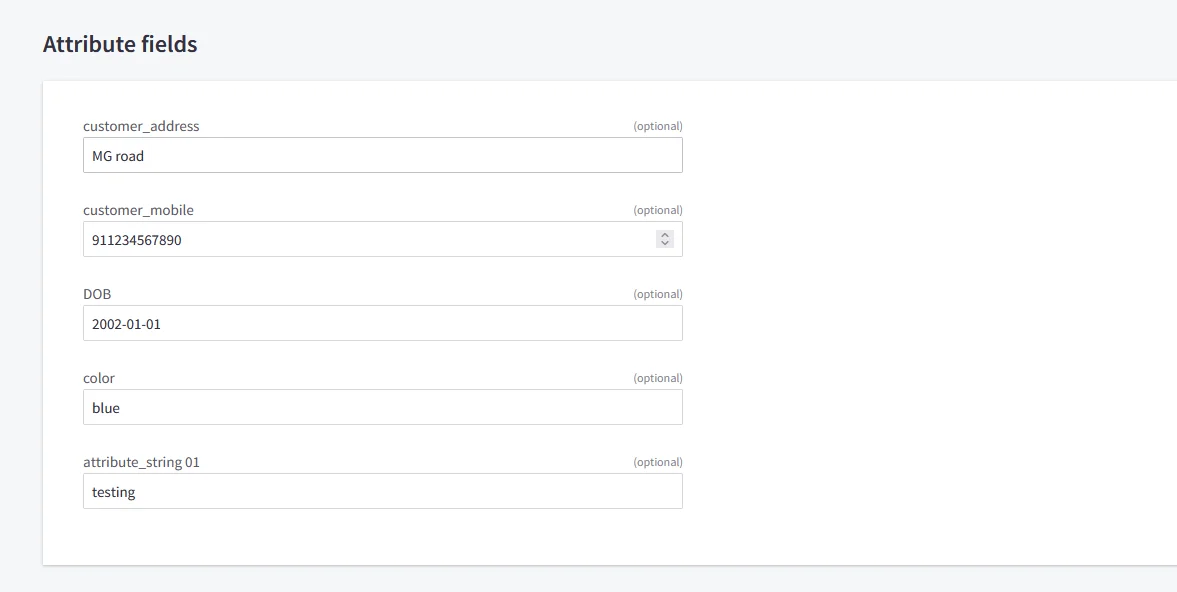
For the Attribute Fields

  • In BigCommerce, the following attribute fields are available. We need to configure the corresponding attribute mappings in the application to ensure these fields are correctly synced to BigCommerce.
  • BigCommerce Single Sign-On : Scroll to Attribute Field section

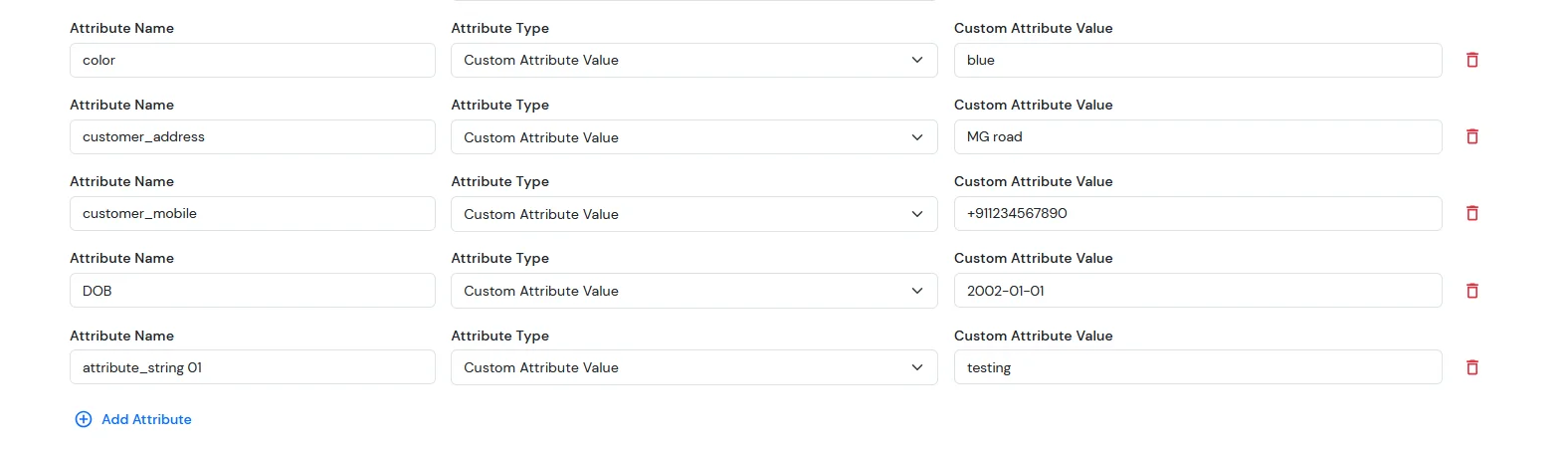
  • Then we need to configure the attribute mapping in the application.
    Attribute NameAttribute TypeValue
    colorCustom Profile Attributeblue
    customer_addressCustom Profile AttributeMG road
    customer_mobileCustom Profile Attribute+911234567890
    DOBCustom Profile Attribute2002-01-01
    attribute_string 01Custom Profile Attributetesting
  • BigCommerce Single Sign-On : Map Custom Attribute field

  • After completing SSO, go to your BigCommerce dashboard.
    • From the left sidebar, click on Customers.
    • You will now see the list of all customers.
    • Search for the specific user and click on their name.
    • The customer profile will open — scroll down to the Customer Details section.
    • Here, you will see the attribute fields, where you can view all the customer-submitted form-field details.
    BigCommerce Single Sign-On : Map Custom Attributes

NOTE: Update customer profile during sso
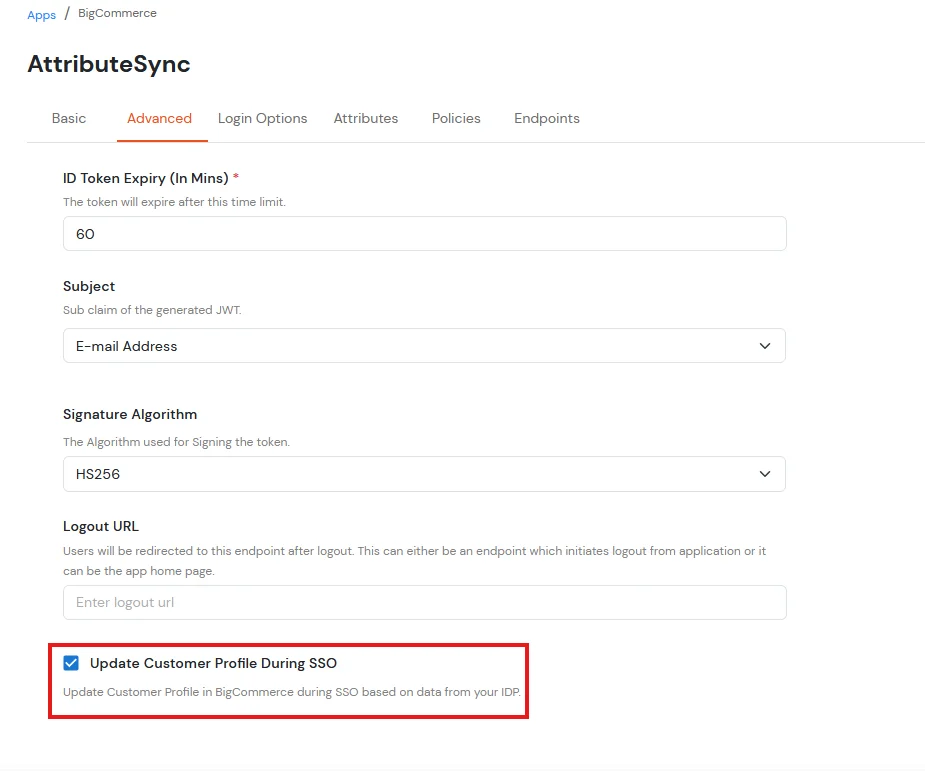
  • Go to the BigCommerce application you have configured in miniOrange.
  • Open the Advanced tab.
  • Scroll to the bottom of the page.
  • Enable the checkbox Update Customer Profile During SSO.
BigCommerce Single Sign-On: Enable Update Customer Profile During SSO

For ExternaI Identity Provider

  • Before syncing these fields to BigCommerce, you must first create the corresponding attributes in your external IDP. These attributes will then be mapped and synced to BigCommerce.
  • Then we need to configure the attribute mapping in the application.
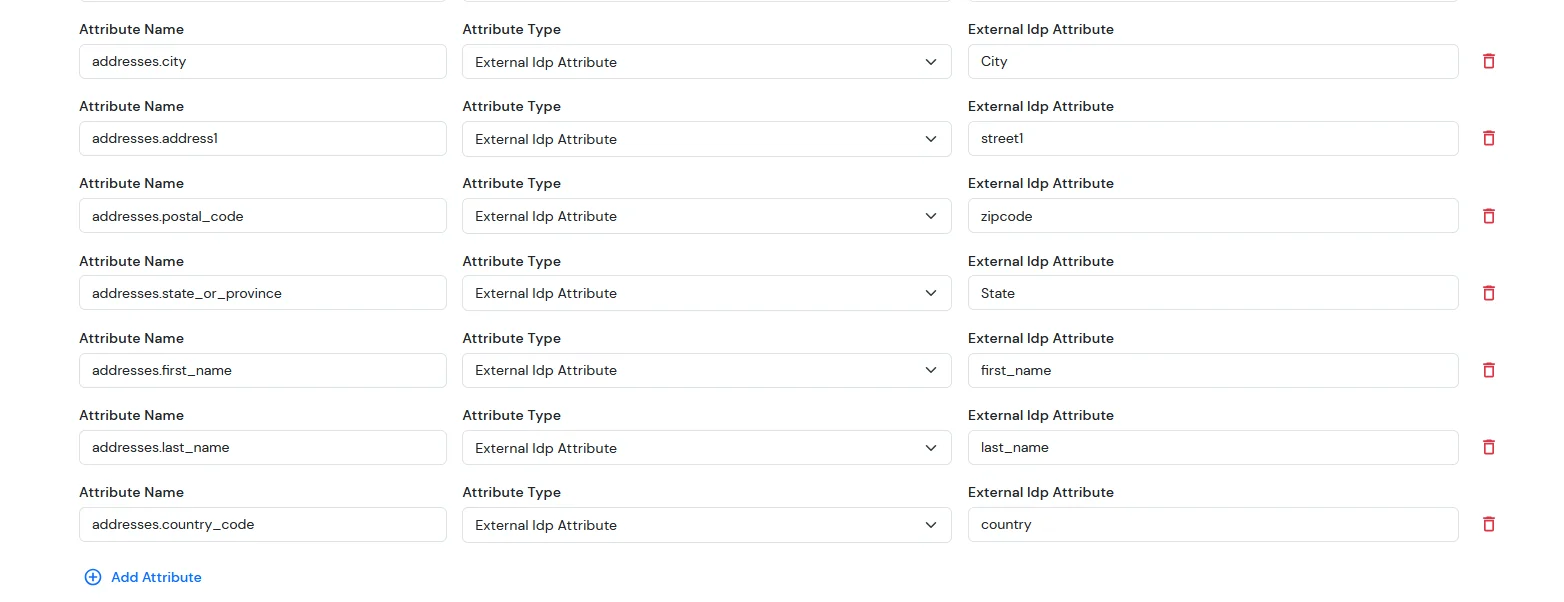
  • For Address field:
    Attribute NameAttribute TypeValue
    addresses.first_nameExternal Idp Attributefirst_name
    addresses.last_nameExternal Idp Attributelast_name
    addresses.address1External Idp Attributeaddress1
    addresses.cityExternal Idp Attributecity
    addresses.state_or_provinceExternal Idp Attributestate/province
    addresses.country_codeExternal Idp Attributecountry
    addresses.postal_codeExternal Idp Attributepostal_code
  • BigCommerce Single Sign-On : Map External IDP Attributes

    Note: When sending the country value, always use the country code (e.g., US, IN). If you pass the full country name such as “United States”, the value will not be updated — only country codes are supported for correct mapping.

    While syncing address fields, ensure that the city, state, and country values you provide are valid options supported by BigCommerce and exist in their respective dropdown lists.


  • Now, after completing SSO, go to your BigCommerce dashboard. From the sidebar, click on Customers.
  • You will see the list of all customers. Search for the specific user and click on their name.
  • Next, open the Customer Address Book section — this is where you will be able to view the customer’s address details.
  • BigCommerce Single Sign-On External IDP : Edit Customer

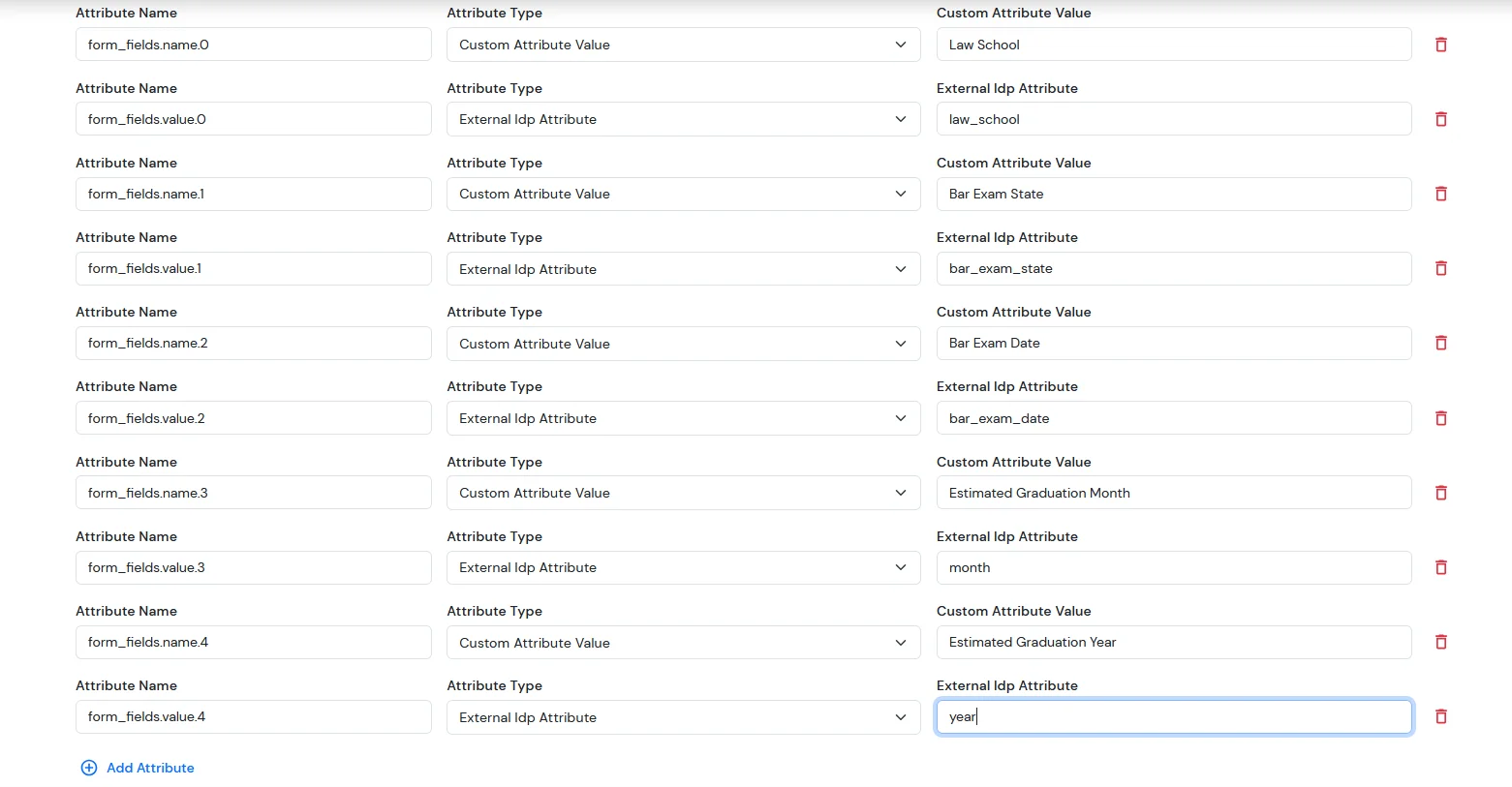
    For the Sign up form fields:

    • In BigCommerce, the following form fields are available. We need to configure the corresponding attribute mappings in the application to ensure these fields are correctly synced to BigCommerce.
    • BigCommerce Single Sign-On External IDP : Go to Sign up form fields

      Attribute NameAttribute TypeValue
      form_fields.name.0Custom Attribute ValueLaw School
      form_fields.value.0External Idp AttributeXYZ
      form_fields.name.1Custom Attribute ValueBar Exam State
      form_fields.value.1External Idp AttributeArizona
      form_fields.name.2Custom Attribute ValueBar Exam Date
      form_fields.value.2External Idp Attribute31-12-2025
      form_fields.name.3Custom Attribute ValueEstimated Graduation Month
      form_fields.value.3External Idp AttributeJanuary
      form_fields.name.4Custom Attribute ValueEstimated Graduation Year
      form_fields.value.4External Idp Attribute2025
      BigCommerce Single Sign-On External IDP : Configure Attribute Mapping

    • After completing SSO, go to your BigCommerce dashboard.
      • From the left sidebar, click on Customers.
      • You will now see the list of all customers.
      • Search for the specific user and click on their name.
      • The customer profile will open — scroll down to the Customer Details section.
      • Here, you will see the signup form fields, where you can view all the customer-submitted form-field details.
      • BigCommerce Single Sign-On External IDP : Provide the required details

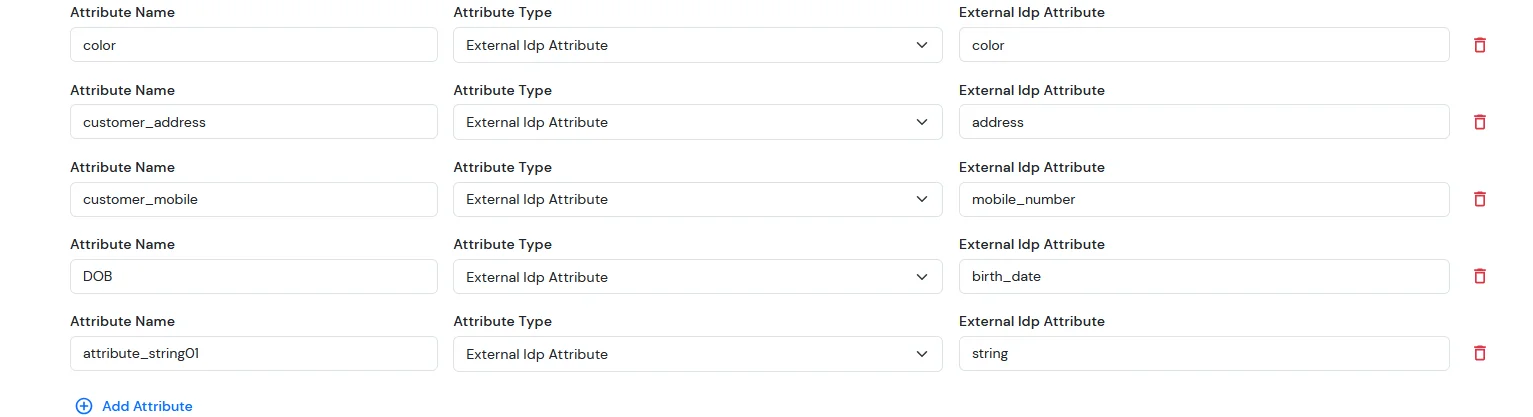
    For Custom Attribute Fields

    • In BigCommerce, the following attribute fields are available. We need to configure the corresponding attribute mappings in the application to ensure these fields are correctly synced to BigCommerce.
    • BigCommerce Single Sign-On External IDP : Scroll to Attribute Field section

    • Then we need to configure the attribute mapping in the application.
      Attribute NameAttribute TypeValue
      colorExternal Idp Attributeblue
      customer_addressExternal Idp AttributeMG road
      customer_mobileExternal Idp Attribute+911234567890
      DOBExternal Idp Attribute2002-01-01
      attribute_string 01External Idp Attributetesting
    • BigCommerce Single Sign-On External IDP : Map Custom Attribute field

    • After completing SSO, go to your BigCommerce dashboard.
      • From the left sidebar, click on Customers.
      • You will now see the list of all customers.
      • Search for the specific user and click on their name.
      • The customer profile will open — scroll down to the Customer Details section.
      • Here, you will see the attribute fields, where you can view all the customer-submitted form-field details.
      BigCommerce Single Sign-On External IDP : Map Custom Attributes

    NOTE: Update customer profile during sso

    • Go to the BigCommerce application you have configured in miniOrange.
    • Open the Advanced tab.
    • Scroll to the bottom of the page.
    • Enable the checkbox Update Customer Profile During SSO.
    BigCommerce Single Sign-On External IDP : Enable Update Customer Profile During SSO


4. Setting up on Microsoft Entra ID

4.a. Configuring miniOrange as Service Provider (SP) in Microsoft Entra ID
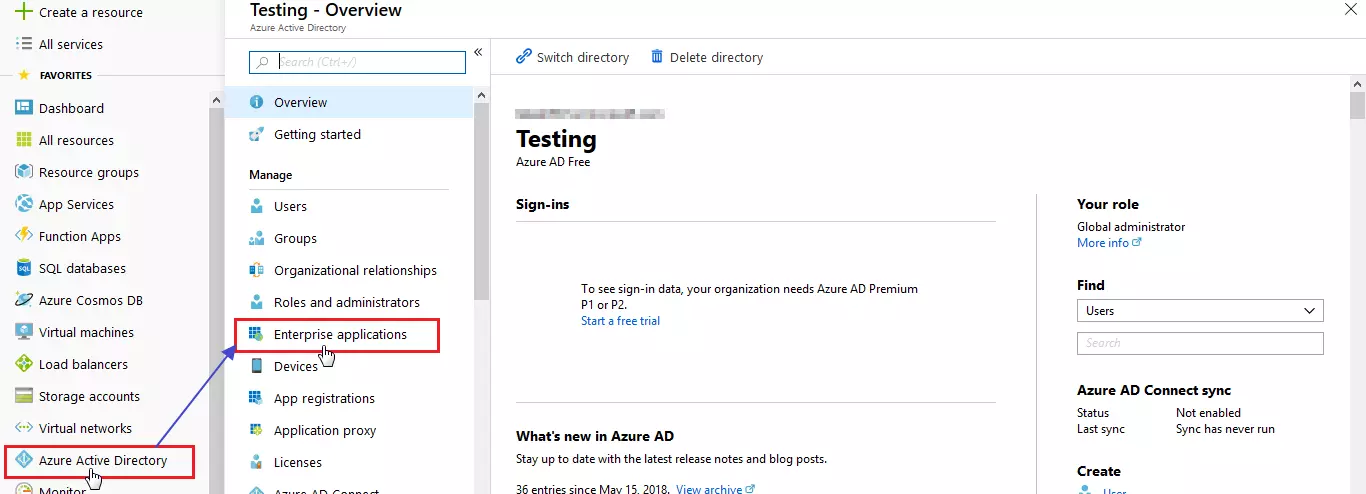
  • Log in to Microsoft Entra ID Portal.
  • Select Microsoft Entra ID (Azure Active Directory) >> Enterprise apps.
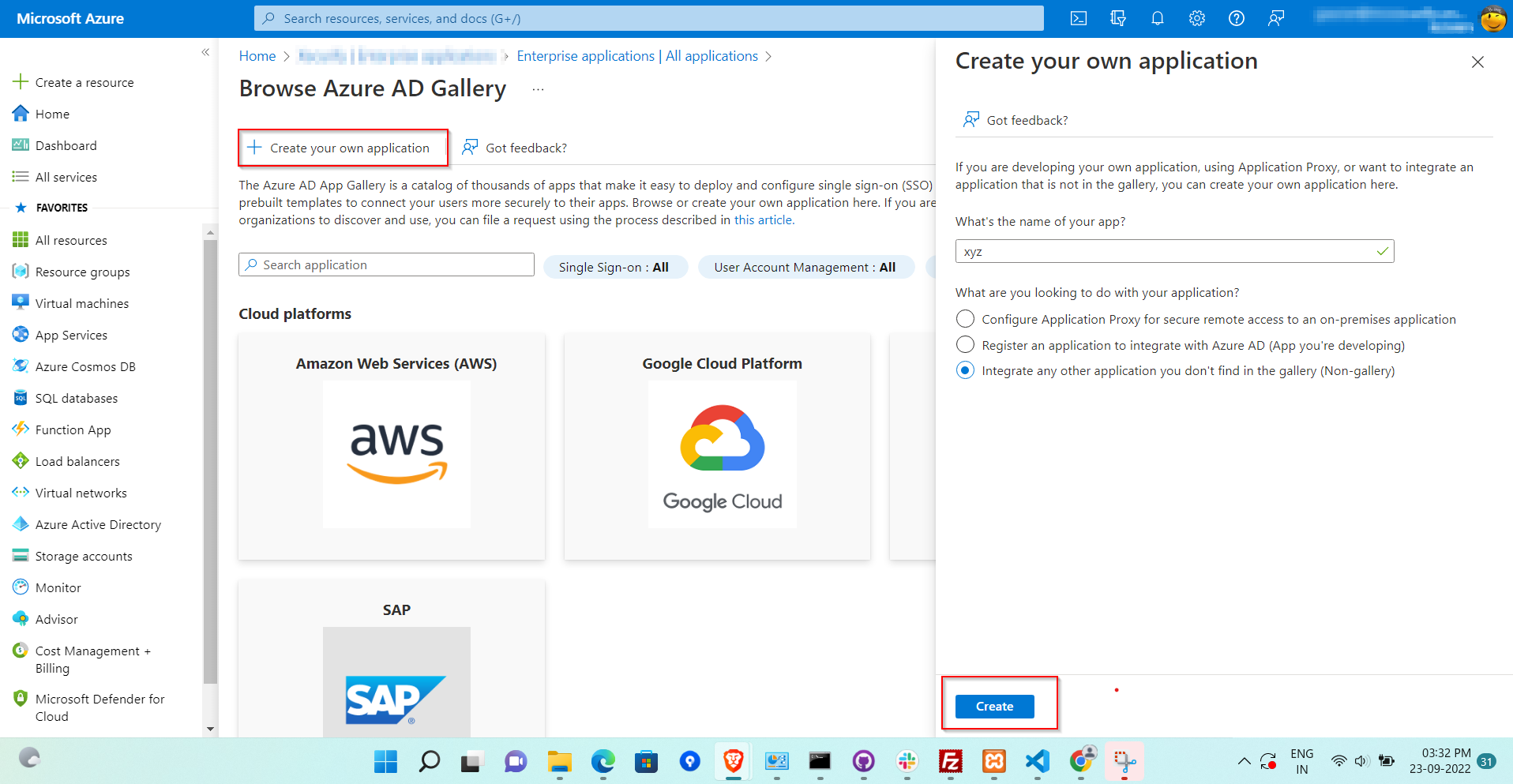
  • Click on New Application.
  • BigCommerce Microsoft Entra ID: Microsoft Entra ID sso Enterprise Applications

  • Click on Create your own application section and enter the name for your app and click on Create button.
  • BigCommerce Microsoft Entra ID: Microsoft Entra ID sso Non-gallery application

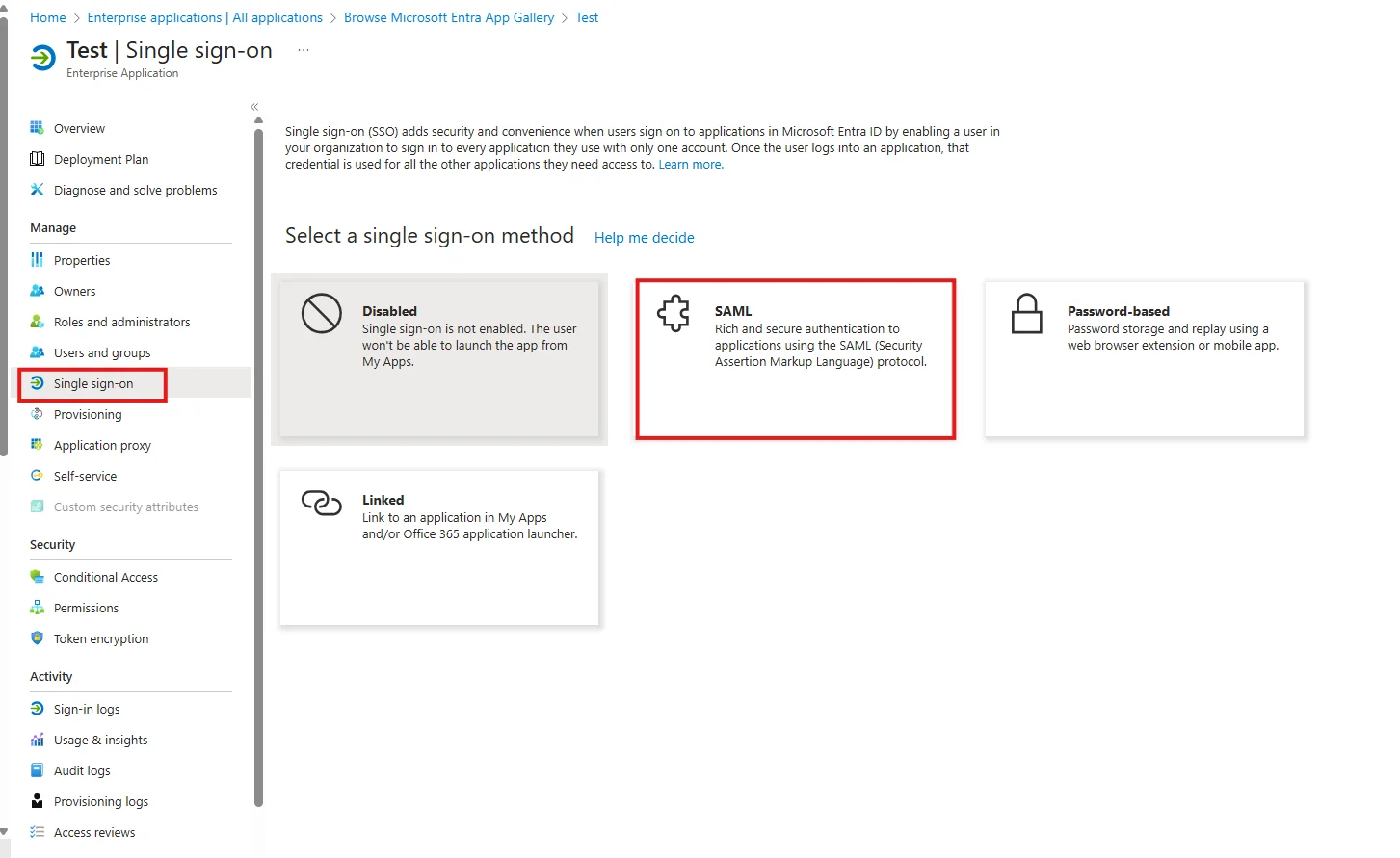
  • Click on Single sign-on from the application's left-hand navigation menu. The next screen presents the options for configuring single sign-on. Click on SAML.
  • BigCommerce Microsoft Entra ID: Microsoft Entra ID sso Click Single sign-on and select SAML

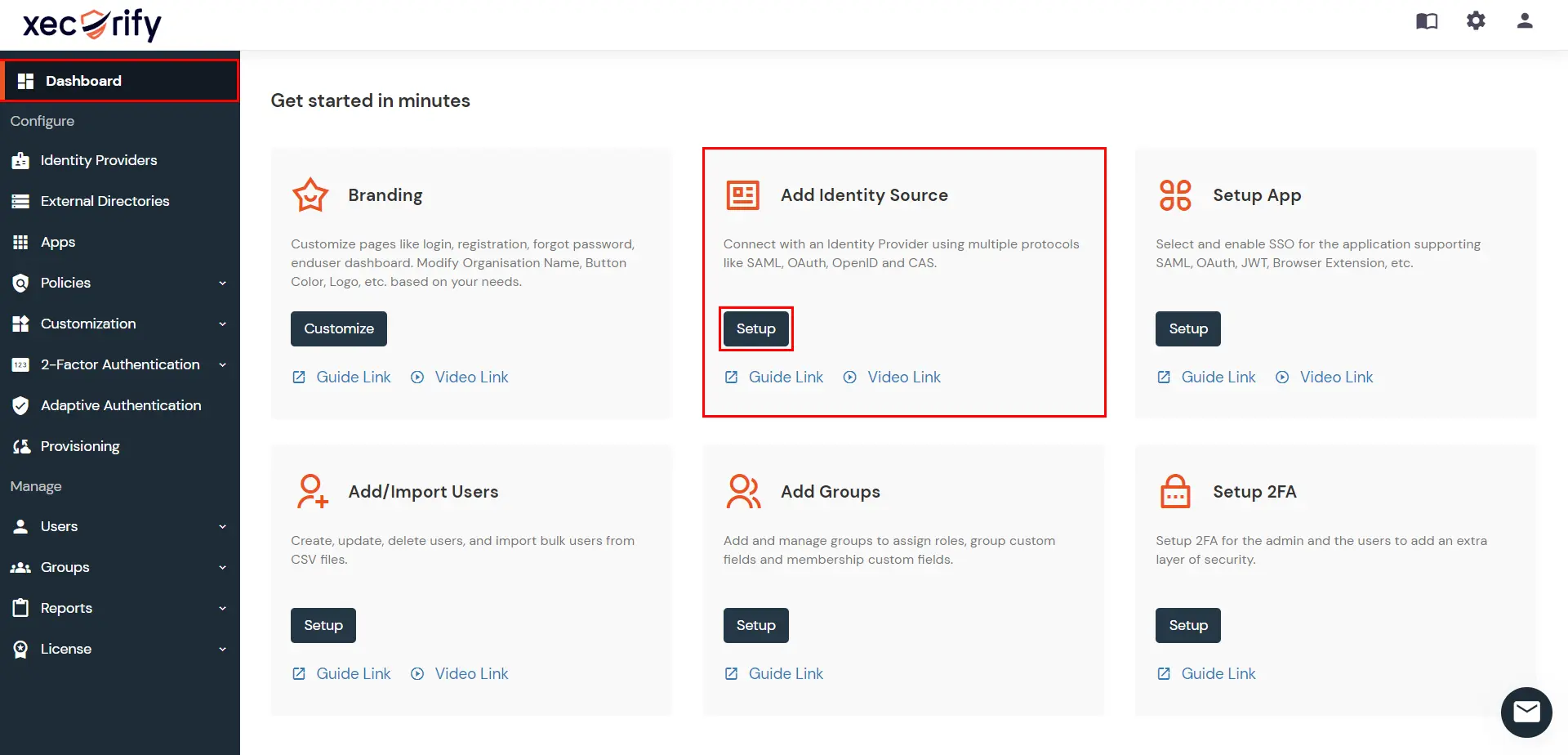
  • Go to miniOrange Dashboard in the left navigation menu. Go to Add Identity Source >> and click Setup.
  • BigCommerce Microsoft Entra ID: Microsoft Entra ID Add Identity Source

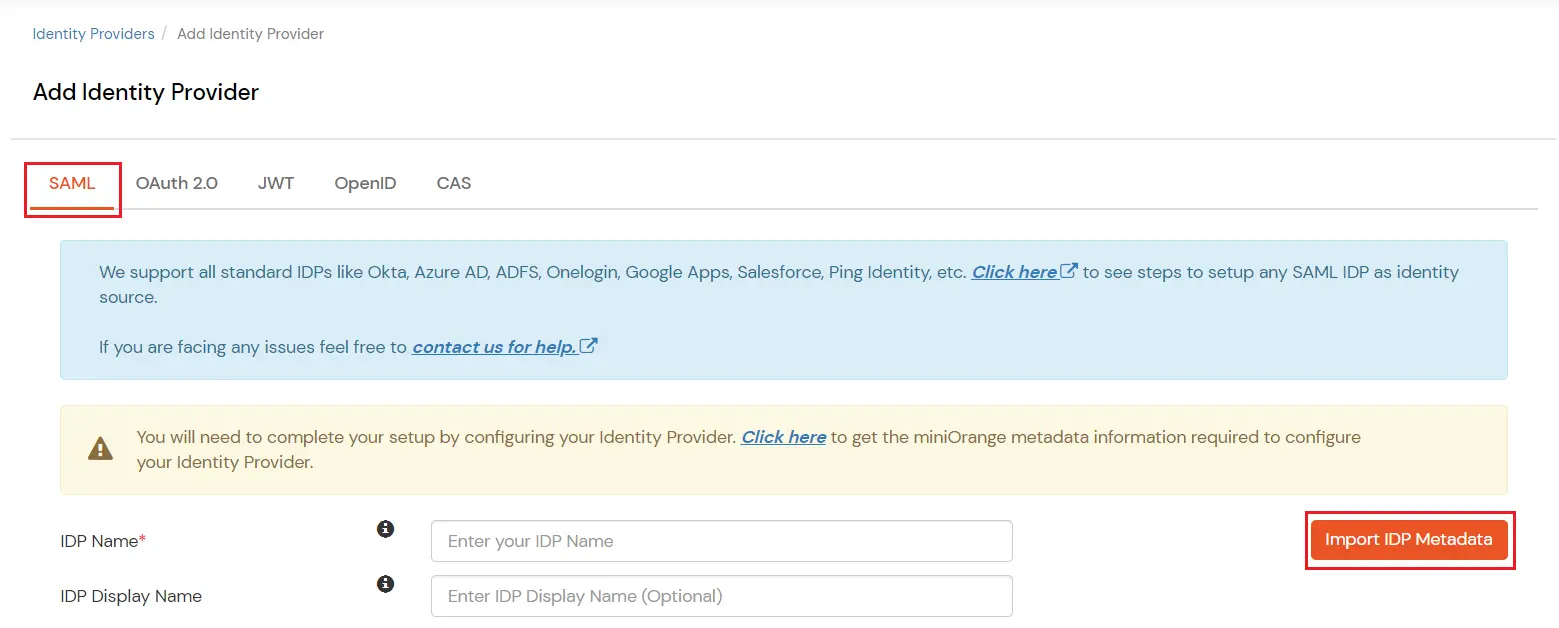
  • In Choose Identity Provider, select SAML from the dropdown.
  • BigCommerce Microsoft Entra ID: Select SAML from dropdown

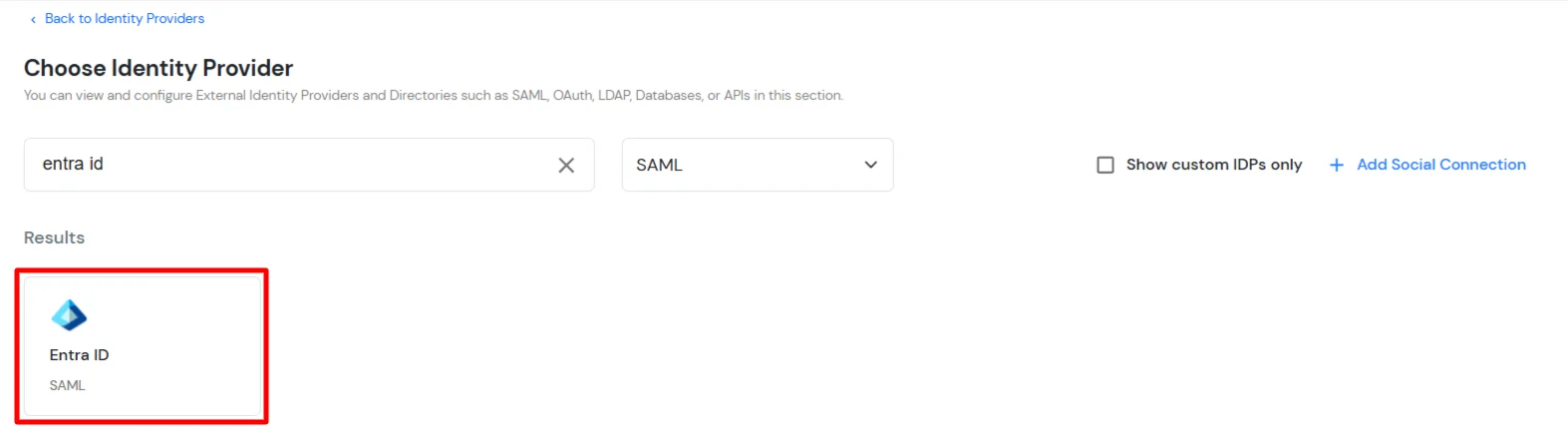
  • Then, search for Entra ID and click on it.
  • BigCommerce Microsoft Entra ID: Search Entra ID

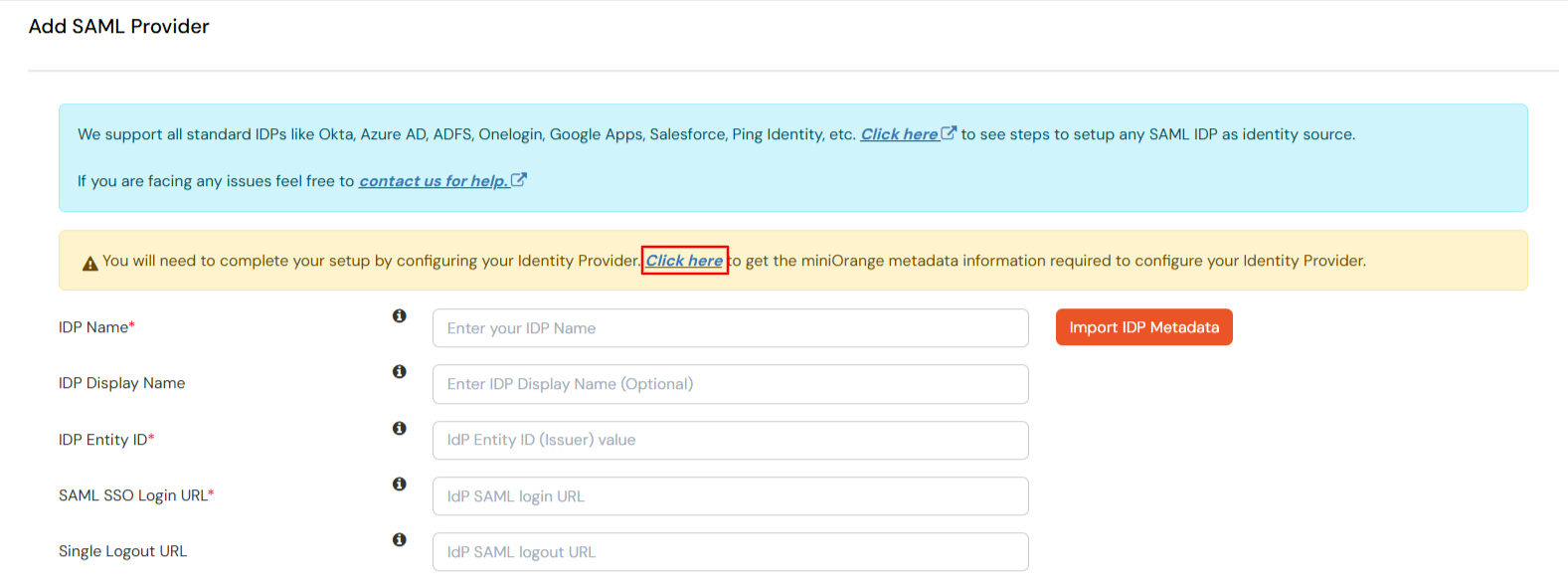
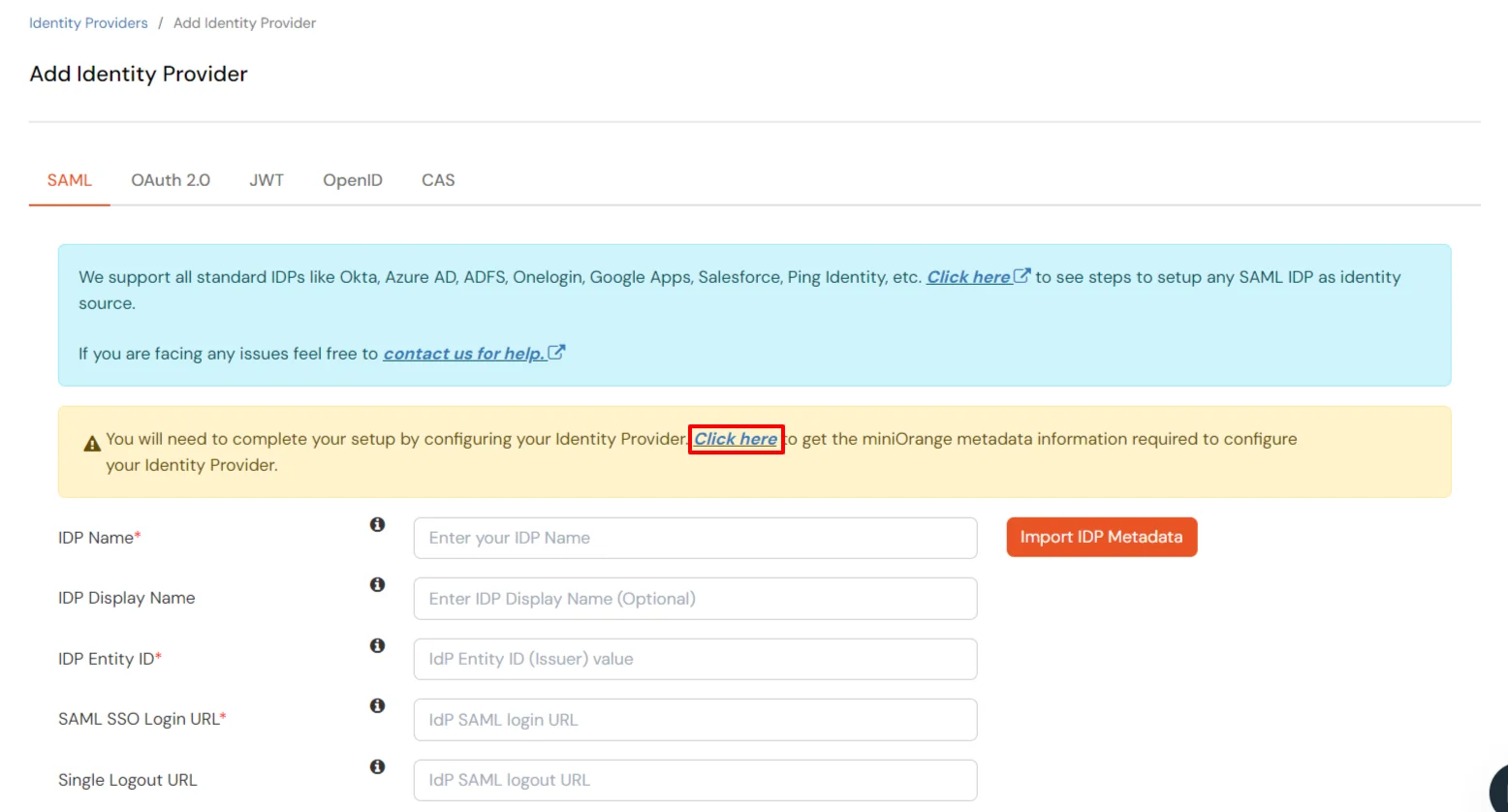
  • Now click on the Click here link to get miniOrange metadata as shown in Screen below.
  • BigCommerce Microsoft Entra ID: Click on click here link

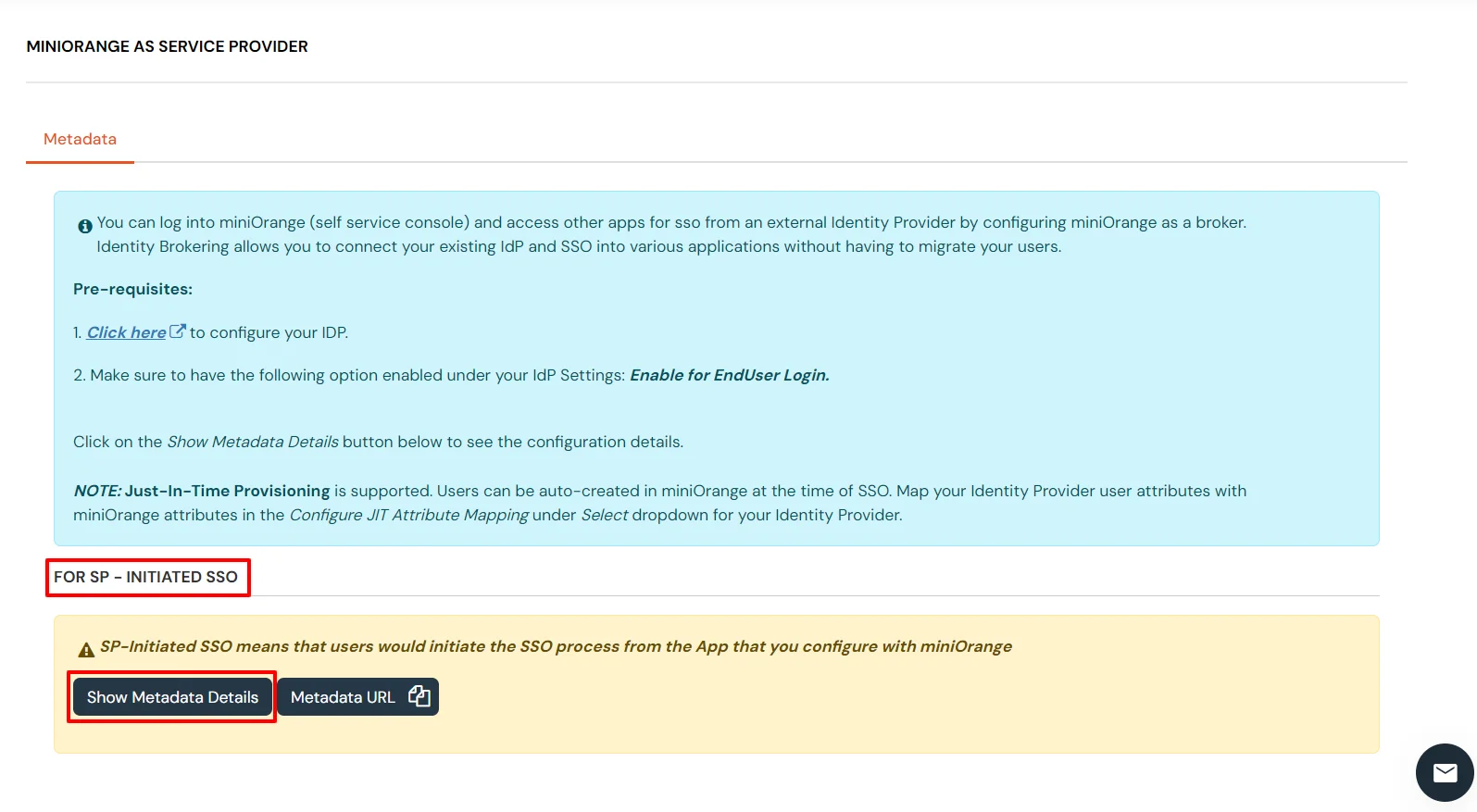
  • Here you will see 2 options, if you are going to initiate SSO from the Application copy the metadata details related to miniOrange from the SP - Initiated SSO section otherwise go for the metadata details from the IDP - Initiated section.
  • BigCommerce Microsoft Entra ID: SP intiated Metadata

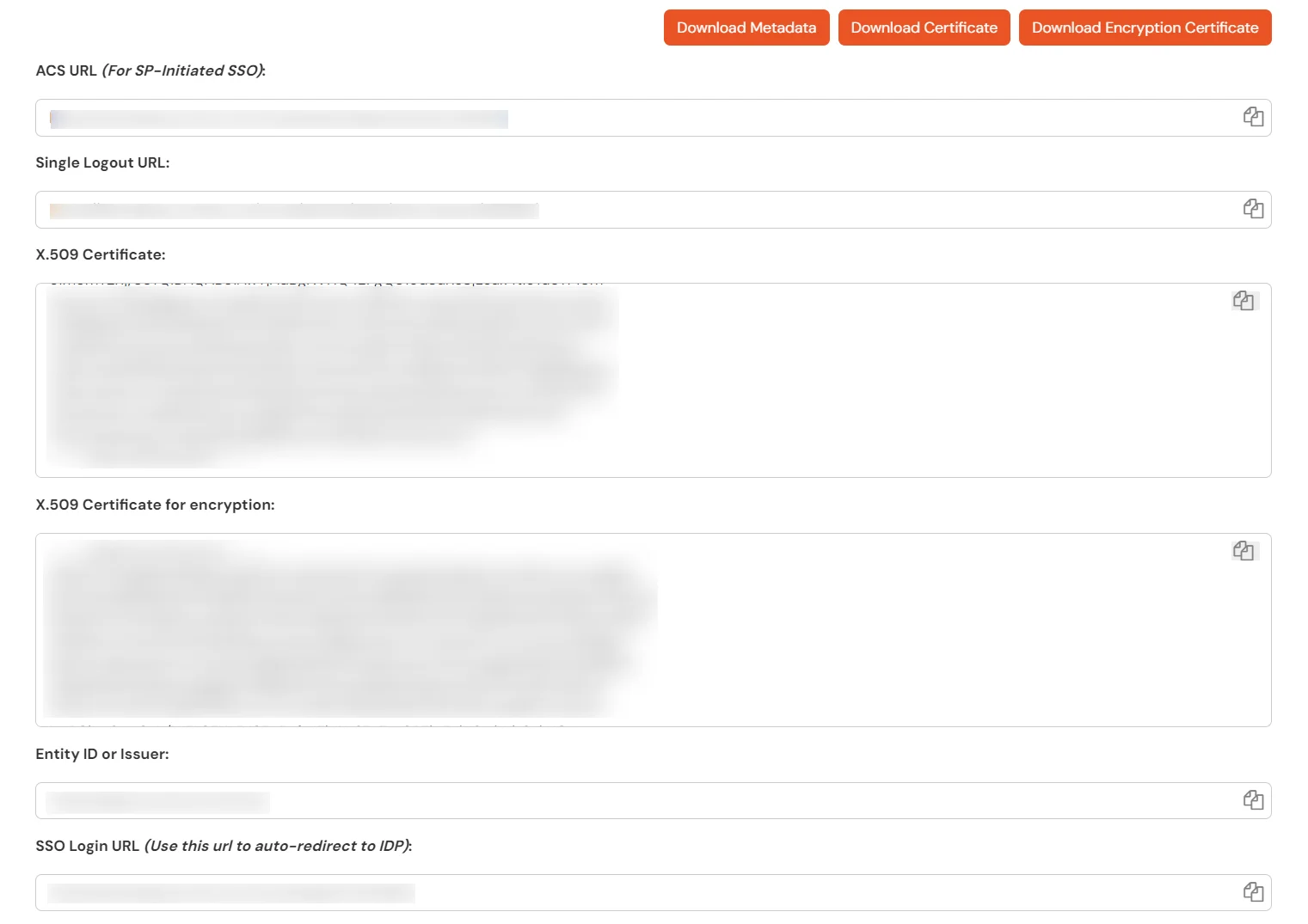
    BigCommerce Microsoft Entra ID: Keep required details

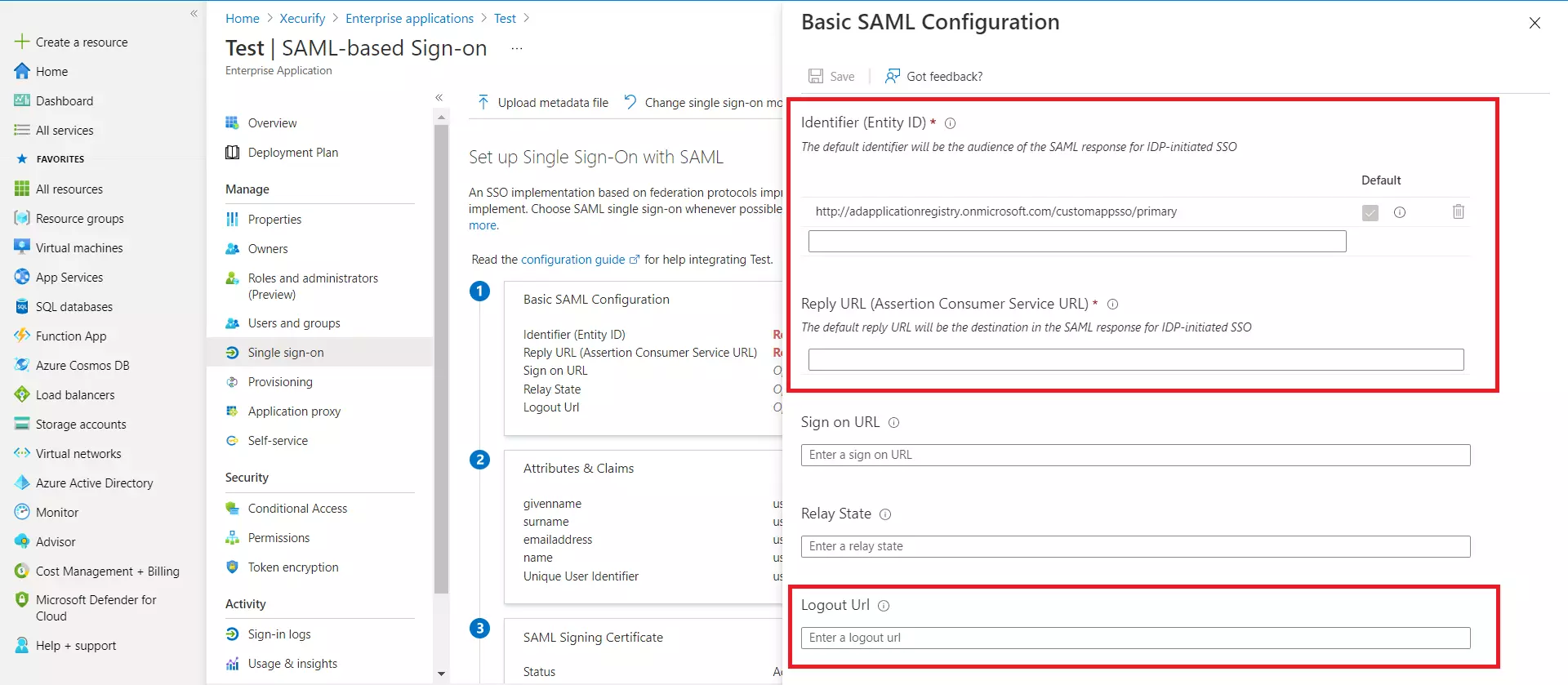
  • For Basic SAML configuration you need to get the Entity ID, ACS URL, and the Single Logout URL from miniOrange.
  • Microsoft Entra ID saml configuration

  • Enter the values in basic SAML configuration as shown in below screen
    Identifier (Entity ID) Entity ID or Issuer copied from the miniOrange metadata section mentioned in the previous step.
    Reply URL (Assertion Consumer Service URL) ACS URL copied from the miniOrange metadata section mentioned in the previous step.
    Logout URL Single Logout URL copied from the miniOrange metadata section mentioned in the previous step.
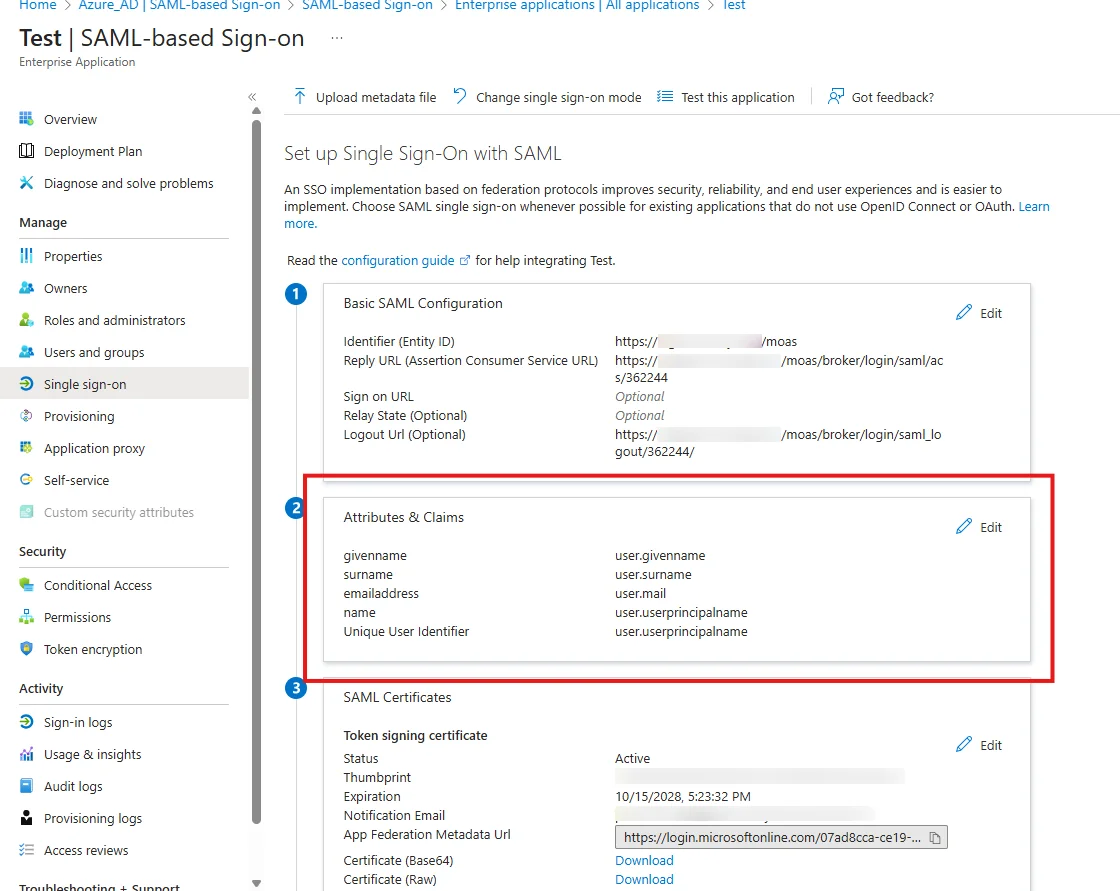
  • By default, the following Attributes will be sent in the SAML token. You can view or edit the claims sent in the SAML token to the application under the Attributes tab.
  • BigCommerce Microsoft Entra ID: Microsoft Entra ID sso Attributes tab

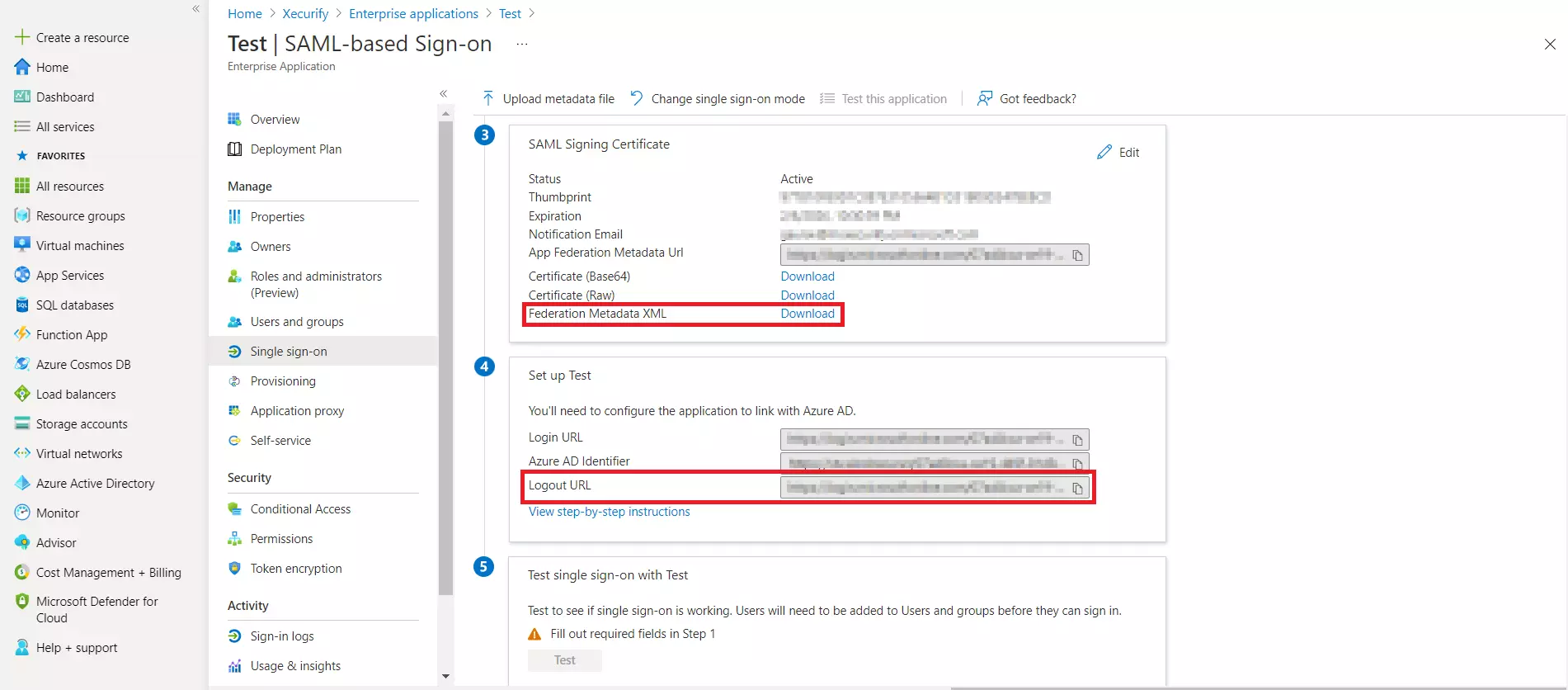
  • Download Federation Metadata xml, and copy the Logout URL as well. This will be used while configuring the Microsoft Entra ID as IDP in Step 3.c.
  • dowload Microsoft Entra ID metadata

4.b. User/Group Assignment

  • Assign users and groups to your SAML application.
  • As a security control, Microsoft Entra ID will not issue a token allowing a user to sign in to the application unless Microsoft Entra ID has granted access to the user.
  • Users may be granted access directly or through group membership.
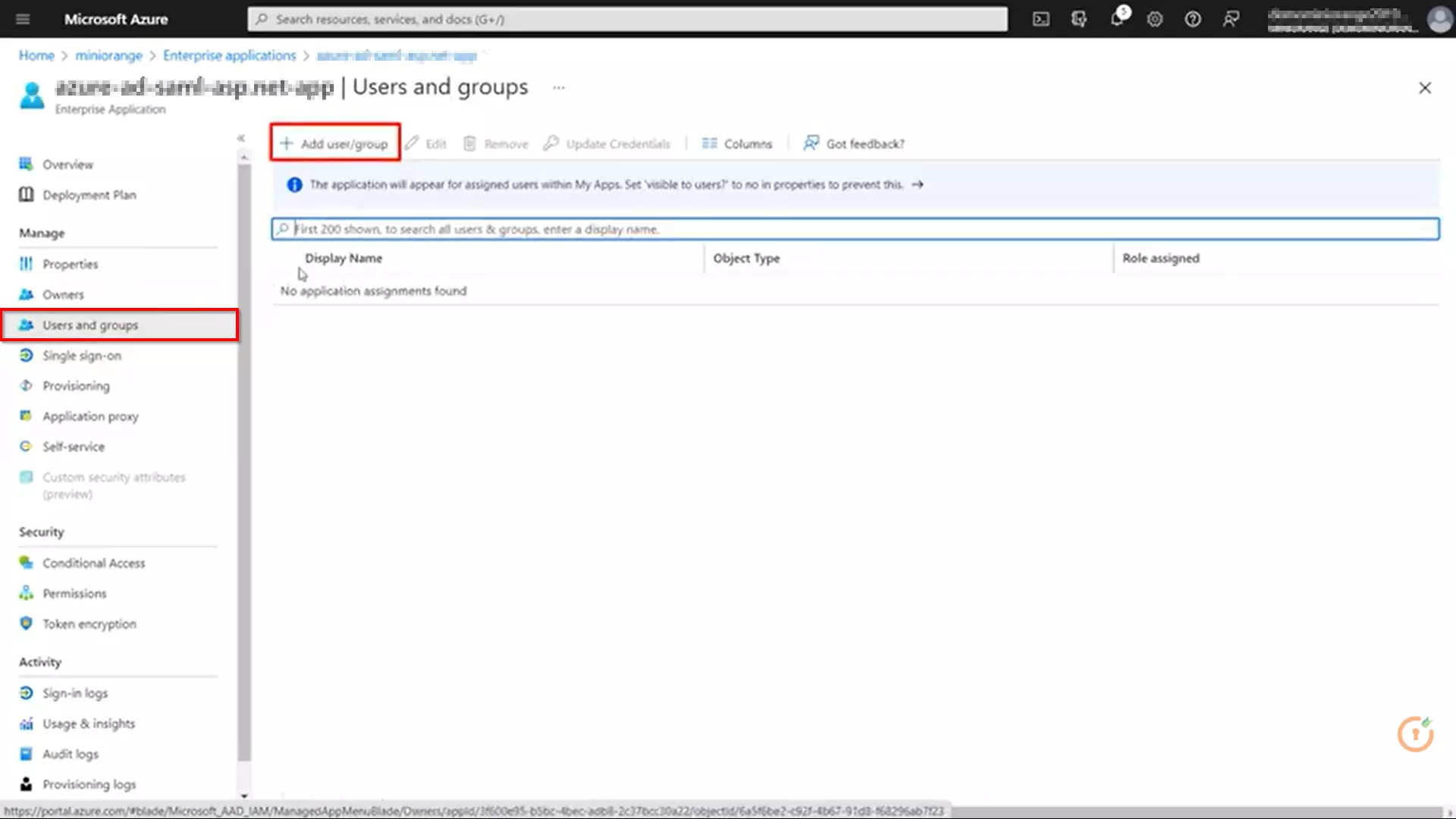
  • Click on Users and groups from the application's left-hand navigation menu. The next screen presents the options for assigning the users/groups to the application.
  • BigCommerce Microsoft Entra ID: Microsoft Entra ID sso-13

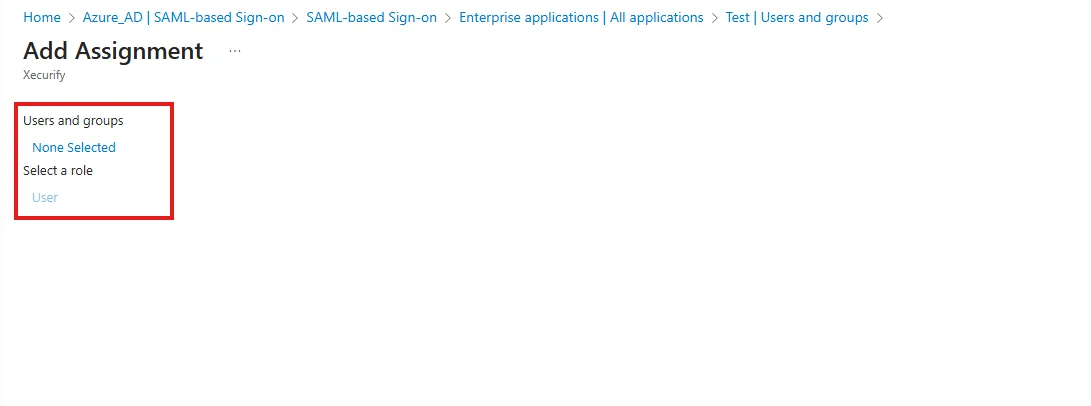
  • After clicking on Add user, select Users and groups in the Add Assignment screen.
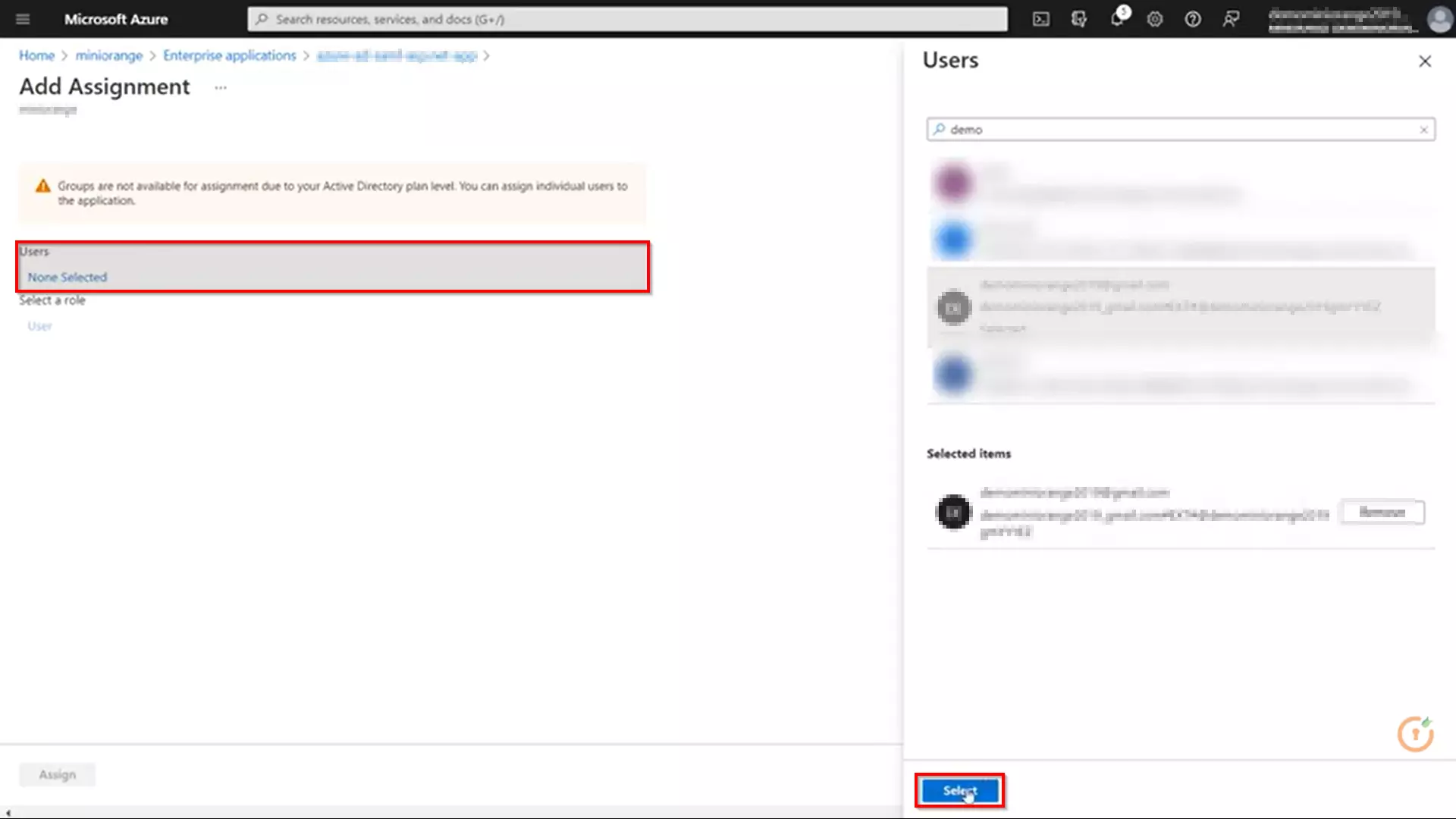
  • The next screen presents the option for selecting user or invite an external user. Select the appropriate user and click on the Select button.
  • BigCommerce Microsoft Entra ID: Add Assignment

    BigCommerce Microsoft Entra ID: Microsoft Entra ID sso selecting user or invite an external user

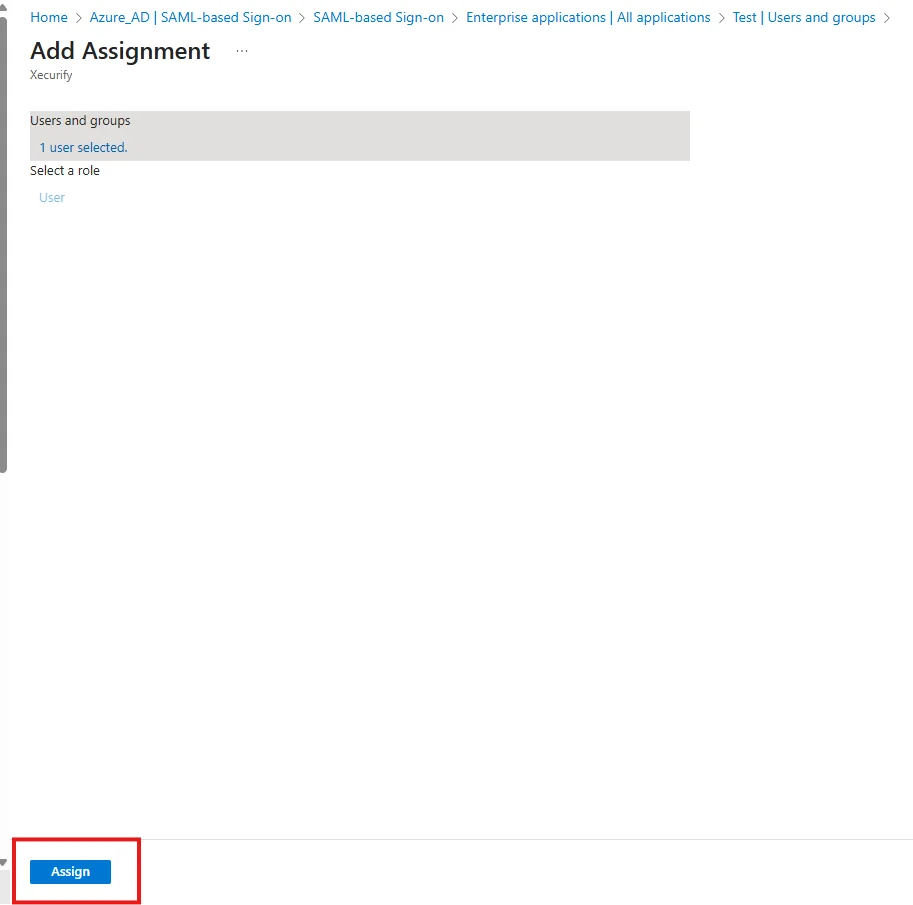
  • Here, you can also assign a role to this user under Select Role section. Finally, click on Assign button to assign that user or group to the SAML application.
  • BigCommerce Microsoft Entra ID: Microsoft Entra ID sso Select Role

4.c. Configure Microsoft Entra ID as Identity Provider (IDP) in miniOrange
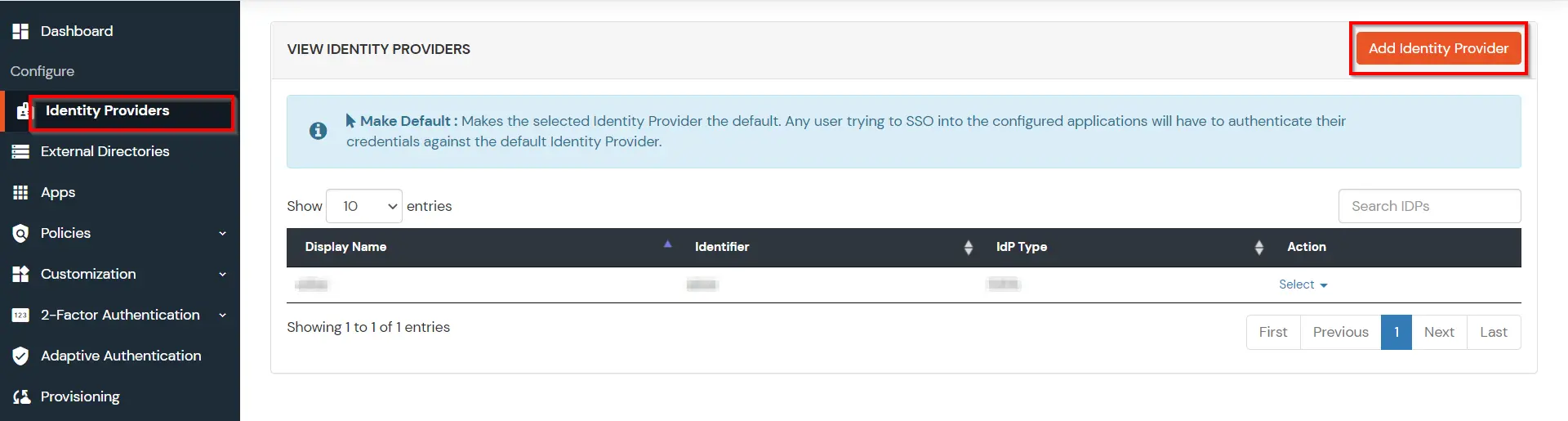
  • Go to miniOrange Admin Console.
  • From the left navigation bar select Identity Providers.
  • Click on Add Identity Provider button.
  • BigCommerce Microsoft Entra ID SSO: Microsoft Entra ID Identity Provider

  • Then, search for Entra ID and click on it.
  • BigCommerce Microsoft Entra ID SSO: Search Entra ID

  • Click on Import IDP Metadata.
  • BigCommerce Microsoft Entra ID SSO: Microsoft Entra ID Import IDP metadata

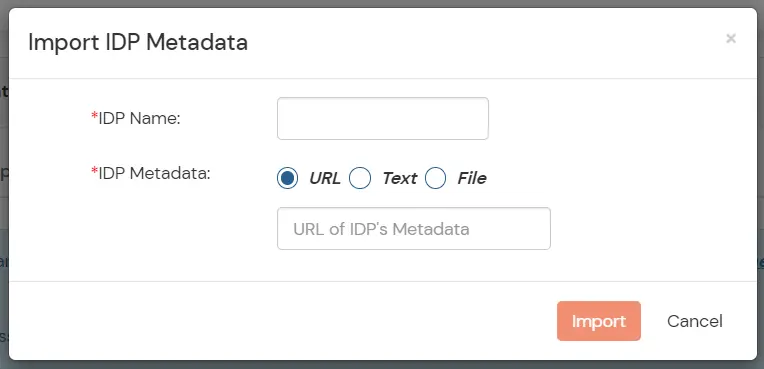
  • Choose an appropriate IDP name. Browse for the file downloaded in step 3.a.
  • Click on Import.
  • BigCommerce Microsoft Entra ID SSO: Microsoft Entra ID Import

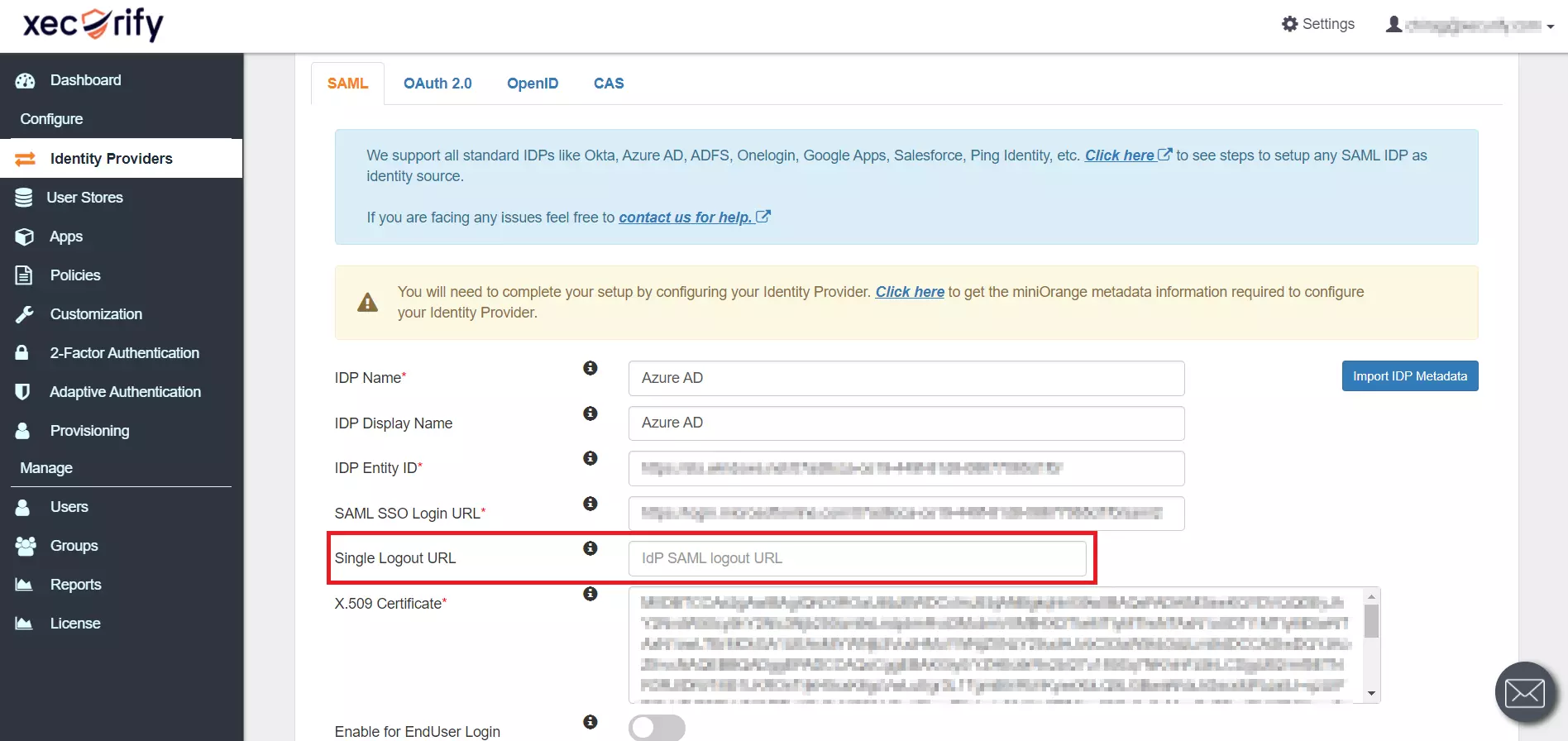
  • As shown below, the IDP Entity ID, SAML SSO Login URL and x.509 Certificate will be auto-filled via the imported metadata file.
  • You can also enter the Logout URL copied from Microsoft Entra ID in the Single Logout URL field.
  • BigCommerce Microsoft Entra ID SSO: SAML SSO Login URL and x.509 Certificate

  • Few other optional features that can be enabled are listed below:
    Domain Mapping Enable to redirect domain specific user to a specific IDP
    Show IdP to Users Enable this option if you wish to show this IDP as a button on the login page. E.g., Login with Microsoft Entra ID.
    Send Configured Attributes Enable this option if you wish to send user attributes from the IDP to BigCommerce while SSO.
  • Now Save the application.
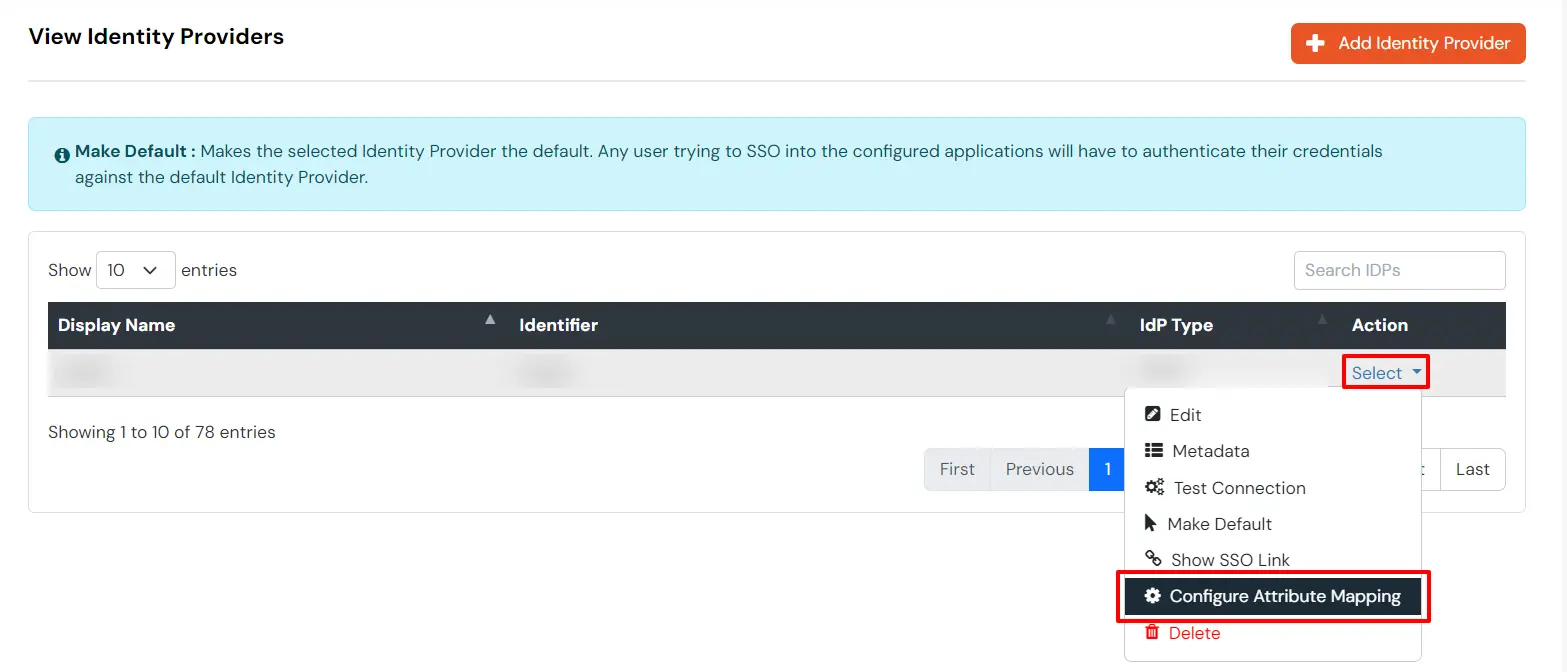
  • To map the attributes, click on your configured Identity Providers, then click on the three dots (⋮) under Actions, and select Attribute Mapping.
  • BigCommerce Microsoft Entra ID SSO: Click on three dot and select Attribute Mapping

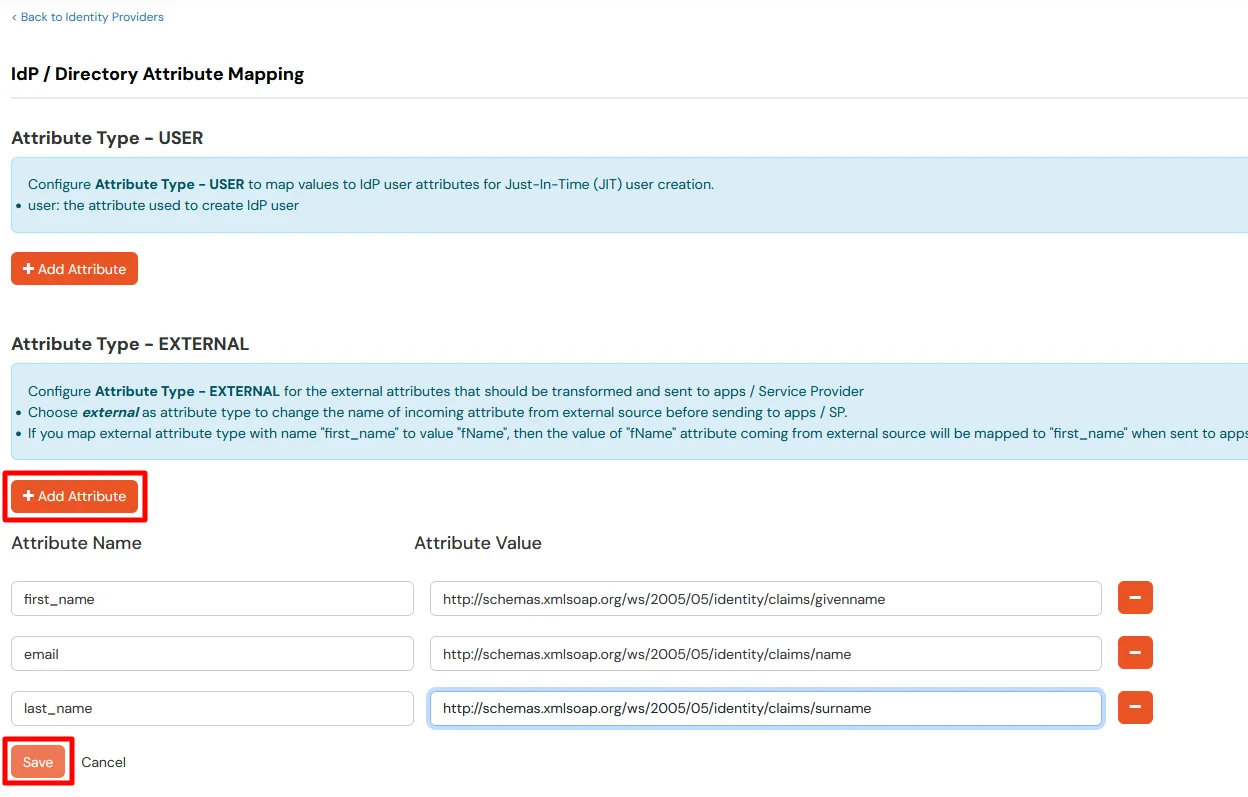
    BigCommerce Microsoft Entra ID SSO: Click Add Attribute

    first_name http://schemas.xmlsoap.org/ws/2005/05/identity/claims/givenname
    email http://schemas.xmlsoap.org/ws/2005/05/identity/claims/name
    last_name http://schemas.xmlsoap.org/ws/2005/05/identity/claims/surname
  • Click on Save.
  • Navigate back to External Identity Providers page.
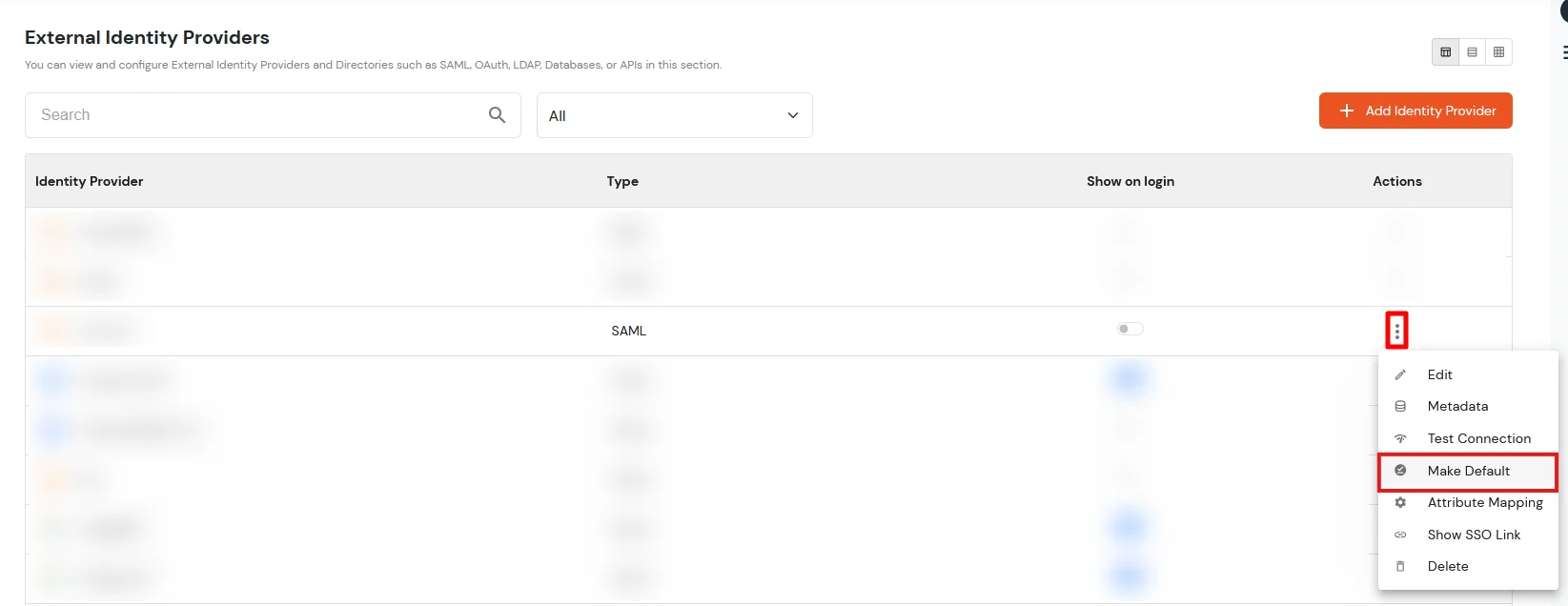
  • Click on select against the configured IDP and select Make Default.
  • BigCommerce - Select Make Default

4.d. Test IDP Connection

  • Go to Identity Providers tab.
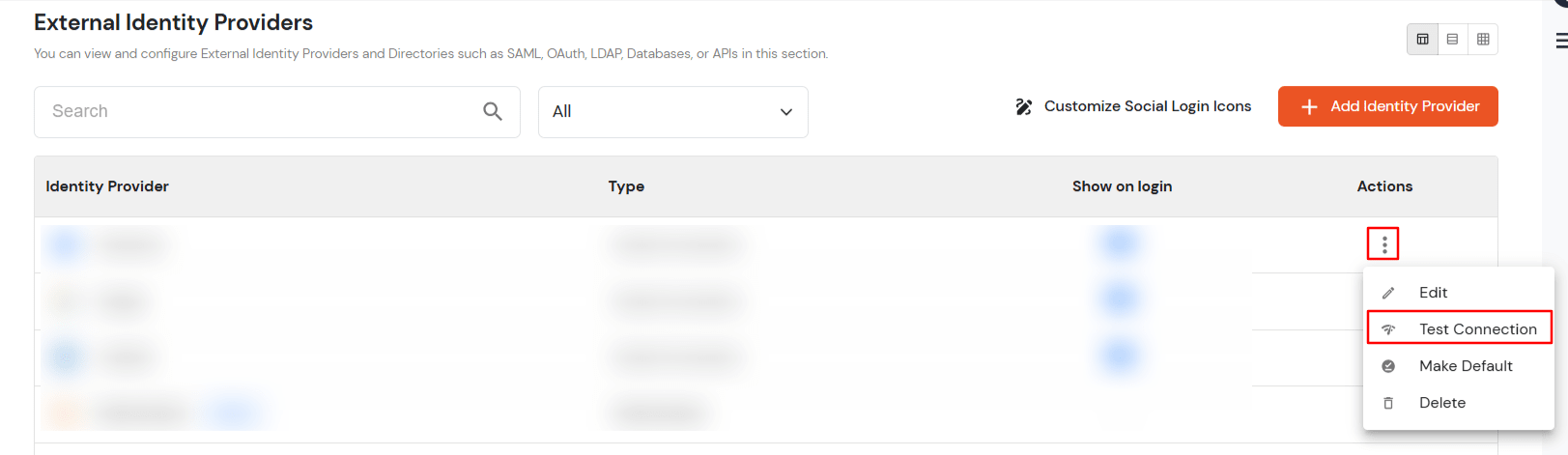
  • Search for your app, click the three dots in the Actions menu, and select Test Connection against the Identity Provider (IDP) you configured.
  • BigCommerce Microsoft Entra ID SSO: Microsoft Entra ID IDP Test Connection

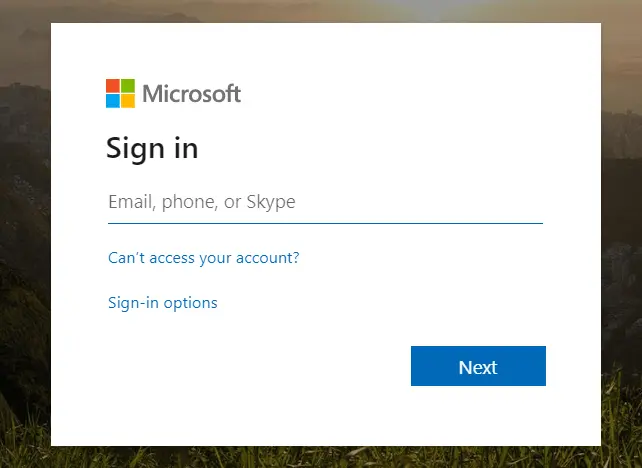
  • On entering valid Microsoft Entra ID credentials you will see a pop-up window which as shown in below screen.
  • BigCommerce Microsoft Entra ID SSO: Microsoft Entra ID login

  • Hence, your configuration of Microsoft Entra ID as IDP in miniOrange is successfully completed.

5. Test SSO Configuration

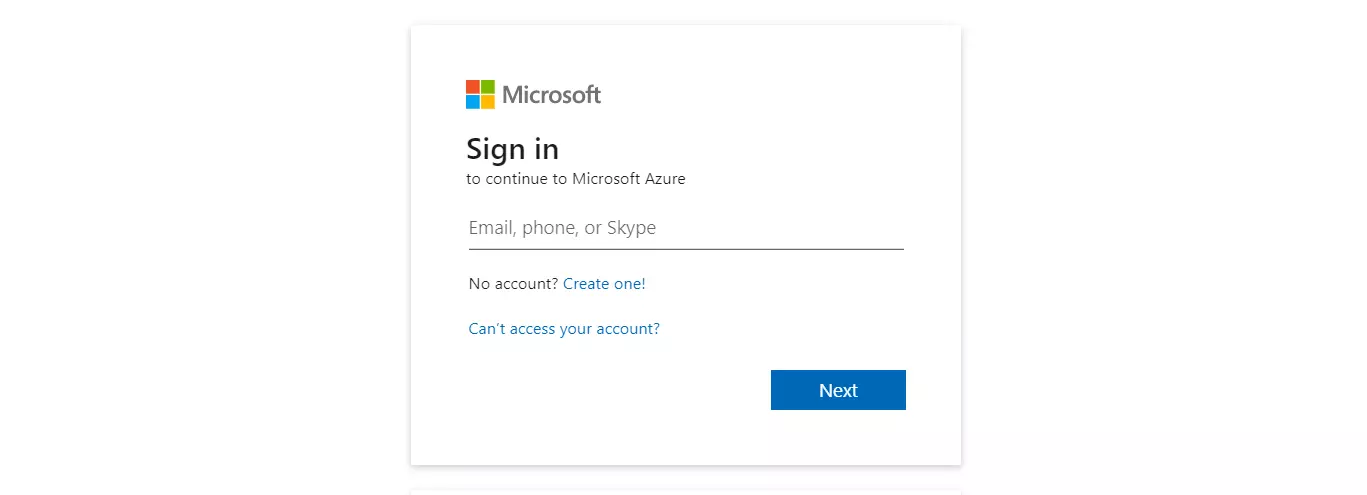
  • On accessing the Single sign-On URL, you will be asked for Microsoft Entra ID credentials.
  • BigCommerce Microsoft Entra ID SSO: Microsoft Entra ID login

  • On entering the valid credentials, you will be successfully logged into BigCommerce.
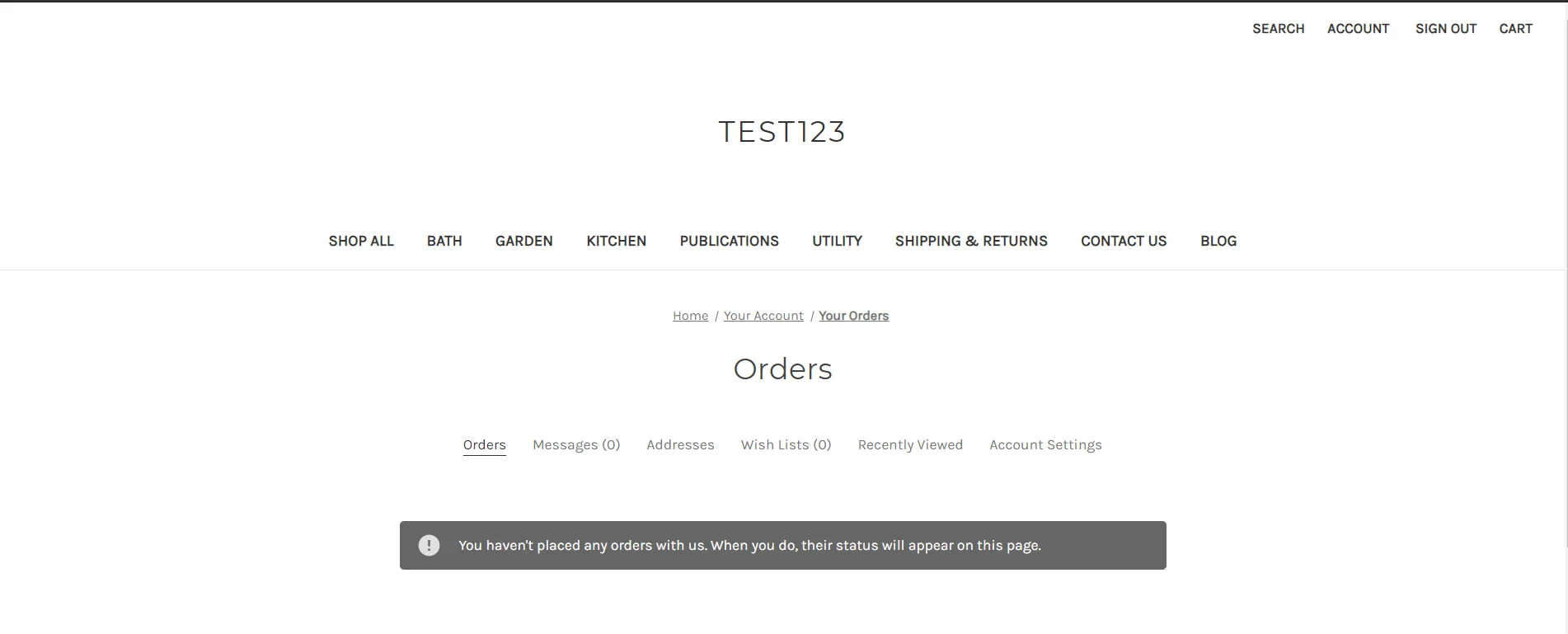
  • BigCommerce Single Sign-On (SSO): BigCommerce Login

6. Configure SLO in BigCommerce

  • Download the script to initiate SLO in BigCommerce.
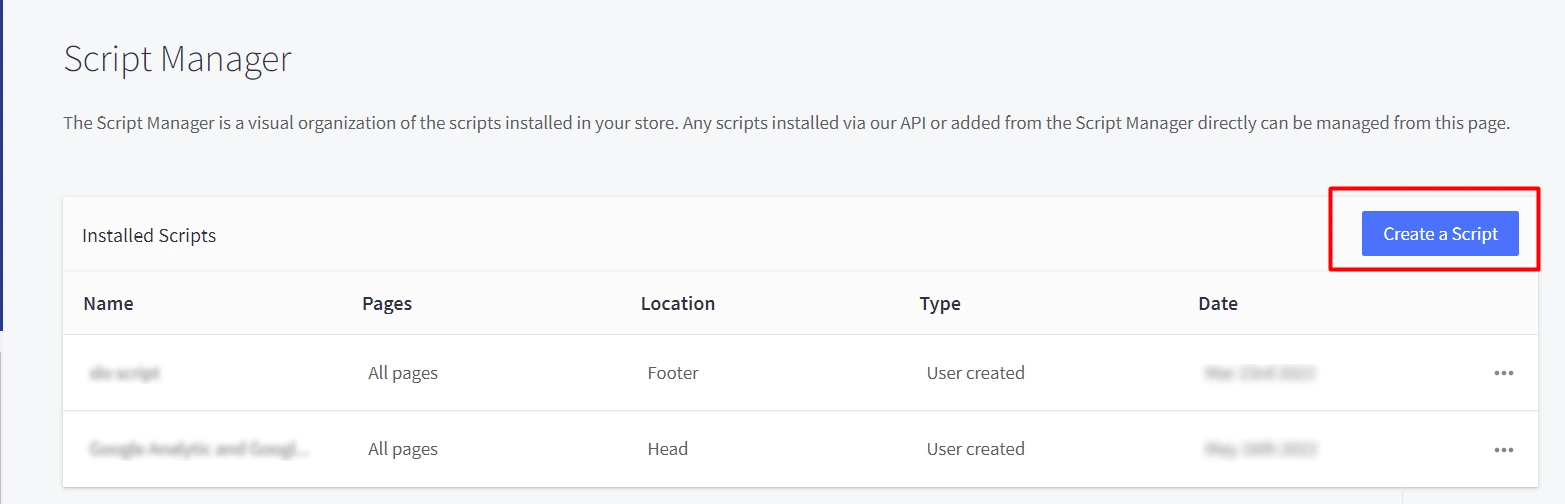
  • Navigate to Storefront >> Script Manager.
  • Click on create a script and add the script file which you have downloaded earlier in the footer of the page.
  • BigCommerce Single Sign-On (SSO): create script

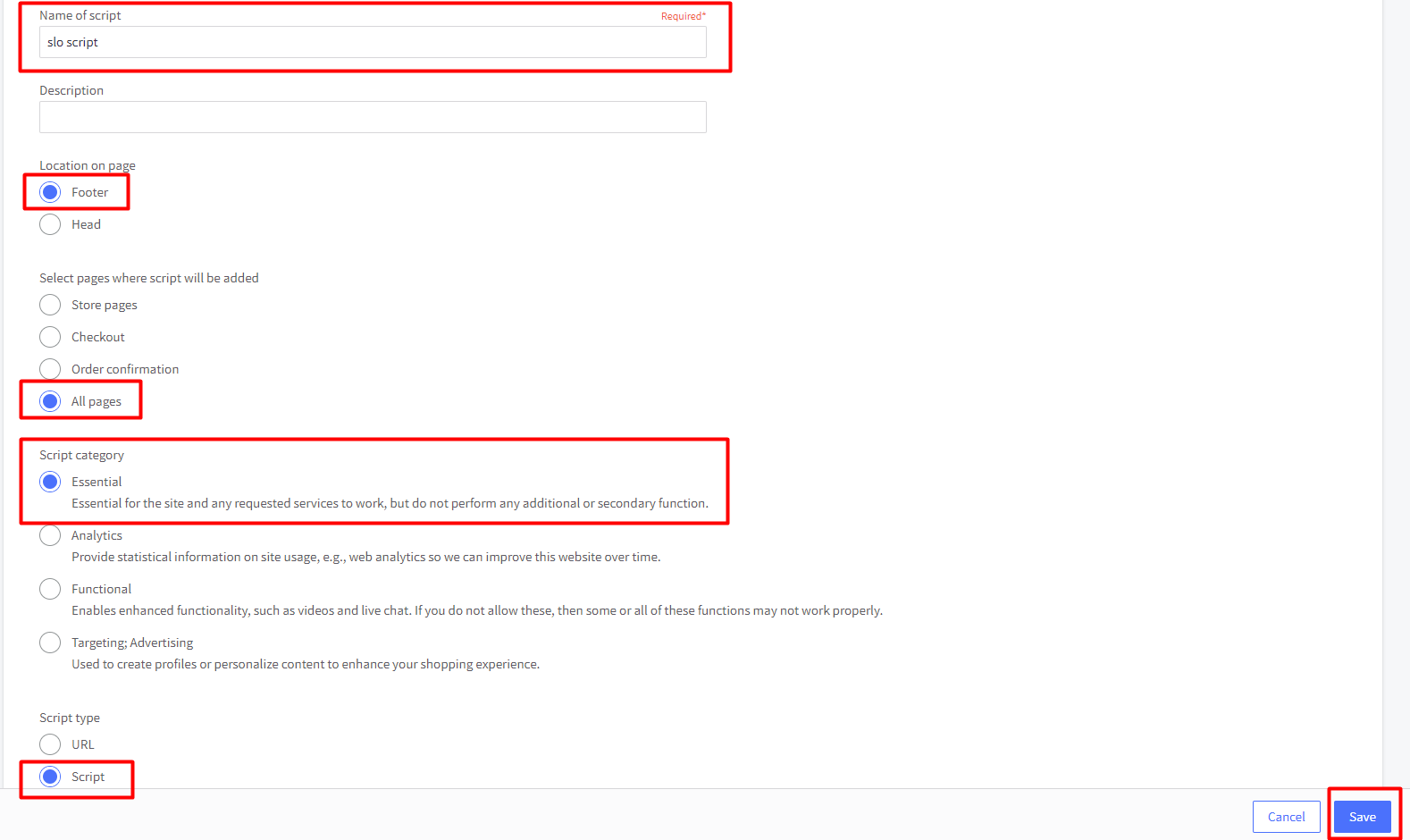
  • Enable settings as given in the image below:
  • BigCommerce Single Sign-On (SSO): enable settings

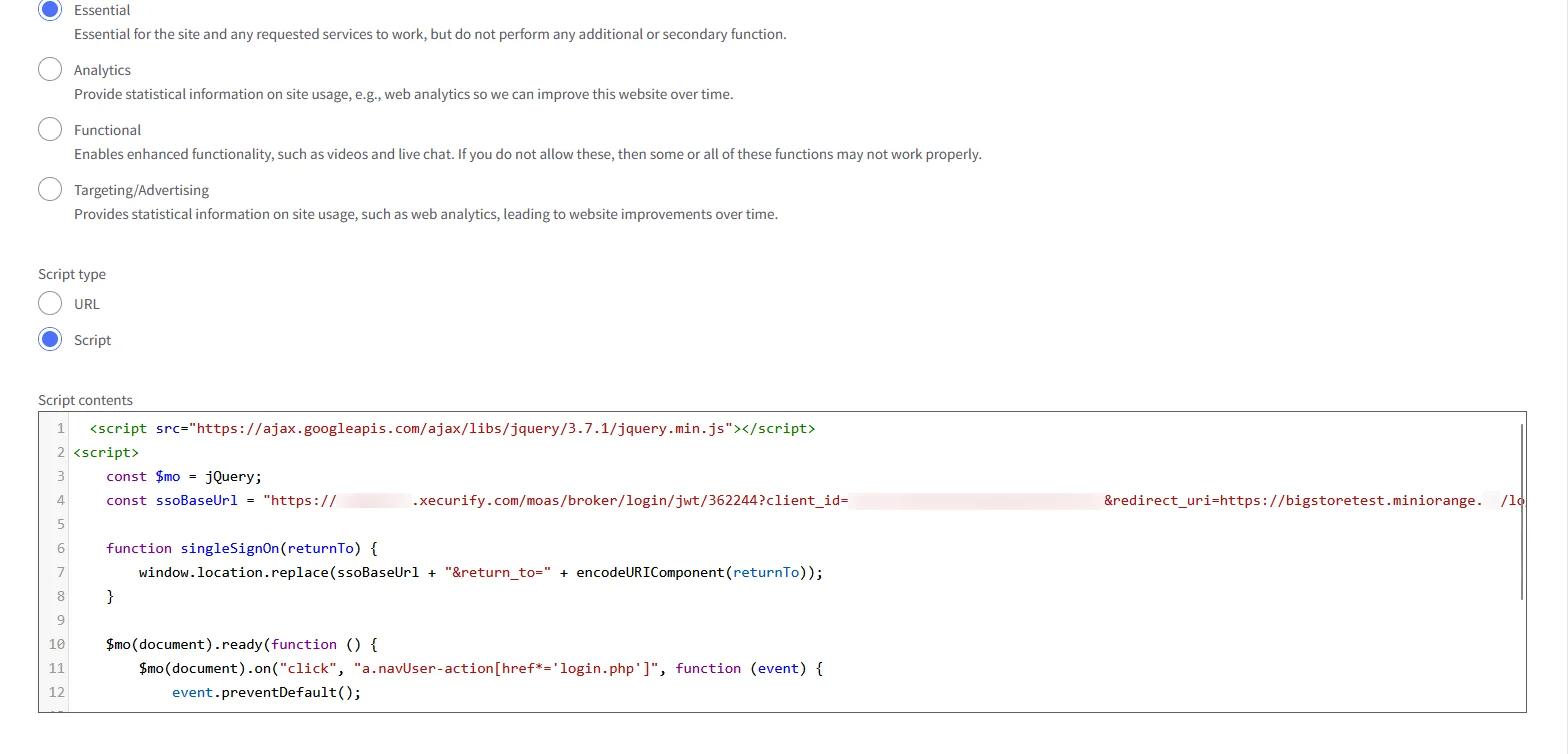
    BigCommerce Single Sign-On (SSO): Script contents

  • A text box will be opened where you can add the downloaded script.

Frequently Asked Questions

How can I restrict page access on BigCommerce? Is this handled via the scripts?

Yes, our scripts are completely customizable and you can restrict page access based on memberships, groups, company . domain or any other custom attribute of your choice.

What will happen if my customers disable javascript on the browser?

We handle this by adding the no script tags in our script file, this enables redirection of your users to a customizable page with instructions to enable javascript.


External References

Want To Schedule A Demo?

Request a Demo


Our Other Identity & Access Management Products