Hello there!
Need Help? We are right here!

Need Help? We are right here!
Search Results:
×The miniOrange LDAP Gateway supports Kerberos authentication using Java GSS-API. To enable Kerberos authentication, you must:
Before starting, ensure the following:
setspn -S HTTP/iso.miniorange.in svc_kerberos
Verify it:
setspn -L svc_kerberos
Expected output should contain:
HTTP/iso.miniorange.in
Run the following command on a Domain Controller (or a Windows machine with AD administration tools installed).
ktpass ^
 /princ HTTP/iso.miniorange.in@MINIORANGE.IN ^
 /mapuser svc_kerberos ^
 /crypto AES256-SHA1 ^
 /ptype KRB5_NT_PRINCIPAL ^
 /pass <ServiceAccountPassword> ^
 /out spn.keytab
Example:
ktpass ^
 /princ HTTP/iso.miniorange.in@MINIORANGE.IN ^
 /mapuser svc_kerberos ^
 /crypto AES256-SHA1 ^
 /ptype KRB5_NT_PRINCIPAL ^
 /pass Password@123 ^
 /out spn.keytab
This generates:
spn.keytab
Copy the generated keytab to the LDAP Gateway bin directory.
Example:
miniorangegateway/
└── bin/
    ├── spn.keytab
    ├── jaas.conf
    └── krb5.conf
Ensure the Gateway process has read permission on the file.
Create or edit:
bin/jaas.conf
GSSServer {
    com.sun.security.auth.module.Krb5LoginModule required
    useKeyTab=true
    keyTab="/home/dev/miniorangegateway-1.6.0/bin/spn.keytab"
    principal="HTTP/iso.miniorange.in@MINIORANGE.IN"
    storeKey=true
    doNotPrompt=true
    isInitiator=false
    debug=false;
};

Krb5Client {
    com.sun.security.auth.module.Krb5LoginModule required
    principal="HTTP/iso.miniorange.in@MINIORANGE.IN"
    useTicketCache=false
    doNotPrompt=false
    useKeyTab=false
    storeKey=true
    isInitiator=true
    debug=false;
};

GSSClient {
    com.sun.security.auth.module.Krb5LoginModule required
    useTicketCache=false
    doNotPrompt=false
    useKeyTab=false
    storeKey=true
    isInitiator=true
    debug=false;
};
Replace:
according to your environment.
Create or edit:
bin/krb5.conf
[libdefaults]
    default_realm = MINIORANGE.IN
    rdns = false
    dns_lookup_kdc = false
    dns_lookup_realm = false
    forwardable = true
    ticket_lifetime = 24h
    udp_preference_limit = 1

    default_tkt_enctypes = aes256-cts-hmac-sha1-96 aes128-cts-hmac-sha1-96
    default_tgs_enctypes = aes256-cts-hmac-sha1-96 aes128-cts-hmac-sha1-96

    allow_weak_crypto = true

[realms]
    MINIORANGE.IN = {
        kdc = 3.23.128.115:88
    }

[domain_realm]
    .miniorange.in = MINIORANGE.IN
    miniorange.in = MINIORANGE.IN
Update the following values:
to match your Active Directory environment.
Navigate to:
webapps/miniorangegateway/WEB-INF/classes/application.properties
Update the following properties:
kerberos.enabled=true

kerberos.jaas.server=GSSServer
kerberos.jaas.client=Krb5Client

kerberos.jaas.config.path=/home/dev/miniorangegateway-1.6.0/bin/jaas.conf

kerberos.krb5.config.path=/home/dev/miniorangegateway-1.6.0/bin/krb5.conf

kerberos.service.principal=HTTP/iso.miniorange.in@MINIORANGE.IN

kerberos.krb5.realm=MINIORANGE.IN

kerberos.krb5.kdc=3.23.128.115
Update the following values according to your environment:
Restart the Gateway after completing the configuration.
Example:
systemctl restart miniorangegateway
or restart the Tomcat service if the Gateway is deployed inside Tomcat.
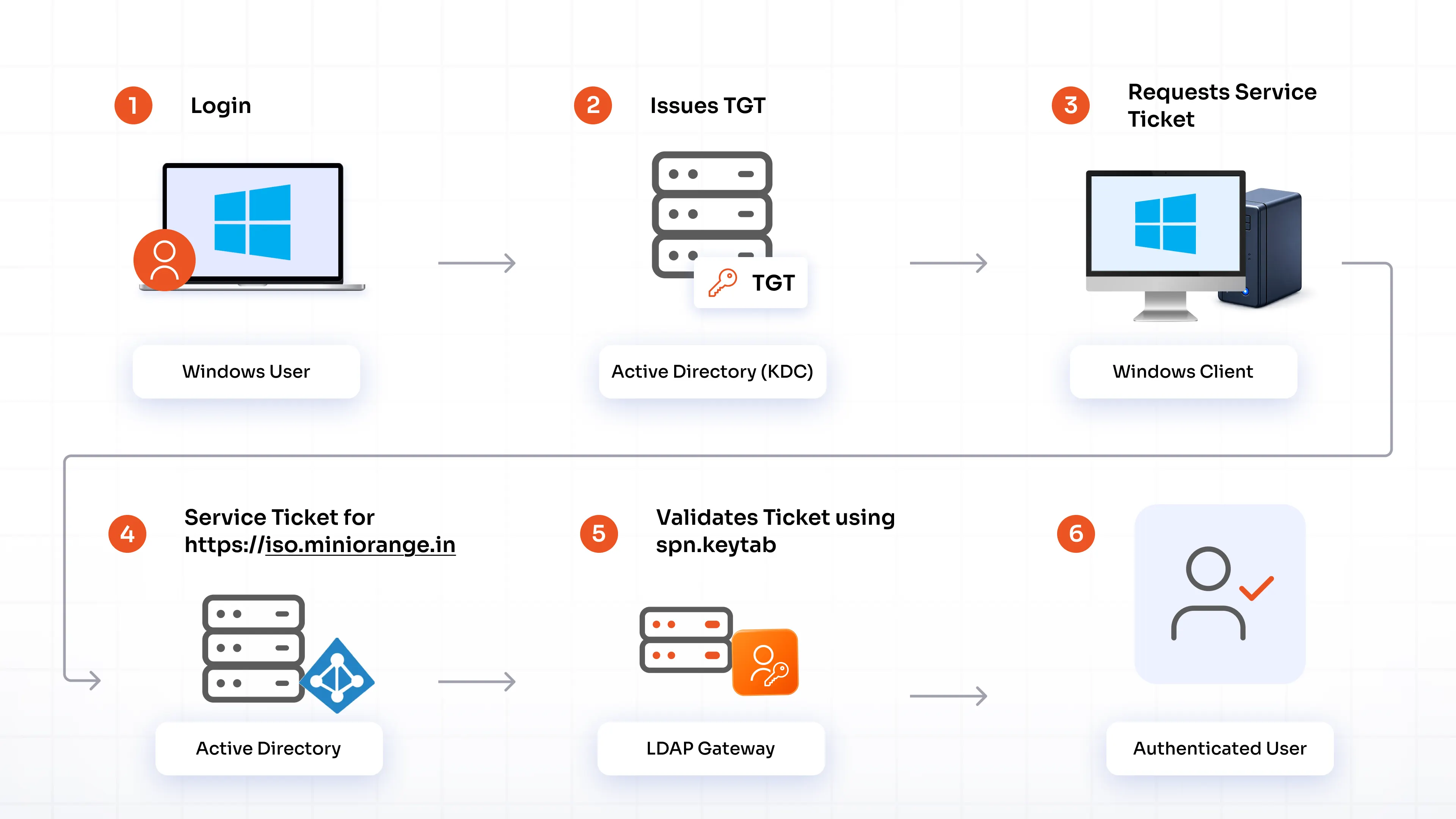
The authentication process works as follows:
Verify the following before testing:
| Issue | Possible Cause |
|---|---|
| KDC not reachable | Incorrect KDC hostname/IP or firewall blocking port 88 |
| Integrity check failed | Password changed after generating the keytab; regenerate the keytab |
| Server not found in Kerberos database | SPN not registered or incorrect service principal |
| Clock skew too great | Time difference between Gateway and Domain Controller exceeds Kerberos tolerance |
| Pre-authentication failed | Incorrect service account password used while generating the keytab |
| GSSException: No valid credentials provided | Keytab path, principal, or JAAS configuration is incorrect |
After completing the configuration, you can verify the Kerberos setup independently before starting the LDAP Gateway.
Ensure the Gateway can resolve both the Active Directory Domain Controller and the Gateway hostname.
nslookup iso.miniorange.in

nslookup <domain-controller-hostname>
or
host iso.miniorange.in
Expected result:
Kerberos communicates with the Key Distribution Center (KDC) over TCP/UDP port 88.
nc -zv <kdc-ip> 88
or
telnet <kdc-ip> 88
Example:
nc -zv 3.23.128.115 88
Expected output:
Connection to 3.23.128.115 88 port [tcp/*] succeeded!
Kerberos is sensitive to clock skew. Ensure the Gateway server time is synchronized with the Domain Controller.
date
timedatectl status
If NTP is configured:
timedatectl
The output should indicate:
System clock synchronized: yes
List the principals stored in the keytab.
klist -k /home/dev/miniorangegateway-1.6.0/bin/spn.keytab
Example output:
Keytab name: FILE:/home/dev/miniorangegateway-1.6.0/bin/spn.keytab

KVNO Principal
---- -----------------------------------------------
   3 HTTP/iso.miniorange.in@MINIORANGE.IN
If the expected principal is not present, regenerate the keytab.
Authenticate using the generated keytab.
kinit -kt /home/dev/miniorangegateway-1.6.0/bin/spn.keytab \
HTTP/iso.miniorange.in@MINIORANGE.IN
No output generally indicates success.
After running kinit, verify that a Kerberos ticket has been obtained.
klist
Example:
Ticket cache: FILE:/tmp/krb5cc_1000

Default principal:
HTTP/iso.miniorange.in@MINIORANGE.IN

Valid starting       Expires              Service Principal
07/23/2026 10:30     07/24/2026 10:30     krbtgt/MINIORANGE.IN@MINIORANGE.IN
To remove all cached Kerberos tickets:
kdestroy
Verify:
klist
Expected output:
No credentials cache found
If the kvno utility is available, verify that the service principal can obtain a service ticket.
kvno HTTP/iso.miniorange.in
Expected output:
HTTP/iso.miniorange.in@MINIORANGE.IN:
kvno = 3
This confirms that the SPN is correctly registered in Active Directory.
For troubleshooting, enable Kerberos debug logging by adding the following JVM option:
-Dsun.security.krb5.debug=true
Example:
JAVA_OPTS="$JAVA_OPTS -Dsun.security.krb5.debug=true"
The Gateway logs will include detailed information about:
Disable debug logging after troubleshooting, as it generates verbose output.
| Purpose | Command |
|---|---|
| Check DNS | nslookup iso.miniorange.in |
| Check KDC connectivity | nc -zv <kdc-ip> 88 |
| Display system time | timedatectl status |
| List keytab contents | klist -k spn.keytab |
| Authenticate using keytab | kinit -kt spn.keytab HTTP/iso.miniorange.in@MINIORANGE.IN |
| View cached tickets | klist |
| Destroy cached tickets | kdestroy |
| Request service ticket | kvno HTTP/iso.miniorange.in |
If Kerberos authentication fails, verify the following:
If debug logging is enabled, review the logs for errors such as: