Two-Factor Authentication (2FA/MFA) for Nokia Routers and Switches
Two Factor Authentication (2FA) or Multifactor Authentication is the process of the authentication in which you have to provide two factors to gain the access. First Factor is the one that you know username and password and Second factor is what you might have as unique like a phone (For OTP) or Fingerprint. This additional layer prevents the unauthorized person from accessing the resources even if they know your username and password. miniOrange provides 15+ authentication methods and solutions for various use cases. TACACS+ provides better authentication, authorization and accounting, which allows for more flexible administrative control. In this guide, we will learn how to configure TACACS+ on Nokia routers and switches.
Connect with any External Directories
miniOrange provides user authentication from various external directories such as miniOrange Directory, Microsoft AD, Microsoft Entra ID/LDAP, AWS Cognito and many more.
Can't find your Directory? Contact us on idpsupport@xecurify.com
Get Free Installation Help - Book a Slot
miniOrange offers free help through a consultation call with our System Engineers to Install or Setup Two-Factor Authentication for Nokia solution in your environment with 30-day trial.
For this, you need to just send us an email at idpsupport@xecurify.com to book a slot and we'll help you setting it up in no time.
Enable Two-Factor Authentication (2FA)/MFA for Nokia Client to extend security level.
1. Tacacs Apps Configuration for single IPS
- Login into miniOrange Admin Console.
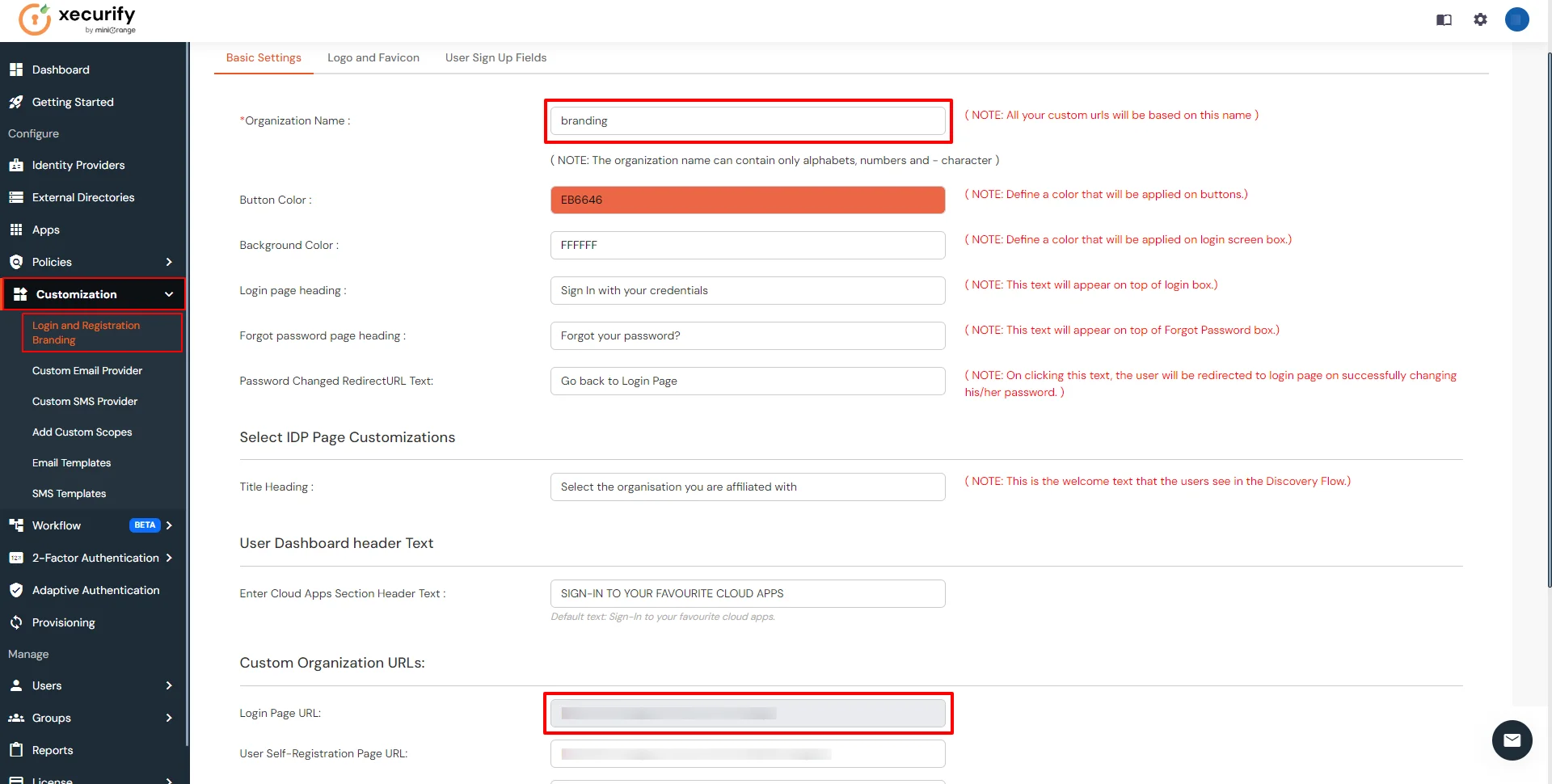
- Click on Customization in the left menu of the dashboard.
- In Basic Settings, set the Organization Name as the custom_domain name.
- Click Save. Once that is set, the branded login URL would be of the format https://<custom_domain>.xecurify.com/moas/login
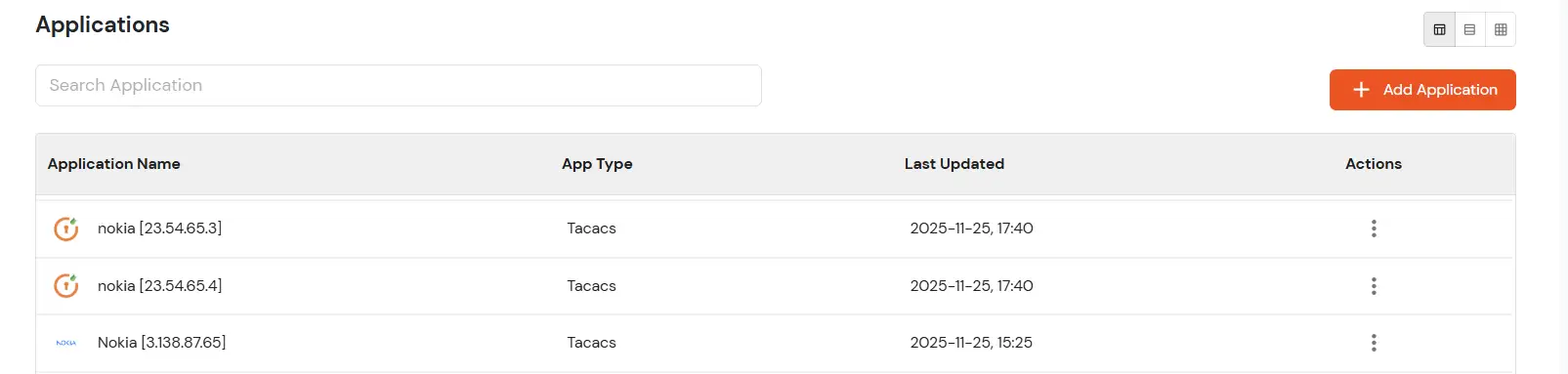
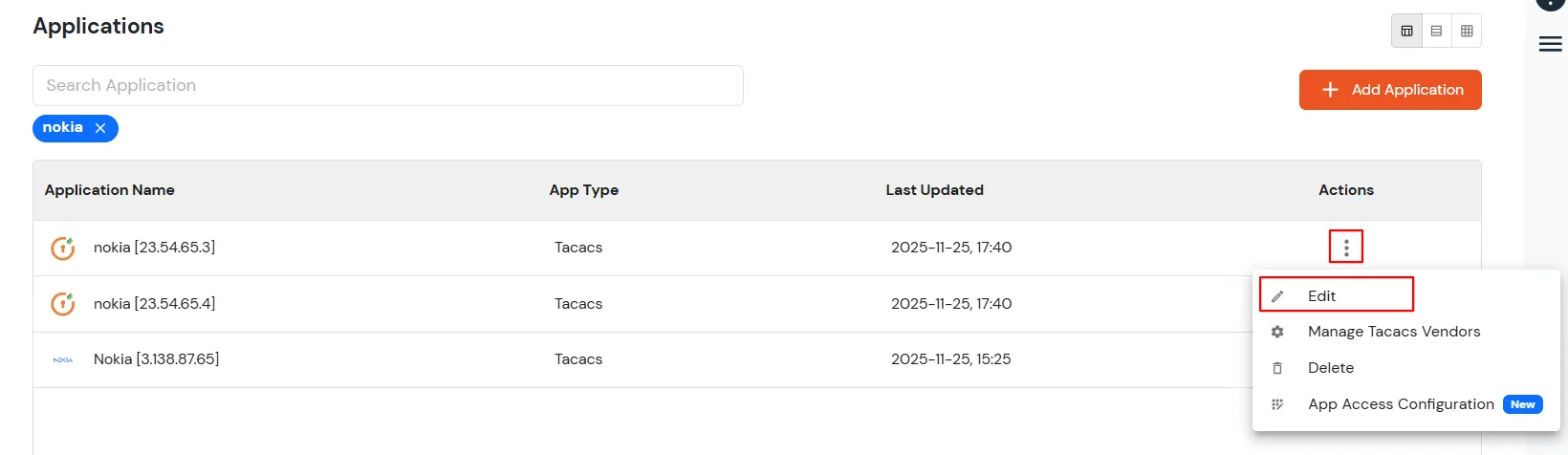
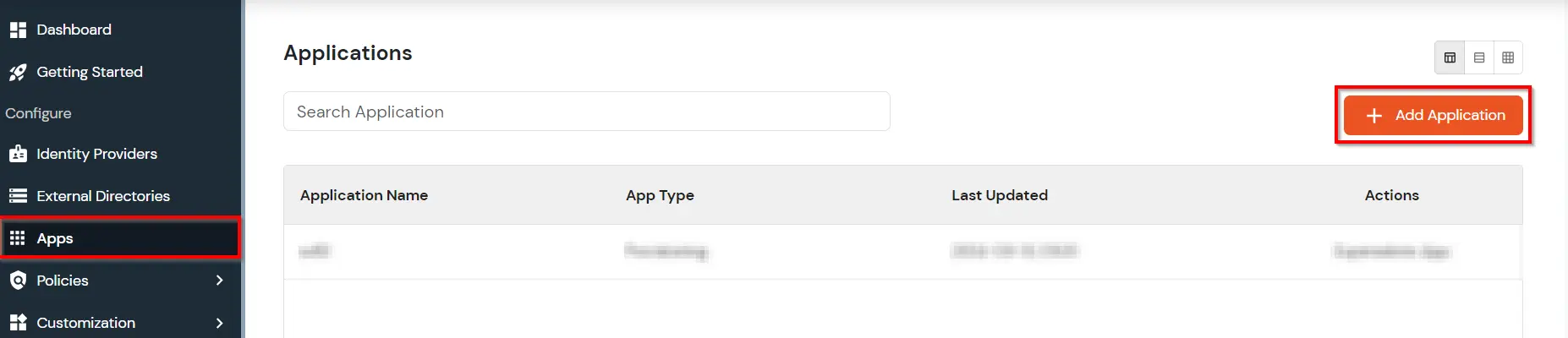
- Go to Apps Click on Add Application button.
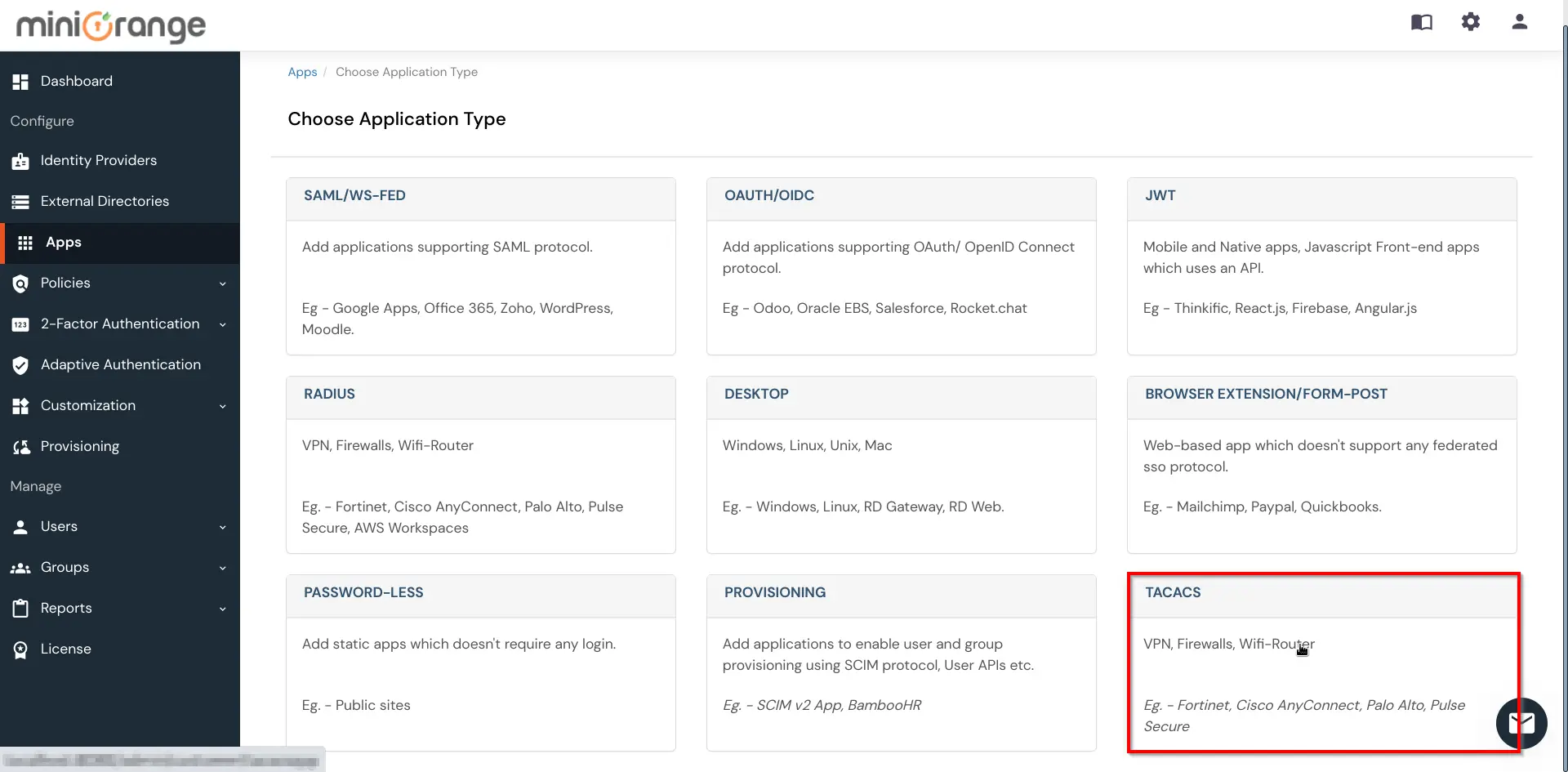
- Select TACACS as application type from All Apps dropdown.
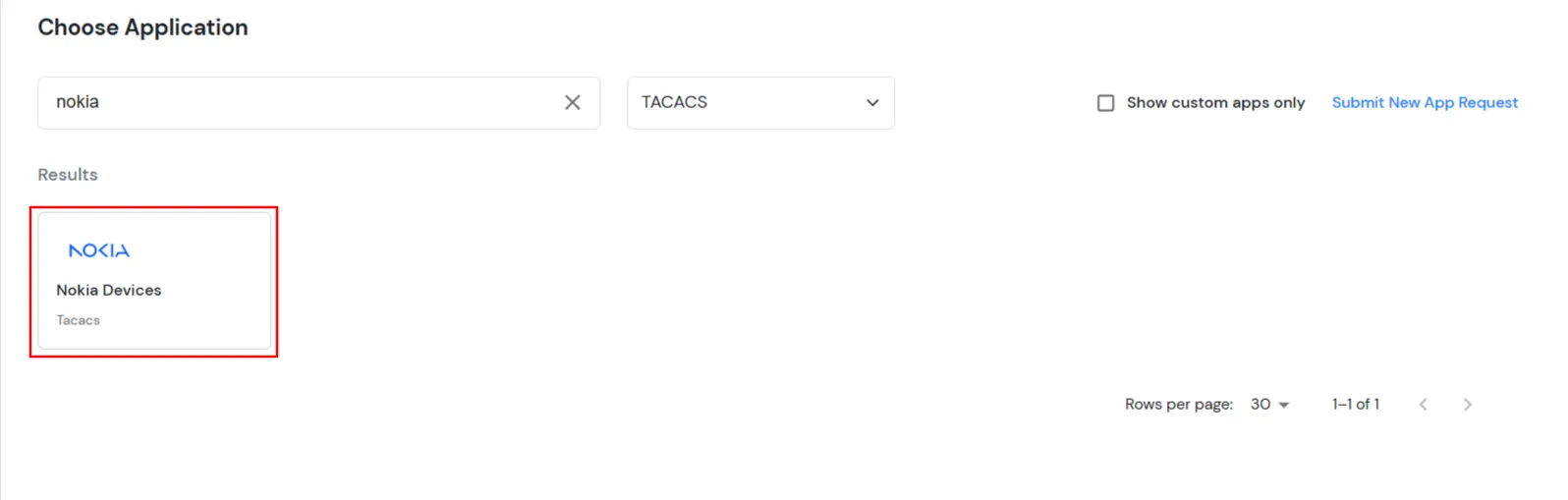
- Search for your application from the list, Nokia application tab. If you don't find Nokia you can set up your app via Custom TACACS Client.
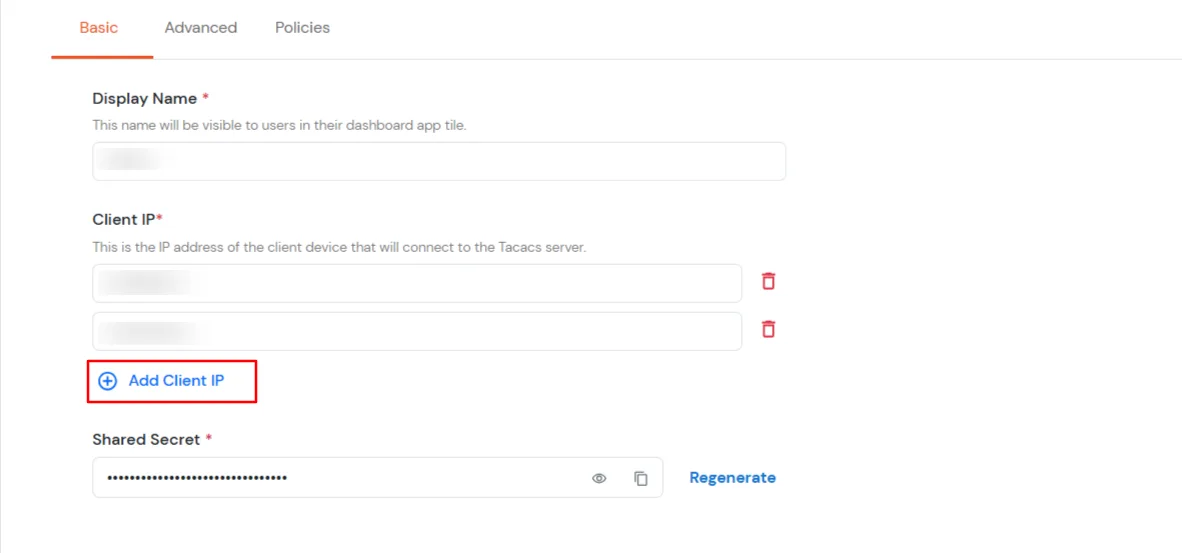
- Under the Basic tab, the user can fill out all required fields such as Display Name, Client IP, and Shared Secret. These are mandatory fields.
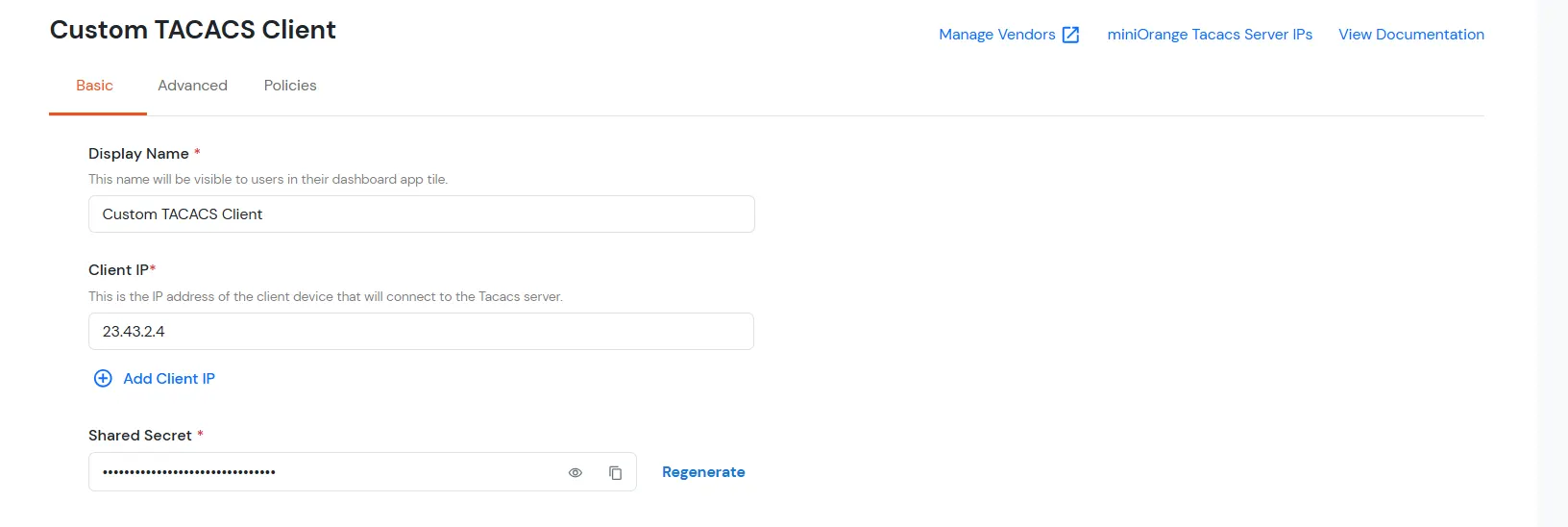
| Client Name: |
Any name for your reference. |
| Client IP: |
IP address of network device which will send TACACS authentication request. |
| Shared Secret: |
Security key.
For Eg. "sharedsecret"
(Keep this with you, you will need to configure same on TACACS client). |
- The Save button will appear on the Basic or Advanced tabs only when there is a single IP.
Note:
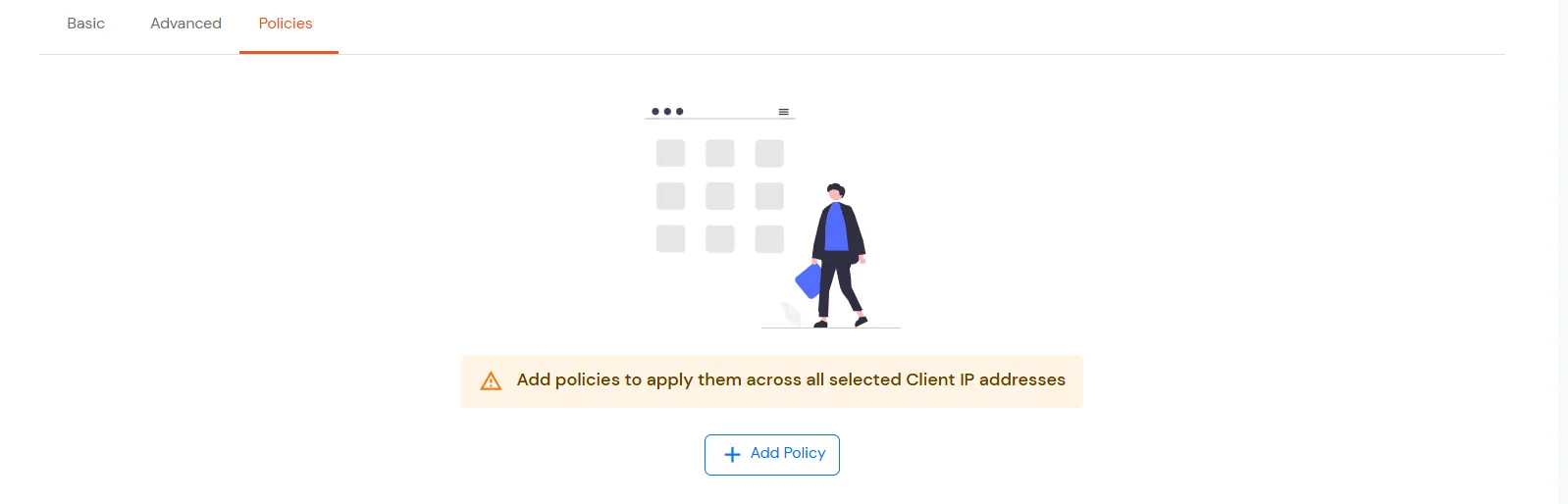
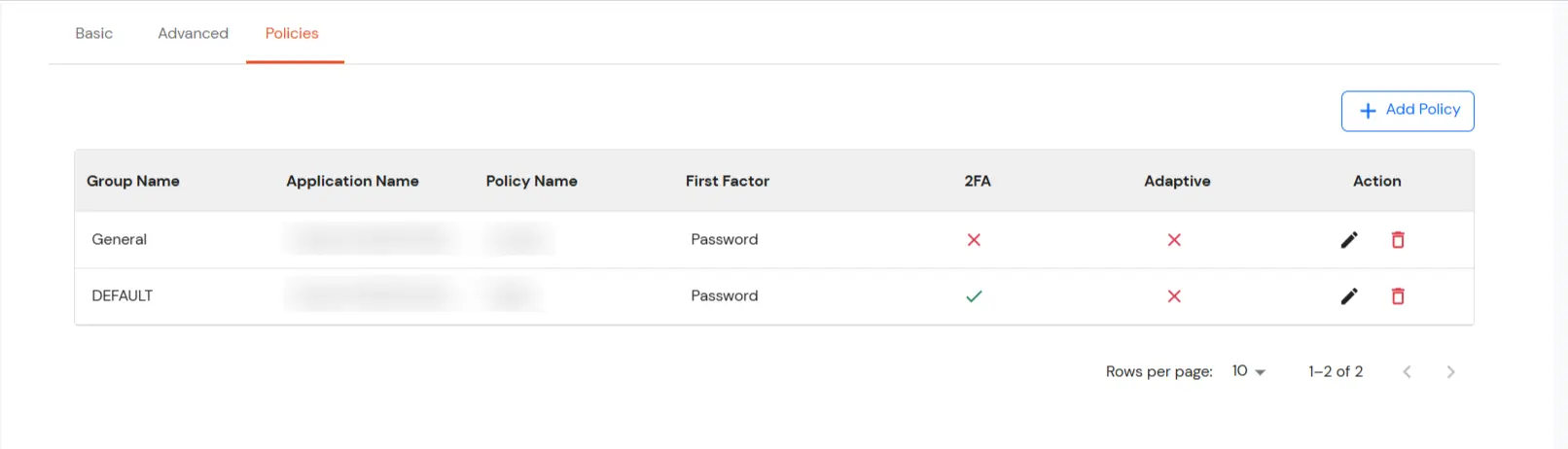
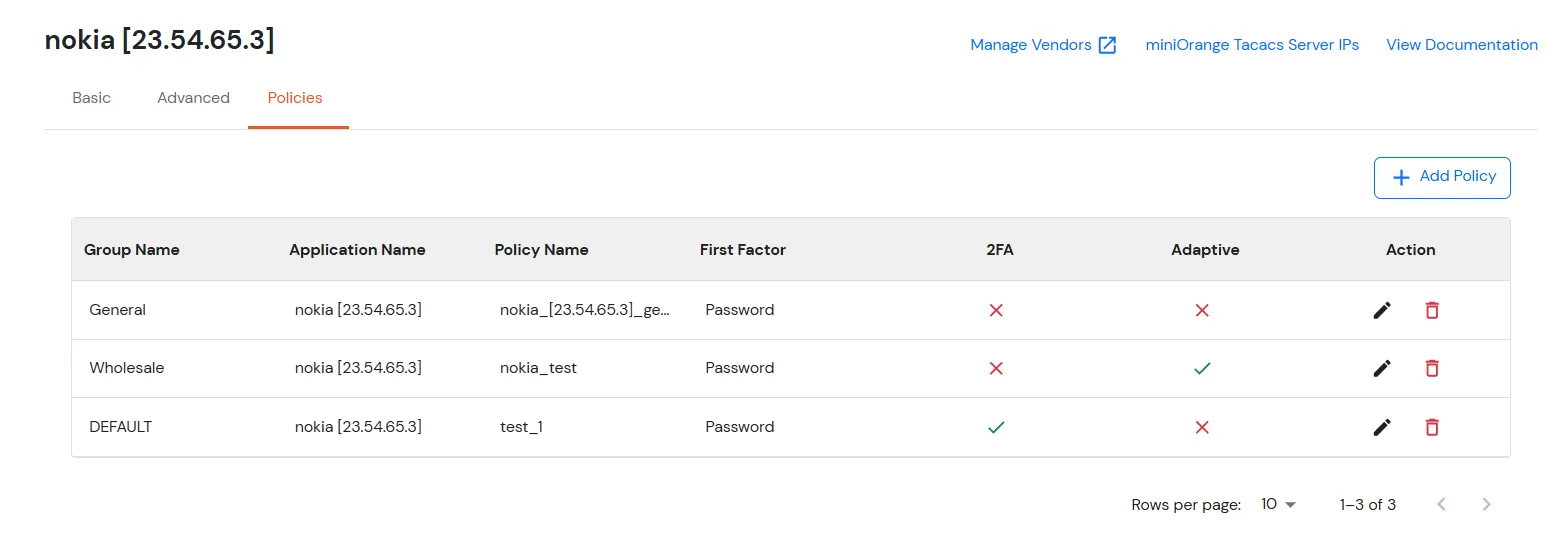
- In the case of multiple IPs, the Save button will appear only when the user navigates to the Policies tab.
- Then the user can save the application either without navigating to the Advanced tab or after filling in the fields on the Advanced tab.
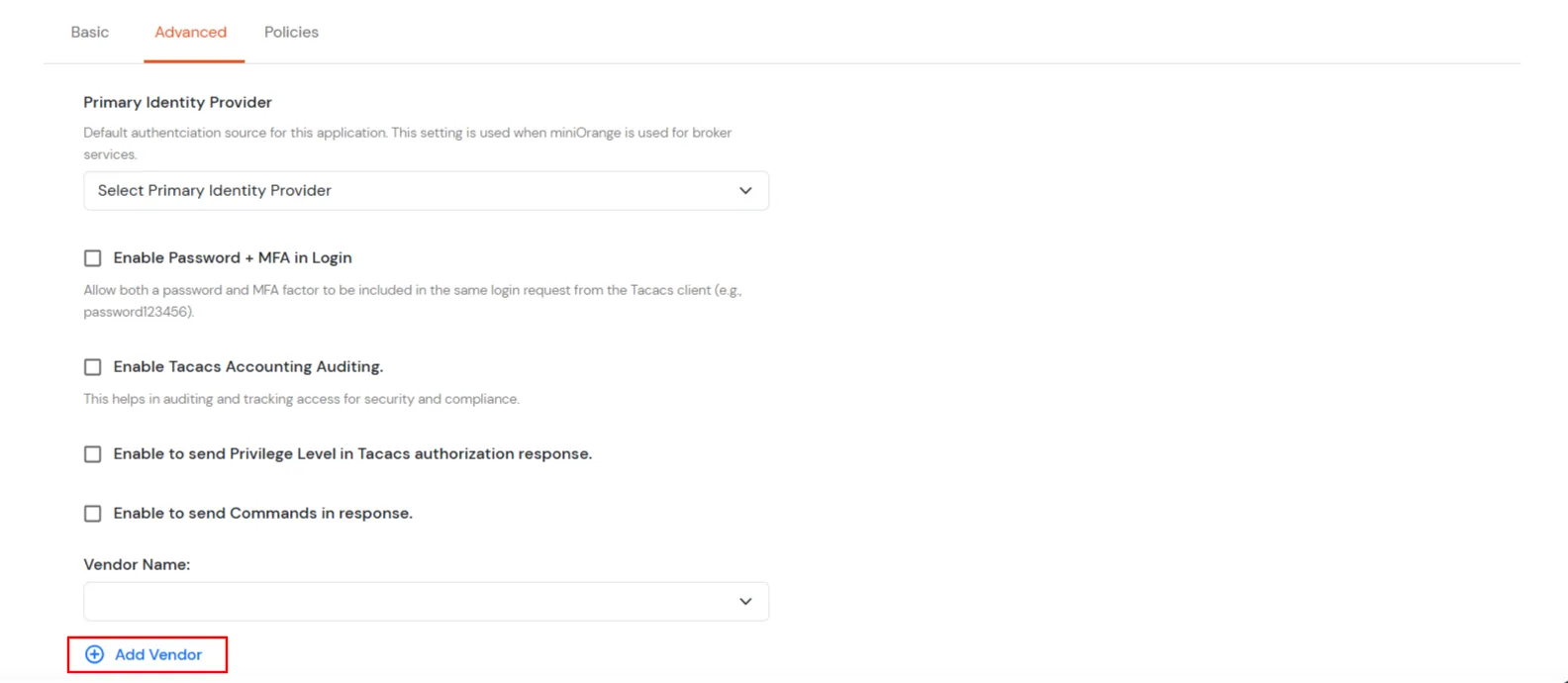
- In the Advanced Settings tab, there is a button called Add Vendor. When the user click this button, a modal titled Add Vendor will open, containing a single input field.
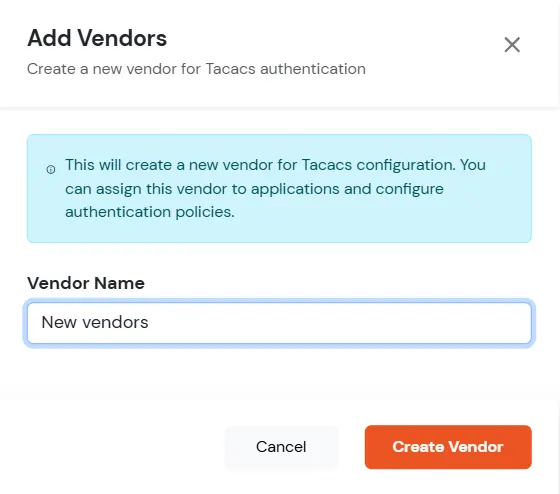
- Click on Create New Vendor button. The vendor will be added through a POST call, and a toast confirmation message will displayed.
- Click on Save button.
2. Tacacs Apps Configuration for Multiple IPS
3. Configure Authentication for Nokia via TACACS
configure system security tacplus
timeout 20
server 1 address <server-ip> secret <secret>
4 . Configure Authorization for Nokia via TACACS
configure system security tacplus
accounting
authorization
timeout 20
server 1 address <server-ip> secret <secret>
5. Configure Your User Directory
miniOrange provides user authentication from various external sources, which can be Directories (like ADFS, Microsoft Active Directory, Microsoft Entra ID, OpenLDAP, Google, AWS Cognito etc), Identity Providers (like Okta, Shibboleth, Ping, OneLogin, KeyCloak), Databases (like MySQL, Maria DB, PostgreSQL) and many more. You can configure your existing directory/user store or add users in miniOrange.
Note: You can follow this guide, if you want to configure Radius MFA with your users stored in Microsoft Entra ID using OAuth Password Grant.
Setup AD/LDAP as User Directory
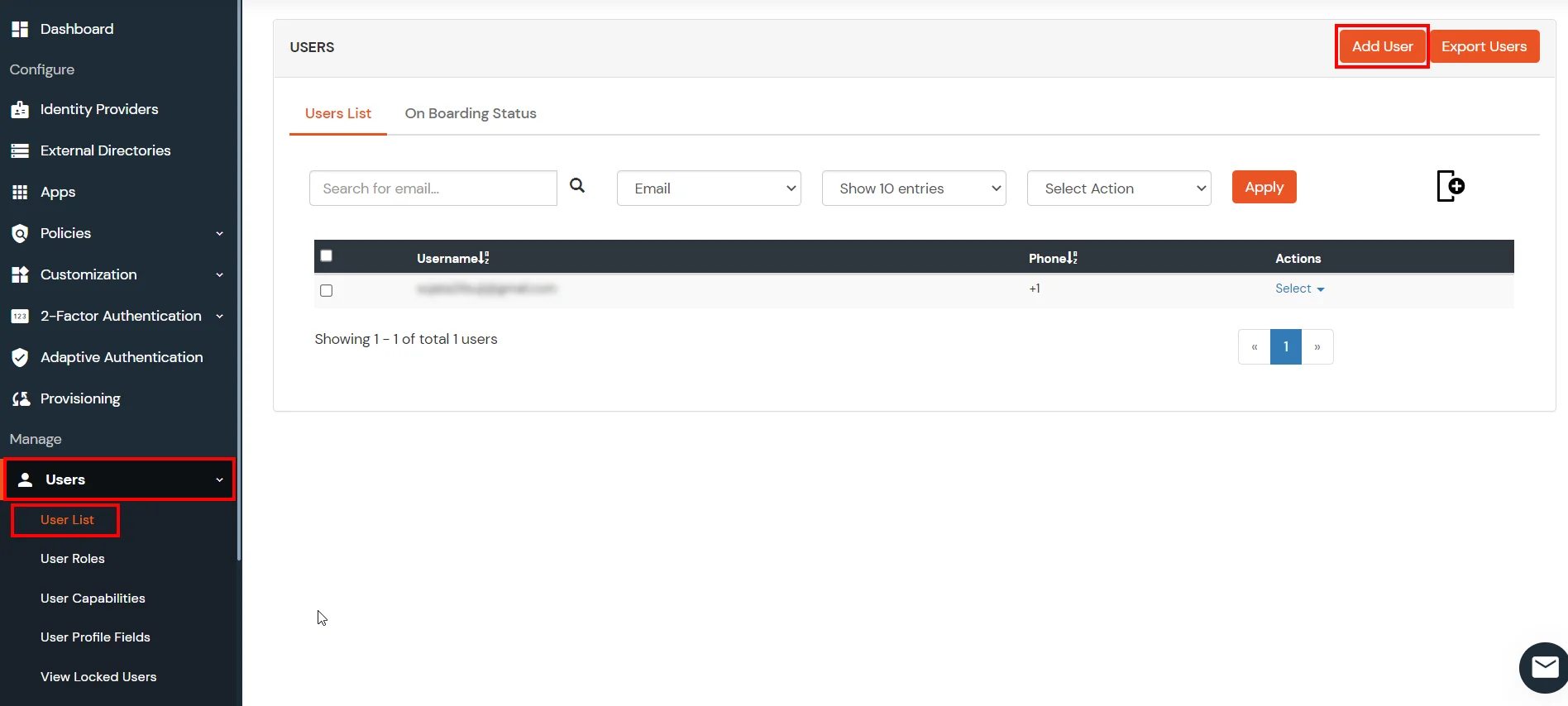
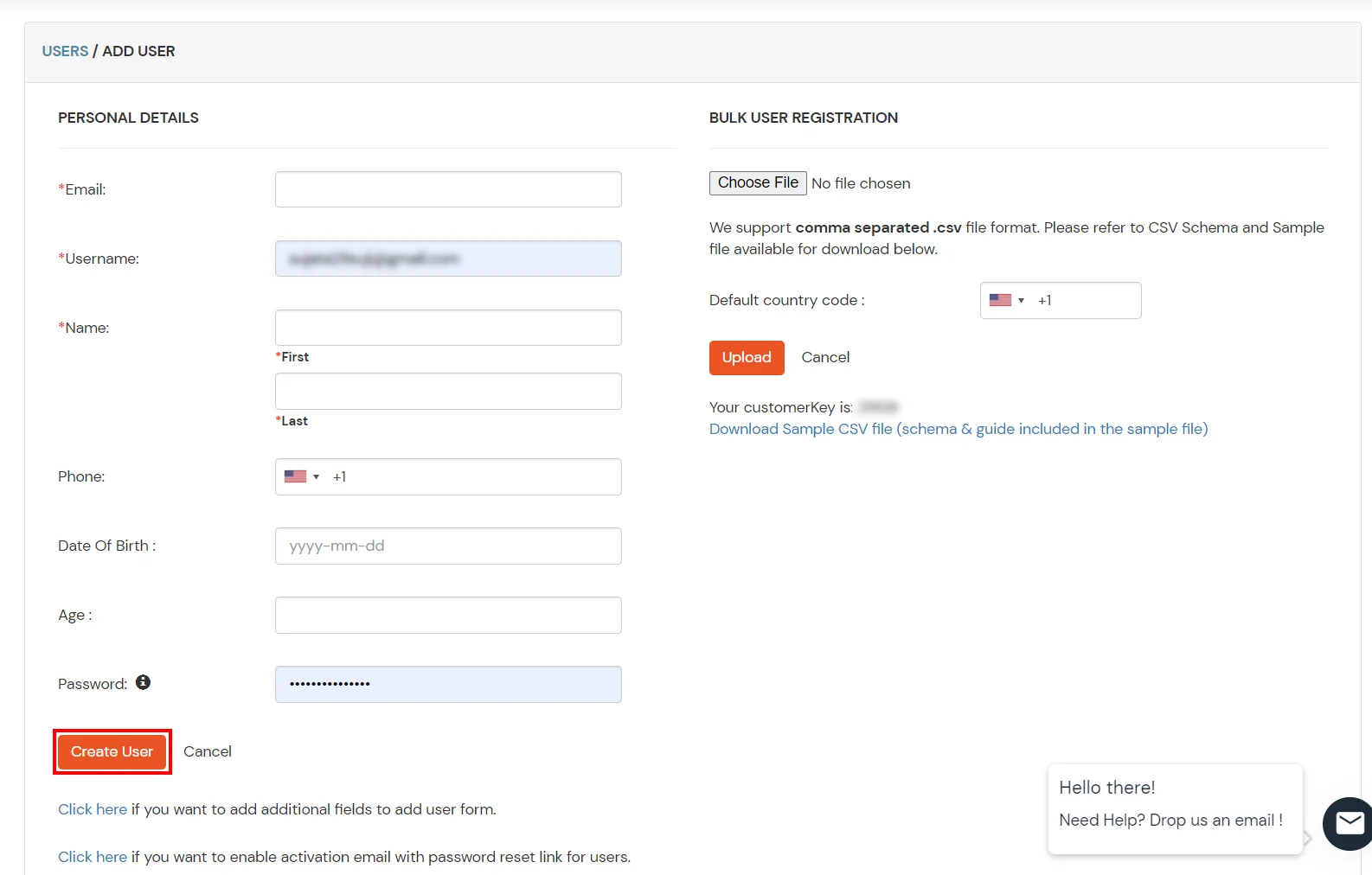
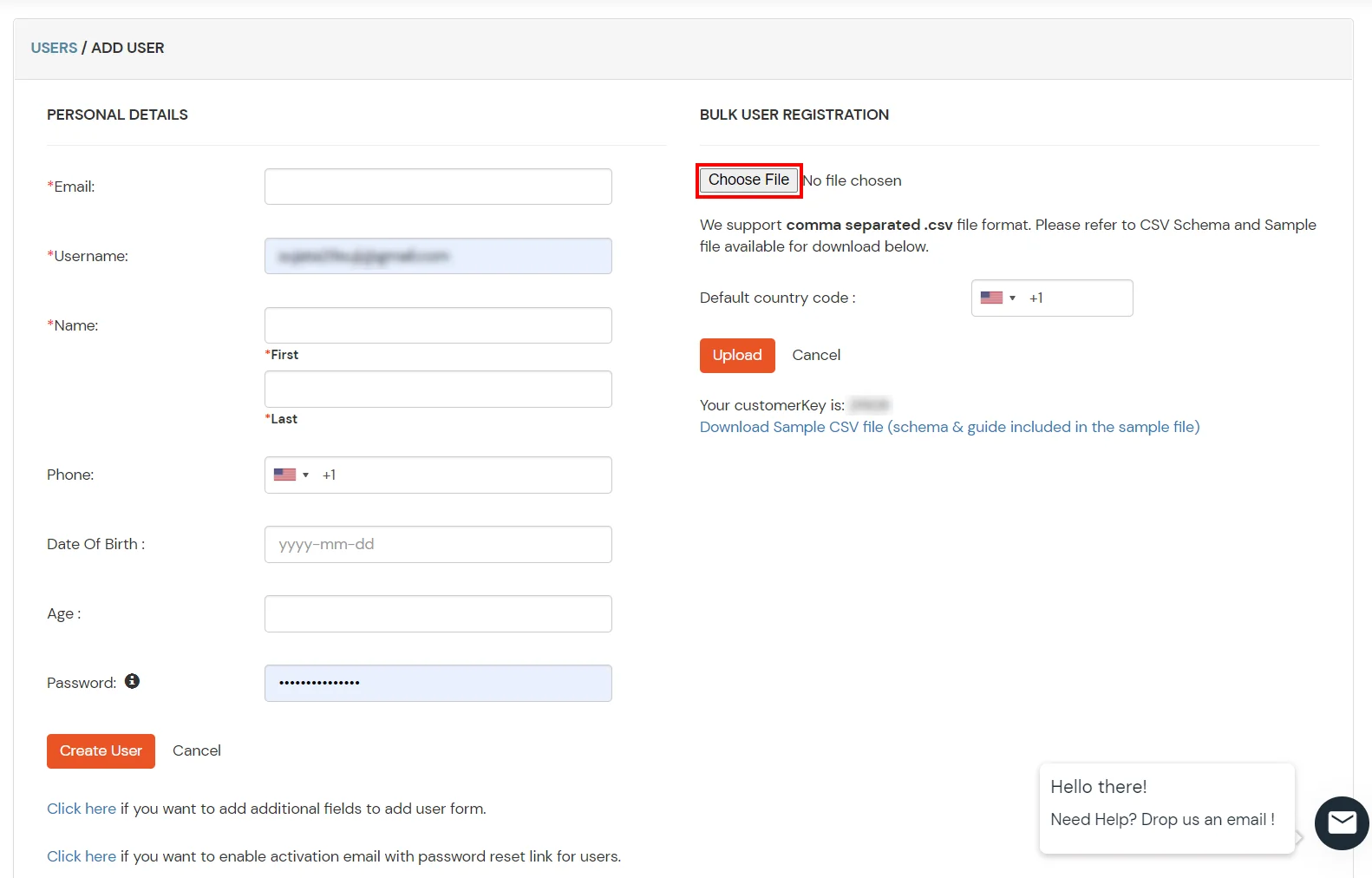
Setup miniOrange as User Directory
Configure your existing directories such as Microsoft Active Directory, Microsoft Entra ID, OpenLDAP, etc.
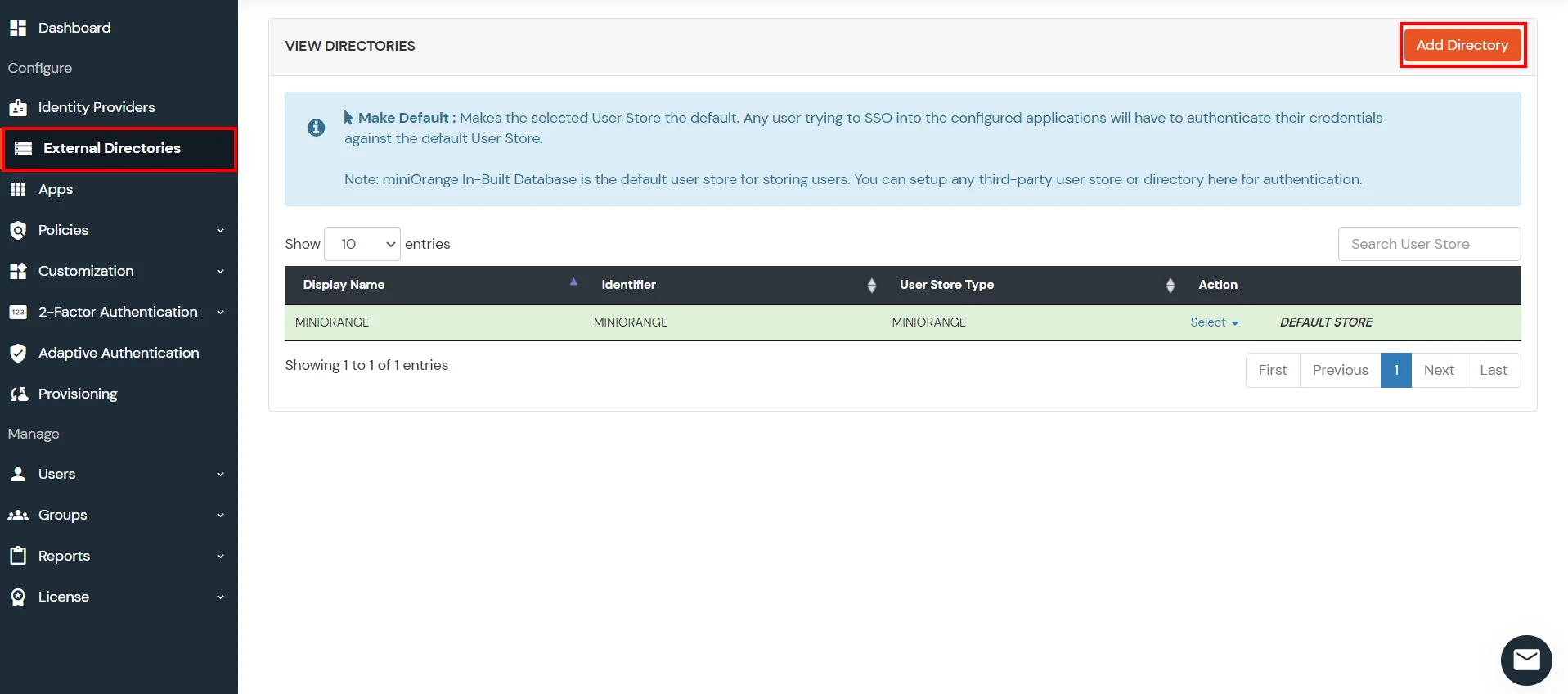
- Click on Identity Providers >> Add Identity Provider in the left menu of the dashboard.
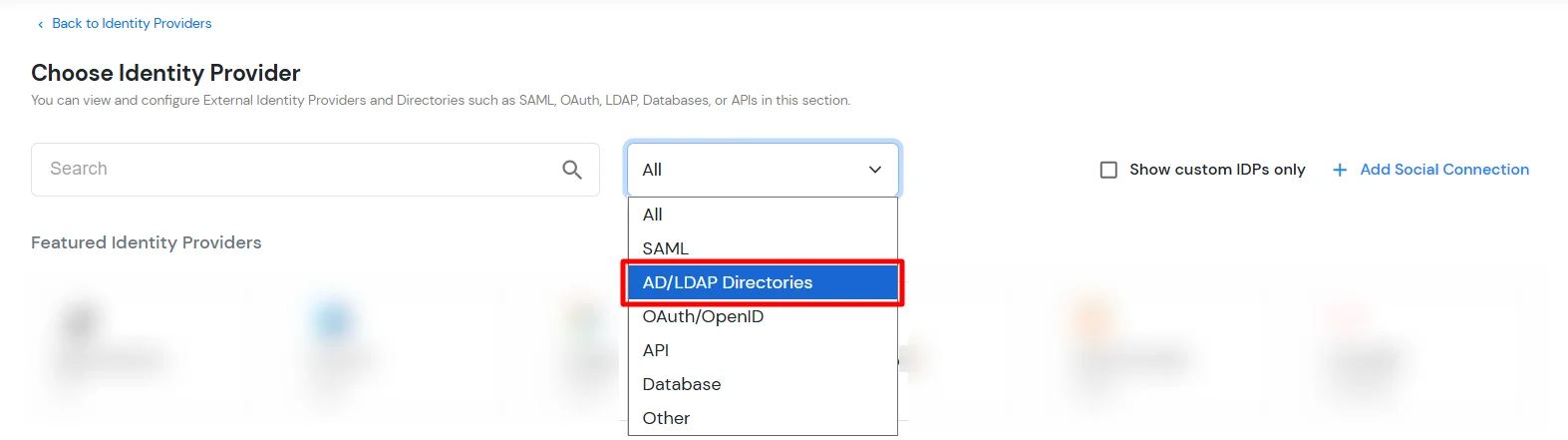
- In Choose Identity Provider, select AD/LDAP Directories from the dropdown.
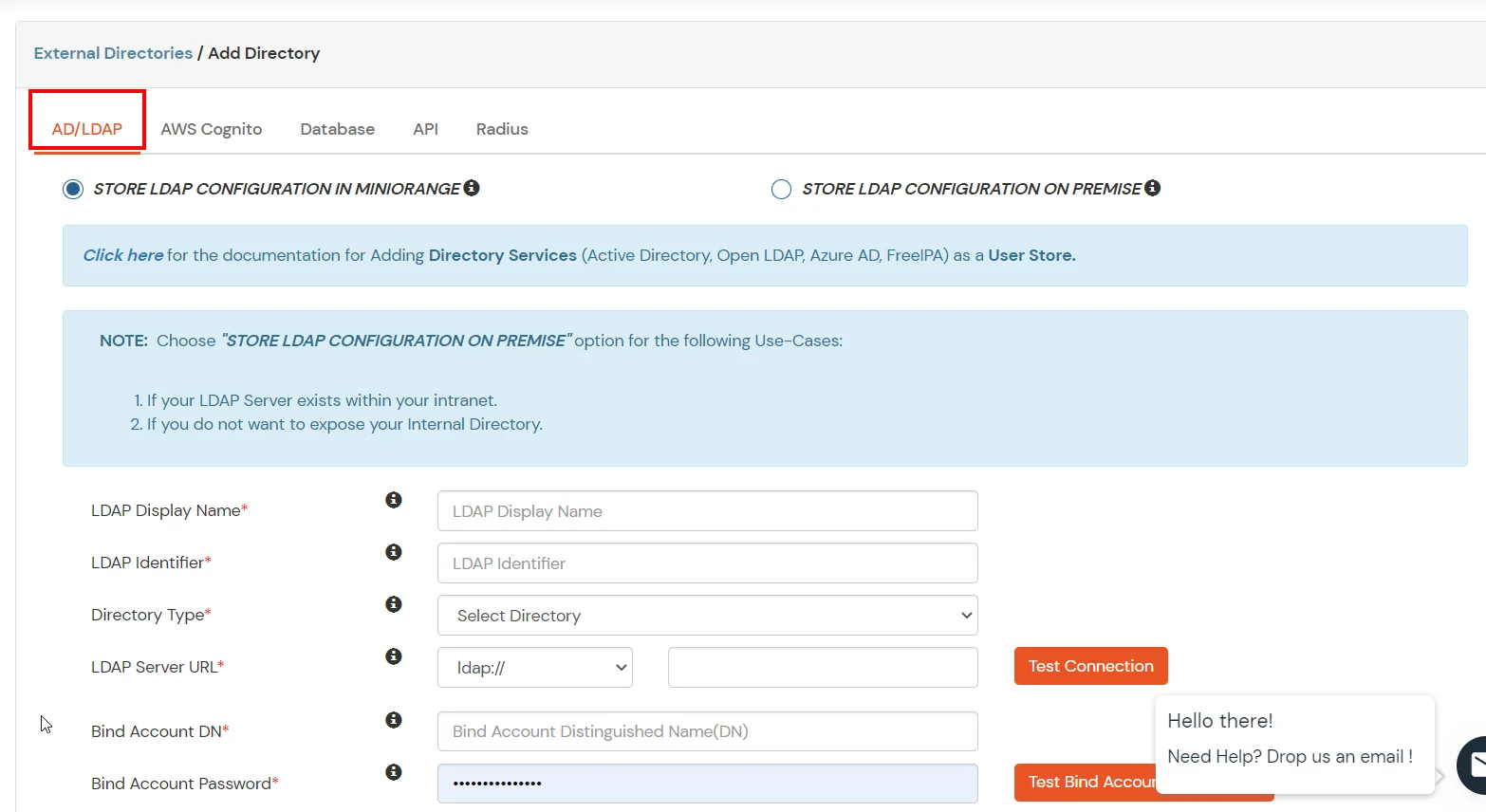
- Then search for AD/LDAP and click it.
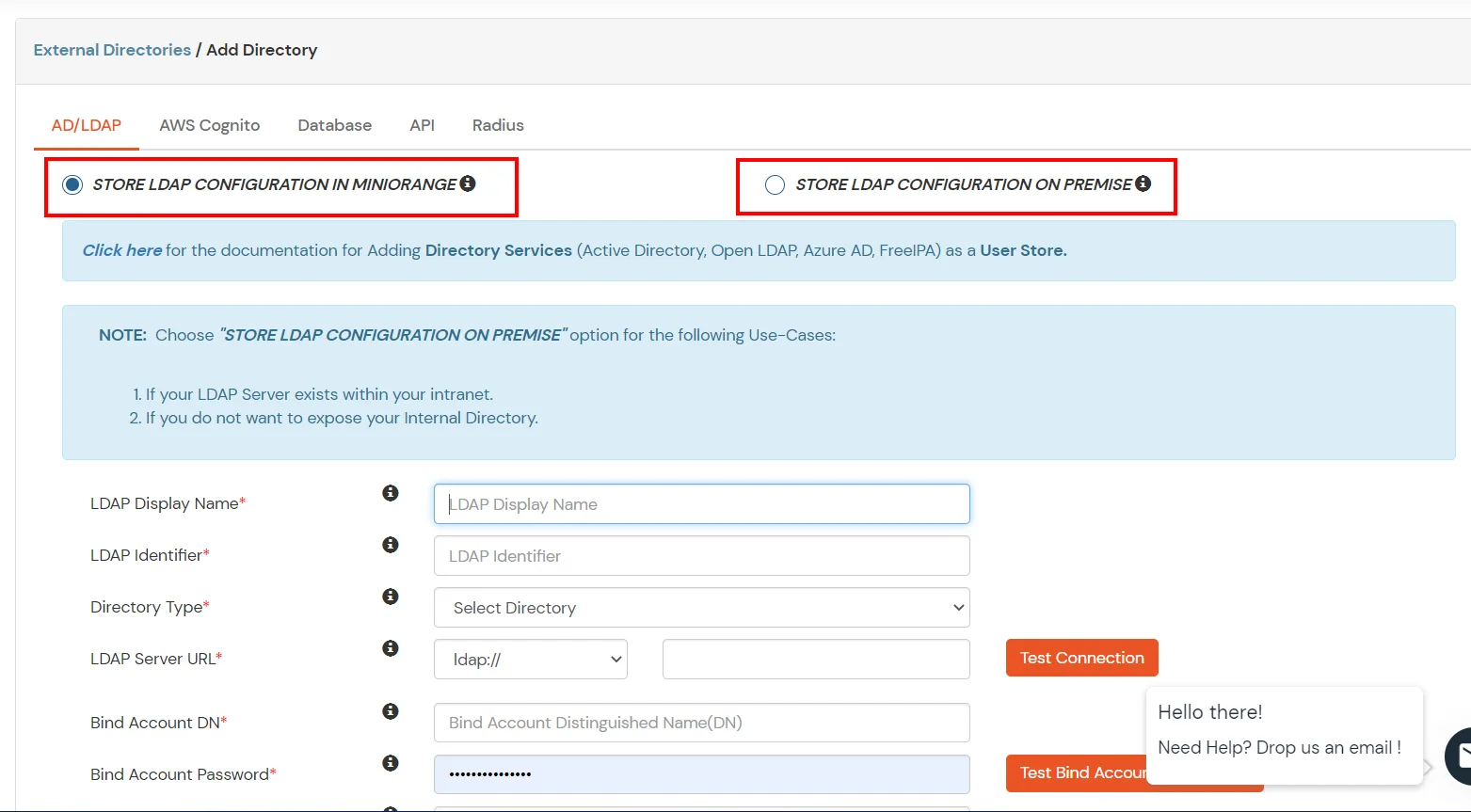
- STORE LDAP CONFIGURATION IN MINIORANGE: Choose this option if you want to keep your configuration in miniOrange. If the active directory is behind a firewall, you will need to open the firewall to allow incoming requests to your AD.
- STORE LDAP CONFIGURATION ON PREMISE: Choose this option if you want to keep your configuration in your premise and only allow access to AD inside premises. You will have to download and install miniOrange gateway on your premise.
- Enter LDAP Display Name and Identifier name.
- Select Directory Type as Active Directory.
- Enter the LDAP Server URL or IP Address against the LDAP Server URL field.
- Click on the Test Connection button to verify if you have made a successful connection with your LDAP server.
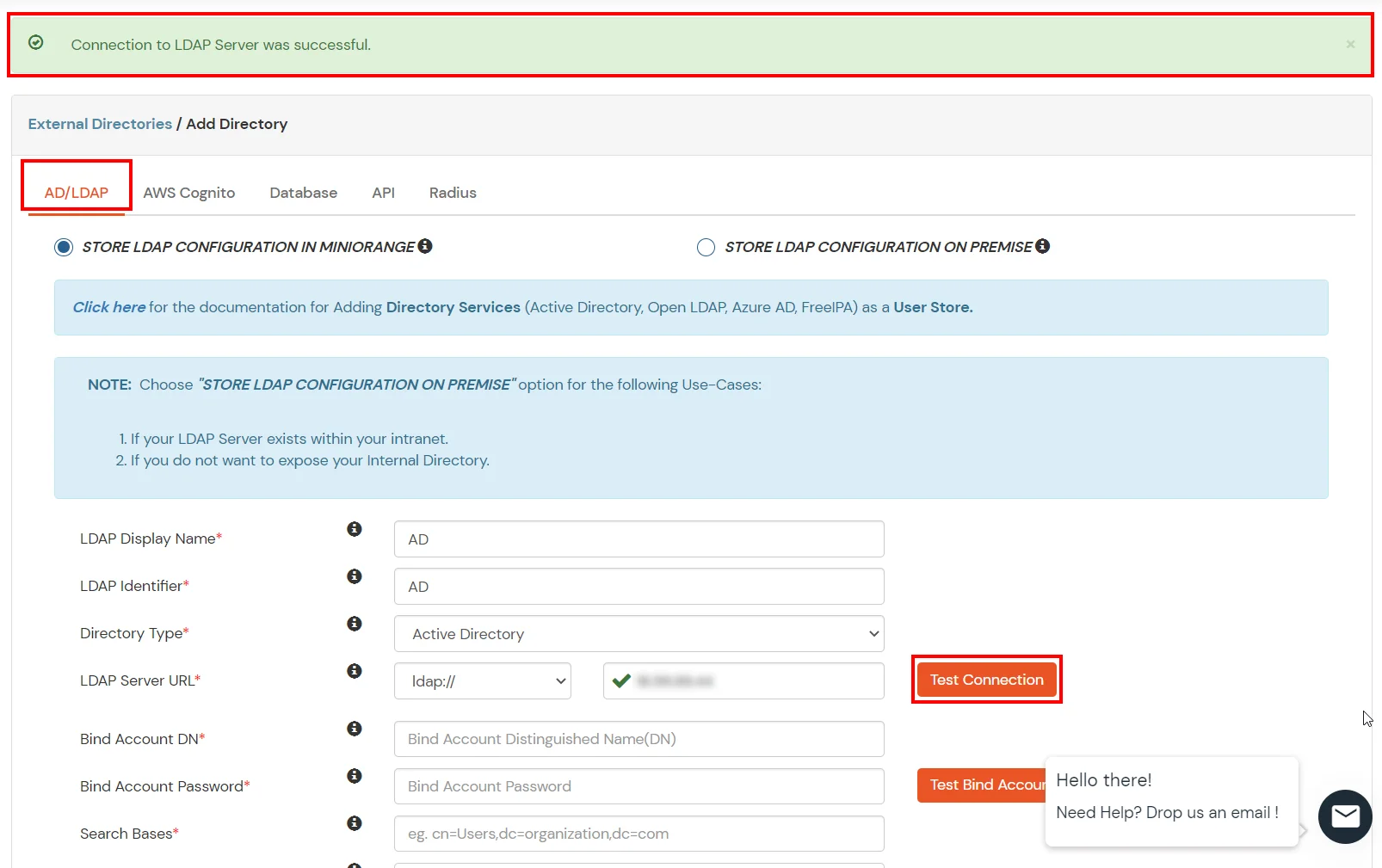
- In Active Directory, go to the properties of user containers/OU's and search for the Distinguished Name attribute. The bind account should have minimum required read privileges in Active Directory to allow directory lookups. If the use case involves provisioning (such as creating, updating, or deleting users or groups), the account must also be granted appropriate write permissions.
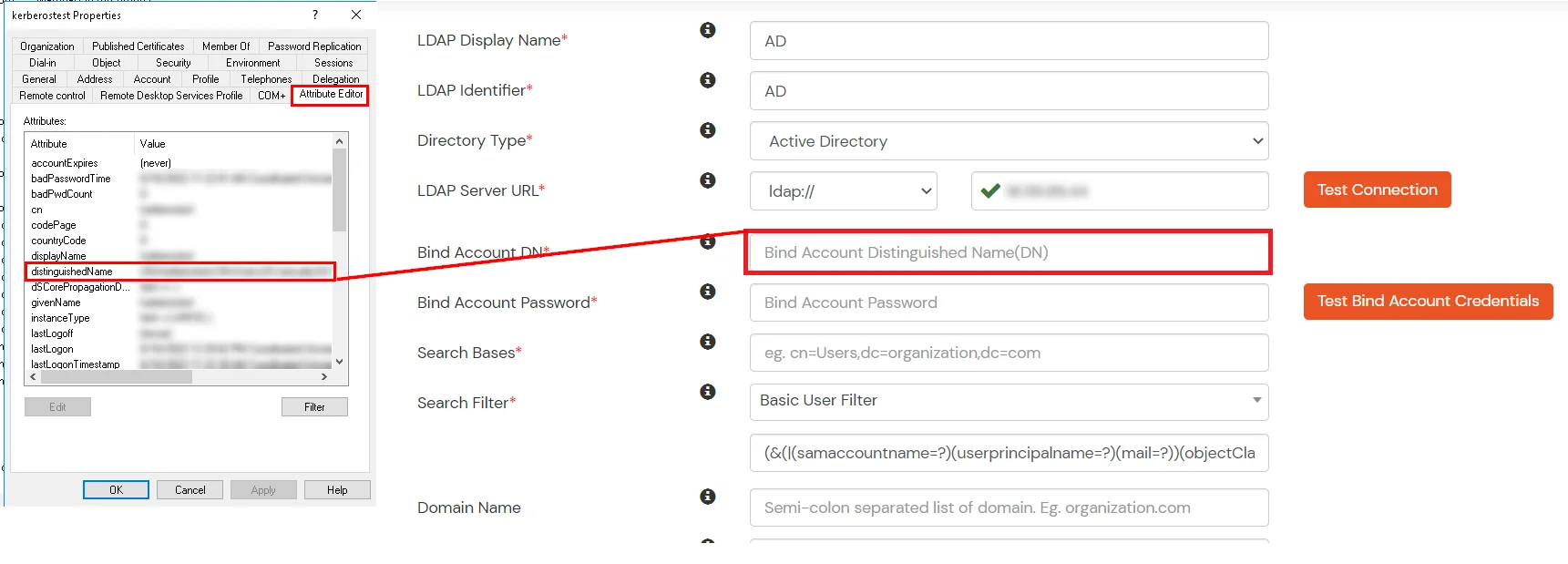
- Enter the valid Bind account Password.
- Click on the Test Bind Account Credentials button to verify your LDAP Bind credentials for LDAP connection.
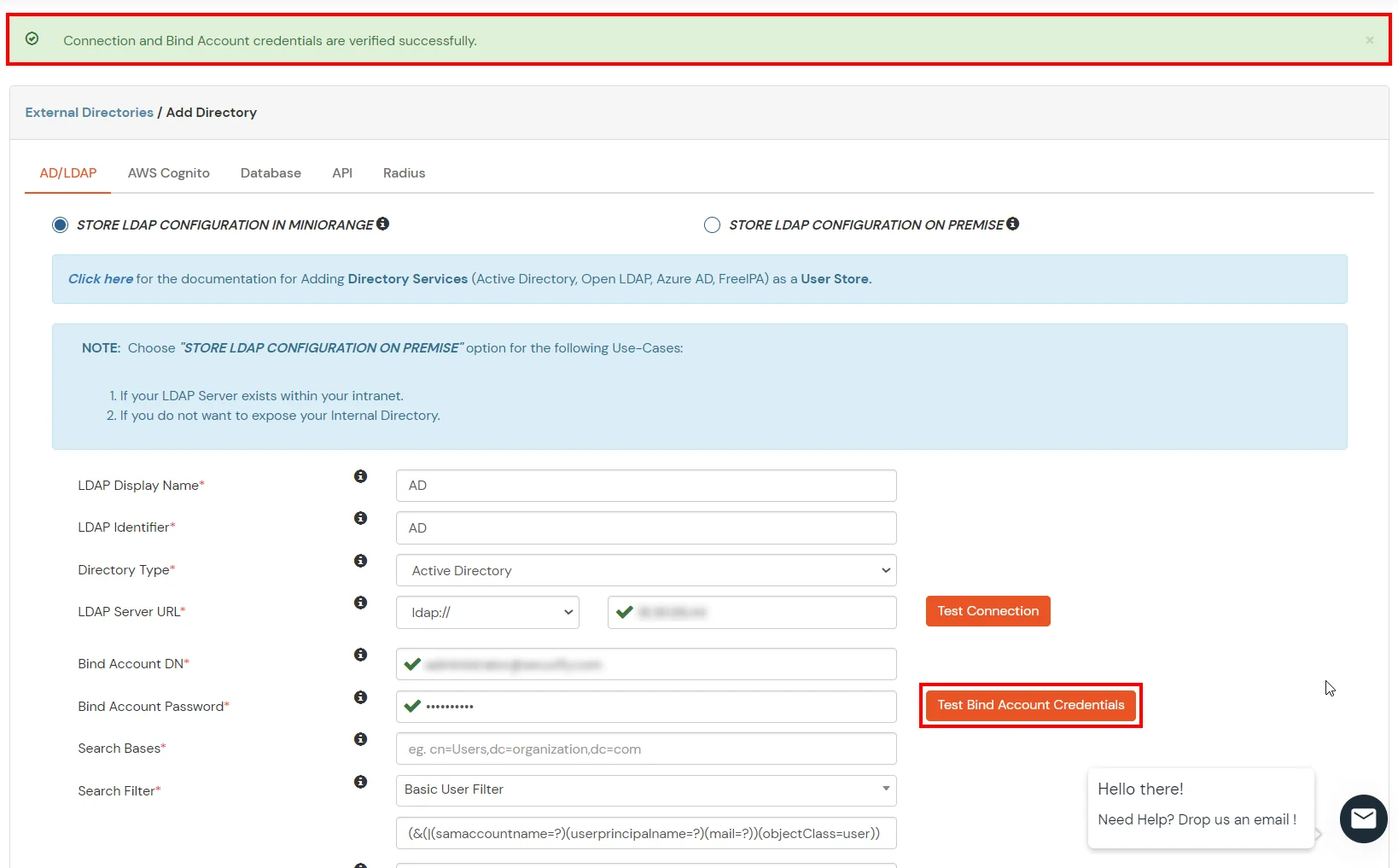
- Search Base is the location in the directory where the search for a user begins. You will get this from the same place you got your Distinguished name.
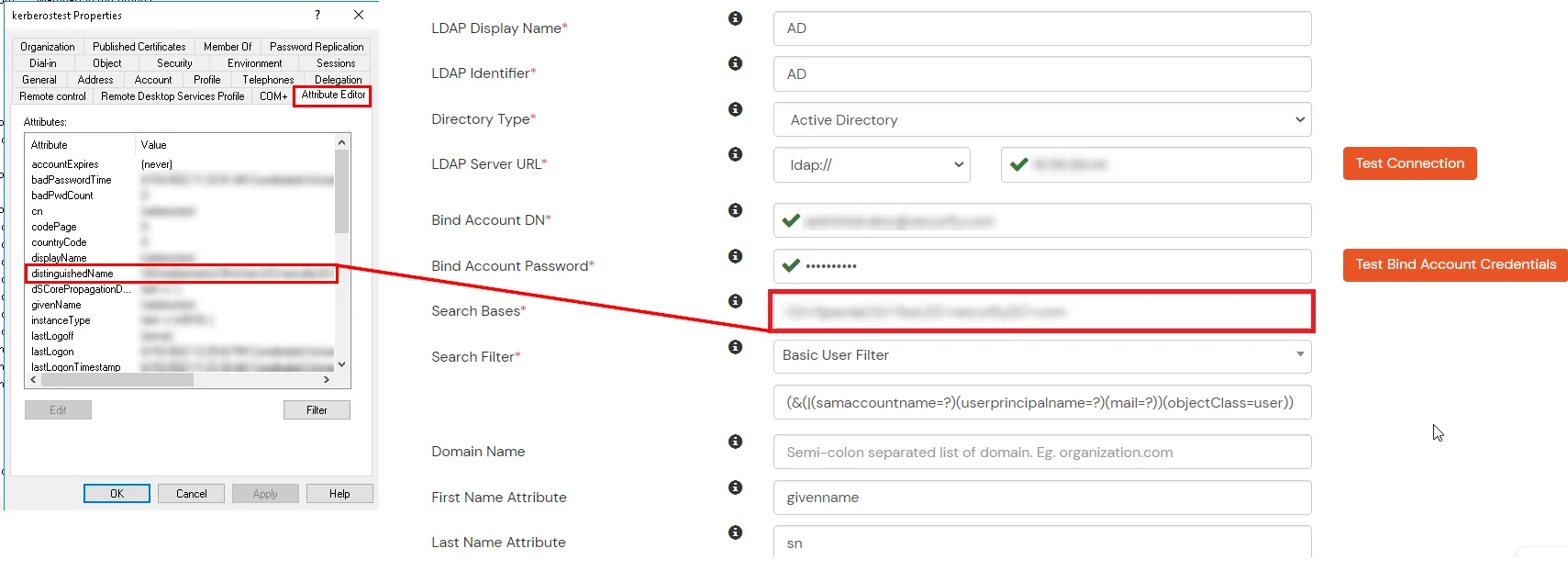
- Select a suitable Search filter from the drop-down menu. If you use User in Single Group Filter or User in Multiple Group Filter, replace the <group-dn> in the search filter with the distinguished name of the group in which your users are present. To use custom Search Filter select "Write your Custom Filter" option and customize it accordingly.
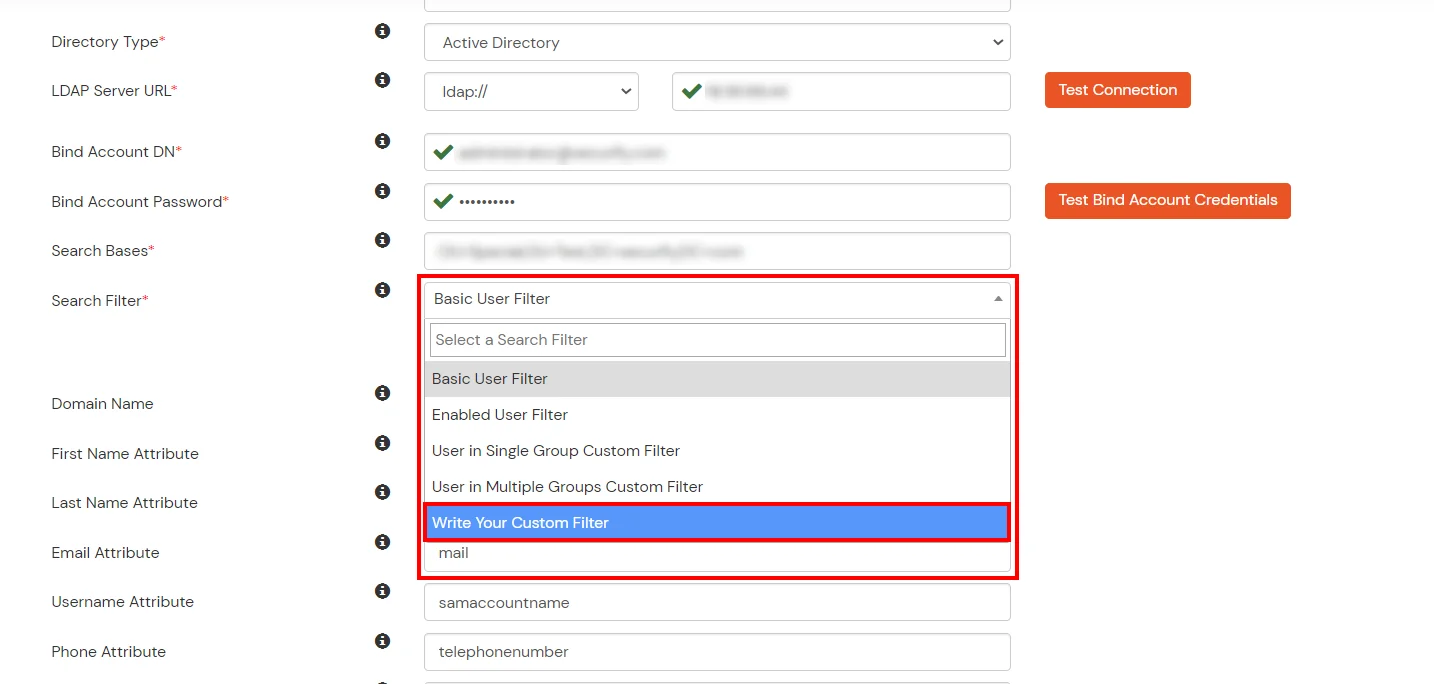
- Click on the Next button, or go to the Login Options tab.
- You can also configure following options while setting up AD. Enable Activate LDAP in order to authenticate users from AD/LDAP. Click on the Next button to add user store.
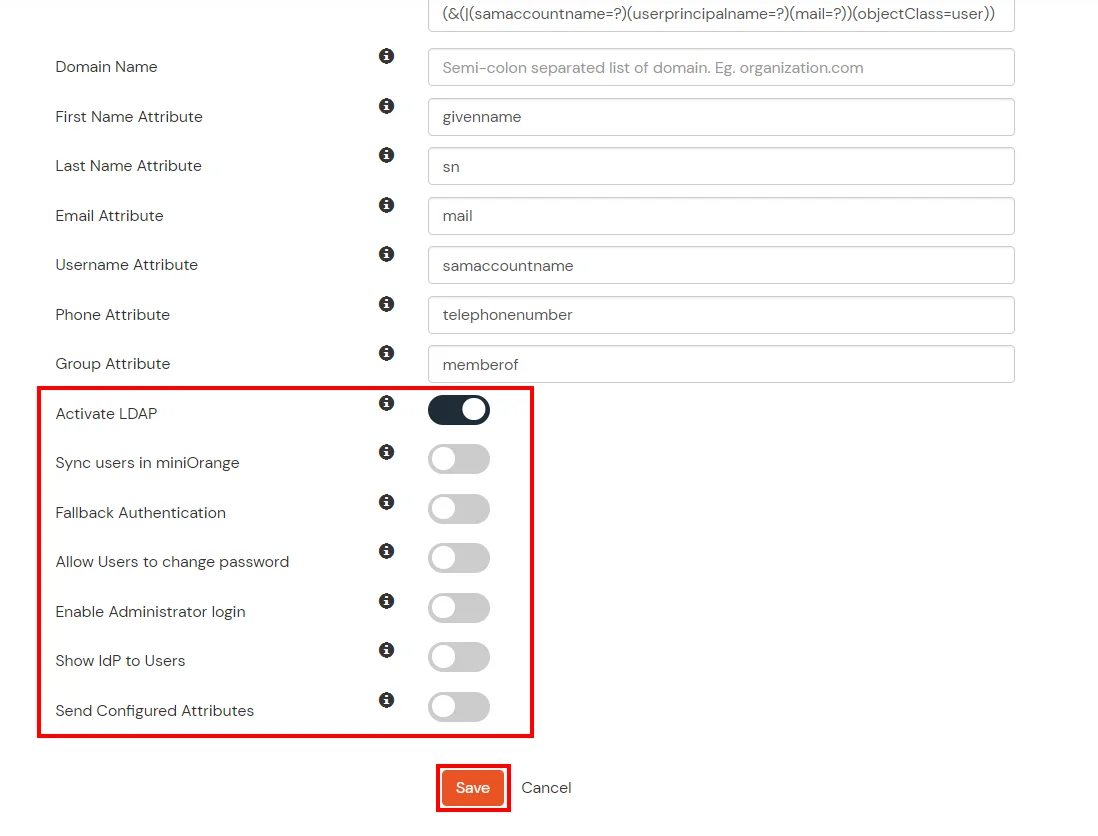
Here's the list of the attributes and what it does when we enable it. You can enable/disable accordingly.
| Attribute |
Description |
| Activate LDAP |
All user authentications will be done with LDAP credentials if you Activate it |
| Fallback Authentication |
If LDAP credentials fail then user will be authenticated through miniOrange |
| Enable administrator login |
On enabling this, your miniOrange Administrator login authenticates using your LDAP server |
| Show IdP to users |
If you enable this option, this IdP will be visible to users |
| Sync users in miniOrange |
Users will be created in miniOrange after authentication with LDAP |
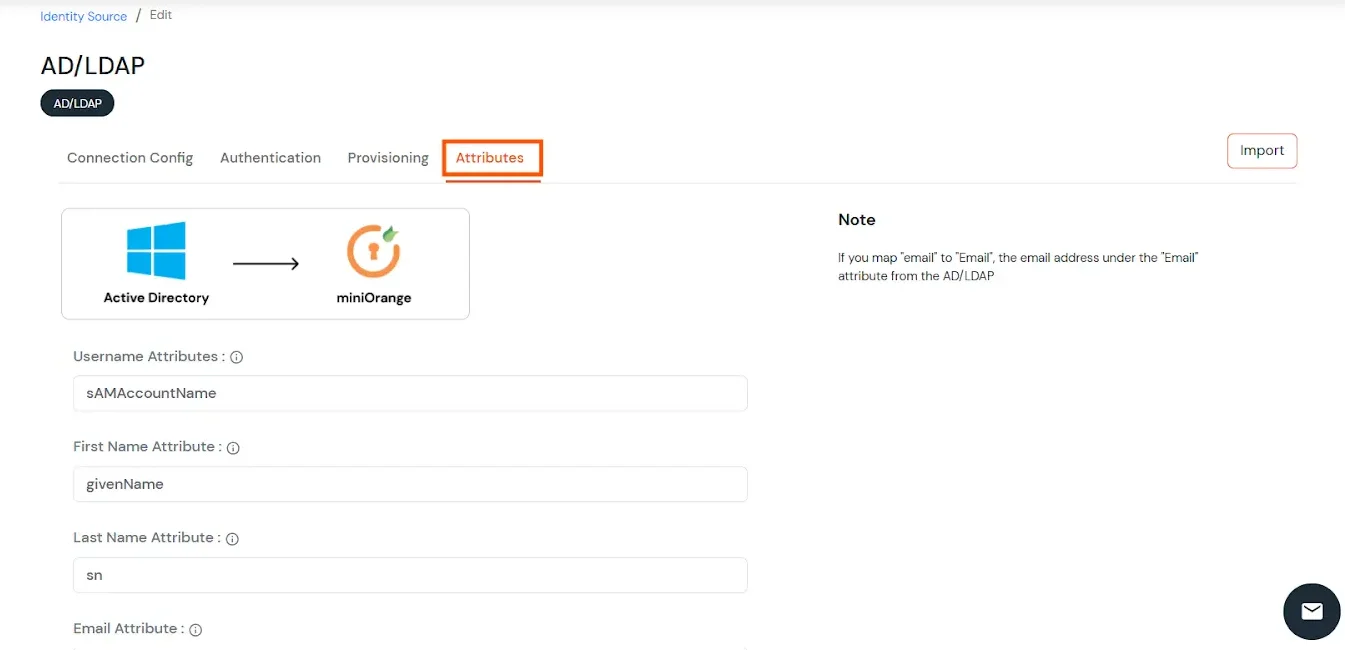
- Click on the Next button, or go to the Attributes tab.
Attributes Mapping from AD
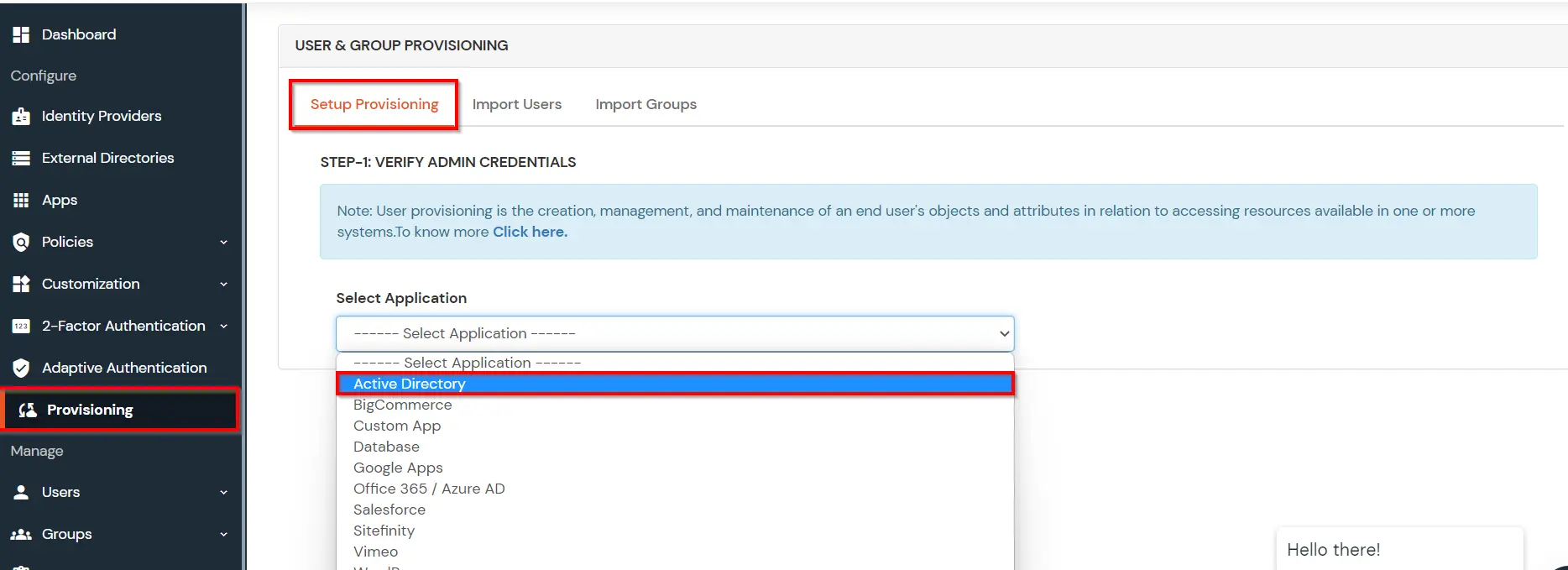
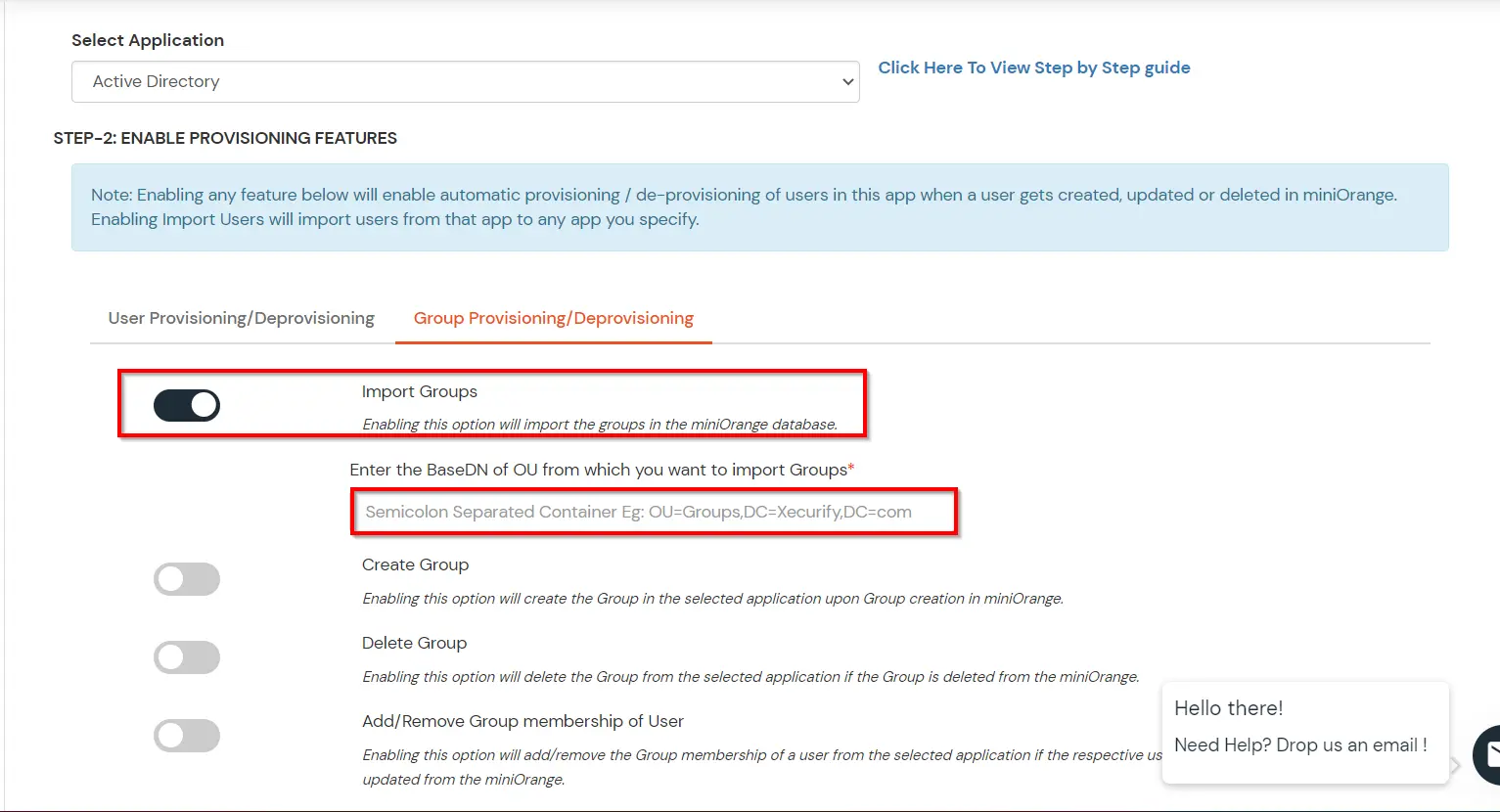
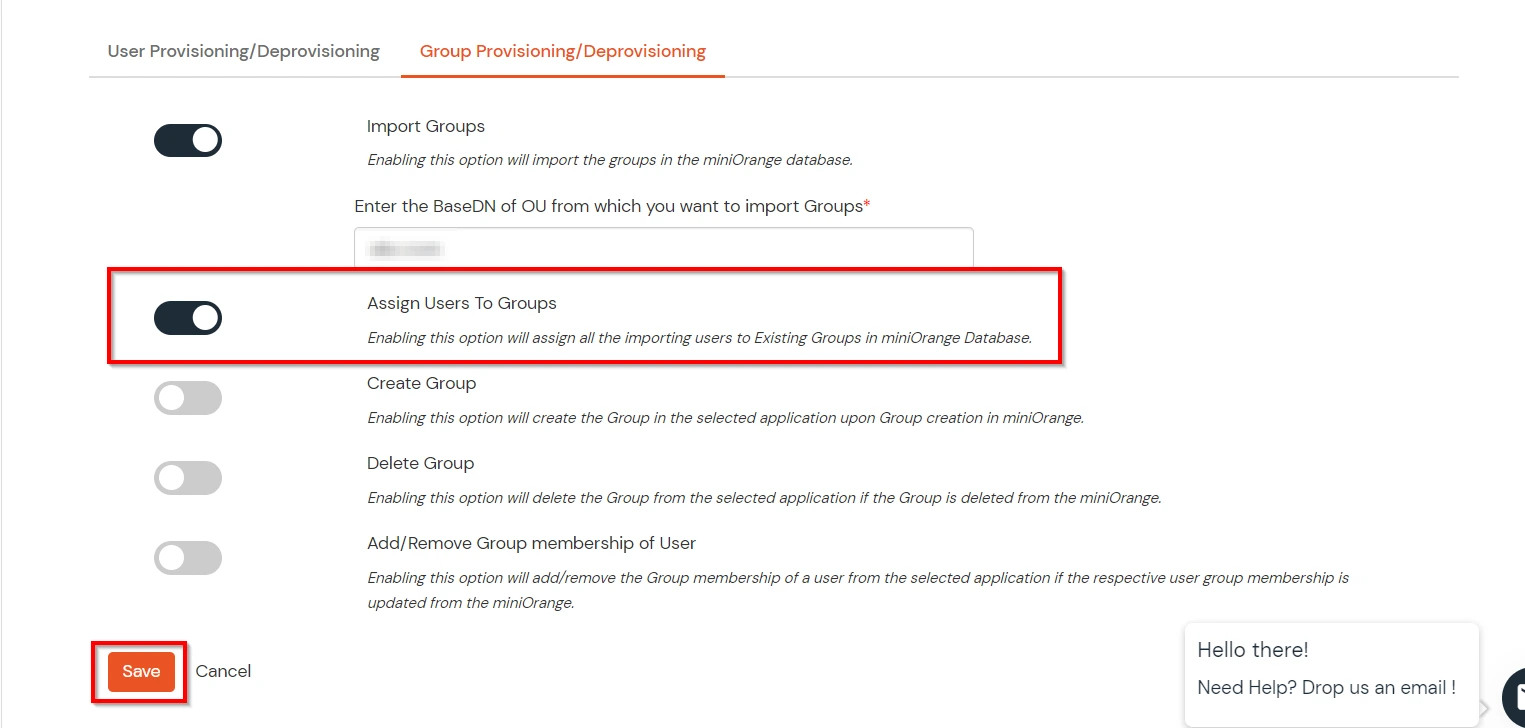
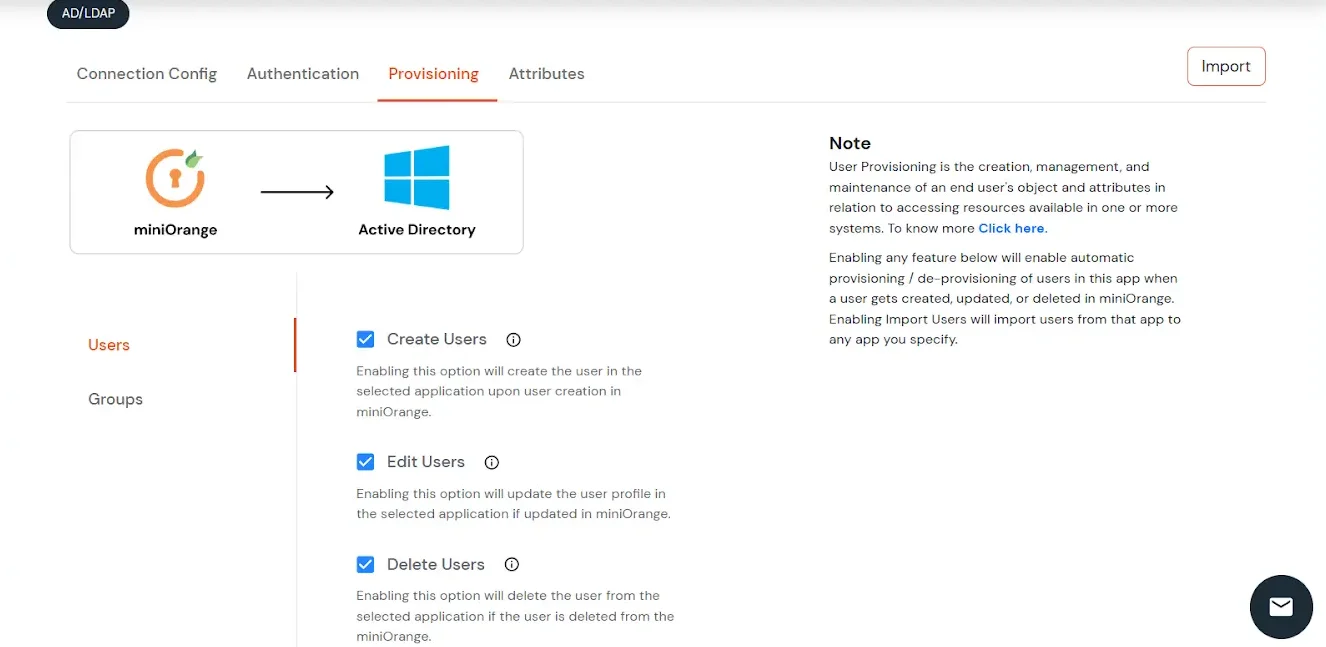
User Import and Provisioning from AD
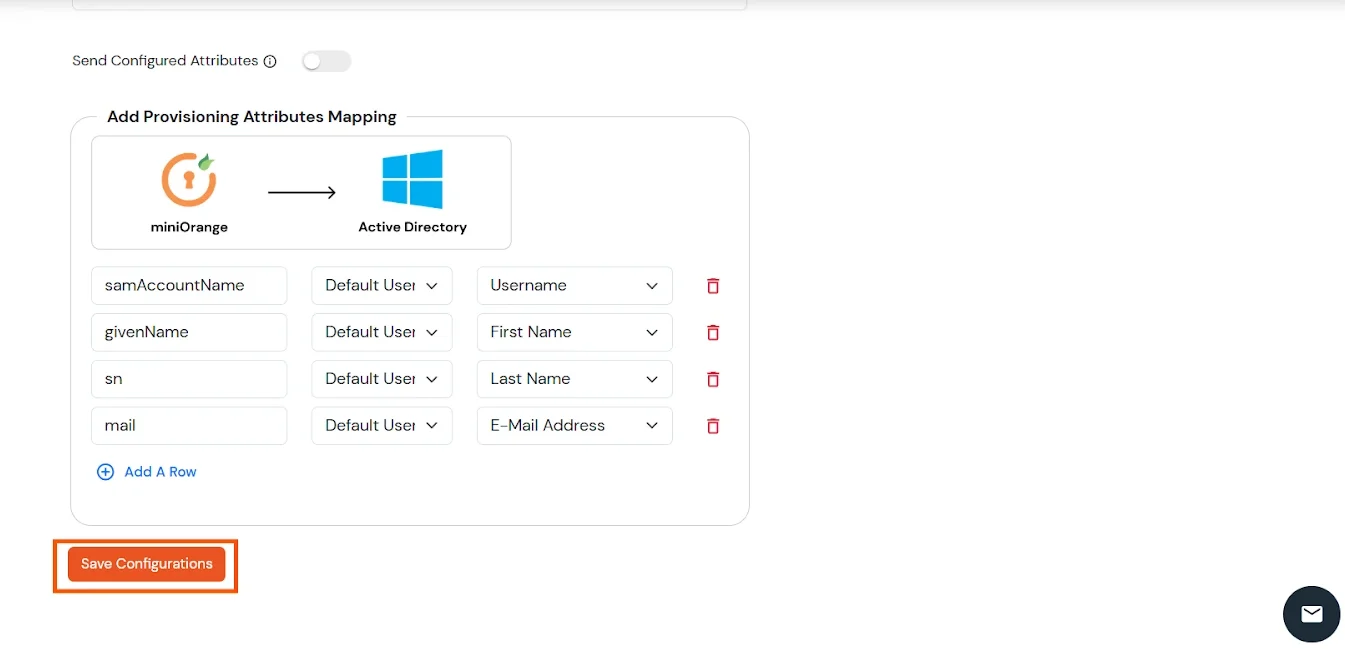
- If you want to set up provisioning, click here for detailed information. We will skip this step for now.
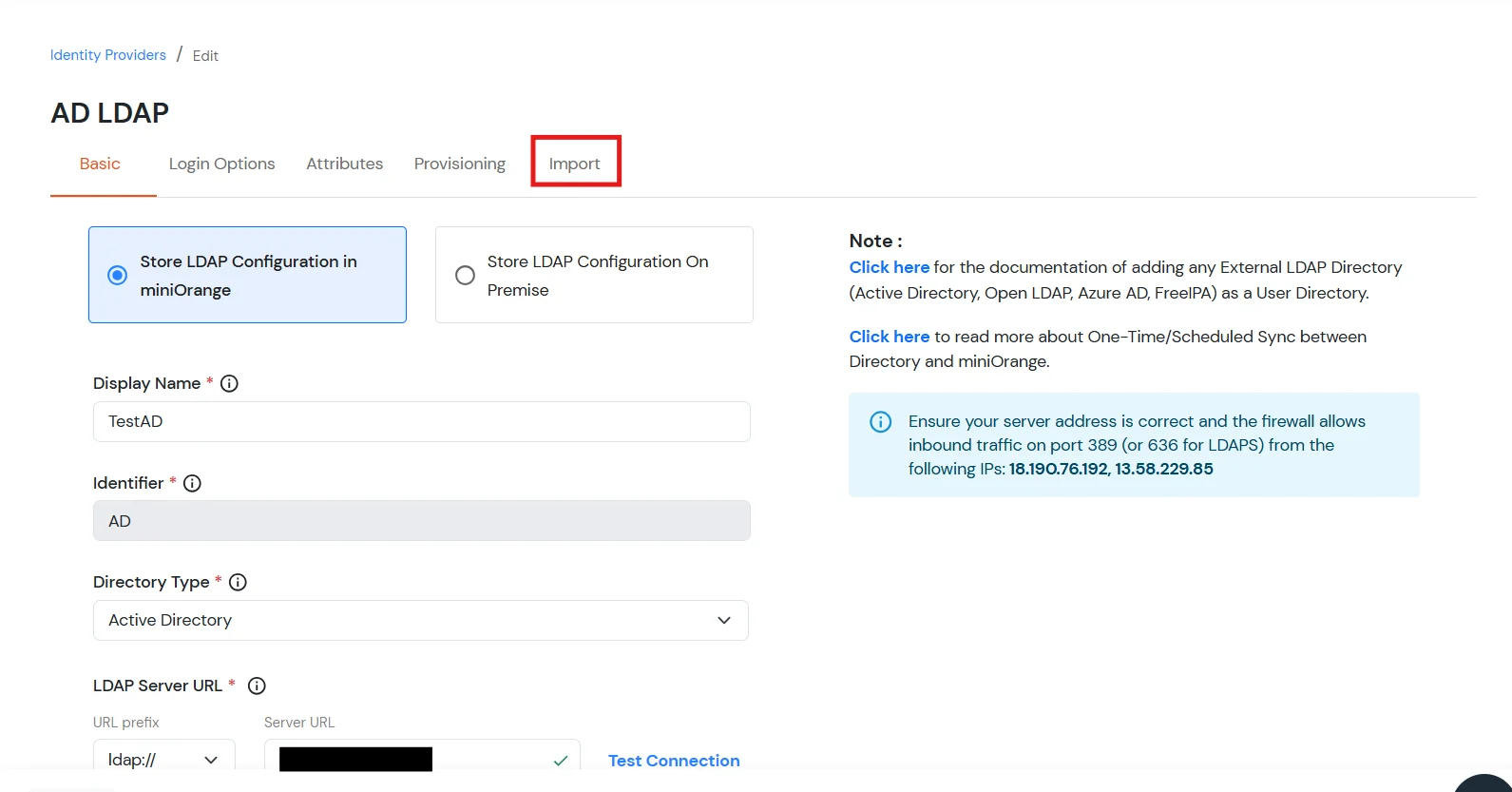
Import Password Policy from AD
- If you want to import your Active Directory password policy into miniOrange, click here for detailed information. We will skip this step for now.
Test Connections
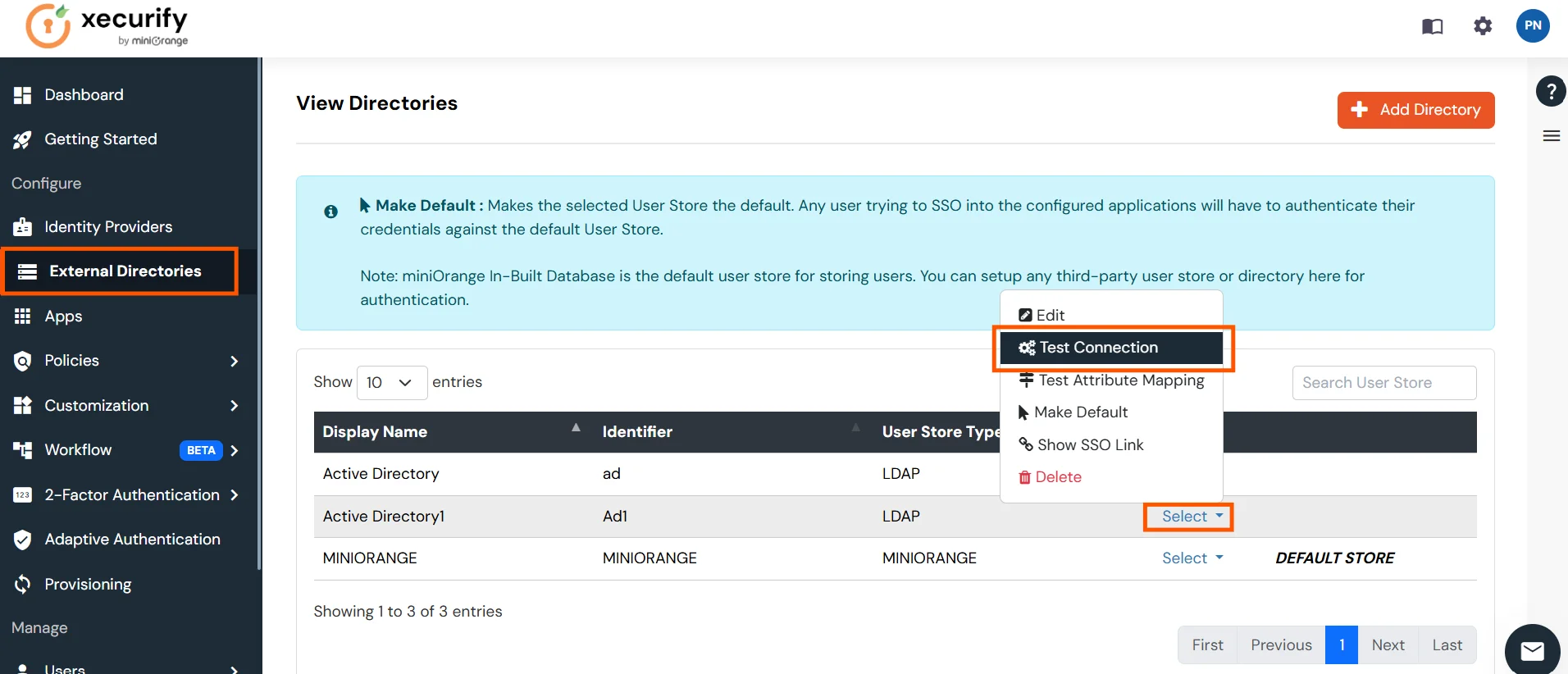
- You will see a list of directories under Identity Providers. From the dropdown, select AD/LDAP Directories, search for your configured directory, click the three dots next to it, and select Test Connection.
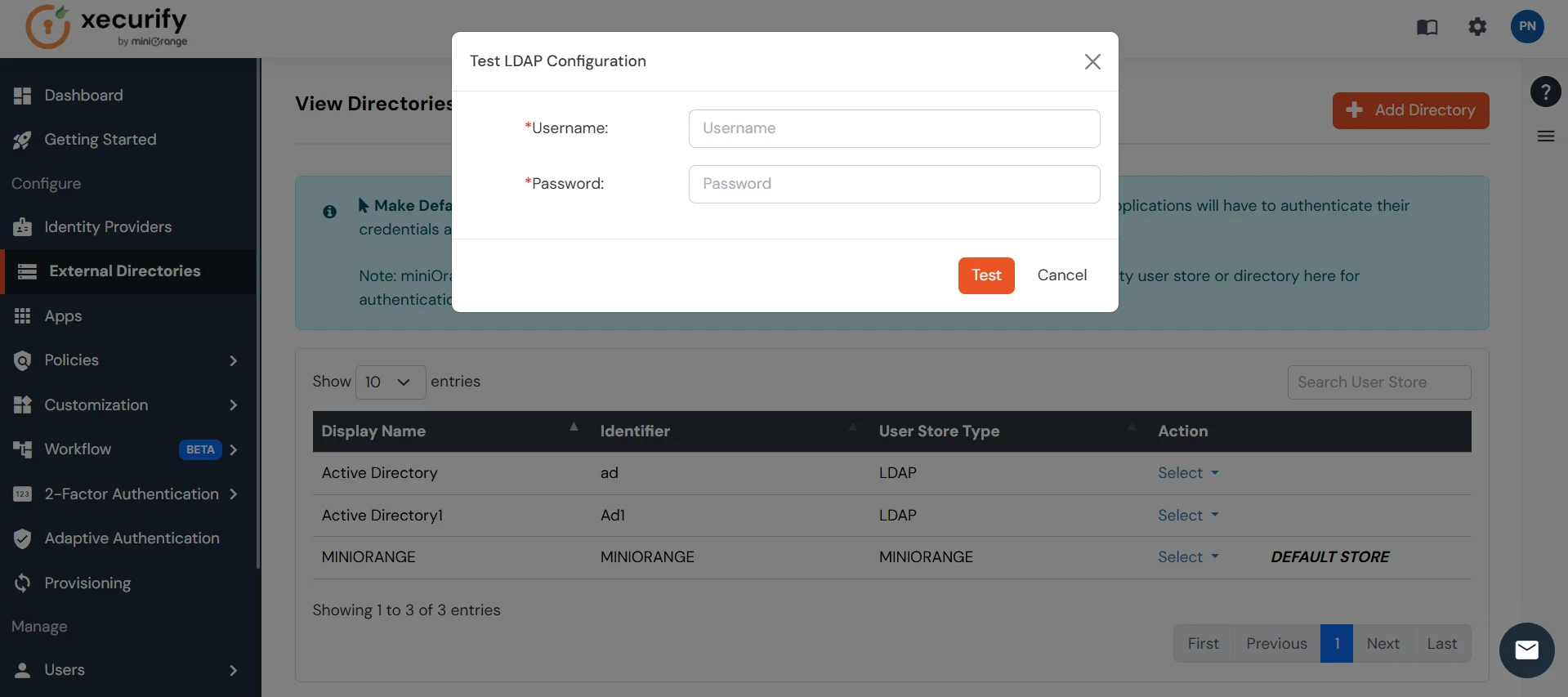
- A pop-up appears prompting you to enter a username and password to verify your LDAP configuration.
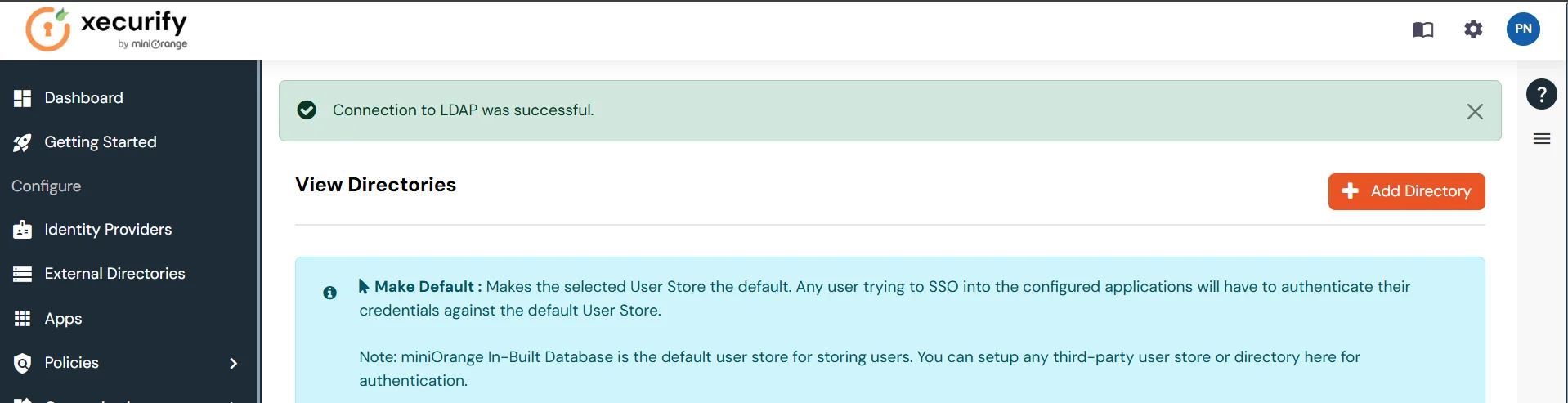
- On Successful connection with LDAP Server, a success message is shown.
Test Attribute Mapping
- You will see a list of directories under Identity Providers. From the dropdown, select AD/LDAP Directories, search for your configured directory, click the three dots next to it, and select Test Attribute Mapping.
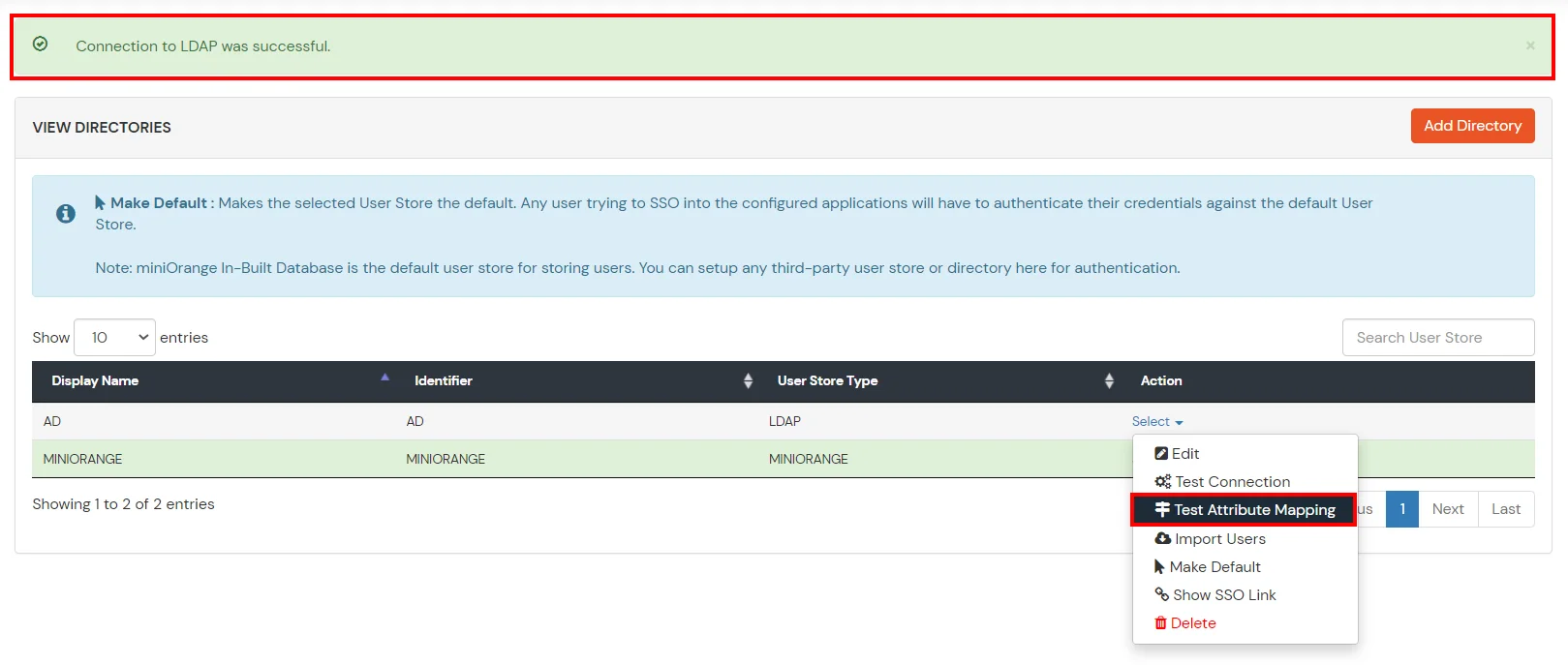
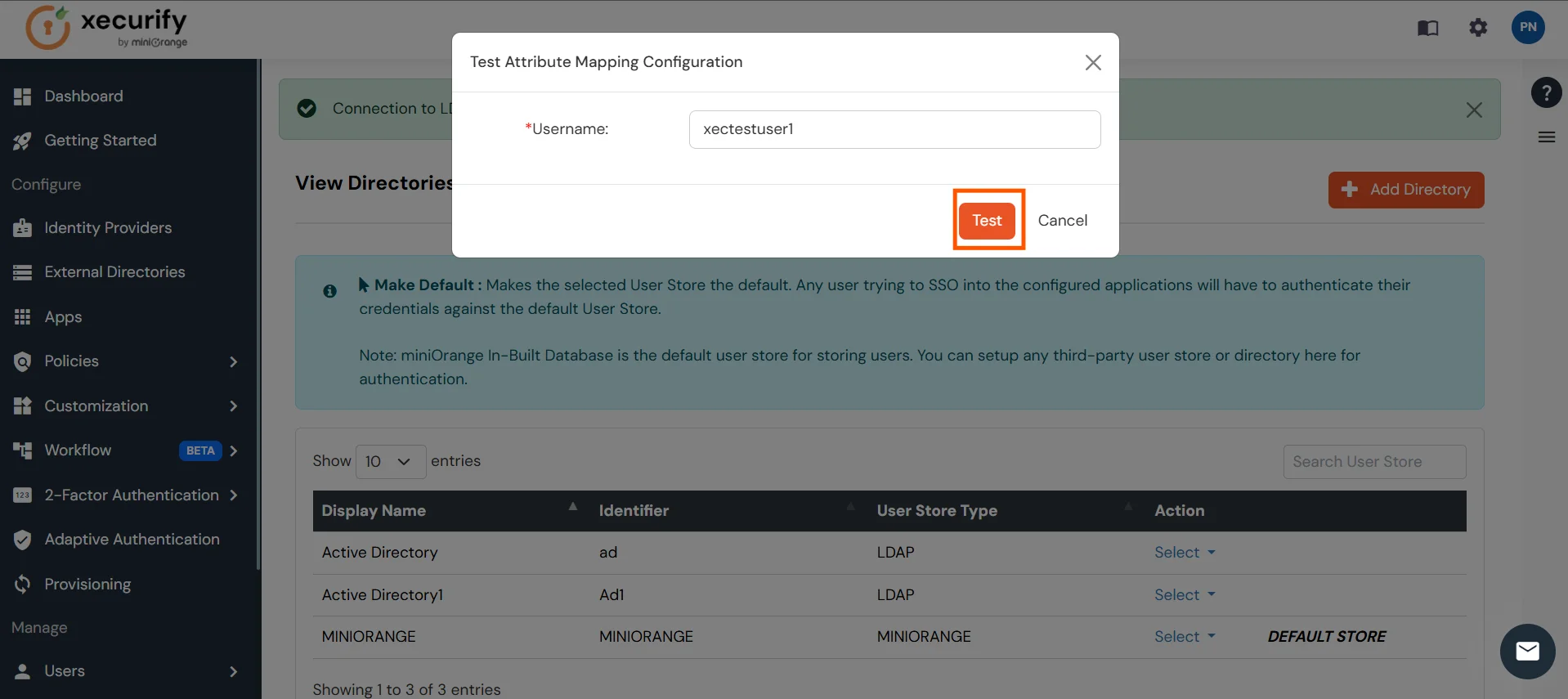
- A pop‑up appears to enter a username and click Test.
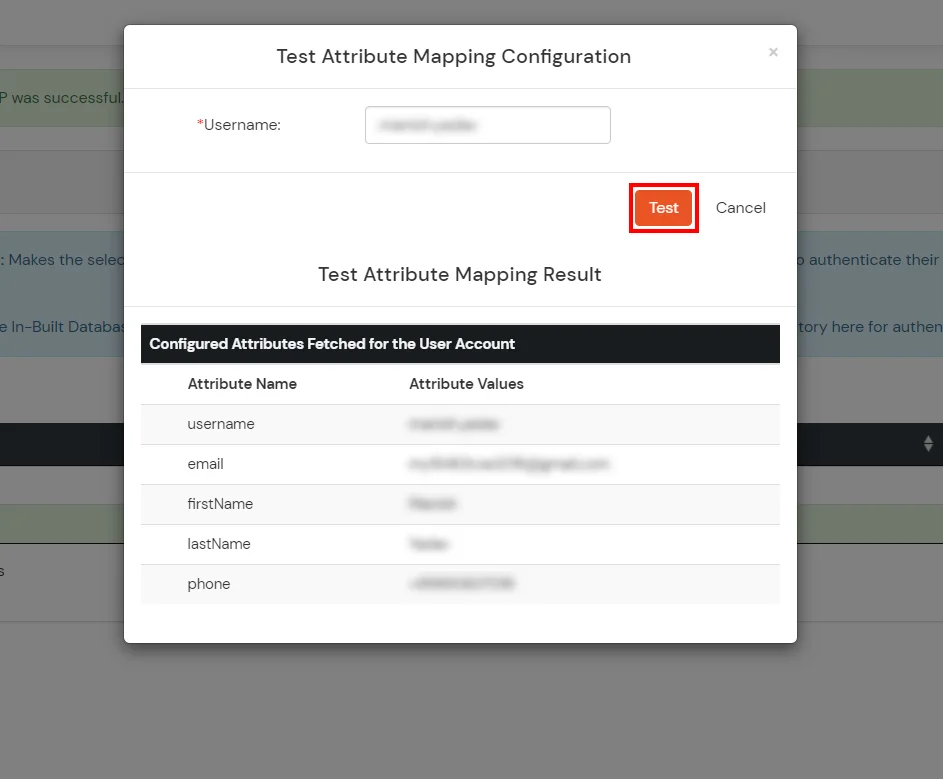
- The Test Attribute Mapping Result will be displayed.
Set up AD as External Directory configuration is complete.
Note: Refer our guide to setup LDAP on windows server.
Creating User Groups (Recommended)
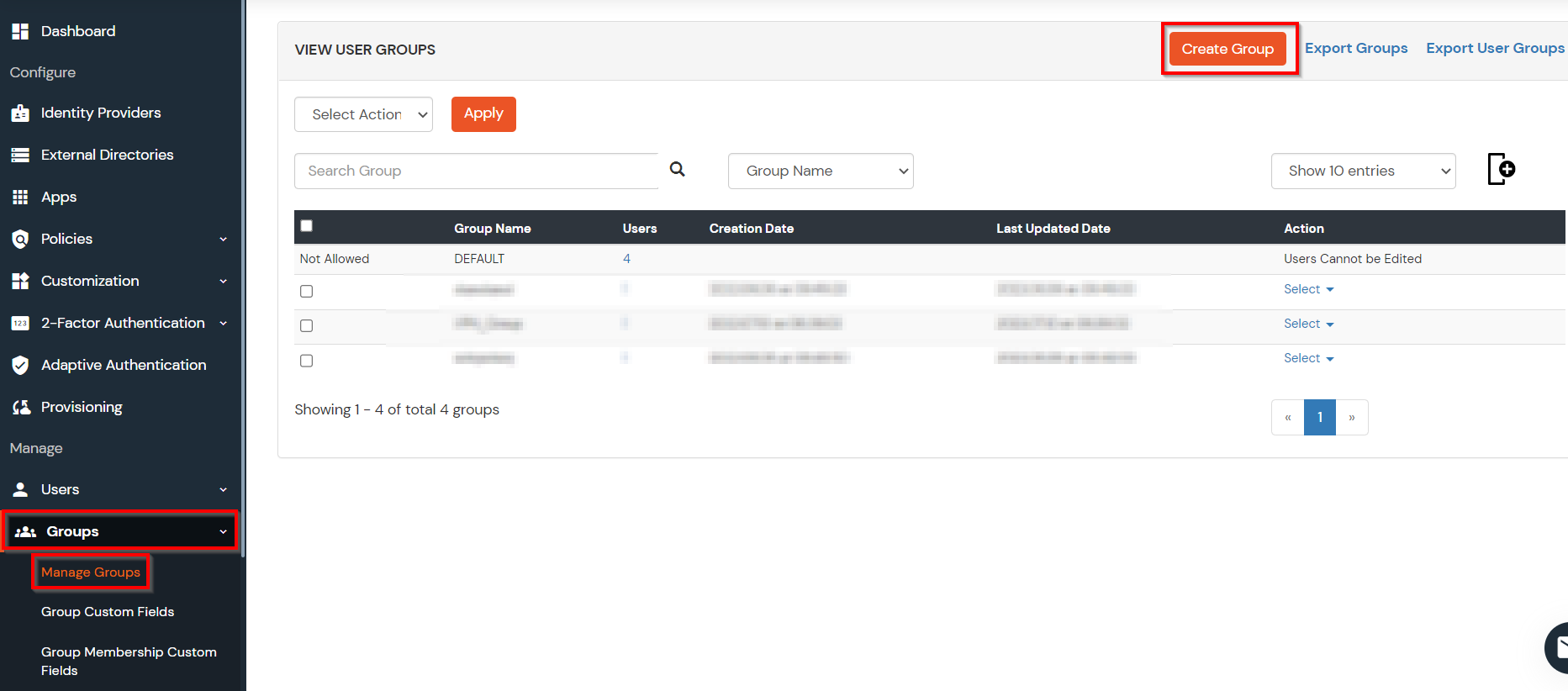
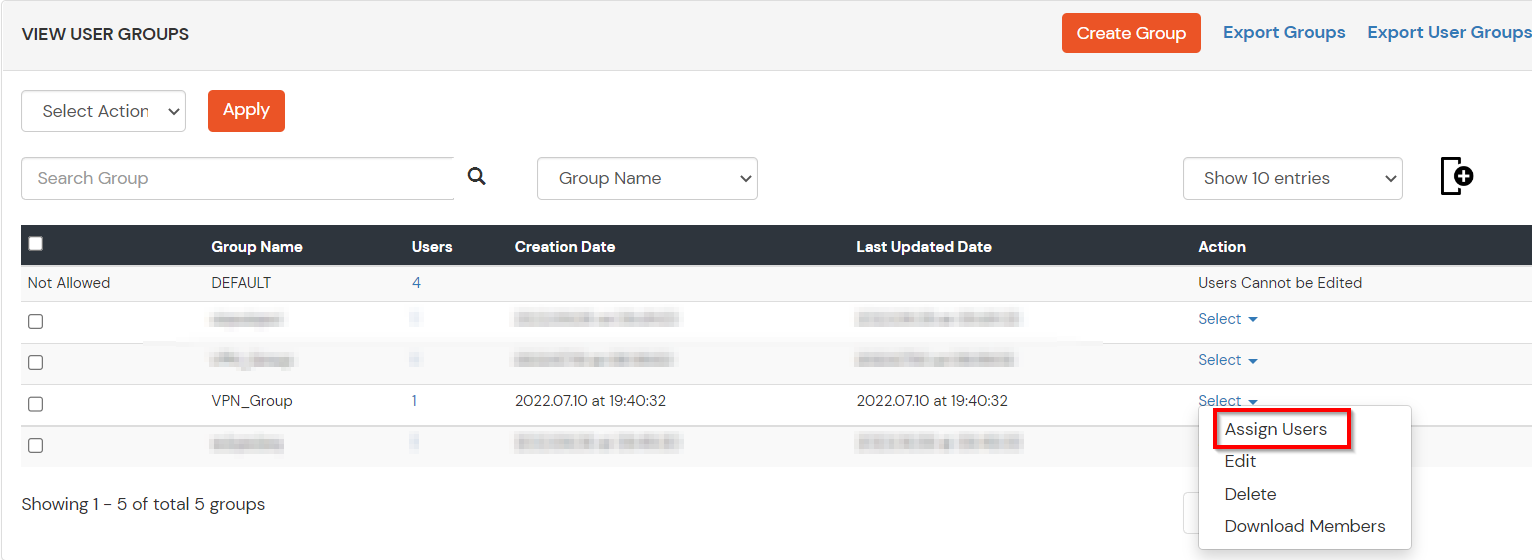
- Select Groups >> Manage Groups from left panel.
- Click on the Create Group button on the top.
- Enter an appropriate Group Name and click on Create Group.
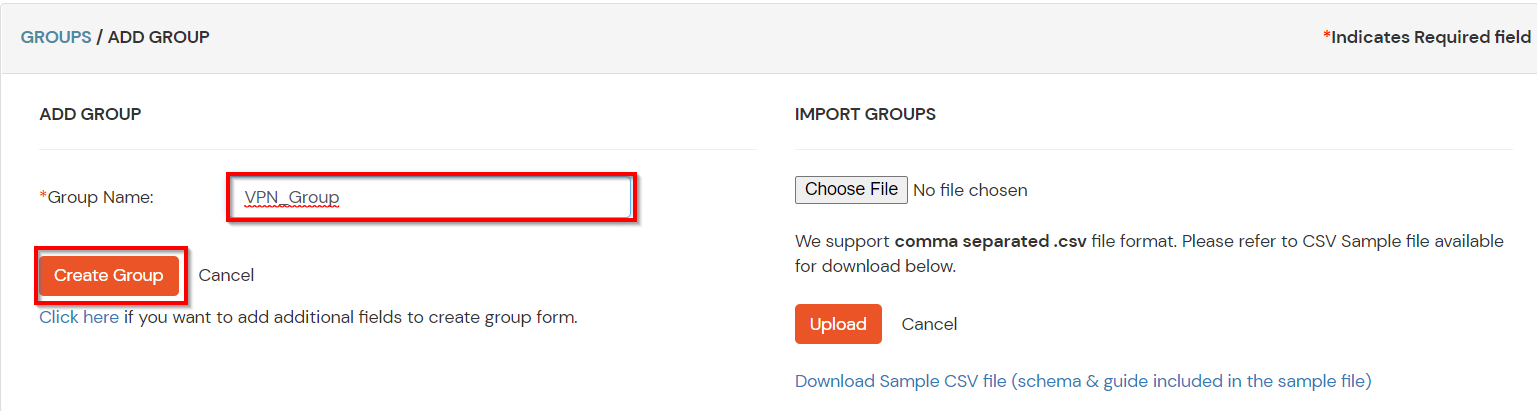
- In this guide we have created a Group by name VPN_Group.
- Assign various members to the group using the Assign User option associated with the group in the groups list.
- Select the Users that are required to be assigned to this group. Then Select Assign to Group in Select Action Dropdown and click on Apply button.
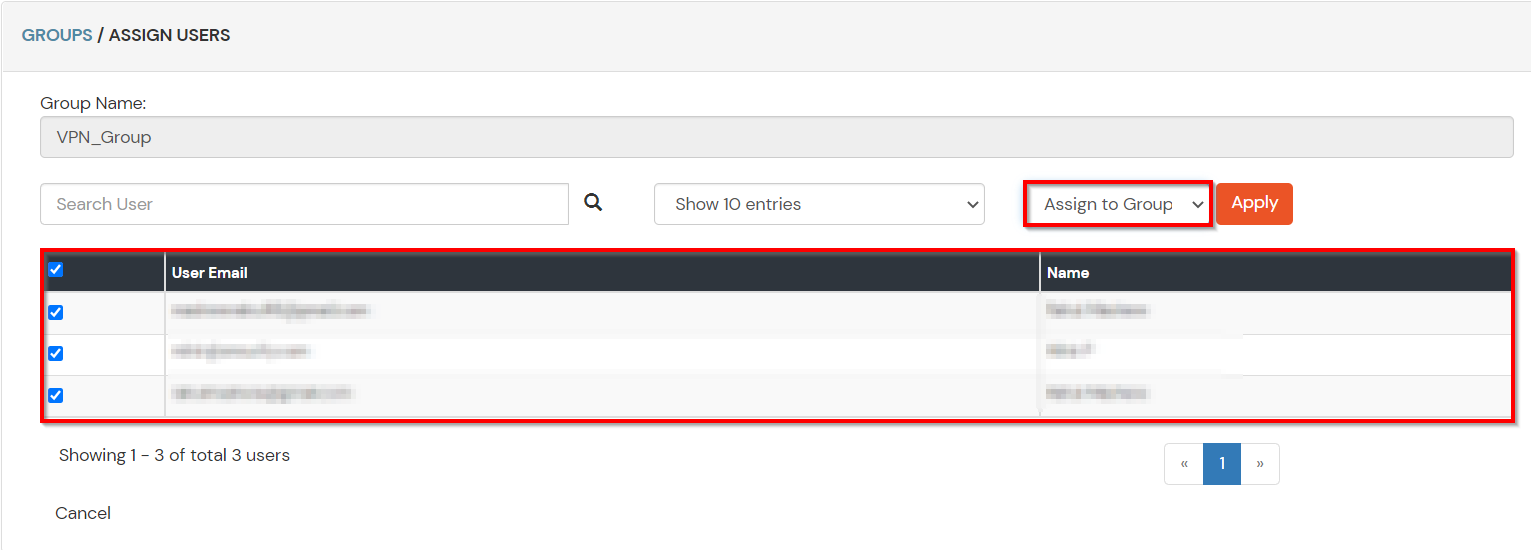
- These groups will be helpful in adding multiple 2FA policies on the applications.
6. Setup MFA for Nokia
Note: You can follow this guide, if you want to customize and enroll MFA for end users.
- Here, we will configure a policy for the User Group that we created in this step and associate it with the Nokia VPN Application.
- Click on Policies >> App Login Policy.
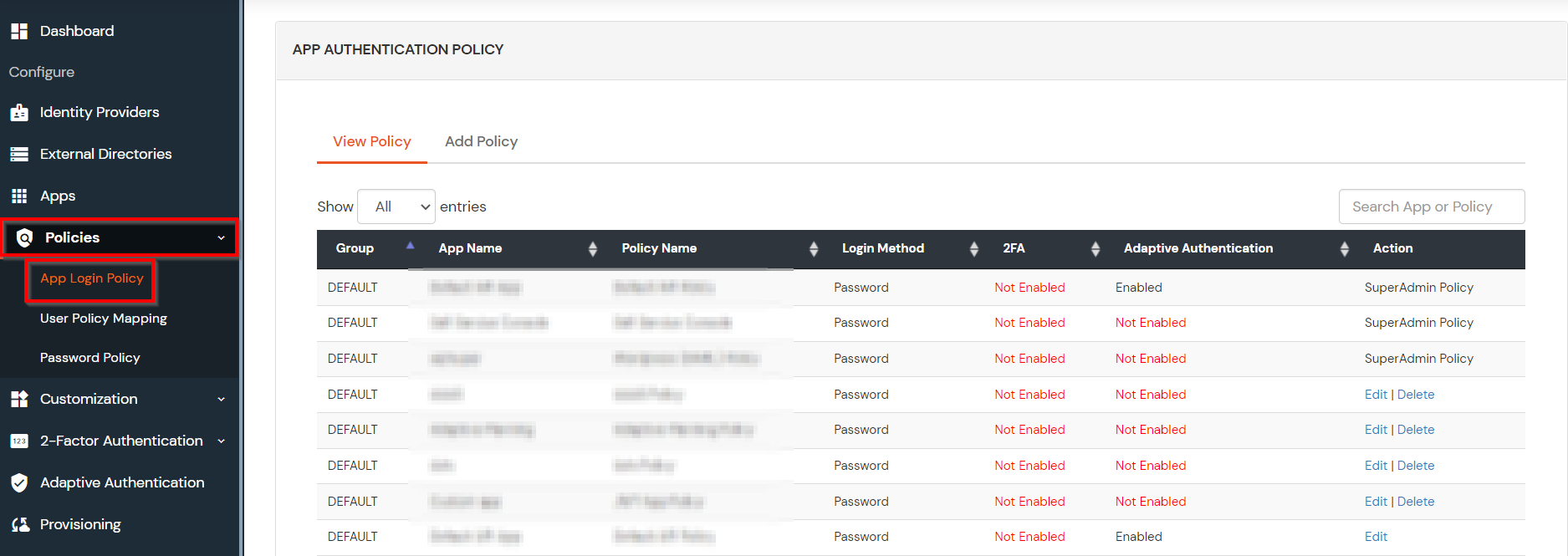
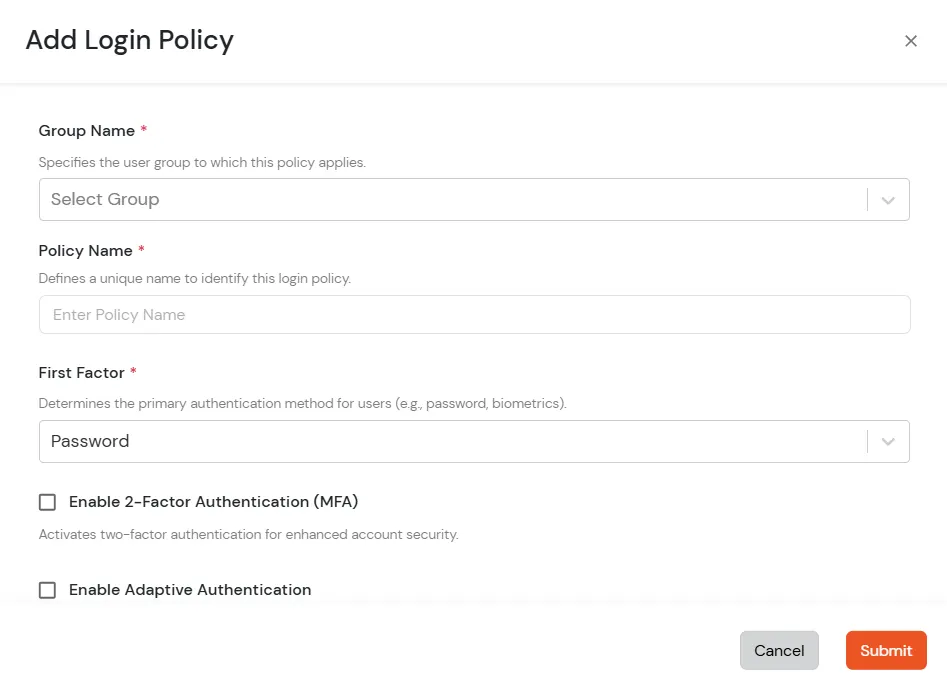
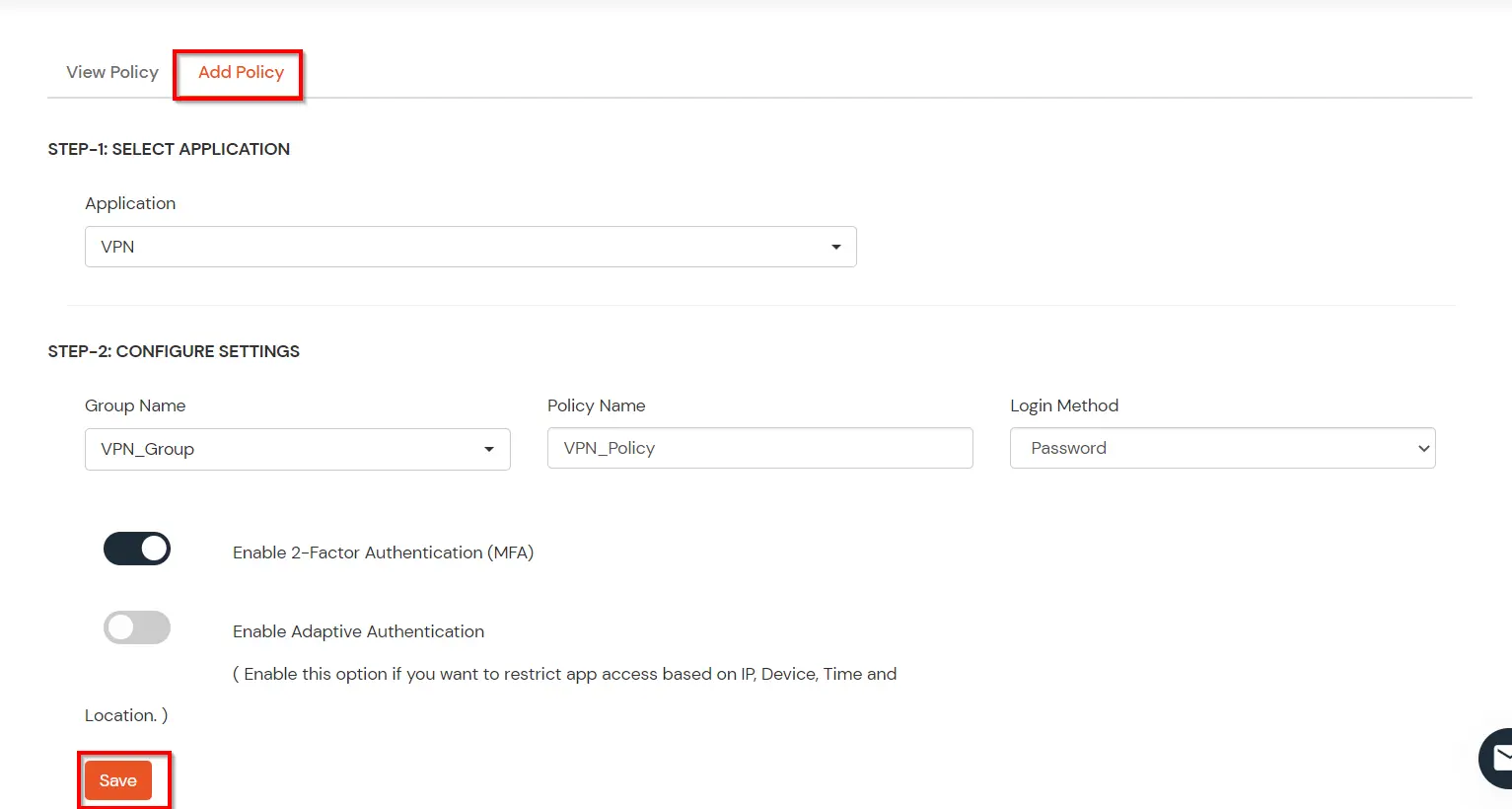
- Click on Add Policy button.
- In Application section, select the TACACS App that we configured earlier in Step 1.
- Select the required User Group in Group Name and enter the Policy name.
- In this guide, we will configure a Password Only policy for "VPN_Group", so that only the VPN_Group members can access VPN Services without a Second Factor.
- Once done with the policy settings, click on Submit to Add Policy.
7. Test miniOrange 2FA for Nokia Login
- Connect to Nokia.
- Enter Username and Password.
- It will prompt you for second factor(if enabled from miniorange admin panel), Enter your 2FA code and you should be connected to Nokia.
Further References