Configure Oracle EBS SSO with Ping Identity | Step-by-Step Guide
Oracle E-Business Suite is a major product line of Oracle Corporation. Oracle EBS is a combined set of business applications for automating customer relationship management (CRM), Enterprise Resource Planning (ERP) and Supply Chain Management (SCM) processes within organizations.
"miniOrange SSO connector enables the Single Sign-On (SSO) between Oracle EBS and Ping without the need to purchase and install Oracle Access Manager (OAM) and Oracle Internet Directory (OID) license."
Oracle EBS Ping SSO integration is enabled with the help of the miniOrange SSO Connector. This integration involves registering PingFederate as a SAML Identity Provider (IdP) in the miniOrange Identity Product. The authentication flow works like this: when a user tries to login into EBS, the authentication is delegated to miniOrange, which redirects the user to Ping for Single Sign-On Login. Upon successful authentication, the user is granted access to Oracle EBS and Oracle EBS Ping SSO is triggered. Oracle EBS can also be protected with Ping Multi-Factor, apart from just Oracle EBS Ping SSO. Oracle EBS URL can be added to Ping Applications Dashboard by Ping Admin, and users can launch it like any other Ping Application. miniOrange SSO connector can enable Oracle EBS Ping SSO for the following supported Oracle EBS versions - R12 and R12.2.x
Oracle EBS Ping SSO Authentication Flow with miniOrange Oracle EBS Solution:
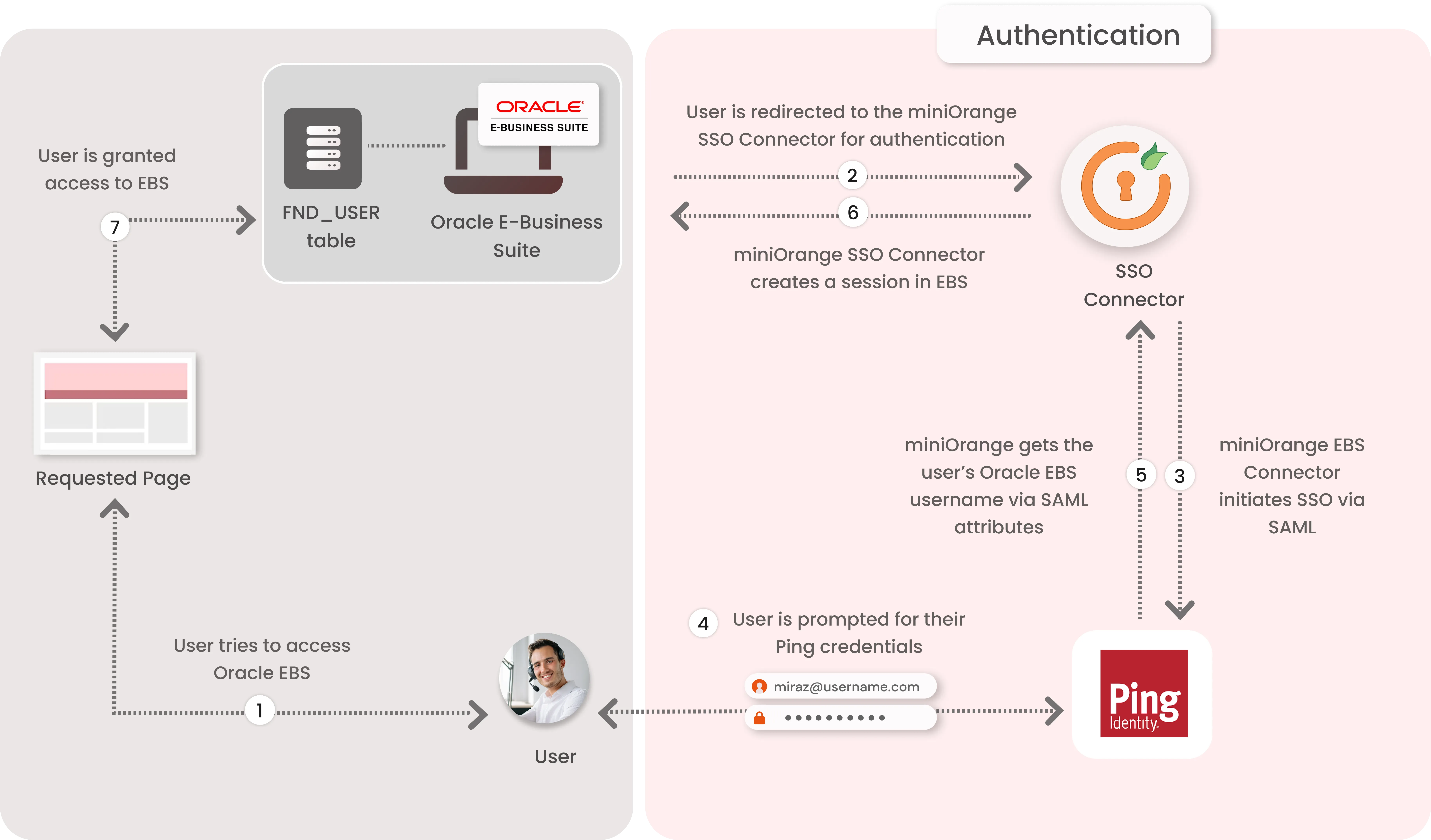
1. The User sends the request to access the Oracle E-Business Suite.
2. Oracle EBS redirects the request to the miniOrange SSO Connector for authentication.
3. The miniOrange SSO Connector redirects the user to Ping for authentication.
4. The user is prompted for their Ping credentials, and is authenticated upon a successful response.
5. The connector receives the user’s Oracle EBS registered username/email from Ping via SAML attributes.
6. The connector checks the value of the username/email received from Ping against the FND_USER table in the Oracle EBS Database & creates a session for them.
7. Upon successfully creating a session, user is redirected to the Oracle E-Business Suite portal as logged-in user
Connect with External Source of Users
miniOrange provides user authentication from various external sources, which can be Directories (like ADFS, Microsoft Active Directory, OpenLDAP, AWS etc), Identity Providers (like Microsoft Entra ID, Okta, AWS), and many more. You can configure your existing directory/user store or add users in miniOrange.
Follow the Step-by-Step Guide given below for Oracle E-Business Single Sign-On (SSO) with Ping
1. Configure miniOrange Broker Agent as a SAML Service Provider in Ping
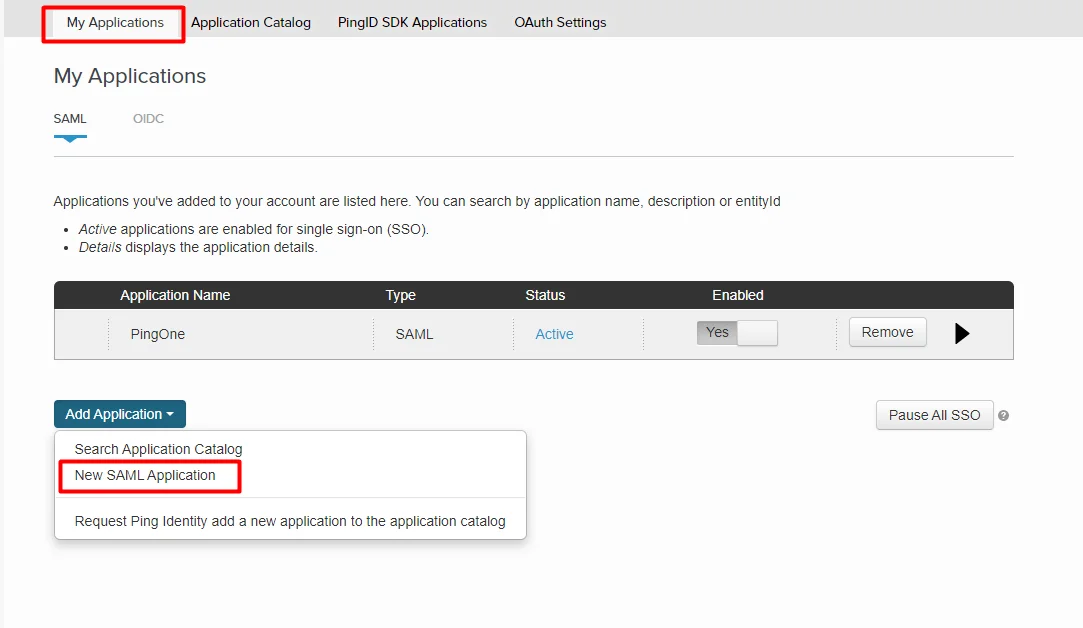
- Log in to PingOne Admin.
- Go to Application >> Add Application. Click on New SAML Application.
- Enter the application details and click on Continue to Next Step.
Application Name, Application Description, and Category are required fields. For logos and icons, PNG is the only supported graphics format.
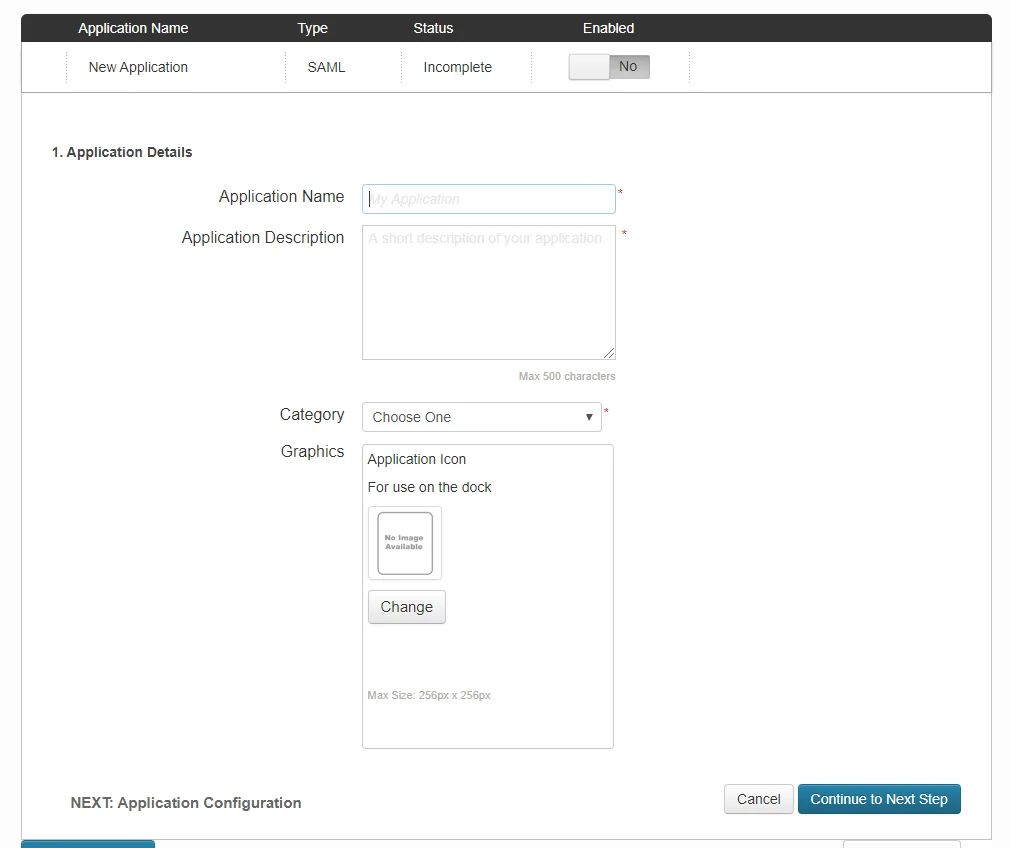
- For Basic SAML configuration you need to get the Entity ID, ACS URL and Single logout URL from miniOrange.
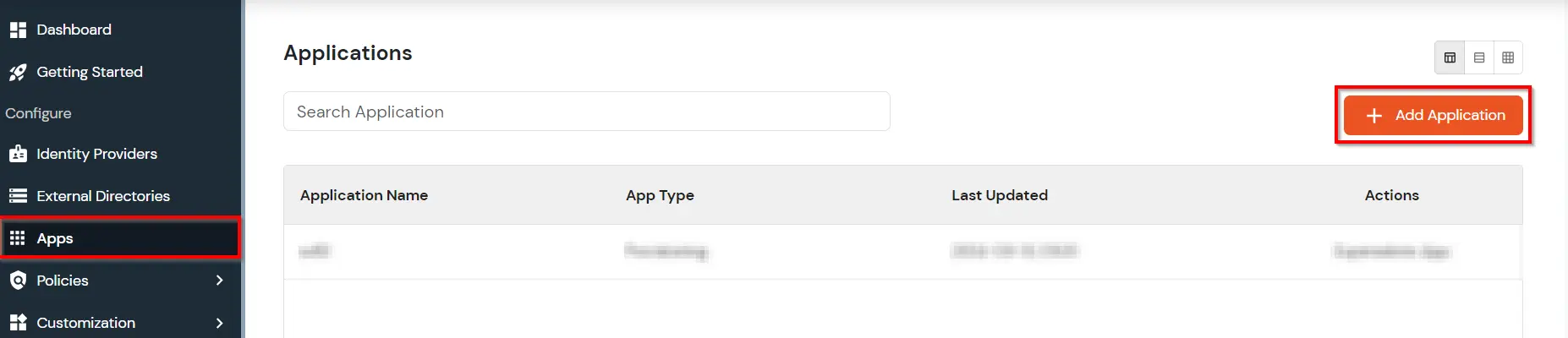
- Log into you miniOrange SSO Connector Admin Dashboard in the left navigation menu. Click on Add Identity Source.
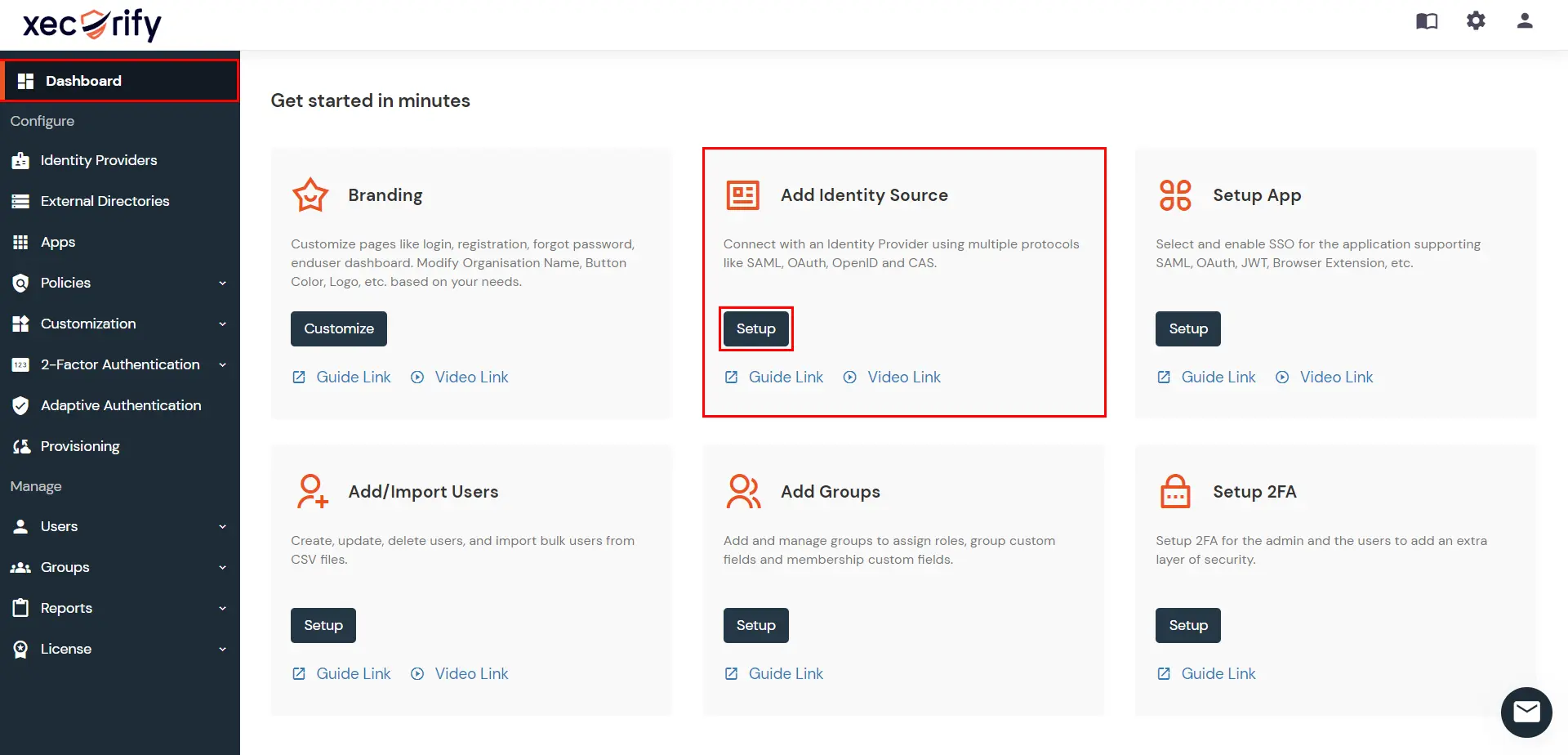
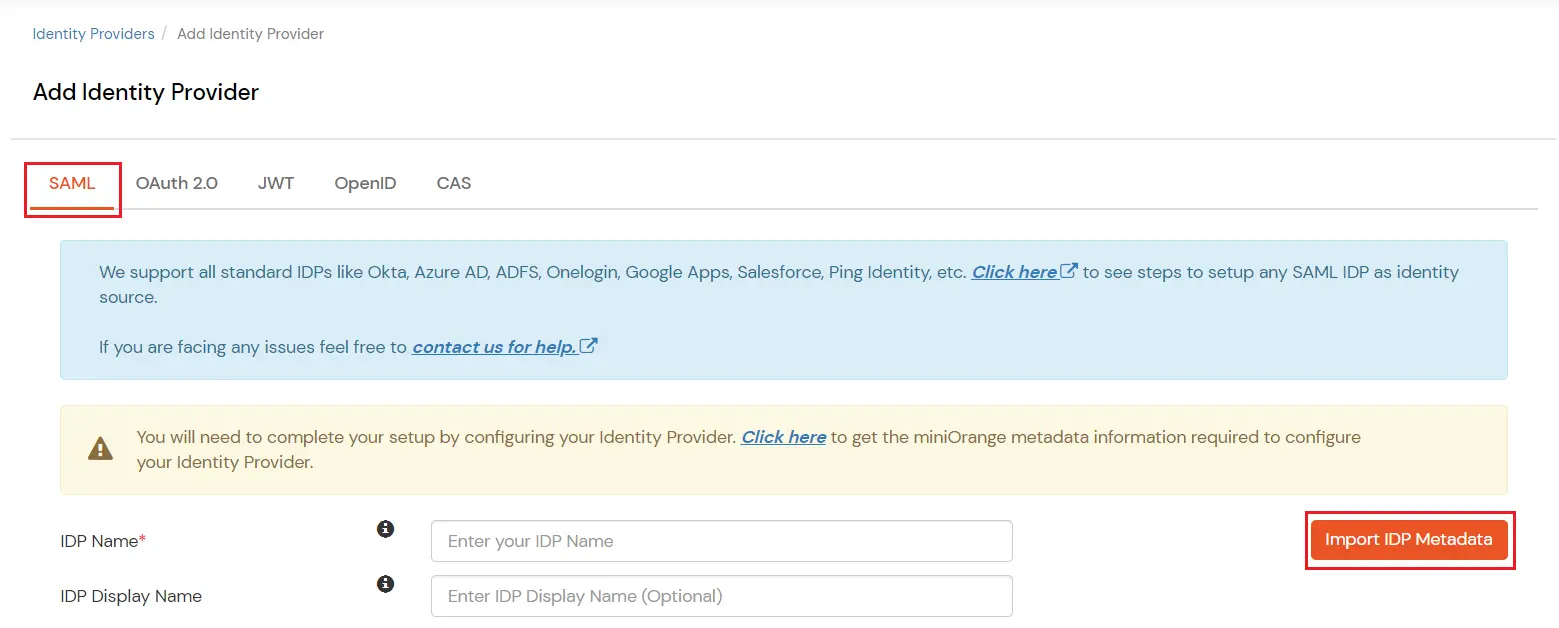
- In Choose Identity Provider, select SAML from the dropdown.
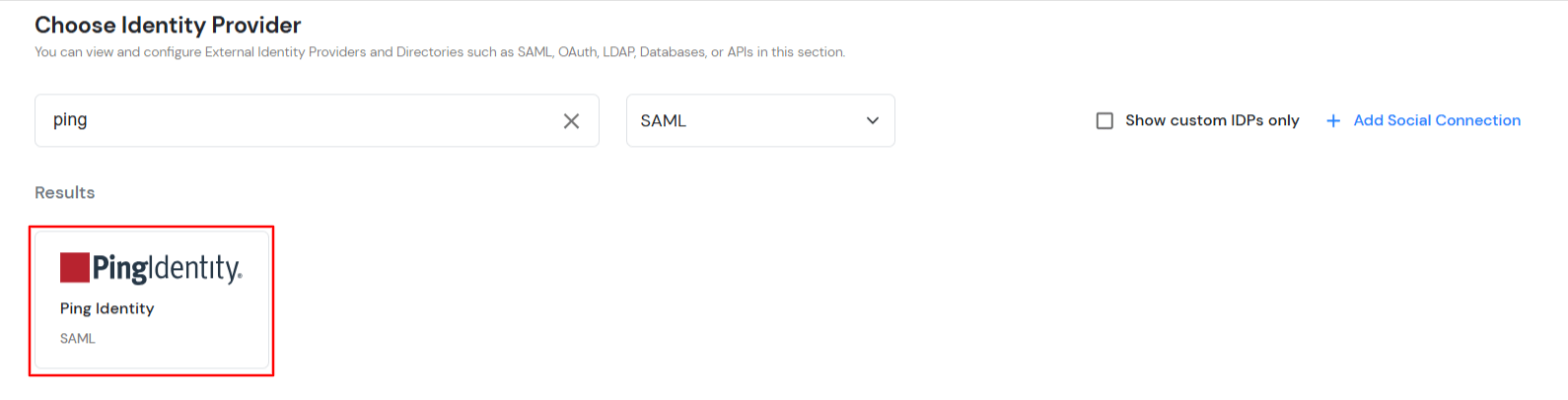
- Search for Ping in the list. If you don’t find it, search for SAML Provider and set up your application there.
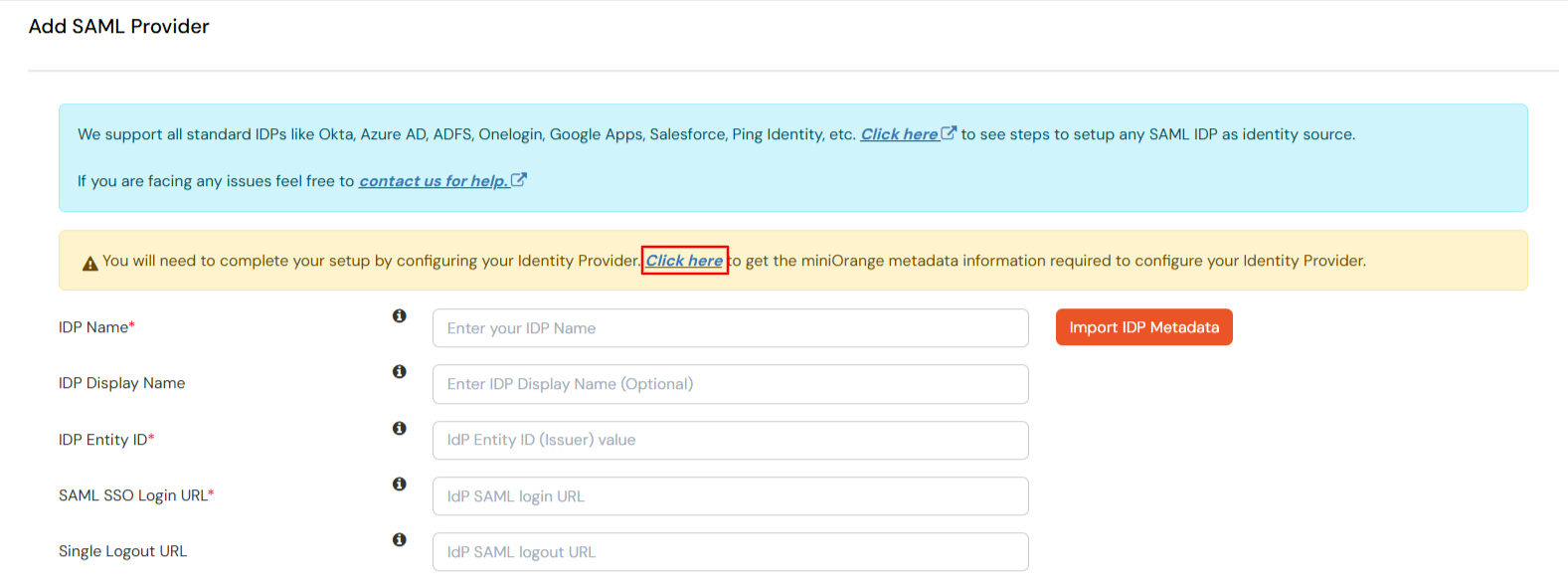
- Now click on the Click here link to get miniOrange metadata details as shown in Screen below.
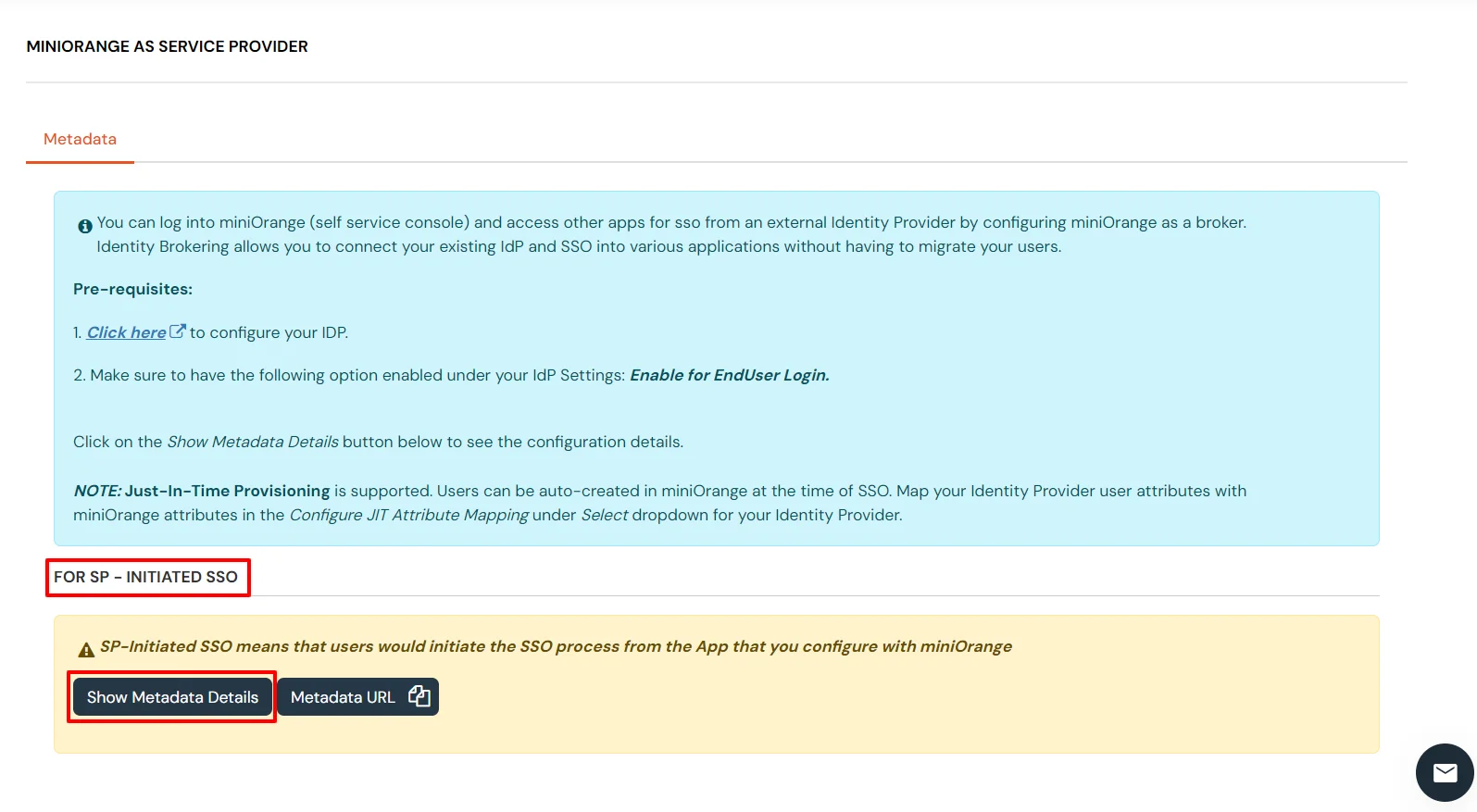
- For SP-Initiated SSO section, select Show Metadata Details.
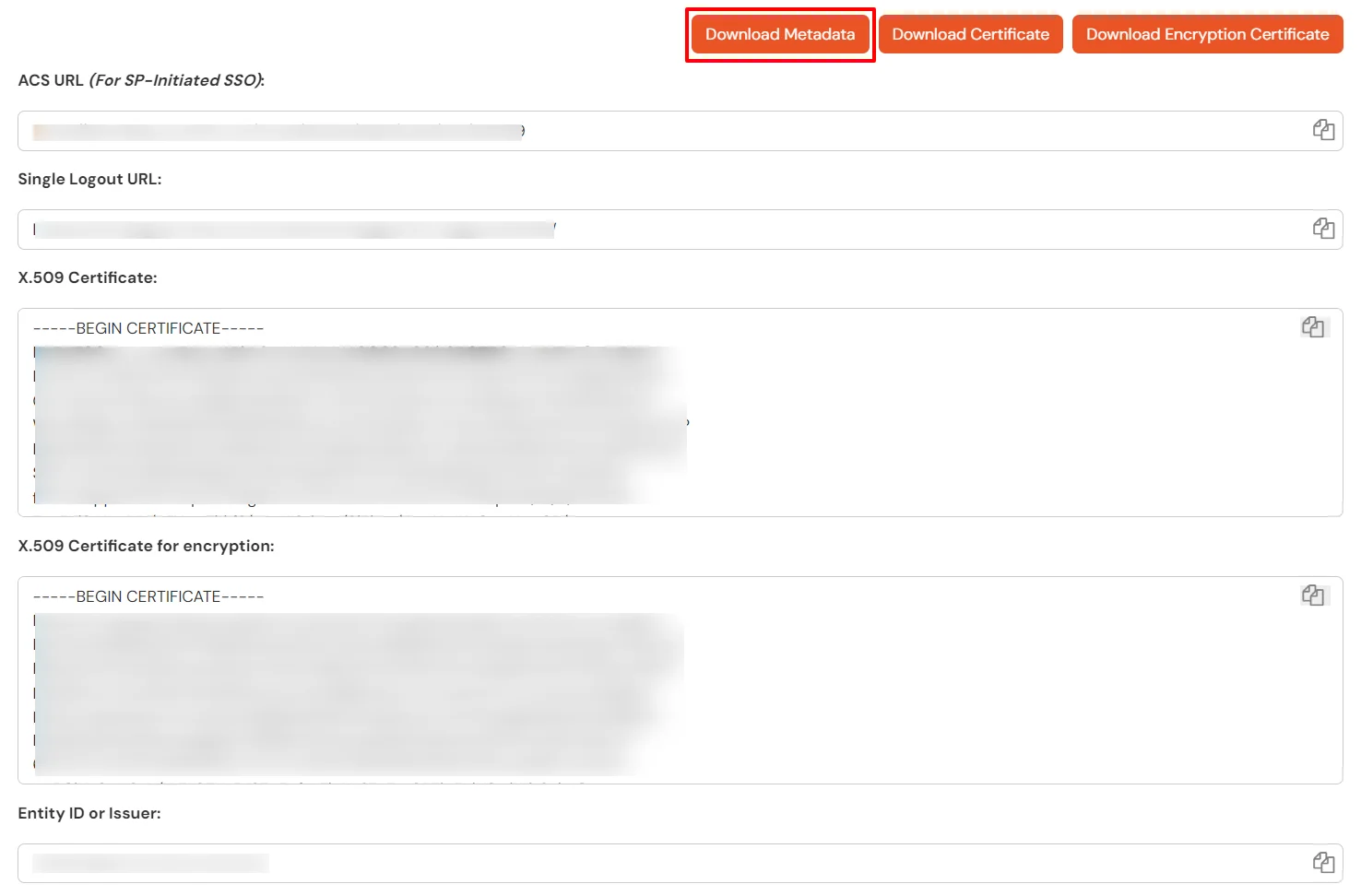
- Then, click on Download Metadata.
- You can also upload the metadata in the option given on this step.
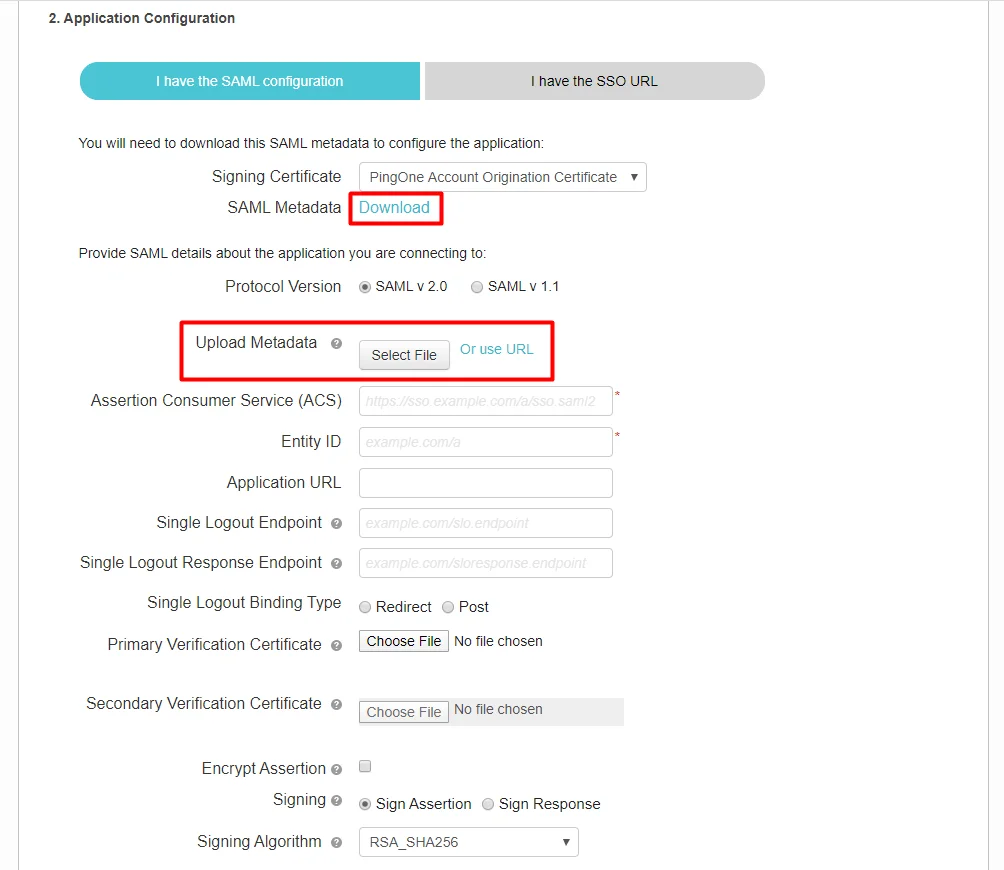
- After the SP metadata is filled in, please download the SAML metadata from here (refer above image) and click on Continue to Next Step.
- You can view or edit the claims sent in the SAML token to the application on this step.
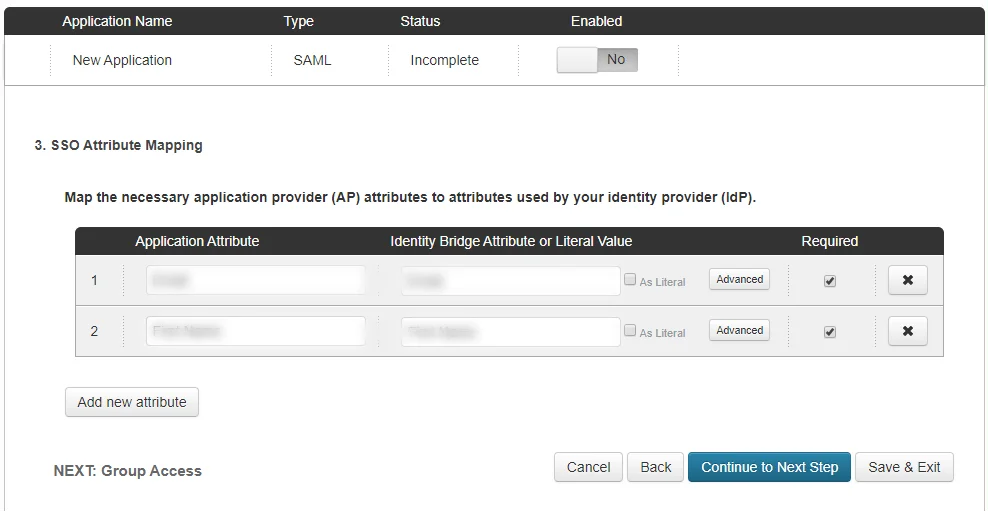
- Click on Continue to Next Step to assign groups else click on Save & Exit to save the settings.
- miniOrange Broker Agent is now added as a SAML Service Provider in Ping.
2. Configure Ping as a SAML Identity Provider in the miniOrange Broker Agent
- Return to the miniOrange Admin Console (you should have kept it open from Step 1).
- Click on Import IDP metadata.
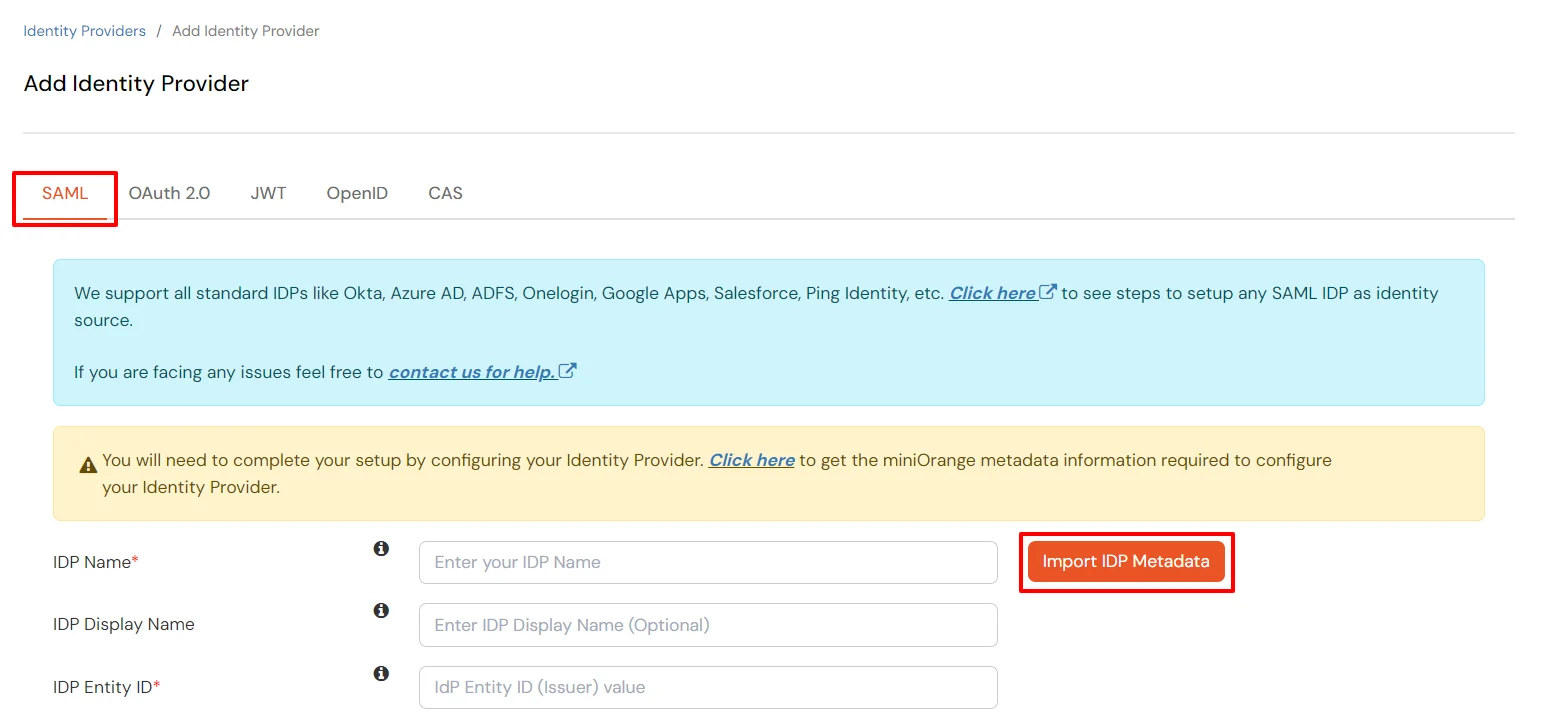
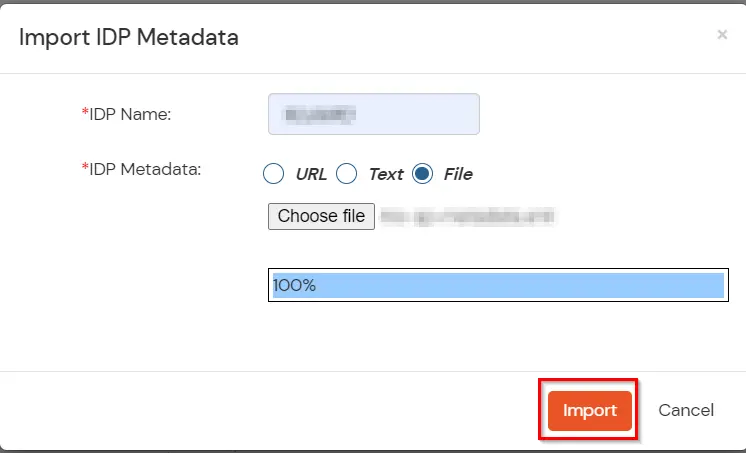
- Choose an appropriate IDP name. Enter the URL which you have saved in the previous step from Oracle E-Business .
- Click on Import.
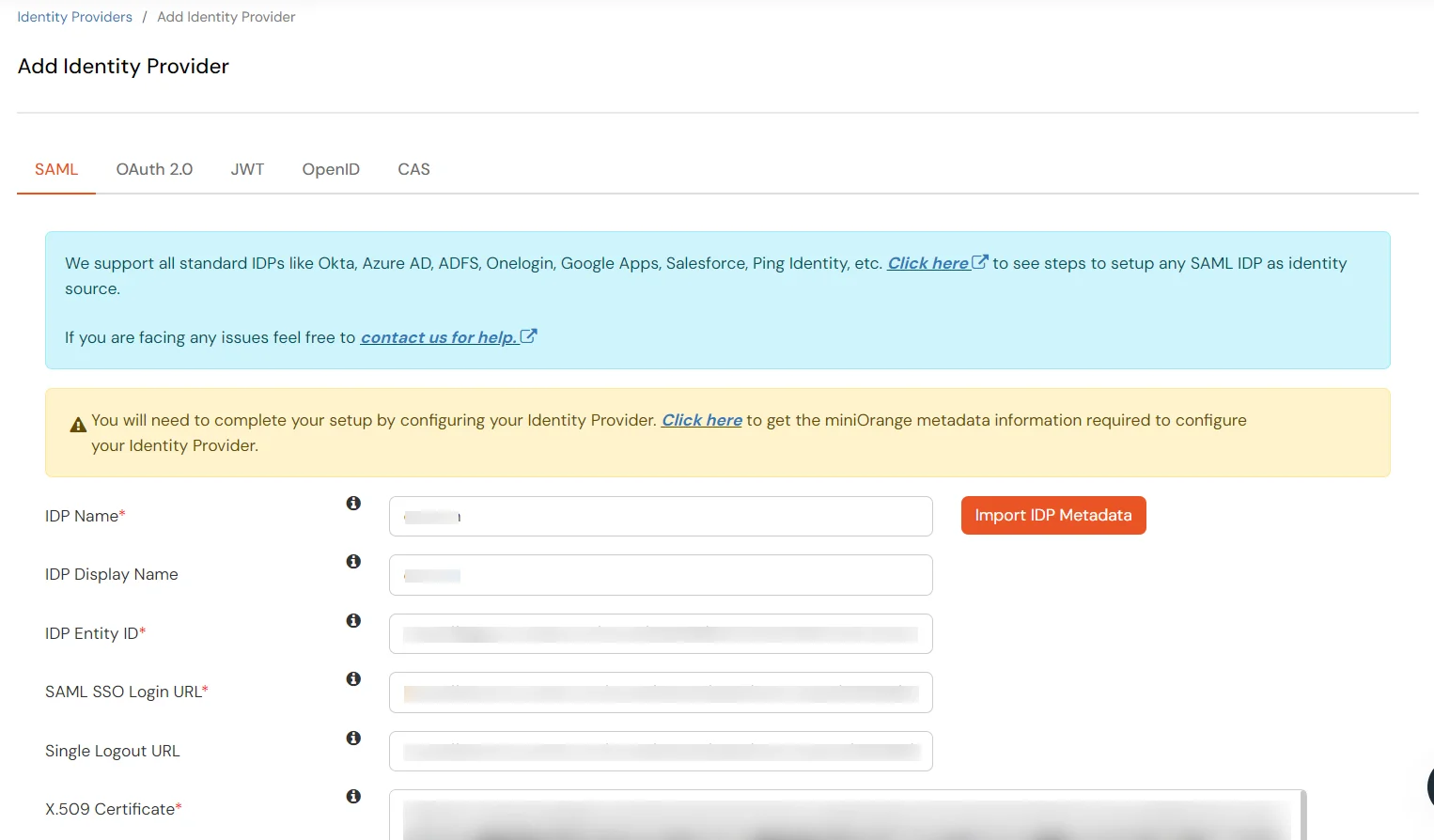
- As shown in the below screen the IDP Entity ID, SAML SSO Login URL and x.509 Certificate will be filled from the Metadata file we just imported.
| IDP Entity ID |
Entity ID of IDP |
| SAML SSO Login URL |
Login Url from IDP |
| Single Logout URL |
Logout Url from IDP |
| X.509 Certificate |
The public key certificate of your IDP. |
- Few other optional features that can be configured to the Identity Provider(IDP) are listed in the table below:
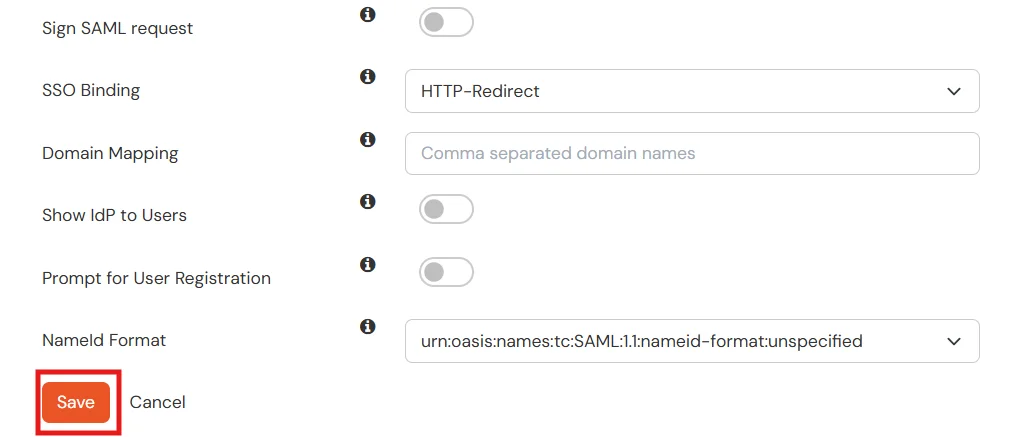
| Domain Mapping |
Can be used to redirect specific domain user to specific IDP |
| Show IdP to Users |
Enable this if you want to show this IDP to all users during Login |
- Click on Save.
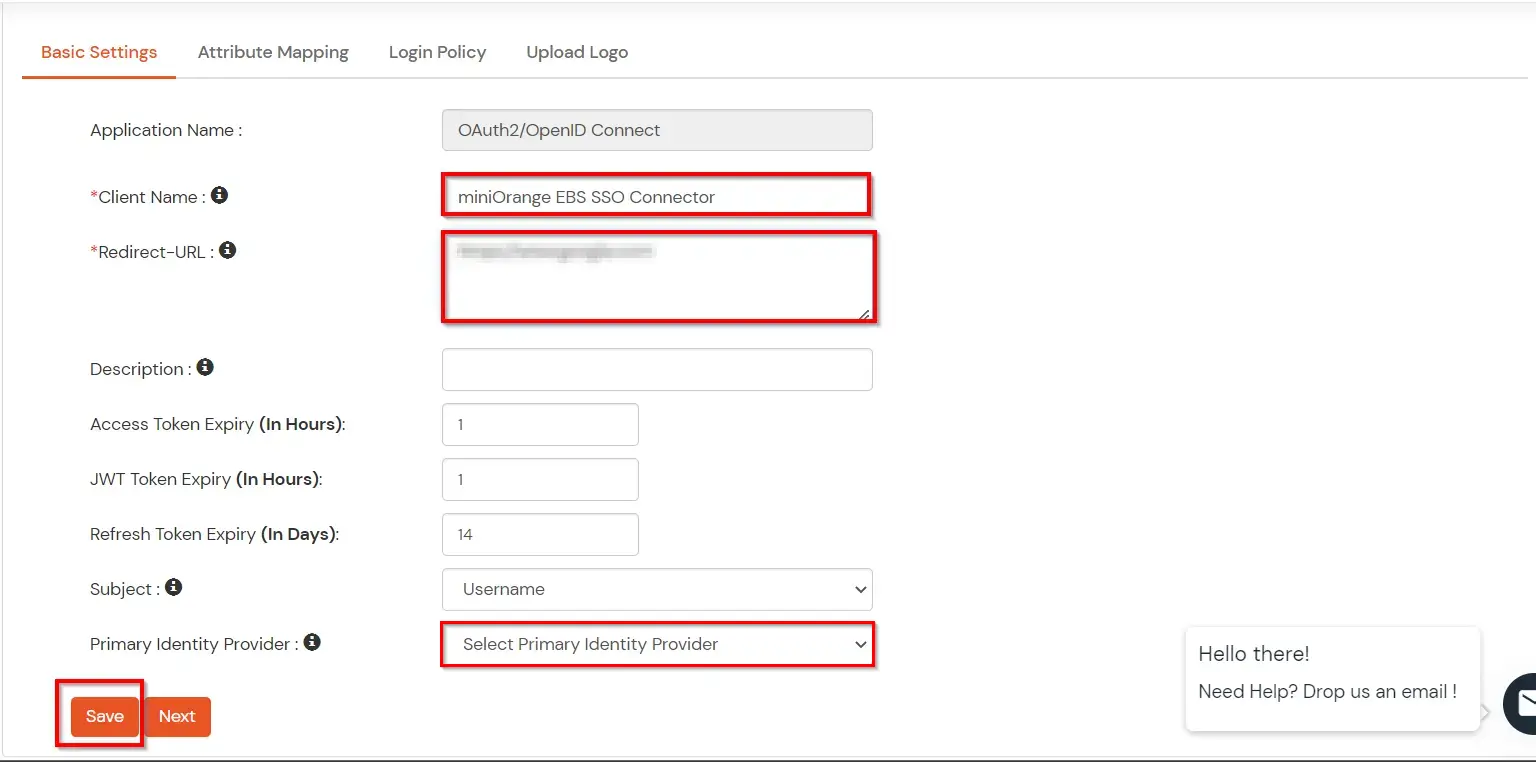
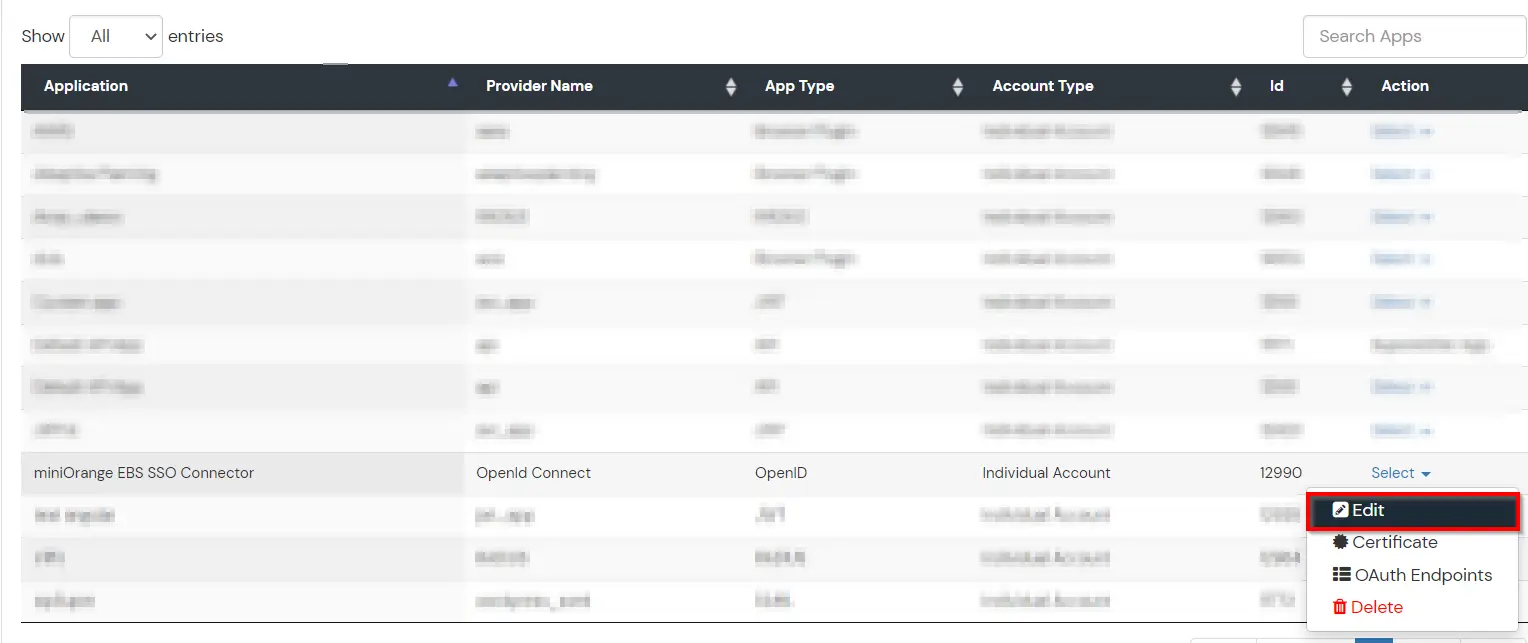
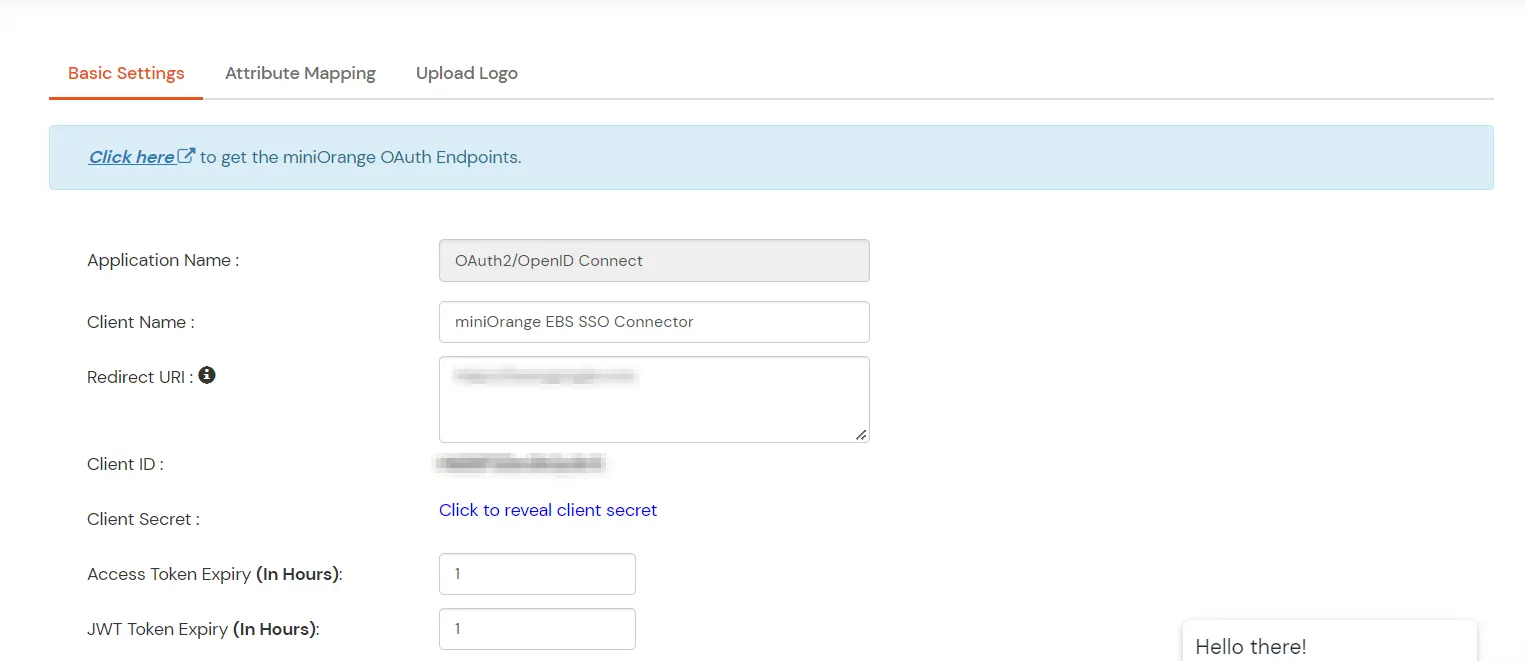
3. Configure miniOrange Broker Agent in miniOrange EBS Connector
4. Configure Oracle EBS with miniOrange SSO Connector
- Set aside a sub-domain for the miniOrange EBS SSO connector on the same domain as the EBS installation. For example, if the EBS installation has the FQDN apps.example.com, then miniOrange EBS SSO connector could be installed on the sub-domain ebsauth.example.com.
- Create a new user, and assign them the role with code: UMX|APPS_SCHEMA_CONNECT. Make a note of the credentials for this user.
- Navigate to Functional Administrator → Core Services → Profiles, and make the following changes:
- Search for the Profile with code APPS_SSO; change its site value from SSWA to SSWA w/SSO.
- Search for the Profile with the code APPS_AUTH_AGENT; change its site value to the full URL (FQDN) of the miniOrange EBS SSO connector (e.g. http://ebsauth.example.com/ebsauth).
- Search for the Profile with the name Oracle Applications Session Cookie Domain; change its value from Host to Domain.
- Bounce the Application Tier of the E-Business Suite to reflect the changes.
- Generate a DBC file with the miniOrange EBS SSO connector domain (e.g. ebsauth.example.com) using the AdminDesktop utility in EBS; make a note of the APPL_SERVER_ID value present in this newly generated file.
- Update the connector.properties file in your miniOrange EBS SSO connector to reflect the credentials for the user created, the path of the DBC file & the APPL_SERVER_ID and the endpoint URLs from the above points.
References
Note: Oracle and Java are registered trademarks of Oracle and/or its affiliates. miniOrange is a separate entity.