Enable Outlook Single Sign-on (SSO) authentication for users
miniOrange Outlook SSO (Single Sign-on) product provides ready integrations and a seamless SSO experience to Outlook, Office 365, Sharepoint, other microsoft apps, and all other web and SaaS applications for all your users. Single Sign-On (SSO) for Microsoft Outlook provides you secure auto-login to your apps. It allows enterprises to quickly increase security of information and resources without worrying about time for initial set up or future upgrades.
Microsoft Outlook Single Sign-on (SSO) solution by miniOrange identity platform provides an option to integrate with multiple third-party Identity Providers which supports standard protocols like SAML, OAuth, etc. IDP here means (Okta, Auth0, Ping, Onelogin, etc) or Active Directory (AD) where your existing users are managed. Once your Outlook Single sign-on (SSO) is enabled with your IDP / Directory successfully, your employees or end users will be able to authenticate and login into their Outlook account and other integrated applications with the use of existing username password. They won't need to create or manage credentials differently to operate Outlook account or any other app account. Given below is the setup guide to configure SAML SSO for your Outlook.
miniOrange identity platform and Microsoft Outlook Single Sign-On (SSO) integration to authenticate users supports the following features:
SP (Service Provider) Initiated SAML Single Sign-On (SSO)
In this flow, the user tries to access to the Serivce Provider (Outlook) organization directly. The request is redirected to the third-party Identity Provider by miniOrange Identity platform for authenitcation. On sucessfull authentication from the third-party Identity provider, the user is given access to the application (service provider).
IdP (Identity Provider) Initiated SAML Single Sign-On (SSO)
In this flow, the user logs in or access to the miniOrange Identity platform using his credentials. Now the user can access any of the organization's configured Service Providers (Outlook, other Microsoft apps, etc.) through the Identity Provider admin console without having to enter the credentials agian.
Connect with External Source of Users
miniOrange provides user authentication from various external sources, which can be Directories (like ADFS, Microsoft Active Directory, OpenLDAP, AWS etc), Identity Providers (like Microsoft Entra ID, Okta, AWS), and many more. You can configure your existing directory/user store or add users in miniOrange.
Video Setup Guide
Prerequisites
1. Sync On-Premise Active Directory with Microsoft Entra ID
NOTE: If you want to use your On-Premise Active Directory as a user store to Single Sign-On into Microsoft Outlook then follow the below steps to sync your AD and Microsoft Entra ID.
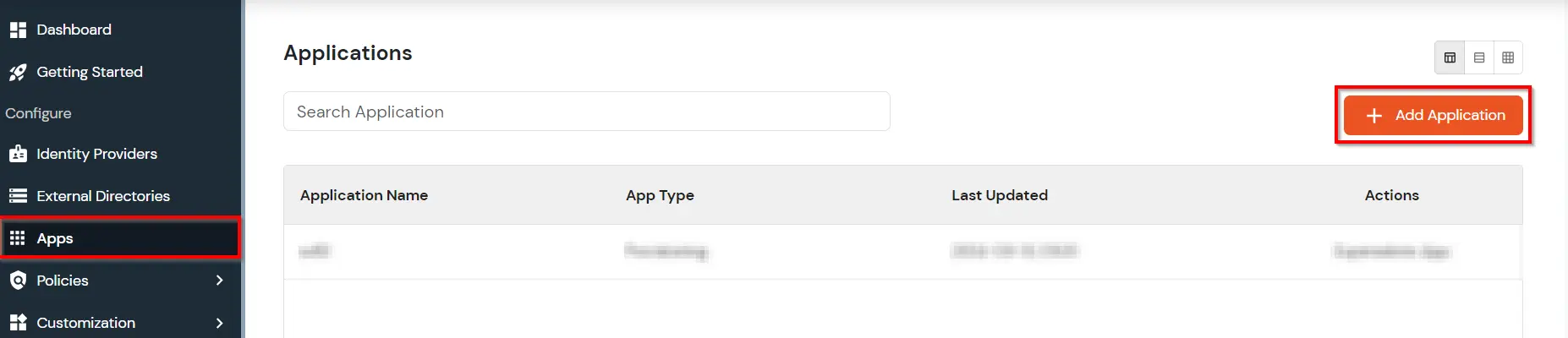
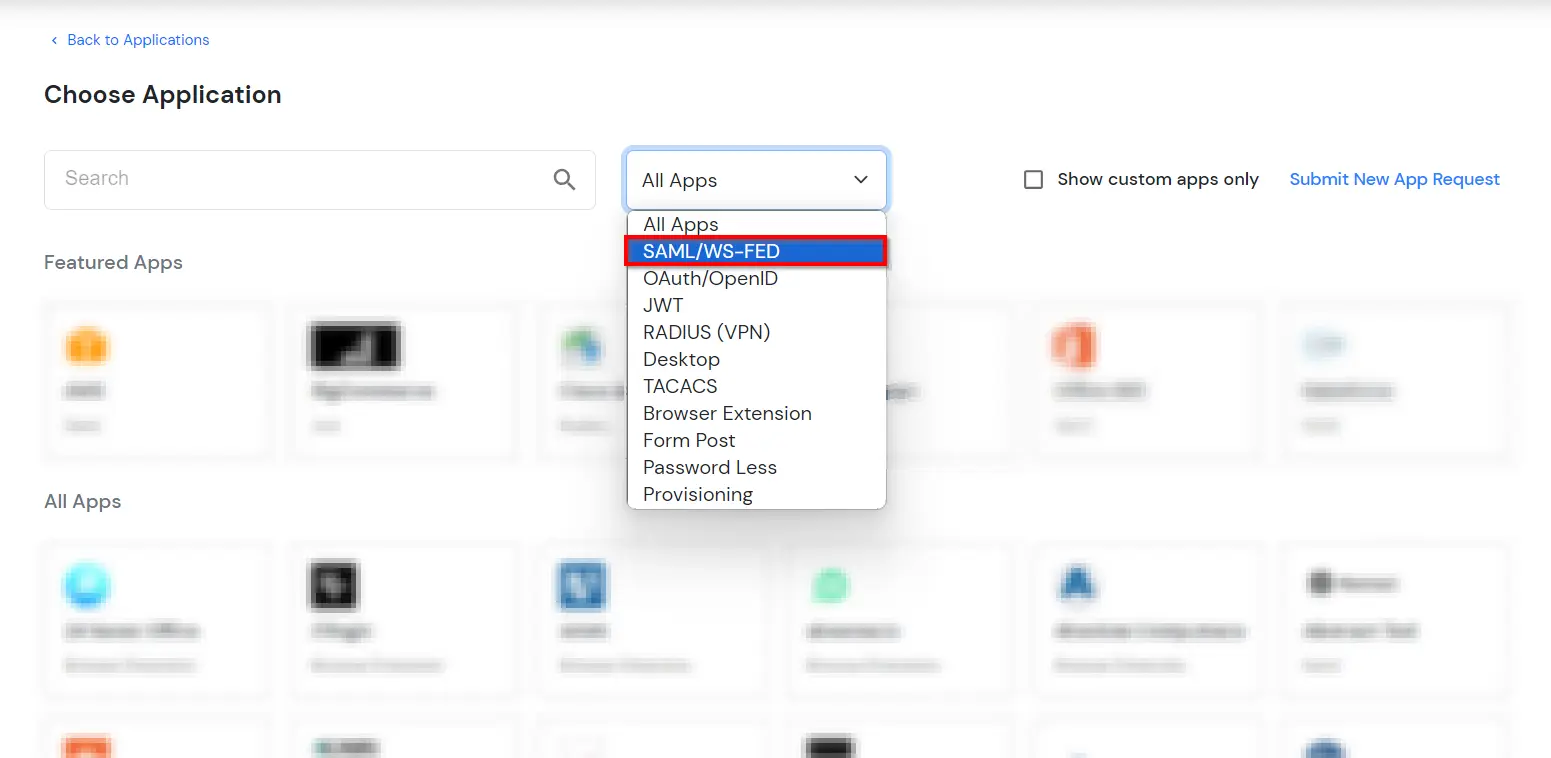
In Choose Application Type, select SAML/WS-FED from the All Apps dropdown.
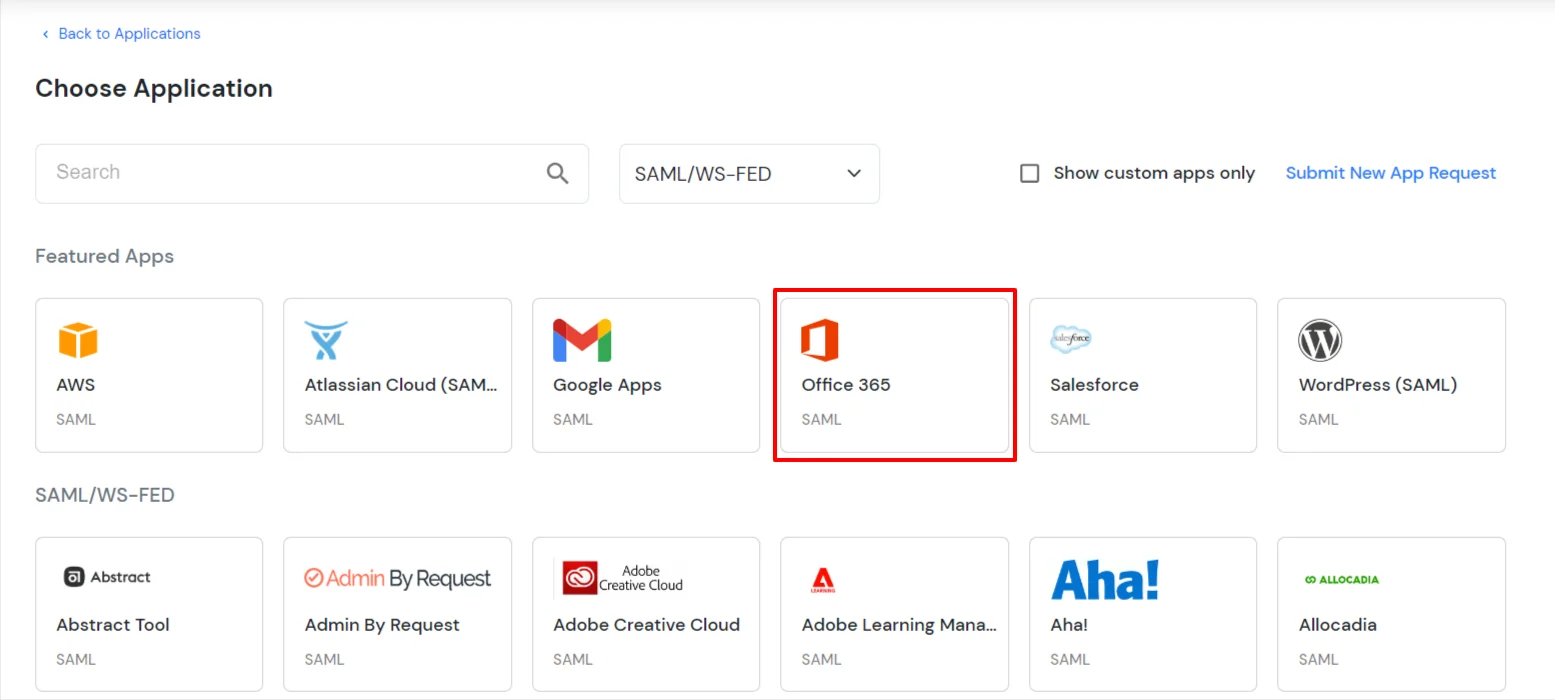
In the next step, search for Office 365. Click on Office 365 app.
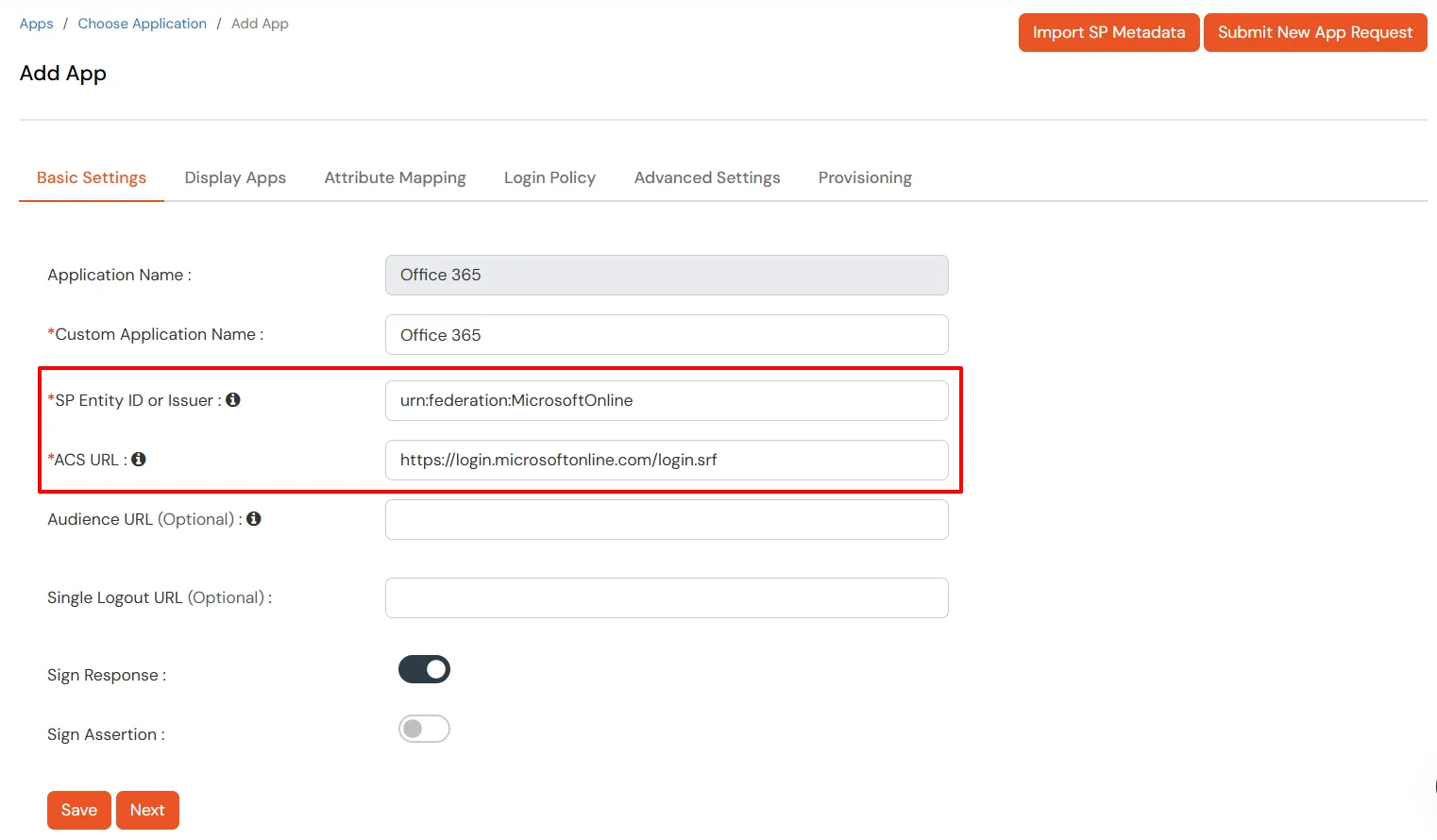
In the Basic settings section, enter the Display Name.
Make sure the SP Entity ID or Issuer is: urn:federation:MicrosoftOnline
Make sure the ACS URL is: https://login.microsoftonline.com/login.srf
Click Next.
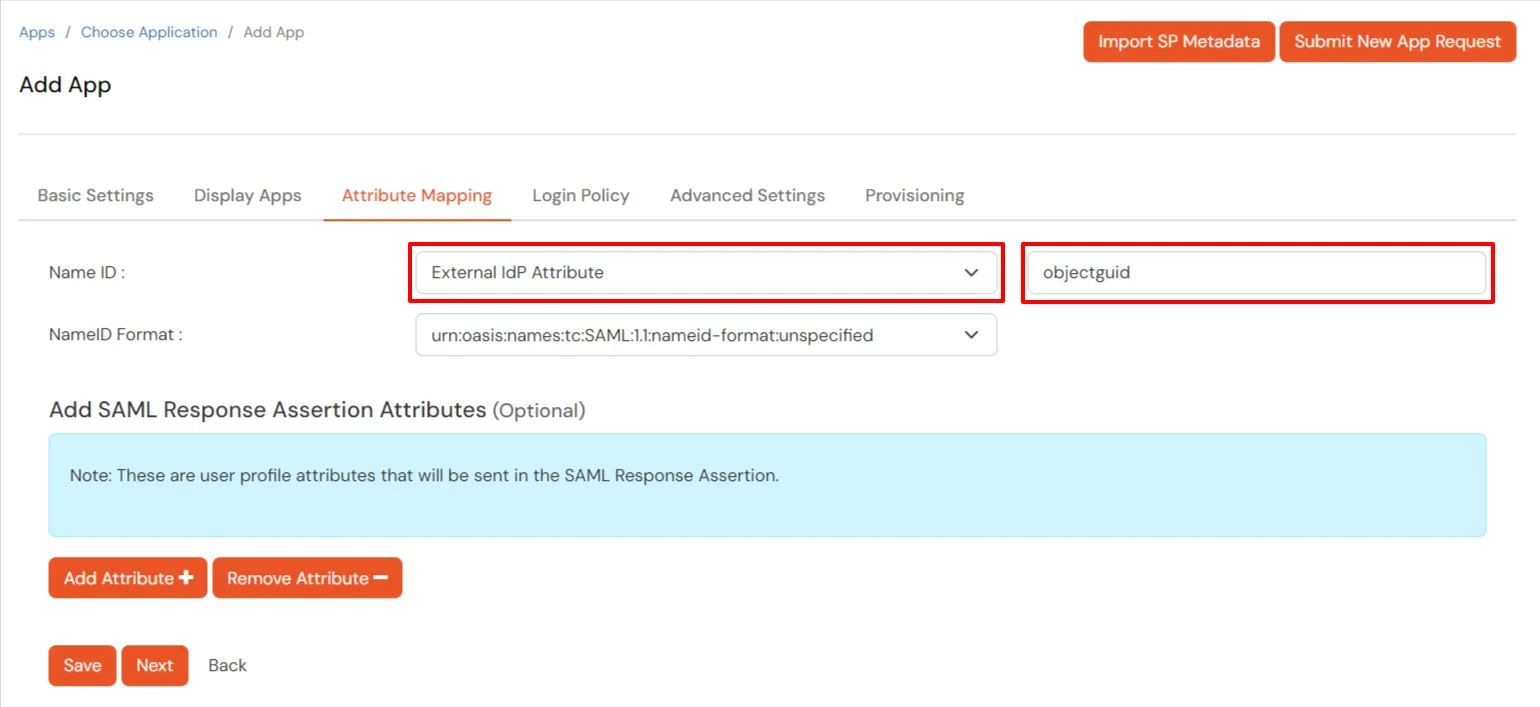
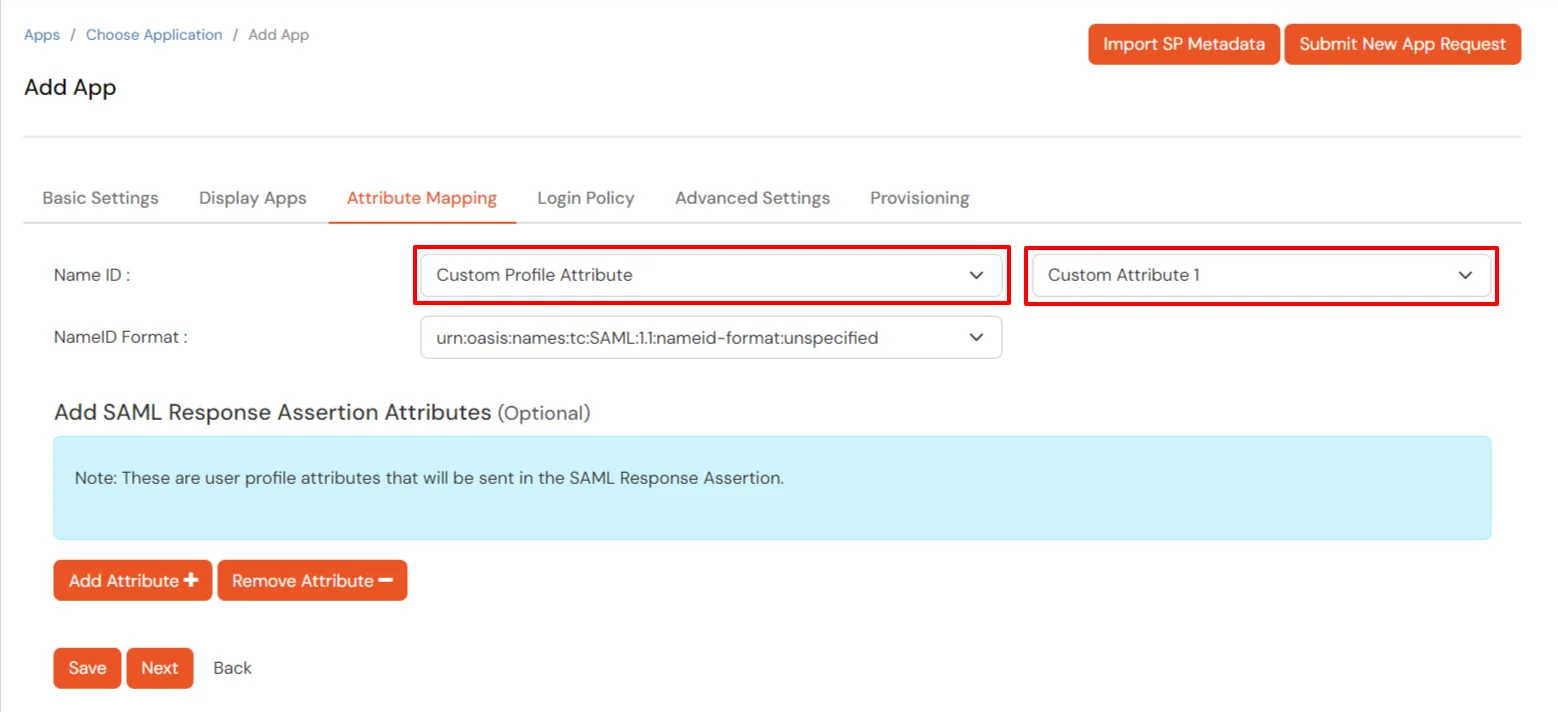
Now, go to the Attributes tab, and configure Name ID based on the User Store you are using:
Using Active Directory / miniOrange brokering service: Select External IDP Attribute from the dropdown and add objectguid in the text-box that appears.
Using miniOrange as a User Store: Select Custom Profile Attribute and select a Custom Attribute from the drop-down.
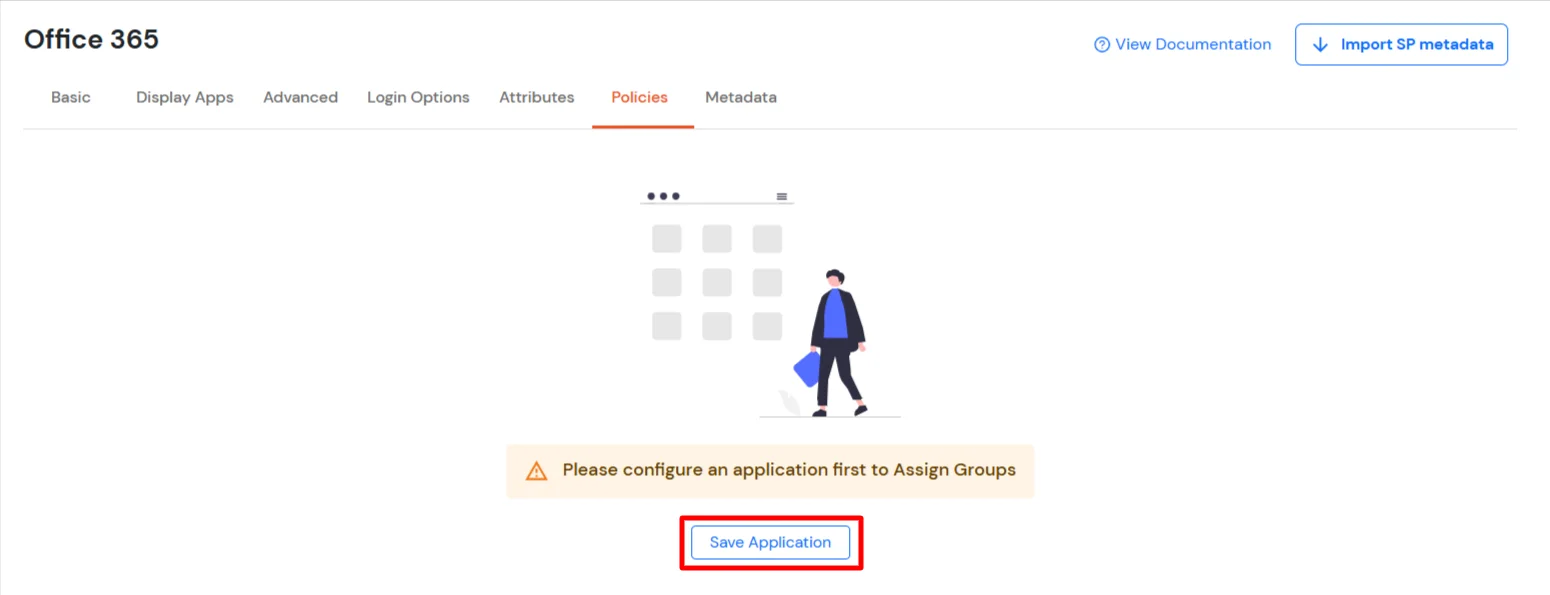
Click Next to go to the Policies. Save the application first to configure the policy.
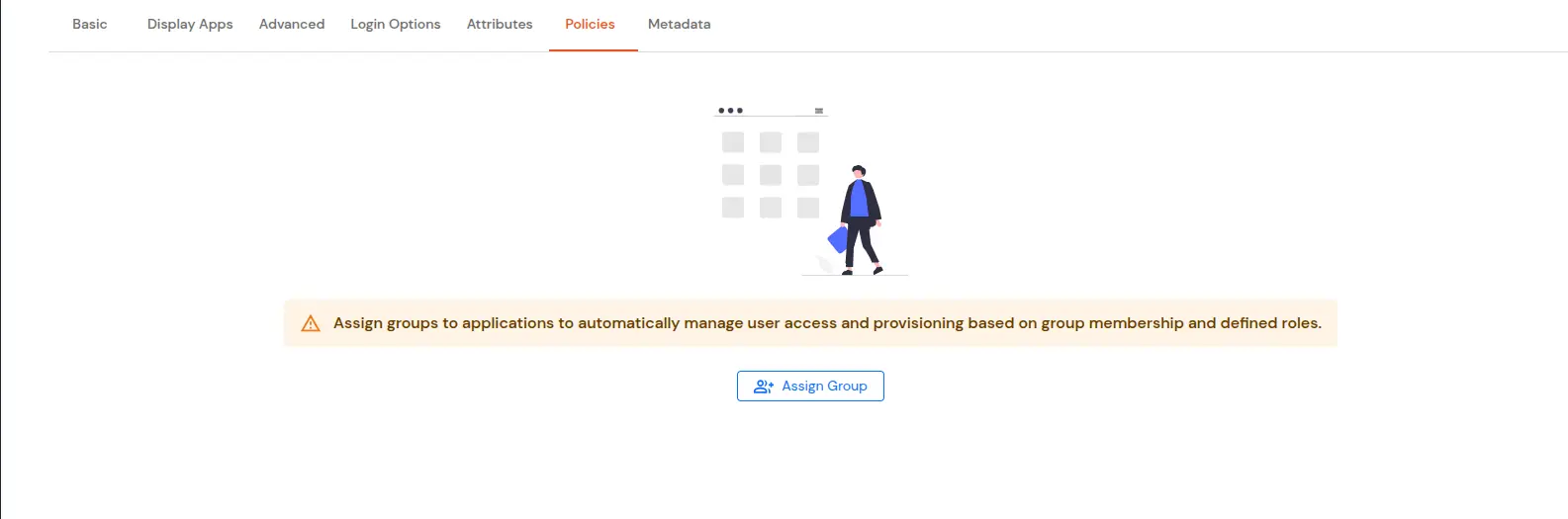
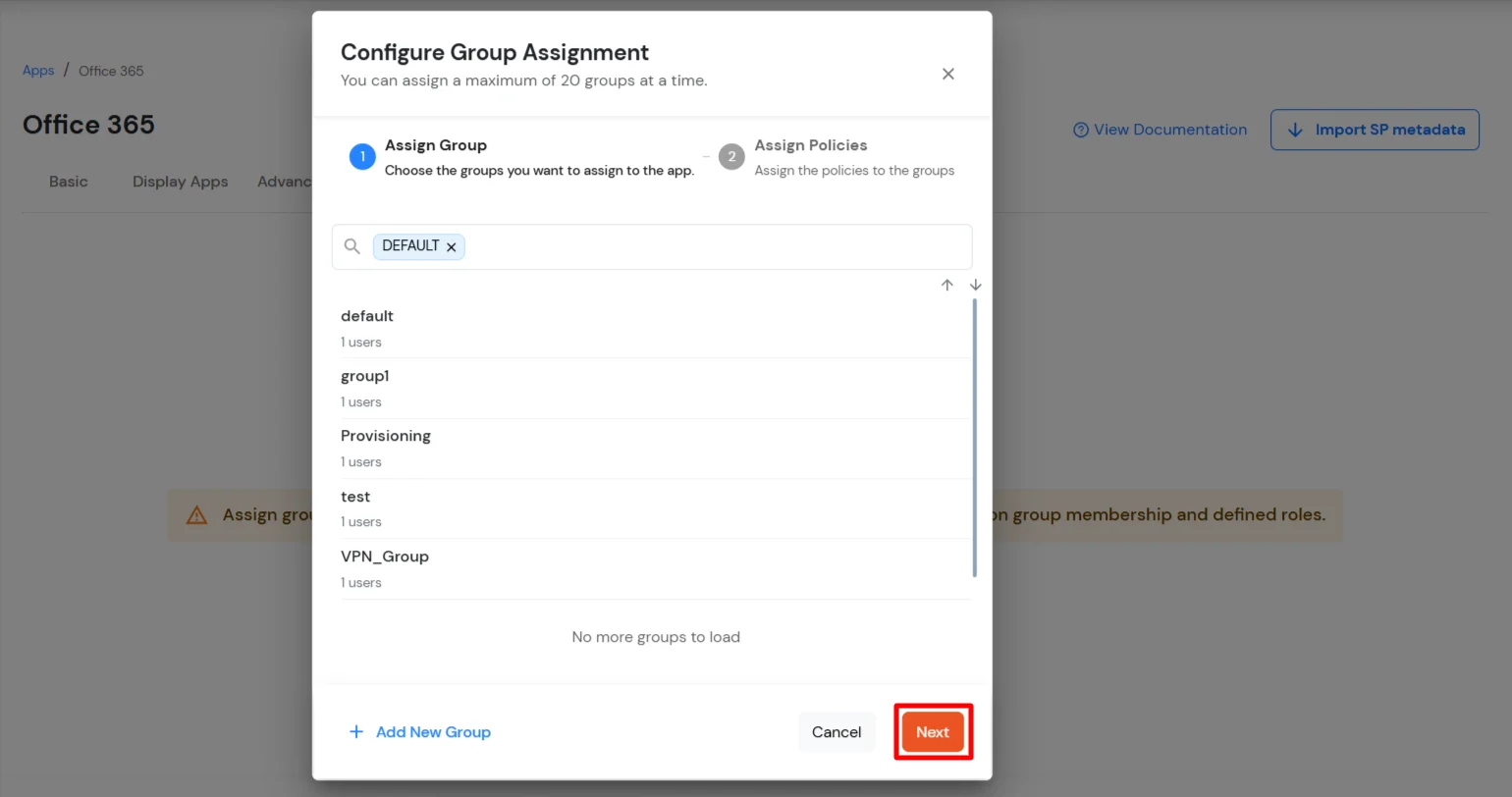
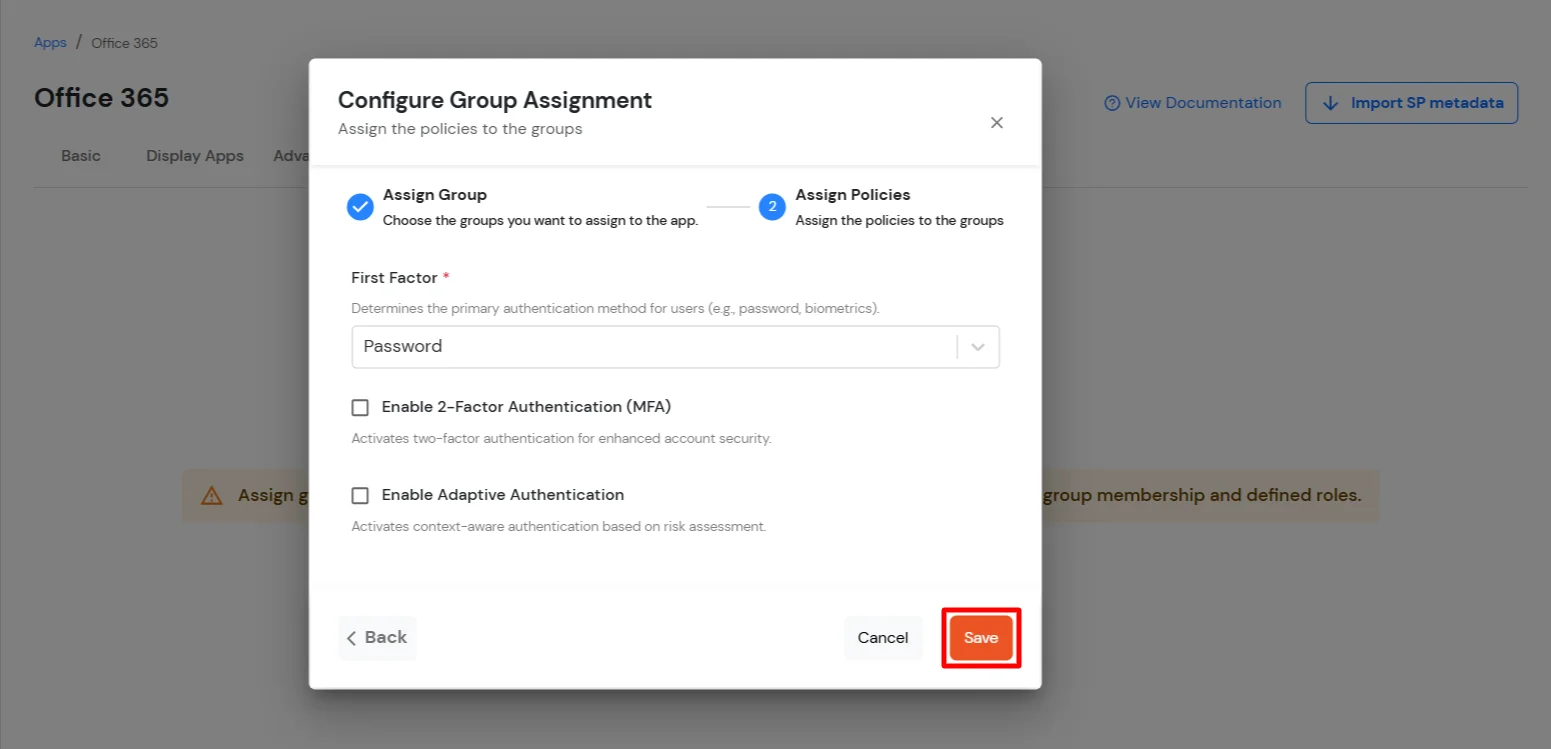
Click the Assign Group button. In the Configure Group Assignment dialog box, select DEFAULT as the group.
Click Next to go to the Assign Policies section. Select First Factor as Password.
You can enable 2FA for login or allow users to log in with a standard username and password.
Click Save.
Once done, policies will be created for all the selected groups.
2. Configure Microsoft Graph Services
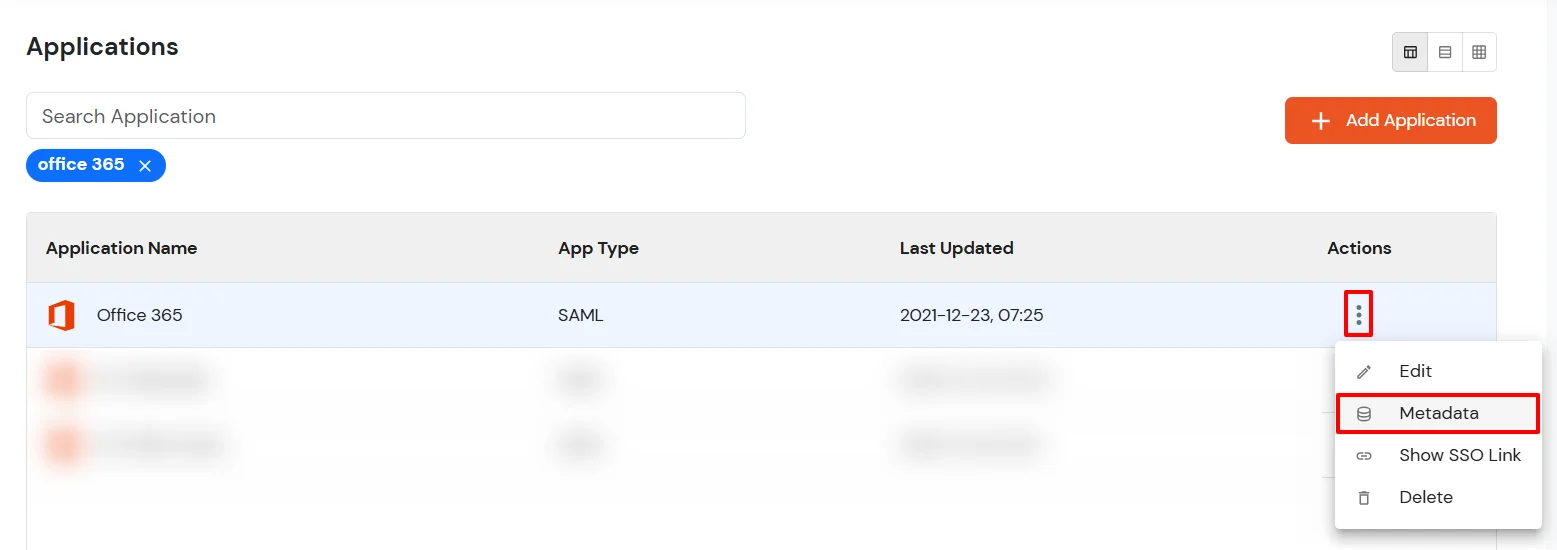
Now, go to the Metadata tab.
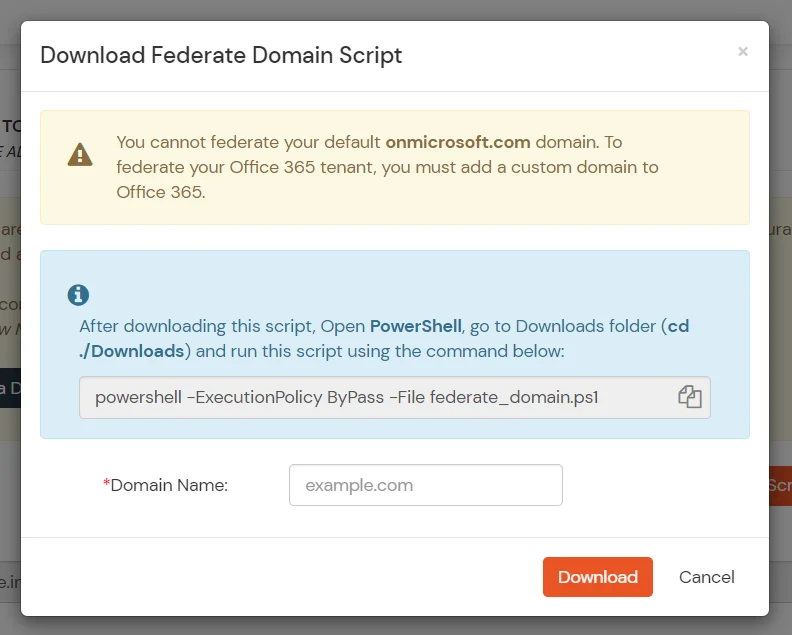
Click on the Download Federate Domain Script button under "External source as IdP".
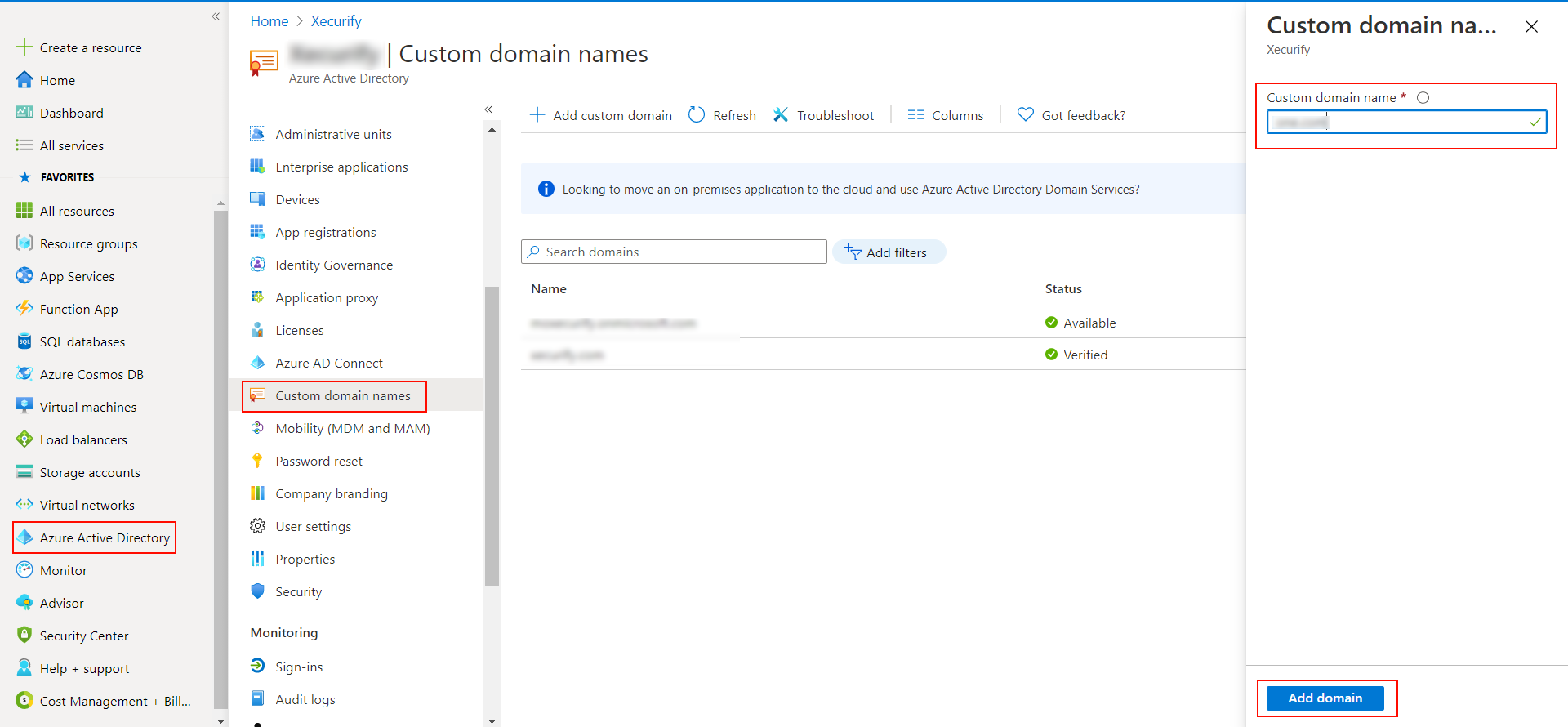
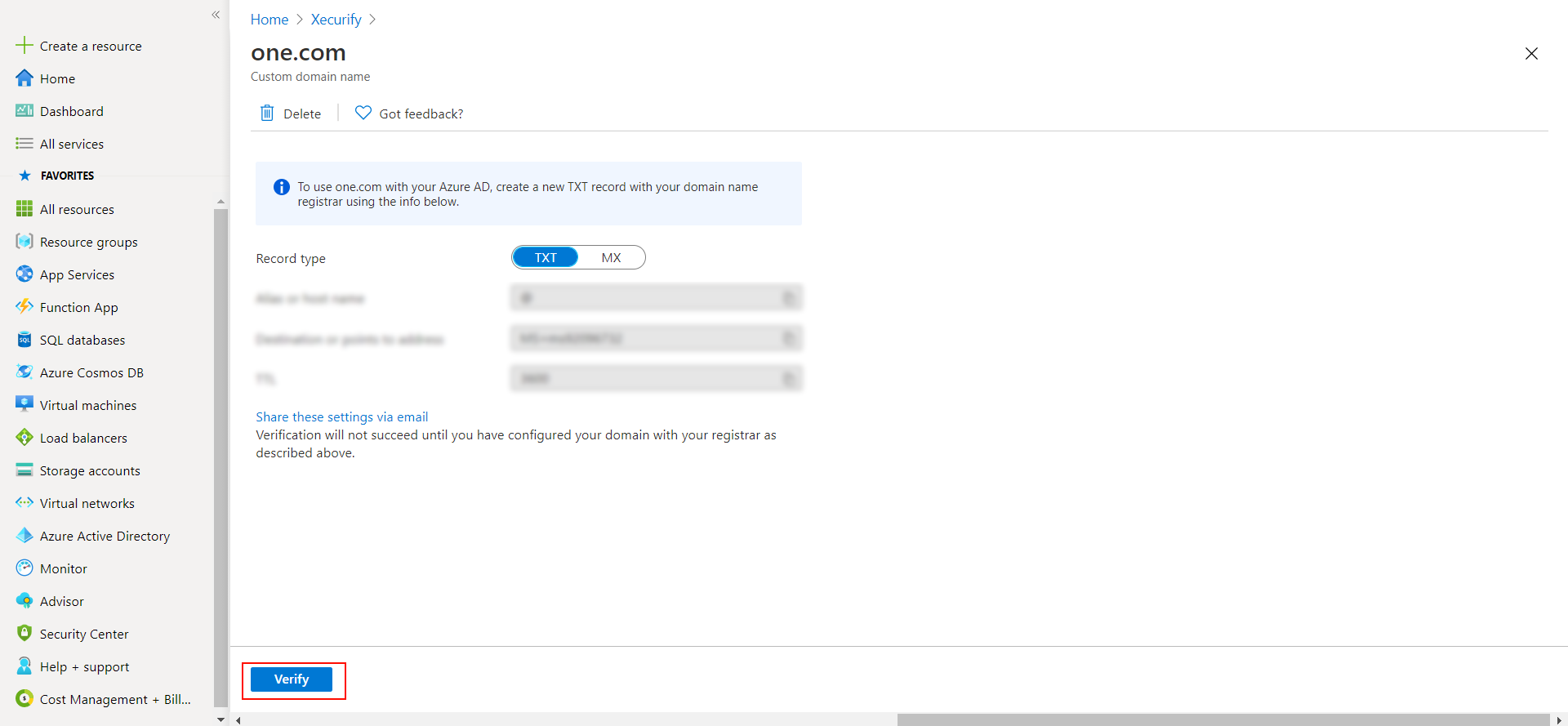
Enter the Domain Name that you want to federate and click on Download. Note: You cannot federate your default "onmicrosoft.com" domain. To federate your Microsoft Outlook tenant, you must add a custom domain to Microsoft Outlook.
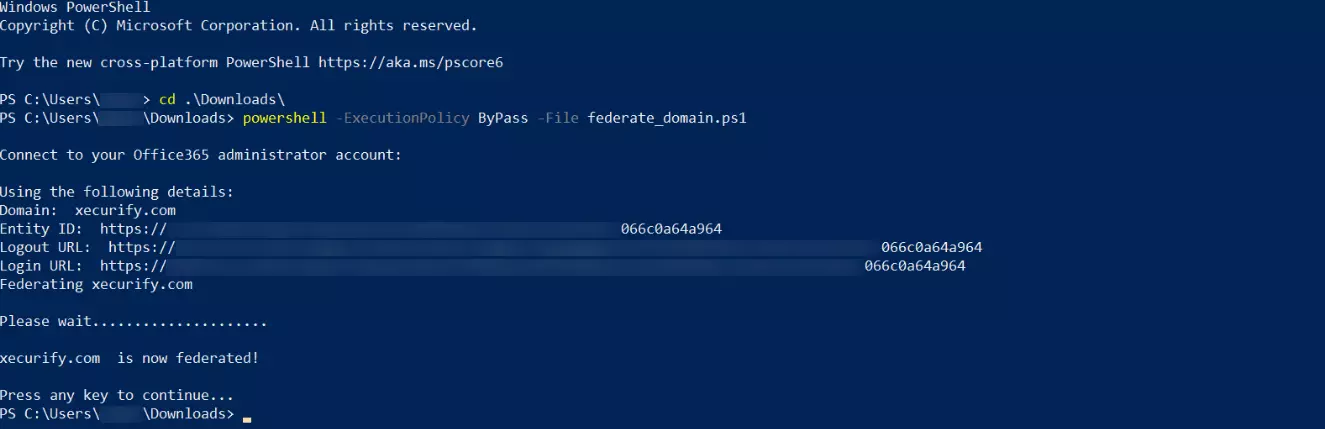
After downloading the script, Open PowerShell run the federate_domain script using: cd ./Downloads
powershell -ExecutionPolicy ByPass -File federate_domain.ps1
Your domain is now federated. Use the commands below to check your federation settings: Get-MgDomain -DomainId "<domain>" | Select-Object Id, AuthenticationType
3. Test Outlook SSO Configuration
1. Using SP initiated login :-
Go to Office 365 - Microsoft Outlook Login and click on sign-in
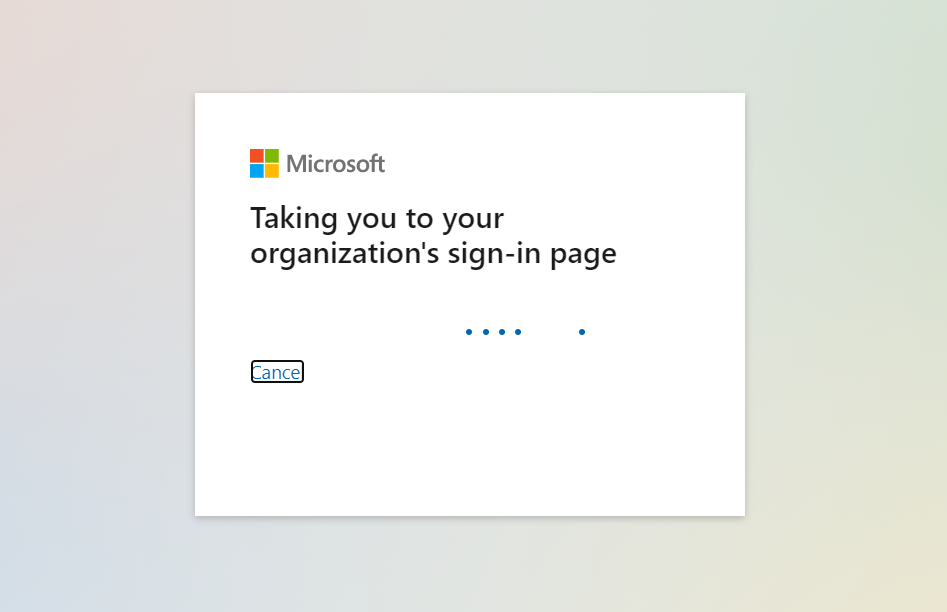
You will be redirected to Microsoft Graph portal. Here you have to enter the UPN of the user.(It should contain the domain that is federated with miniOrange)
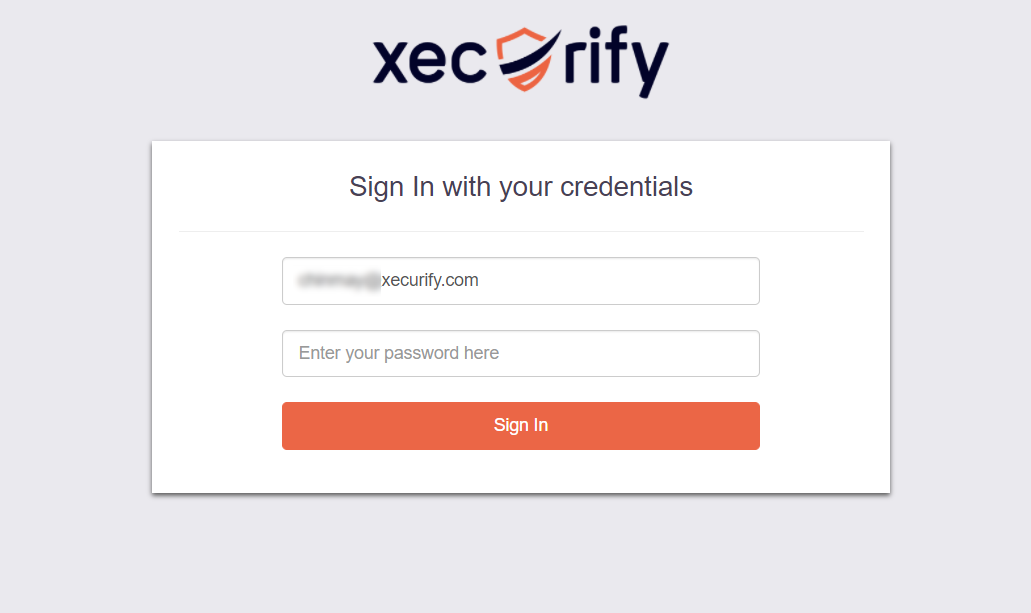
Now you will be redirected to miniOrange IdP Sign On Page.
Enter your login credential and click on Login. You will be automatically logged in to your Microsoft Outlook account.
2. Using IdP initiated login :-
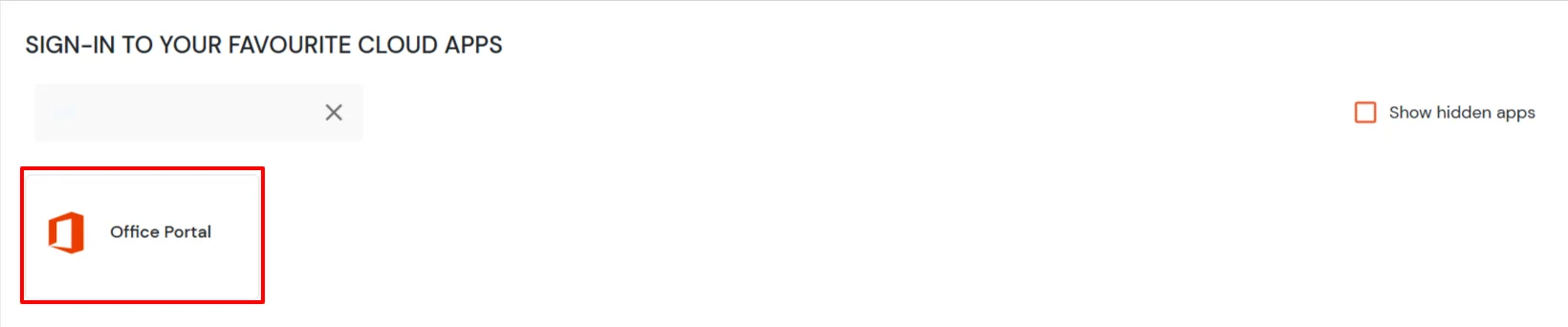
Login to your miniOrange Self Service Console as an End User and click on the Outlook (Office 365) icon on your Dashboard.
Once you click on Outlook or Office 365 you don't need to enter credentials again you will be redirected to Outlook or Office 365 account.