Hello there!
Need Help? We are right here!

Need Help? We are right here!
Search Results:
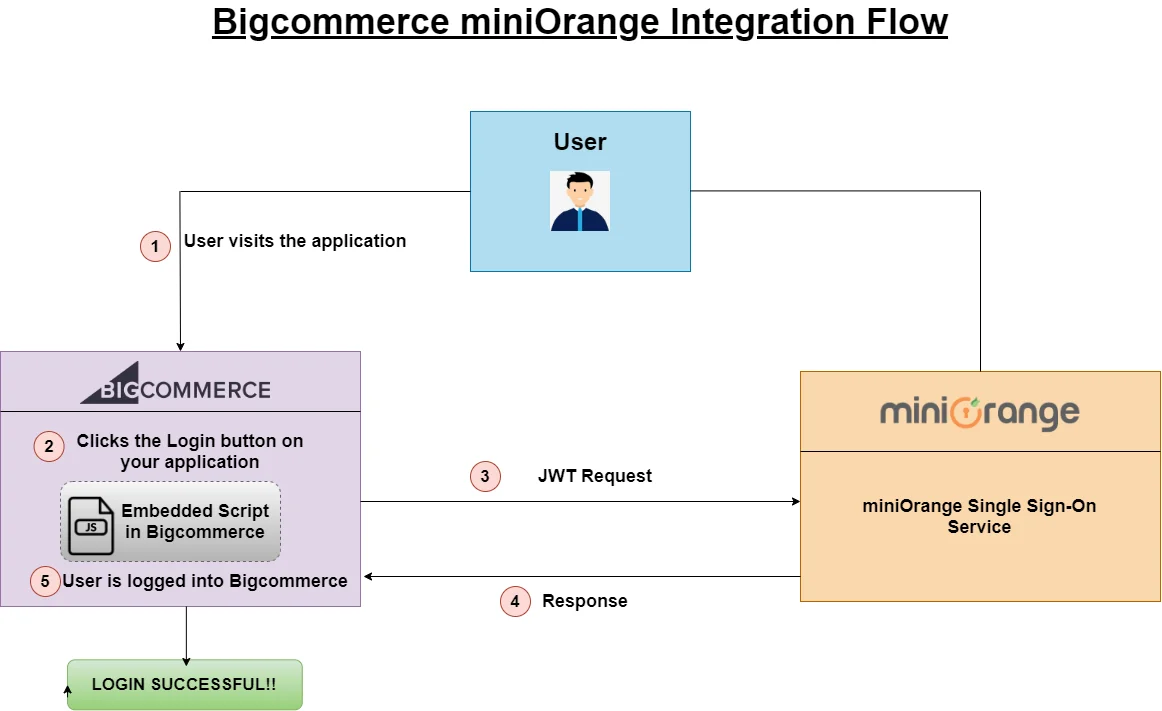
×BigCommerce + Microsoft Entra ID solution by miniOrange allows a seamless Single Sign-On solution for BigCommerce. Since BigCommerce doesn’t support SSO via Azure, miniOrange provides an interface to generate JWT token and log users into BigCommerce using their Microsoft Entra ID credentials without migrating the users from their existing directory.
Please make sure your organisation branding is already set under Customization >> Login and Registration Branding in the left menu of the dashboard.
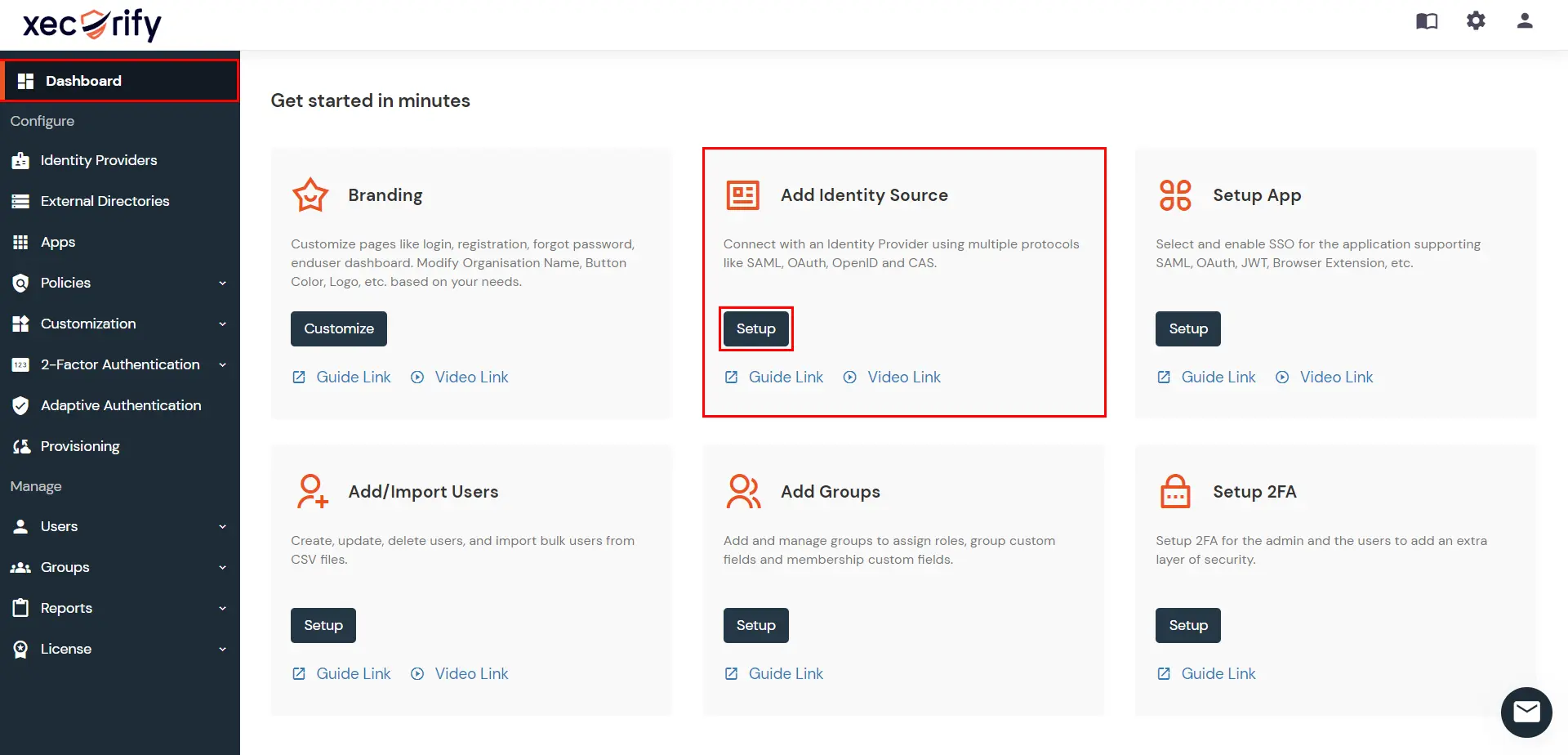
miniOrange provides user authentication from various external sources, which can be Directories (like ADFS, Microsoft Active Directory, OpenLDAP, AWS etc), Identity Providers (like Microsoft Entra ID, Okta, AWS), and many more. You can configure your existing directory/user store or add users in miniOrange.
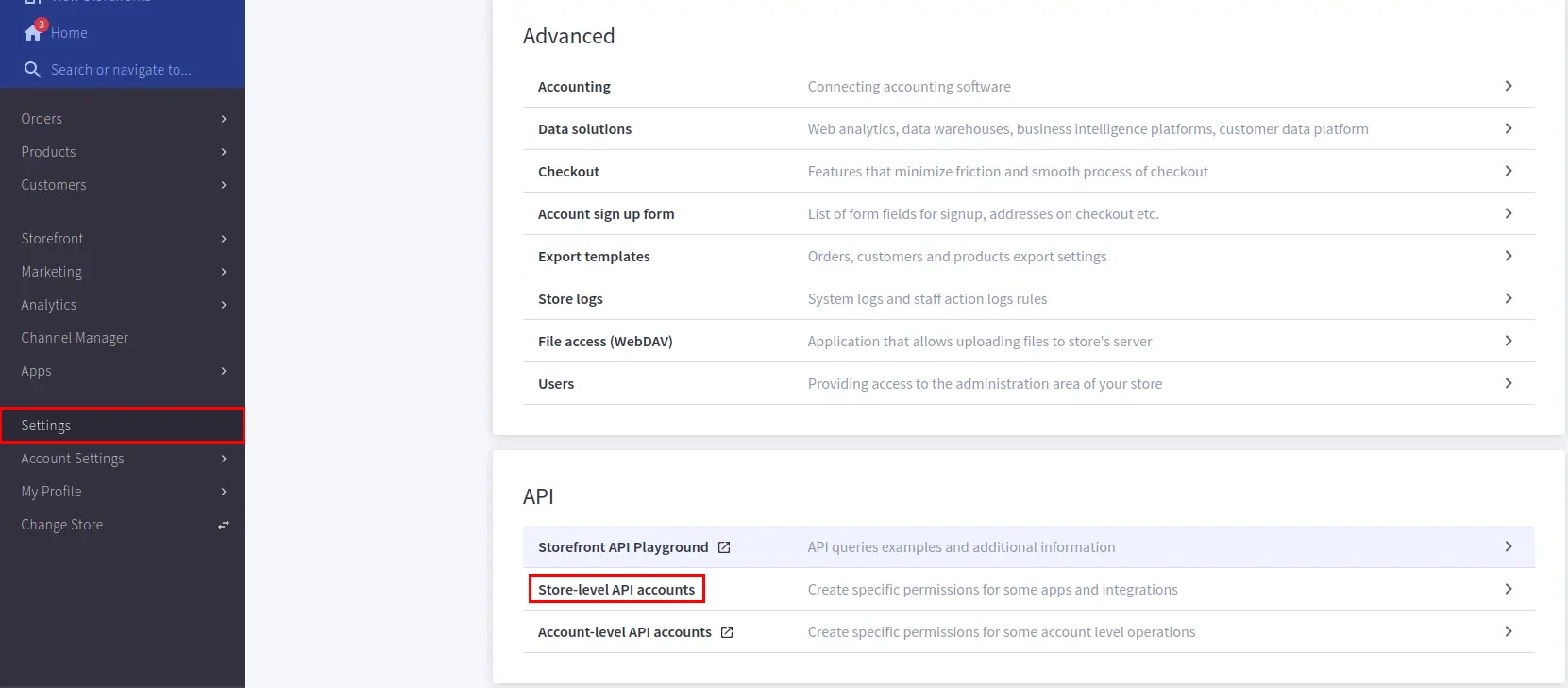
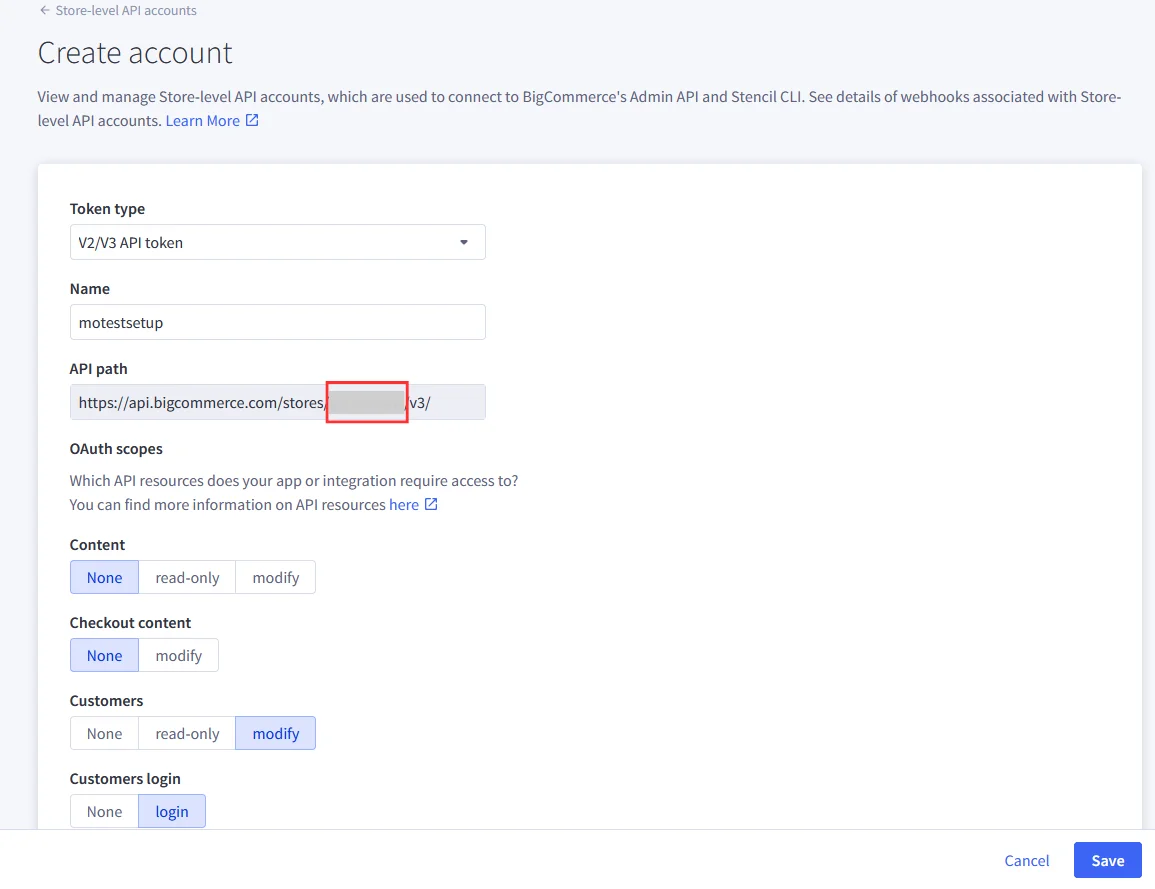
Note: In BigCommerce, the API Path is the base URL that your application or integration uses to connect to your store’s data through BigCommerce APIs. The Store Hash is a unique identifier automatically generated by BigCommerce for each store. It appears in the API Path.
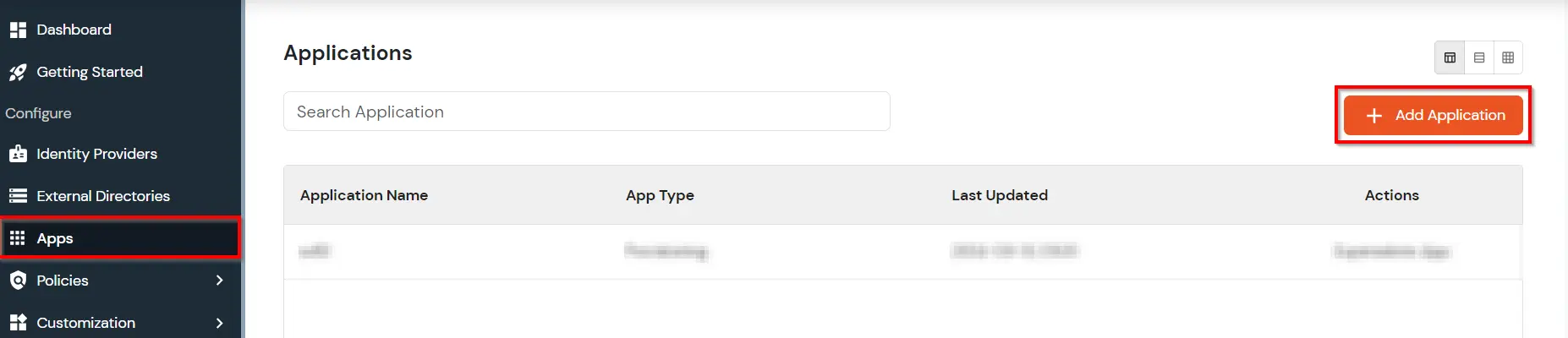
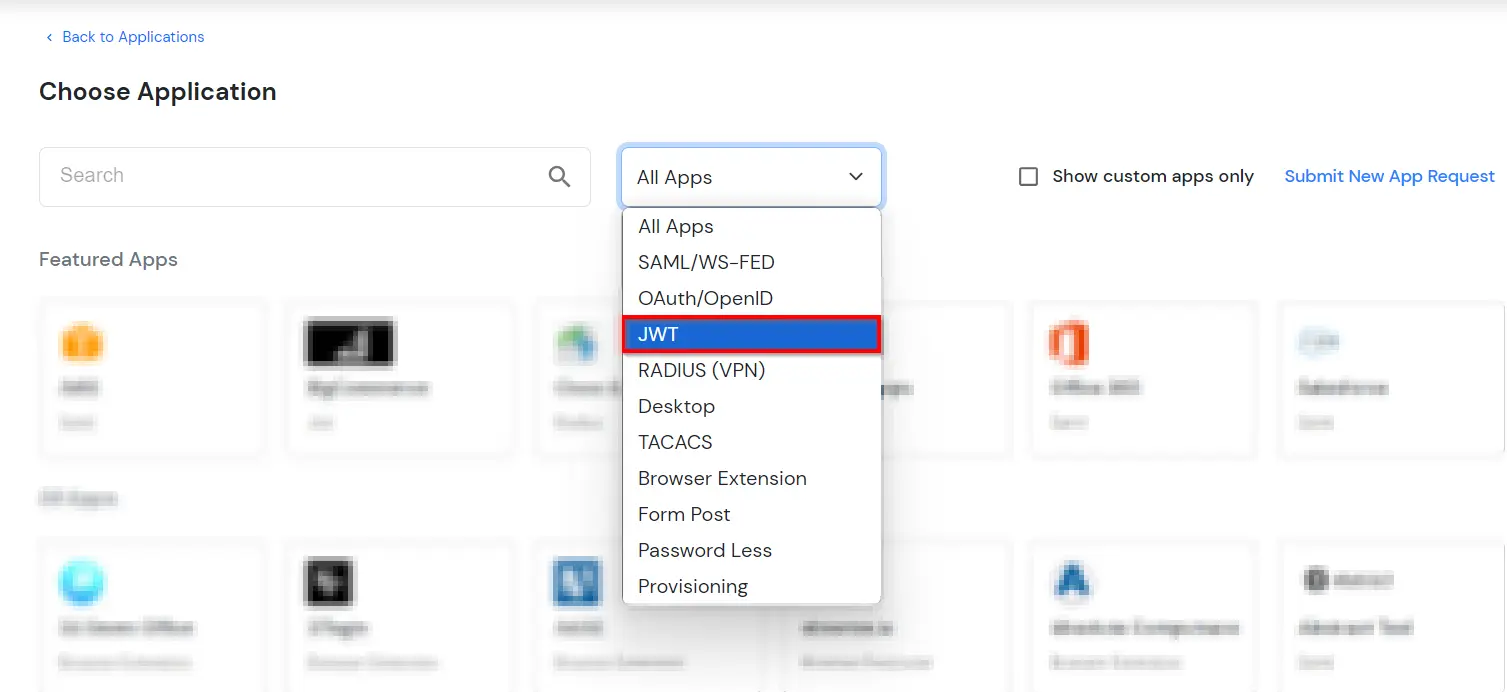
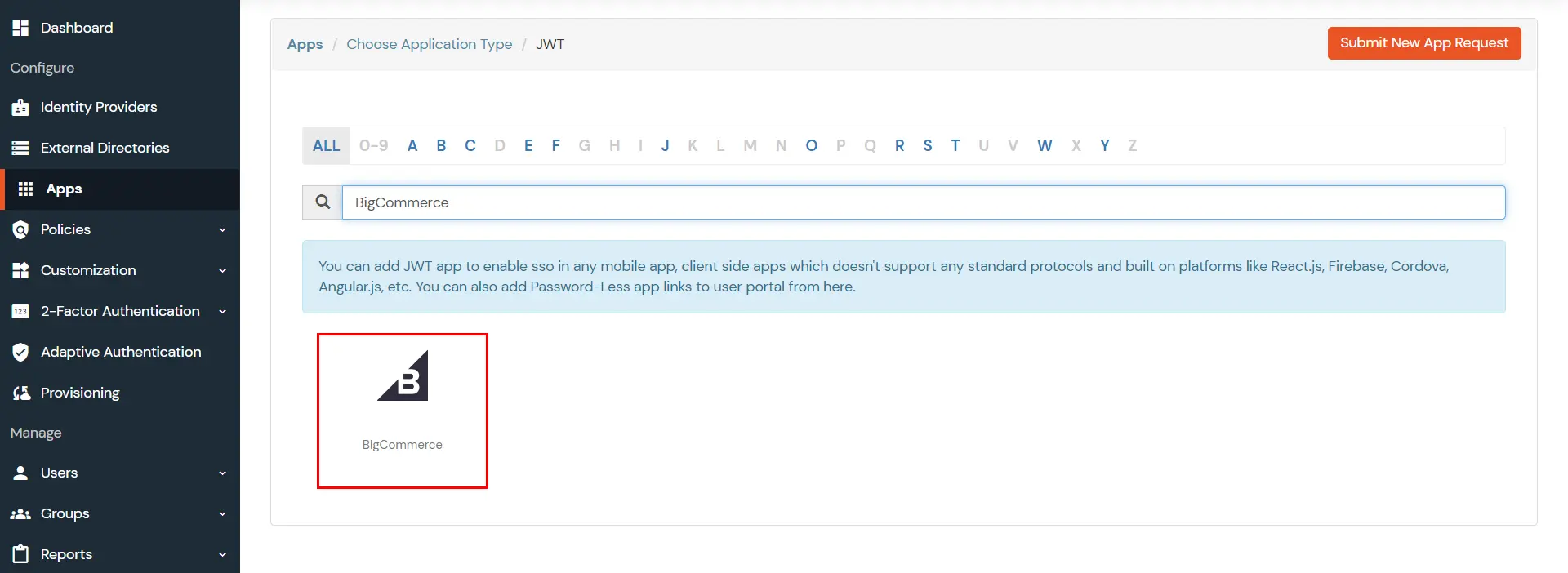
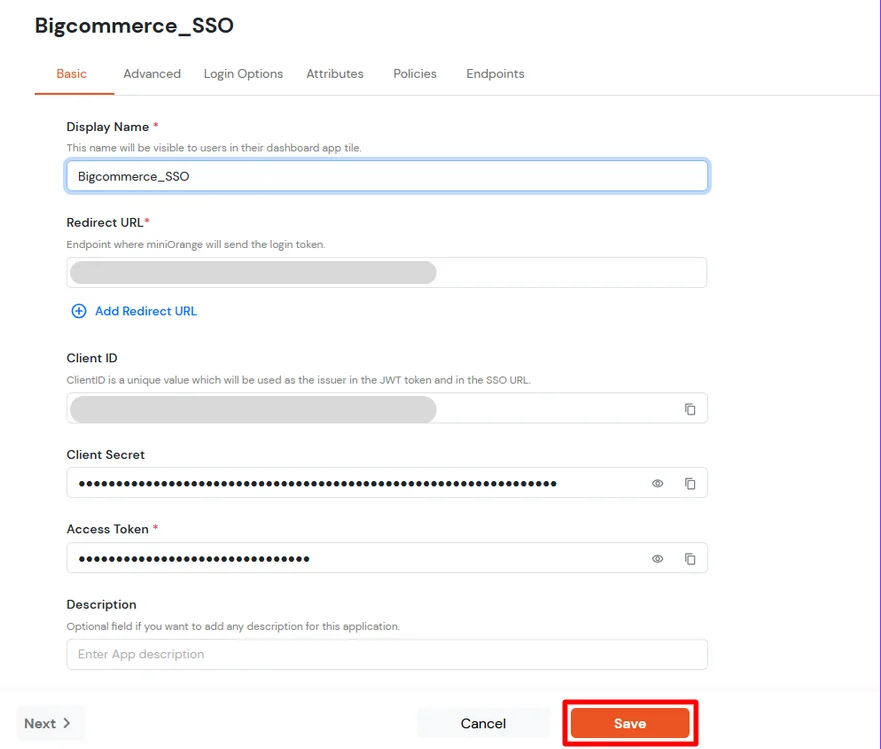
| Display Name [Required] | BigCommerce (According to your choice) |
| Redirect-URL [Required] | Refer to the Note section below to get the Redirect URL. |
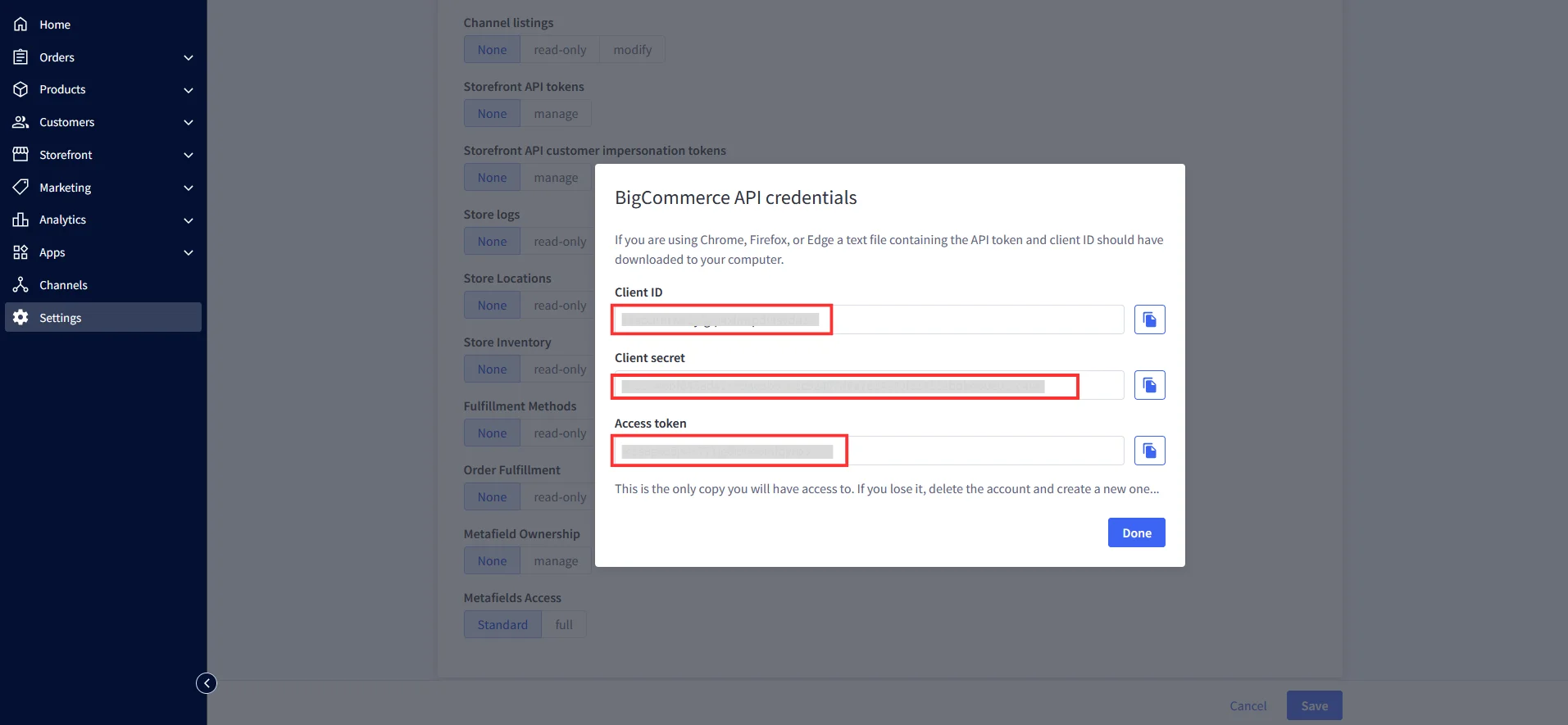
| Client ID | Copy from the downloaded file in Step 1 |
| Client Secret | Copy from the downloaded file in Step 1 |
| Access Token | Copy from the downloaded file in Step 1 |
| Description | According to your choice |
Note: Your Redirect URL should be: <Storefront URL>/login/token/
For Example: https://xyz.bigcommerce.com/login/token/
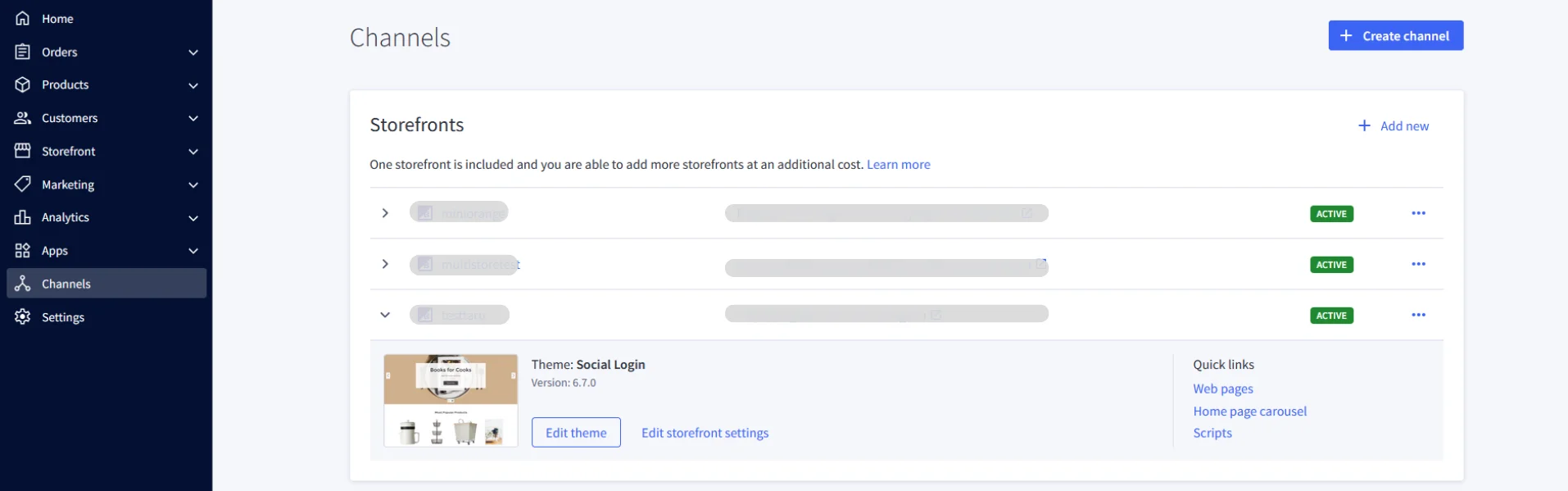
To find your Storefront URL: Go to Channels >> Storefronts. Copy the URL listed for your store.
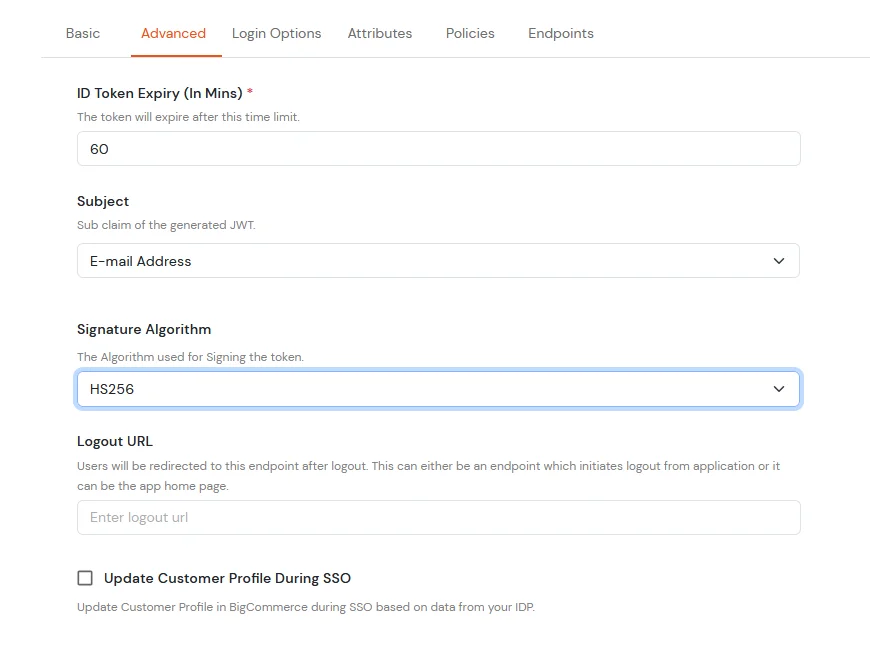
| Subject | E-Mail Address. |
| Signature Algorithm | HS256 |
| Logout URL | Copy the storefront URL as mentioned above and append /login.php?action=logout |
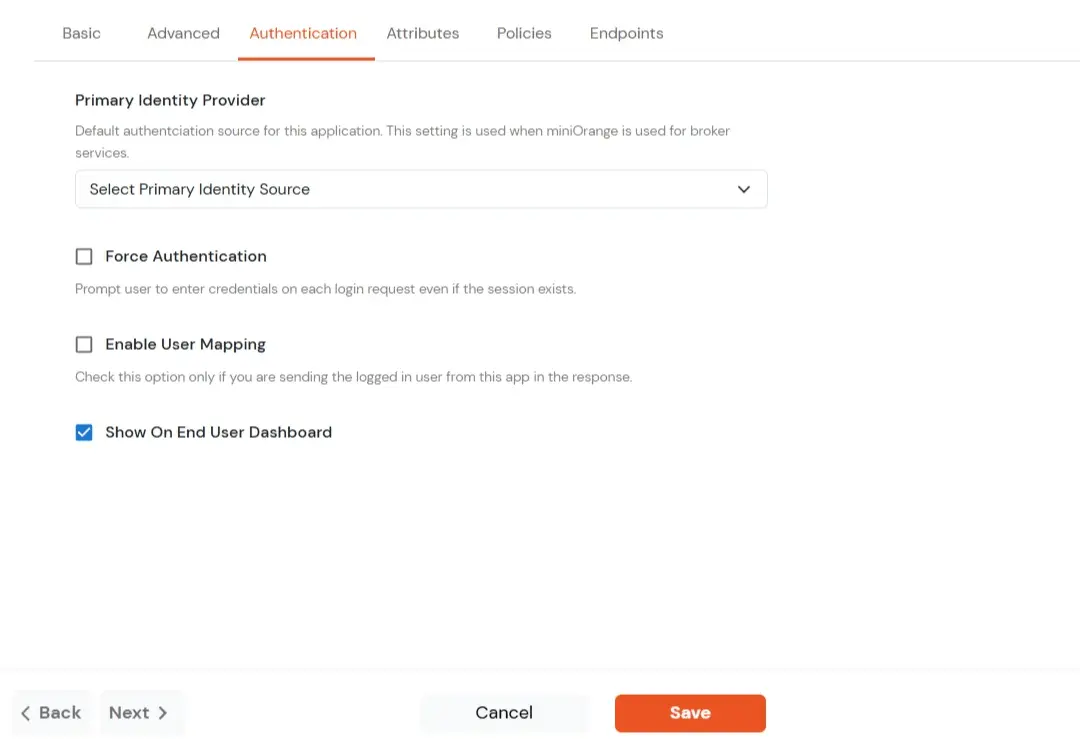
| Primary Identity Provider | The identity source against which user will be authenticated |
| Force Authentication | Enable if you want user to authenticate even if the user has a session |
| Enable User Mapping | Enable if you are sending the logged-in user from this app in the response |
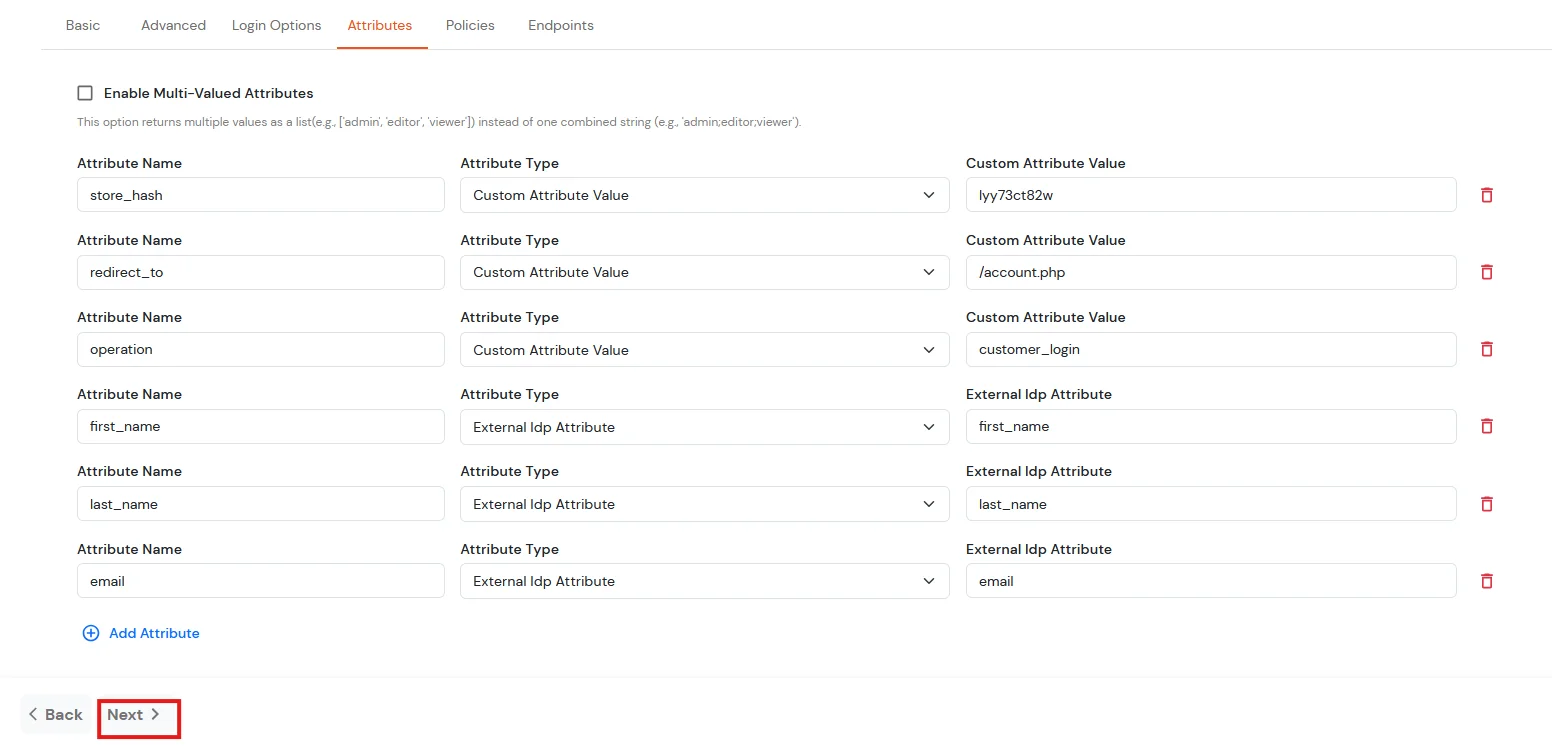
| Attribute Name | Attribute Type | Attribute Value |
|---|---|---|
| store_hash | Custom Attribute Value | Refer to Step 1 above. |
| redirect_to | Custom Attribute Value | Endpoint where you wish to redirect the user to after sso. [Homepage or account page e.g. /account.php] |
| operation | Custom Profile Attribute | customer_login |
| first_name | External Idp Attribute | first_name |
| last_name | External Idp Attribute | last_name |
| External Idp Attribute |
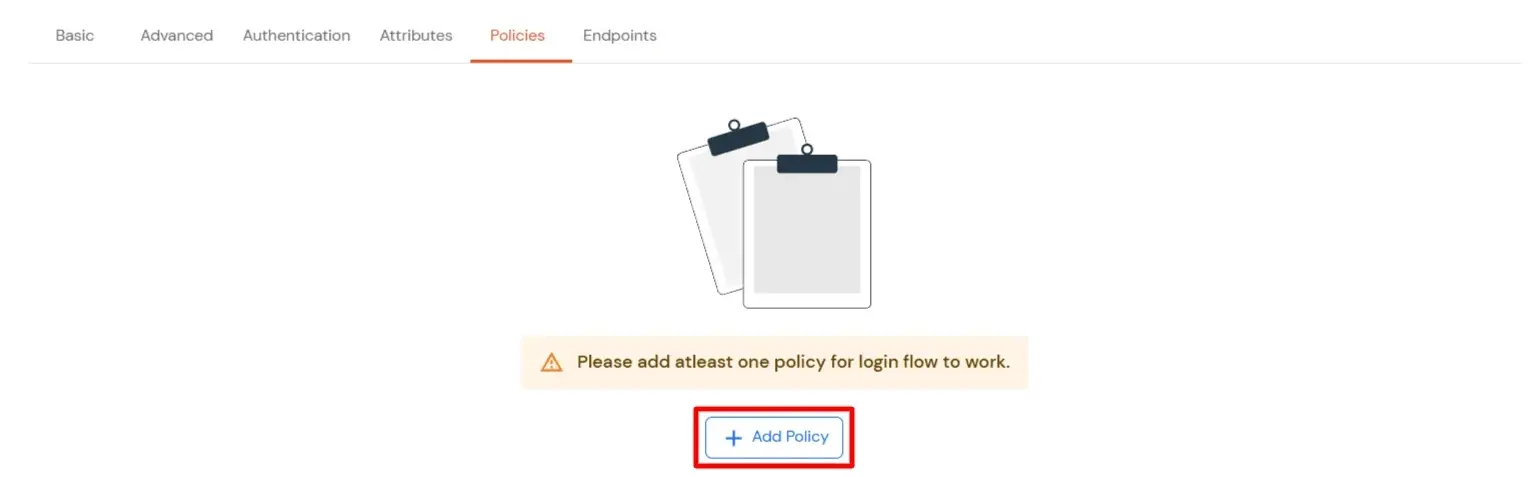
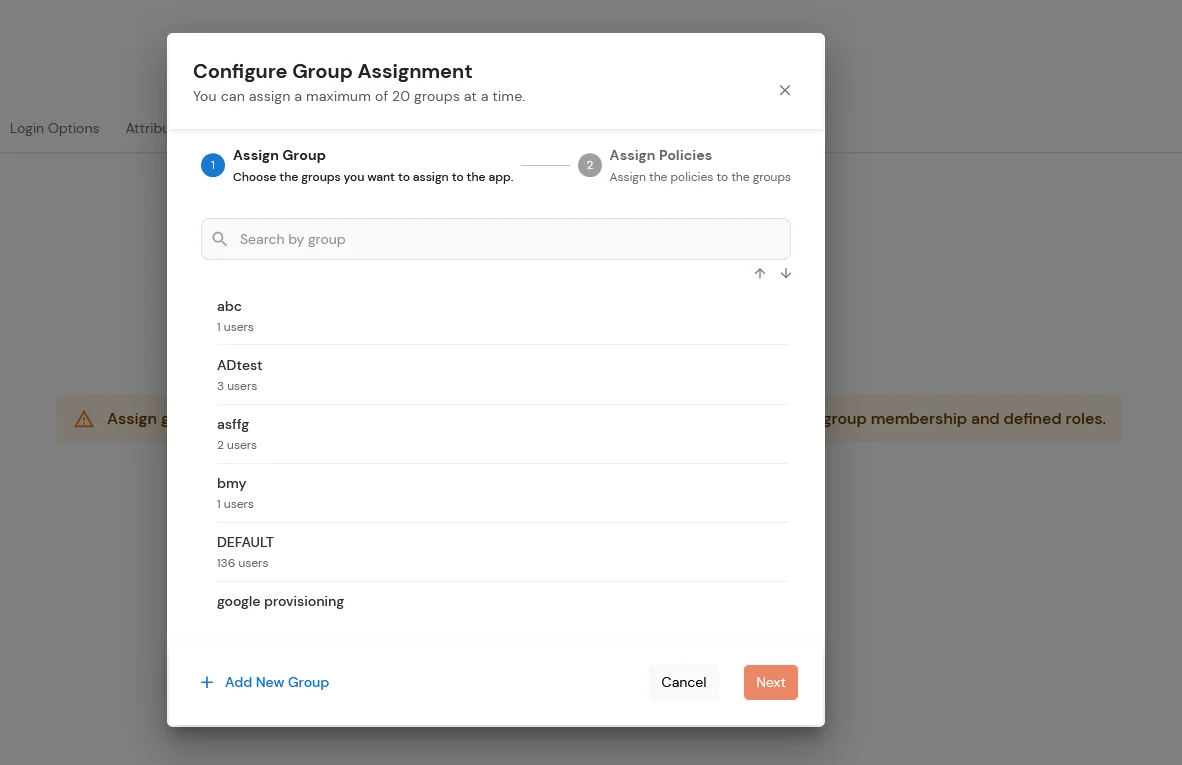
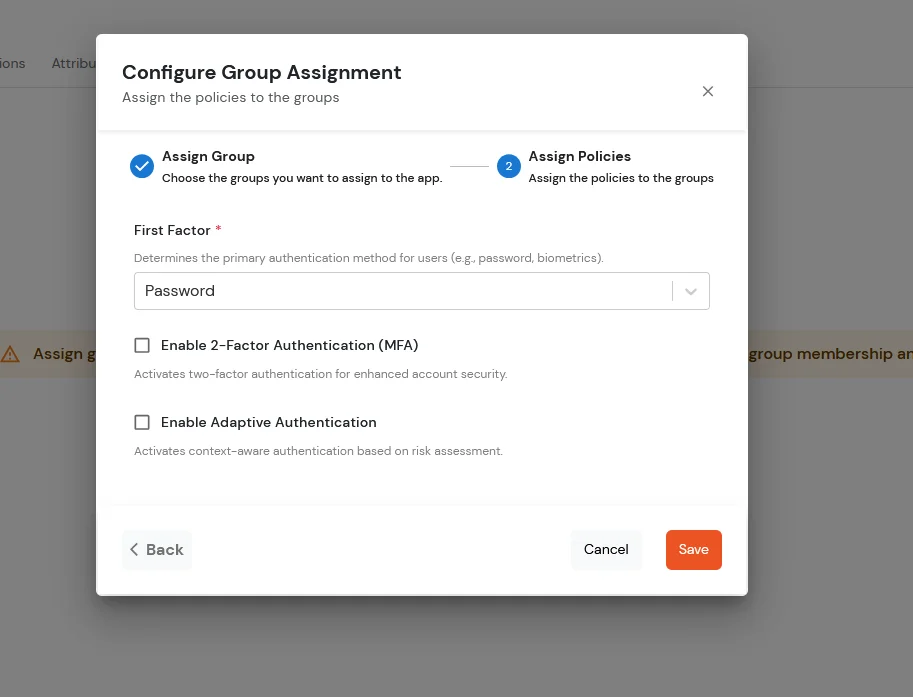
To synchronize address, custom attributes, and form fields from the Identity Provider (IDP) to BigCommerce, the following details must be configured:
Address Fields
To successfully sync customer address information, the following attributes are required:
In the below diagram, we are using miniOrange as the IDP.
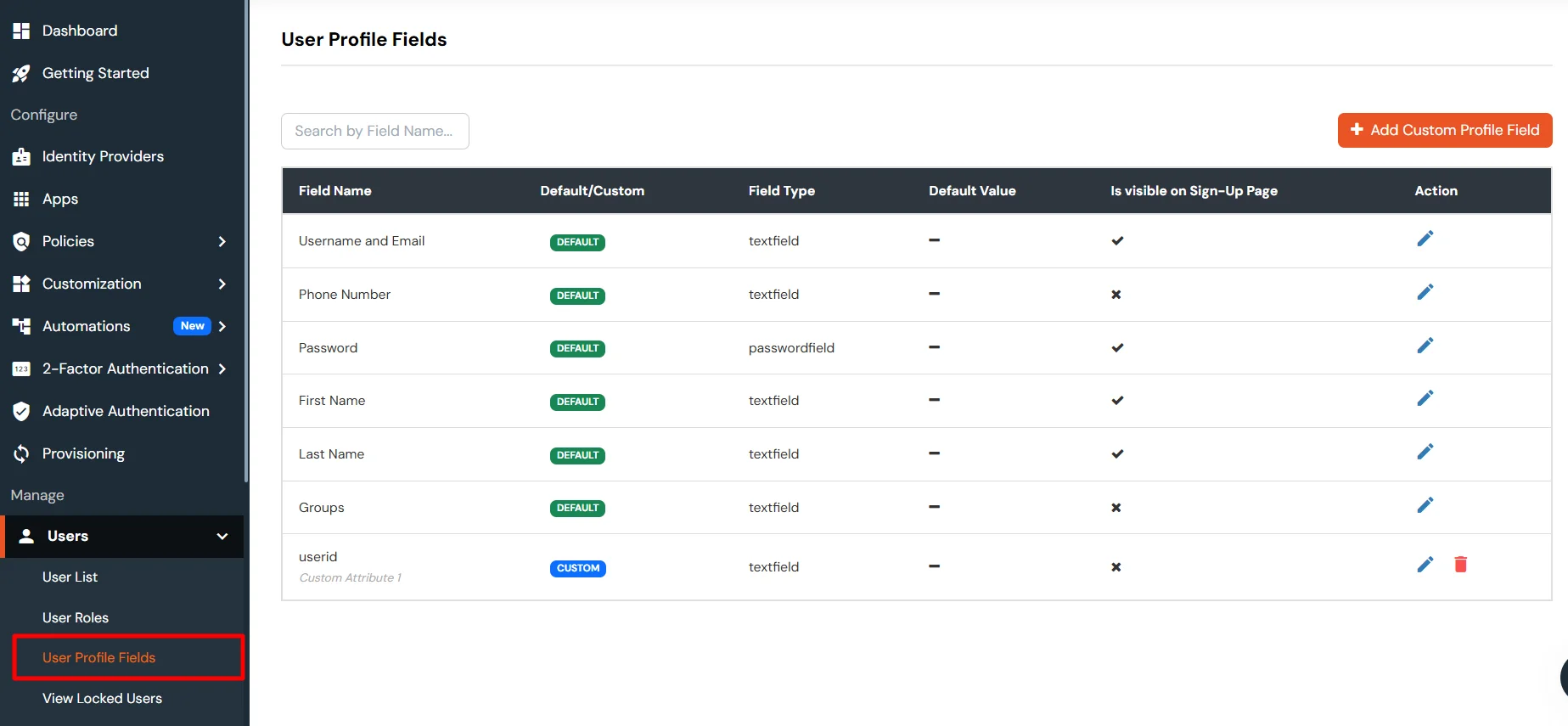
| Attribute Name | Attribute Type | Value |
|---|---|---|
| addresses.first_name | First Name | - |
| addresses.last_name | Last Name | - |
| addresses.address1 | Custom Profile Attribute | address1 |
| addresses.city | Custom Profile Attribute | city |
| addresses.state_or_province | Custom Profile Attribute | state/province |
| addresses.country_code | Custom Profile Attribute | country |
| addresses.postal_code | Custom Profile Attribute | postal_code |
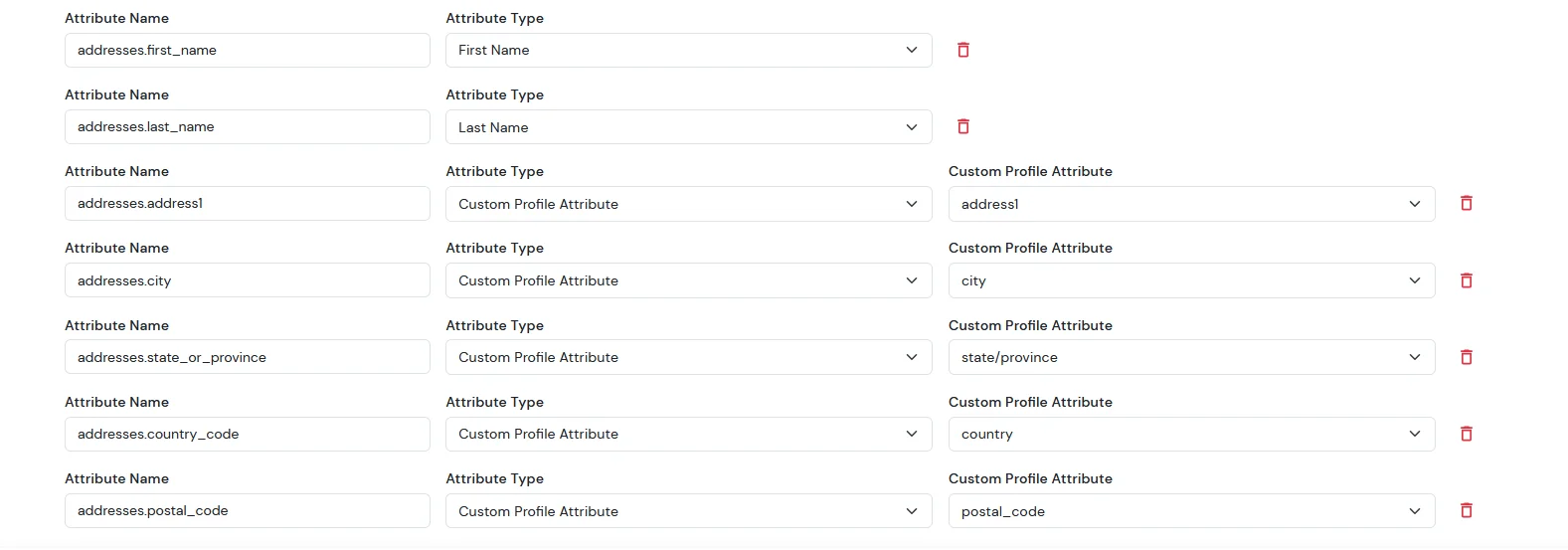
Note: When sending the country value, always use the country code (e.g., US, IN). If you pass the full country name such as “United States”, the value will not be updated — only country codes are supported for correct mapping.
While syncing address fields, ensure that the city, state, and country values you provide are valid options supported by BigCommerce and exist in their respective dropdown lists.
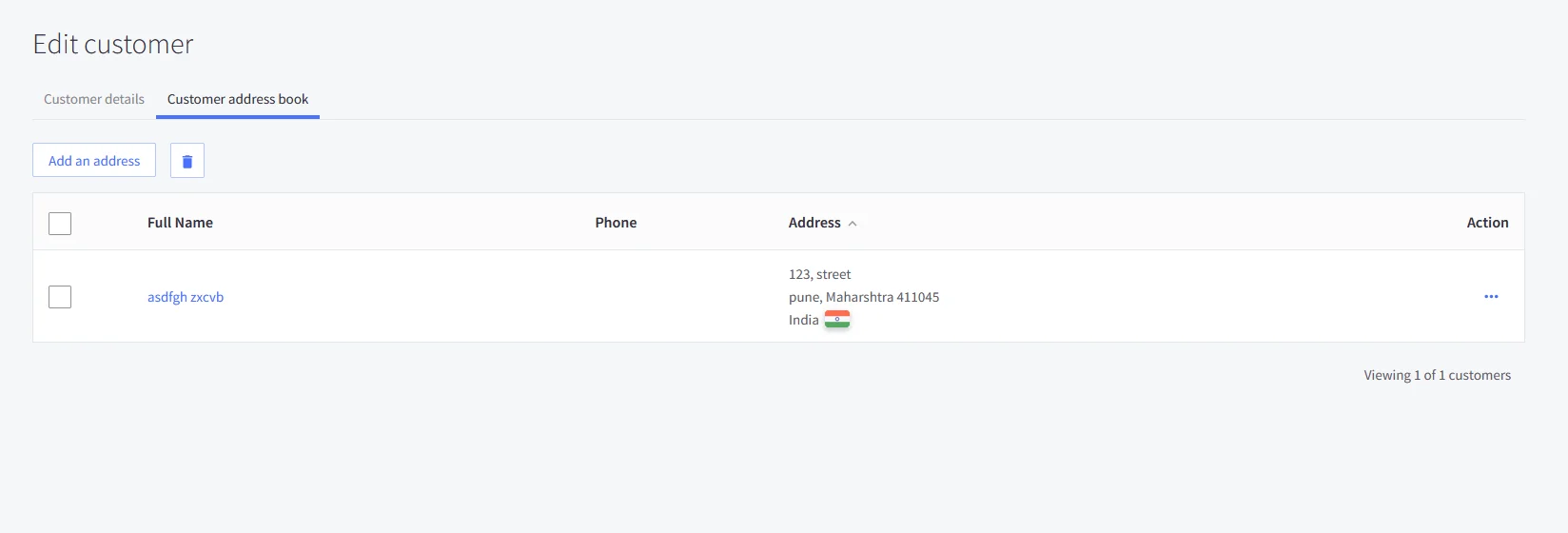
For the Sign up form fields:
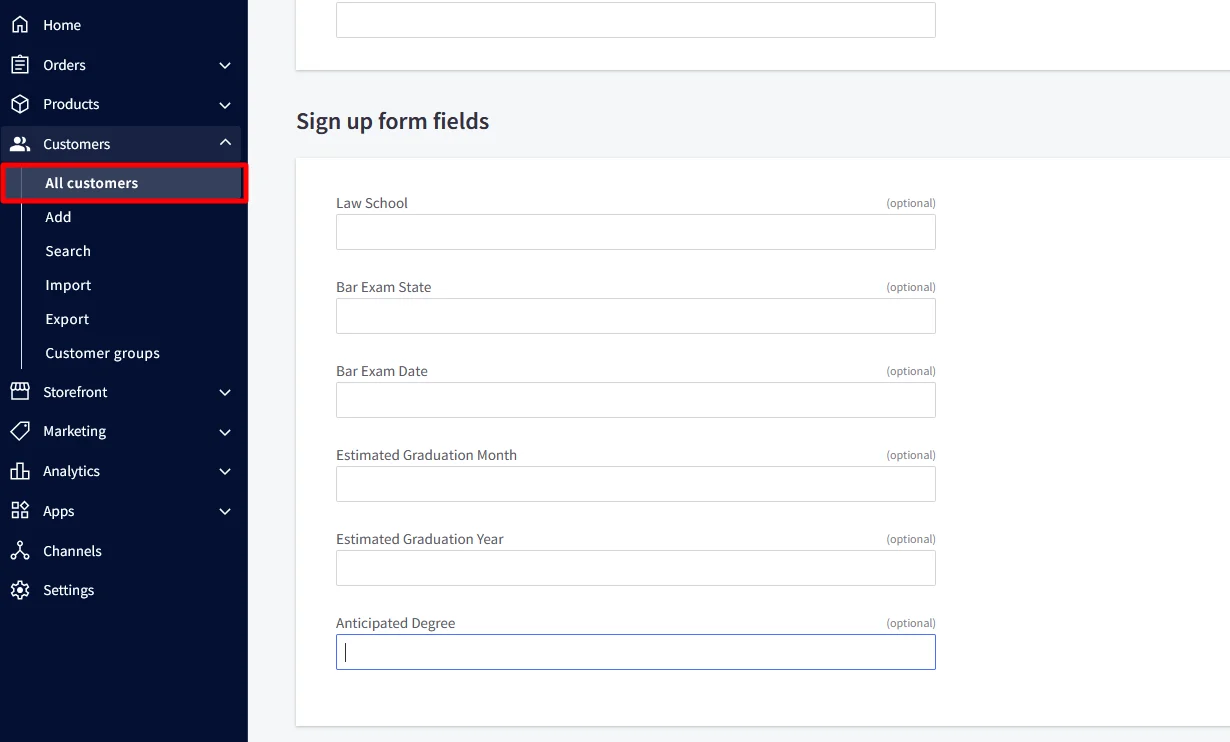
| Attribute Name | Attribute Type | Value |
|---|---|---|
| addresses.first_name | First Name | - |
| addresses.last_name | Last Name | - |
| addresses.address1 | Custom Profile Attribute | address1 |
| addresses.city | Custom Profile Attribute | city |
| addresses.state_or_province | Custom Profile Attribute | state/province |
| addresses.country_code | Custom Profile Attribute | country |
| addresses.postal_code | Custom Profile Attribute | postal_code |
| form_fields.name.0 | Custom Attribute Value | Law School |
| form_fields.value.0 | Custom Attribute Value | XYZ |
| form_fields.name.1 | Custom Attribute Value | Bar Exam State |
| form_fields.value.1 | Custom Attribute Value | Arizona |
| form_fields.name.2 | Custom Attribute Value | Bar Exam Date |
| form_fields.value.2 | Custom Attribute Value | 31-12-2025 |
| form_fields.name.3 | Custom Attribute Value | Estimated Graduation Month |
| form_fields.value.3 | Custom Attribute Value | January |
| form_fields.name.4 | Custom Attribute Value | Estimated Graduation Year |
| form_fields.value.4 | Custom Attribute Value | 2025 |
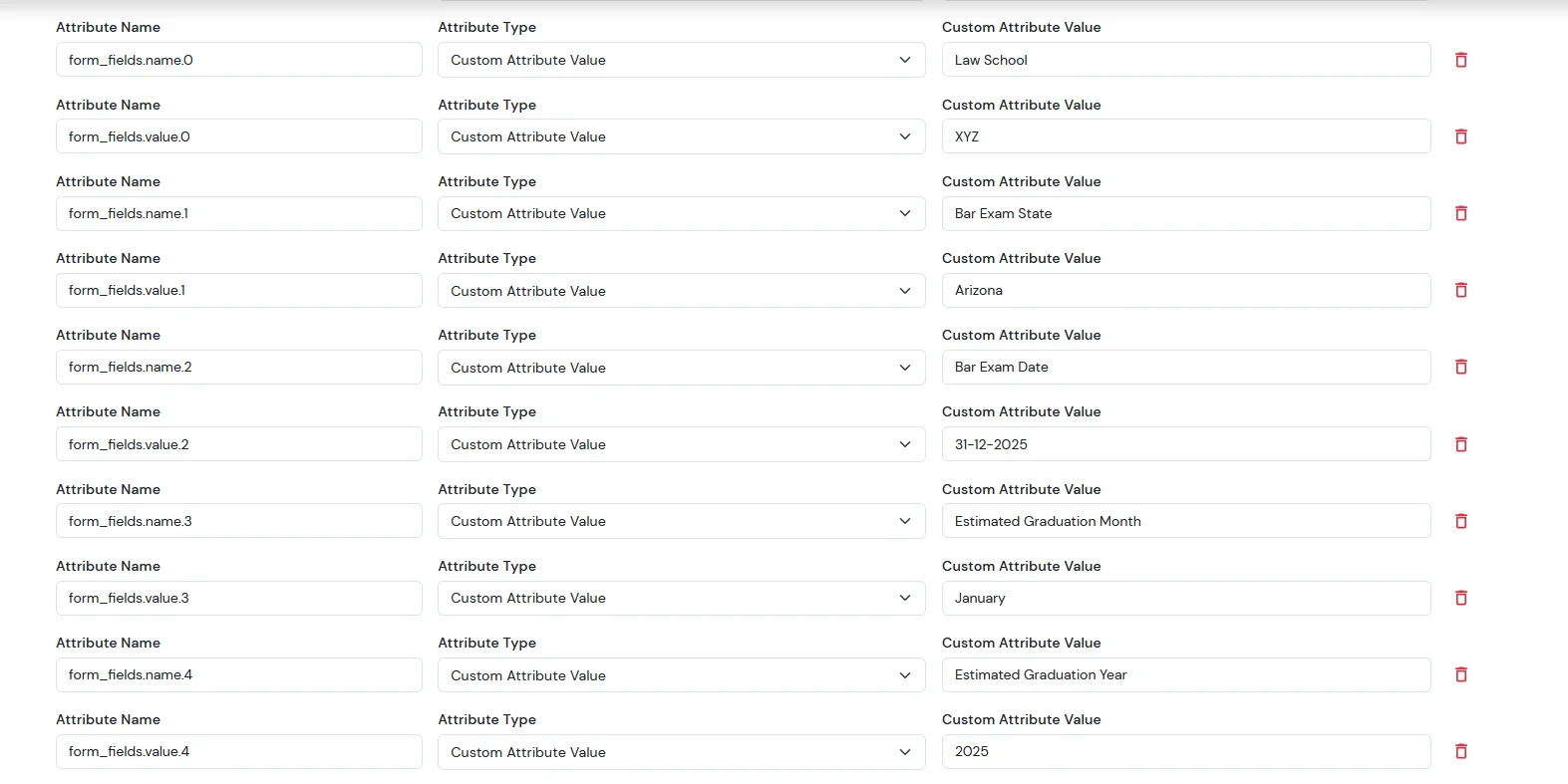
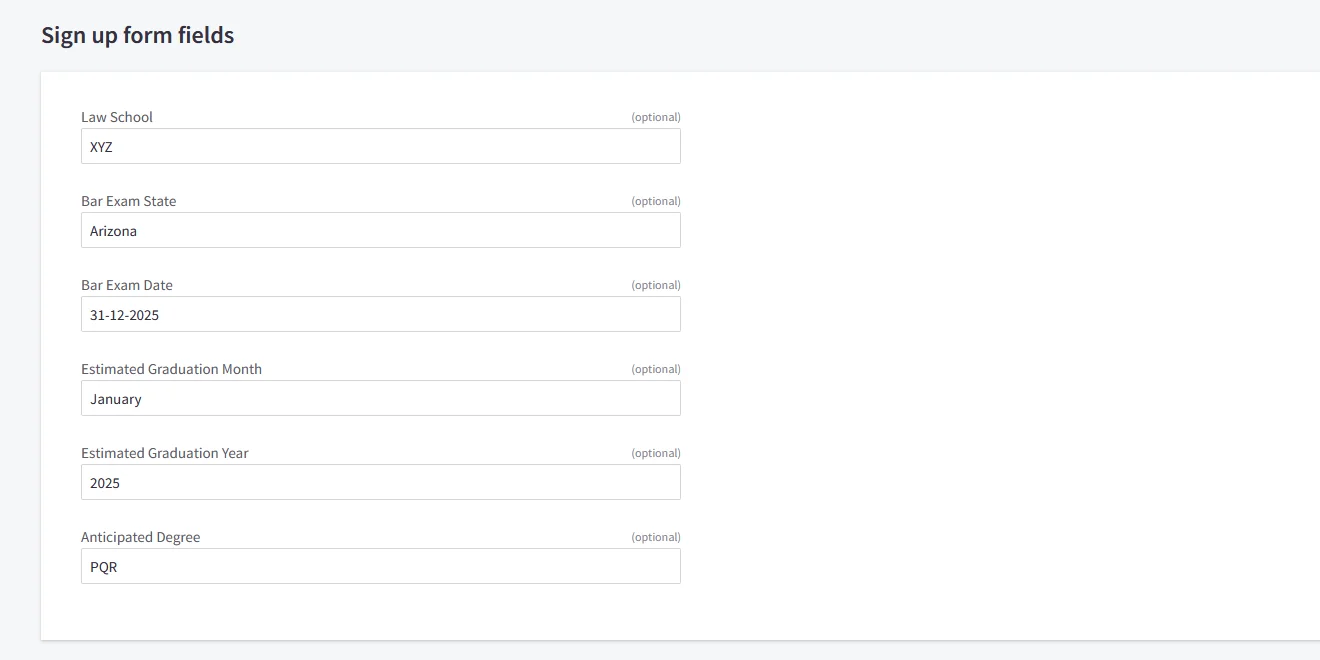
For the Attribute Fields
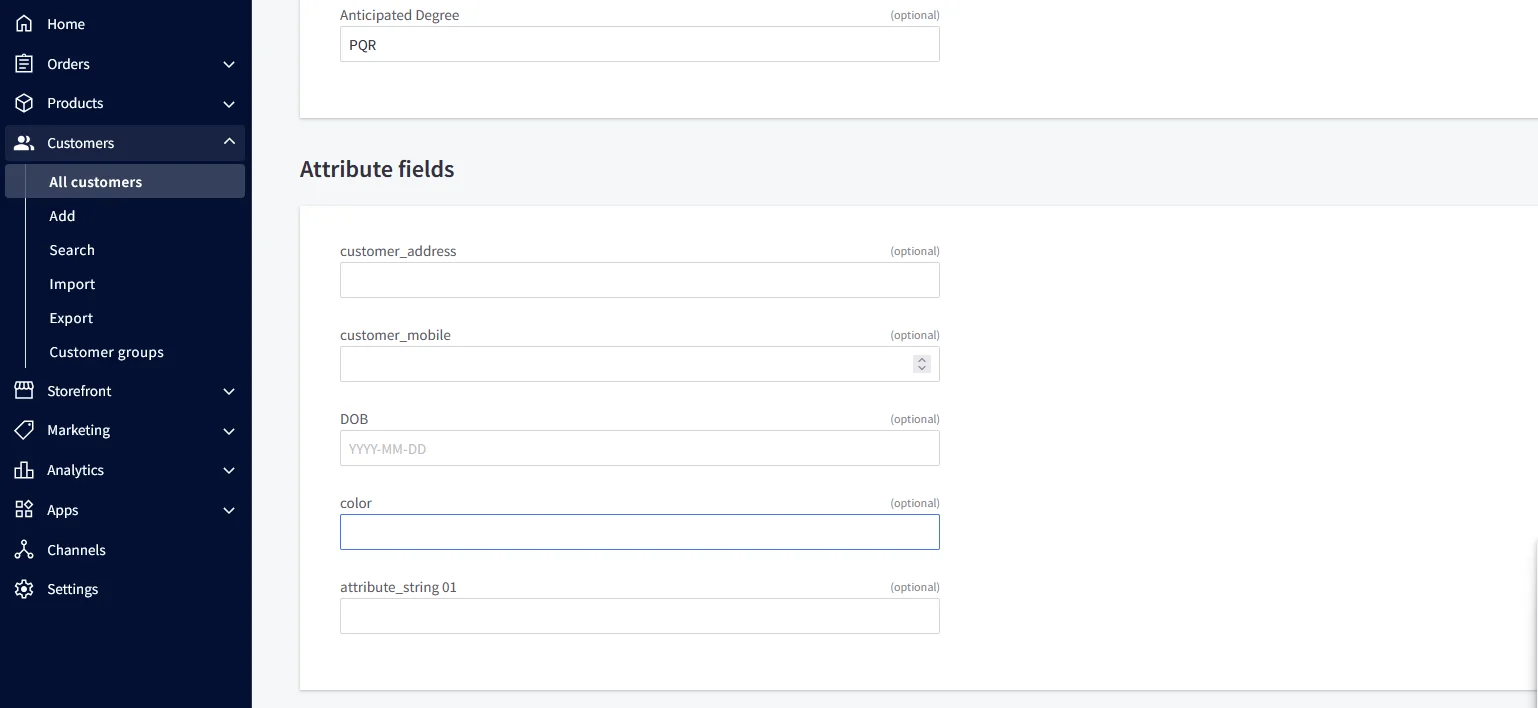
| Attribute Name | Attribute Type | Value |
|---|---|---|
| color | Custom Profile Attribute | blue |
| customer_address | Custom Profile Attribute | MG road |
| customer_mobile | Custom Profile Attribute | +911234567890 |
| DOB | Custom Profile Attribute | 2002-01-01 |
| attribute_string 01 | Custom Profile Attribute | testing |
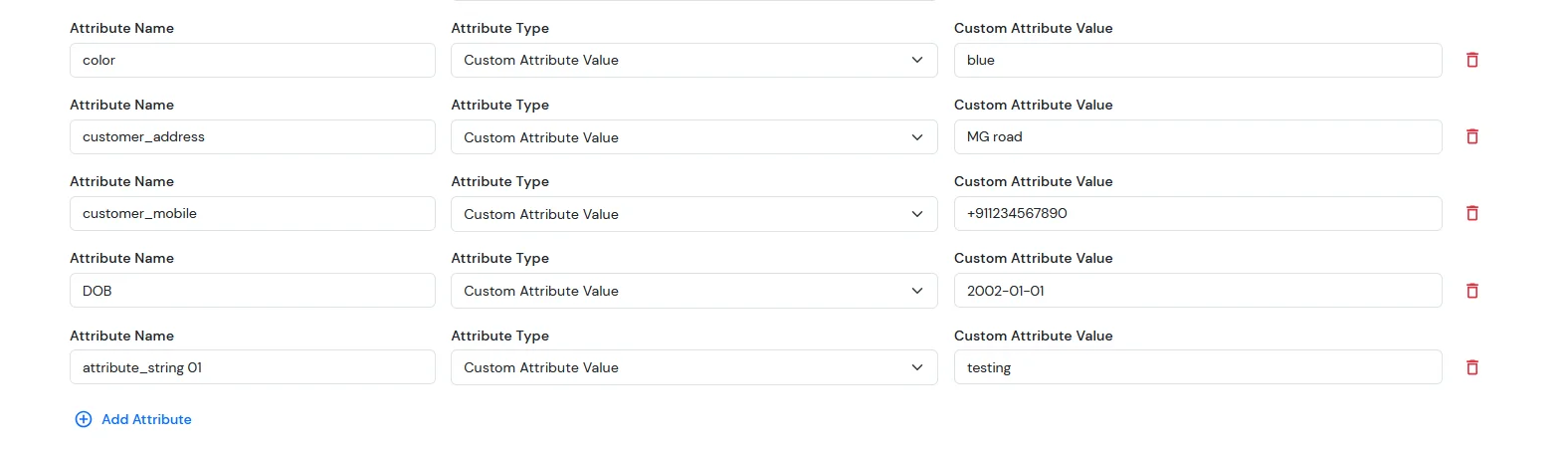
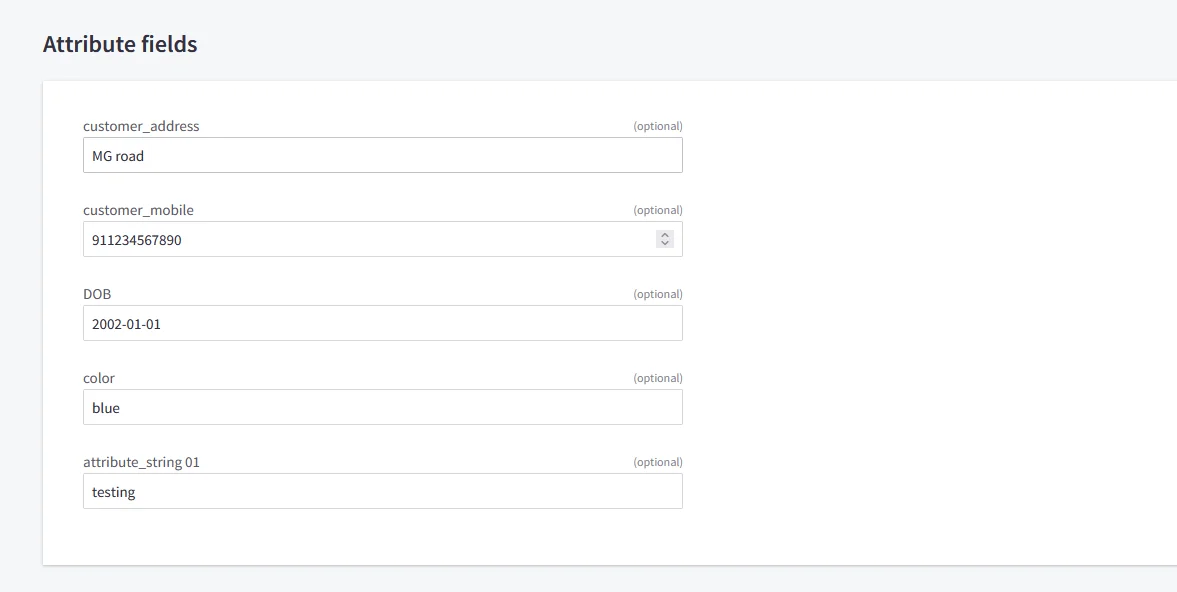
NOTE: Update customer profile during sso
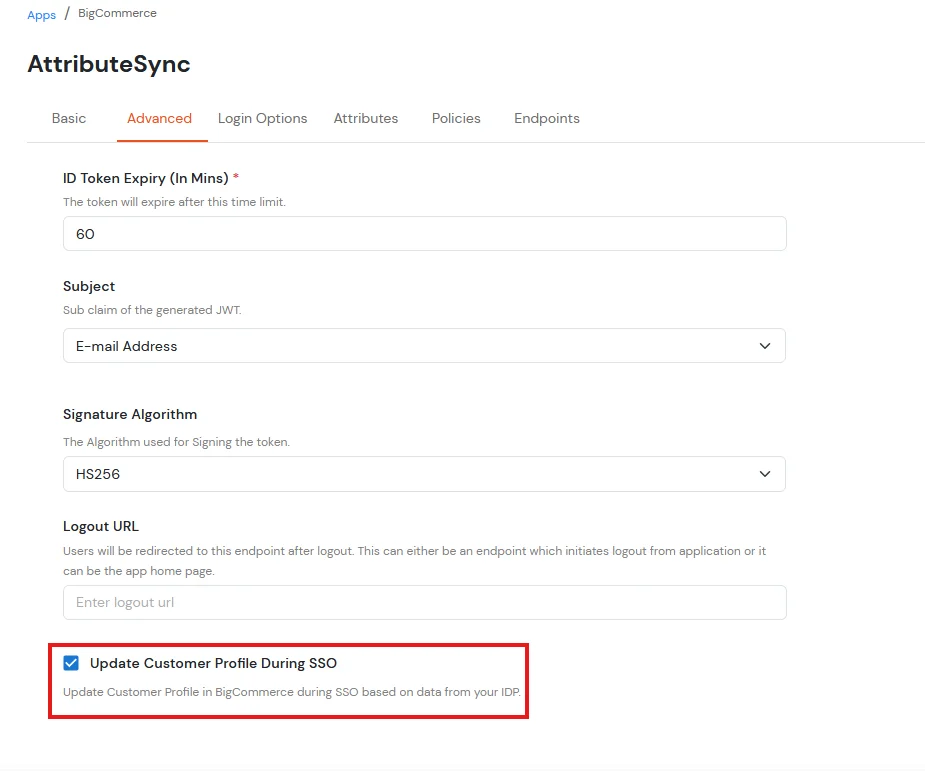
For ExternaI Identity Provider
| Attribute Name | Attribute Type | Value |
|---|---|---|
| addresses.first_name | External Idp Attribute | first_name |
| addresses.last_name | External Idp Attribute | last_name |
| addresses.address1 | External Idp Attribute | street1 |
| addresses.city | External Idp Attribute | city |
| addresses.state_or_province | External Idp Attribute | state |
| addresses.country_code | External Idp Attribute | country |
| addresses.postal_code | External Idp Attribute | zipcode |
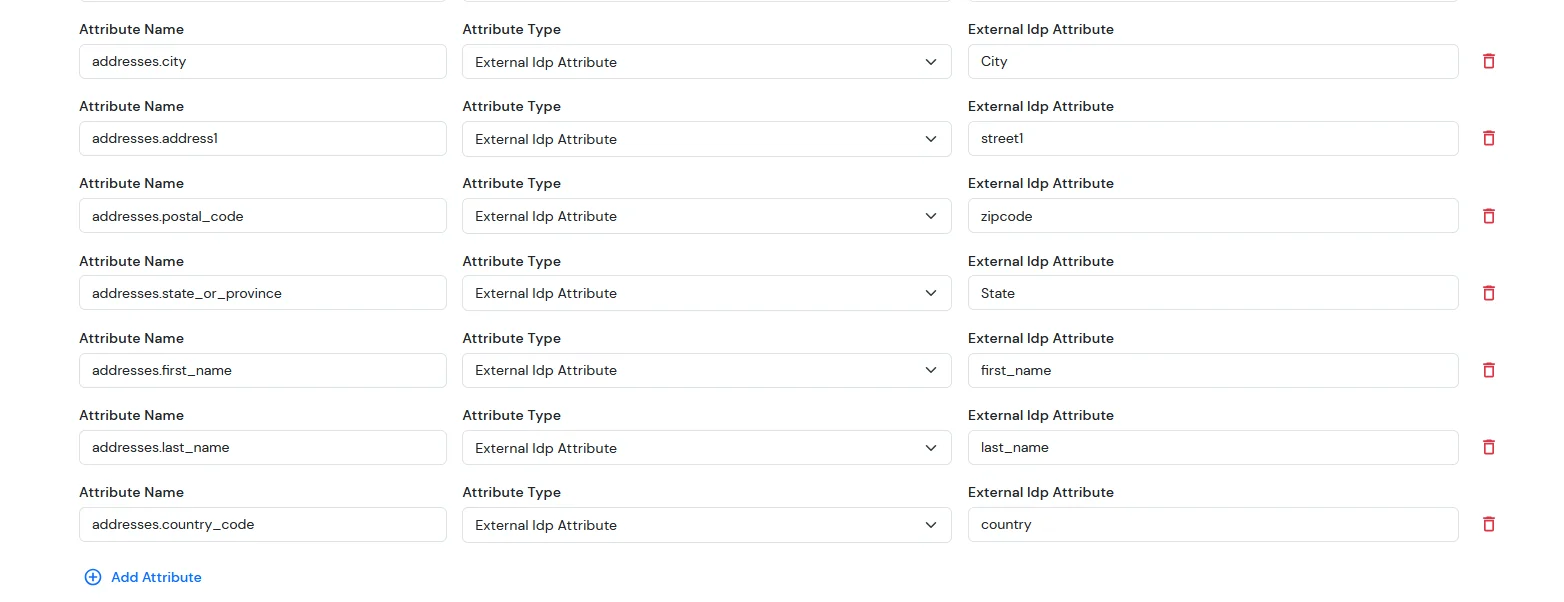
Note: When sending the country value, always use the country code (e.g., US, IN). If you pass the full country name such as “United States”, the value will not be updated — only country codes are supported for correct mapping.
While syncing address fields, ensure that the city, state, and country values you provide are valid options supported by BigCommerce and exist in their respective dropdown lists.
For the Sign up form fields:
| Attribute Name | Attribute Type | Value |
|---|---|---|
| form_fields.name.0 | Custom Attribute Value | Law School |
| form_fields.value.0 | External Idp Attribute | law_school |
| form_fields.name.1 | Custom Attribute Value | Bar Exam State |
| form_fields.value.1 | External Idp Attribute | bar_exam_state |
| form_fields.name.2 | Custom Attribute Value | Bar Exam Date |
| form_fields.value.2 | External Idp Attribute | bar_exam_date |
| form_fields.name.3 | Custom Attribute Value | Estimated Graduation Month |
| form_fields.value.3 | External Idp Attribute | month |
| form_fields.name.4 | Custom Attribute Value | Estimated Graduation Year |
| form_fields.value.4 | External Idp Attribute | year |
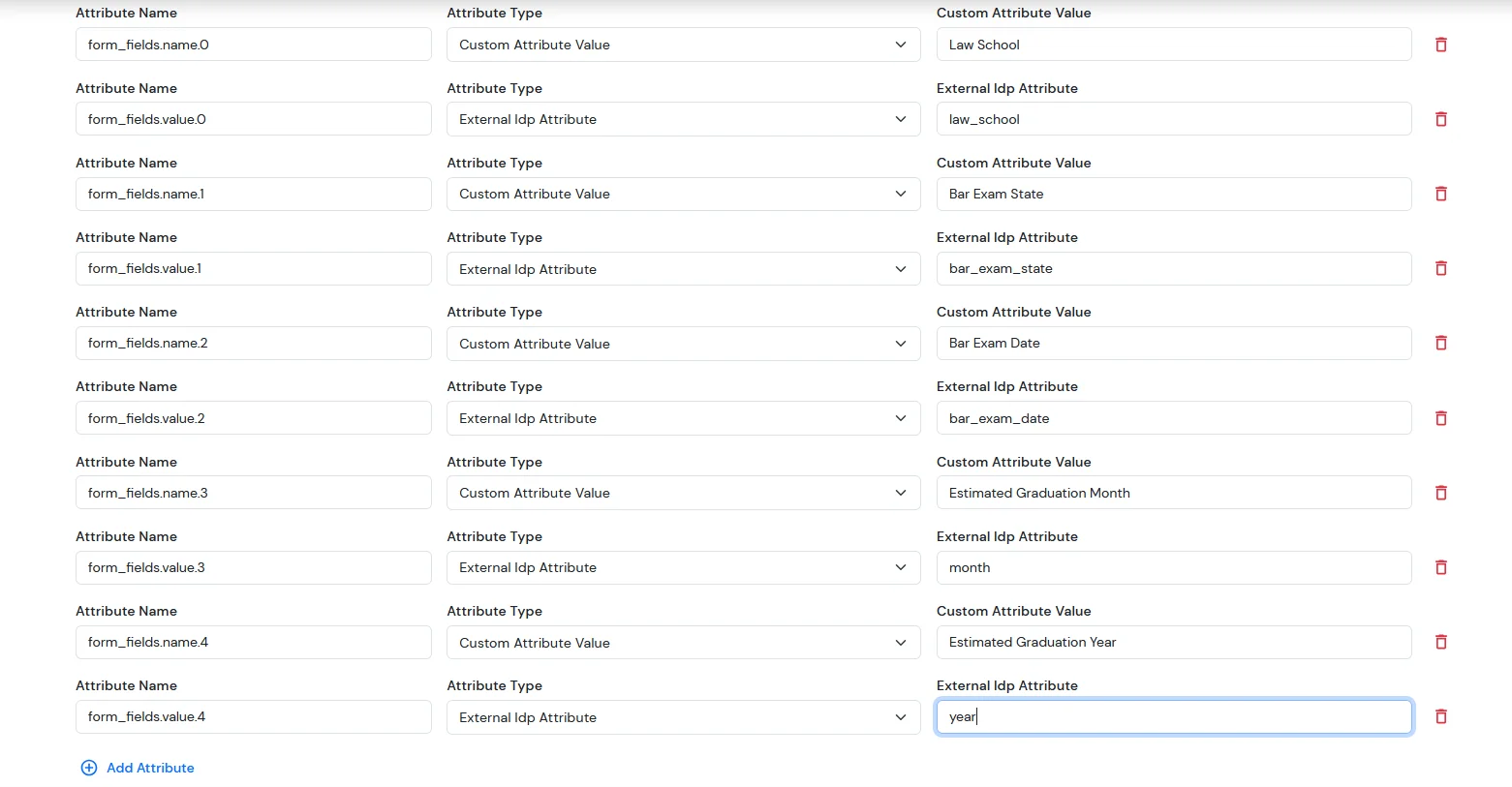
For Custom Attribute Fields
| Attribute Name | Attribute Type | Value |
|---|---|---|
| color | External Idp Attribute | color |
| customer_address | External Idp Attribute | address |
| customer_mobile | External Idp Attribute | mobile_number |
| DOB | External Idp Attribute | birth_date |
| attribute_string 01 | External Idp Attribute | string |
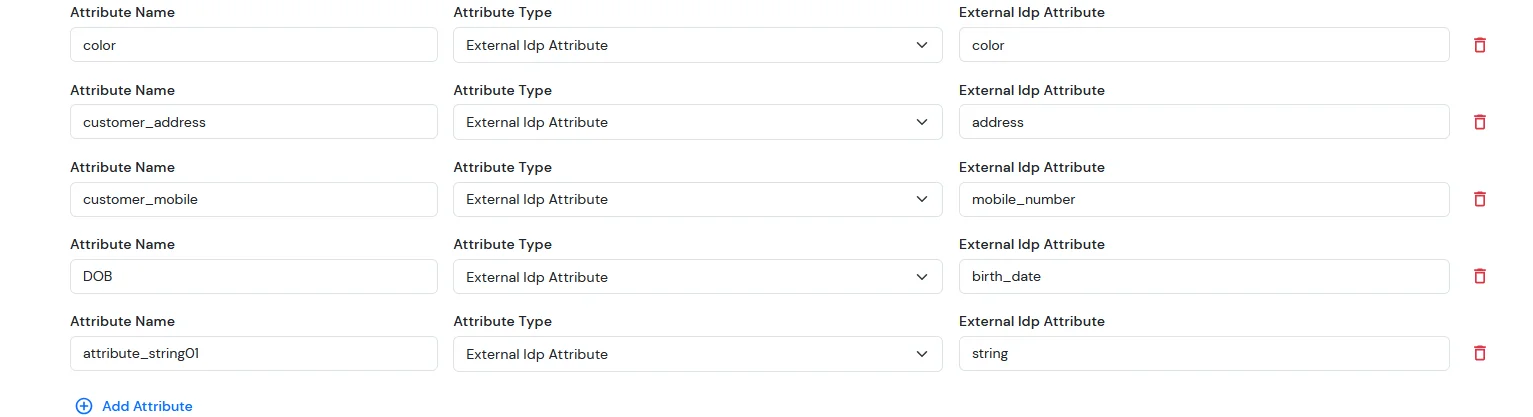
NOTE: Update customer profile during sso
4.a. Configuring miniOrange as Service Provider (SP) in Microsoft Entra ID
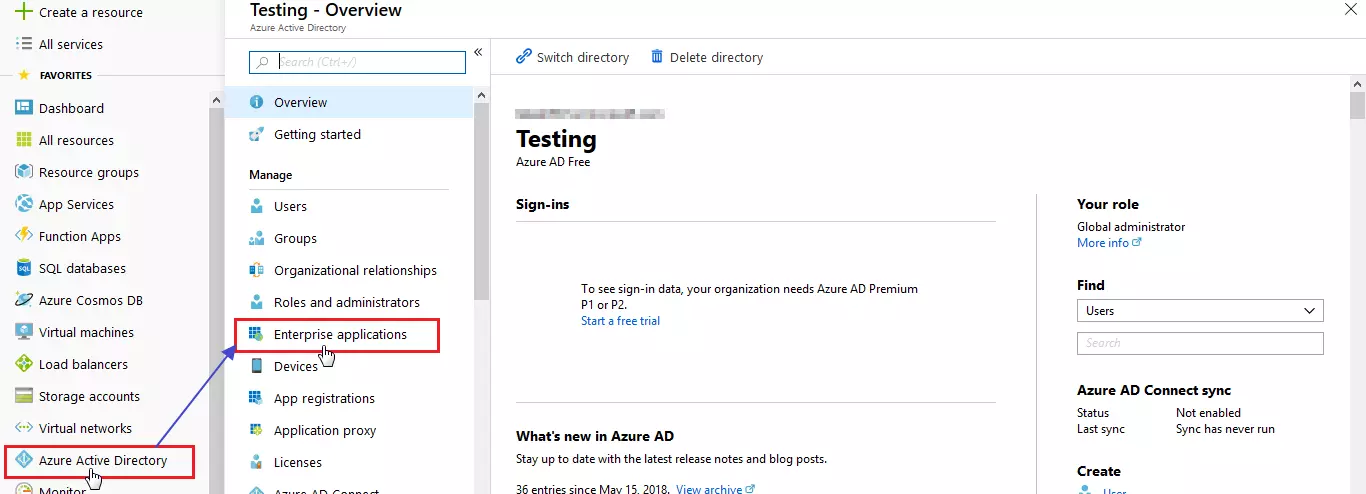
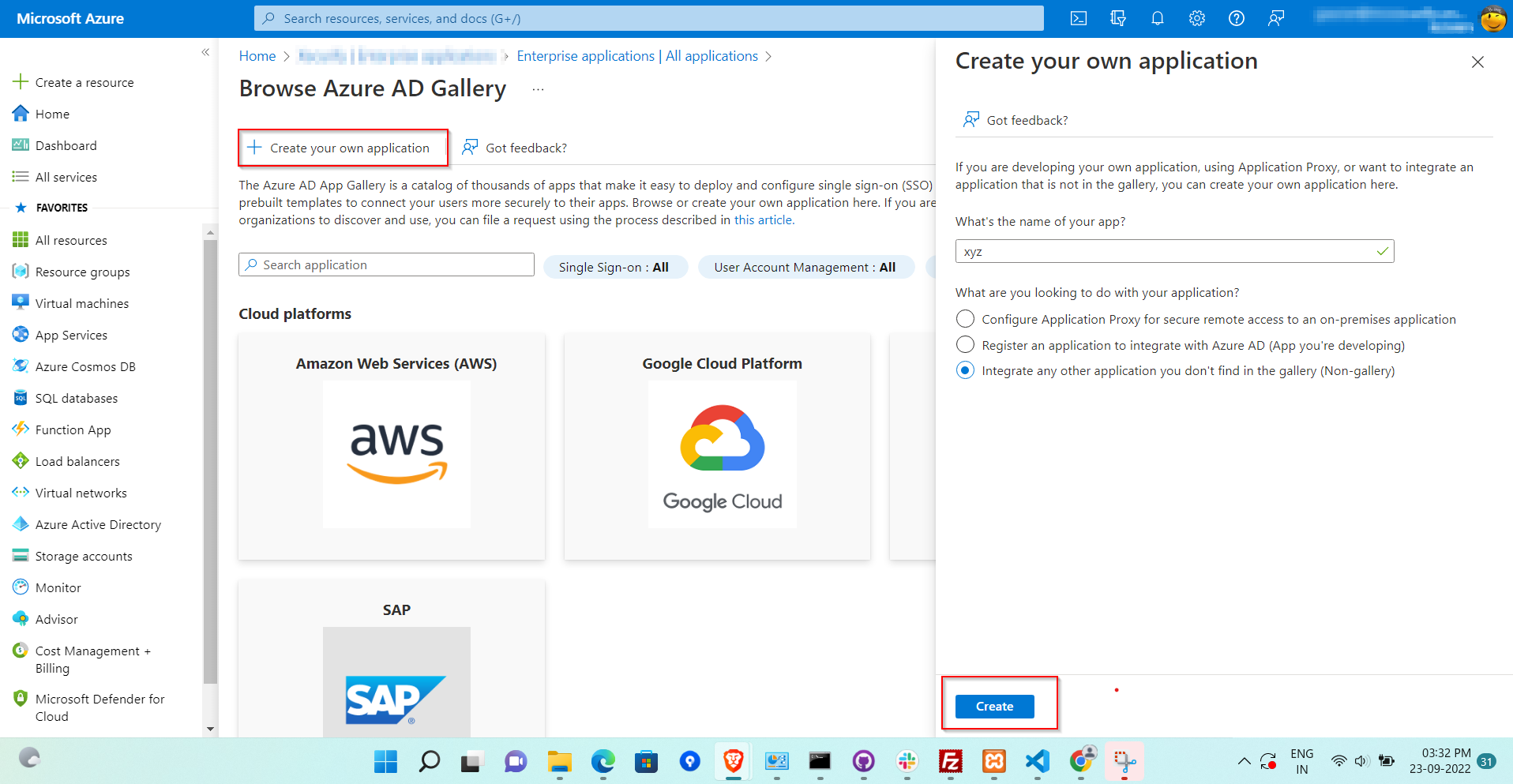
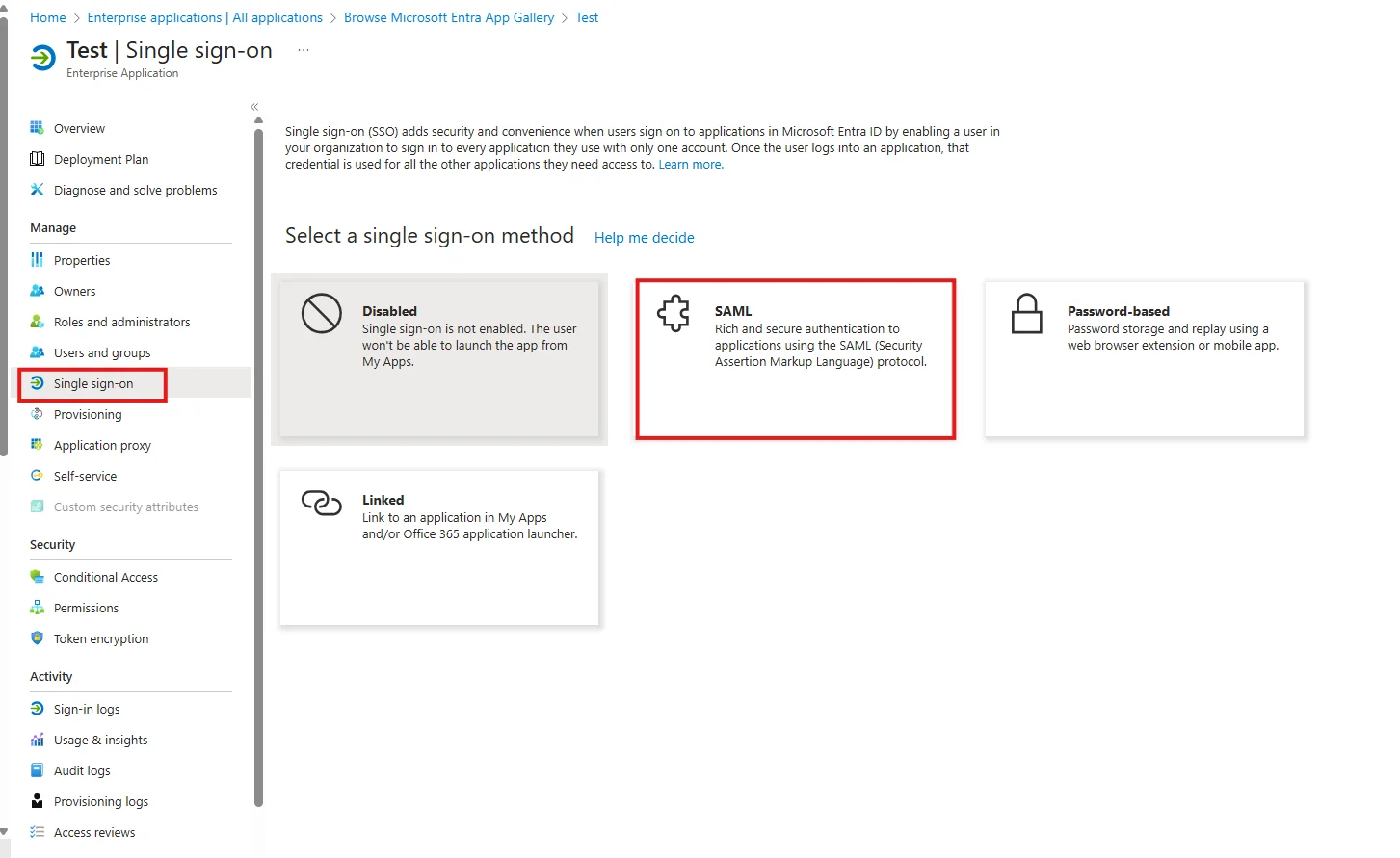
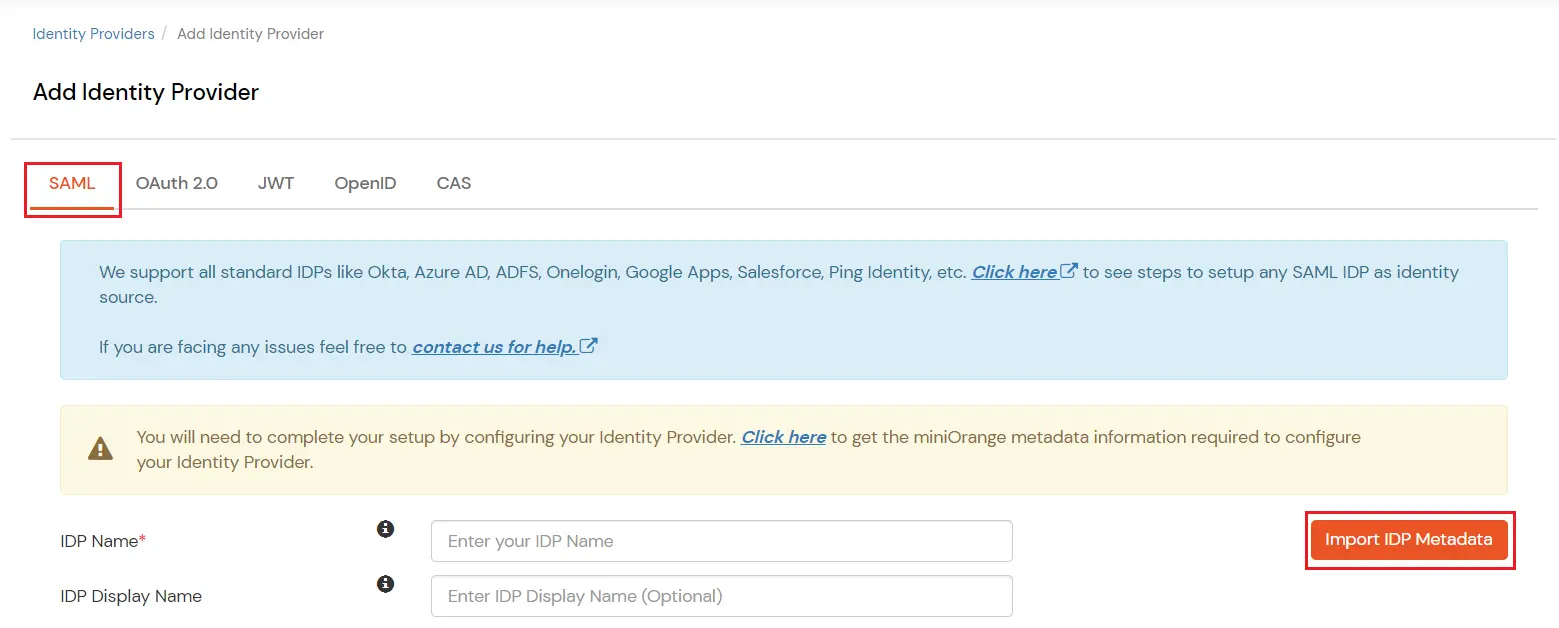
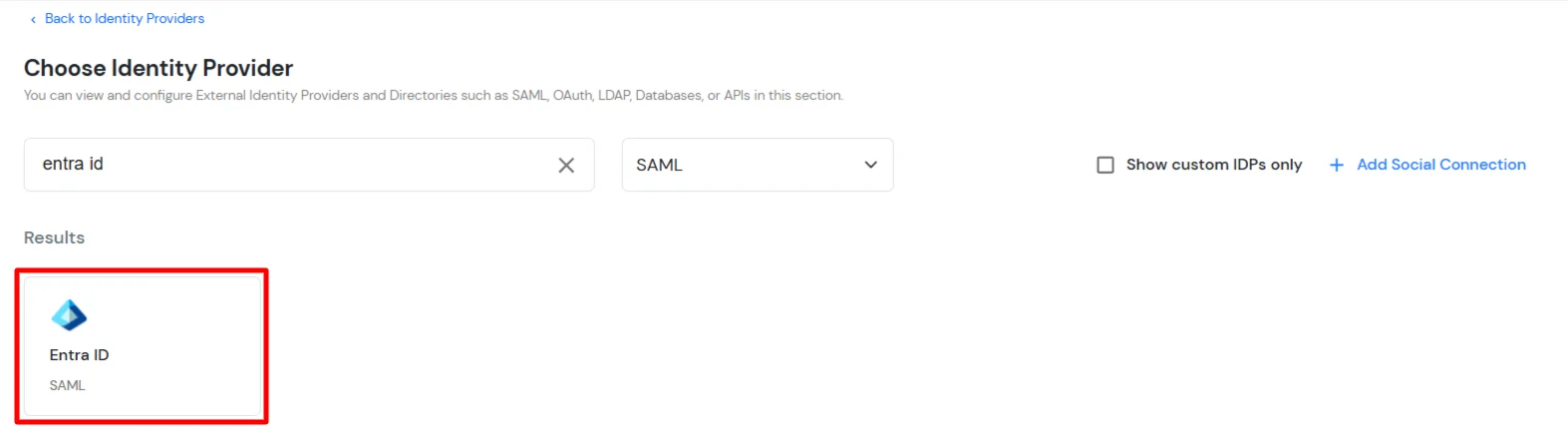
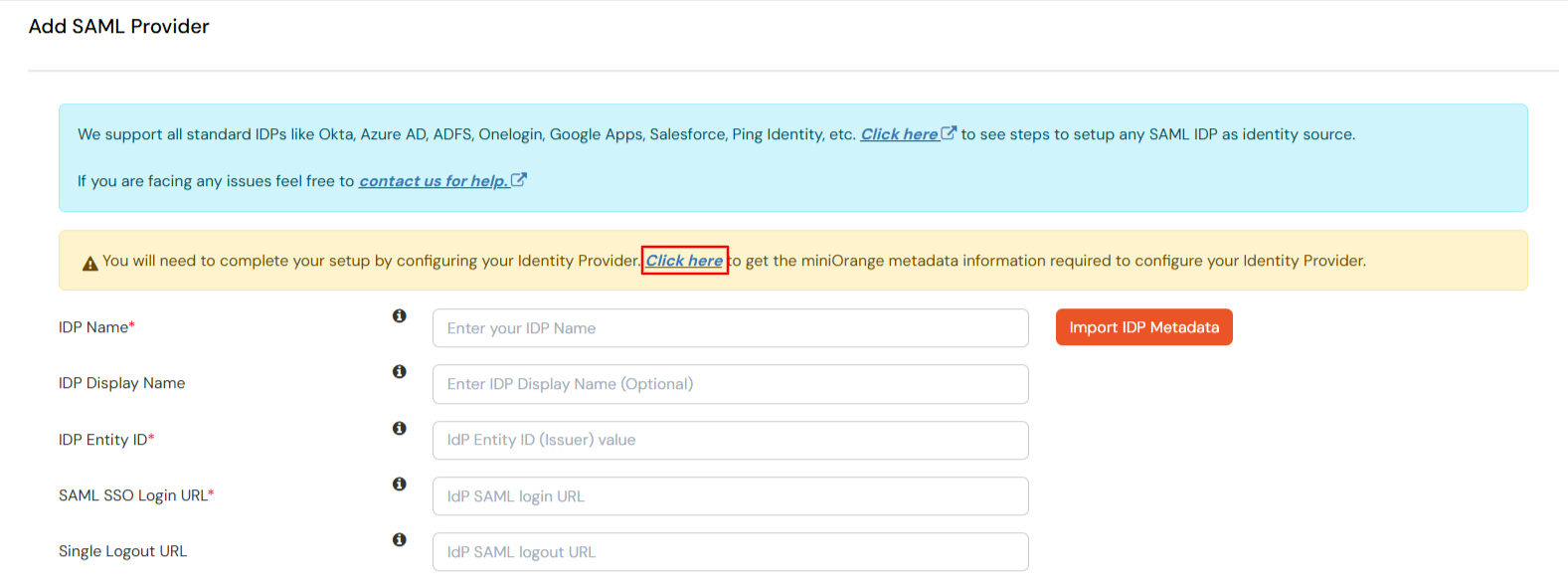
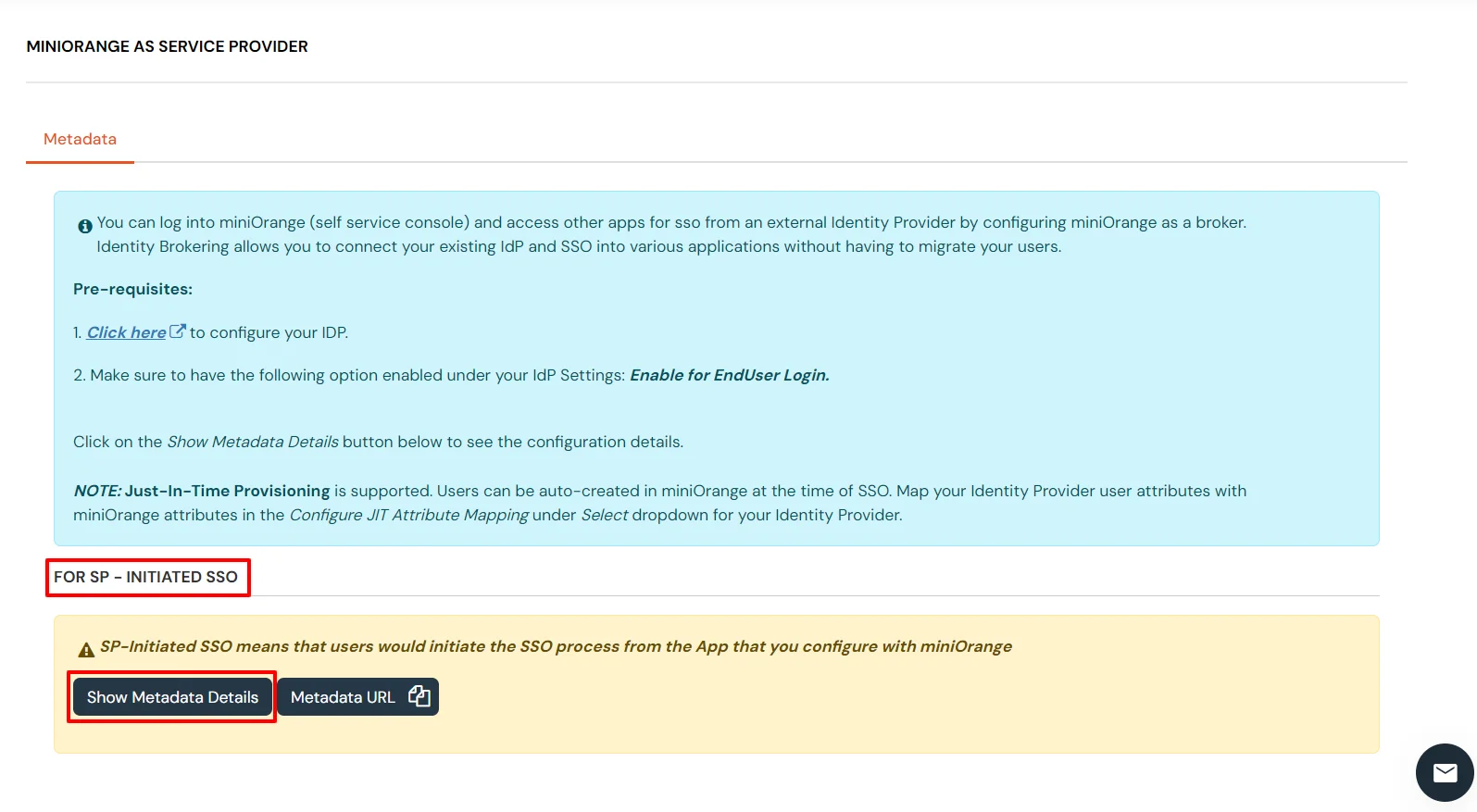
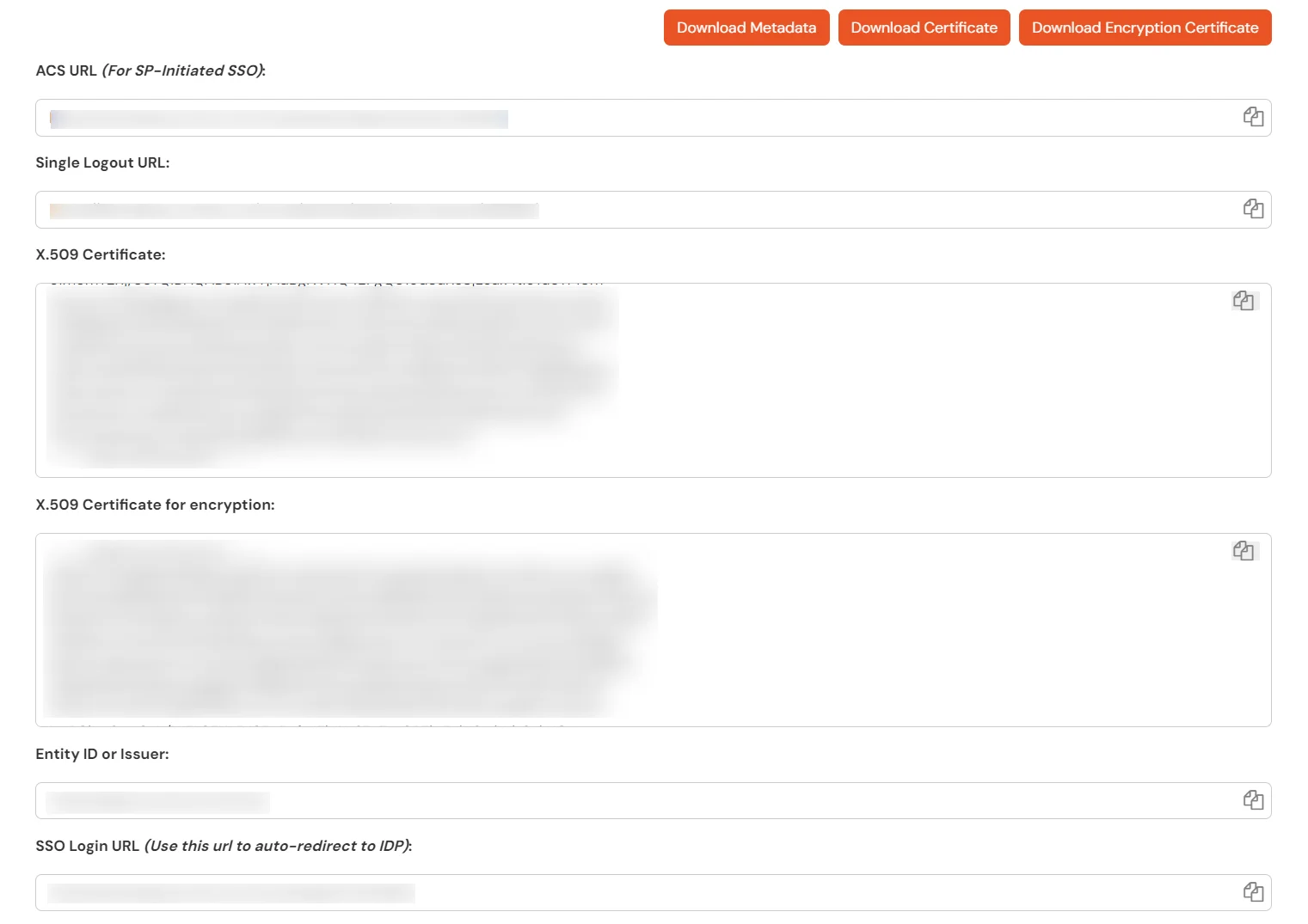
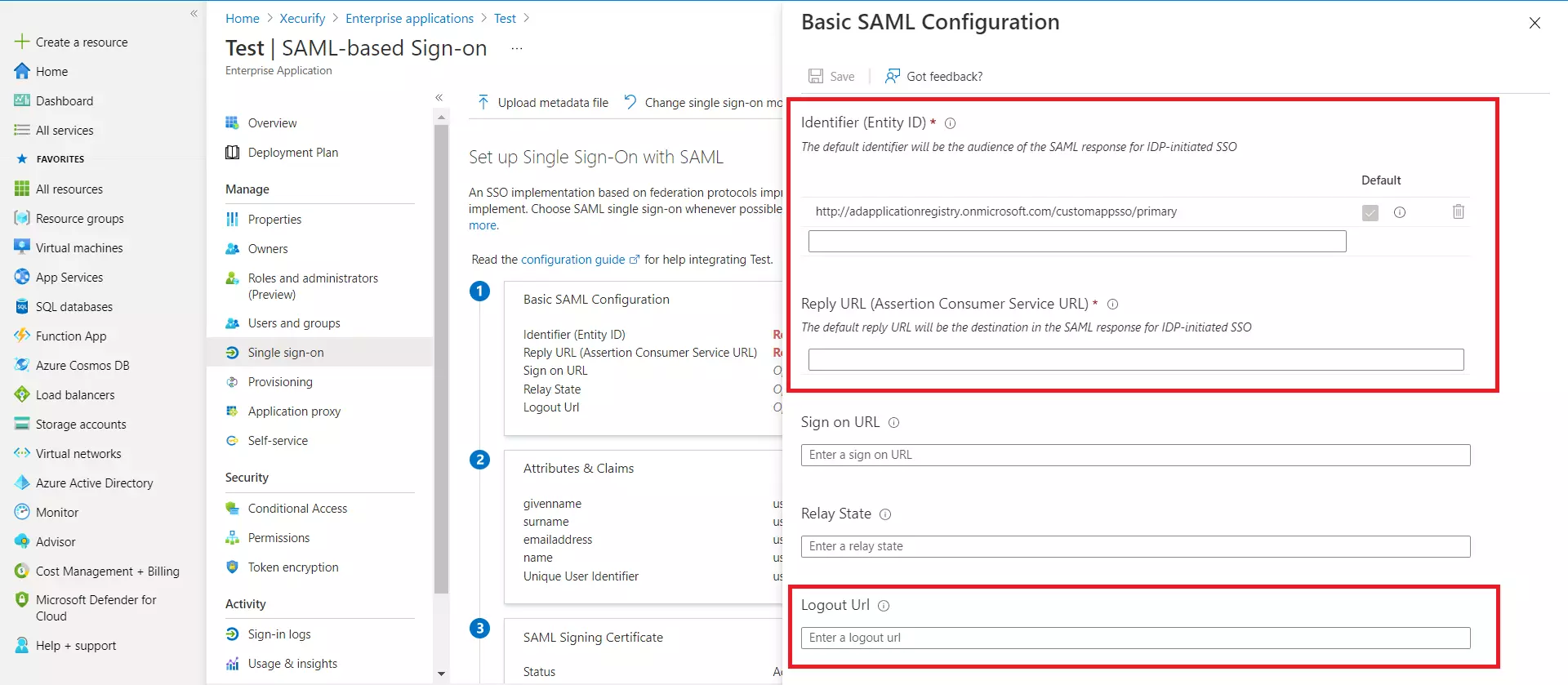
| Identifier (Entity ID) | Entity ID or Issuer copied from the miniOrange metadata section mentioned in the previous step. |
| Reply URL (Assertion Consumer Service URL) | ACS URL copied from the miniOrange metadata section mentioned in the previous step. |
| Logout URL | Single Logout URL copied from the miniOrange metadata section mentioned in the previous step. |
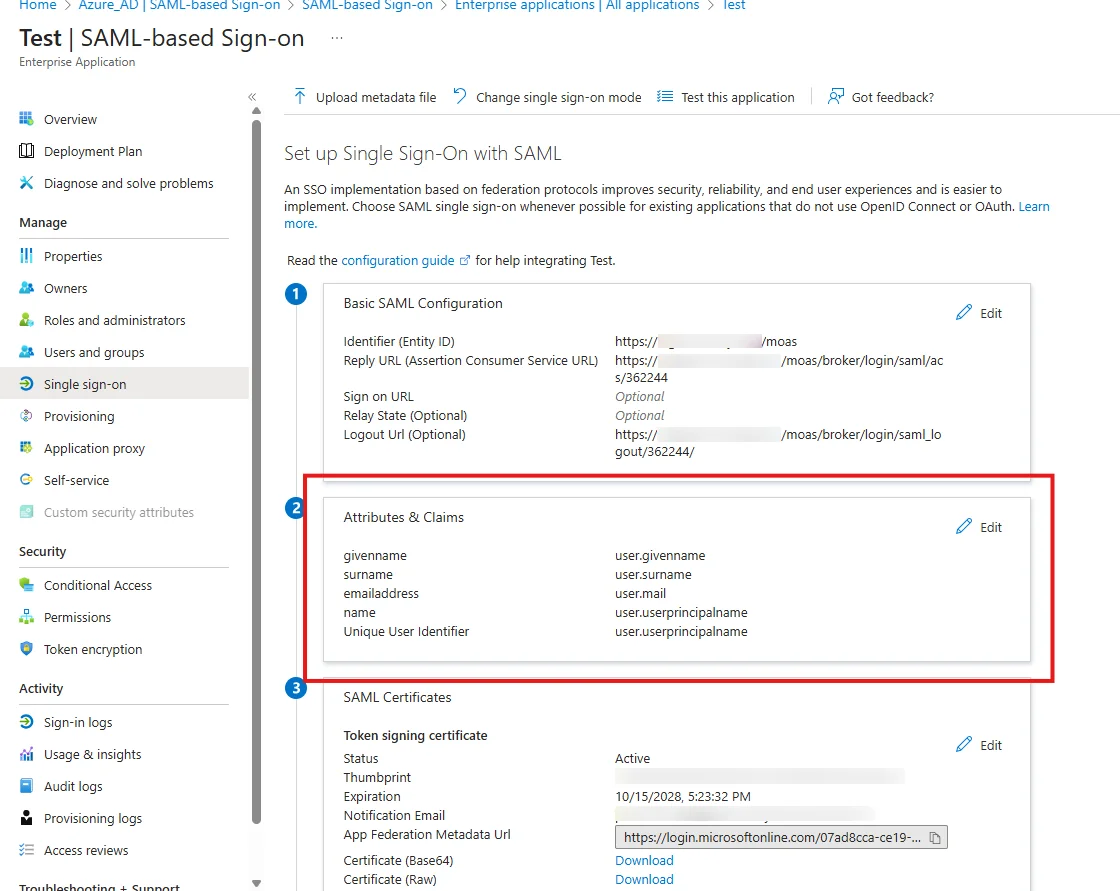
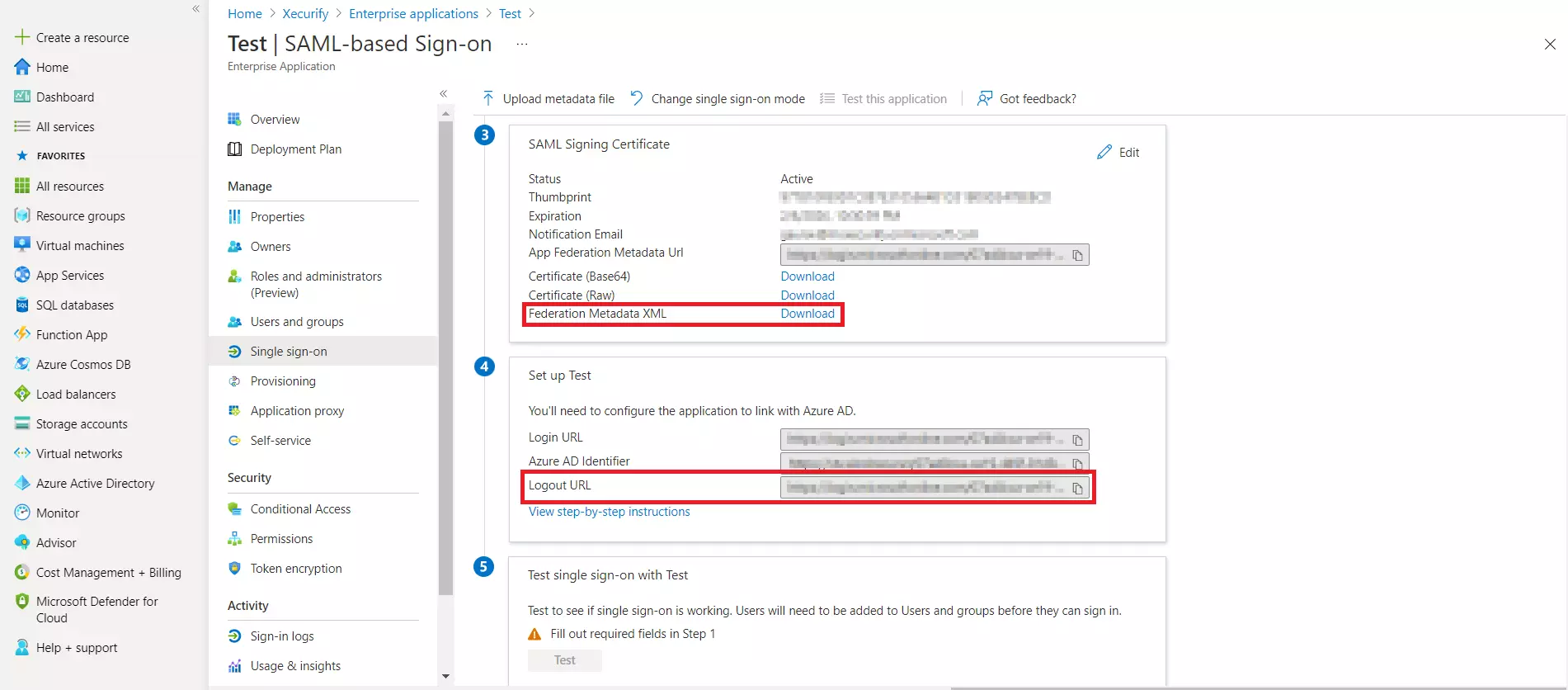
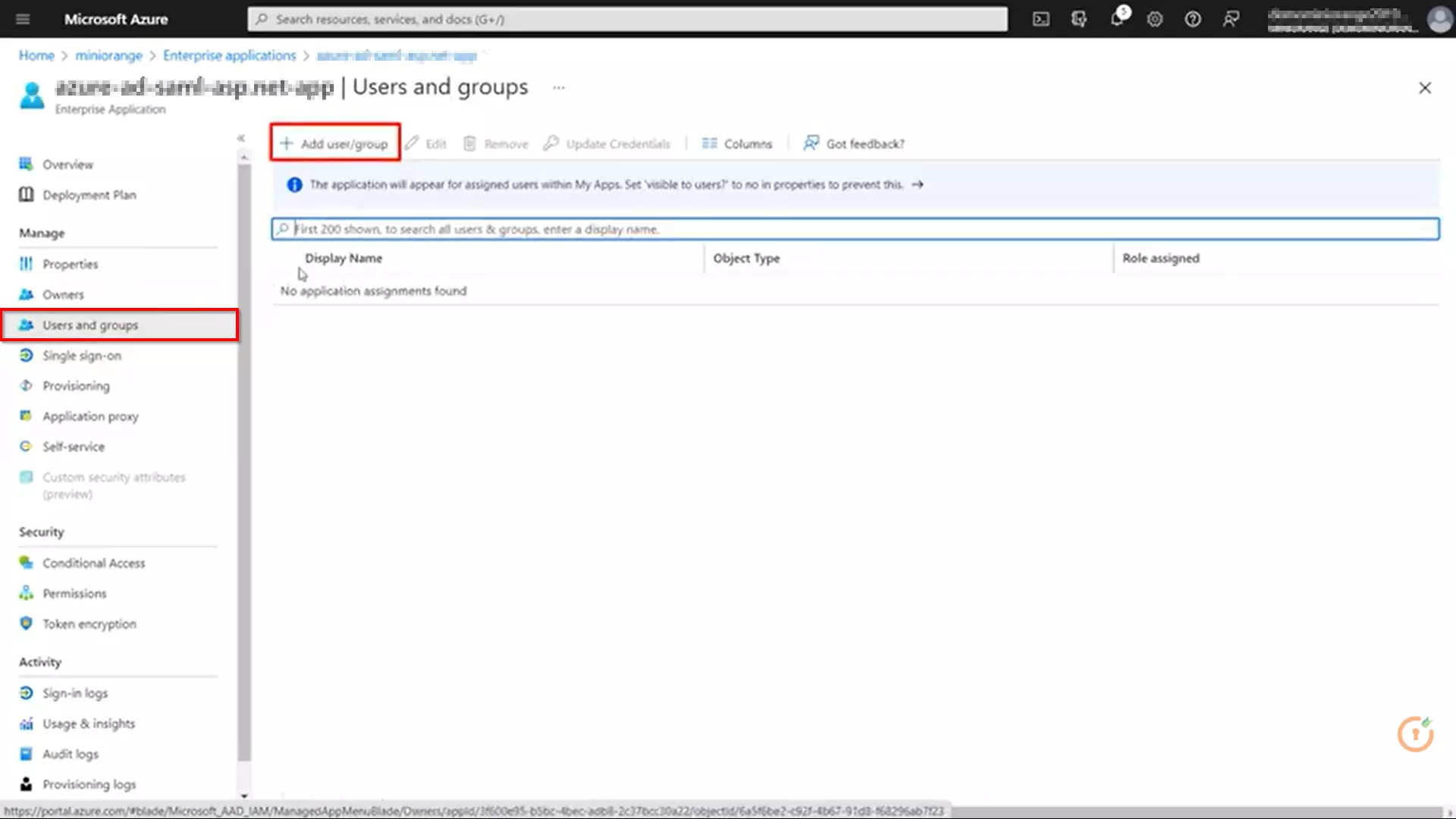
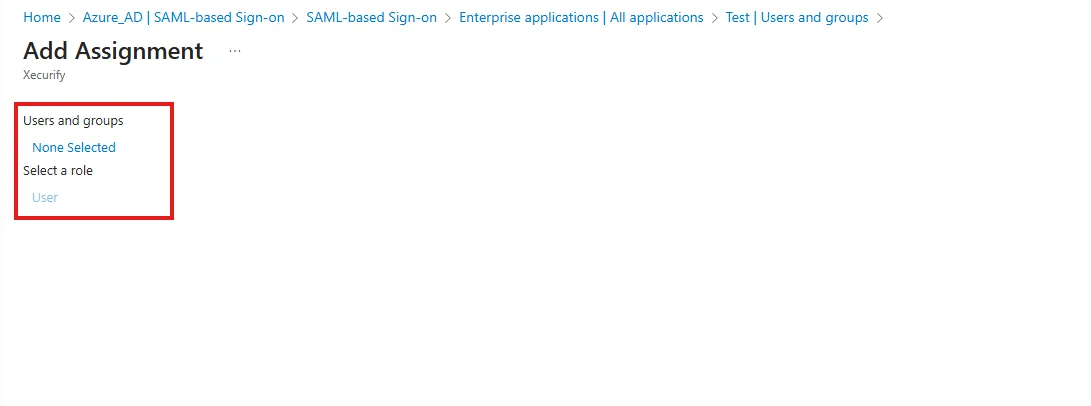
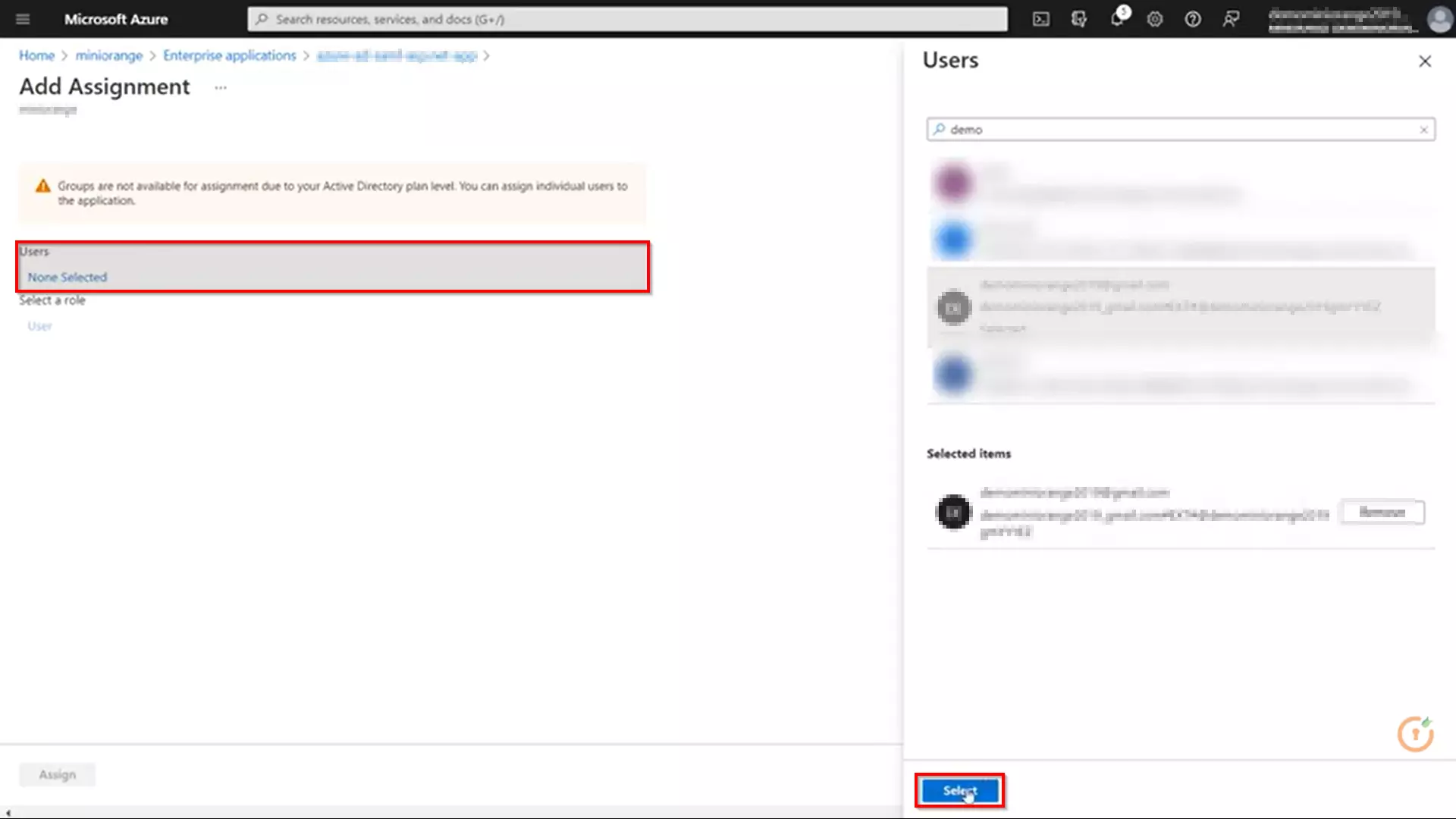
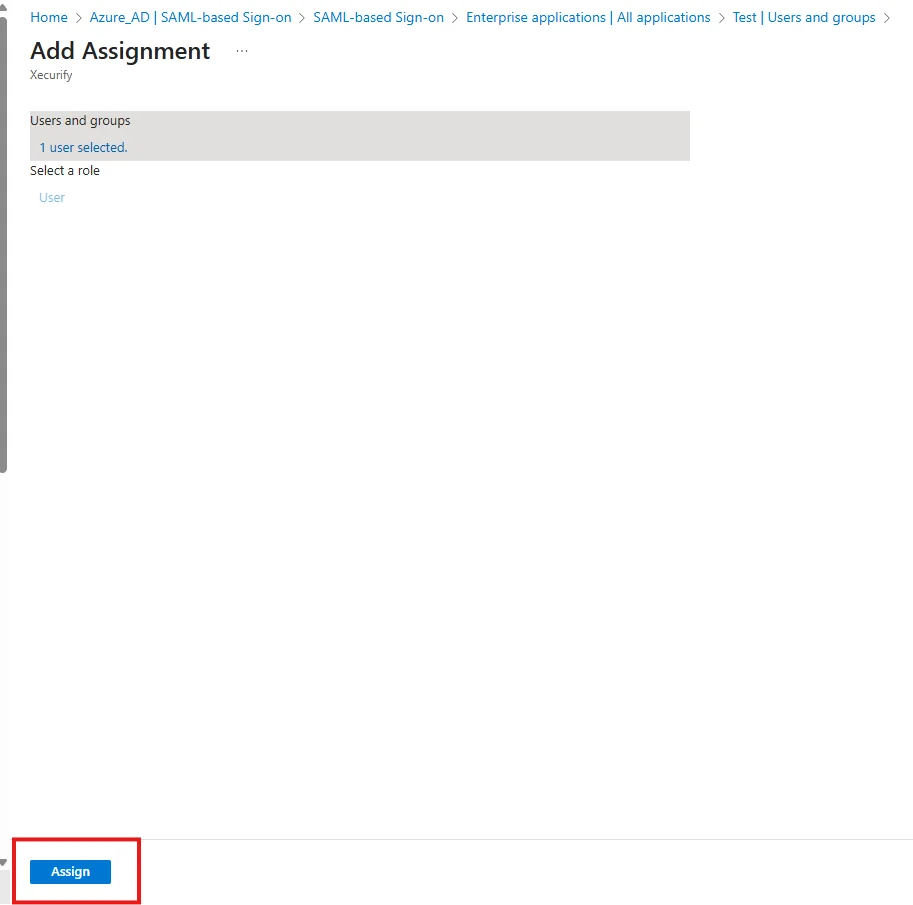
4.b. User/Group Assignment
4.c. Configure Microsoft Entra ID as Identity Provider (IDP) in miniOrange
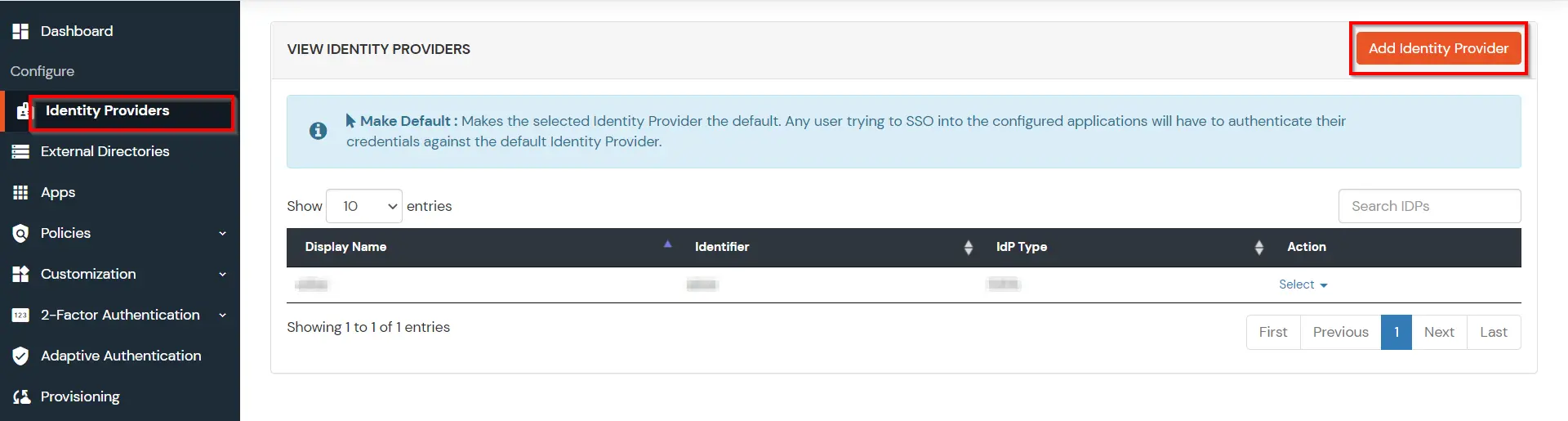
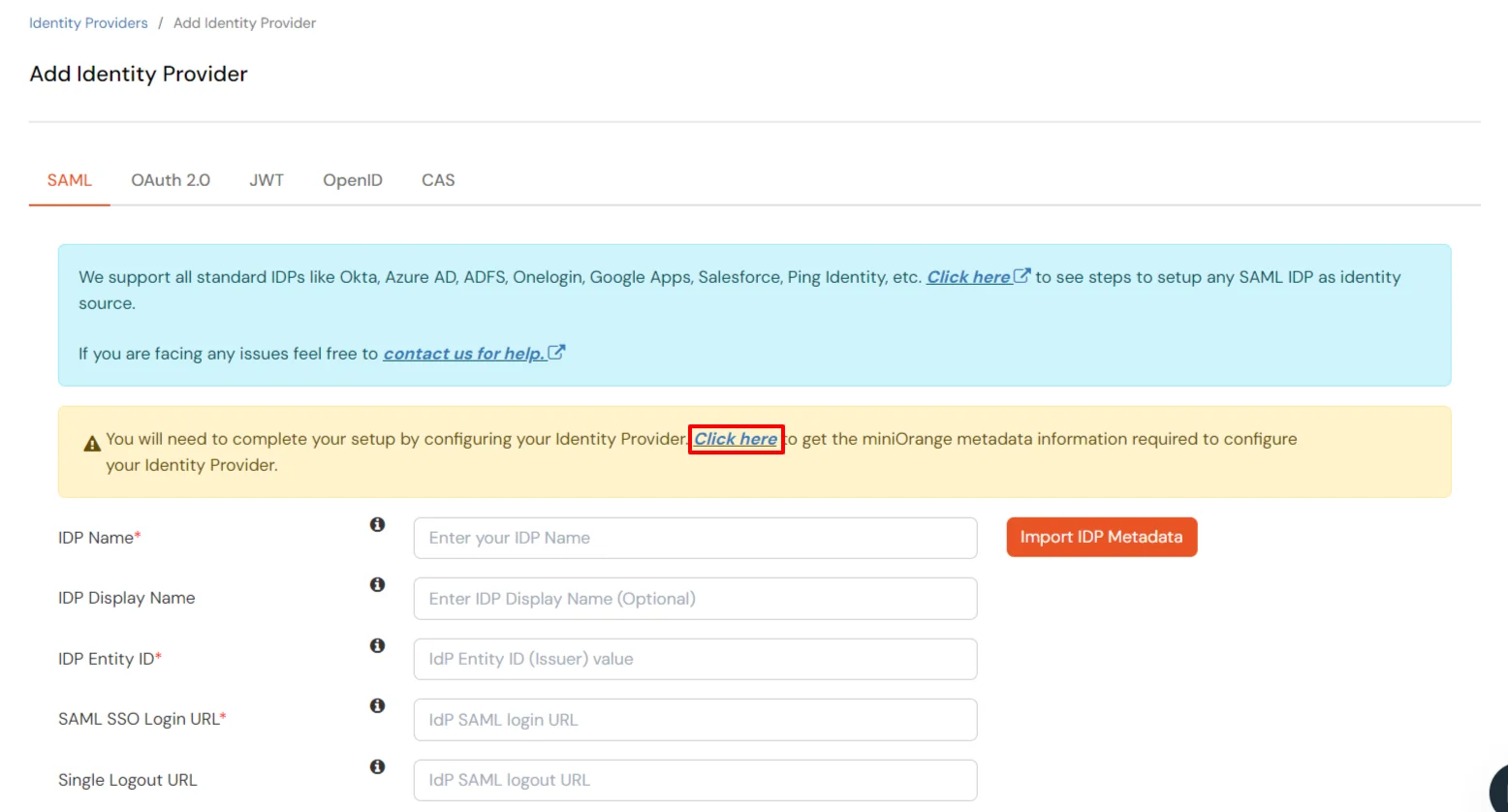
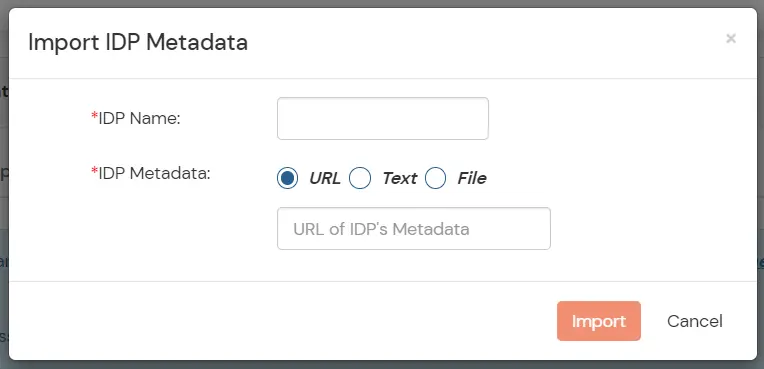
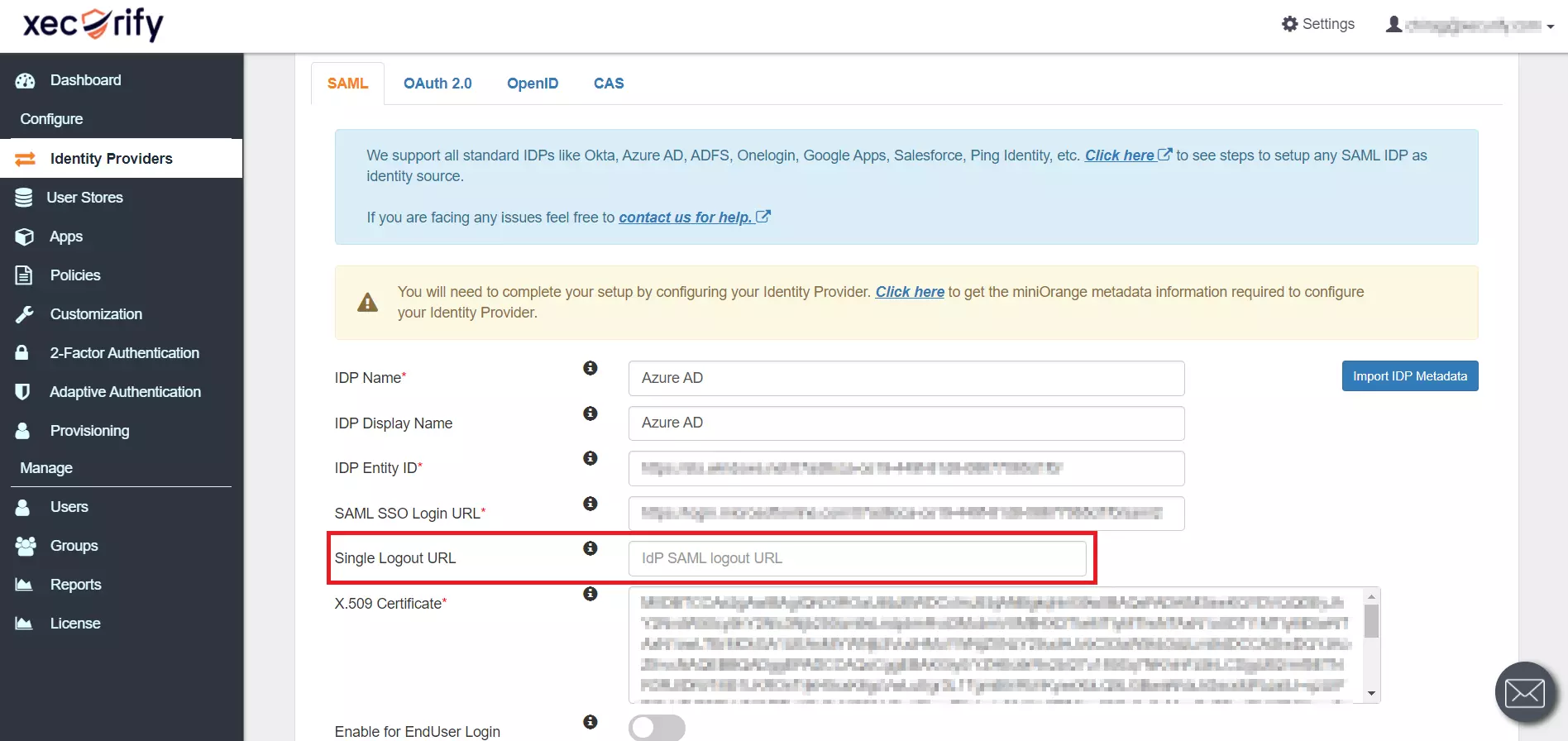
| Domain Mapping | Enable to redirect domain specific user to a specific IDP |
| Show IdP to Users | Enable this option if you wish to show this IDP as a button on the login page. E.g., Login with Microsoft Entra ID. |
| Send Configured Attributes | Enable this option if you wish to send user attributes from the IDP to BigCommerce while SSO. |
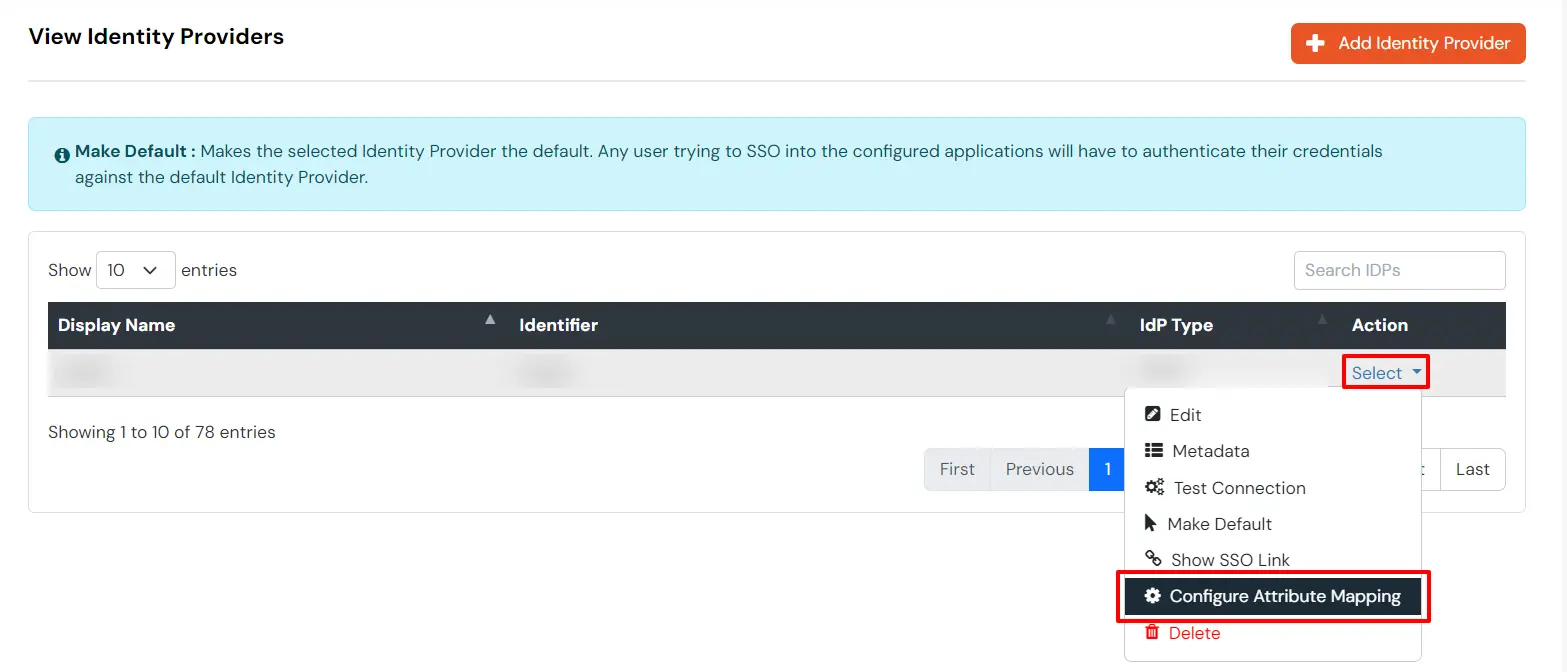
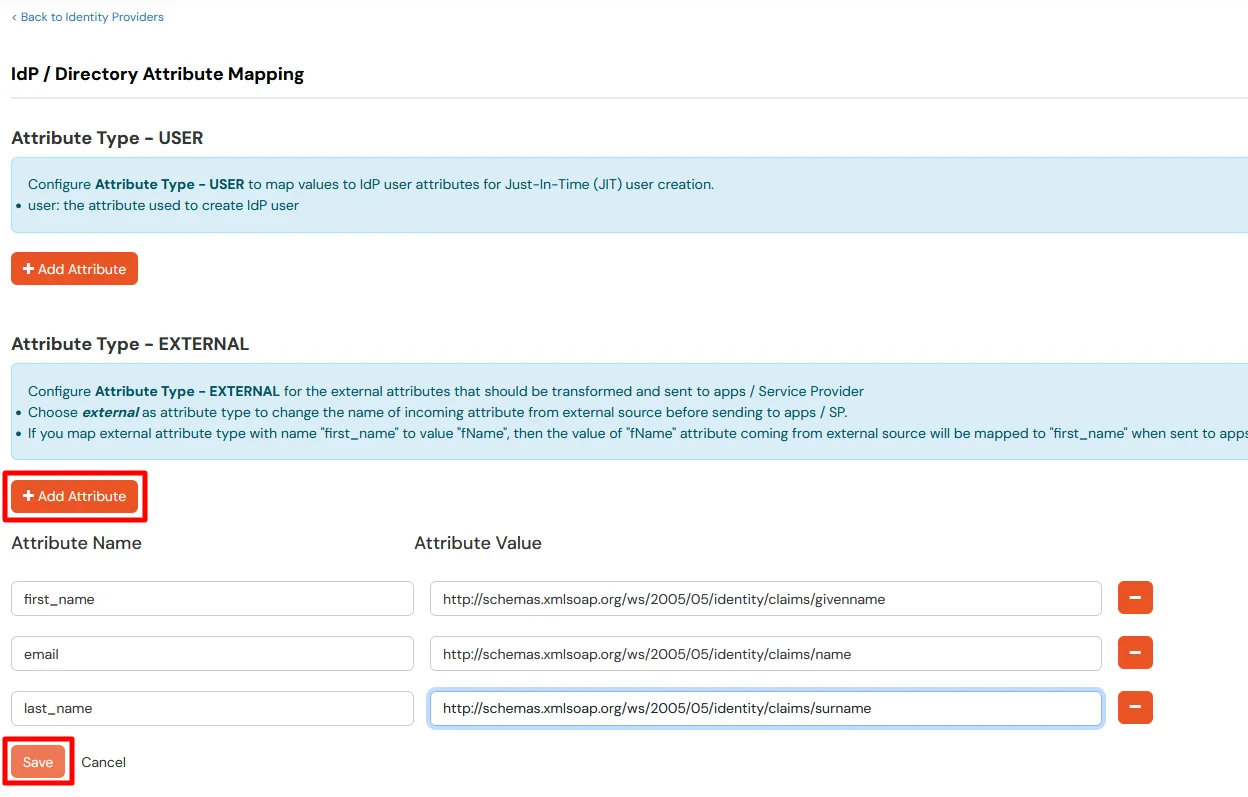
| first_name | http://schemas.xmlsoap.org/ws/2005/05/identity/claims/givenname |
| http://schemas.xmlsoap.org/ws/2005/05/identity/claims/name | |
| last_name | http://schemas.xmlsoap.org/ws/2005/05/identity/claims/surname |
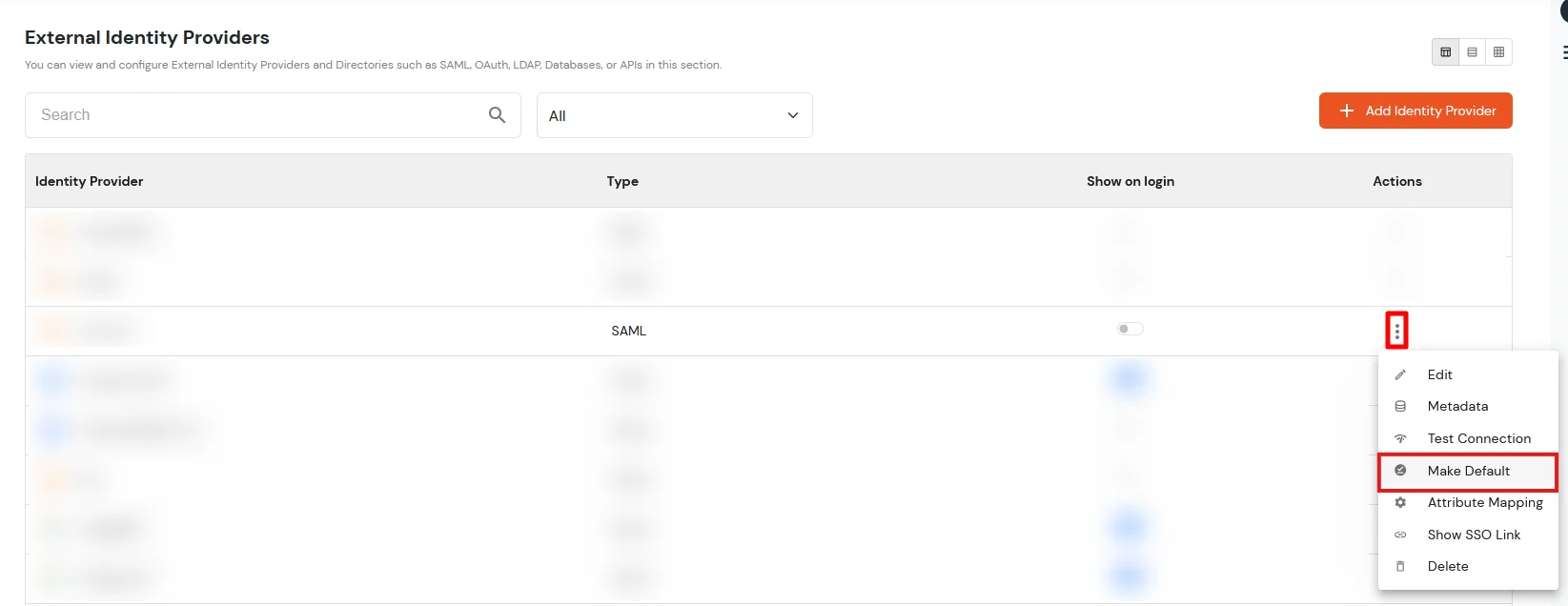
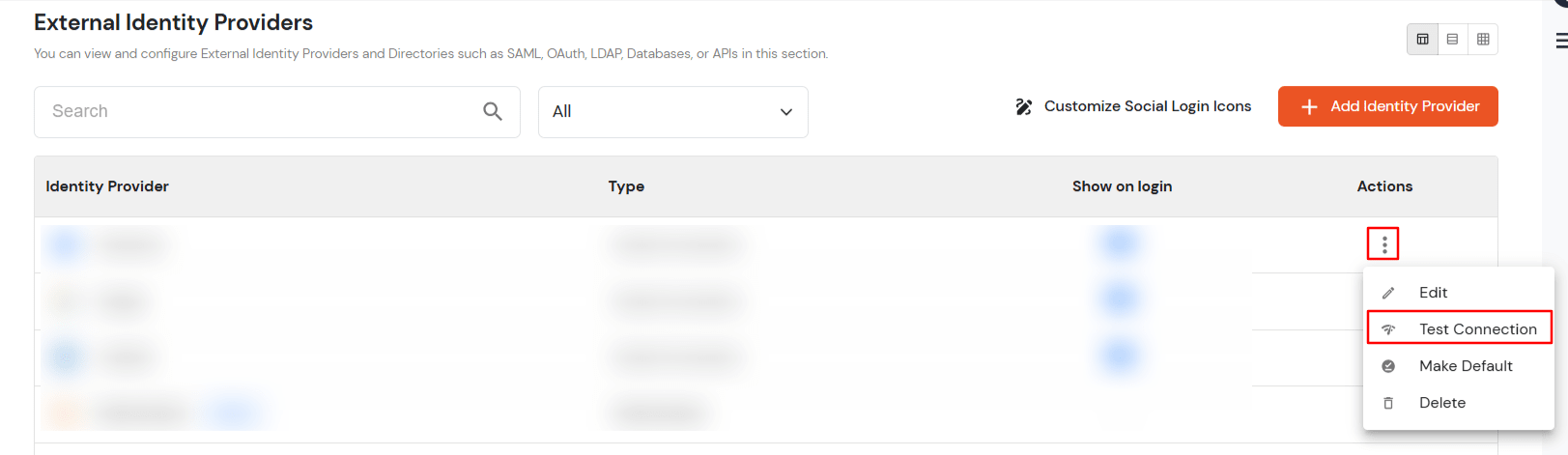
4.d. Test IDP Connection
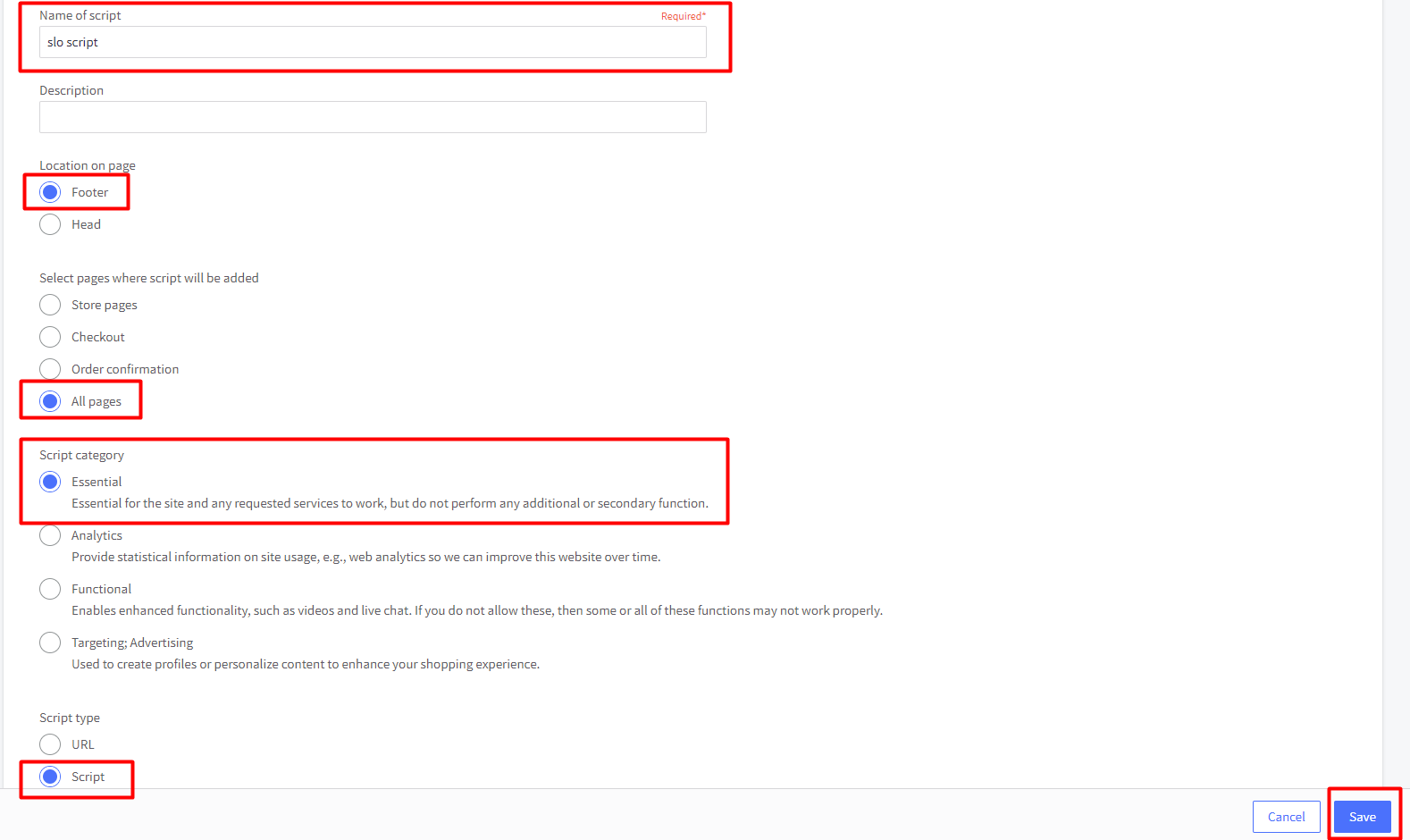
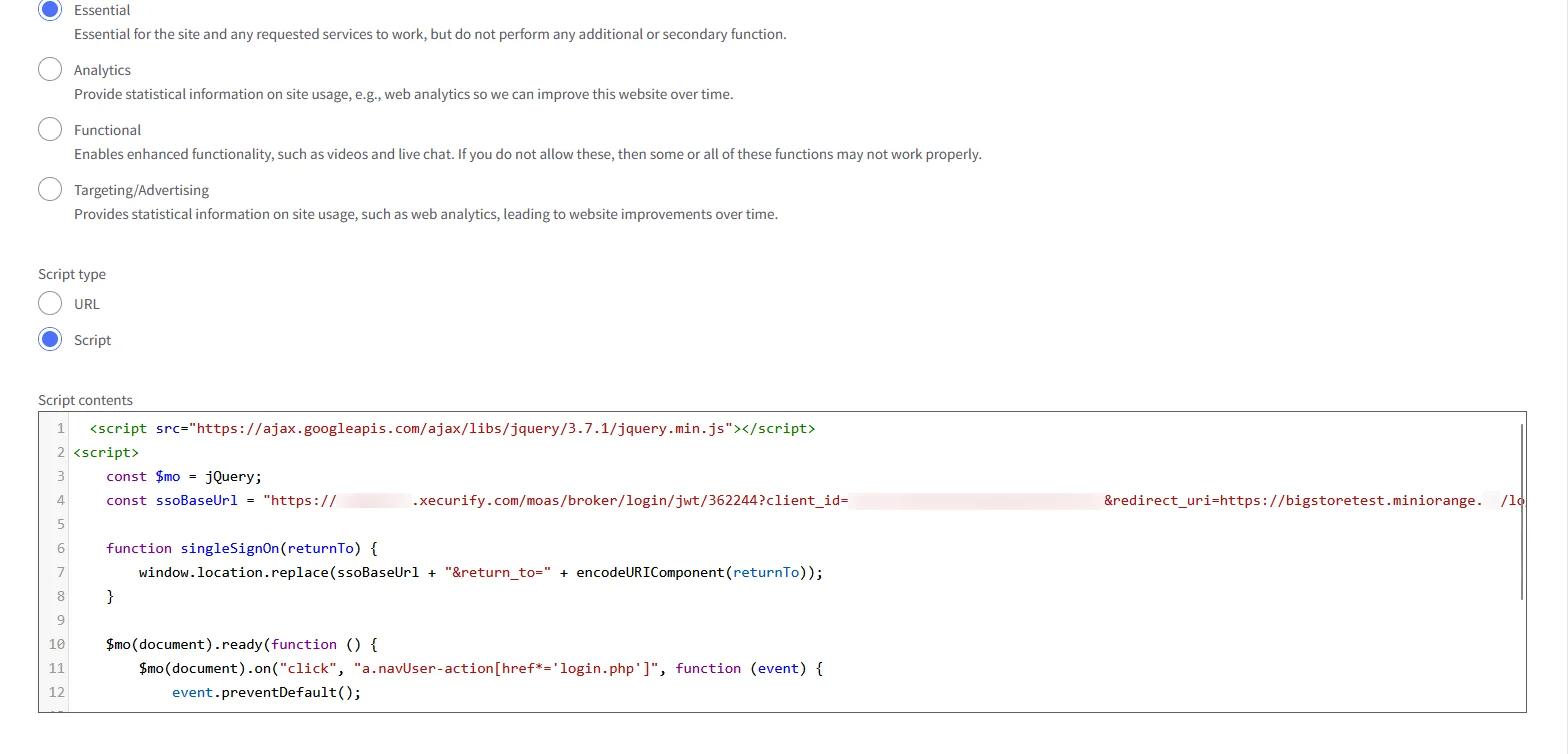
Yes, our scripts are completely customizable and you can restrict page access based on memberships, groups, company . domain or any other custom attribute of your choice.
We handle this by adding the no script tags in our script file, this enables redirection of your users to a customizable page with instructions to enable javascript.

