Hello there!

Need Help? We are right here!

miniorange Support~
miniOrange Email Support
success

Thanks for your Enquiry.

If you don't hear from us within 24 hours, please feel free to send a follow-up email to info@xecurify.com

Search Results:

×

Manage GPO in Active Directory


Create a New GPO in AD:

To create a new Group Policy Object:

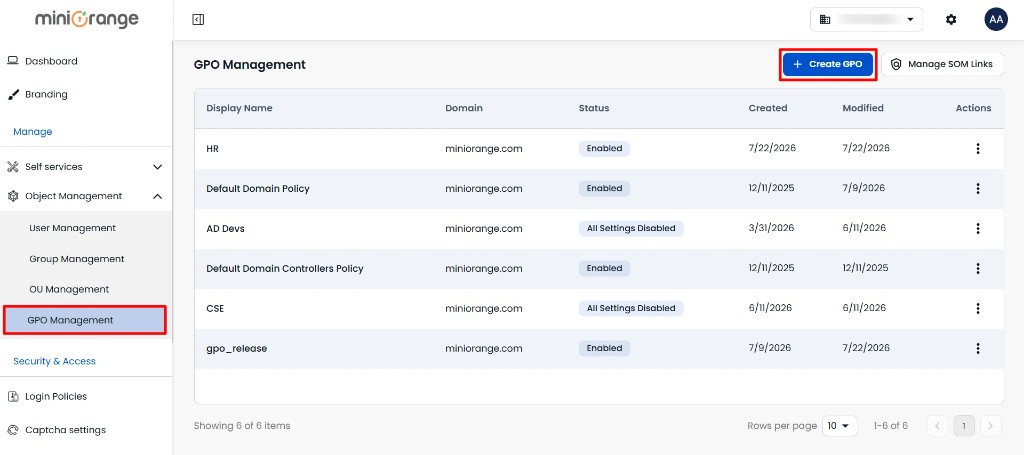
  • Navigate to Object Management > GPO Management.
  • Click the + Create GPO button.
Create GPO | GPO Management

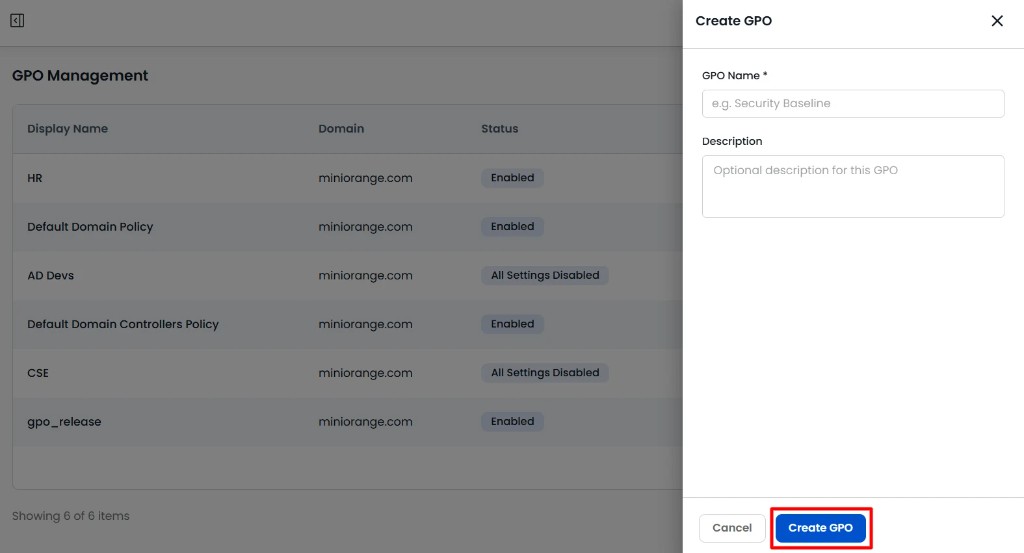
  • In the Create GPO panel, fill in the following fields:
    • GPO Name: Enter a name for the Group Policy Object (e.g. Security Baseline).
    • Description: Add an optional description for the GPO.
  • Click the Create GPO button to create the new Group Policy Object.
Enter GPO name and description | GPO Management

Manage GPOs in Active Directory

The GPO Management page displays a list of all Group Policy Objects along with their Display Name, Domain, Status, Created date, Modified date, and an Actions column.
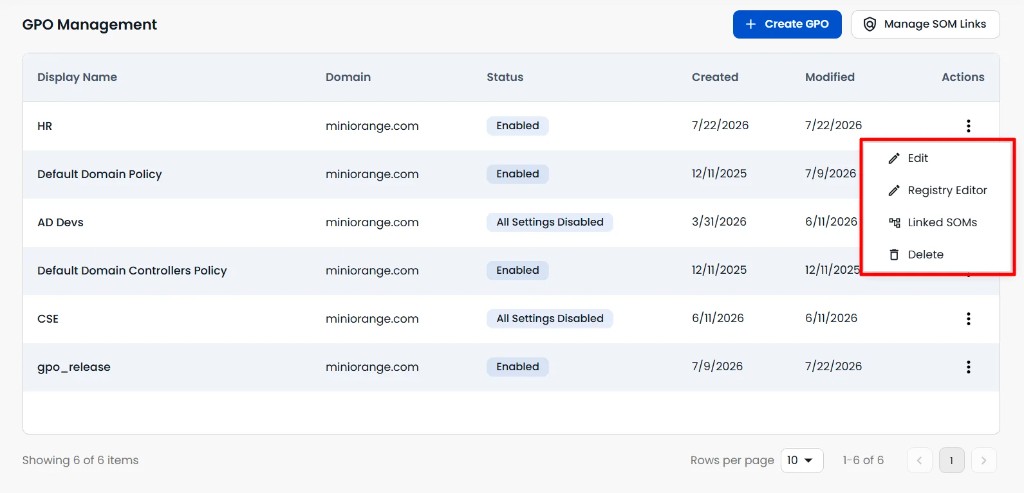
  • Click the three-dot icon in the Actions column to perform the following operations:
    • Edit: Update the selected GPO.
    • Registry Editor: Open the registry editor for the GPO.
    • Linked SOMs: View and manage Scope of Management (SOM) links for the GPO.
    • Delete: Remove the GPO from Active Directory.
Edit GPO, Registry Editor, Linked SOMs and Delete | GPO Management

Manage SOM GPO Links

To view and manage Scope of Management (SOM) links:
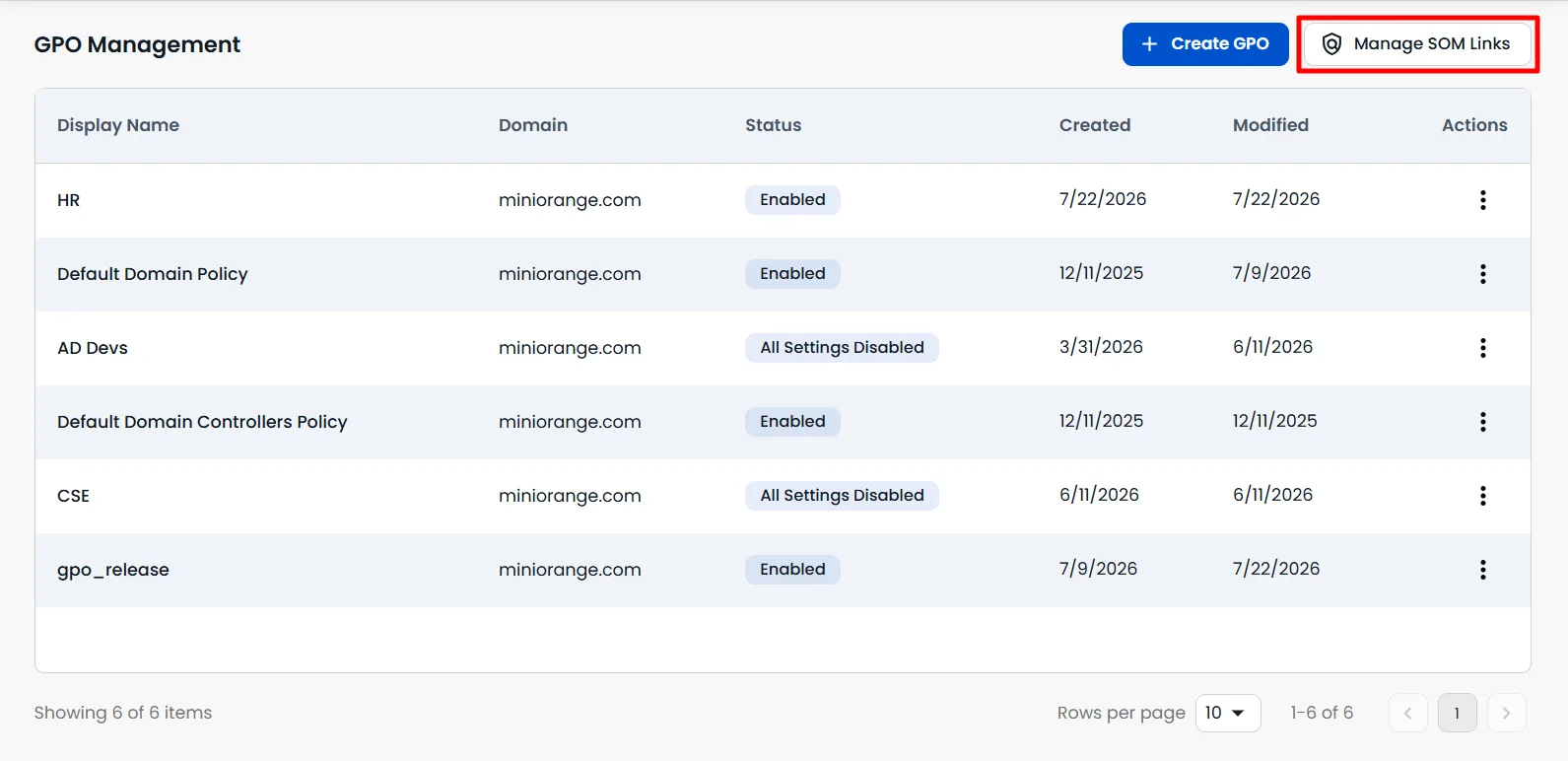
  • Click the Manage SOM Links button on the GPO Management page.
Manage SOM Links | Scope of Management | GPO Management

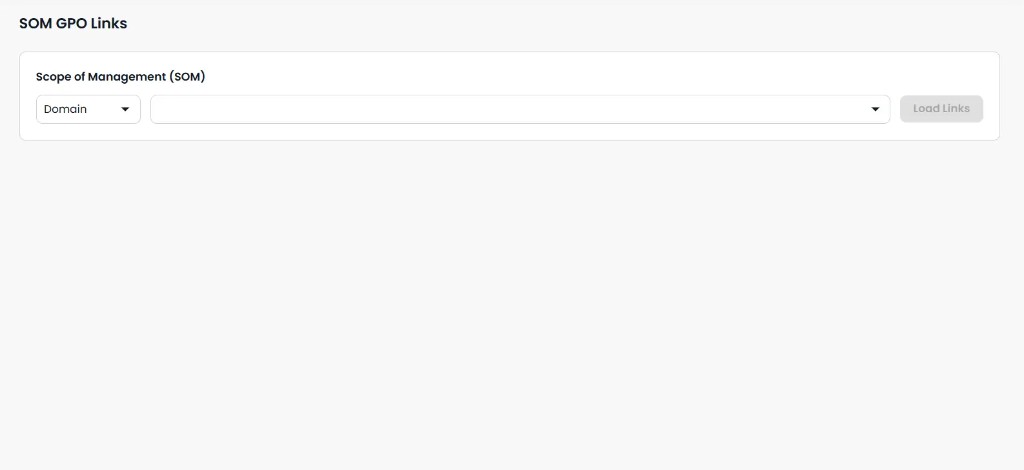
  • On the SOM GPO Links page, select the Scope of Management type from the dropdown (e.g. Domain).
  • Select the required domain from the next dropdown.
  • Click Load Links to view the SOM GPO links.
SOM GPO Links | Scope of Management | GPO Management