Hello there!
Need Help? We are right here!

Need Help? We are right here!
Search Results:
×
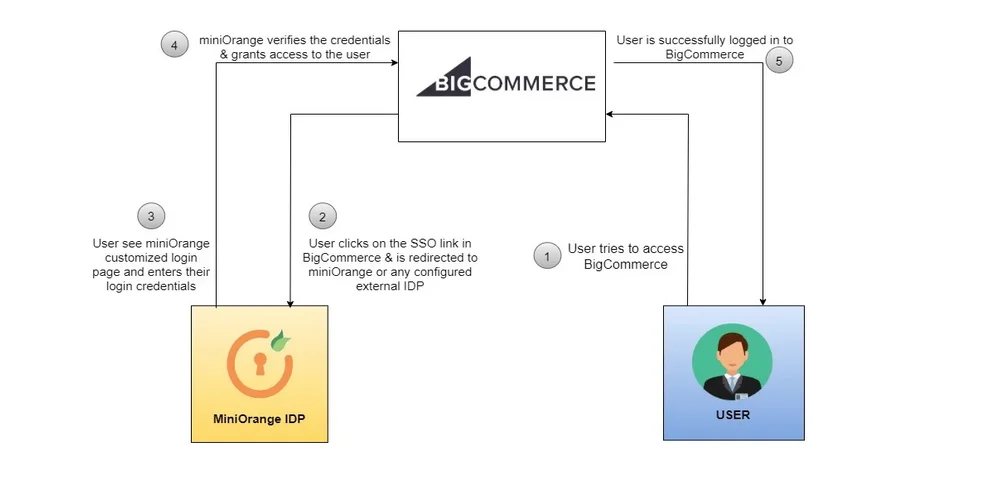
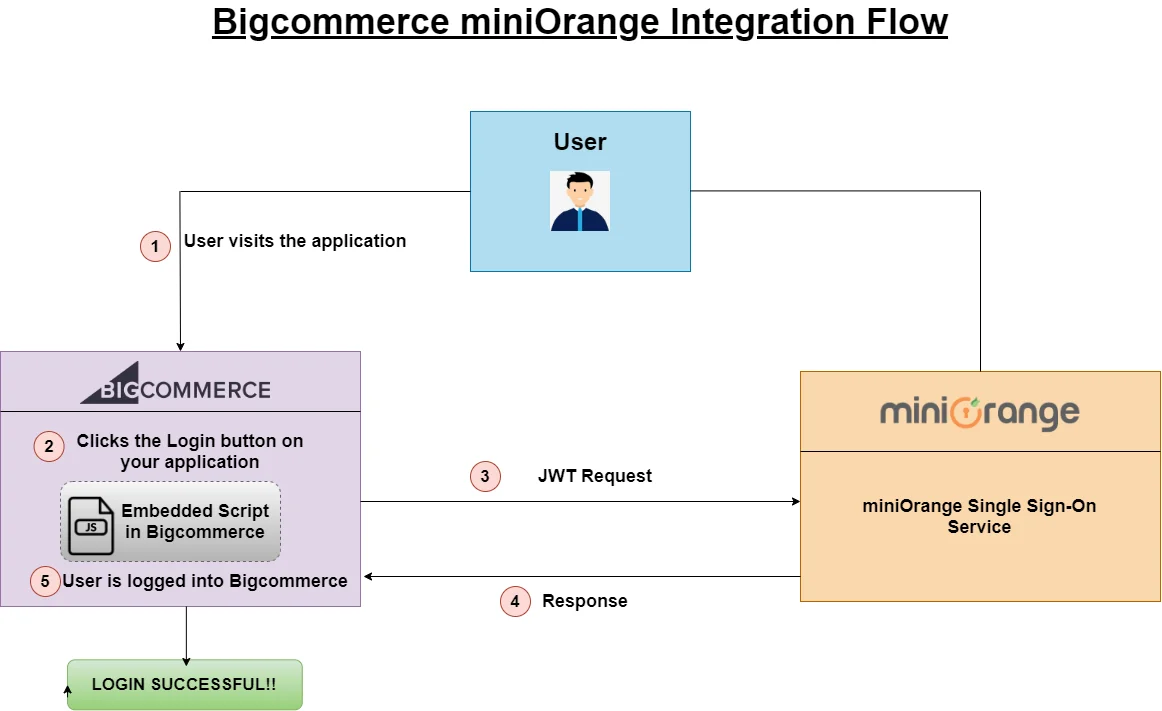
miniOrange BigCommerce SSO lets your customers log in using their existing credentials from providers such as Microsoft Entra ID, Okta, Google, Auth0, AWS Cognito, or miniOrange. This improves security, removes the need for passwords, and gives users a smooth, modern login experience.
By the end of this guide, you will:
Estimated setup time: 15 minutes.
You’ll need: BigCommerce Admin access - miniOrange Admin access - Optional: Access to your external IDP (Microsoft Entra ID, Okta, Cognito, etc.)
With BigCommerce SSO & CIAM features, you can:
Verified Technology Partner of BigCommerce
SSO + MFA Support for any BigCommerce Plan (Standard, Plus, Pro, Enterprise)
miniOrange offers free help through a consultation call with our System Engineers to Install or Setup BigCommerce SSO solution in your environment with 30-day free trial.
For this, you need to just send us an email at idpsupport@xecurify.com to book a slot and we'll help you in no time.
miniOrange provides user authentication from various external sources, which can be Directories (like ADFS, Microsoft Active Directory, OpenLDAP, AWS etc), Identity Providers (like Microsoft Entra ID, Okta, AWS), and many more. You can configure your existing directory/user store or add users in miniOrange.
Please make sure your organisation branding is already set under Customization >> Login and Registration Branding in the left menu of the dashboard.
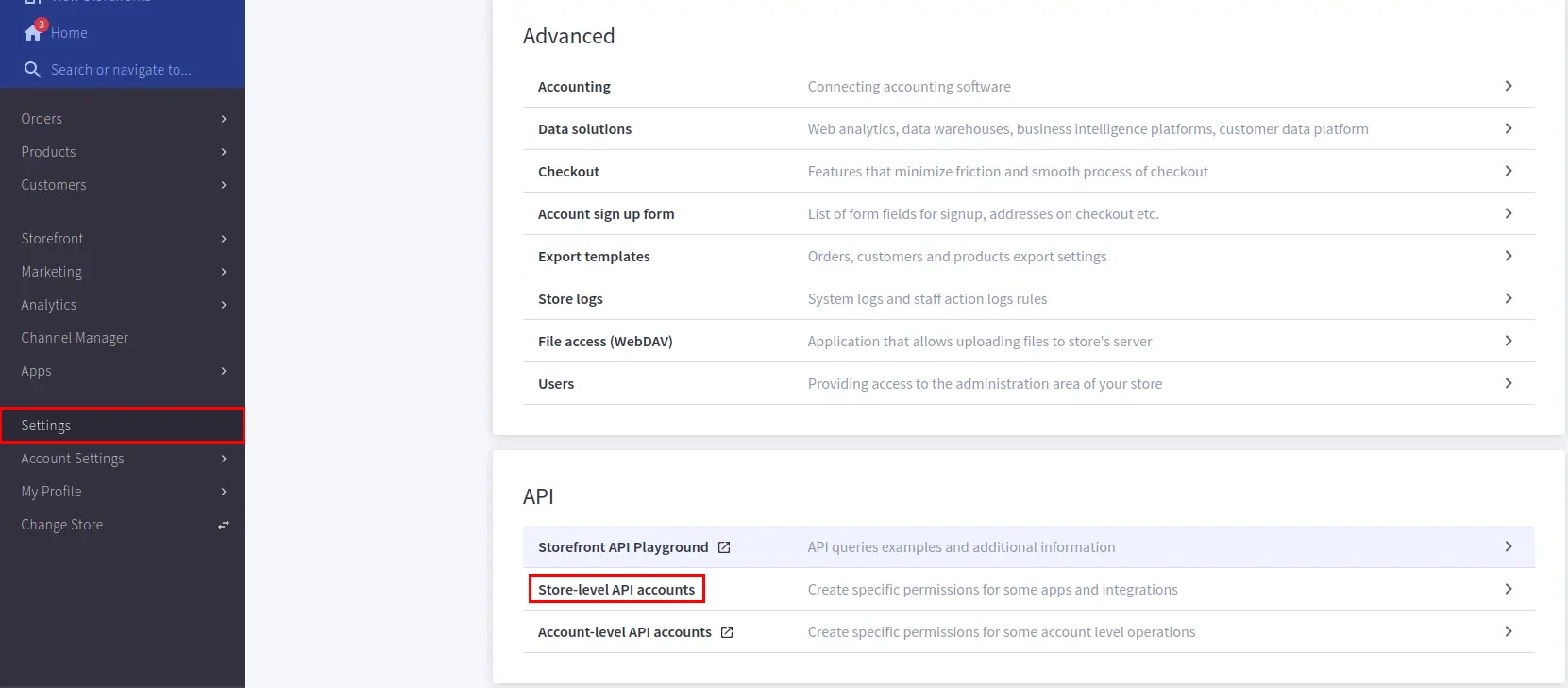
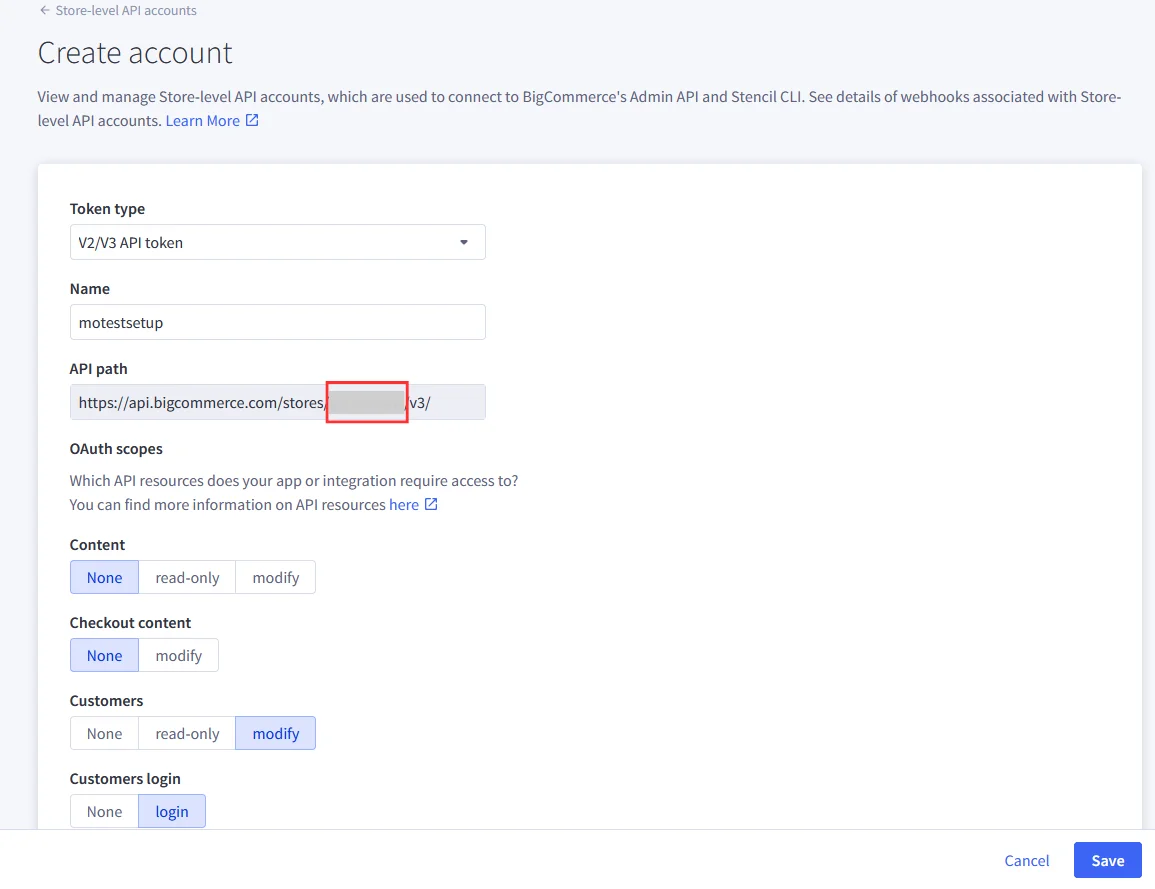
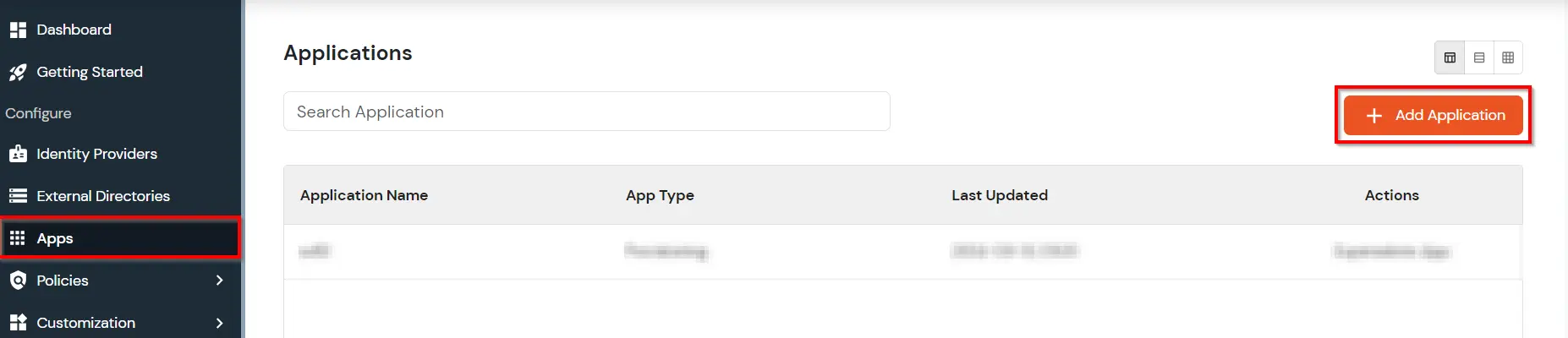
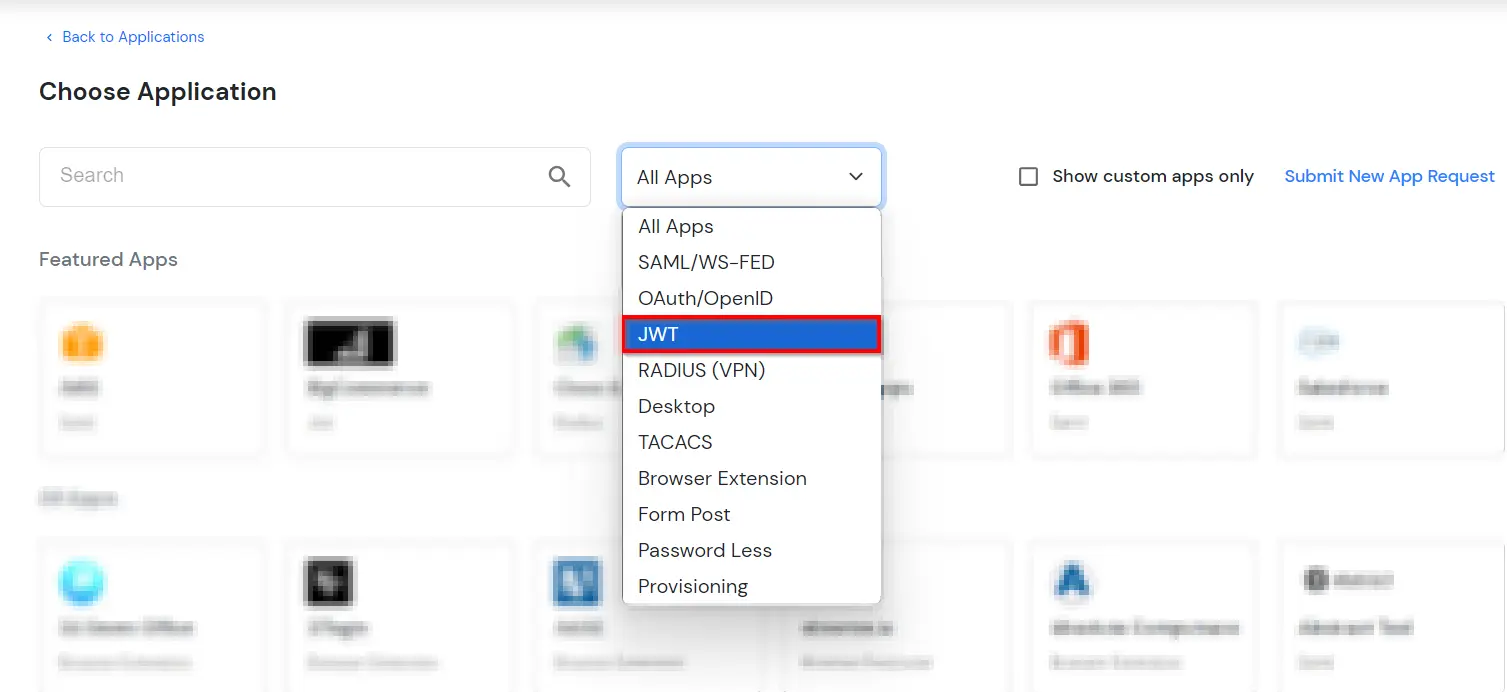
Here you’ll create a JWT application inside miniOrange that connects to your store.
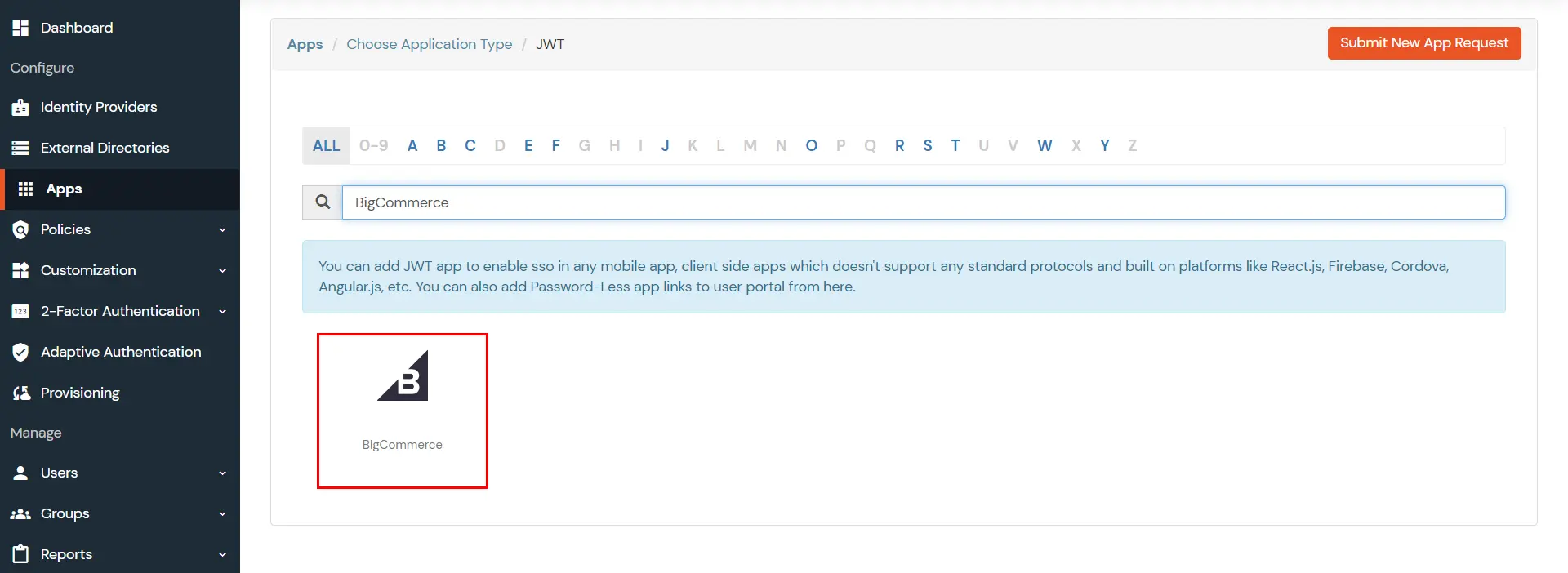
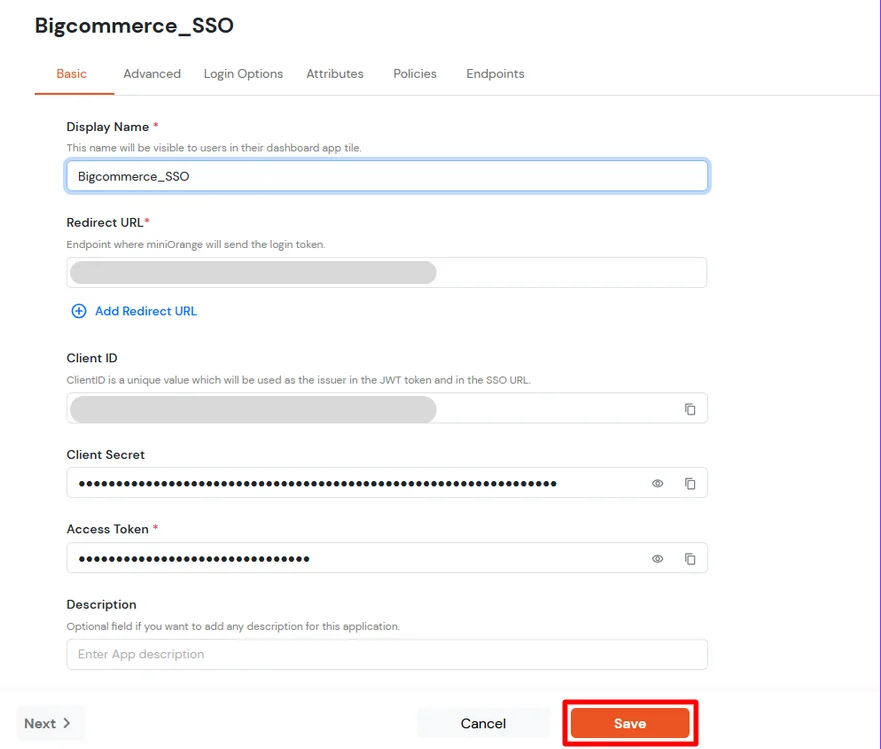
| Display Name [Required] | BigCommerce (According to your choice) |
| Redirect-URL [Required] | Refer to the Note section below to get the Redirect URL. |
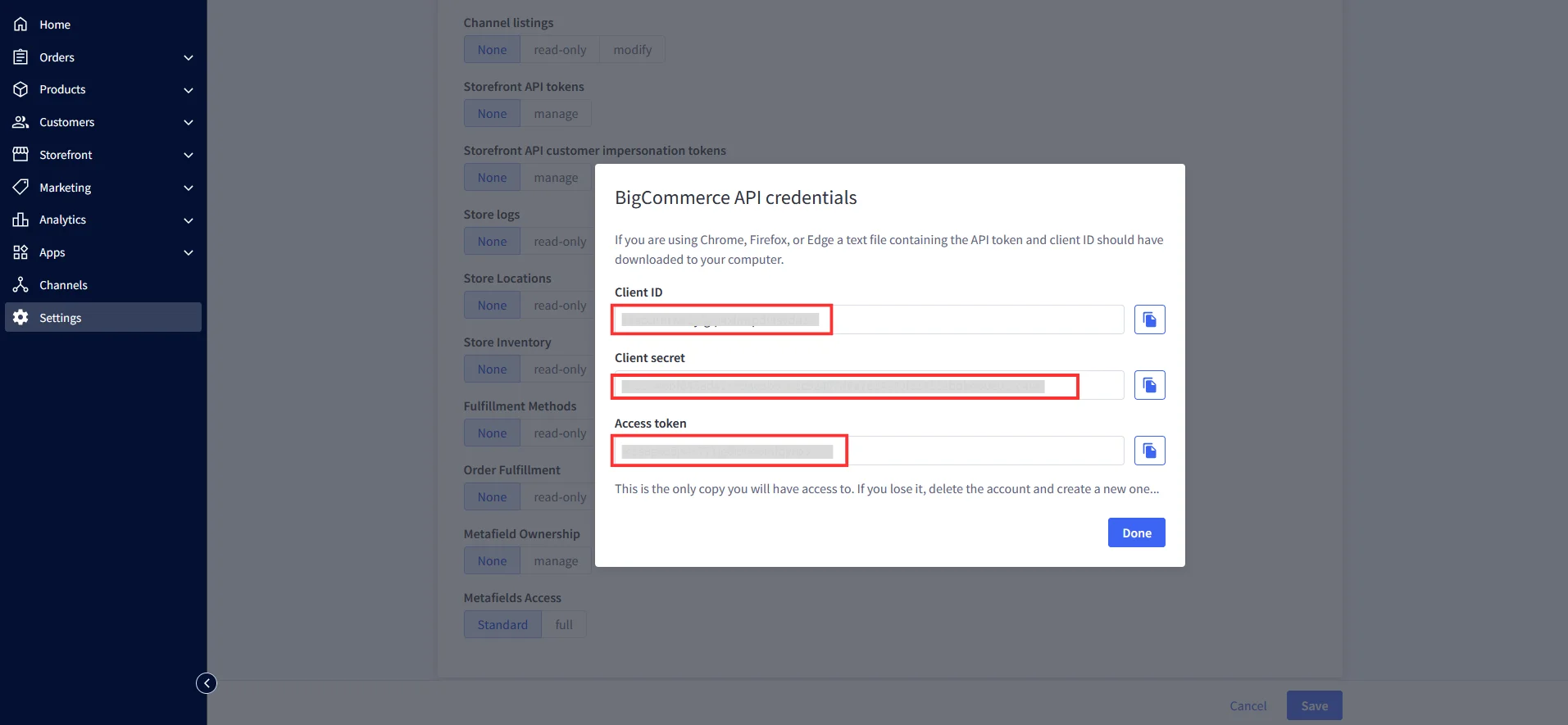
| Client ID | Copy from the downloaded file in Step 1 |
| Client Secret | Copy from the downloaded file in Step 1 |
| Access Token | Copy from the downloaded file in Step 1 |
| Description | According to your choice |
Note: Your Redirect URL should be: <Storefront URL>/login/token/
For Example: https://xyz.bigcommerce.com/login/token/
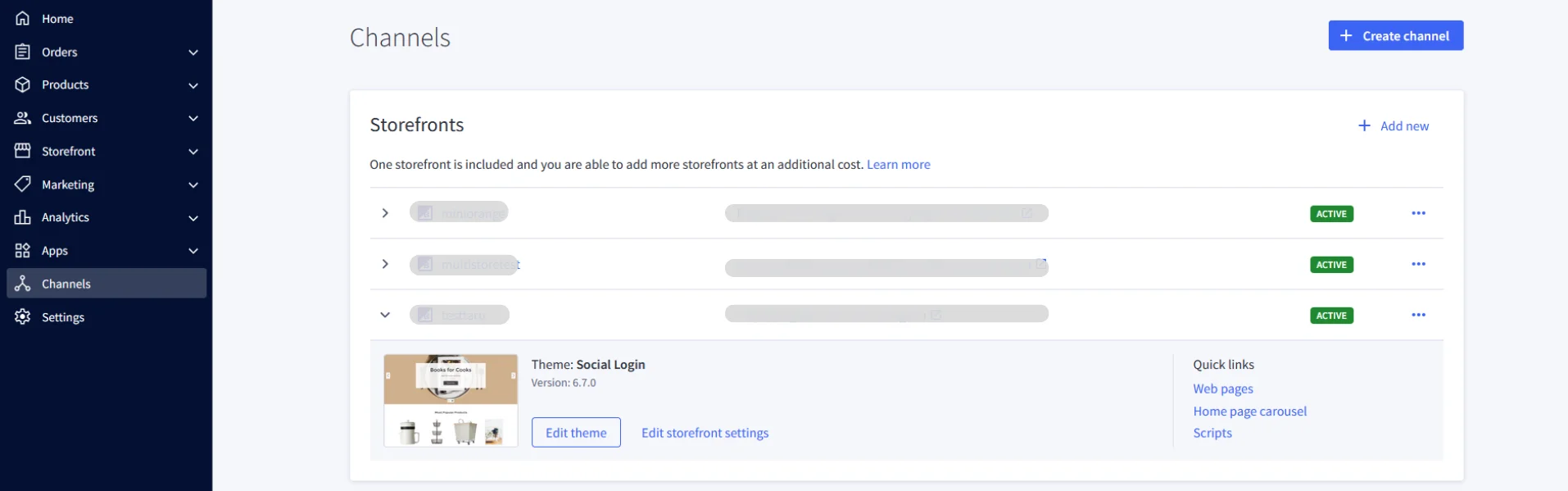
To find your Storefront URL: Go to Channels >> Storefronts. Copy the URL listed for your store.
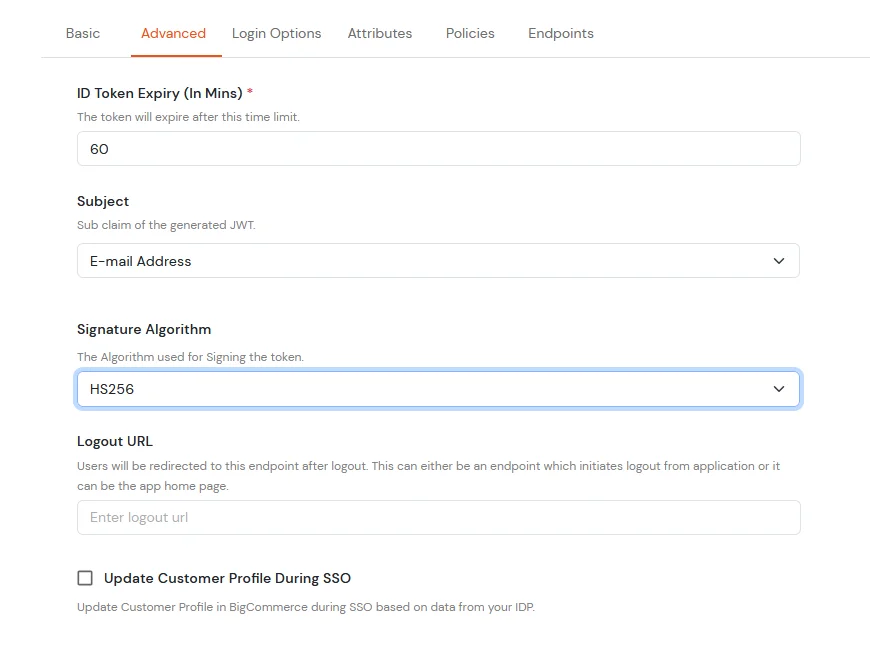
| Subject | E-Mail Address. |
| Signature Algorithm | HS256 |
| Logout URL | Copy the storefront URL as mentioned above and append /login.php?action=logout |
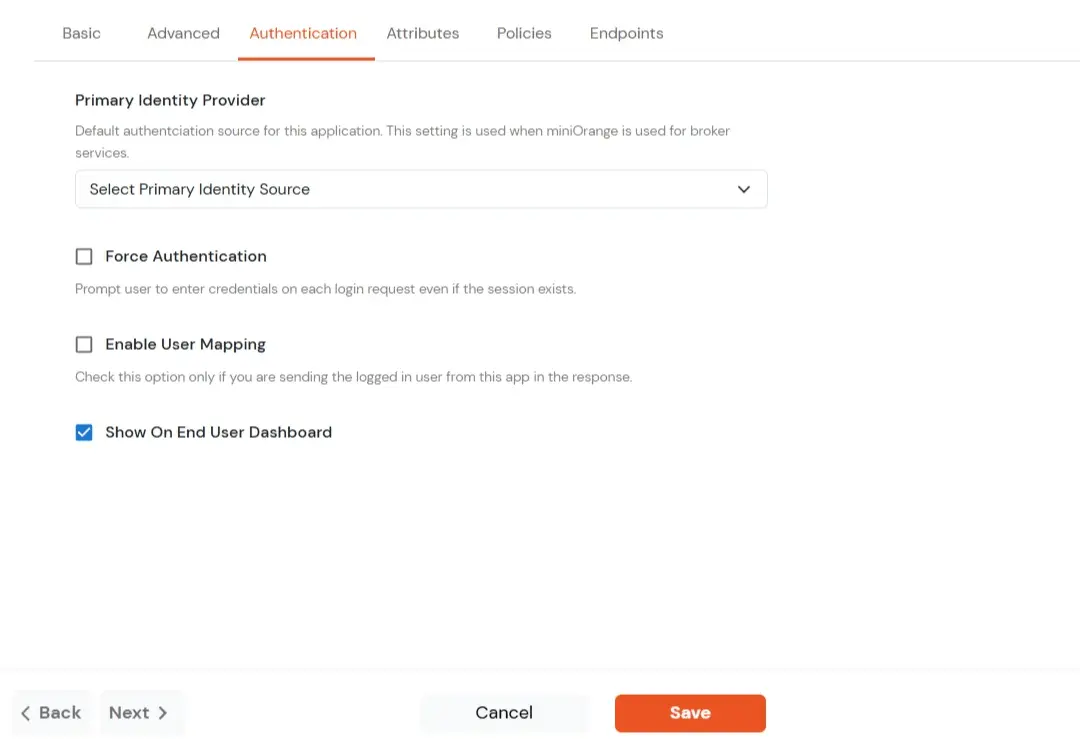
| Primary Identity Provider | The identity source against which user will be authenticated |
| Force Authentication | Enable if you want user to authenticate even if the user has a session |
| Enable User Mapping | Enable if you are sending the logged-in user from this app in the response |
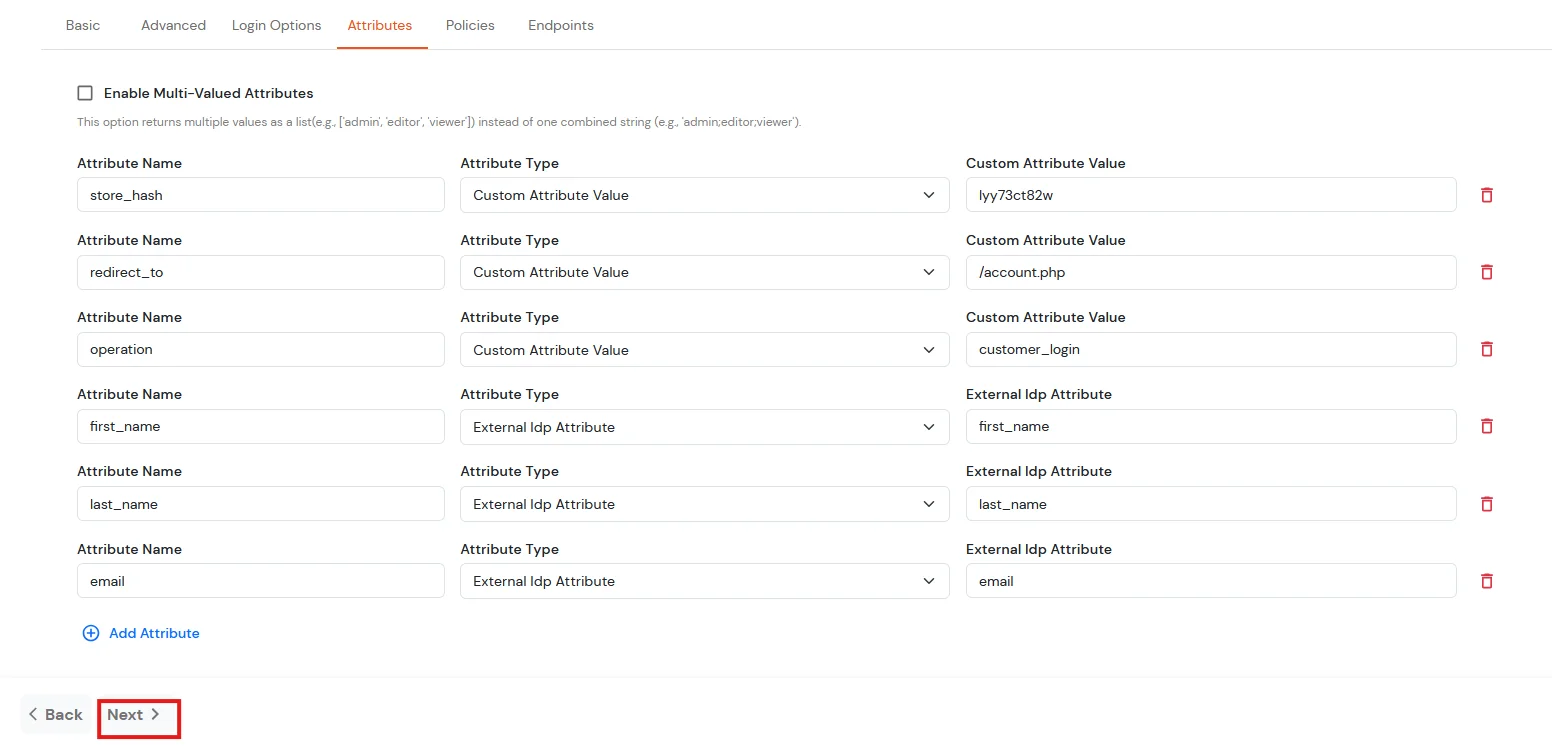
| Attribute Name | Attribute Type | Attribute Value |
|---|---|---|
| store_hash | Custom Attribute Value | Refer to Step 1 above. |
| redirect_to | Custom Attribute Value | Endpoint where you wish to redirect the user to after sso. [Homepage or account page e.g. /account.php] |
| operation | Custom Profile Attribute | customer_login |
| first_name | External Idp Attribute | first_name |
| last_name | External Idp Attribute | last_name |
| External Idp Attribute |
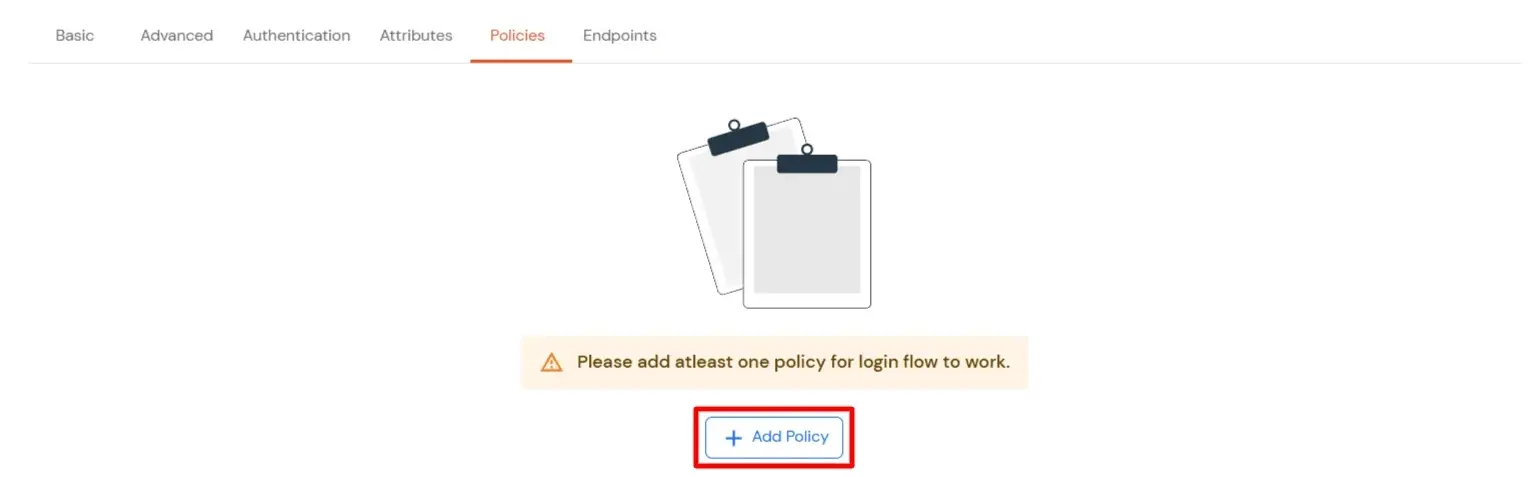
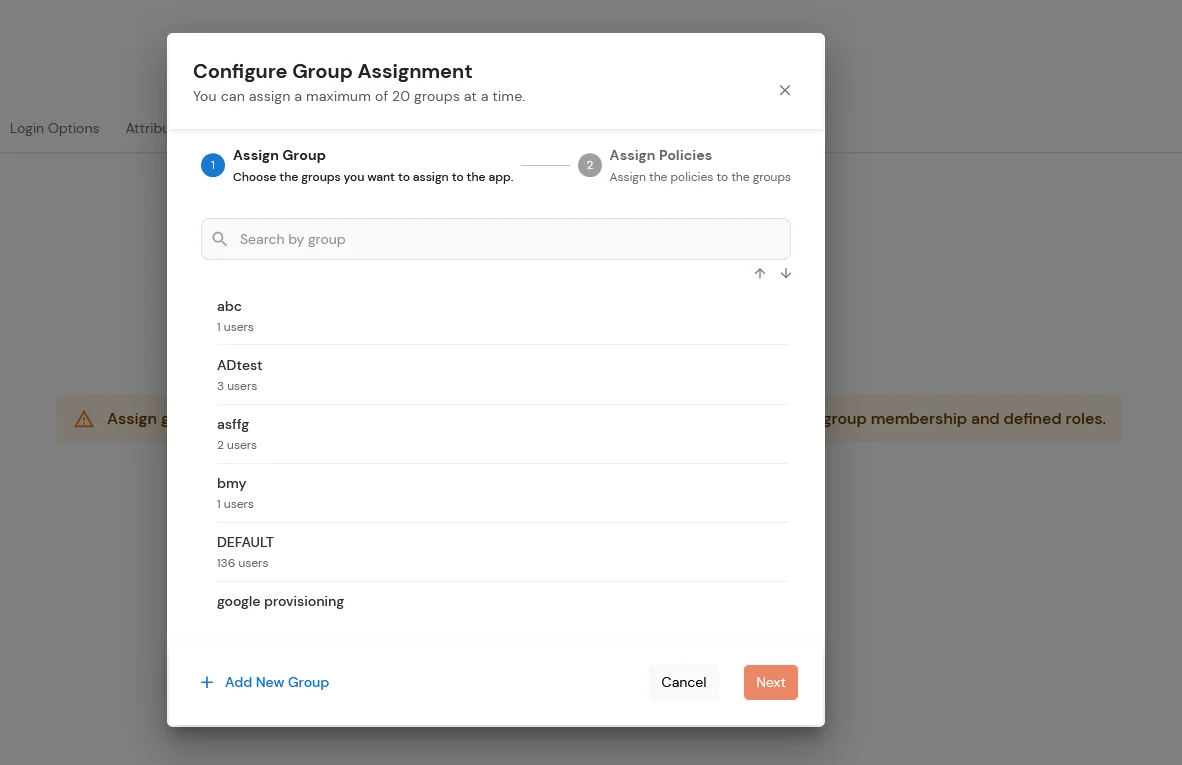
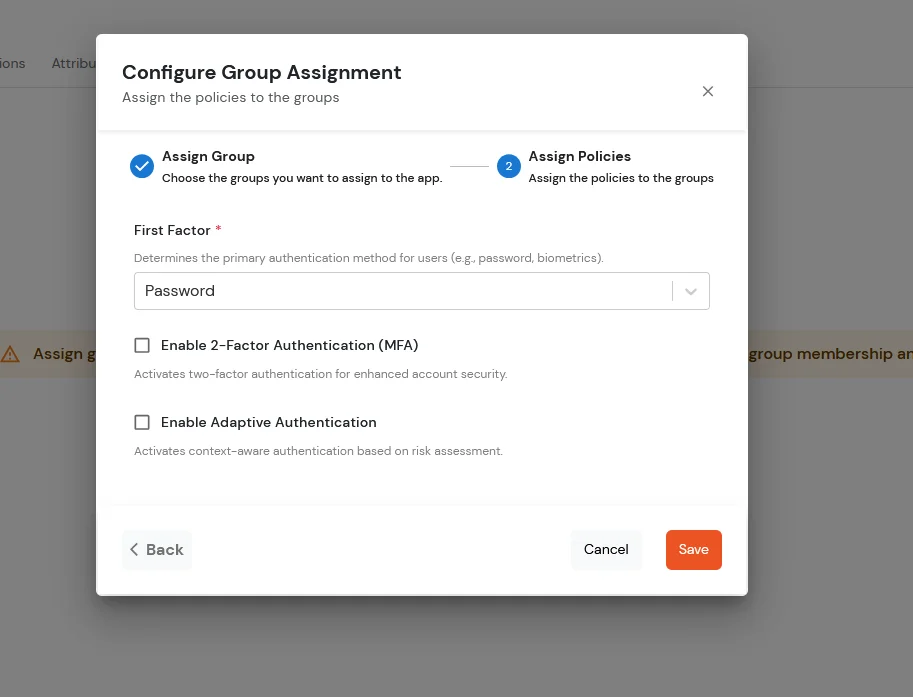
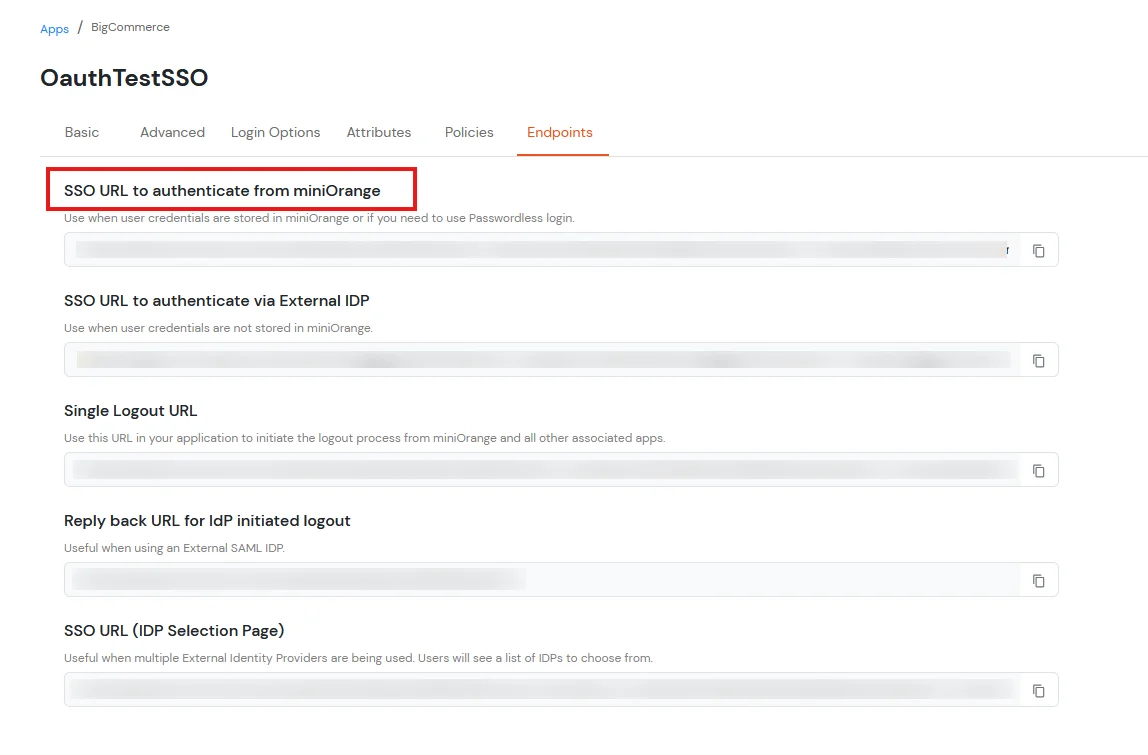
miniOrange provides user authentication from various external sources, which can be Directories (like ADFS, Microsoft Active Directory, Microsoft Entra ID, OpenLDAP, Google, AWS Cognito, etc), Identity Providers (like Okta, Shibboleth, Ping, OneLogin, KeyCloak), Databases (like MySQL, MariaDB, PostgreSQL), and many more. You can configure your existing directory/user store or add users in miniOrange.
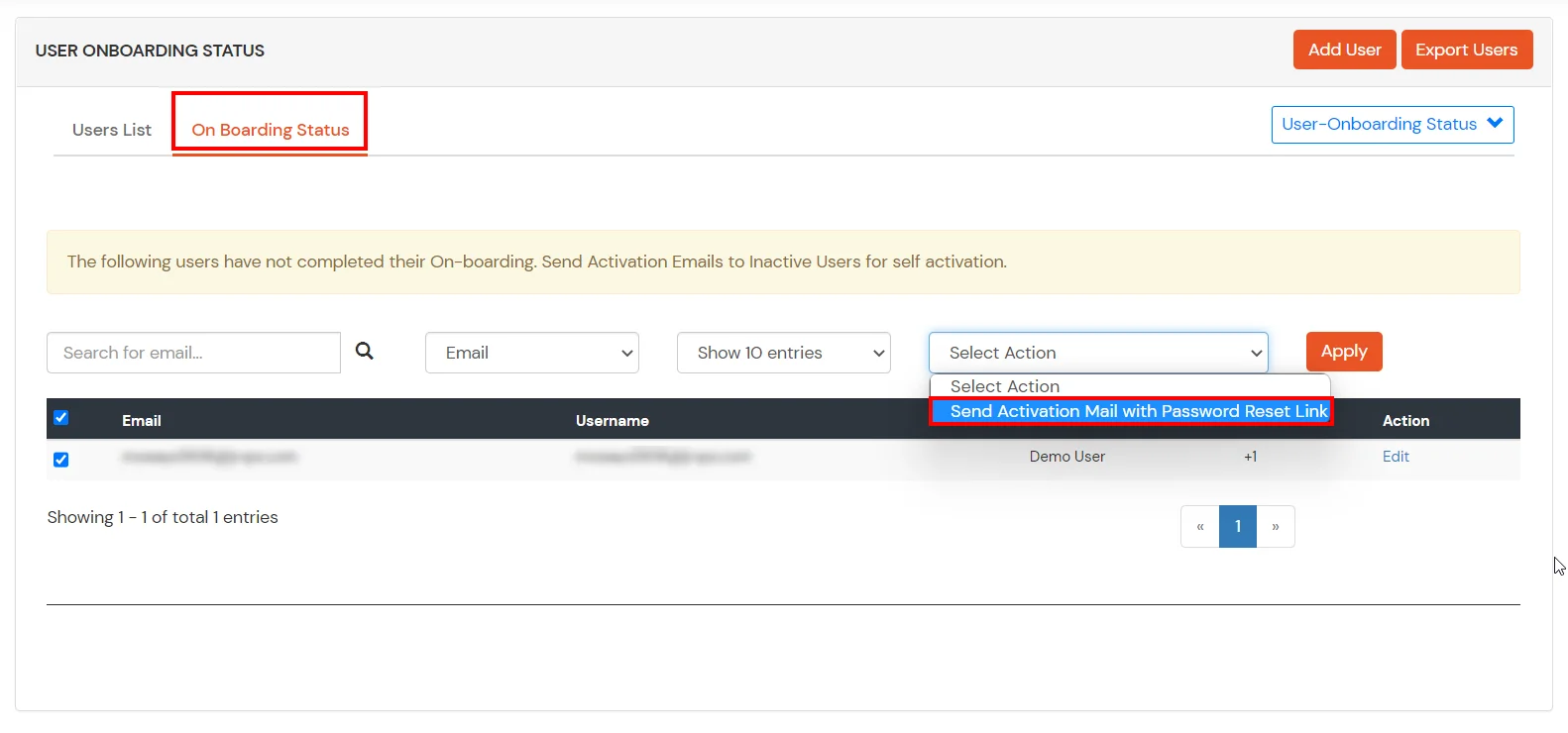
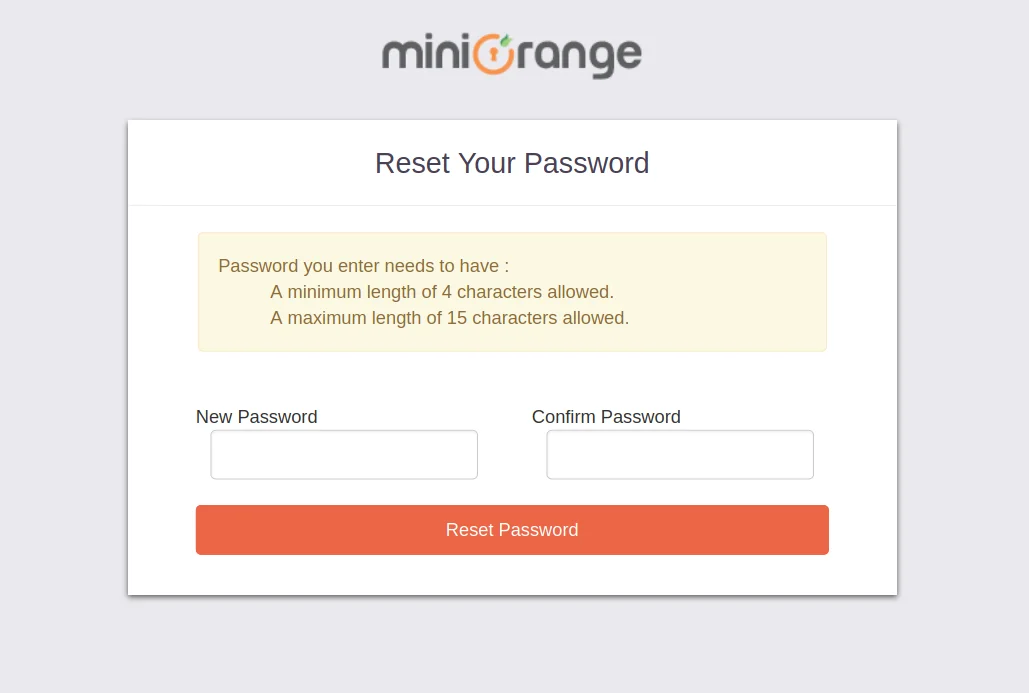
1. Create User in miniOrange
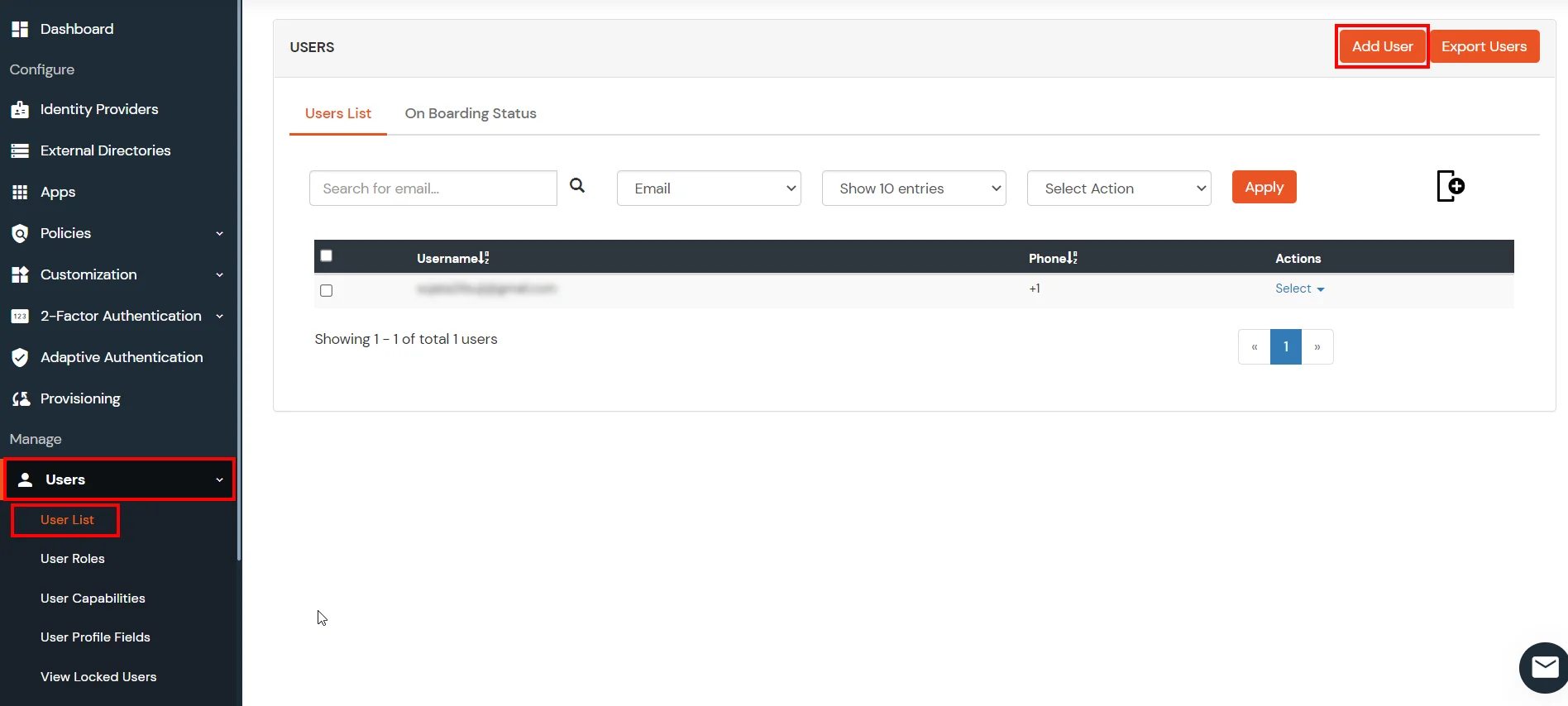
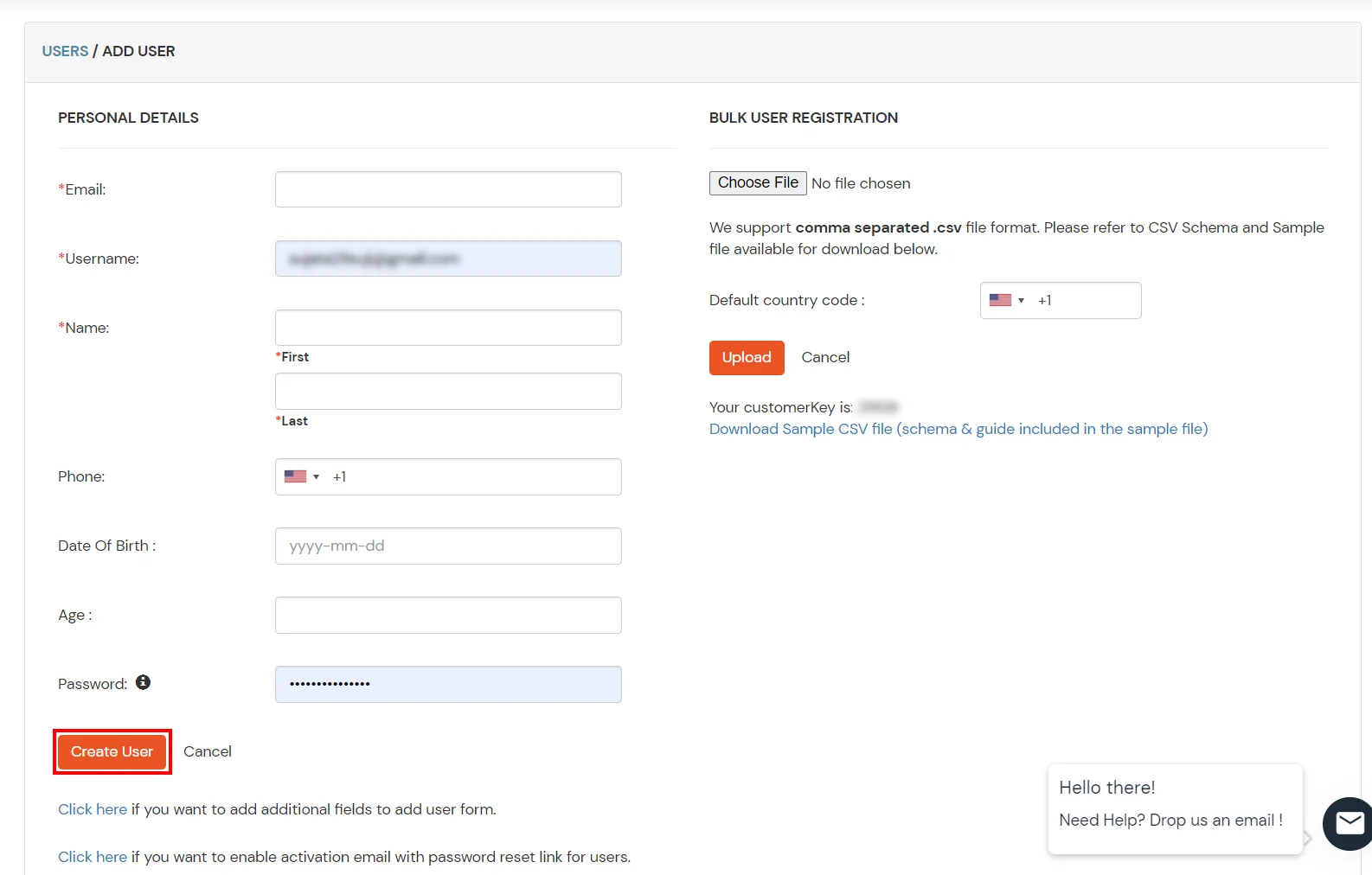
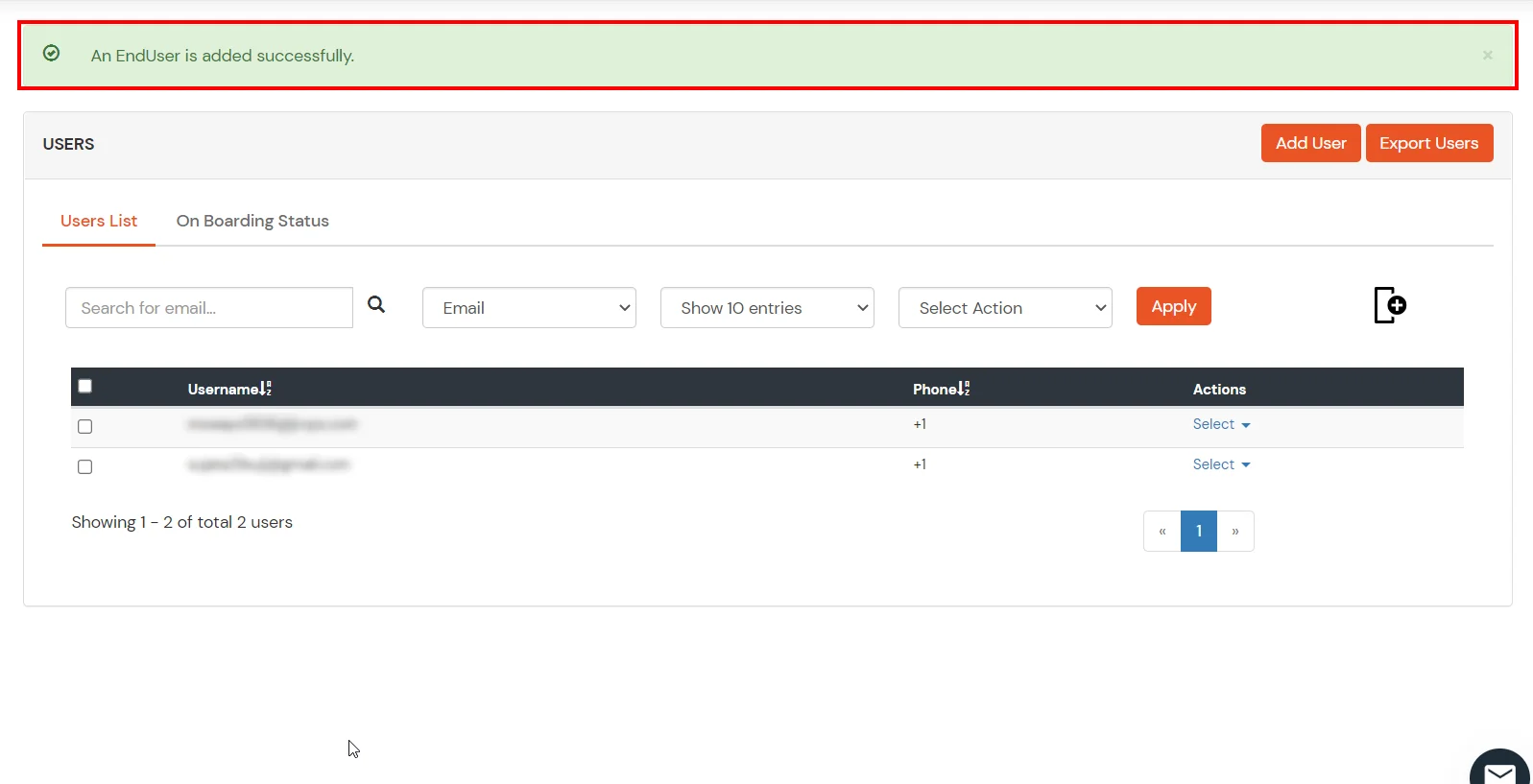
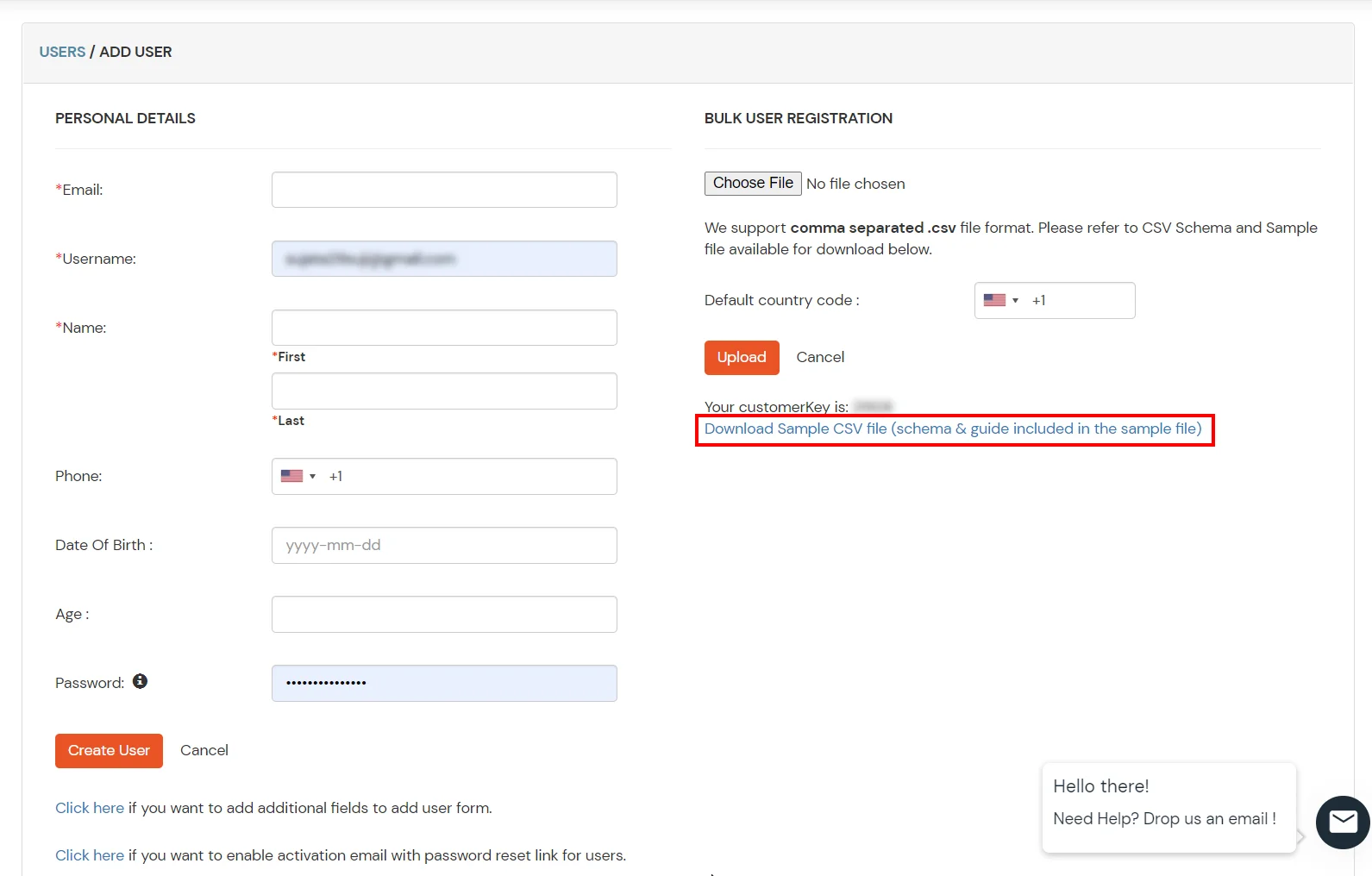
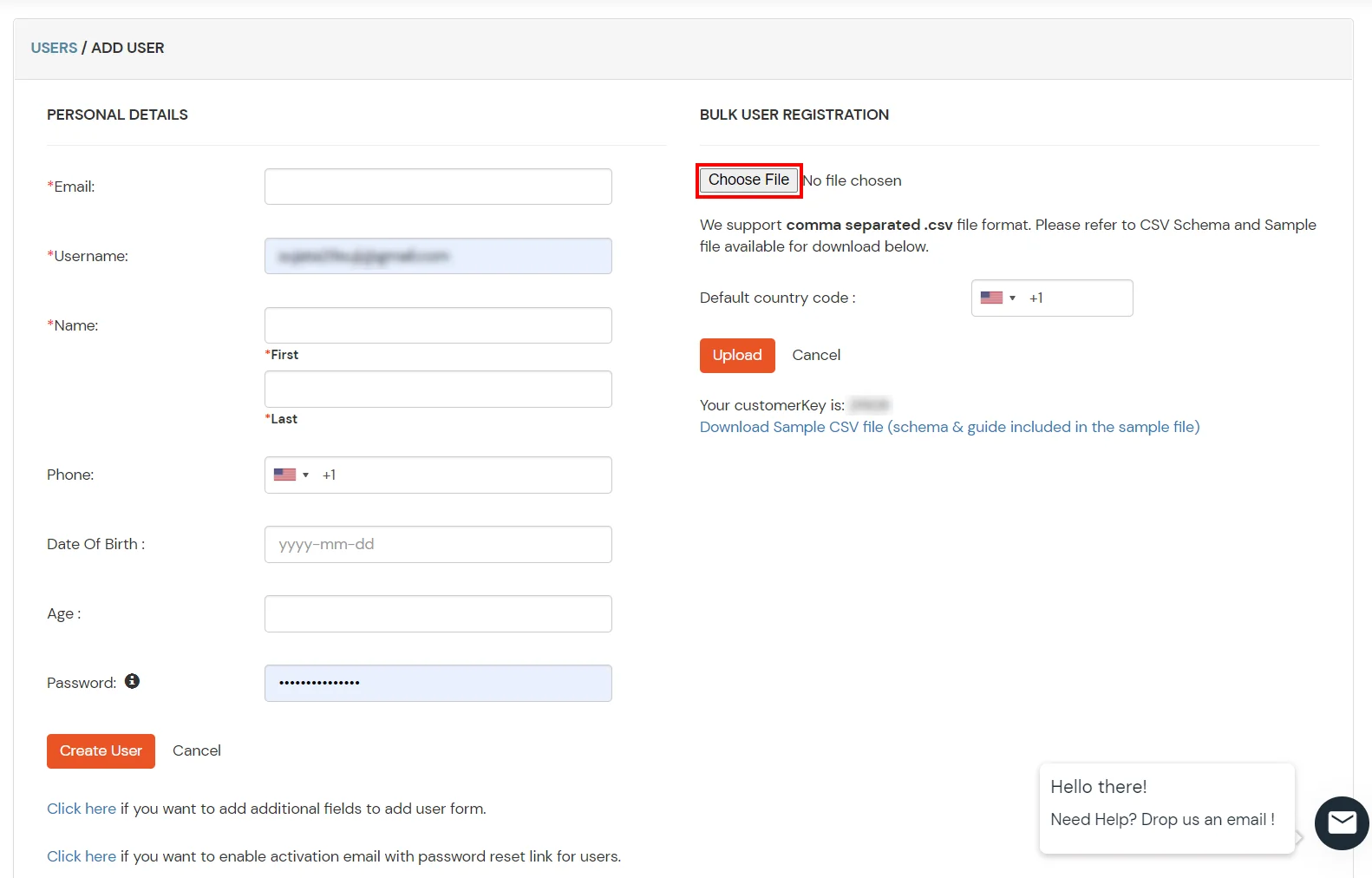
2. Bulk Upload Users in miniOrange via Uploading CSV File
miniOrange integrates with various external user sources such as directories, identity providers, and more.
Contact us or email us at idpsupport@xecurify.com and we'll help you setting it up in no time.
To synchronize address, custom attributes, and form fields from the Identity Provider (IDP) to BigCommerce, the following details must be configured:
Address Fields
To successfully sync customer address information, the following attributes are required:
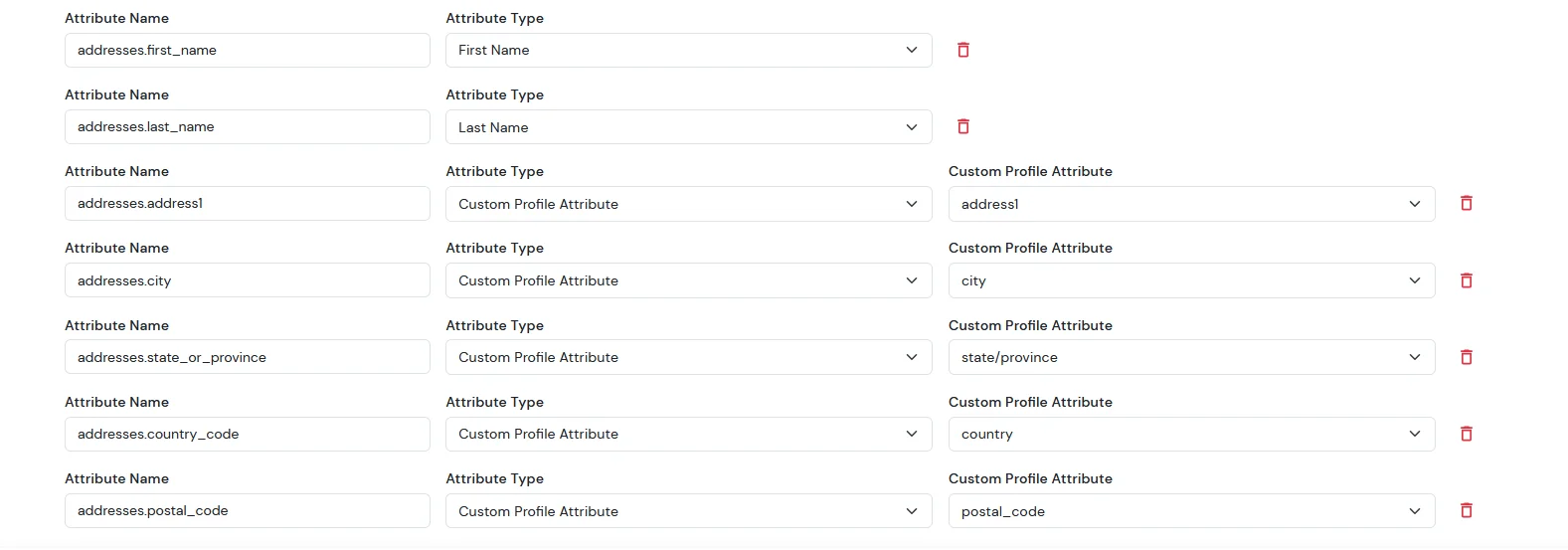
In the below diagram, we are using miniOrange as the IDP.
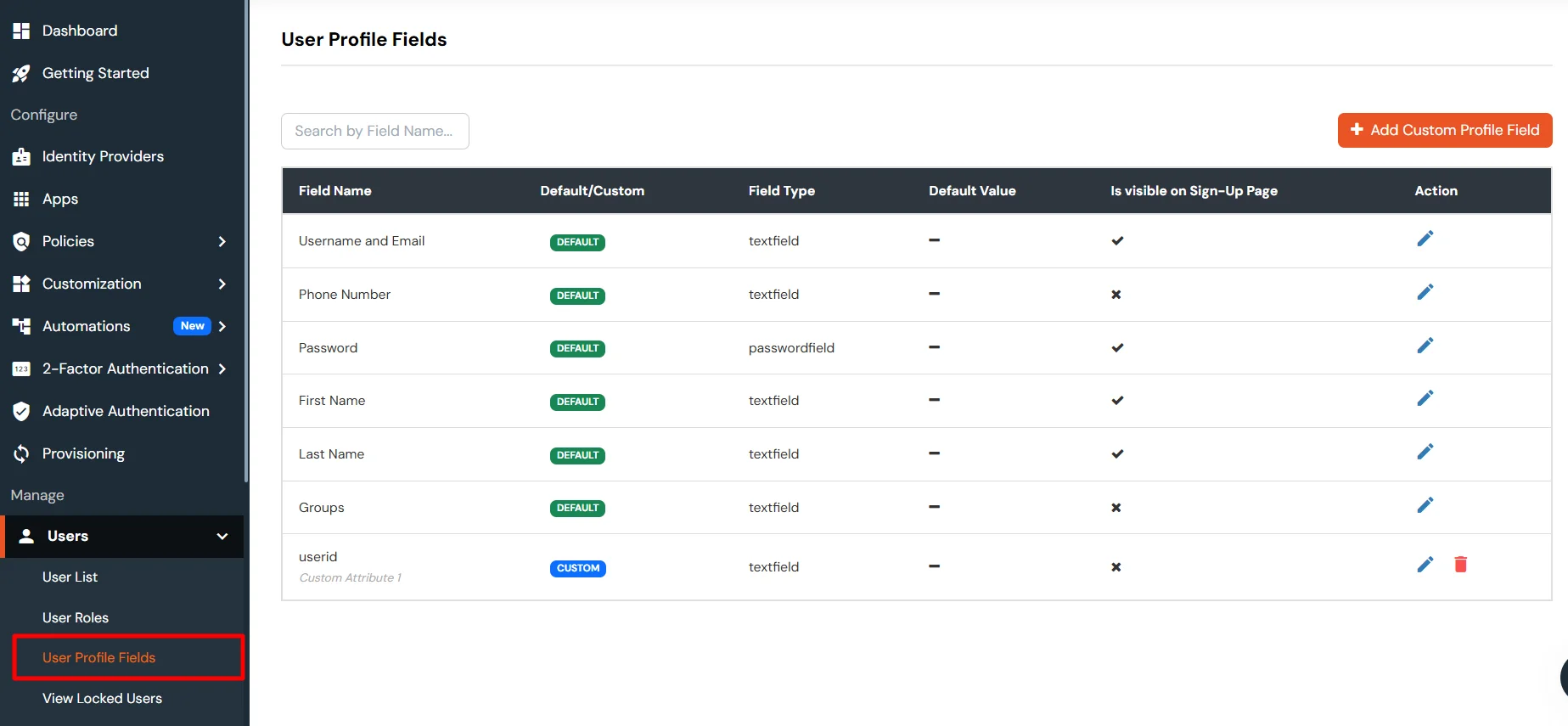
| Attribute Name | Attribute Type | Value |
|---|---|---|
| addresses.first_name | First Name | - |
| addresses.last_name | Last Name | - |
| addresses.address1 | Custom Profile Attribute | address1 |
| addresses.city | Custom Profile Attribute | city |
| addresses.state_or_province | Custom Profile Attribute | state/province |
| addresses.country_code | Custom Profile Attribute | country |
| addresses.postal_code | Custom Profile Attribute | postal_code |
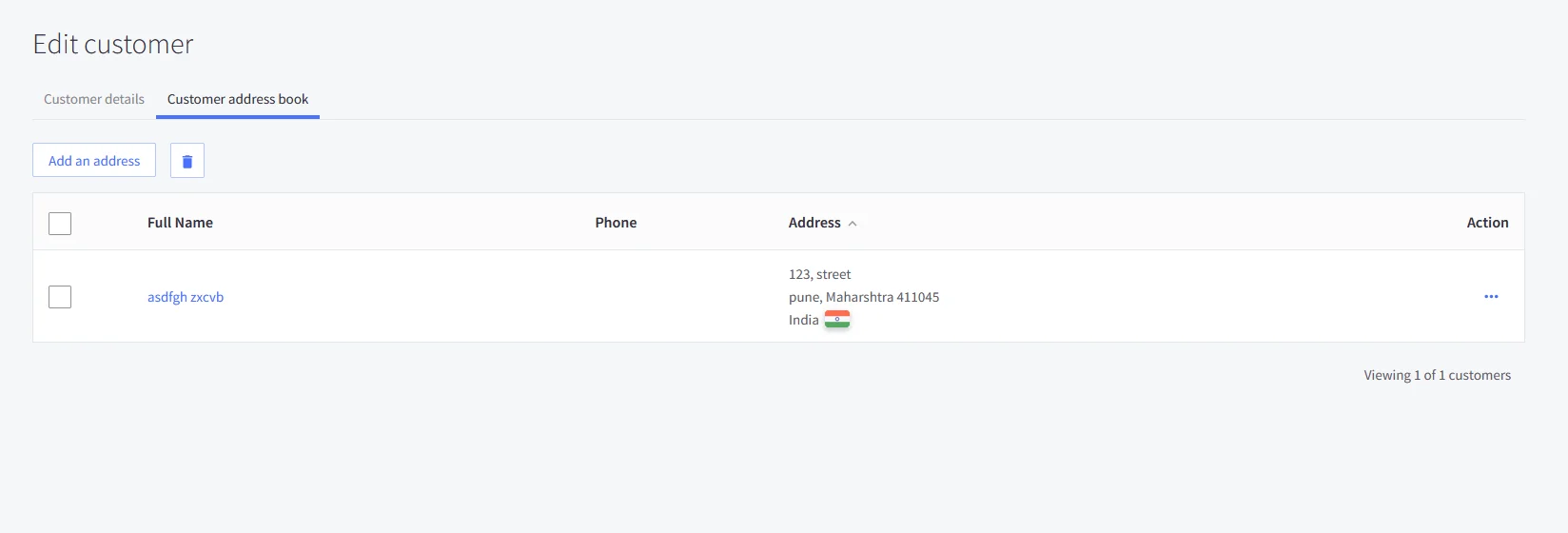
Note: When sending the country value, always use the country code (e.g., US, IN). If you pass the full country name such as “United States”, the value will not be updated — only country codes are supported for correct mapping.
While syncing address fields, ensure that the city, state, and country values you provide are valid options supported by BigCommerce and exist in their respective dropdown lists.
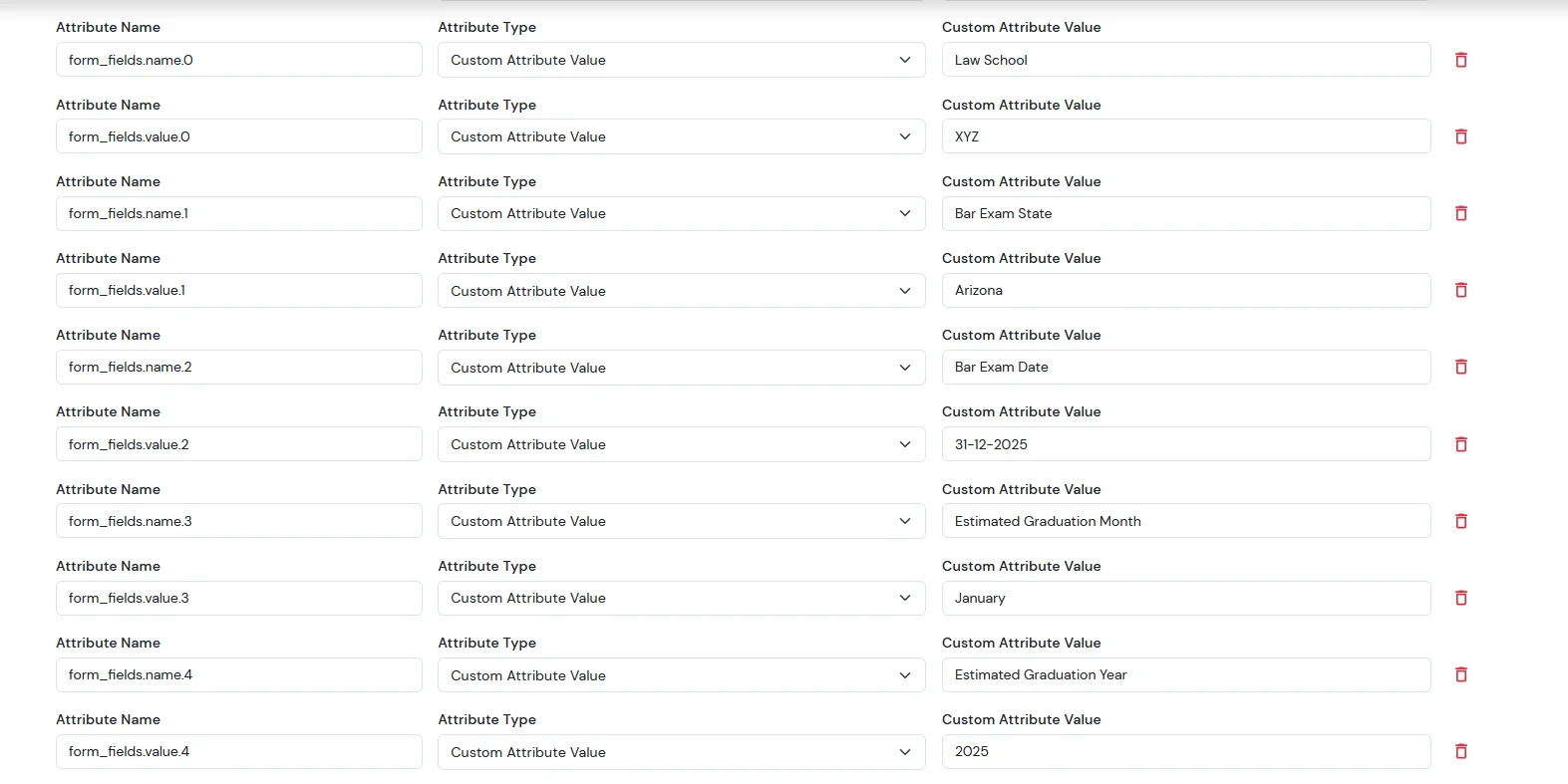
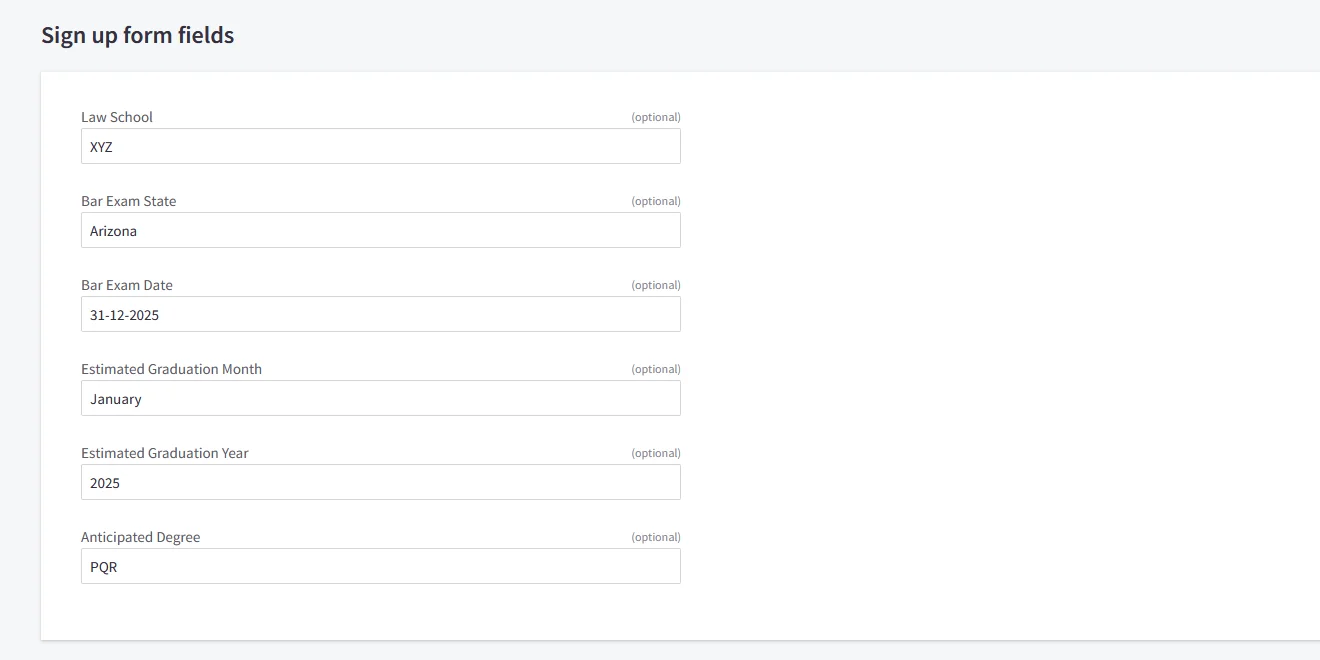
For the Sign up form fields:
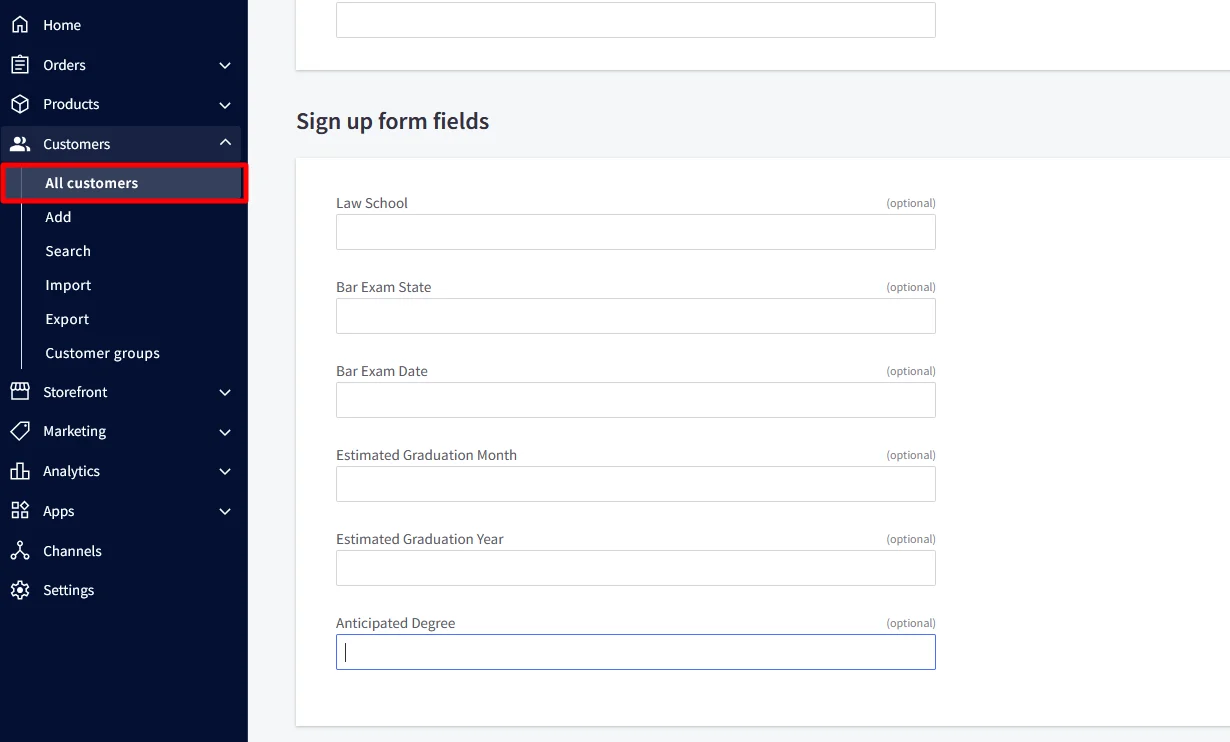
| Attribute Name | Attribute Type | Value |
|---|---|---|
| addresses.first_name | First Name | - |
| addresses.last_name | Last Name | - |
| addresses.address1 | Custom Profile Attribute | address1 |
| addresses.city | Custom Profile Attribute | city |
| addresses.state_or_province | Custom Profile Attribute | state/province |
| addresses.country_code | Custom Profile Attribute | country |
| addresses.postal_code | Custom Profile Attribute | postal_code |
| form_fields.name.0 | Custom Attribute Value | Law School |
| form_fields.value.0 | Custom Attribute Value | XYZ |
| form_fields.name.1 | Custom Attribute Value | Bar Exam State |
| form_fields.value.1 | Custom Attribute Value | Arizona |
| form_fields.name.2 | Custom Attribute Value | Bar Exam Date |
| form_fields.value.2 | Custom Attribute Value | 31-12-2025 |
| form_fields.name.3 | Custom Attribute Value | Estimated Graduation Month |
| form_fields.value.3 | Custom Attribute Value | January |
| form_fields.name.4 | Custom Attribute Value | Estimated Graduation Year |
| form_fields.value.4 | Custom Attribute Value | 2025 |
For the Attribute Fields
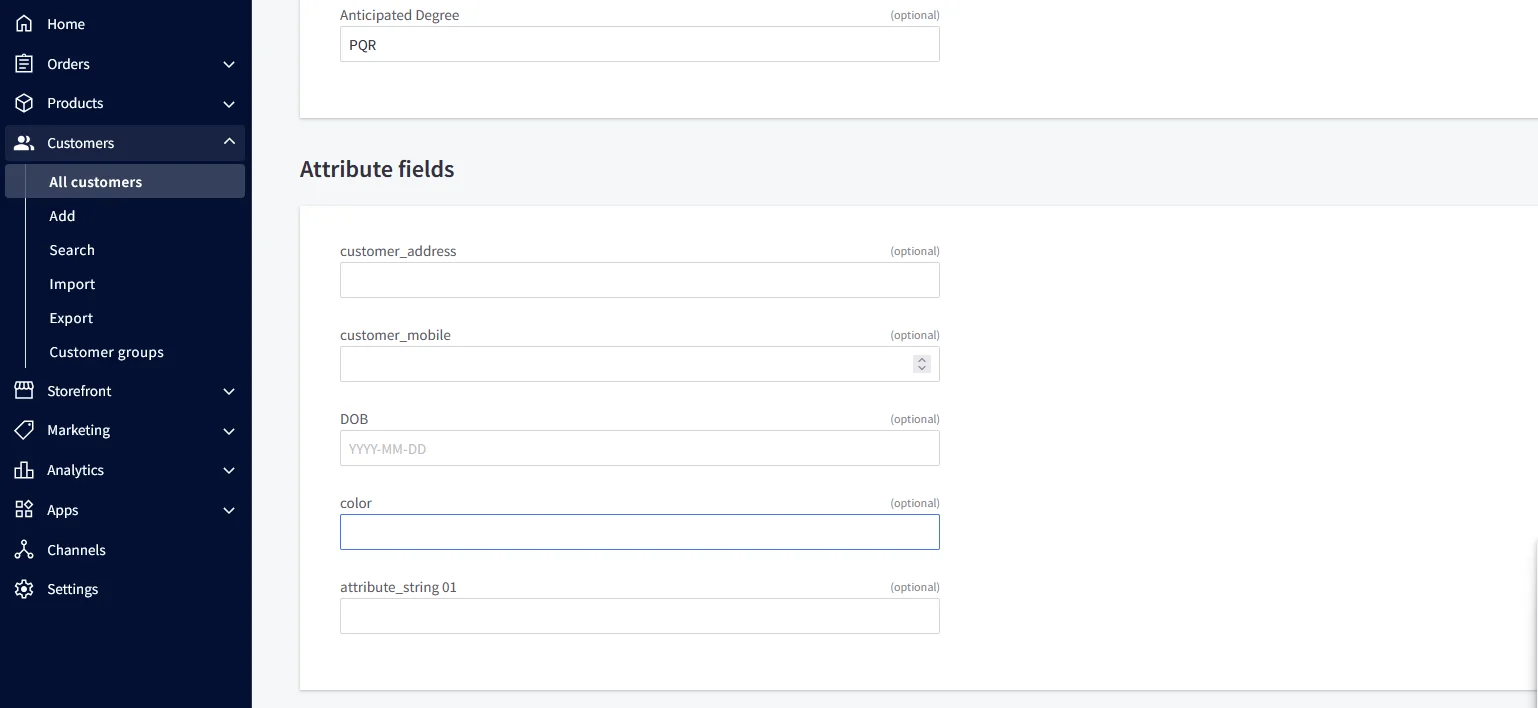
| Attribute Name | Attribute Type | Value |
|---|---|---|
| color | Custom Profile Attribute | blue |
| customer_address | Custom Profile Attribute | MG road |
| customer_mobile | Custom Profile Attribute | +911234567890 |
| DOB | Custom Profile Attribute | 2002-01-01 |
| attribute_string 01 | Custom Profile Attribute | testing |
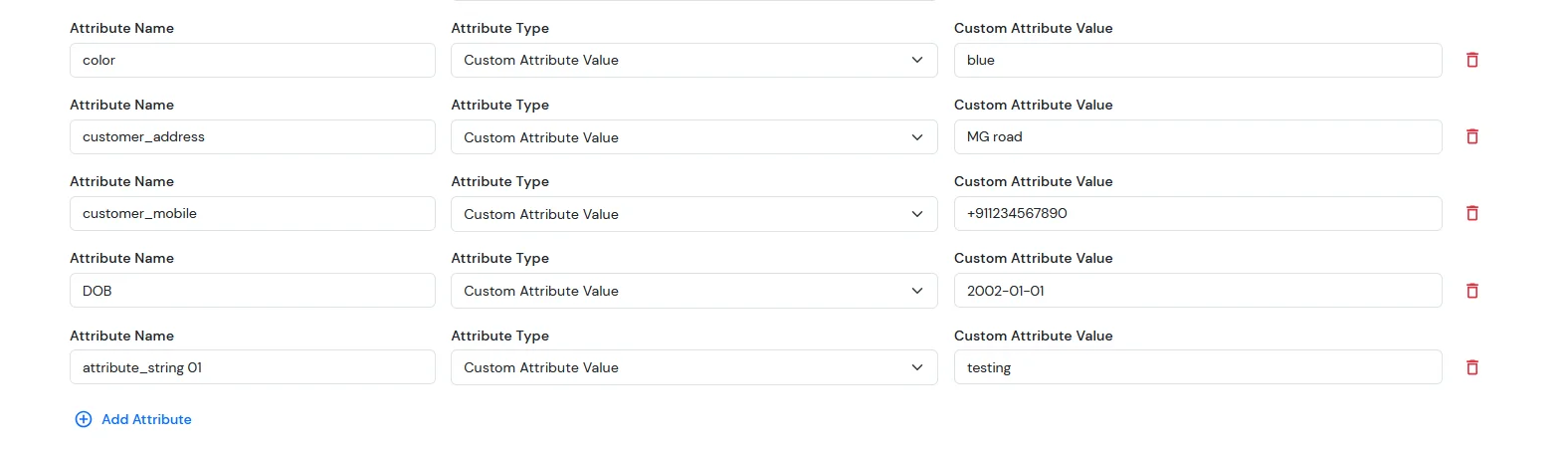
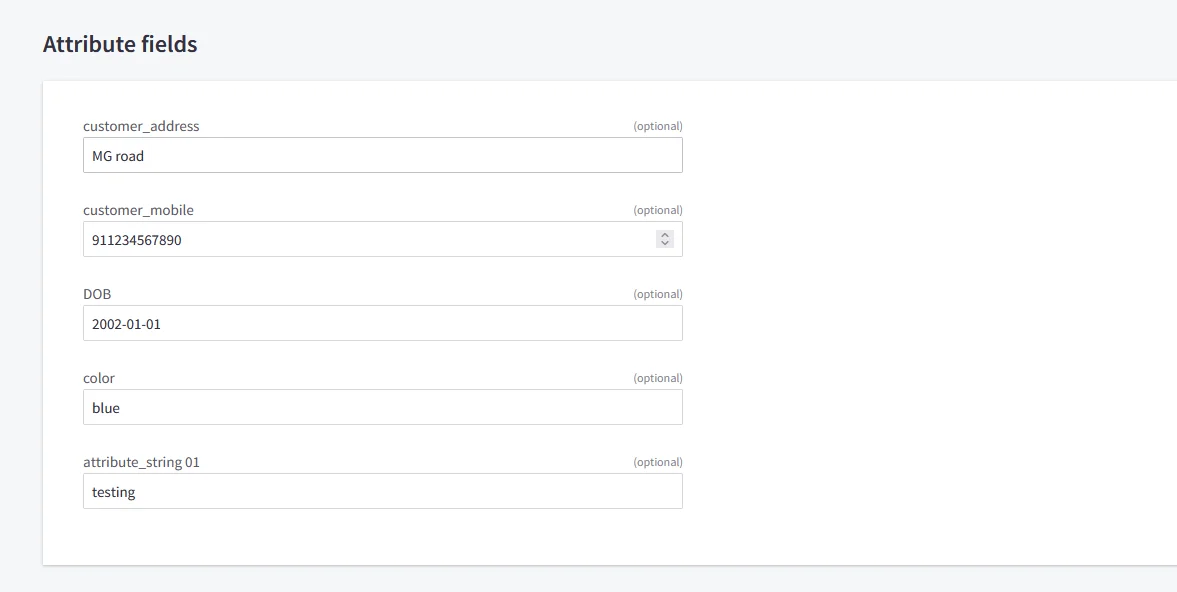
NOTE: Update customer profile during sso
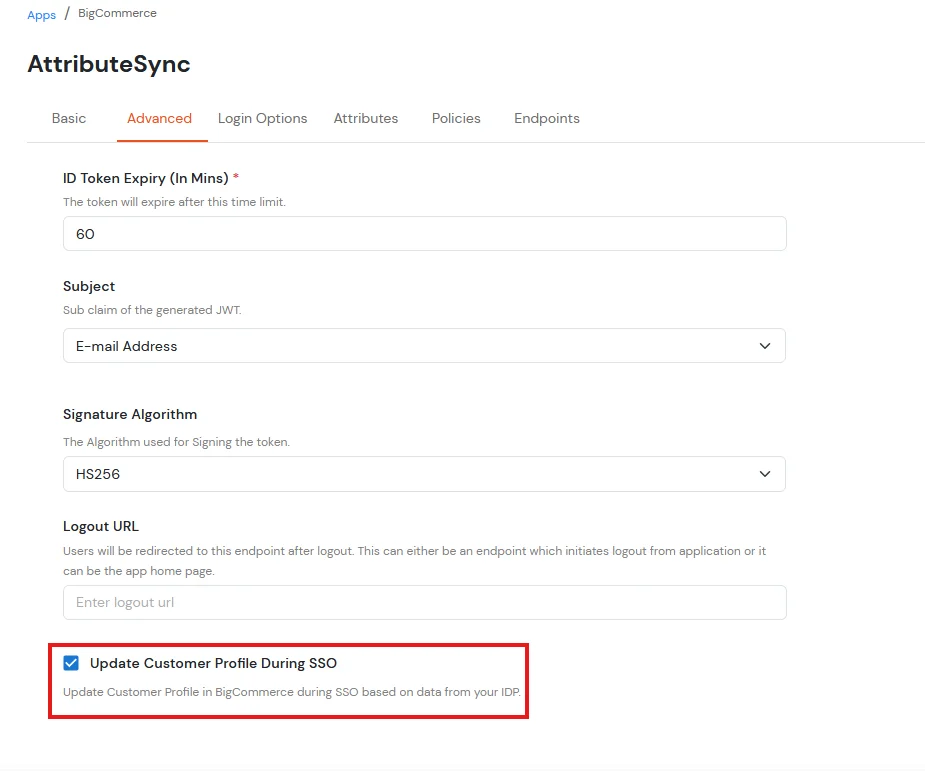
For ExternaI Identity Provider
| Attribute Name | Attribute Type | Value |
|---|---|---|
| addresses.first_name | External Idp Attribute | first_name |
| addresses.last_name | External Idp Attribute | last_name |
| addresses.address1 | External Idp Attribute | street1 |
| addresses.city | External Idp Attribute | city |
| addresses.state_or_province | External Idp Attribute | state |
| addresses.country_code | External Idp Attribute | country |
| addresses.postal_code | External Idp Attribute | zipcode |
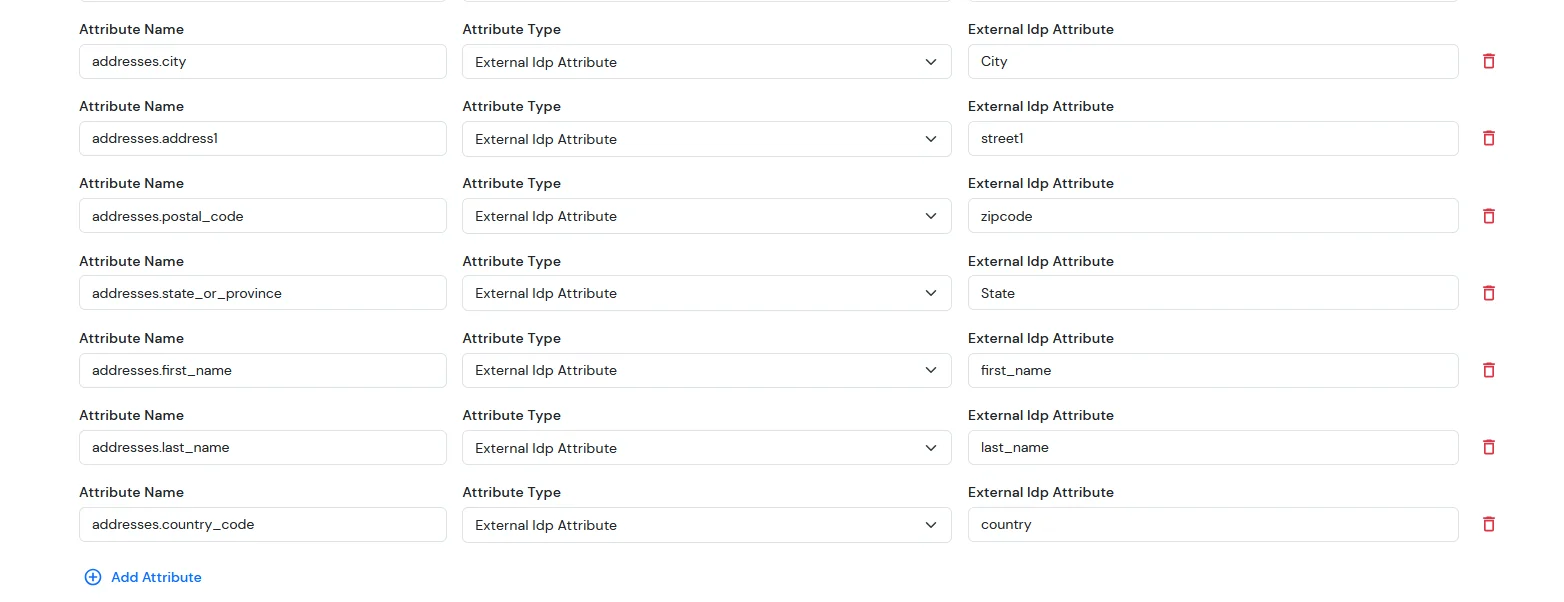
Note: When sending the country value, always use the country code (e.g., US, IN). If you pass the full country name such as “United States”, the value will not be updated — only country codes are supported for correct mapping.
While syncing address fields, ensure that the city, state, and country values you provide are valid options supported by BigCommerce and exist in their respective dropdown lists.
For the Sign up form fields:
| Attribute Name | Attribute Type | Value |
|---|---|---|
| form_fields.name.0 | Custom Attribute Value | Law School |
| form_fields.value.0 | External Idp Attribute | law_school |
| form_fields.name.1 | Custom Attribute Value | Bar Exam State |
| form_fields.value.1 | External Idp Attribute | bar_exam_state |
| form_fields.name.2 | Custom Attribute Value | Bar Exam Date |
| form_fields.value.2 | External Idp Attribute | bar_exam_date |
| form_fields.name.3 | Custom Attribute Value | Estimated Graduation Month |
| form_fields.value.3 | External Idp Attribute | month |
| form_fields.name.4 | Custom Attribute Value | Estimated Graduation Year |
| form_fields.value.4 | External Idp Attribute | year |
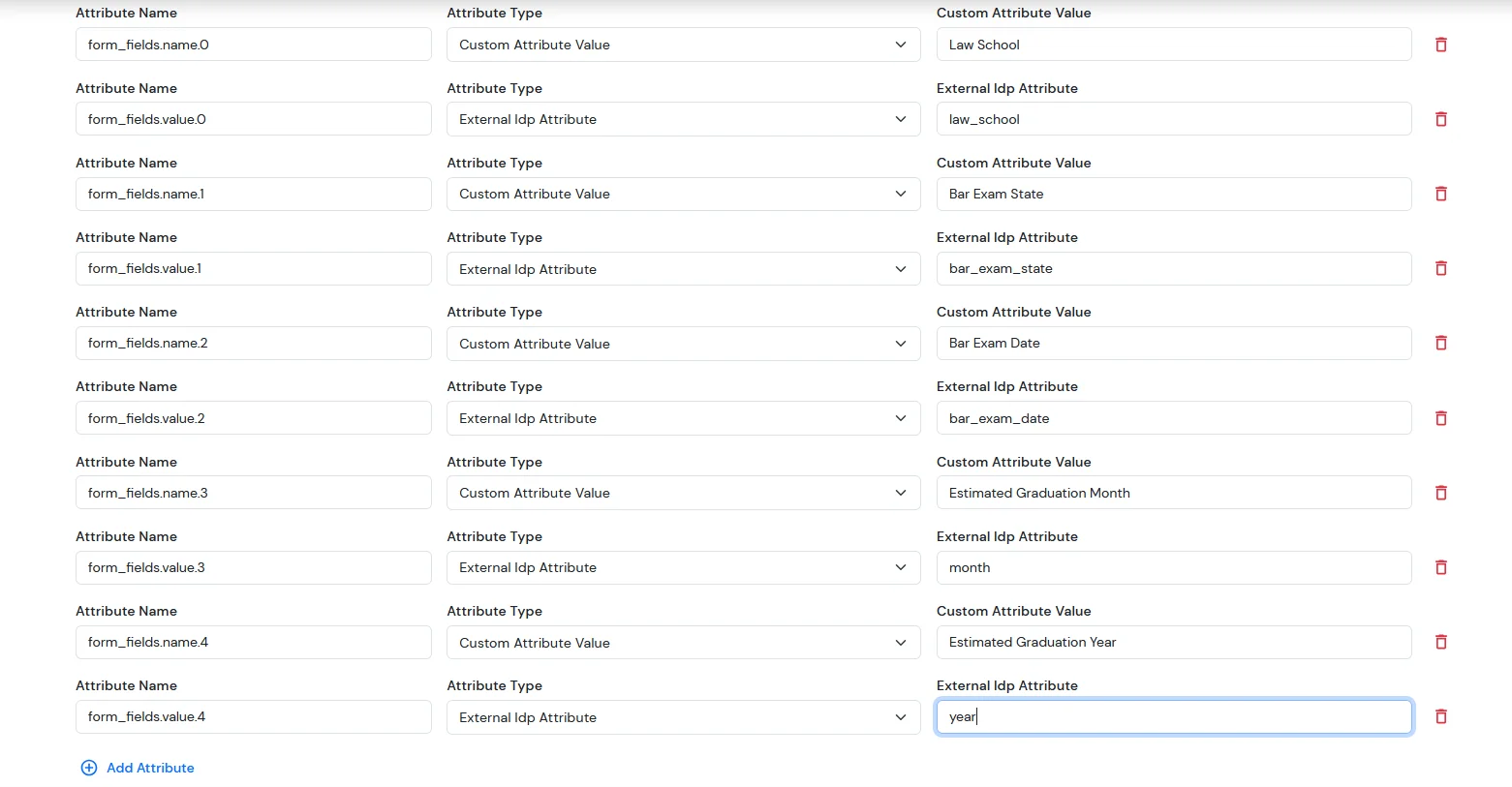
For Custom Attribute Fields
| Attribute Name | Attribute Type | Value |
|---|---|---|
| color | External Idp Attribute | color |
| customer_address | External Idp Attribute | address |
| customer_mobile | External Idp Attribute | mobile_number |
| DOB | External Idp Attribute | birth_date |
| attribute_string 01 | External Idp Attribute | string |
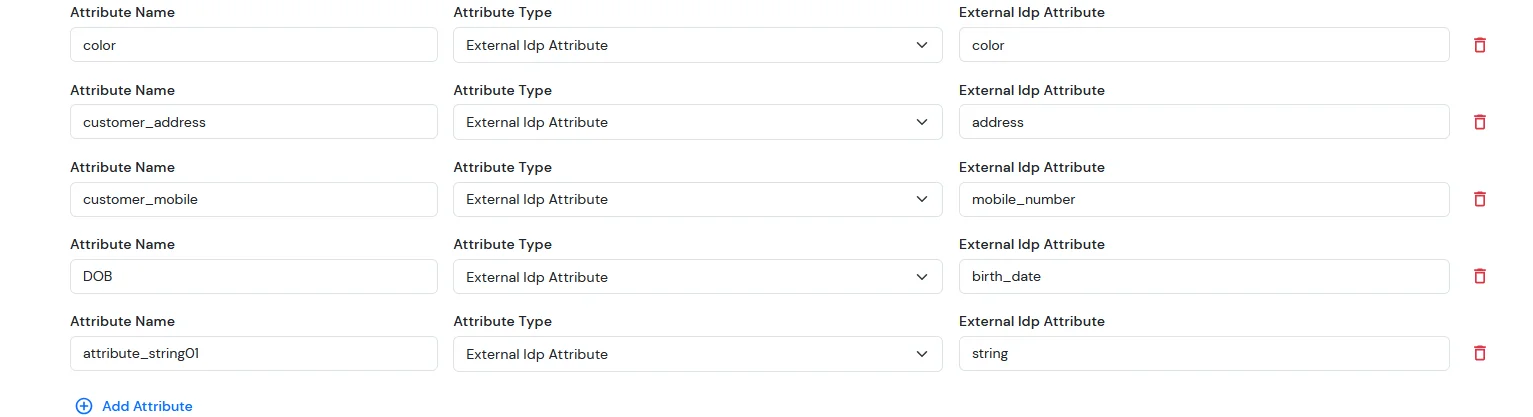
NOTE: Update customer profile during sso
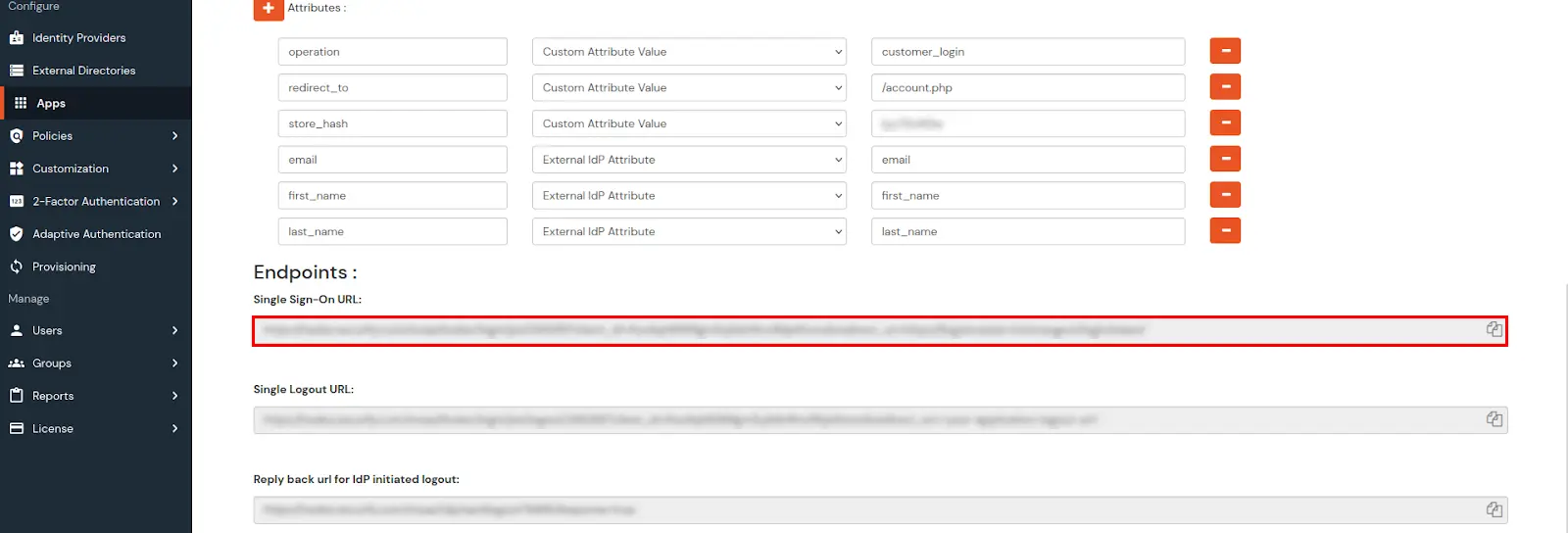
Note: If you face any issues while testing, [Click Here to troubleshoot].
The steps below apply to the Cornerstone theme. If you are using a different theme, adjust the changes accordingly.
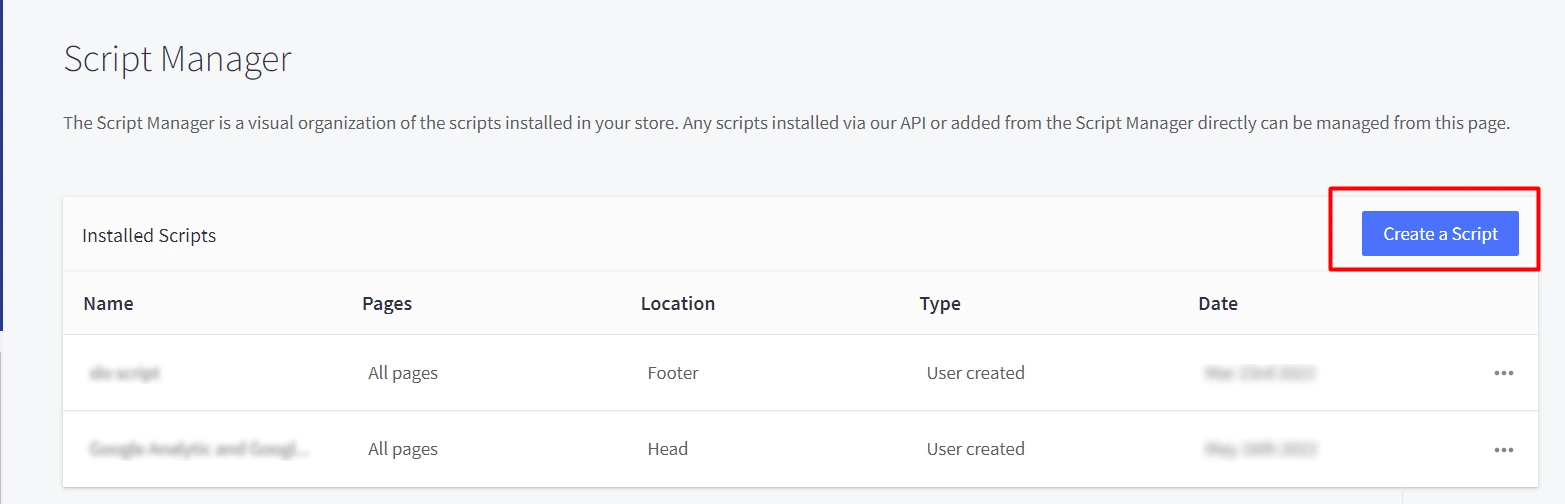
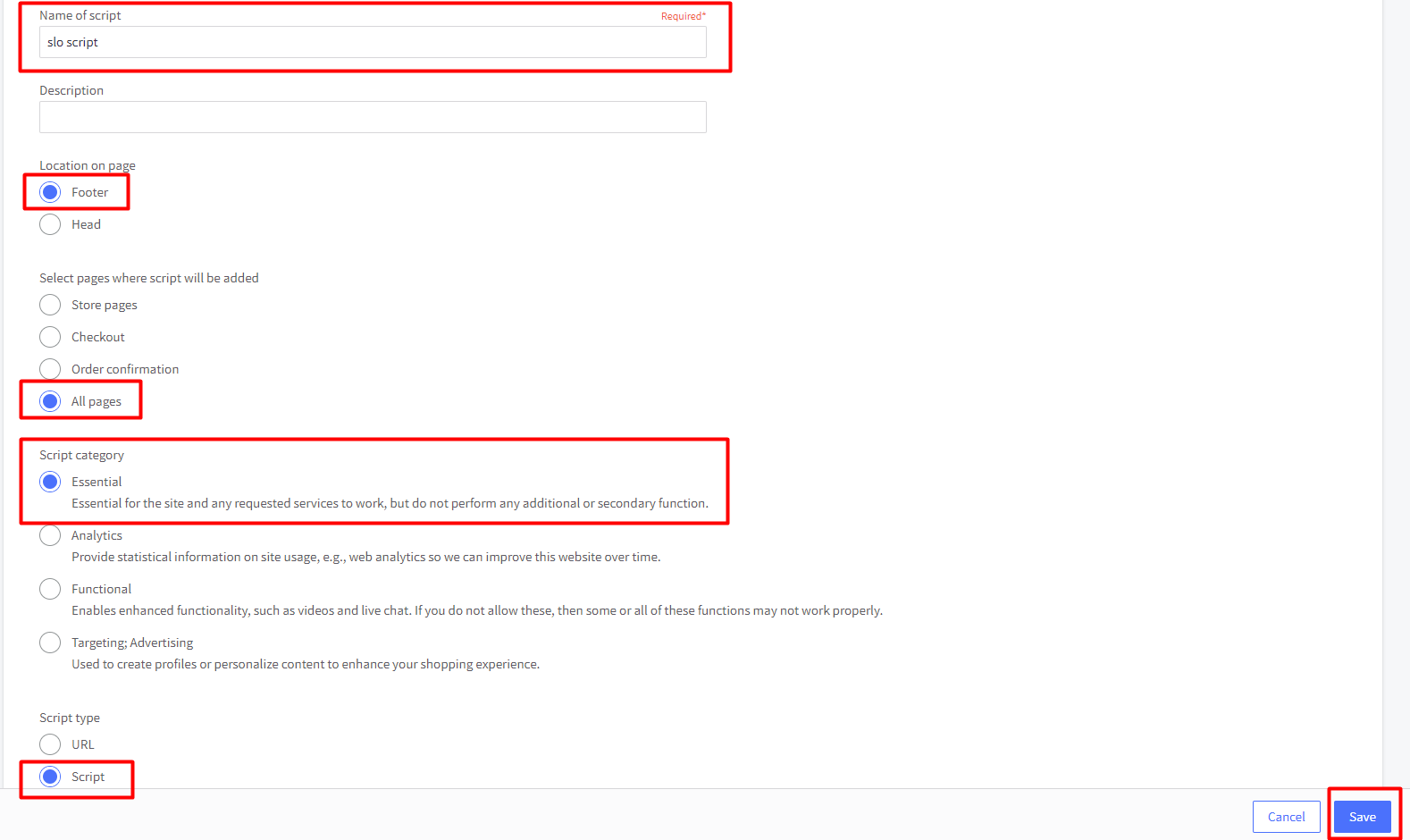
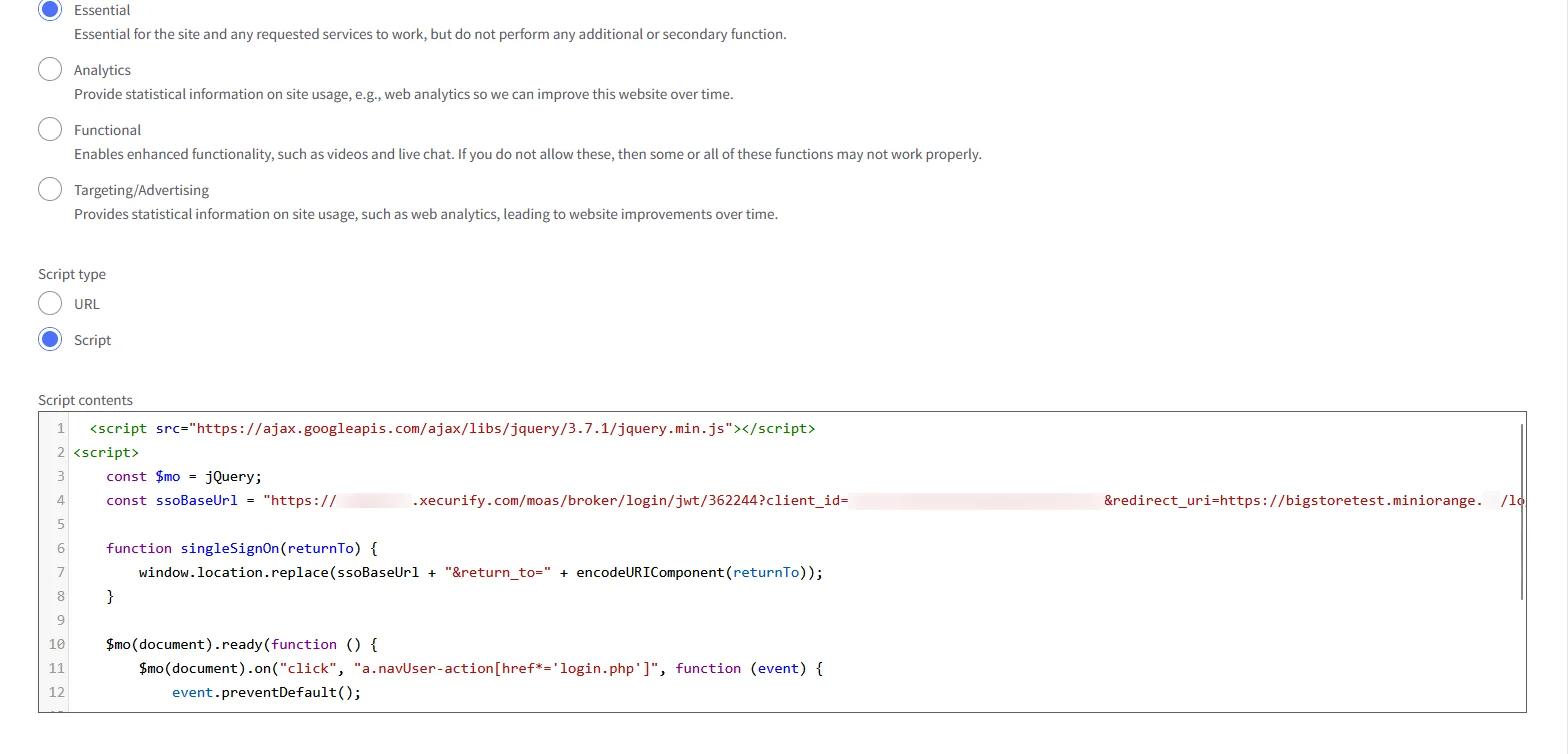
Follow the below steps to troubleshoot SSO Failures for BigCommerce store.
Note: If you can add a browser extension to your browser, follow the SAML tracer steps, otherwise switch to Network tab.
To add a browser extension, follow these steps:
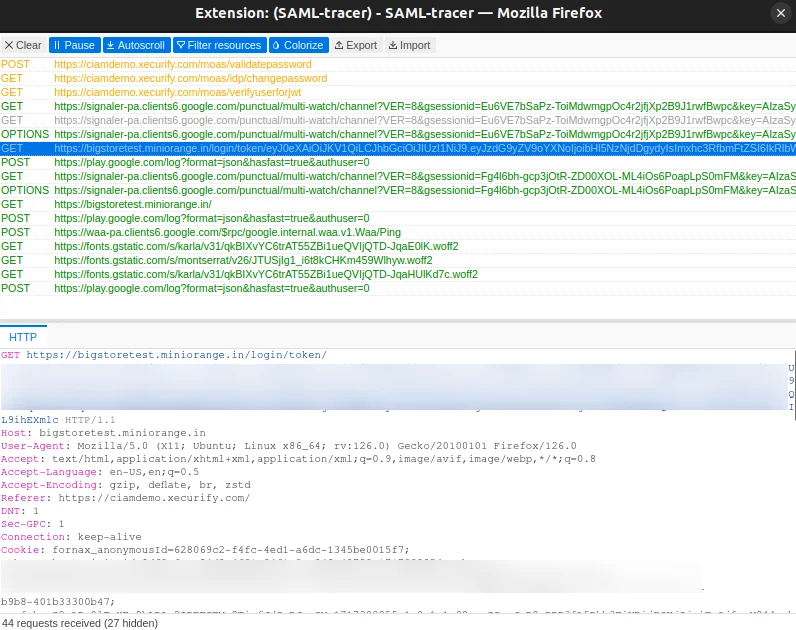
Skip if you've already installed SAML tracer.
Note: If you're unsure how to open the Network tab in Chrome or Firefox, refer to these guides: Chrome documentation and Firefox documentation.
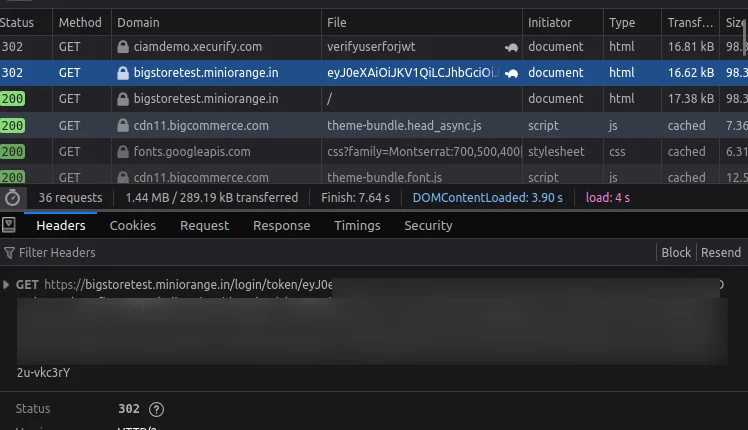
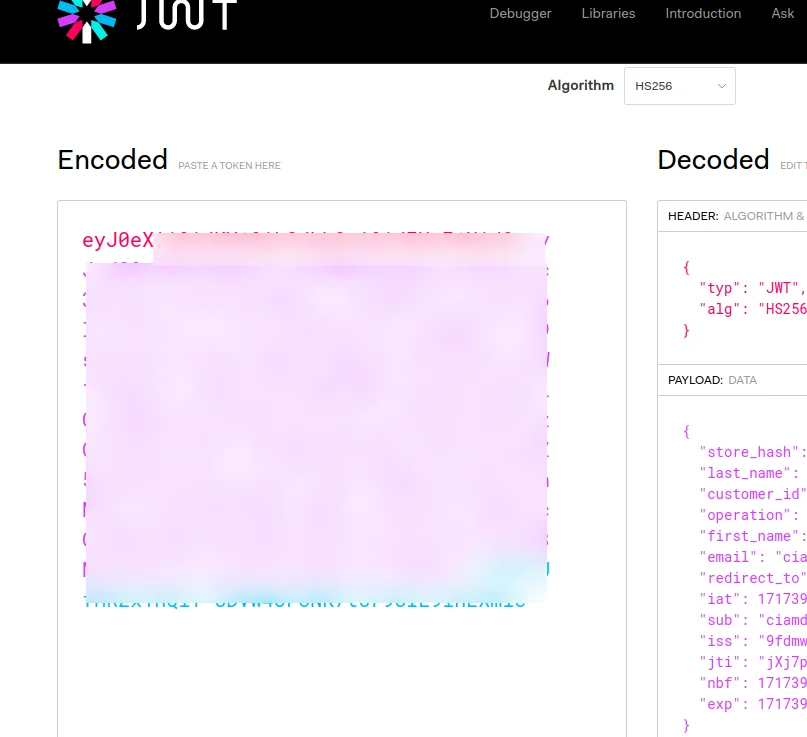
Note: If the connection is successful, click here to check the above configuration.
Yes, we support SSO into BigCommerce using Microsoft Entra ID , Okta and Office 365 credentials.
If the user does not exist in your bigcommerce store, our SSO solution will automatically create the user on bigcommerce and perform a seamless login.
Yes, we support social login providers such as google, facebook, twitter and many more. You can set up your Social login app by following the guide here : https://www.miniorange.com/iam/login-with-external-idp/

