Two Factor Authentication - 2FA for vWorkspace MokaFive
vWorkspace-MokaFive Suite simplifies management of your corporate Windows applications and data. This cost-efficient container solution creates a separate work environment on devices ranging from laptops and desktops to tablets and smartphones, while providing your temporary, contract or mobile employees with secure, user-friendly access to corporate apps and data from anywhere.
What is Virtual Desktop Infrastructure (VDI) & Why VDI Security Solutions important?
VDI is a desktop-centric service that hosts user desktop environments on remote servers and storage systems, which are accessed over a network using a remote display protocol. Enterprises are converting physical desktops to Virtual Desktop Infrastructure (VDI) since it provides efficient hardware utilization and centralized management while reducing costs.
Due to the COVID-19, many companies need to find some ways to enable remote working. VDI solution is one of their choices. vWorkspace MokaFive can provide a quick win VDI solution but it still need to spend efforts to setup for some authentications and security settings, e.g. MFA. For some SME companies, they may not have their own RADIUS (Remote Authentication Dial-In User Service) server and OTP (one-time password) server to enable 2FA/MFA. miniOrange provides a ready to use Two-Factor Authentication - 2FA solution for vWorkspace MokaFive VDI using RADIUS Server which enables an extra layer of authentication to VDI logins & ensures that you roll out secure access to your employees within minutes.
To use miniOrange Two-FActor Authentication (2FA) you can enable RADIUS authentication in vWorkspace MokaFive and configure policies in miniOrange to enable or disable 2FA for users.
Types of 2FA Authentication with RADIUS
The 2-factor authentication can be of two types depending on the Application.
- Applications that support RADIUS Challenge.
- Applications that do not support RADIUS Challenge.
In Applications that support RADIUS Challenge :
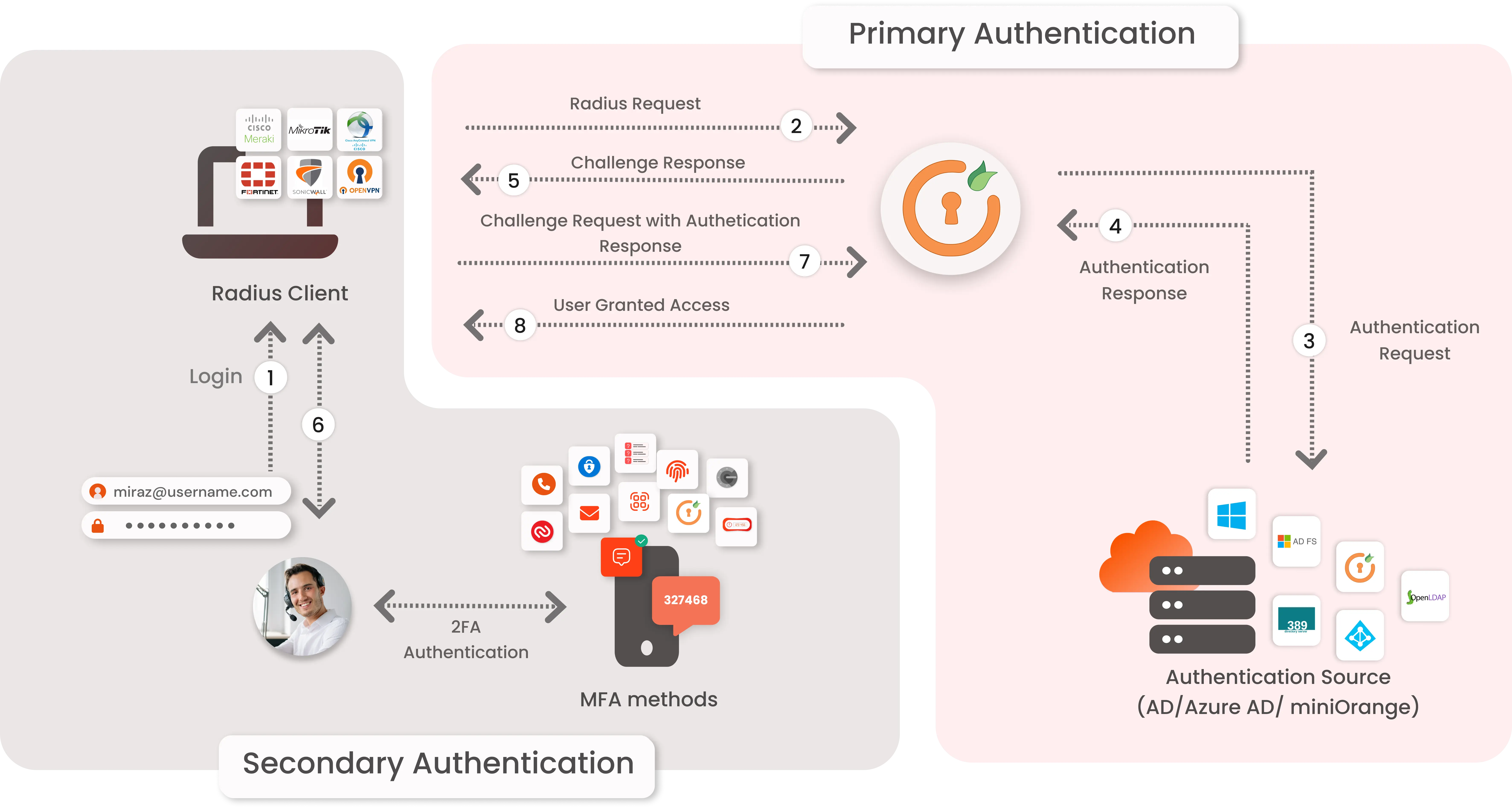
- First step is user's username & password get validated against the credentials stored in Active Directory and 2nd request sends a success response, this request is sent to validate the 2-factor authentication of the user, on successful authentication user is granted access to the application.
- Authentication methods : All Authentication methods are supported by miniOrange. Software Token, Push Notification, OTP over Email to name a few.
Connect with any External Directories
miniOrange provides user authentication from various external directories such as miniOrange Directory, Microsoft AD, Microsoft Entra ID/LDAP, AWS Cognito and many more.
Can't find your Directory? Contact us on idpsupport@xecurify.com
Enable Two-Factor Authentication (2FA) for vWorkspace MokaFive VDI to increase security level.
1. Add Radius Client in miniOrange
- Login into miniOrange Admin Console.
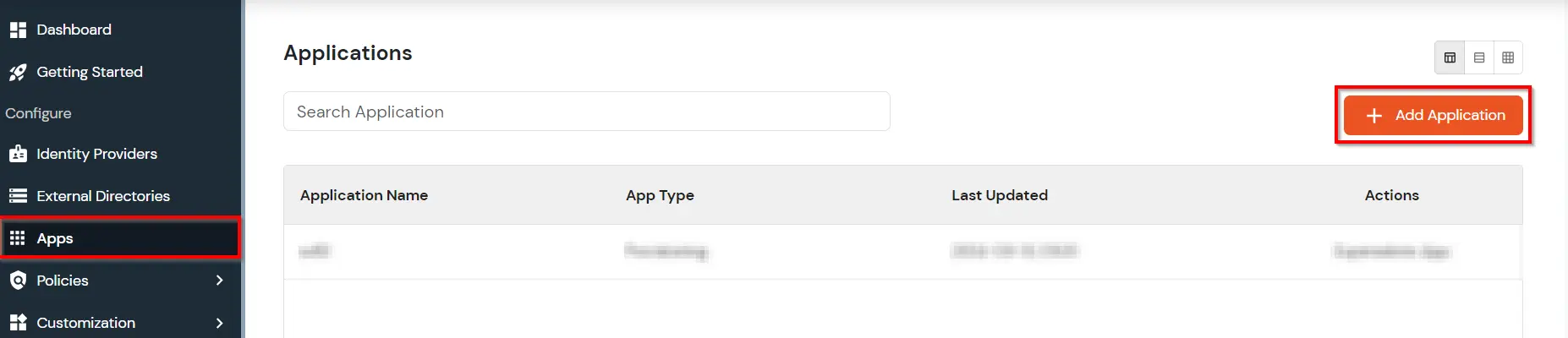
- Go to Apps and click on Add Application button on the top right corner.
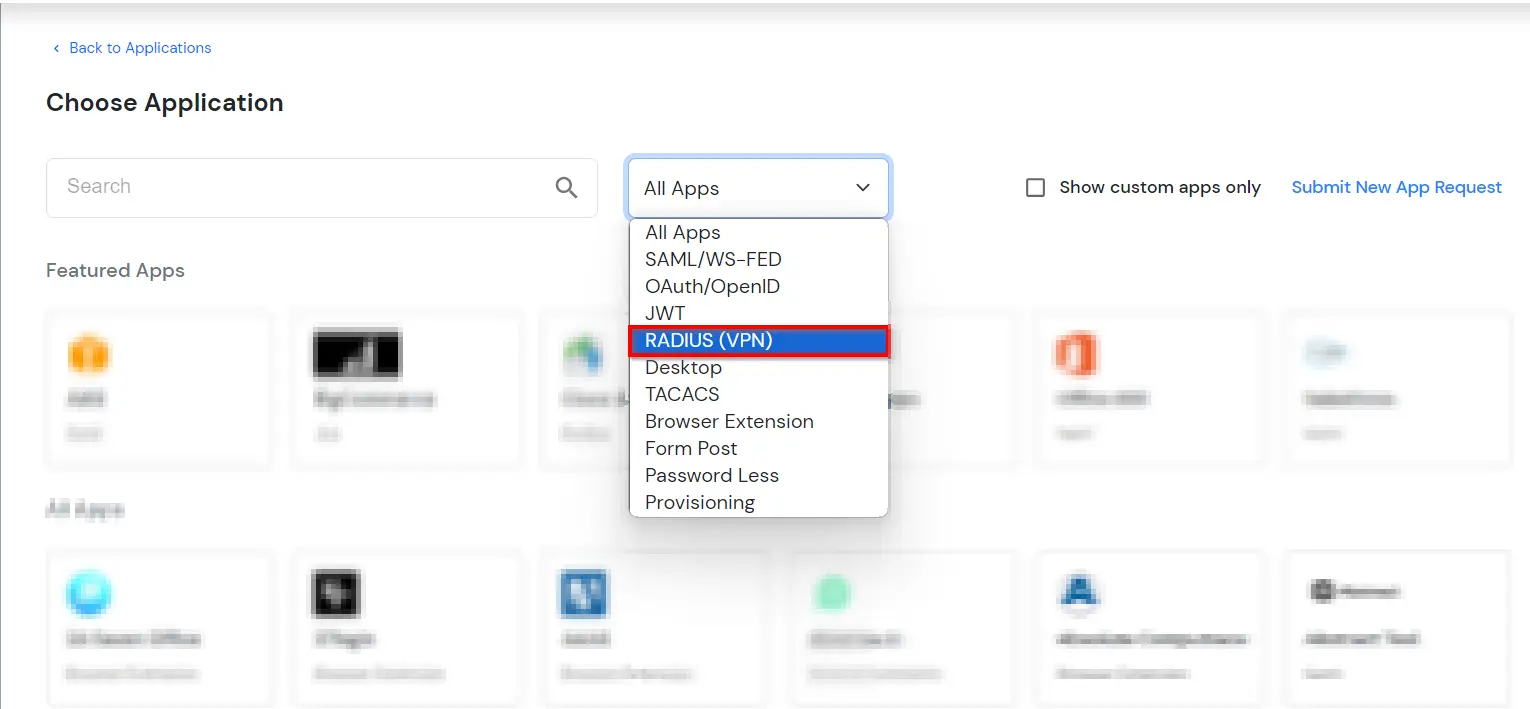
- Choose RADIUS as Application type and click on Create App button.
- Click on vWorkspace MokaFive application tab. If you don't find your application click on Radius Client application tab.
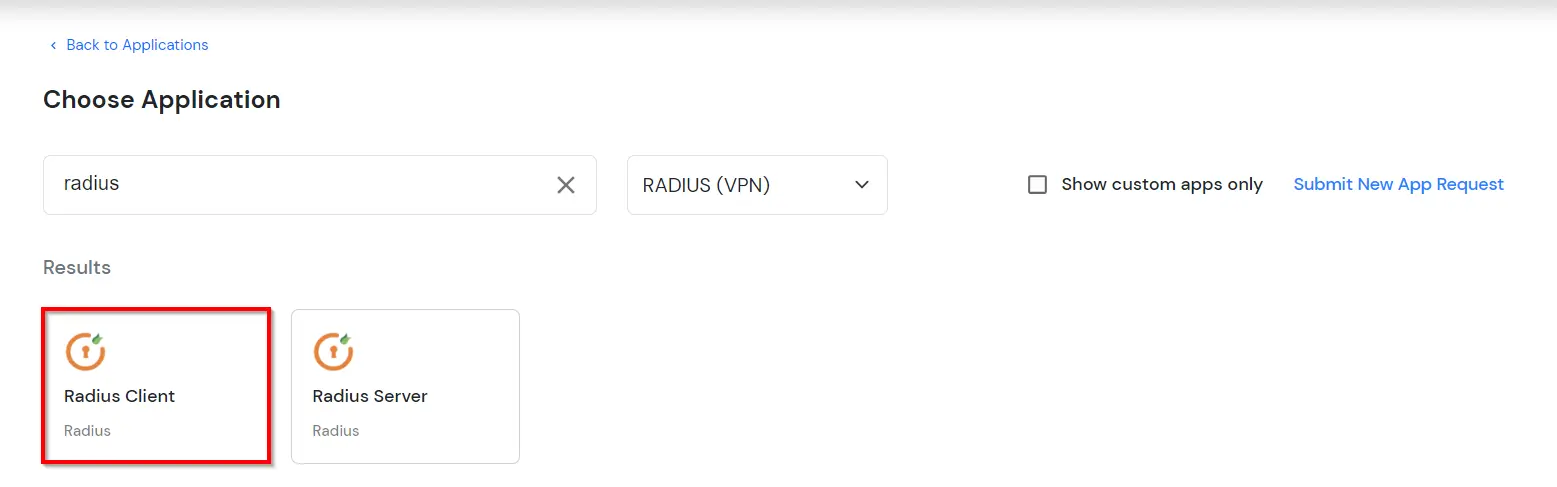
- Configure details below to add Radius Client.
| Client Name: |
Any name for your reference. |
| Client IP: |
IP address of VPN server which will send Radius authentication request. |
| Shared Secret: |
Security key.
For Eg. "sharedsecret"
(Keep this with you, you will need to configure same on VPN Server). |
| Do not Support Challenge: |
Keep this Unchecked. |
- Configure the following Policy details for the Radius App.
| Group Name: |
Group for which the policy will apply. |
| Policy Name: |
Any Identifier that specifies policy name. |
| Login Method |
Login Method for the users associated with this policy. |
| Enable 2-Factor Authentication |
Enables Second Factor during Login for users associated with this policy. |
| Enable Adaptive Authentication |
Enables Adaptive Authentication for Login of users associated with this policy. |
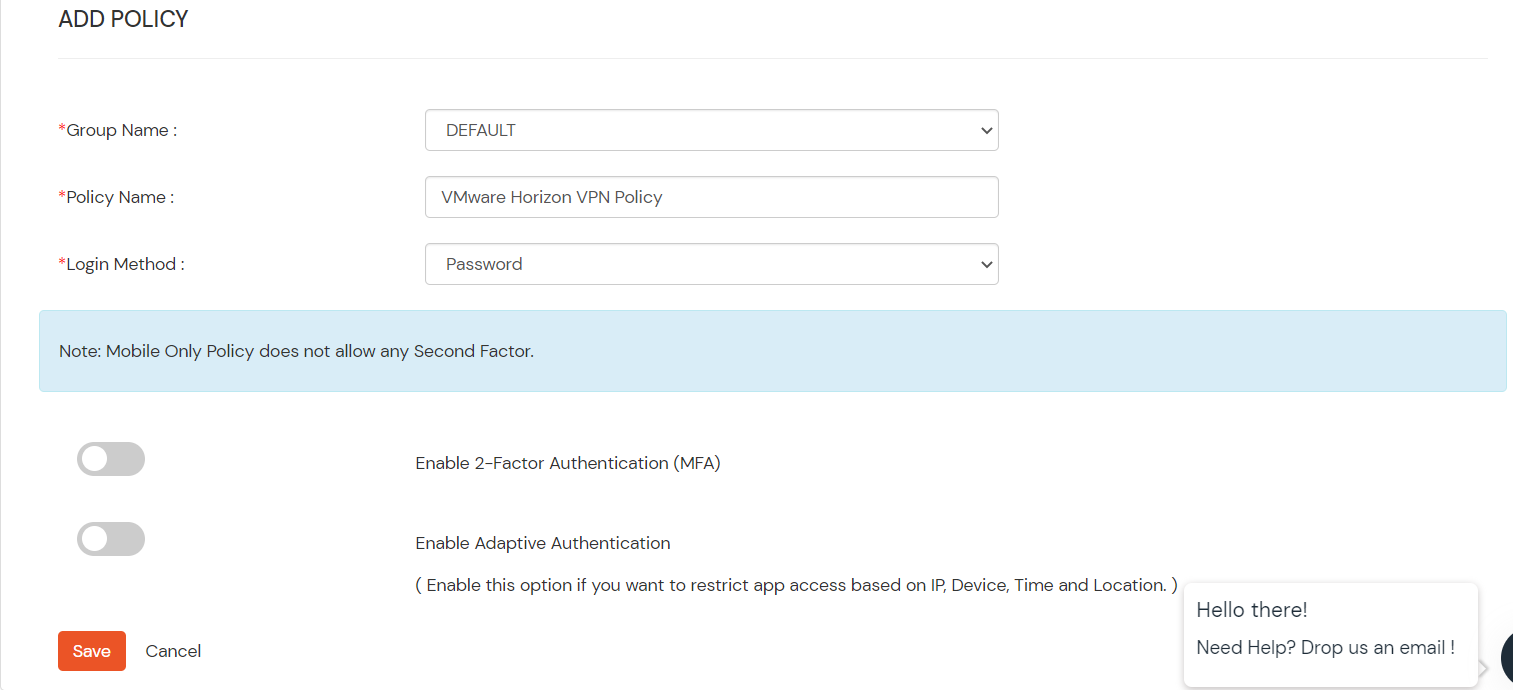
- Click on Save.
NOTE: For On-Premise version follow the below steps before testing the connectivity.
Only For On-Premise Version
Step 1: Open Firewall Ports.
- In order to receive the RADIUS request, it is necessary to open UDP traffic on ports 1812 and 1813 for the machine where On-Premise IdP is deployed.
- If the hosting machine is a Windows Machine then you can follow this document.
- If the hosting machine is a Linux Machine then you can follow this document.
NOTE: If your machine is hosted on AWS, then enable the ports from the AWS panel.
2. Configure vWorkspace MokaFive
- Login to your vWorkspace MokaFive dashboard and go to RADIUS Server Settings.
- Fill the details as mentioned below:
| Label |
The name of this configuration. Eg:miniOrange Radius |
| Hostname/Address |
For on-premise version: IP of server where IDP(miniOrange) is installed
For cloud version: Contact us at info@xecurify.com to get the IP |
| Authentication Port |
Enter 1812 (or whichever port configured on your miniOrange Authentication Proxy). |
| Authentication type |
Must be PAP. |
| Shared secret code |
Enter the Shared secret that we used to configure RADIUS app in miniOrange IDP.
In step 1 we configured the shared secret as "sharedsecret" |
| Server timeout (in seconds) |
Increase the timeout to 90 seconds. |
| Max attempts |
Number of times to send authentication request. Must be 1. |
- Click Save.
3. Configure 2FA for End-Users
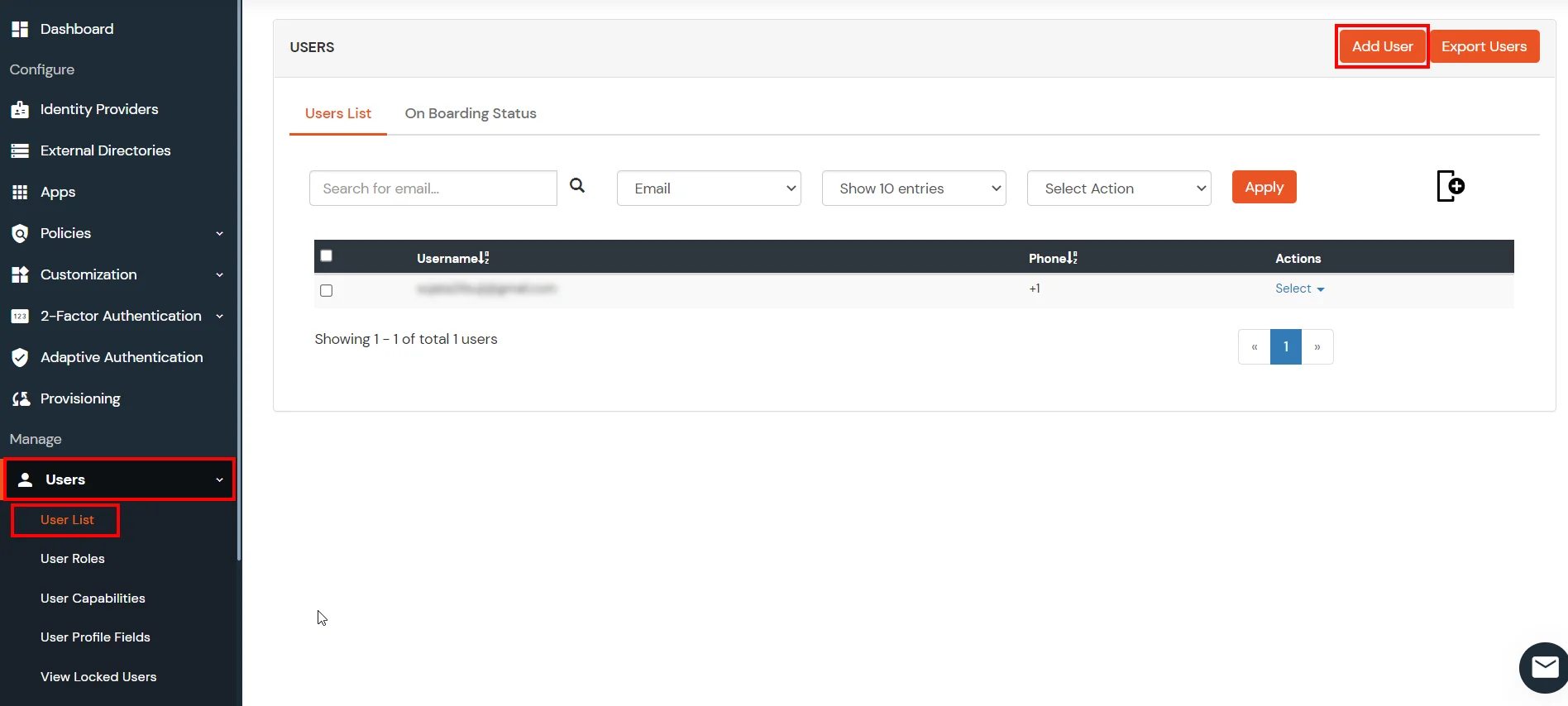
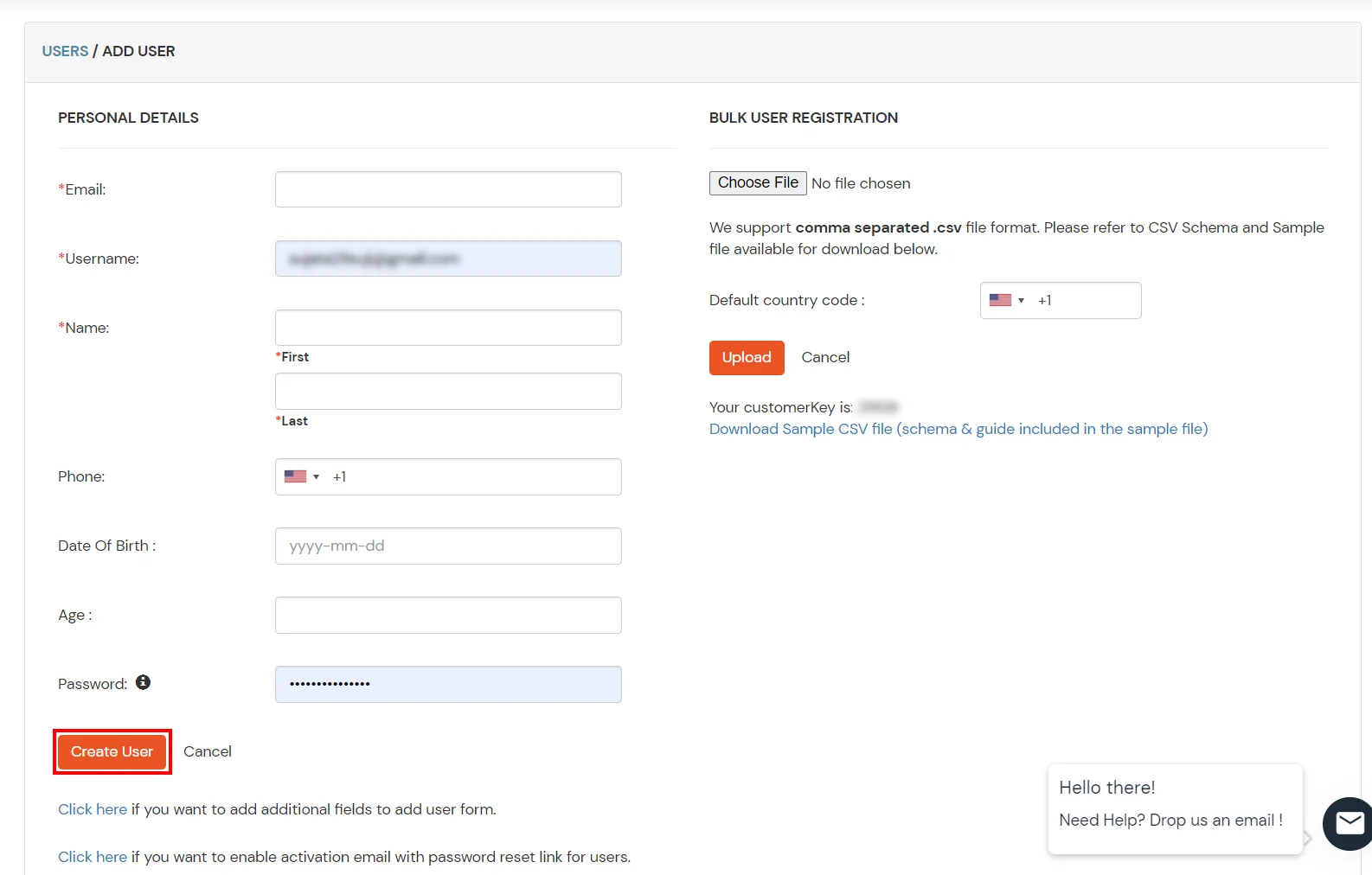
- Login into End-User Dashboard using Default User Directory credentials..
- Select Configure 2FA from left panel.
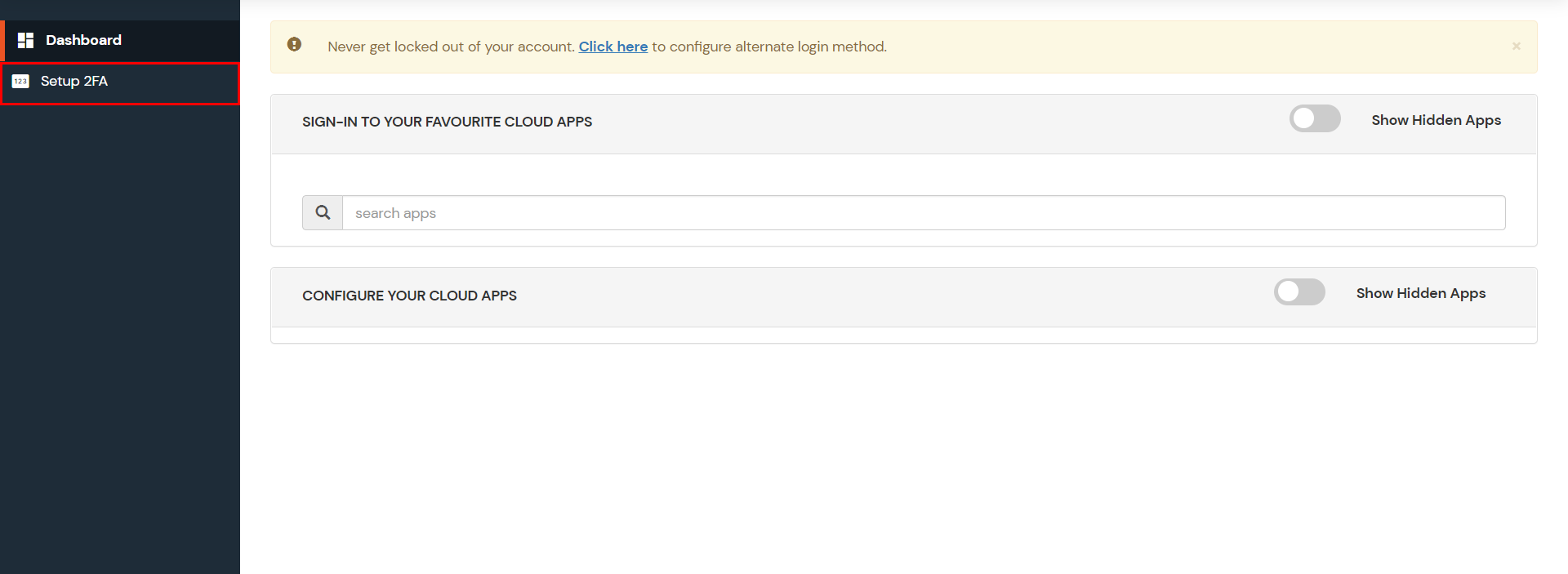
- Browse through the Second factor options and choose an appropriate method to be used by end user during login.
- For now, we have selected the "OTP OVER SMS"as our 2FA method. You can explore the guide to setup other 2FA methods.
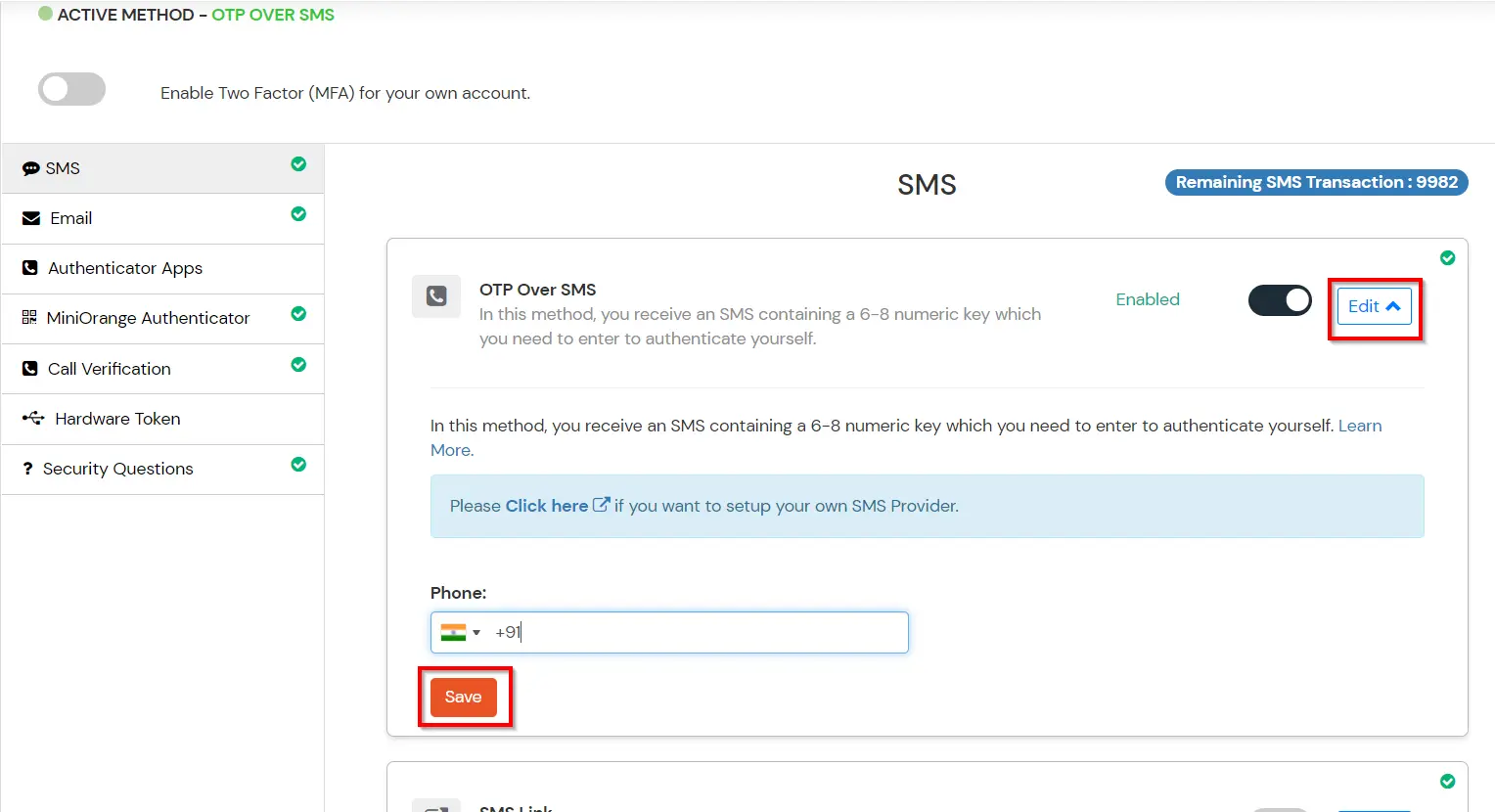
- Enable the OTP over SMS if you have your phone number added under your profile section else click on Edit button.
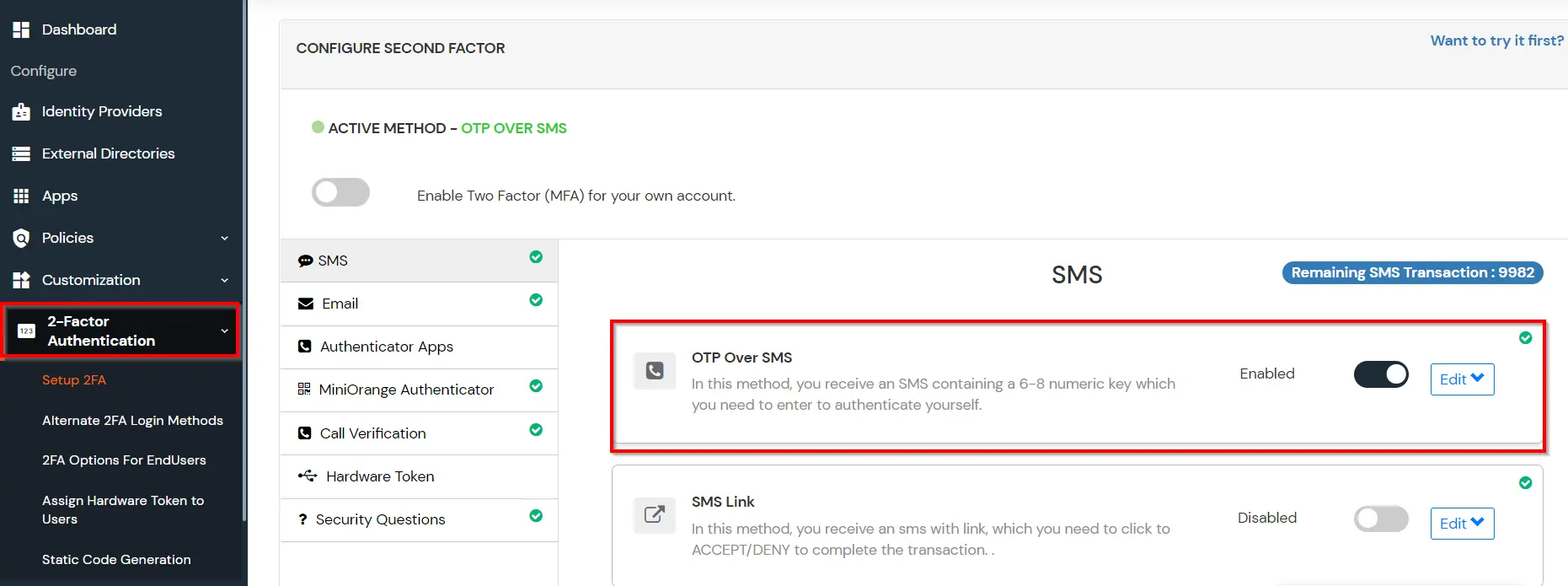
- Enter you Phone Number along with the necessary country code and click on the SAVE below.
4. Configure Your User Directory (Optional)
miniOrange provides user authentication from various external sources, which can be Directories (like ADFS, Microsoft Active Directory, Microsoft Entra ID, OpenLDAP, Google, AWS Cognito etc), Identity Providers (like Okta, Shibboleth, Ping, OneLogin, KeyCloak), Databases (like MySQL, Maria DB, PostgreSQL) and many more. You can configure your existing directory/user store or add users in miniOrange.
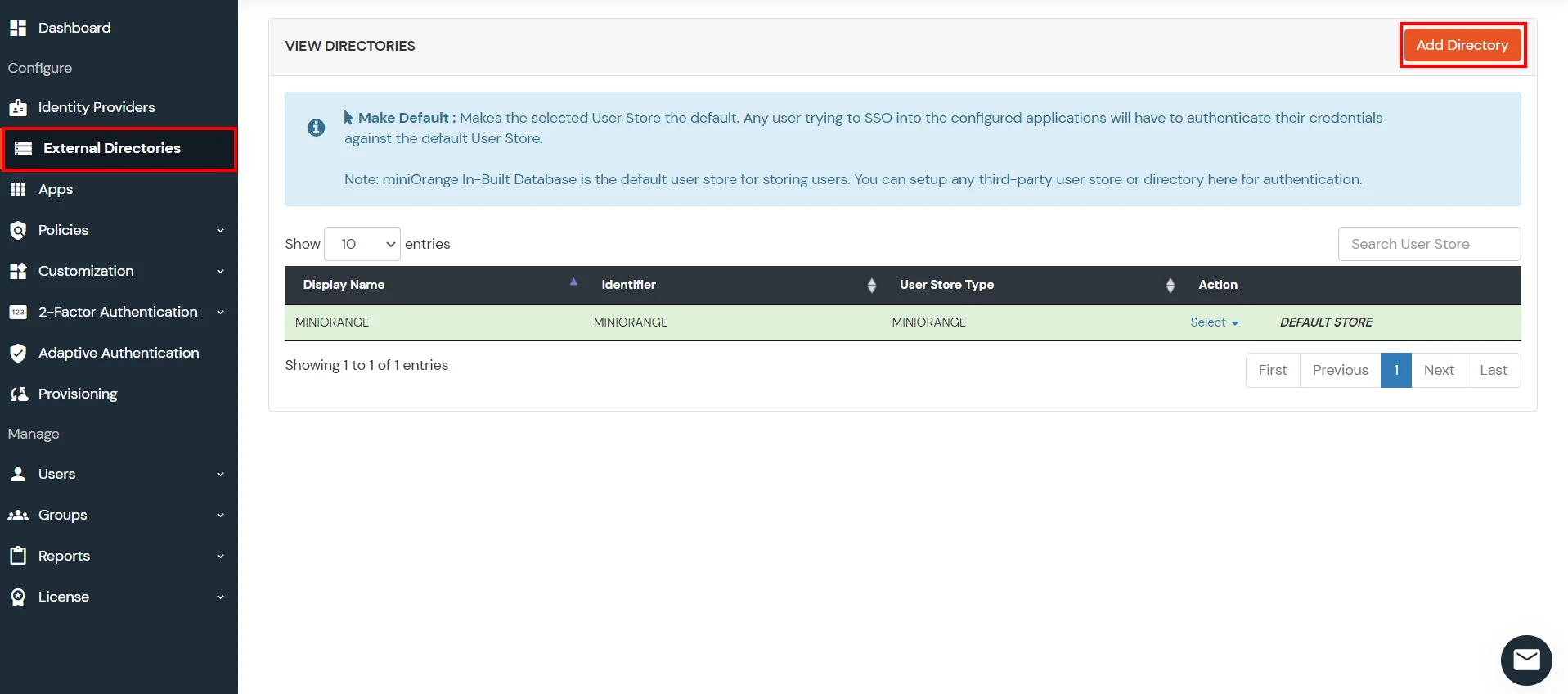
- Click on Identity Providers >> Add Identity Provider in the left menu of the dashboard
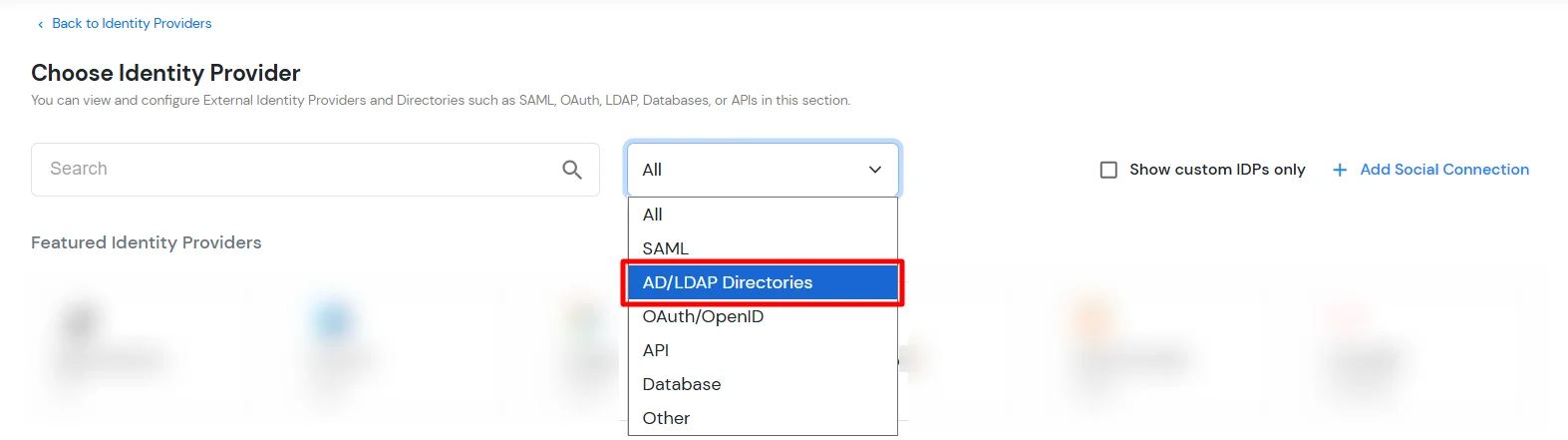
- In Choose Identity Provider, select AD/LDAP Directories from the dropdown.
- Then search for AD/LDAP and click it.
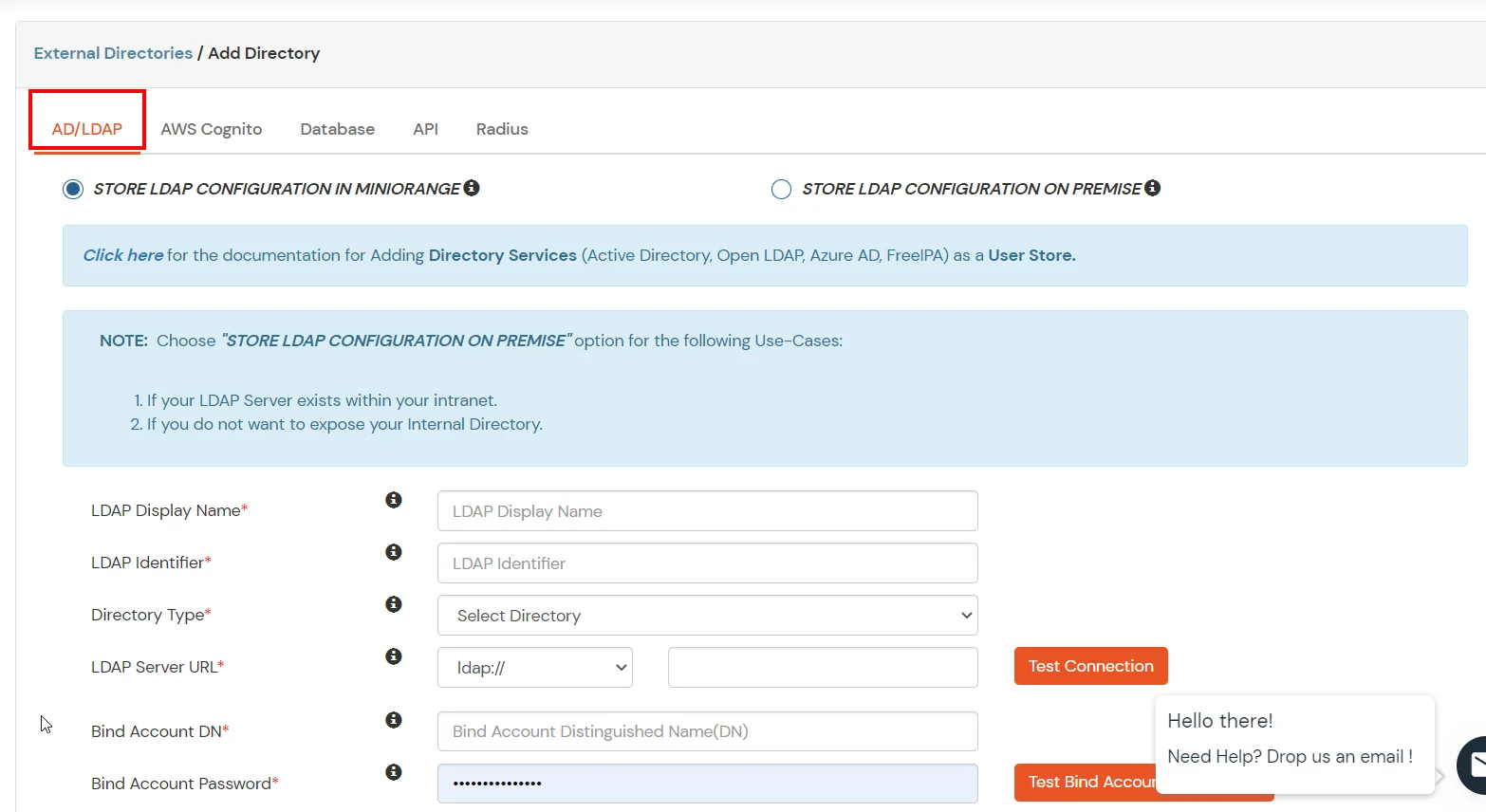
- STORE LDAP CONFIGURATION IN MINIORANGE: Choose this option if you want to keep your configuration in miniOrange. If the active directory is behind a firewall, you will need to open the firewall to allow incoming requests to your AD.
- STORE LDAP CONFIGURATION ON PREMISE: Choose this option if you want to keep your configuration in your premise and only allow access to AD inside premises. You will have to download and install miniOrange gateway on your premise.
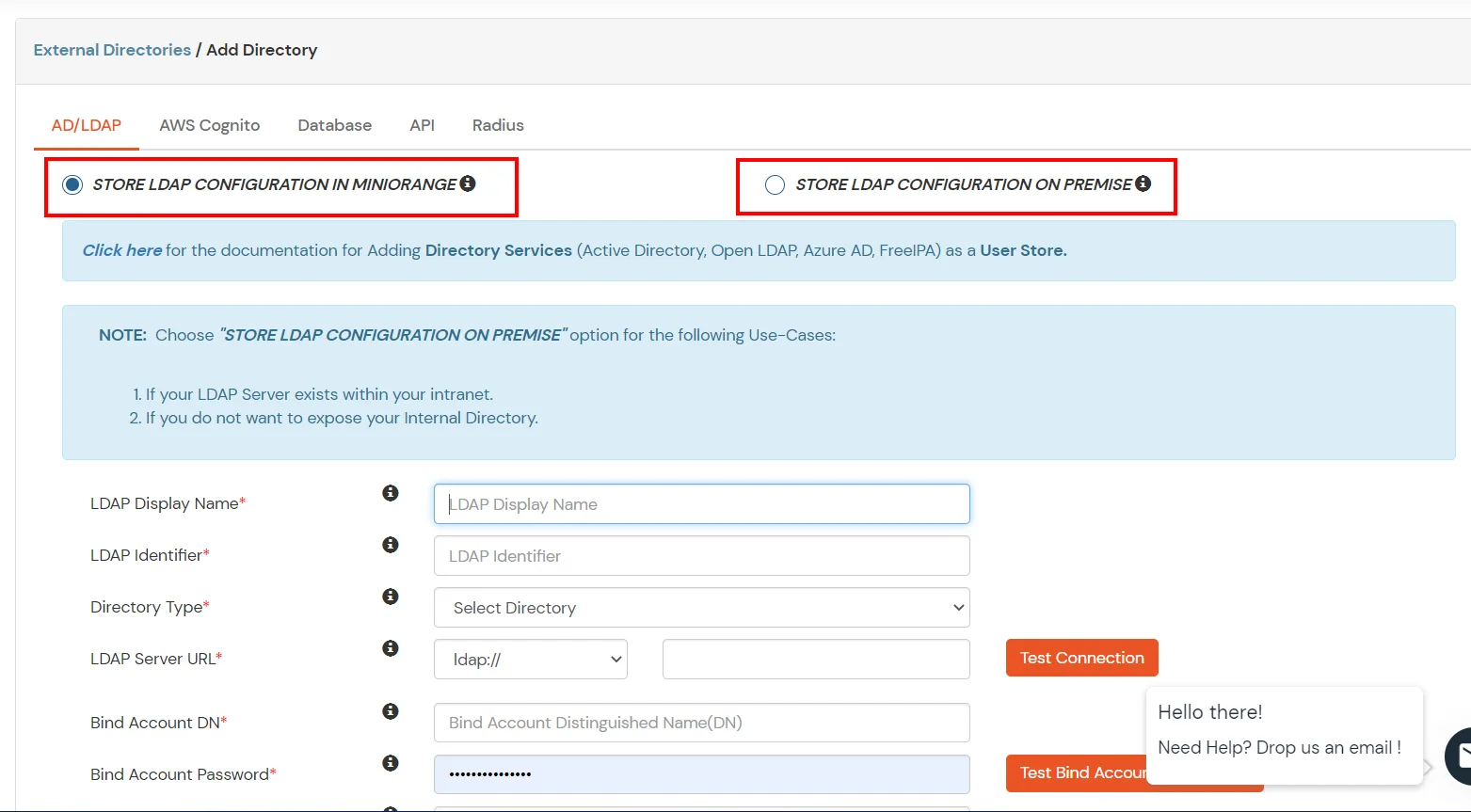
- Enter AD/LDAP Display Name and Identifier name.
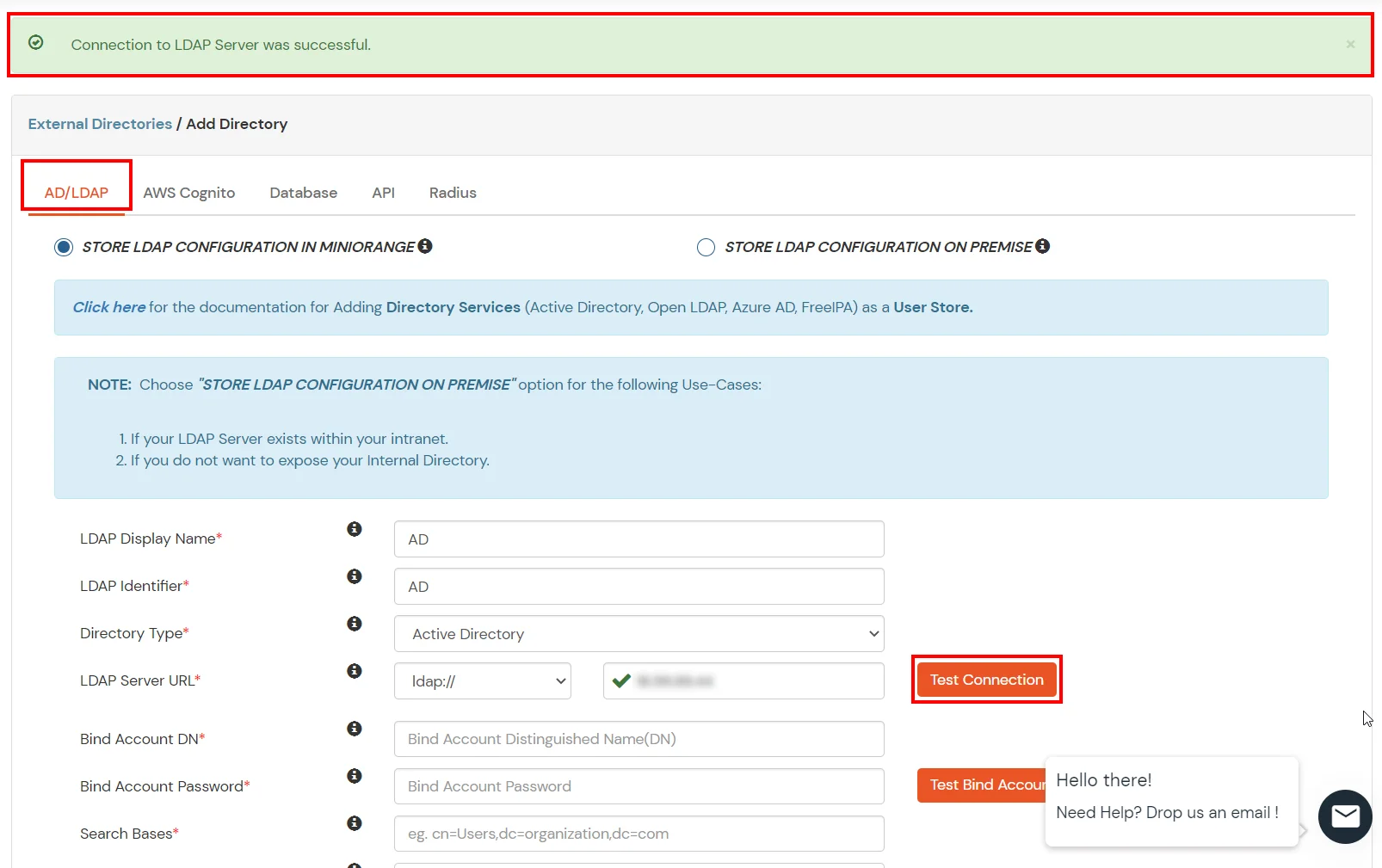
- Select Directory Type as Active Directory.
- Enter the LDAP Server URL or IP Address against the LDAP Server URL field.
- Click on the Test Connection button to verify if you have made a successful connection with your LDAP server.
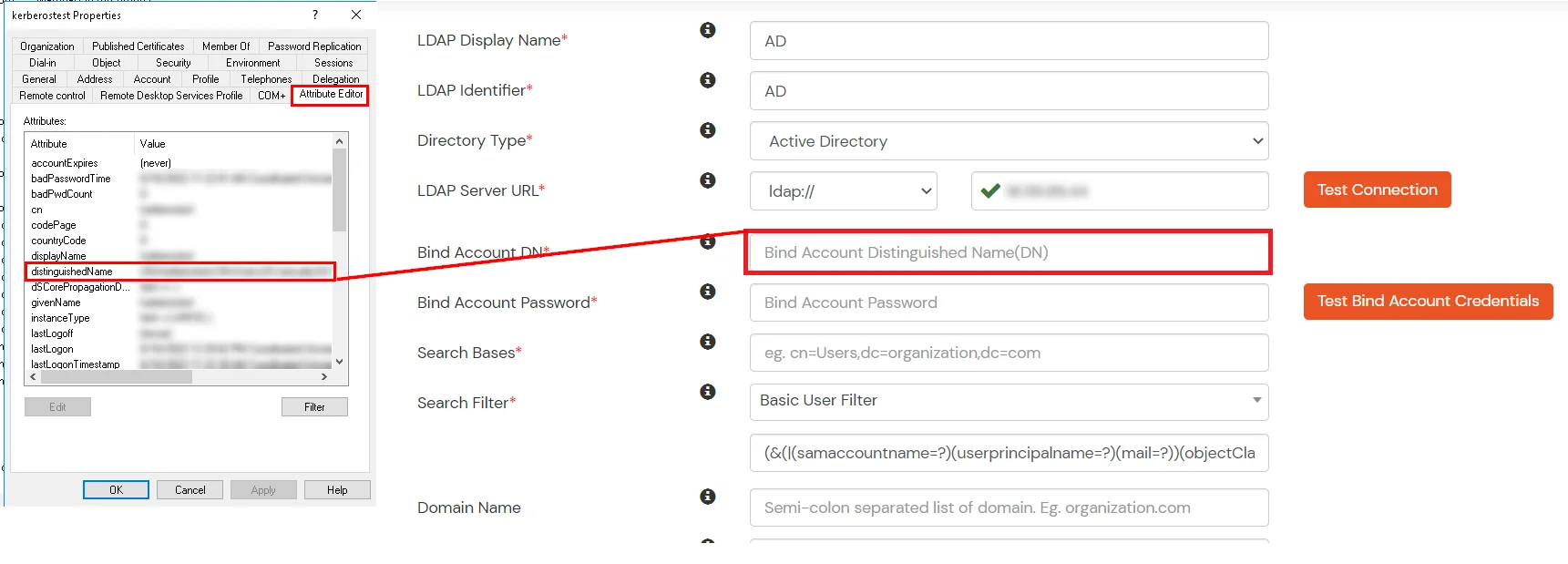
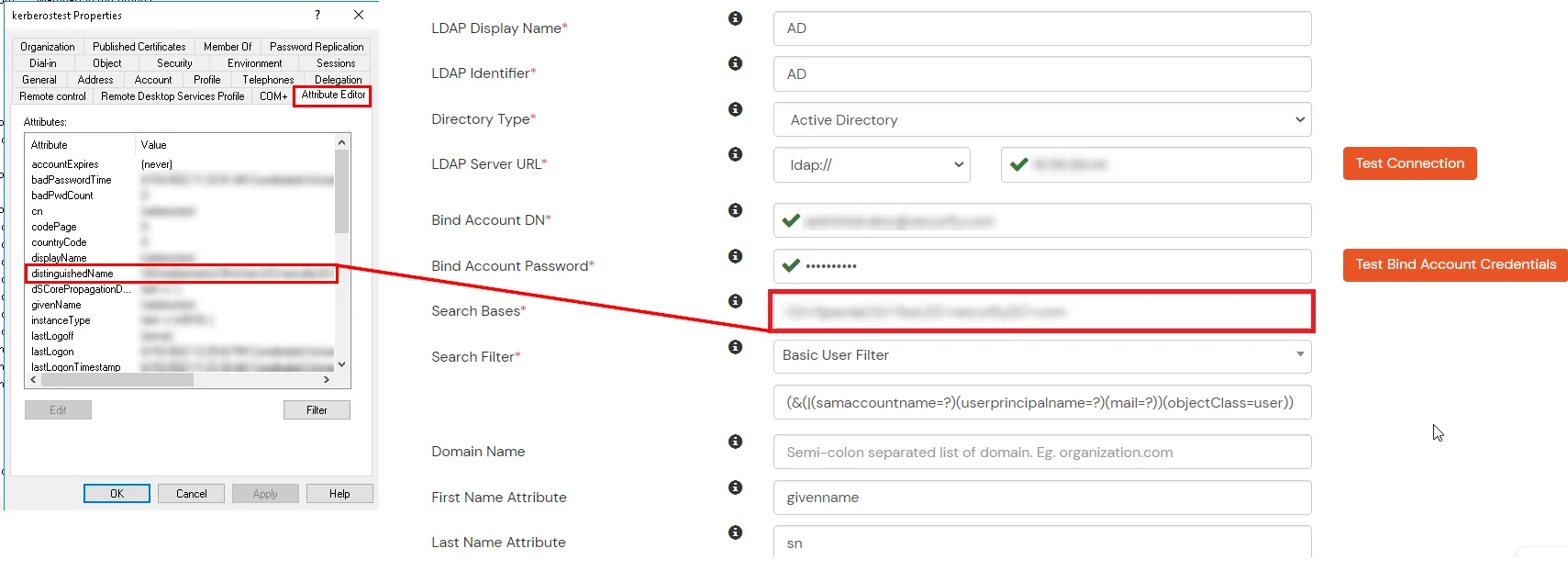
- In Active Directory, go to the properties of user containers/OU's and search for the Distinguished Name attribute. The bind account should have minimum required read privileges in Active Directory to allow directory lookups. If the use case involves provisioning (such as creating, updating, or deleting users or groups), the account must also be granted appropriate write permissions.
- Enter the valid Bind account Password.
- Click on the Test Bind Account Credentials button to verify your LDAP Bind credentials for LDAP connection.
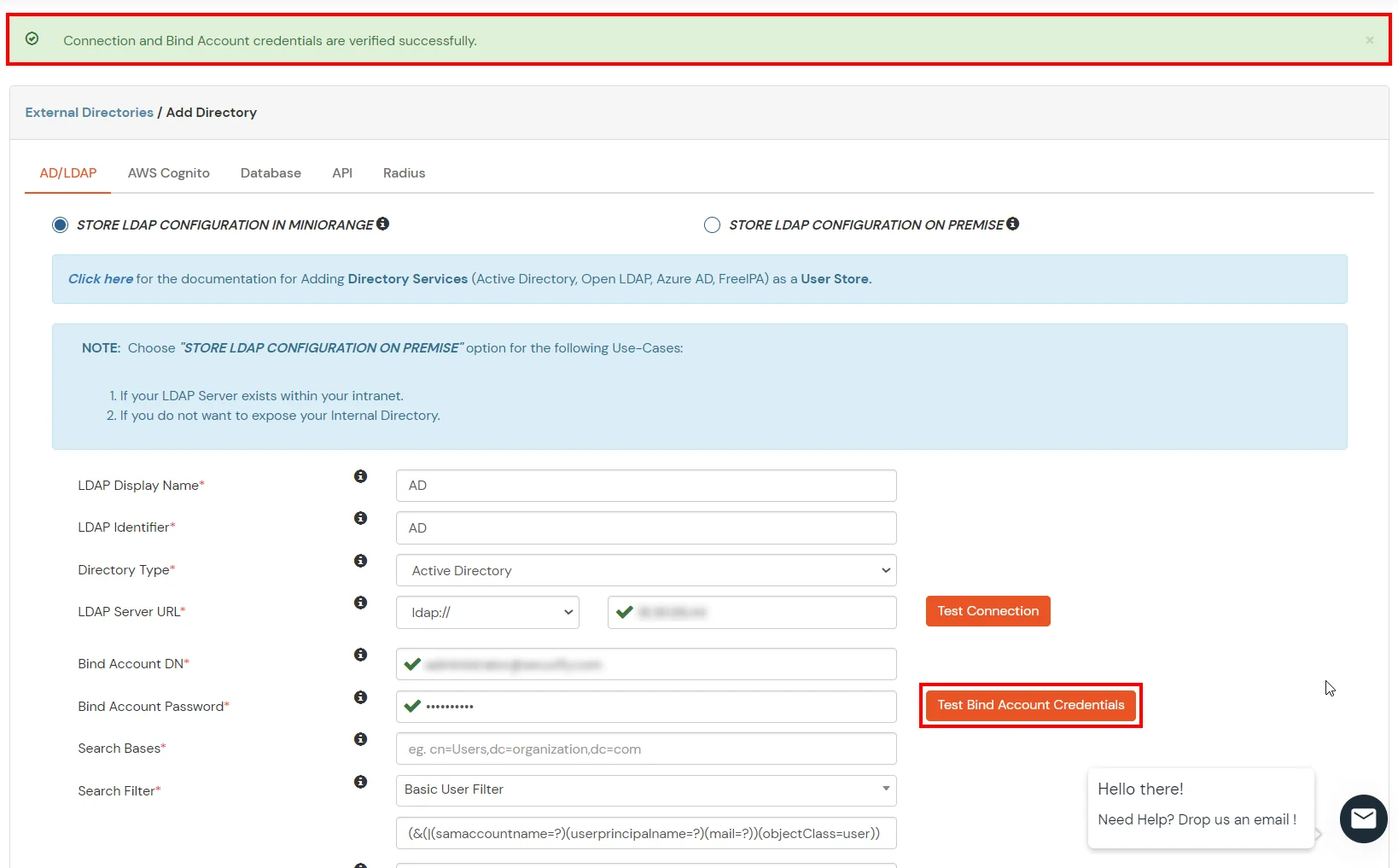
- Search Base is the location in the directory where the search for a user begins. You will get this from the same place you got your Distinguished name.
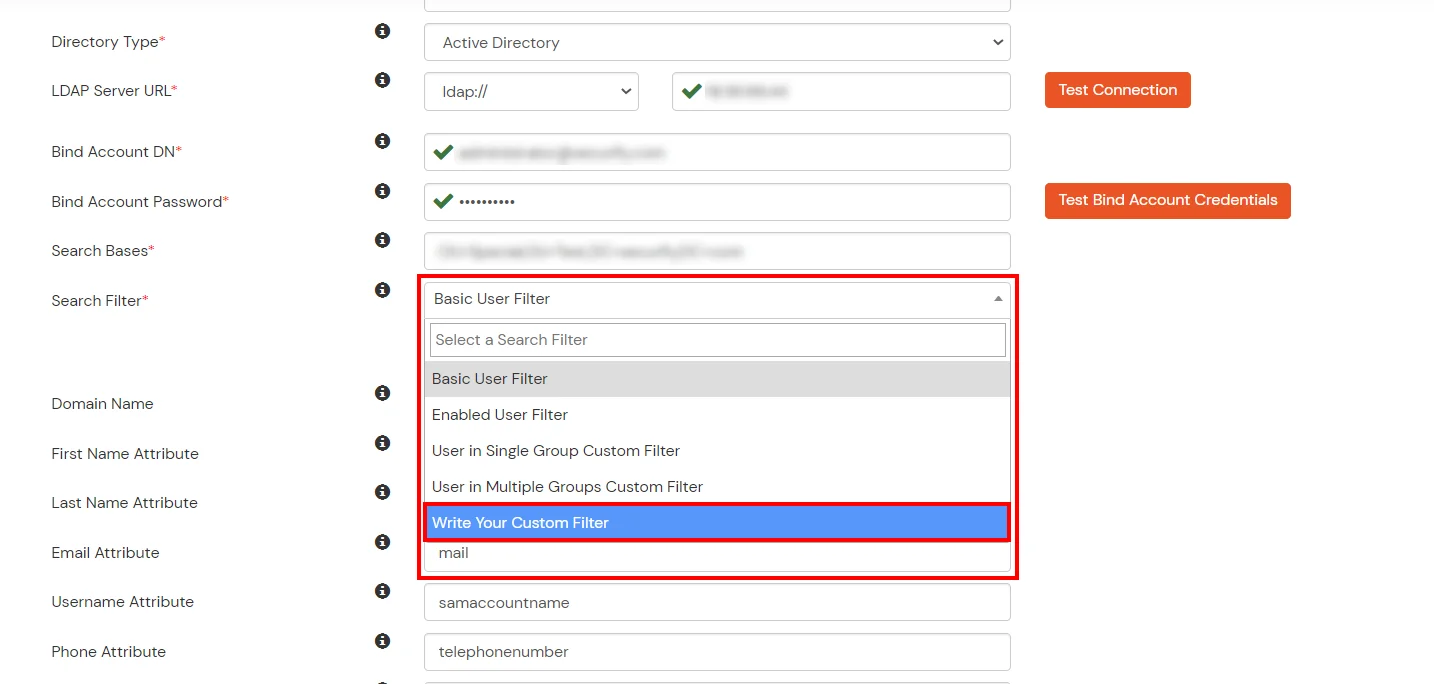
- Select a suitable Search filter from the drop-down menu. If you use User in Single Group Filter or User in Multiple Group Filter, replace the <group-dn> in the search filter with the distinguished name of the group in which your users are present. To use custom Search Filter select "Write your Custom Filter" option and customize it accordingly.
- Click on the Next button, or go to the Login Options tab.
- You can also configure following options while setting up AD. Enable Activate LDAP in order to authenticate users from AD/LDAP. Click on the Next button to add user store.
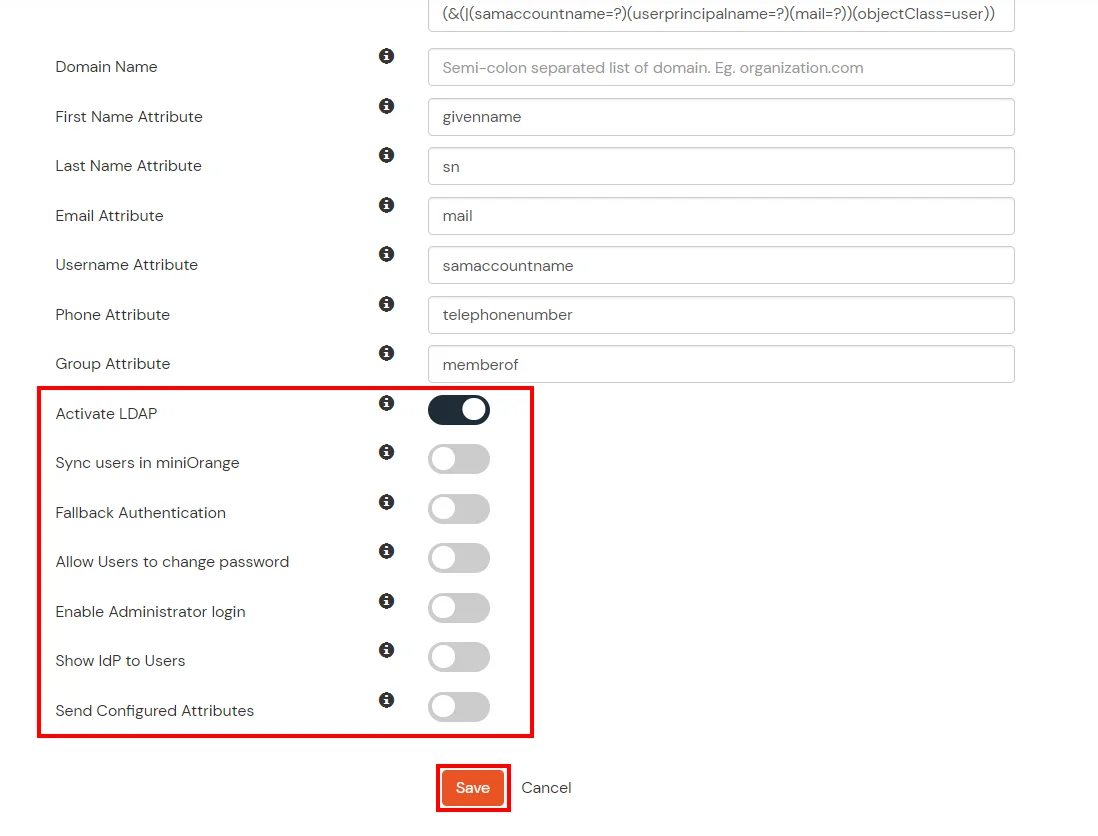
Here's the list of the attributes and what it does when we enable it. You can enable/disable accordingly.
| Attribute |
Description |
| Activate LDAP |
All user authentications will be done with LDAP credentials if you Activate it |
| Fallback Authentication |
If LDAP credentials fail then user will be authenticated through miniOrange |
| Enable administrator login |
On enabling this, your miniOrange Administrator login authenticates using your LDAP server |
| Show IdP to users |
If you enable this option, this IdP will be visible to users |
| Sync users in miniOrange |
Users will be created in miniOrange after authentication with LDAP |
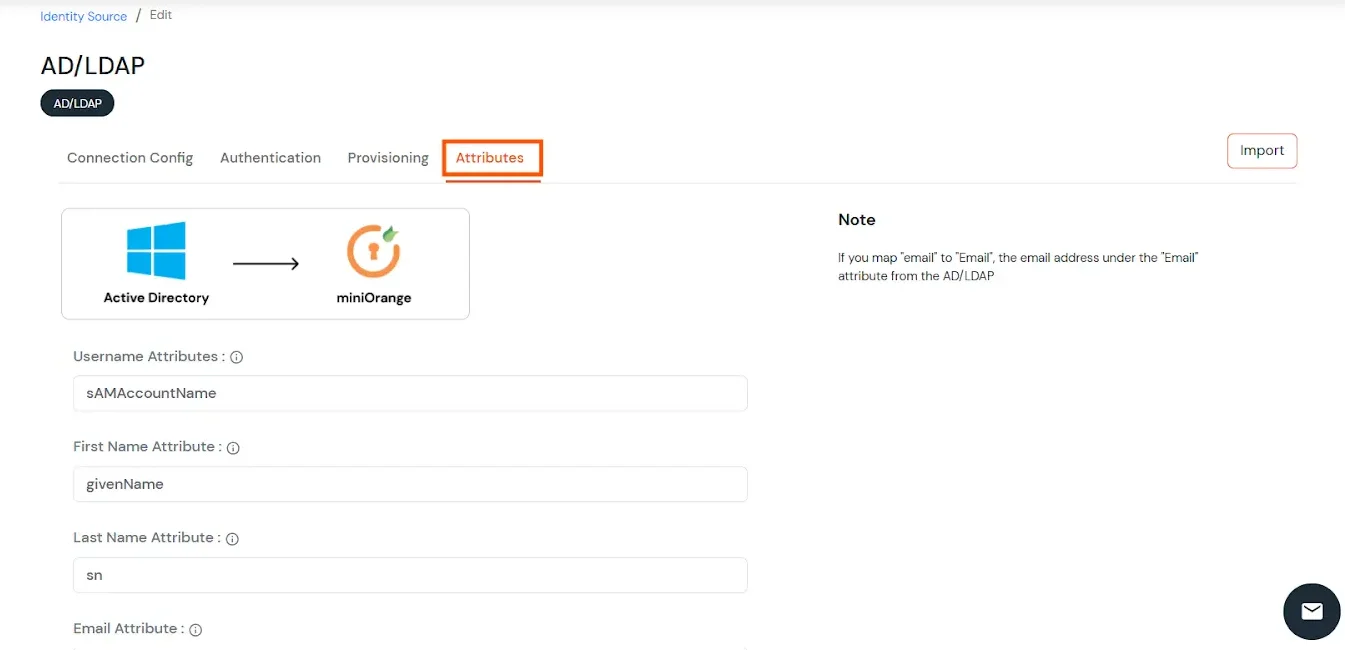
- Click on the Next button, or go to the Attributes tab.
Attributes Mapping from AD
User Import and Provisioning from AD
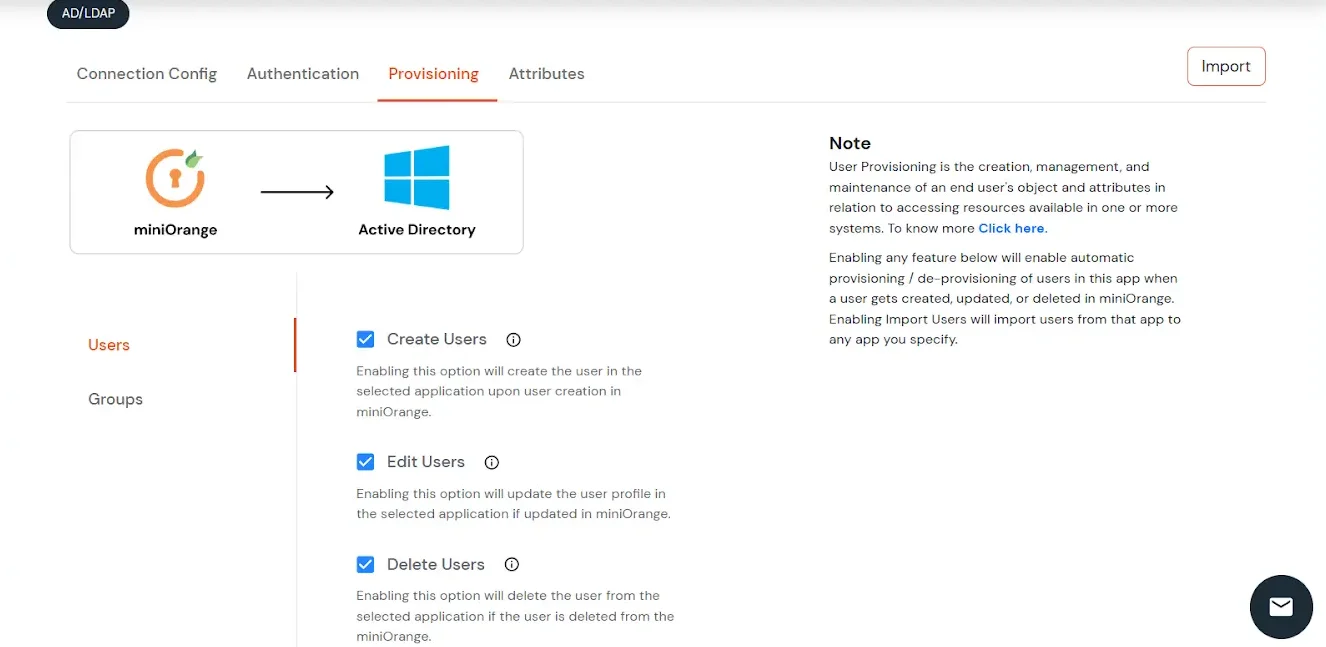
- If you want to set up provisioning, click here for detailed information. We will skip this step for now.
Import Password Policy from AD
- If you want to import your Active Directory password policy into miniOrange, click here for detailed information. We will skip this step for now.
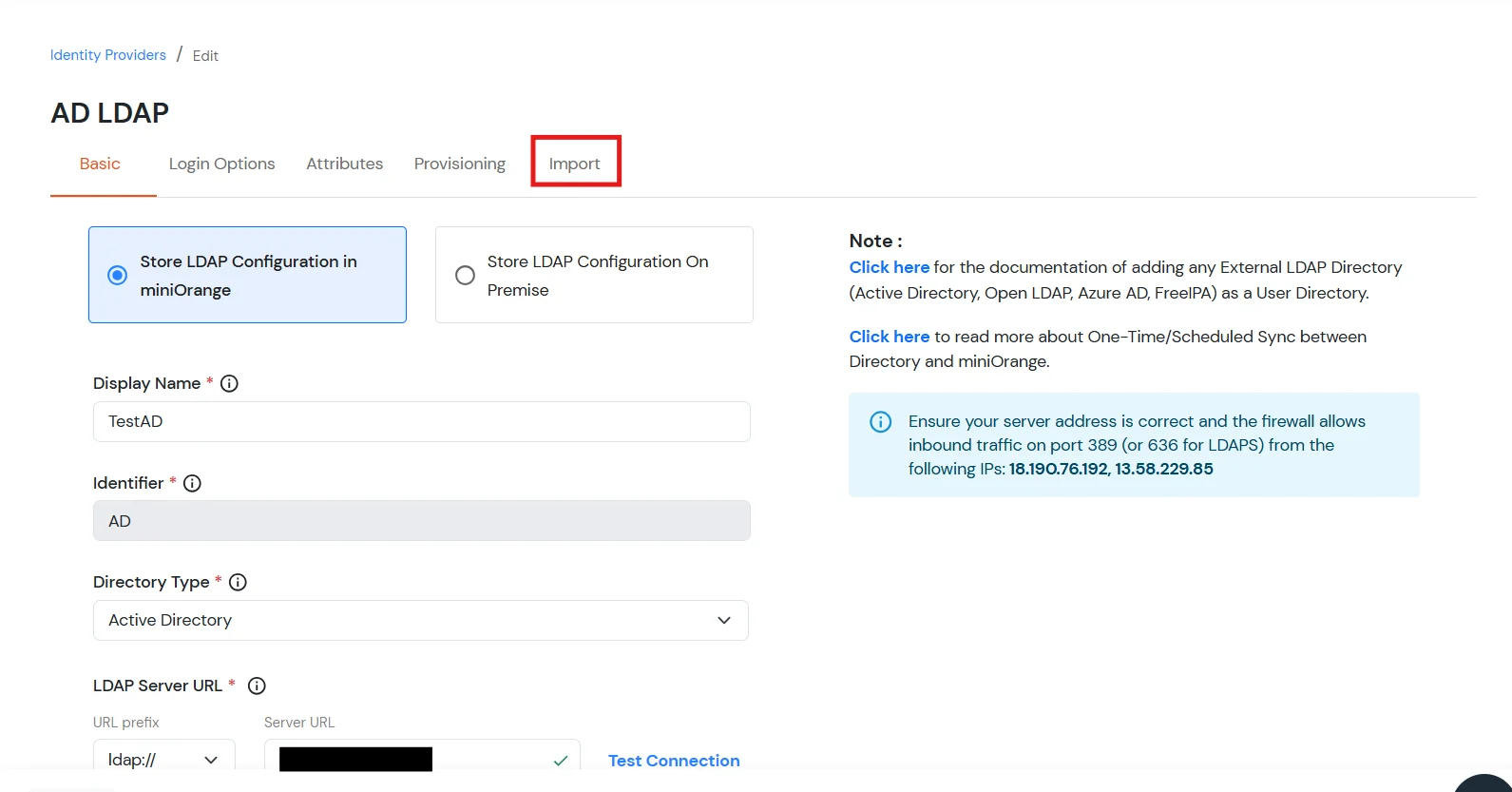
Test Connections
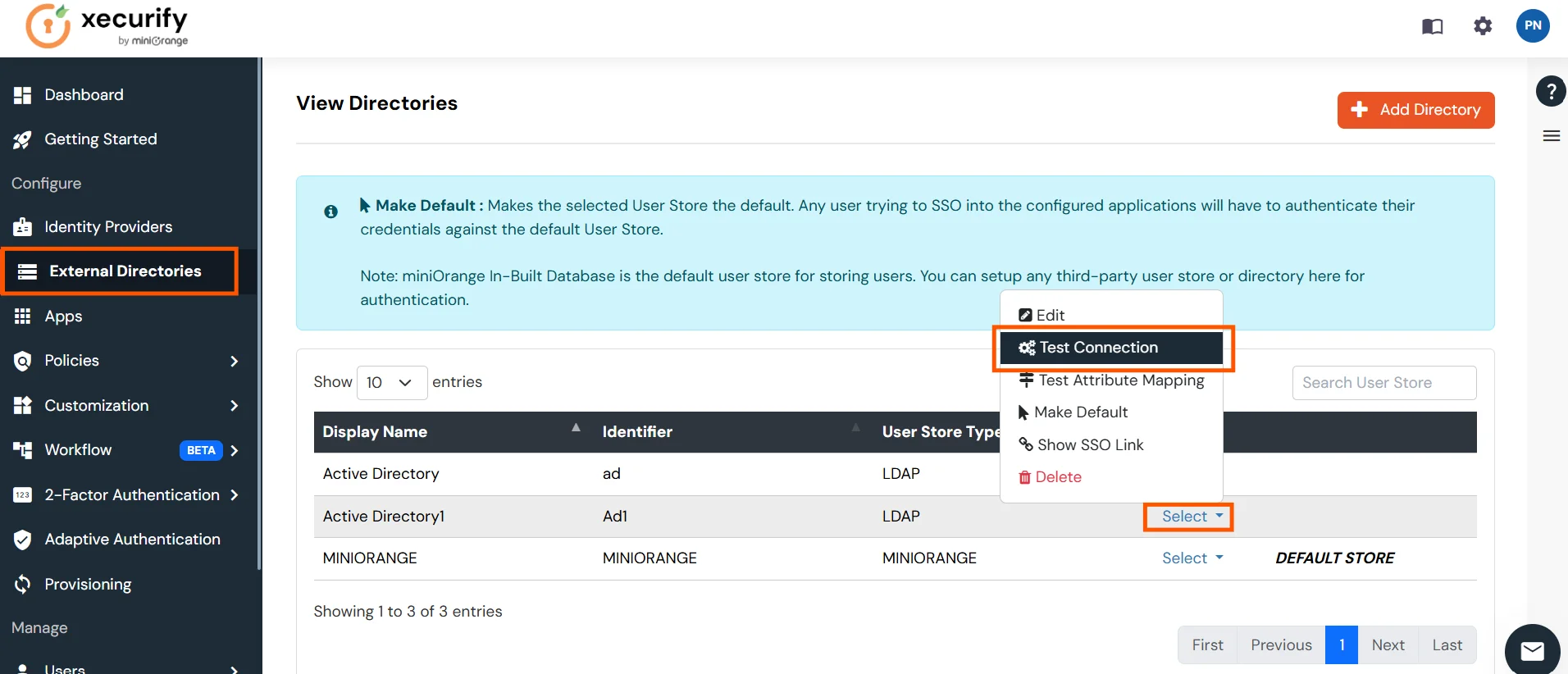
- You will see a list of directories under Identity Providers. From the dropdown, select AD/LDAP Directories, search for your configured directory, click the three dots next to it, and select Test Connection.
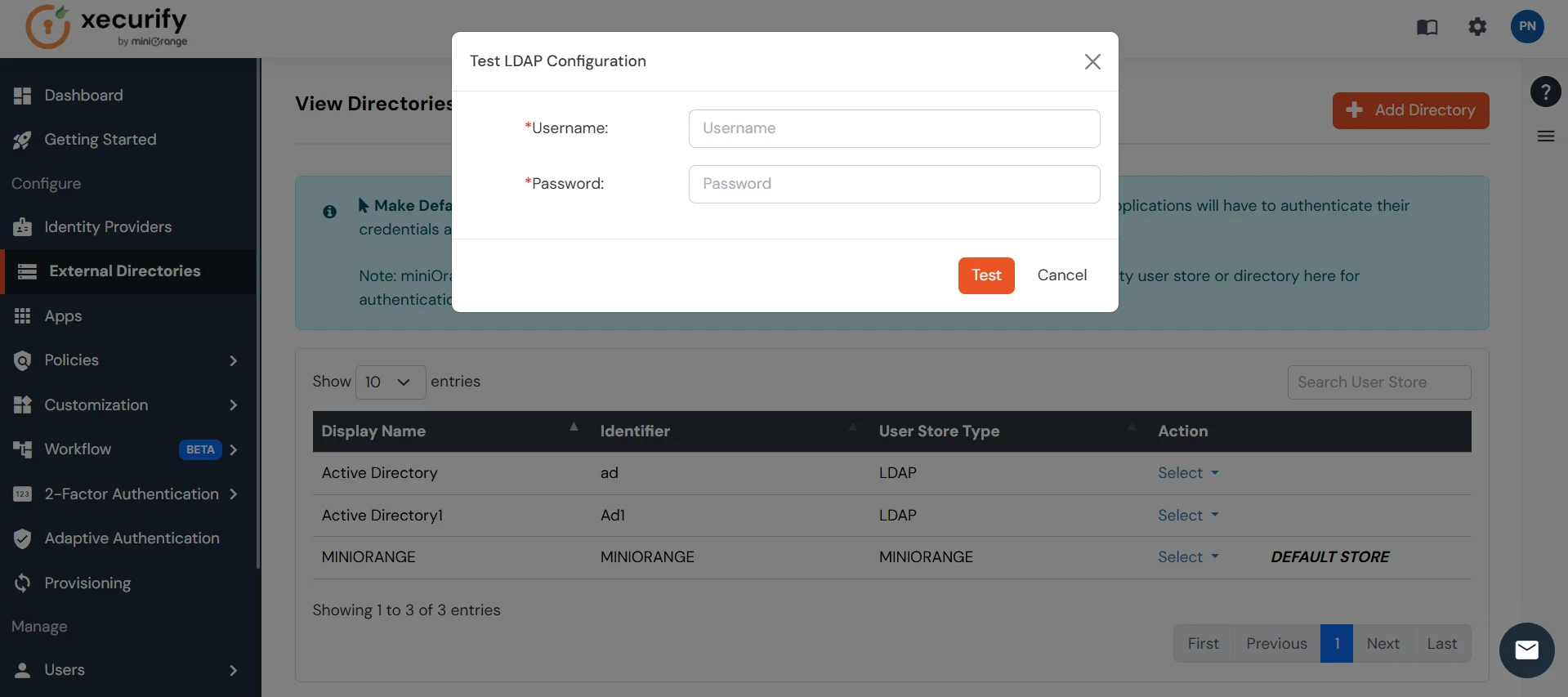
- A pop-up appears prompting you to enter a username and password to verify your LDAP configuration.
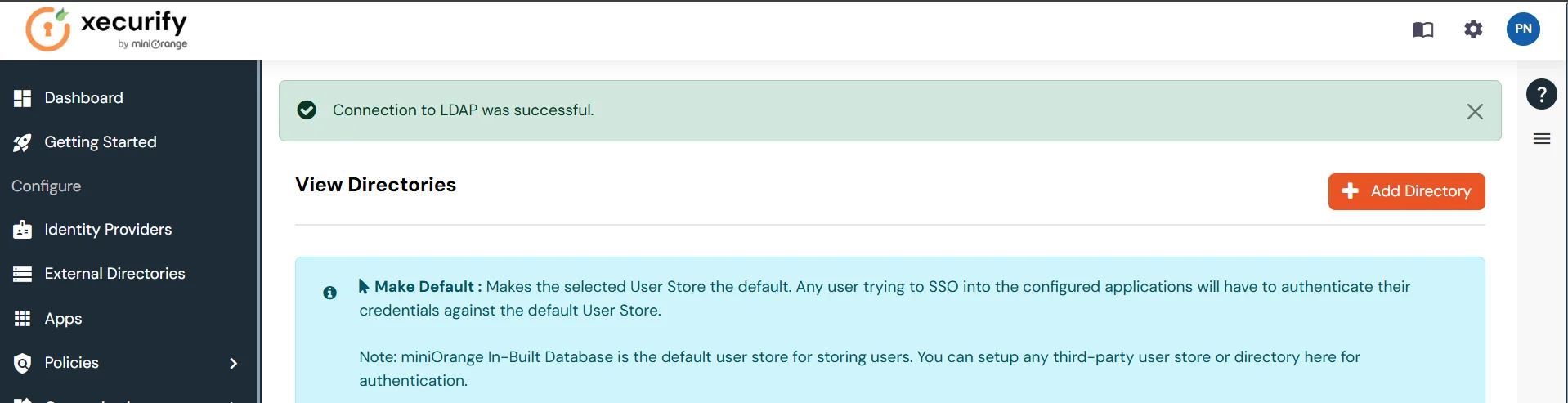
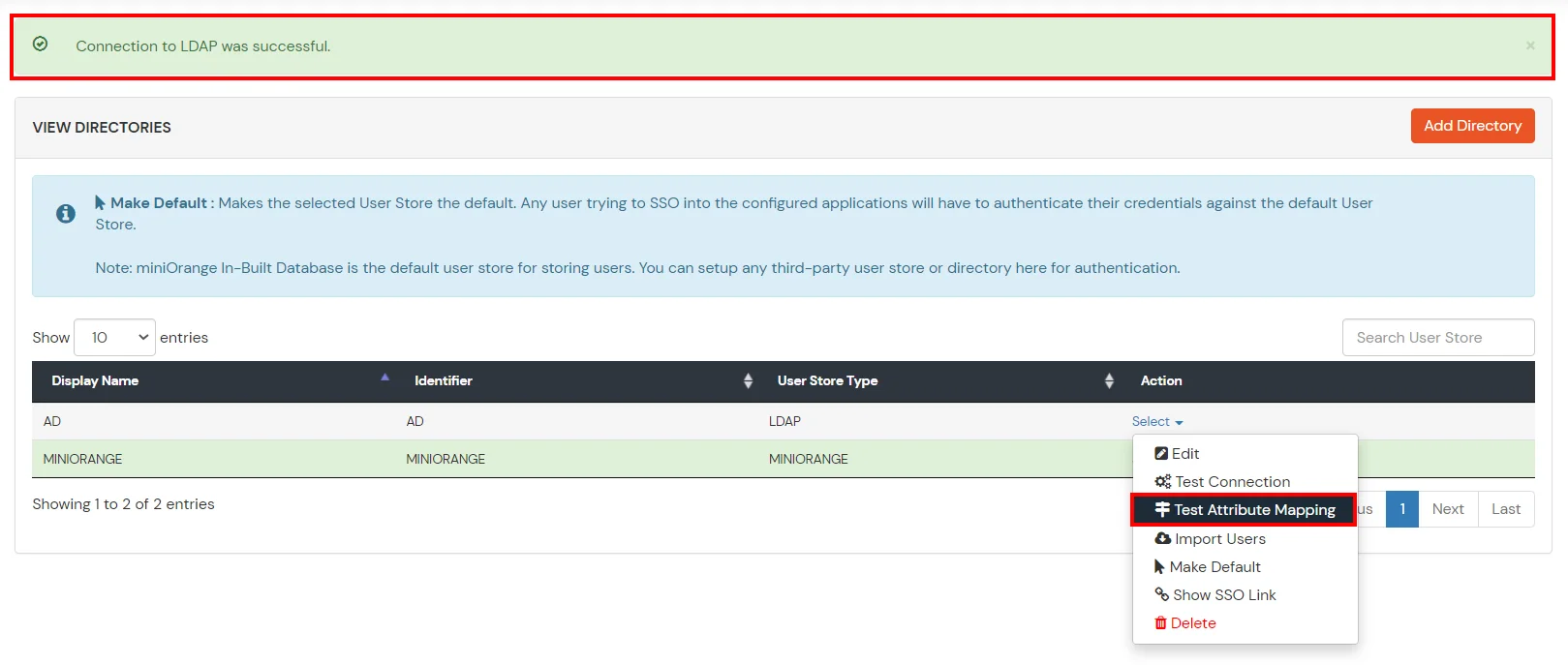
- On Successful connection with LDAP Server, a success message is shown.
Test Attribute Mapping
- You will see a list of directories under Identity Providers. From the dropdown, select AD/LDAP Directories, search for your configured directory, click the three dots next to it, and select Test Attribute Mapping.
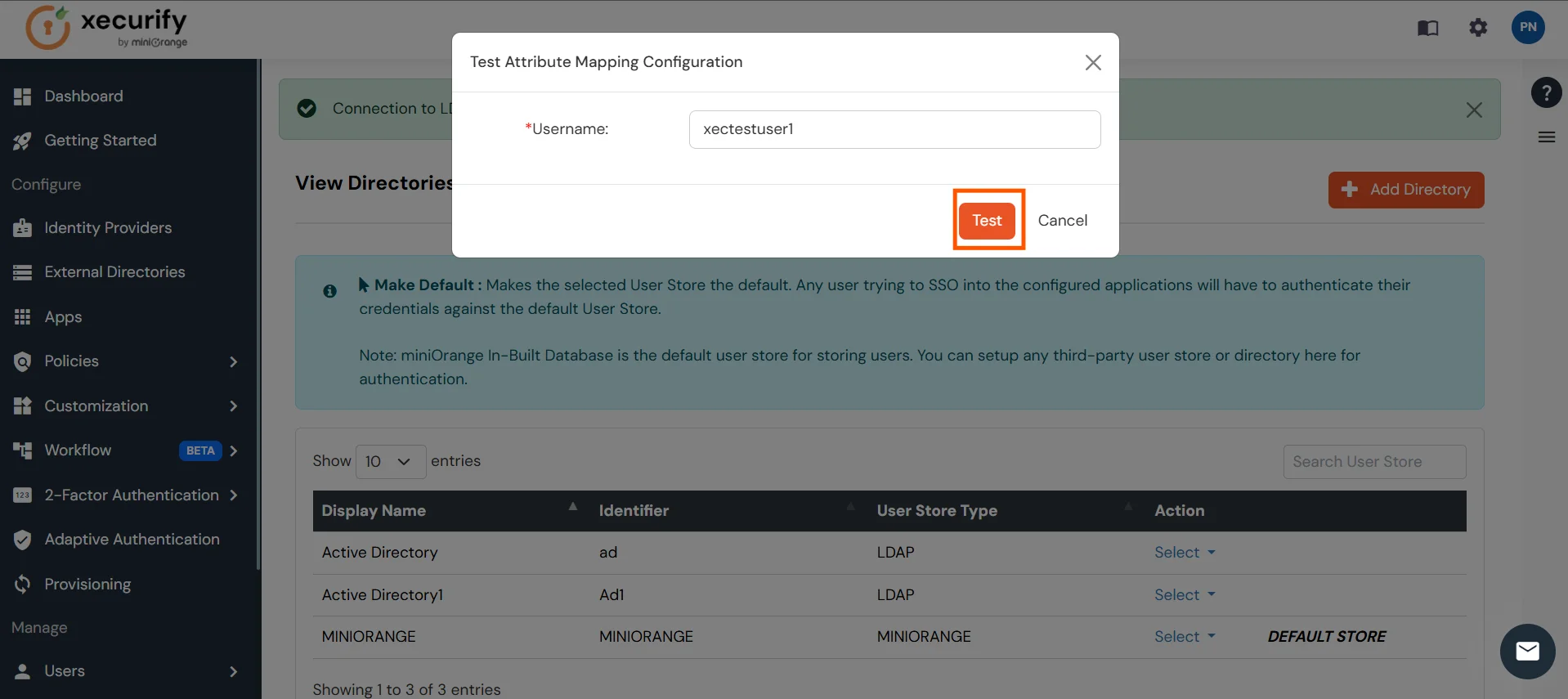
- A pop‑up appears to enter a username and click Test.
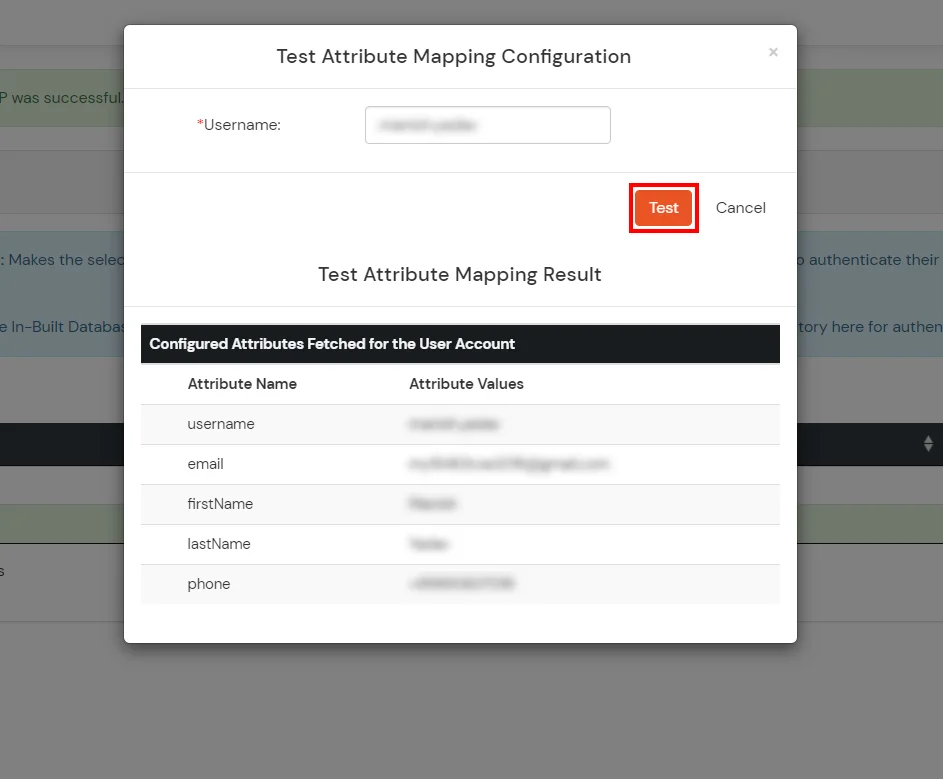
- The Test Attribute Mapping Result will be displayed.
Set up AD as External Directory configuration is complete.
Note: Refer our guide to setup LDAP on windows server.
miniOrange integrates with various external user sources such as directories, identity providers, and etc.