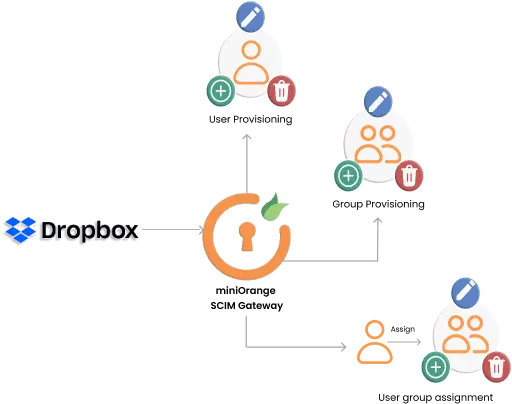
Dropbox Provisioning and Deprovisioning
Dropbox SCIM Provisioning allows to create account in a simplified way and link Dropbox users' account to their existing or new apps. Dropbox Provisioning automates user provisioning with their identities.
Provisioning saves time when setting up new users and teams, and also manages access privileges through the user lifecycle. miniOrange can create, read, and update user accounts for new or existing users, remove accounts for deactivated users, and synchronize attributes across multiple user stores.
Dropbox SCIM User provisioning and deprovisioning actions are bi-directional, so you can create accounts inside an external application and import them into miniOrange, or alternatively create the accounts in miniOrange and then push them out to any linked external applications.
Dropbox SCIM Deprovisioning means deleting a user and removing their access from multiple applications and network systems at once. Deprovisioning action is triggered when an employee leaves a company or changes roles within the organization. The deprovisioning features increase your organization's security profile by removing access to sensitive applications and content from people who leave your organization.
Provisioning & Deprovisioning Scenarios
miniOrange provides Provisioning solutions for all scenarios of user management (provisioning), which includes AD Integration, LDAP Integration and automated provisioning for all External Applications such as Dropbox, Google Workspace, Workday, etc
Follow the step-by-step guide given below to setup Dropbox Provisioning
1. Configure SCIM for Dropbox in miniOrange
- Login into miniOrange Admin Console.
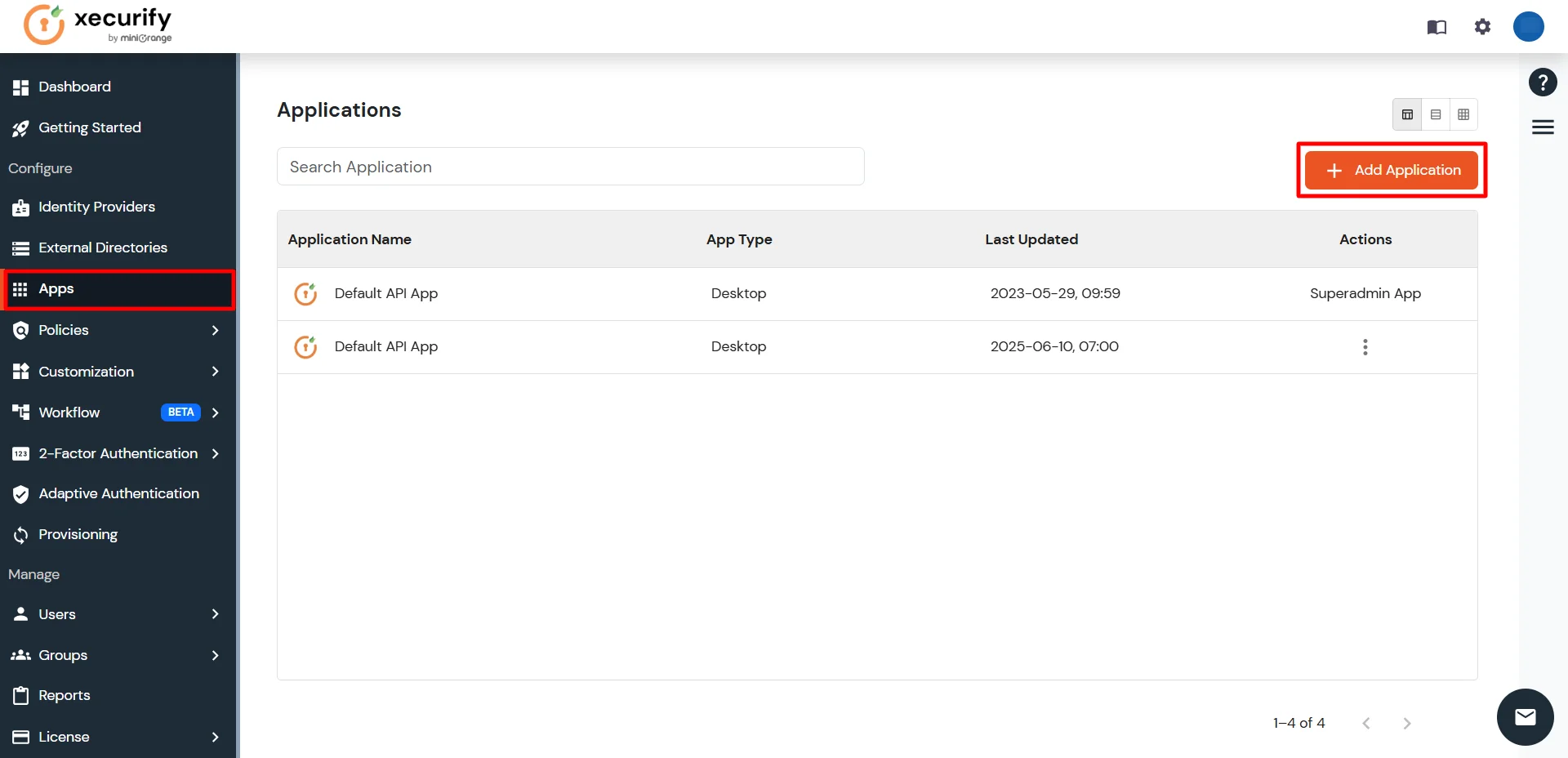
- Click on Apps from the left-side navigation bar. Then click on Add Application.
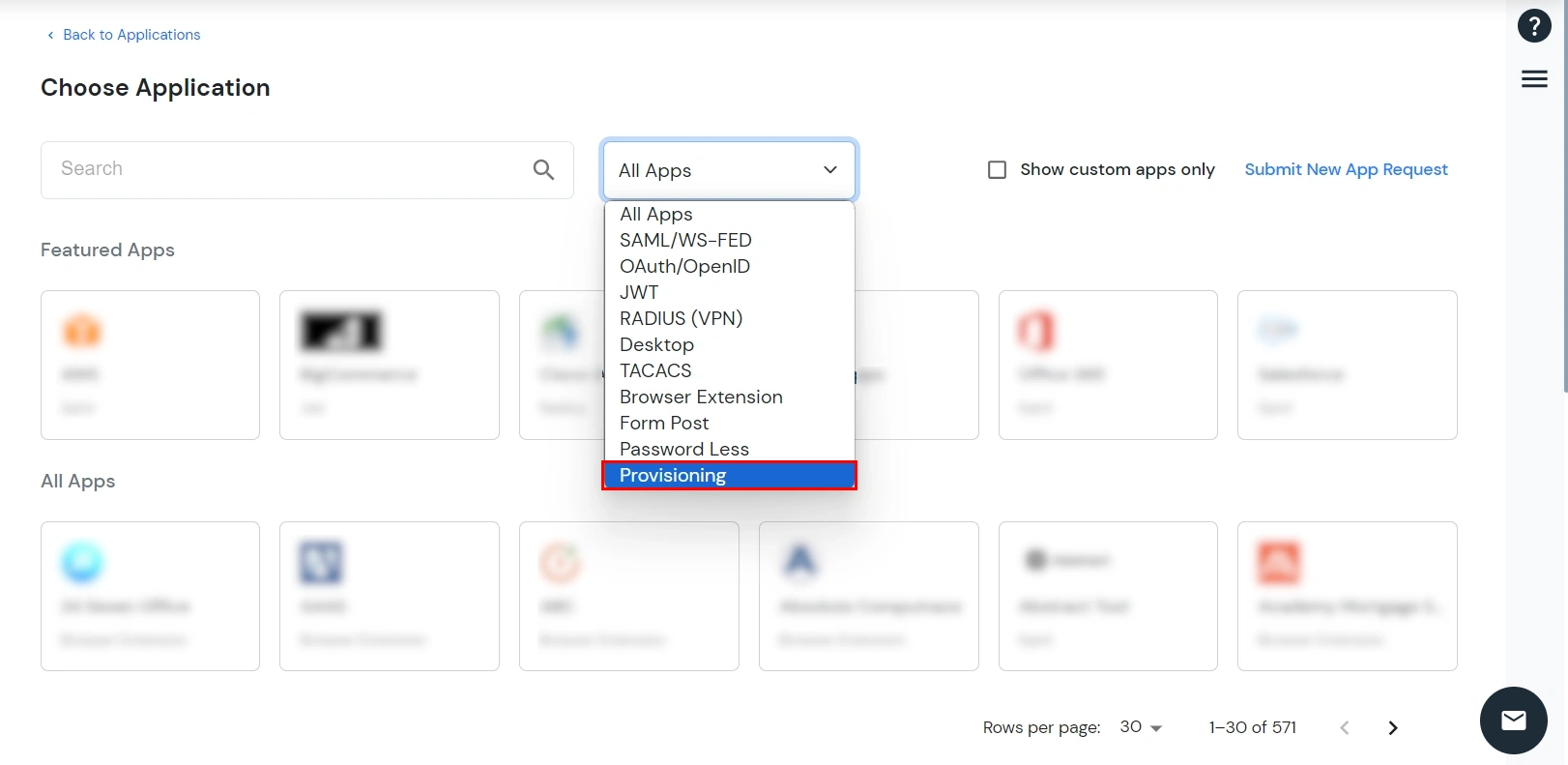
- In the Choose Application section, select Provisioning from All Apps dropdown.
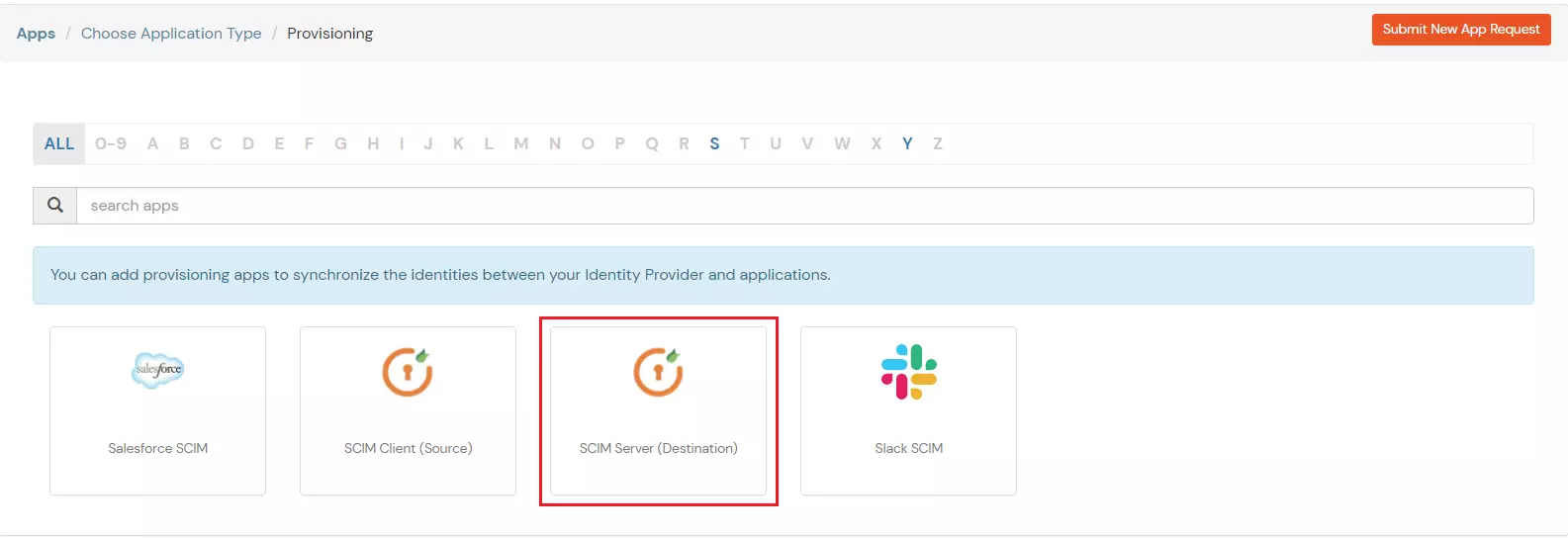
- Search for Dropbox in the list. If you don't find Dropbox in the list, search for SCIM Server and set up your application there.
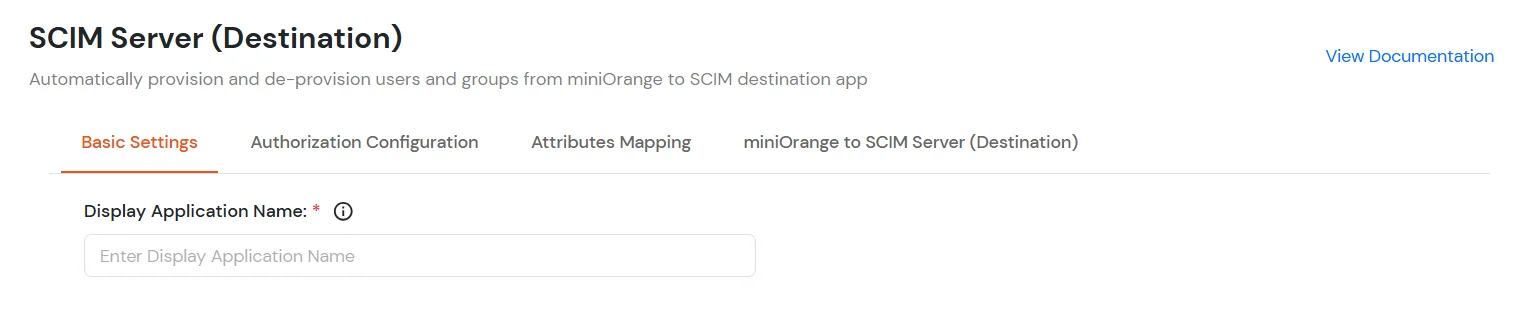
- Under Basic Settings, enter Display Application Name and click Save to add the app.
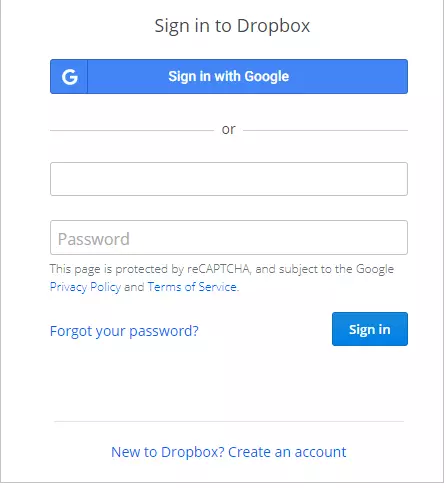
- On the Sign-in to Dropbox for Business to link with miniOrange dialog, sign in to your Dropbox for Business and verify your identity.
- In the Authorization Configuration, enter the SCIM Base URL and Bearer Token that you got while configuring Dropbox as SCIM in the above step.
- Click Test Connection to verify details.
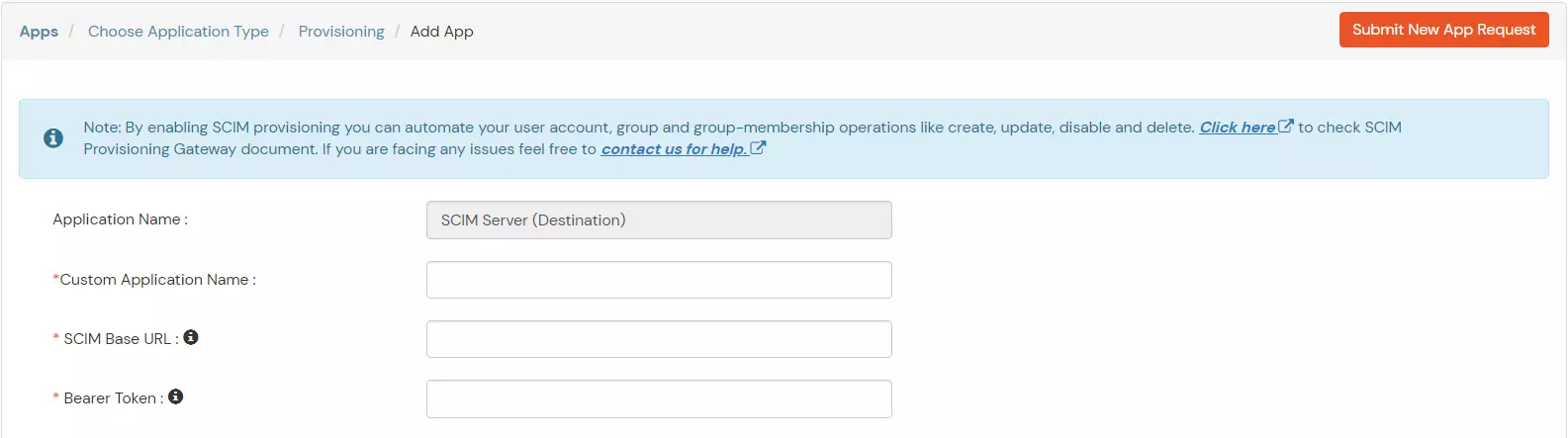
- Then, click Save & Next button.
2. Attribute Mapping
- Navigate to the Attributes Mapping tab in your Dropbox SCIM Provisioning configuration.
- Under this tab, you'll find two sections: Users and Groups, where you can map miniOrange attributes to Dropbox attributes for synchronization.
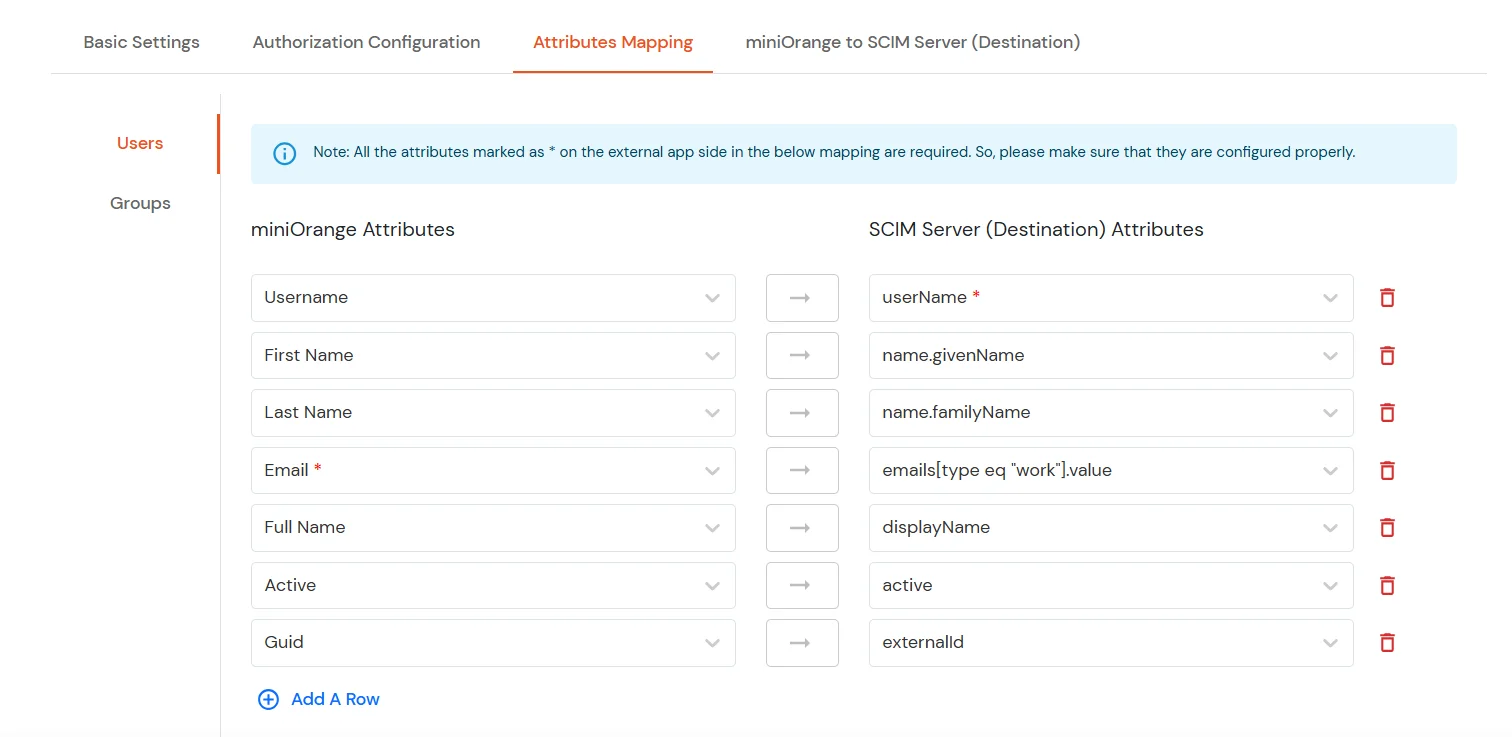
Users Mapping:
Note: The userName, name.givenName, name.familyName, emails[type eq \"work\"].value, displayName and active fields are required for Dropbox SCIM integration.
- In the Users section, map the attributes from miniOrange Attributes to the corresponding SCIM Server (Destination) Attributes.
- Once all required mappings are configured, click the Save & Next button to proceed.
Groups Mapping:
Note: If you don't need group provisioning, skip this step.
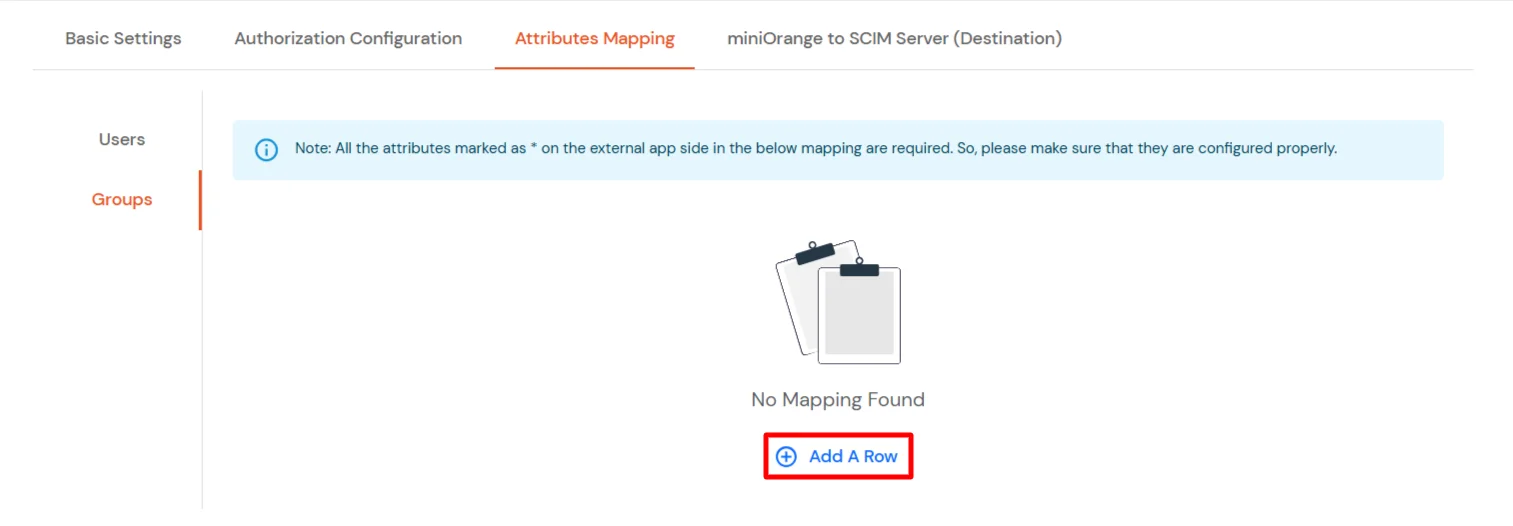
- Click on the Groups tab.
- Click Add A Row to add a new mapping.
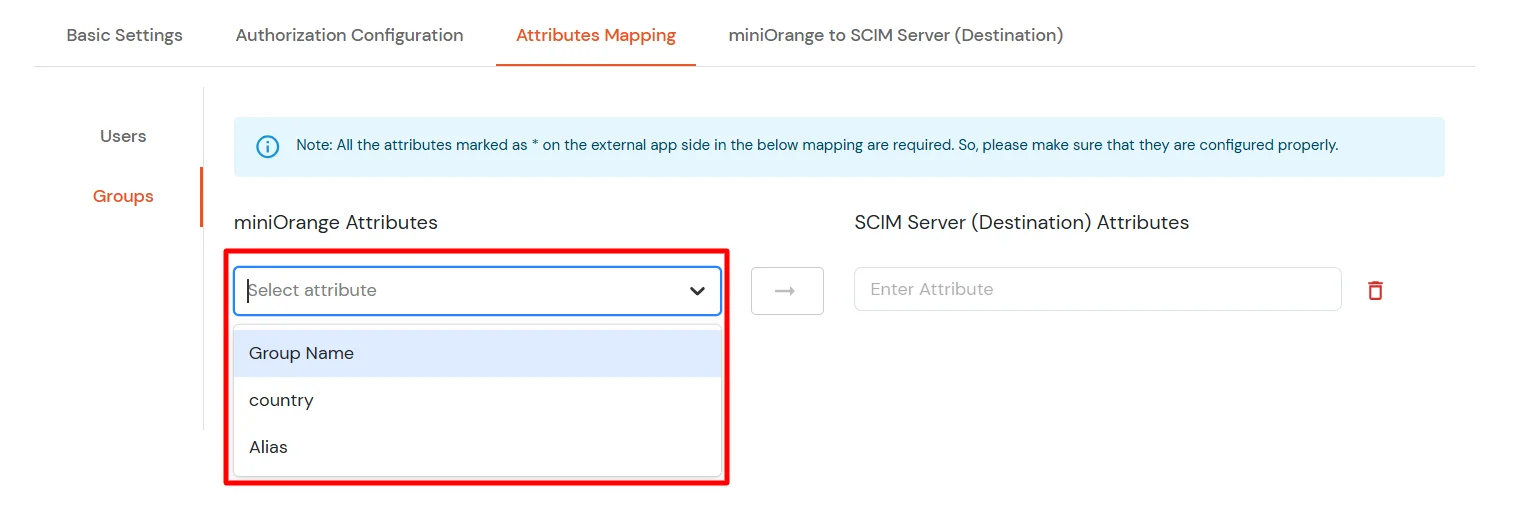
- From the miniOrange Attributes dropdown, choose an attribute (like Group Name).
- In the SCIM Server (Destination) Attributes field, type the Dropbox attribute (like displayName).
- Click Save & Next when done.
3. miniOrange to SCIM Server (Destination)
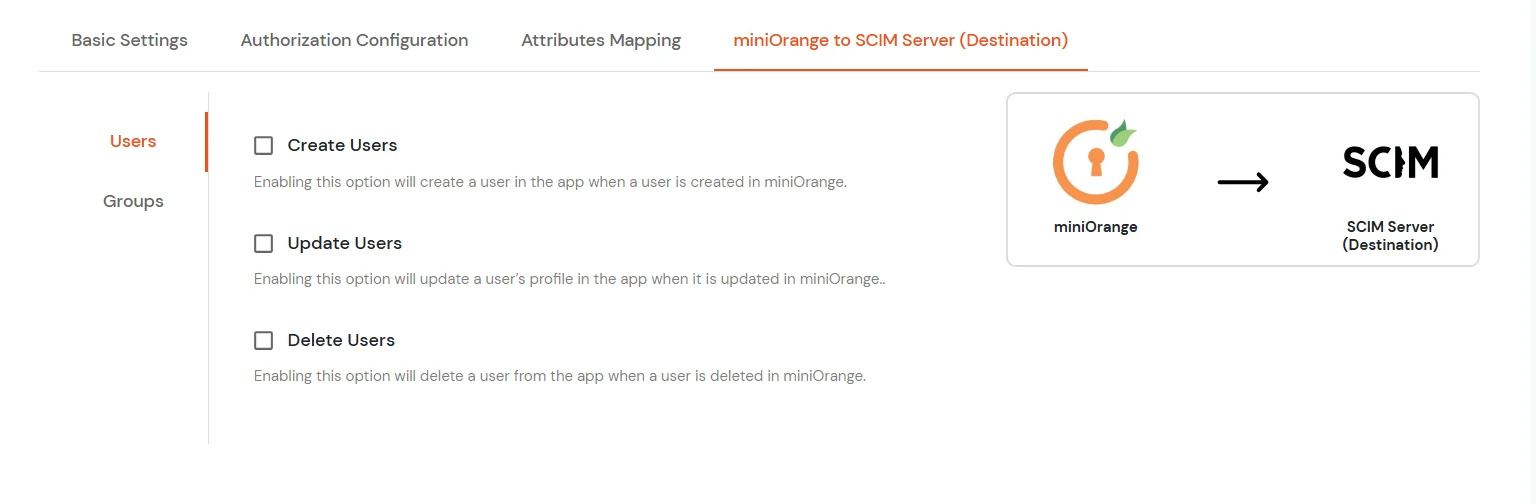
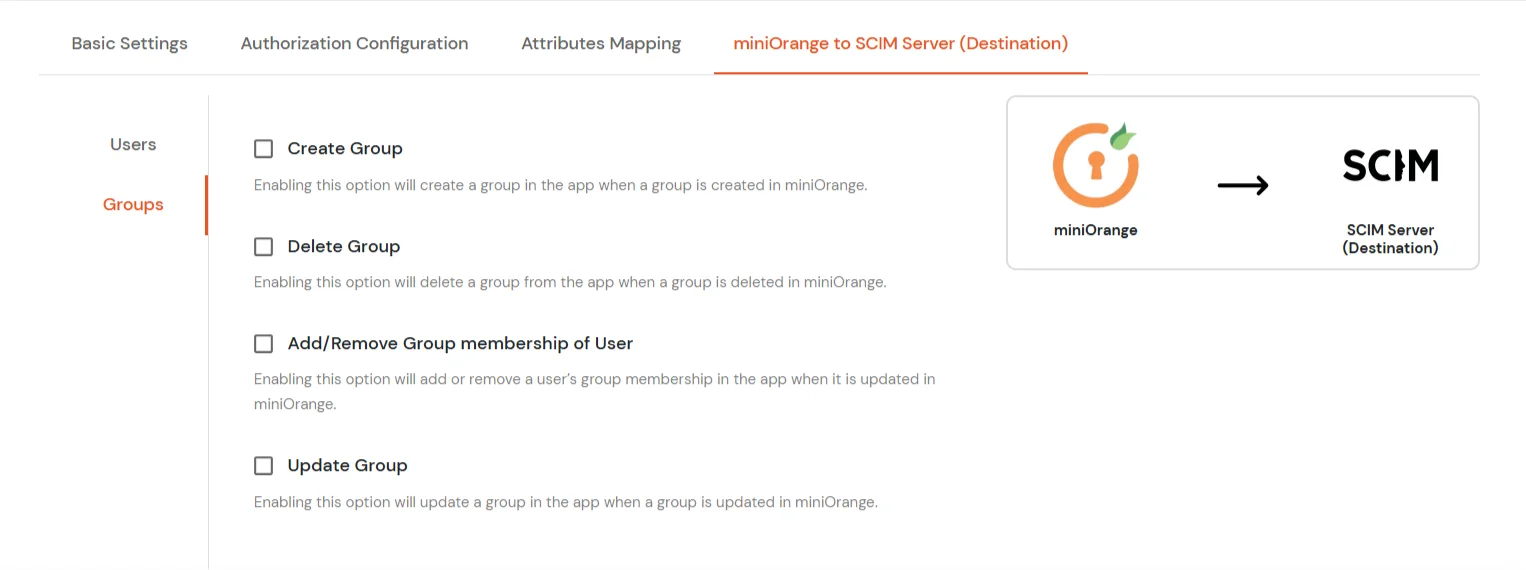
- In the miniOrange to SCIM Server (Destination) tab, there are two sections: Users and Groups. Each section contains a list of attributes and their functions when enabled. You can enable or disable them as needed.
|
Attribute |
Description |
| Users |
Create Users |
Enabling this option will create the user in the selected application upon user creation in miniOrange. |
| Update Users |
Enabling this option will update the user profile in the selected application if updated in miniOrange. |
| Delete Users |
Enabling this option will delete the user from the selected application if the user is deleted from the miniOrange. |
|
Attribute |
Description |
| Groups |
Create Group |
Enabling this option will create the Group in the selected application upon Group creation in miniOrange. |
| Delete Group |
Enabling this option will delete the Group from the selected application if the Group is deleted from the miniOrange. |
| Add/Remove Group membership of User |
Enabling this option will add/remove the Group membership of a user from the selected application if the respective user group membership is updated from the miniOrange. |
| Update Group |
Enabling this option will update the Group in the selected application upon Group updation in miniOrange. |
- Click Save to apply these changes.
4. Create Group
To create a group, follow these steps:
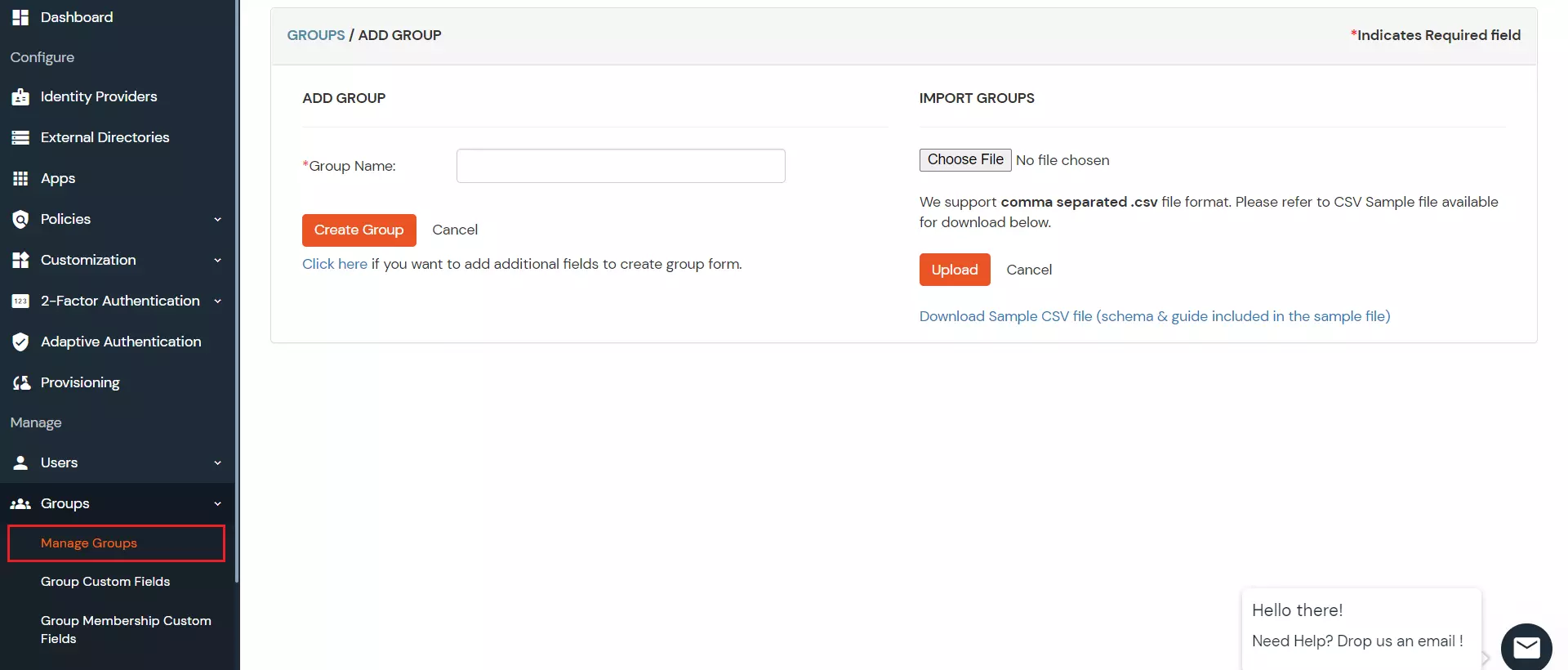
- Go to the Manage Groups section in the Groups tab, located on the left side and click on Create Group Button.
- Enter the Group Name and click the Create Group button.
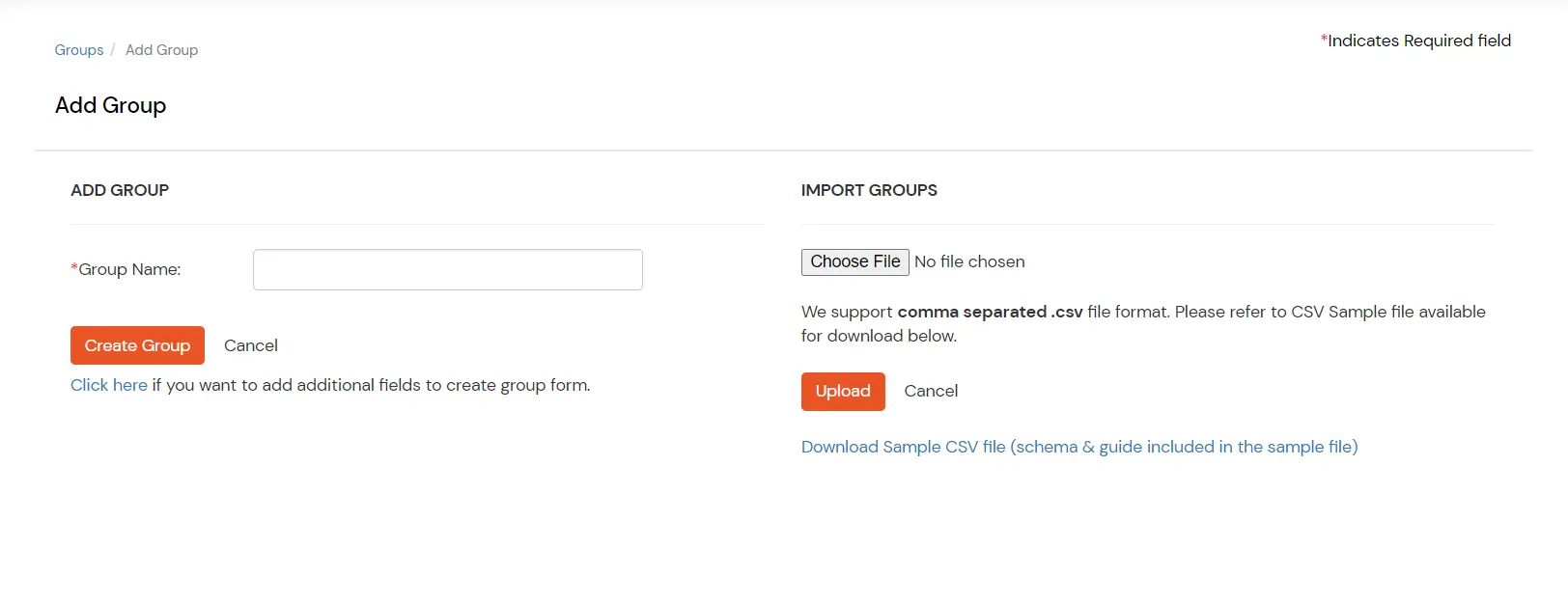
- You will be redirected to the Groups List Screen when you can see the newly created group.
5. App Policy (Provision Group to Dropbox App)
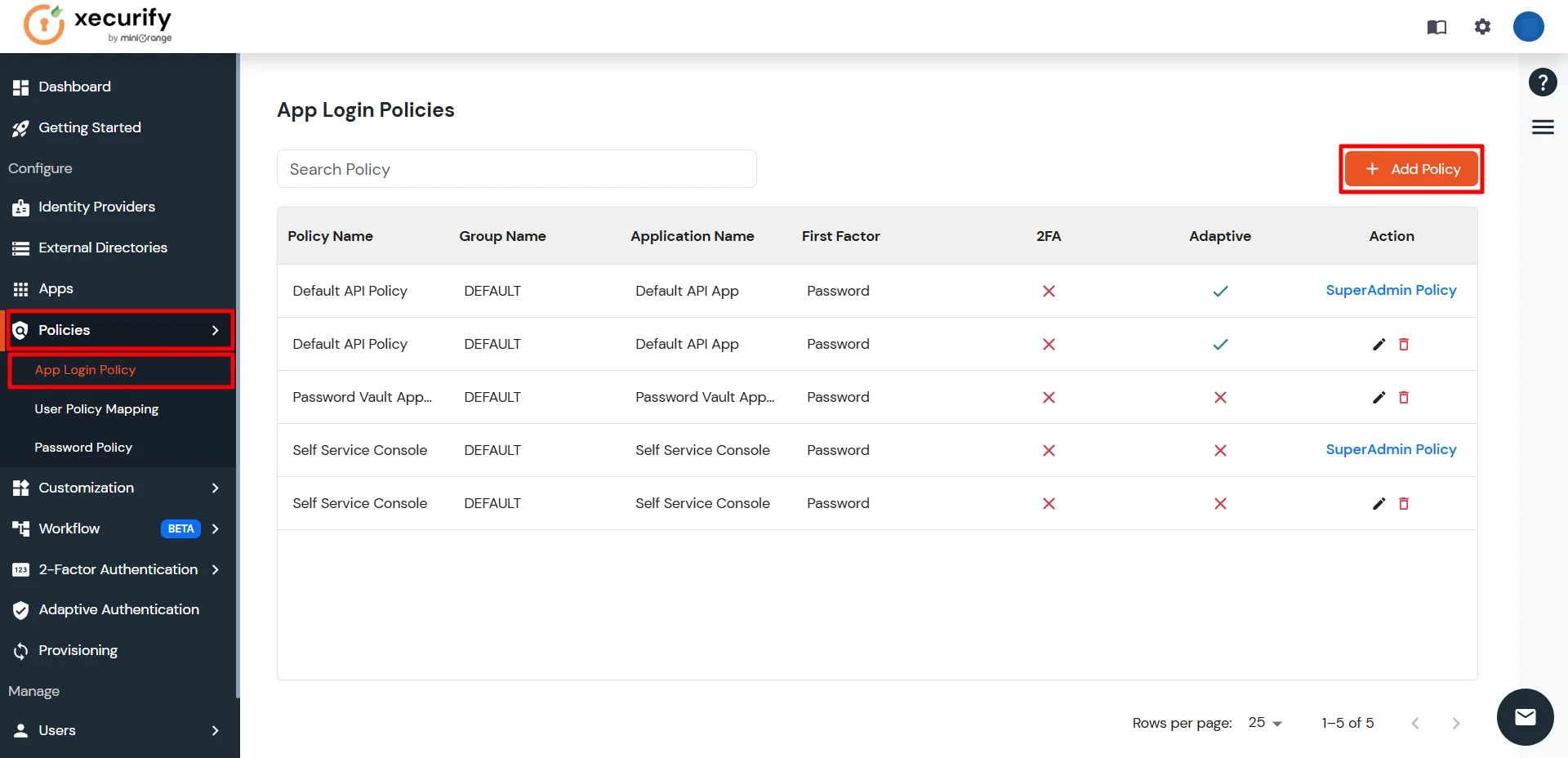
- Go to the App Login Policy section under Policies, and click Add Policy.
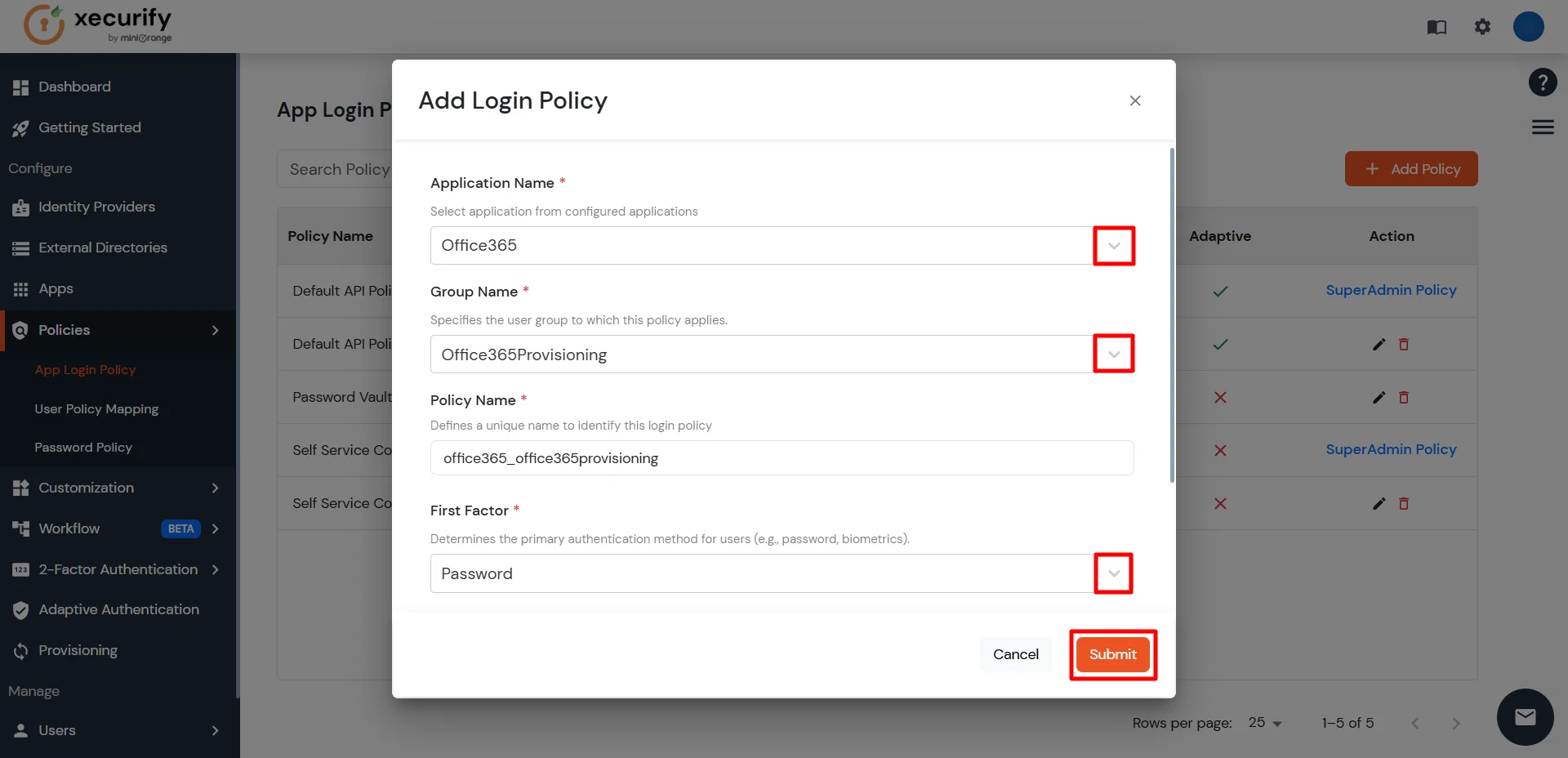
- Select the application you configured in the Apps tab (for example: Dropbox).
- Enter the Group Name you created (for example: DropboxProvisioning).
- Enter a Policy Name of your choice (for example: DropboxProvisioningPolicy).
- Click on Submit button to create a policy.
- You will receive a success notification upon policy creation, and the policy will be displayed in the App Login Policy section of the Policies tab.
- Provisioning configuration is complete now.
- Now, we can verify whether provisioning is working as expected.
- Go to the Manage Groups section under the Groups tab.
- Locate the group you created (e.g., DropboxProvisioning), click Select, and then choose Assign Users.
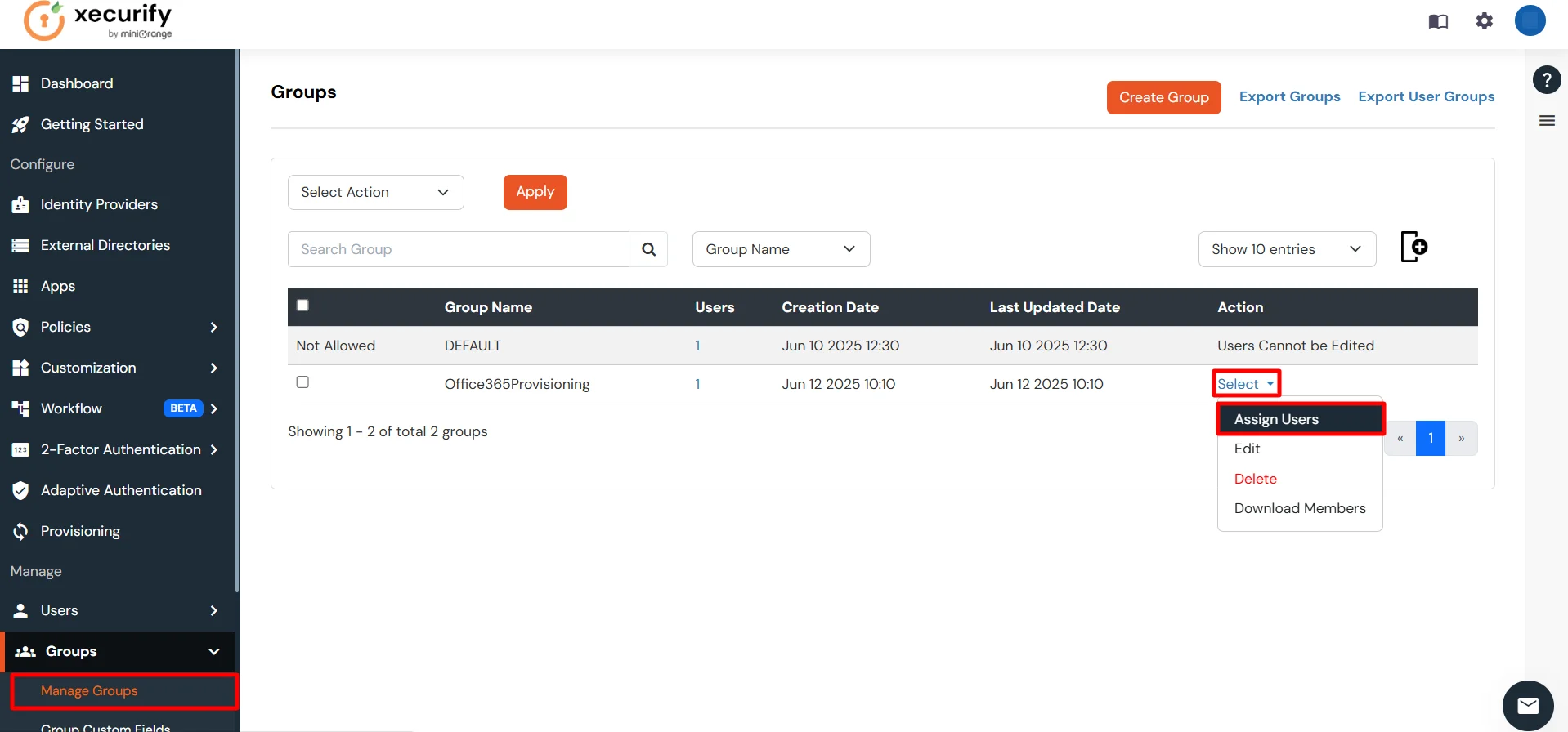
- Ensure that users are already present in miniOrange or import them into the user list. This allows you to assign the user you want to provision in Dropbox.
-
From the list below, select the user you want to provision, choose the Assign to Group option, and click Apply. This will automatically create the user in Dropbox services.
Note: Assign users to a group that contains the authorized domain names for the configured application.
To view the authorized domains, go to the Authorization Configuration section of the application you configured in the Apps tab.
Only users whose email addresses match one of the authorized domains will be provisioned.
- Select the users whose email addresses belong to an authorized domain, then click Assign to Group, and finally click the Apply button.
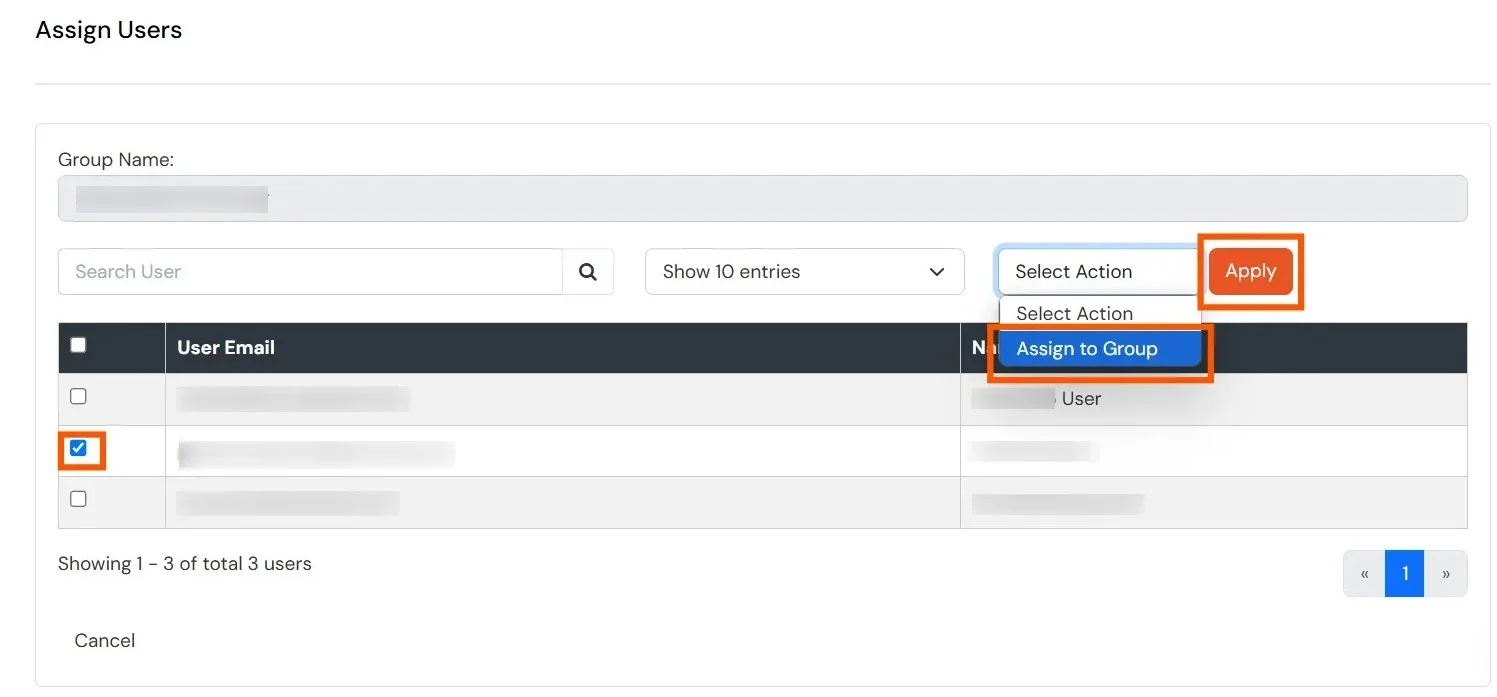
- Users are automatically created in Dropbox services.
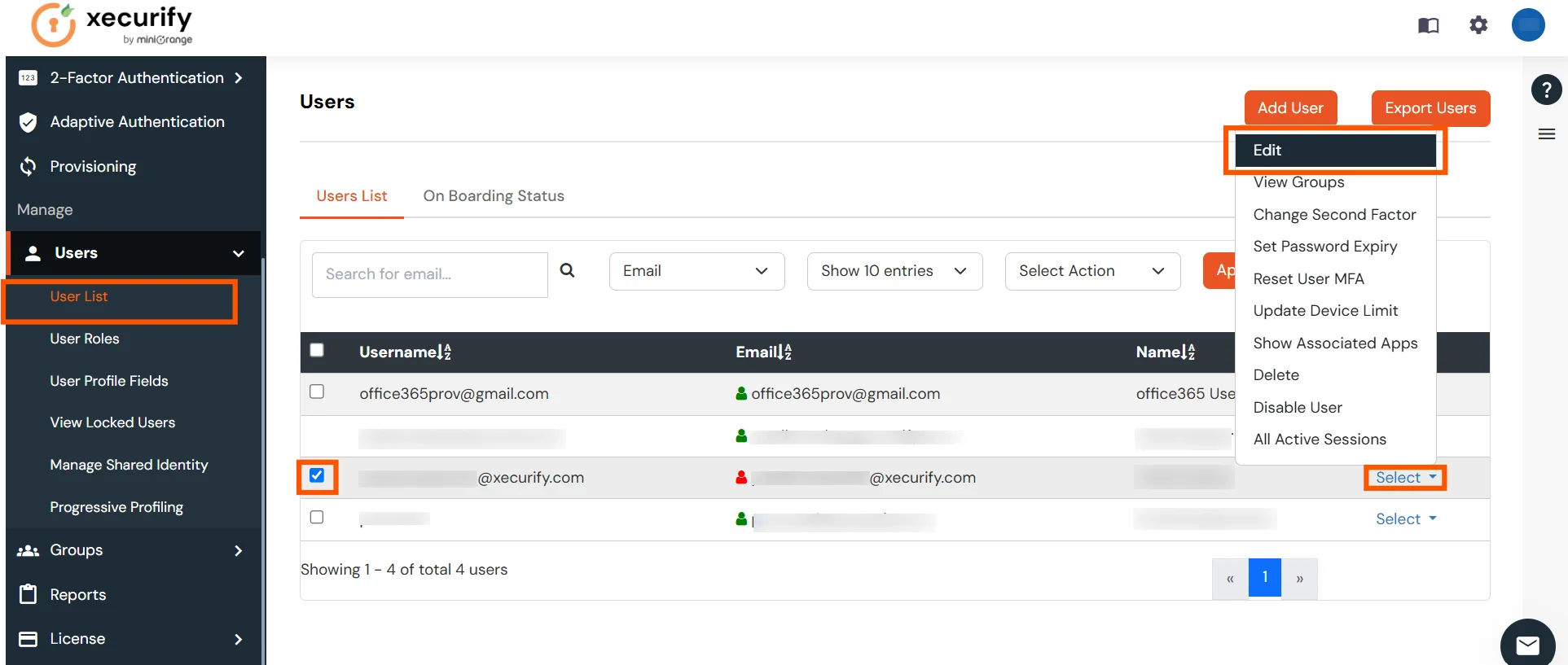
- To update a user, go to the User List, select the user you want to update, click Select, and then choose Edit.
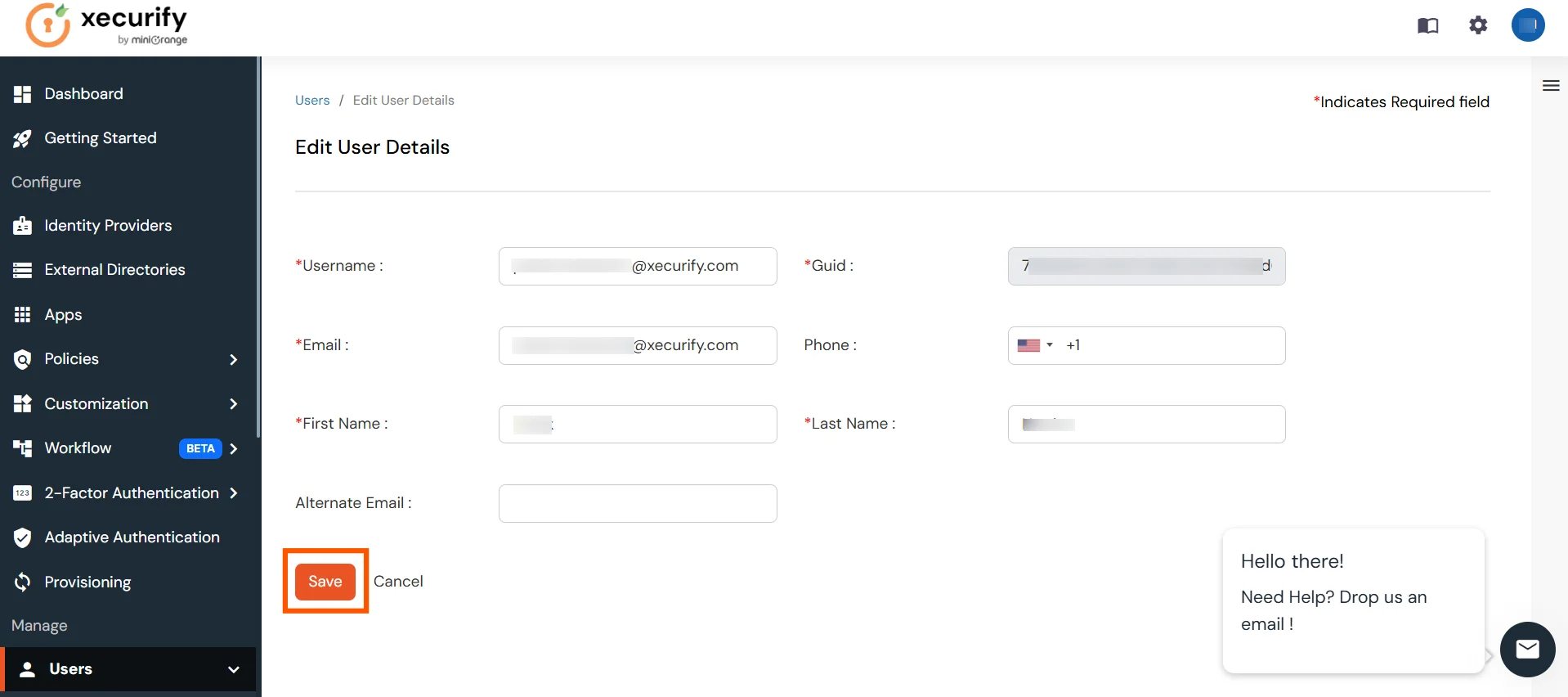
- After updating the user, click the Save button. This will automatically update the user in Dropbox services.
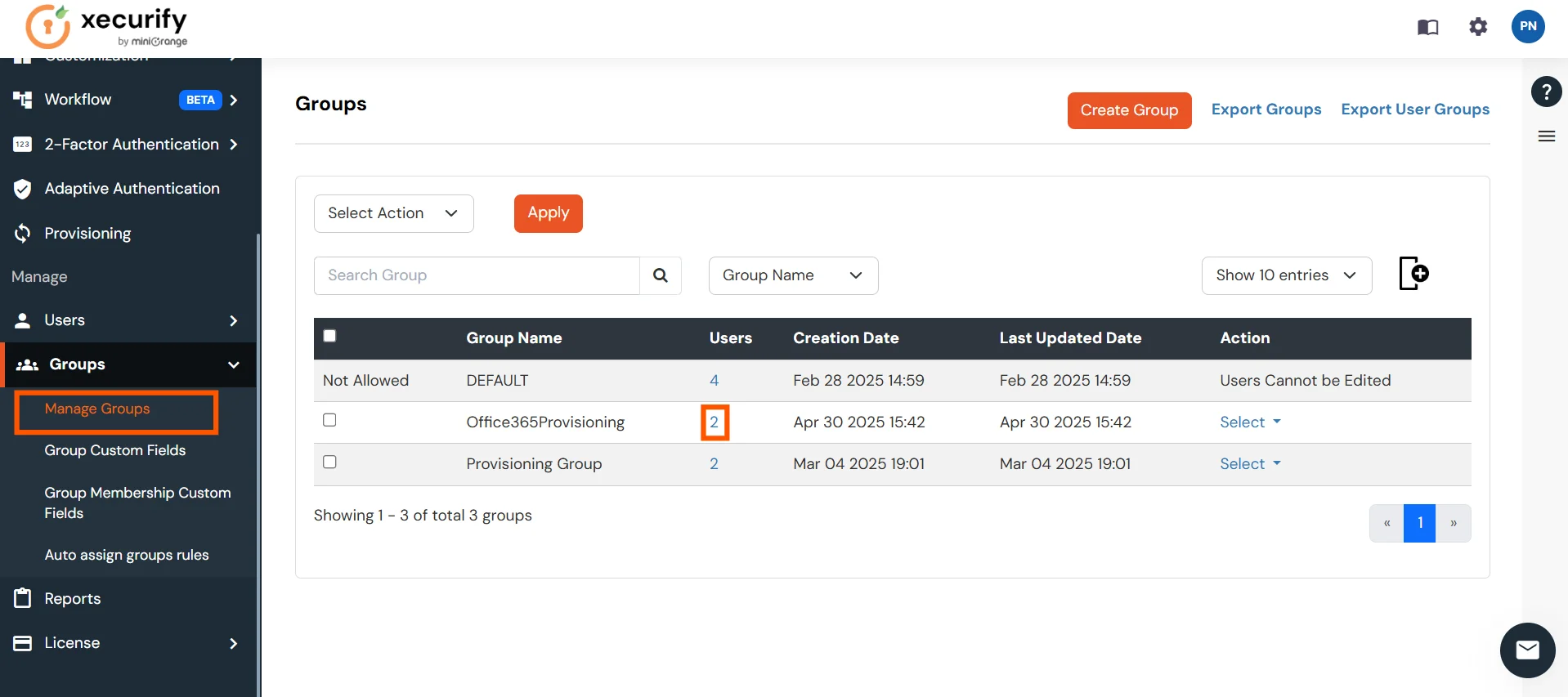
- To delete a user, go to the Manage Groups section of the Groups tab. Then, navigate to the group from which the user needs to be deleted. In the Users column, click on the displayed number of users.
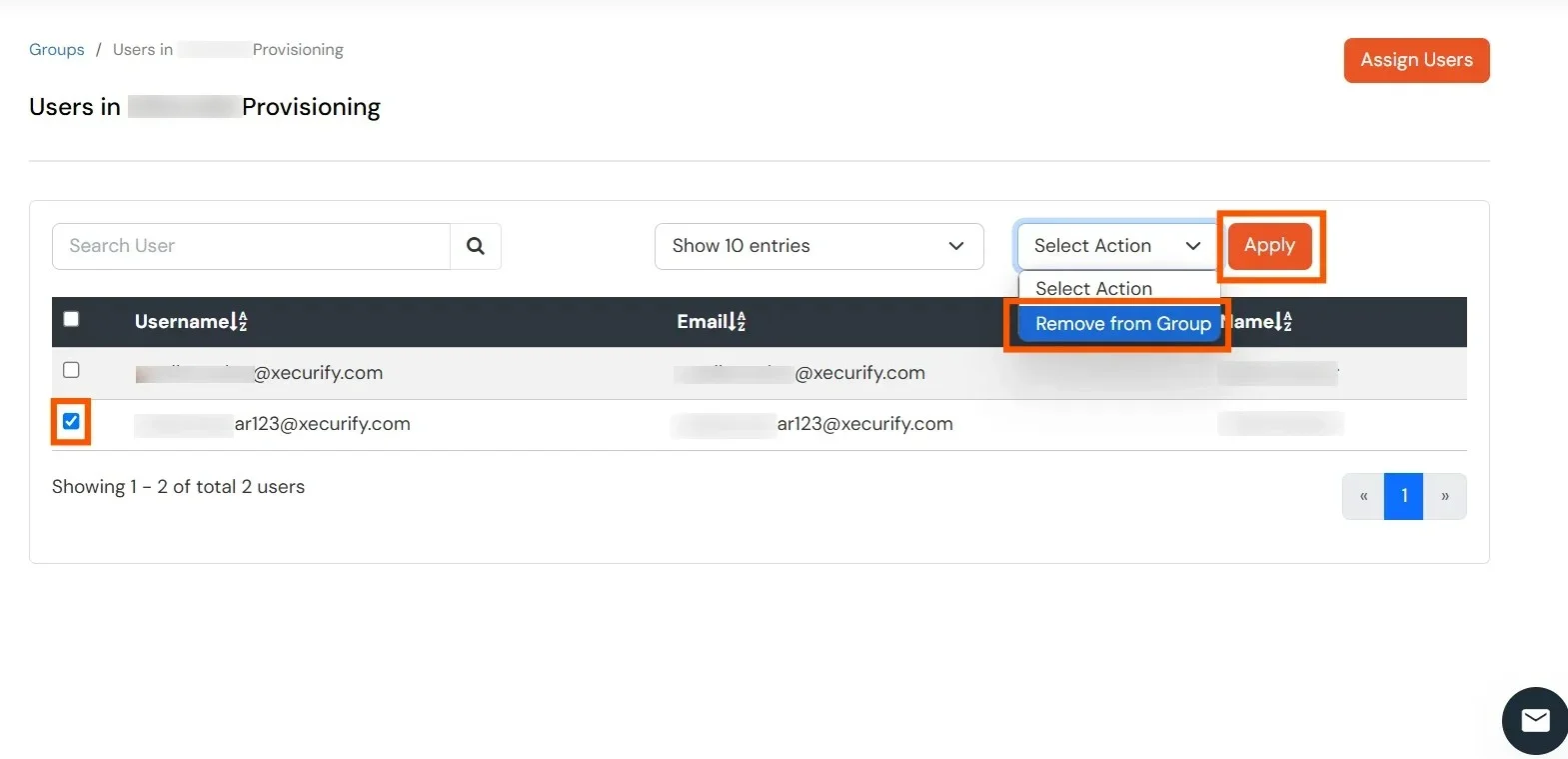
- Select the user you want to delete, choose Remove from Group as the action, and click the Apply button. This will automatically remove the user from Dropbox services as well.
View Provisioning Reports
How to access Provisioning Reports?
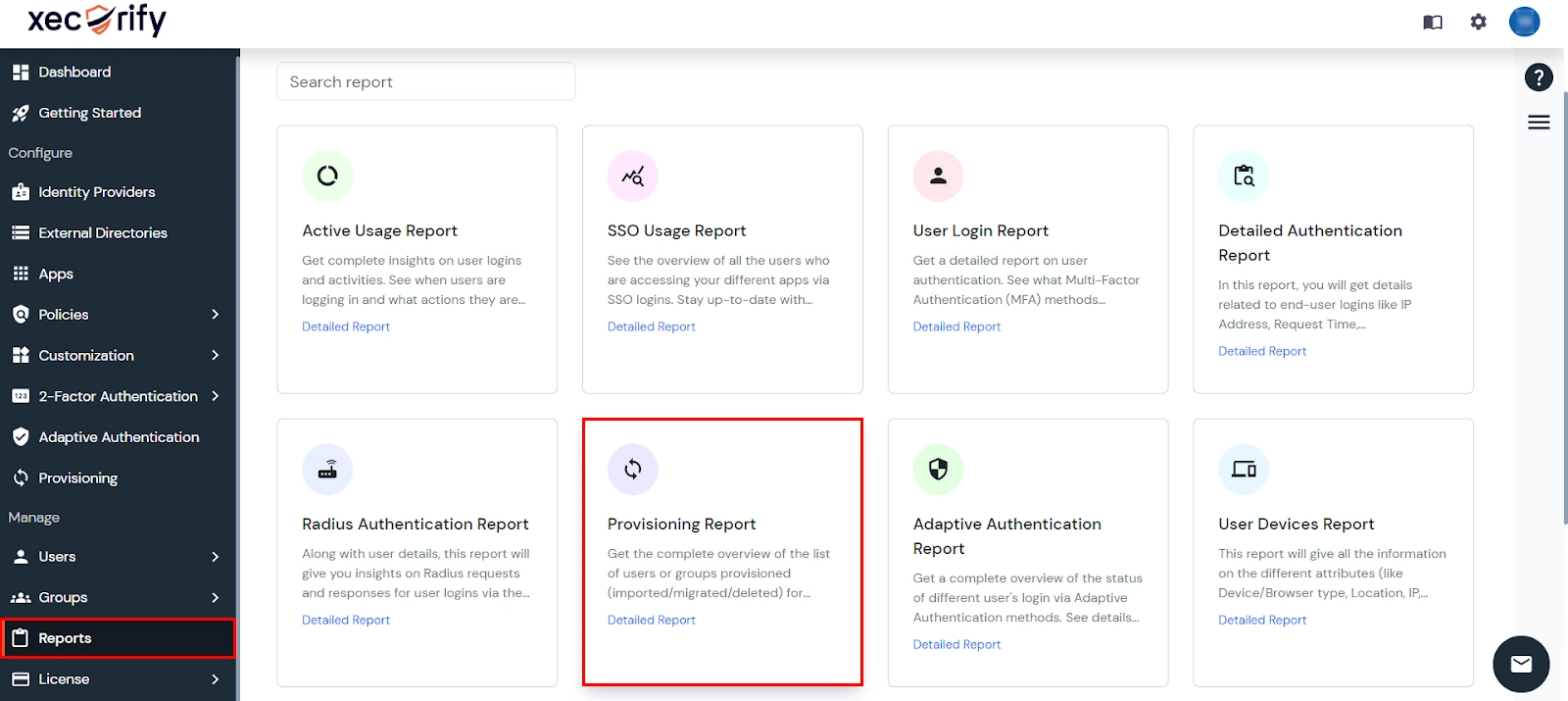
- Navigate to Reports in the left-hand navigation pane, search for Provisioning, and select Provisioning Report.
- Filter the reports by specifying Enduser Identifier and Application Name criteria. Additionally, choose the desired timespan for the reports. Once done, click on the Search.
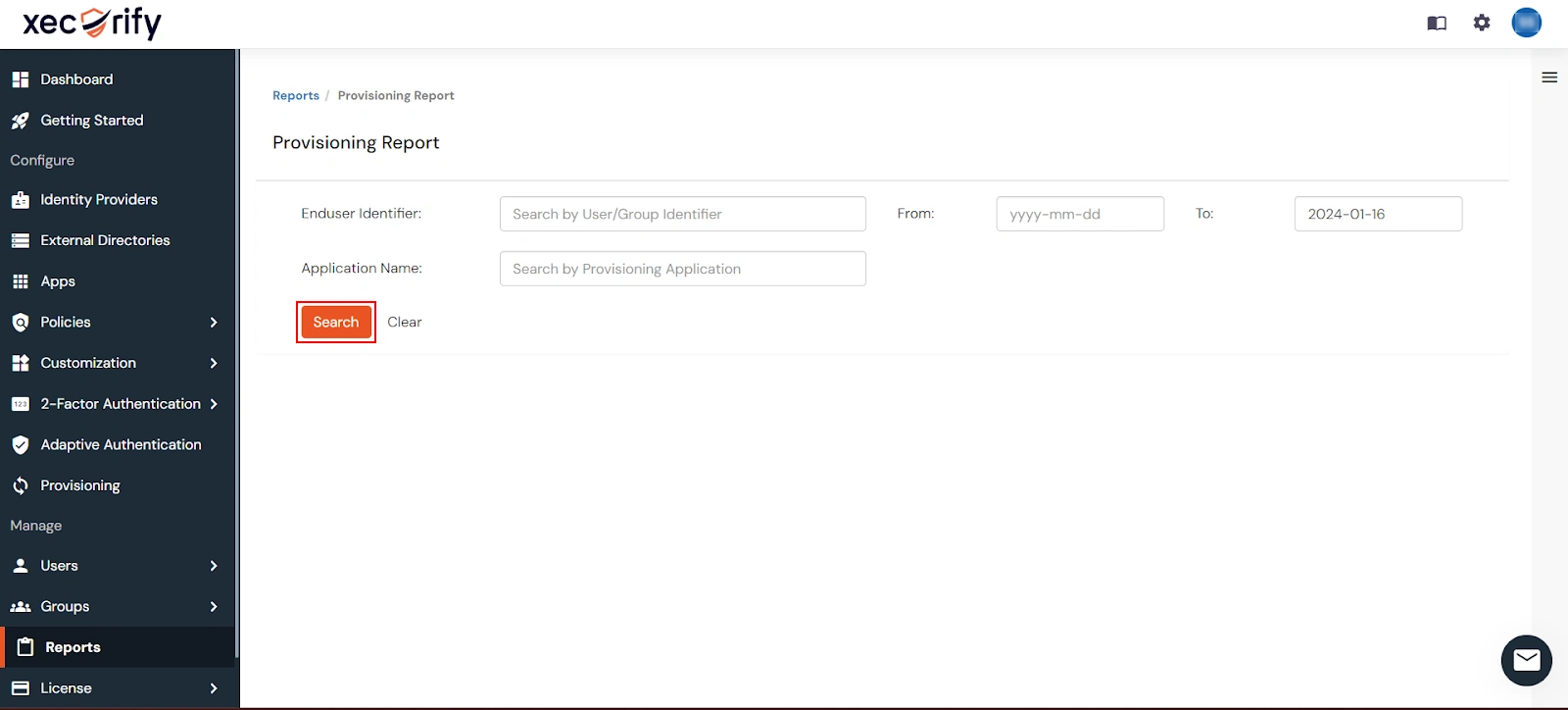
- Alternatively, you can directly click on Search to retrieve all provisioning reports based on time without applying any specific filters.
External References