How to Create a New Customer
In the Manage Customers section, you gain a detailed understanding of how to manage customers effectively dashboard. This section allows you to perform all customer-related activities, including creating customers, bulk cusomter uploads, etc.
To create a new customer, follow these steps:
- Login into miniOrange Partner Portal dashboard.
- Go to Customers >> Manage Customers.
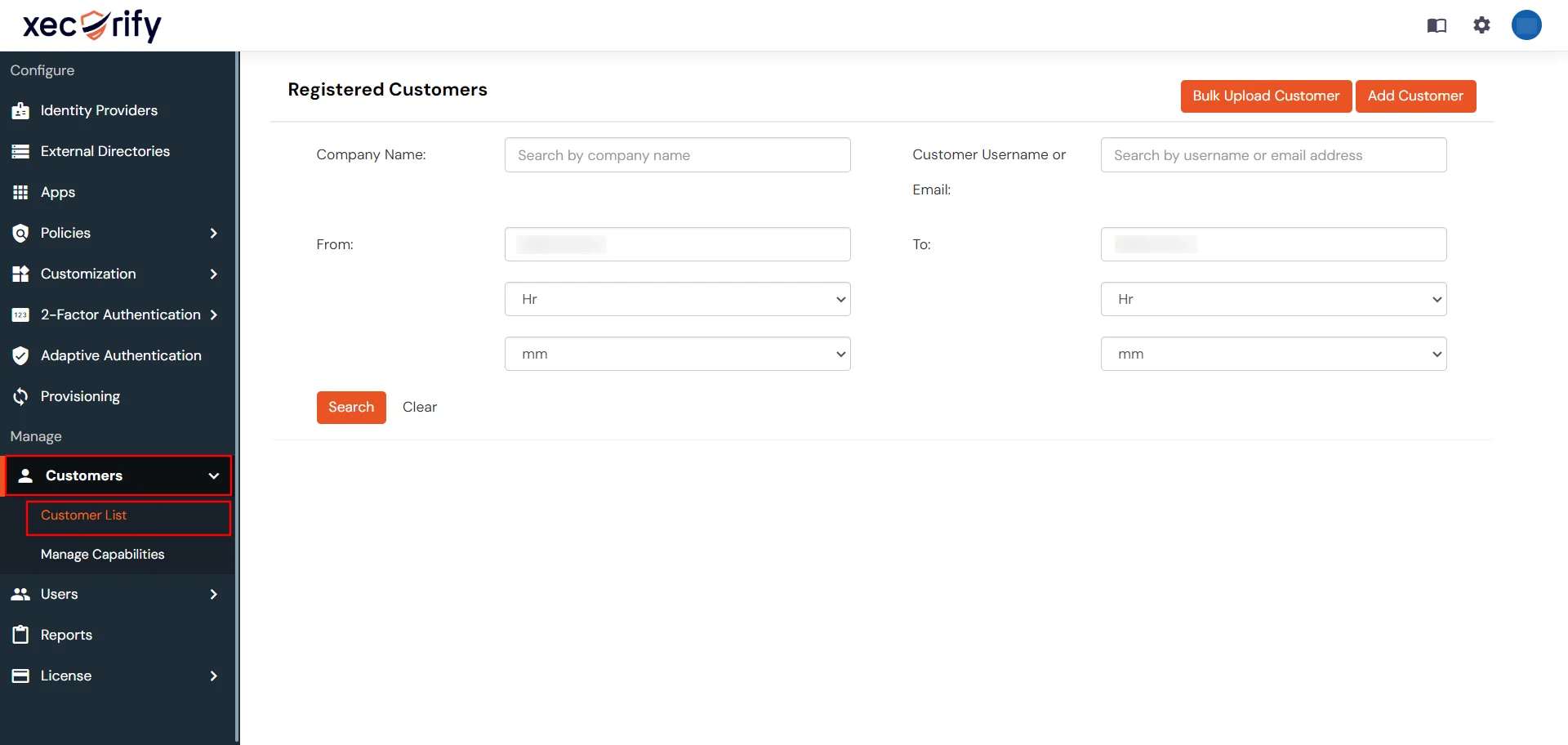
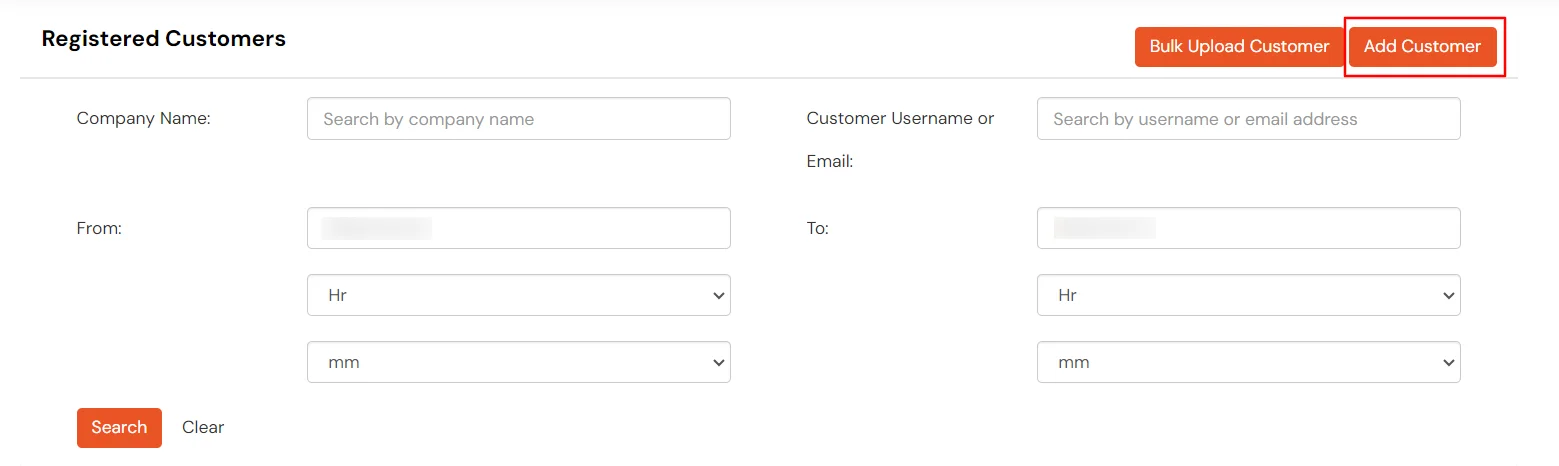
- Click on Add Customer.
- In PERSONAL DETAILS provide the relevant information like Username, Email, Customer Admin Name etc. Additionally, you can add custom profile attributes (if any) while adding a customer.
- If you want to add customer with password, you can click on checkbox and set the password.
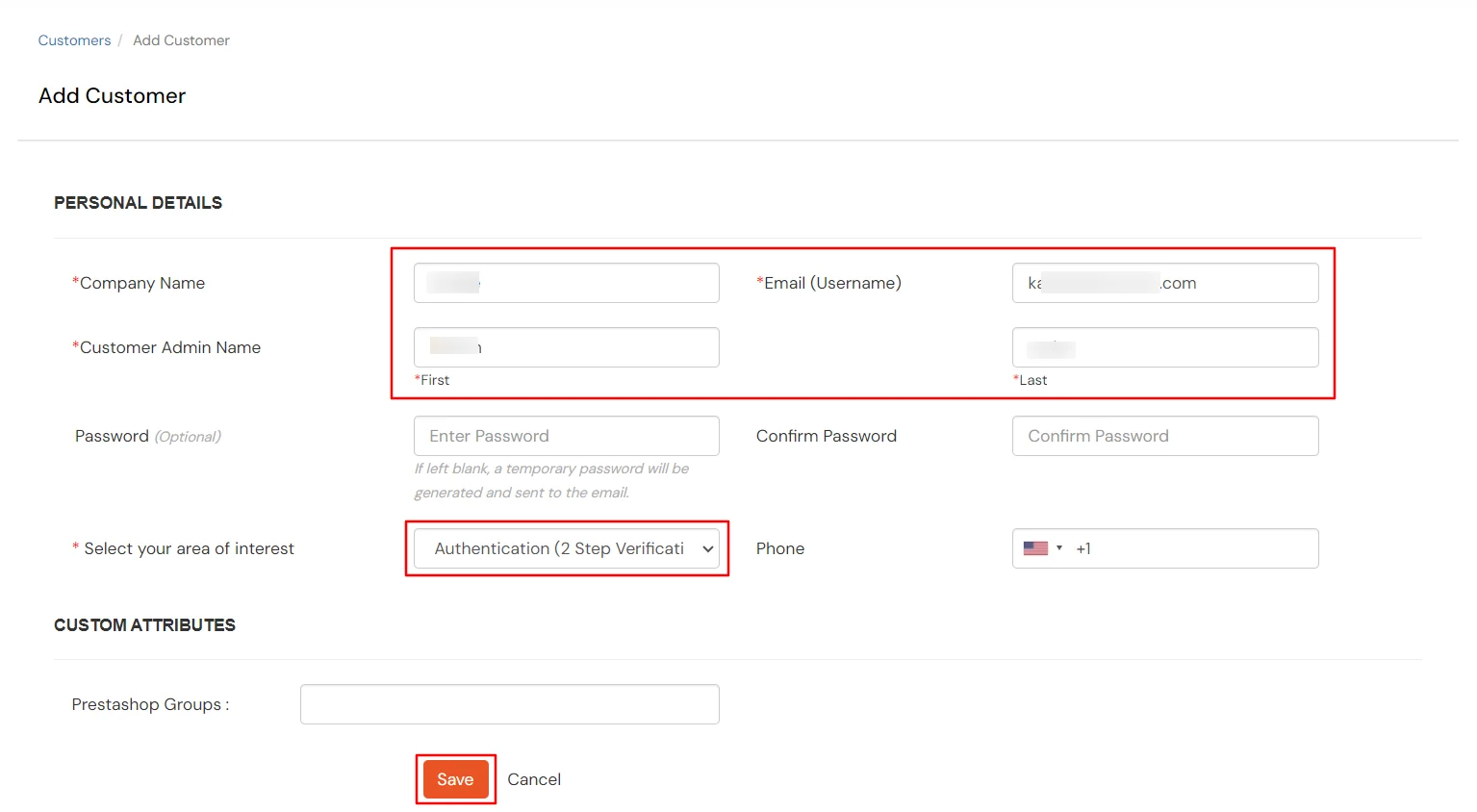
- Click on Save. A new customer should have been successfully added.
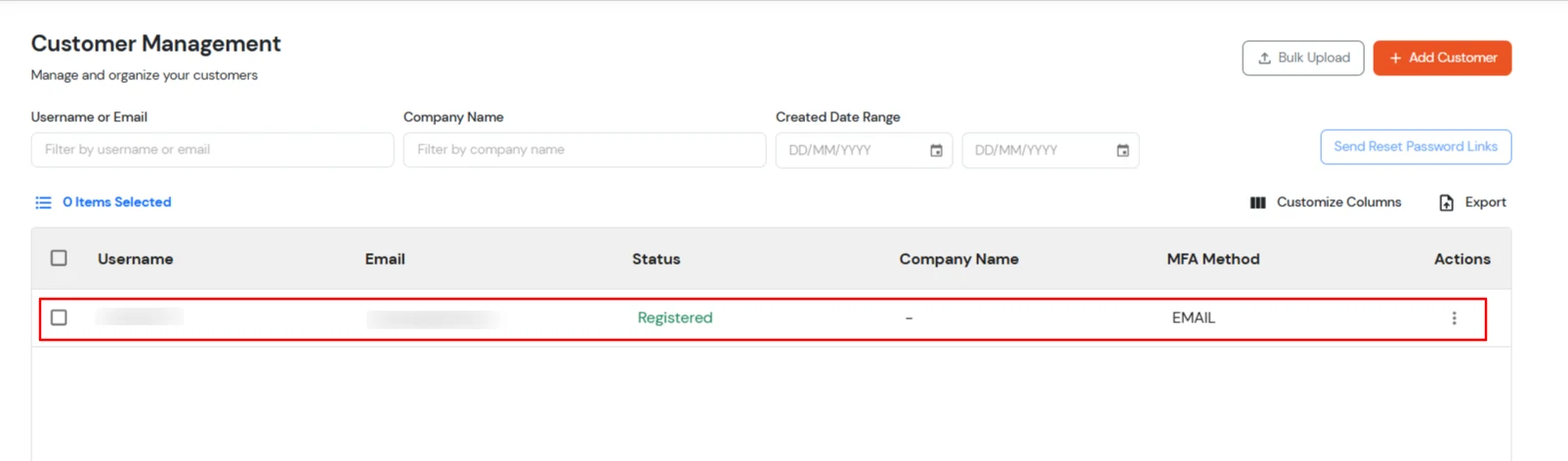
Customer Management Actions
How to Search for Customers
To search for a customer, use the following steps:
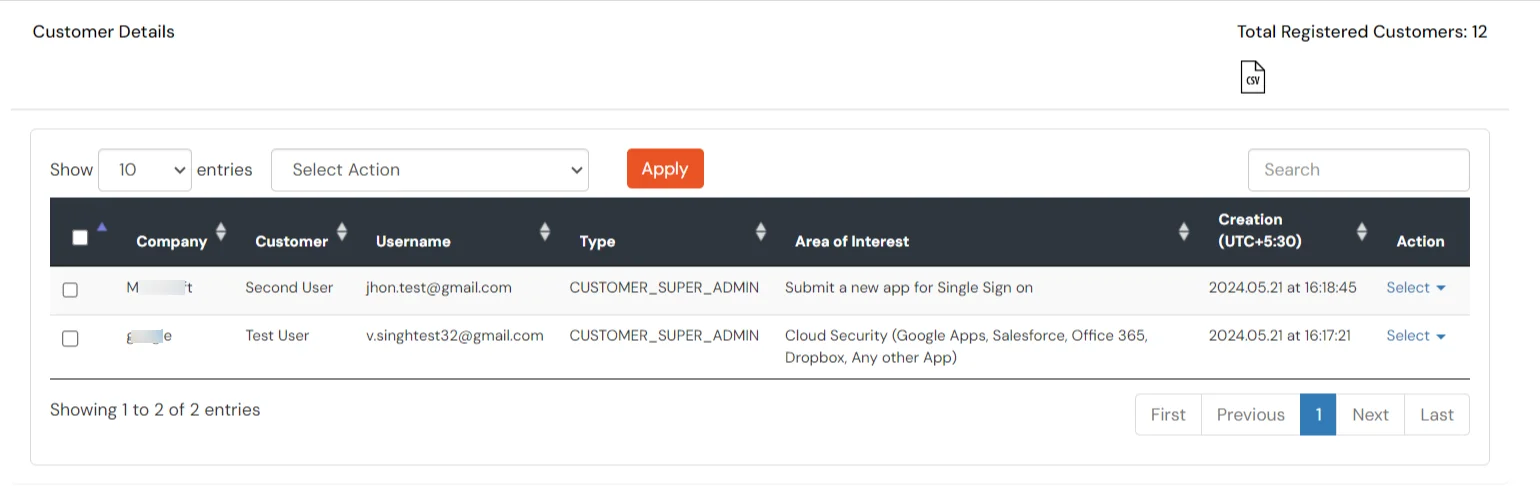
- If you want to search a customer's account, you need to search for it. You can do this by entering the Username or Email, Company Name as well as adding Date Range to when was account created in the system.
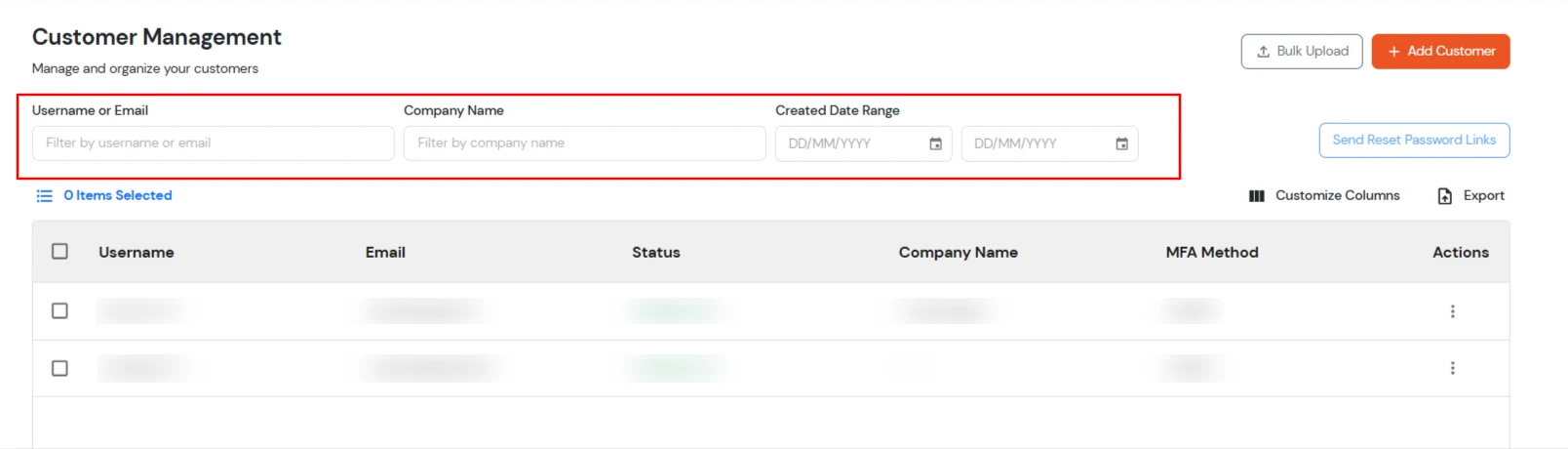
- You will be able to see the list of customers which corresponds to the added details.
How to Edit a Customer
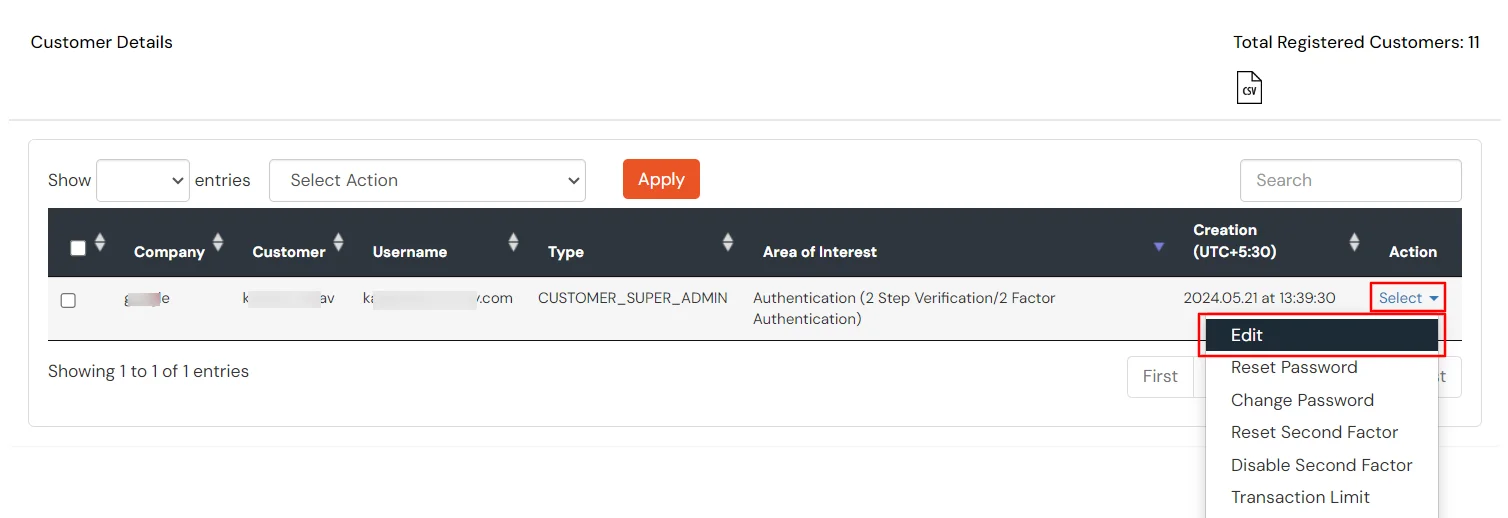
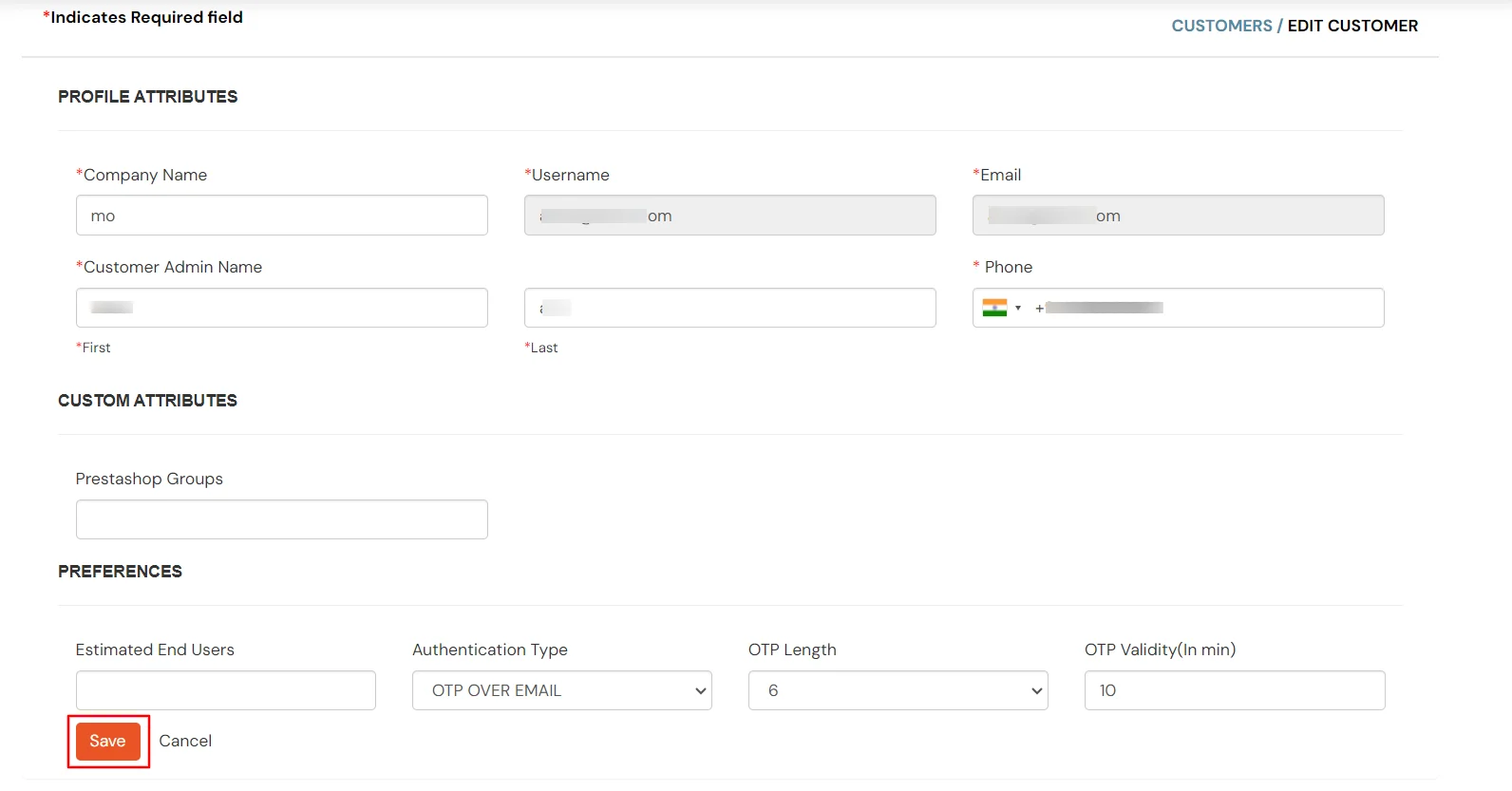
To edit a customer's account, use the following steps:
How to Reset or Change a Customer's Password
Once we are done with adding customer accounts, we need to set password for the customer account or send him the Password reset mail.
- If you want to locate a user, you can use any of these options to retrieve the user's data.
- Click on the Three Dot option present under Reset Password, Change Password tab. You will get a dropdown something like this.
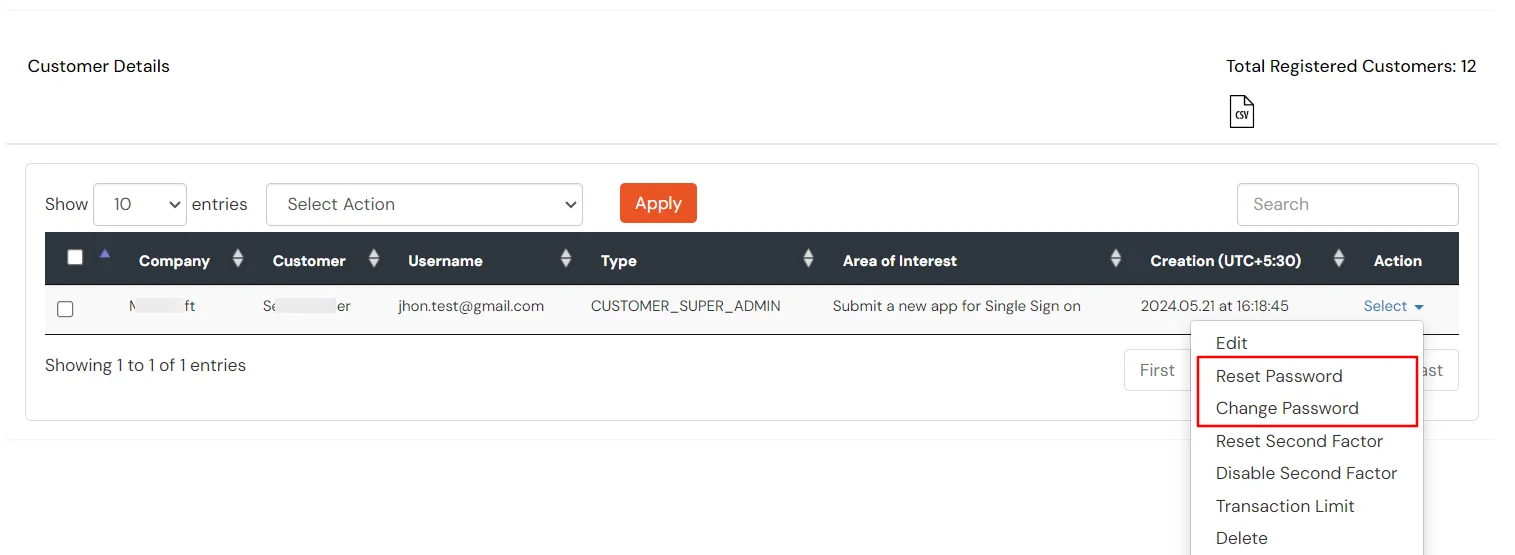
- If you choose the Reset Password option from the list, the customer will receive an email with password reset link through which he can set a new password and start using it.
Note : To send password reset emails to new customers, customize the 'Reset Password Link Mail' template. Click here to see how to set up the Reset Password Link Email template.
- If you chose Change Password, you will be able to set a password for the new customer account. But in this case, the customer will not receive any kind of email. You will have to manually handover the credentials for this account i.e username and password.
How to Reset a Customer's Second Factor
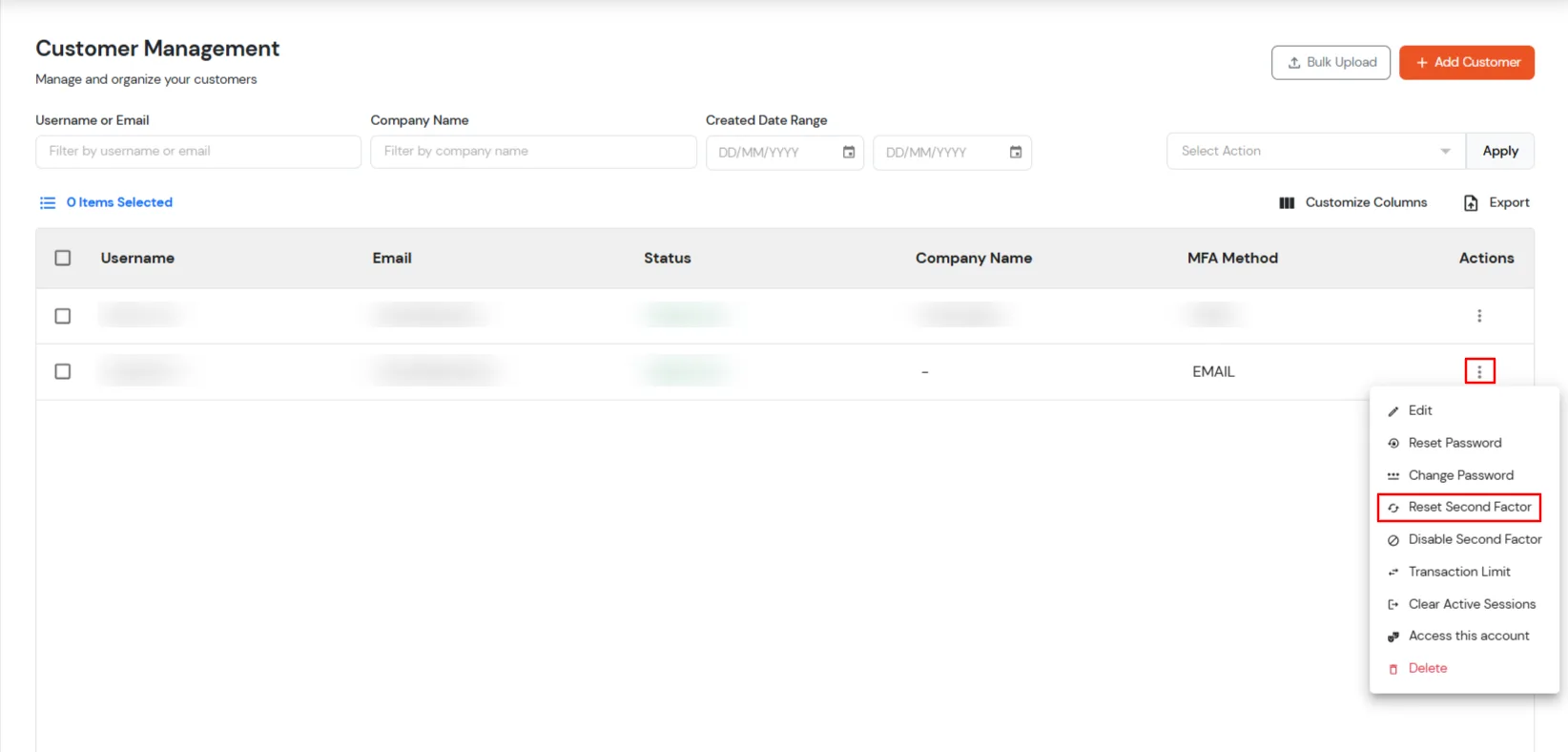
- Go to Actions column and click on Three Dots >> Reset Second Factor.
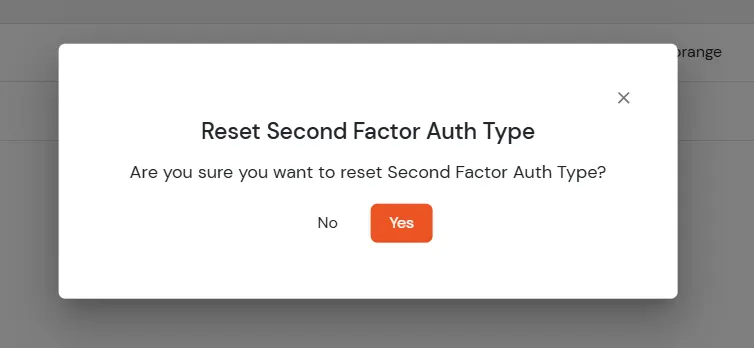
- A confirmation modal will appear. Click on Yes to reset the second-factor authentication.
How to Disable a Customer's Second Factor
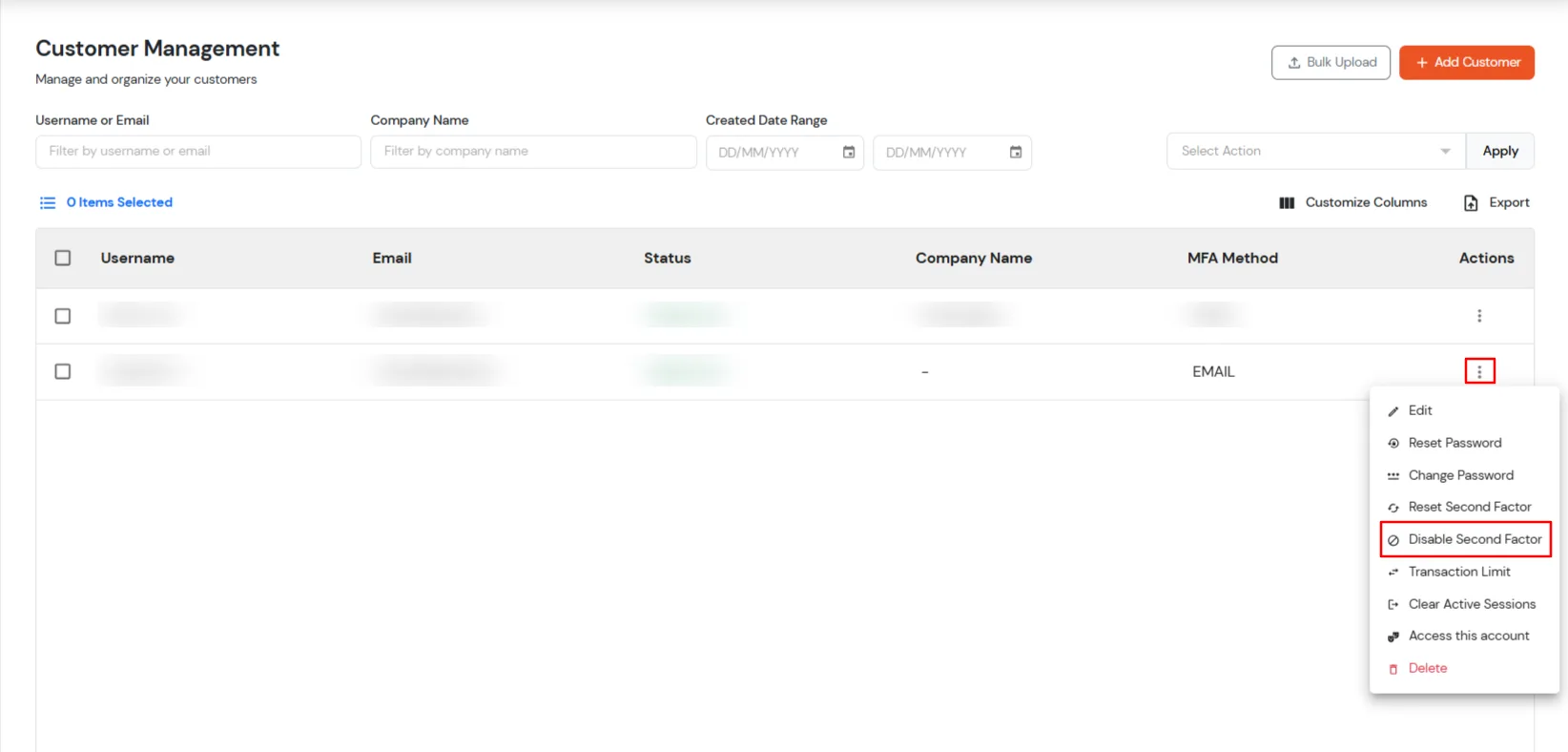
- Go to Actions column and click on Three Dots >> Disable Second Factor.
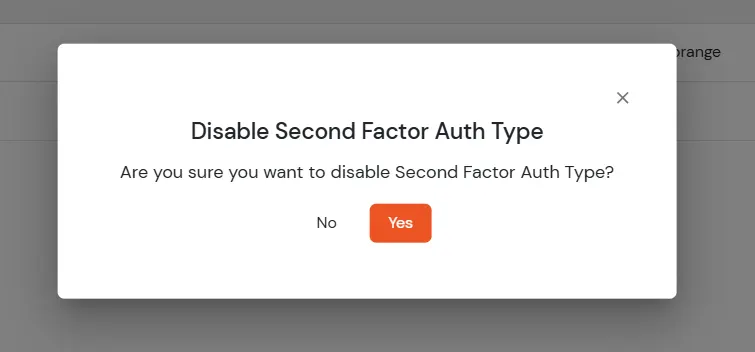
- A confirmation modal will appear. Click on Yes to disable the second-factor authentication.
How to Set a Transaction Limit
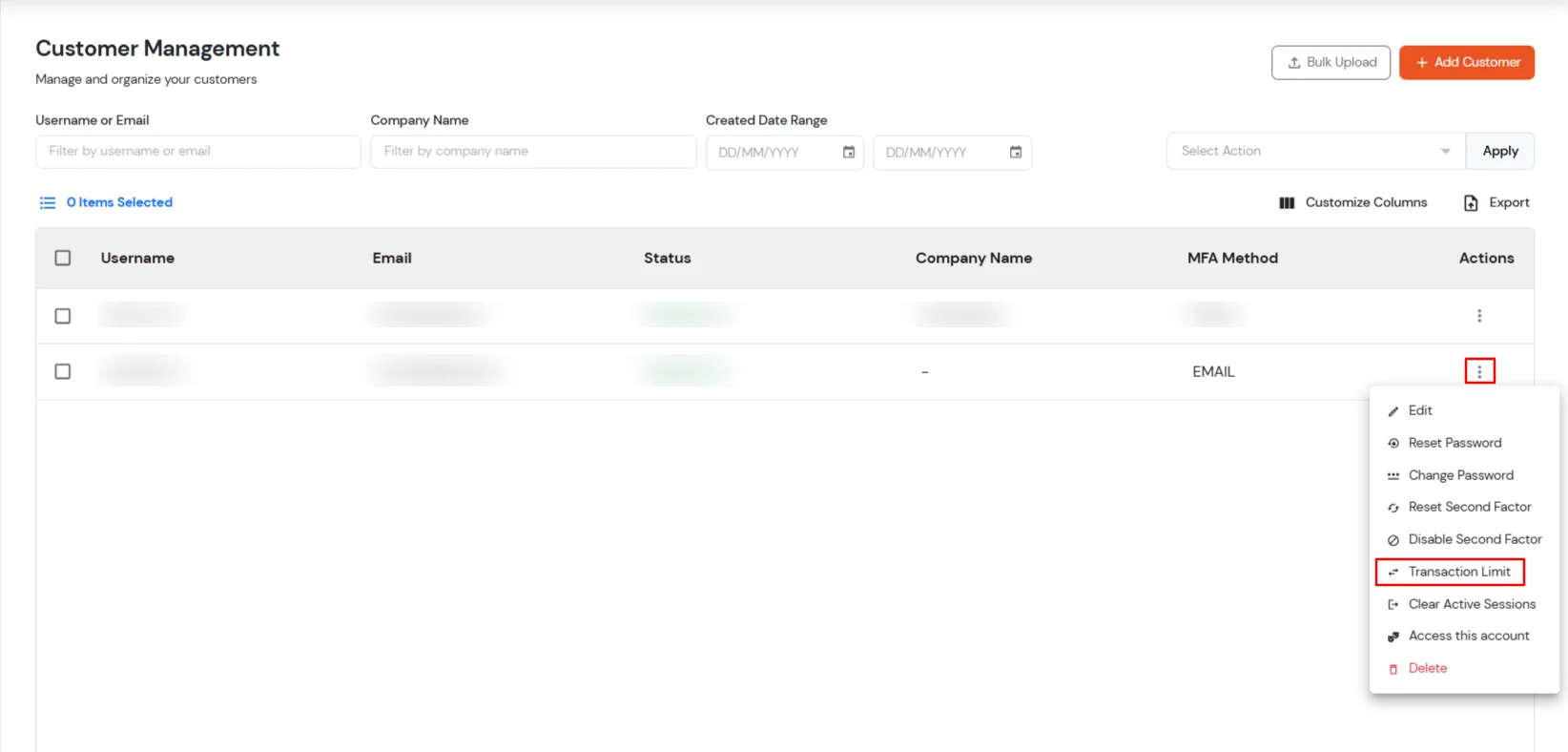
- Go to Actions column and click on Three Dots >> Transaction Limit.
- Enter the required transaction and customer creation limits in the respective fields.
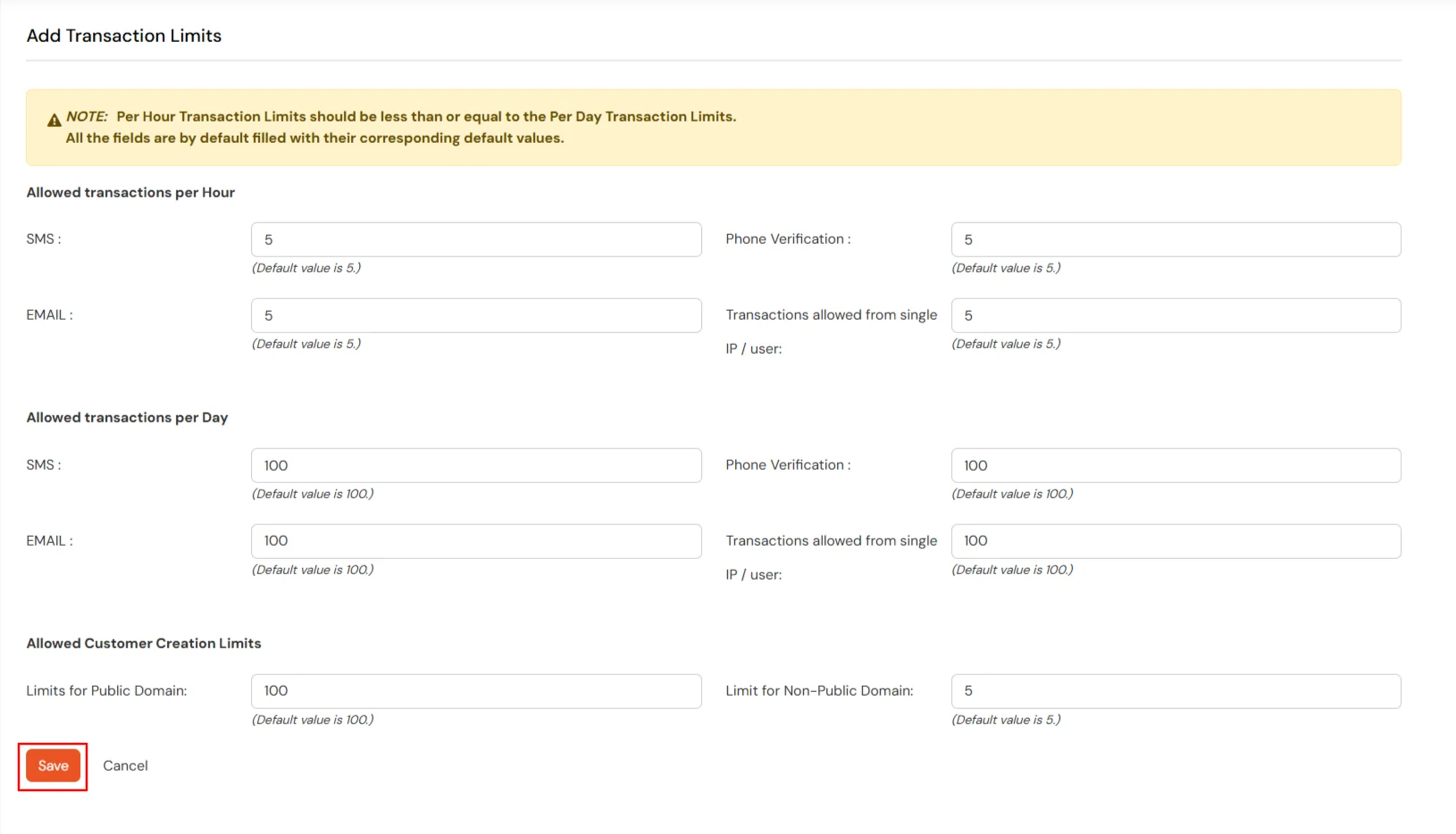
- Click on Save to the configured transaction limits.
How to Clear Active Sessions
- Go to Actions column and click on Three Dots >> Clear Active Sessions.
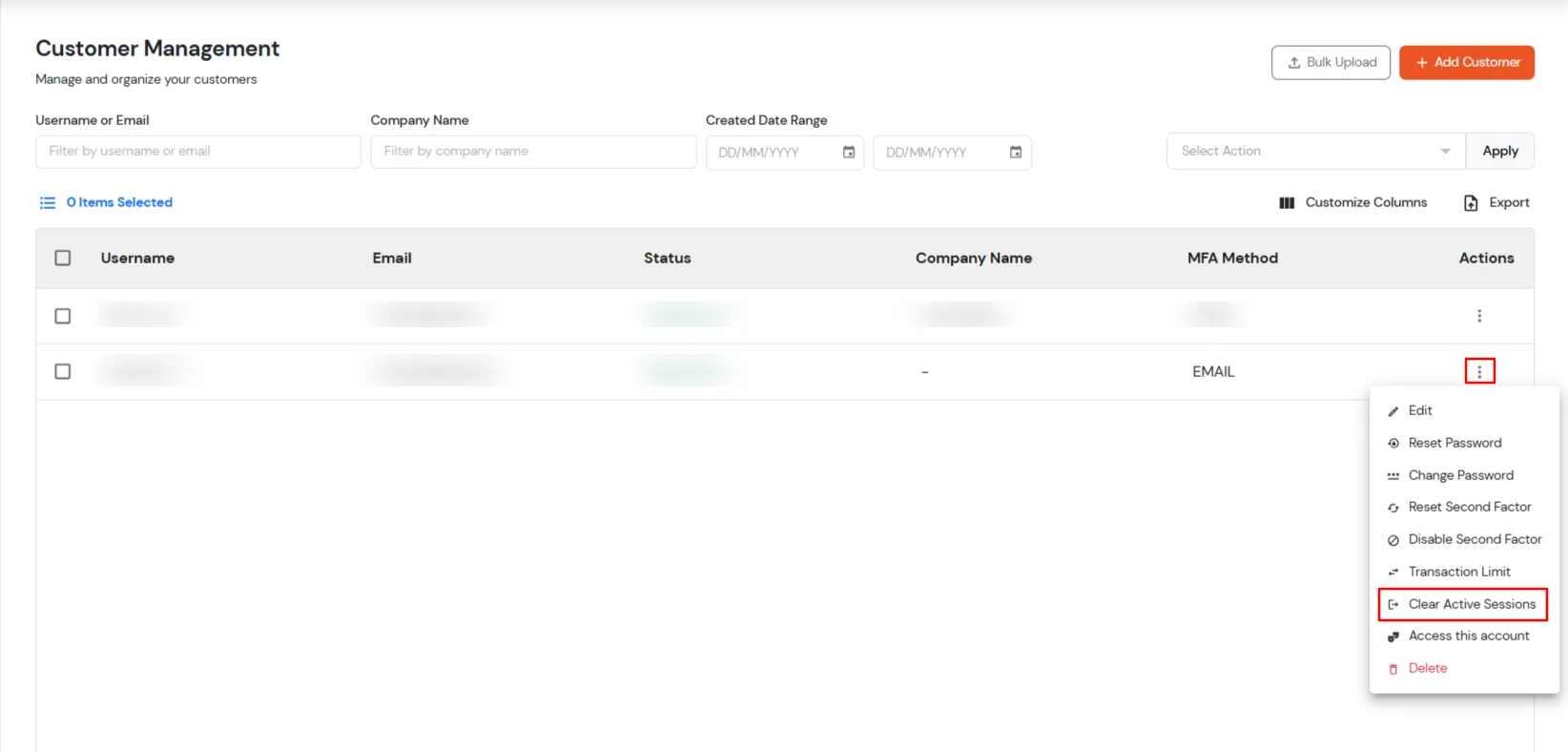
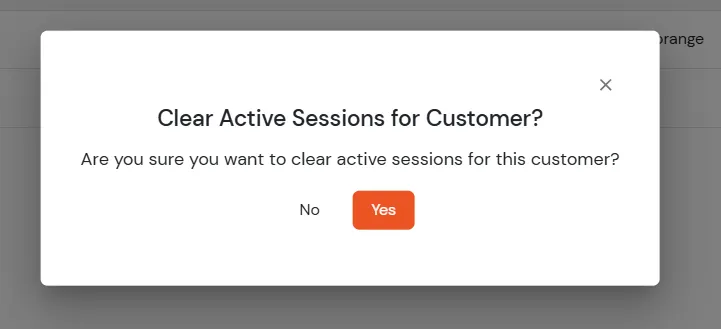
- A confirmation modal will appear. Click on Yes to clear the active sessions.
How to Access a Customer's Account
- Go to Actions column and click on Three Dots >> Access this Account.
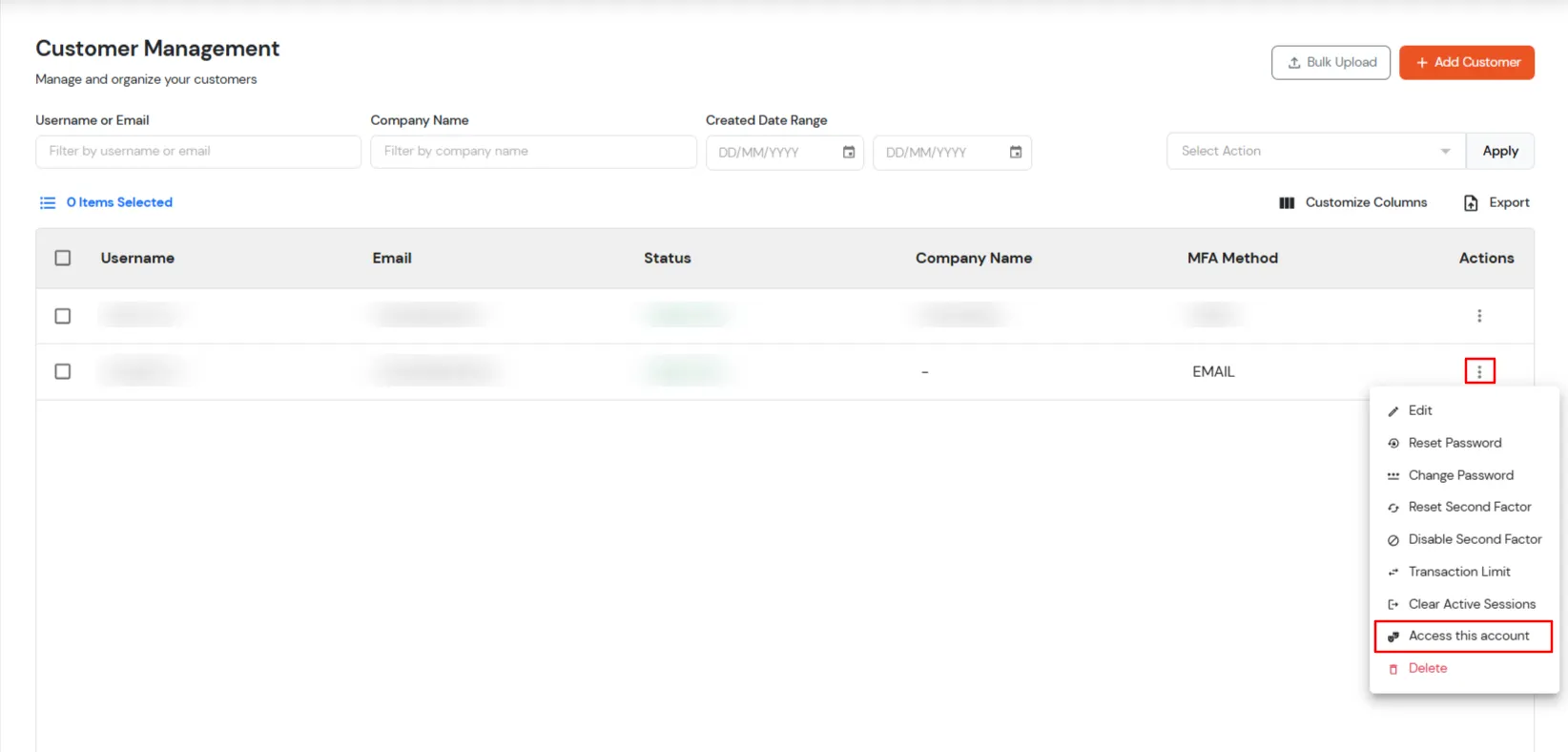
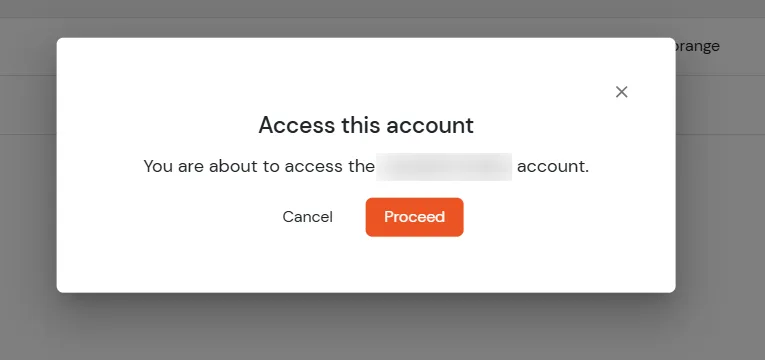
- A confirmation modal will appear. Click on Proceed to access the account.
How to Delete a Customer
To delete a customer's account, follow the steps below:
- To delete a customer account, you can search for a customer using their Username or Email, Company Name and the Date Range their account was created in the system by specifying dates in the respective text fields.
- Now you will see a list of customer details, and then click the Three Dots >> Delete option under the Action tab.
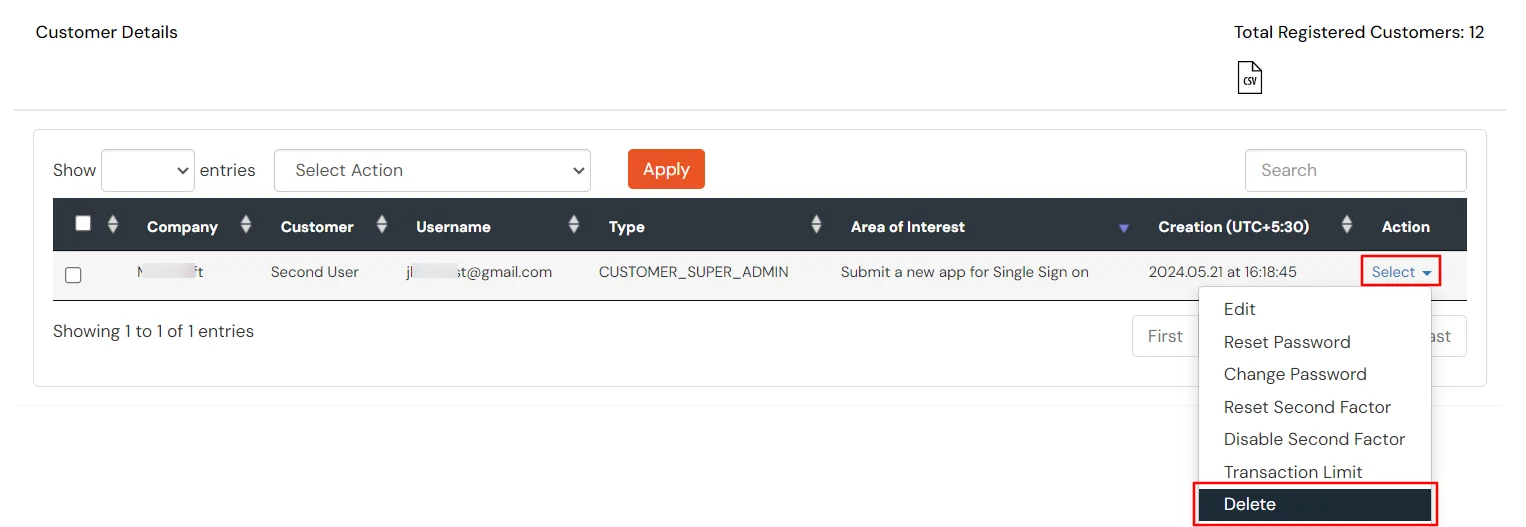
- Click on Delete.
How to Bulk Upload Customers
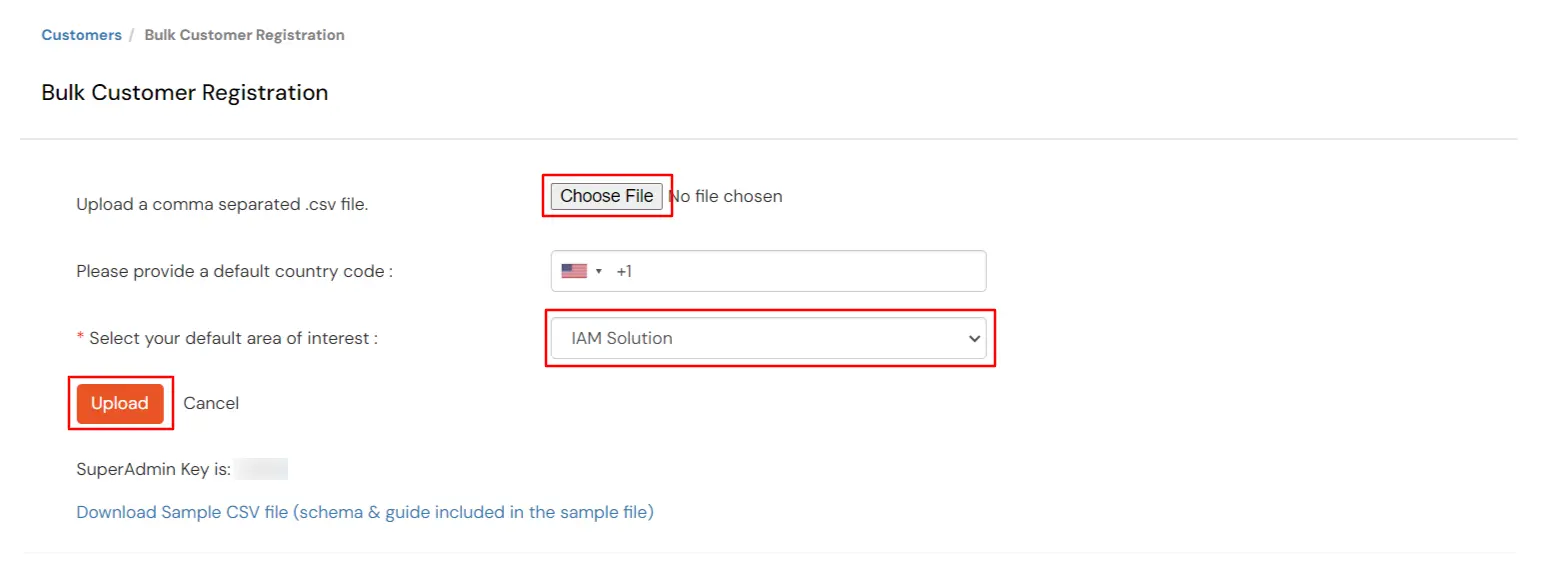
Import multiple customers at once into the miniOrange Partner Portal using a CSV file. This guide covers the steps to prepare the CSV file and upload customer details in bulk.
To bulk upload customers, follow the steps below:
- Login into miniOrange Partner Portal dashboard.
- Go to Customers >> Manage Customers and click on Bulk Upload Customer.
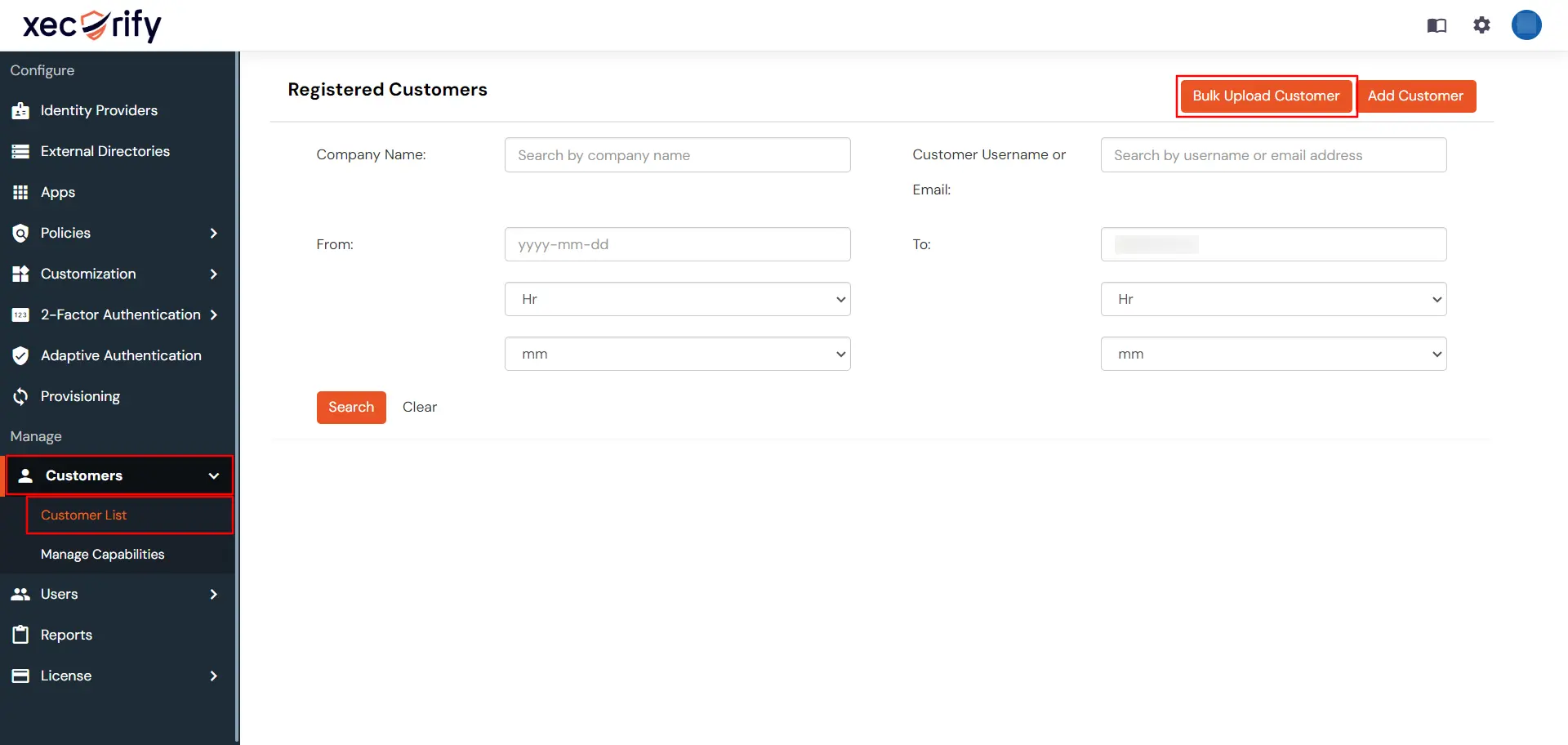
- You can download the sample CSV file from the below link. After that, click on Browse File to upload the CSV file you just downloaded.
- Default country code : Enter the country code for all your customer’s phone numbers.
- Click on Upload to import the customers.