- Home
- DLP
- How to configure Wi-Fi policy using miniOrange DLP
Restrict Wi-Fi Access to Secure Networks with miniOrange DLP Wi-Fi Policy
As organizations continue to adopt flexible work environments, securing wireless connectivity has become essential to prevent unauthorized access and data leakage. Public or unsecured Wi-Fi networks are one of the most common entry points for data theft and man-in-the-middle attacks. The miniOrange Data Loss Prevention (DLP) solution addresses this risk by enforcing a Wi-Fi Policy that ensures users connect only to trusted and approved wireless networks. By using SSID (Wi-Fi Name) and BSSID (Access Point MAC Address), miniOrange DLP ensures that devices communicate over secure networks while preventing access to untrusted or malicious hotspots.
Prerequisites
To implement an effective Wi-Fi Policy using miniOrange DLP, the following elements are essential:
- You need Administrator privileges to log in to the miniOrange Admin Dashboard.
- Specific Wi-Fi networks must be enrolled by adding their SSID and BSSID to the DLP system.
- Policies must be created for whitelisting specific Wi-Fi networks and specifying policy actions such as block, log, or notify.
Example Use Case Scenario
An employee attempts to connect their laptop to a nearby open public Wi-Fi network (e.g., Café_Free_Wi-Fi).
Process with miniOrange DLP:
- When the user tries to connect to a Wi-Fi network, the connection request is intercepted by the miniOrange DLP agent.
- The system verifies whether the network’s SSID and BSSID are registered and approved in the DLP dashboard.
- If the Wi-Fi network is not enrolled, the connection attempt is blocked instantly.
- The user receives a notification informing them that the connection to an unauthorized Wi-Fi network is not allowed.
- An alert is immediately sent to the administrator, and the event is logged under the Wi-Fi Reporting section for auditing and compliance.
Conclusion: By restricting devices to approved Wi-Fi networks only, miniOrange DLP ensures that all corporate communication occurs over secure channels. This prevents data interception, protects confidential information, and helps maintain compliance with data security regulations.
Configuration Steps
Step 1: Configuring Wi-Fi Policy
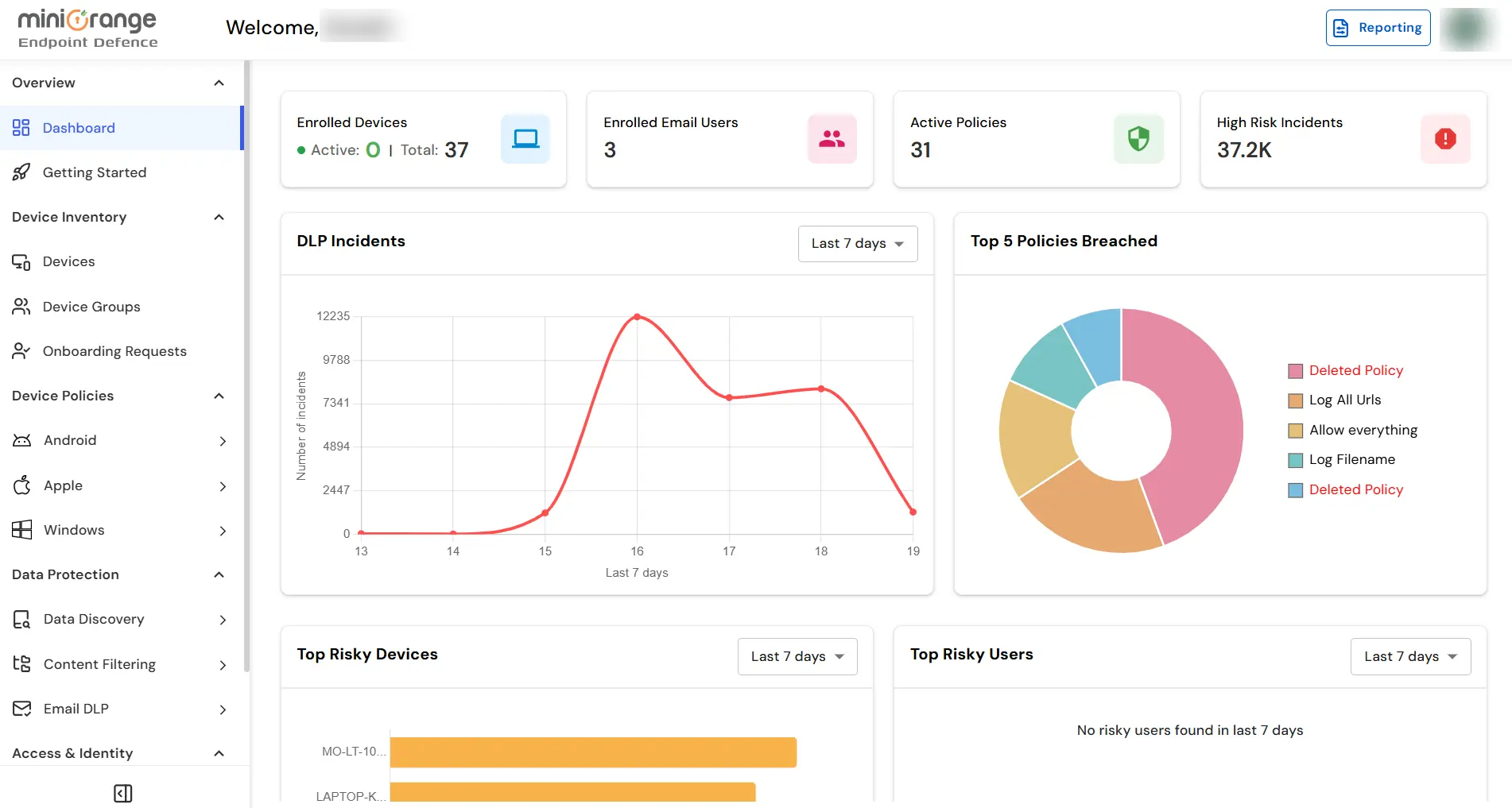
- Log in to your DLP Admin dashboard.
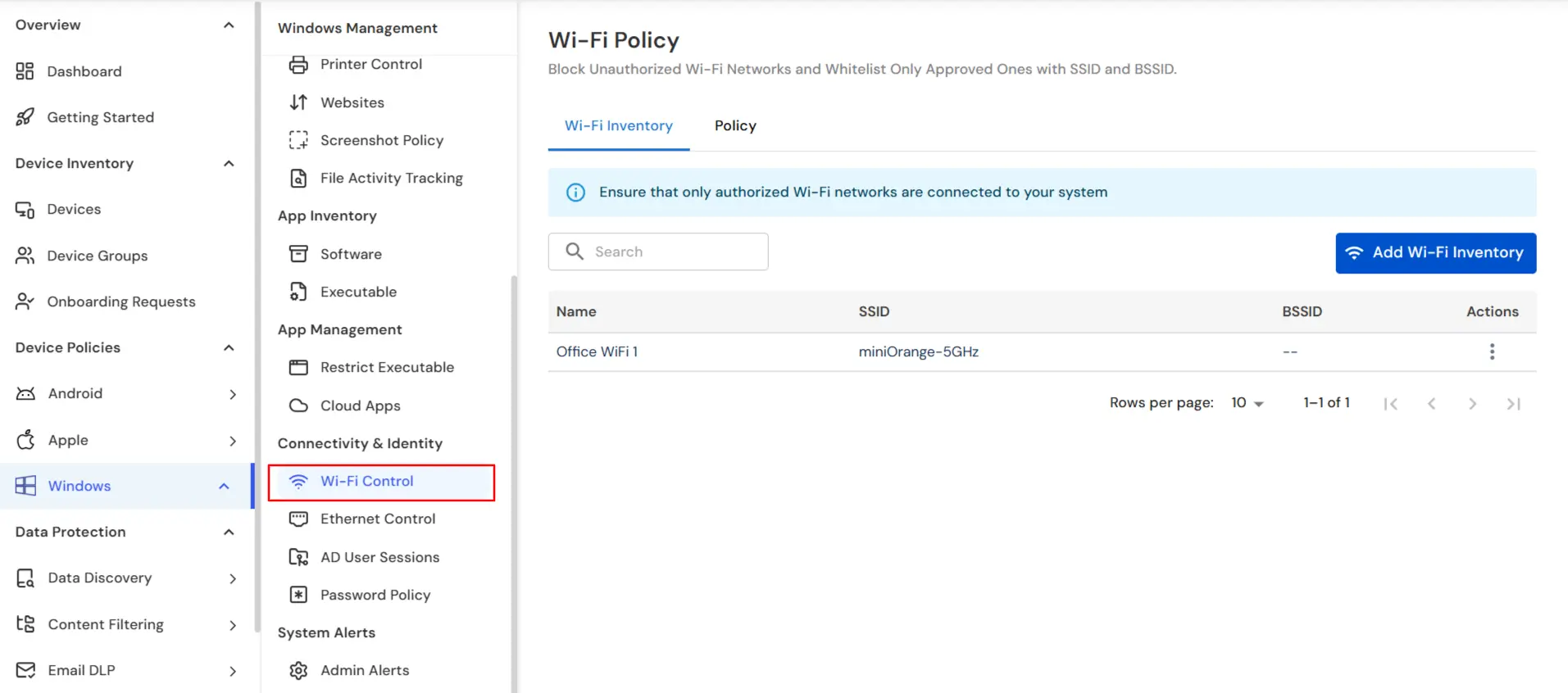
- Navigate to the Endpoint Tab → Wi-fi Control. tab
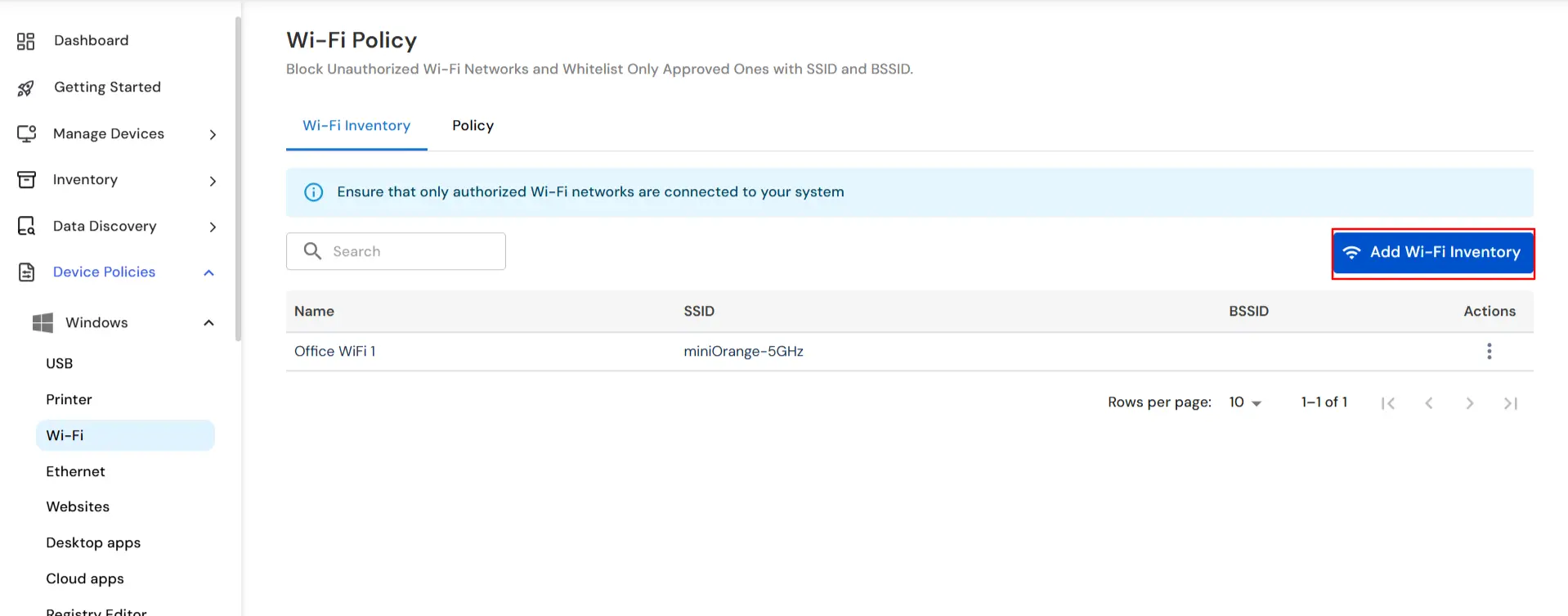
- Make sure all the Wi-Fi networks that you want to whitelist are enrolled in our miniOrange DLP dashboard, also to enroll a specific Wi-Fi network click on the Add Wi-fi Inventory button.
- Provide the SSID and BSSID of the Wi-Fi network you want to enroll.
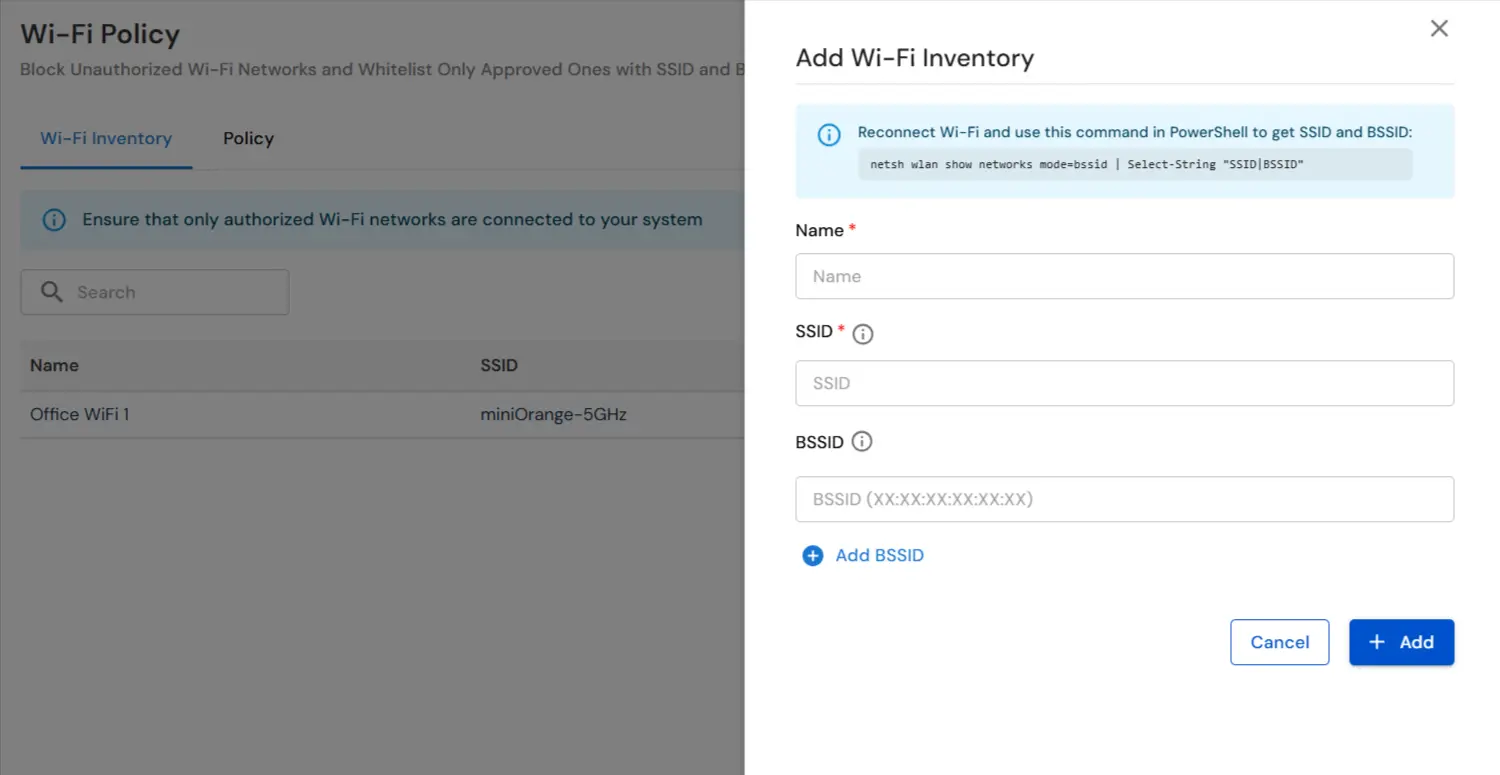
- You can find the SSID and BSSID by following the steps below:
- Click on the Wi-Fi icon on your system and connect to the desired network.
- Open Command Prompt and run the following command: netsh wlan show networks mode=bssid | Select-String "SSID|BSSID"
- For example, in a detected network entry: The SSID is: Office_WiFi_5G and The BSSID is: 00:1A:2B:3C:4D:5E.
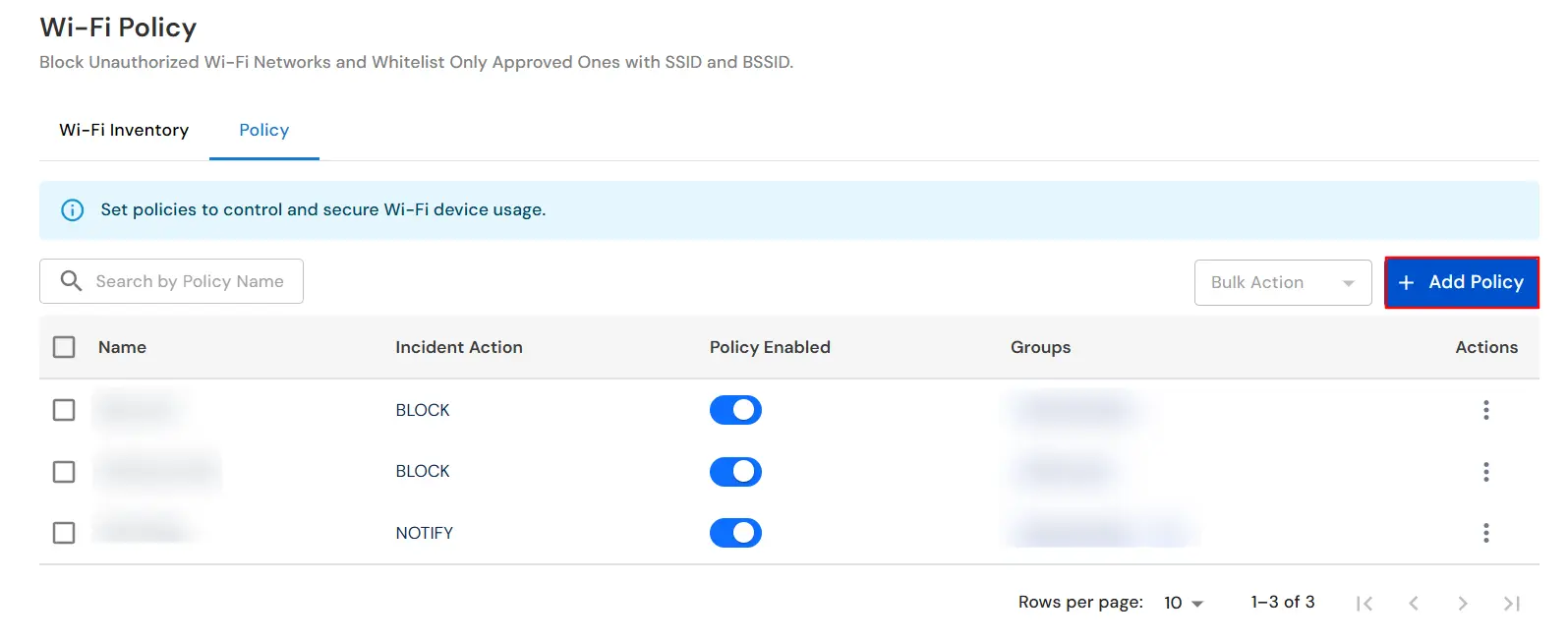
- Once the Wi-Fi networks are registered, switch to the Policy tab and click on Add Policy.
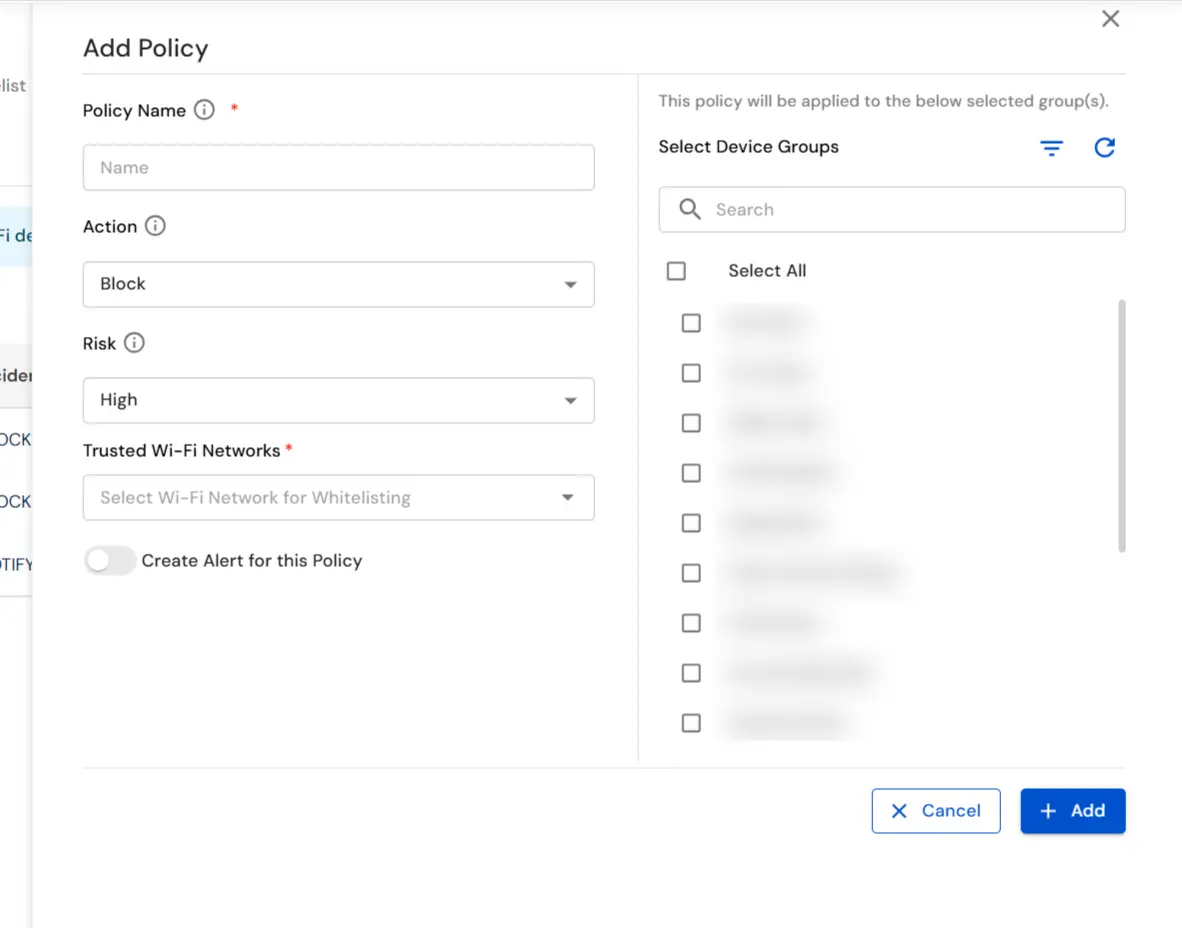
- In the policy form, enter the required details:
- Policy Name: Identifier for administrators.
- Actions: This option will allow you to choose what type action should be triggered when a Wi-Fi network is connected.
- Risk: This option will allow you to choose the risk level for the policy.
- Whitelist a specific Wi-Fi network: This option will allow you to whitelist a specific Wi-Fi network.
- Also, assign the Device group on which you want to apply the policy.
- In the Create Alert for this Policy section, you can specify the email addresses to which you want to notify policy breaches.
- If any policy is violated, you can view the report by going to the Reporting tab and selecting the Wi-Fi Reporting option.
In this way you have succesfully setup the Wi-Fi Policy by using our DLP solution. Also if you are facing any issues that you are not able to resolve please feel to reach out us uemsupport@xecurify.com


