Hello there!

Need Help? We are right here!

miniorange Support~
miniOrange Email Support
success

Thanks for your Enquiry.

If you don't hear from us within 24 hours, please feel free to send a follow-up email to info@xecurify.com

Search Results:

×

How to Set Up Camera Monitoring Policy in miniOrange DLP


Monitoring user surroundings during sensitive operations or compliance-driven tasks is essential for critical security-focused organizations. miniOrange DLP's Camera Monitoring Policy enables administrators to activate webcam captures at configured intervals to gain contextual visibility during device usage. This feature helps detect unauthorized access, potential insider threats, or non-compliance with workplace guidelines. This guide provides a step-by-step walkthrough to configure camera policies, assign them to target devices, and review captured images via the miniOrange DLP console.

Prerequisites

There are a couple of things you need to check before you start with the setup:
  • You need Administrator privileges to log in to the miniOrange DLP Admin Dashboard.

Step 1: Configure the Camera monitoring policy

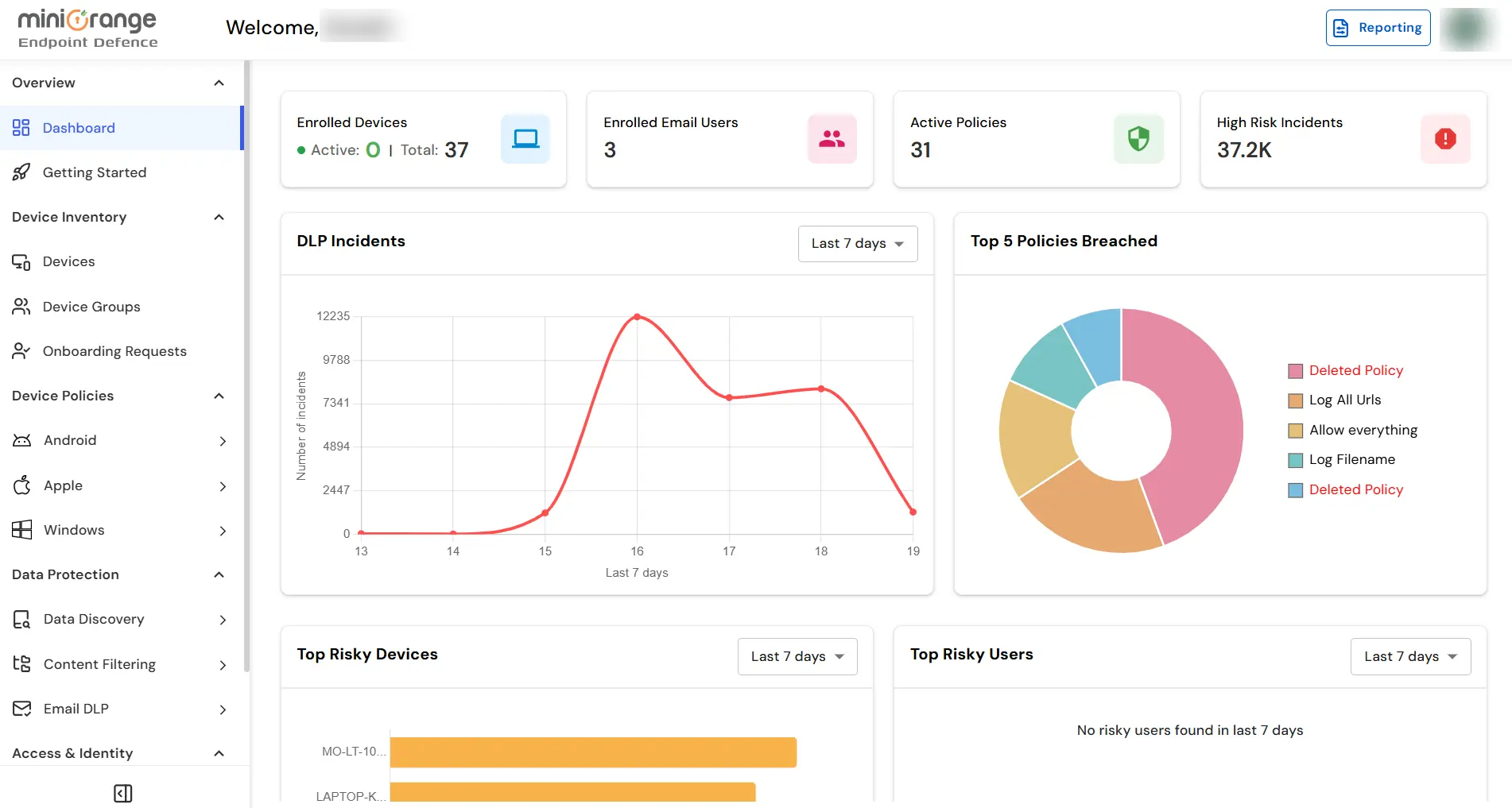
  • Log in to your DLP Admin dashboard.

  • miniOrange DLP Admin dashboard for camera monitoring and webcam capture policy configuration

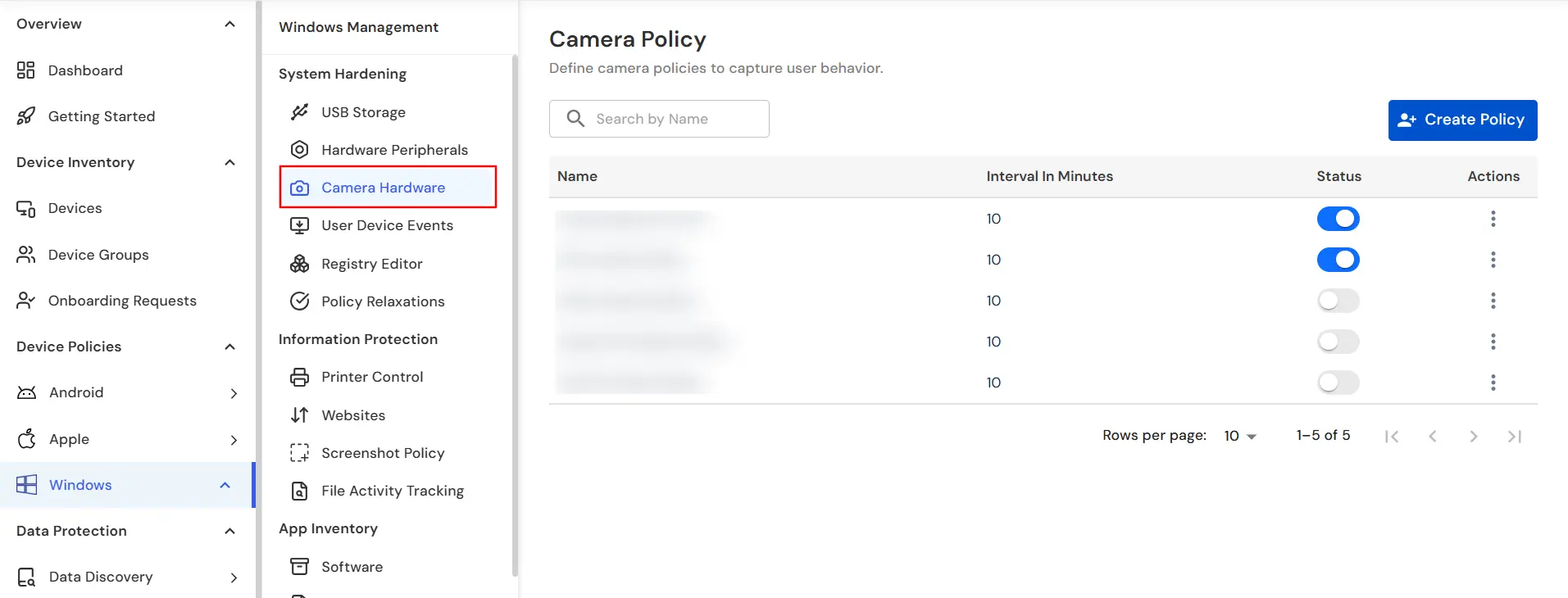
  • From the left sidebar, click on Windows Tab → Camera Hardware.

  • miniOrange DLP Windows Camera Hardware tab for webcam monitoring policy Create Policy

  • Click the Create Policy button to set up a new camera policy.

Step 2: Setup Policy

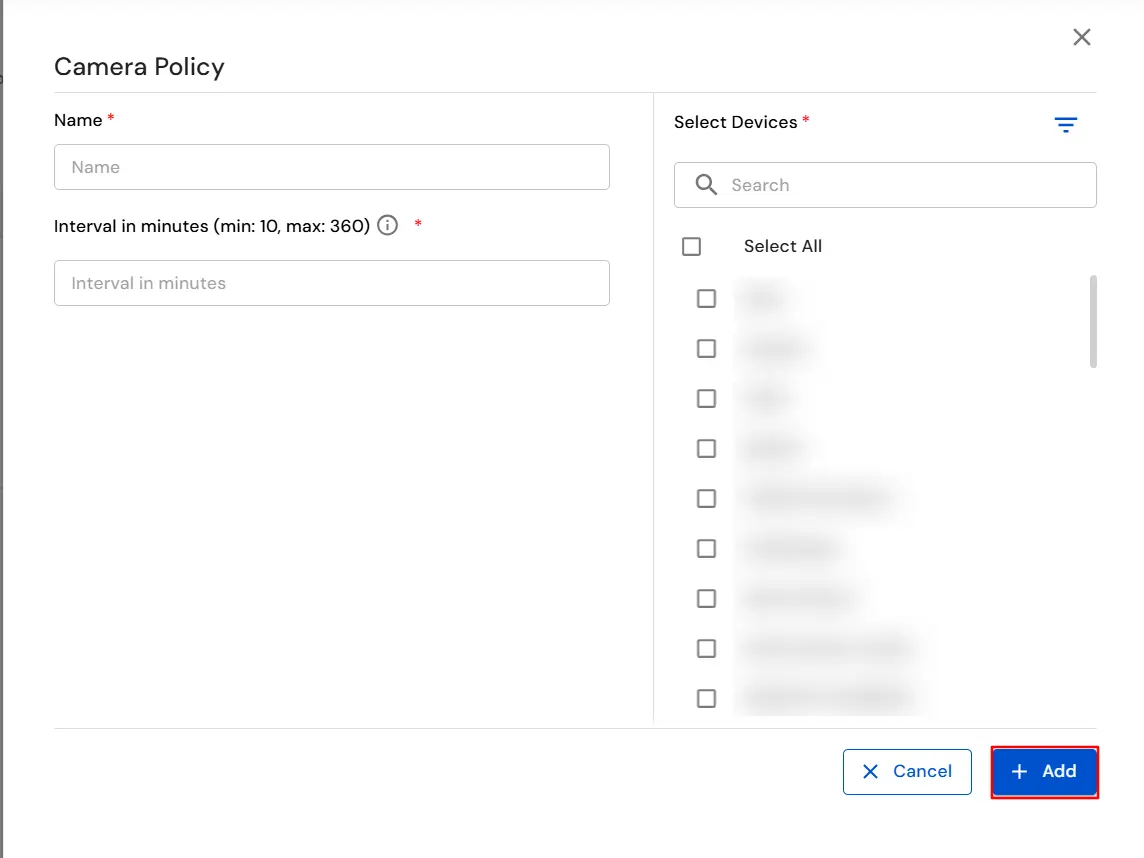
  • Name: Provide a relevant name (e.g., "Webcam Compliance Monitor").
  • Interval: Specify the time interval for webcam image capture (e.g., every 15–60 minutes).
  • Use the search box to find the devices and select the ones you need and apply the policy.
  • Optionally, can enable the Show selected only toggle for reviewing selected devices.
  • Once the name, interval, and devices are selected, click Add to save the policy.

  • miniOrange DLP camera monitoring policy form with name interval and device selection

Step 3: Reporting

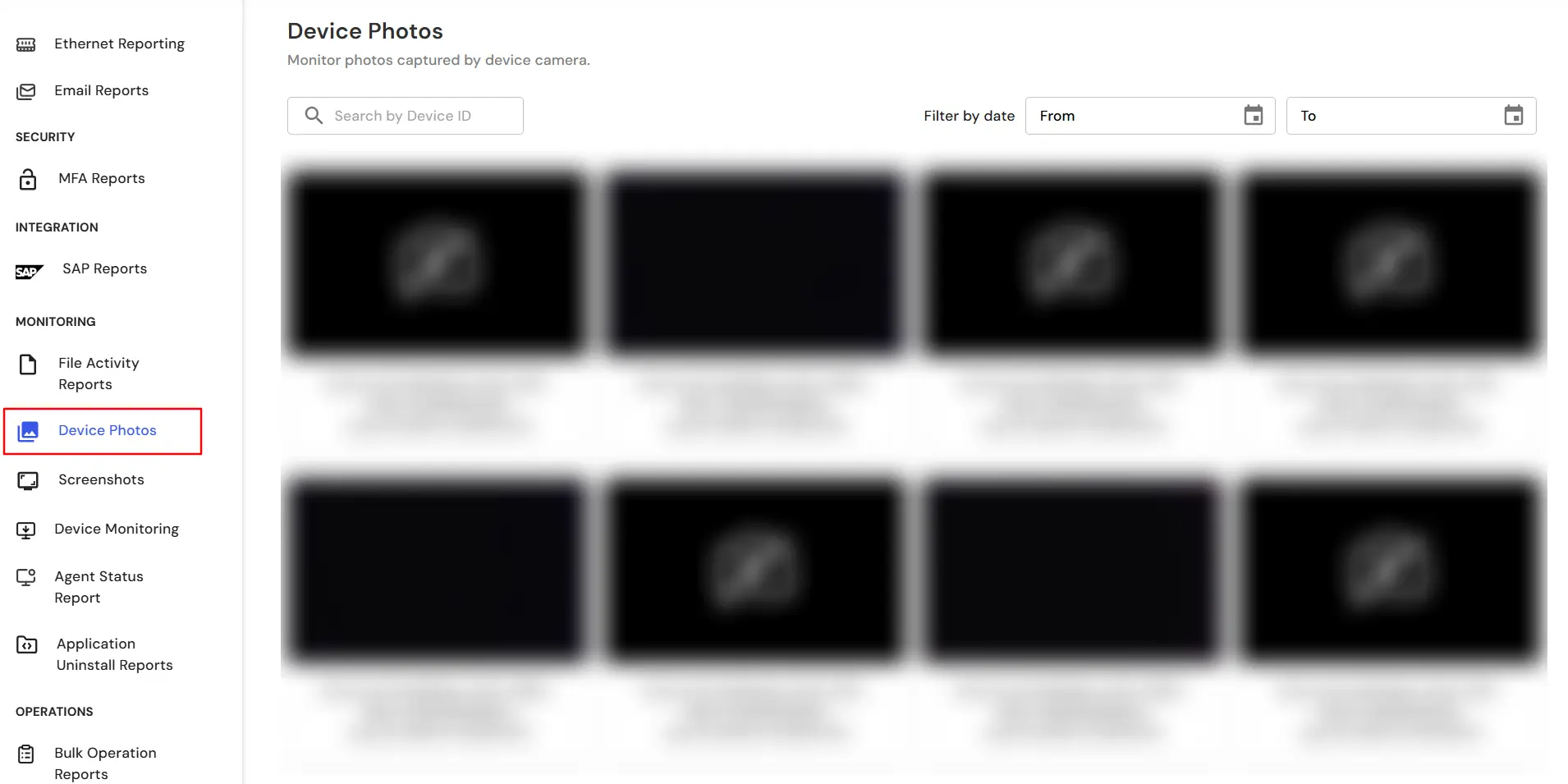
  • Go to Reporting → Device Photos to access all images captured through webcam.

  • miniOrange DLP Reporting Device Photos tab for webcam capture logs and compliance audit

  • Use filters to narrow down images by device, timestamp, or date range.
  • Each image is labeled with a timestamp and device ID for easy tracking.
  • Captured images are securely stored and accessible only to authorized admins.
  • The DLP agent ensures camera usage logs are recorded for auditing purposes.

In this way you have succesfully configured the Camera Monitoring Policy by using our DLP solution. Also if you are facing any issues that you are not able to resolve please feel to reach out us uemsupport@xecurify.com


Want To Schedule A Demo?

Request a Demo