Hello there!
Need Help? We are right here!

Need Help? We are right here!
Search Results:
×miniOrange provides Identity & Access Management (IAM) for your Google Workspace secured with NetSkope Reverse Proxy. miniOrange IAM solution is fully compatible with NetSkope as well as integrates with multiple third-party applications to provide a wide range of solutions for protecting sensitive data against loss or leakage and ensuring compliance by securing the authentication. miniOrange is one trusted platform to secure your identity, from customers to your workforce with Single Sign-On (SSO), Multi-factor Authentication (MFA), Adaptive Authentication, User Provisioning, Directory Authentication and more when accessing cloud services, websites, and private apps from anywhere, on any device. We provide a centralized platform with enhanced capabilities for access management and identity management that can integrate with any system and any third-party application.
miniOrange IDP is compliant with NetSkope SAML Proxy and can enable SSO into any third-party application connected via NetSkope.
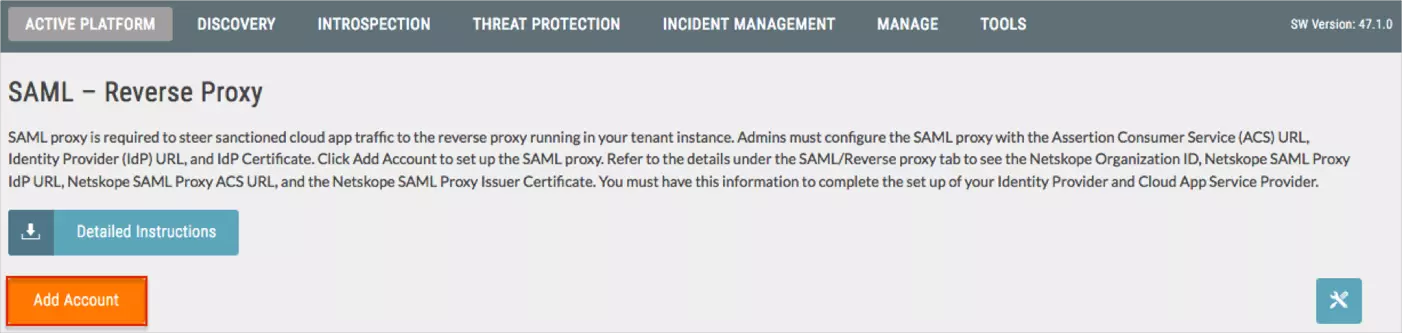
NetSkope uses SAML-based SSO. NetSkope SAML proxy is required to direct the cloud app traffic sanctioned by your organization to the reverse proxy running in your tenant instance in the NetSkope cloud.
When an end user goes to a SaaS application, end user traffic is redirected to miniOrange via SAML for user authentication. Once that user is authenticated, traffic is redirected to the NetSkope reverse proxy engine for further analysis.
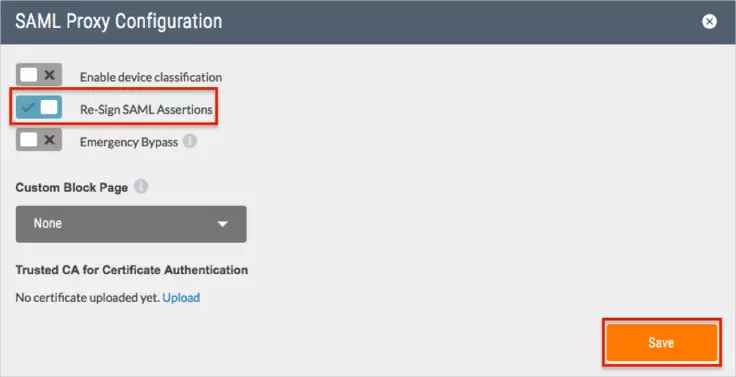
This document provides instructions to configure NetSkope as SAML Proxy to direct your configured Google Workspace application traffic to the reverse proxy, running in a customer’s tenant instance in the NetSkope cloud. In this case miniOrange is the IdP (Identity Provider) and the Google Workspace is the SP (Service Provider).
miniOrange provides user authentication from various external sources, which can be Directories (like ADFS, Microsoft Active Directory, OpenLDAP, AWS etc), Identity Providers (like Microsoft Entra ID, Okta, AWS), and many more. You can configure your existing directory/user store or add users in miniOrange.
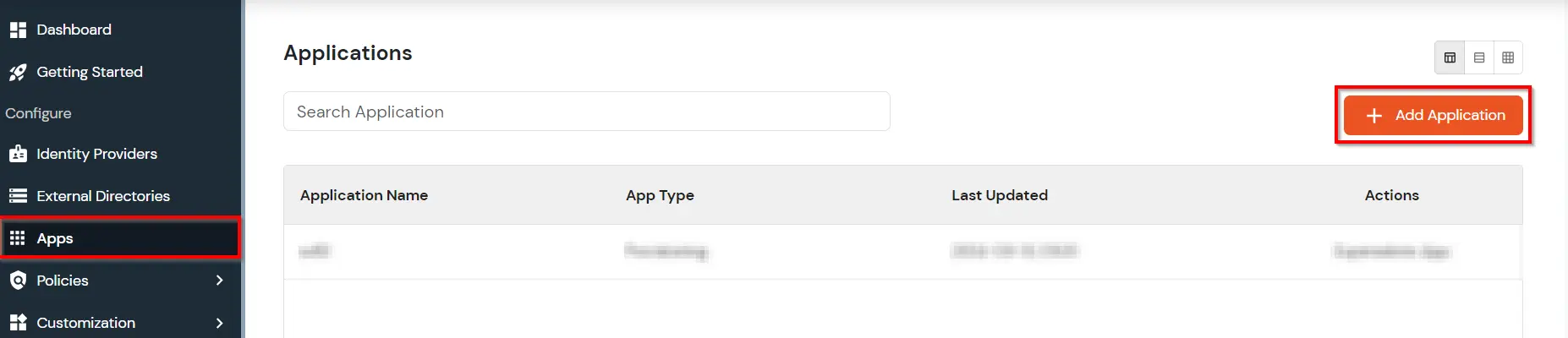
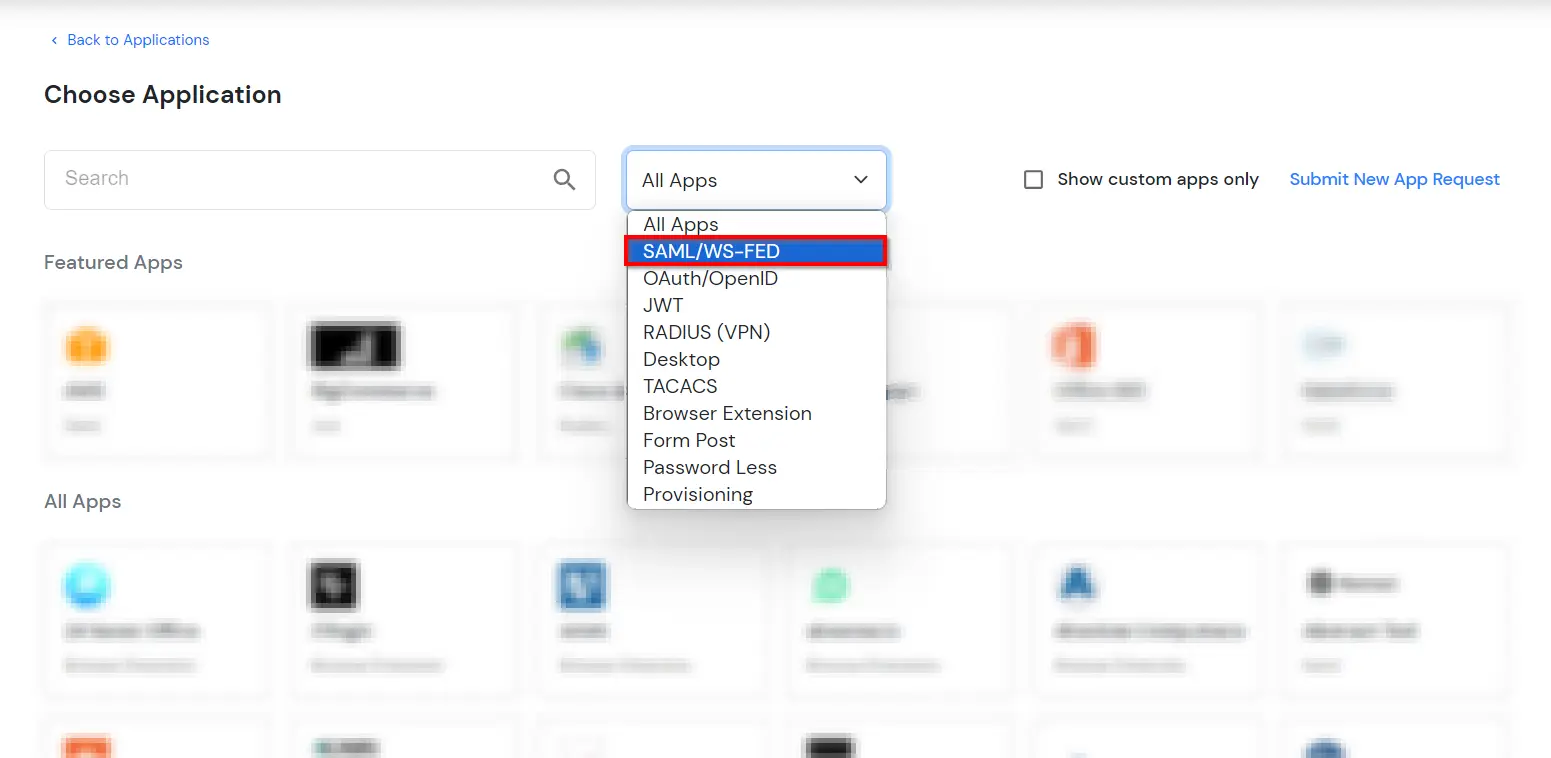
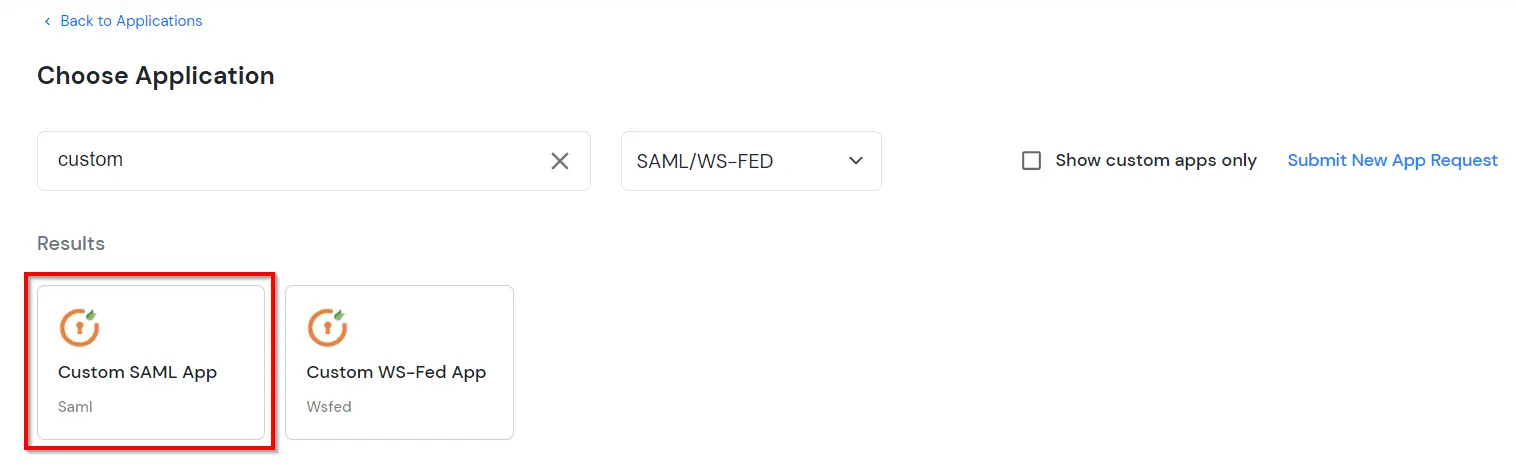
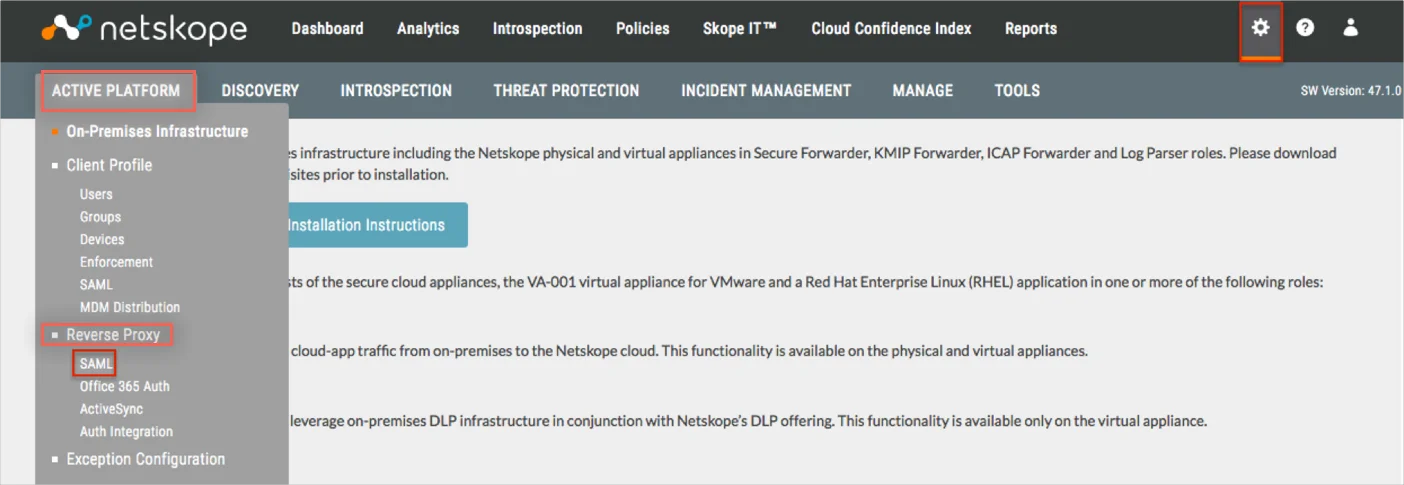
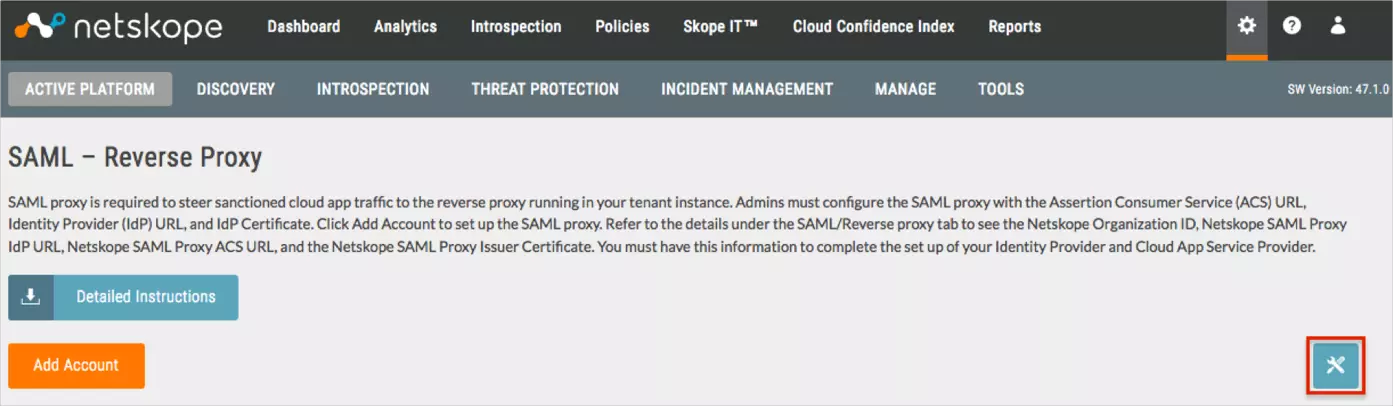
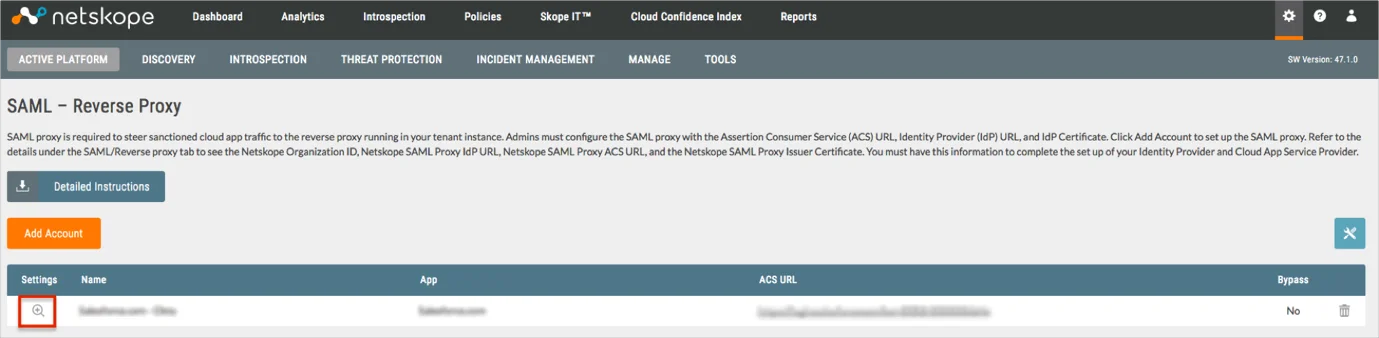
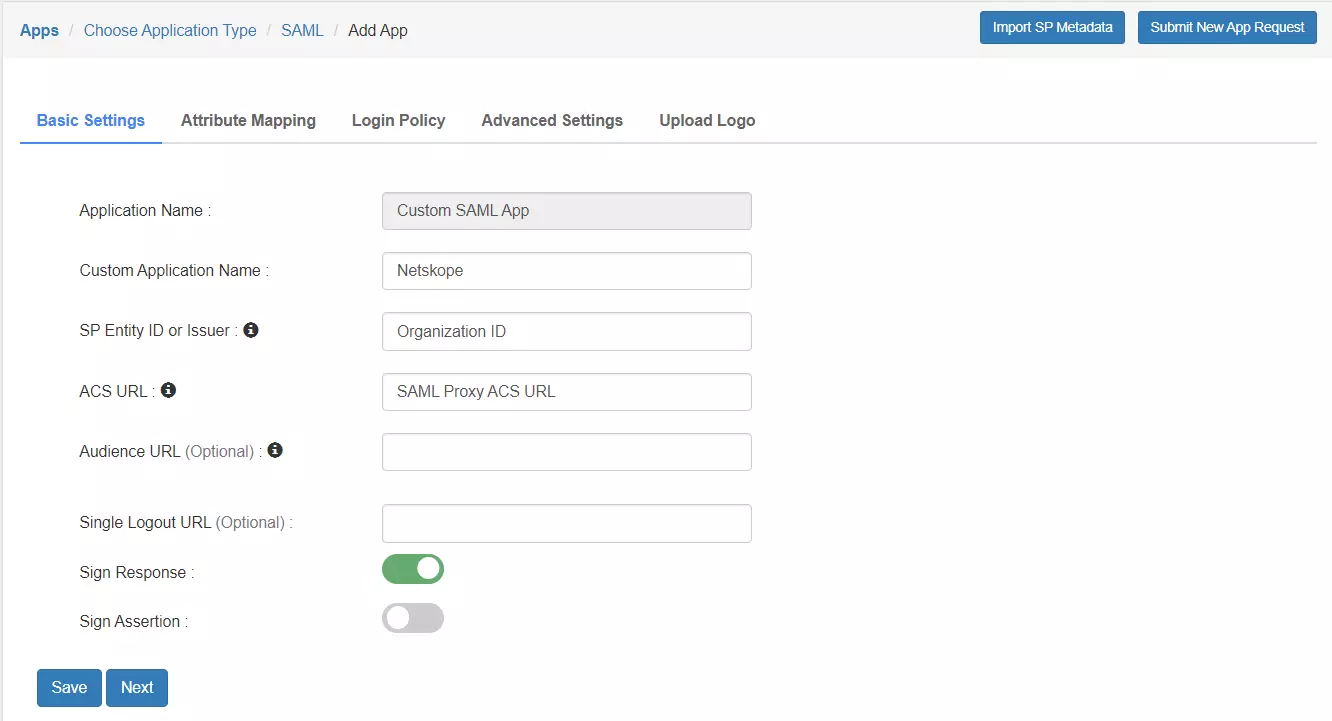
| Custom Application Name | Application Name protected by NetSkope Reverse Proxy [E.g. Google Workspace] |
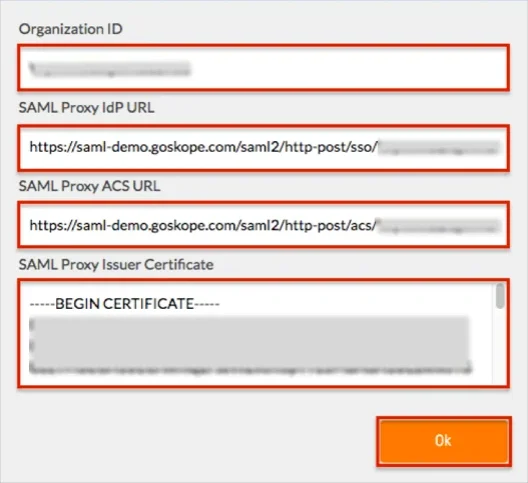
| SP Entity ID or Issuer | Organization ID that you copied from the NetSkope admin console [in Prerequisites] |
| ACS URL | SAML Proxy ACS URL that you copied from the NetSkope admin console [in Prerequisites] |
| Sign Response | ON |
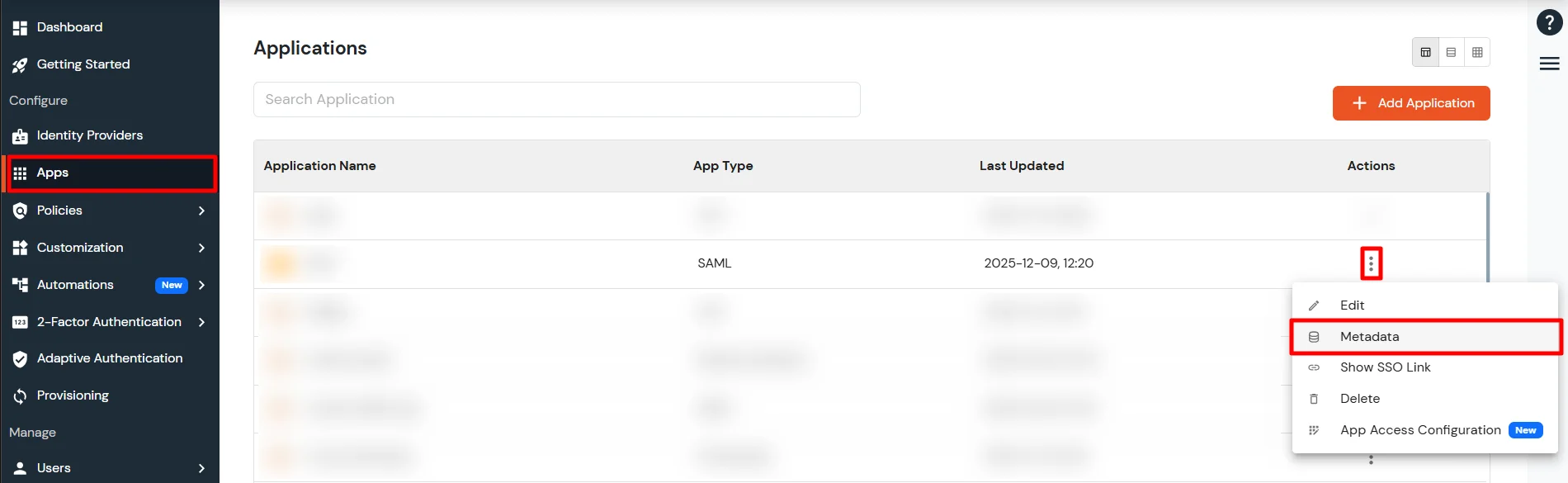
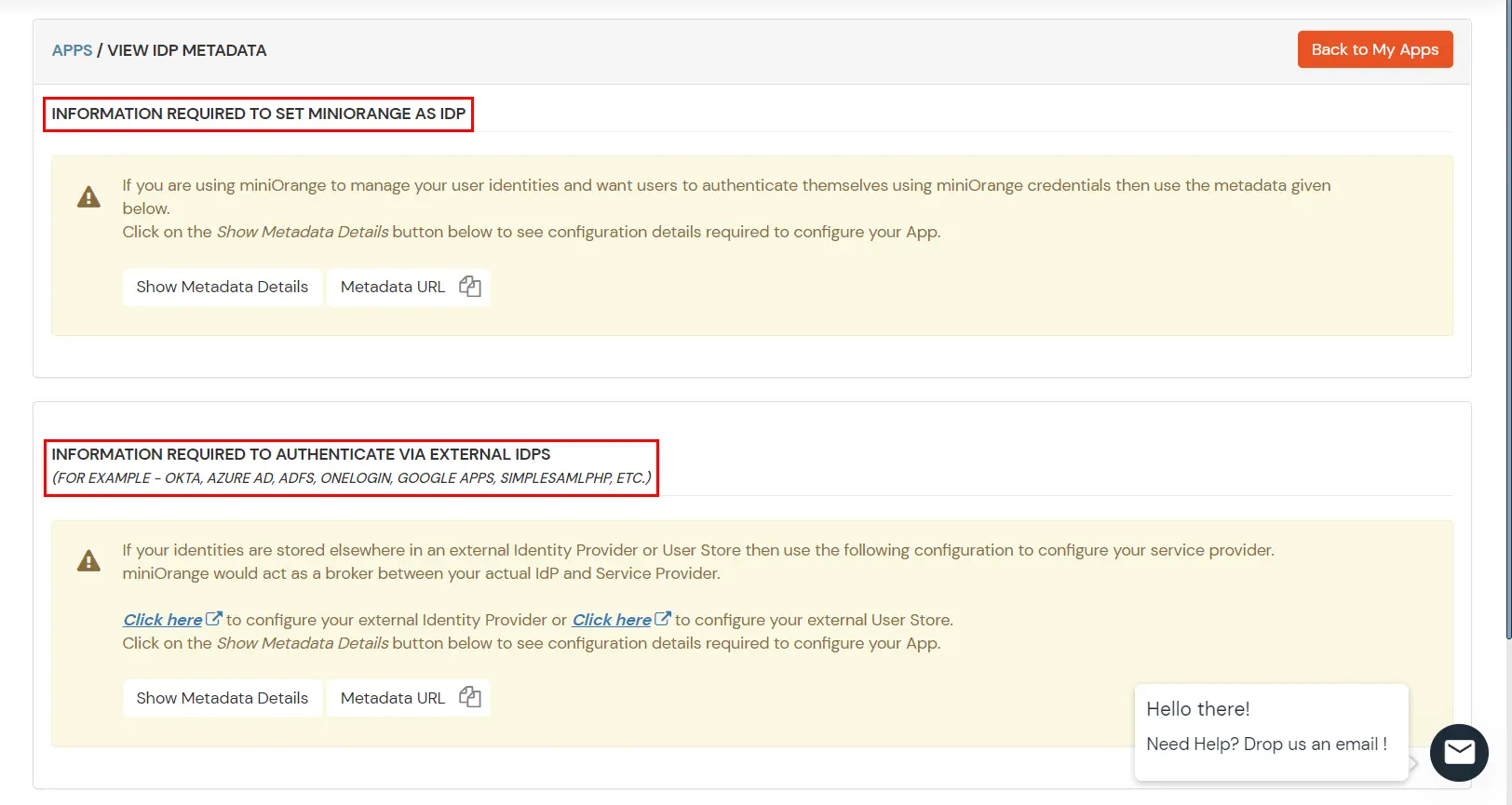
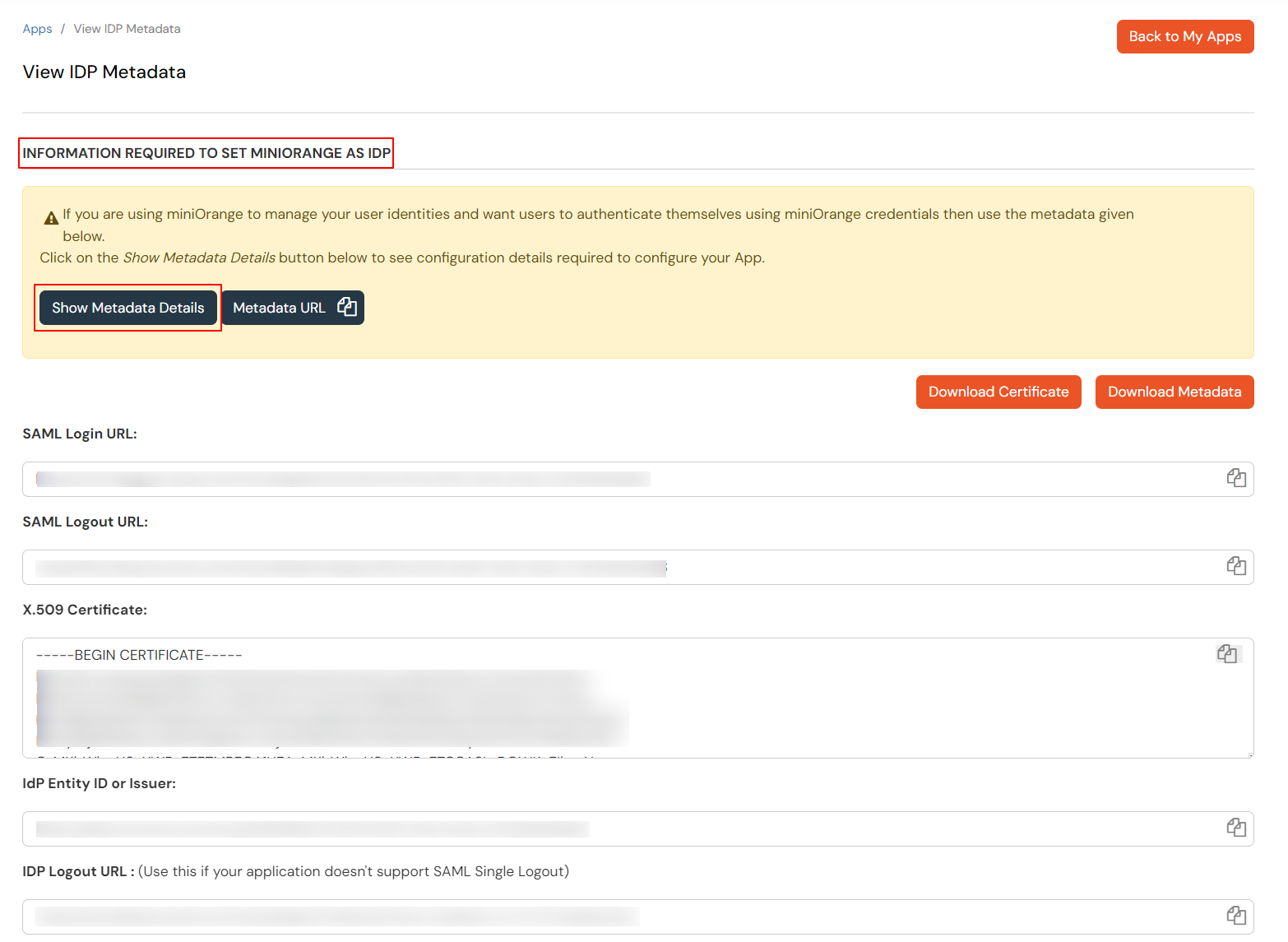
Get IdP Metadata Details to upload to NetSkope reverse proxy:
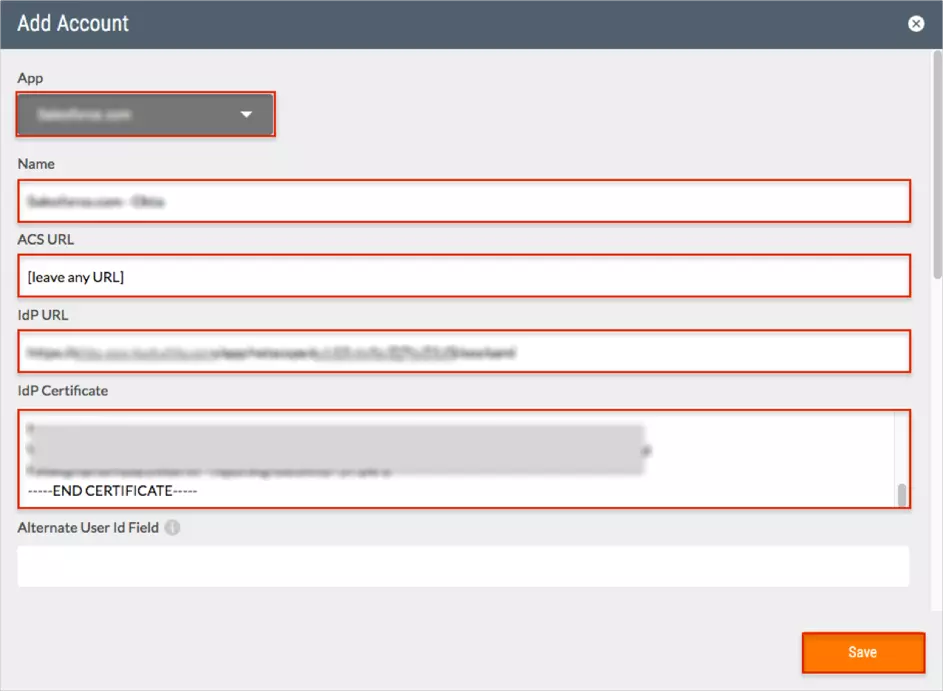
miniOrange provides user authentication from various external sources, which can be Directories (like ADFS, Microsoft Active Directory, Microsoft Entra ID, OpenLDAP, Google, AWS Cognito etc), Identity Providers (like Okta, Shibboleth, Ping, OneLogin, KeyCloak), Databases (like MySQL, Maria DB, PostgreSQL) and many more. You can configure your existing directory/user store or add users in miniOrange.
1. Create User in miniOrange
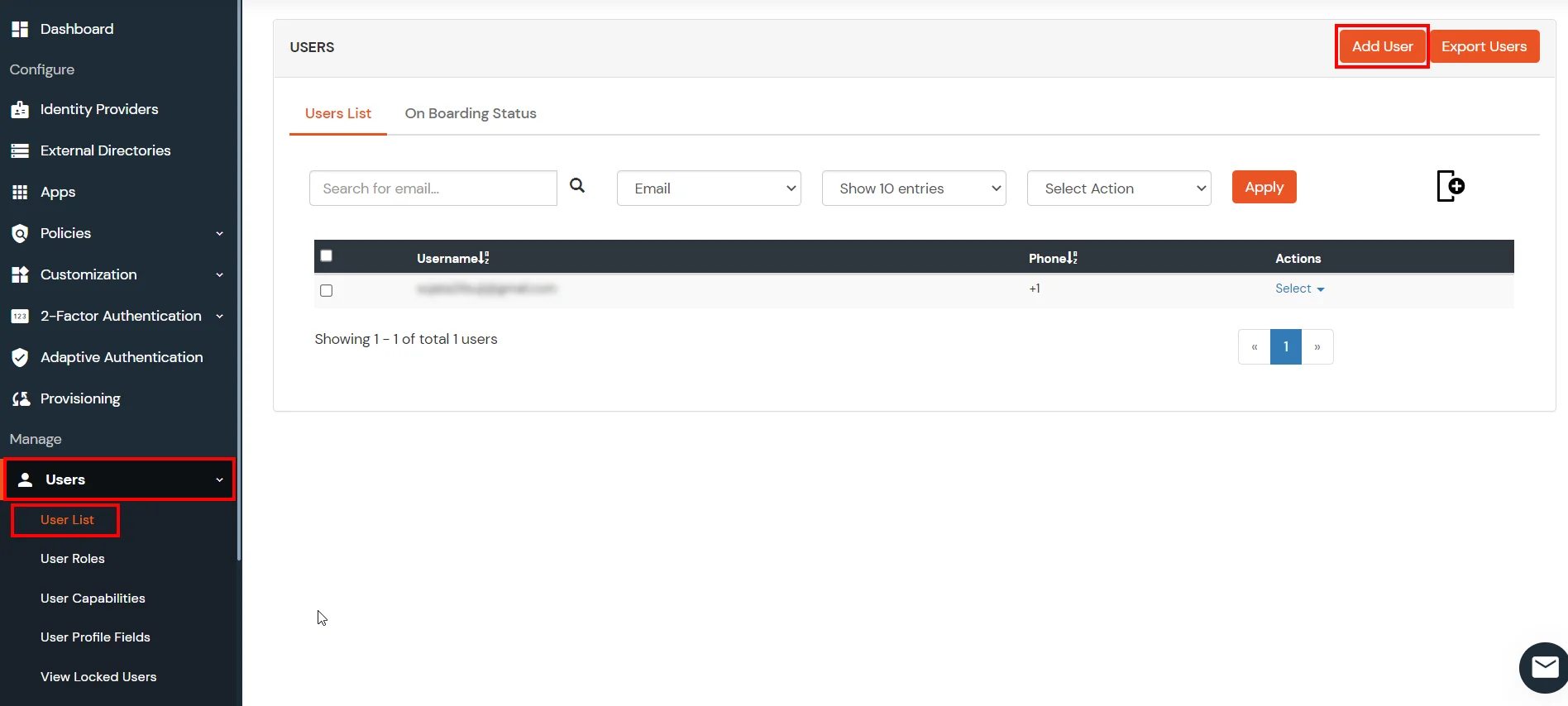
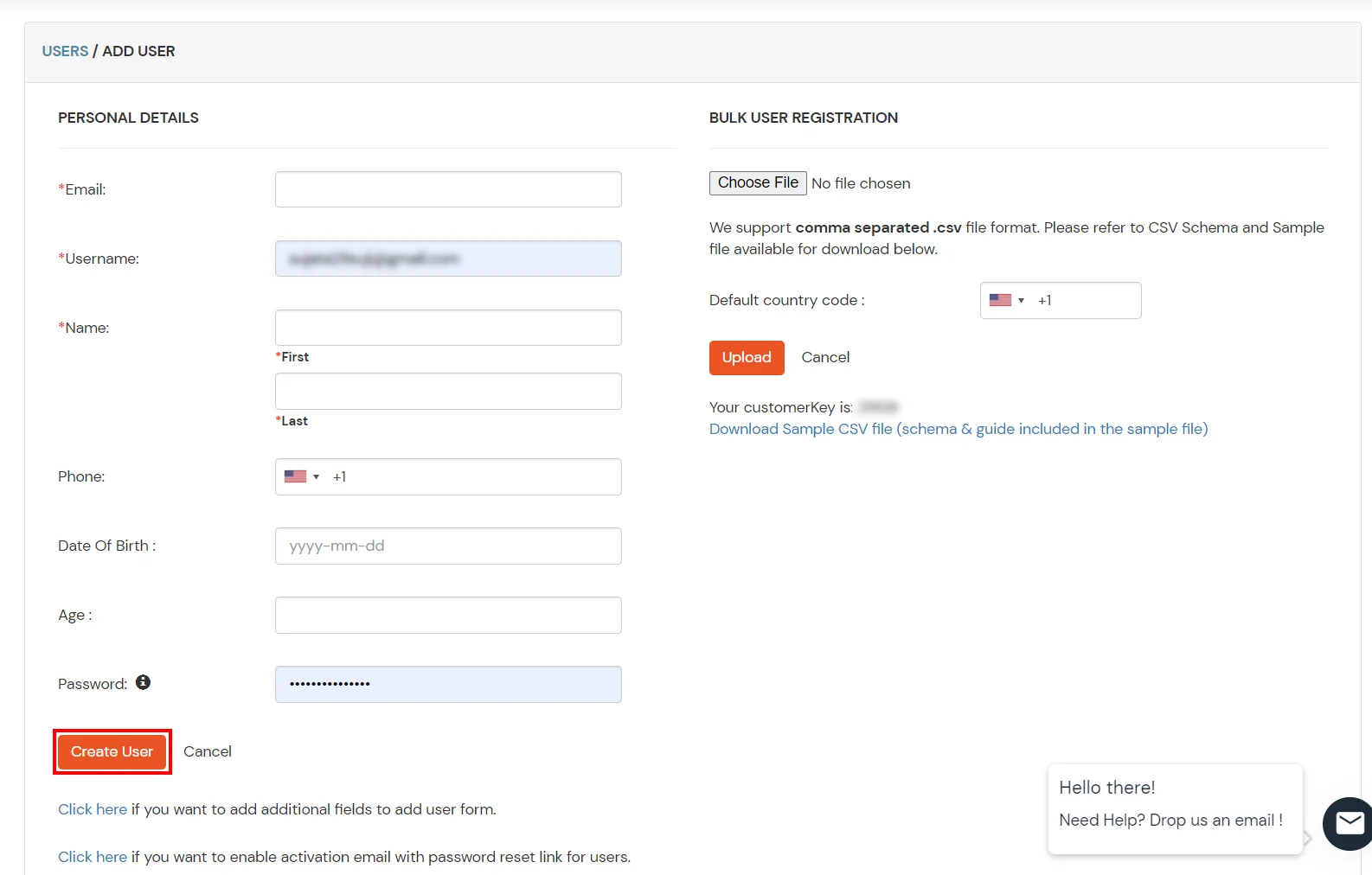
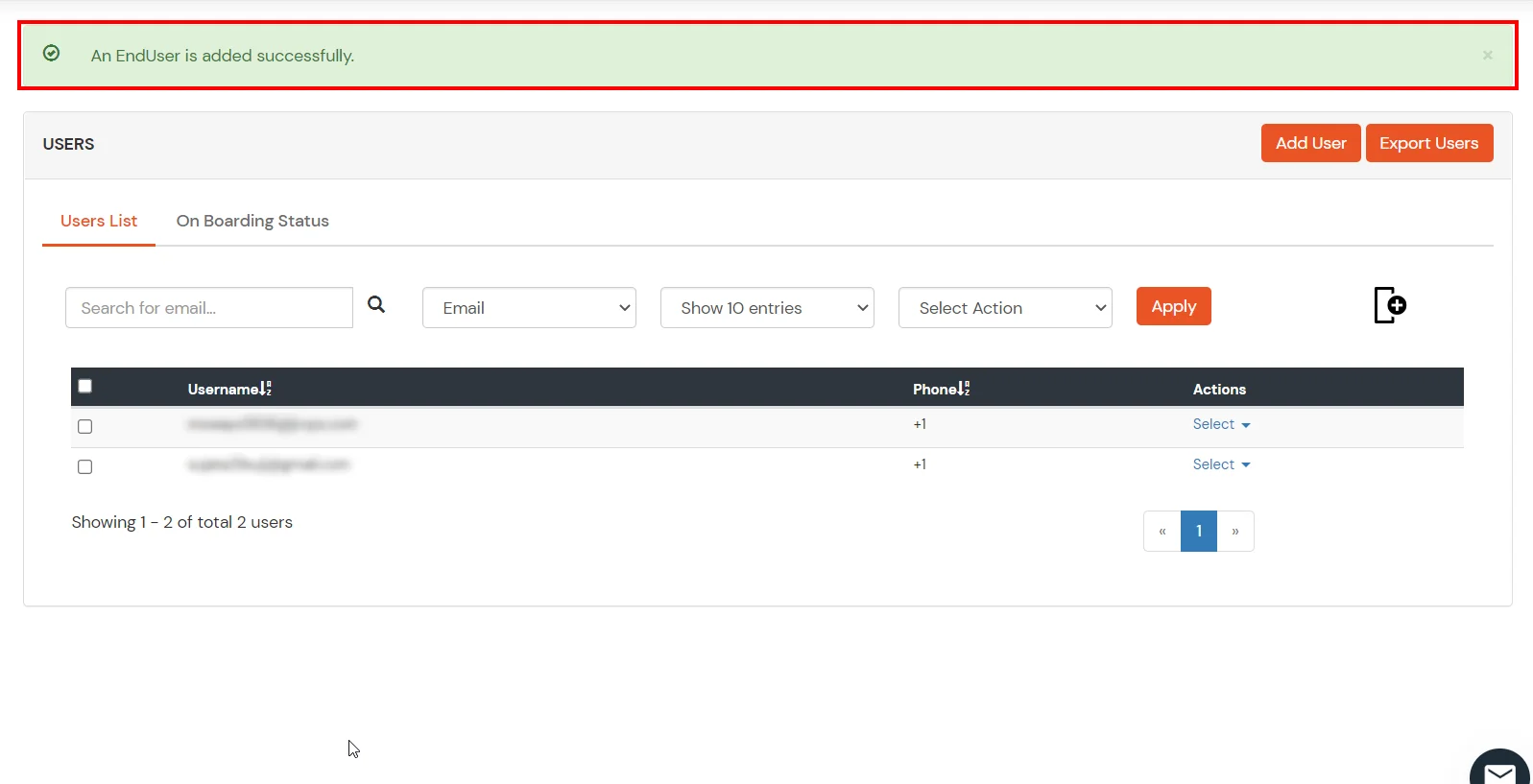
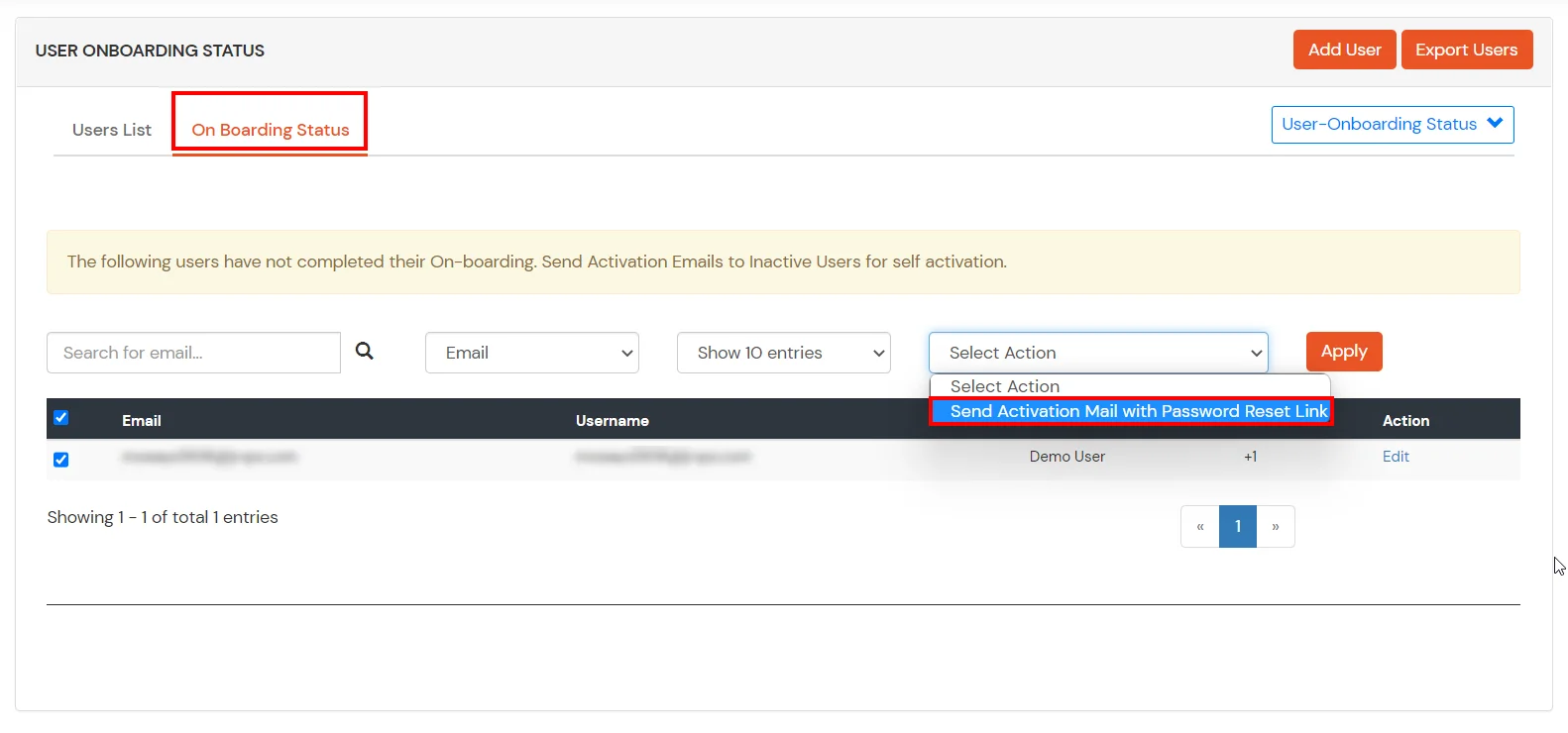
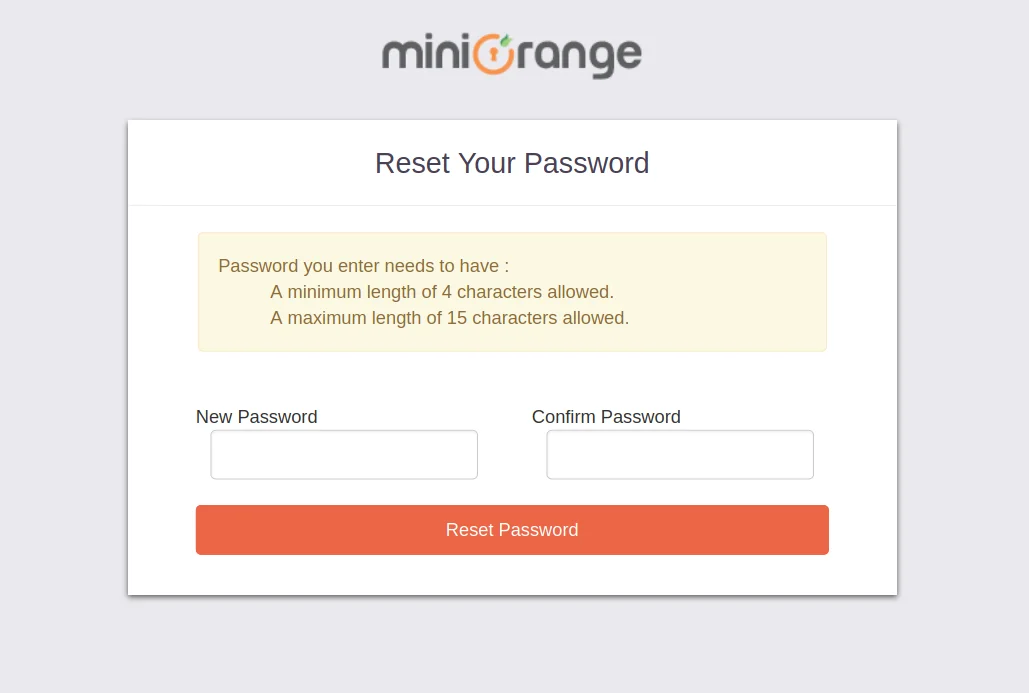
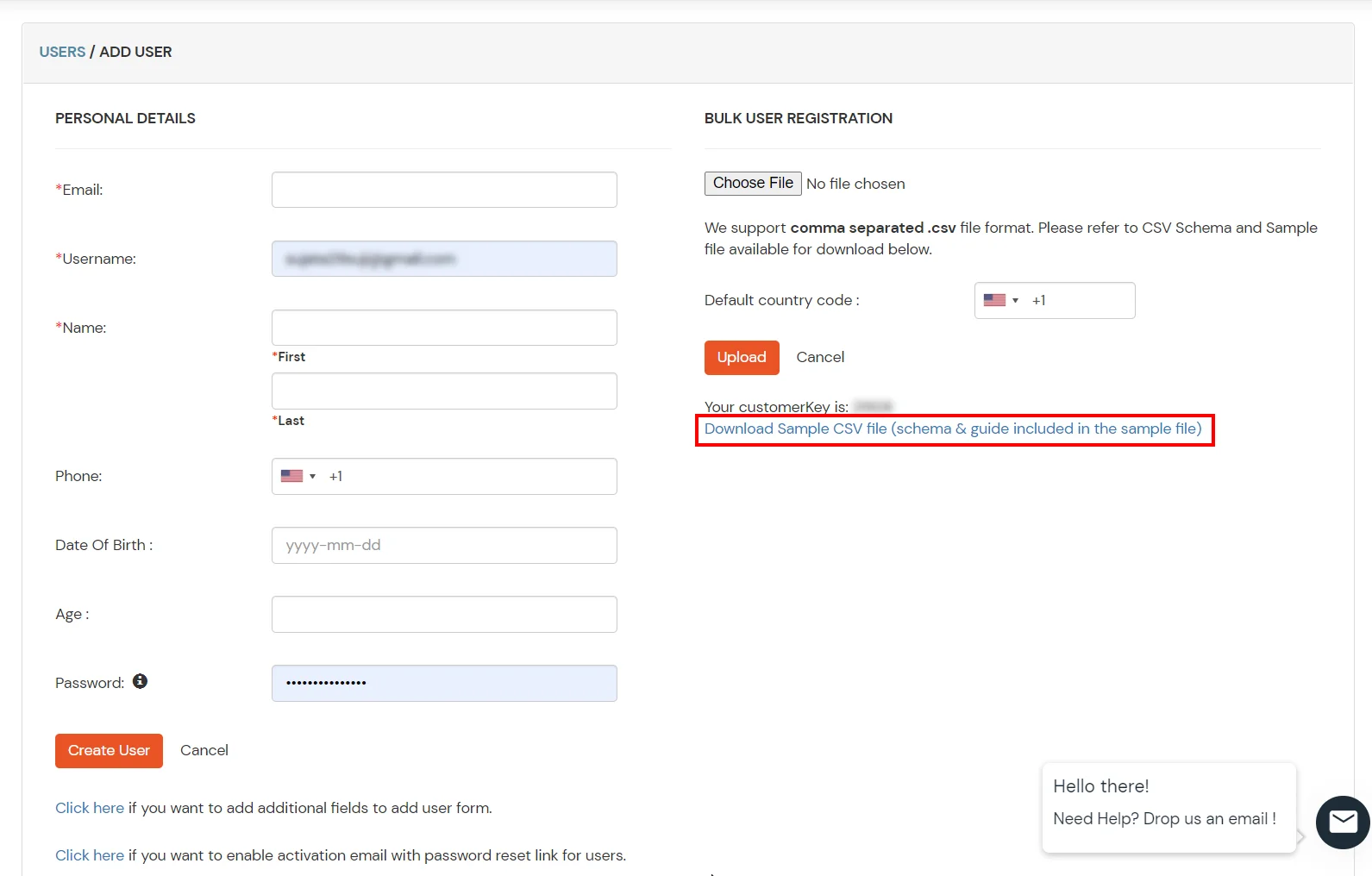
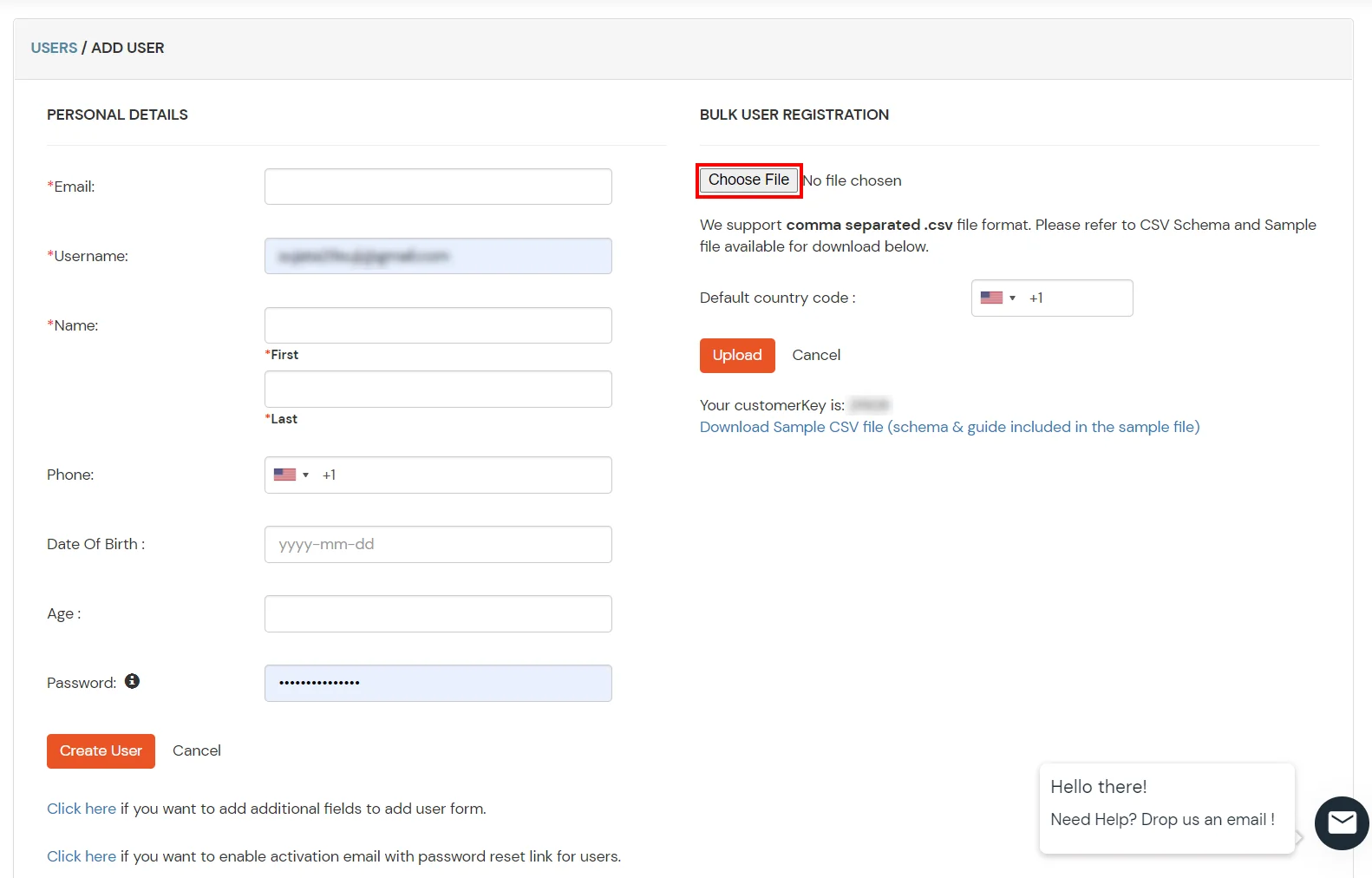
2. Bulk Upload Users in miniOrange via Uploading CSV File.
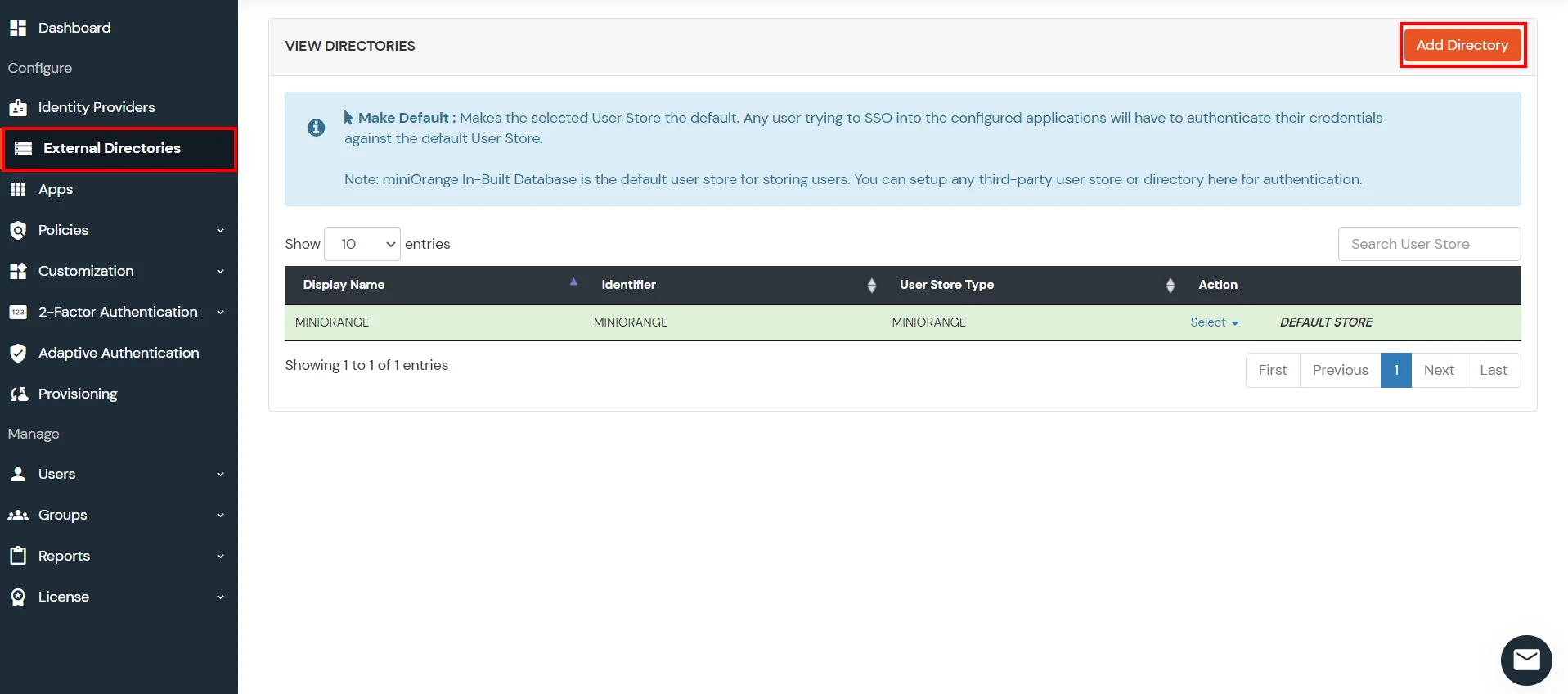
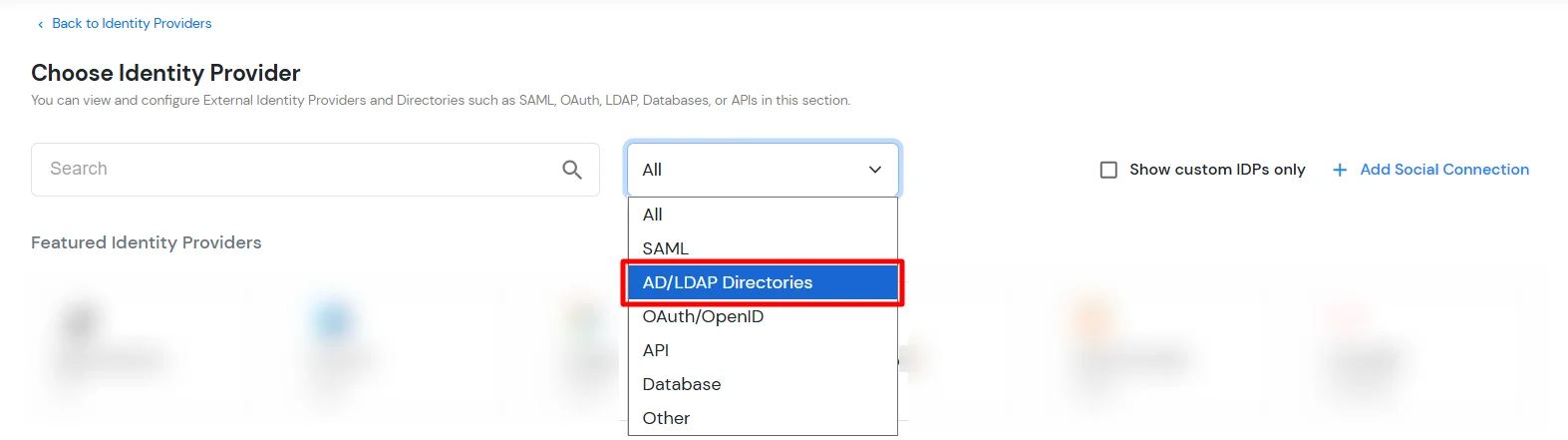
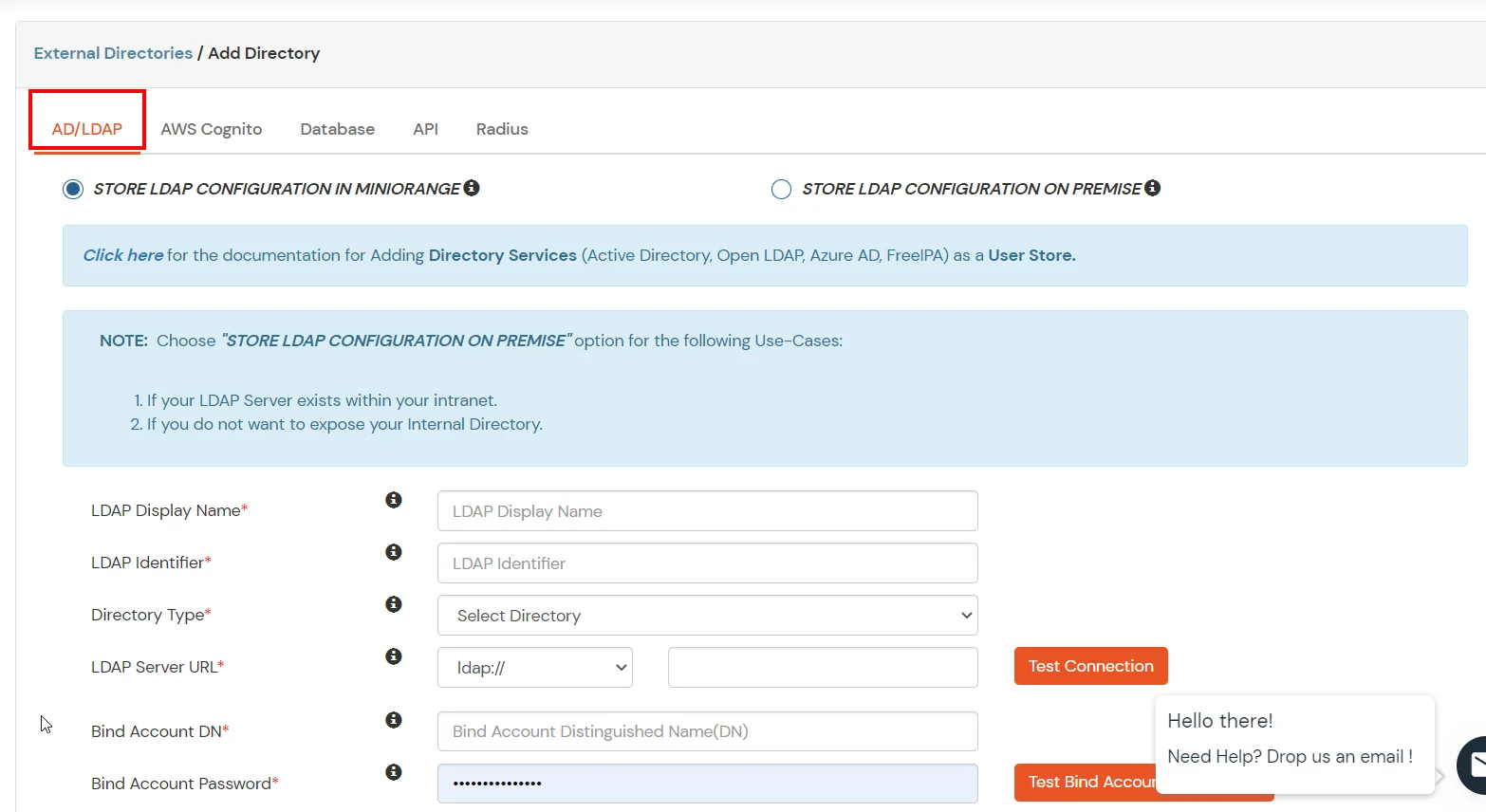
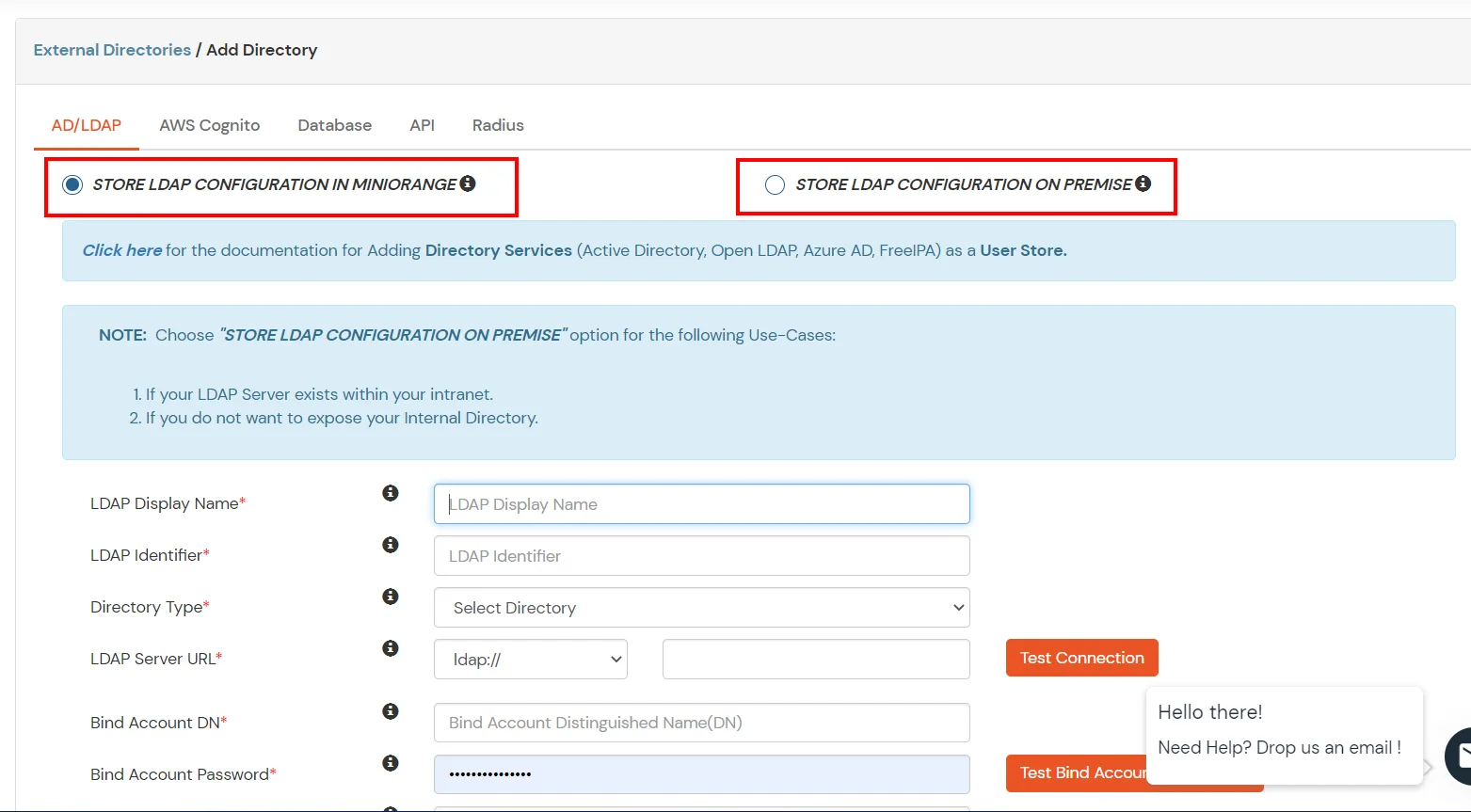
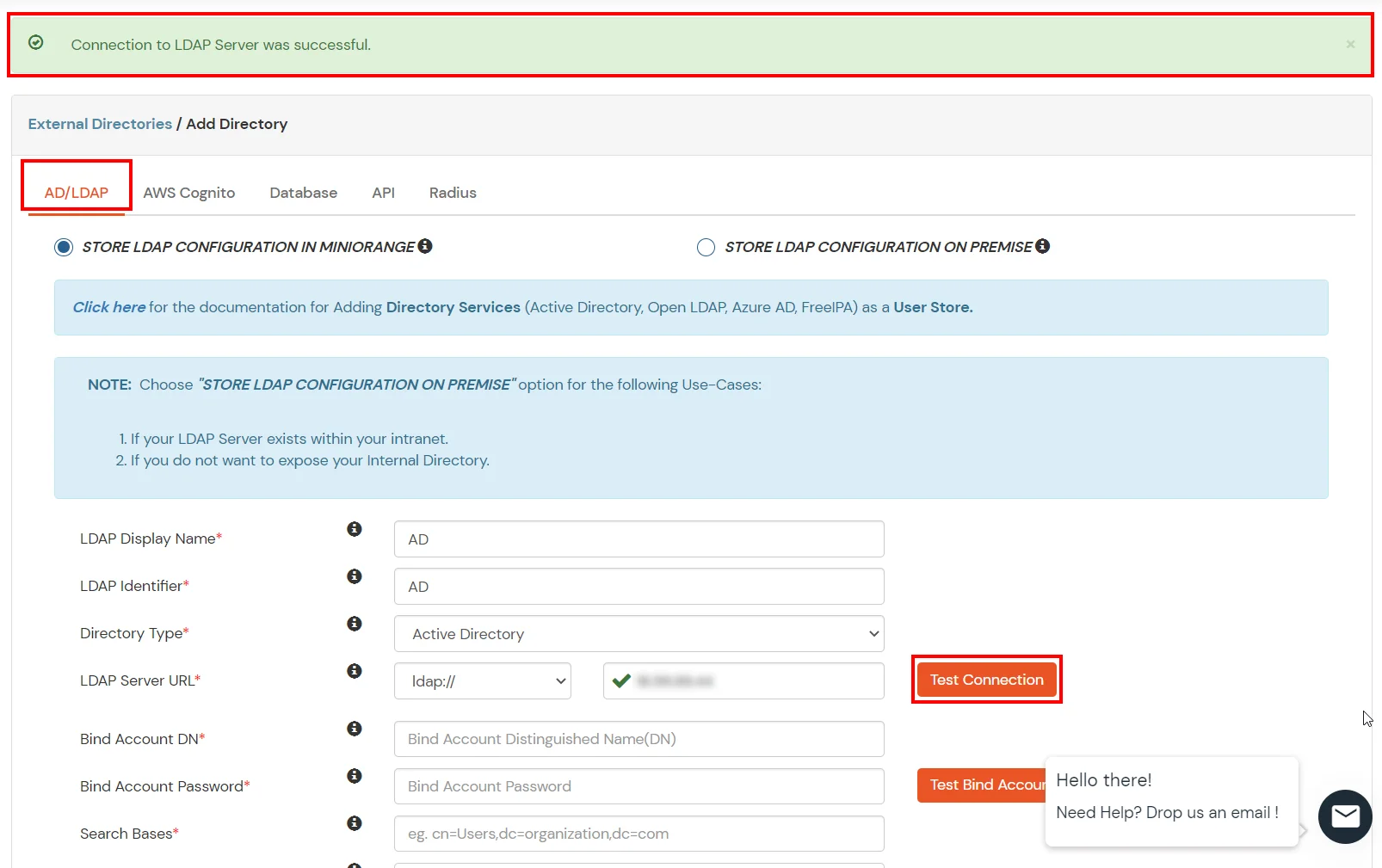
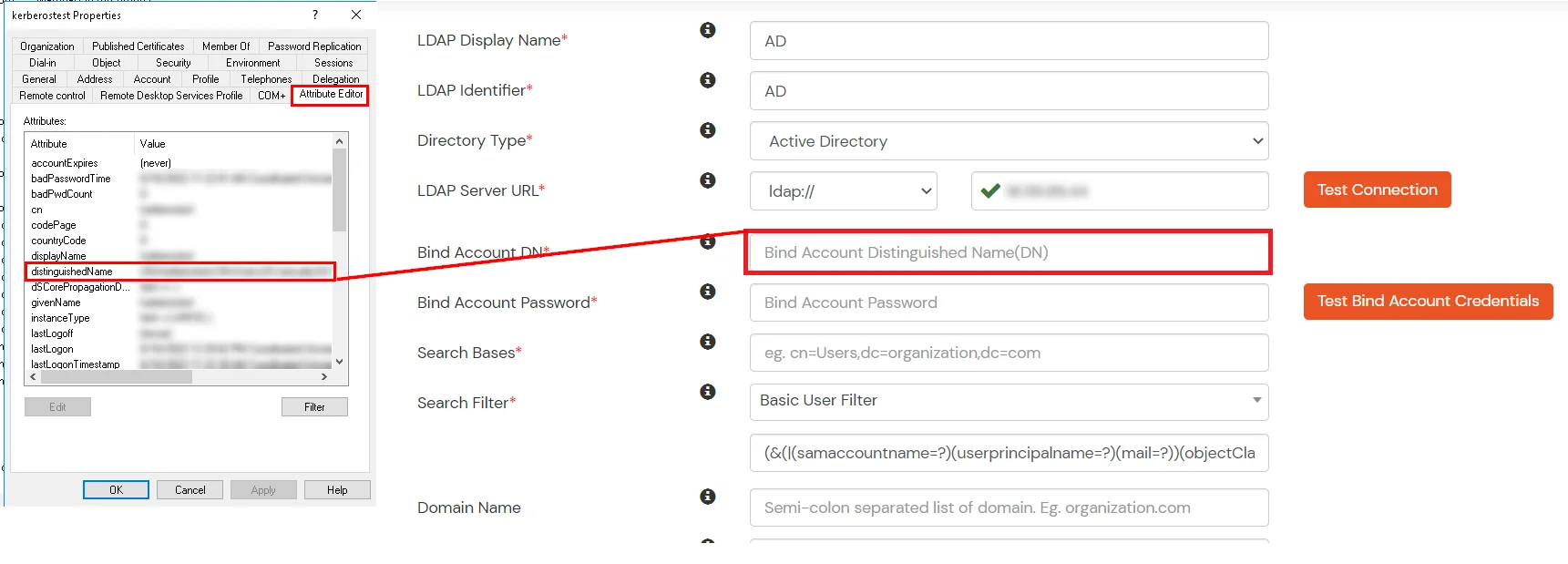
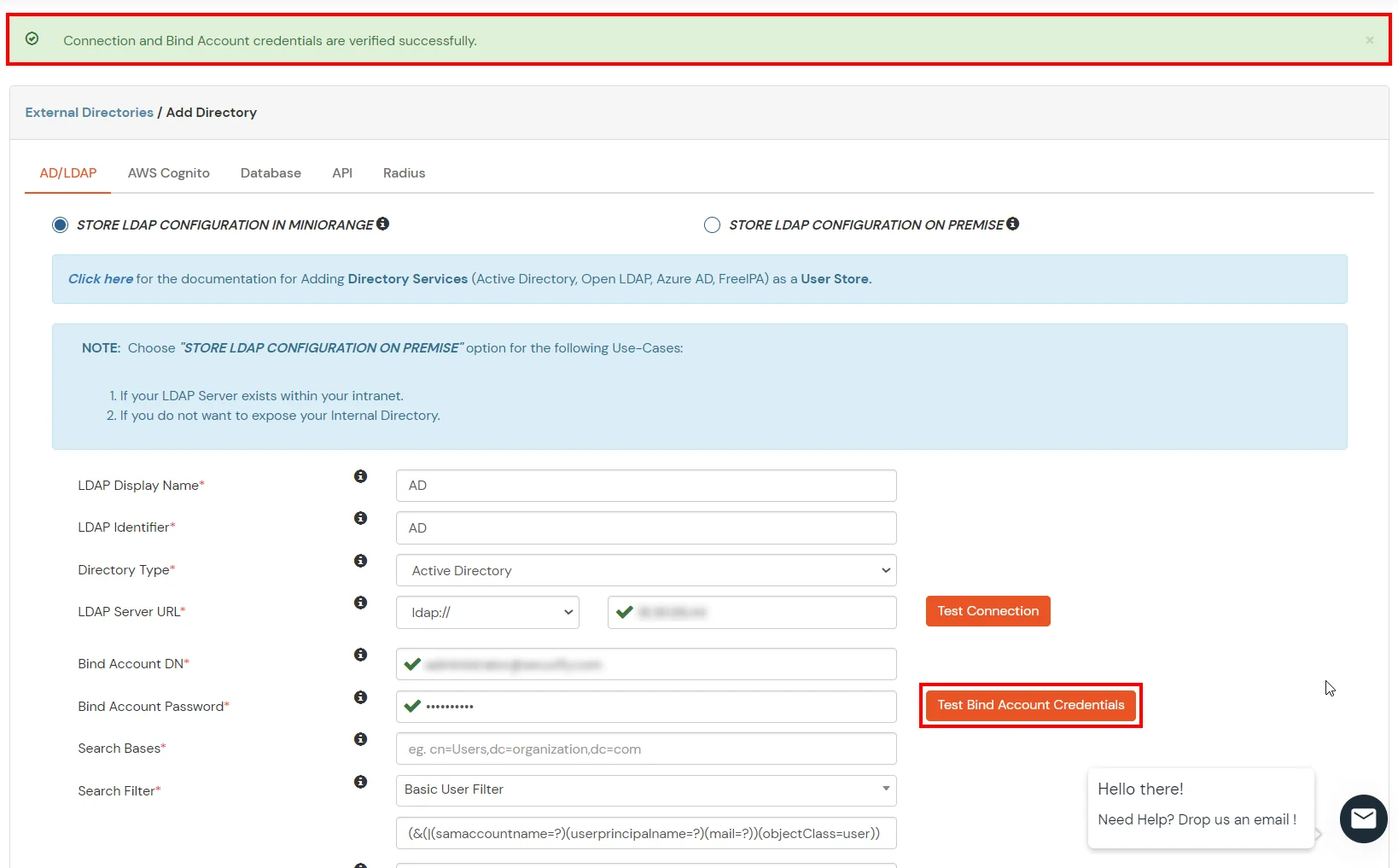
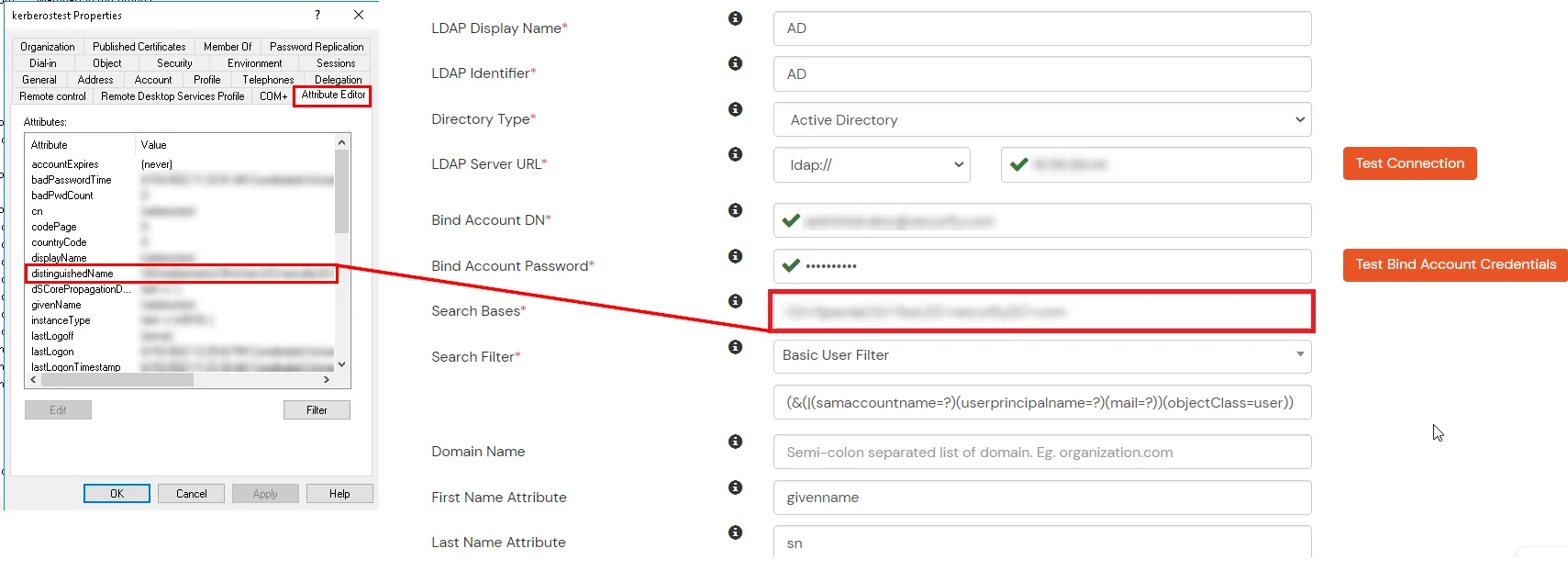
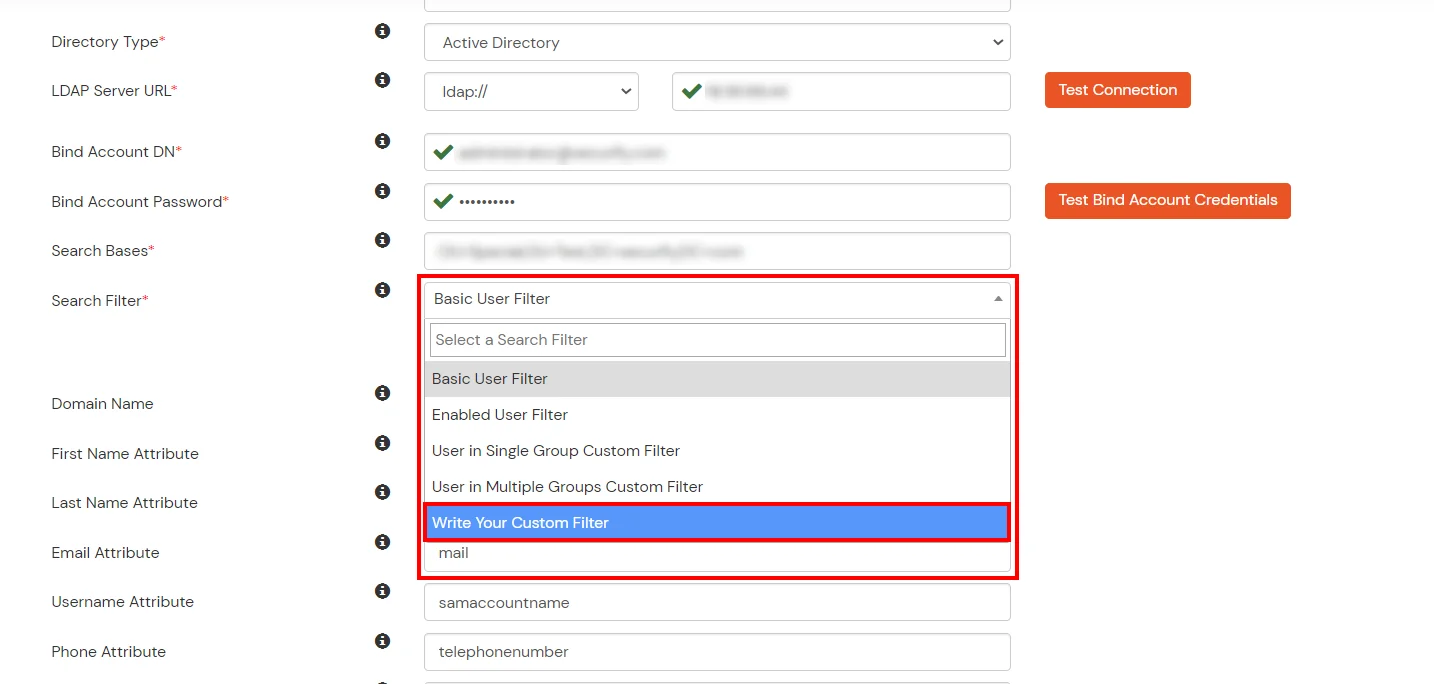
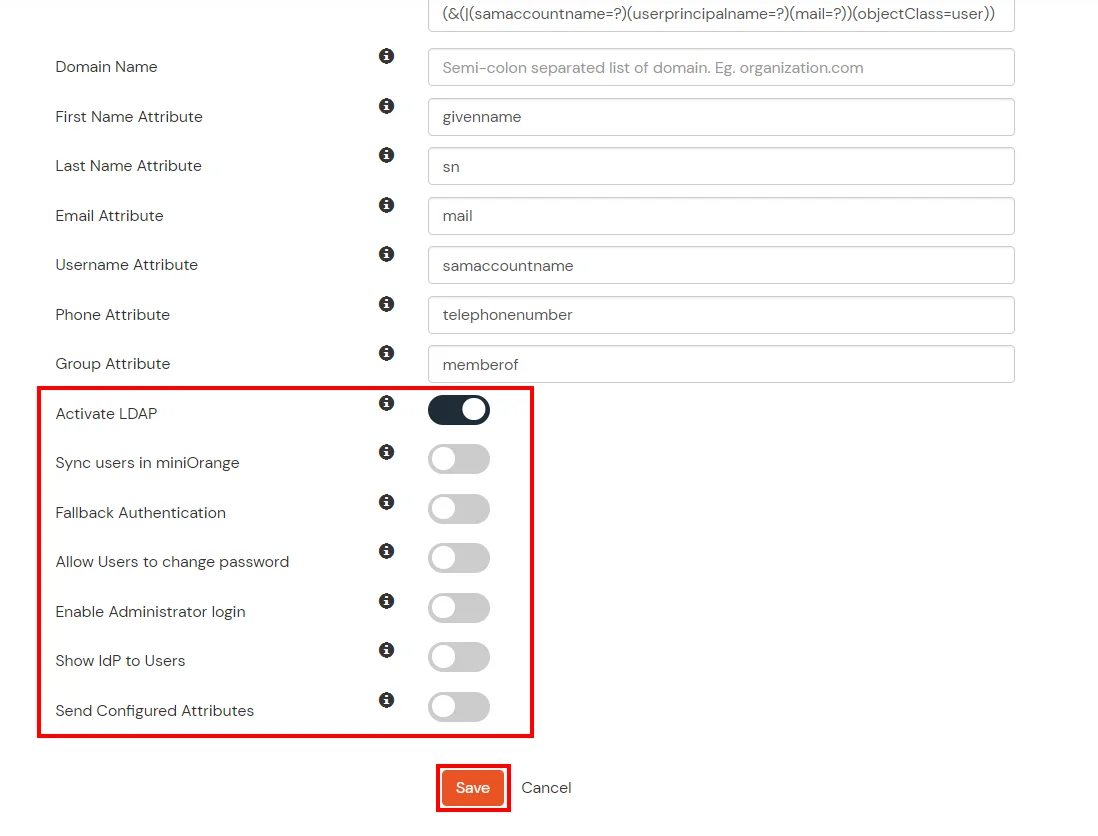
Here's the list of the attributes and what it does when we enable it. You can enable/disable accordingly.
| Attribute | Description |
|---|---|
| Activate LDAP | All user authentications will be done with LDAP credentials if you Activate it |
| Fallback Authentication | If LDAP credentials fail then user will be authenticated through miniOrange |
| Enable administrator login | On enabling this, your miniOrange Administrator login authenticates using your LDAP server |
| Show IdP to users | If you enable this option, this IdP will be visible to users |
| Sync users in miniOrange | Users will be created in miniOrange after authentication with LDAP |
Attribute Name sent to SP = organization
Attribute Name from IDP = company
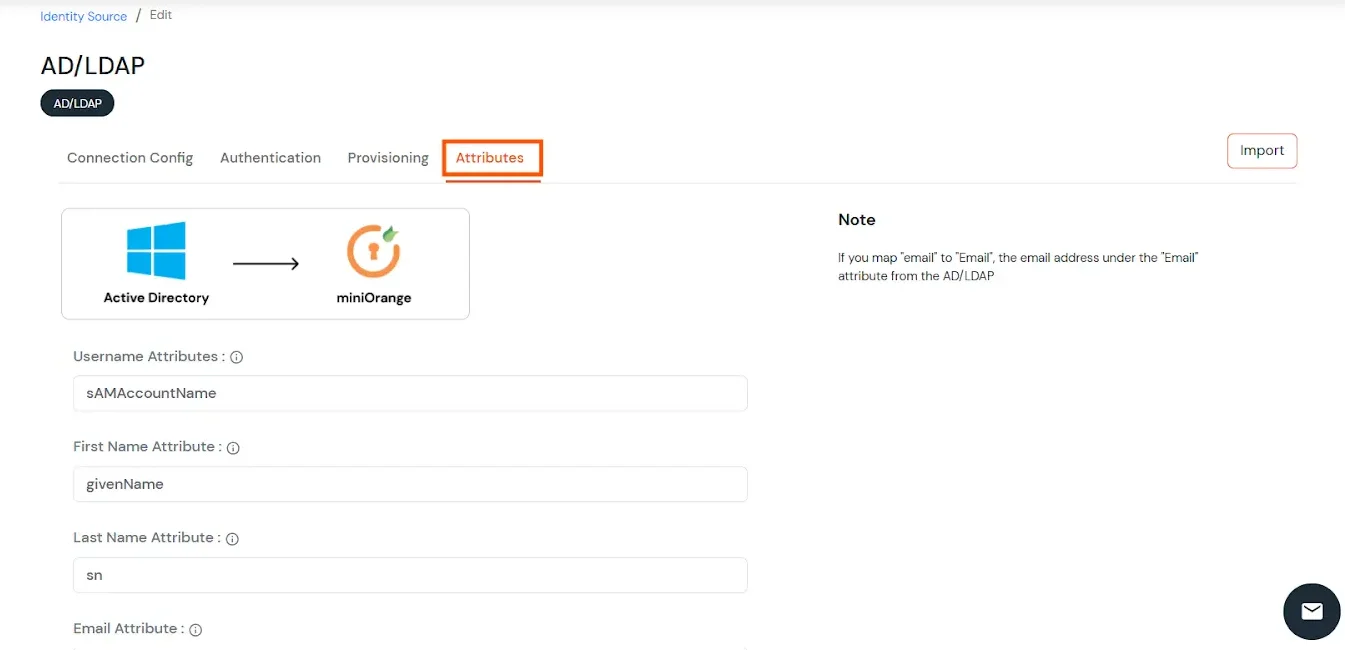
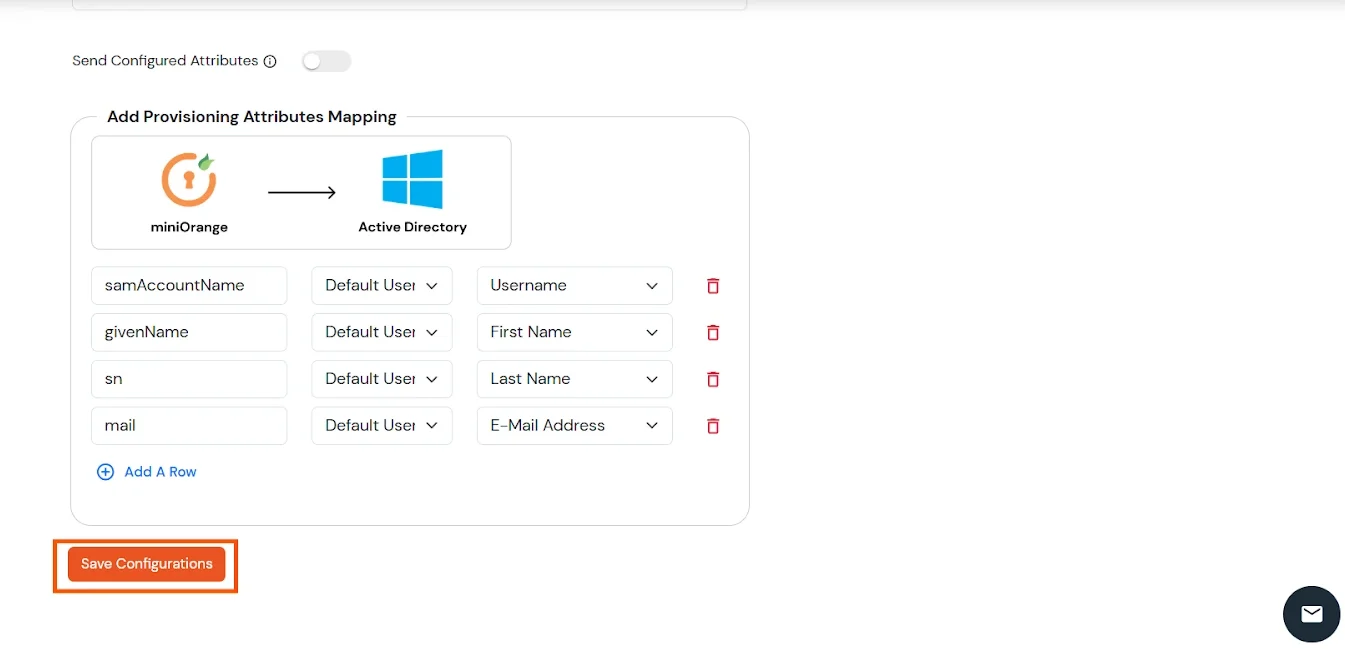
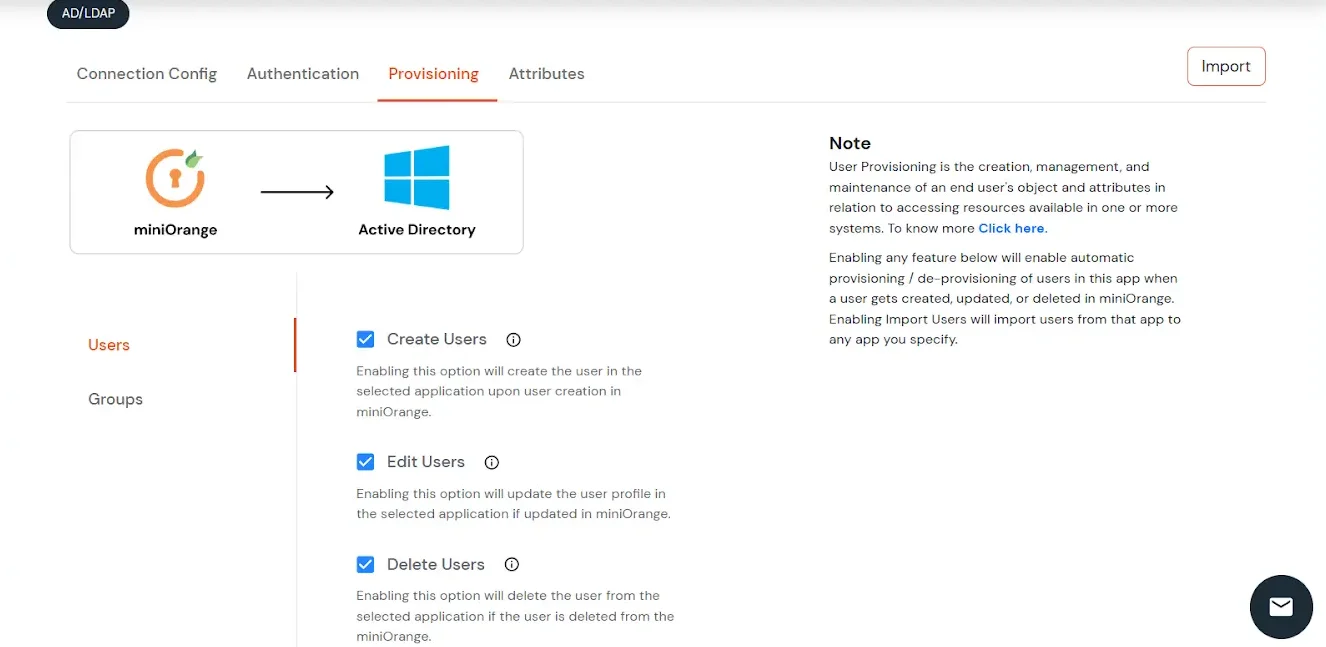
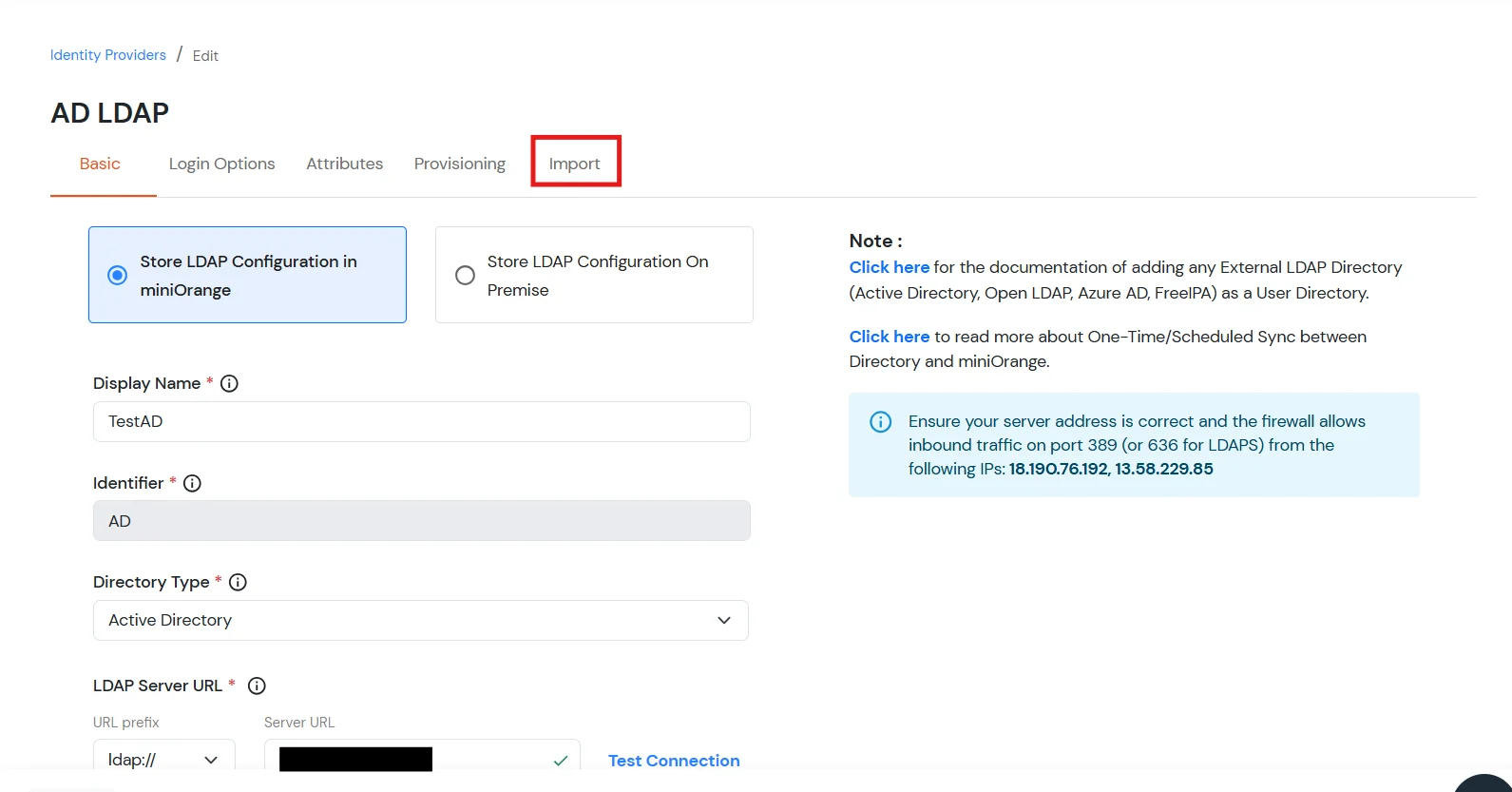
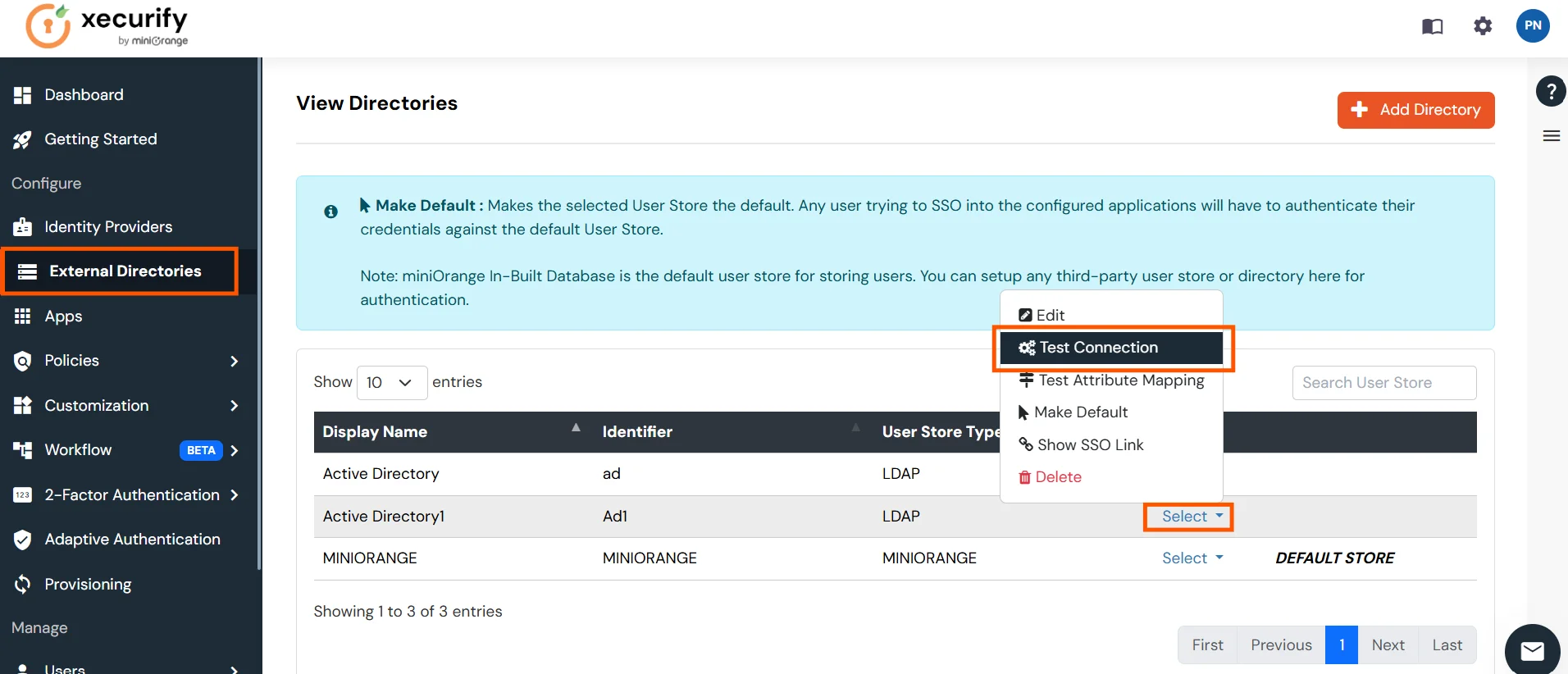
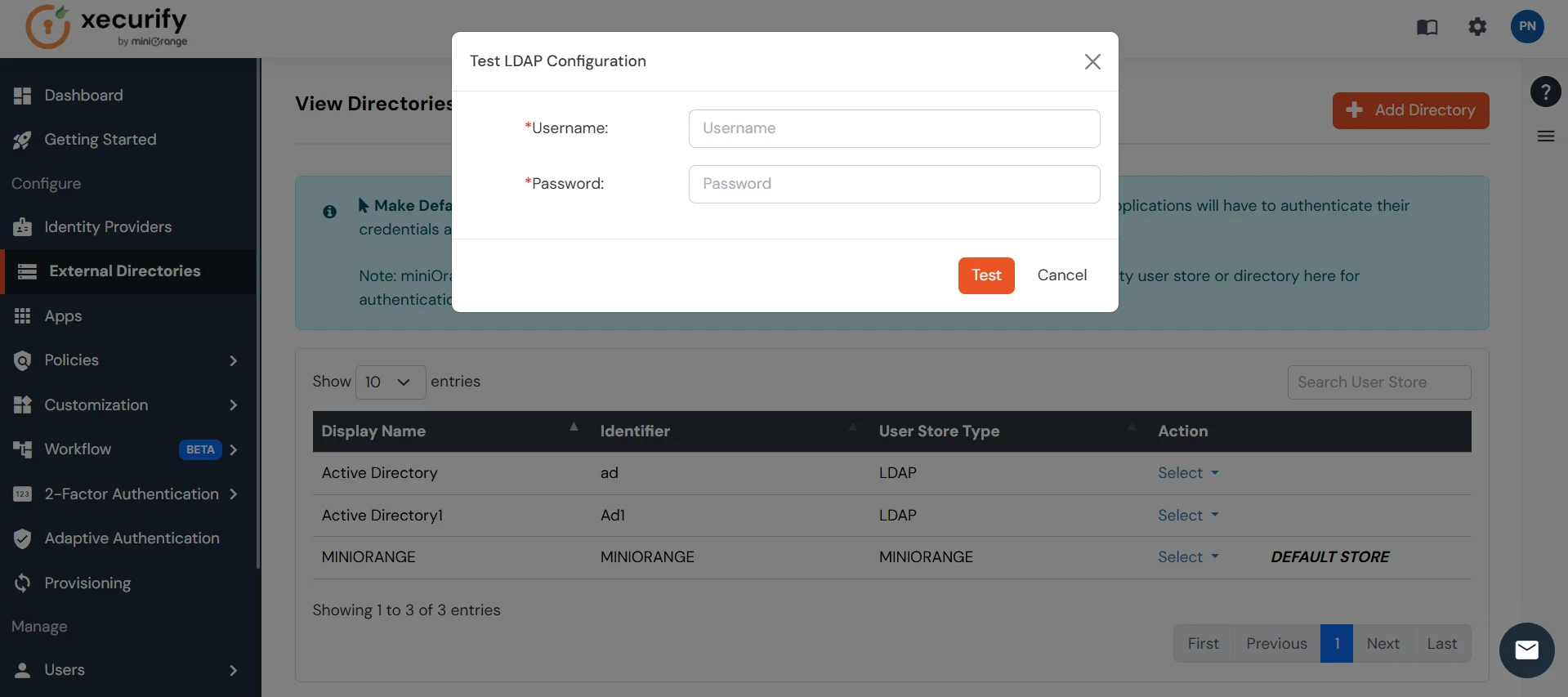
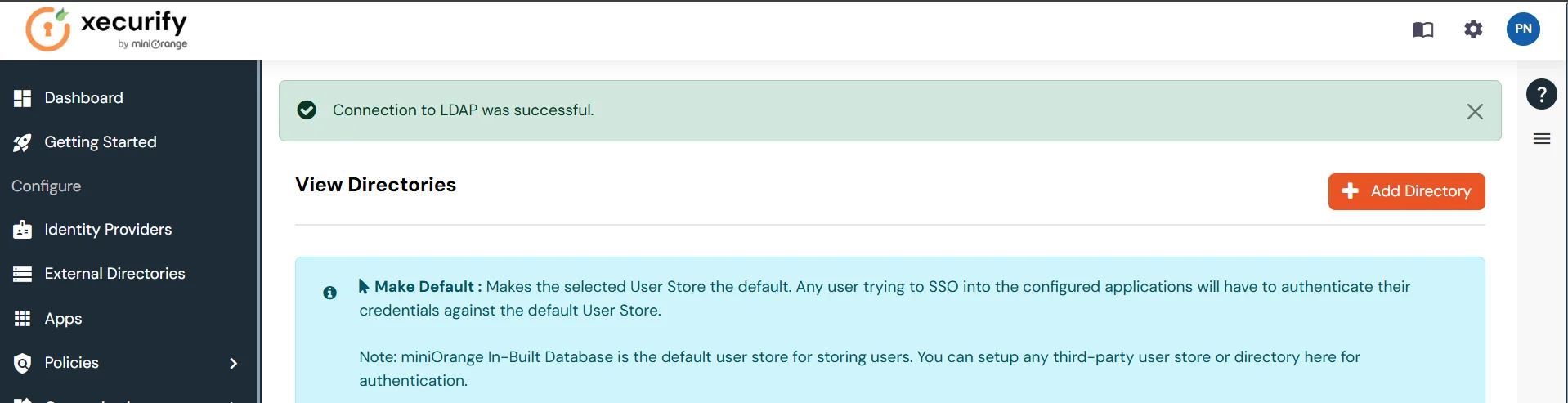
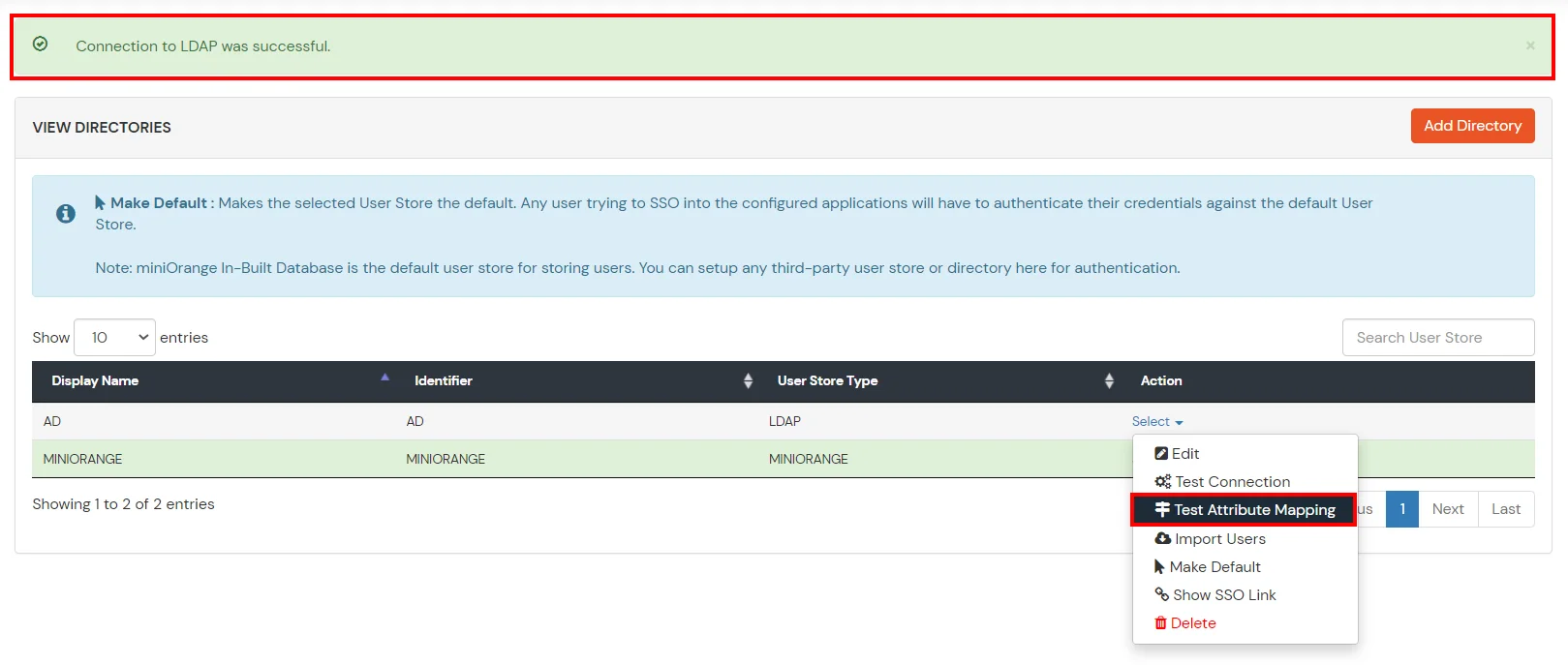
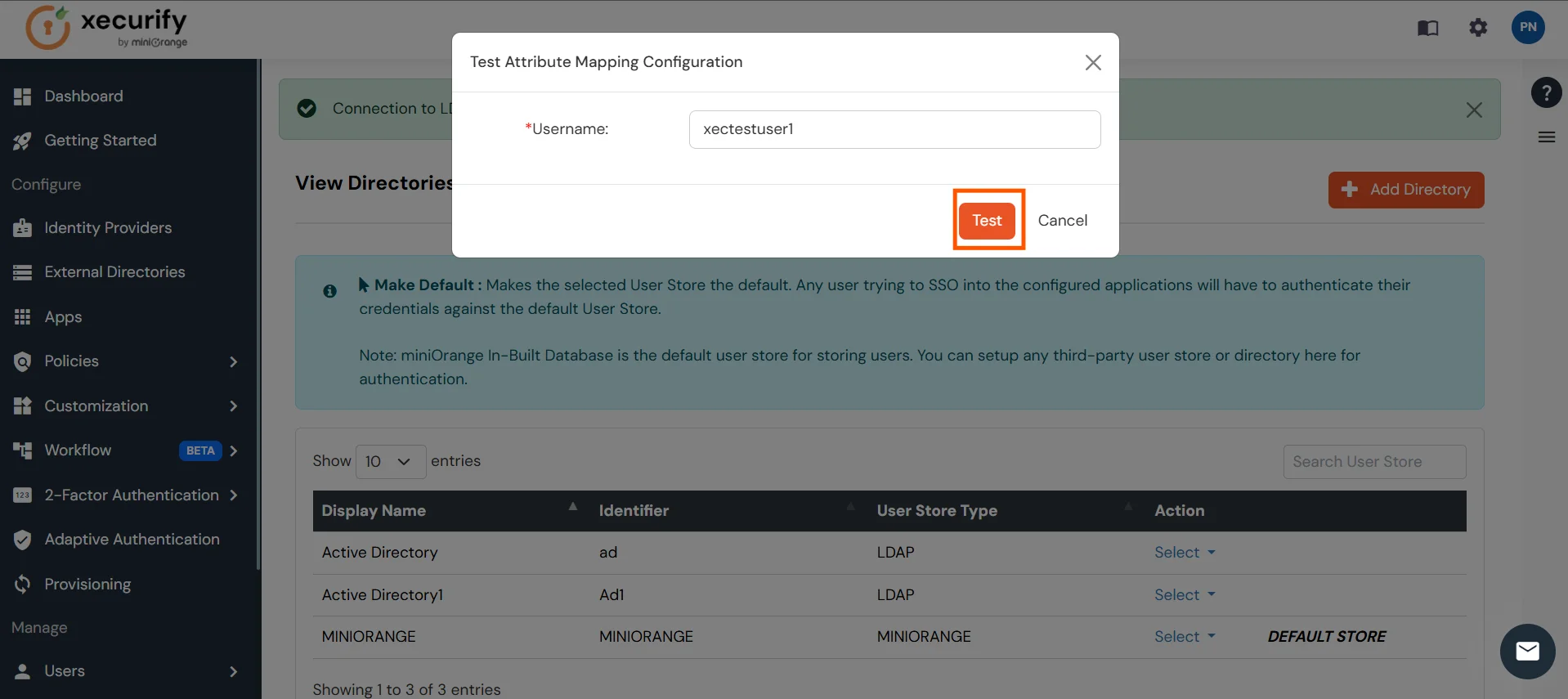
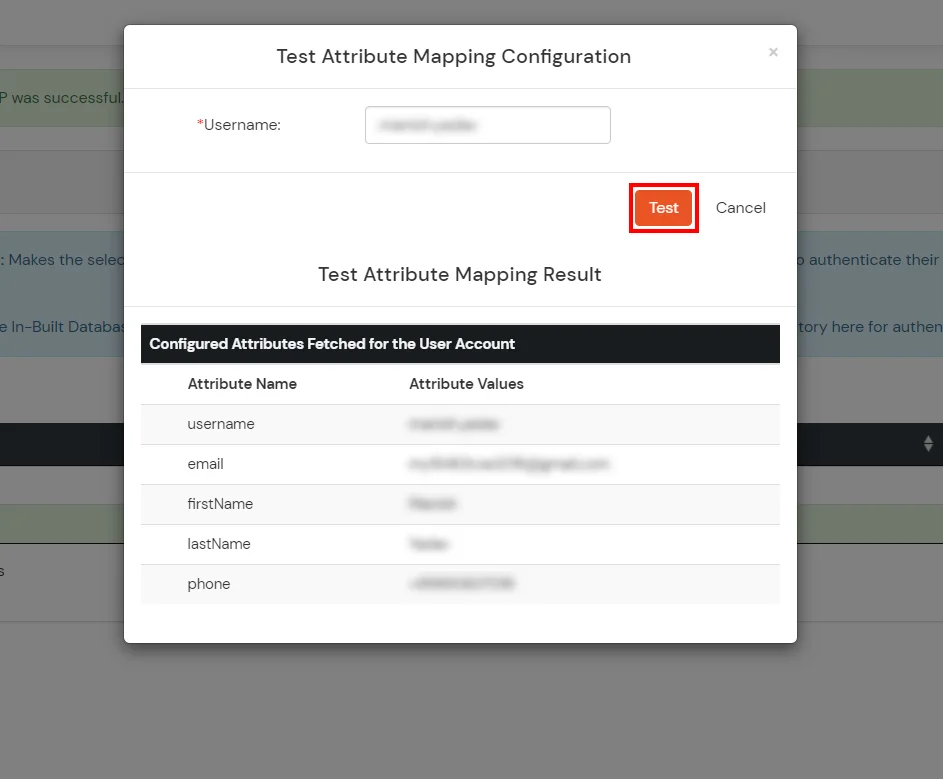
Set up AD as External Directory configuration is complete.
Note: Refer our guide to setup LDAP on windows server.
miniOrange integrates with various external user sources such as directories, identity providers, and etc.
Contact us or email us at idpsupport@xecurify.com and we'll help you setting it up in no time.
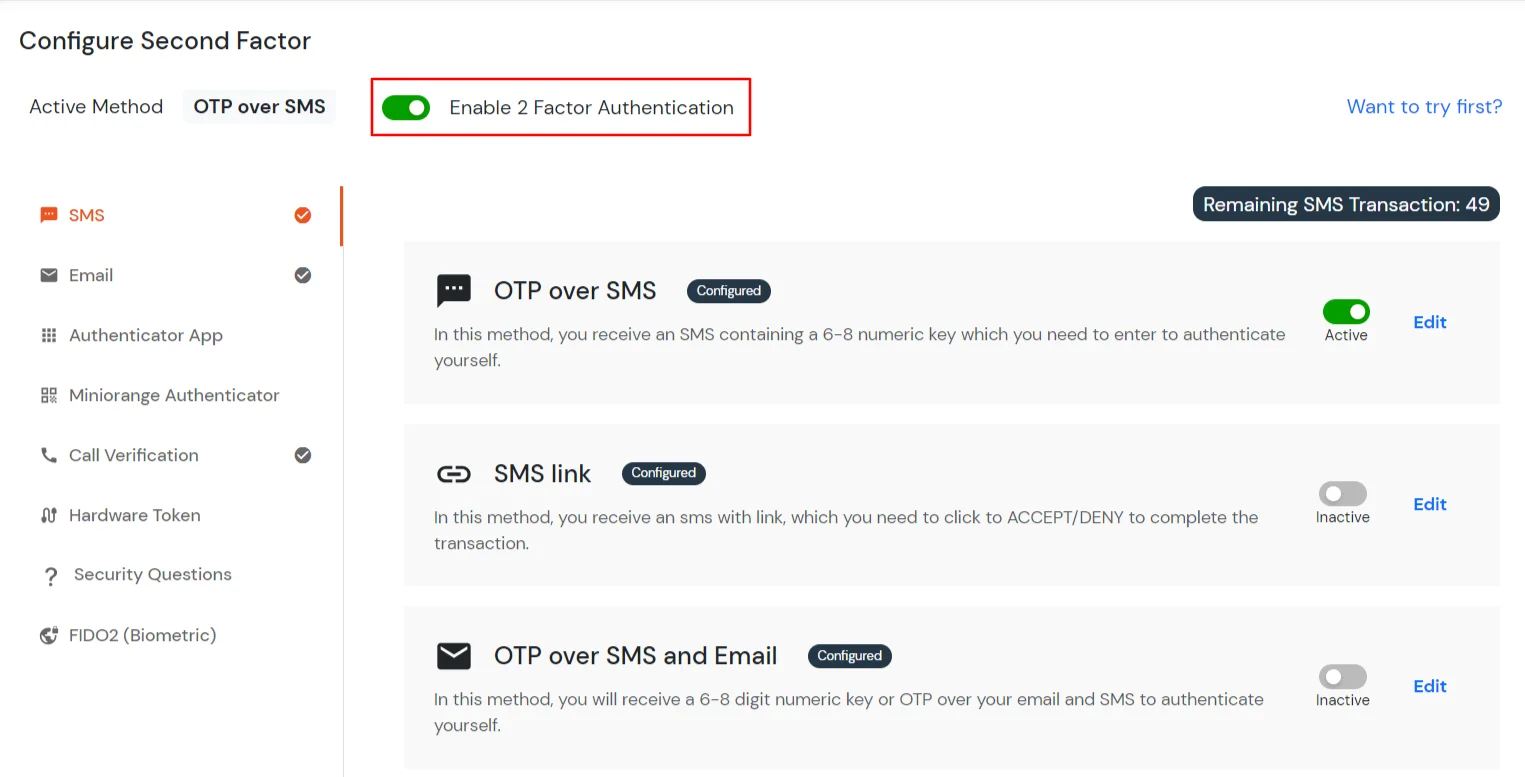
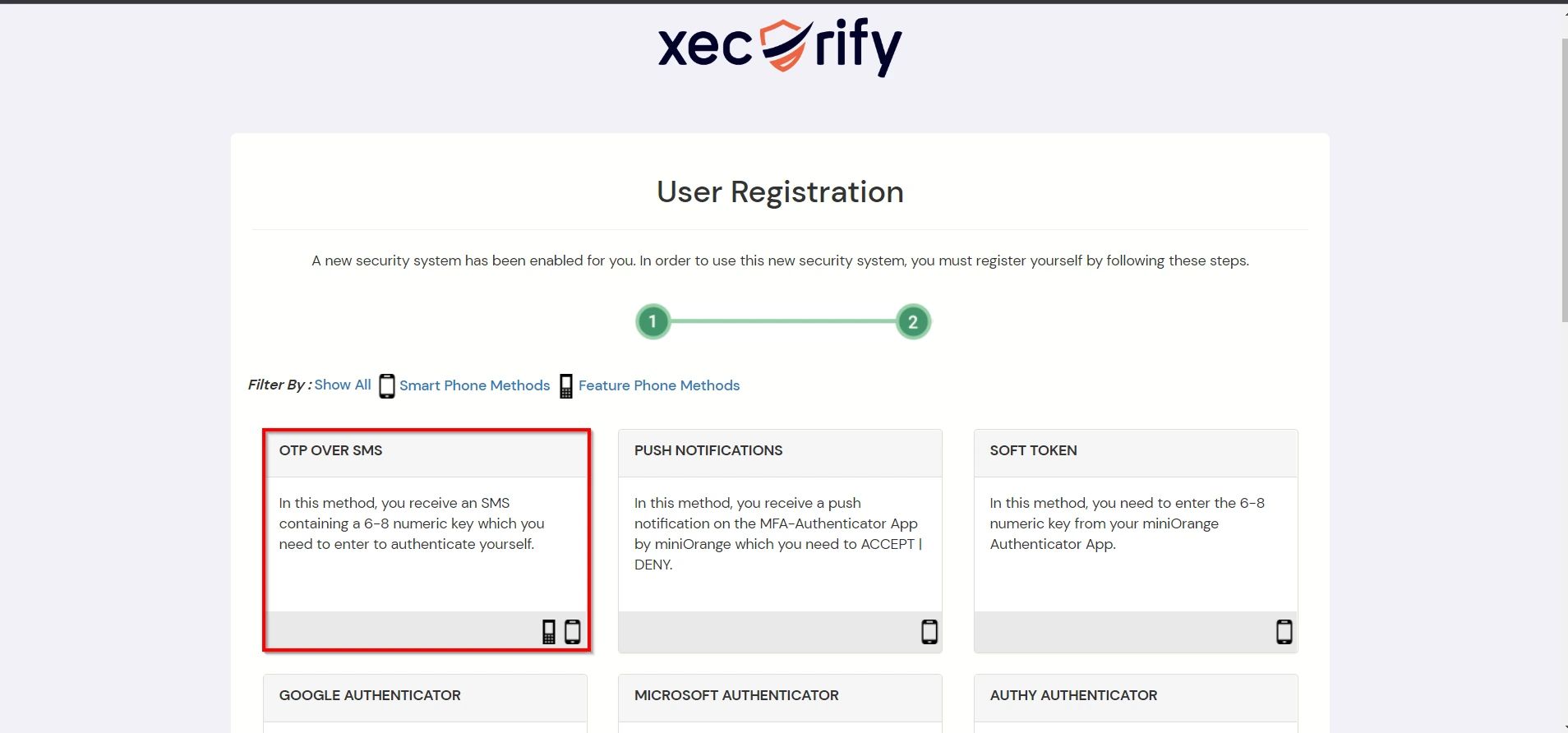
4.1: Enable 2FA for Users of NetSkope Reverse Proxy app
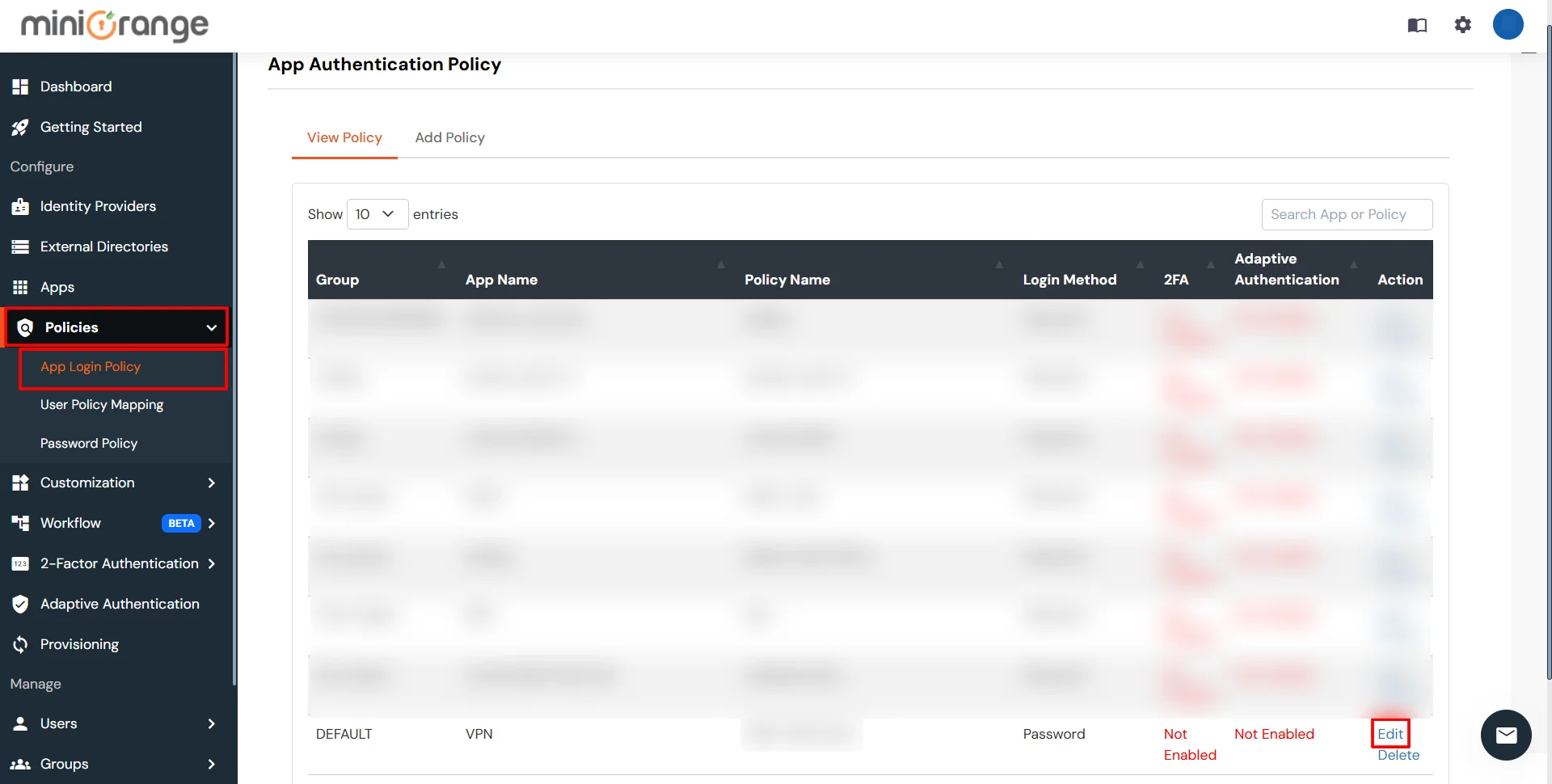
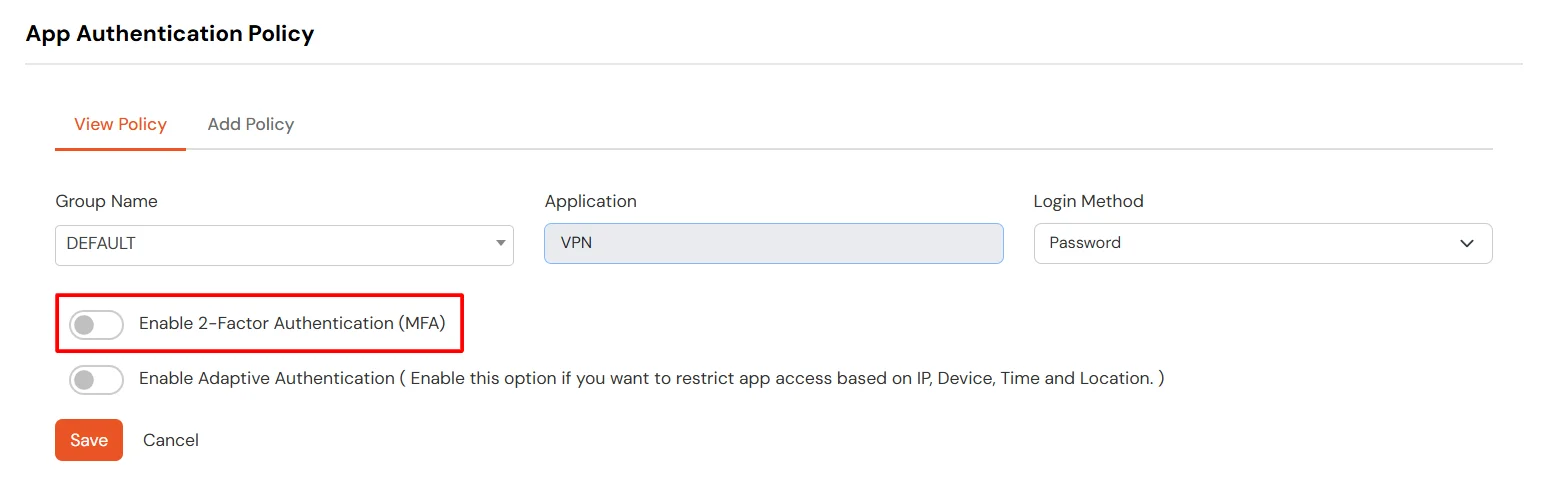
4.2: Configure 2FA for your Endusers
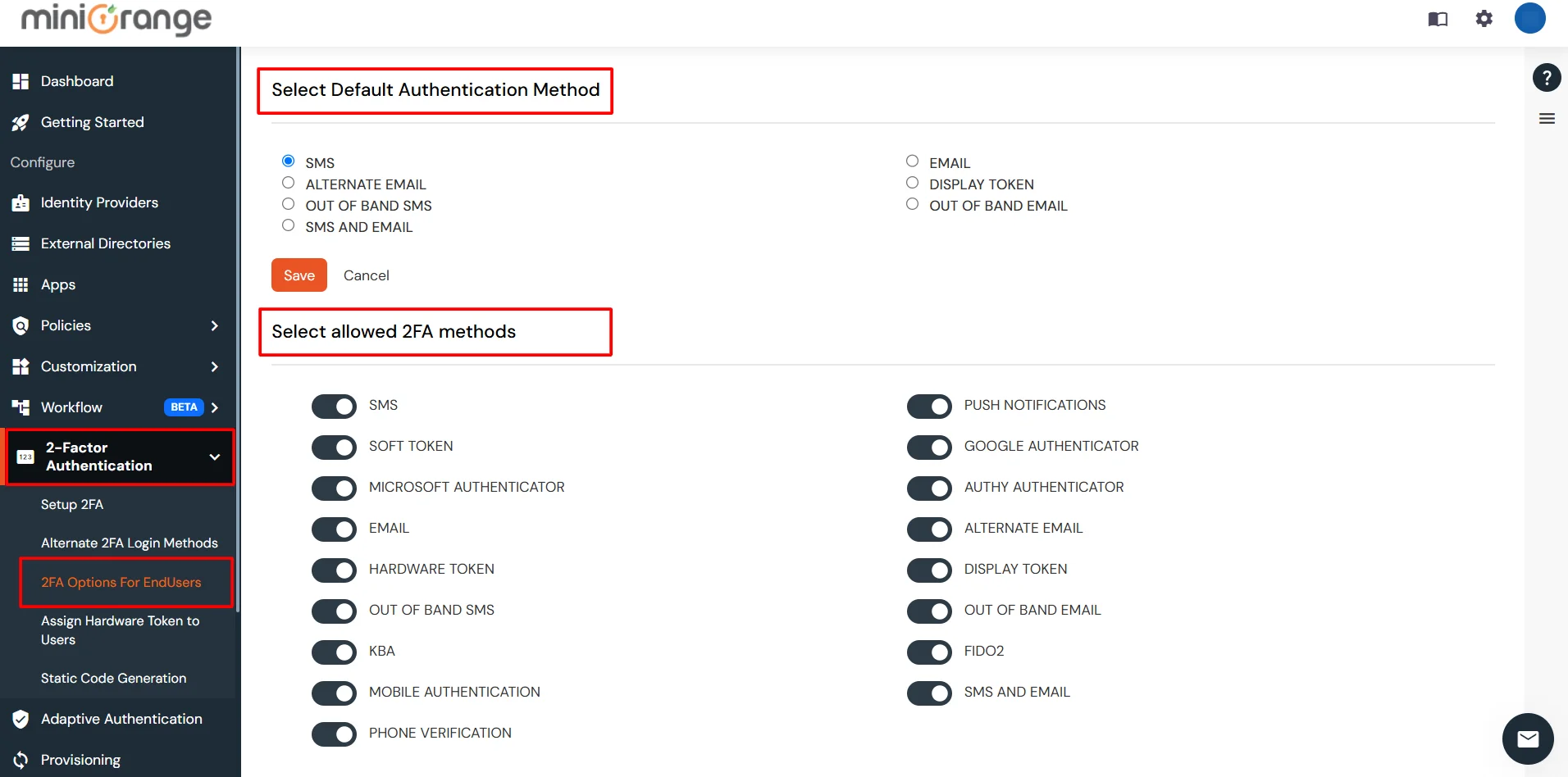
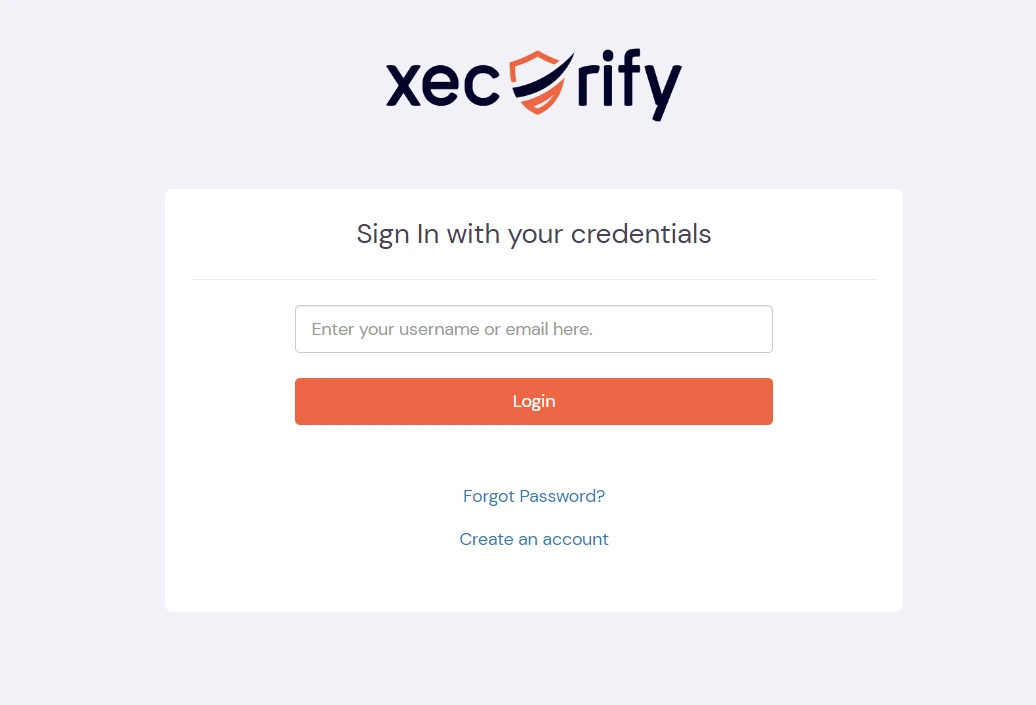
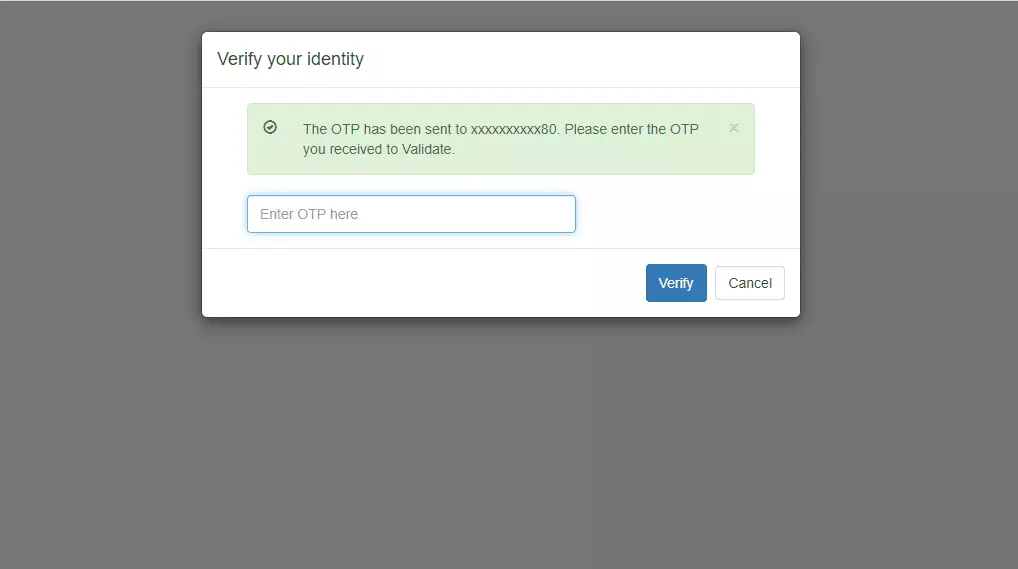
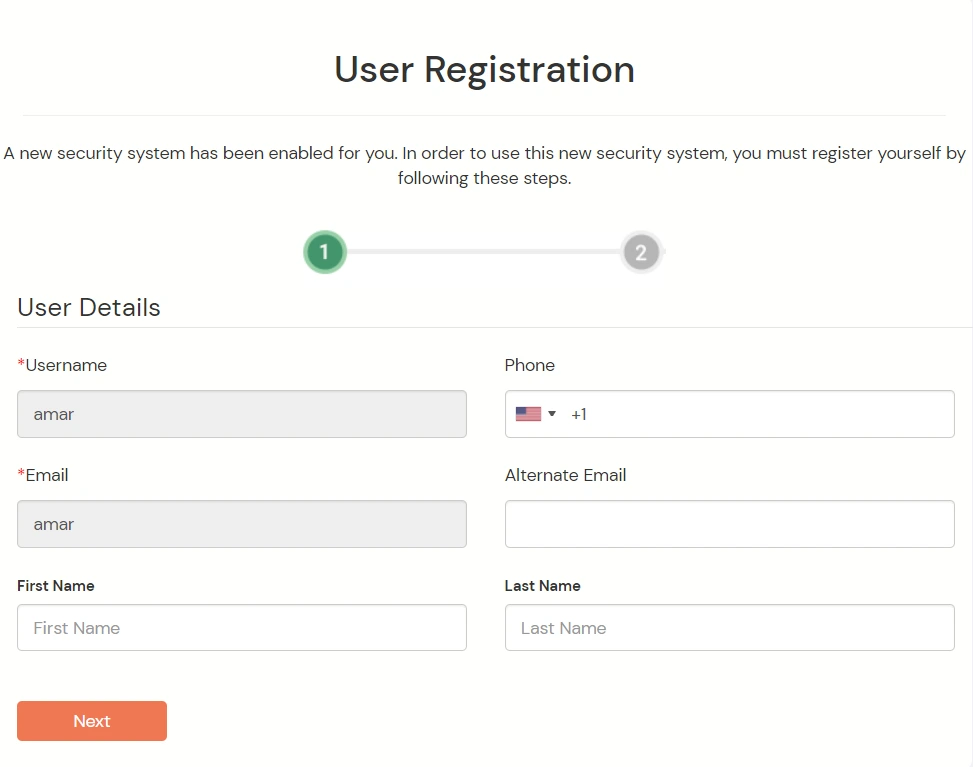
4.3: Enduser 2FA Setup
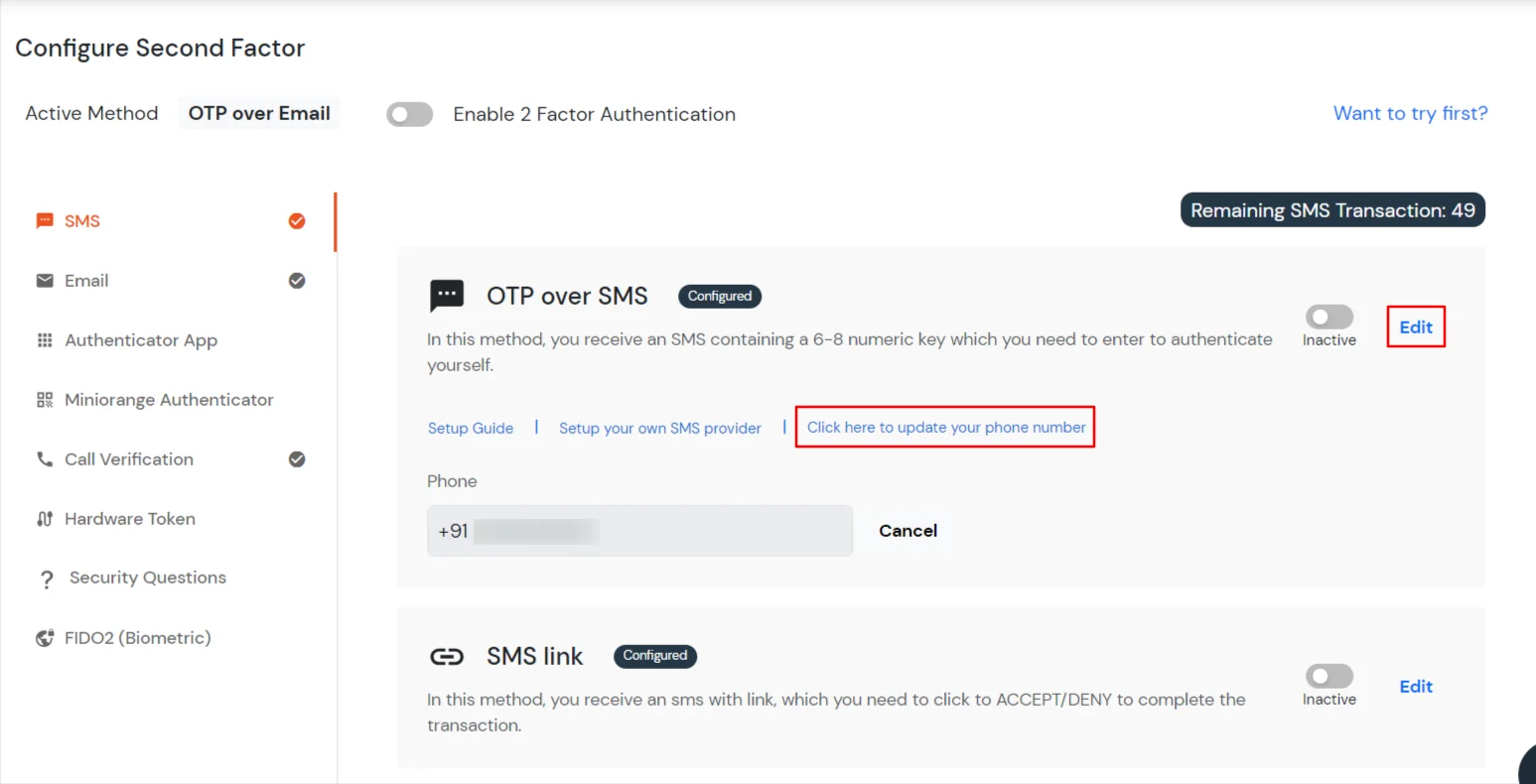
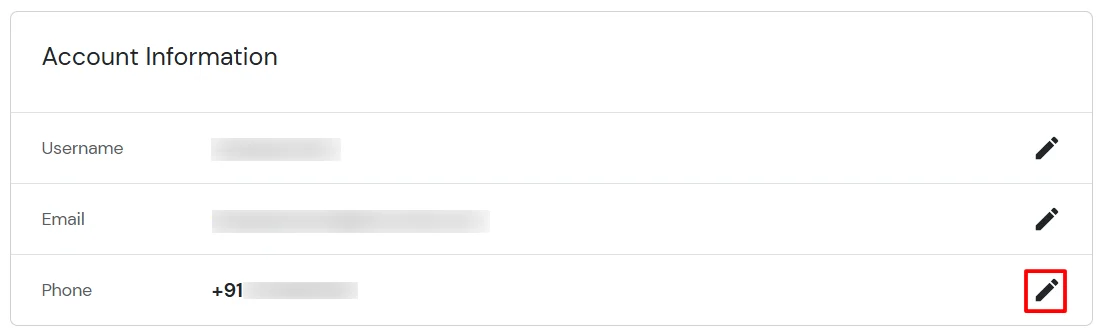
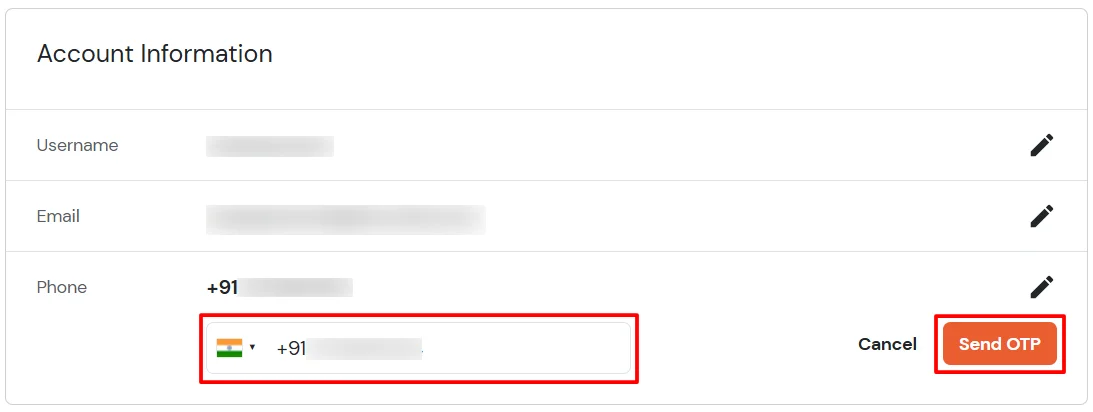
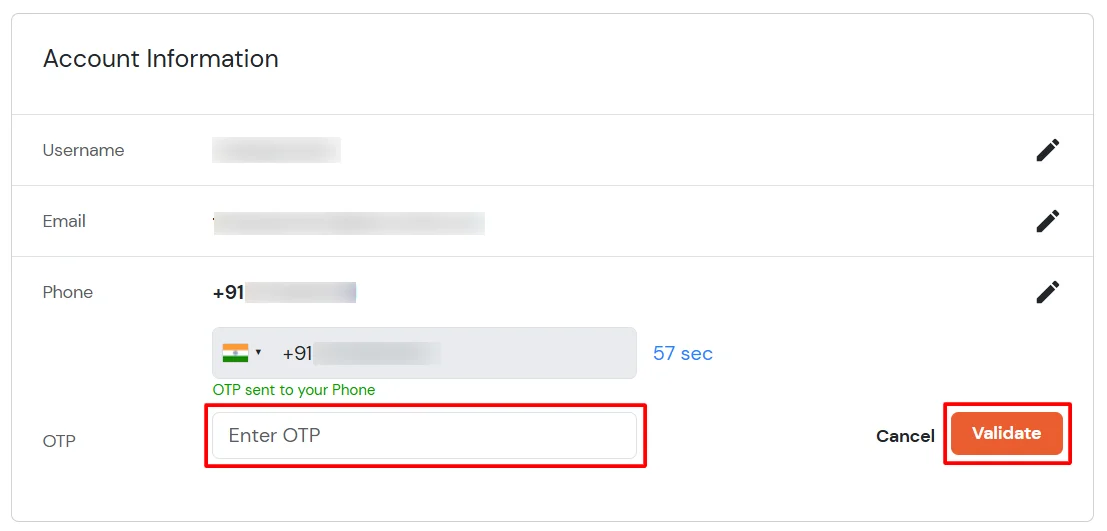
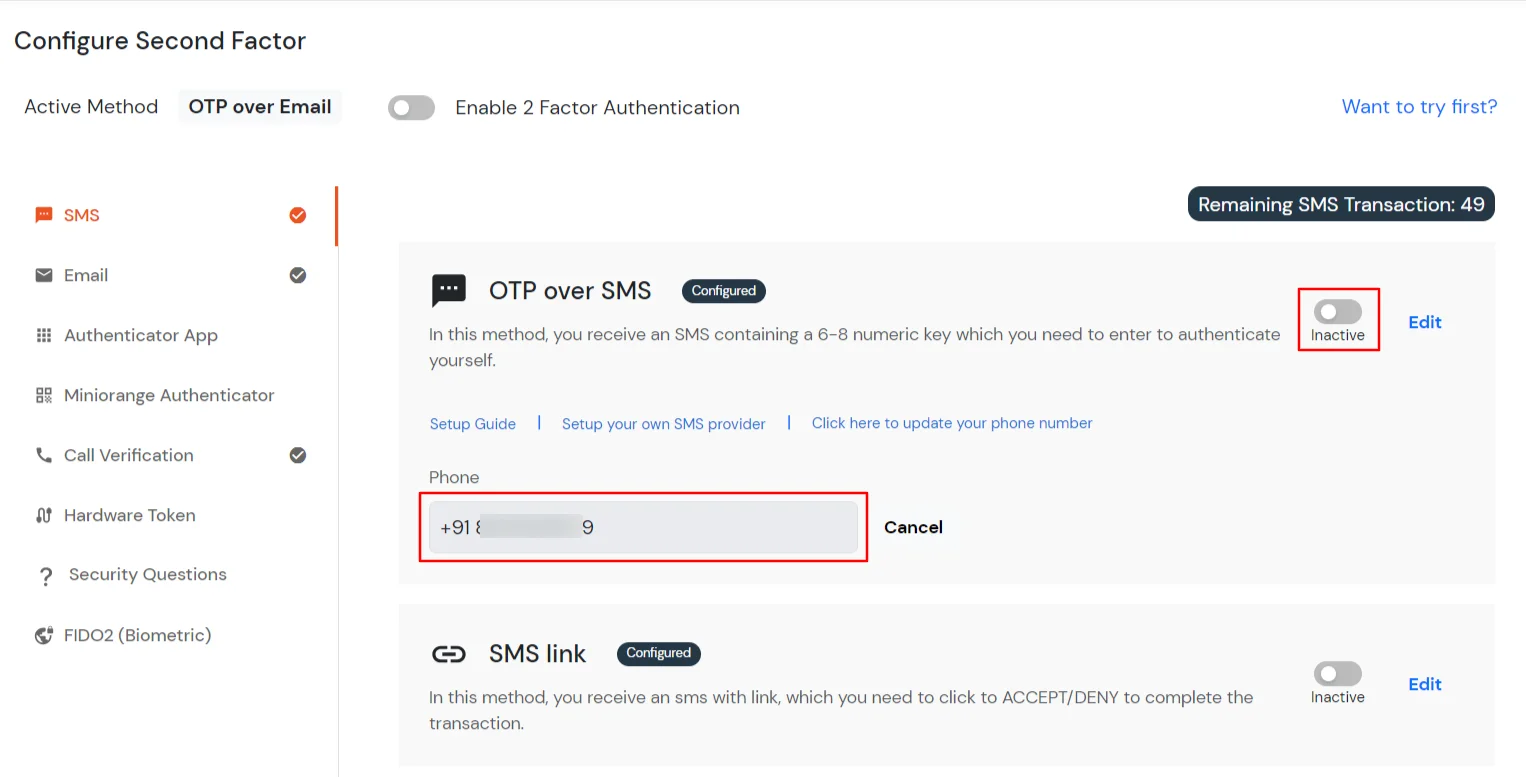
Contact us or email us at idpsupport@xecurify.com and we'll help you setting it up in no time.
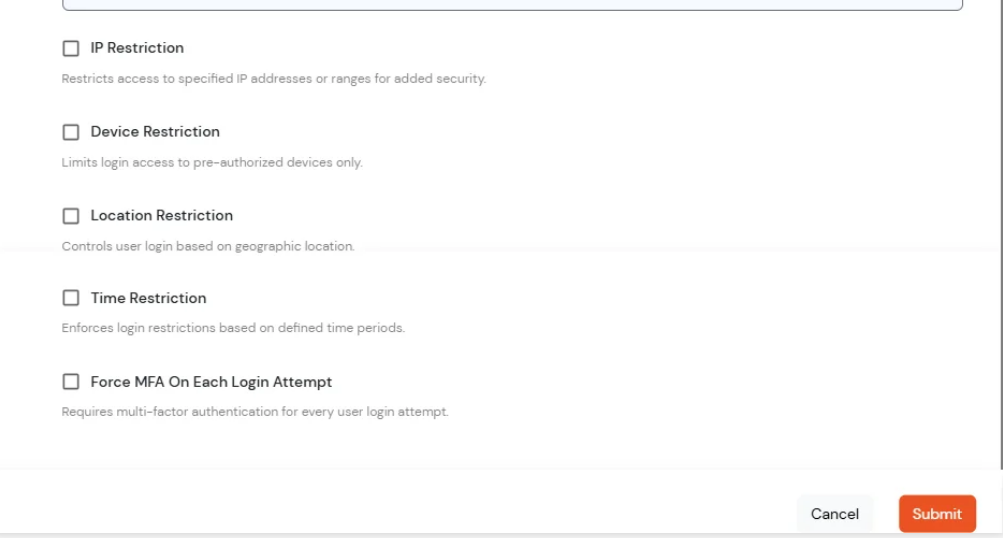
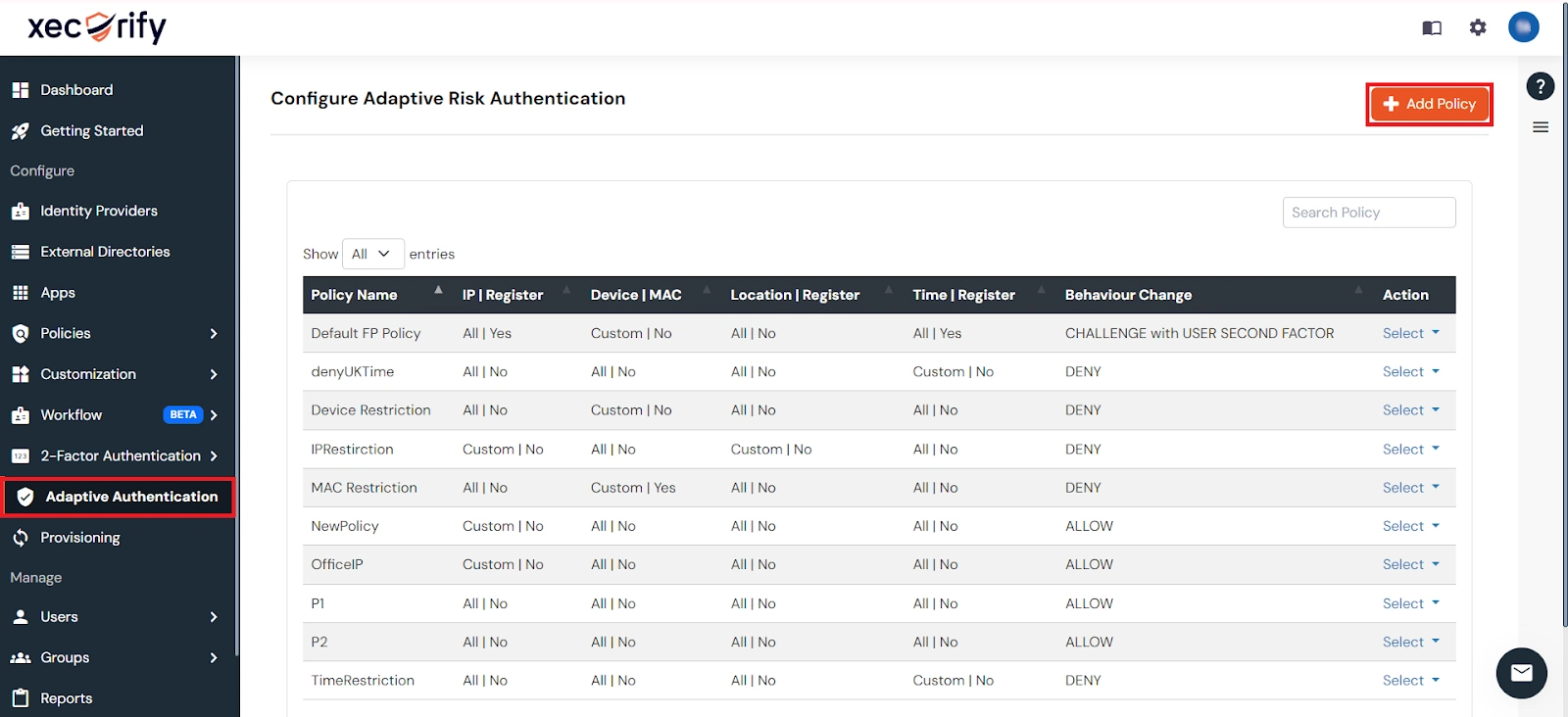
Adaptive Authentication for NetSkope Reverse Proxy enables administrators to enforce context-aware access policies by evaluating user login conditions such as IP address, device, location and login time. Based on the configured policy, users can be allowed access, challenged with additional verification or denied access. Administrators can also configure email alerts, customize user-facing error messages, review policy settings before deployment and assign adaptive authentication policies to application login policies to strengthen security and prevent unauthorized access.
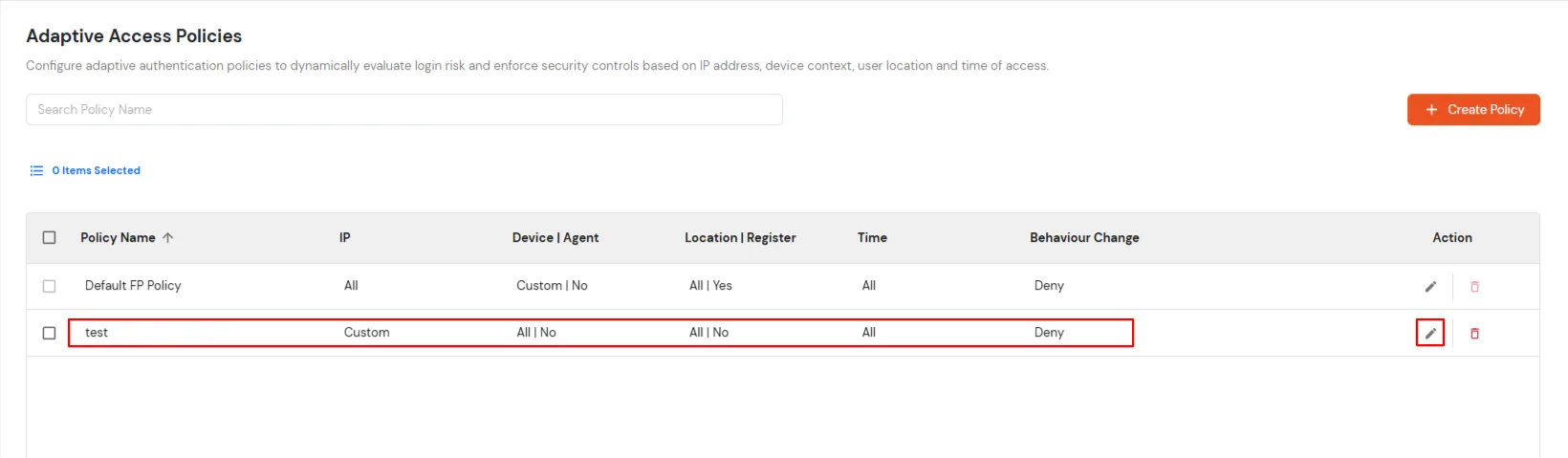
[Note: The Adaptive Authentication section has been moved from the left navigation menu. You can now access and manage adaptive authentication policies by navigating to Policies >> Adaptive Access Policy.]
A. Restricting access to NetSkope Reverse Proxy with IP Based Access Restriction
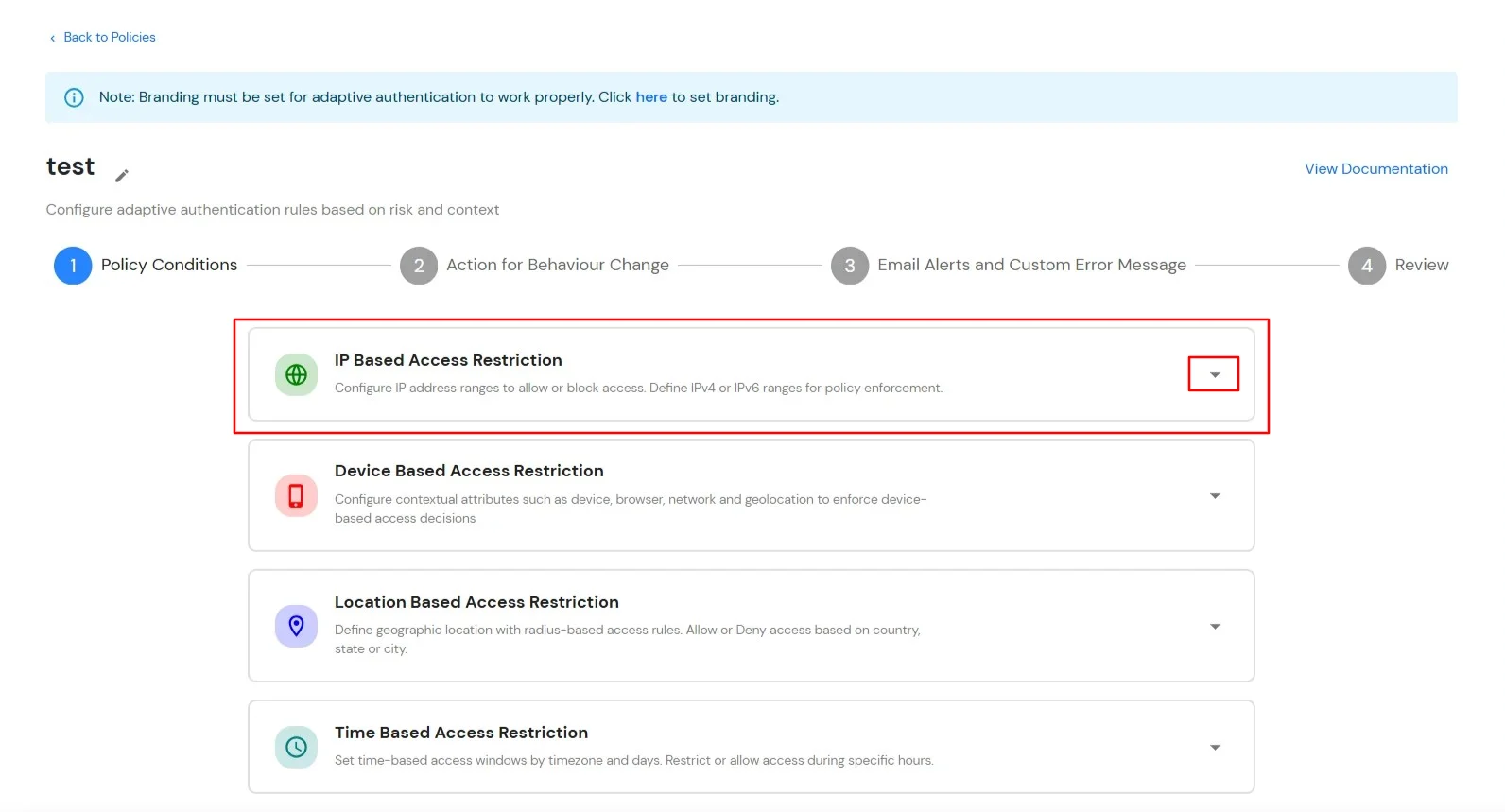
IP Based Access Restriction allows administrators to control user access based on the source IP address of the login request. Administrators can configure trusted or restricted IP addresses and IP ranges and define the action to be taken when a user's IP address matches the configured criteria. During authentication, the user's IP address is evaluated against the configured policy and access is either Allowed, Denied or Challenged based on the selected configuration.
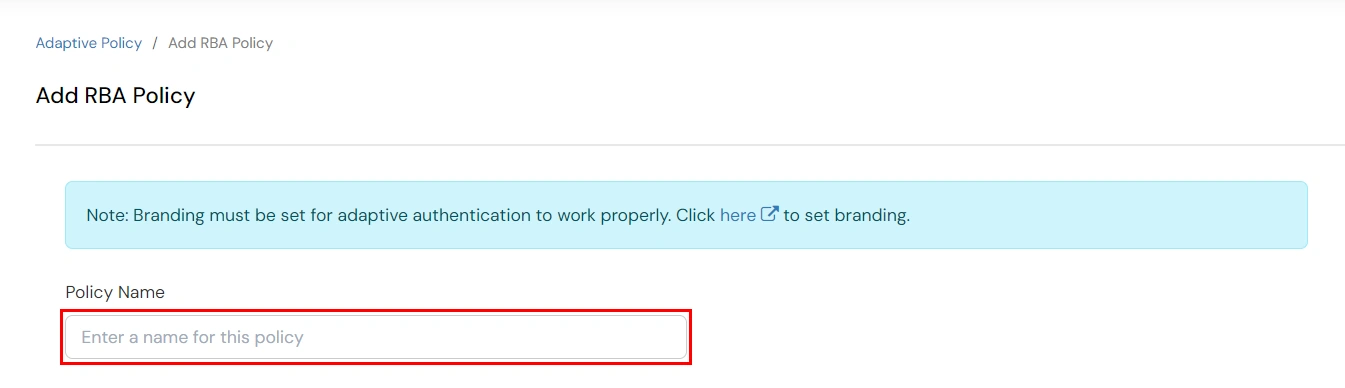
You can configure Adaptive Authentication with IP Based Restriction in following way :
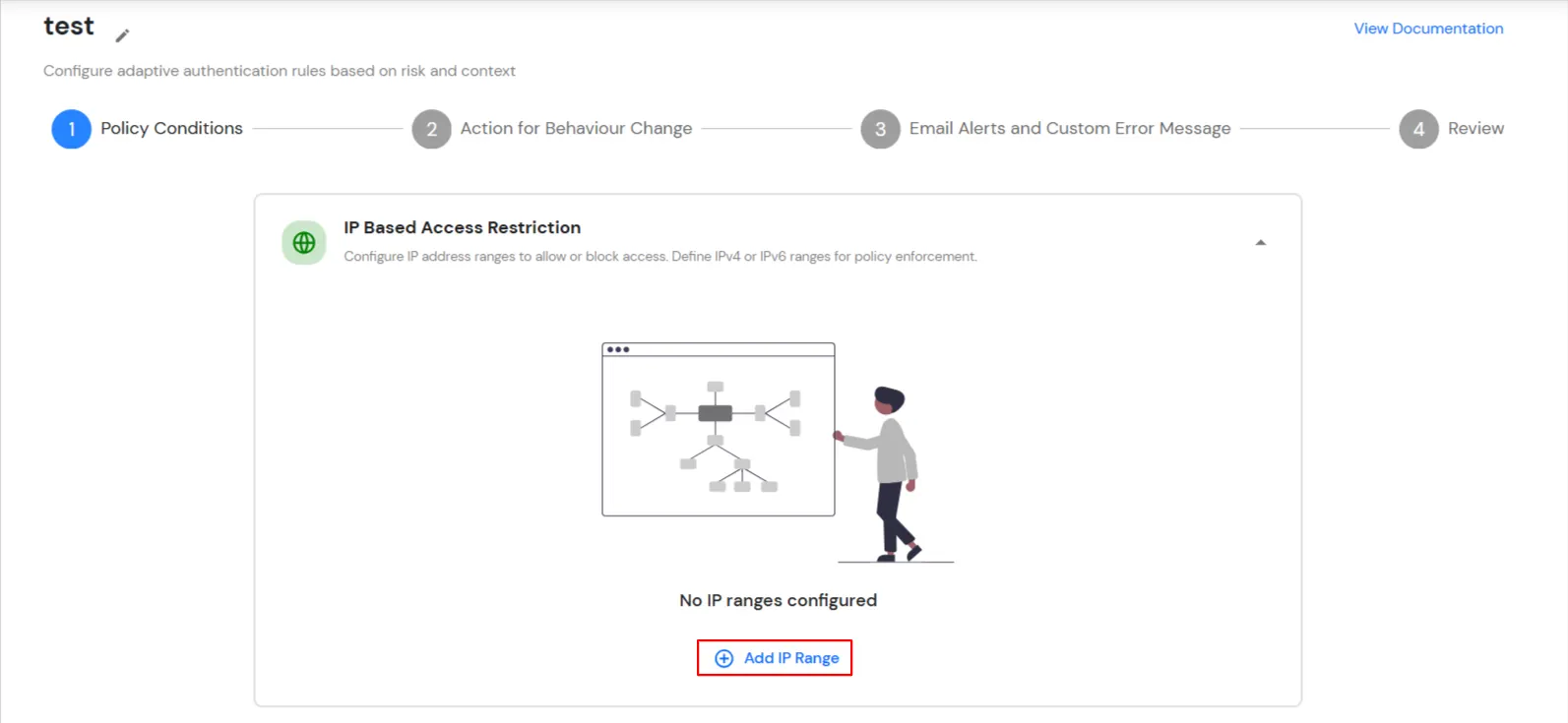
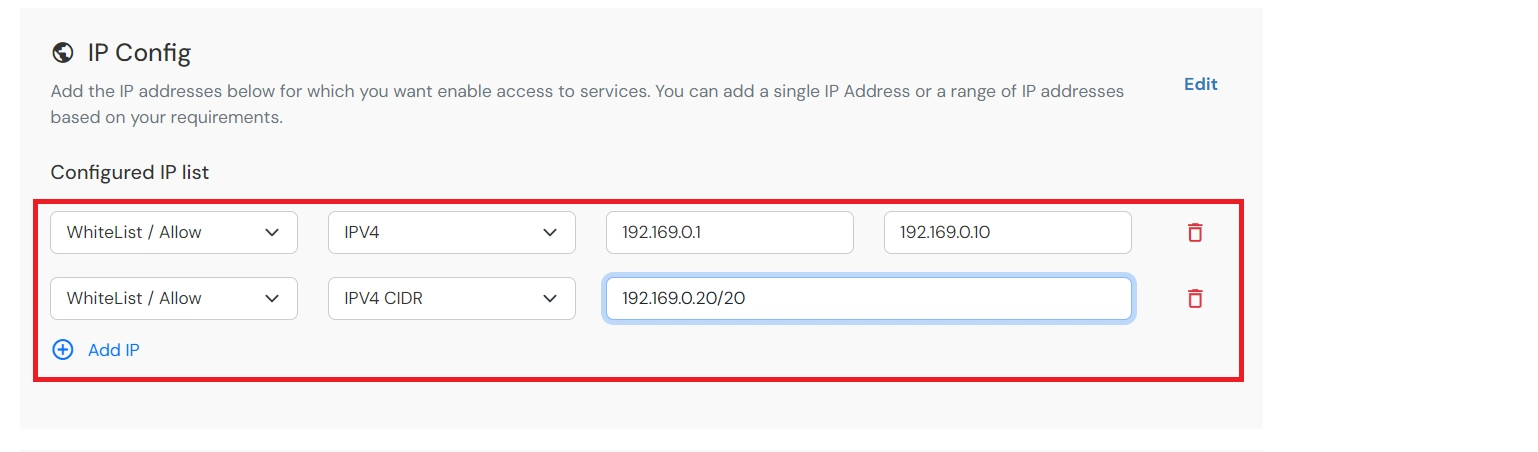
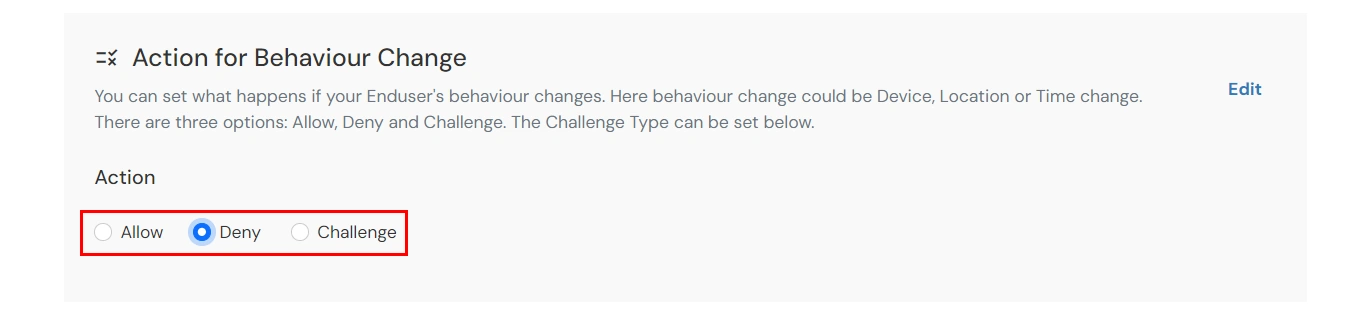
| Attribute (Option) | Description |
|---|---|
| Allow | Allow users to authenticate and use services if Adaptive authentication condition is true. |
| Deny | Deny user authentications and access to services if Adaptive authentication condition is true. |
| Challenge | Challenge users with one of the three methods mentioned below for verifying user authenticity. |
| Attribute | Description |
|---|---|
| User second Factor | The User needs to authenticate using the second factor he has opted or assigned for such as
|
| KBA (Knowledge-based authentication) | The System will ask the user for 2 of 3 questions he has configured in his Self-Service Console. Only after the right answer to both questions is the user allowed to proceed further. |
| OTP over Alternate Email | User will receive an OTP on the alternate email they have configured through the Self Service Console. Once the user provides the correct OTP, they are allowed to proceed further. |
B. Restricting access to NetSkope Reverse Proxy with Device Based Access Restriction
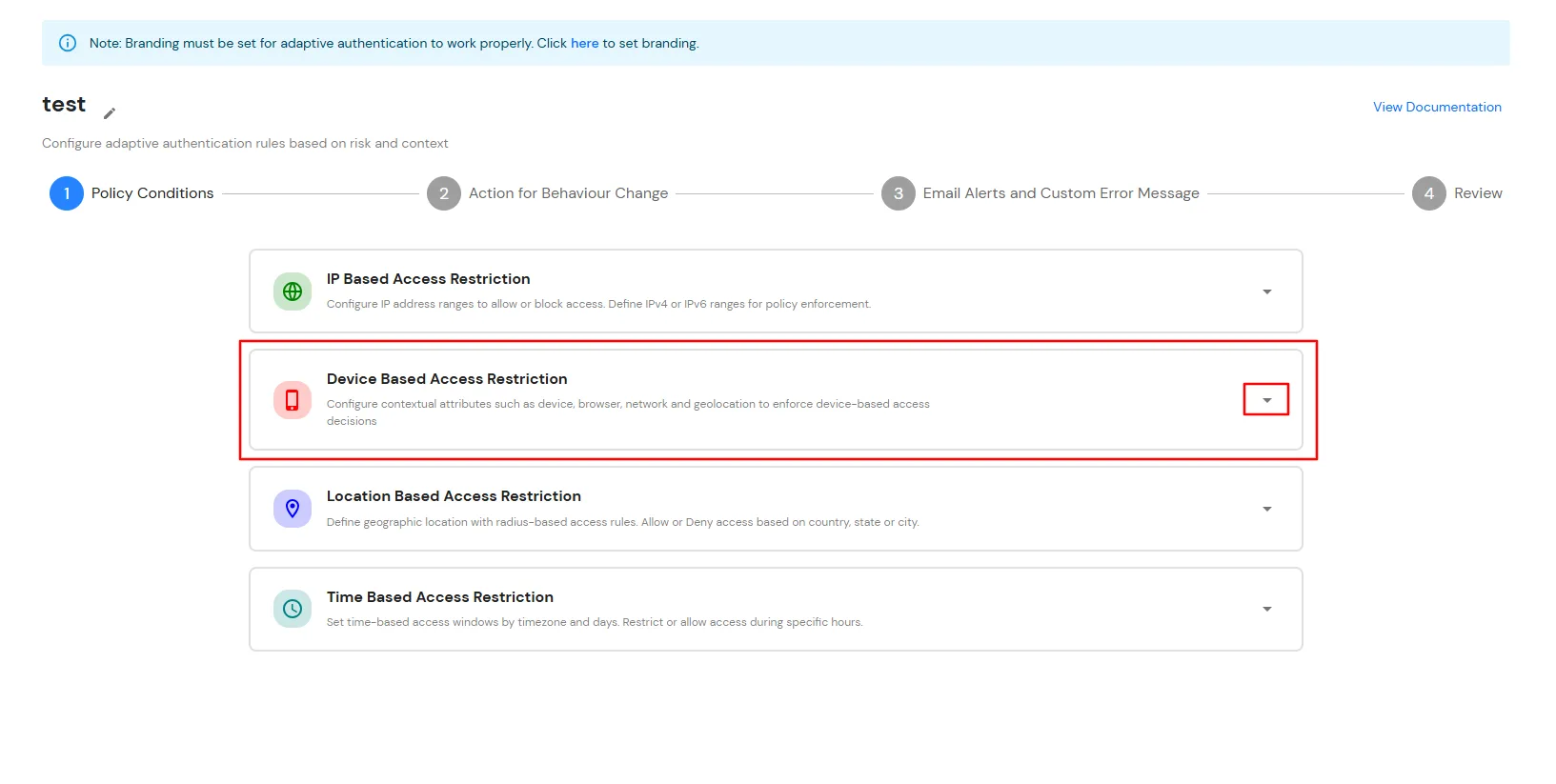
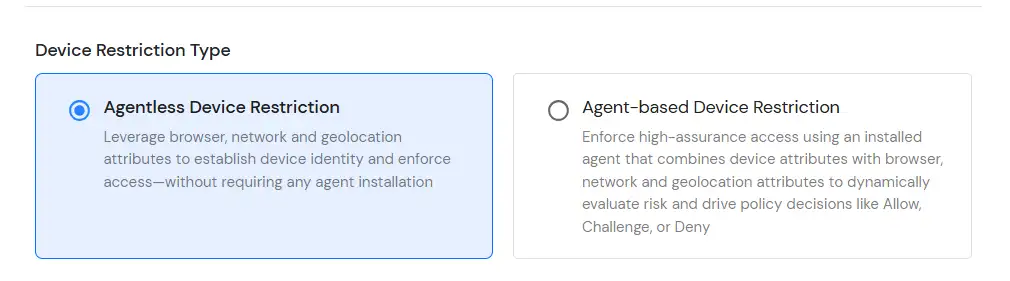
Device Based Access Restriction allows administrators to control user access based on trusted and registered devices. By leveraging device identification and verification mechanisms, administrators can define policies that evaluate the device used during authentication. When a user attempts to log in, the device is assessed against the configured policy and the appropriate action: Allow, Challenge or Deny is applied based on the configured conditions.
You can configure Adaptive Authentication with Device Based Restriction in following way :

C. Restricting access to NetSkope Reverse Proxy with Location Based Access Restriction
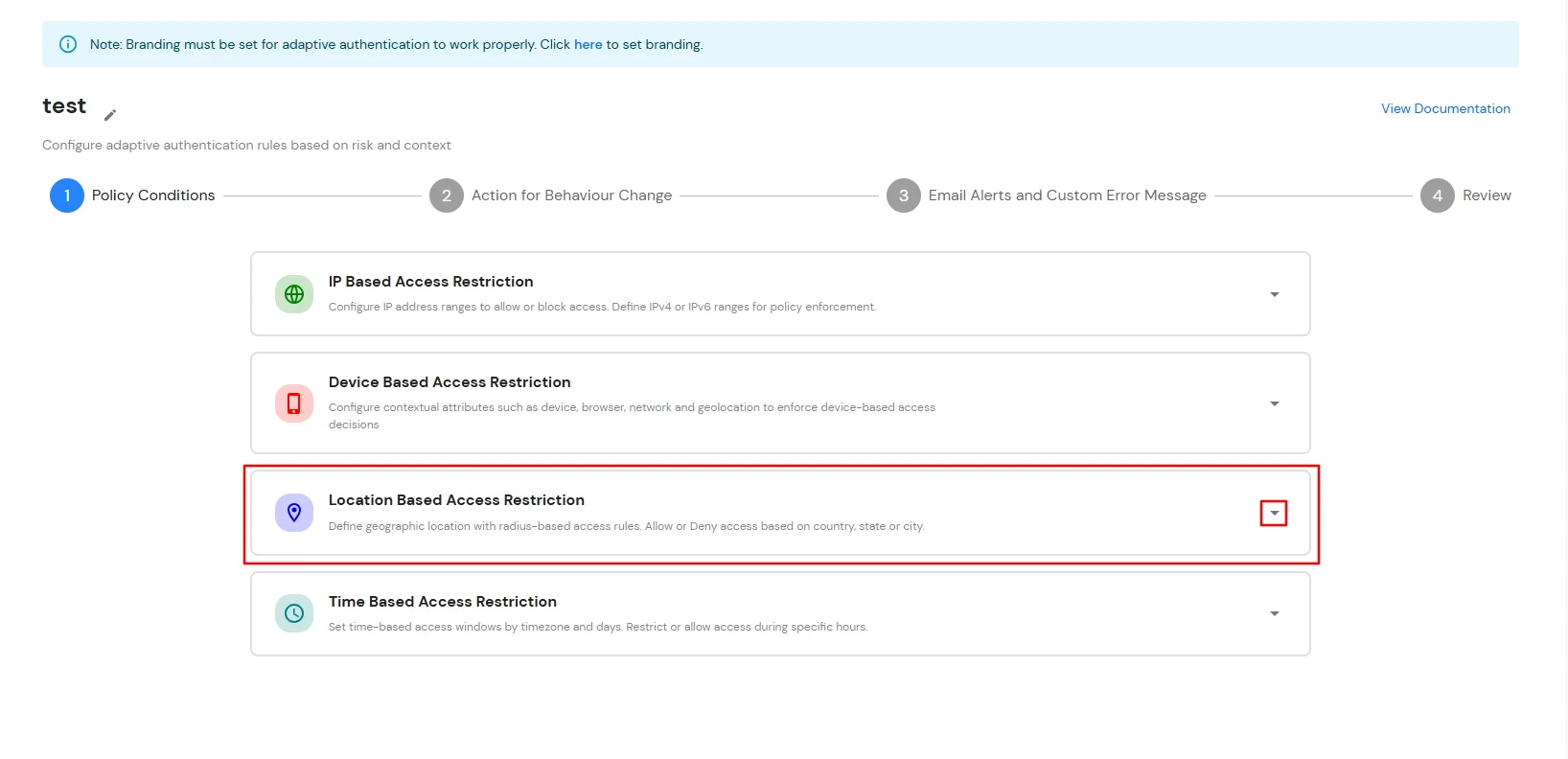
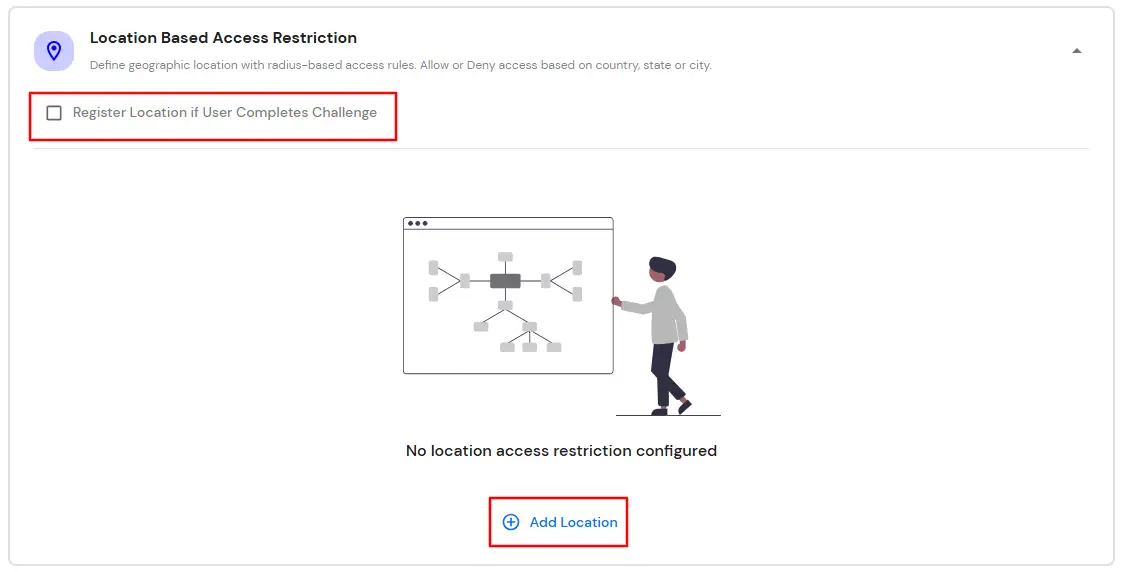
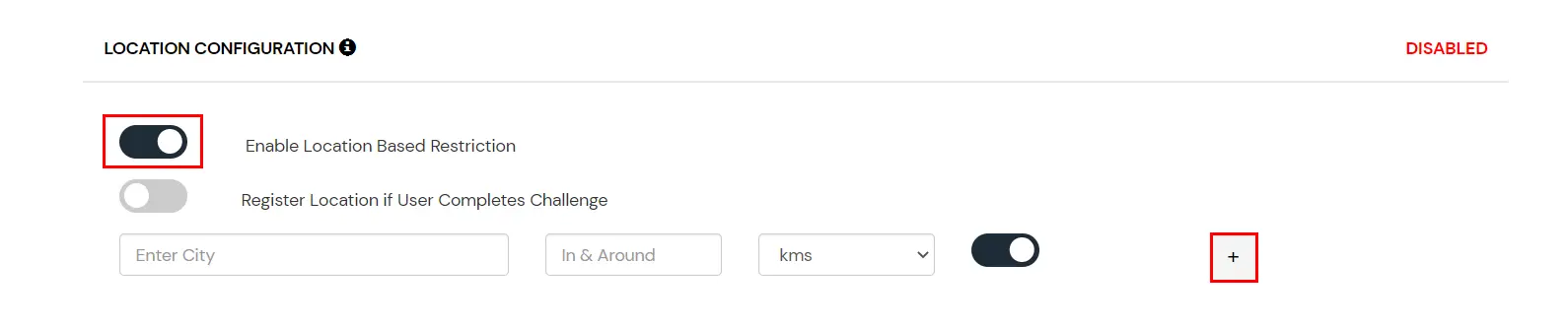
In location restrictions, admin configures a list of locations where they want to allow end-users to either login or deny based on the condition set by the admin. When a user tries to login with adaptive authentication enabled, their Location Attributes, such as (Latitude, Longitude and Country Code) are verified against the Location list configured by the admin. Based on this user will be either allowed, challenged or denied.
You can configure Adaptive Authentication with Location Based Restriction in following way :
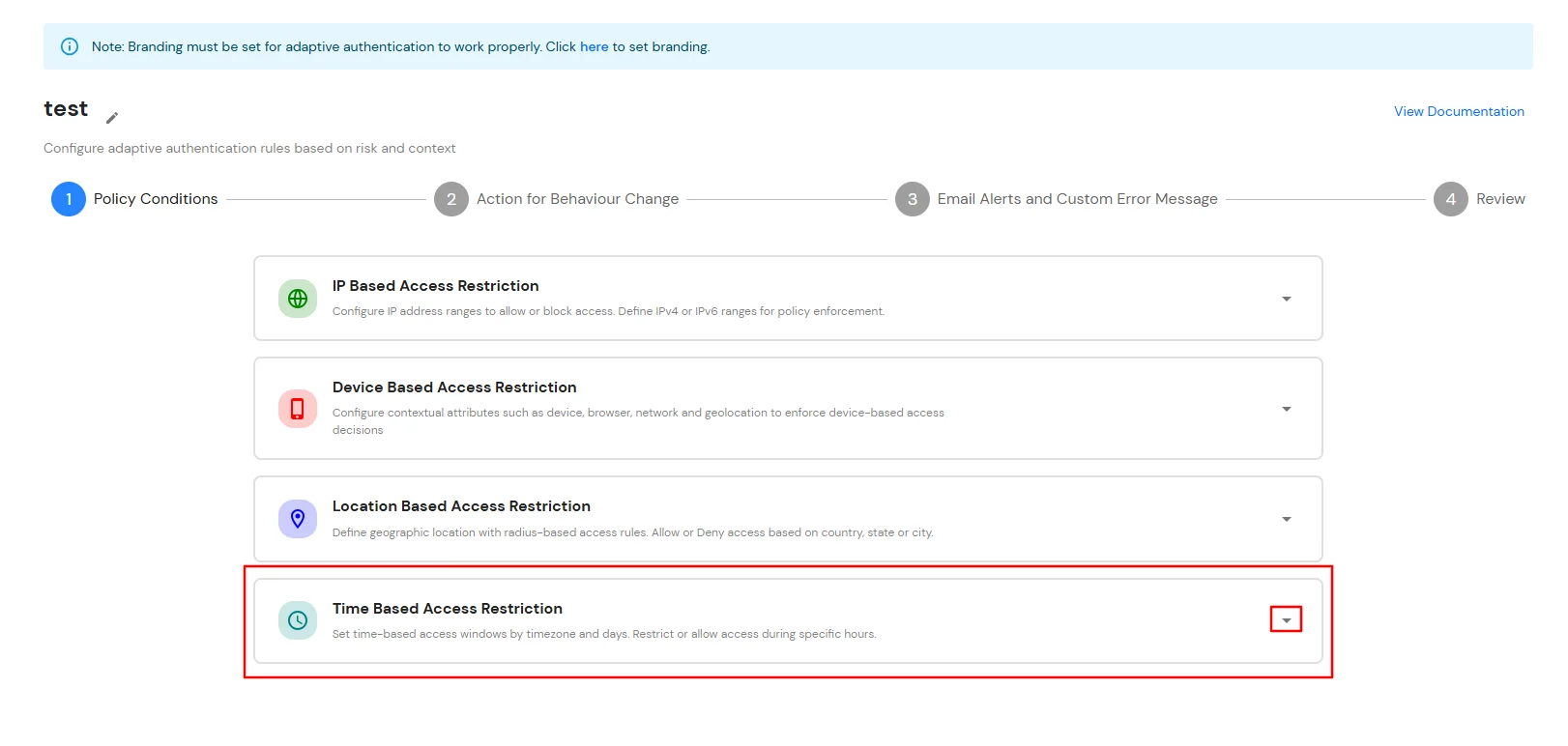
D. Restricting access to NetSkope Reverse Proxy with Time Based Access Restriction
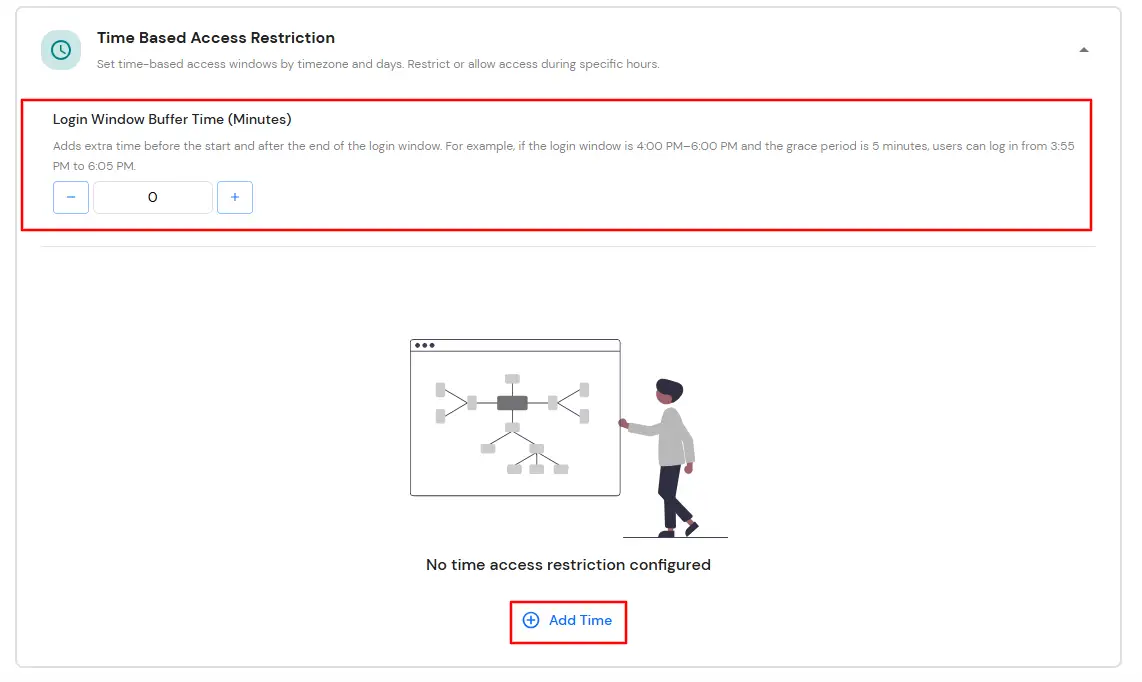
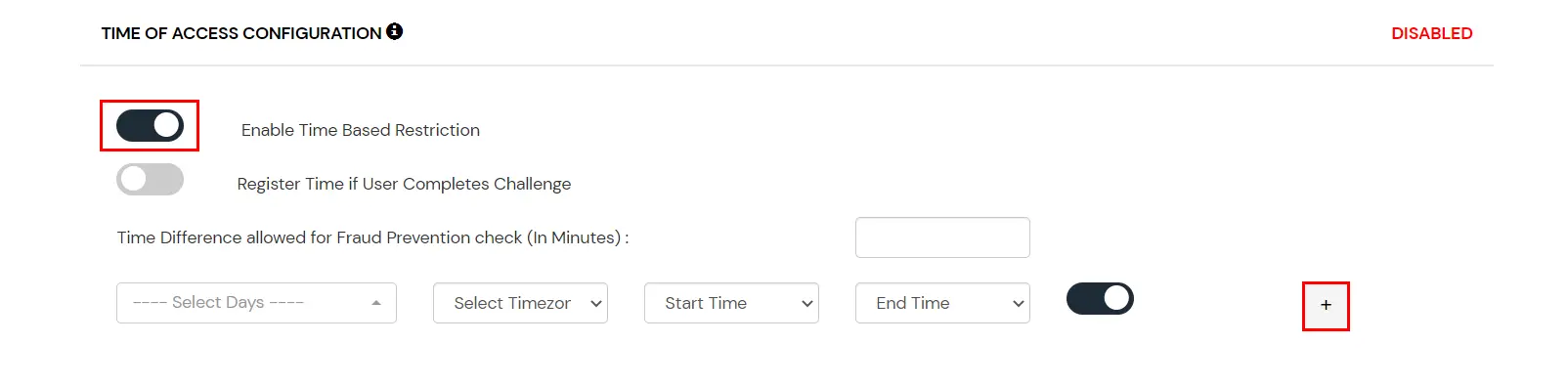
In time restriction, admin configures a time zone with Start and End Times for that timezone and users are either allowed, denied or challenged based on the condition in the policy. When an end-user tries to login with the adaptive authentication enabled, their time zone-related attributes such as Time-Zone and Current System Time, are verified against the list configured by the admin and based on the configuration, the user is either allowed, denied or challenged.
You can configure Adaptive Authentication with Time Based Restriction in following way :
E. Email Alerts and Custom Email Message
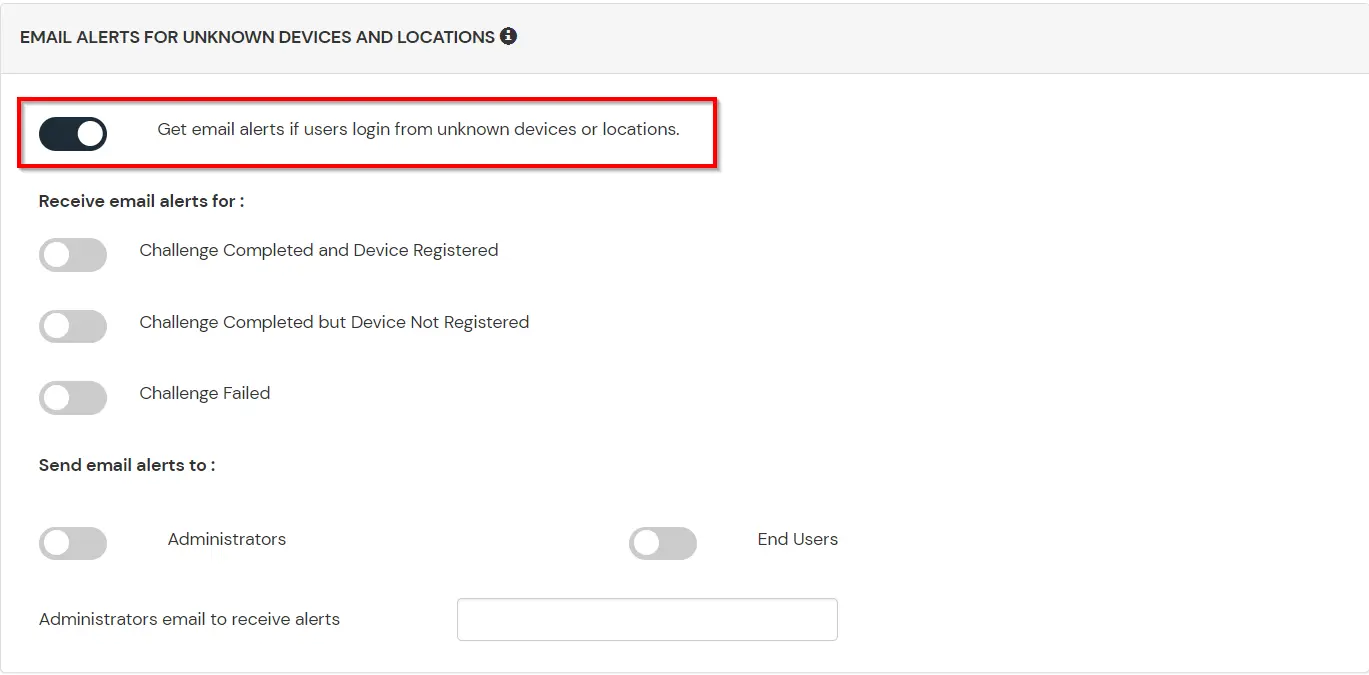
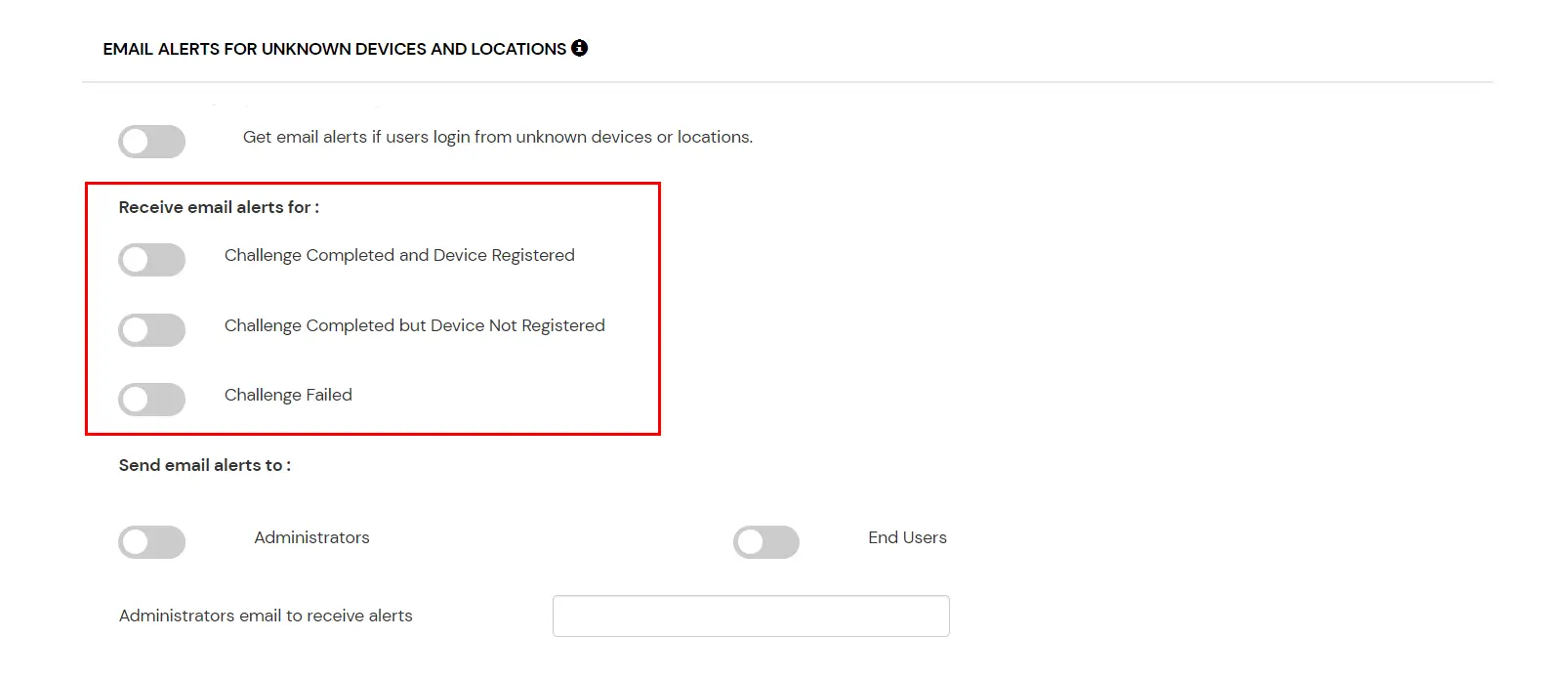
This section handles the notifications and alerts related to Adaptive Access Policy. It provides the following options:
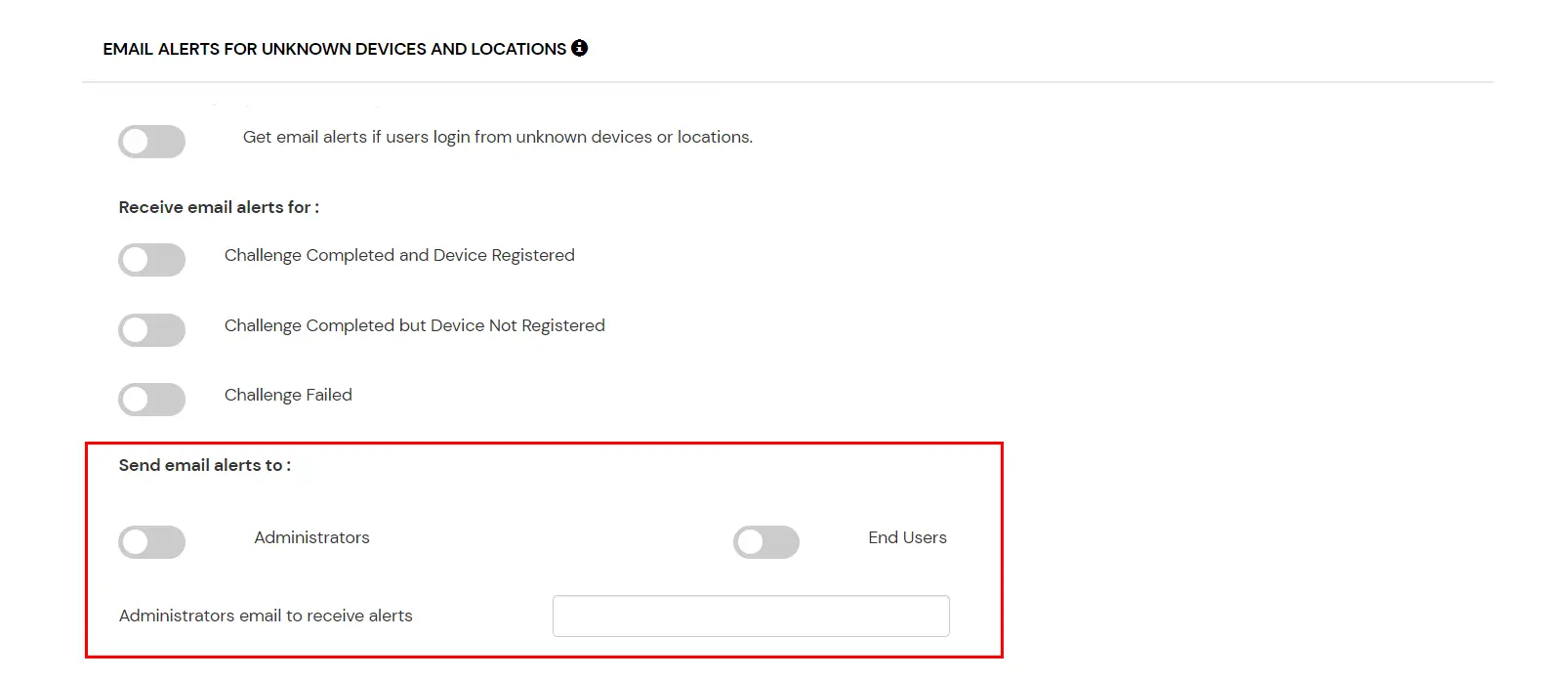
| Option | Description |
|---|---|
| Users login from unknown IP addresses, devices or locations | Enabling this option allows you to login from unknown IP addresses or devices and even locations. |
| Challenge Completed and Device Registered | Enabling this option allows you to send an email alert when an end-user completes a challenge and registers a device. |
| Challenge Completed but Device Not Registered | Enabling this option allows you to send an email alert when an end-user completes a challenge but do not registers the device. |
| Challenge Failed | Enabling this option allows you to send an email alert when an end-user fails to complete the challenge. |

F. Review
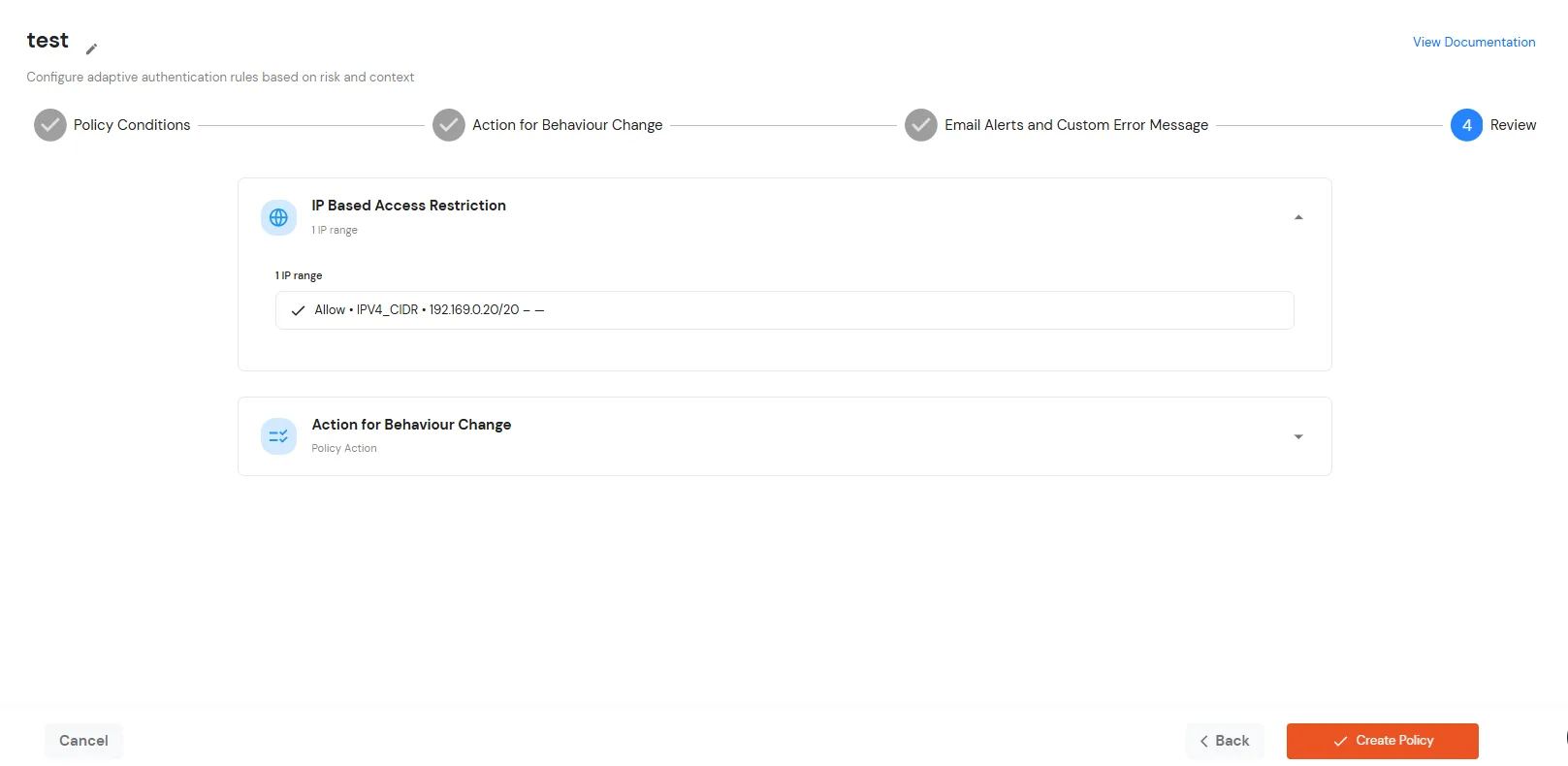
Review the configured policy conditions, behavior change actions, email alert settings and custom error messages before creating the adaptive authentication policy. This step provides a consolidated view of all configured settings, allowing you to verify the policy configuration and make any necessary changes before saving.