Import Groups from AD
This feature enables synchronization of Users and Groups from Active Directory (AD) to PAM using LDAP integration. It supports JIT, manual and scheduled synchronization, allowing administrators to import, update, or delete user and group data based on the configured settings.
Key Capabilities
- Establishes a secure LDAP/AD connection using configured Search Bases and Filters.
- Imports new users and groups from AD into PAM.
- Automatically maps AD users to existing PAM groups if the AD group and group membership already exists in PAM.
- Updates existing PAM users and groups when their attributes change in AD.
- Deletes users or groups or group membership from PAM that no longer exist in AD (based on configuration).
- Maintains a one-to-one mapping between AD and PAM for users and groups.
- Sends email (if SMTP configured) and dashboard notifications summarizing synchronization results.
- Supports JIT, manual and scheduled (once/periodic) synchronization.
Import Groups from AD
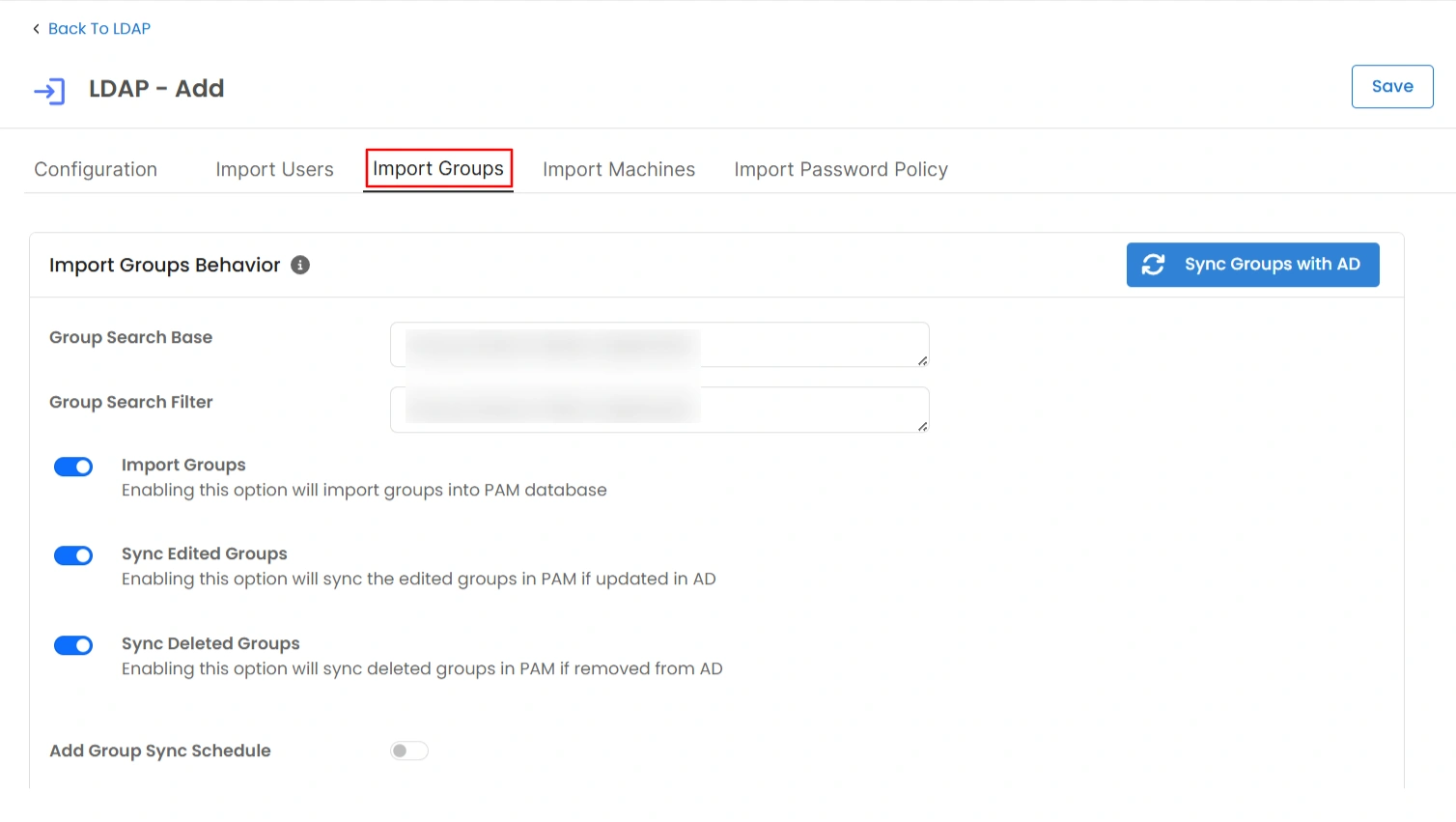
Step 1: Go to the Import Groups Tab
- Log in as Admin and open the PAM dashboard.
- Navigate to Authentication → LDAP.
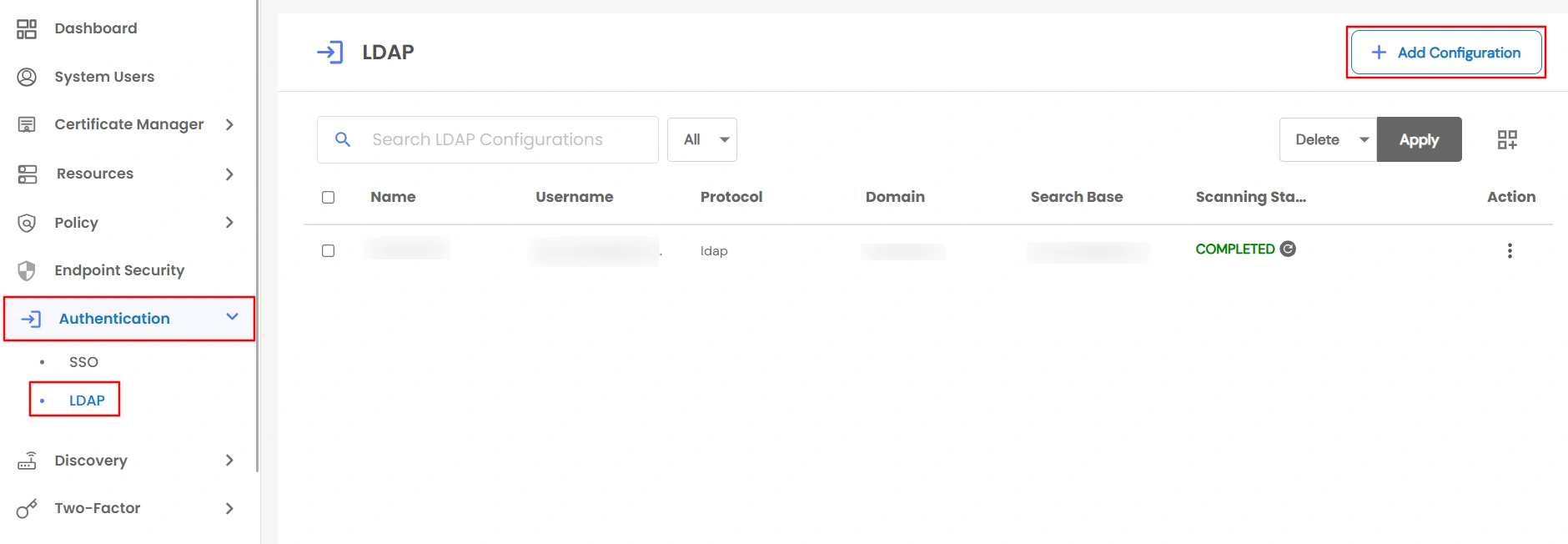
- Open the Import Groups tab in your LDAP configuration.
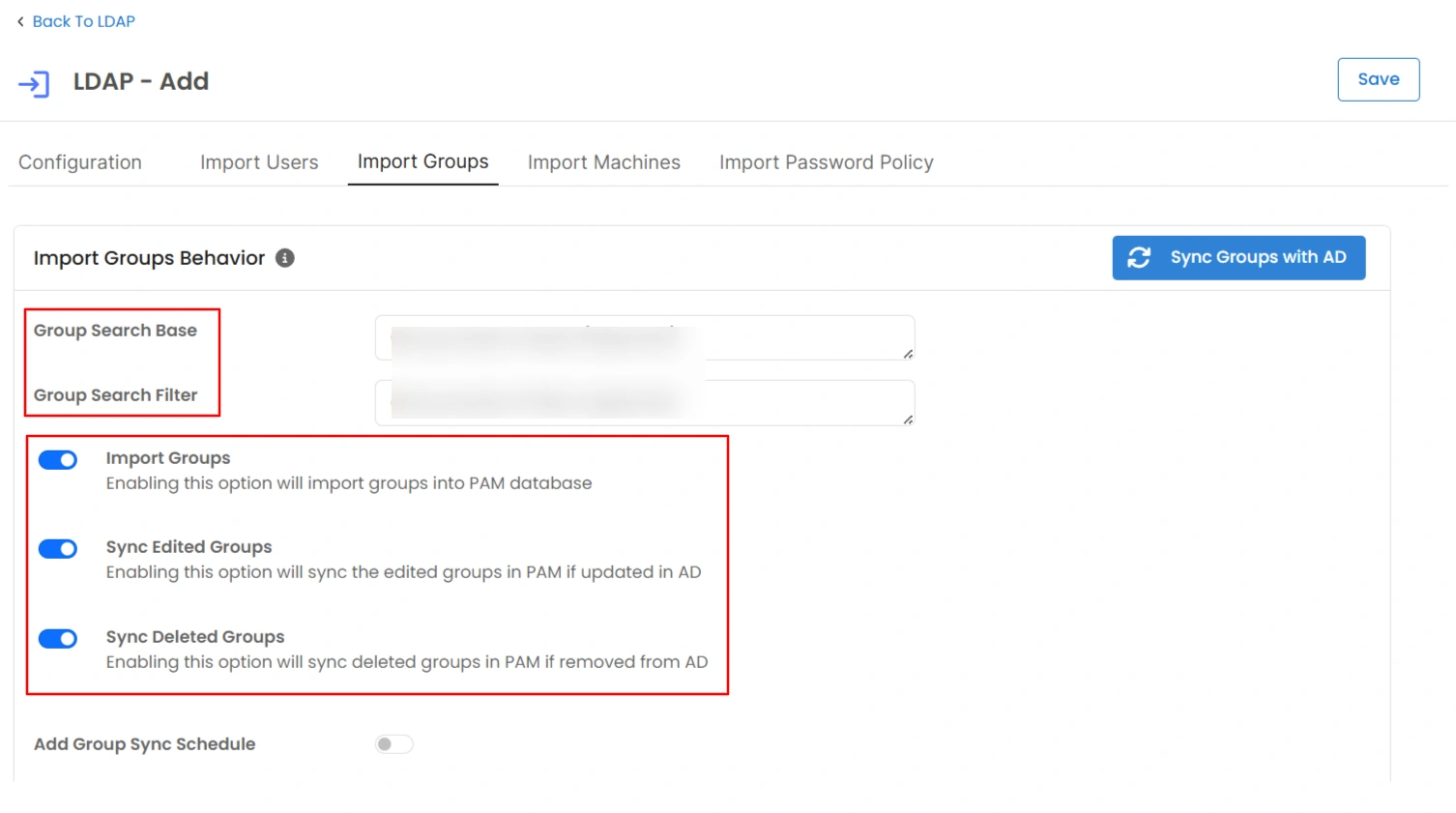
Step 2: Configure Import Options
- Add Search Base and Search Filter as needed.
- If provided, they will be used specifically for this import.
- If left blank, PAM will use values from the main LDAP configuration.
- Configure the Import Group, Edit Group, and Delete Group options as required.
- Click Save to apply the configuration.
Step 3: Import Groups
There are two ways to import groups from LDAP:
-
a. Via AD Configuration Action
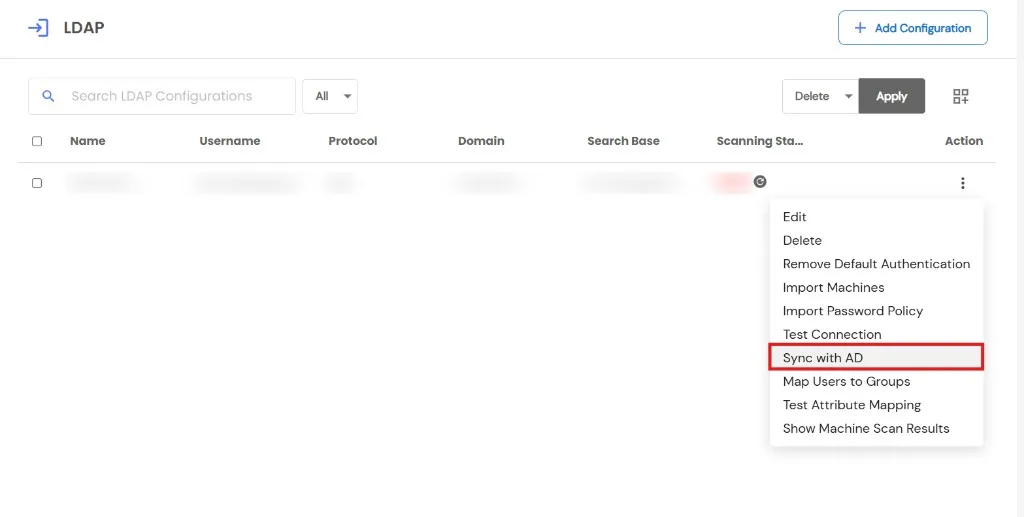
- After adding the AD configuration, click the Action button and select Sync with AD.
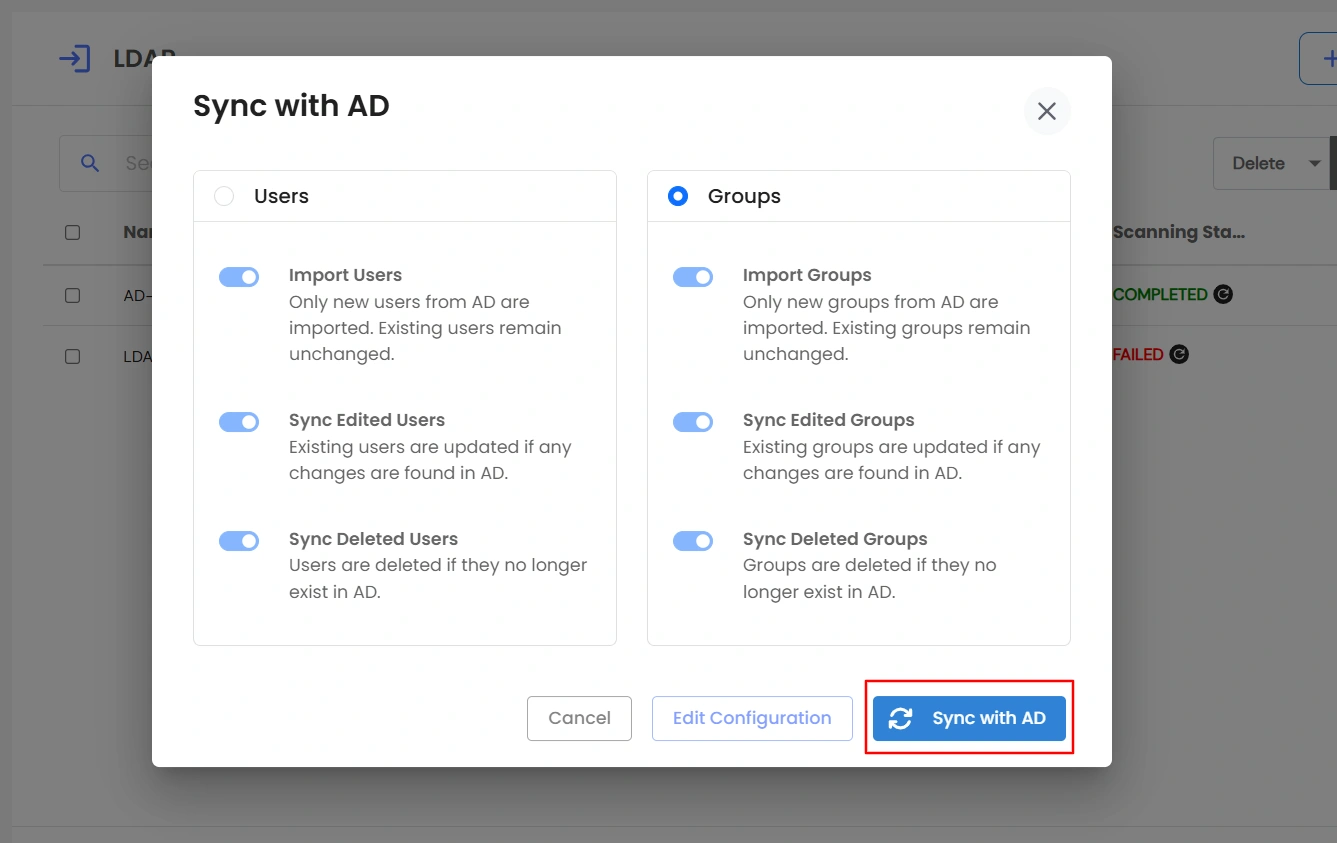
- Choose Group to import groups from AD.
- Click Sync with AD to start synchronization.
-
b. Via Settings
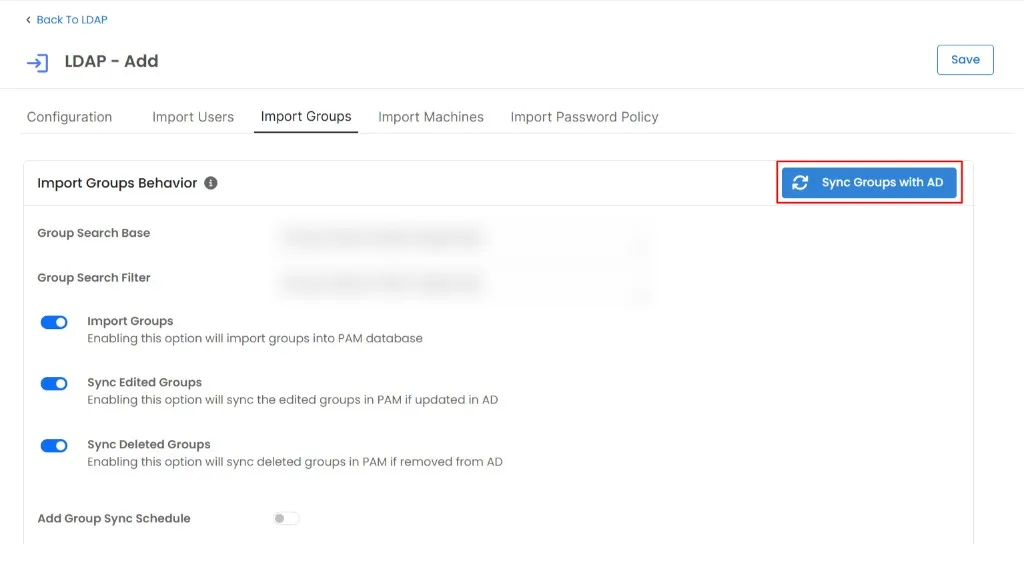
- Go to Settings and update configurations such as Import, Edit, or Delete as required.
- Save the changes.
- Once saved, click Sync with AD to initiate synchronization directly.
Step 4: Verify Imported Groups
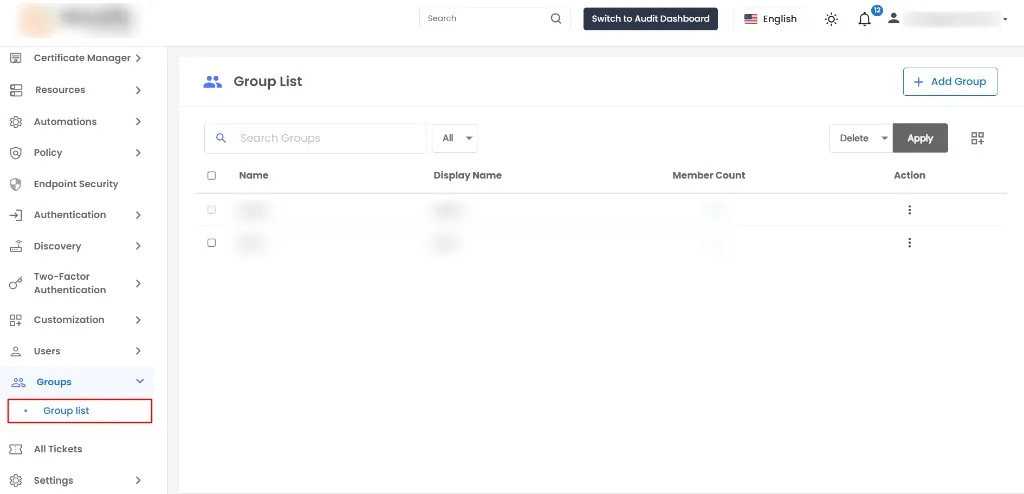
- Go to the Groups list in PAM and verify:
- New groups are added successfully.
- Existing groups in PAM are updated with AD attributes if the corresponding AD group already exists in PAM.
- Groups removed from AD are handled as per the configured deletion settings.
- Email and dashboard notifications will be sent summarizing the import results.
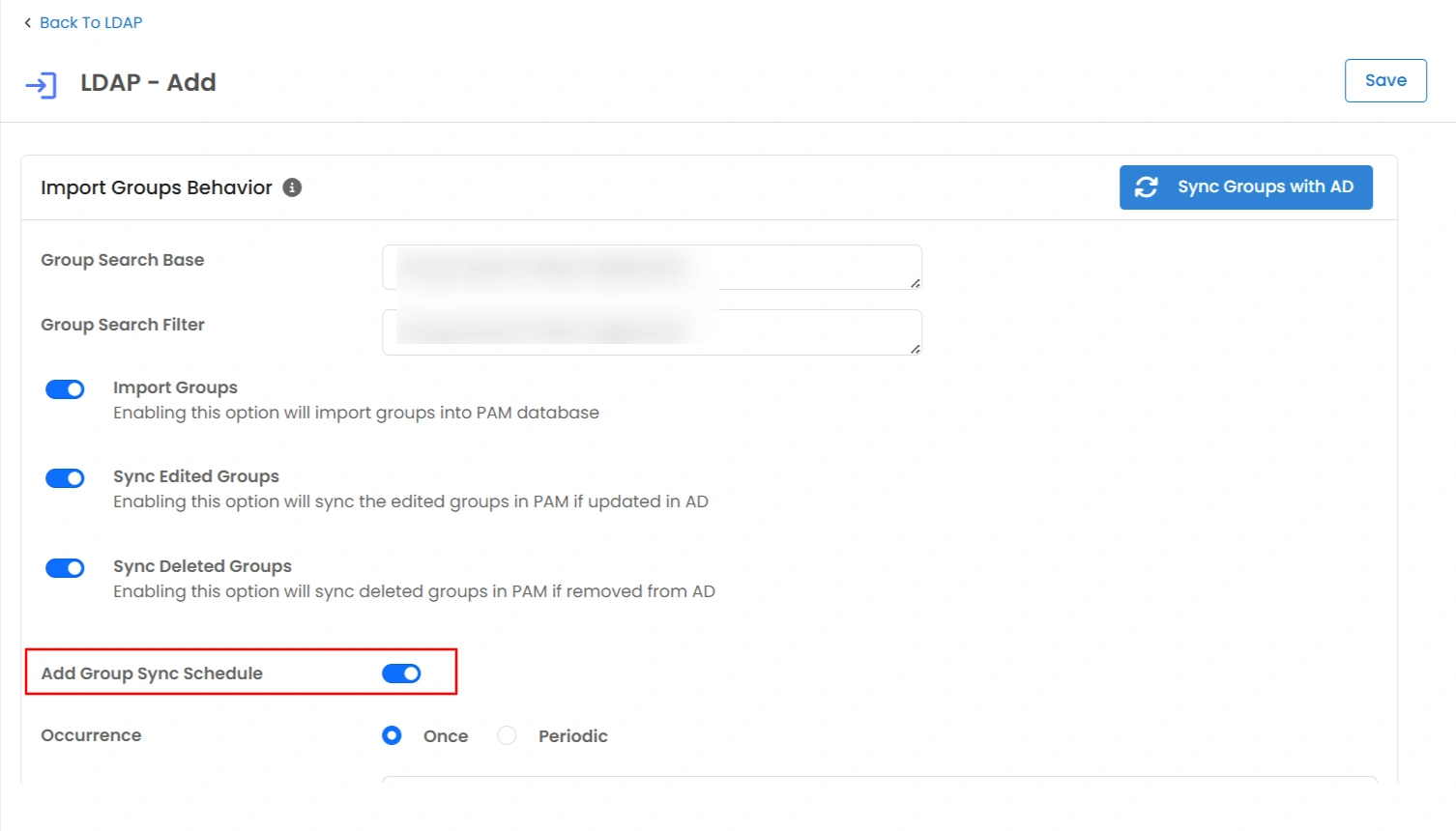
Step 5: Optional – Schedule Periodic Sync
To automate group imports:
- Enable Scheduler.
- Choose frequency (Once or Periodic).
- Save the scheduler to enable automatic group synchronization.