Workflow Automation
Workflow Automation in PAM lets administrators design multi-step approval and automation flows on a visual, no-code canvas. Instead of hardcoding a single approval path for every access request, workflows connect triggers, conditional routing, and configurable approval policies - so the system mirrors how access decisions actually get made in your organization.
With this capability, administrators can:
- Trigger automations directly from PAM events, such as a new access ticket being created.
- Build the flow visually by connecting Start, Trigger, Task, and End nodes on a canvas - no scripting required.
- Route a request through single-stage or multi-stage approval chains.
- Apply different approval strategies per stage - Unanimous, Majority, Threshold, or Any One.
- Grant designated approvers veto power to reject a stage instantly, independent of the overall strategy.
- Conditionally send requests down different approval paths based on rules like user role.
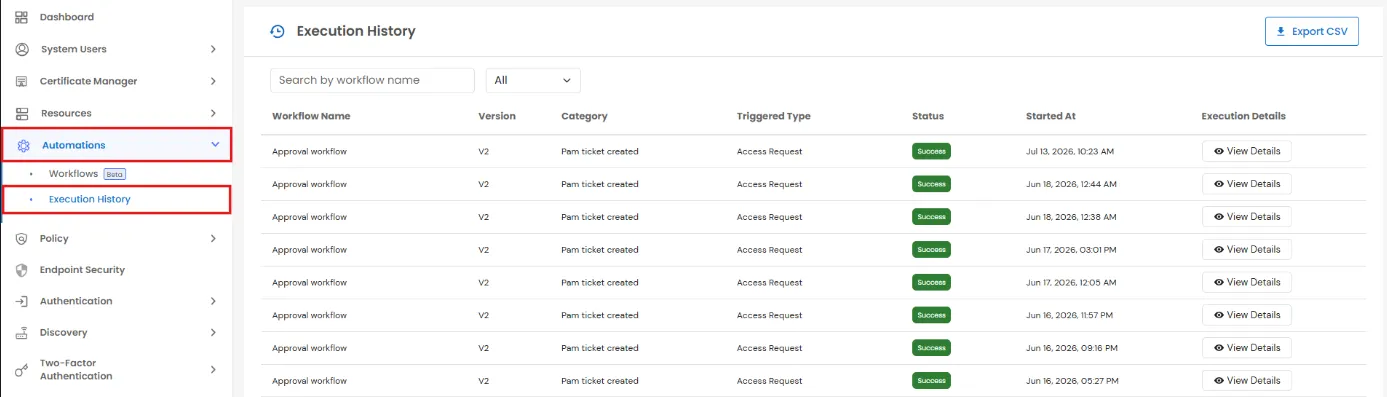
- Track every run in a searchable Execution History log.
Key Benefits
- Visual, No-Code Builder: Design a workflow by connecting Start, Trigger, Task, and End nodes on a drag-and-drop canvas - no scripting required.
- Flexible Approval Strategies: Choose Unanimous, Majority, Threshold, or Any One per stage to match how your organization actually decides.
- Veto Power: Mark specific approvers as veto approvers; their rejection instantly fails the stage, independent of the overall strategy.
- Conditional Routing: Send a request down different approval paths based on rules (e.g., user role) instead of one fixed policy for everyone.
- Multi-Stage, Multi-Mode Approvals: Chain sequential or parallel stages together for layered sign-off (e.g., manager, then security).
- Safe Versioning: Every edit is saved as a new Draft version; the currently Active version keeps running until you explicitly activate the new one.
- Native PAM Integration: Workflows plug directly into existing PAM entities like access tickets - approvals and rejections update ticket status automatically.
- Full Audit Trail: Execution History logs every workflow run - trigger, version, status, and timestamp - for compliance and review.
How It Works
- Trigger: A workflow starts when its configured PAM event fires (e.g., PAM Ticket Created via the Ticket Created event).
- Task Routing: The workflow reaches a Conditional Approval task, which resolves either Always (one fixed policy for everyone) or Conditional (a rule such as “User Role equals User” selects which policy applies).
- Stage Evaluation: Within the resolved policy, each stage notifies its approvers according to its Execution Mode (Parallel or Sequential) and evaluates their responses using its Approval Strategy.
- Veto Check: If any approver marked with veto power rejects, the stage is rejected immediately - overriding what the strategy would otherwise decide.
- Outcome: The workflow branches to Approve Ticket or Deny Ticket, and the underlying PAM ticket status updates automatically - no manual follow-up required.
User Experience
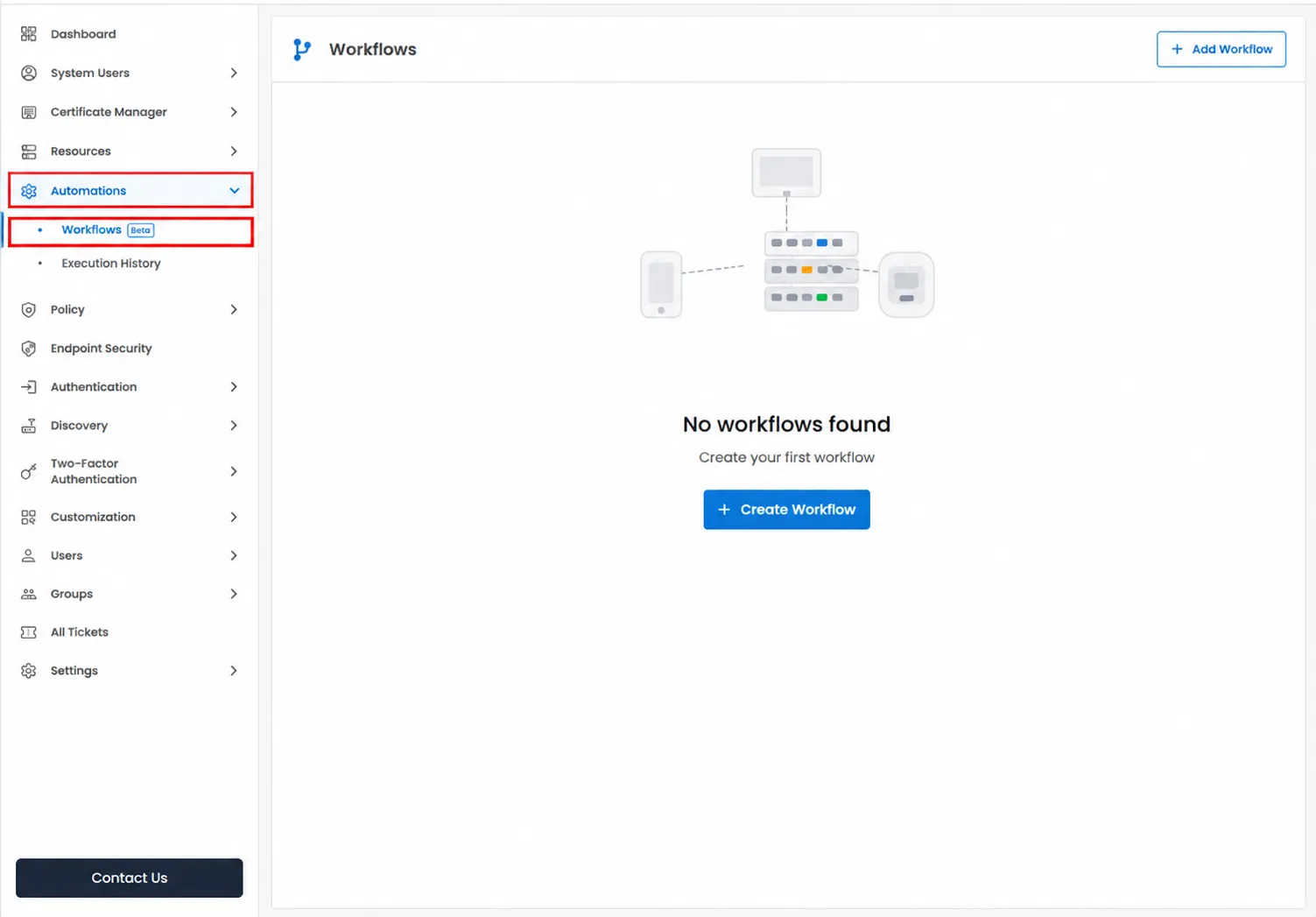
- Centralized Workflow List: View, create, and manage all workflows from Automations >> Workflows (Beta).
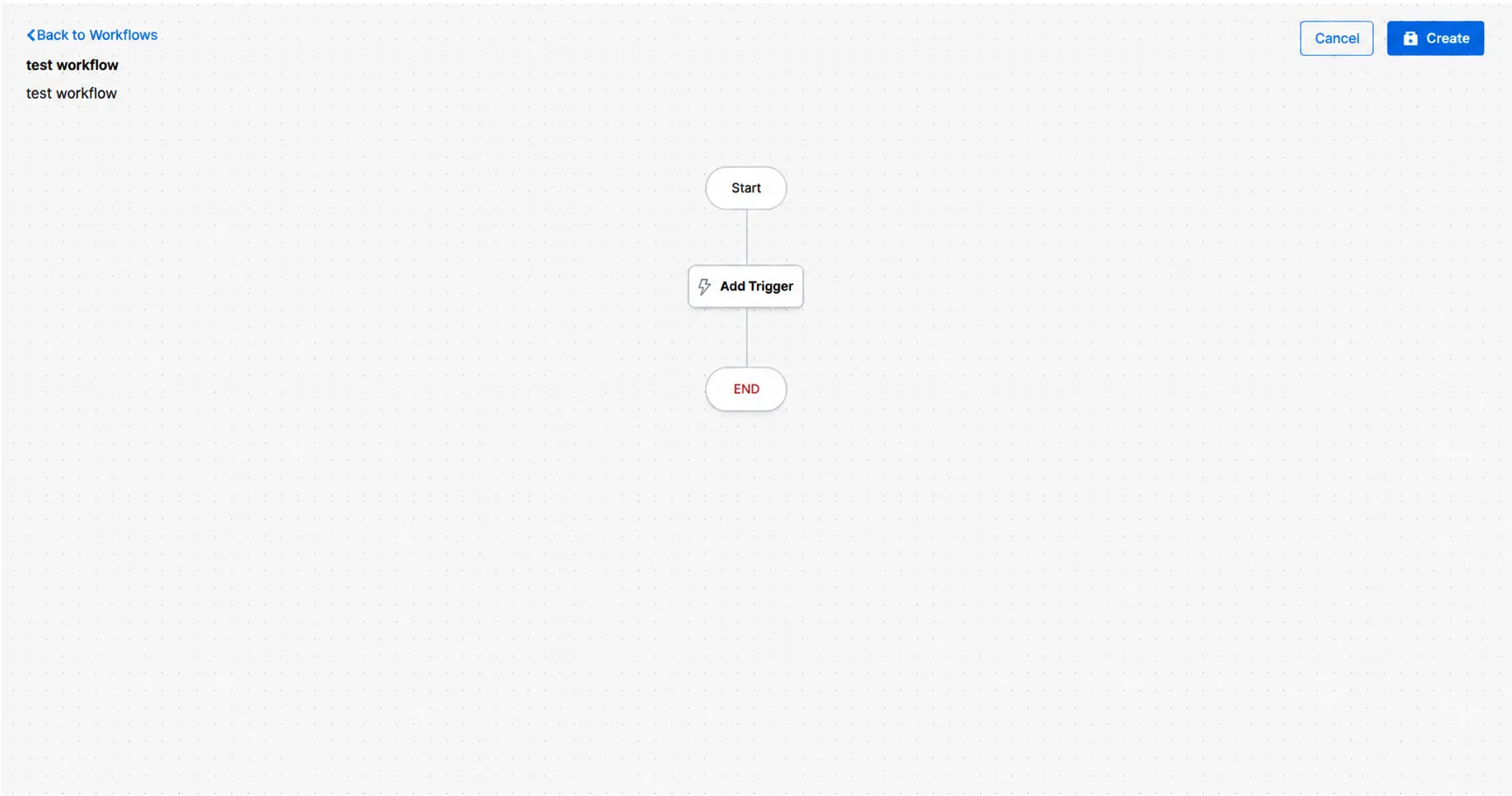
- Visual Canvas: Every workflow opens as a flowchart connecting Start, Trigger, Task, and End nodes on a pannable canvas.
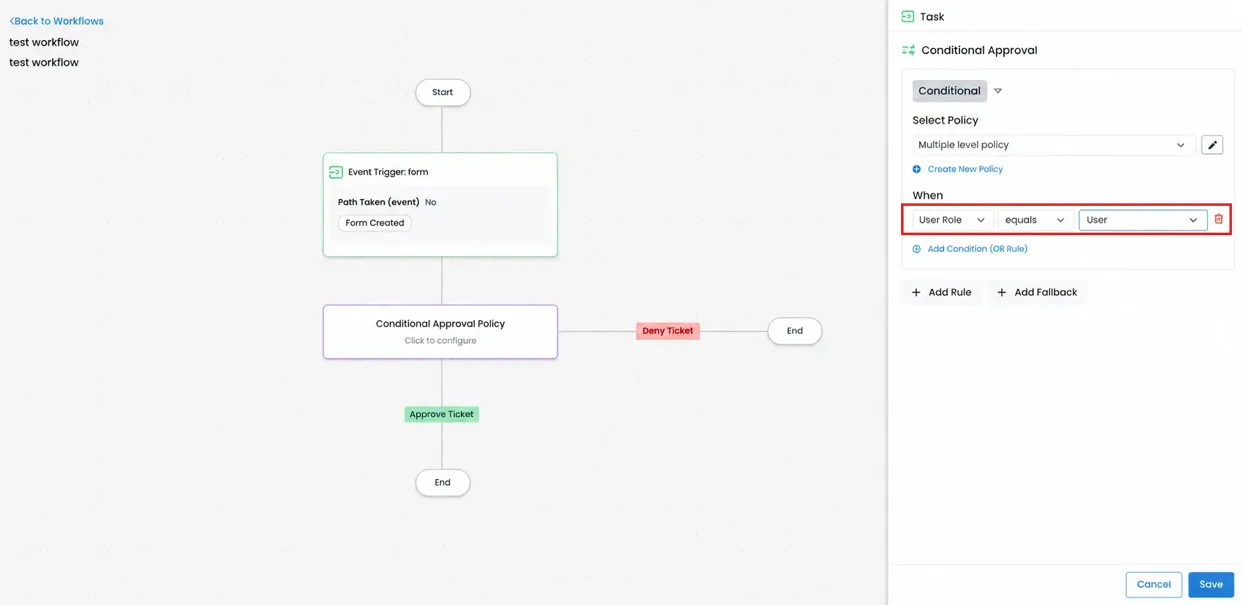
- Inline Policy Configuration: Approval policies are configured directly from the task’s side panel without leaving the canvas.
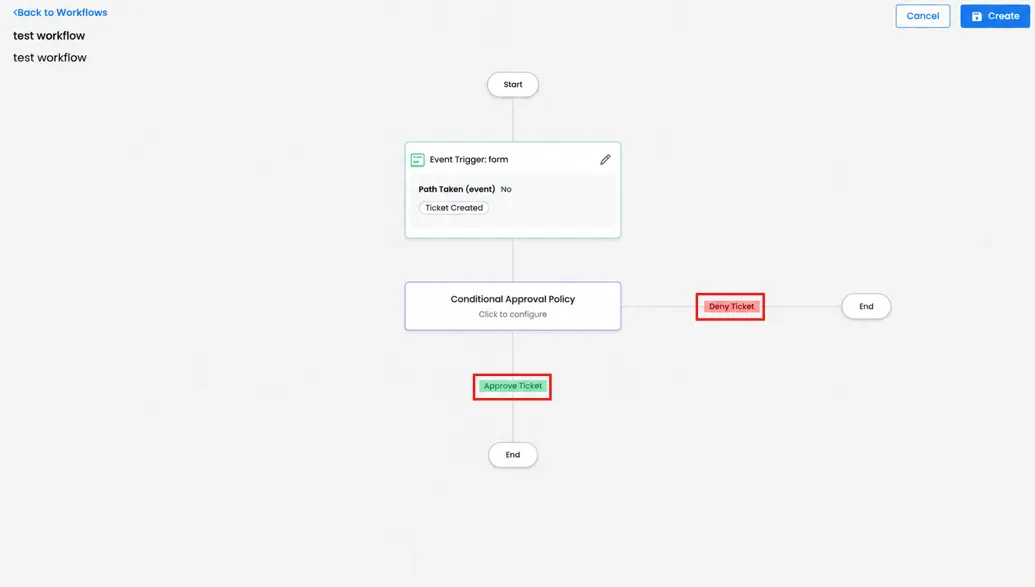
- Wired Outcomes: Once a policy is saved, the canvas automatically shows the Approve/Deny branches leading to their own end states.
Setup & Configuration
- Workflow Creation: Start every automation from the Workflows list.
- Trigger Binding: Attach the PAM event that should kick off the flow.
- Policy Attachment: Configure the approval policy a task should follow, then publish and monitor the workflow.
Configuration:
- Step 1: Go to Automations >> Workflows (Beta) in the left navigation and click Add Workflow.
- Step 2: Enter a Workflow Name and optional Description, then click Create Workflow.
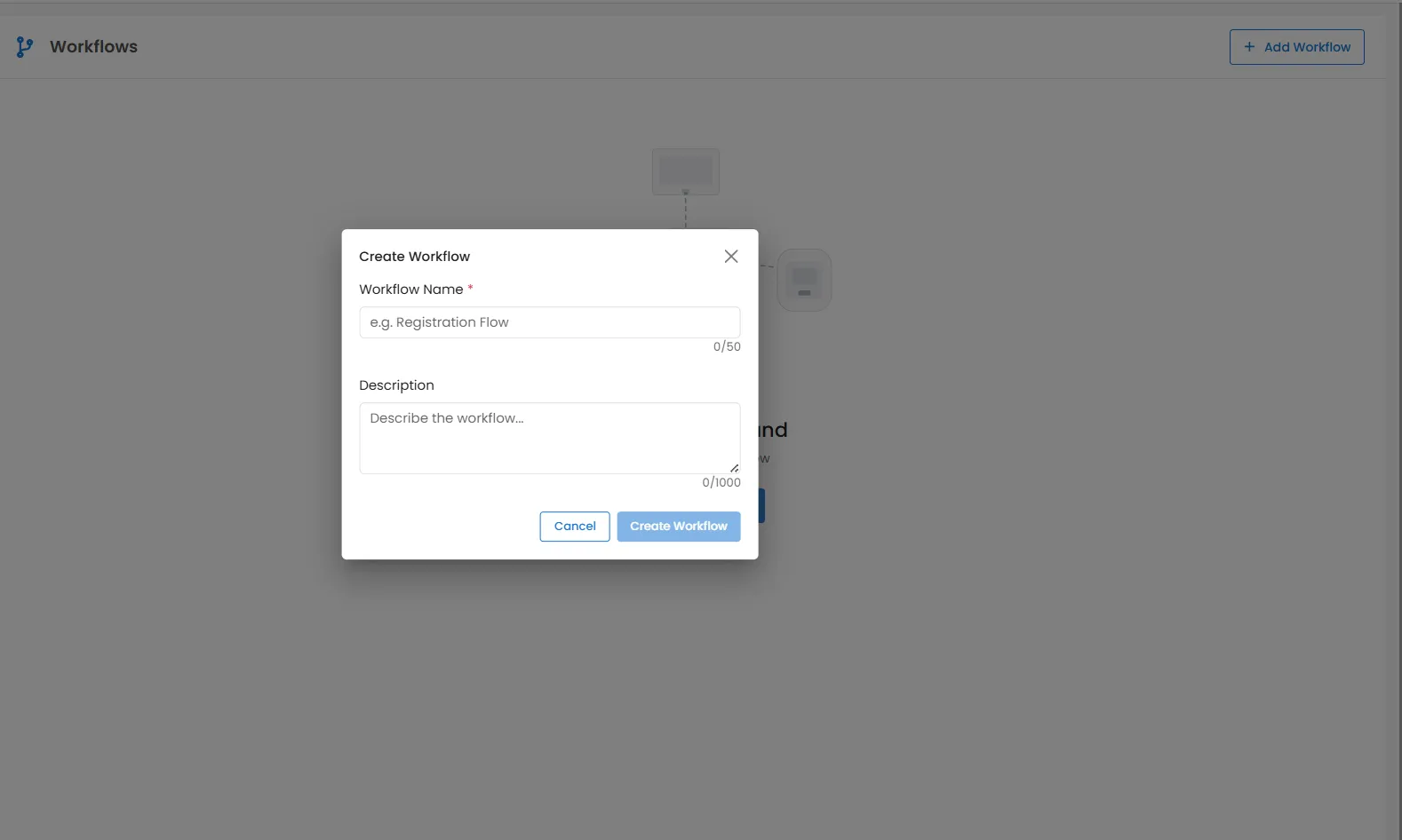
- Step 3: On the blank canvas, click Add Trigger and choose the PAM event that should start this workflow - e.g., PAM Ticket Created via the Ticket Created event.
- Step 4: Add a Conditional Approval task below the trigger. Leave it on Always to apply one fixed policy to every request, or switch to Conditional to route to different policies using a rule such as User Role equals User.
- Step 5: Click Create policy to define a new approval policy, or the pencil icon to edit an existing one.
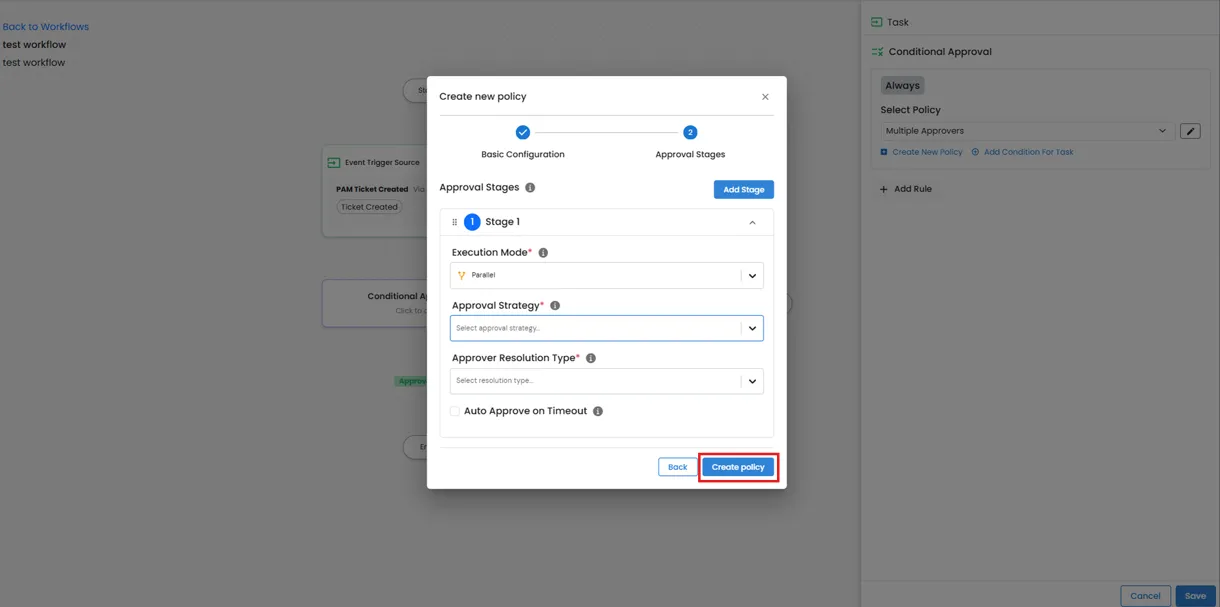
- Step 6: In Approval Stages, configure Stage 1 - set the Execution Mode, Approval Strategy, Approver Resolution Type, and Approvers. Optionally add Veto Approvers for override power and enable Auto Approve on Timeout for SLA handling. Click Add Stage for additional approval levels.
- Step 6a: Set the Execution Mode - choose Parallel (all approvers act simultaneously) or Sequential (approvers act one after another).
- Step 6b: Set the Approval Strategy - choose Unanimous, Majority, Threshold, or Any One to define how many approvals are needed to pass this stage.
- Unanimous: Every approver assigned to this stage must approve. A rejection from even one approver fails the stage
- Majority: More than half of the assigned approvers must approve for the stage to pass.
- Threshold: The stage passes once a specific number (or percentage) of approvals you define is reached, regardless of how many total approvers are assigned.
- Any One: A single approval from any one assigned approver is enough to pass the stage. It only fails if every approver rejects.
- Veto Approvers (applies on top of any strategy above): This isn't a separate strategy choice - it's an optional override you can layer onto Unanimous, Majority, Threshold, or Any One. Any approver marked as a Veto Approver can single-handedly reject the stage the moment they reject, regardless of what the chosen strategy would otherwise decide. Their approval, however, counts normally toward that strategy just like any other approver's
- Step 6c: Set the Approver Resolution Type. Currently only Static Users is available - select the specific individuals who should approve this stage.
- Step 6d: Select the Approvers for this stage.
- Step 6e (Optional): Select Veto Approvers - any approver added here can single-handedly reject this stage, regardless of the Approval Strategy chosen.
- Step 6f (Optional): Enable Auto Approve on Timeout and set the timeout duration in minutes to automatically approve the stage if no action is taken within the SLA.
- Step 6g: Click Add Stage to configure additional approval levels, or proceed to save the policy if a single stage is sufficient.
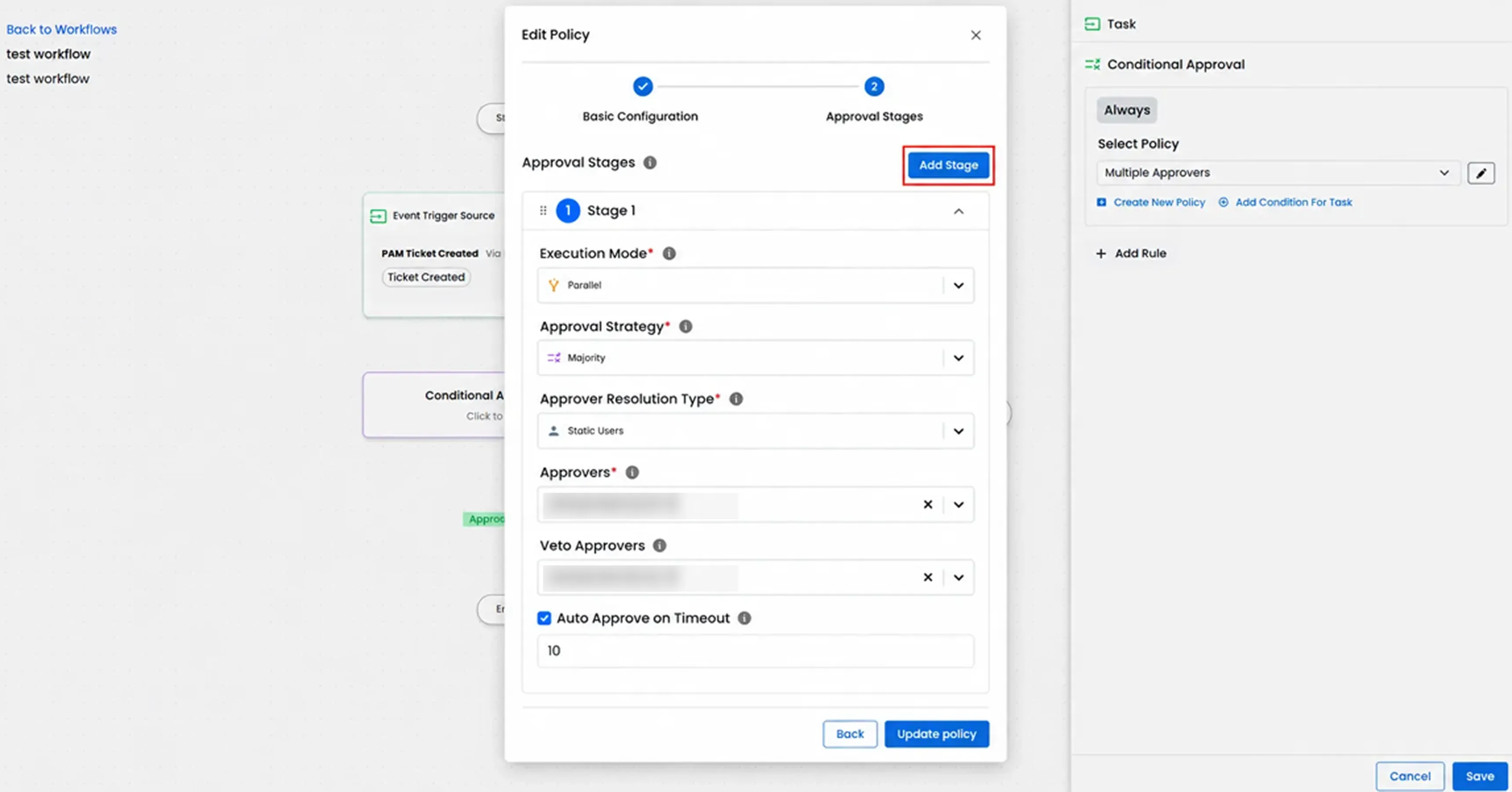
- Step 7: Save the policy. The canvas updates automatically to show the Approve Ticket and Deny Ticket branches wired from the task.
- Step 8: Click Create (top right) to save the workflow. It is saved as Disabled until you explicitly enable it.
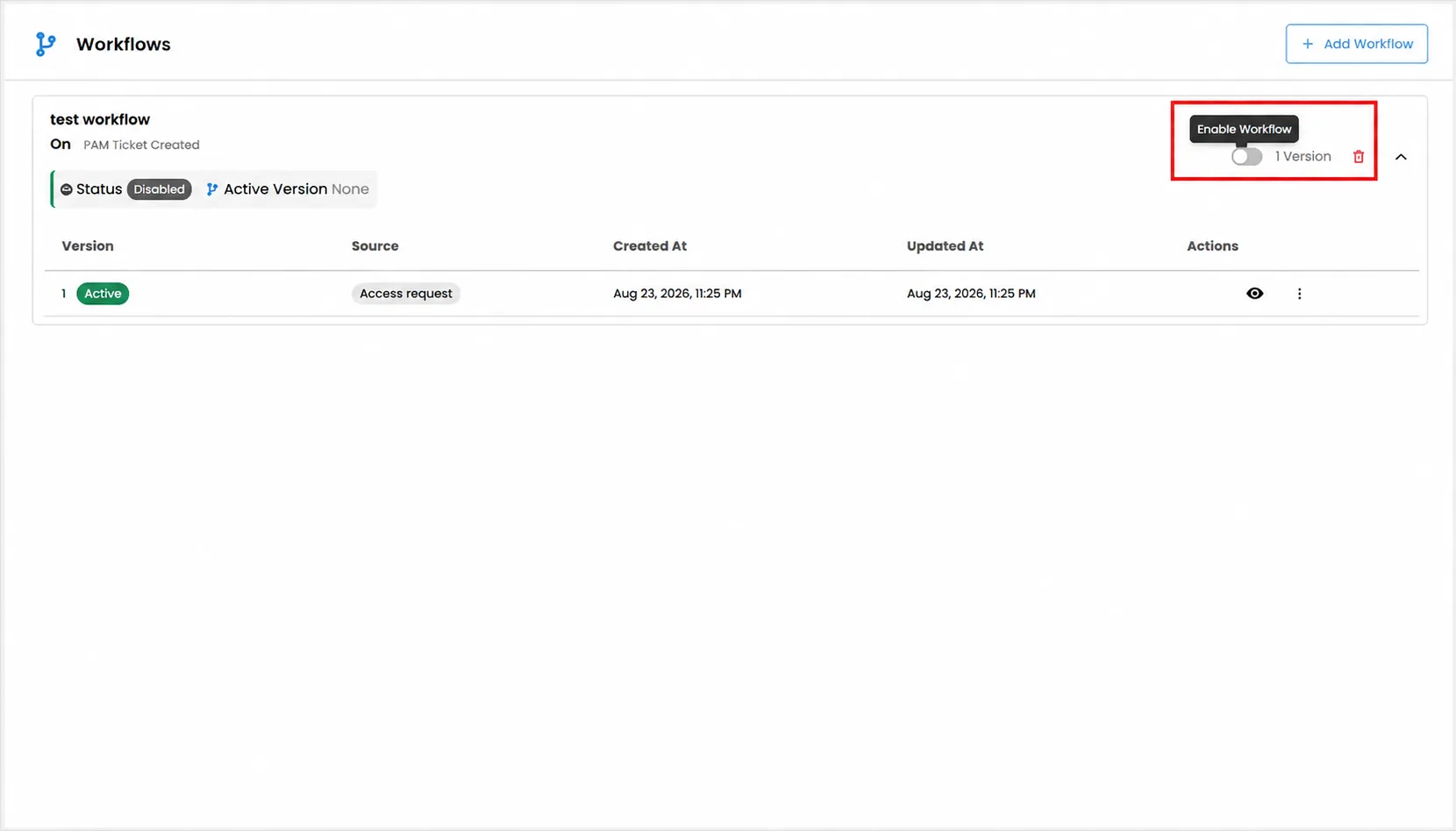
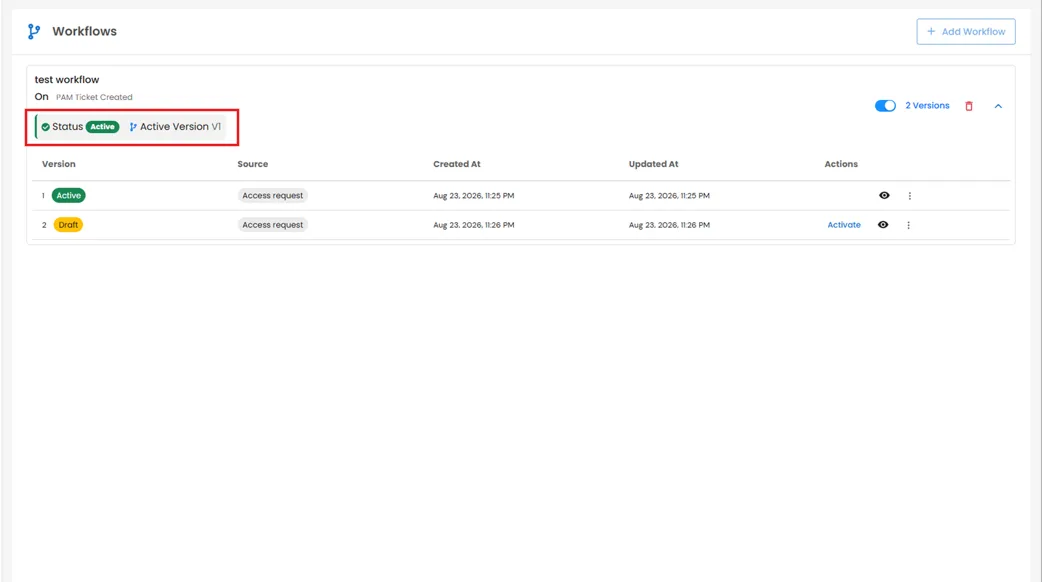
- Step 9: Toggle Enable Workflow to activate it. Every subsequent edit is saved as a new Draft version that can be reviewed and activated independently, without disturbing the currently Active version.
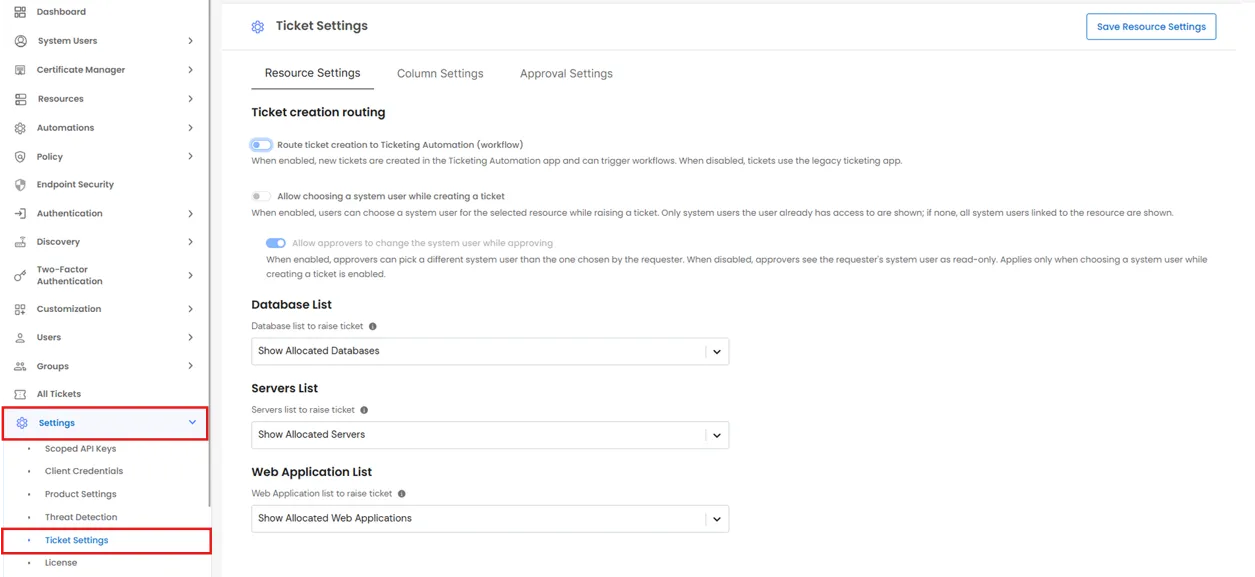
- Step 10: Enable ticket routing through automations so that automation engine can pick up your access request.
- Step 11: Monitor every run from Execution History - workflow name, version, trigger category, status, and a per-run detail view, exportable to CSV for audits.
Typical Use Cases
- Access Request Approvals: Route new PAM ticket requests through manager or security sign-off before access is granted.
- Segregation of Duties: Use Veto Approvers so a compliance officer can block a request outright, no matter how many peers approved it.
- Role-Based Routing: Use Conditional mode to send requests from different user roles down different approval chains automatically.
- Time-Bound Approvals: Combine SLA timers with Auto Approve on Timeout so requests don’t stall indefinitely awaiting a response.
- Safe Iteration: Test policy changes as a Draft version before activating them, without disrupting the workflow currently in production.
- Compliance Auditing: Use Execution History to review every workflow run - trigger, outcome, and timestamp - for audit purposes.

