Network Scan
What It Discovers
Network Scan checks a list or range of IP addresses against a list or range of ports using a plain TCP connection check. It then identifies the service based on the port number.
How to Configure a Scan
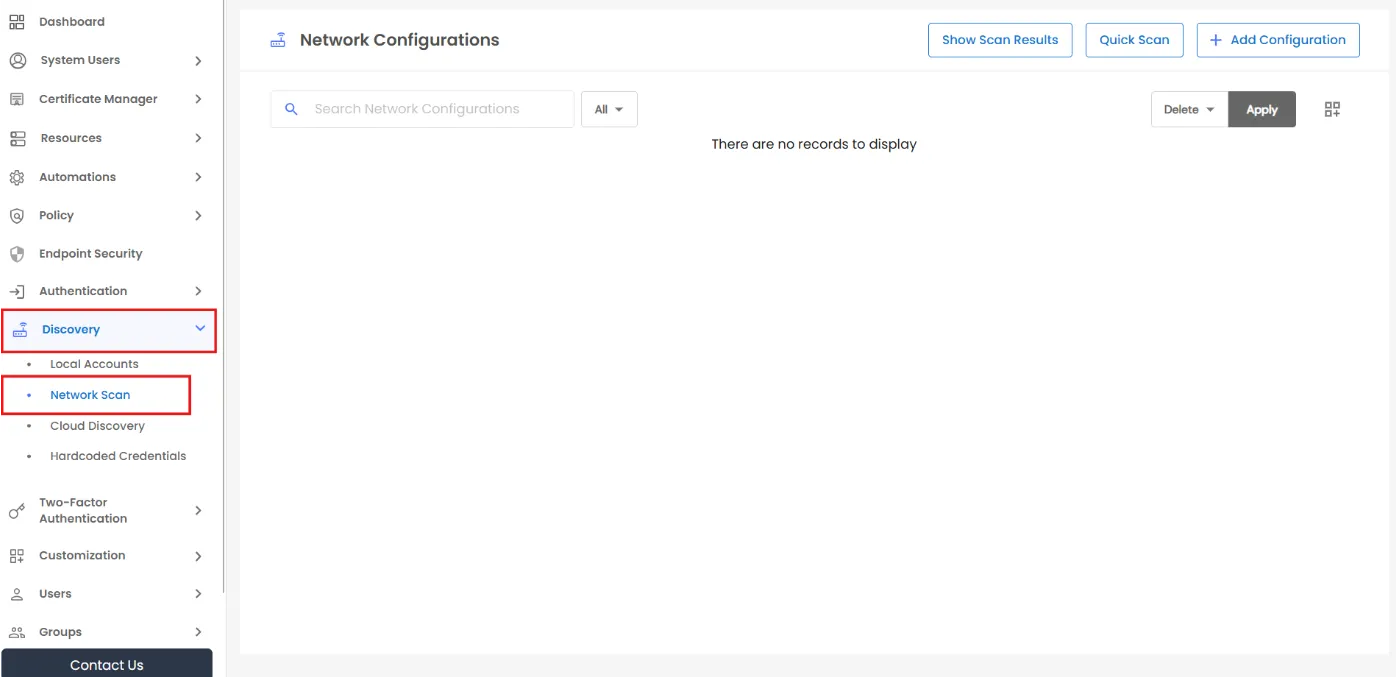
- Go to Discovery >> Network Scan.
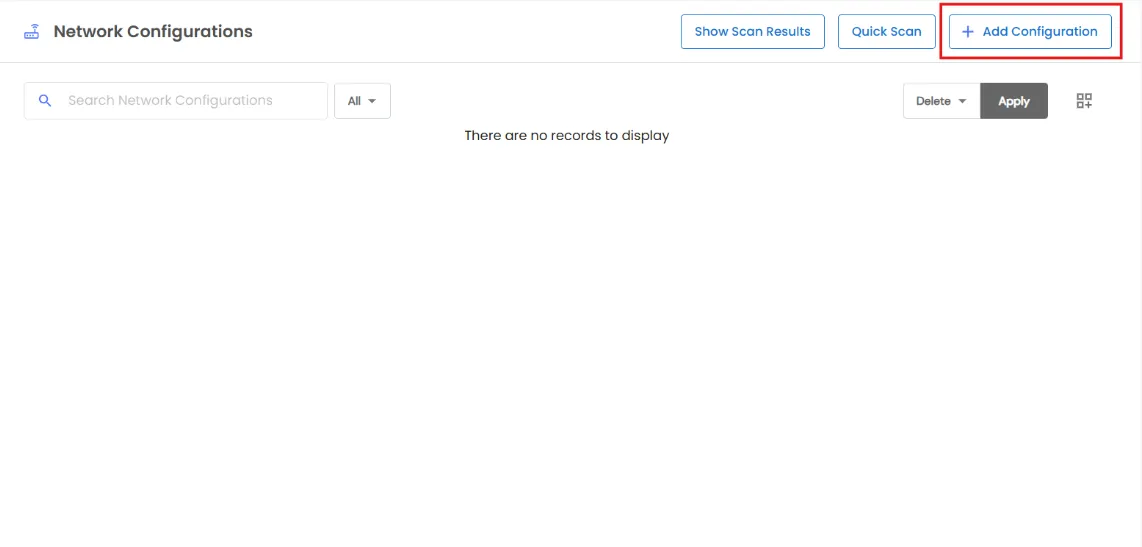
- Click Add Configuration.
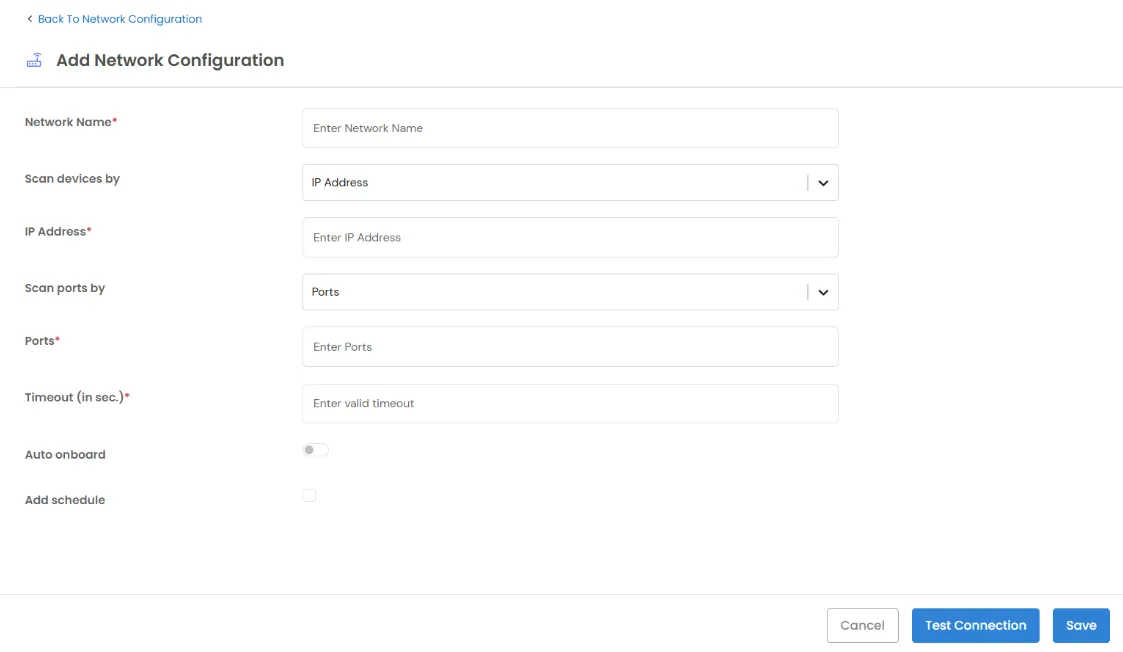
- Enter the following details:
- Network Name
- Scan Devices By - select IP Address (comma-separated list) or IP Address Range (start/end).
- Scan Ports By - select Ports (comma-separated list) or Port Range (start/end, 1–65535).
- Timeout (in sec)
- Auto Onboard - turn this on to skip manual review and automatically onboard every discovered host.
- Add Schedule (optional) - select this option to reveal Once or Periodic, an interval (months/days/hours/minutes), and a start date/time.
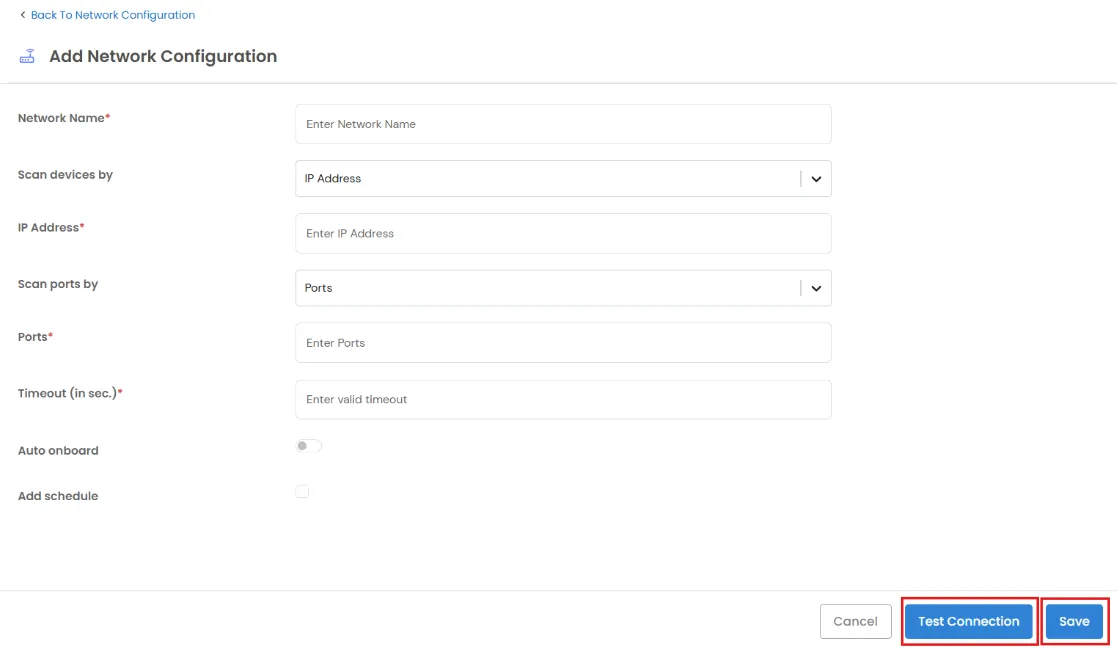
- Click Test Connection to check reachability, and then click Save.
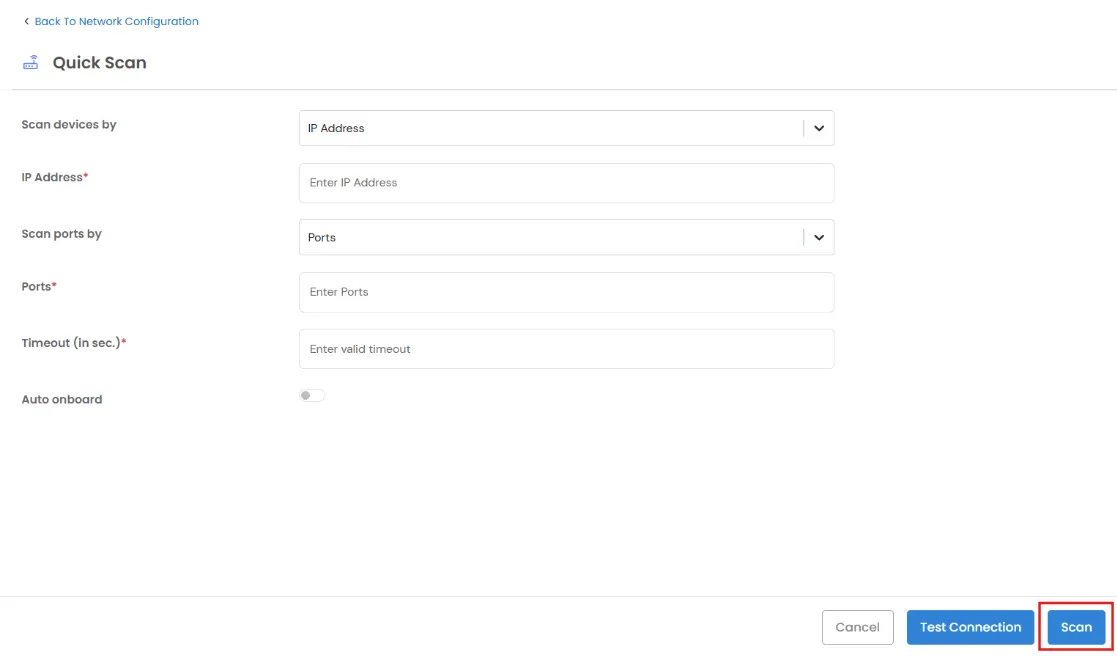
- For a one-time scan without saving a configuration, use Quick Scan from the list page. It uses the same form but does not include Network Name and has a Scan button instead of Save.
Running and Reviewing Scans
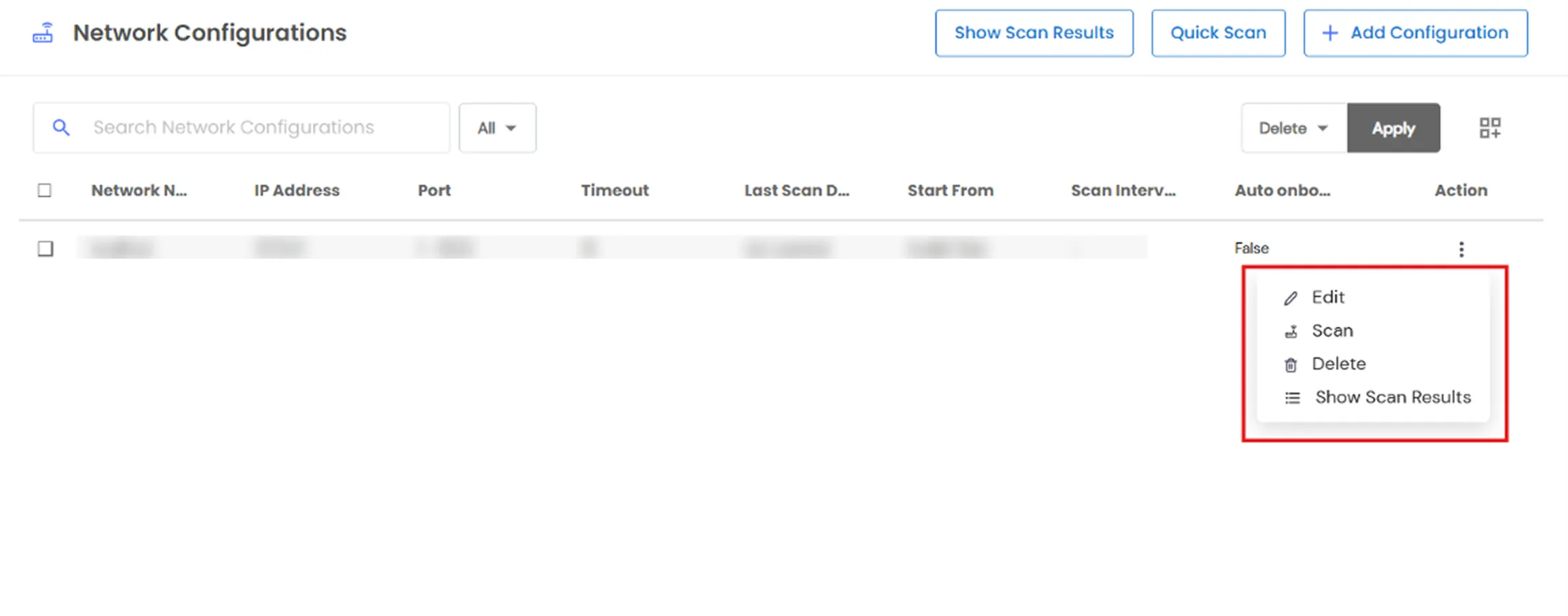
- From the Network Configurations list, open a row's action menu to Scan on demand, or to Edit or Delete a configuration.
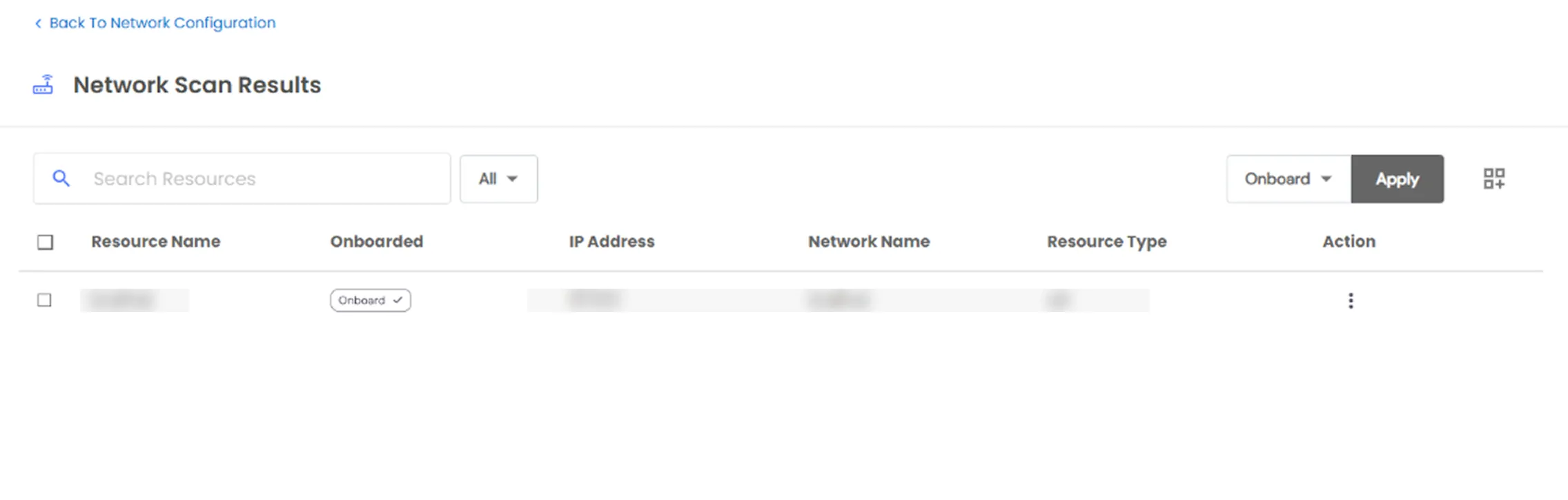
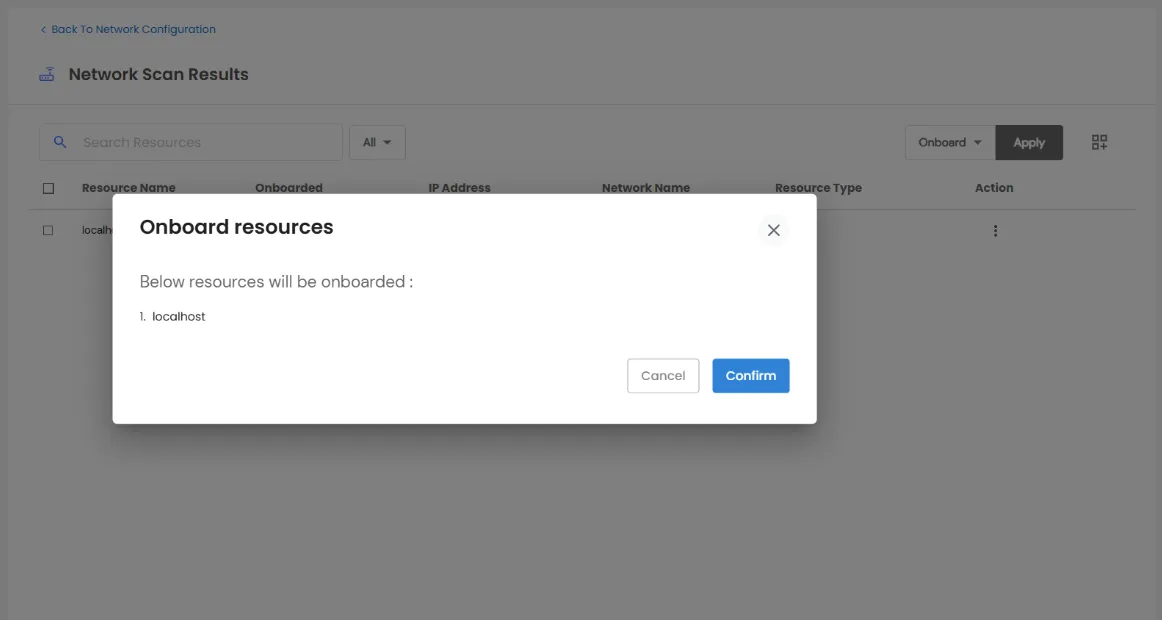
- Click Show Scan Results to open Network Scan Results. The results include Resource Name, Onboarded, IP Address, Port, Network Name, and Resource Type.
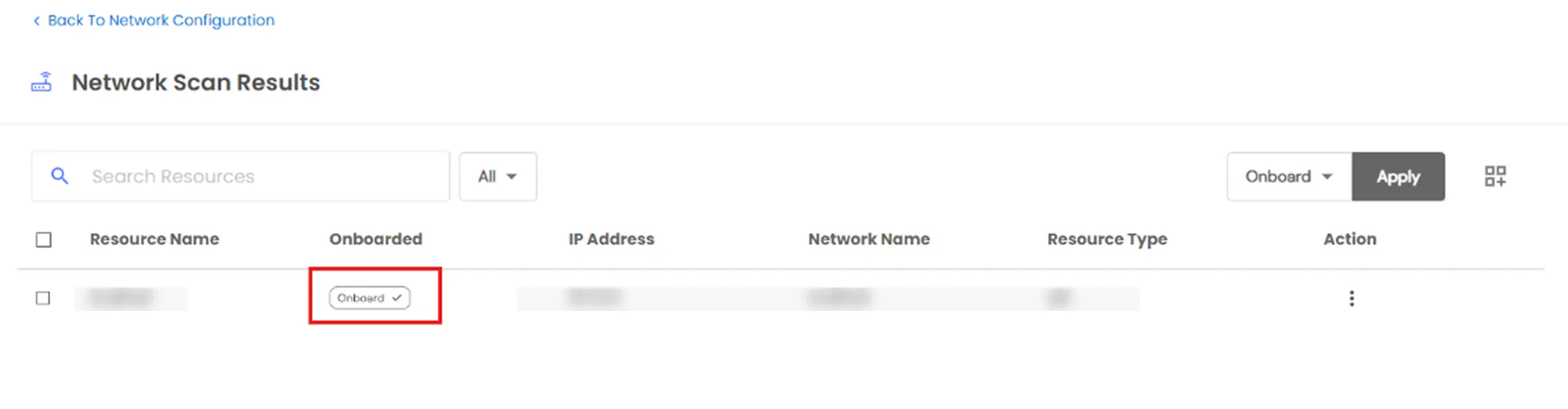
- Onboard a discovered host from its row, or select multiple hosts and use the Onboard bulk action. PAM automatically creates the resource as an Asset or App based on the detected resource type.
Note: There is no separate scan-run history with running, completed, or failed statuses. Results are written to one live list.
Notifications
- Go to Custom Templates >> Email to configure:
- Network Scan Success
- Network Scan Failure
- These notifications are sent to admins when a scan finishes.
Good to Know
- Discovery is a licensed feature. Network Scan is the only one of the four Discovery areas that displays a trial-license warning banner if your license does not include the feature.
- No credentials are required anywhere in this flow. Network Scan cannot log in to any system; it only identifies open ports and the services associated with them.

