Hello there!
Need Help? We are right here!

Need Help? We are right here!
Search Results:
×Local Authentication allows users to log in to miniOrange PAM using a username or email and a password stored directly within the PAM system. For user accounts created manually by an administrator or imported from a file, the administrator sets the password during account creation and shares the login credentials—username or email, password, and login URL—with the user.
On the login page, the user enters their username or email and password, then clicks Login.
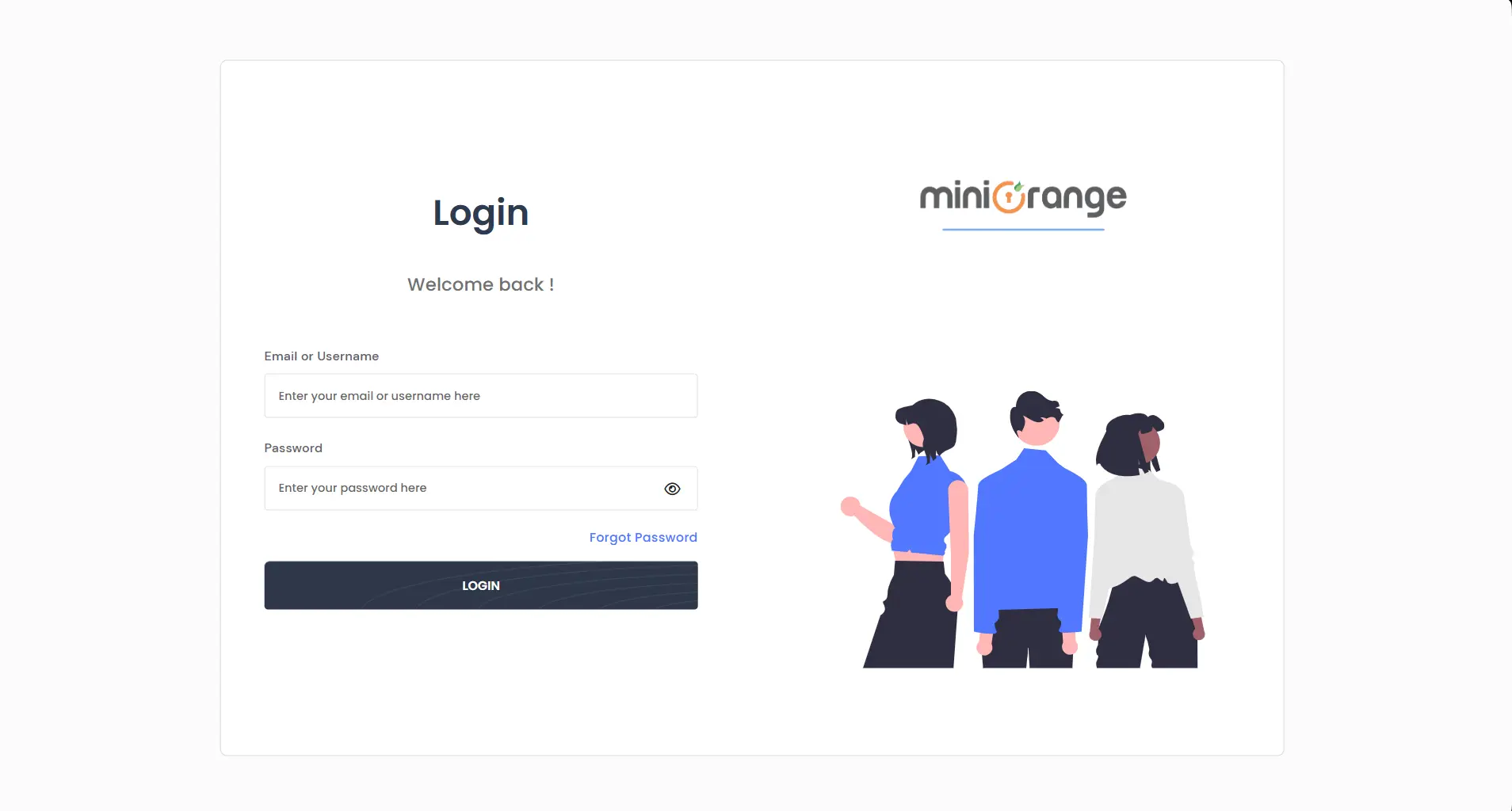
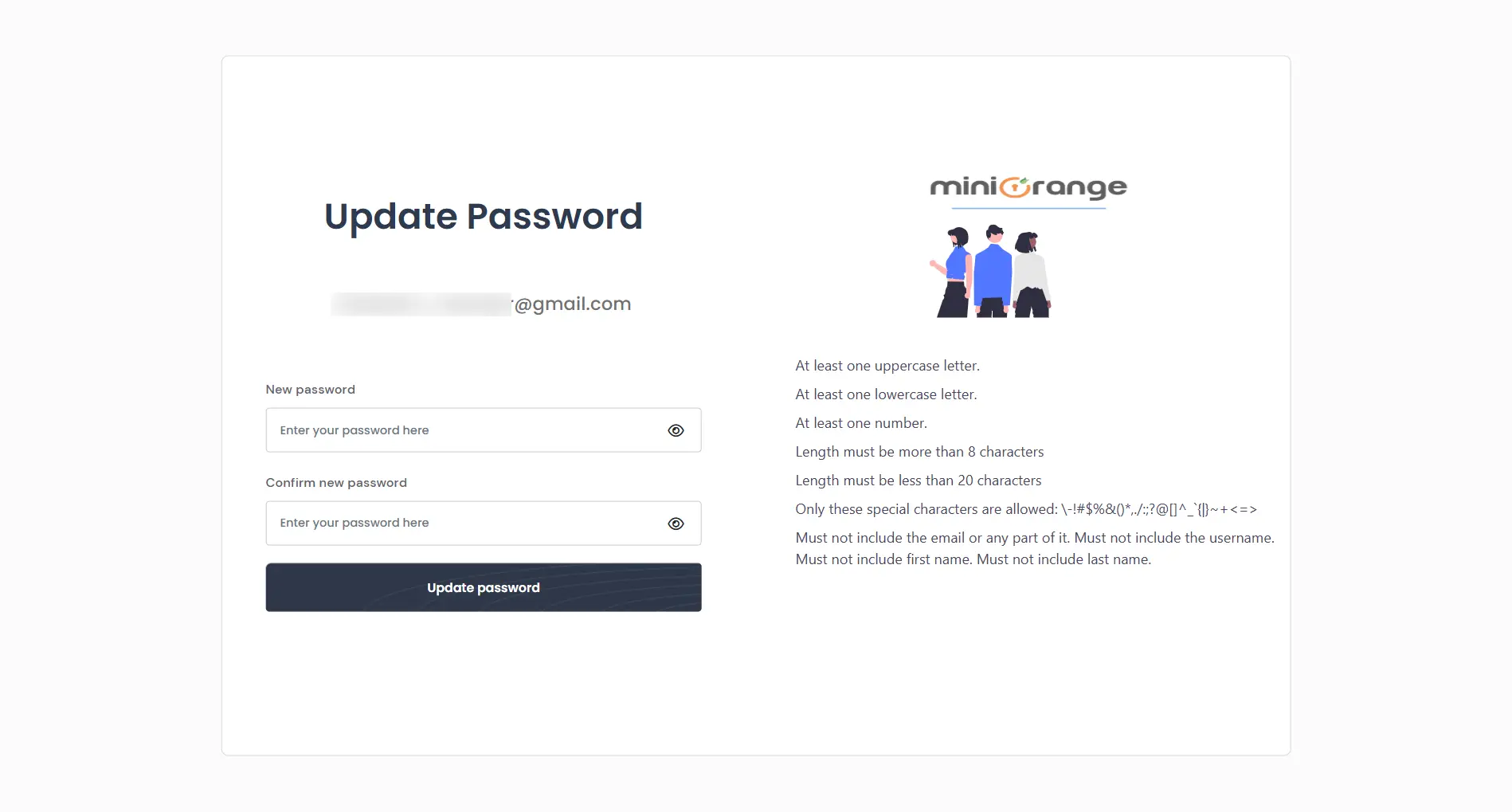
Upon their first login, users are automatically redirected to the Update Password screen before gaining access to the application. They must set a new password that complies with the organization's configured password policy, which is displayed on the right side of the screen. Once the password is updated, the mandatory reset flag is cleared, and the user is logged in. Subsequent logins proceed normally.
If a user forgets their password, they can click Forgot Password on the login page. They will be prompted to enter their username or email, and miniOrange PAM will send a password reset link to their registered email address. The link expires after 10 minutes. Once the password is reset, the user can log in immediately using the updated credentials.

Note: If the reset link expires before use, the user must click Forgot Password again on the login page to receive a new password reset link.
