Local Accounts
Find server and database local accounts that already exist on your PAM resources but are not yet managed by PAM, and bring them under management.
What It Discovers
Local Accounts scanning logs into a resource that PAM already manages using an existing PAM System User with admin/root privileges. It then lists all local accounts found on that resource.
It only works on resources that are already onboarded into PAM. It does not discover new resources; it only discovers new local accounts on resources that are already managed by PAM.
Two Ways to Run It
PAM provides two separate flows for this feature, available from different locations:
From the Discovery Menu (Batch, Job-Based)
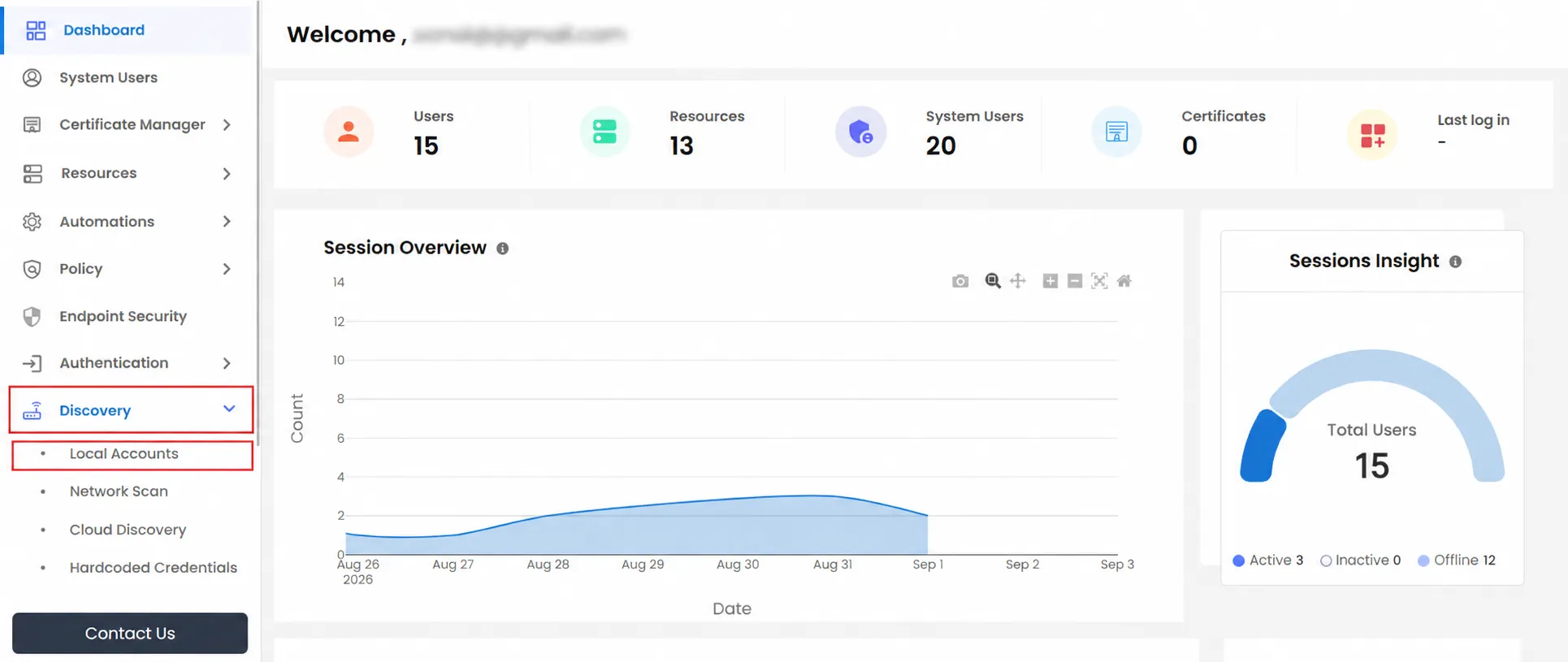
- Go to Discovery >> Local Accounts.
- On the Configurations tab, select Resource Type (Databases or Servers), and then select the specific Resource.
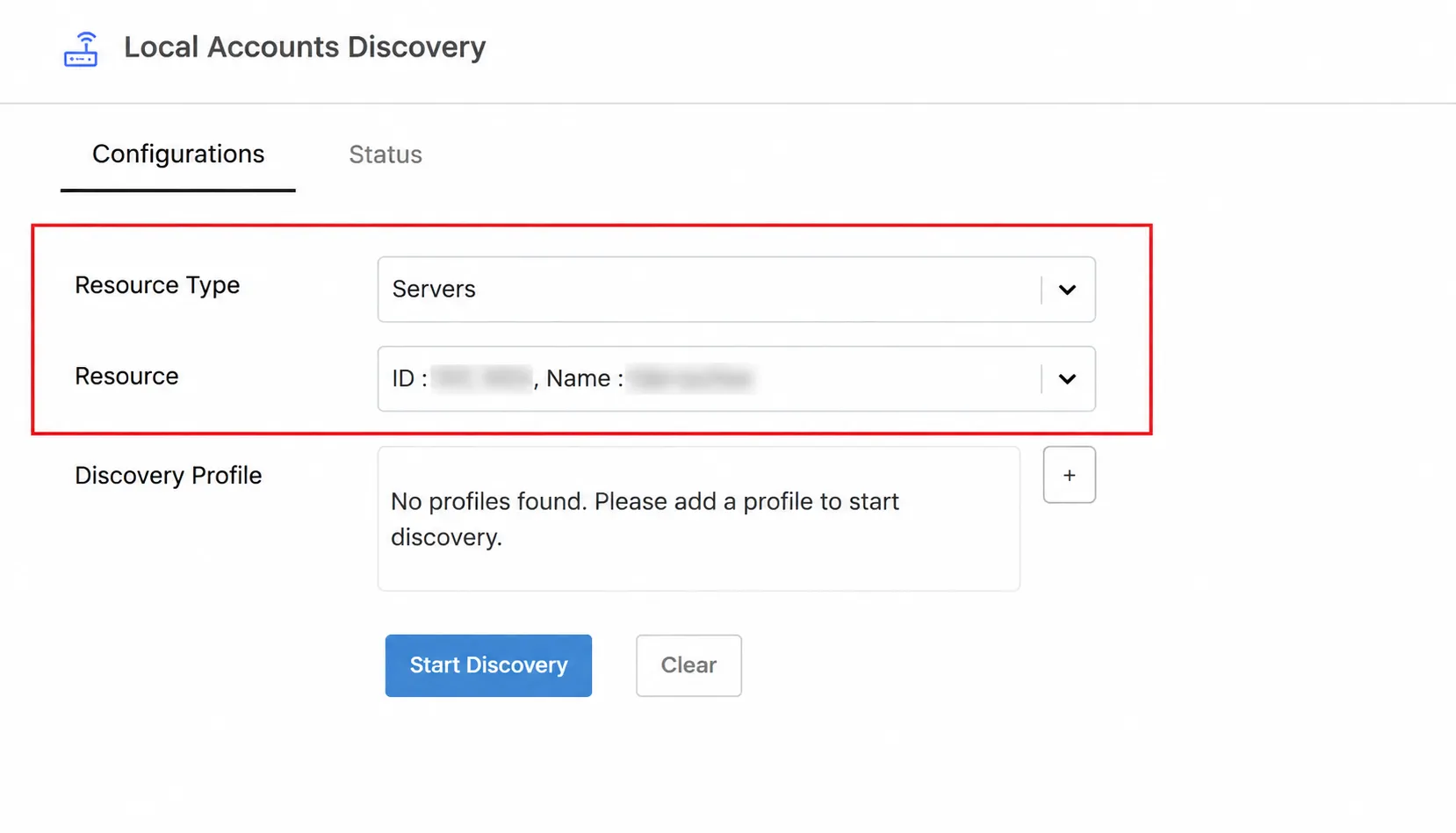
- Select a Discovery Profile - a saved System User used as the admin/root credential for the scan.
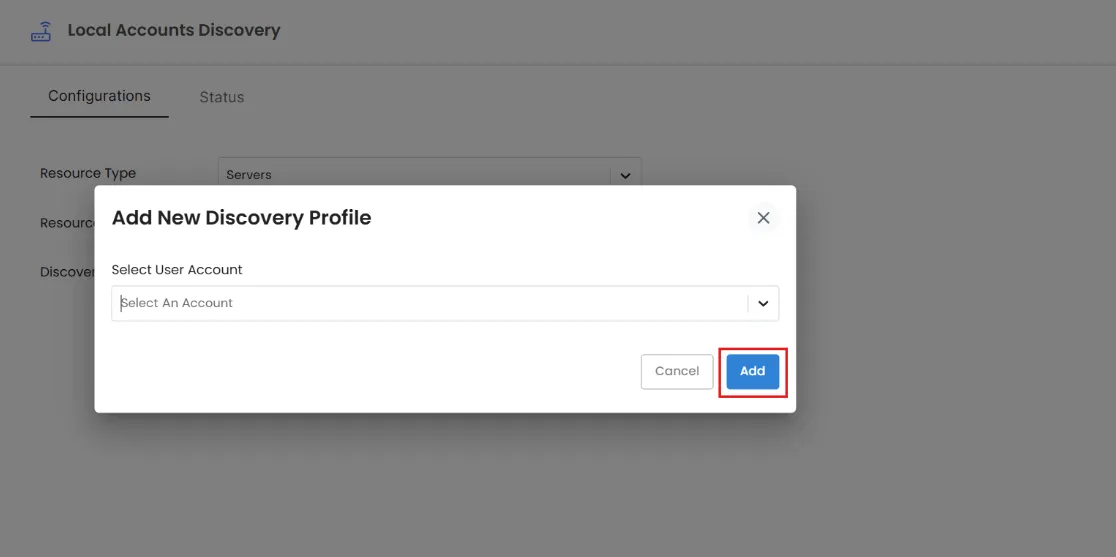
- Click + to add one through Add New Discovery Profile. Select Select User Account, and then click Add.
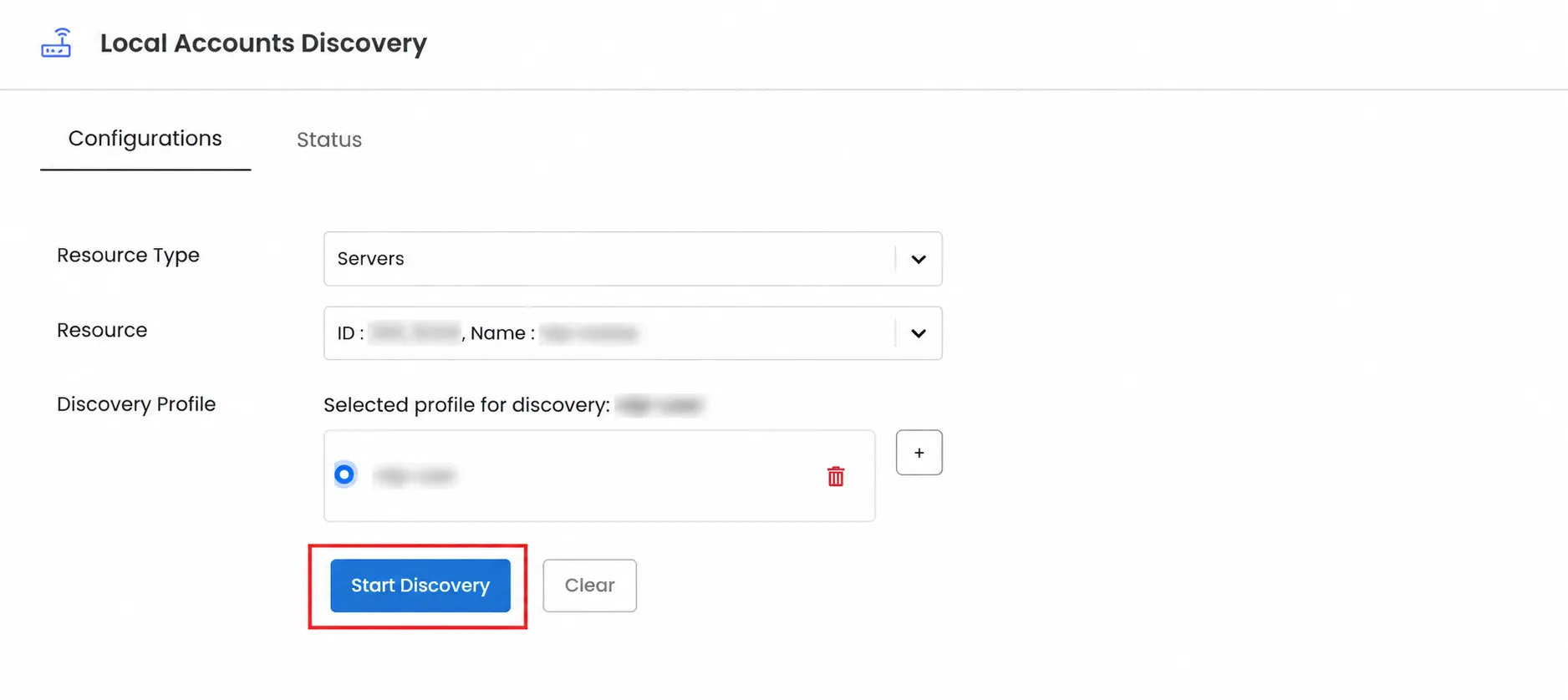
- Click Start Discovery.
- Track the progress on the Status tab using Invoked By, IP/Host, and Status.
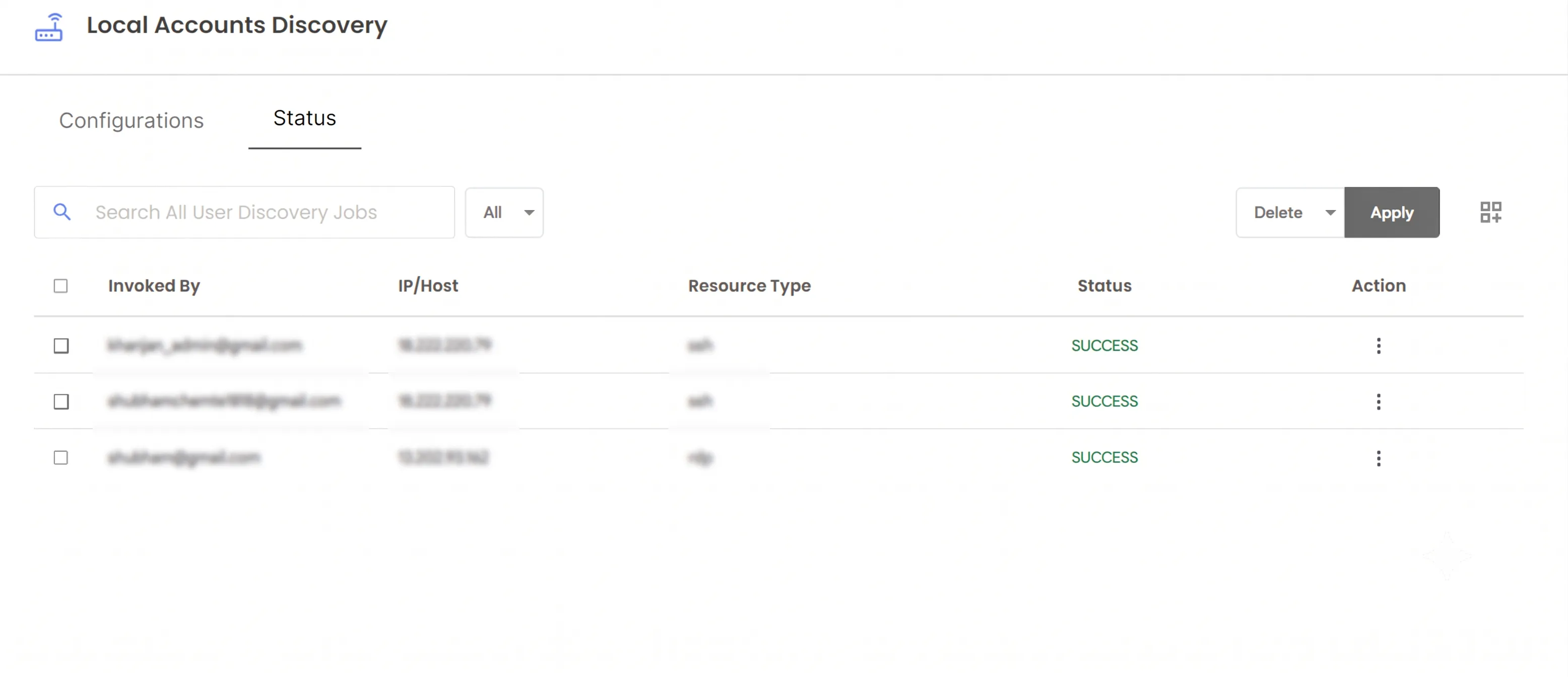
- Once a job is no longer Pending, open its action menu and click View Users.
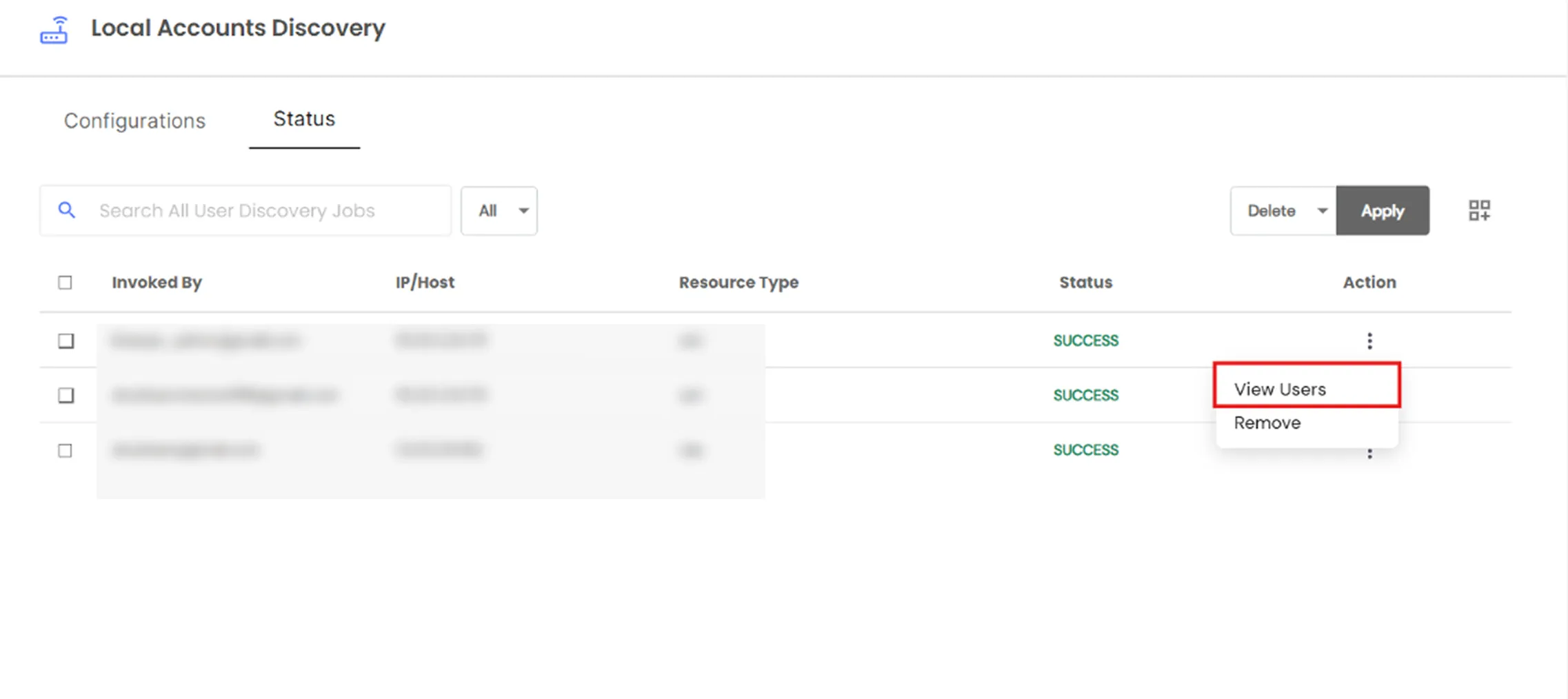
Note: There is no working Stop Discovery control. A job can only be removed after it finishes; it cannot be cancelled while it is running.
From a Resource's Own Page (Single Resource, Instant)
- Go to Resources and find an SSH or RDP asset, or a MySQL / Aurora MySQL / PostgreSQL / Aurora PostgreSQL / MSSQL app.
- Open its row action menu and click View Local Users.
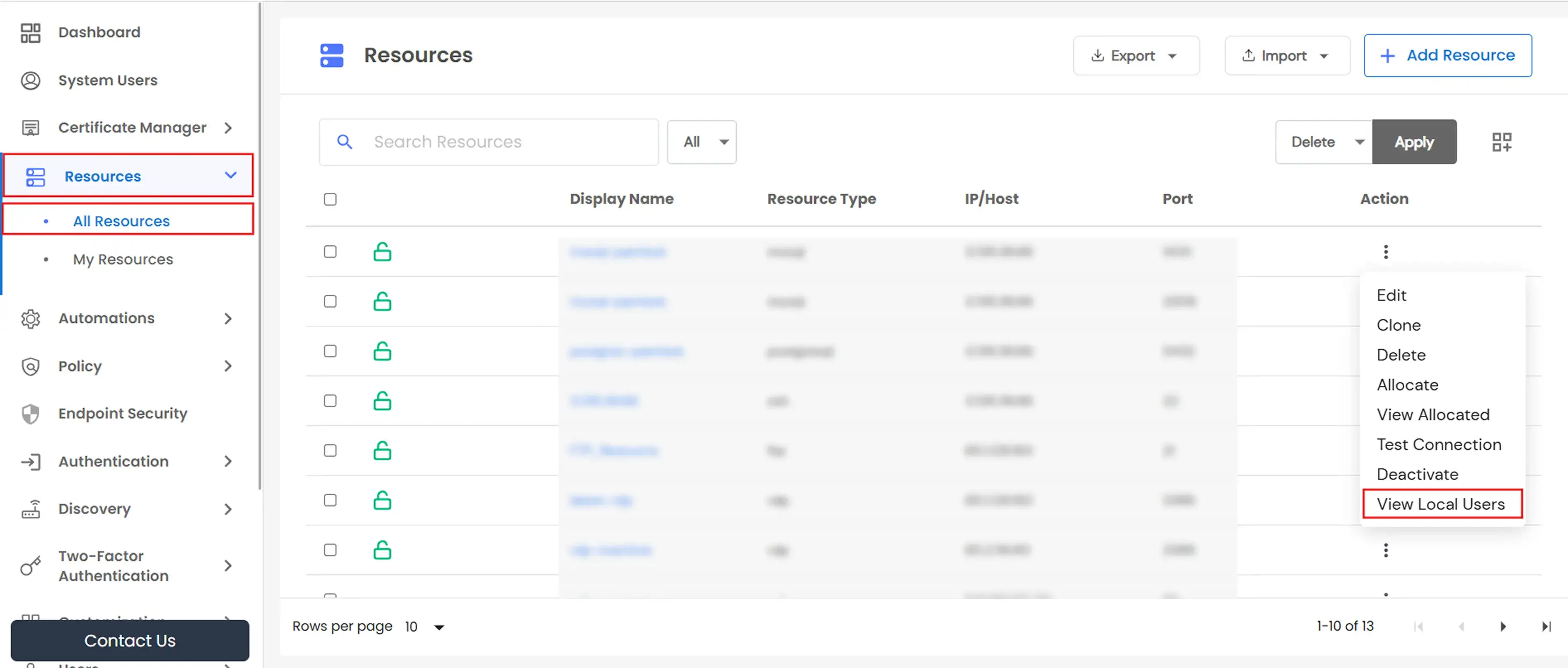
- The page automatically scans the resource using its configured root/admin System User.
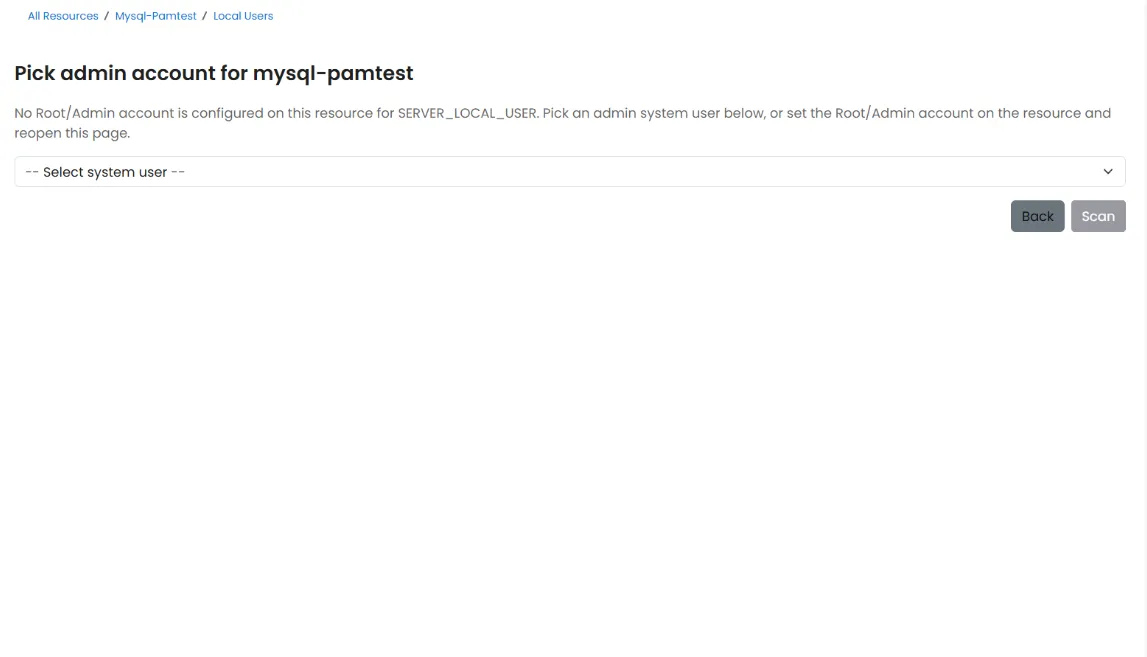
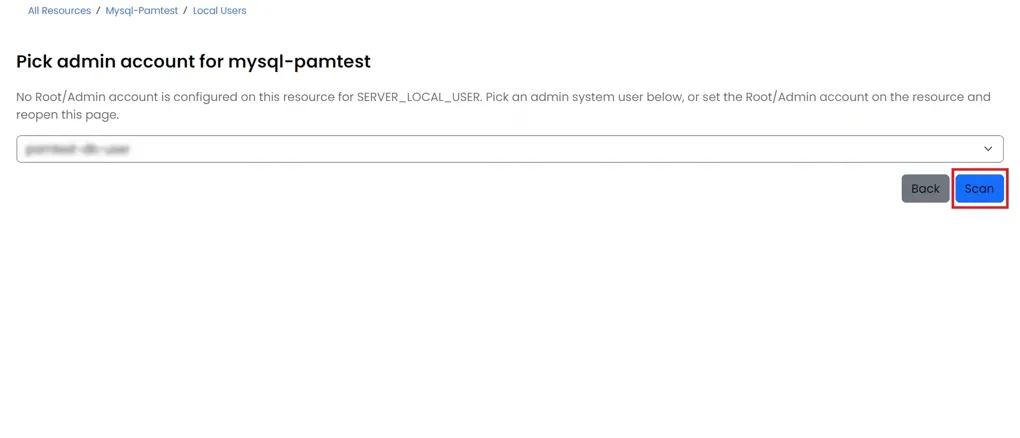
- If no root/admin System User is configured, select one from Pick an admin/root system user to scan with and click Scan.
Reviewing and Onboarding Results
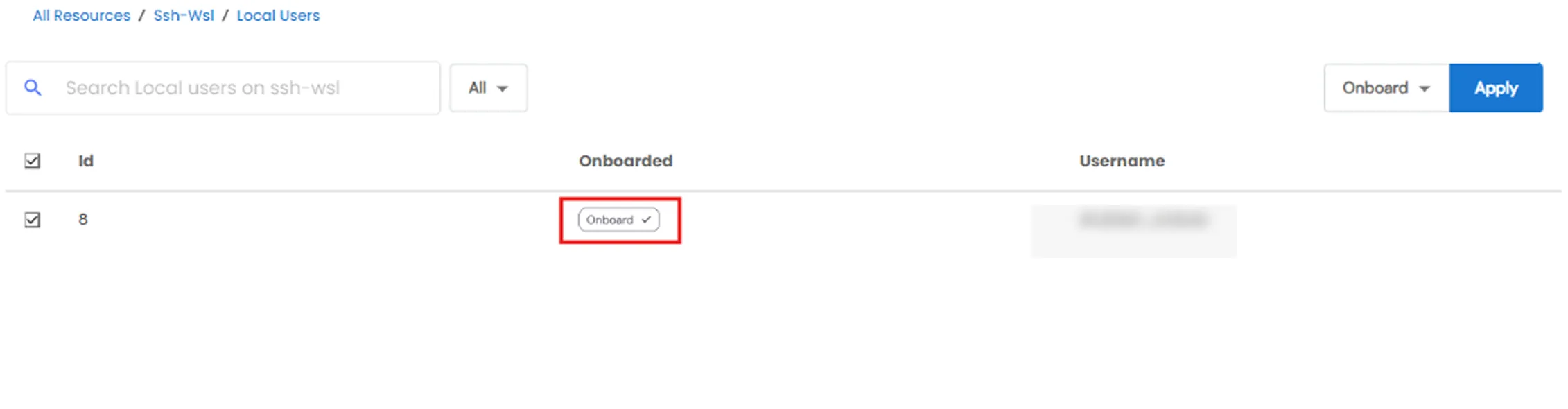
Both flows display a list of discovered accounts with an Onboarded indicator.
- Click the onboard icon on a row, or select multiple accounts and use the Onboard bulk action.
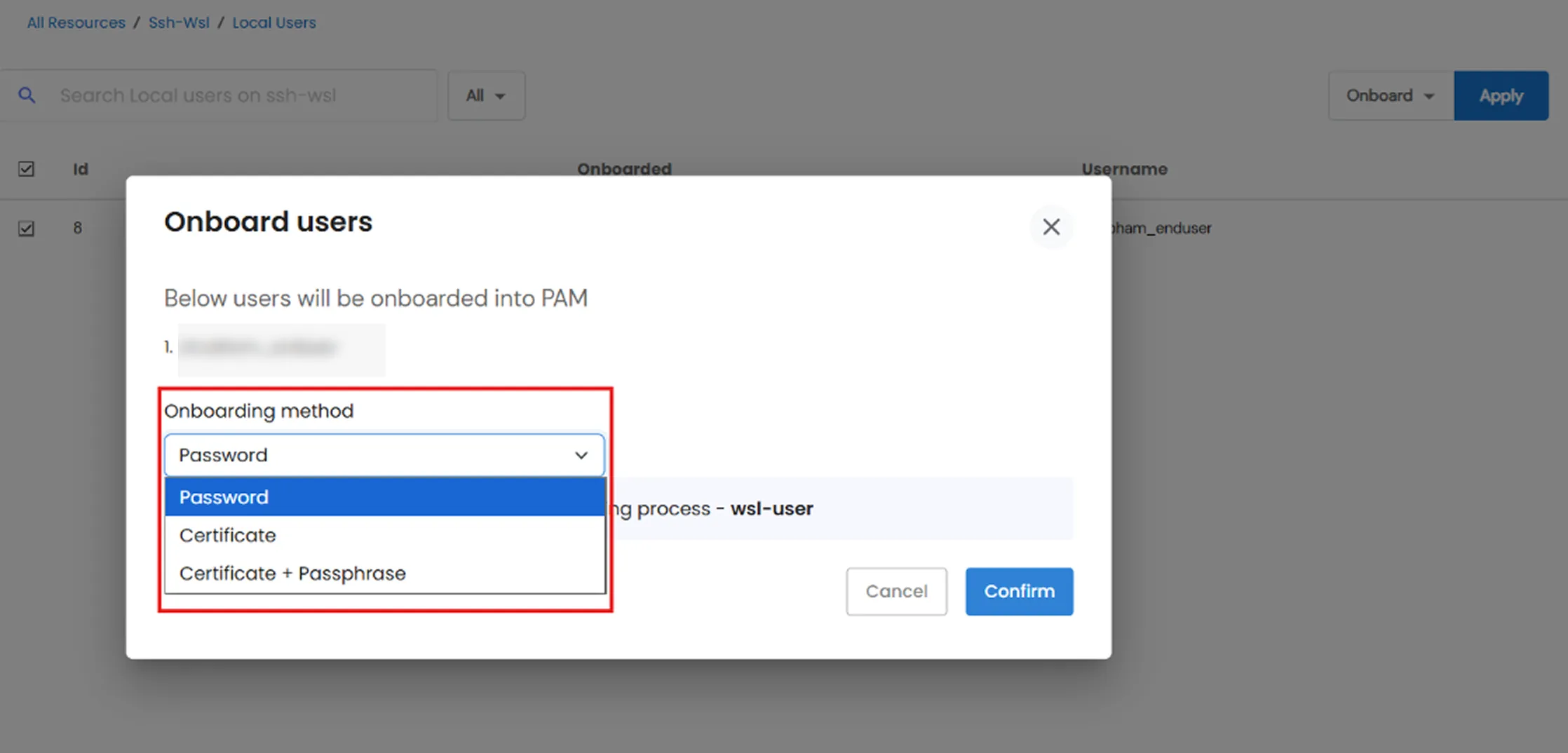
- Confirm the onboarding dialog and select an Onboarding Method:
- Password - always available.
- Certificate or Certificate + Passphrase - available for SSH/RDP only. Database accounts support password authentication only.
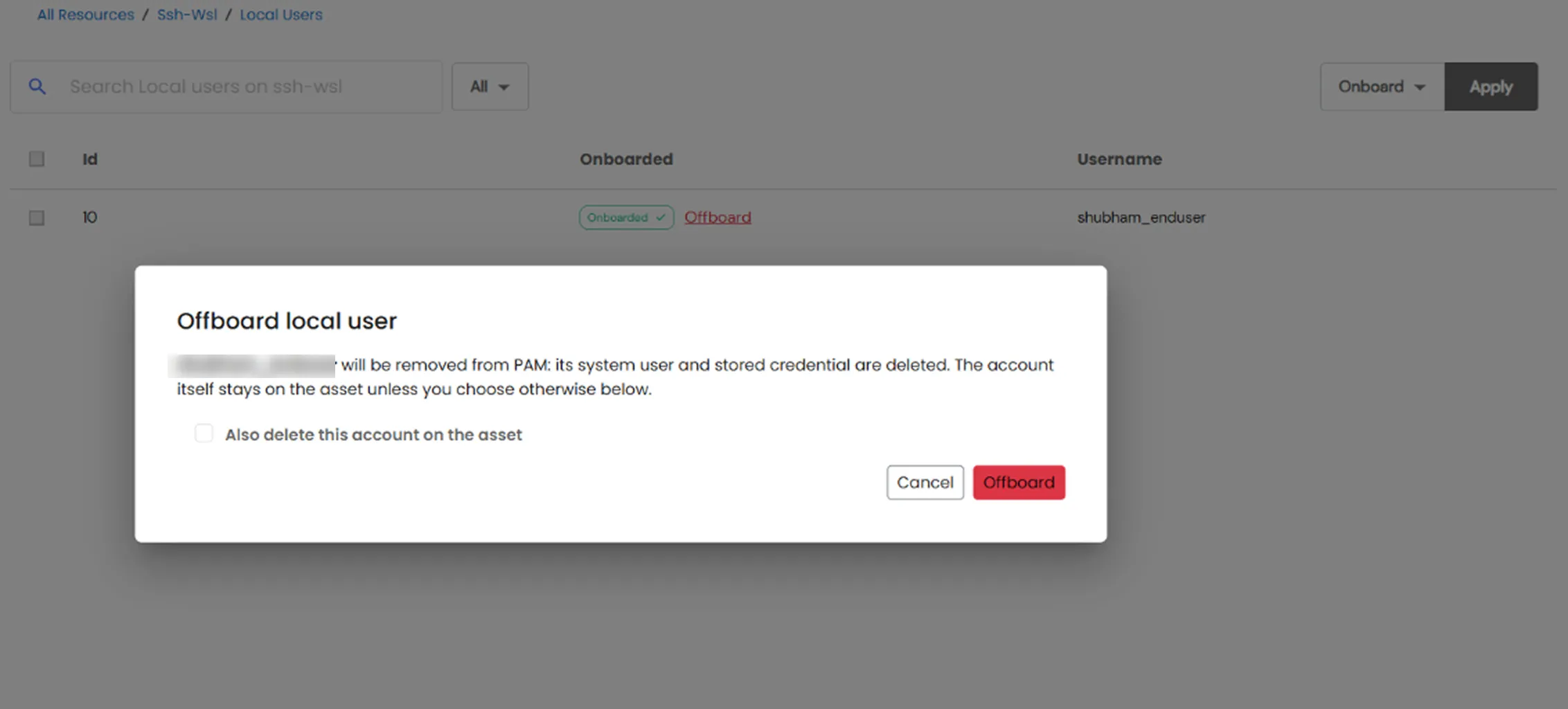
- Already-onboarded rows on the per-resource page also provide an Offboard option.
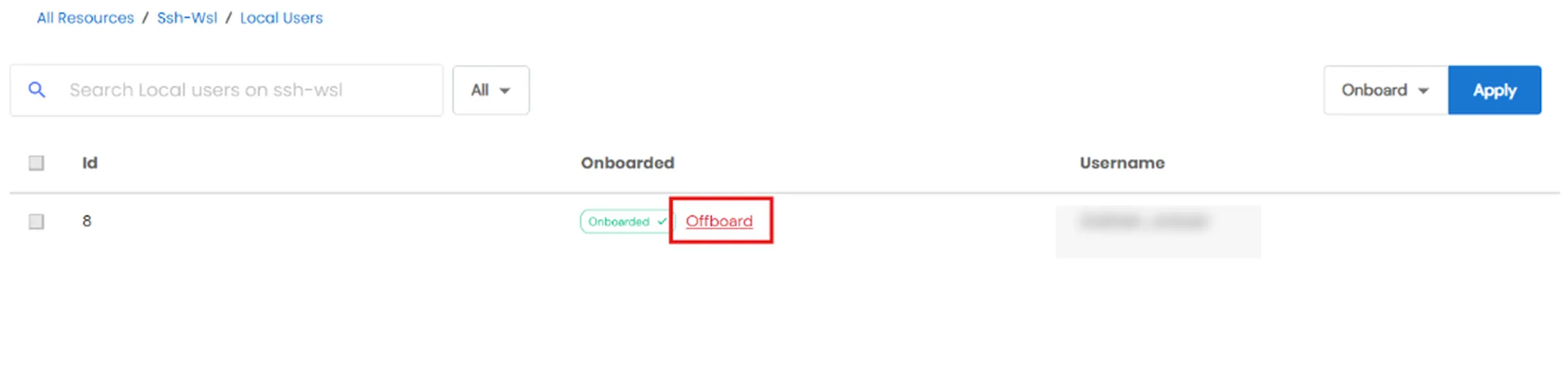
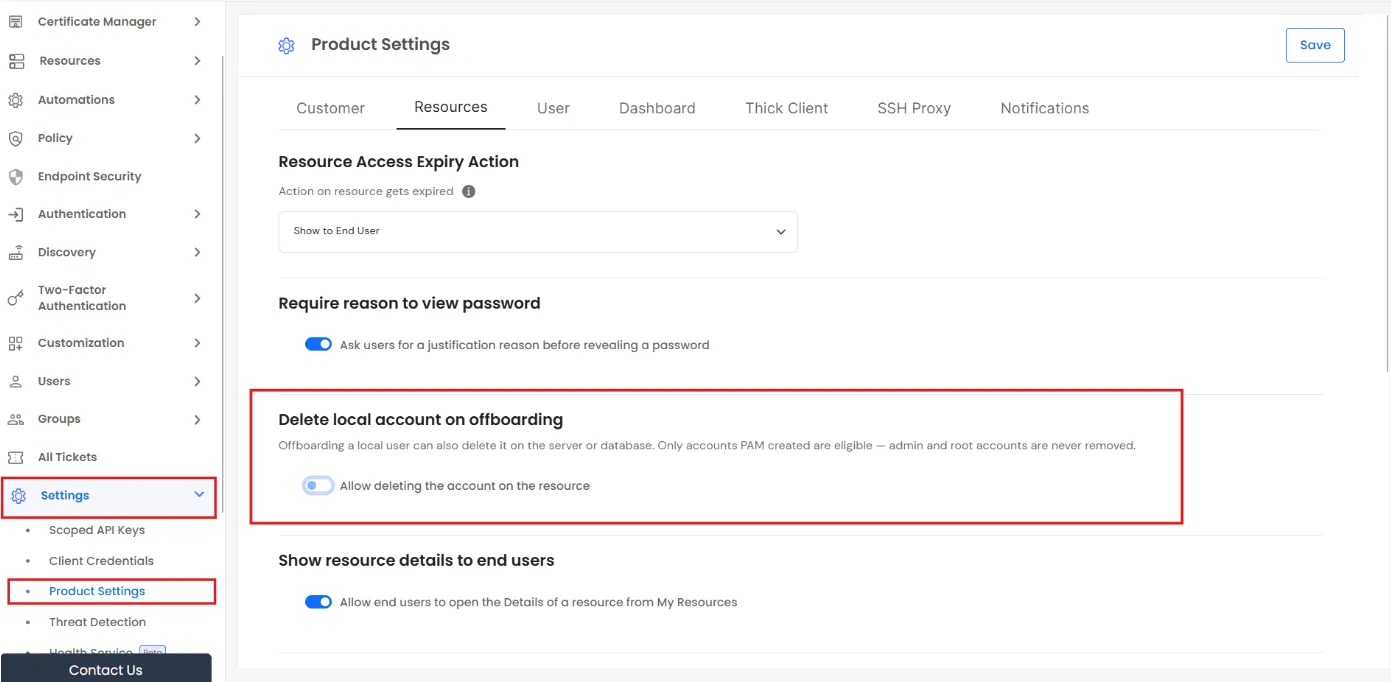
- Already-onboarded rows on the per-resource page also offer Offboard. When available, the Also delete this account on the {asset/database} checkbox can be selected during offboarding. This option is shown only if the Delete local account on offboarding setting is enabled. It permanently removes the account, but only if the account was created by PAM.
- To enable this option, go to Settings >> Product Settings, find Delete local account on offboarding, turn on Allow deleting the account on the resource, and click Save. This option is disabled by default.
- Accounts that PAM cannot manage, such as locked accounts or accounts using unsupported database authentication plugins, are shown as disabled with the tooltip: "PAM cannot set a password on this account, so it cannot be onboarded or rotated."
- A row's action menu also allows you to change the Auth Type that PAM uses (Password/Key/None). This only changes what PAM records; it does not change anything on the actual server.
Good to Know
- There is no scheduling. Discovery always runs on demand from either flow.
- A single permission - Discover local accounts - controls the entire feature.

