Cloud Discovery
Connect a cloud account and discover its instances as PAM-managed resources.
What It Discovers
Cloud Discovery currently supports AWS only, and within AWS, only EC2 instances.
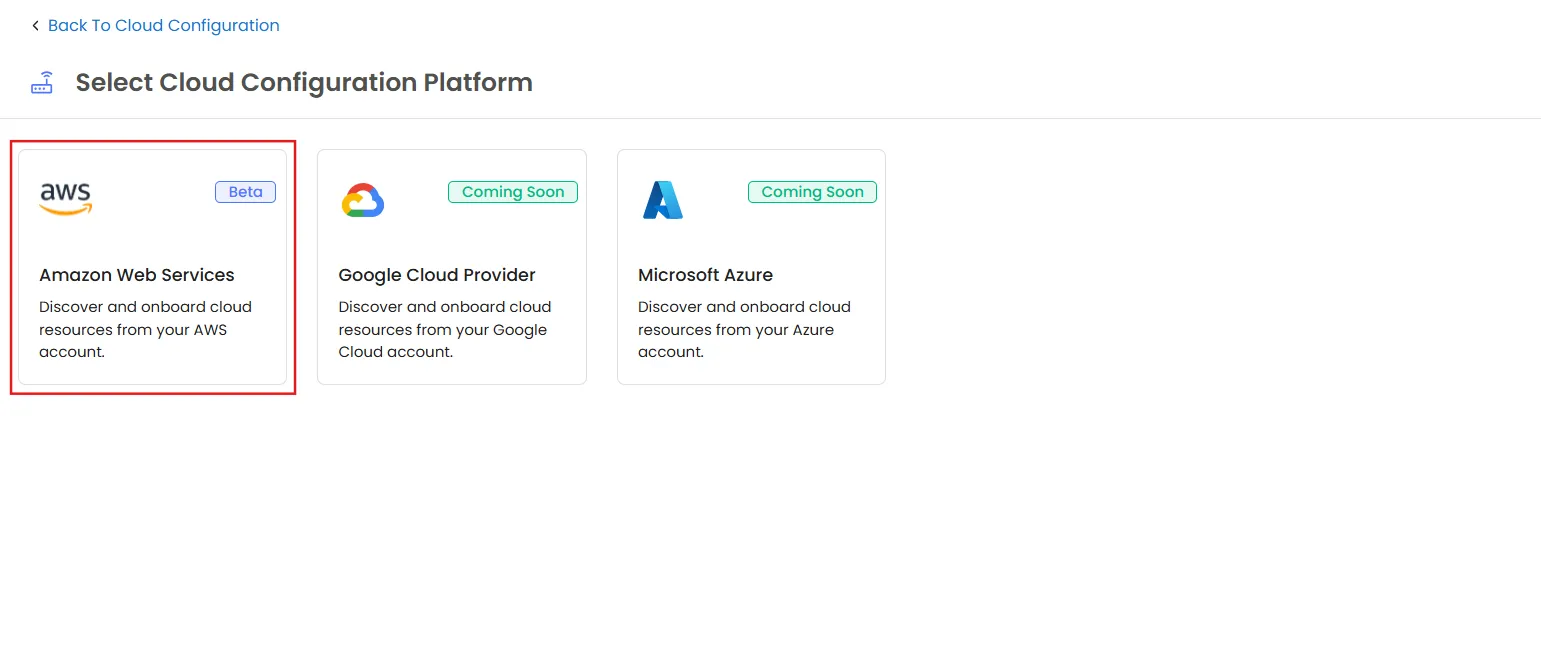
Google Cloud and Microsoft Azure appear as provider cards but are marked "Coming Soon". There is no working configuration form for them yet.
Other AWS resource types, including RDS, S3, Lambda, VPC, EKS, ECS, DynamoDB, and CloudWatch Log Groups, appear in the Scan Target list but are disabled.
Note: Cloud Discovery currently supports AWS EC2 instances only.
How to Connect AWS
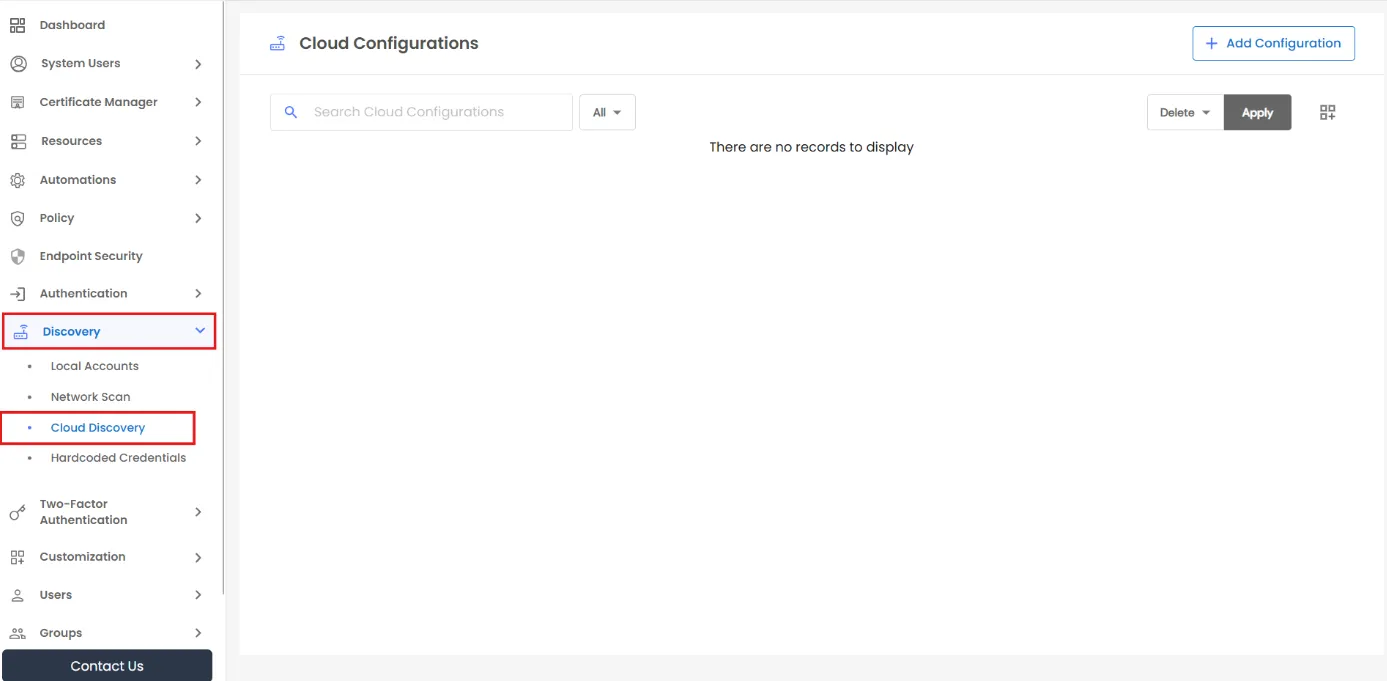
- Go to Discovery >> Cloud Discovery.
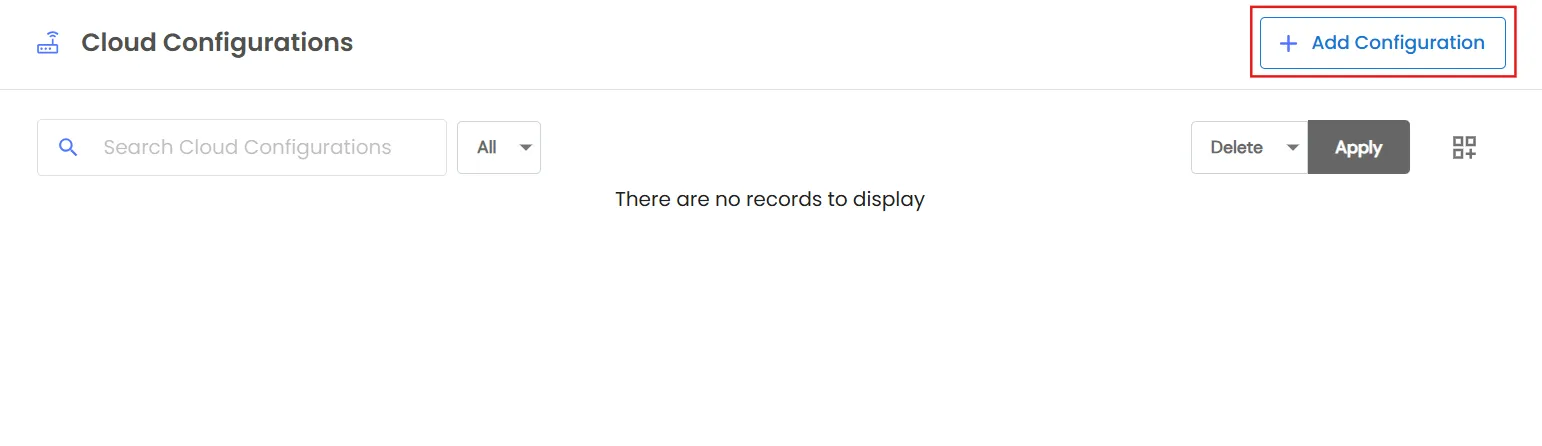
- Click Add Configuration.
- Select Amazon Web Services.
- Enter the following details:
- Configuration Name - a name for this connection so you can easily identify it, for example, by account or environment.
- AWS Access Id - the Access Key ID of the AWS IAM user that PAM will use to access your account. You can find it in the AWS Console under IAM >> Your User >> Security credentials.
- AWS Secret Access Key - the secret key associated with the Access Key ID. AWS displays this only once, when the key pair is created, so save it in a secure location where it can be retrieved when needed.
- Region Name - the AWS region to scan. Cloud Discovery scans only the selected region. If you have EC2 instances in multiple regions, create a separate configuration for each region.
- Scan Target - the type of resource to discover. EC2 Instance is the only selectable option currently. Other resource types are listed but disabled (see What It Discovers above).
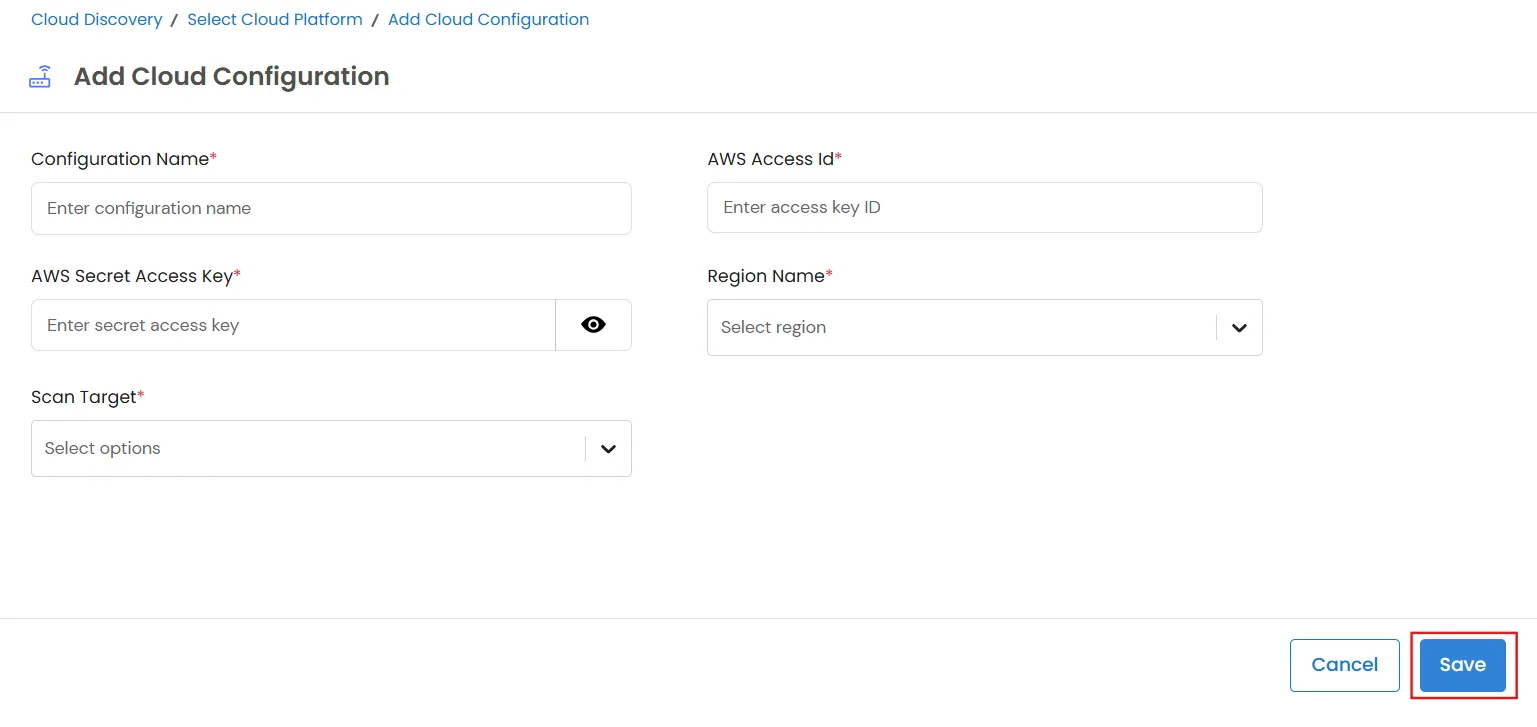
- Click Save.
There is no scheduling field in this form. All Cloud Discovery scans are manual and must be triggered on demand.
How to Run a Scan
- Go to Discovery >> Cloud Discovery.
- Check the configuration's Status column. It should show Active. If it shows Partially Active or Inactive, hover over the information icon to see the missing AWS permissions. Update the permissions for the IAM user, then click Refresh Status to check the status again before starting the scan.
- Open the configuration's row action menu and click Scan. This option is disabled when the configuration is Inactive.
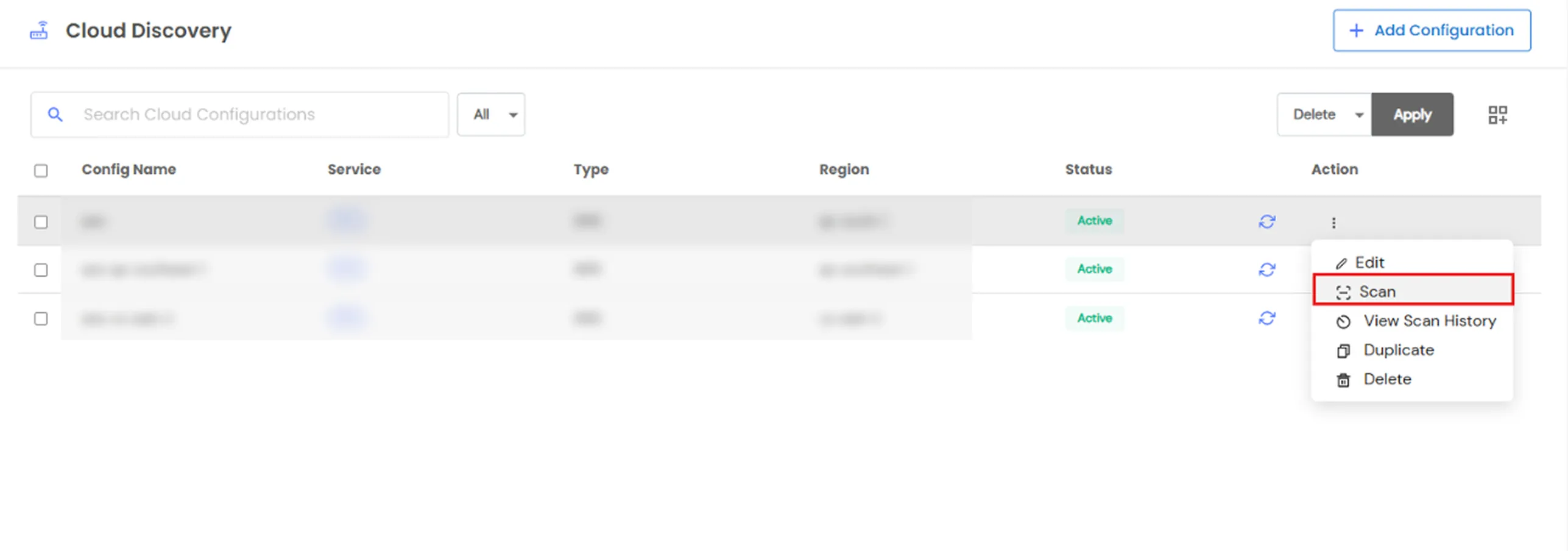
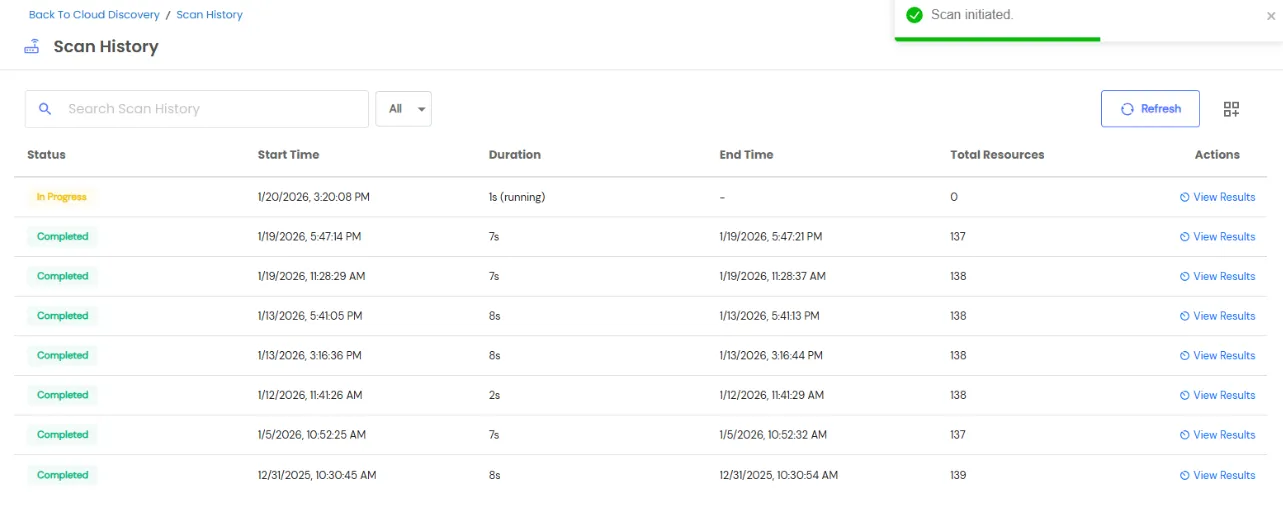
- The scan runs in the background. Track its progress from View Scan History (see below) instead of waiting on the page.
Reviewing Scan Results
- Use a configuration's row action menu to:
- View Scan History - view previous scan runs.
- Duplicate - create a copy of the configuration for a different region.
- Edit - modify the configuration.
- Delete - delete the configuration.
- View Scan History shows the Status, Start/End Time, Duration, and Total Resources for each scan run.
- Click a scan run to view the Scan Result, which includes:
- Instance ID
- Name
- Type
- Status
- Protocol - detected based on the operating system: RDP for Windows and SSH/SFTP for Linux.
- Region
- Public/Private IP
- Onboarded
- Reachable - shows the current reachability status of the instance.
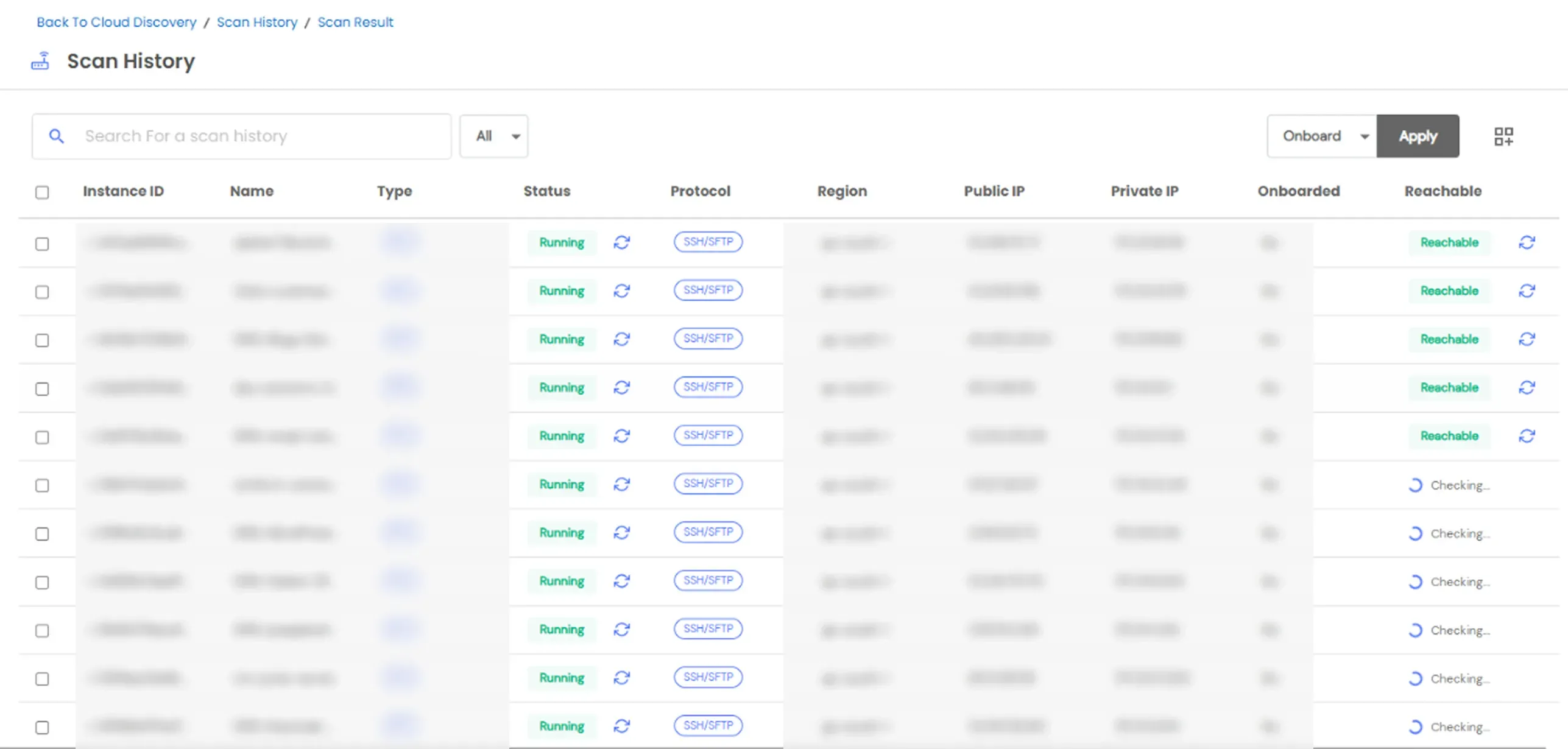
- To onboard an instance, click the Onboard action in its row, or select multiple instances and use the Onboard bulk action.
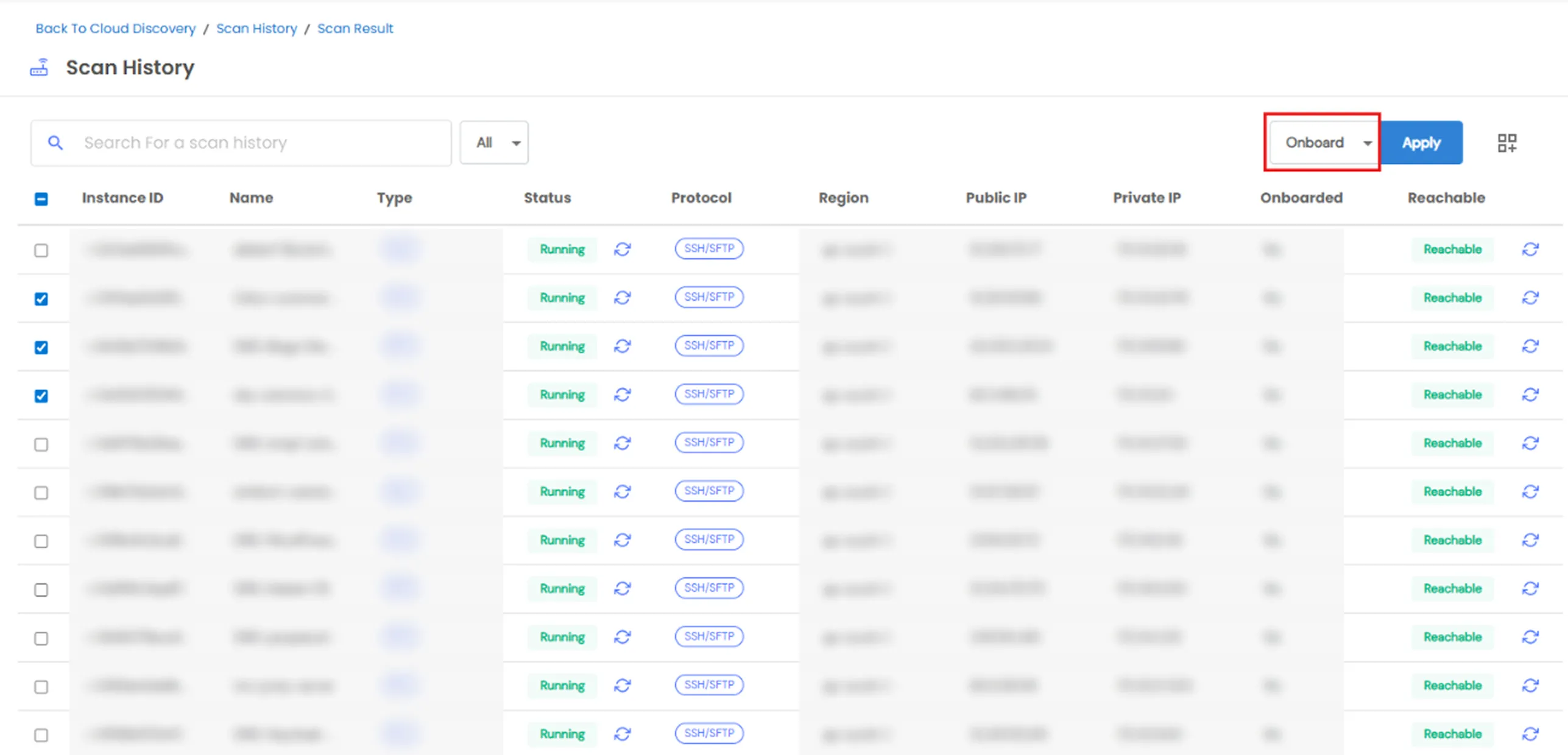
- Only running EC2 instances can be selected for onboarding. Stopped instances cannot be onboarded.
Reporting
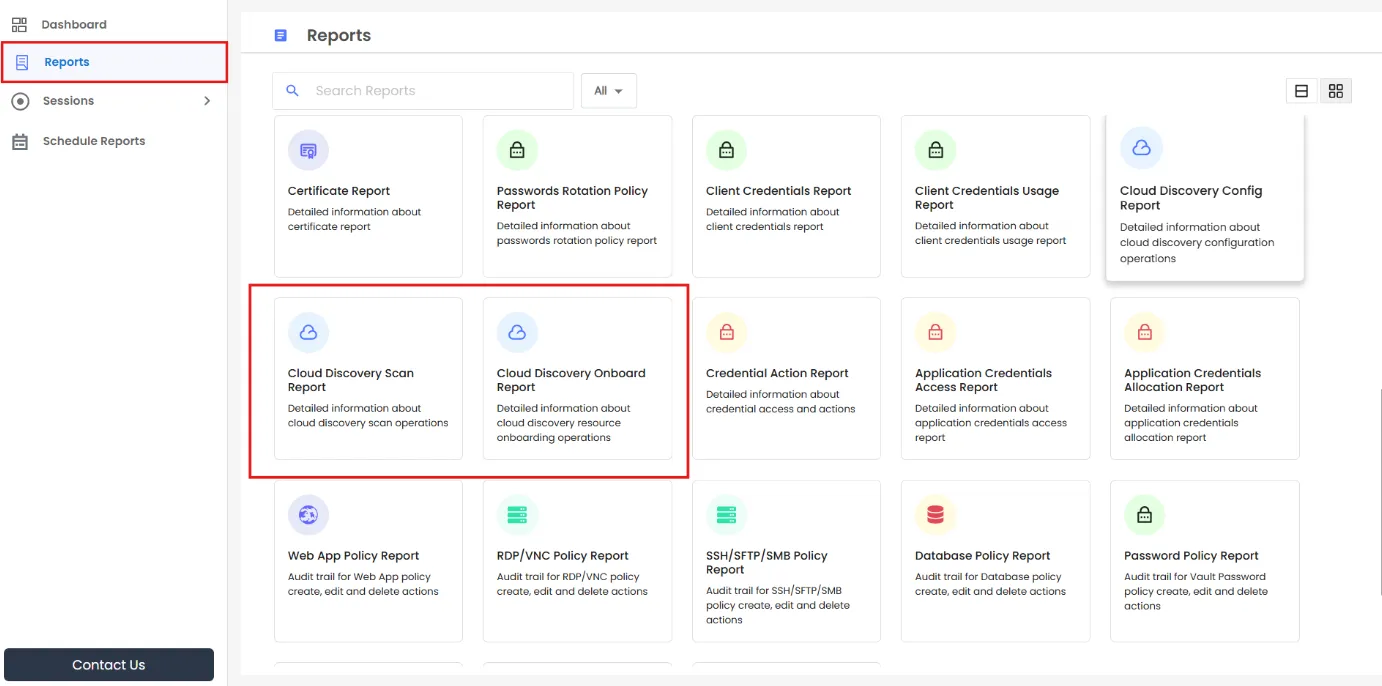
Cloud Discovery is the only one of the four Discovery areas with dedicated audit reports.
- Reports are available for:
- Configuration changes
- Scans
- Onboarding actions
- These reports are available under Reports.