Custom Restriction
The Custom Restriction policy allows administrators to define time-based
restrictions for managed Android devices. You can specify the time period during
which device usage restrictions should be enforced based on the selected time zone.
Prerequisite
-
Before configuring the Custom Restriction, create a new Android policy
or open an existing policy. For instructions, refer to the
How to create policy
guide.
Follow the steps below to configure Custom Restrictions
-
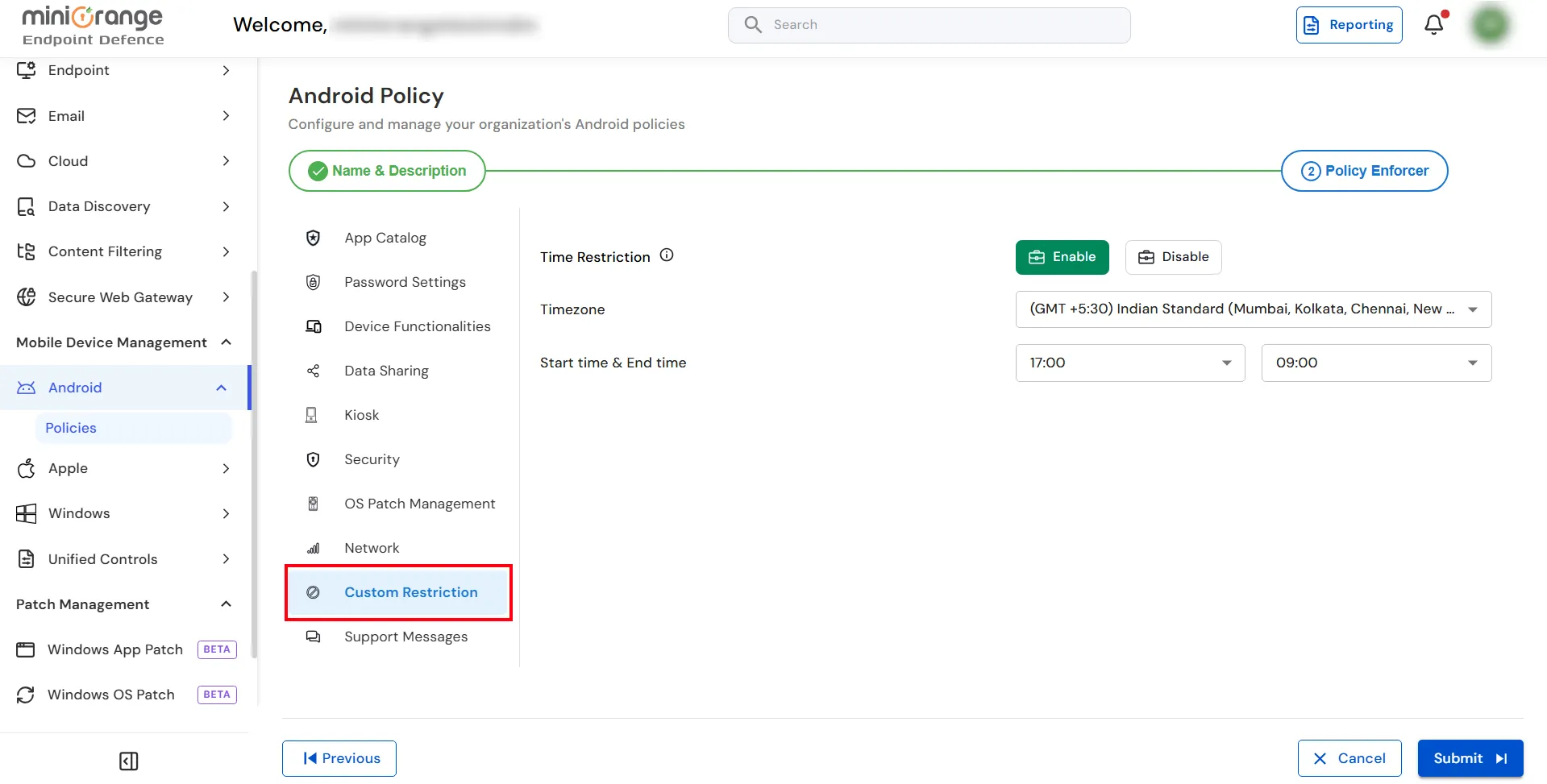
Step 1: From the Android Policy page, select
Custom Restriction from the left navigation panel.
-
Step 2: Configure the Time Restriction settings as described below.
Time Restriction
Controls whether time-based restrictions are applied to managed devices.
Access to managed applications is restricted for users during the specified
time period.
-
Enable: Activates the time-based restriction policy. When enabled,
select the appropriate Timezone and configure the Start Time
and End Time during which the restriction should be enforced.
-
Disable: Turns off the time-based restriction policy, allowing the
device to operate without any scheduled restrictions.
Timezone
Select the time zone that will be used to evaluate the configured restriction schedule.
-
Choose the appropriate time zone based on the location of the managed devices
or your organization's requirements.
Start Time & End Time
Specify the time period during which the restriction should be enforced.
-
Start Time: Defines when the restriction begins.
-
End Time: Defines when the restriction ends.
-
Ensure the selected schedule aligns with your organization's operational
or security requirements.
-
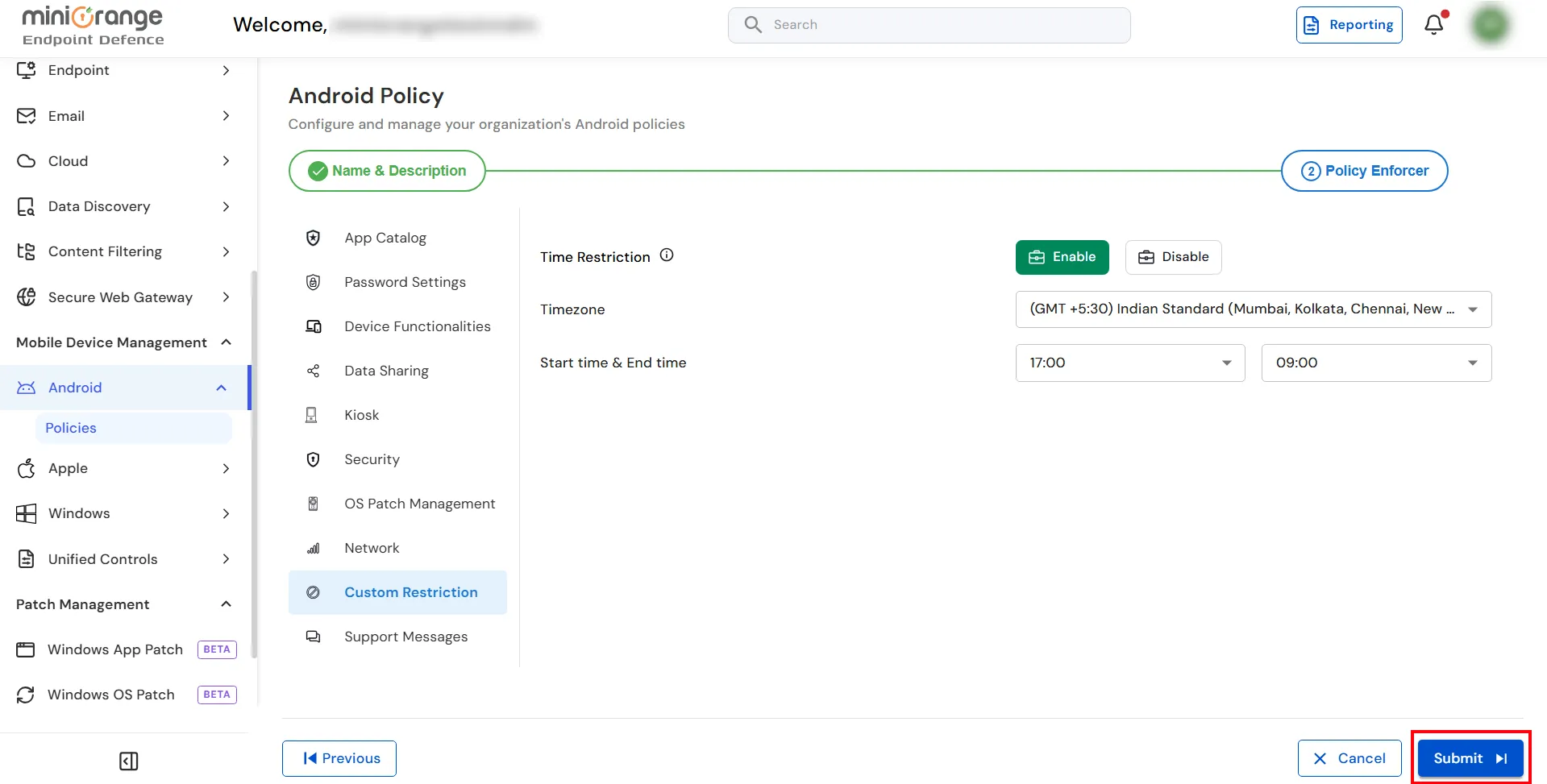
Click Submit to save and apply the Android policy.