Hello there!
Need Help? We are right here!

Need Help? We are right here!
Search Results:
×The Kiosk Mode feature allows administrators to configure Android devices to run in a controlled environment by restricting device usage to one or more approved applications. This is commonly used for dedicated devices such as point-of-sale terminals, digital signage, inventory scanners, self-service kiosks, and enterprise field devices.
Kiosk Mode is available only for Company-Owned Android devices running Android 5.0 (Lollipop) or later.
Before configuring Kiosk Mode, ensure that the following prerequisites are met:
Note: Kiosk is supported only on Company-Owned devices and cannot be applied to Personally Owned (BYOD) devices.
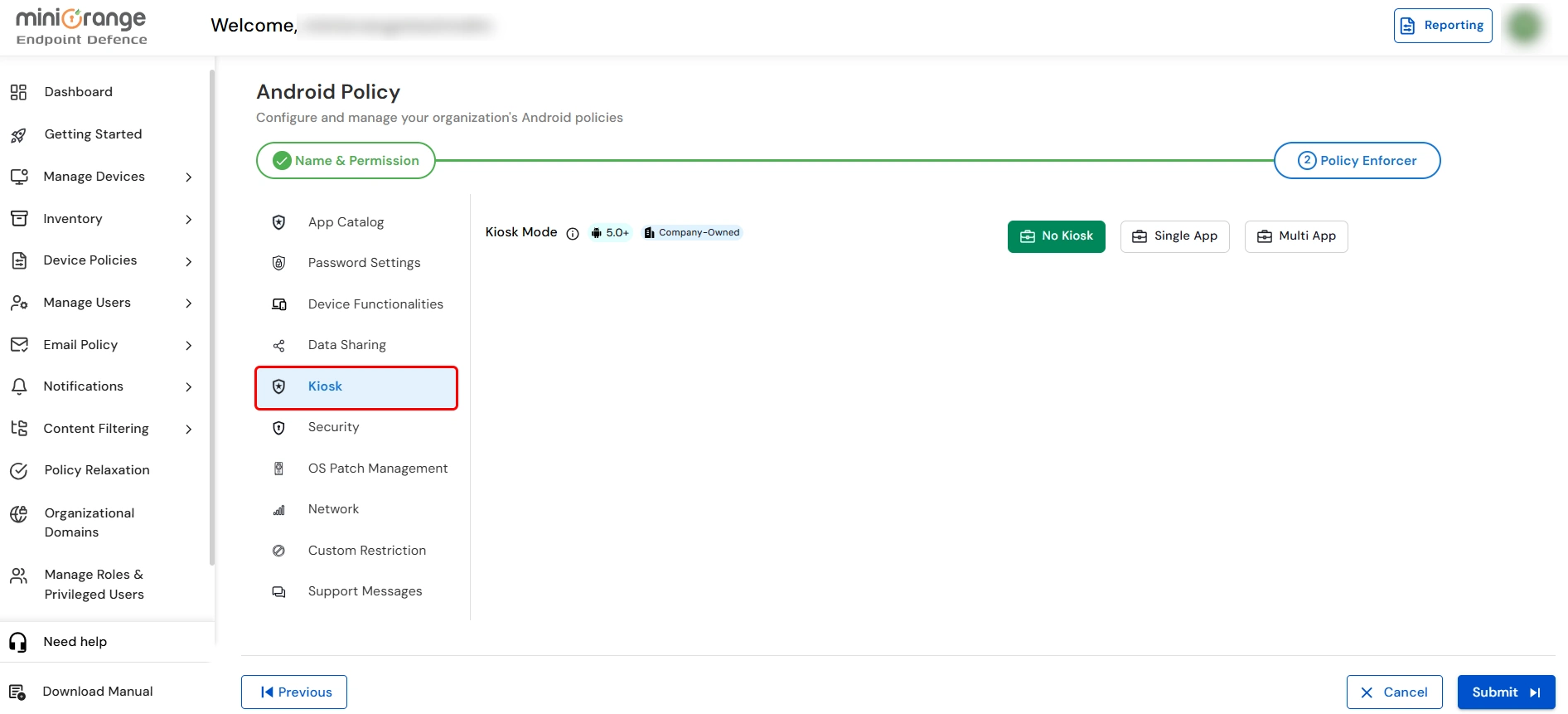
This option disables kiosk restrictions. Devices operate normally with standard Android navigation and user access.
| Setting | Description | Available Options |
|---|---|---|
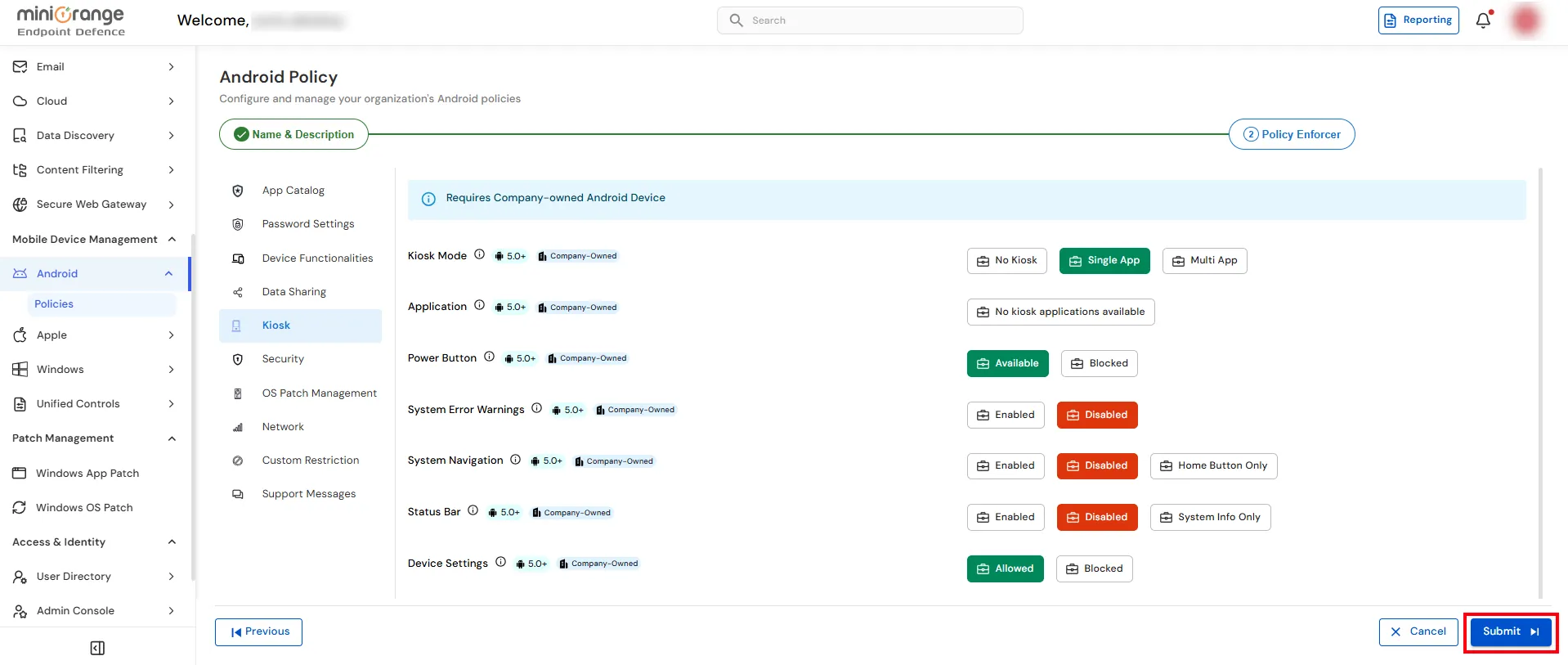
| Application | Selects the application that will run in Single App Kiosk Mode. | Choose a kiosk application from the configured App Catalog. If no applications are available, add an application to the App Catalog with Kiosk mode selected before enabling Single App Kiosk Mode. |
| Power Button | Controls whether users can use the device's physical power button. |
Available – Allows users to access the power menu. Blocked – Prevents users from using the power button. |
| System Error Warnings | Controls whether Android system error and warning dialogs are displayed. |
Enabled – Displays system error and warning messages. Disabled – Hides system error and warning dialogs. |
| System Navigation | Controls the visibility of the Android navigation bar. |
Enabled – Shows the Back, Home, and Recent Apps buttons. Disabled – Hides the navigation bar. Home Button Only – Displays only the Home button. |
| Status Bar | Controls the visibility of the Android status bar. |
Enabled – Shows the complete status bar, including notifications and
quick settings. Disabled – Hides the status bar. System Info Only – Displays only essential system information, such as battery level and network status. |
| Device Settings | Controls whether users can access the Android Settings app. |
Allowed – Users can access the Settings app. Blocked – Prevents access to the Settings app. |
| Setting | Description | Available Options |
|---|---|---|
| Power Button | Controls whether users can use the device's physical power button. |
Available – Allows users to access the device power menu. Blocked – Prevents users from using the power button. |
| System Error Warnings | Controls whether Android system error and warning dialogs are displayed. |
Enabled – Displays Android system error and warning messages. Disabled – Hides Android system error and warning dialogs to provide an uninterrupted kiosk experience. |
| System Navigation | Controls the visibility and functionality of the Android navigation bar. |
Enabled – Displays the Back, Home, and Recent Apps buttons. Disabled – Hides the navigation bar completely. Home Button Only – Displays only the Home button while hiding the Back and Recent Apps buttons. |
| Status Bar | Controls the visibility of the Android status bar. |
Enabled – Displays the status bar with notifications and system icons. Disabled – Hides the status bar completely. System Info Only – Displays only essential system information such as battery level, network status, and time while hiding notifications. |
| Device Settings | Controls whether users can access the Android device settings. |
Allowed – Users can open and modify device settings (subject to
administrator restrictions). Blocked – Prevents users from accessing the device Settings application. |