Hello there!
Need Help? We are right here!

Need Help? We are right here!
Search Results:
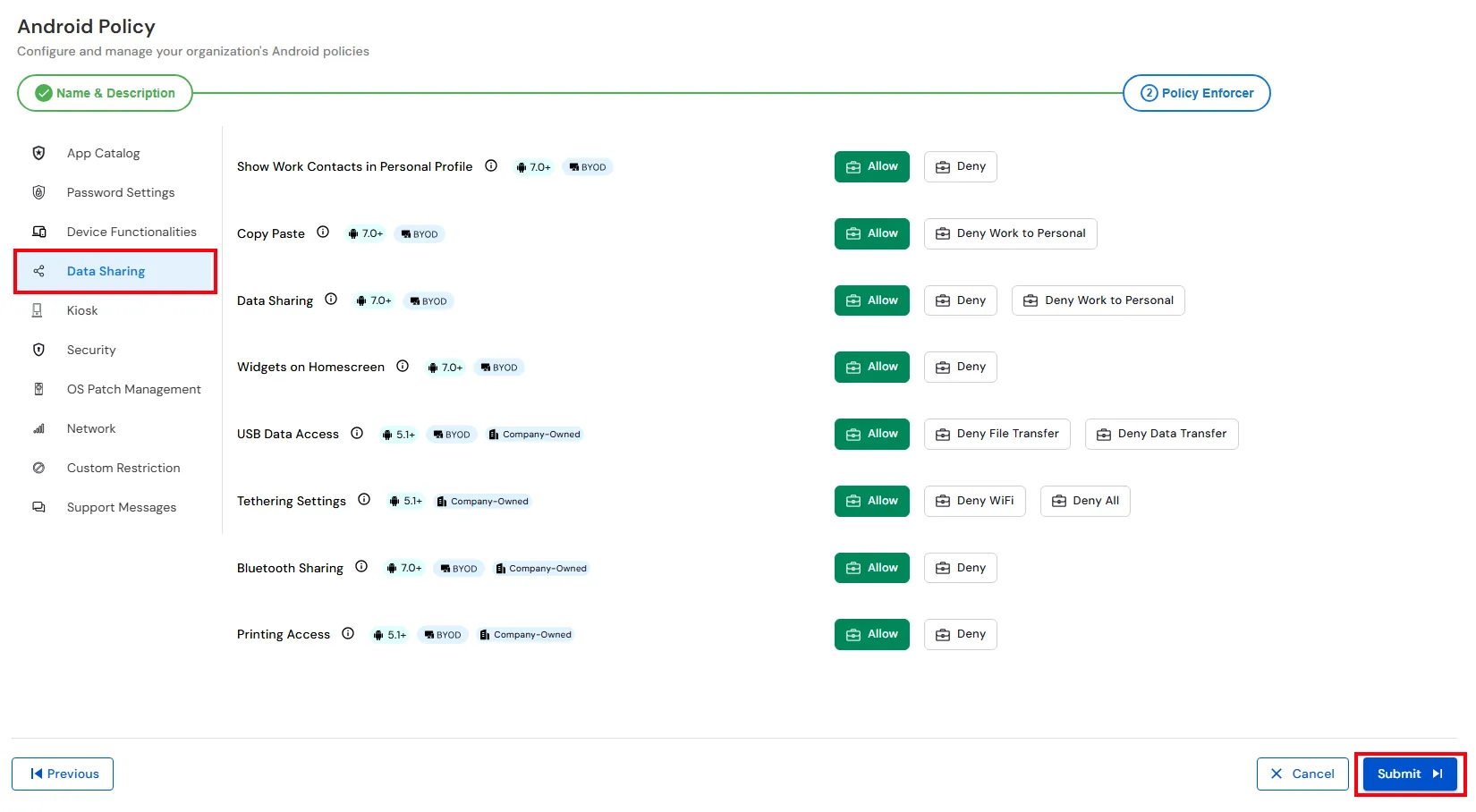
×The Data Sharing policy allows administrators to control how work data is shared between managed apps, personal apps, and external devices. These settings help prevent unauthorized data transfer and protect corporate information.
| Setting | Description | Options |
|---|---|---|
| Show Work Contacts in Personal Profile | Controls whether work contacts are visible in the user's personal profile. |
Allow: Work contacts are accessible from the personal profile. Deny: Work contacts remain accessible only within the work profile. |
| Copy Paste | Controls whether users can copy and paste content between the work and personal profiles. |
Allow: Enables copy and paste between profiles. Deny Work to Personal: Prevents copying data from the work profile to the personal profile. |
| Data Sharing | Controls whether data can be shared between work and personal profiles. |
Allow: Permits data sharing between profiles. Deny: Blocks all data sharing. Deny Work to Personal: Prevents sharing data from the work profile to the personal profile. |
| Widgets on Homescreen | Controls whether work profile widgets can be added to the device home screen. |
Allow: Users can add work profile widgets to the home screen. Deny: Prevents work profile widgets from appearing on the home screen. |
| USB Data Access | Controls data transfer through a USB connection. |
Allow: Enables USB data transfer. Deny File Transfer: Blocks file transfers over USB while allowing charging. Deny Data Transfer: Prevents all USB data transfer. |
| Tethering Settings | Controls whether the device can share its network connection with other devices. |
Allow: Enables tethering. Deny WiFi: Disables Wi-Fi tethering. Deny All: Disables all tethering methods. |
| Bluetooth Sharing | Controls whether files can be shared using Bluetooth. |
Allow: Enables Bluetooth file sharing. Deny: Blocks Bluetooth file sharing. |
| Printing Access | Controls whether users can print documents from the device. |
Allow: Enables printing. Deny: Prevents printing from the device. |