Hello there!
Need Help? We are right here!

Need Help? We are right here!
Search Results:
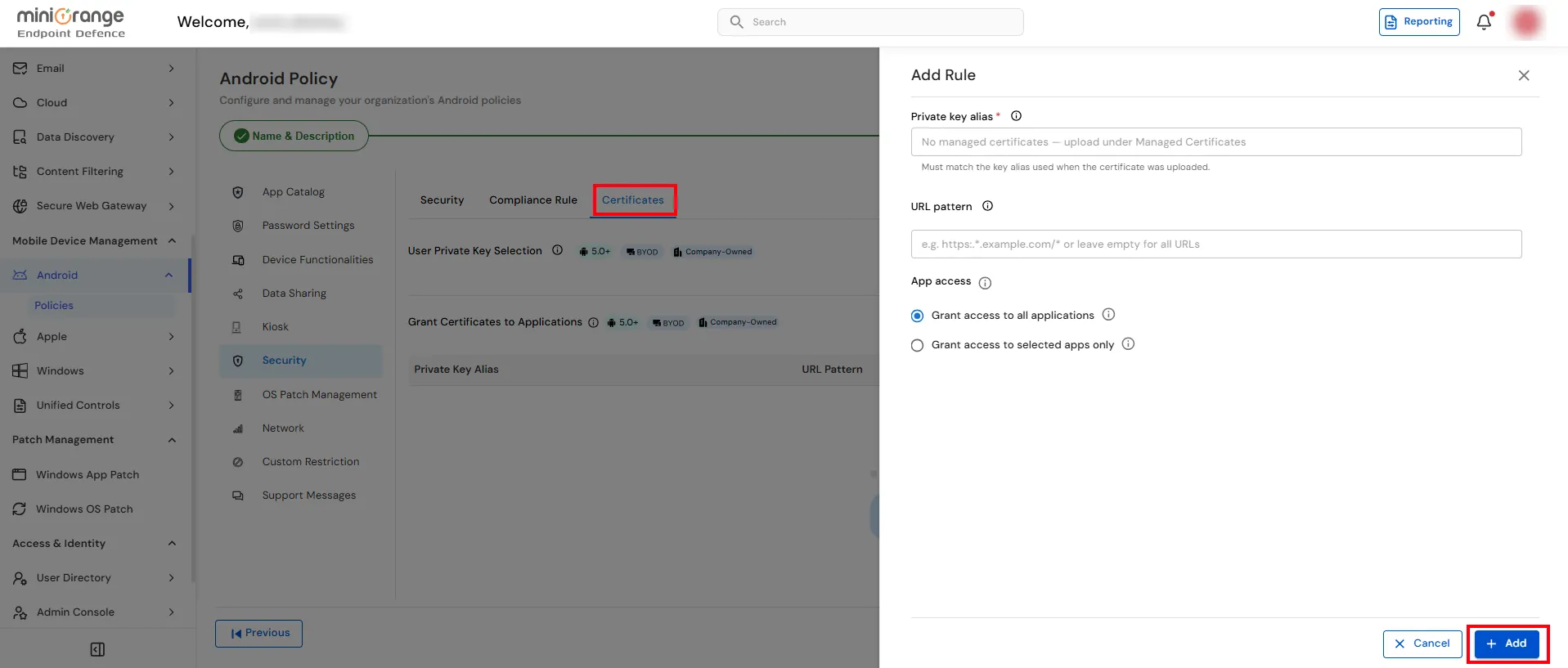
×The Security tab is used to configure device security settings for Android devices enrolled in the MDM. These settings help enforce organizational security standards by controlling developer options, account management, device authentication, encryption, factory reset permissions, and other security-related configurations.
| Setting | Description | Options / Configuration |
|---|---|---|
| Developer Settings | Enables or disables access to Android Developer Options, preventing users from modifying advanced system settings such as USB debugging. |
Allow – Users can access Developer Options. Disabled – Users cannot access Developer Options. |
| Add New Accounts | Controls whether users can add new accounts, such as Google or email accounts, to the device. |
Allow – Users can add new accounts. Deny – Users cannot add new accounts. |
| Keyguard Disable | Controls whether the device lock screen (Keyguard) is enabled or disabled. |
Yes – Disables the lock screen. No – Keeps the lock screen enabled. |
| Add Keyguard | Specifies the lock screen authentication methods that users can configure. | Select the required keyguard features, such as PIN, Password, Pattern, or Biometrics. |
| Factory Reset | Controls whether users are allowed to perform a factory reset on the device. |
Allow – Users can perform a factory reset. Deny – Users cannot perform a factory reset. |
| Encryption Policy | Defines whether authentication is required during device startup to decrypt encrypted data. |
Password required to boot – Requires a password before the device starts. No password required to boot – Starts without requiring a boot password. |
| Authentication Type | Specifies the authentication method used on the device. |
Google Authentication – Uses a Google account for authentication. No Authentication – No authentication method is enforced. |
| Disable Account Types | Restricts users from adding selected account types to the device. | Select the account type(s) to disable from the drop-down list. |
Specifies administrator email addresses for device management or administrative communication.
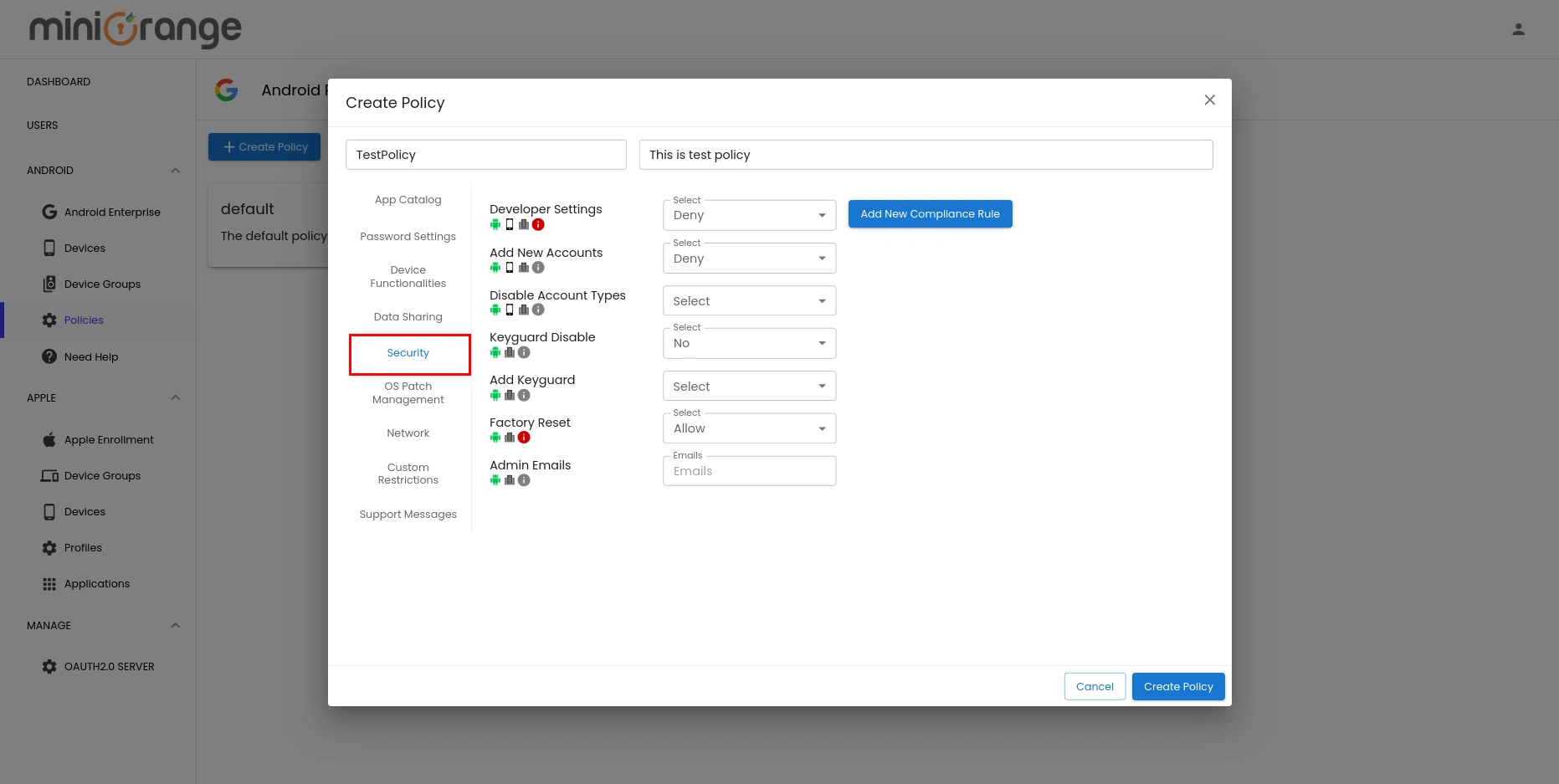
The Compliance Rule tab is used to define actions that are automatically applied when a device becomes non-compliant, such as blocking access or wiping data after a specified number of days.
| Description | Options / Configuration | |
|---|---|---|
| Setting Name | Select the type of compliance rule to configure. |
Applications – Applies compliance checks based on application policies. Password Settings – Applies compliance checks based on password requirements. |
| Block Scope | Specifies the area of the device that will be blocked when the device becomes non-compliant. |
Work Profile – Blocks access only to the managed work profile. Device Wide – Blocks access to the entire device. |
| Block After Days | Specifies the number of days after which the selected block action is enforced if the device remains non-compliant. | Enter the number of days before the device is blocked. |
| Wipe After Days | Specifies the number of days after which device data is wiped if the device remains non-compliant. | Enter the number of days before the wipe action is performed. |
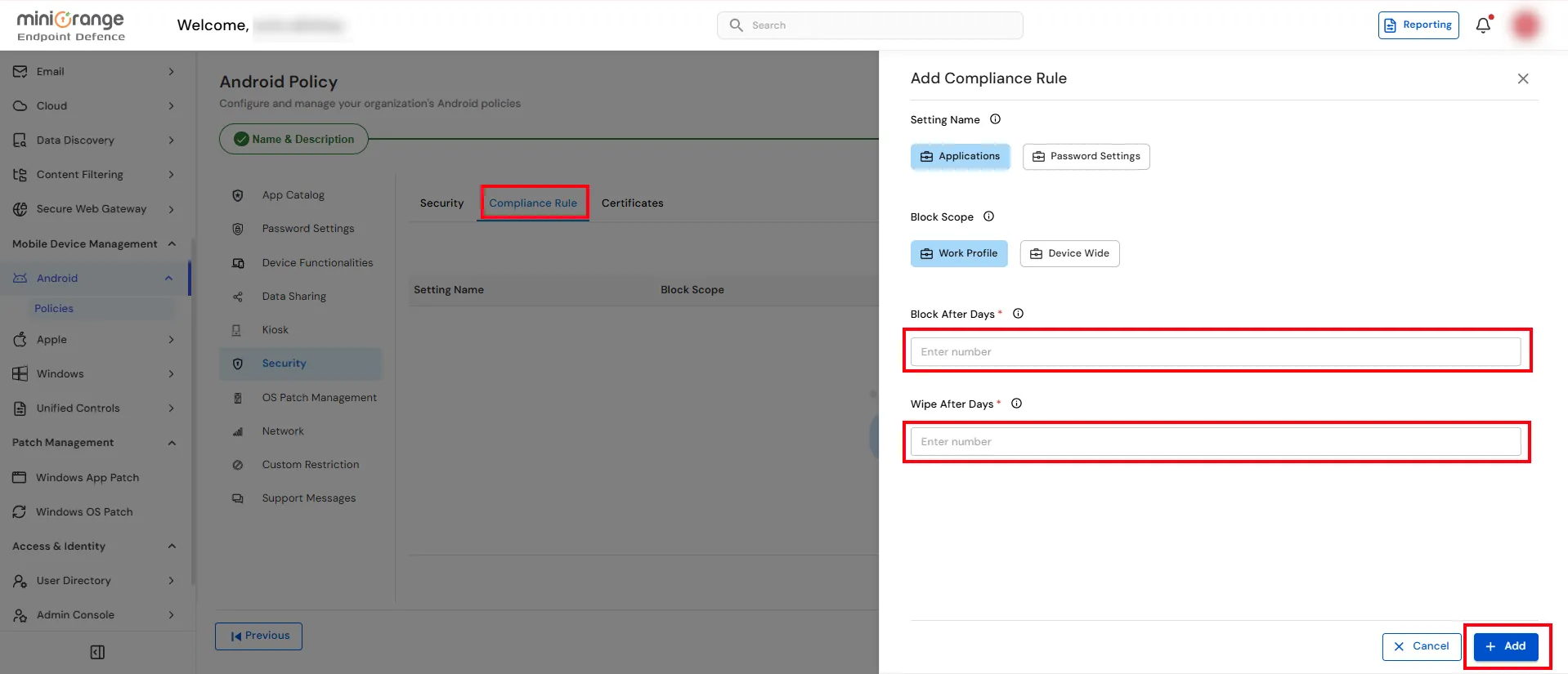
The Certificates tab allows you to control how client certificates are used on managed Android devices. You can allow or restrict private key selection and define which applications are permitted to use specific client certificates for secure authentication.
Choose whether users are allowed to manually select a private key when an application requests a client certificate.
Under Grant Certificates to Applications, click Add Rule to create a certificate access rule.
In the Private Key Alias field, select or enter the certificate alias to be used.
Note: The alias must match the key alias that was specified when the certificate was uploaded.
In the URL Pattern field, enter the URL pattern where the certificate should be used.
Choose how applications can access the certificate: