App Catalog
The App Catalog allows IT administrators to manage applications on enrolled Android devices. You can add public or private apps, configure installation settings, and control how applications are deployed to managed devices.
Prerequisite
- Before configuring the App Catalog, create a new Android policy or open an existing policy. For instructions, refer to the How to create Android Policy guide.
Follow the Steps Below to Configure the App Catalog Policy
- From the policy configuration page, select App Catalog from the left navigation panel.
- Next, follow the guidelines below to configure each specific tab within the App Catalog section:
- App Configuration
- System Apps
- Security Settings
- Runtime Configuration
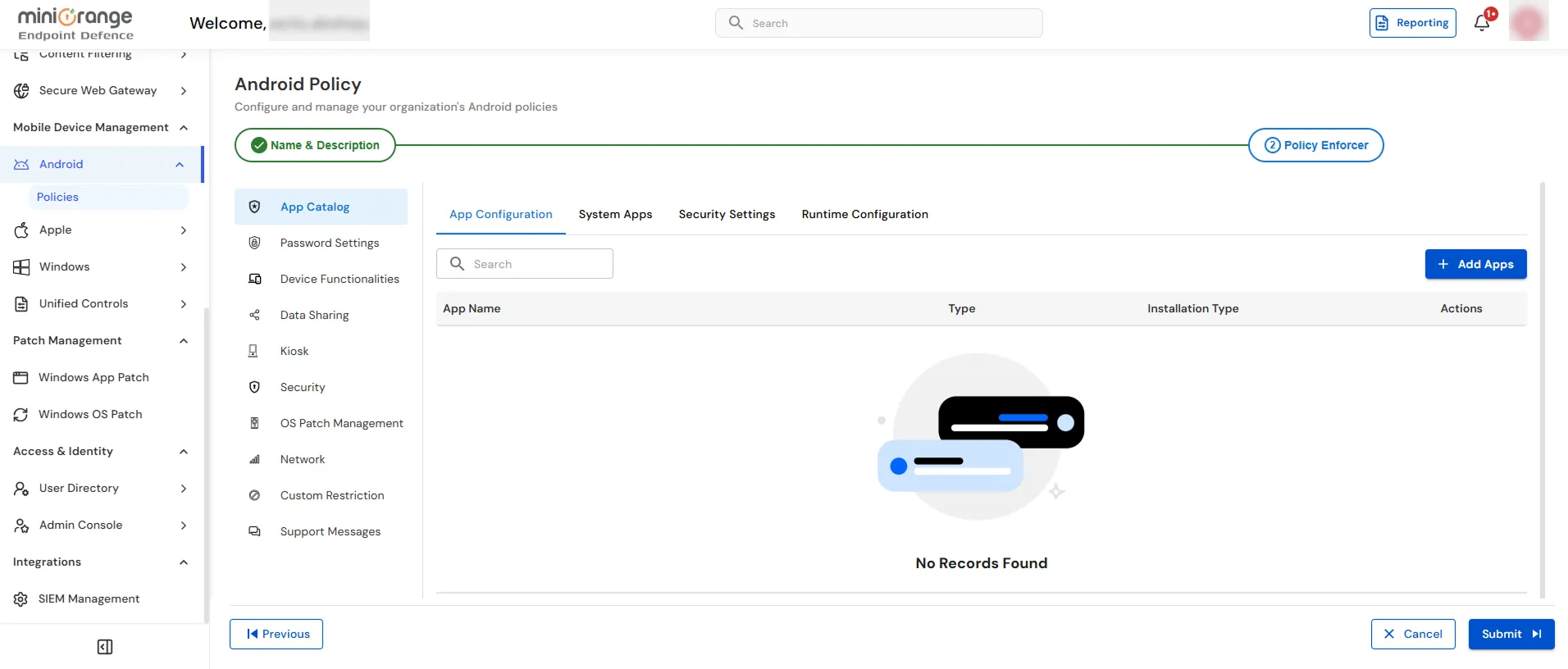
App Configuration
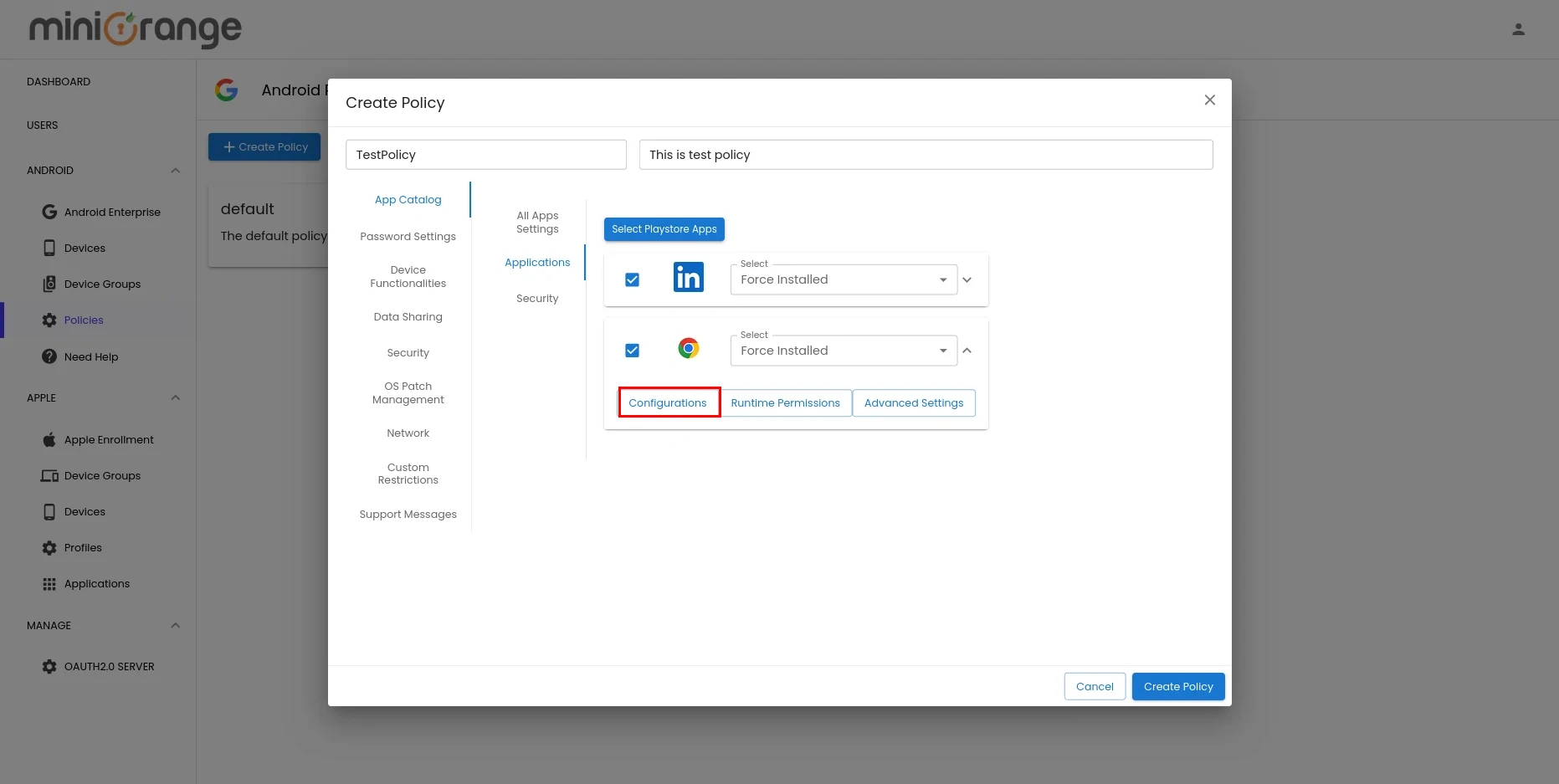
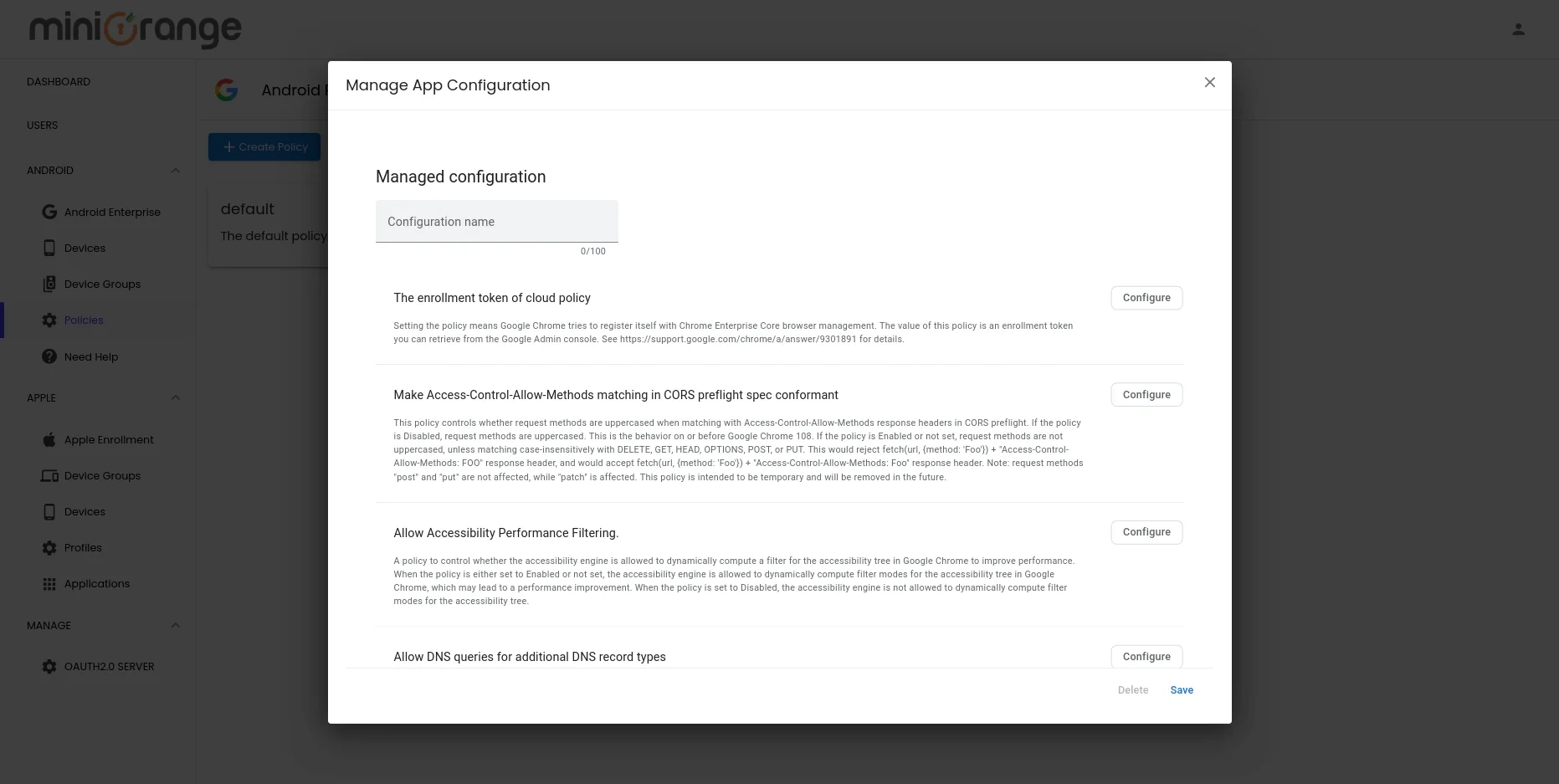
The App Configuration tab allows IT administrators to add, manage, and configure applications that will be deployed to managed Android devices. Administrators can define the installation behavior for each app and manage existing app configurations.
To configure App Configuration:
- In the App Configuration tab, click + Add Apps.
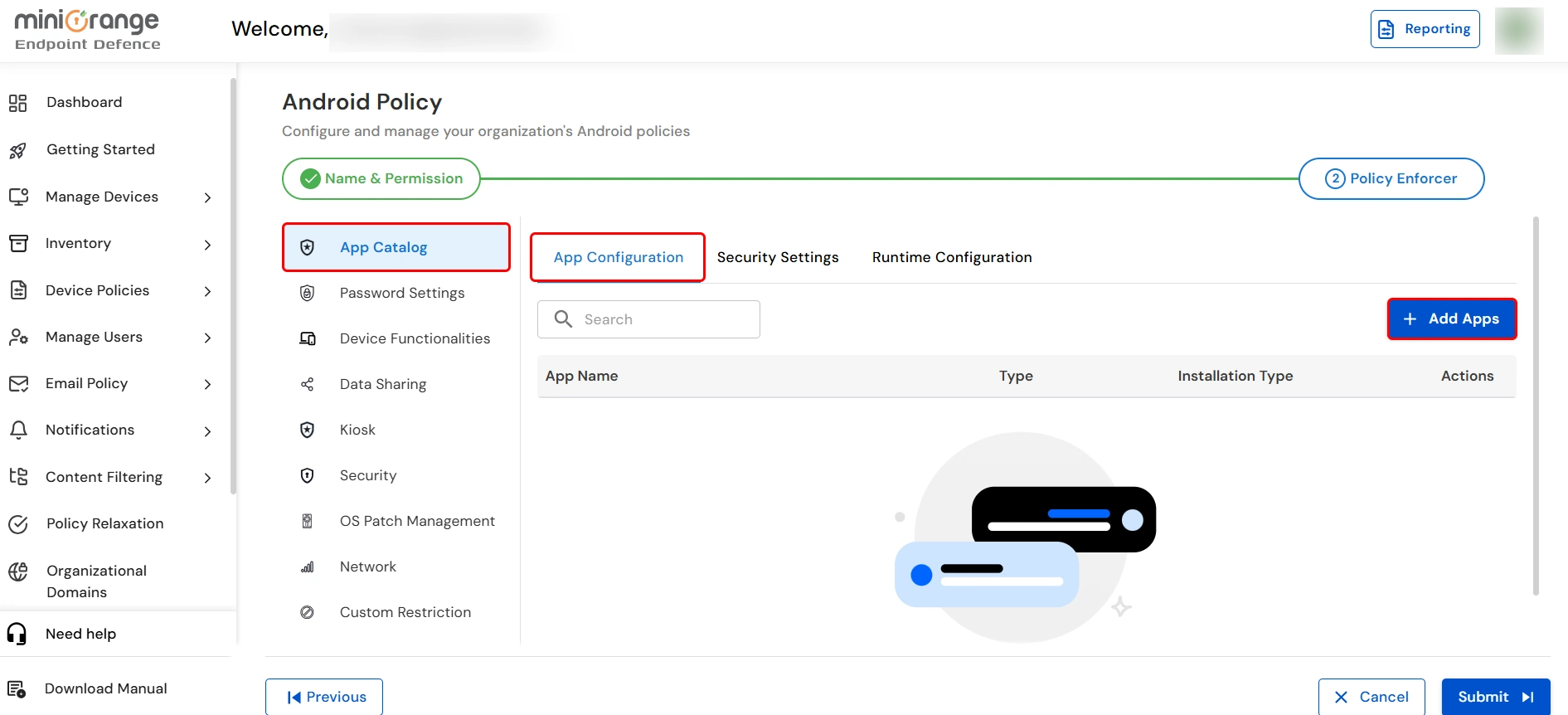
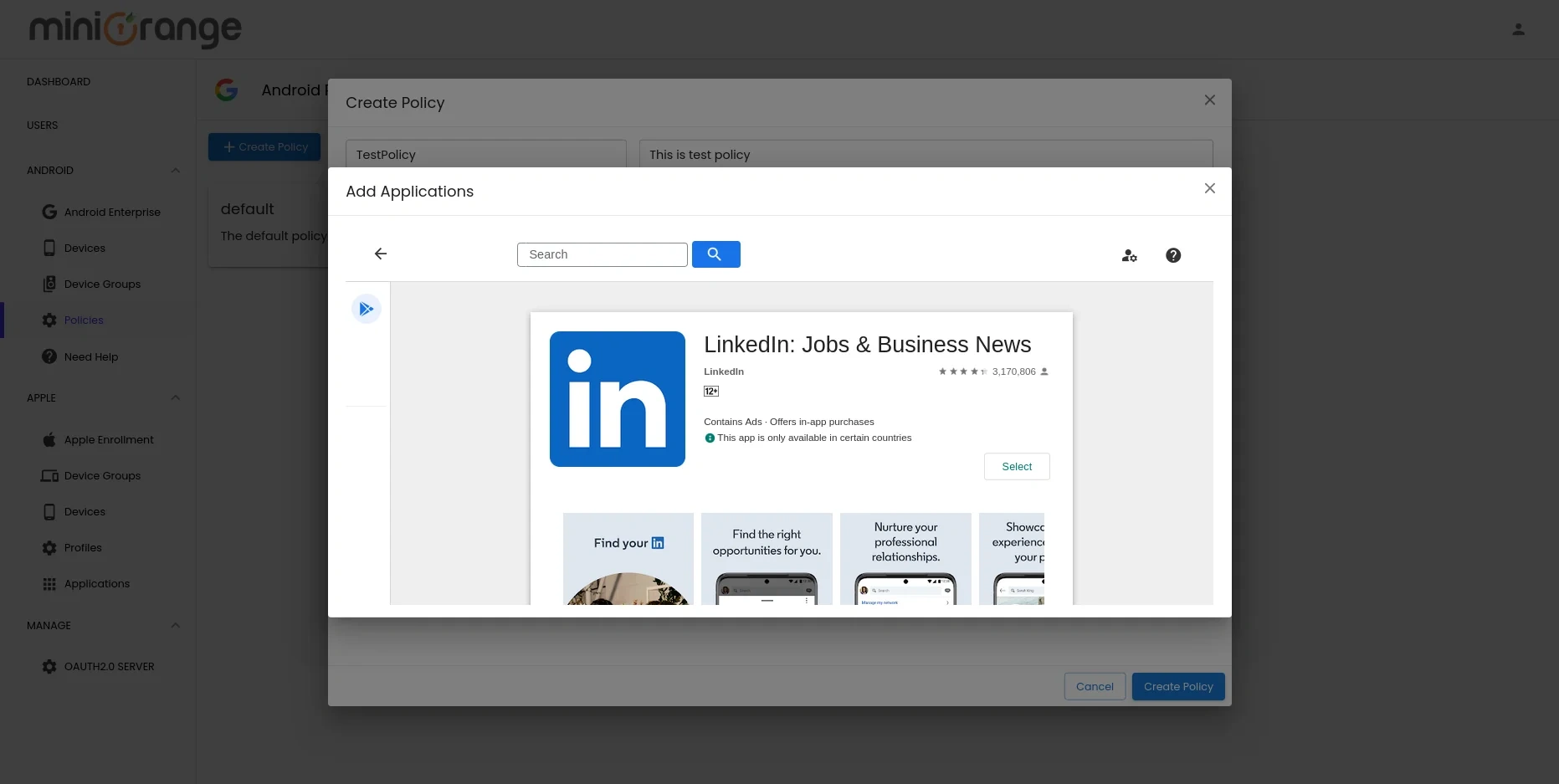
- Search for and select the required application from the managed Google Play Store.
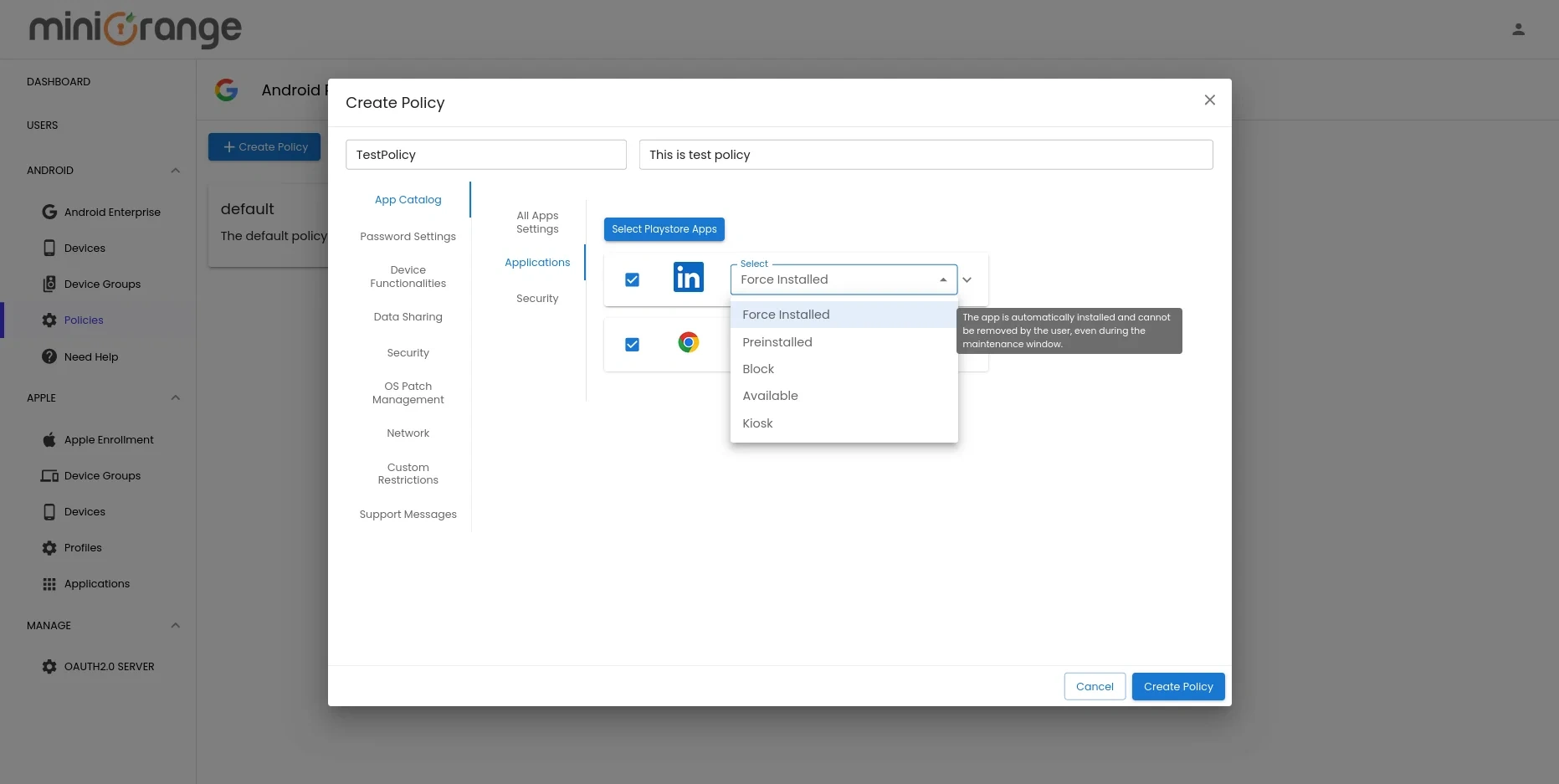
- Configure the Installation Type for the application. Available options include:
- Force Installed – Automatically installs the app on assigned devices.
- Available – Makes the app available for users to install.
- Blocked – Prevents users from installing the app.
- Use the Search box to quickly locate configured applications when managing multiple apps.
- To modify or remove an application, click the Actions (⋮) menu corresponding to the app.
System Apps
The System Apps tab allows IT administrators to control which Android system applications are allowed or blocked on managed devices by specifying their package names.
- Navigate to App Catalog > System Apps.
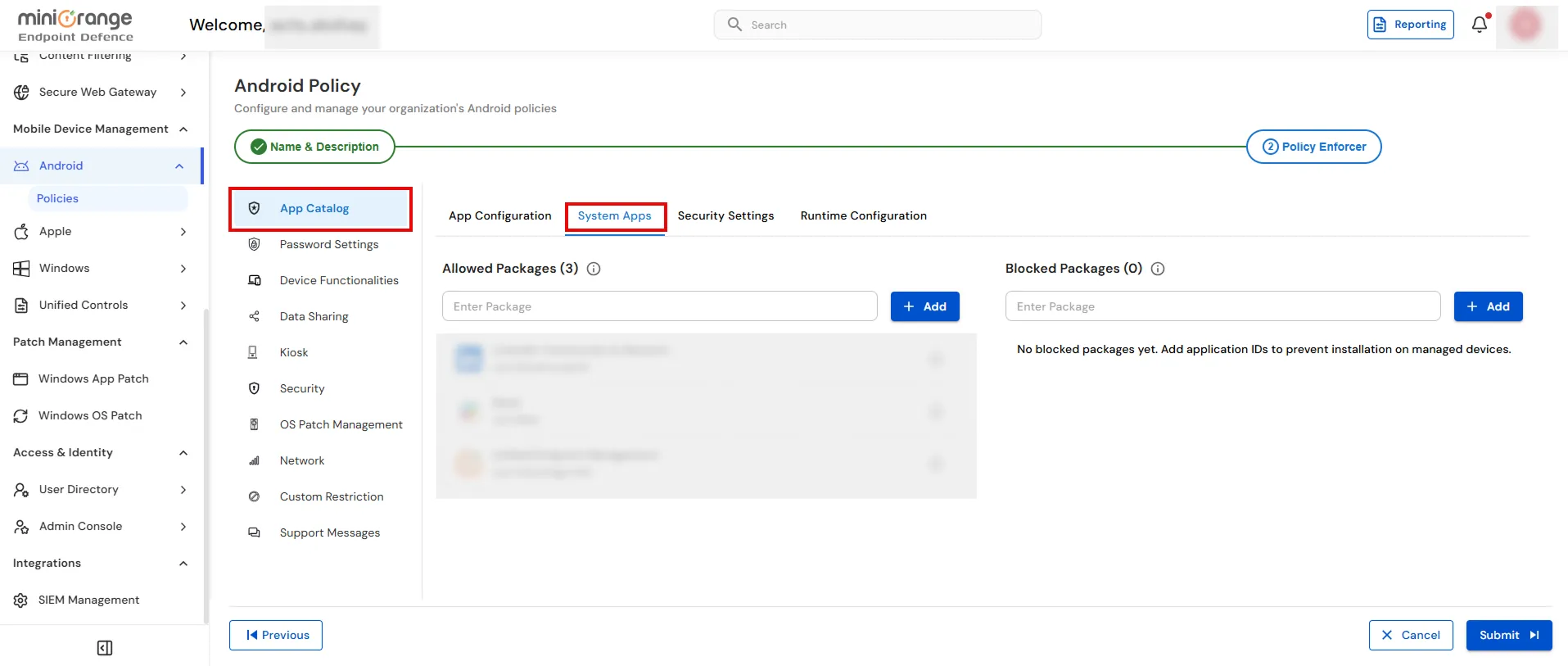
- Under Allowed Packages, enter the package name of the system application you want to allow and click Add.
- Under Blocked Packages, enter the package name of the system application you want to block and click Add.
- Review the configured package lists and make changes if required.
- Click Submit to save the configuration.
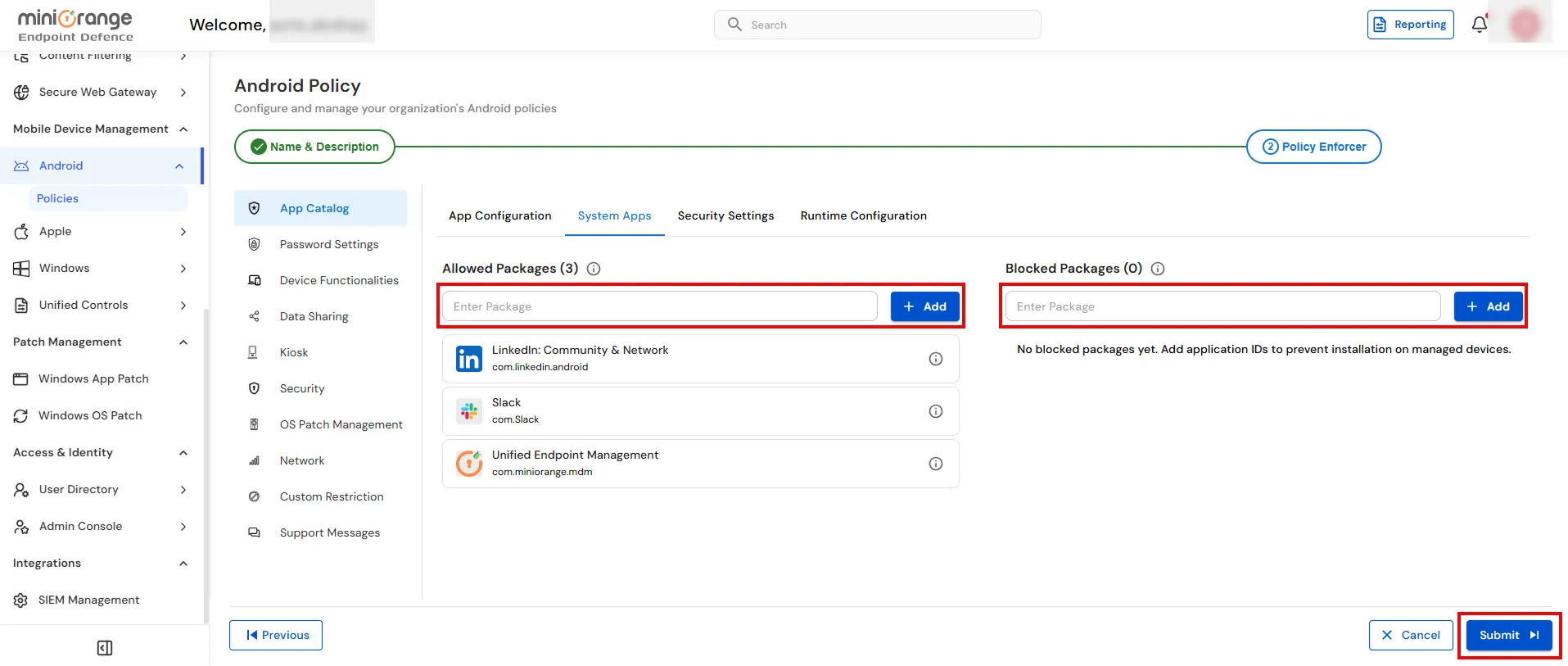
Note: You must enter the correct Android package name (for example, com.miniorange.mdm) when adding allowed or blocked system applications.
Security Settings
The Security Settings tab allows IT administrators to configure application security policies for managed Android devices. These settings help control app installation, updates, permissions, and other security-related behaviors.
To configure Security Settings:
- Navigate to App Catalog > Security Settings.
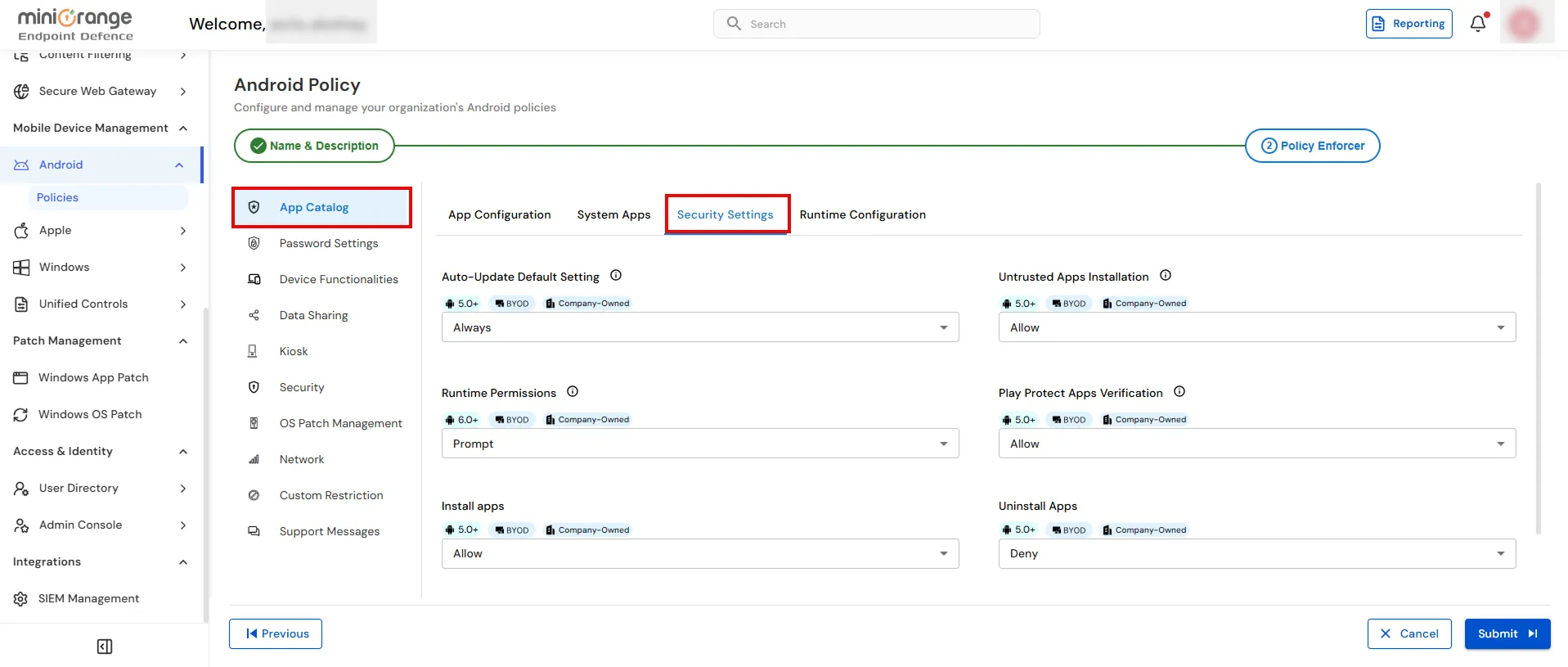
- Configure the required security options based on your organization's requirements, such as:
- Auto-Update Default Setting – Define how managed apps receive updates.
- Untrusted Apps Installation – Allow or block the installation of apps from unknown sources.
- Runtime Permissions – Specify how app runtime permissions are handled (for example, Allow, Deny, or Prompt).
- Play Protect Apps Verification – Enable or disable Google Play Protect app verification.
- Install Apps – Control whether users can install applications.
- Uninstall Apps – Control whether users can uninstall applications.
- Select the appropriate value from each drop-down menu as required.
- Click Submit to save the configuration.
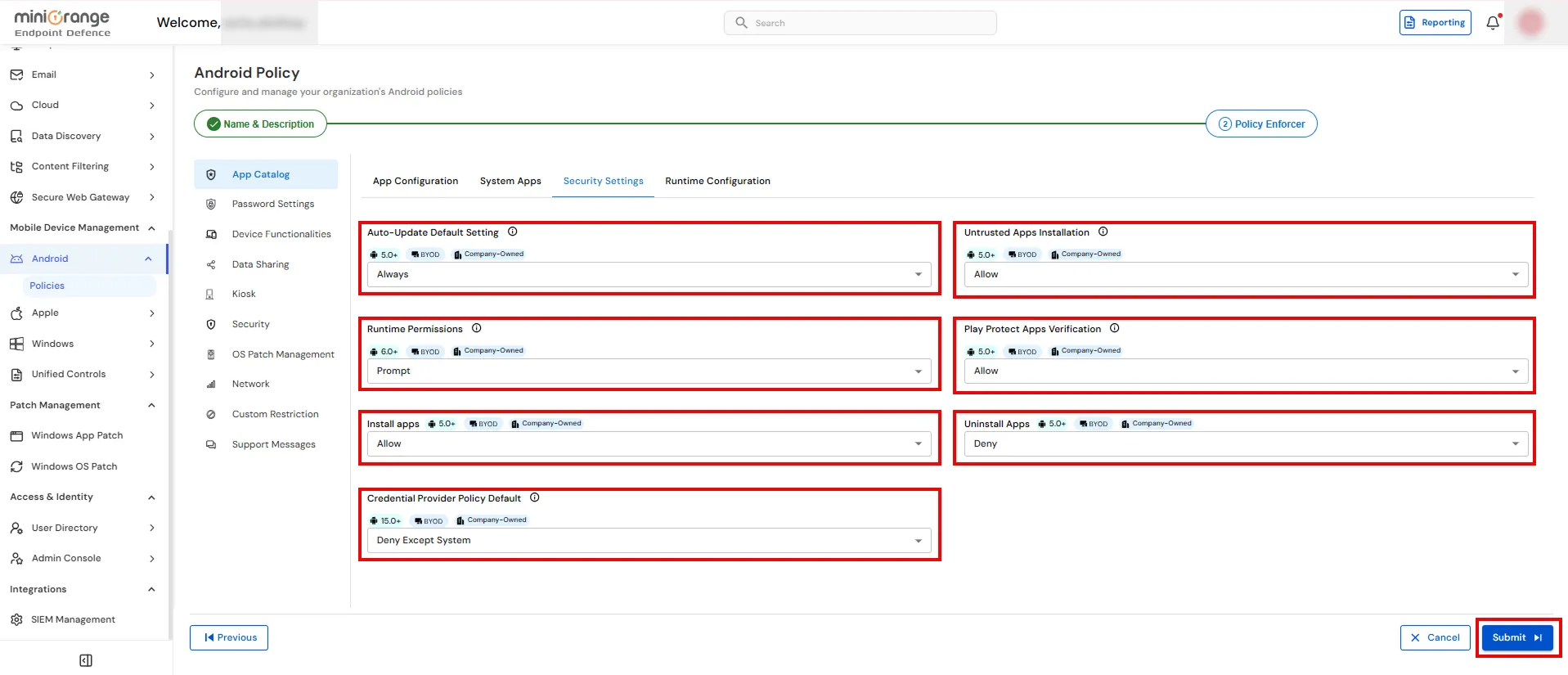
Note: The available settings and options may vary depending on the Android version and device ownership type (BYOD or Company-Owned).
Runtime Configuration
The Runtime Configuration tab allows IT administrators to define default runtime permission behavior for managed Android applications. These permissions can be granted, denied, or set to prompt users when an app requests access to device resources.
To configure Runtime Configuration:
- Navigate to App Catalog > Runtime Configuration.
- Click Add Runtime Permissions.
- In the Runtime Permissions dialog, enable the permissions you want to configure.
- For each enabled permission, choose one of the following actions:
- Grant – Automatically grants the permission.
- Prompt – Prompts the user to allow or deny the permission.
- Deny – Automatically denies the permission.
- Configure the required permissions (such as Access Fine Location, Camera, Microphone, Bluetooth, Phone, or other available permissions) according to your organization's policy.
- Save the runtime permission configuration.
- Click Submit to apply the policy.
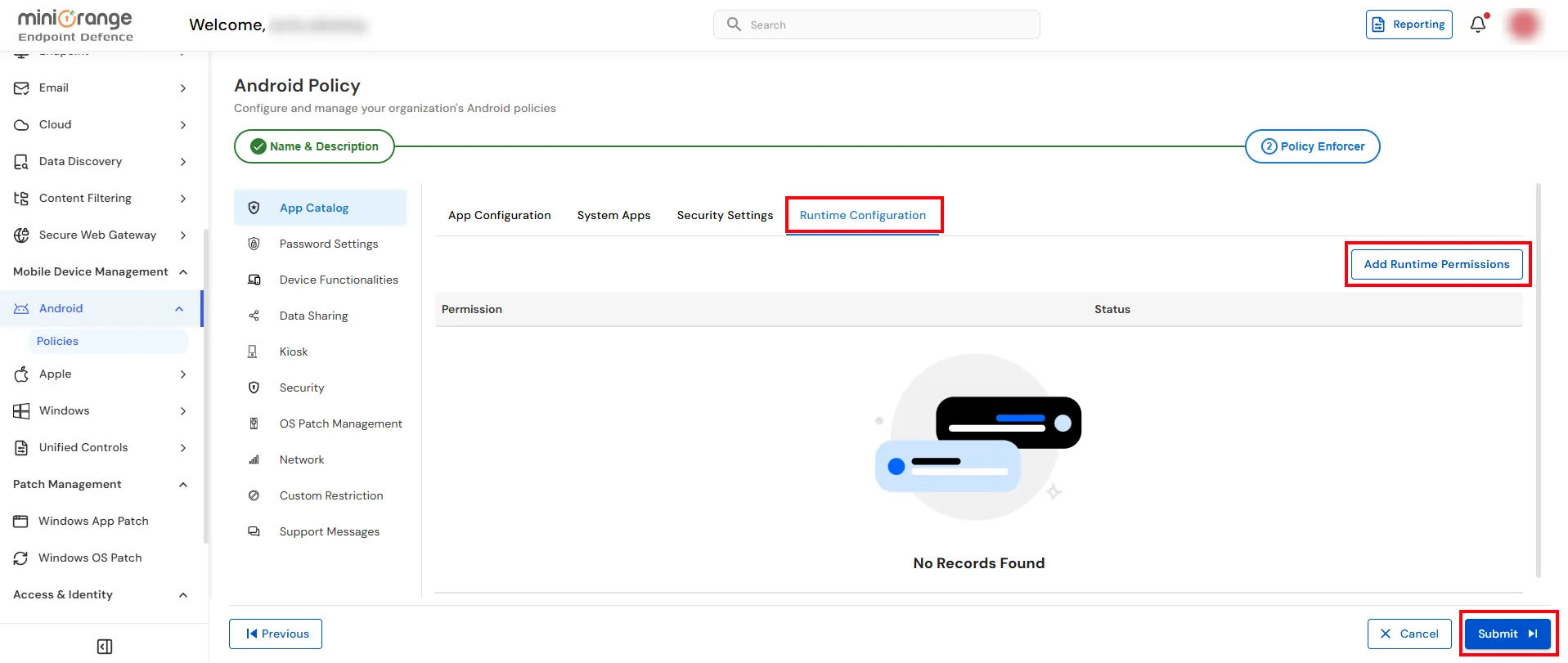
Note: The list of available runtime permissions may vary depending on the Android version and the permissions requested by the managed application.

