How to Create Android Policies
Create a policy to define and enforce security settings, device configurations, and access controls for managed devices. Configure the required settings and assign the policy to users, groups, or devices to ensure consistent management across your organization.
Follow the Steps Below to Create a Policy
- Sign in to the miniOrange Unified Endpoint Management (UEM) dashboard.
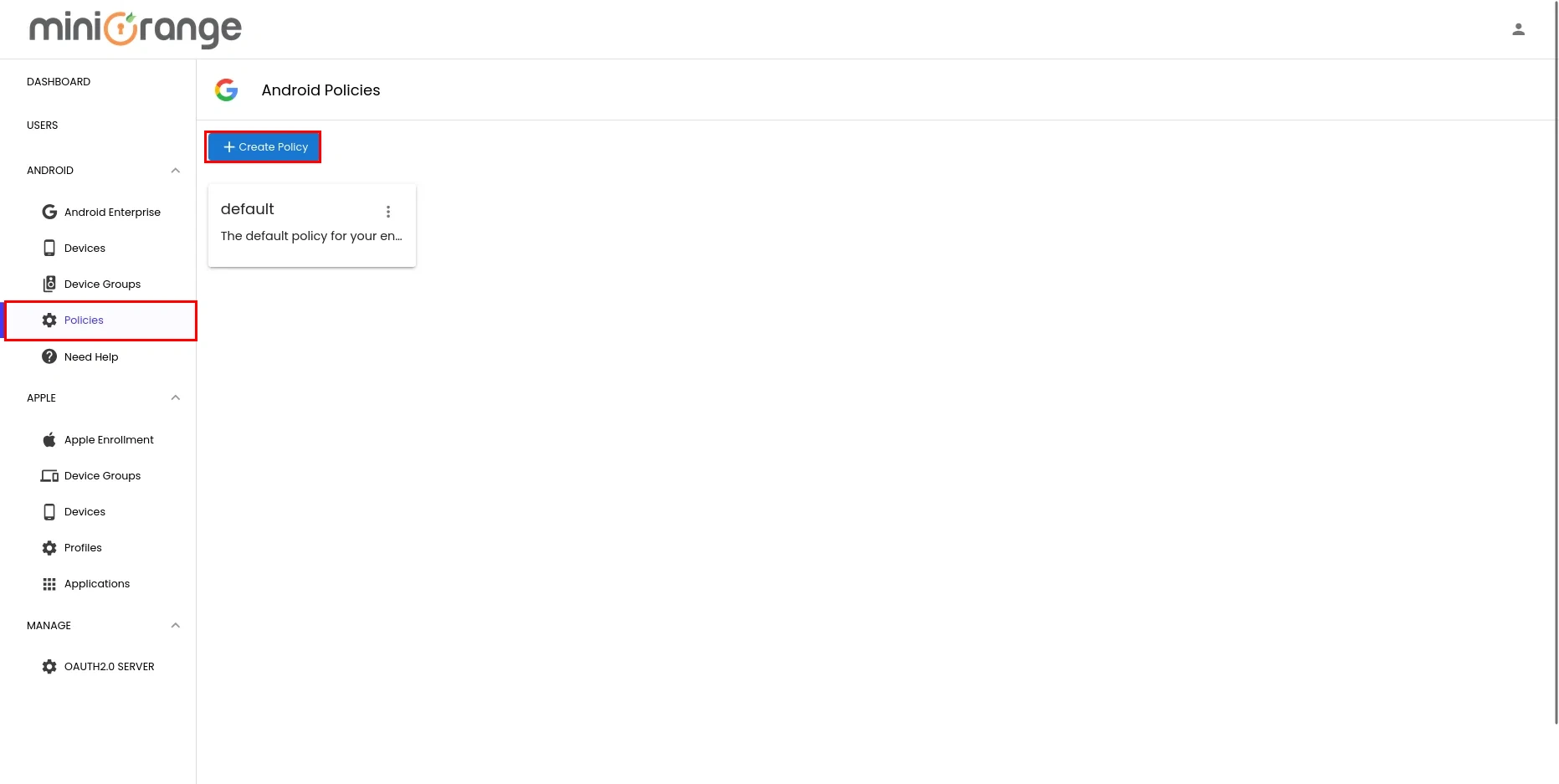
- Navigate to the Mobile Device Management section, select Android, and then open the Policy tab.
- Note: A Default policy is available by default and serves as the initial Android policy. You can edit this policy or create a new one based on your organization's requirements.
- To initiate the creation of a new configuration, click on the Create Policy button.
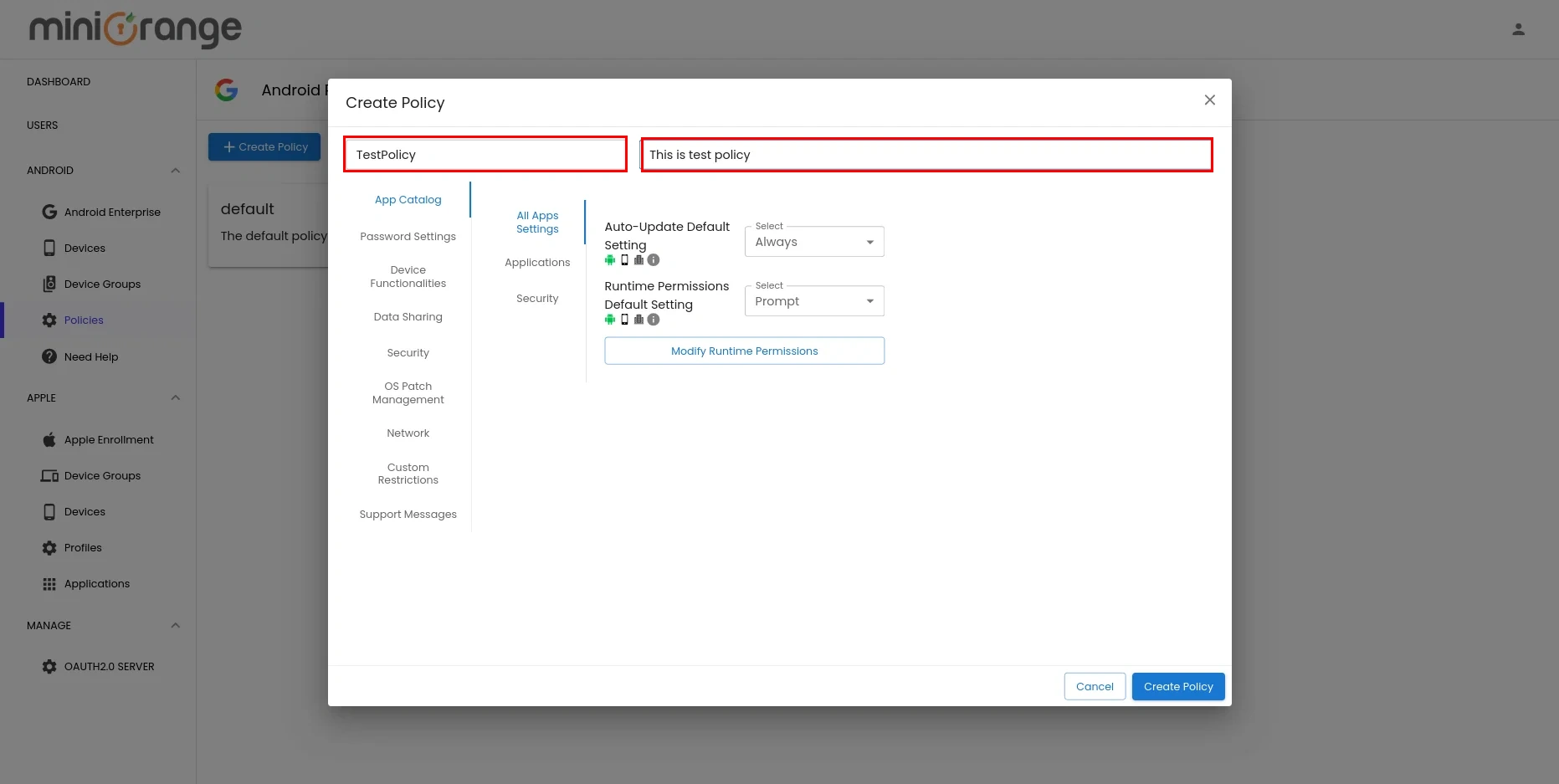
- Specify your policy details by entering a name and description, then click Next to proceed.
- You'll now see all the available policy categories. Select the categories you want to configure based on your organization's requirements. Each category contains specific settings that control device behavior, security, applications, and other management options.
-
App Catalog — Manage applications on Android devices, including app installation, distribution, and application-related configurations.
-
Password Settings — Configure password requirements such as complexity, length, expiration, and other password security controls.
-
Device Functionalities — Control device features and hardware functionalities, including settings that determine which device capabilities users can access.
-
Data Sharing — Configure how data can be shared between applications and control data transfer capabilities on managed Android devices.
-
Kiosk Mode — Configure single-app or multi-app kiosk mode to restrict devices to specific applications and dedicated-use scenarios.
-
Security — Configure security controls that help protect managed Android devices, applications, and organizational data.
-
OS Patch Management — Configure operating system update and patch settings to help keep Android devices updated and secure.
-
Network — Configure network-related settings such as Wi-Fi, mobile network, and other connectivity controls for managed Android devices.
-
Custom Restrictions — Configure additional device restrictions and controls based on your organization's specific security and management requirements.
-
Support Message — Configure a support message that appears on the device lock screen, providing users with contact information for IT support or helpdesk assistance.
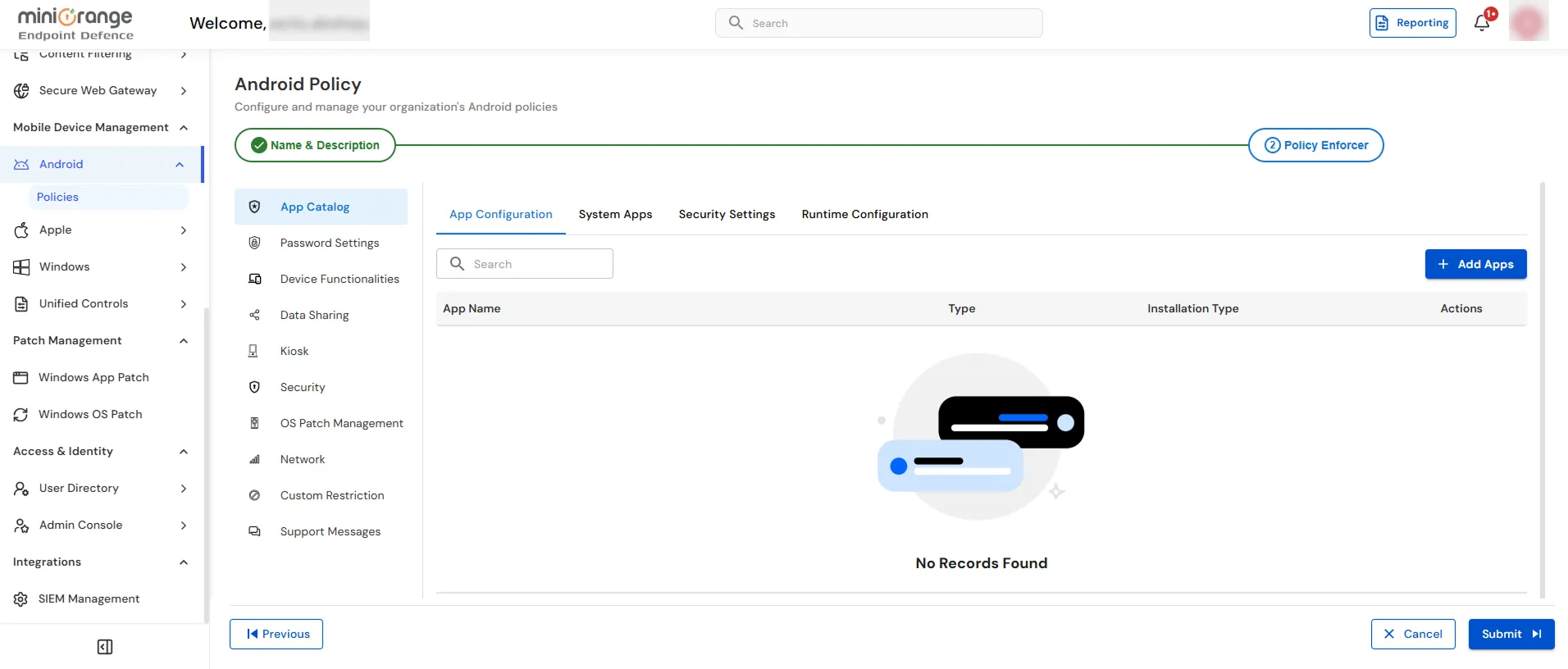
- After configuring the required settings, click Submit to create the new policy.

