Support Messages
The Support Messages policy allows administrators to configure custom
messages that are displayed on managed Android devices. These messages can provide
users with support information, IT contact details, or instructions when device
restrictions are enforced.
Prerequisite
-
Before configuring the support message, create a new Android policy or open an
existing policy. For instructions, refer to the
How to create policy
guide.
Follow the steps below to configure Support Messages
-
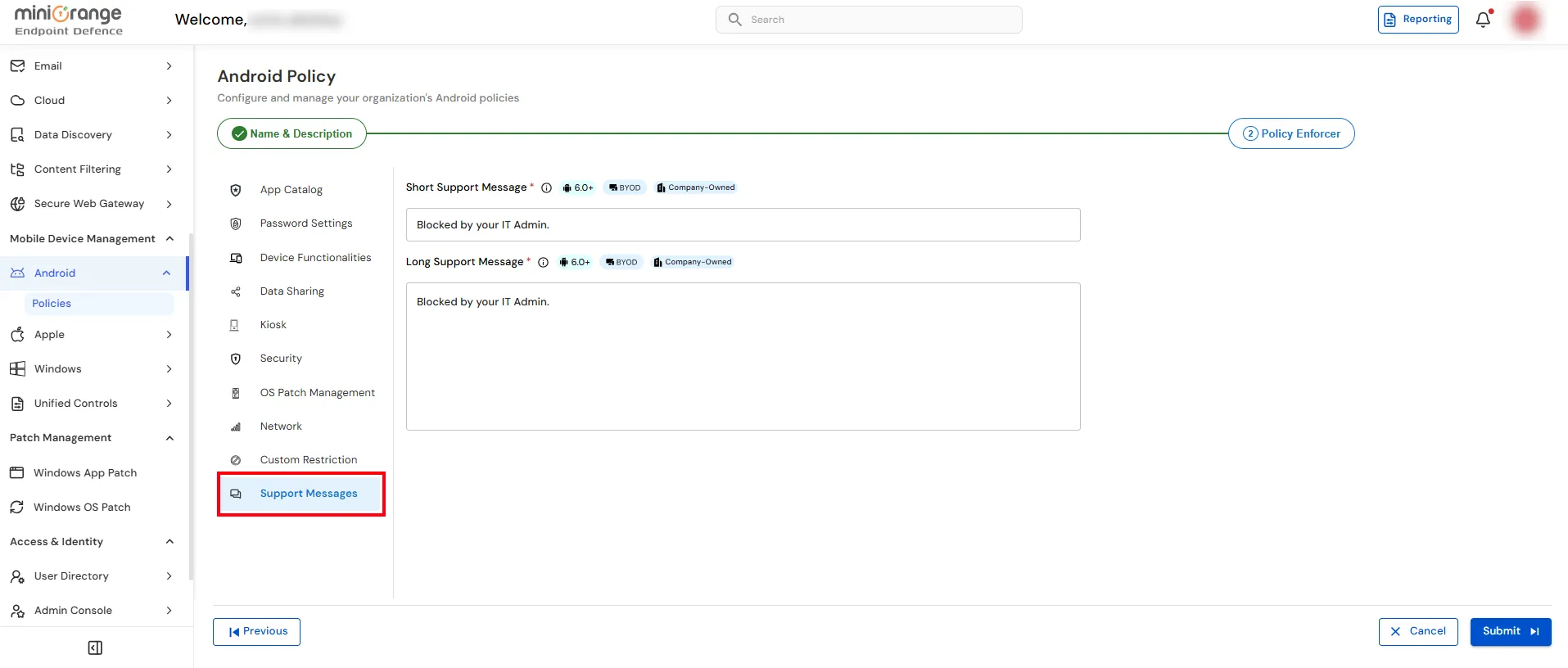
Step 1: From the Android Policy page, select
Support Messages from the left navigation panel.
-
Step 2: Configure the support messages as described below.
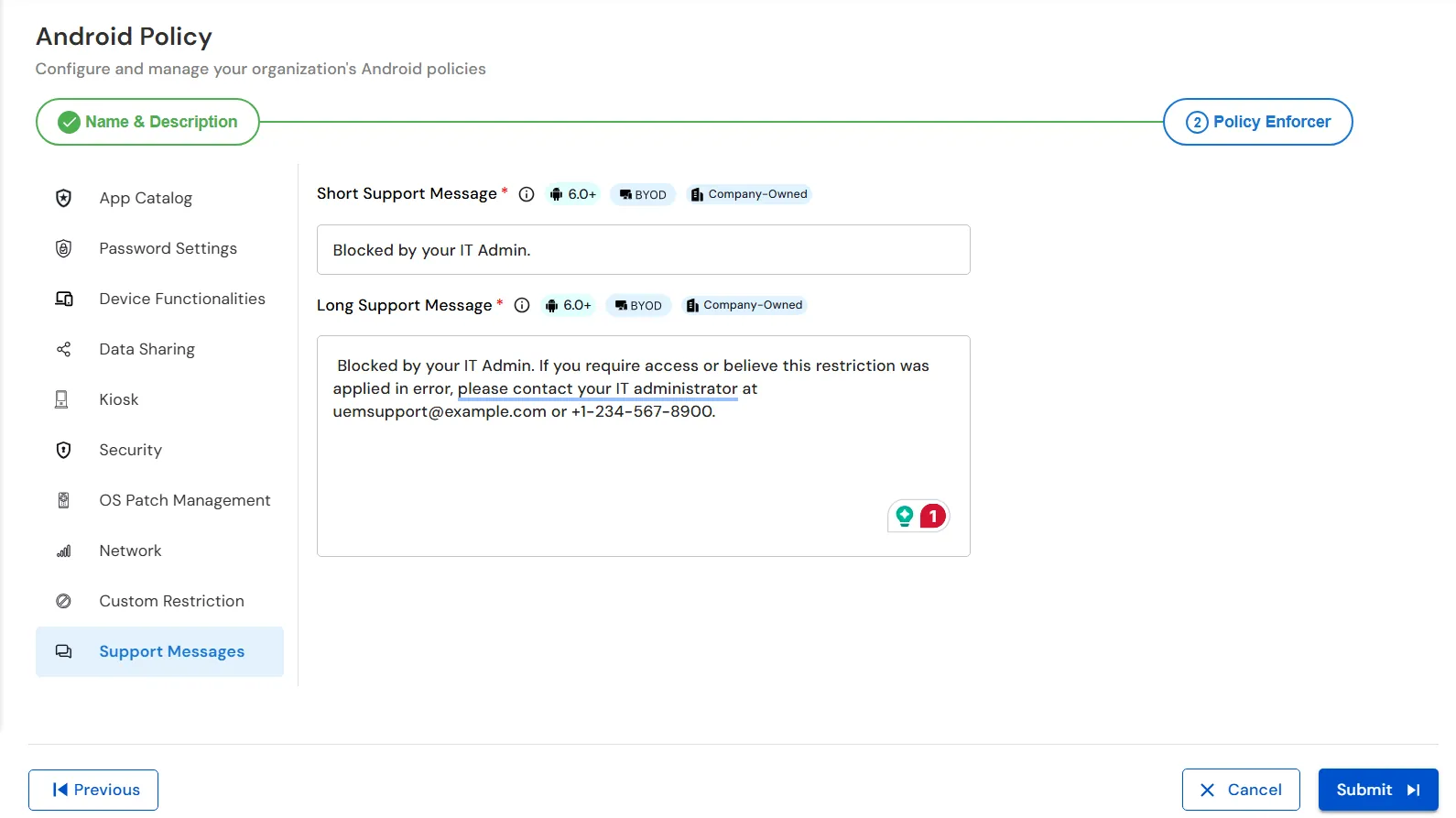
Short Support Message
Enter a brief message that is displayed to users in restricted areas of the
device interface, such as the lock screen or permission prompts.
-
Keep the message concise and informative.
-
Example: "Blocked by your IT Admin."
Long Support Message
Enter a detailed message that provides additional information or support instructions.
-
Include information such as the reason for the restriction, IT help desk contact
details, or troubleshooting guidance.
-
Example:
Blocked by your IT Admin. If you require access or believe this restriction was
applied in error, please contact your IT administrator at
uemsupport@example.com or +1-234-567-8900.
-
Step 3: Click Submit to save and apply the Android policy.