OS Patch Management
The OS Patch Management policy allows administrators to control how Android
system updates are installed on managed company-owned devices. You can choose to
install updates automatically, postpone them, or schedule them during a maintenance
window to minimize disruption.
Prerequisite
-
Before configuring the OS Patch Management, create a new Android policy or
open an existing policy. For instructions, refer to the
How to create policy
guide.
Follow the steps below to configure OS Patch Management
-
Step 1: From the Android Policy page, select
OS Patch Management from the left navigation panel.
-
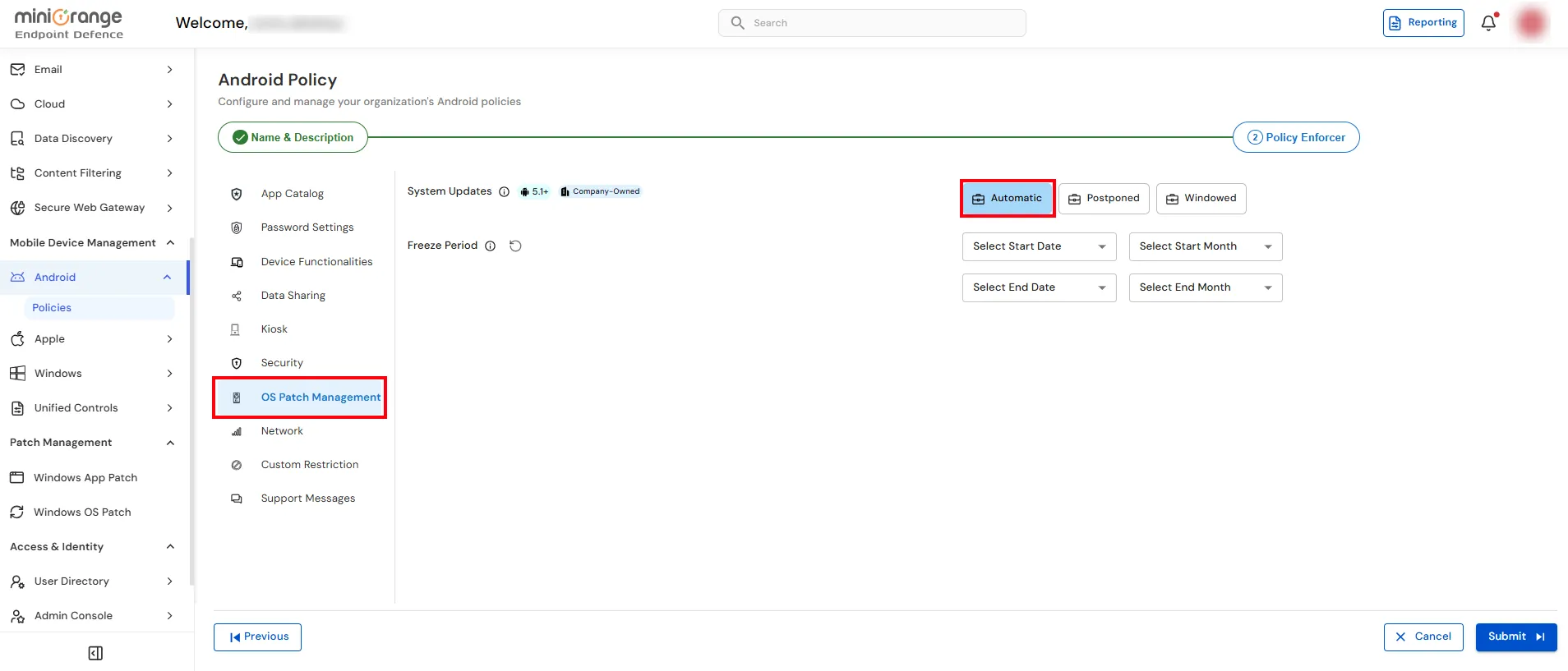
Step 2: Configure the System Updates settings as described below.
Automatic
Installs system updates automatically as they become available.
-
Select Automatic to allow the device to download and install updates
without administrator intervention.
-
Optionally, configure a Freeze Period to temporarily prevent system
updates during specific dates.
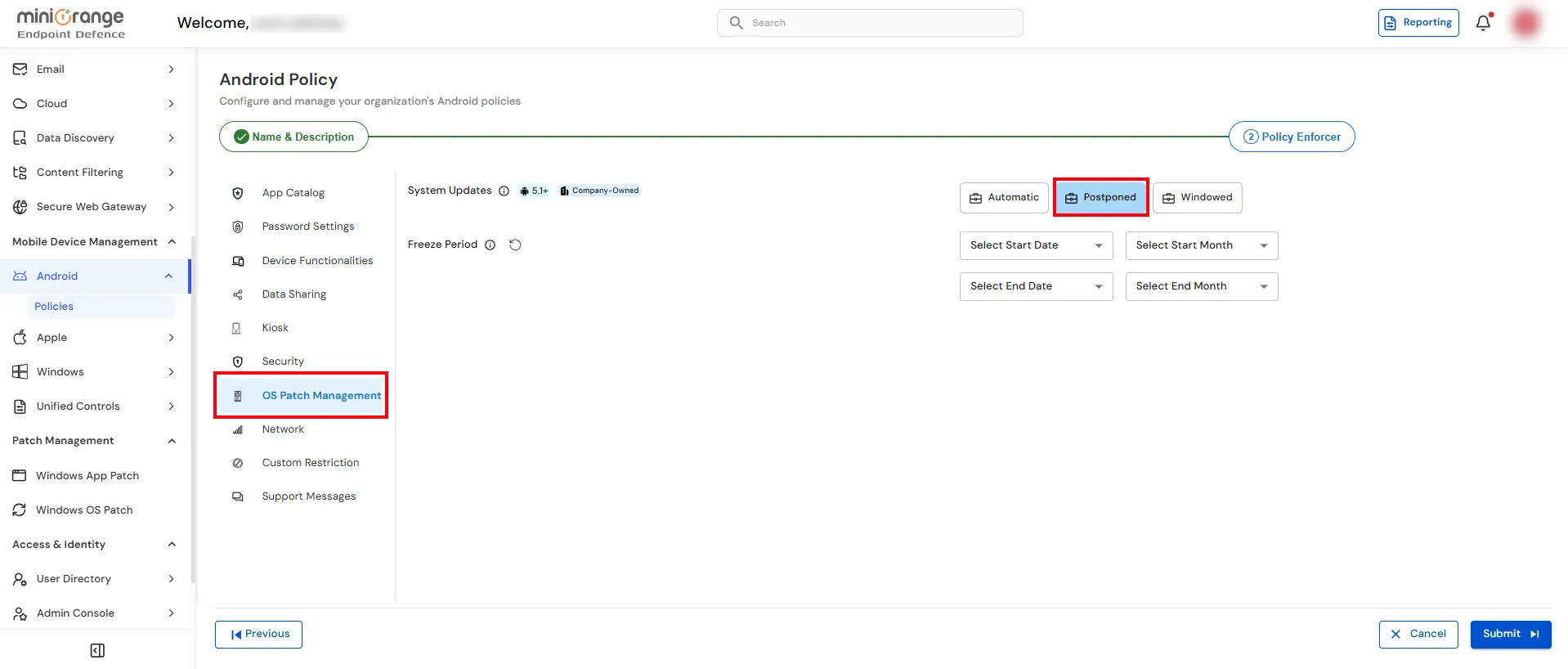
Postponed
Delays the installation of system updates for a defined period.
-
Select Postponed to defer available system updates.
-
Optionally, configure a Freeze Period by selecting the
Start Date, Start Month, End Date, and
End Month during which updates should not be installed.
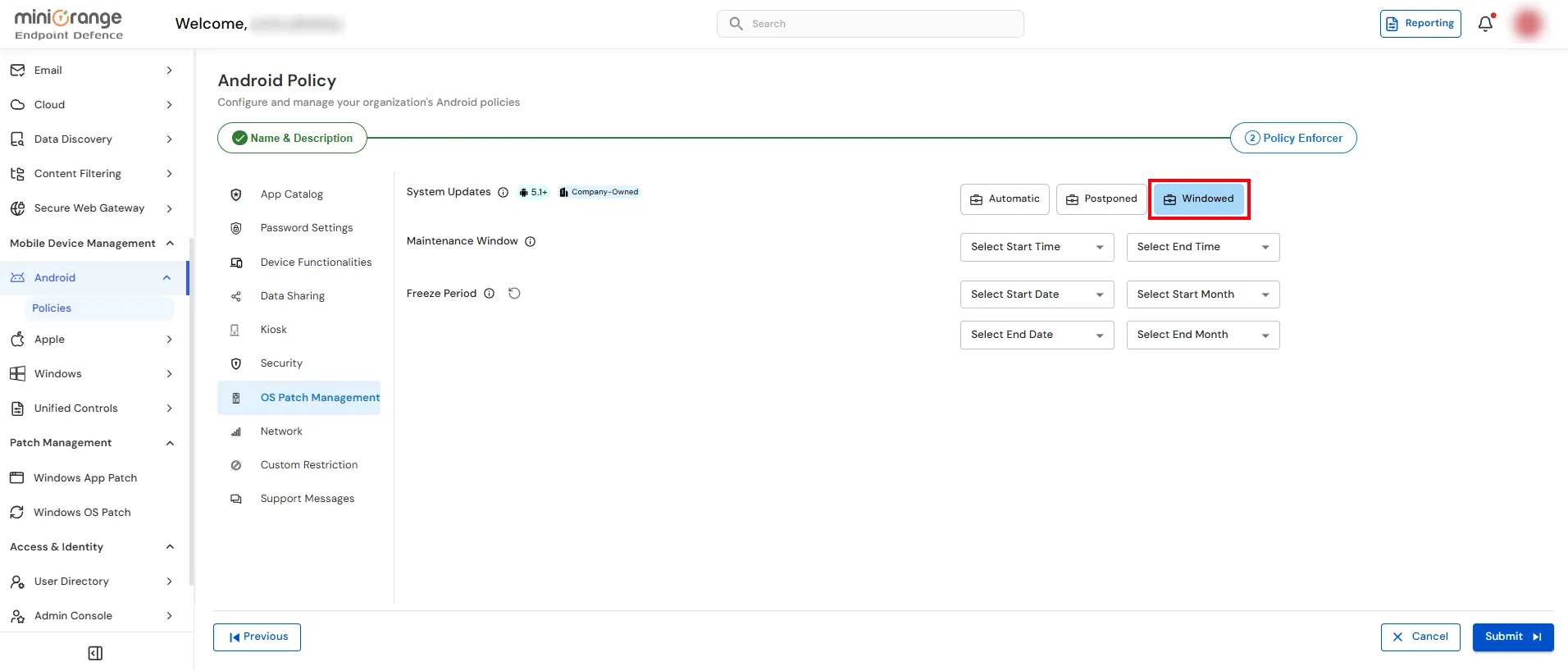
Windowed
Schedules system updates to be installed only during a specified maintenance window.
-
Select Windowed to define when updates can be installed.
-
Configure the Maintenance Window by selecting the
Start Time and End Time.
-
Optionally, configure a Freeze Period by selecting the
Start Date, Start Month, End Date, and
End Month to temporarily suspend updates during specific periods.
Freeze Period
Defines a period during which system updates are temporarily paused.
-
Select the Start Date and Start Month.
-
Select the End Date and End Month.
-
Use this option to prevent updates during critical business periods, such as
product launches, audits, or peak operational seasons.
-
Step 3: Click Submit to save and apply the Android policy.
Note: The available configuration options depend on the selected
System Updates mode. For example, Maintenance Window settings
are available only when Windowed is selected, while the
Freeze Period can be configured for supported update modes.

