Setup (2FA/MFA) on Linux Systems using SSH
What is Linux 2FA/MFA?
Linux 2FA/MFA add an extra layer of protection to Linux desktop logins, as well as local and remote two factor auth SSH sessions. By requiring two different forms of identity verification, they significantly reduce the risk of brute-force attacks and unauthorized access.
With miniOrange, users log in with their standard credentials (username and password) as the first factor, then complete authentication using a configured second factor such as a one-time passcode, push notification, or hardware token. Learn more about our Two-Factor Authentication (2FA) product and how it strengthens login security across platforms.
miniOrange integrates seamlessly with on-premises Active Directory (AD), allowing Linux users to log in with their AD credentials. Our MFA Product can be installed on supported Linux distributions to secure both local and remote logins, including MFA SSH authentication for secure shell sessions.
miniOrange supports following methods for Linux 2FA/MFA
miniOrange supports multiple authentication options for Linux, including:
- miniOrange Push Notifications (miniOrange Authenticator App).
- miniOrange Soft Token (miniOrange Authenticator App).
- OTP Over SMS / Email.
- Google Authenticator /Microsoft Authenticator / Authy Authenticator.
- Hardware Token like YubiKey, display tokens, etc.
- Other supported 15+ authentication methods
Tested Linux Distributions
The miniOrange Linux 2FA/MFA module has been tested on:
- Ubuntu 20.04/22.04/24.04
- RHEL-based systems (Red Hat Enterprise Linux, CentOS, Rocky Linux, Oracle Linux).
If your Linux distribution isn’t listed, contact us - our team will help you check compatibility and guide you through the setup process for two factor auth SSH environments.
Connect with External Source of Users
miniOrange provides user authentication from various external sources, which can be Directories (like ADFS, Microsoft Active Directory, OpenLDAP, AWS etc), Identity Providers (like Microsoft Entra ID, Okta, AWS), and many more. You can configure your existing directory/user store or add users in miniOrange.
Get Free Linux 2FA Installation Help - Book a Slot
miniOrange offers free help through a consultation call with our System Engineers to Install or Setup Linux 2FA/MFA (Two-Factor Authentication) and Secure Shell (or SSH) access MFA solution in your environment with 30 days Free trial.
For this, you need to just send us an email at idpsupport@xecurify.com to book a slot and we'll help you setting it up in no time.
Prerequisites for Linux 2FA/MFA
- miniOrange Cloud Account or On Premises Setup
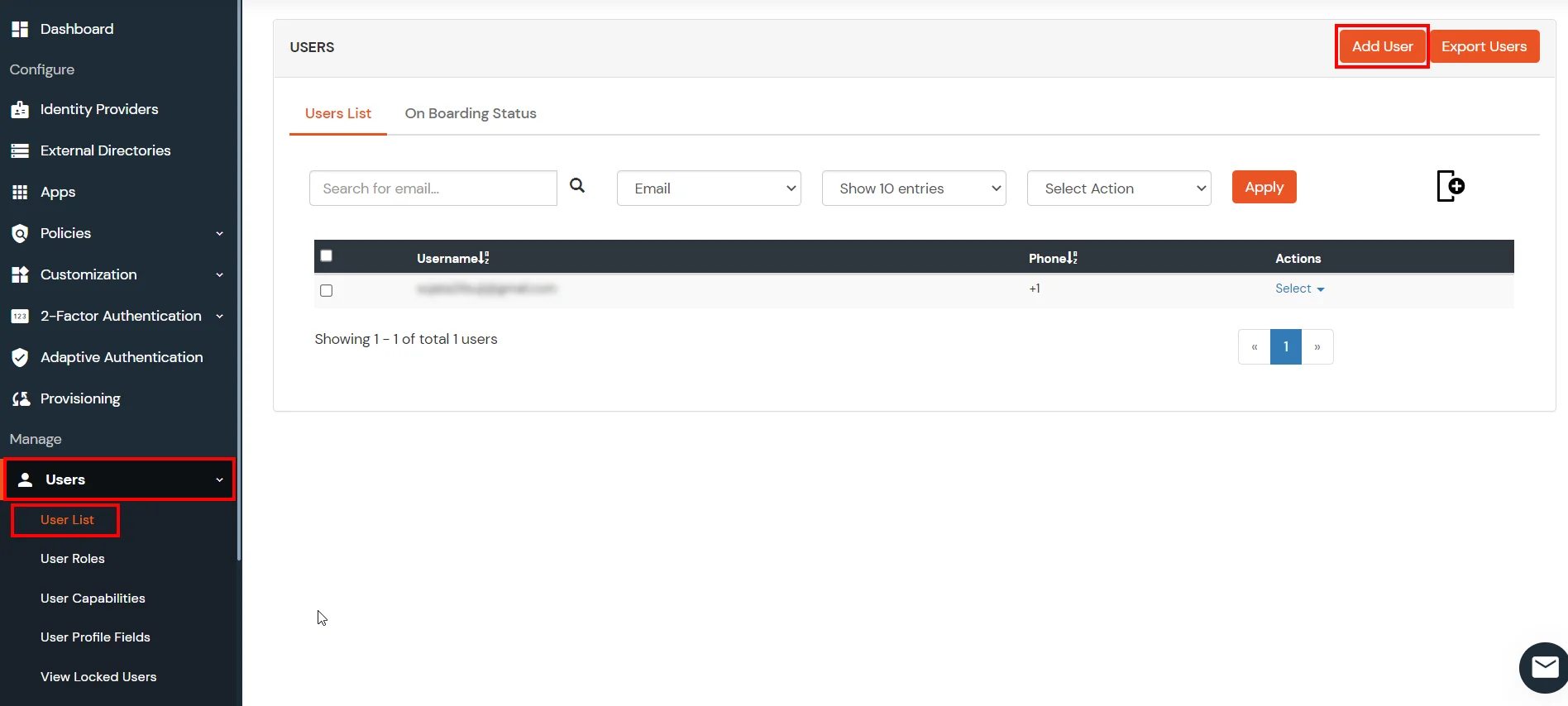
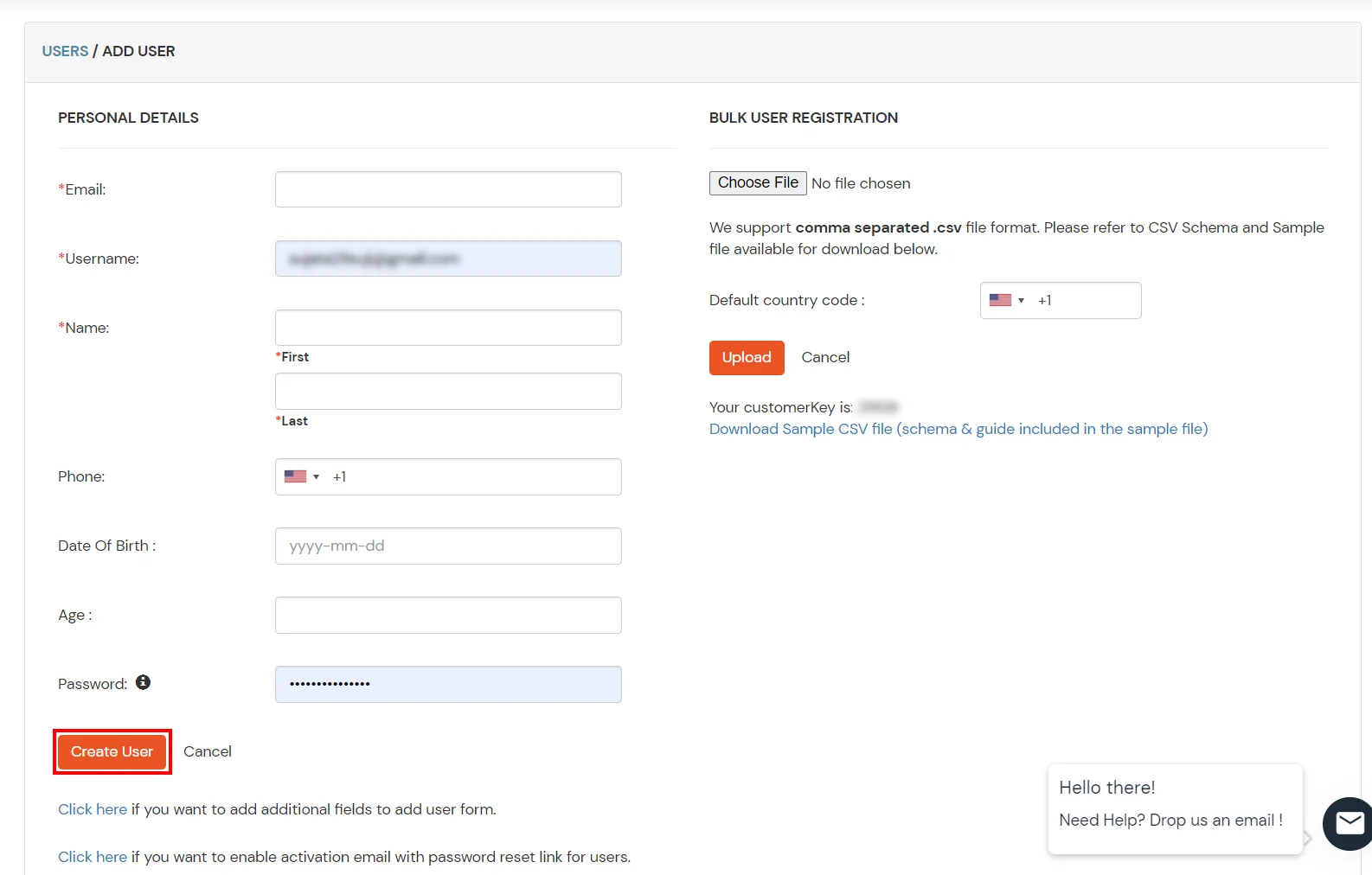
- Enroll Users in miniOrange before Linux 2FA Configuration
- The username in miniOrange must match the local Linux username. This ensures the service can apply the correct 2FA policy for each user and provide secure access to Linux machines.
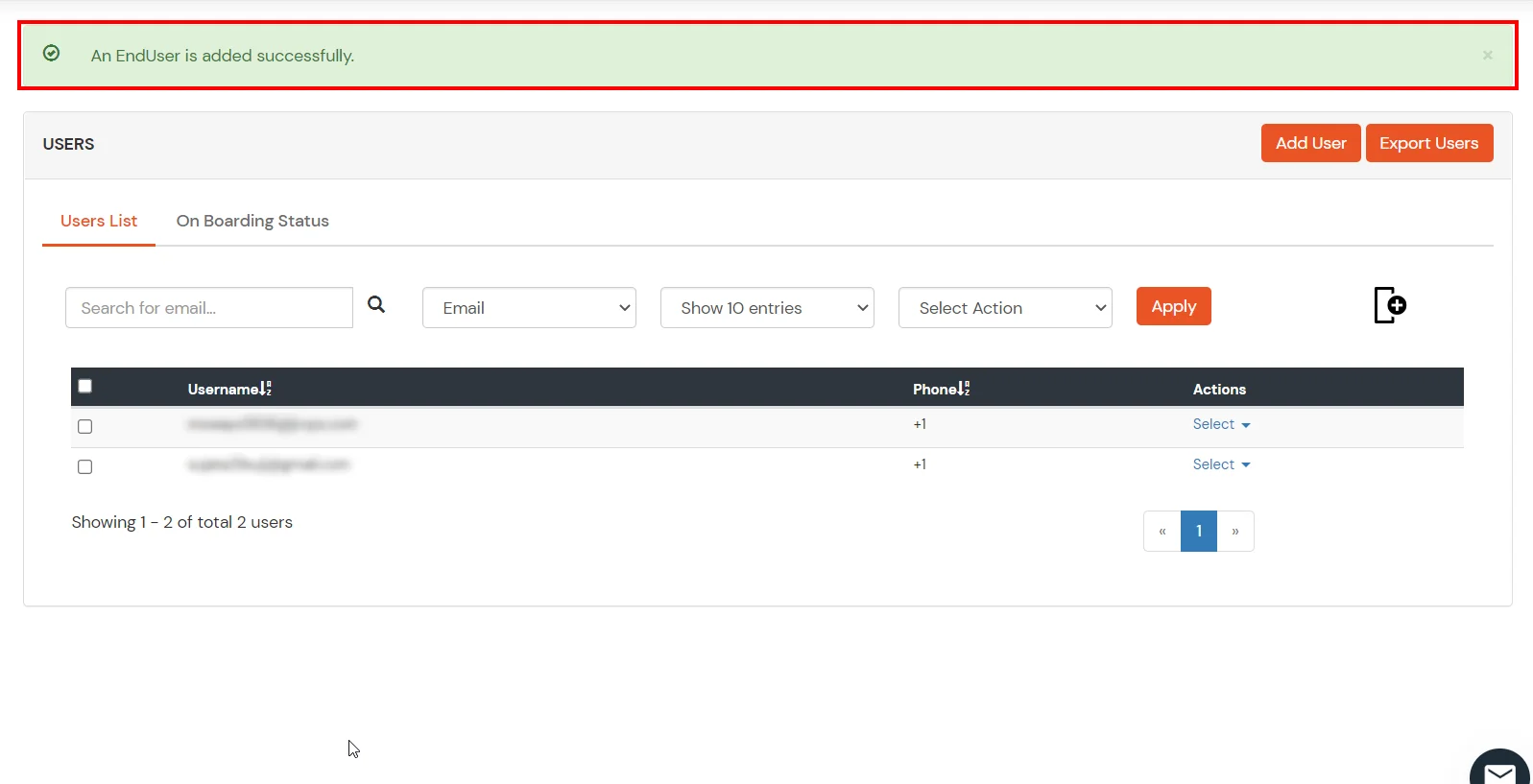
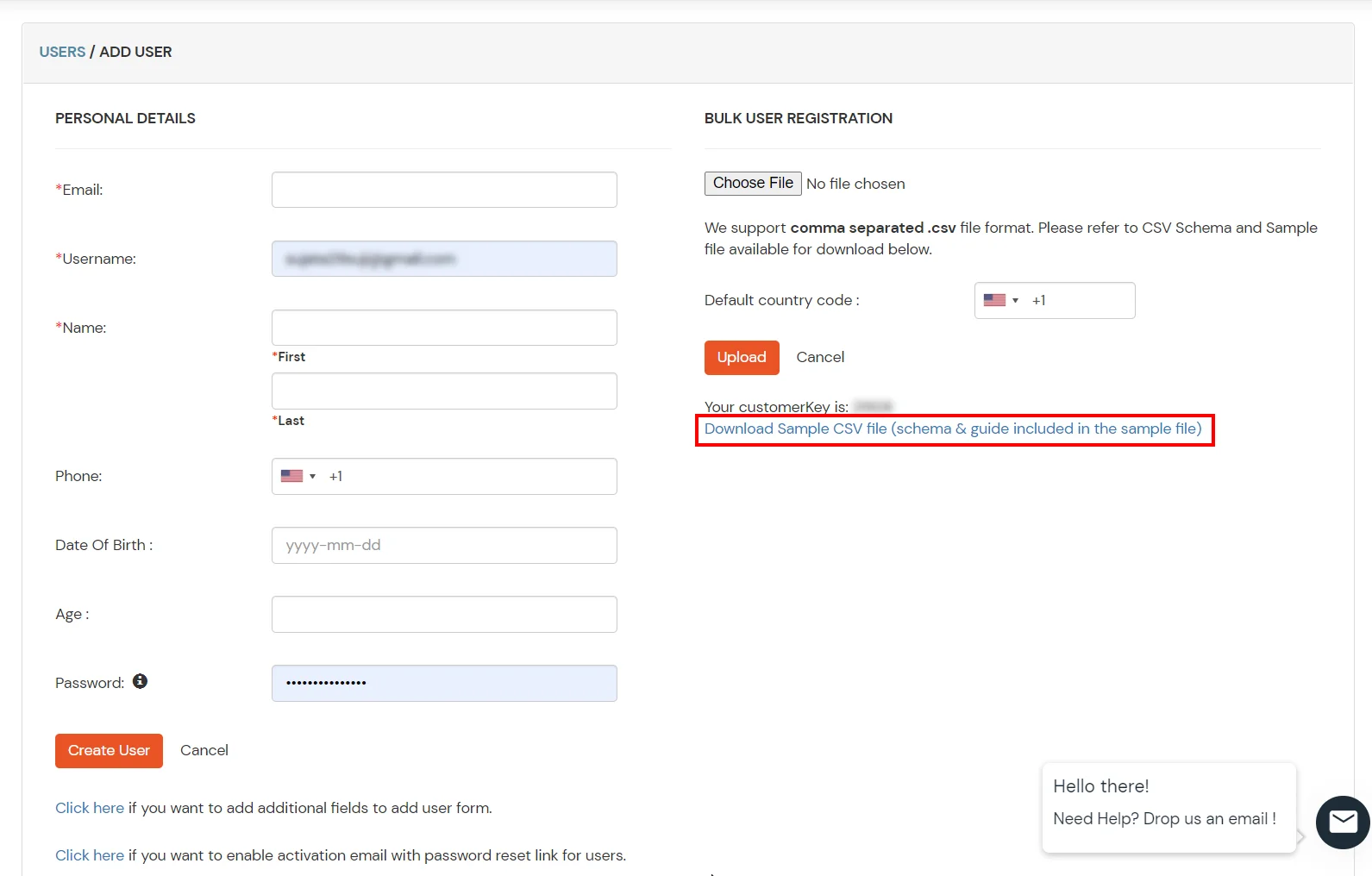
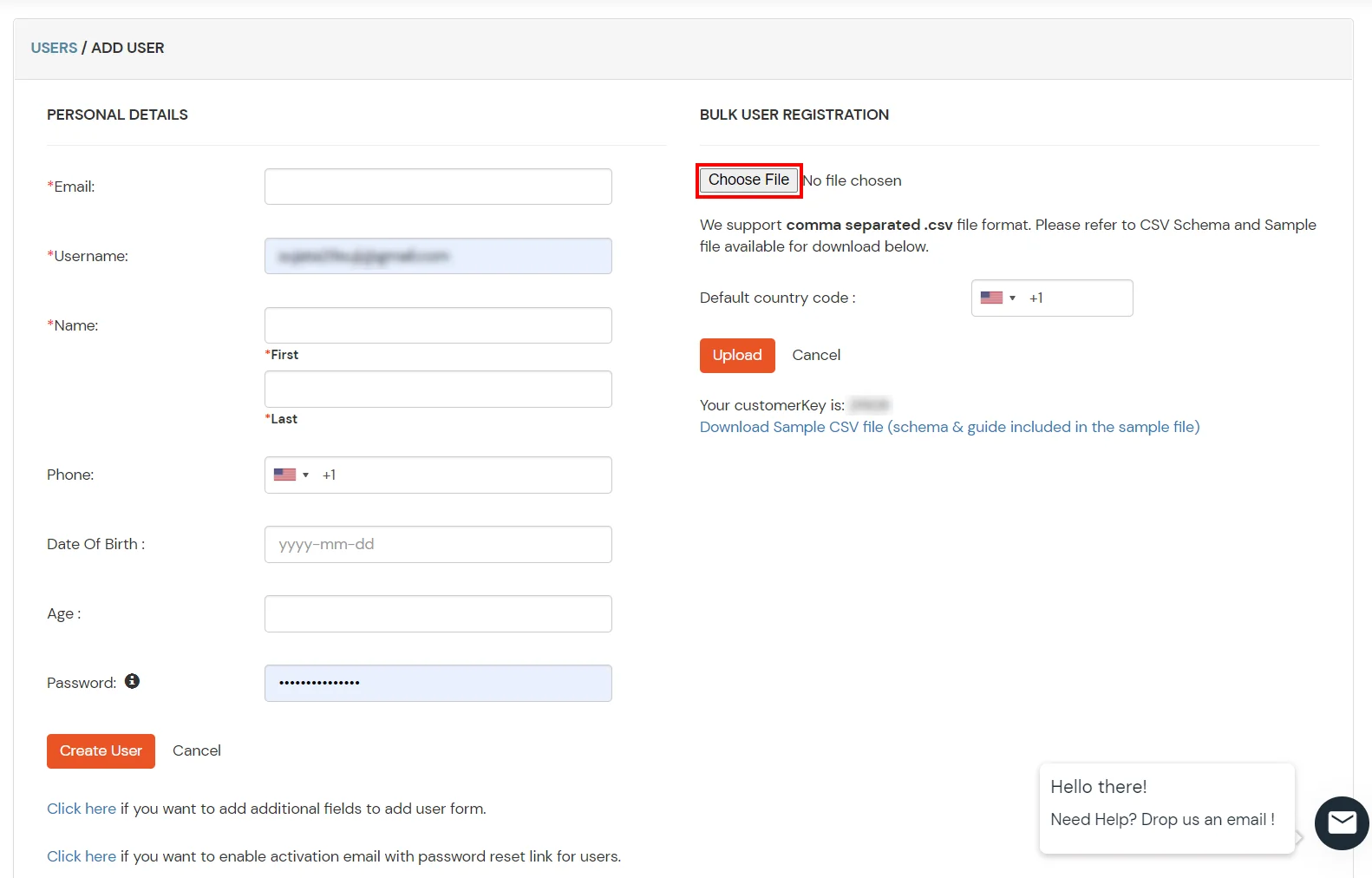
- There are multiple ways to add users in miniOrange. The admin can manually add end users or setup user provisioning from an existing identity source such as Active Directory, LDAP or Microsoft Entrance ID.
Step by step guide to enable Linux 2FA/MFA (Two/Multi Factor Authentication) using SSH
1. Download Linux MFA / 2FA SSH Module
- Login into miniOrange Admin Console.
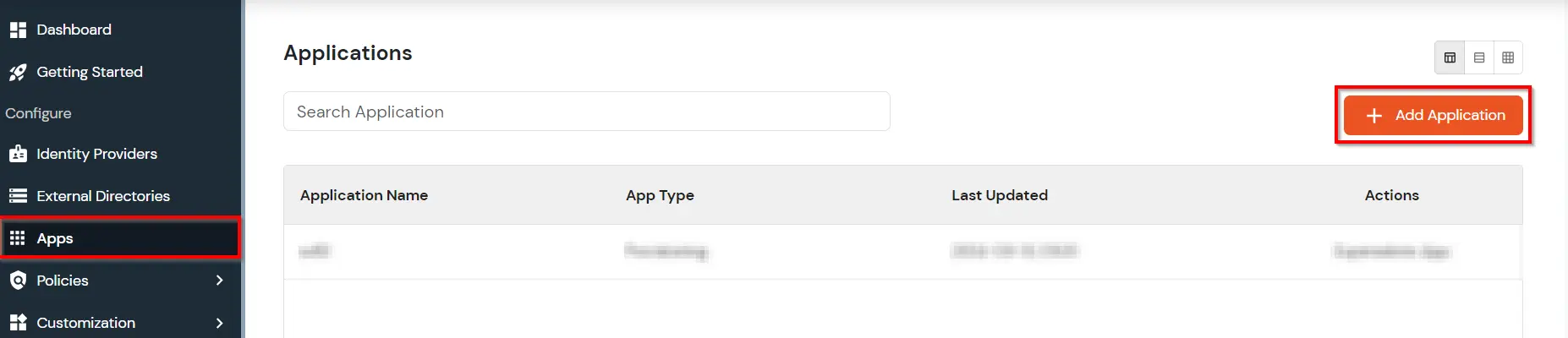
- Go to Apps. Click on Add Application button.
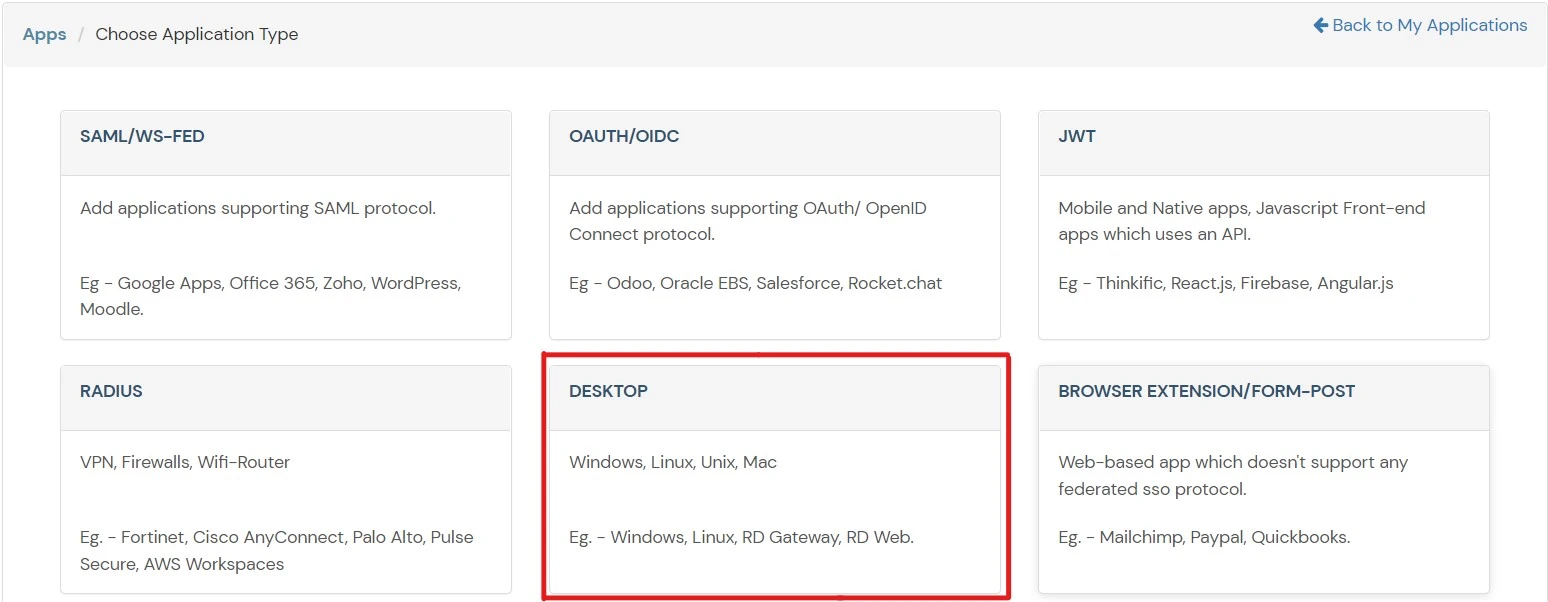
- Select Desktop from All Apps dropdown.
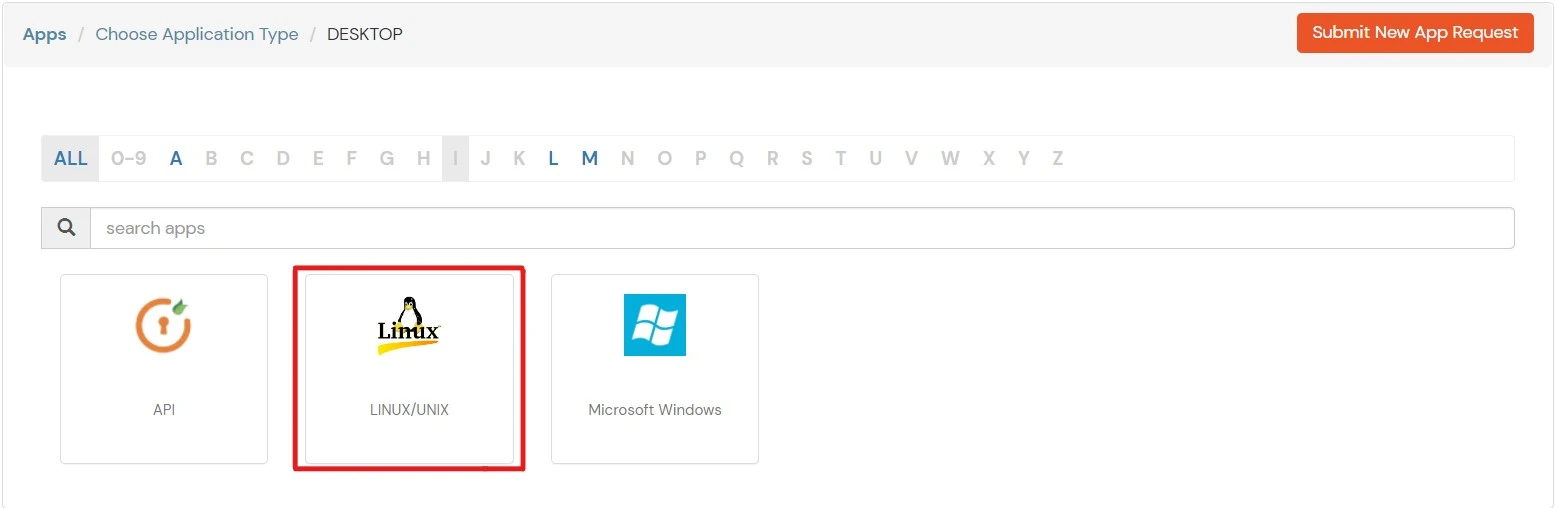
- Click on Linux/Unix.
- Click on download the MFA / 2FA Module link to download the module.
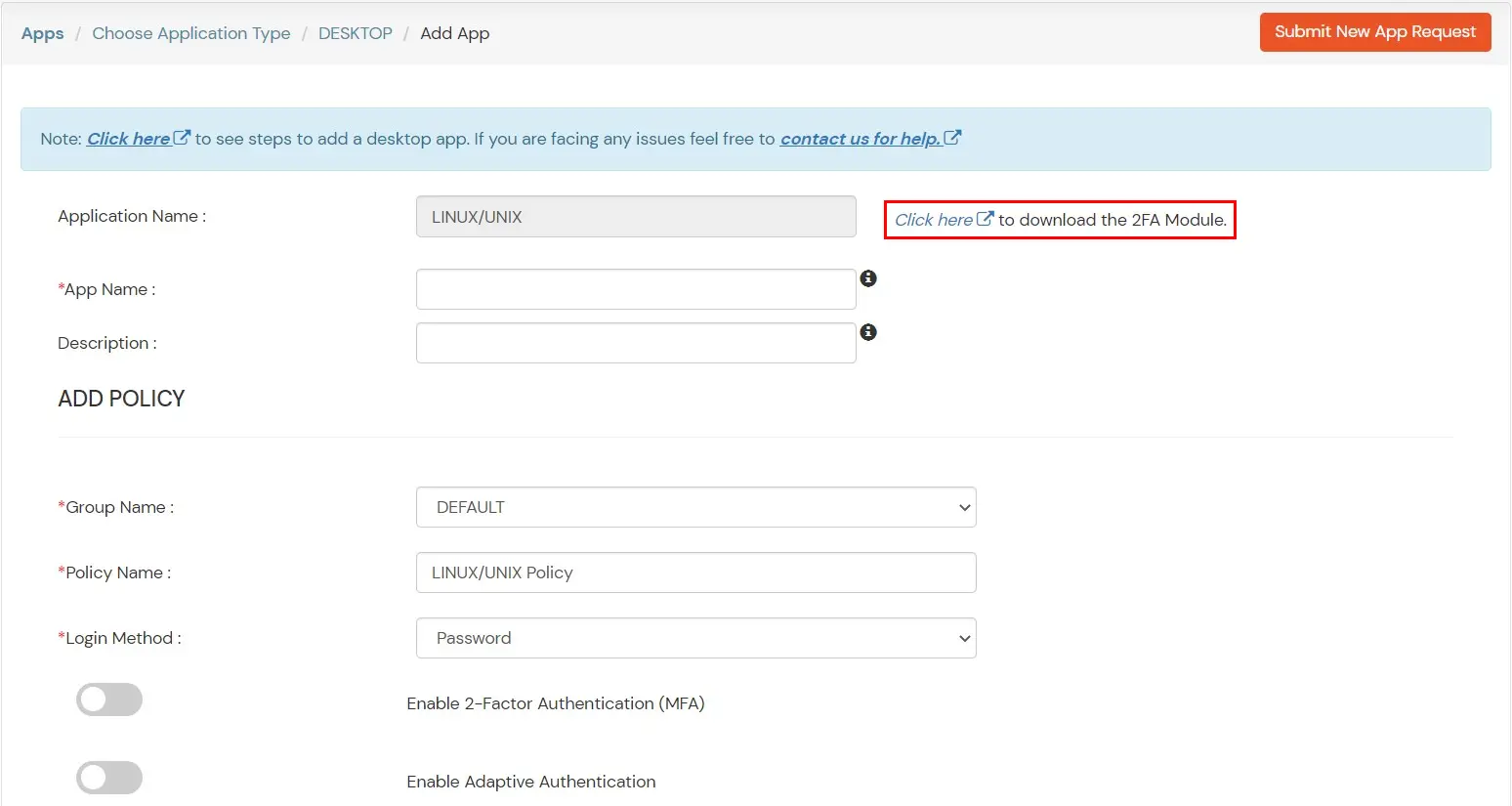
2. Setup miniOrange 2FA/MFA Provider for SFTP/SSH
- Download the miniOrange MFA RPM package here.
- Give the execute permissions the downloaded RPM file via running below command in the terminal:
chmod a+x miniorange-mfa.rpm

- Run the following command to install the miniOrange MFA RPM package:
sudo rpm -ivh miniorange-mfa.rpm

| Option |
Description |
| --install |
Install miniorange mfa module on the machine |
| --uninstall |
Uninstall miniorange mfa module from the machine |
| -e |
Edit miniorange configuration file |
| -d |
Display the content of miniorange configuration file |
| --test <gdm-password|sshd|> <username> |
Test miniOrange mfa |
| --enable_ssh |
Enable miniOrange mfa for specified service |
| --disable_ssh |
Disable miniOrange mfa for specified service |
| --enable_pl |
Enable Passwordless Authentication for service |
| --disable_pl |
Disable Passwordless Authentication for service |
| --check |
Troubleshoot |
| --use-alias <yes/no> |
Use GCEOS field for miniOrange mfa |
| --use-proxy <yes/no> |
Use Proxy URL |
| --change-auth-source |
Change authentication source (cloud/local) |
| --enable_selinux |
Allow miniOrange MFA in SELinux Policy |
| --upgrade |
Check for updates for miniOrange MFA |
| --set-tmp-dir <path> |
Set MO_TEMP_DIR for build directory |
| -v, --verbose |
Print logs to terminal instead of file |
- Run below command for 2FA configuration in the terminal as root user
sudo miniorange-mfa --install
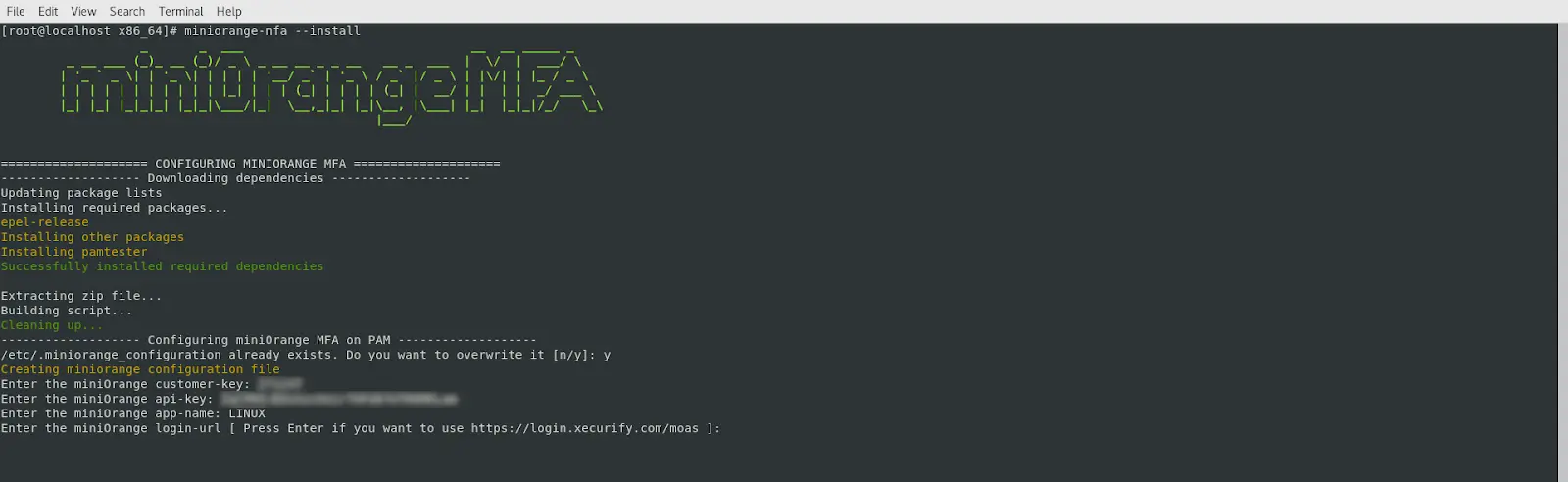
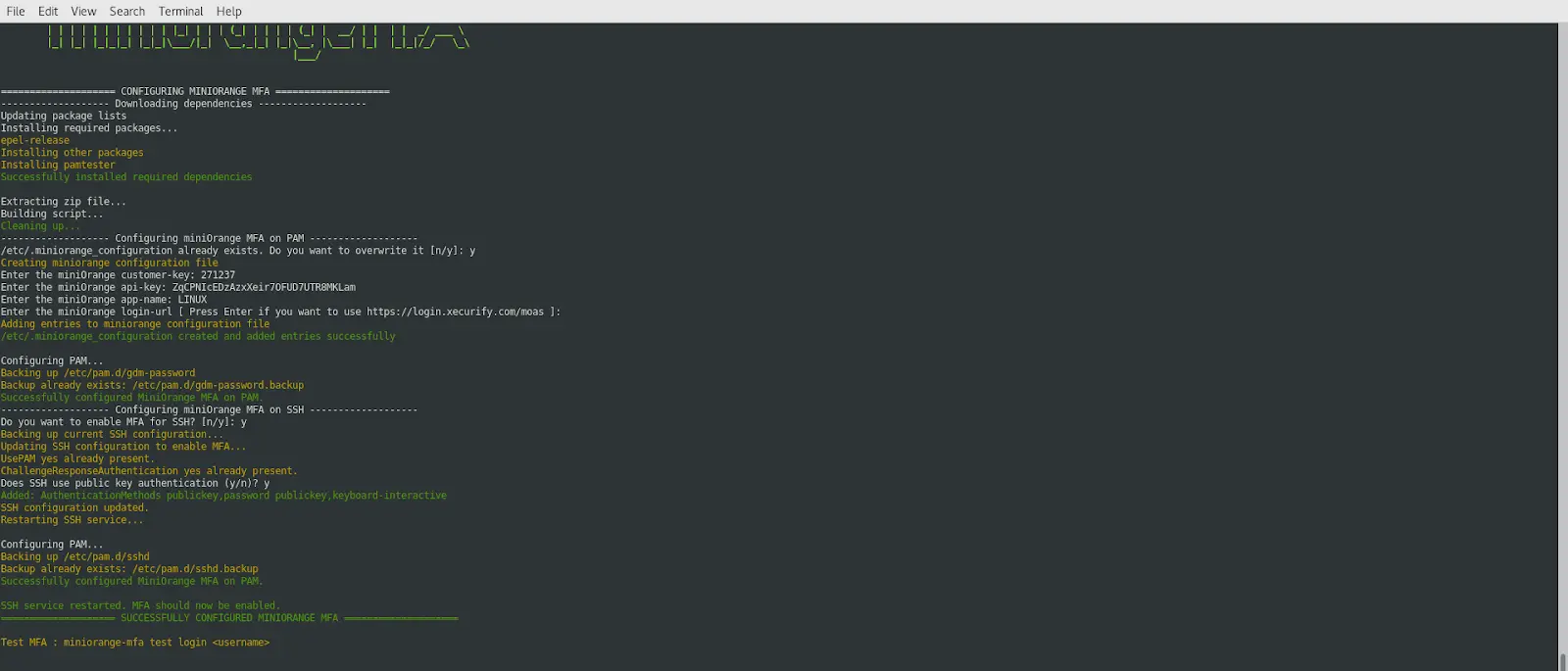
- You will be asked for some configuration details. To fill in these details, login to your miniOrange admin account on Cloud or Onpremise.
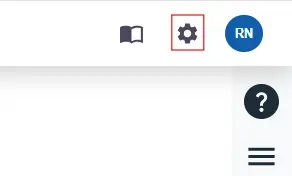
- Click on the Settings icon on top right corner.
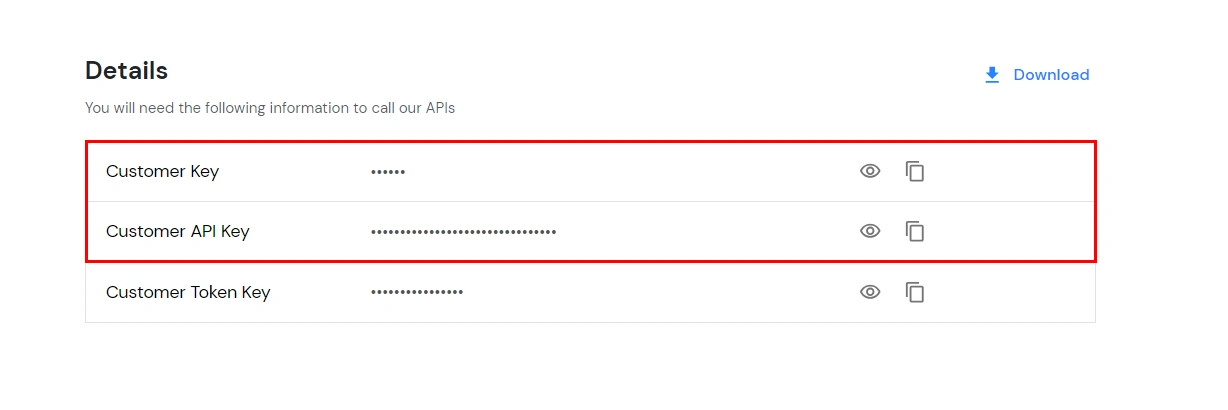
- Copy the Customer Key and API key.
- Now, Go to Apps and copy the name of the Linux application created in step 1.

- Paste all these details in the terminal and press enter.
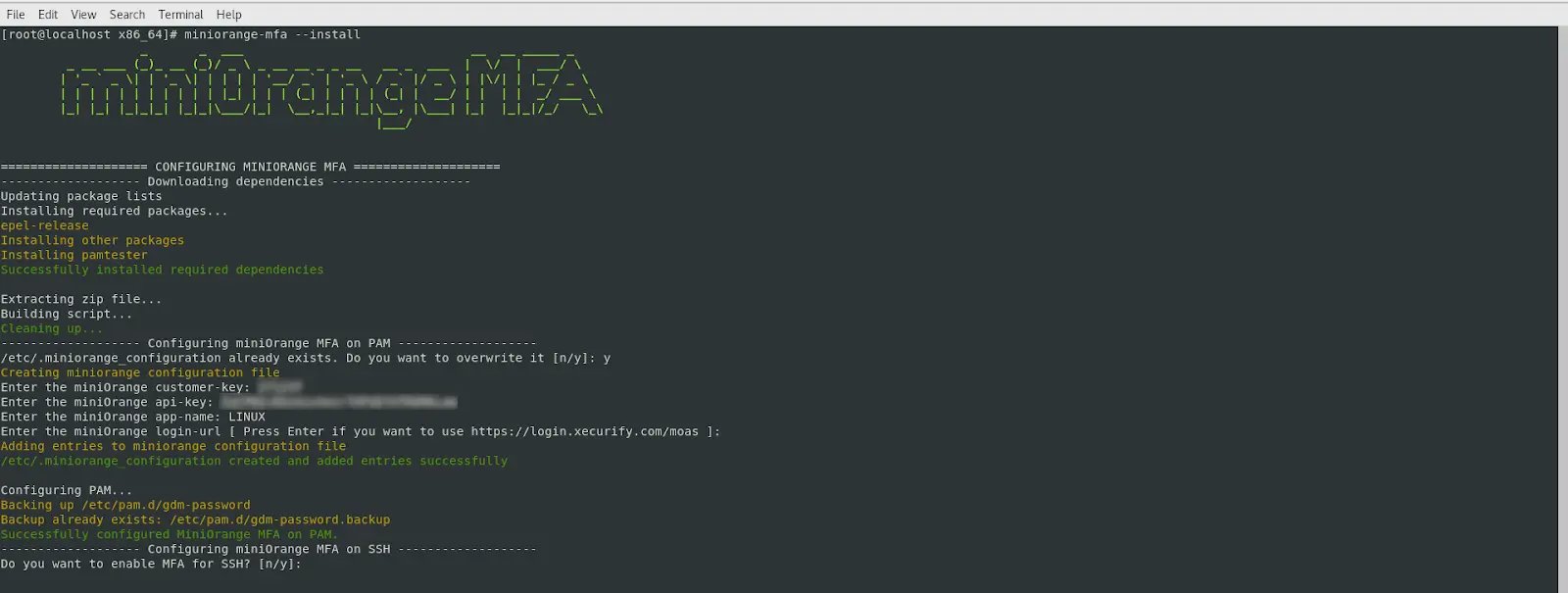
- You will be asked to enable the MFA on SSH login. If you want to enable the MFA on SSH login then type ‘y’ and hit enter.
- Download the miniOrange MFA DEB package here.
- Give the execute permissions the downloaded DEB file via running below command in the terminal:
chmod a+x miniorange-mfa.deb

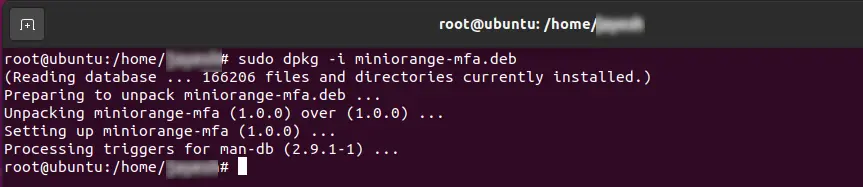
- Run the following command to install the miniOrange MFA DEB package:
sudo dpkg -i miniorange-mfa.deb
| Option |
Description |
| --install |
Install miniorange mfa module on the machine |
| --uninstall |
Uninstall miniorange mfa module from the machine |
| -e |
Edit miniorange configuration file |
| -d |
Display the content of miniorange configuration file |
| --enable_ssh |
Enable miniOrange mfa for specified service |
| --disable_ssh |
Disable miniOrange mfa for specified service |
| --enable_pl |
Enable Passwordless Authentication for service |
| --disable_pl |
Disable Passwordless Authentication for service |
| --check |
Troubleshoot |
| --use-alias <yes/no> |
Use GCEOS field for miniOrange mfa |
| --use-proxy <yes/no> |
Use Proxy URL |
| --change-auth-source |
Change authentication source (cloud/local) |
| --upgrade |
Check for updates for miniOrange MFA |
| --set-tmp-dir <path> |
Set MO_TEMP_DIR for build directory |
| -v, --verbose |
Print logs to terminal instead of file |
- Run below command for 2FA configuration in the terminal as root user
sudo miniorange-mfa --install
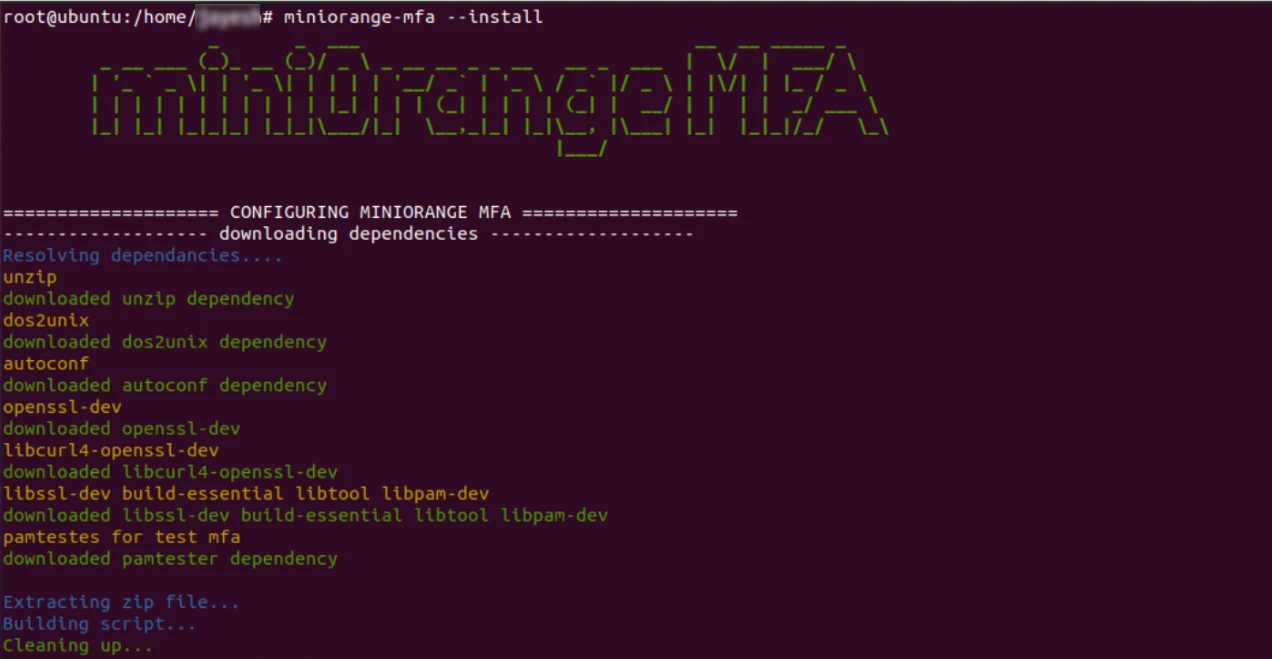
- You will be asked for some configuration details. To fill in these details, login to your miniOrange admin account on Cloud or Onpremise.
- Click on the Settings icon on top right corner.
- Copy the Customer Key and API key.
- Now, Go to Apps and copy the name of the Linux application created in step 1.
- Paste all these details in the terminal and press enter.

- You will be asked to enable the MFA on SSH login. If you want to enable the MFA on SSH login then type 'y' and hit enter.

3. Testing MFA Configuration
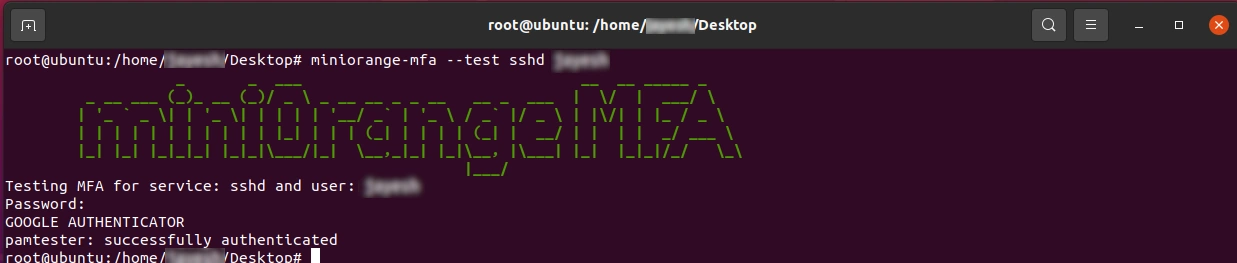
- Use the command below to test the MFA for SSH login:
miniorange-mfa --test sshd <username>
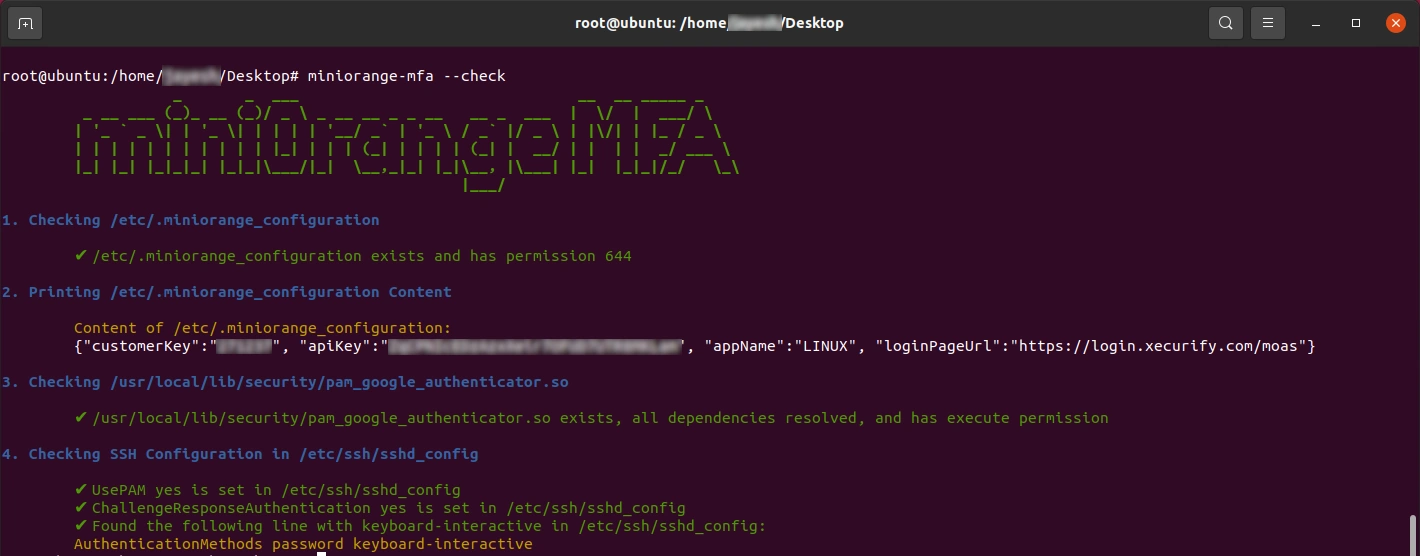
- If you encounter issues while testing the MFA, use the command below to troubleshoot:
miniorange-mfa --check
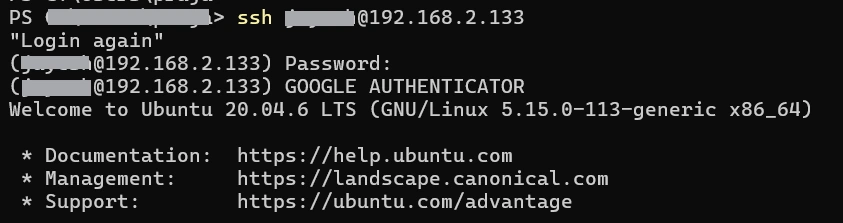
- MFA will be asked after successful password authentication.
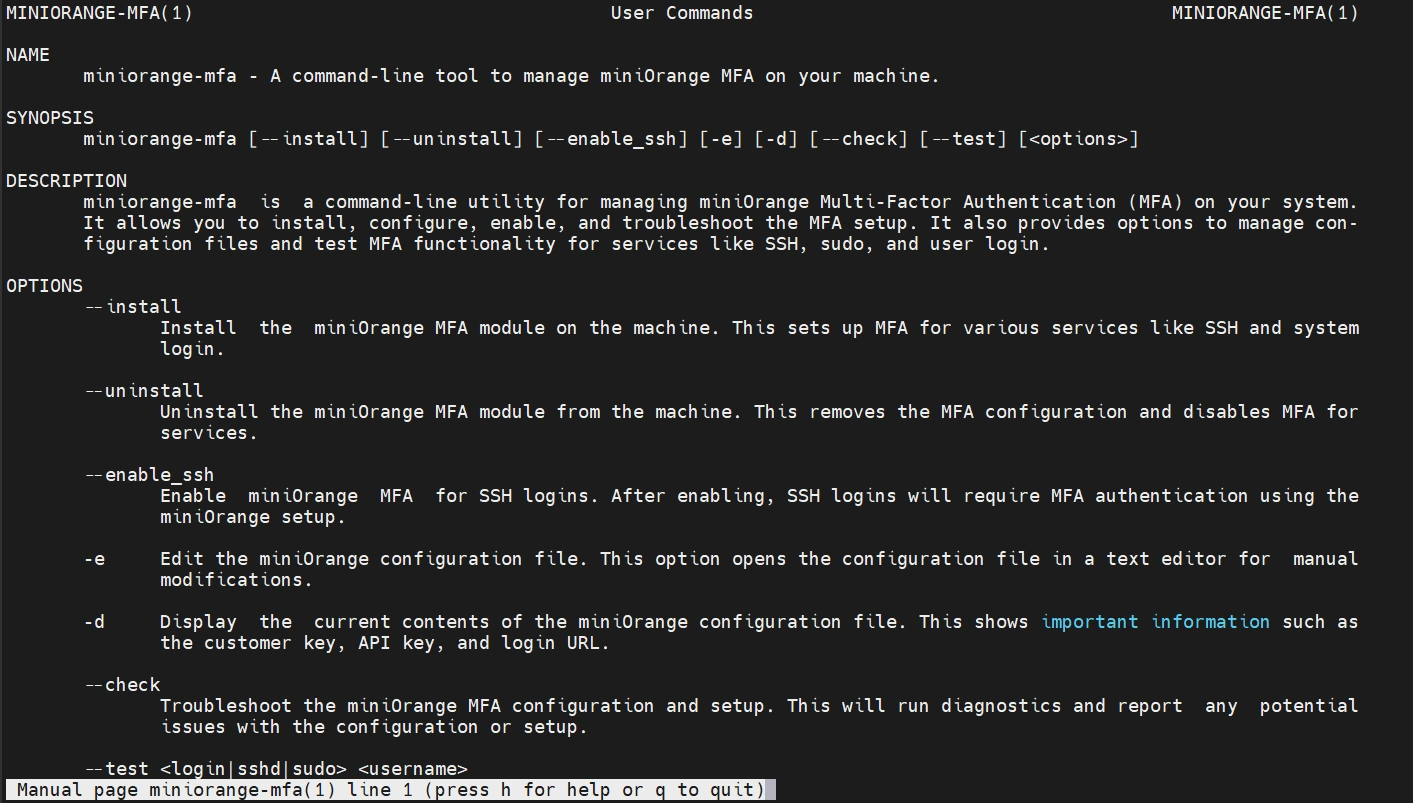
To access the manual for miniOrange MFA commands, use the command: man miniorange-mfa
4. Configure Your User Directory (Optional)
miniOrange provides user authentication from various external sources, which can be Directories (like ADFS, Microsoft Active Directory, Microsoft Entra ID, OpenLDAP, Google, AWS Cognito etc), Identity Providers (like Okta, Shibboleth, Ping, OneLogin, KeyCloak), Databases (like MySQL, Maria DB, PostgreSQL) and many more. You can configure your existing directory/user store or add users in miniOrange.
- Click on Identity Providers >> Add Identity Provider in the left menu of the dashboard
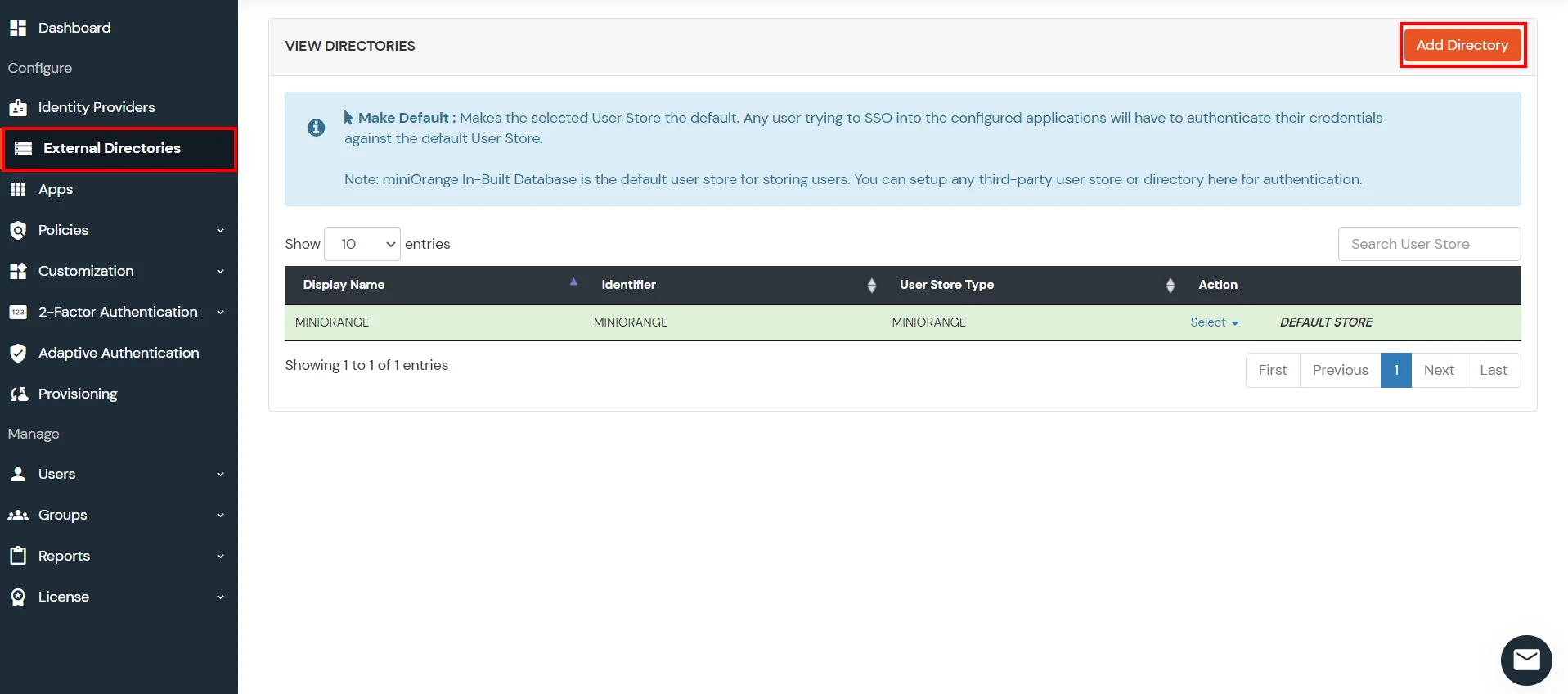
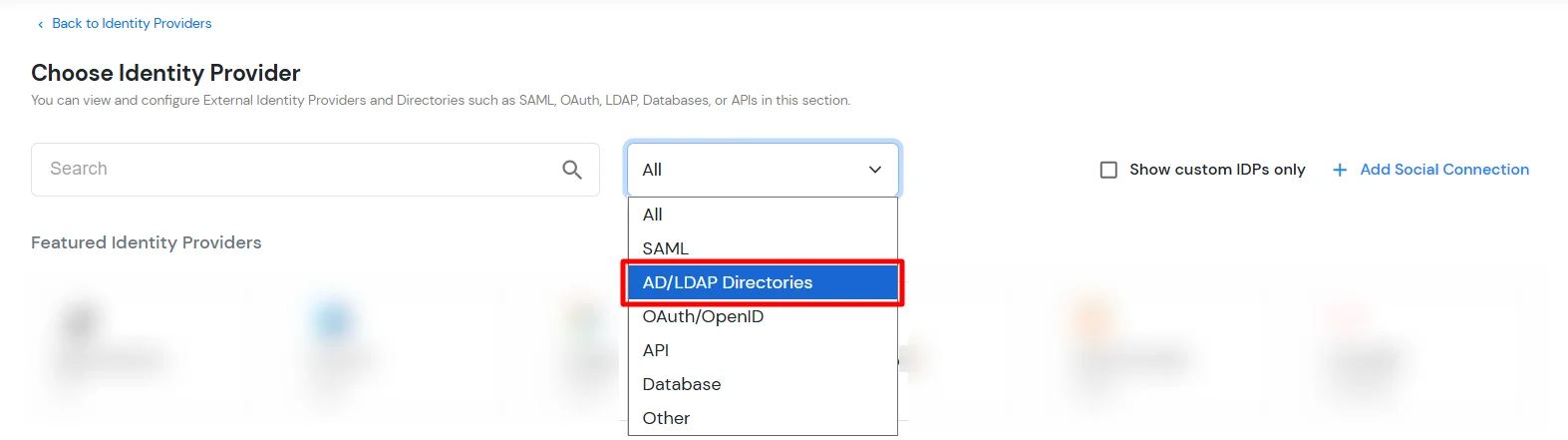
- In Choose Identity Provider, select AD/LDAP Directories from the dropdown.
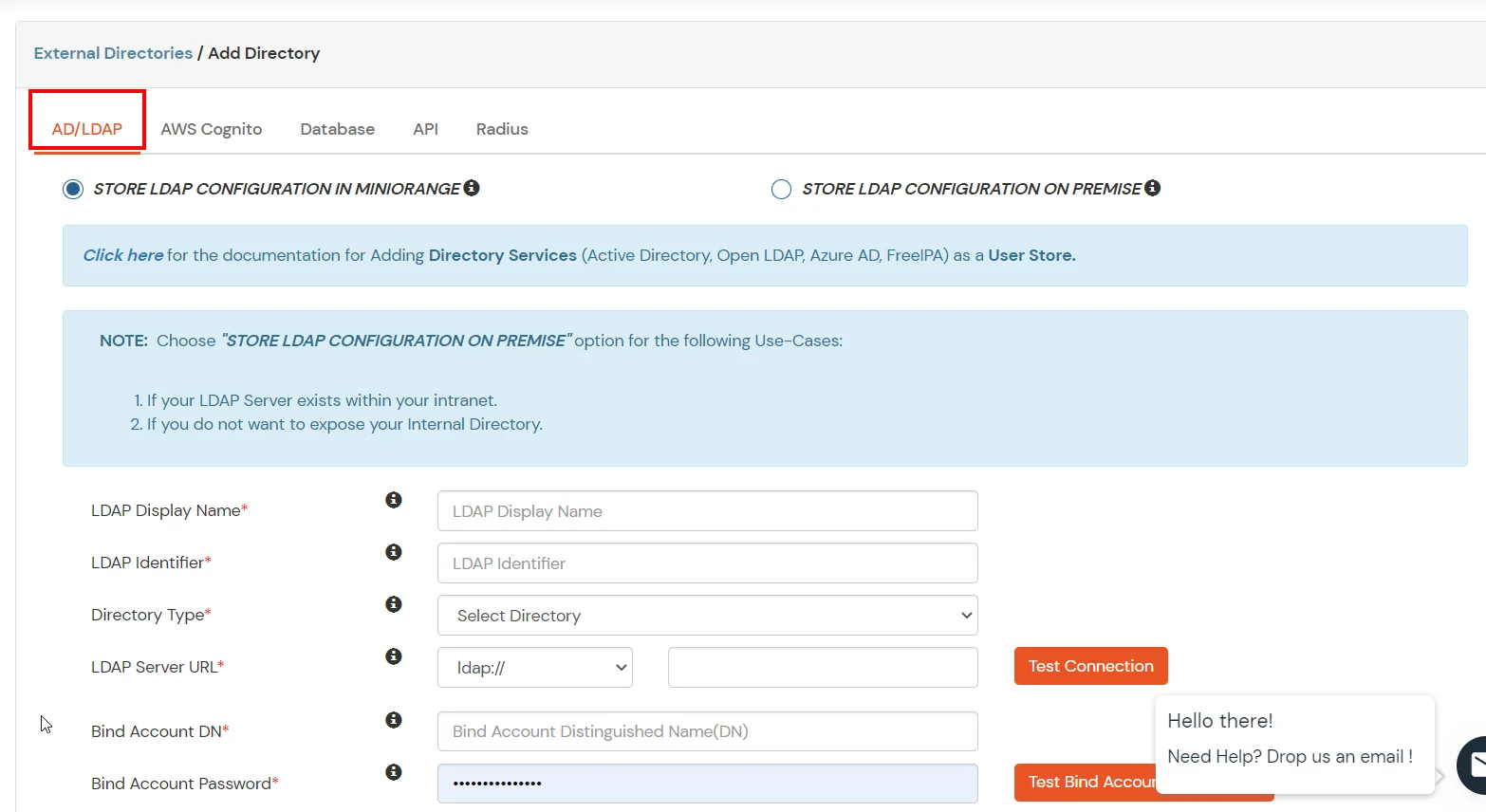
- Then search for AD/LDAP and click it.
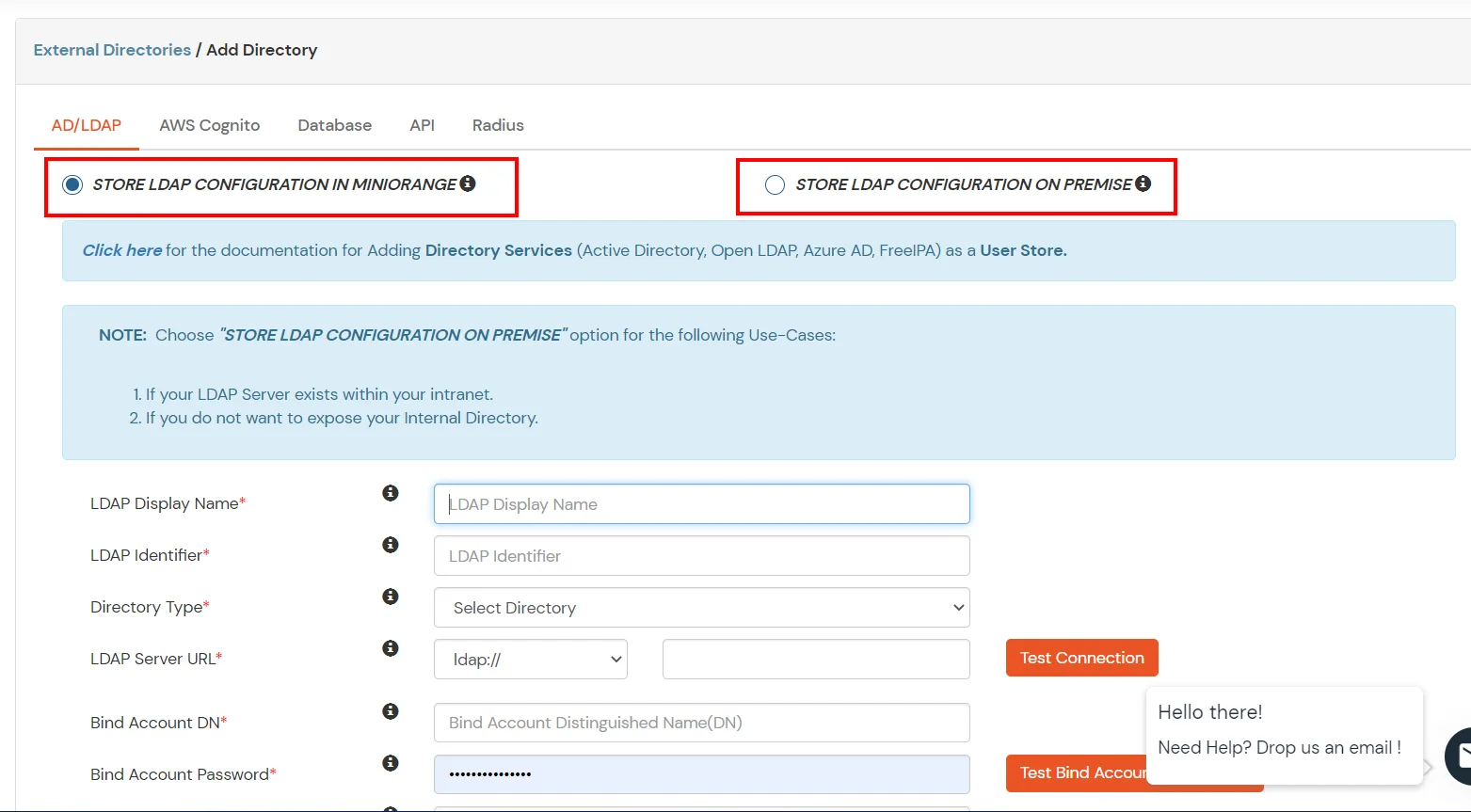
- STORE LDAP CONFIGURATION IN MINIORANGE: Choose this option if you want to keep your configuration in miniOrange. If the active directory is behind a firewall, you will need to open the firewall to allow incoming requests to your AD.
- STORE LDAP CONFIGURATION ON PREMISE: Choose this option if you want to keep your configuration in your premise and only allow access to AD inside premises. You will have to download and install miniOrange gateway on your premise.
- Enter AD/LDAP Display Name and Identifier name.
- Select Directory Type as Active Directory.
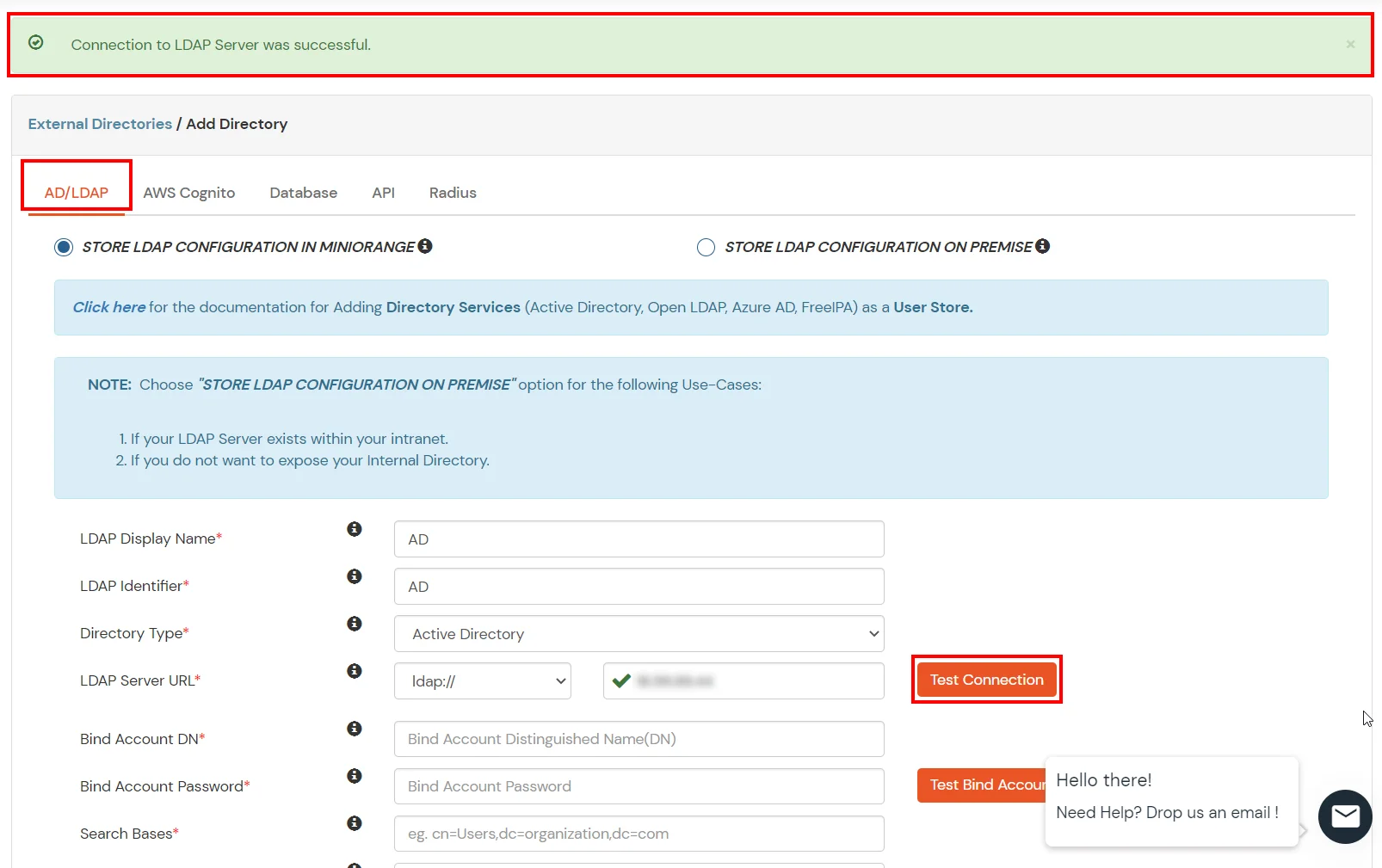
- Enter the LDAP Server URL or IP Address against the LDAP Server URL field.
- Click on the Test Connection button to verify if you have made a successful connection with your LDAP server.
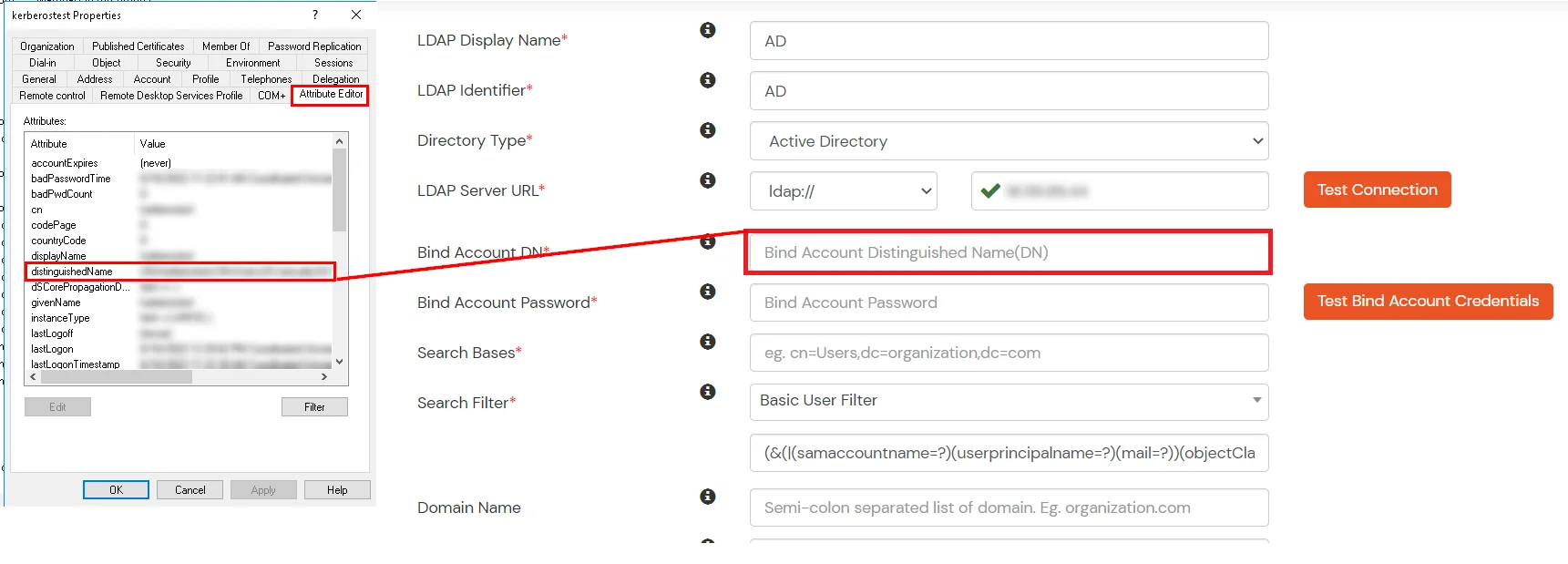
- In Active Directory, go to the properties of user containers/OU's and search for the Distinguished Name attribute. The bind account should have minimum required read privileges in Active Directory to allow directory lookups. If the use case involves provisioning (such as creating, updating, or deleting users or groups), the account must also be granted appropriate write permissions.
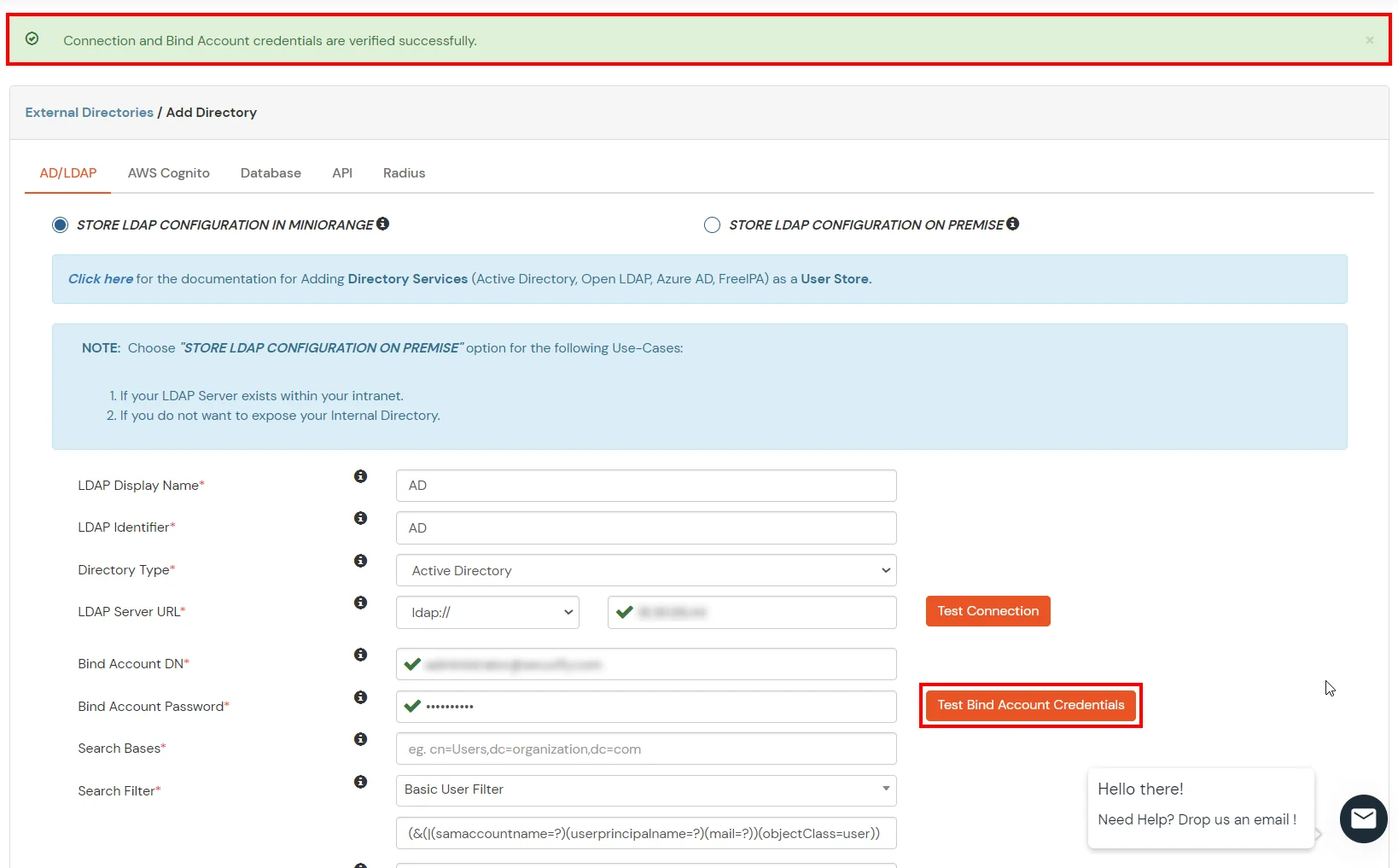
- Enter the valid Bind account Password.
- Click on the Test Bind Account Credentials button to verify your LDAP Bind credentials for LDAP connection.
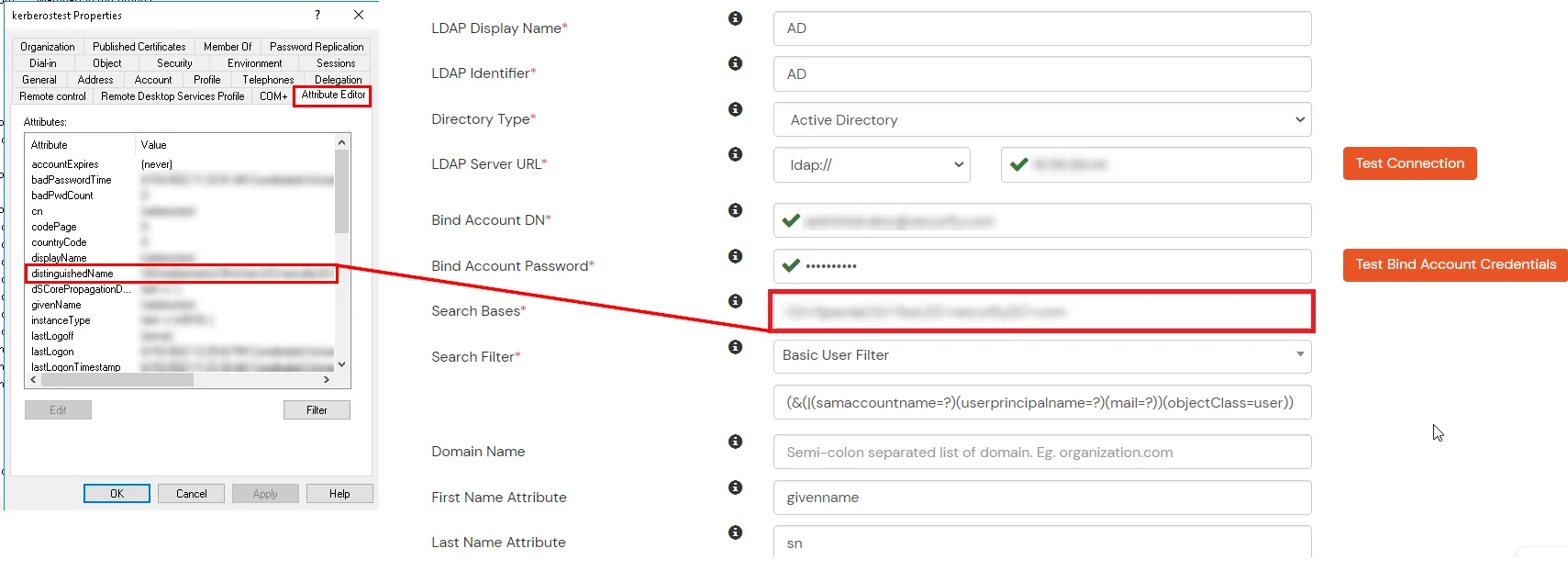
- Search Base is the location in the directory where the search for a user begins. You will get this from the same place you got your Distinguished name.
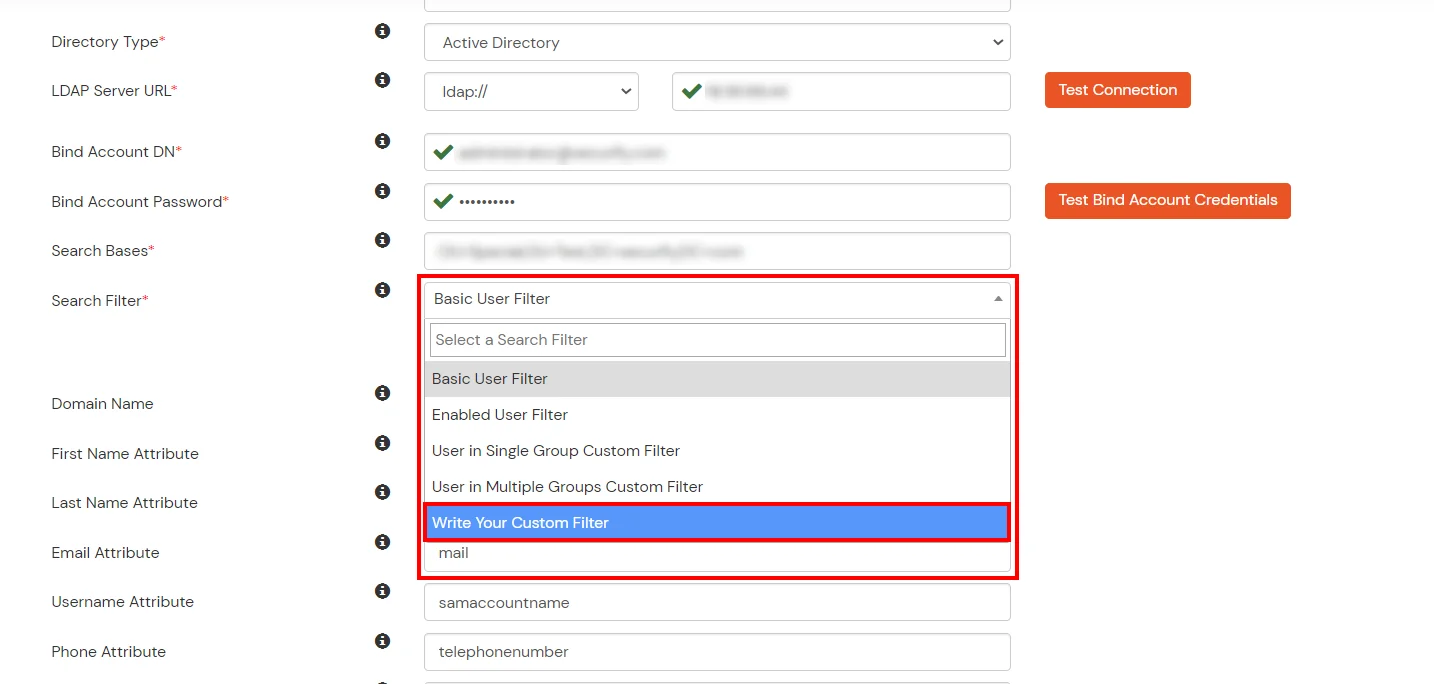
- Select a suitable Search filter from the drop-down menu. If you use User in Single Group Filter or User in Multiple Group Filter, replace the <group-dn> in the search filter with the distinguished name of the group in which your users are present. To use custom Search Filter select "Write your Custom Filter" option and customize it accordingly.
- Click on the Next button, or go to the Login Options tab.
- You can also configure following options while setting up AD. Enable Activate LDAP in order to authenticate users from AD/LDAP. Click on the Next button to add user store.
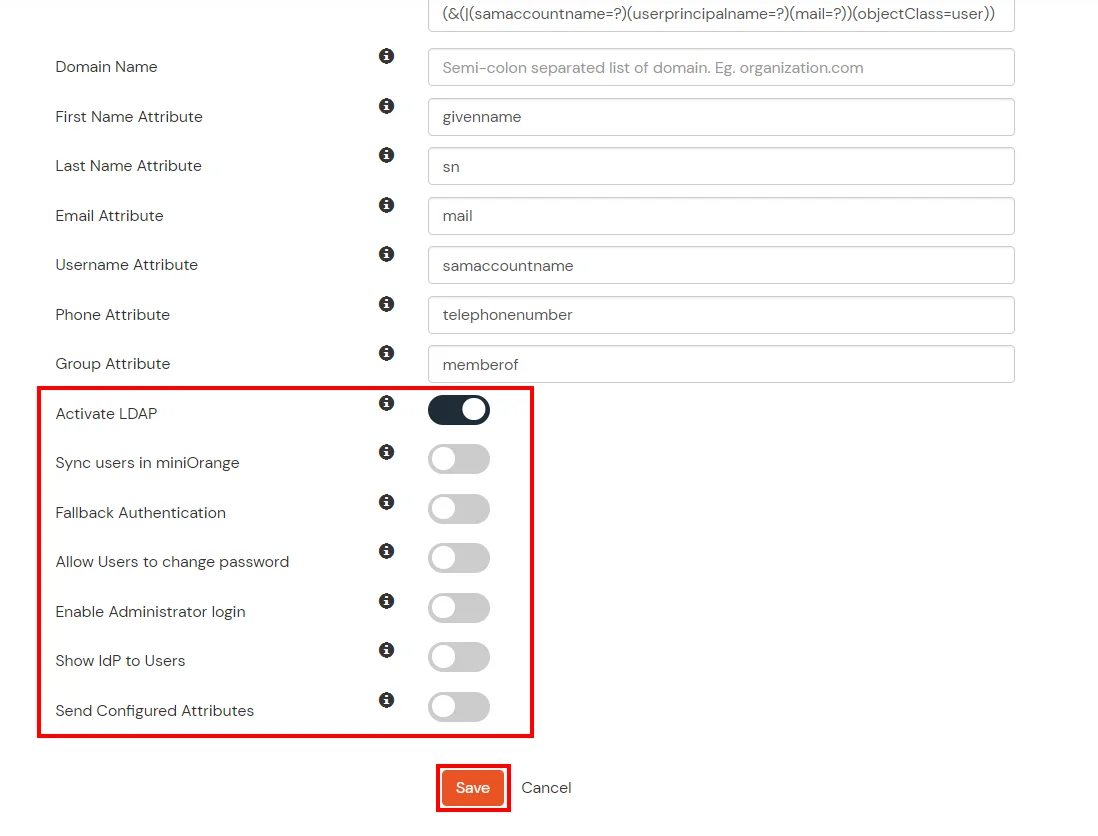
Here's the list of the attributes and what it does when we enable it. You can enable/disable accordingly.
| Attribute |
Description |
| Activate LDAP |
All user authentications will be done with LDAP credentials if you Activate it |
| Fallback Authentication |
If LDAP credentials fail then user will be authenticated through miniOrange |
| Enable administrator login |
On enabling this, your miniOrange Administrator login authenticates using your LDAP server |
| Show IdP to users |
If you enable this option, this IdP will be visible to users |
| Sync users in miniOrange |
Users will be created in miniOrange after authentication with LDAP |
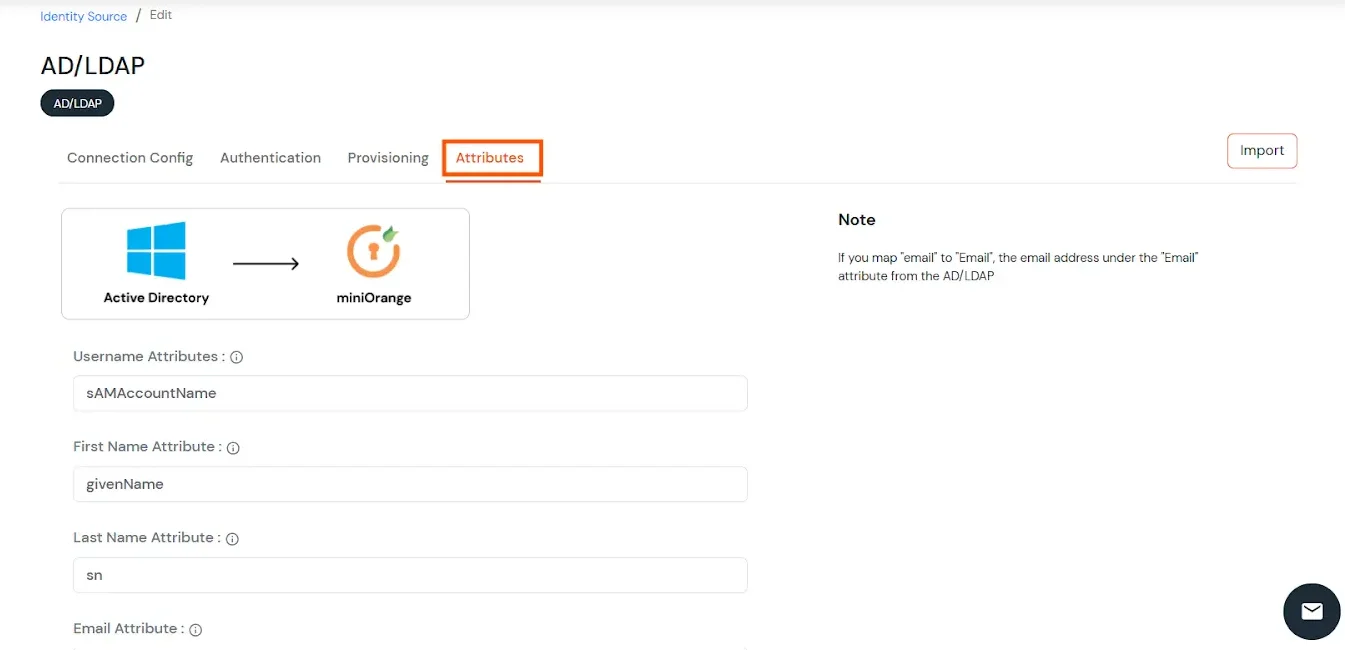
- Click on the Next button, or go to the Attributes tab.
Attributes Mapping from AD
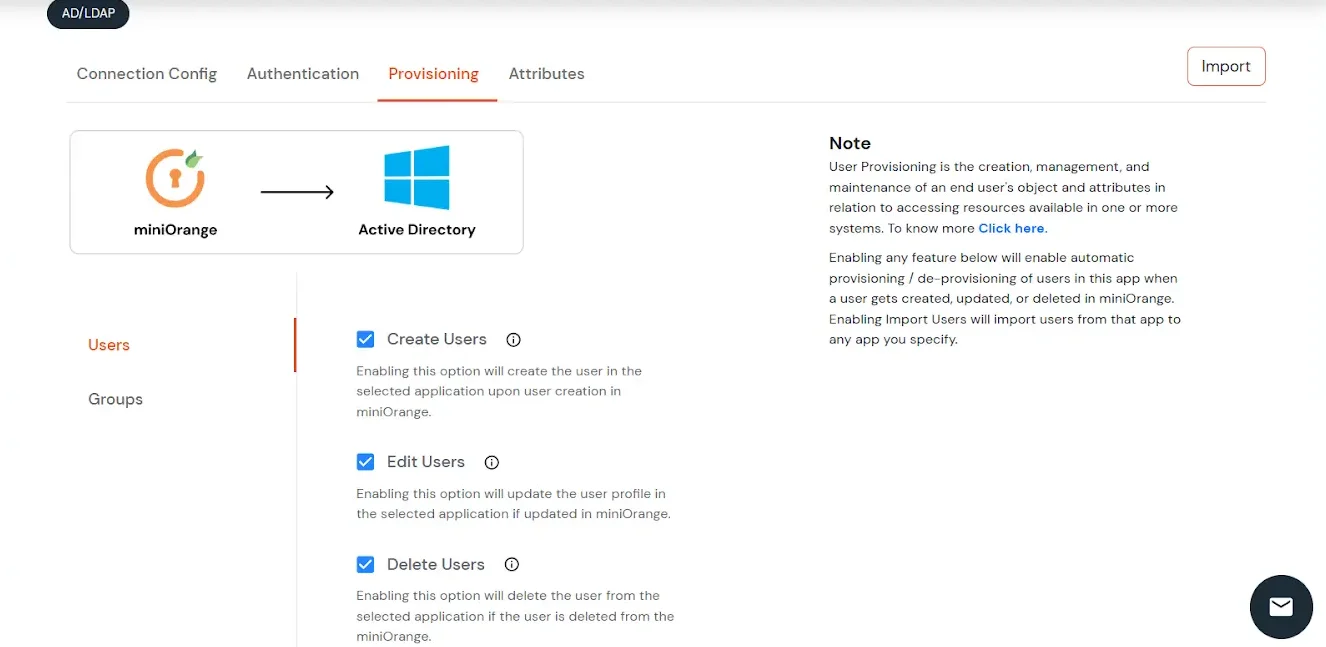
User Import and Provisioning from AD
- If you want to set up provisioning, click here for detailed information. We will skip this step for now.
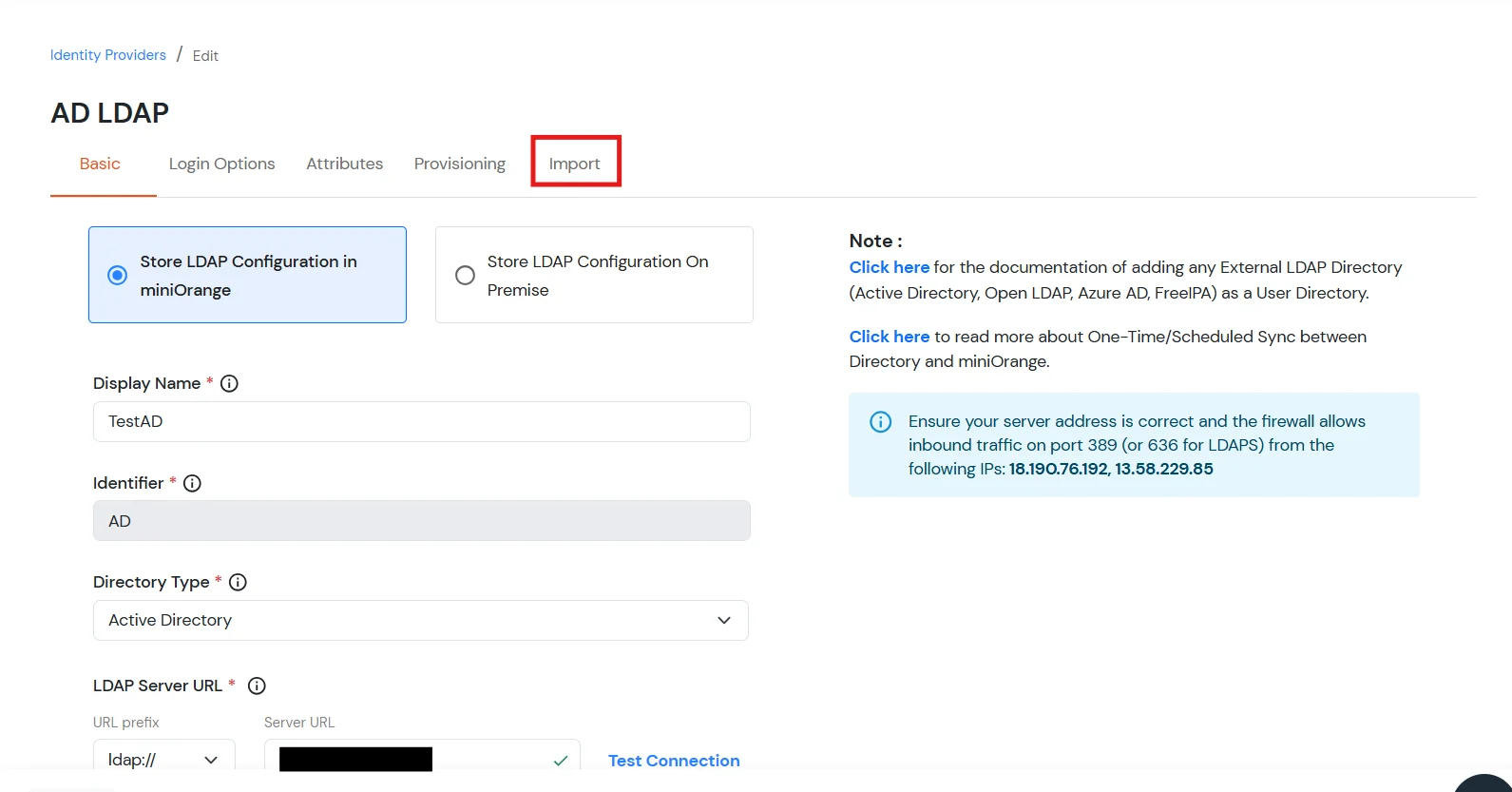
Import Password Policy from AD
- If you want to import your Active Directory password policy into miniOrange, click here for detailed information. We will skip this step for now.
Test Connections
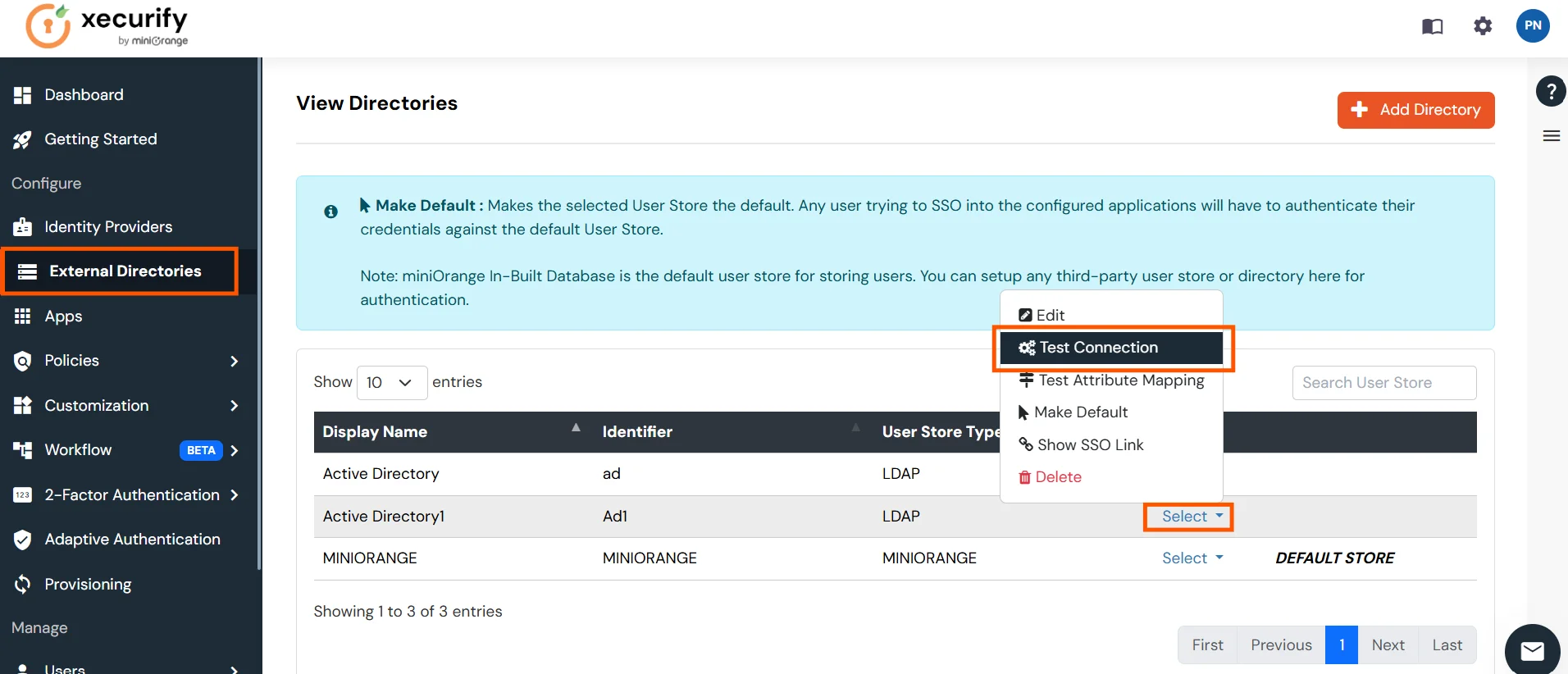
- You will see a list of directories under Identity Providers. From the dropdown, select AD/LDAP Directories, search for your configured directory, click the three dots next to it, and select Test Connection.
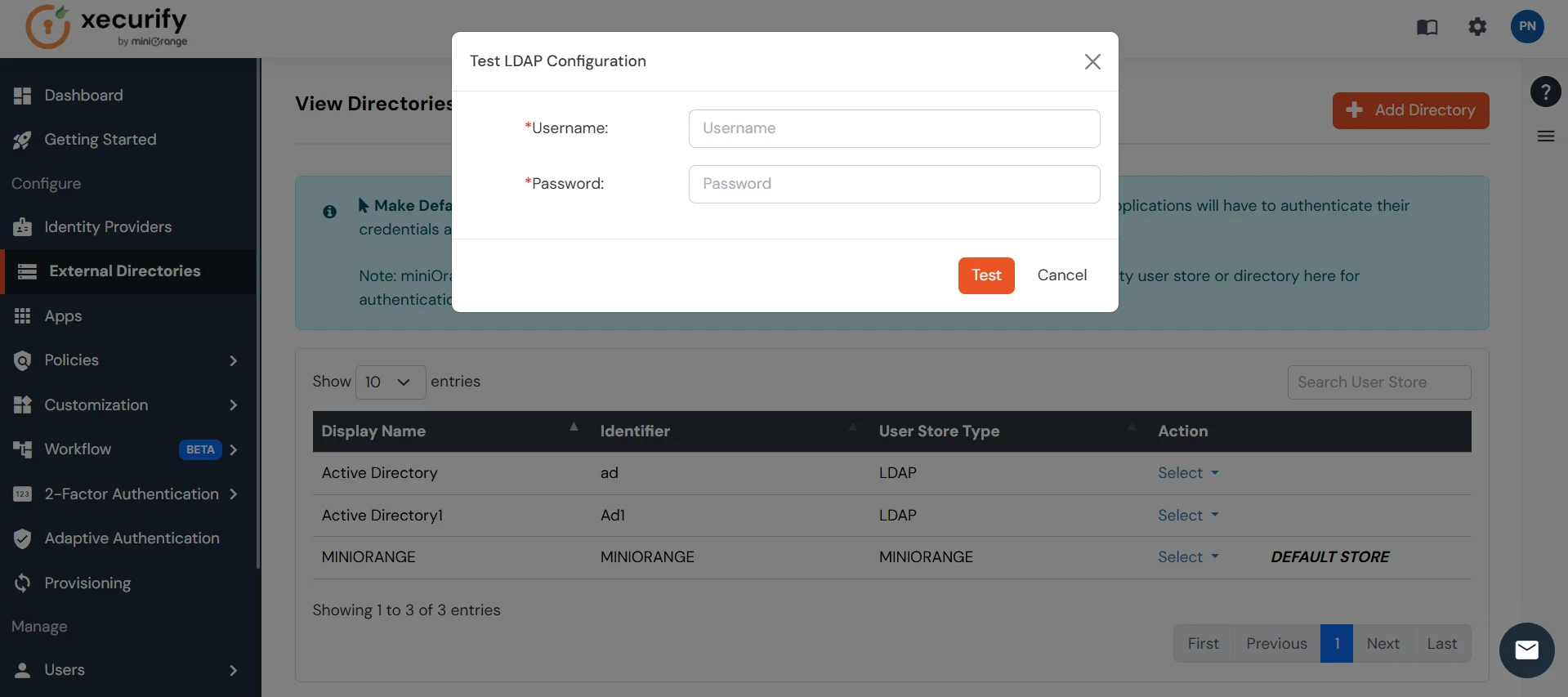
- A pop-up appears prompting you to enter a username and password to verify your LDAP configuration.
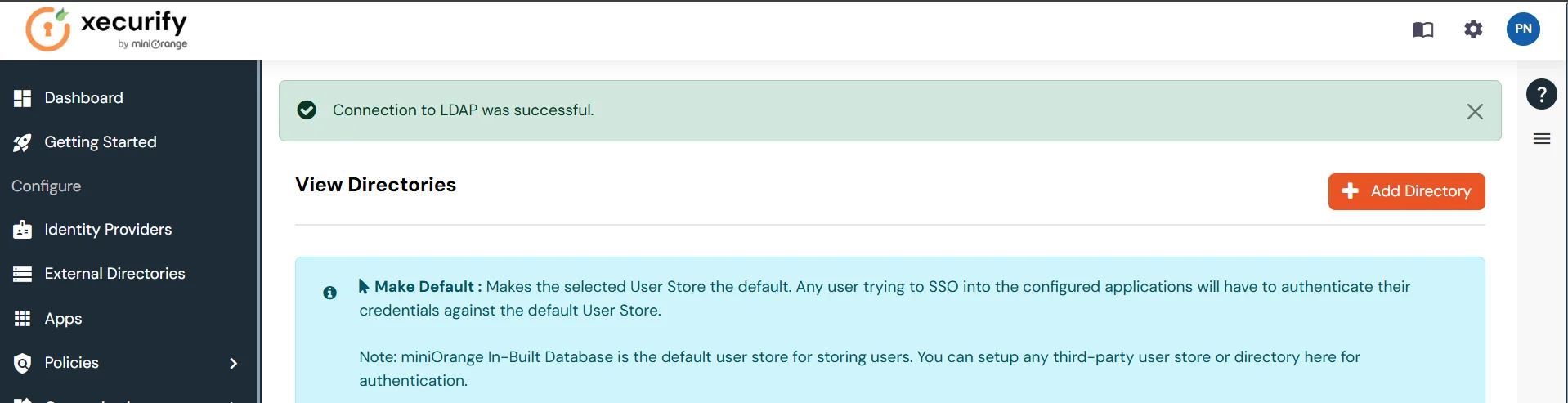
- On Successful connection with LDAP Server, a success message is shown.
Test Attribute Mapping
- You will see a list of directories under Identity Providers. From the dropdown, select AD/LDAP Directories, search for your configured directory, click the three dots next to it, and select Test Attribute Mapping.
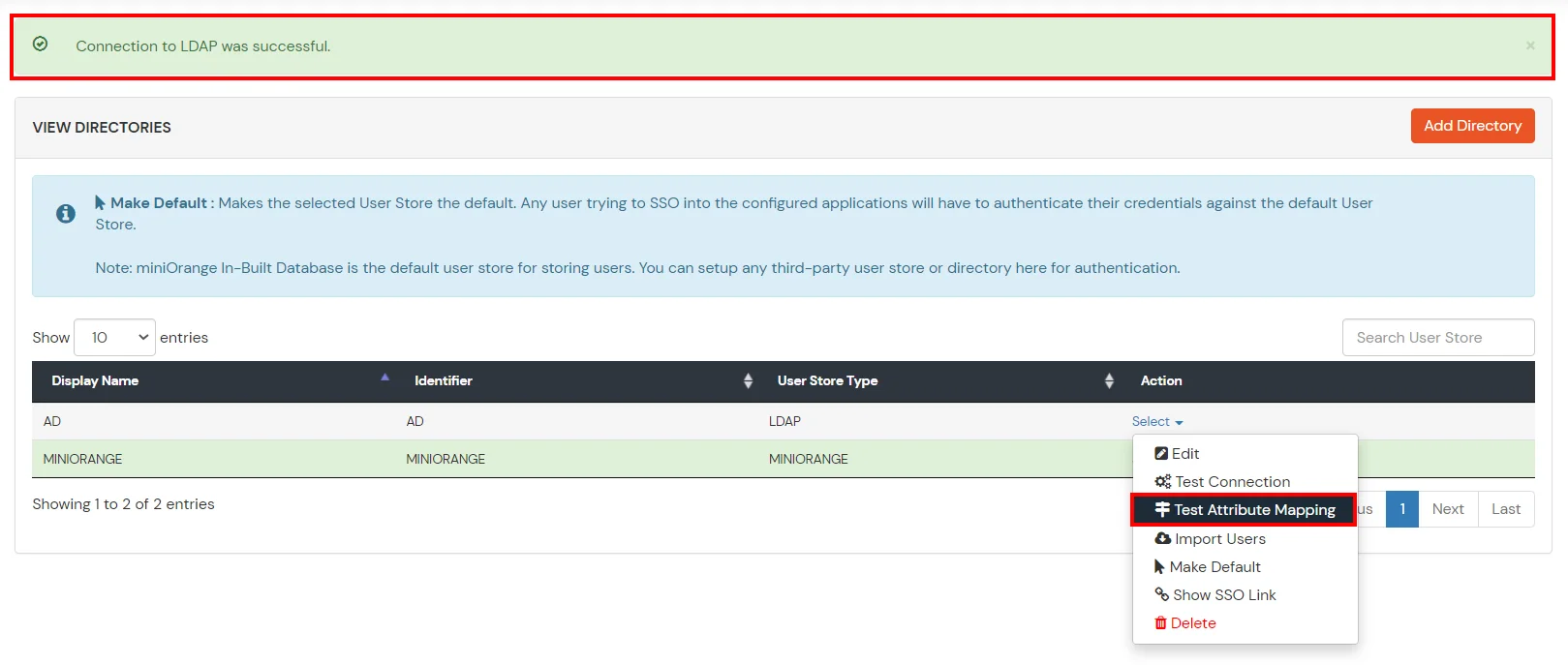
- A pop‑up appears to enter a username and click Test.
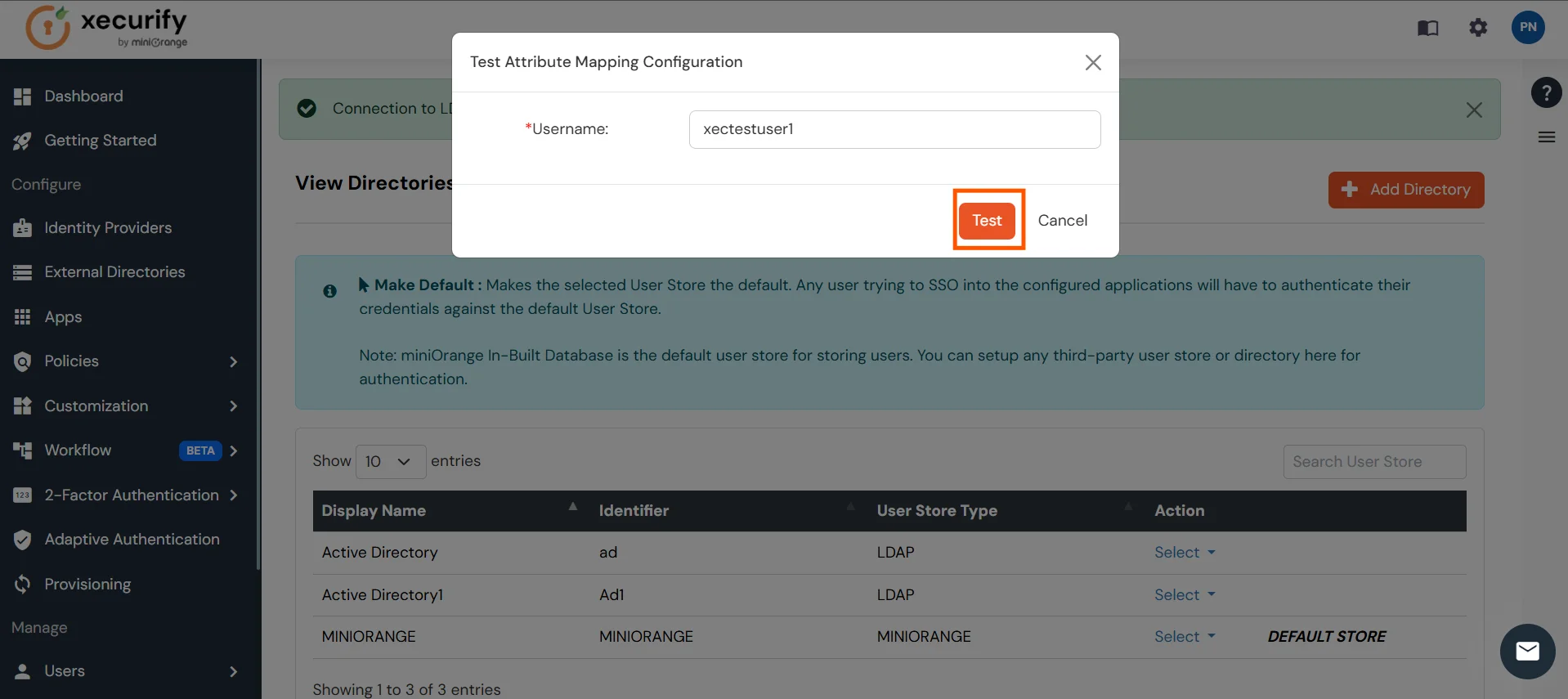
- The Test Attribute Mapping Result will be displayed.
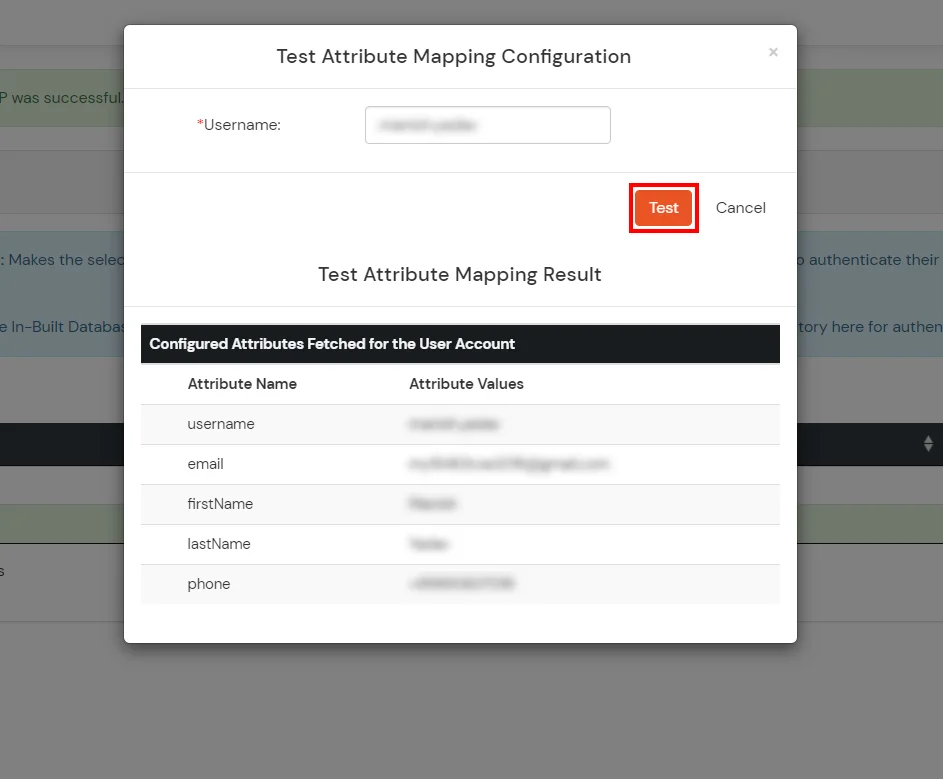
Set up AD as External Directory configuration is complete.
Note: Refer our guide to setup LDAP on windows server.
miniOrange integrates with various external user sources such as directories, identity providers, and etc.
Frequently Asked Questions (FAQs)
Why is my OTP being rejected even though I entered the correct code from my Google/Microsoft Authenticator?
This error is usually caused by a time mismatch between the miniOrange server and your mobile device (or a mismatch between your machine time and mobile device time in the case of Offline Authentication for Windows/Linux/Mac).
Security tokens generated by Authenticator apps are "Time-based" (TOTP). They are valid only for a specific 30–60 second window. If the system time on your phone running the Authenticator or your machine(in case of offline authentication) is fast or slow by even 2 minutes, the code will be considered expired by the server/machine.
Further References