Hello there!
Need Help? We are right here!

Need Help? We are right here!
Search Results:
×Zoom us SAML Single Sign-On (SSO) solution provides an easy, secure and seamless system for identity access management by establishing a trust relationship between the Service Provider and Identity Provider (IdP). The user credentials and other identifying information are stored and managed by a centralized system called Identity Provider (IdP). Along with miniOrange IDP (Identity Provider), miniOrange provides user authentication from other User stores, external identity Providers and external directories as well. With Zoom Us' Single Sign-On (SSO) integration, users won't have to log in separately to different applications, which eliminates user-managed passwords, making it easier for them to remember and enter passwords regularly. This guide will help you configure SSO into Zoom easily.
Follow the given setup guide to integrate SAML SSO to Sign-in into your Zoom account. Combining the power of the Zoom platform with the miniOrange IAM platform allows users to quickly & seamlessly log into their Zoom Account. This combination increases employee productivity from day one and also ensures a secure experience with minimal IT overhead.
Learn more about SP and IDP initiated login
miniOrange provides user authentication from various external sources, which can be Directories (like ADFS, Microsoft Active Directory, OpenLDAP, AWS etc), Identity Providers (like Microsoft Entra ID, Okta, AWS), and many more. You can configure your existing directory/user store or add users in miniOrange.
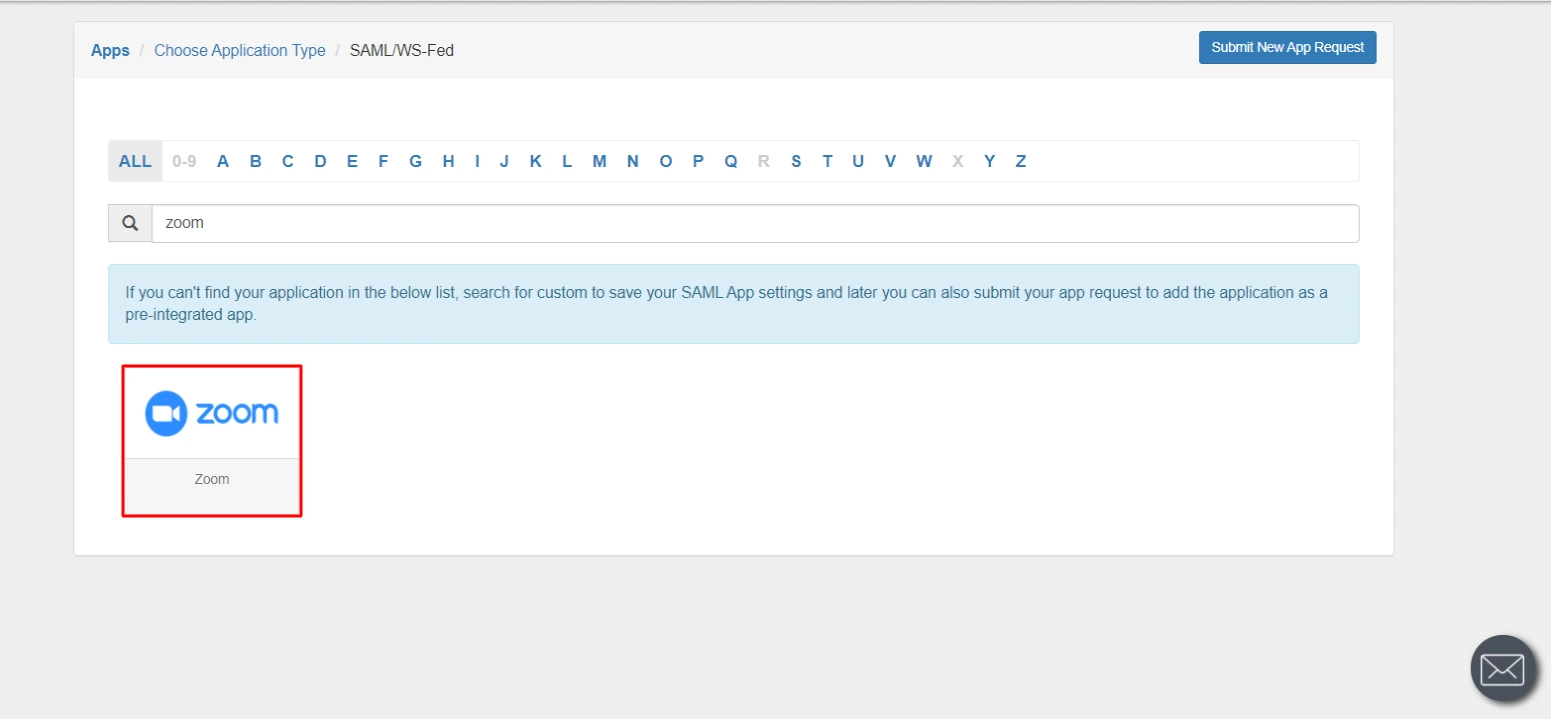
| SP Entity ID or Issuer | Your Zoom Domain Name e.g. https://{vanity.url}.zoom.us |
| ACS URL | https://www.zoom.us/signin |
| Single Logout URL | https://{vanity.url}.zoom.us/saml/SingleLogout |
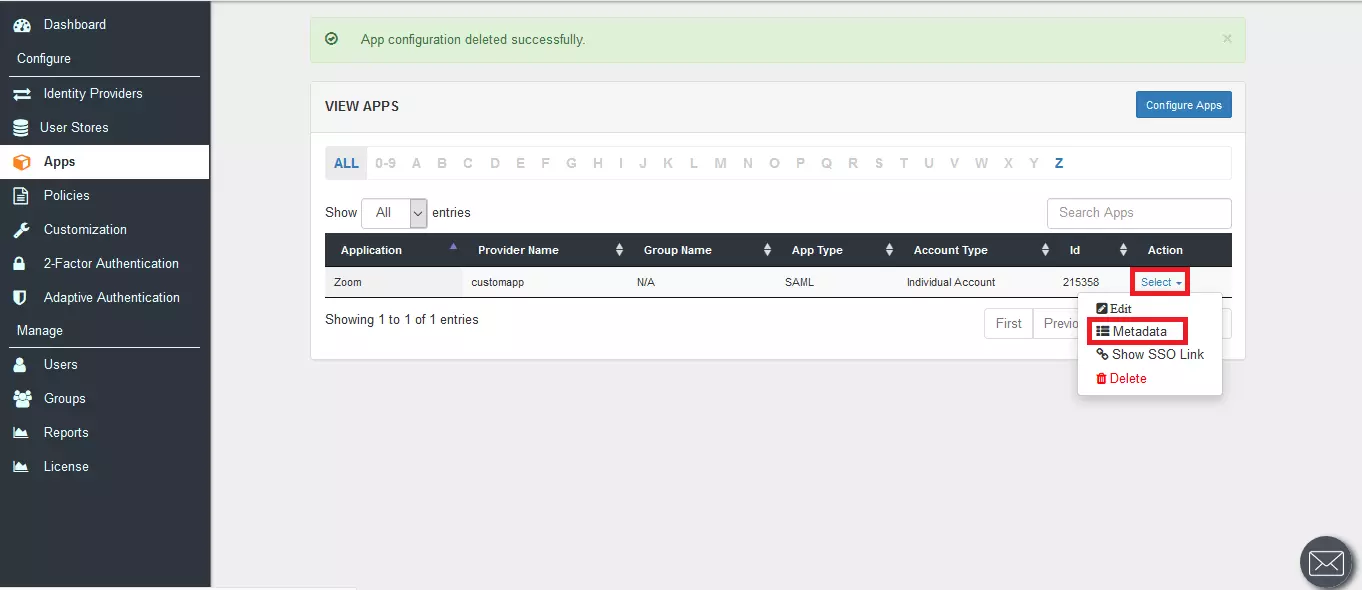
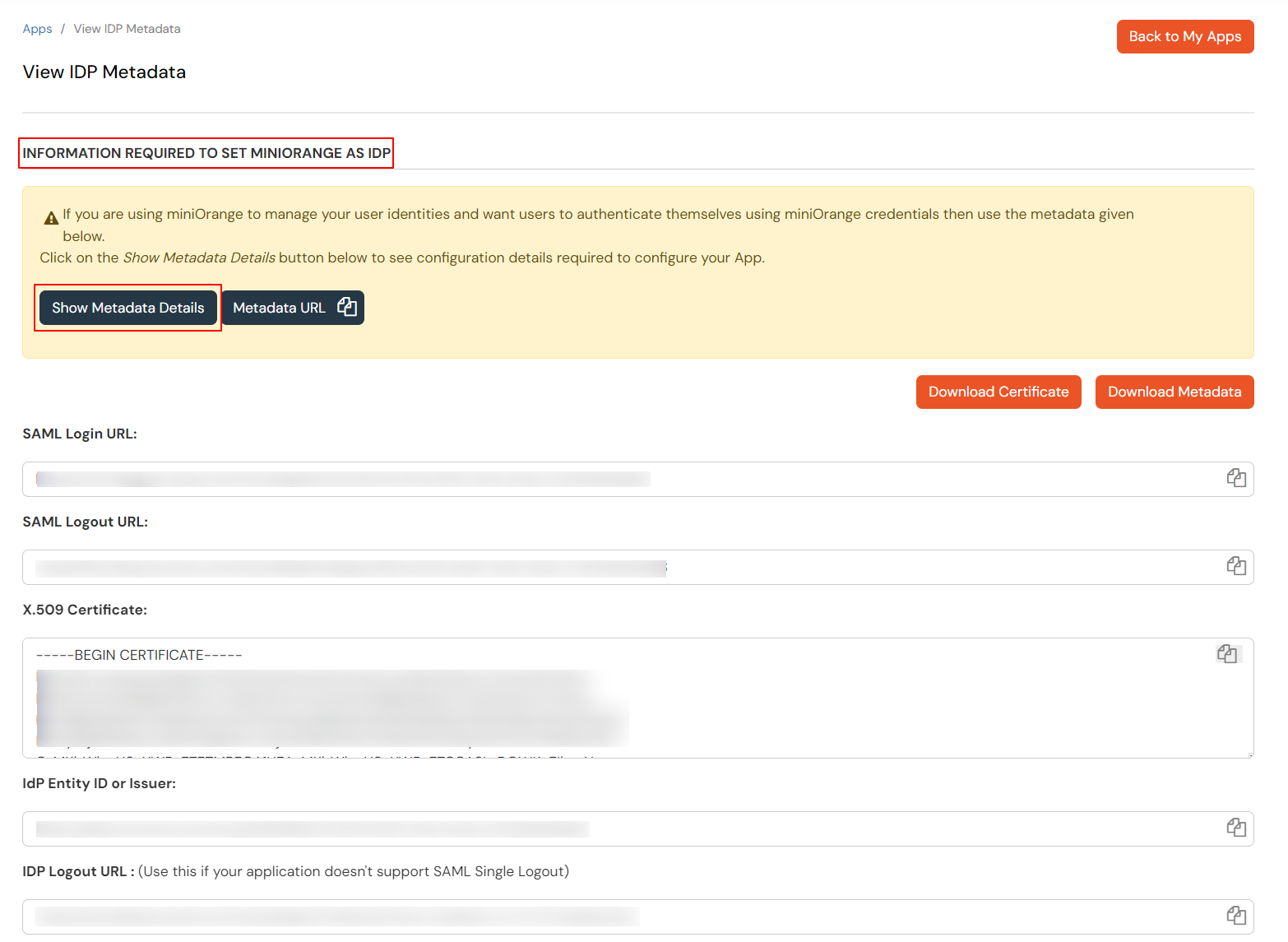
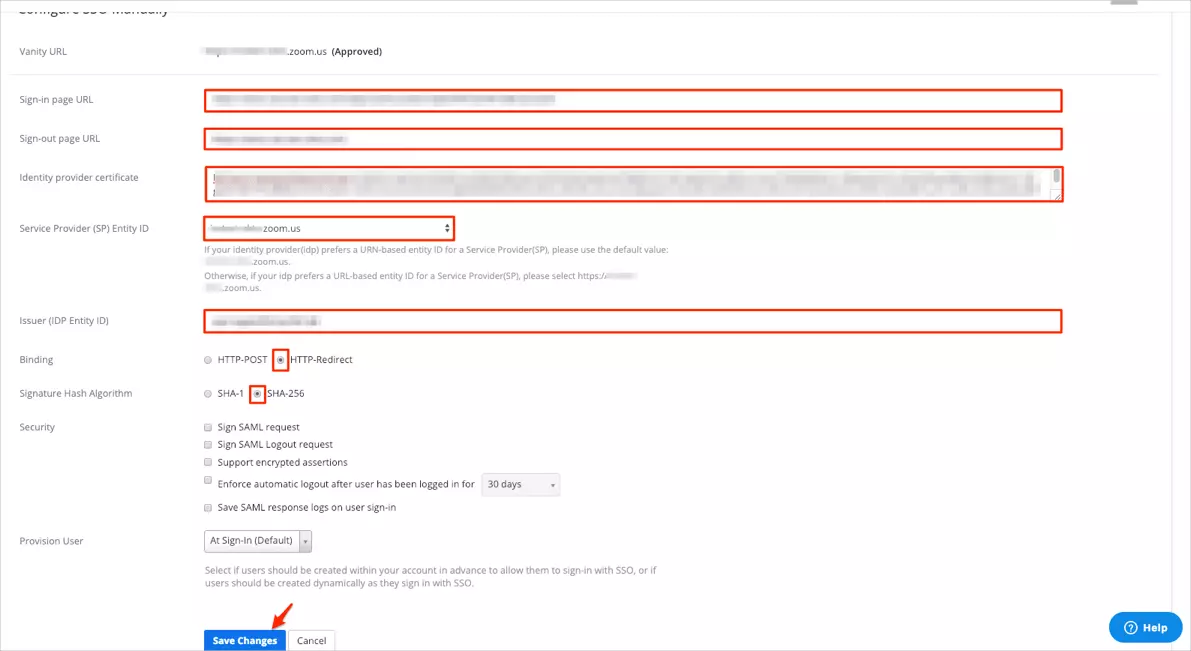
| Sign-in Page URL: | Enter the SAML Login URL you get by clicking on Metadata in Step 1. |
| Sign-out Page URL: | Enter Single Logout URL you get by clicking on Metadata in Step 1. |
| Identity provider certificate: | Enter the X.509 Certificate from Step 1. Take care of removing the Begin Certificate and End Certificate. |
| Service Provider (SP) Entity ID: | Enter your domain:[your-subdomain].zoom.us |
| Issuer (IDP Entity ID): | Enter the IDP Entity ID you get by clicking on Metadata in Step 1. |
| Binding: | Select HTTP-Redirect. |
| Signature Hash Algorithm: | Select SHA-256. |
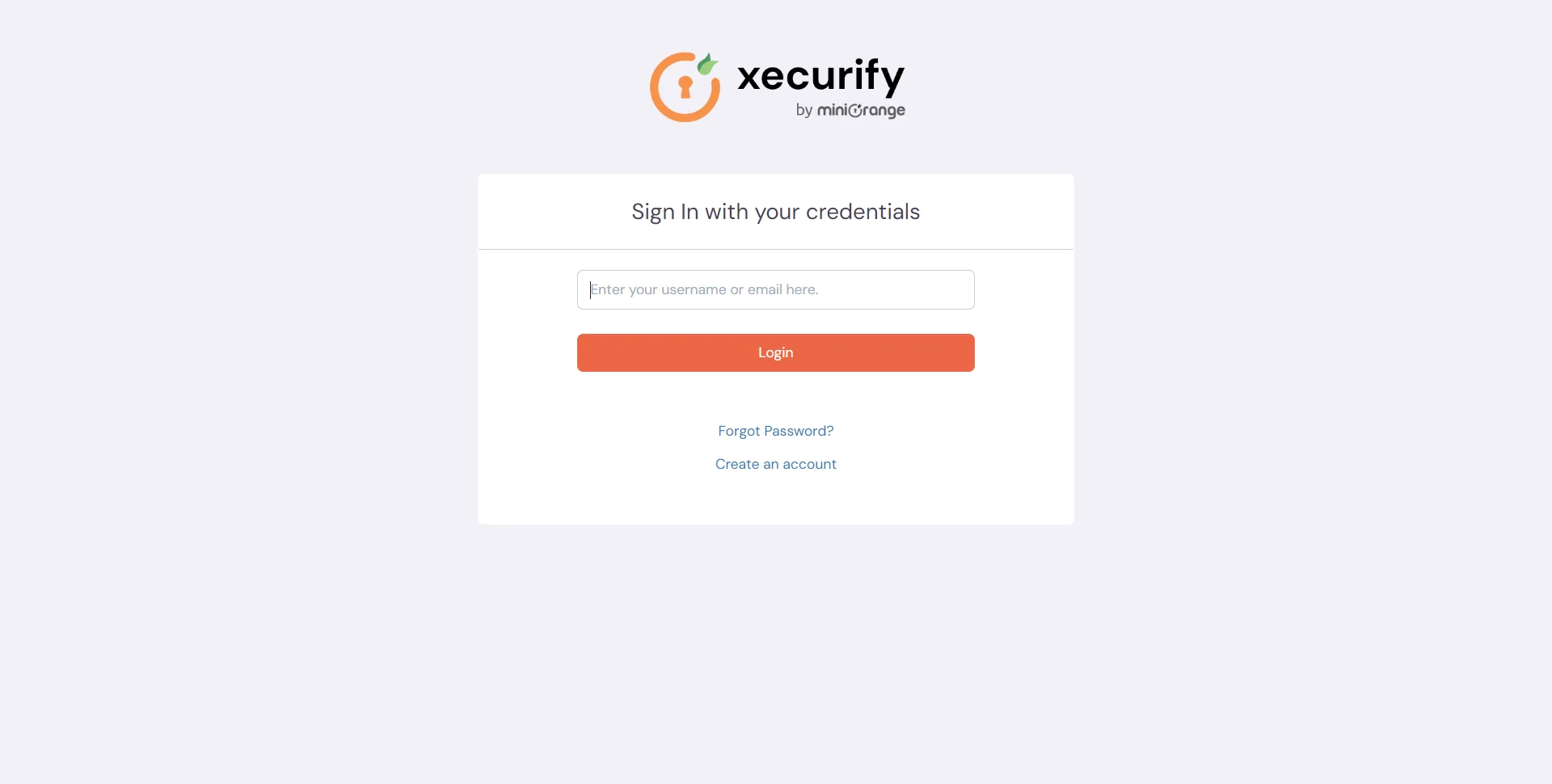
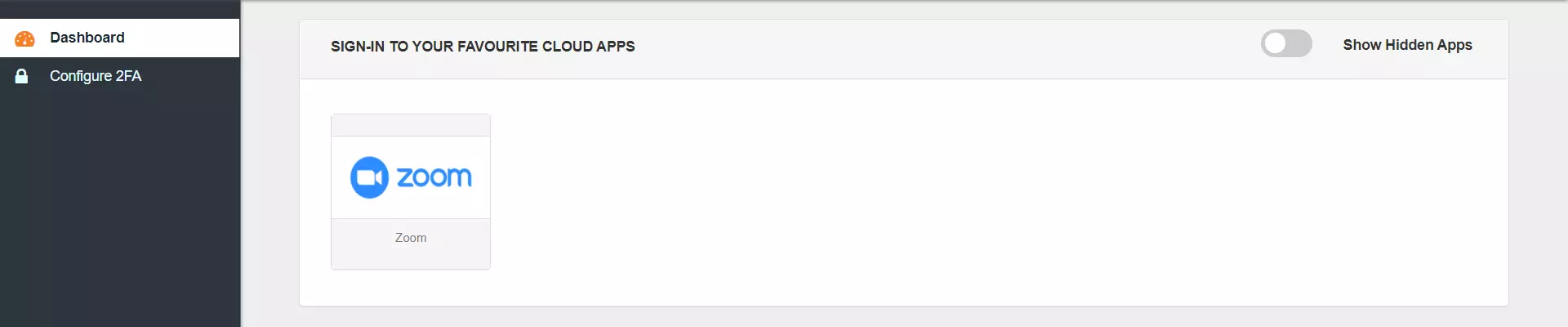
Test SSO login to your Zoom account with miniOrange IdP:
Contact us or email us at idpsupport@xecurify.com and we'll help you setting it up in no time.
miniOrange provides user authentication from various external sources, which can be Directories (like ADFS, Microsoft Active Directory, Microsoft Entra ID, OpenLDAP, Google, AWS Cognito etc), Identity Providers (like Okta, Shibboleth, Ping, OneLogin, KeyCloak), Databases (like MySQL, Maria DB, PostgreSQL) and many more. You can configure your existing directory/user store or add users in miniOrange.
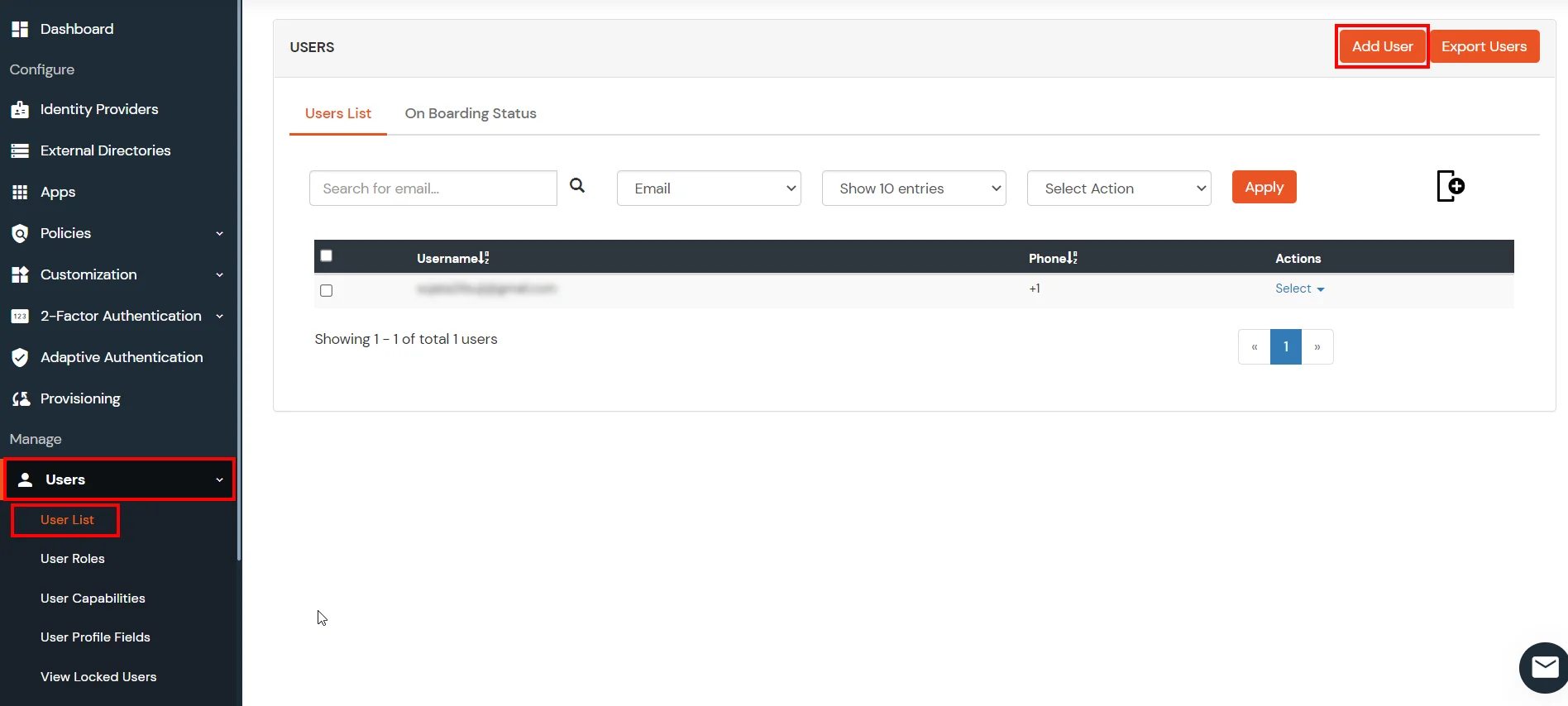
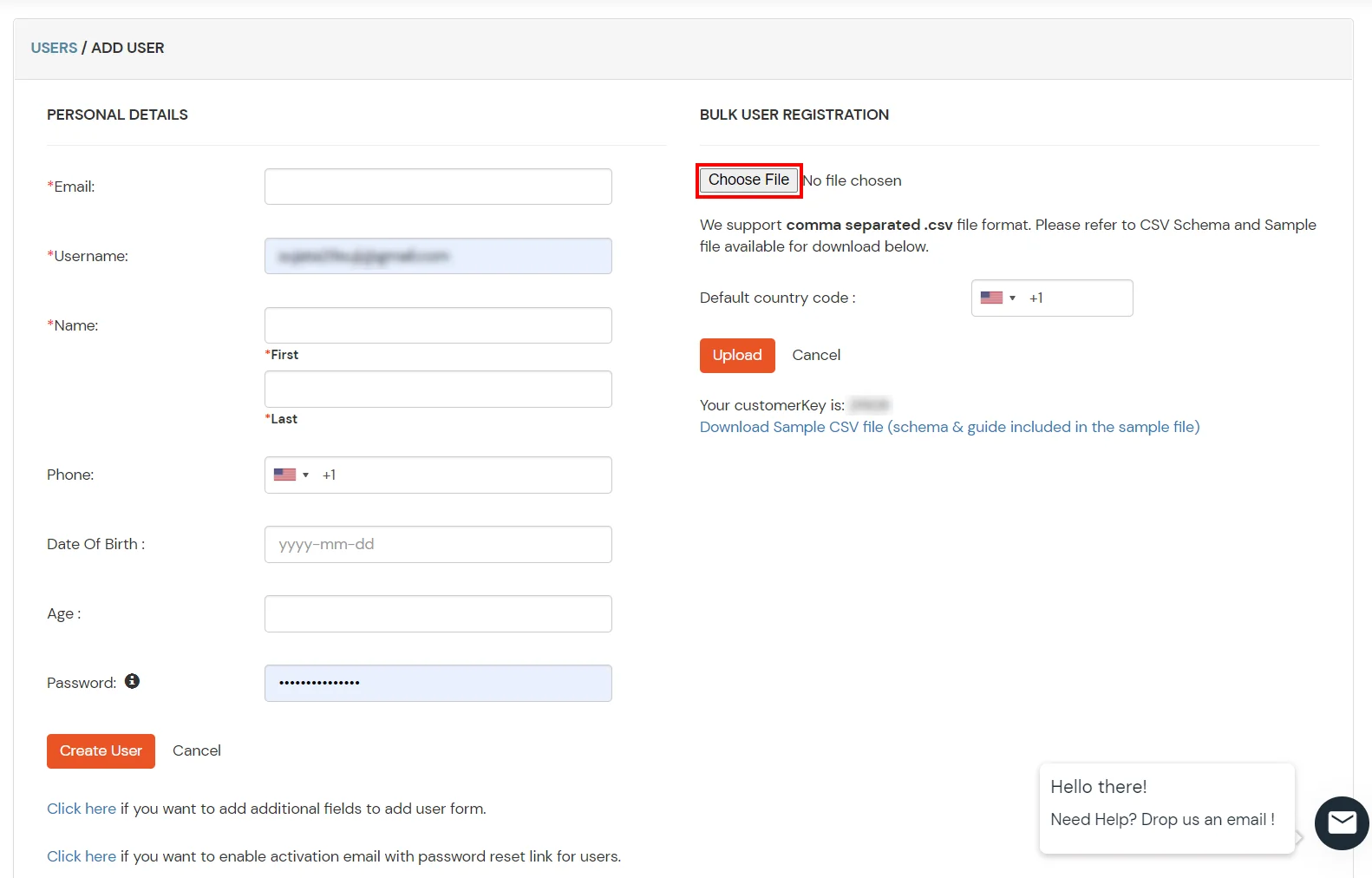
1. Create User in miniOrange
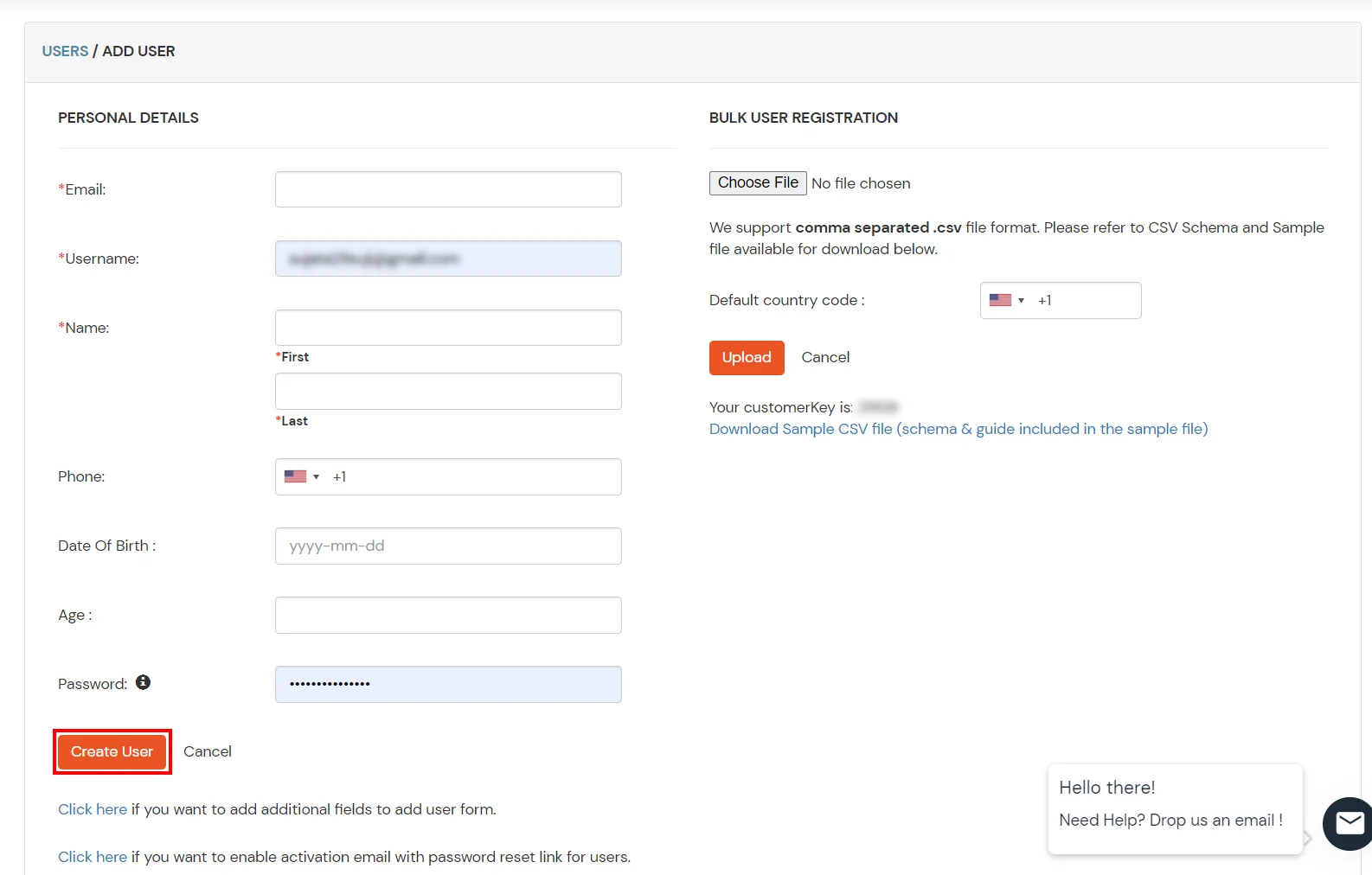
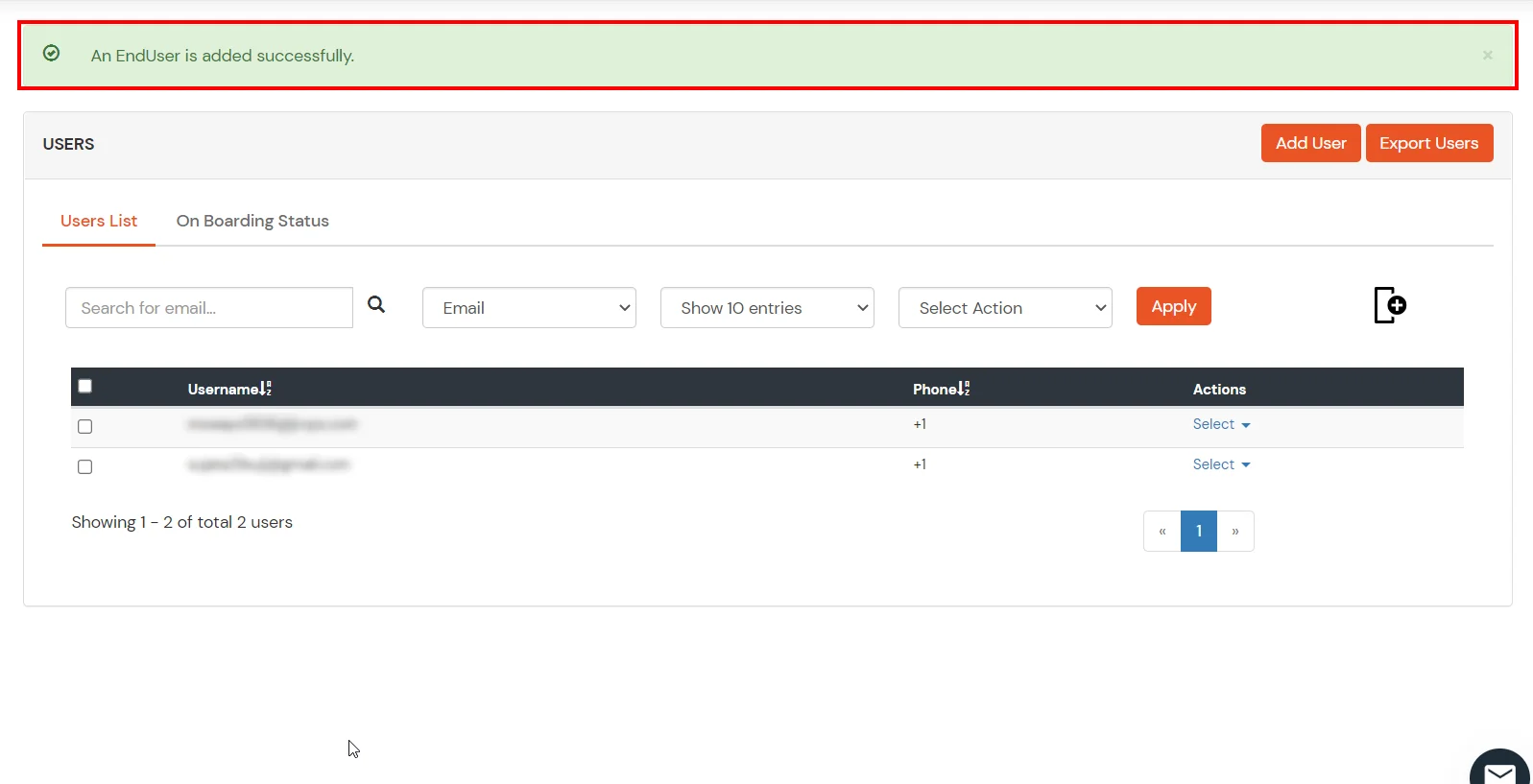
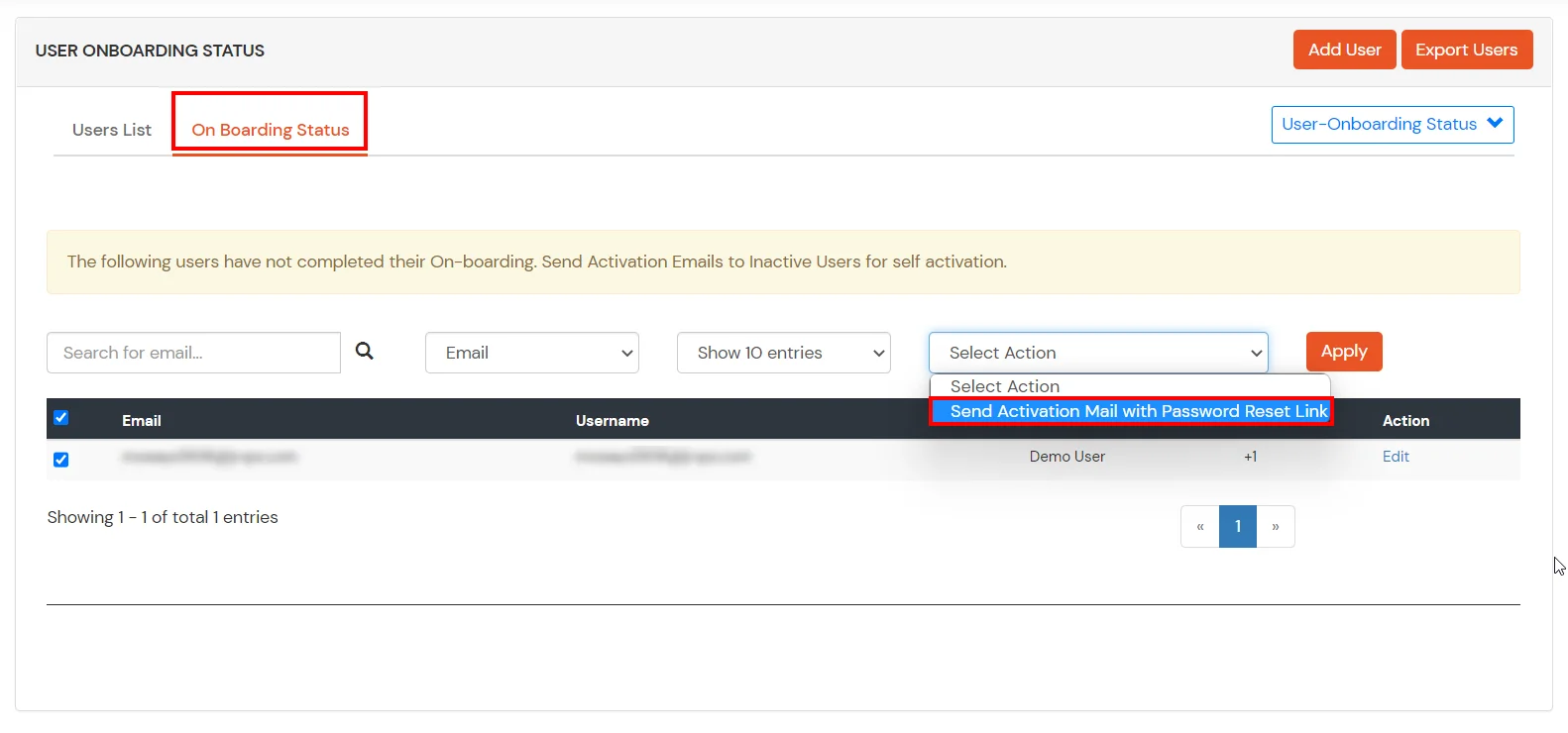
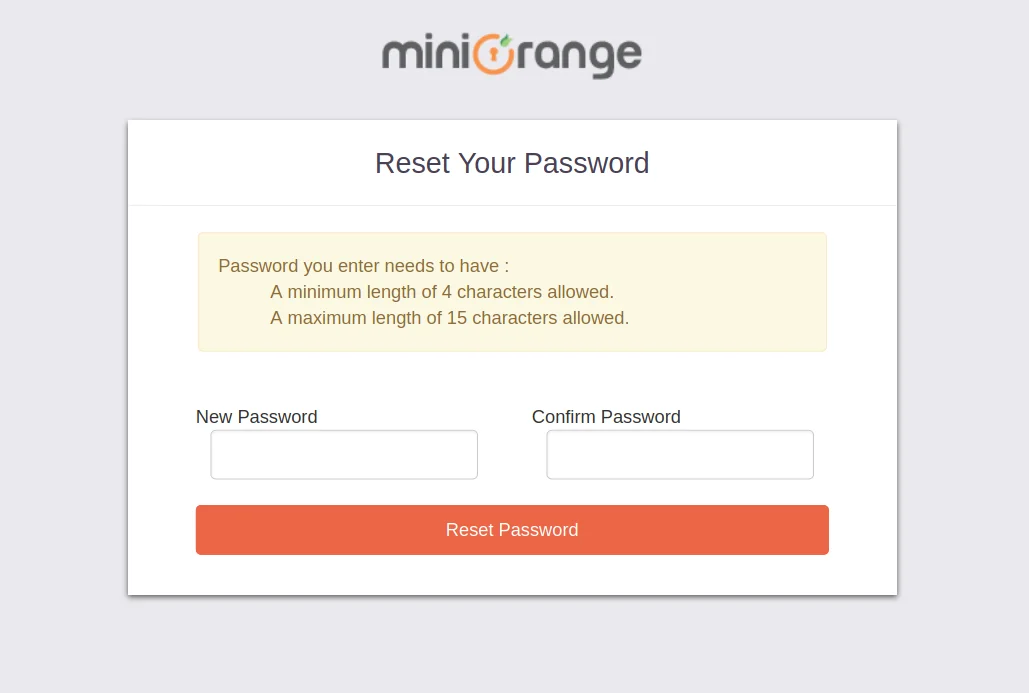
2. Bulk Upload Users in miniOrange via Uploading CSV File.
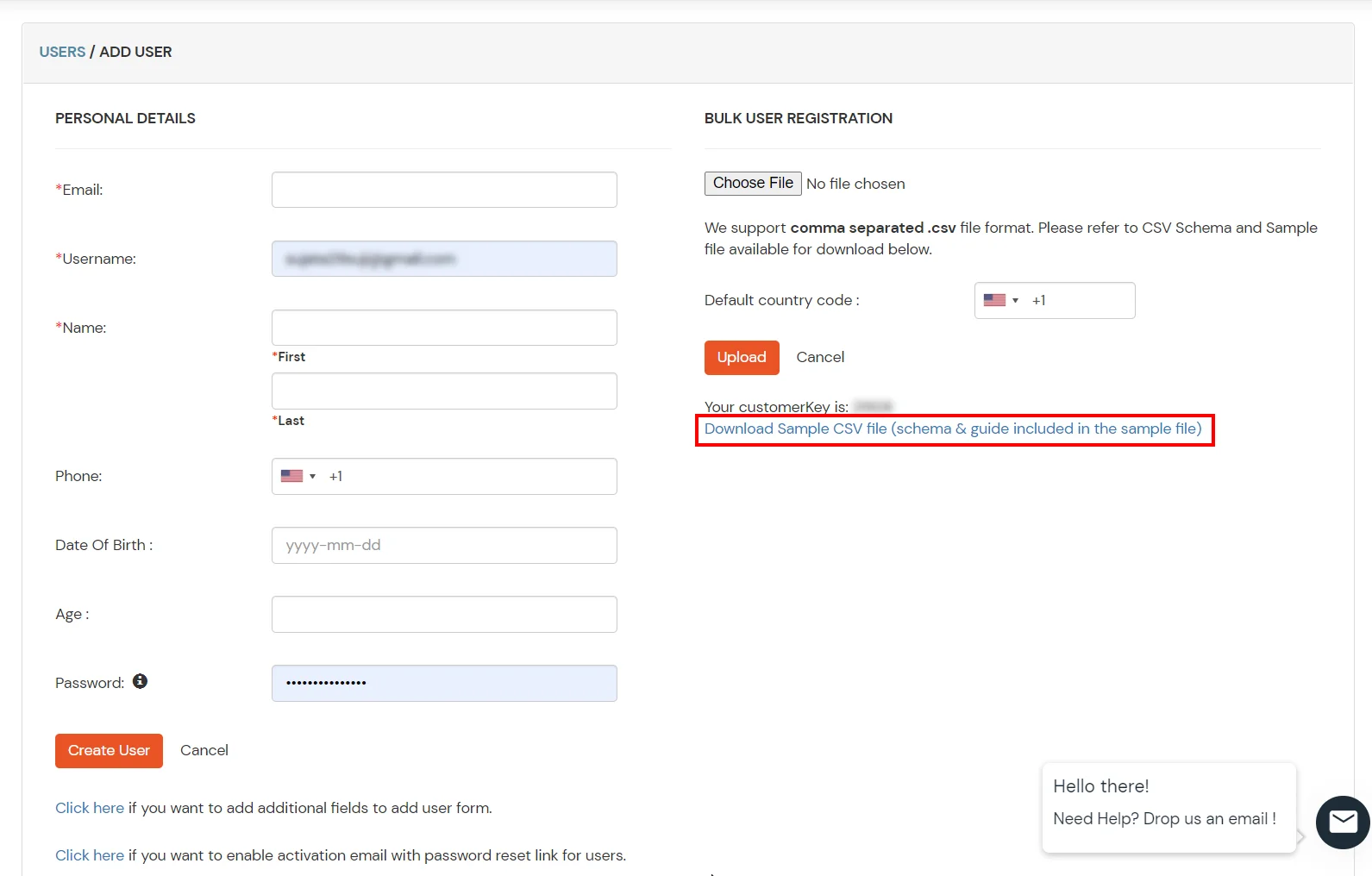
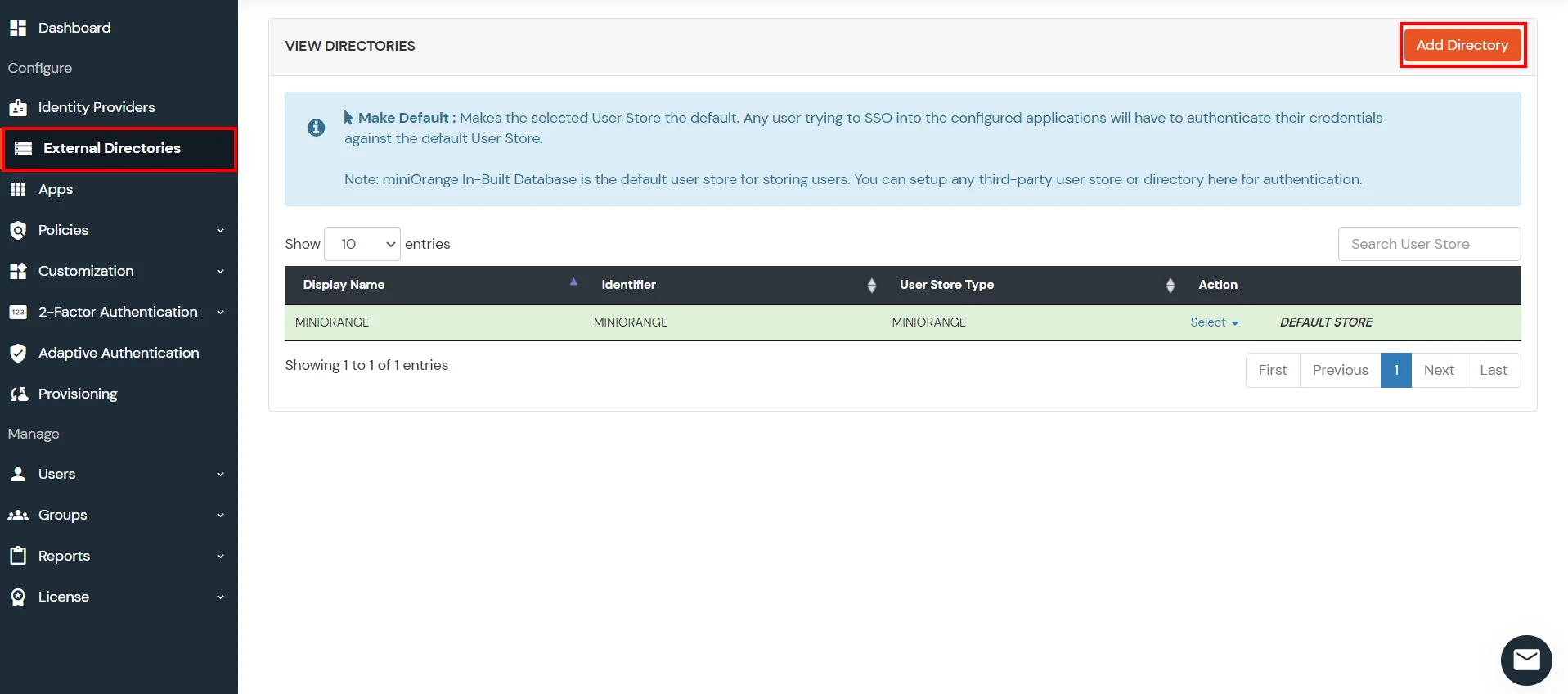
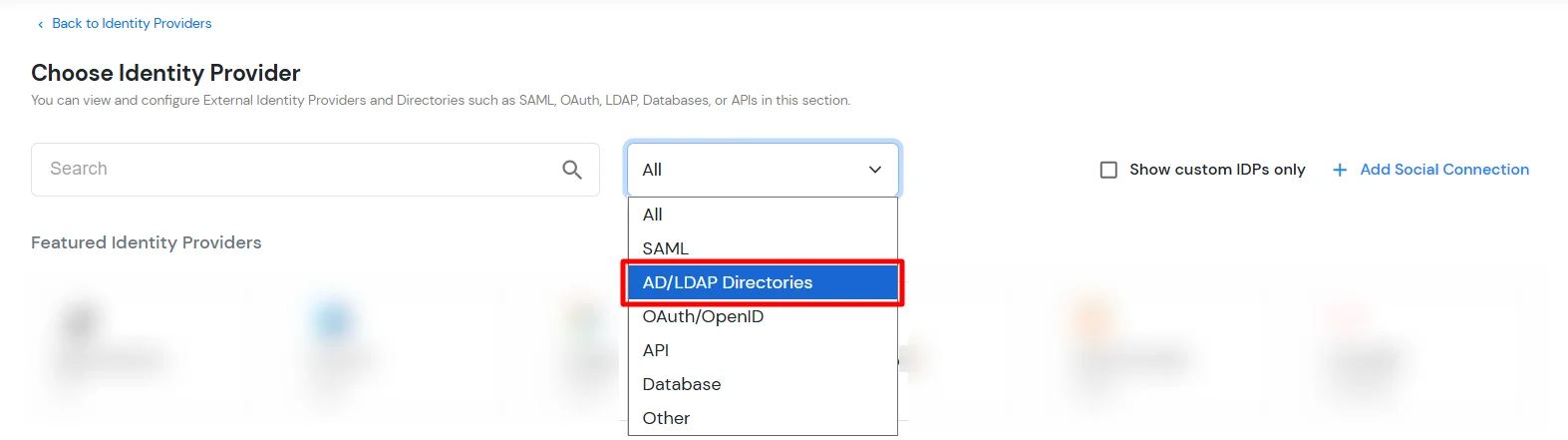
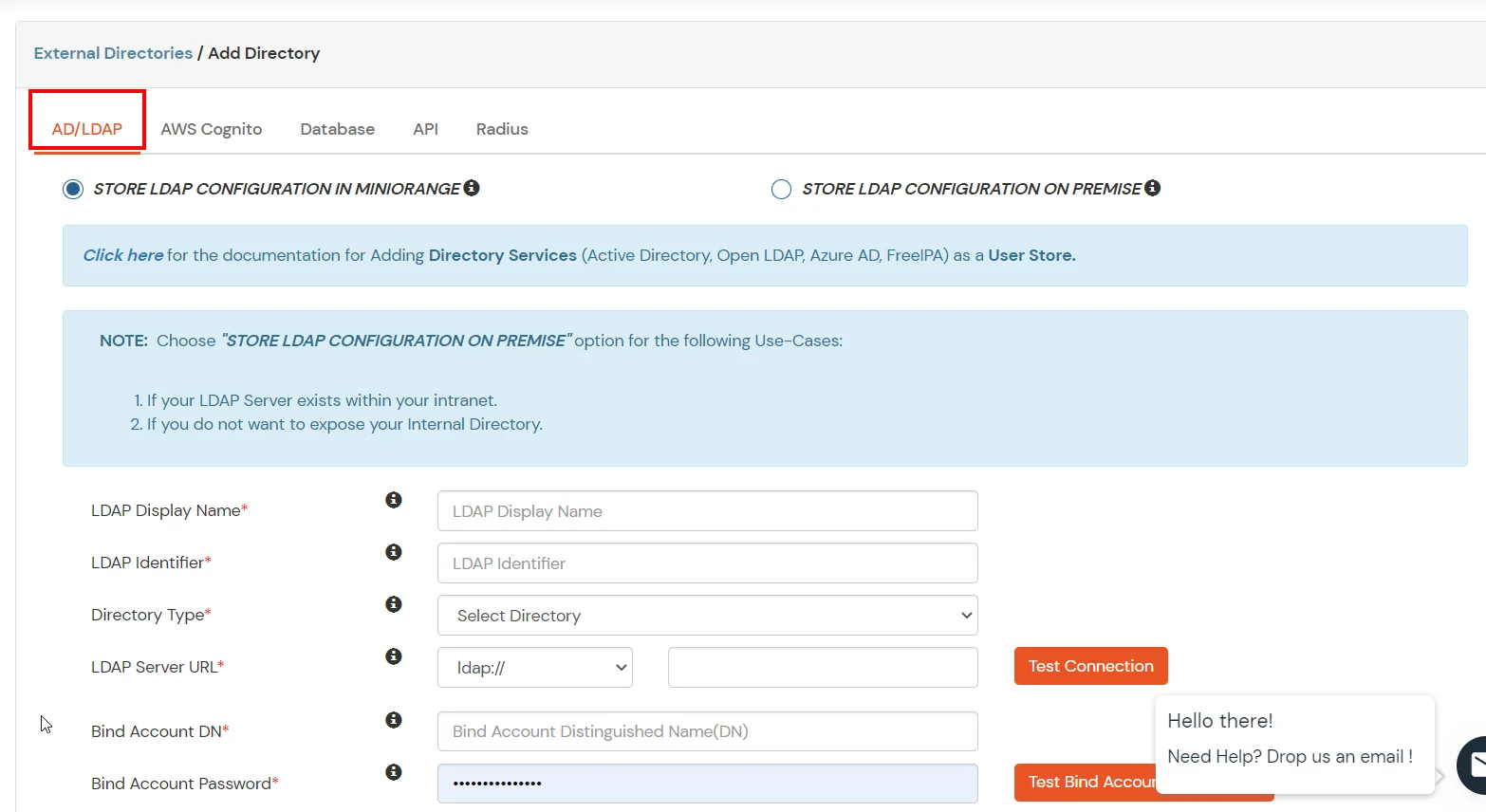
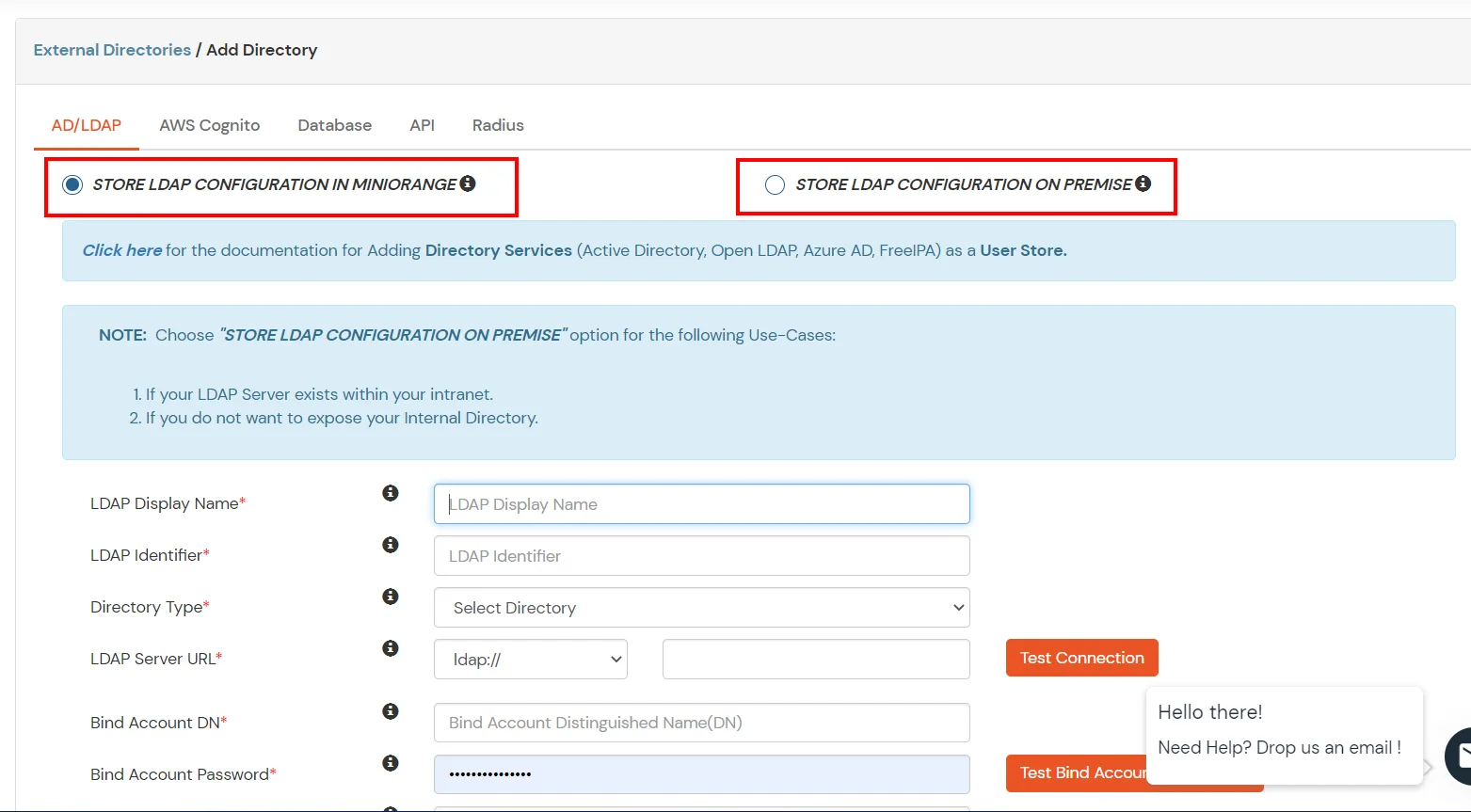
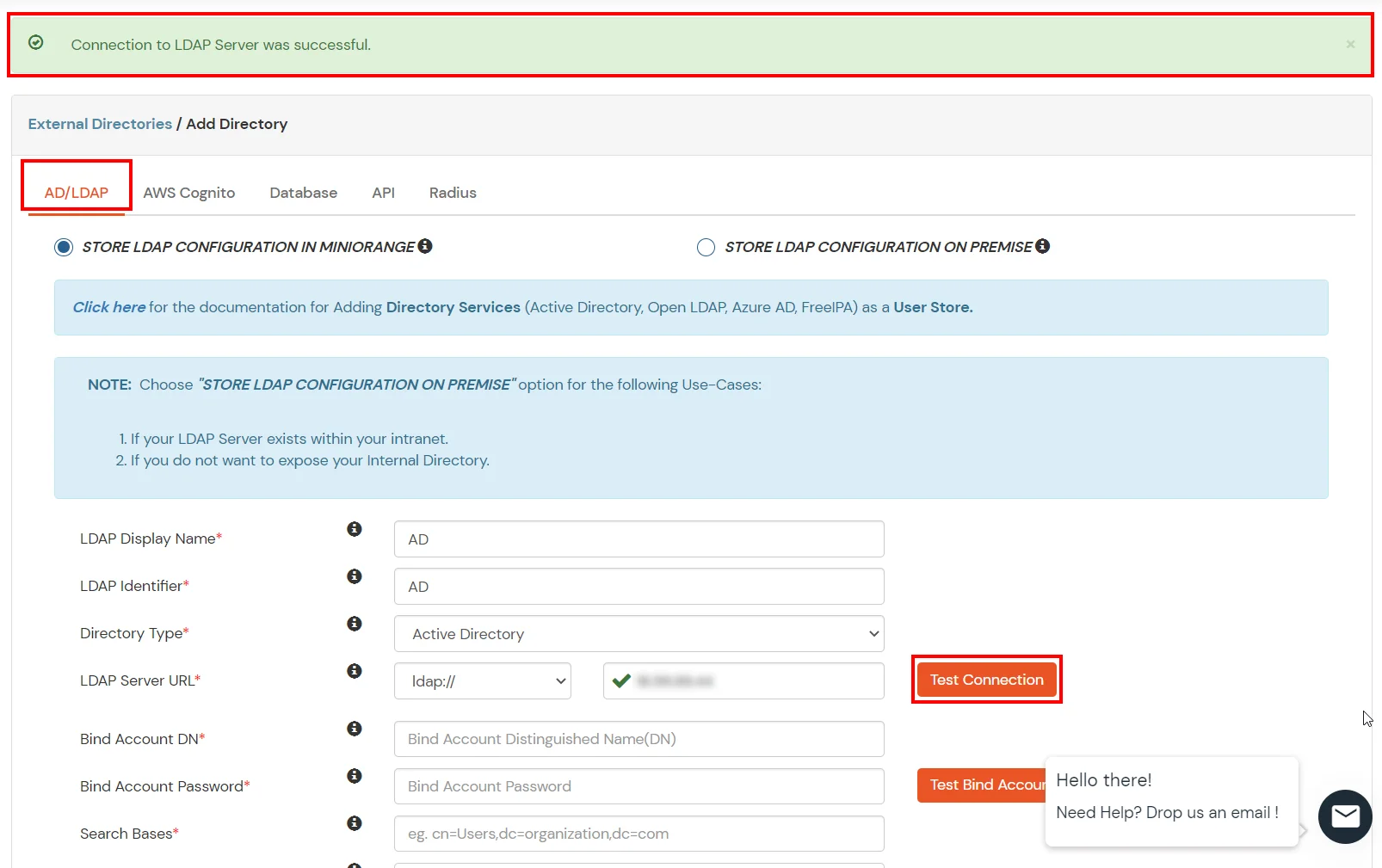
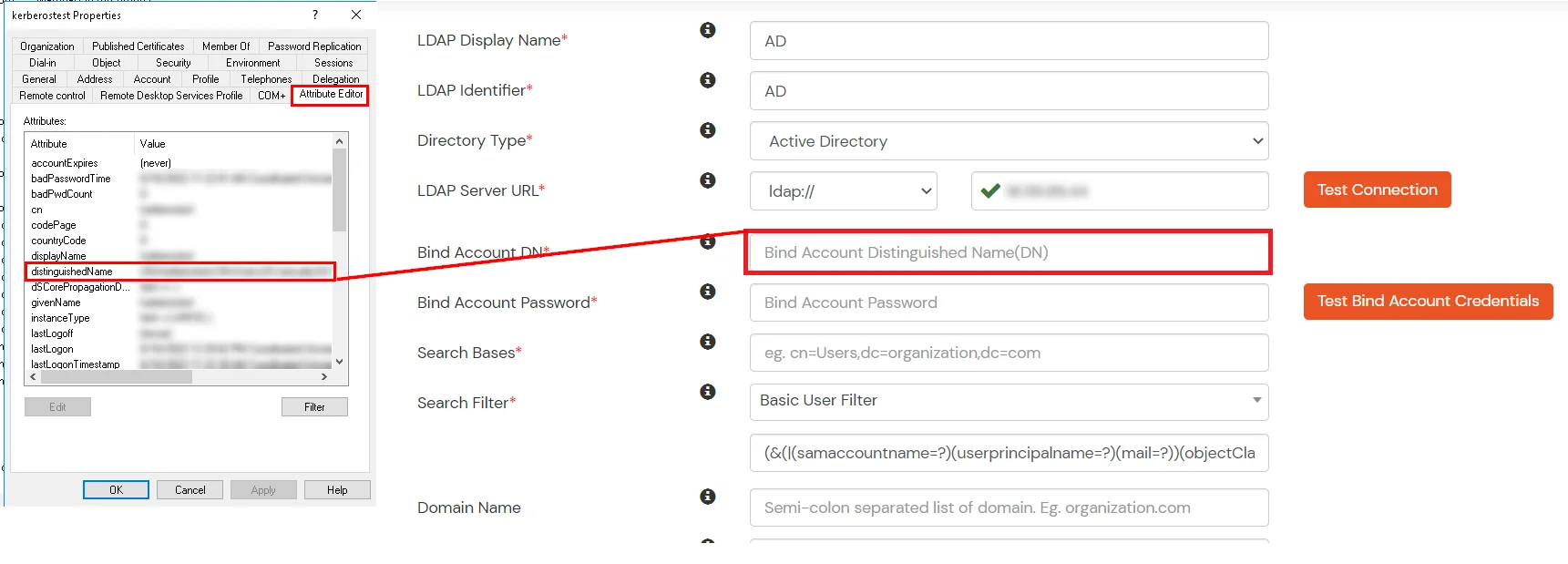
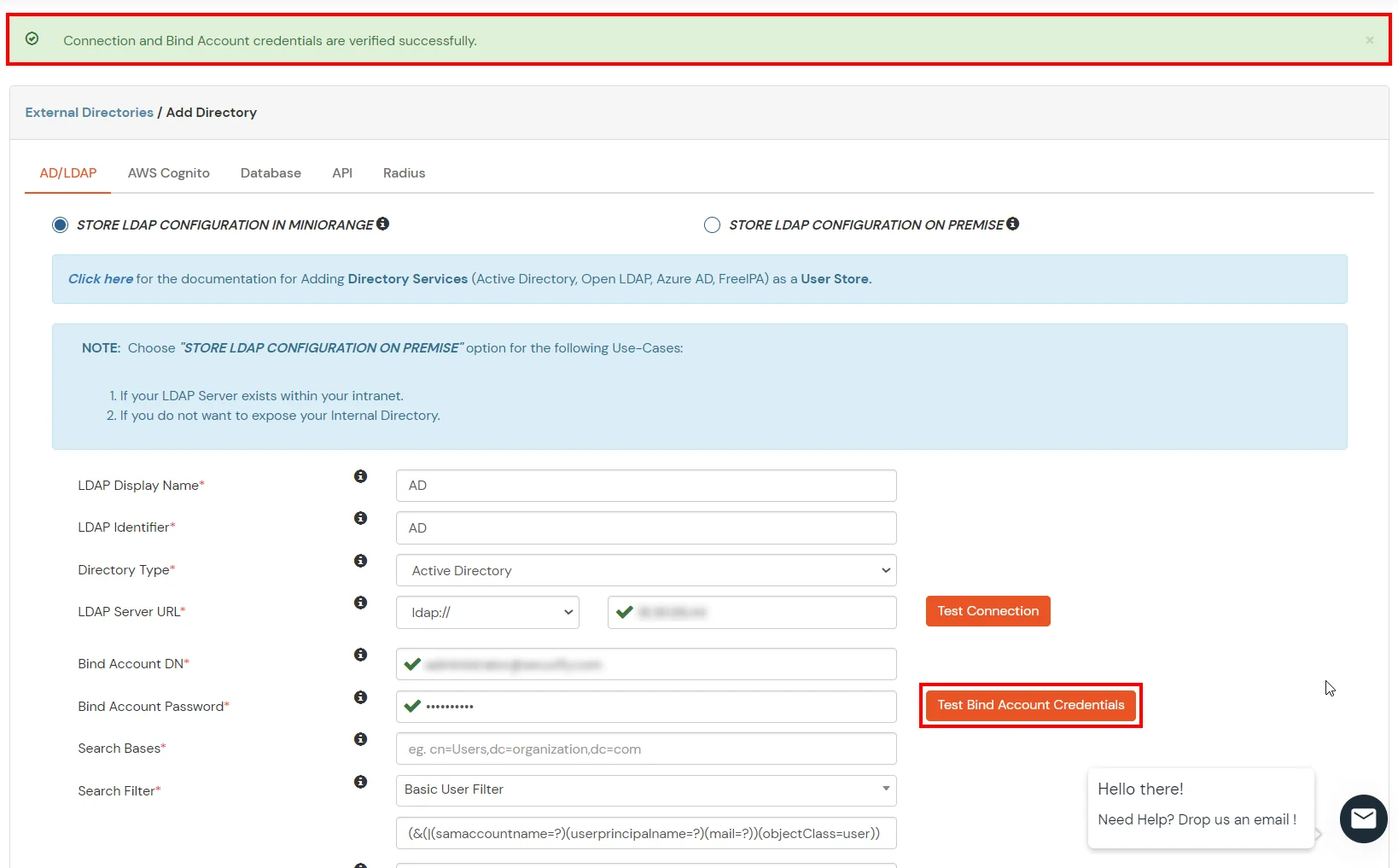
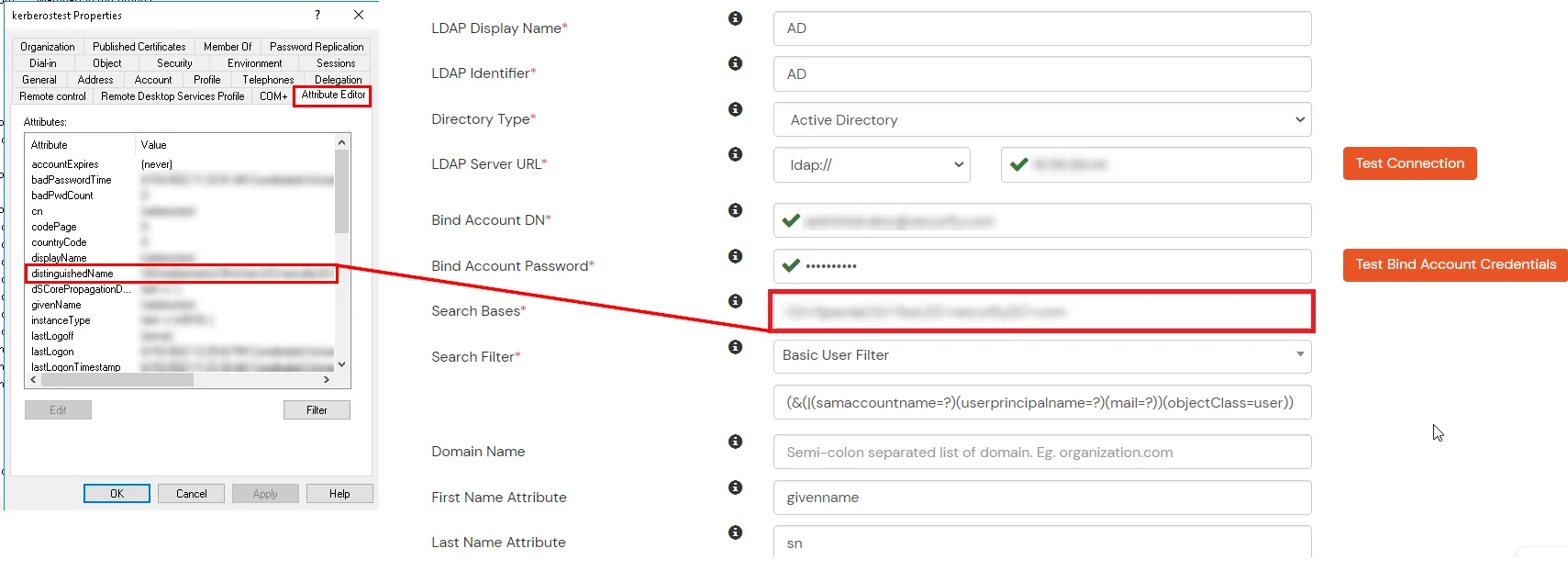
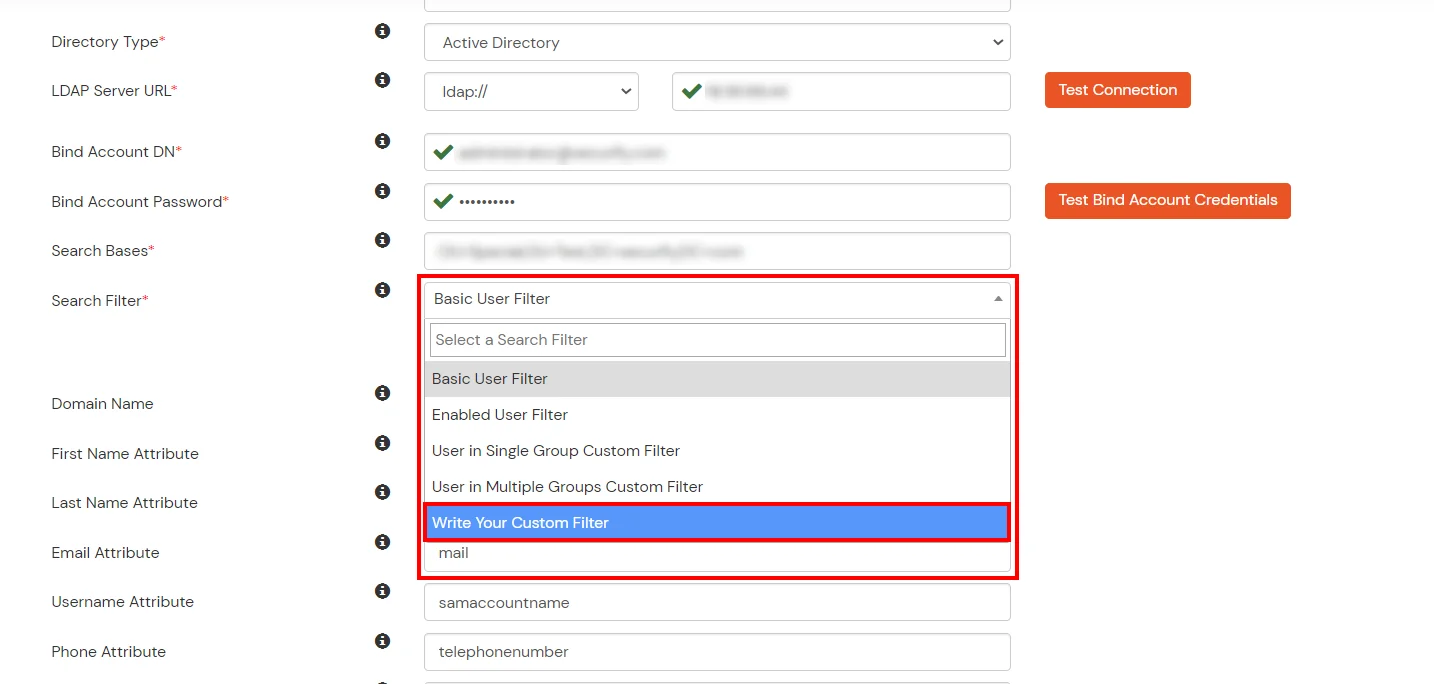
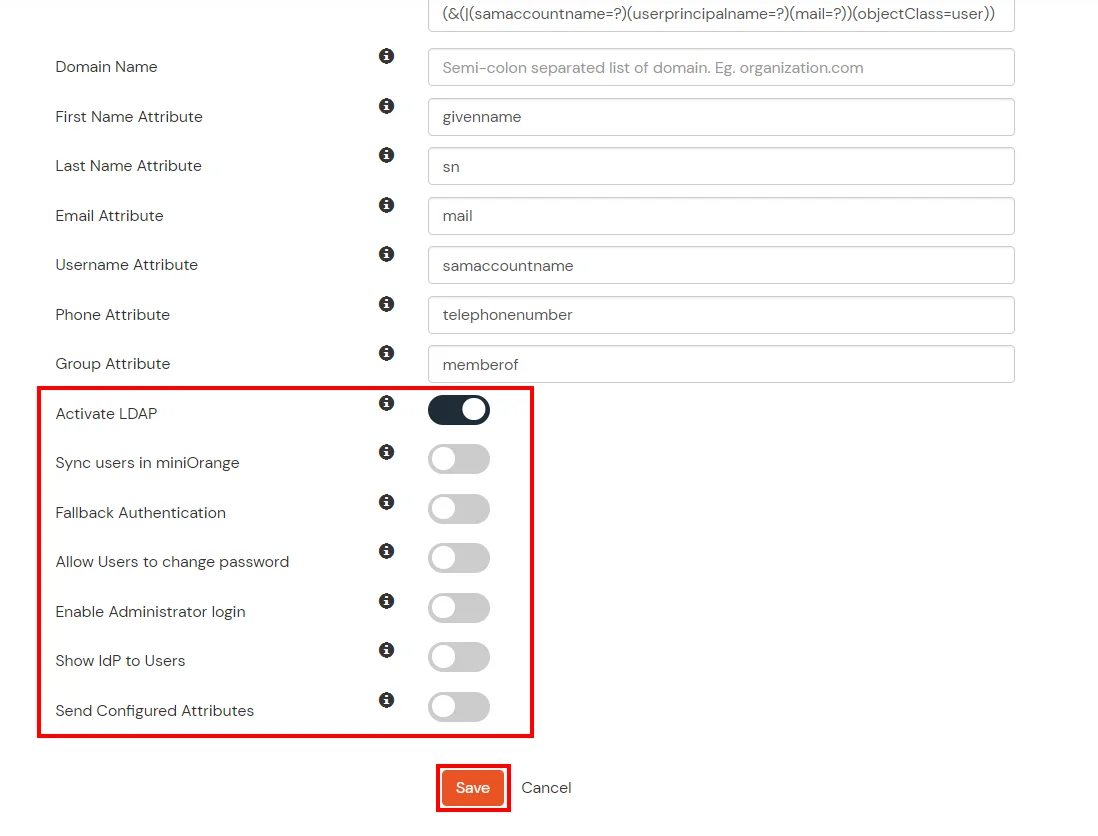
Here's the list of the attributes and what it does when we enable it. You can enable/disable accordingly.
| Attribute | Description |
|---|---|
| Activate LDAP | All user authentications will be done with LDAP credentials if you Activate it |
| Fallback Authentication | If LDAP credentials fail then user will be authenticated through miniOrange |
| Enable administrator login | On enabling this, your miniOrange Administrator login authenticates using your LDAP server |
| Show IdP to users | If you enable this option, this IdP will be visible to users |
| Sync users in miniOrange | Users will be created in miniOrange after authentication with LDAP |
Attribute Name sent to SP = organization
Attribute Name from IDP = company
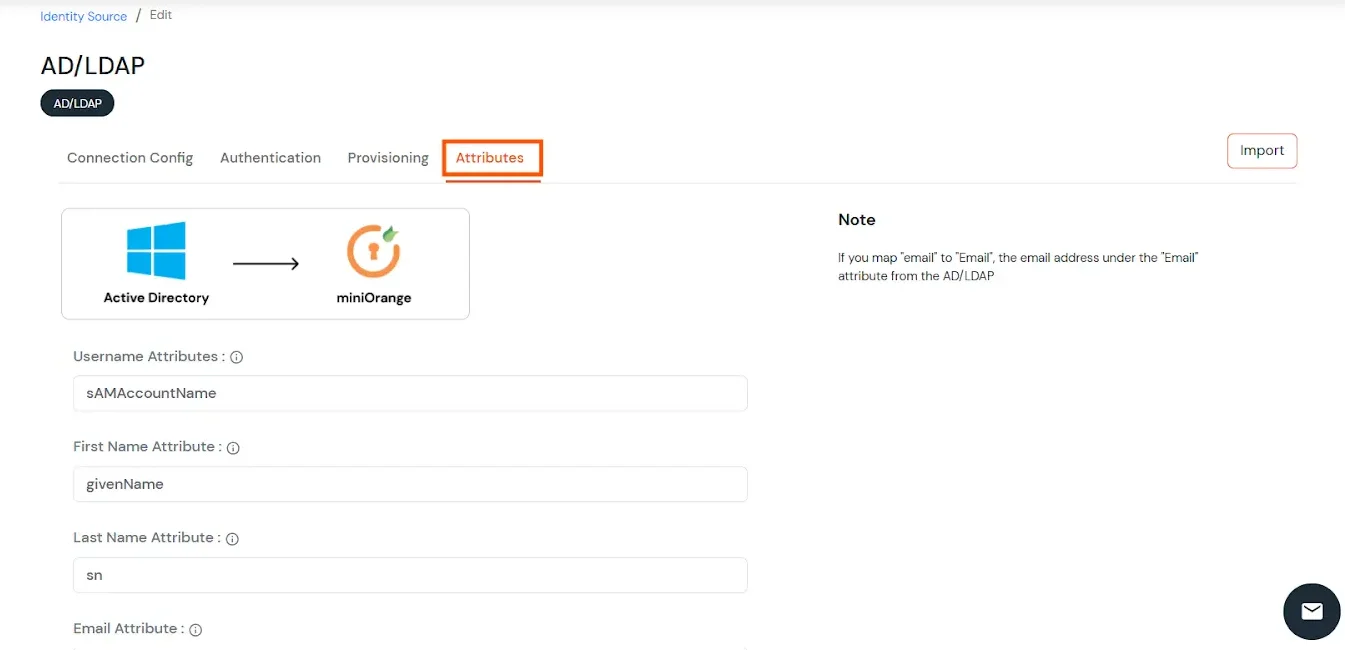
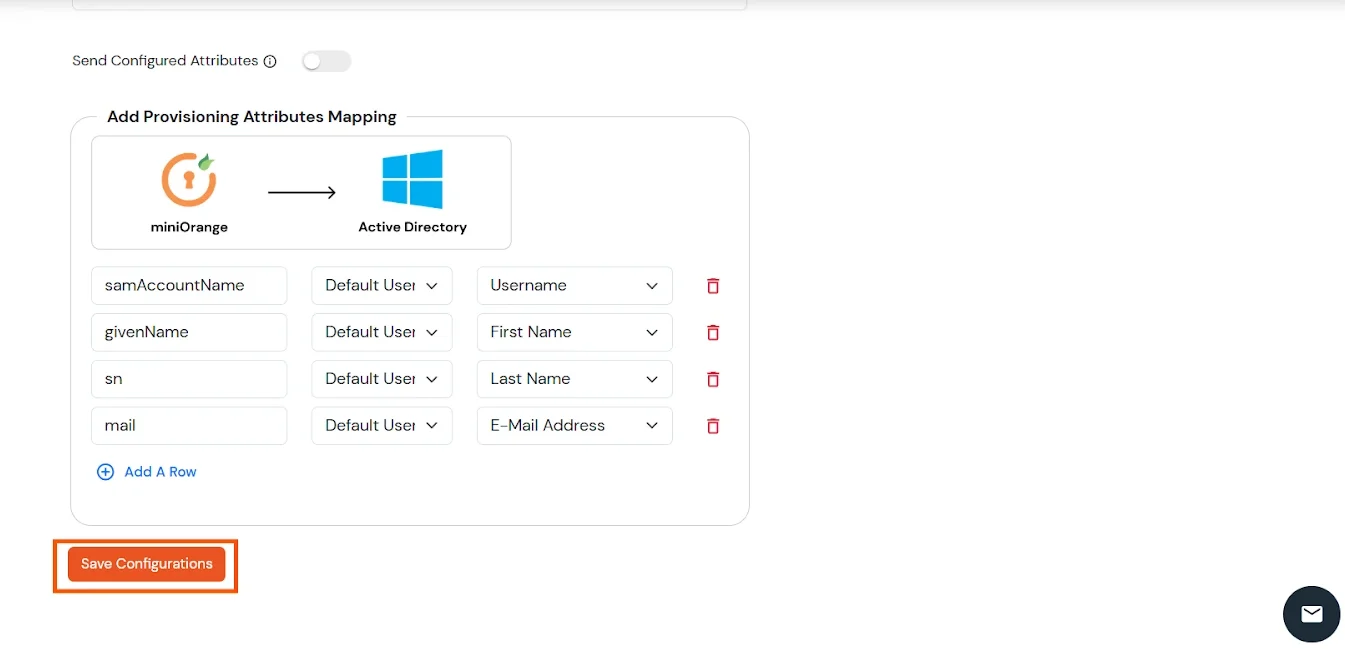
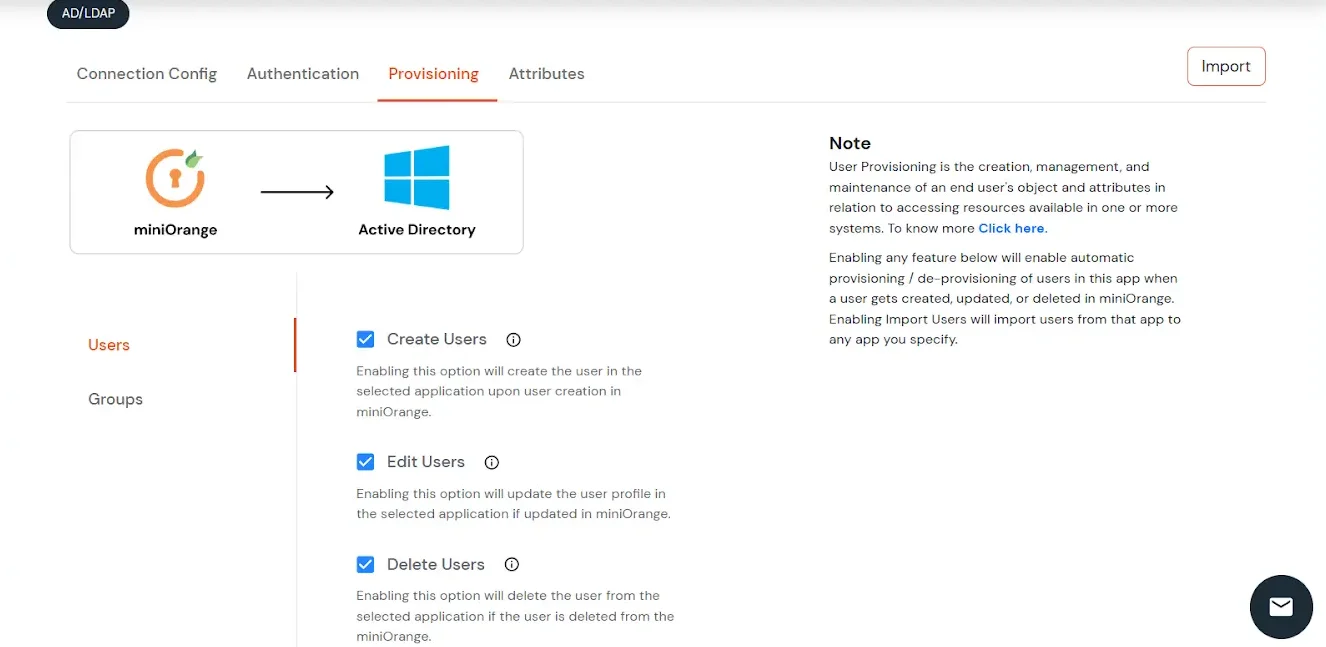
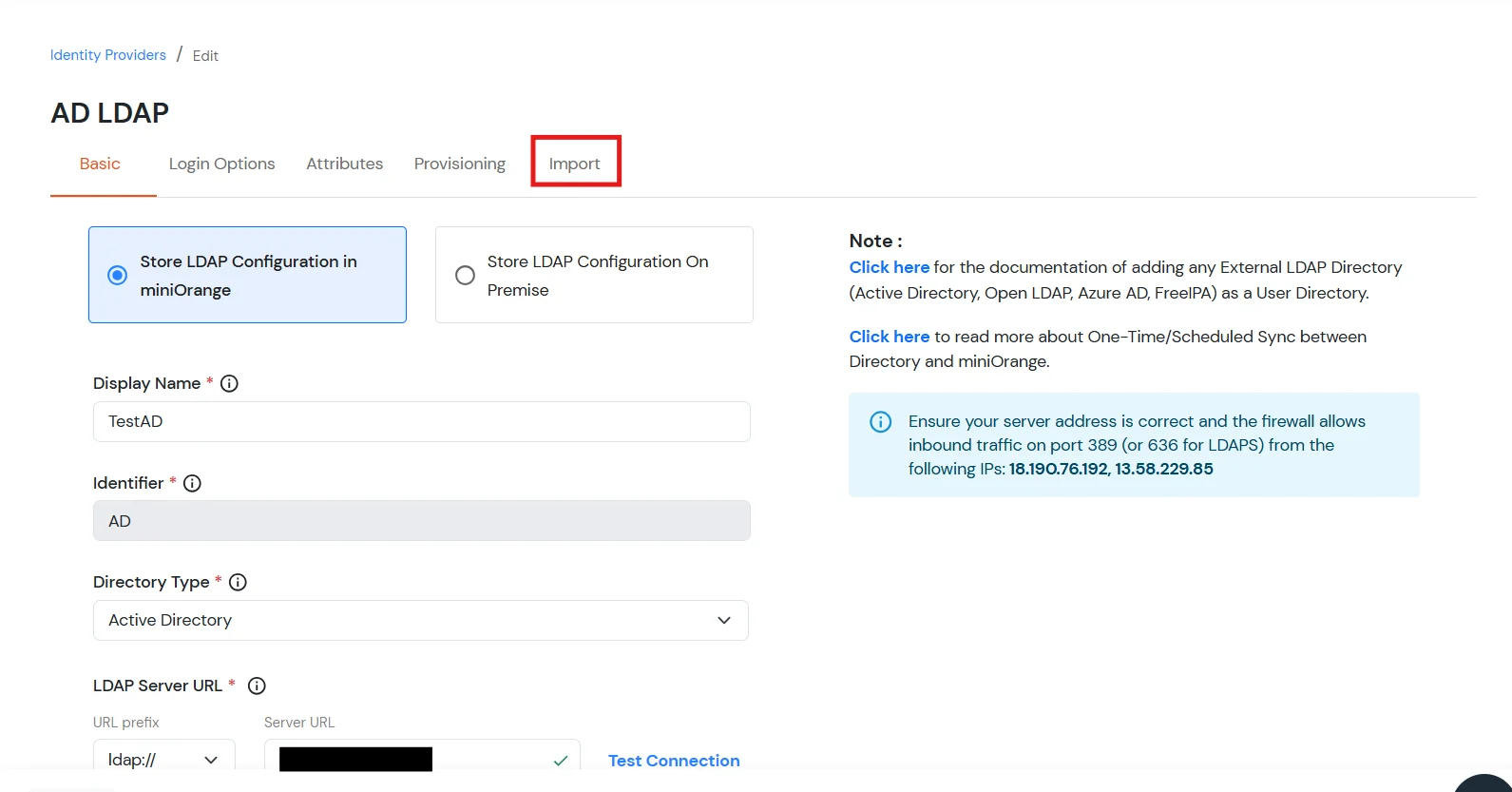
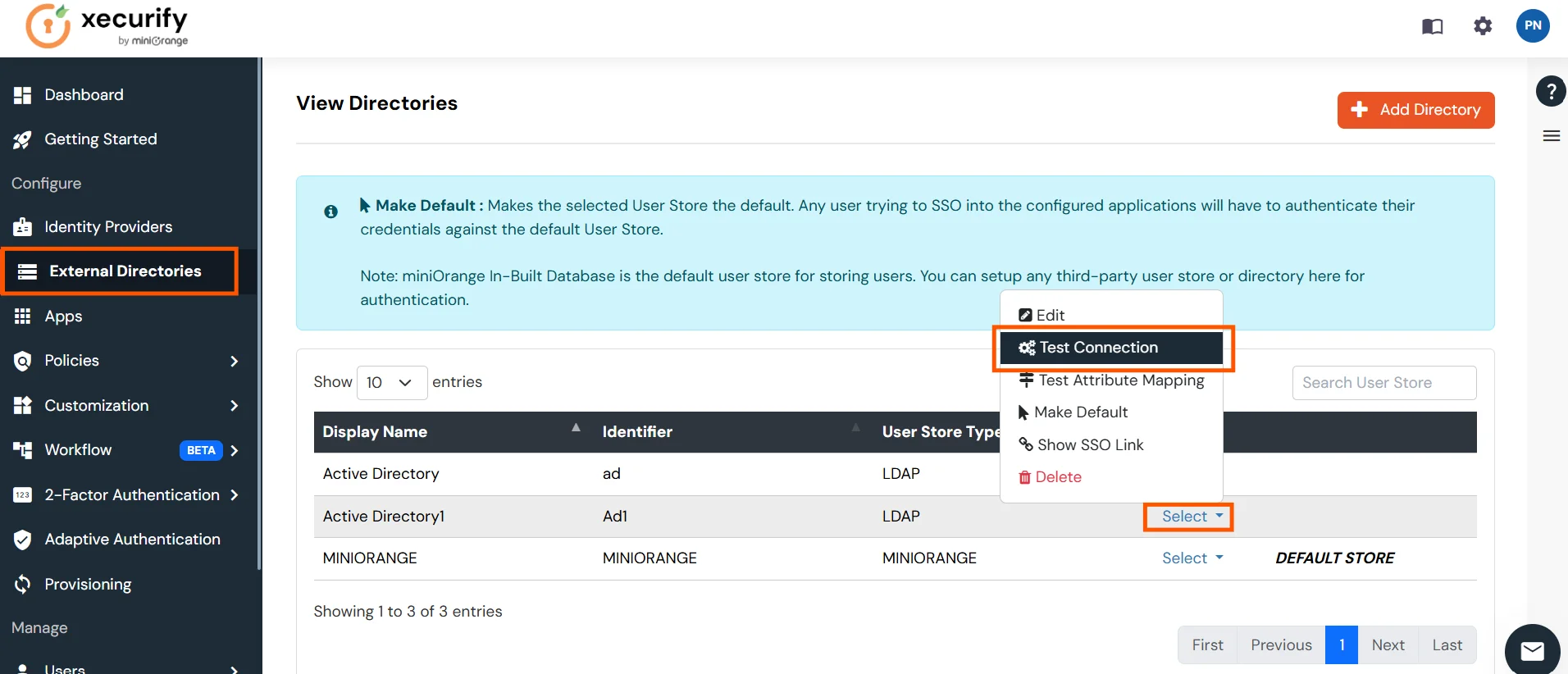
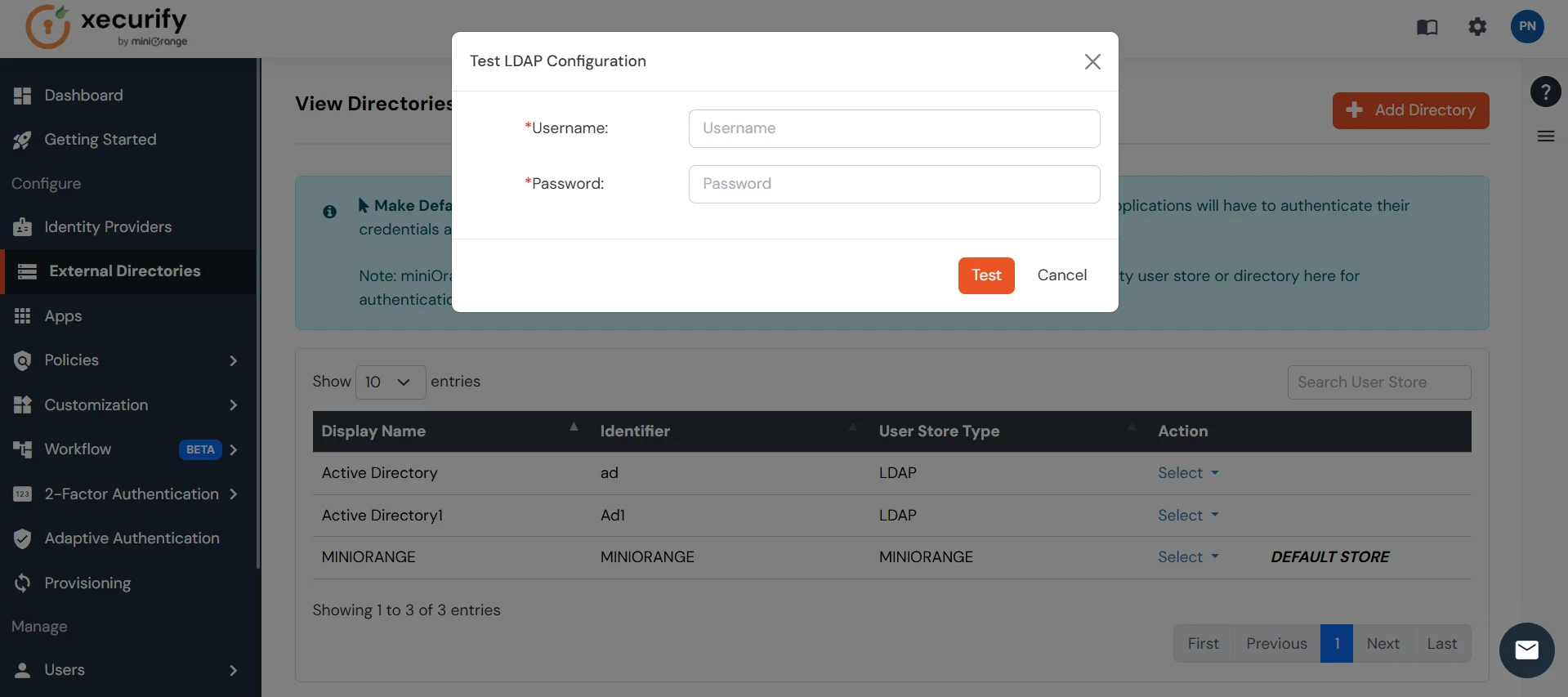
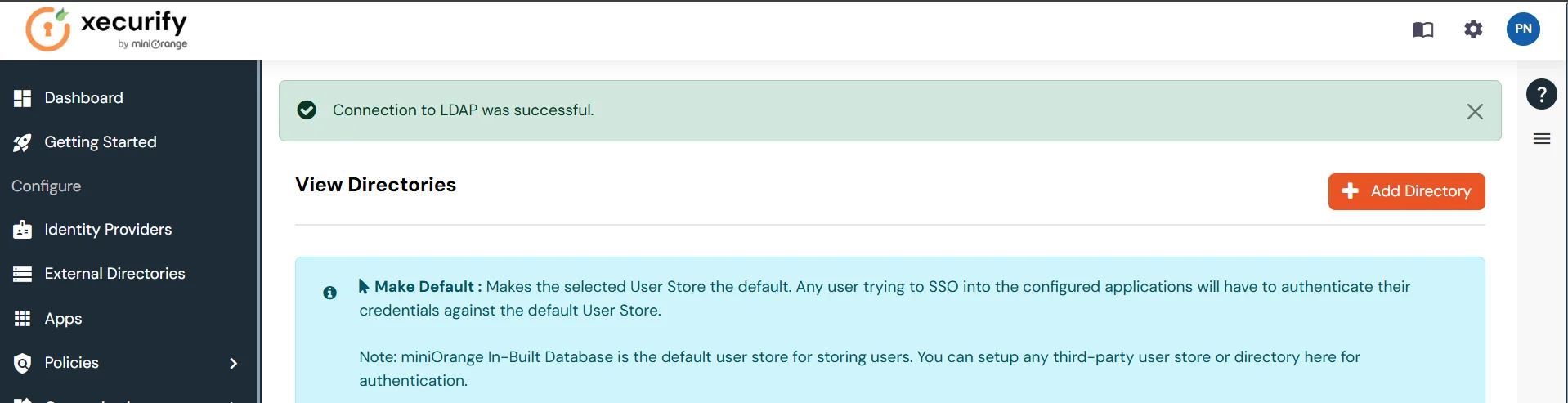
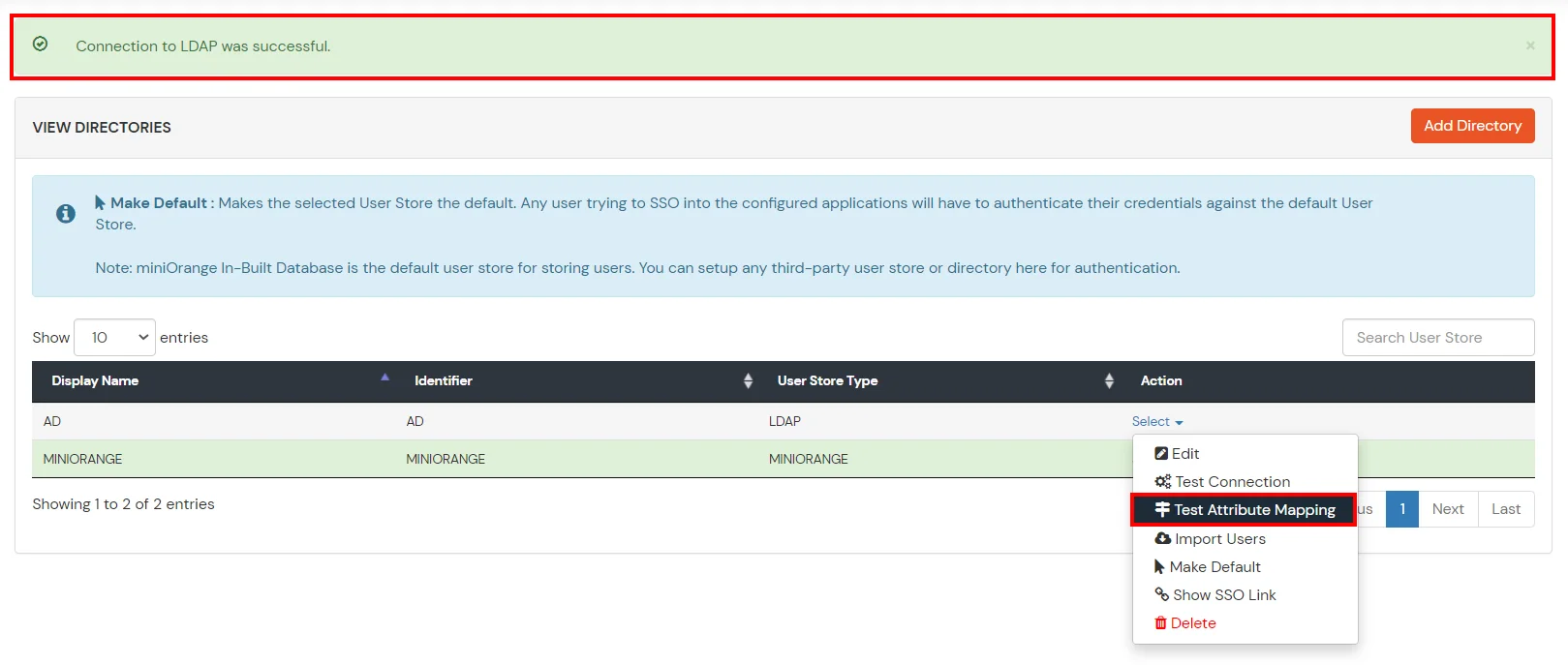
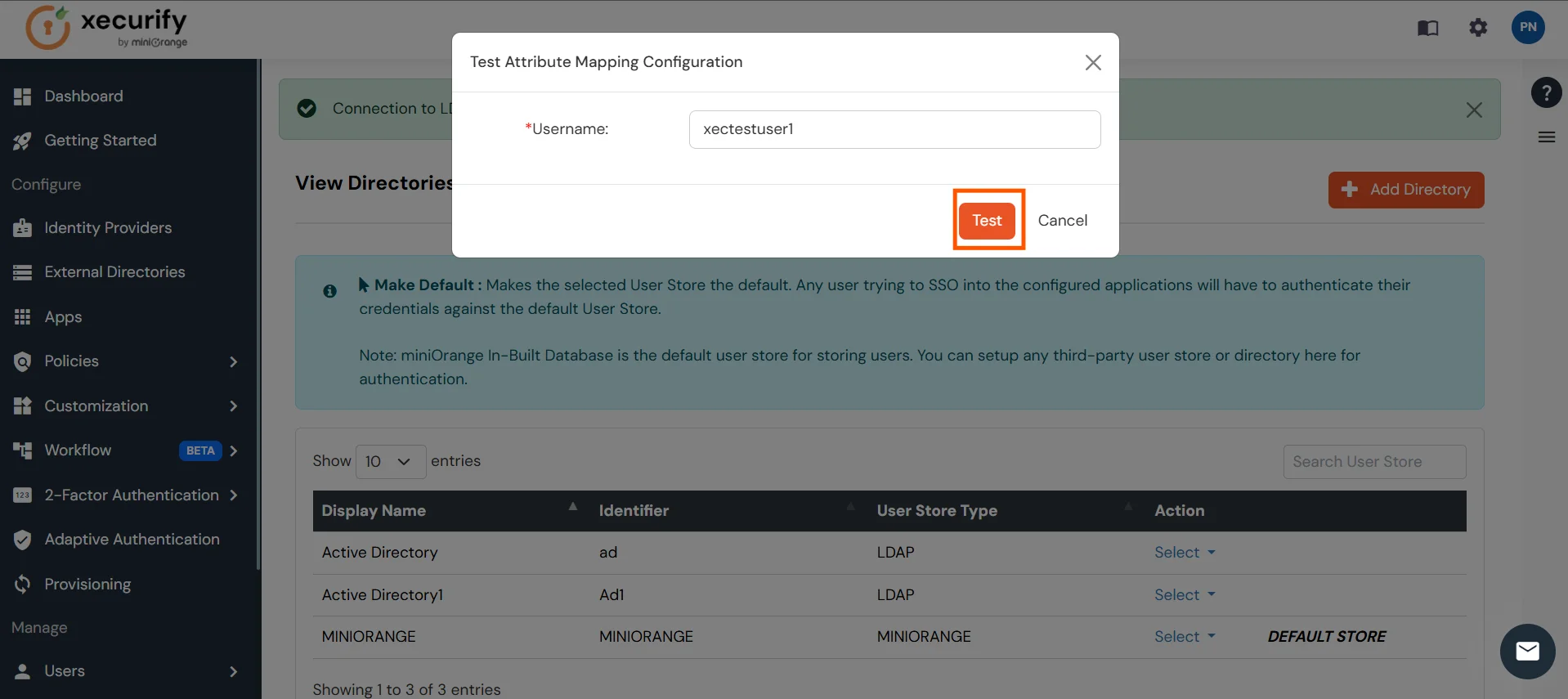
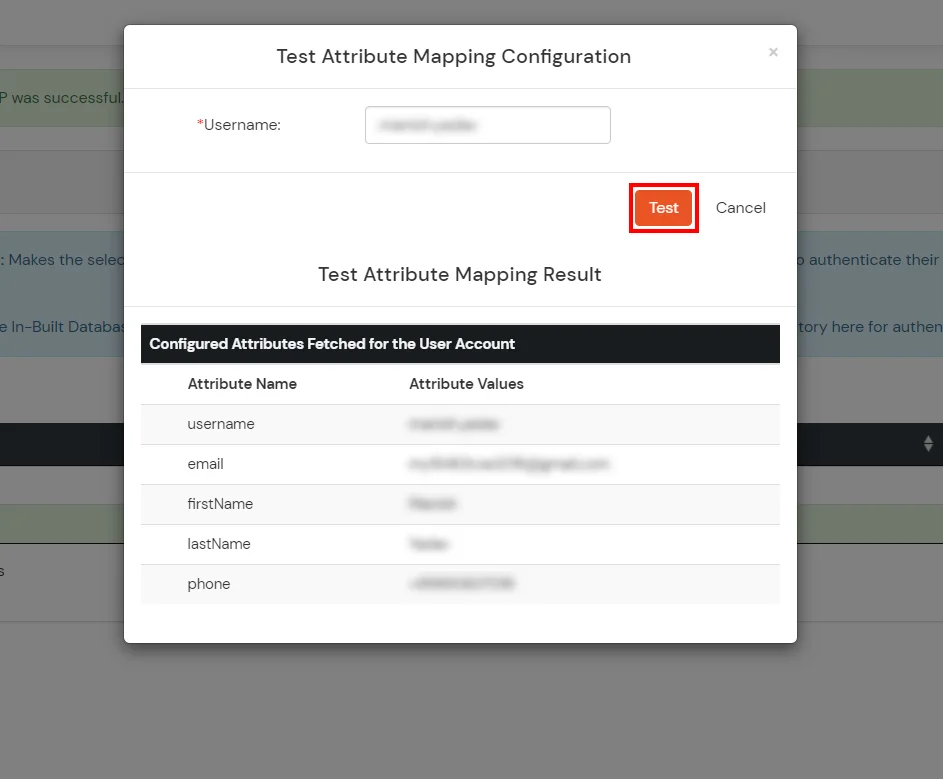
Set up AD as External Directory configuration is complete.
Note: Refer our guide to setup LDAP on windows server.
miniOrange integrates with various external user sources such as directories, identity providers, and etc.
Contact us or email us at idpsupport@xecurify.com and we'll help you setting it up in no time.
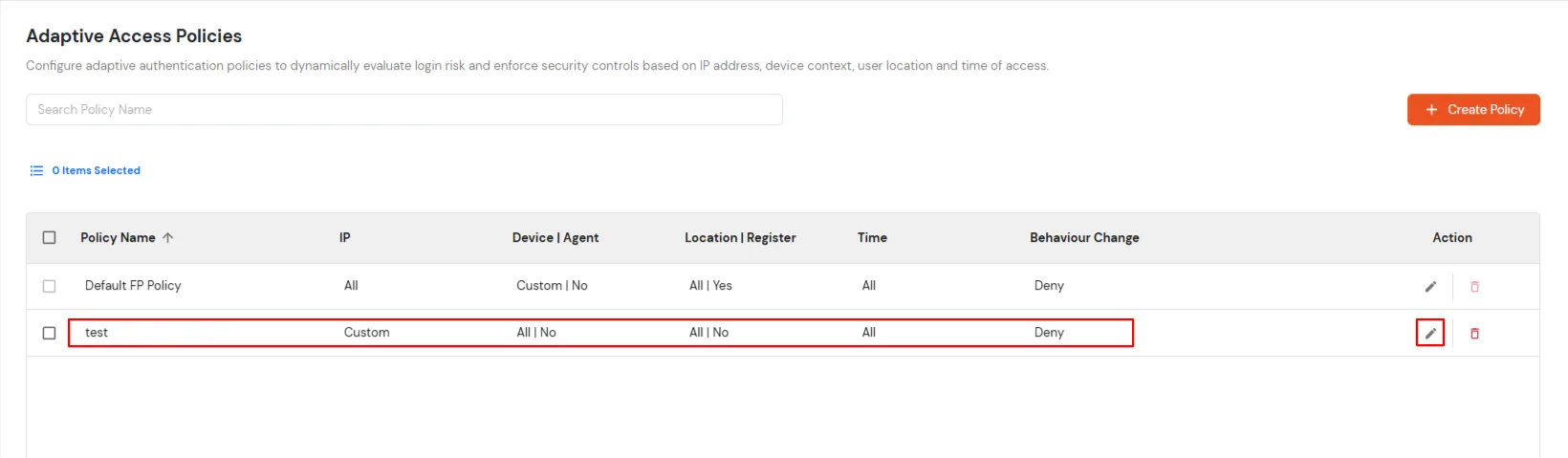
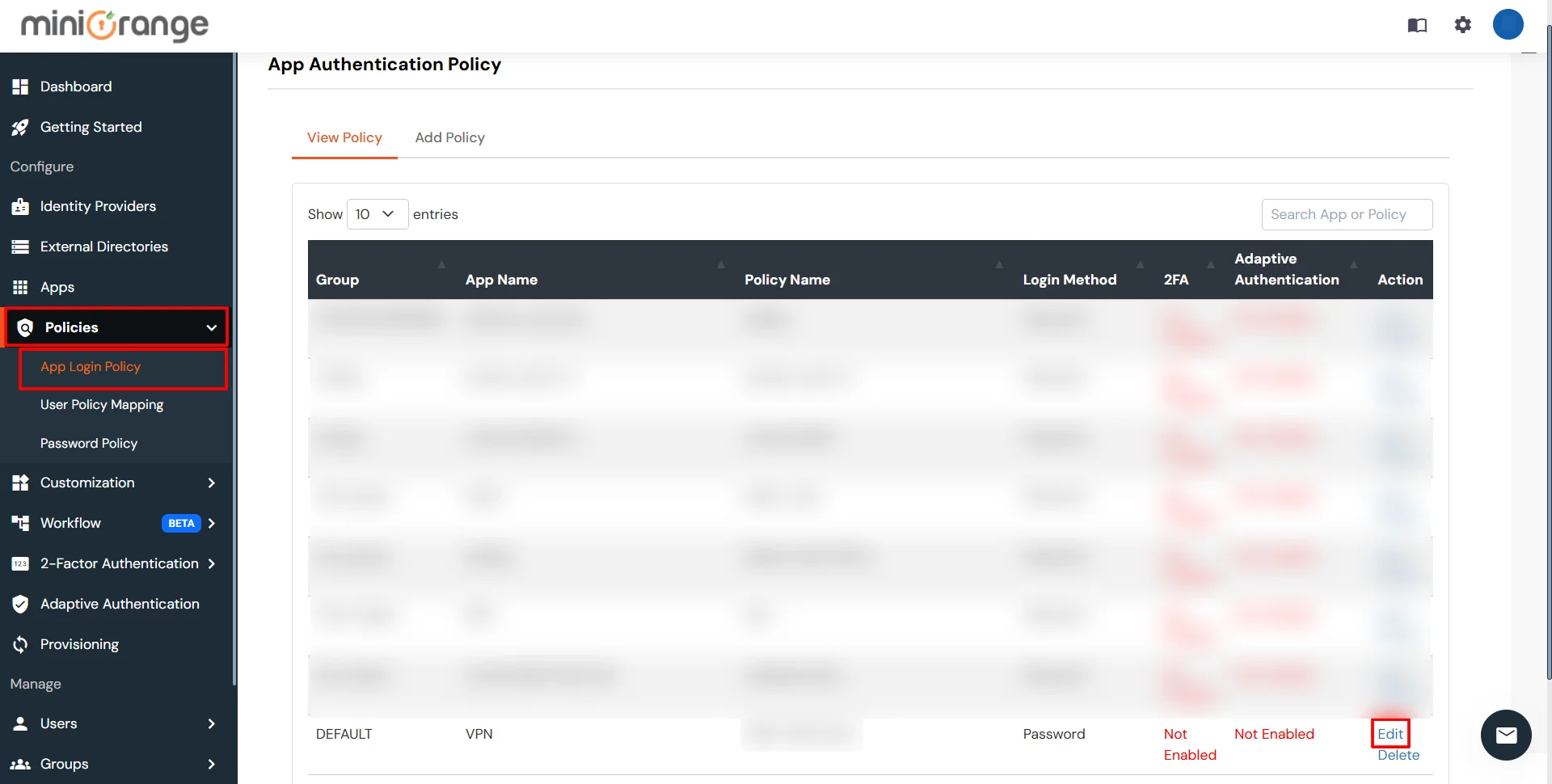
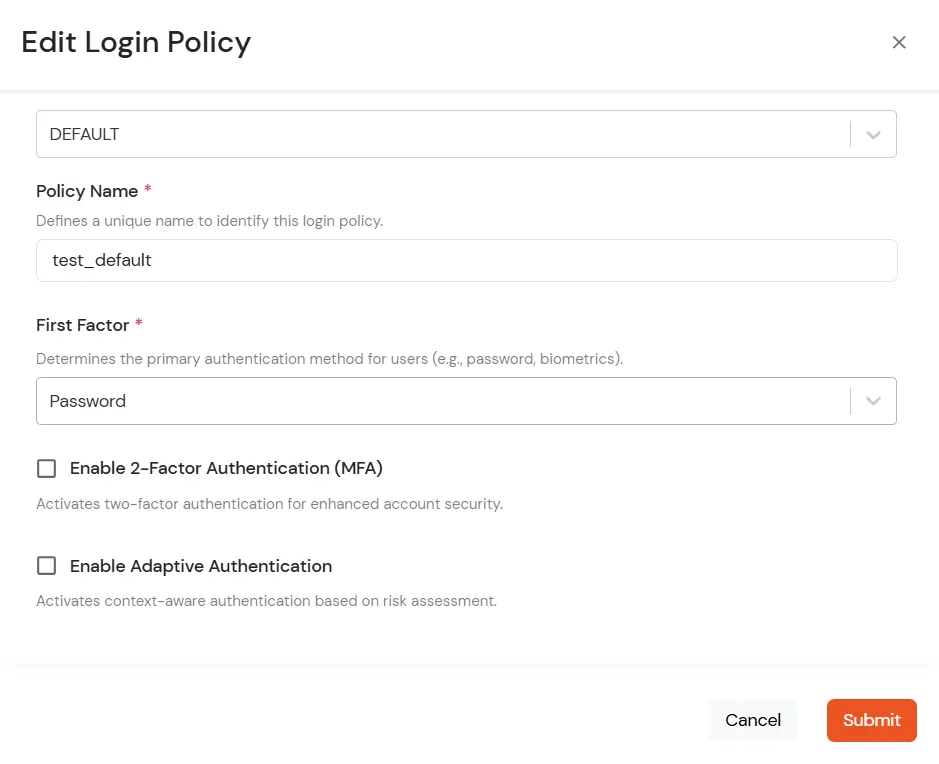
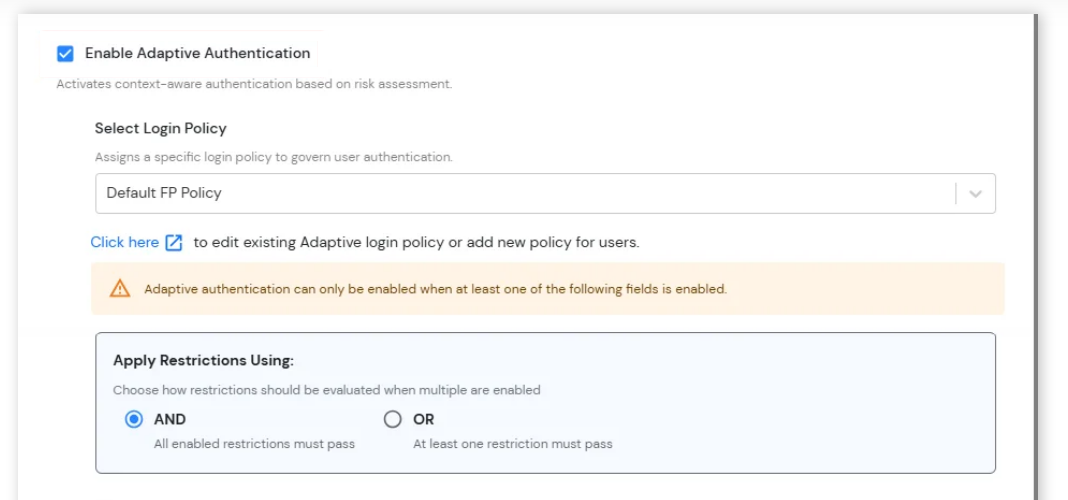
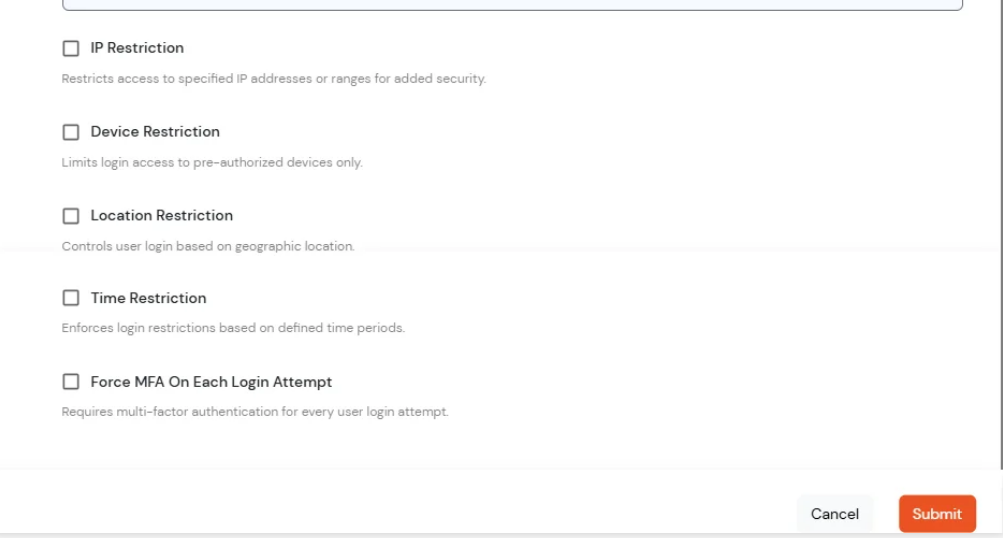
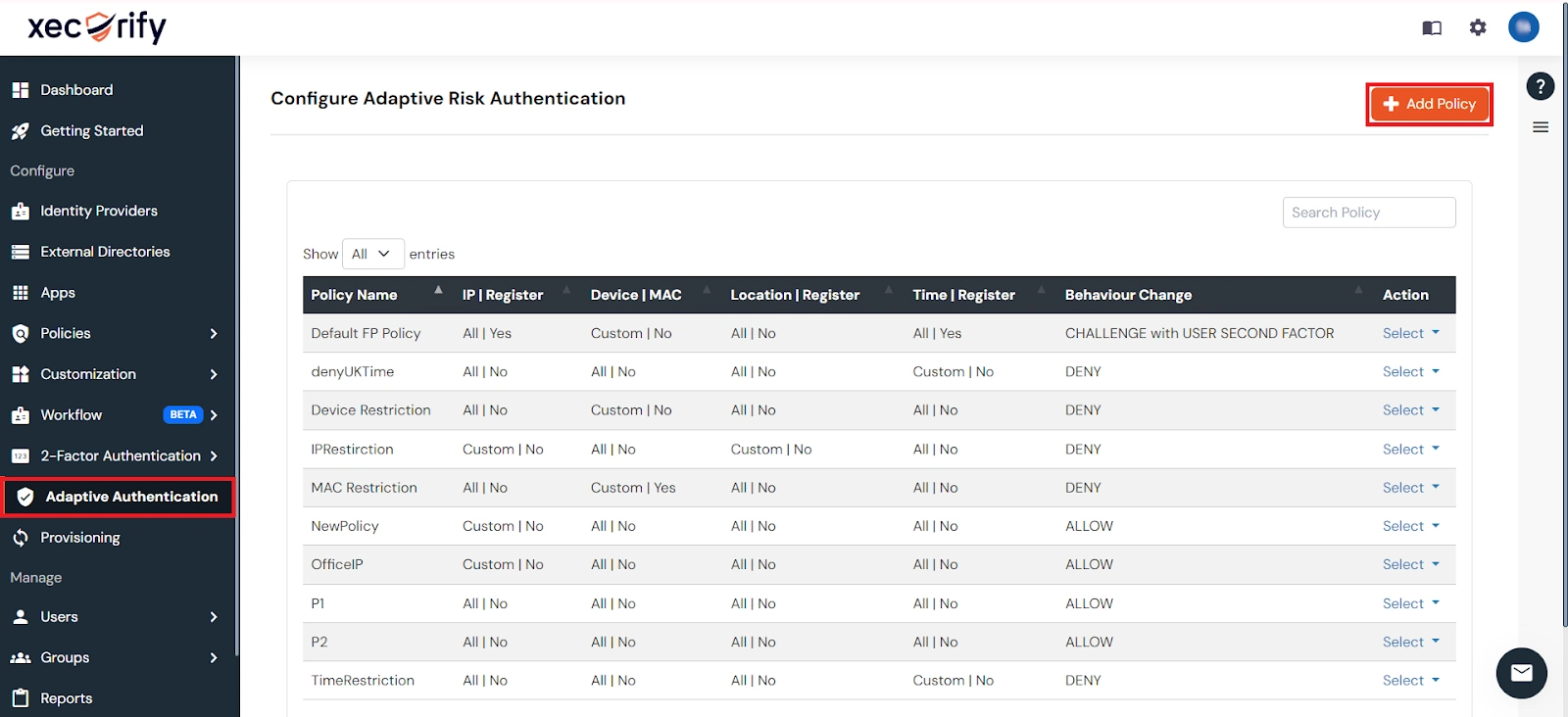
Adaptive Authentication for Zoom enables administrators to enforce context-aware access policies by evaluating user login conditions such as IP address, device, location and login time. Based on the configured policy, users can be allowed access, challenged with additional verification or denied access. Administrators can also configure email alerts, customize user-facing error messages, review policy settings before deployment and assign adaptive authentication policies to application login policies to strengthen security and prevent unauthorized access.
[Note: The Adaptive Authentication section has been moved from the left navigation menu. You can now access and manage adaptive authentication policies by navigating to Policies >> Adaptive Access Policy.]
A. Restricting access to Zoom with IP Based Access Restriction
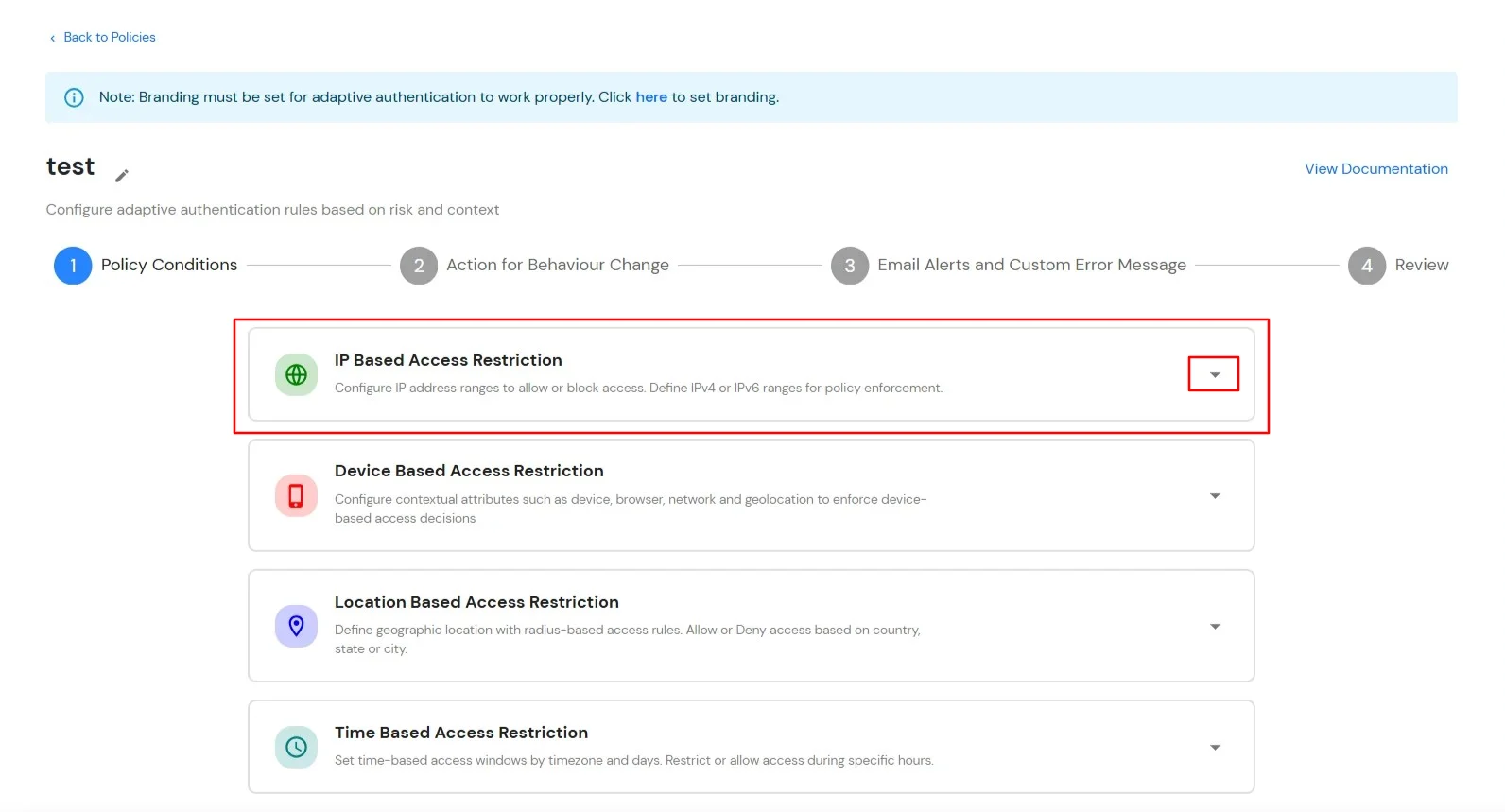
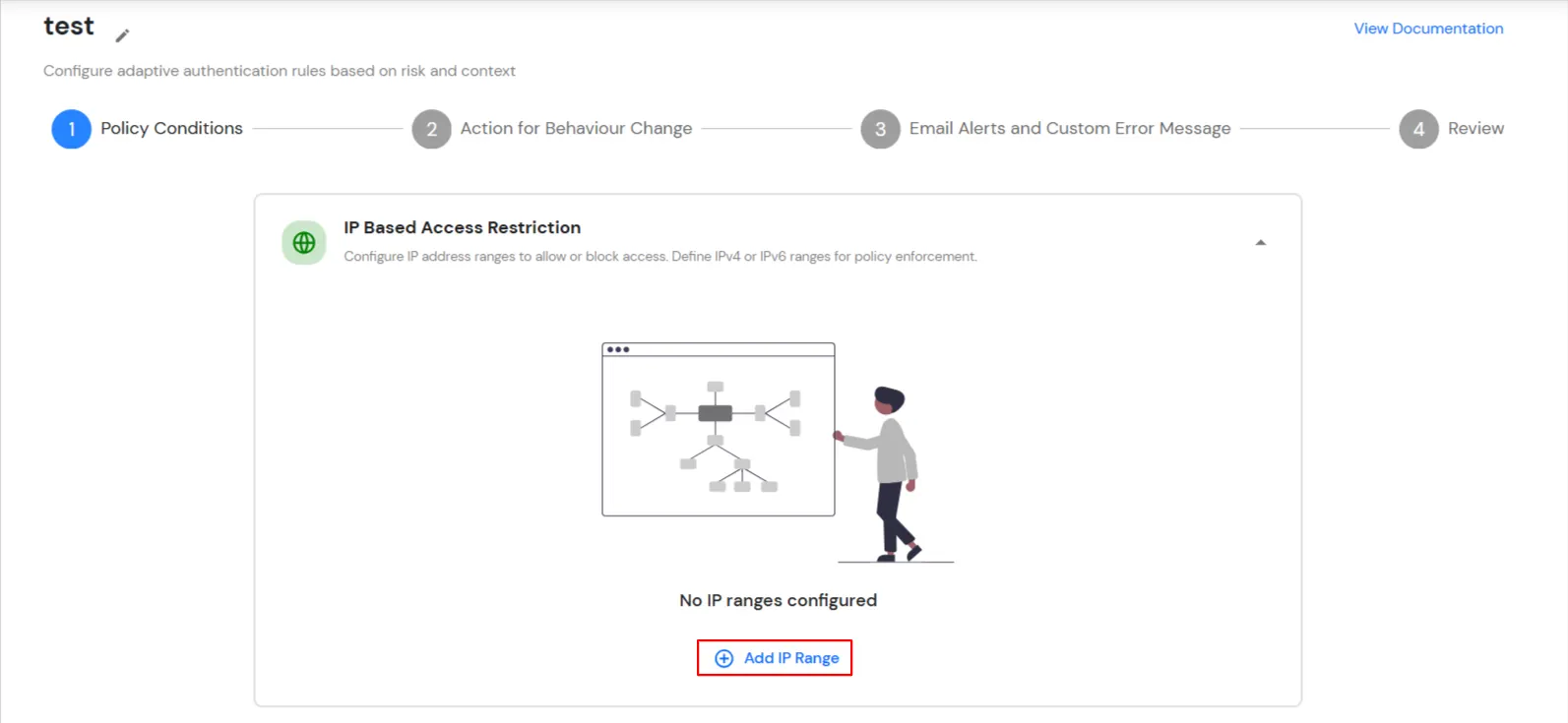
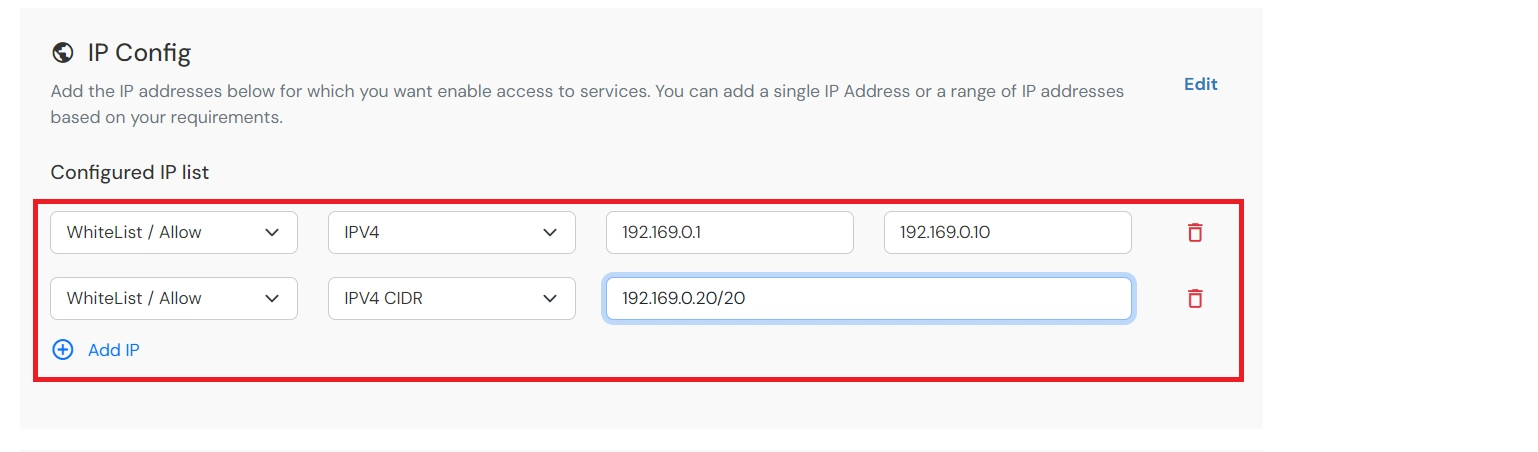
IP Based Access Restriction allows administrators to control user access based on the source IP address of the login request. Administrators can configure trusted or restricted IP addresses and IP ranges and define the action to be taken when a user's IP address matches the configured criteria. During authentication, the user's IP address is evaluated against the configured policy and access is either Allowed, Denied or Challenged based on the selected configuration.
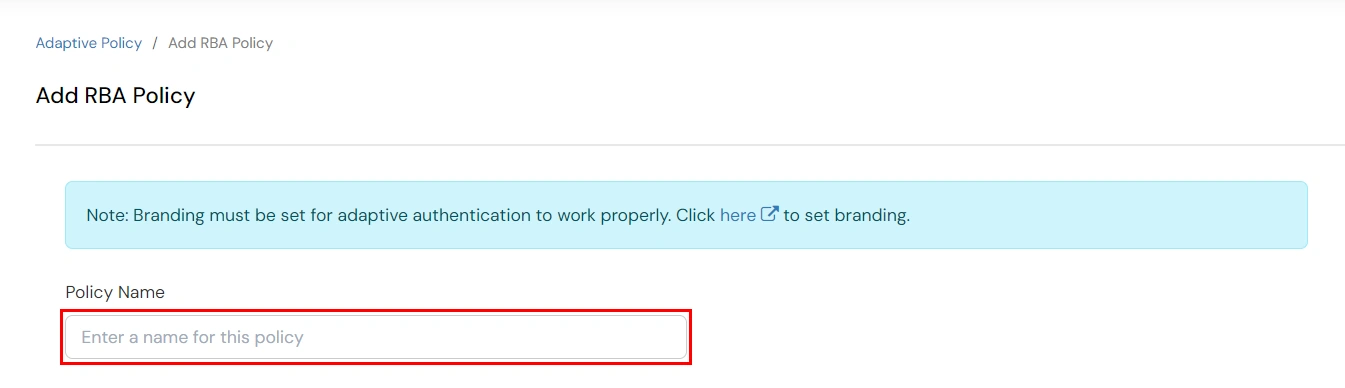
You can configure Adaptive Authentication with IP Based Restriction in following way :
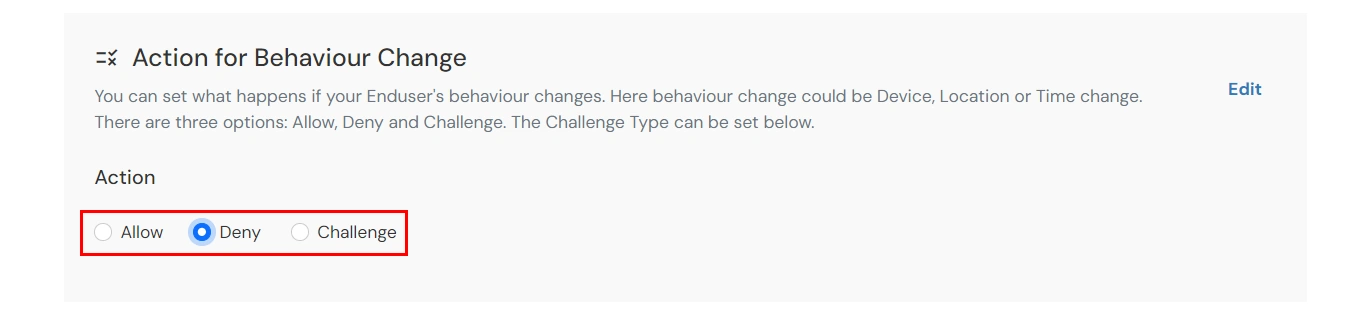
| Attribute (Option) | Description |
|---|---|
| Allow | Allow users to authenticate and use services if Adaptive authentication condition is true. |
| Deny | Deny user authentications and access to services if Adaptive authentication condition is true. |
| Challenge | Challenge users with one of the three methods mentioned below for verifying user authenticity. |
| Attribute | Description |
|---|---|
| User second Factor | The User needs to authenticate using the second factor he has opted or assigned for such as
|
| KBA (Knowledge-based authentication) | The System will ask the user for 2 of 3 questions he has configured in his Self-Service Console. Only after the right answer to both questions is the user allowed to proceed further. |
| OTP over Alternate Email | User will receive an OTP on the alternate email they have configured through the Self Service Console. Once the user provides the correct OTP, they are allowed to proceed further. |
B. Restricting access to Zoom with Device Based Access Restriction
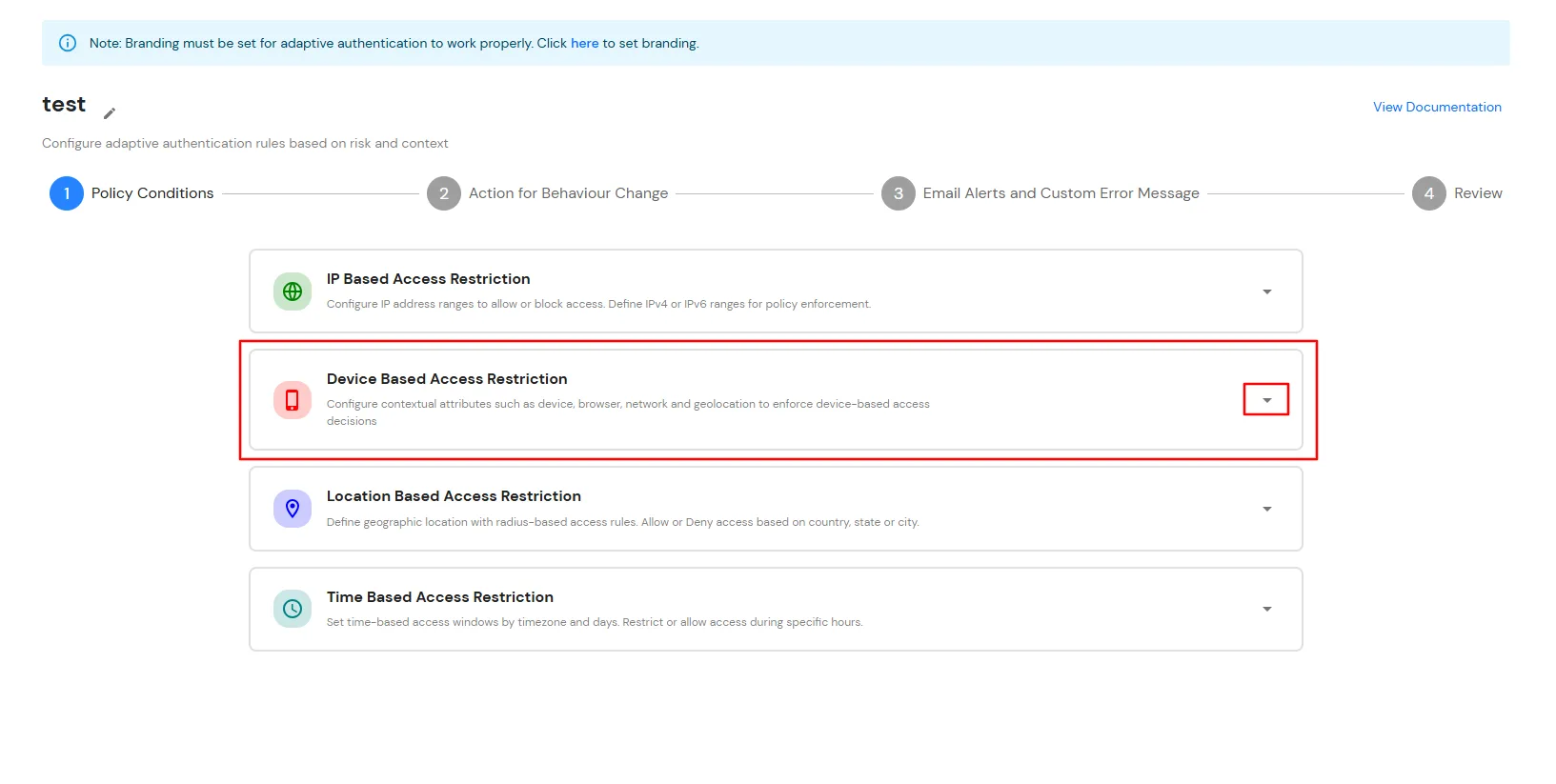
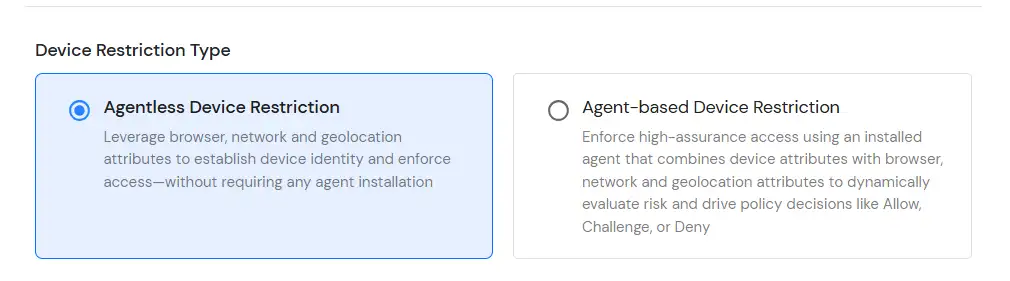
Device Based Access Restriction allows administrators to control user access based on trusted and registered devices. By leveraging device identification and verification mechanisms, administrators can define policies that evaluate the device used during authentication. When a user attempts to log in, the device is assessed against the configured policy and the appropriate action: Allow, Challenge or Deny is applied based on the configured conditions.
You can configure Adaptive Authentication with Device Based Restriction in following way :

C. Restricting access to Zoom with Location Based Access Restriction
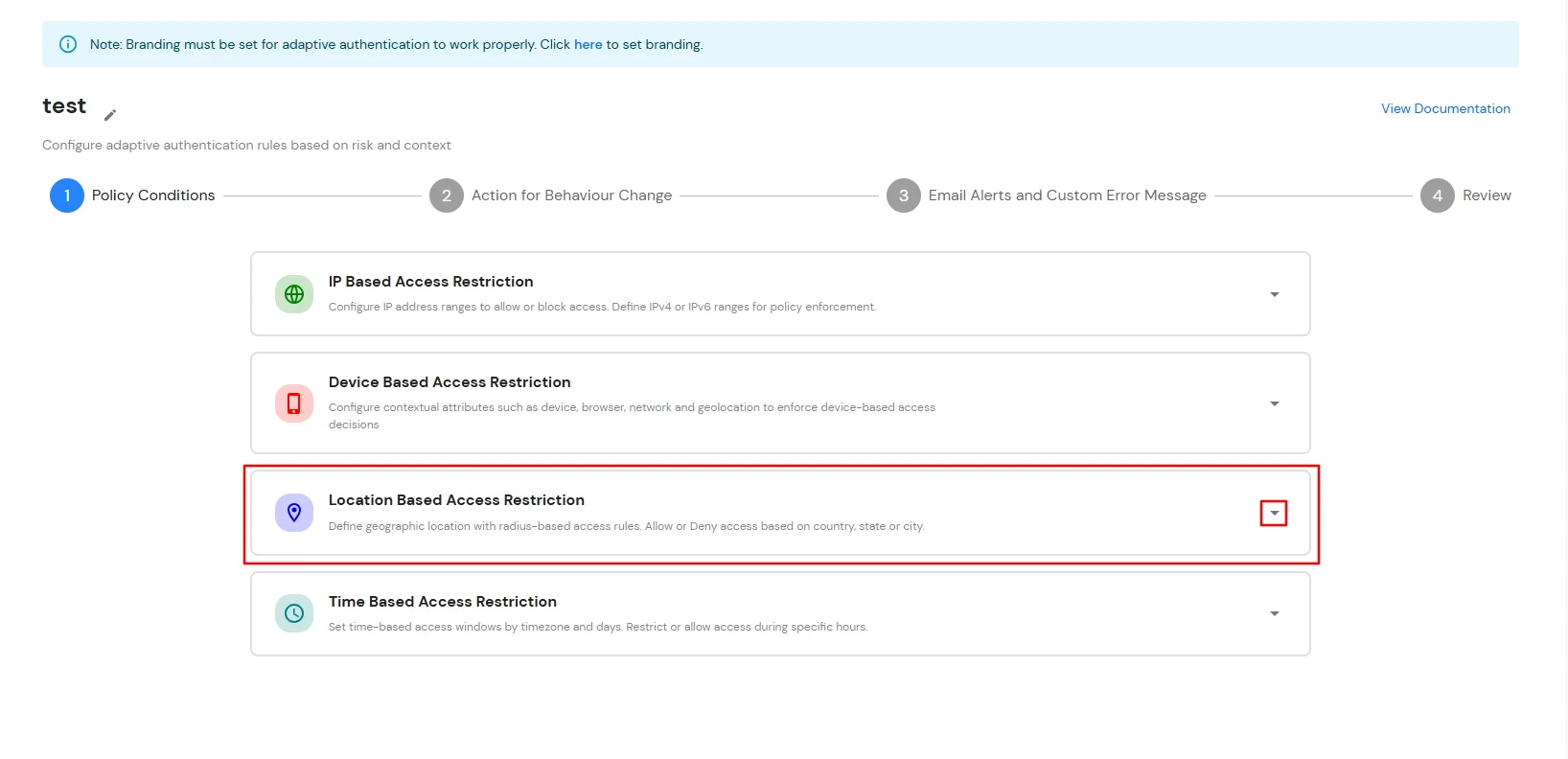
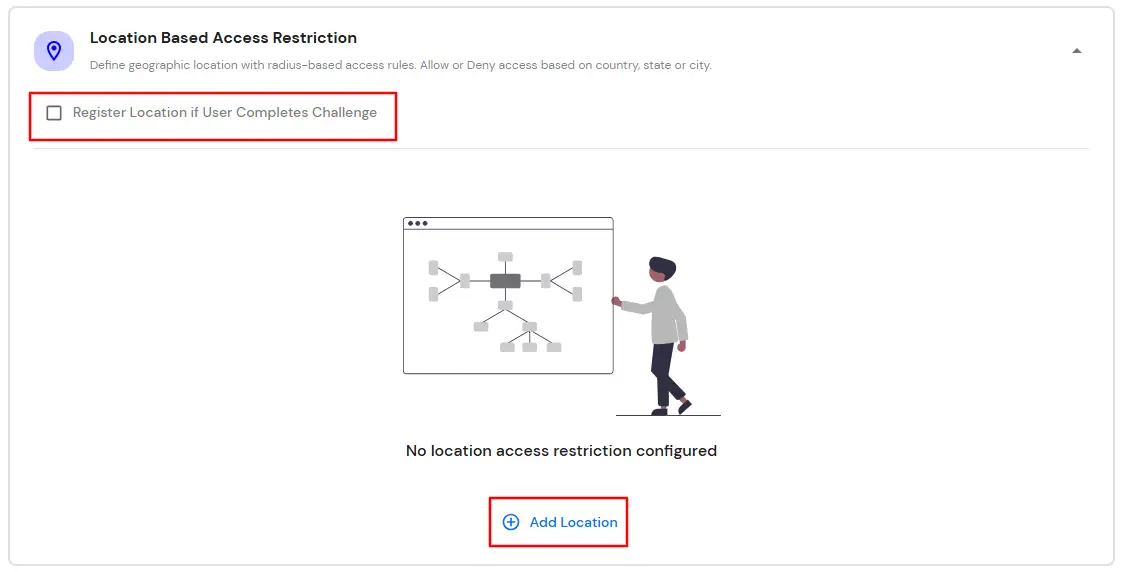
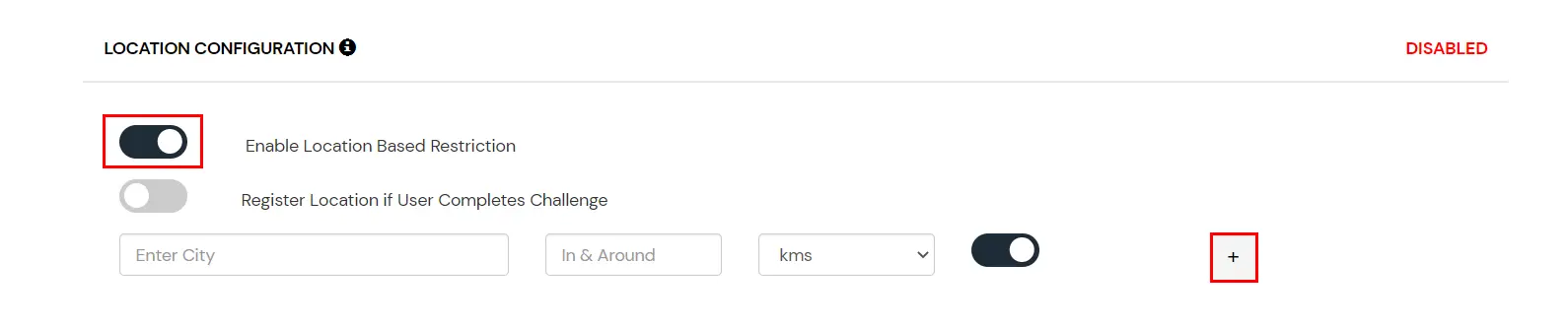
In location restrictions, admin configures a list of locations where they want to allow end-users to either login or deny based on the condition set by the admin. When a user tries to login with adaptive authentication enabled, their Location Attributes, such as (Latitude, Longitude and Country Code) are verified against the Location list configured by the admin. Based on this user will be either allowed, challenged or denied.
You can configure Adaptive Authentication with Location Based Restriction in following way :
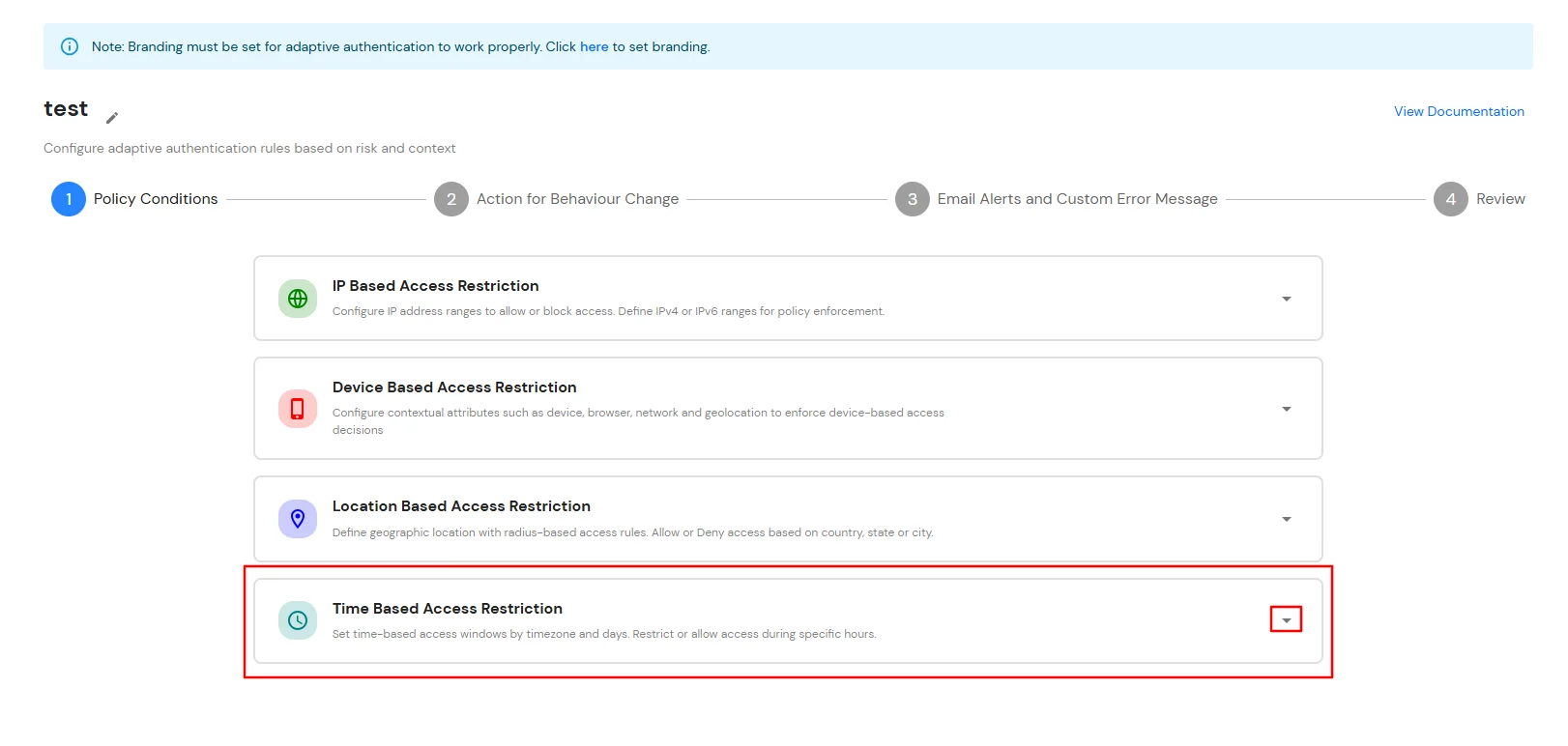
D. Restricting access to Zoom with Time Based Access Restriction
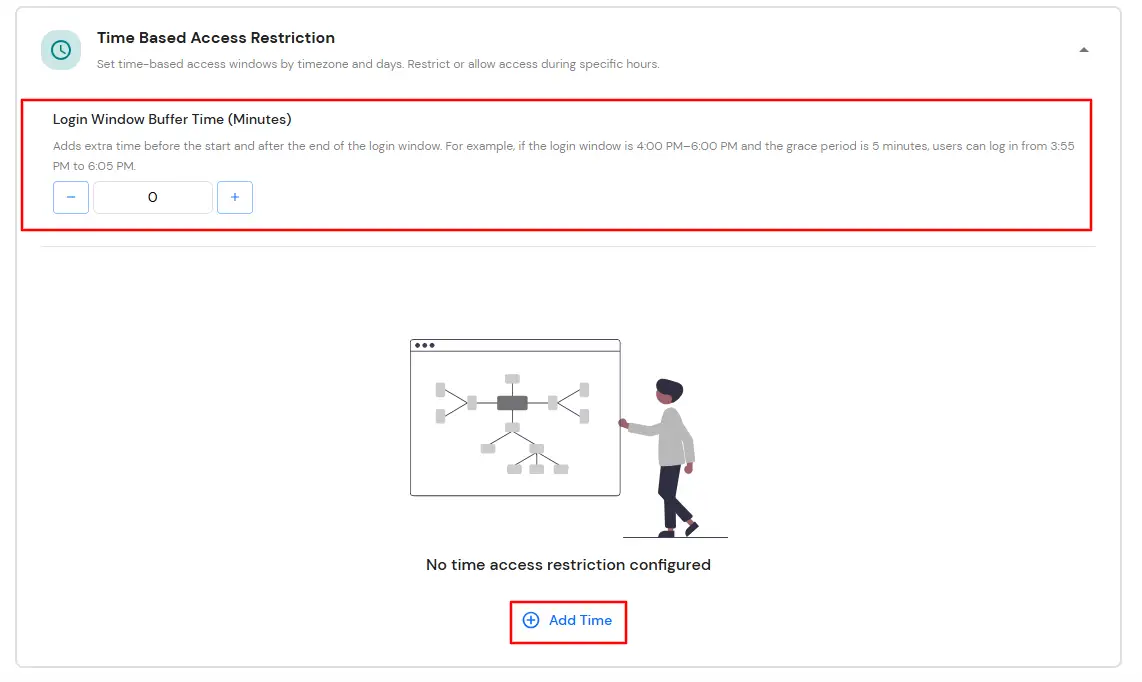
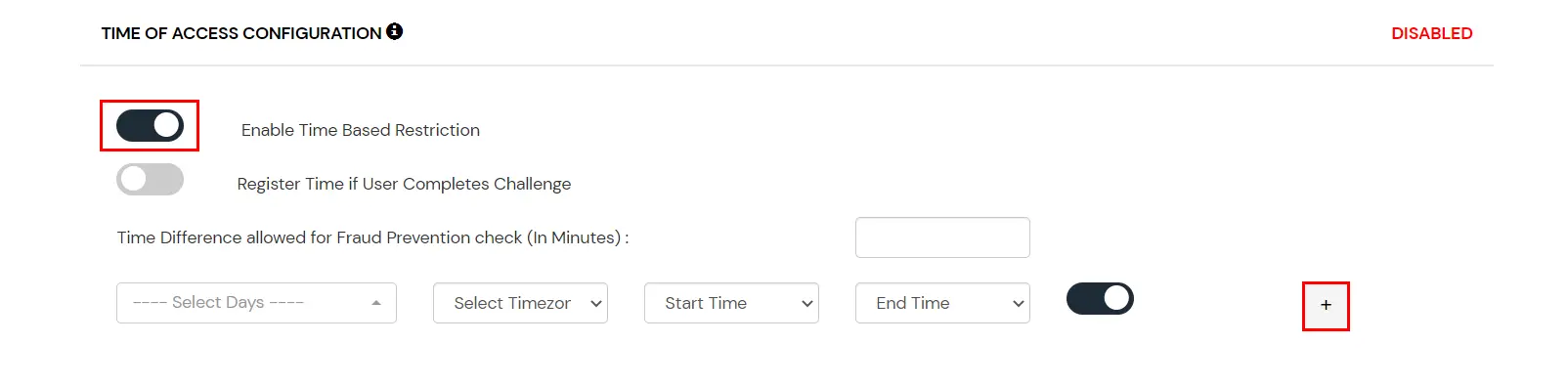
In time restriction, admin configures a time zone with Start and End Times for that timezone and users are either allowed, denied or challenged based on the condition in the policy. When an end-user tries to login with the adaptive authentication enabled, their time zone-related attributes such as Time-Zone and Current System Time, are verified against the list configured by the admin and based on the configuration, the user is either allowed, denied or challenged.
You can configure Adaptive Authentication with Time Based Restriction in following way :
E. Email Alerts and Custom Email Message
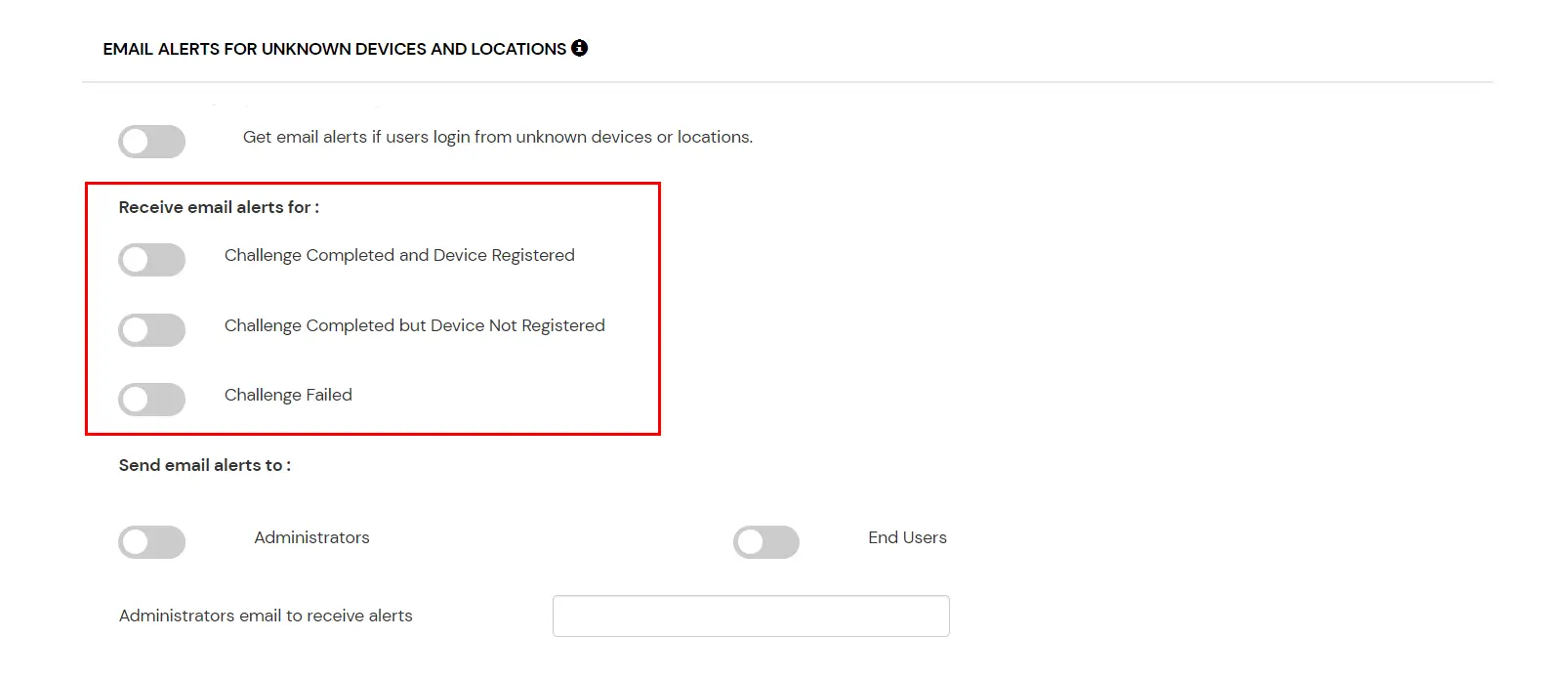
This section handles the notifications and alerts related to Adaptive Access Policy. It provides the following options:
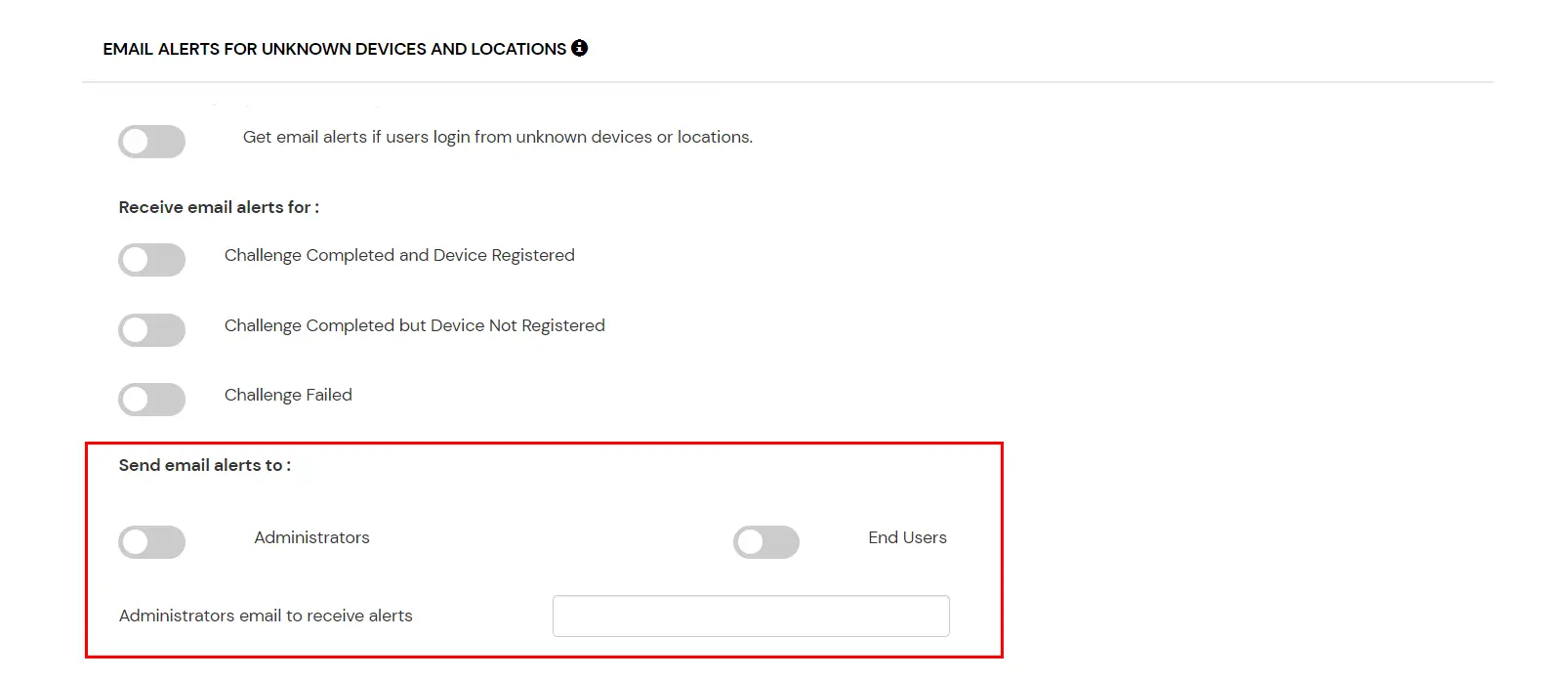
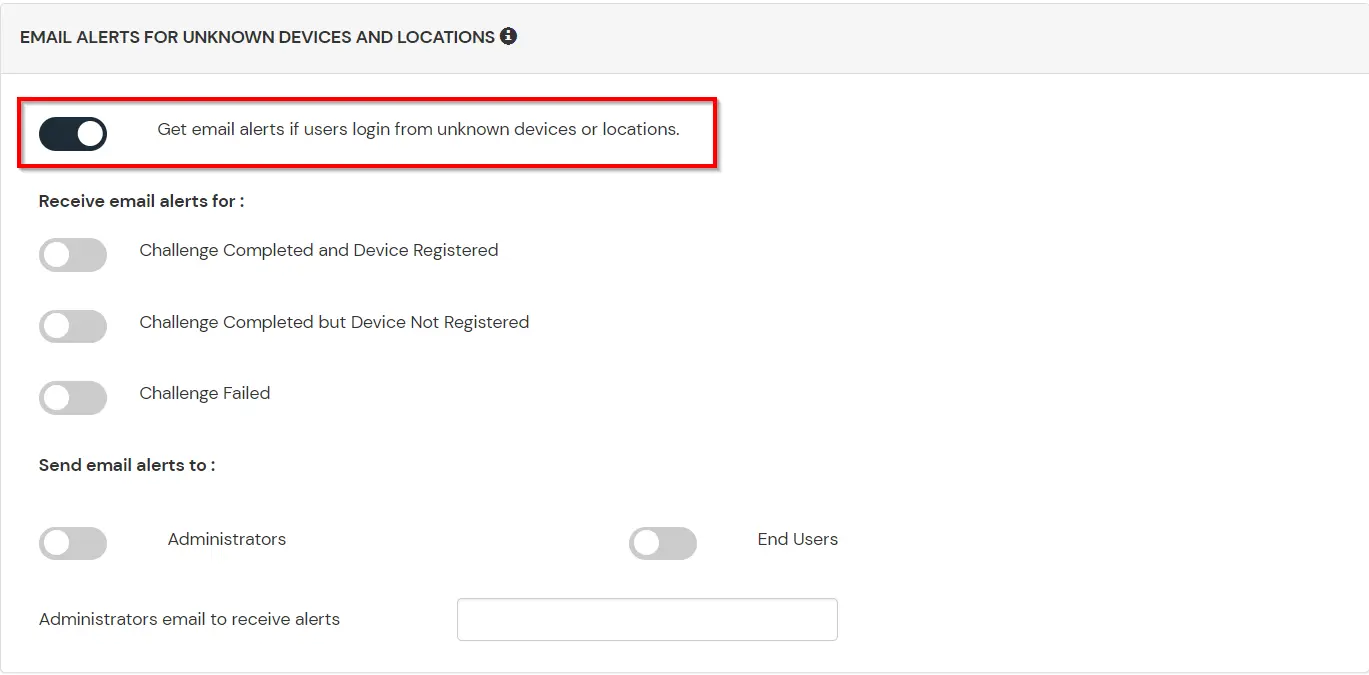
| Option | Description |
|---|---|
| Users login from unknown IP addresses, devices or locations | Enabling this option allows you to login from unknown IP addresses or devices and even locations. |
| Challenge Completed and Device Registered | Enabling this option allows you to send an email alert when an end-user completes a challenge and registers a device. |
| Challenge Completed but Device Not Registered | Enabling this option allows you to send an email alert when an end-user completes a challenge but do not registers the device. |
| Challenge Failed | Enabling this option allows you to send an email alert when an end-user fails to complete the challenge. |

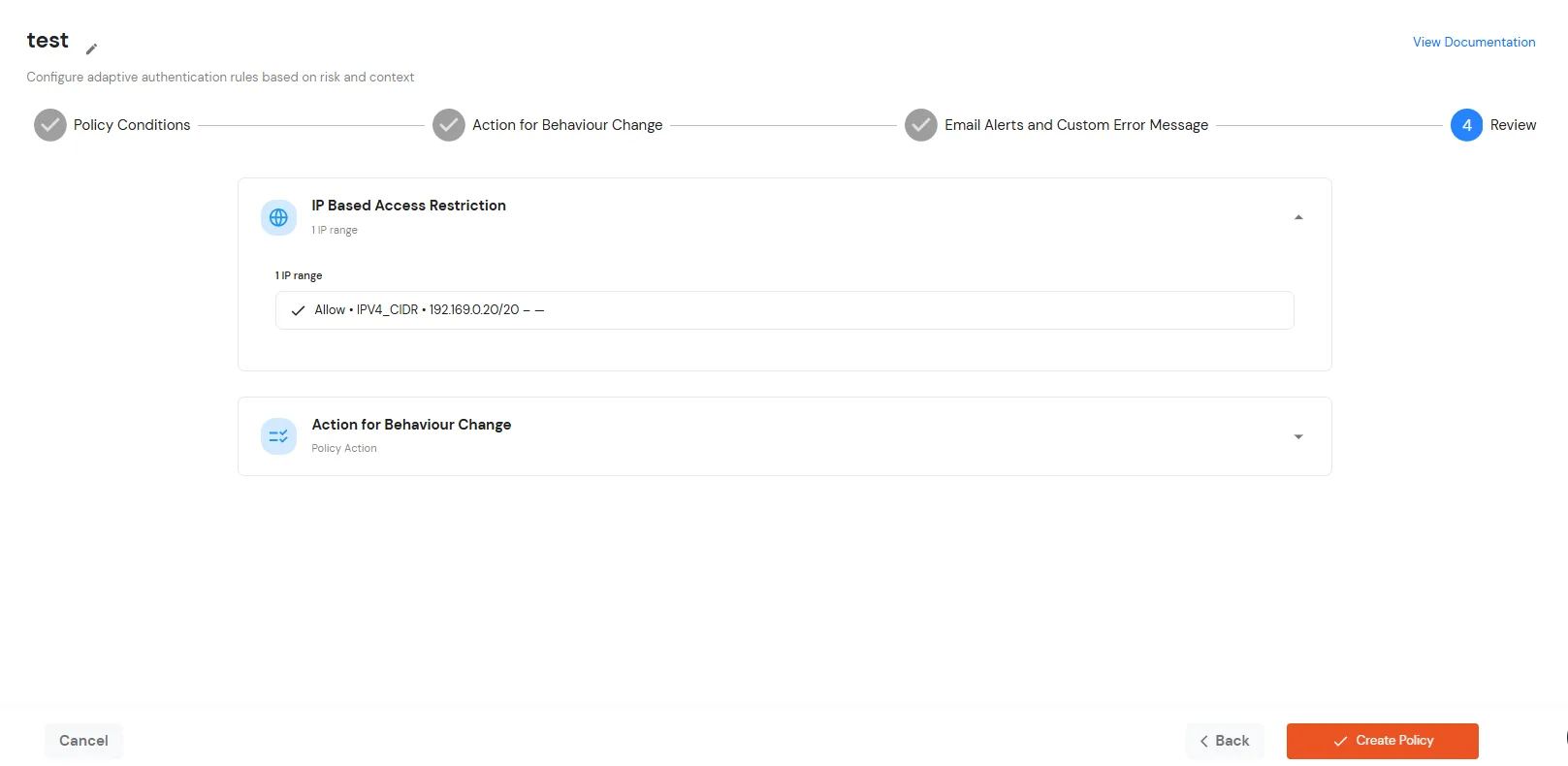
F. Review
Review the configured policy conditions, behavior change actions, email alert settings and custom error messages before creating the adaptive authentication policy. This step provides a consolidated view of all configured settings, allowing you to verify the policy configuration and make any necessary changes before saving.