Session Share
Let more than one person work inside the same live SSH, RDP, VNC, or database session at once.
What This Does
Normally, only the person who started a session is in it. Session Share lets that person invite others into the same live session-for troubleshooting together, watching someone work for training, or getting a second pair of eyes during an incident - without ever sharing the actual password to the resource.
Everyone who joins connects through PAM itself, so PAM still knows exactly who did what.
This works the same way across SSH, RDP, VNC, and database sessions. The same panel and steps are used inside whichever type of session you are already in.
For Admins: Turning It On
Session Share is off by default and must be turned on per policy, just like Session Recording and Live Streaming.
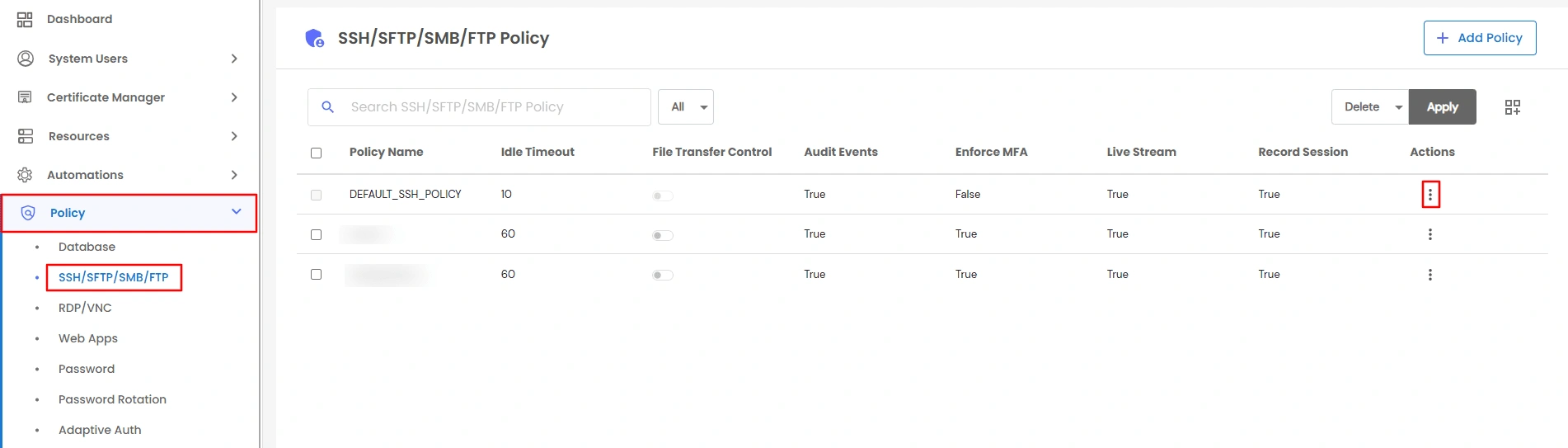
- Go to Policy in the side menu and open the policy for the resource type you want (Database, SSH/SFTP/SMB, or RDP/VNC).
- In the General section, turn on Session Share.
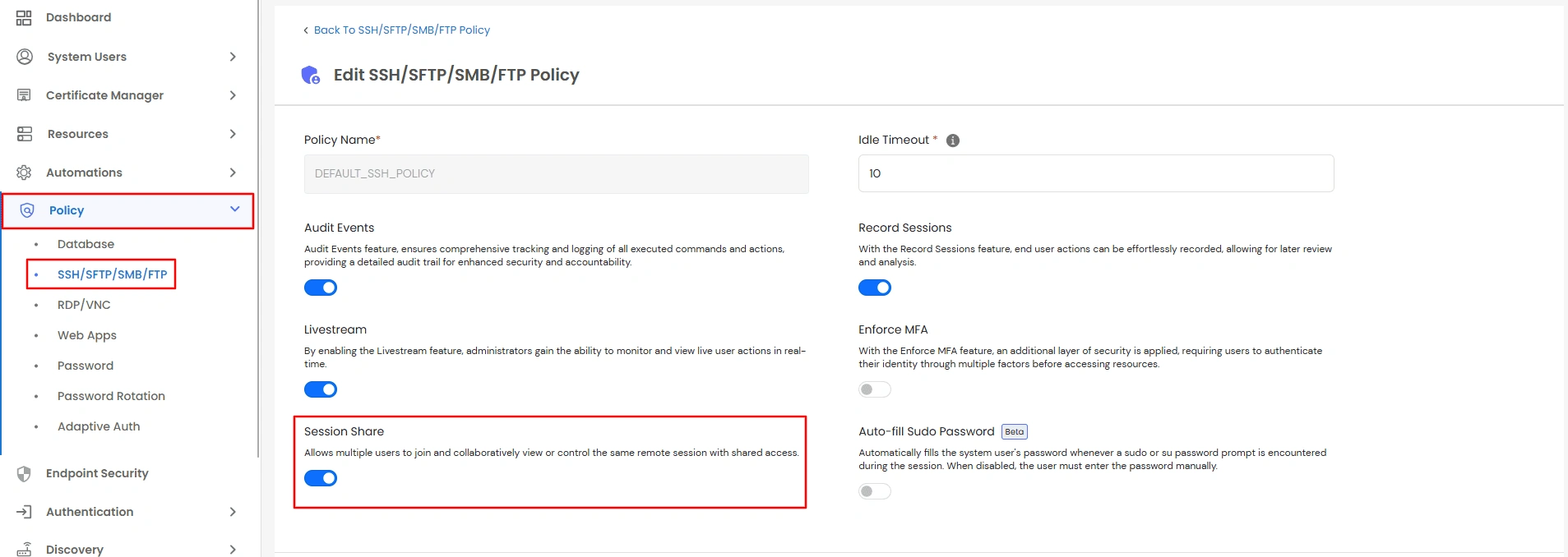
- Save the policy.
Starting a Shared Session (For the Person Who Owns the Session)
- Connect to your resource as web based access.
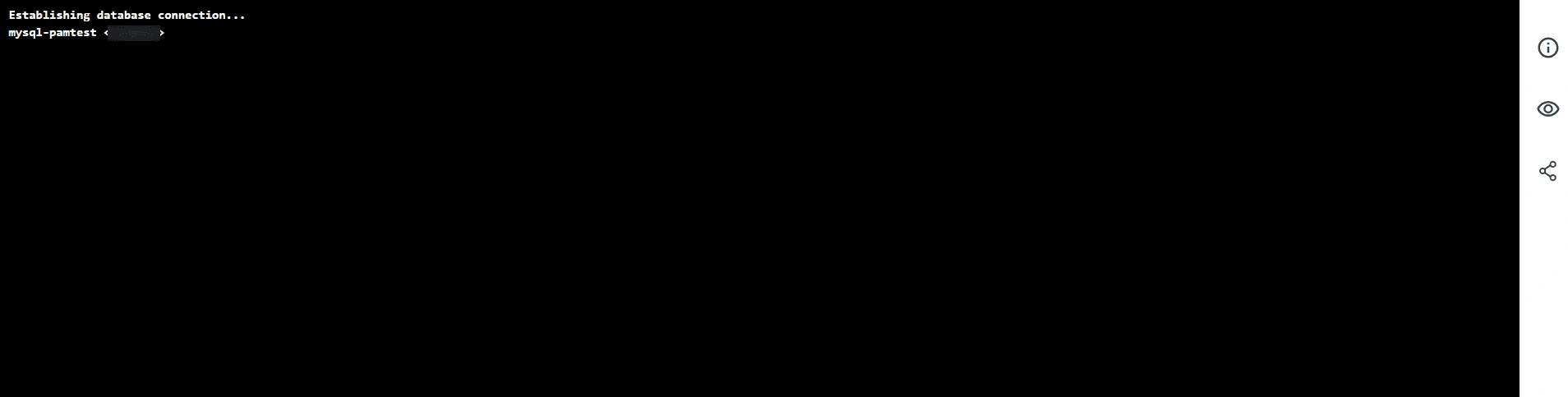
- Open the Session Share panel from the session's sidebar.

- Under Share Link, choose an Access Type:
- Writable-the collaborator can type commands, run queries, or control the mouse and keyboard, depending on the session type.
- Readable-the collaborator can only watch the session.
- Writable is the default.
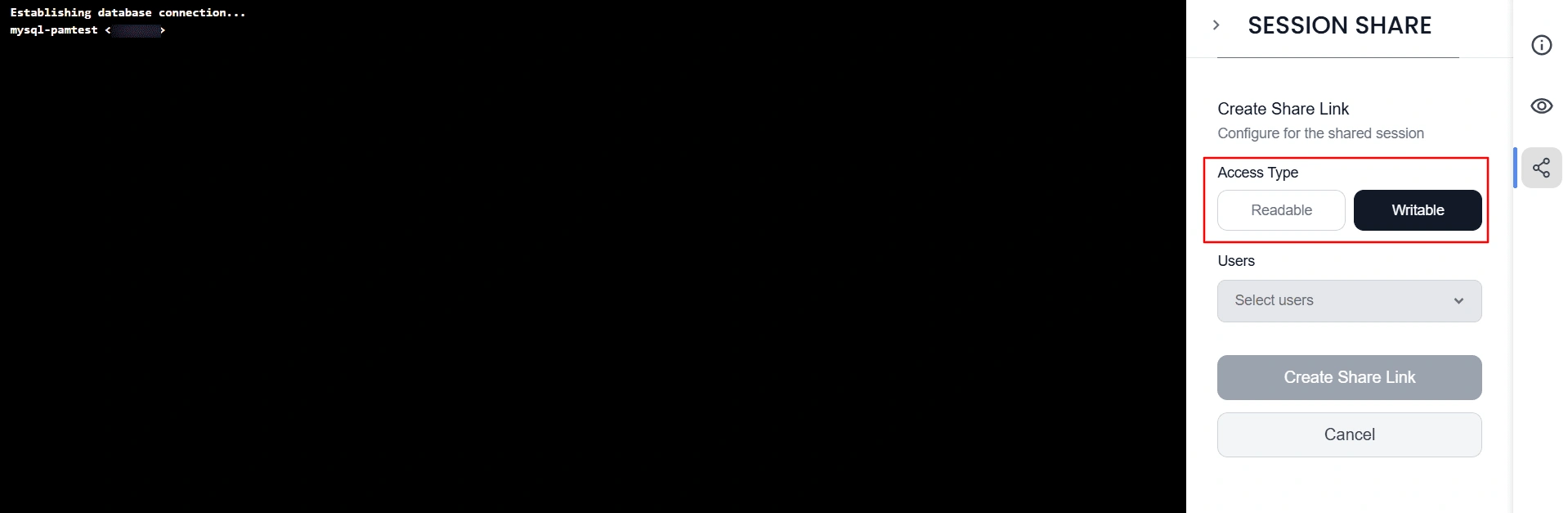
- Select who to invite from the Users list.
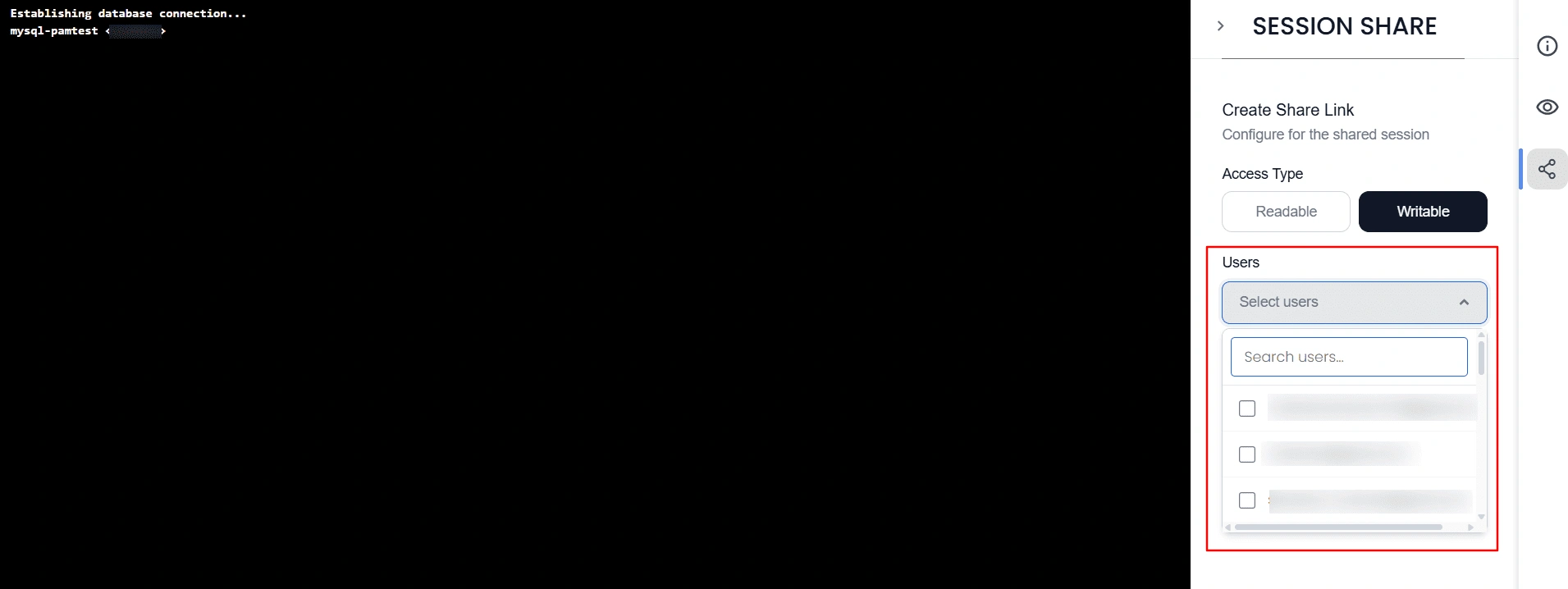
- Click Create Share Link.
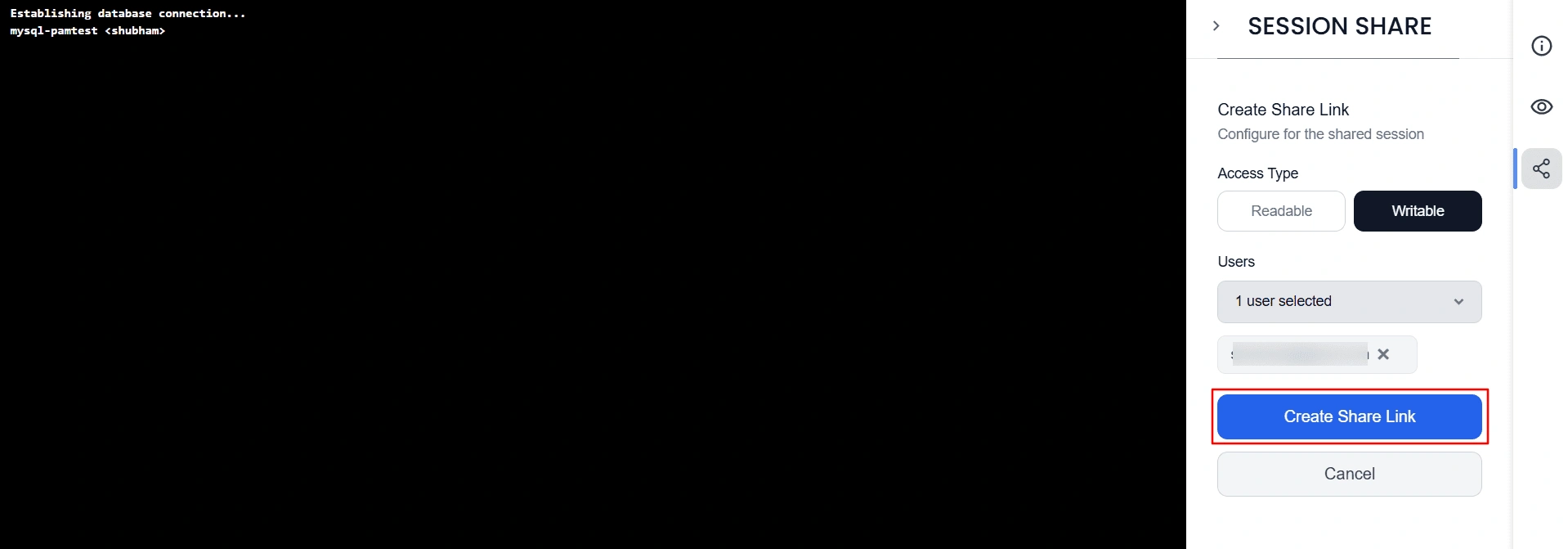
- On the confirmation screen:
- Click Copy Link to copy the link and send it yourself.
- Click Notify User to have PAM notify the user directly.
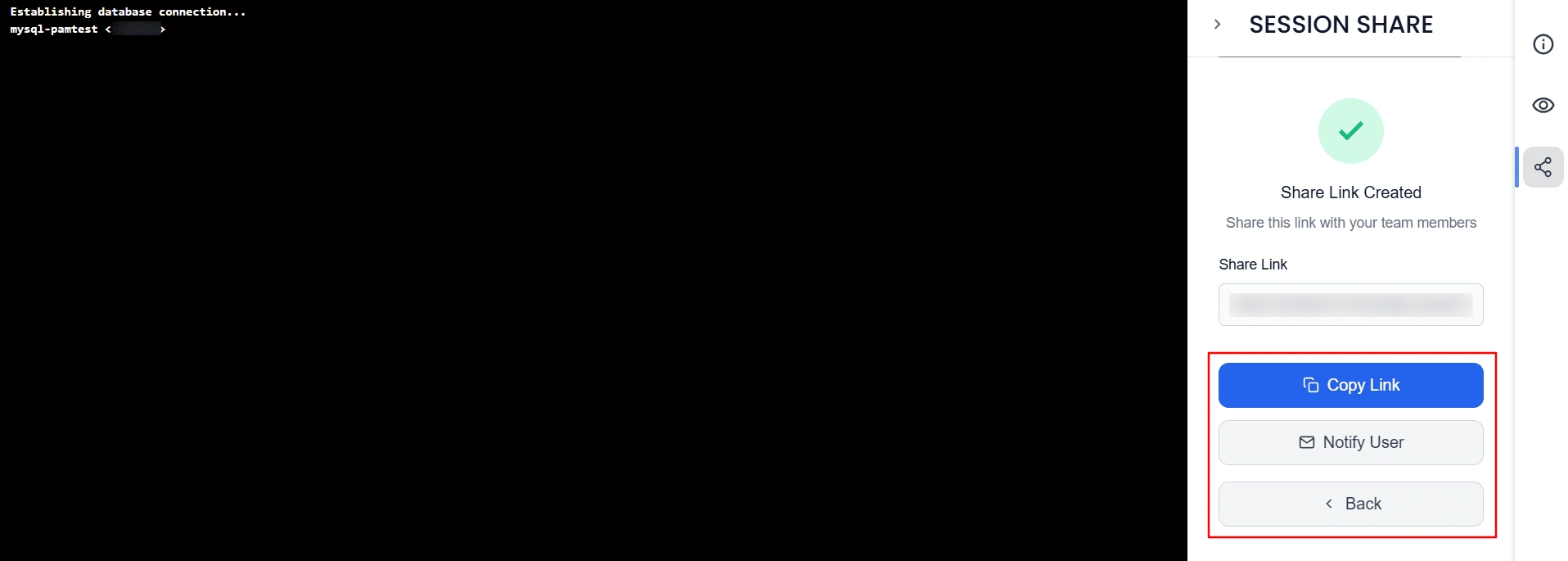
- Click Back at any time to return to the Session Share panel.
Changing Someone's Access Later
- Open the Shared Users section of the same panel to see everyone currently using the shared session.
- You can switch a user between Writable and Readable at any time. The change takes effect immediately, even if the user is already in the session.
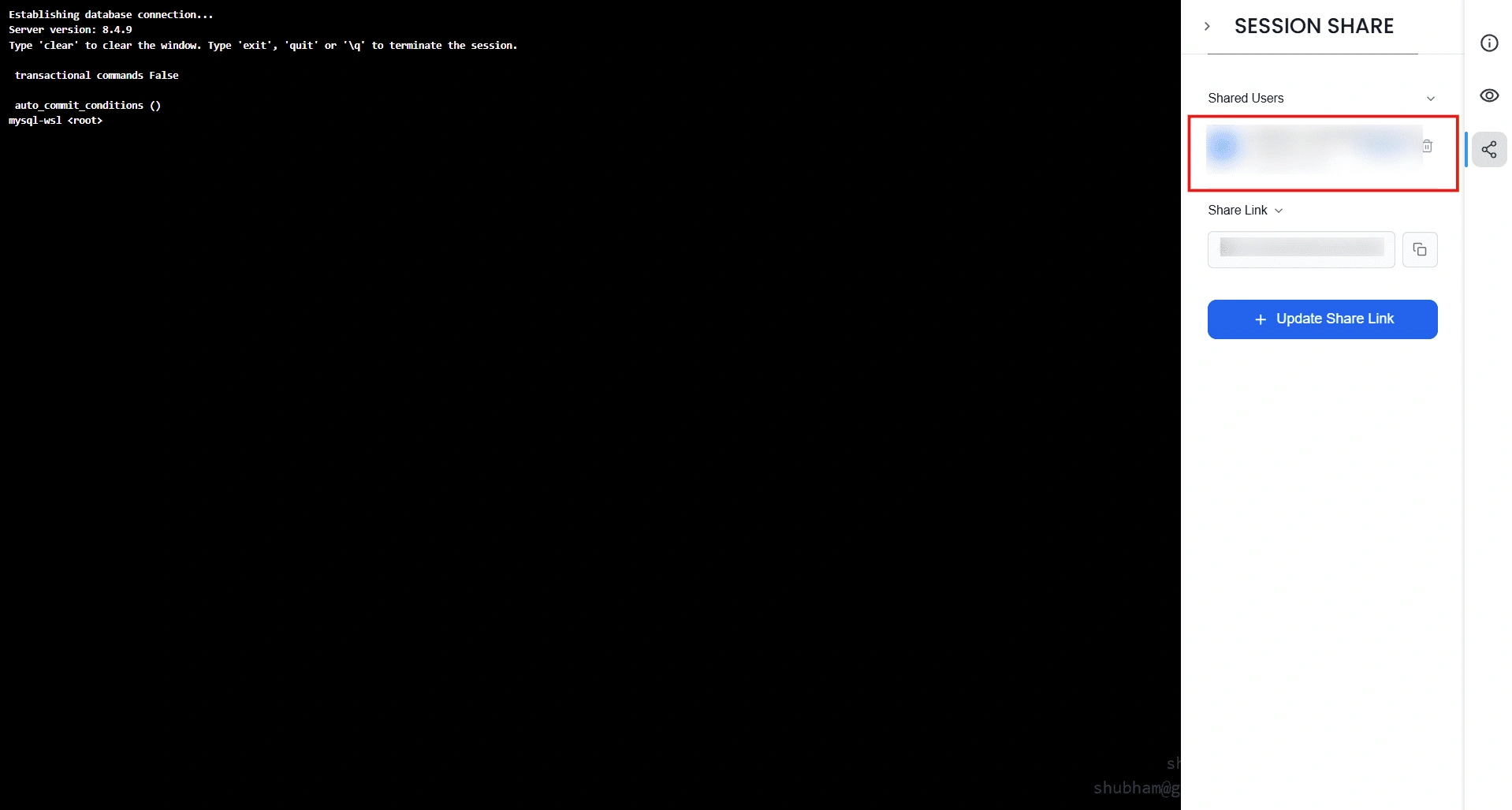
Note: Only the person who created the share link can change someone's access level. A collaborator cannot request or change their own access. If they need to switch from watching to controlling, the session owner must change their access from this panel.
Joining a Shared Session (For the Collaborator)
- Click the link you were sent.
- If you are not already logged into PAM, you will be asked to log in first.
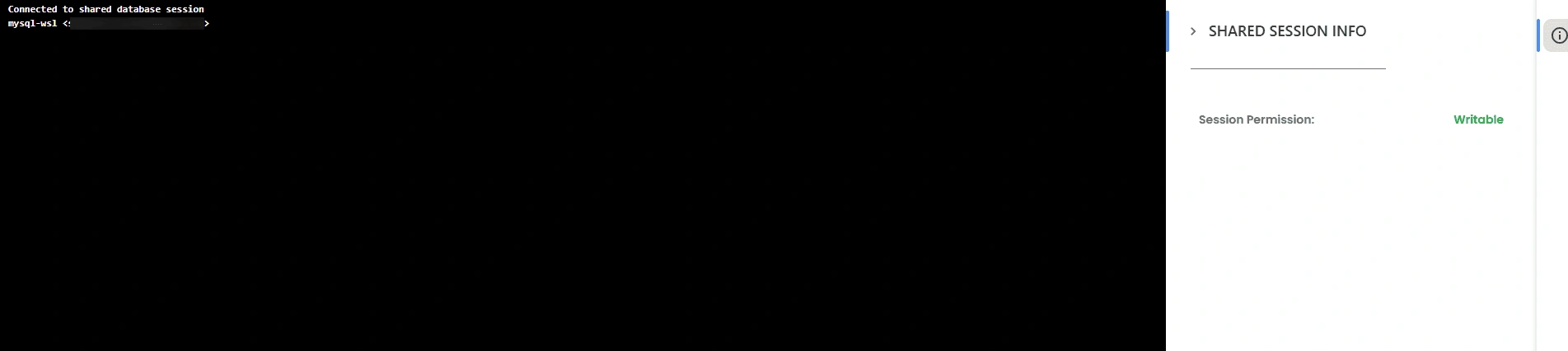
- You are taken directly into the live session at the access level assigned by the owner-Writable or Readable.
Good to Know
- A share link does not have its own expiry time. It stops working when the original session ends. You cannot set the link to expire earlier on its own.
- There is no limit on how many people can join the same session.
- There is no approval step for joining. Anyone the session owner adds to the share link can join immediately; no one else needs to approve their access.
- Whether a shared session is recorded depends entirely on that resource's normal Session Recording setting. There is no separate recording switch for Session Share. See Session Recording for details.
- Join and leave activity is not shown in a separate report. It is recorded as part of the resource's normal activity log, alongside everything else that happens during the session.

