Hello there!

Need Help? We are right here!

Support Icon
miniOrange Email Support
success

Thanks for your Enquiry. Our team will soon reach out to you.

If you don't hear from us within 24 hours, please feel free to send a follow-up email to info@xecurify.com

Search Results:

×

Manage Customers for Additional Super Admins


The Customers tab allows Super Admins to manage customer access for an Additional Super Admin. Super Admins can assign one or more customers to an Additional Super Admin, review the assigned customers, and remove customers when required. The Additional Super Admin can then view and manage only the customers assigned to them.
To assign customers to an Additional Super Admin:

  • Login into miniOrange Partner Portal dashboard.
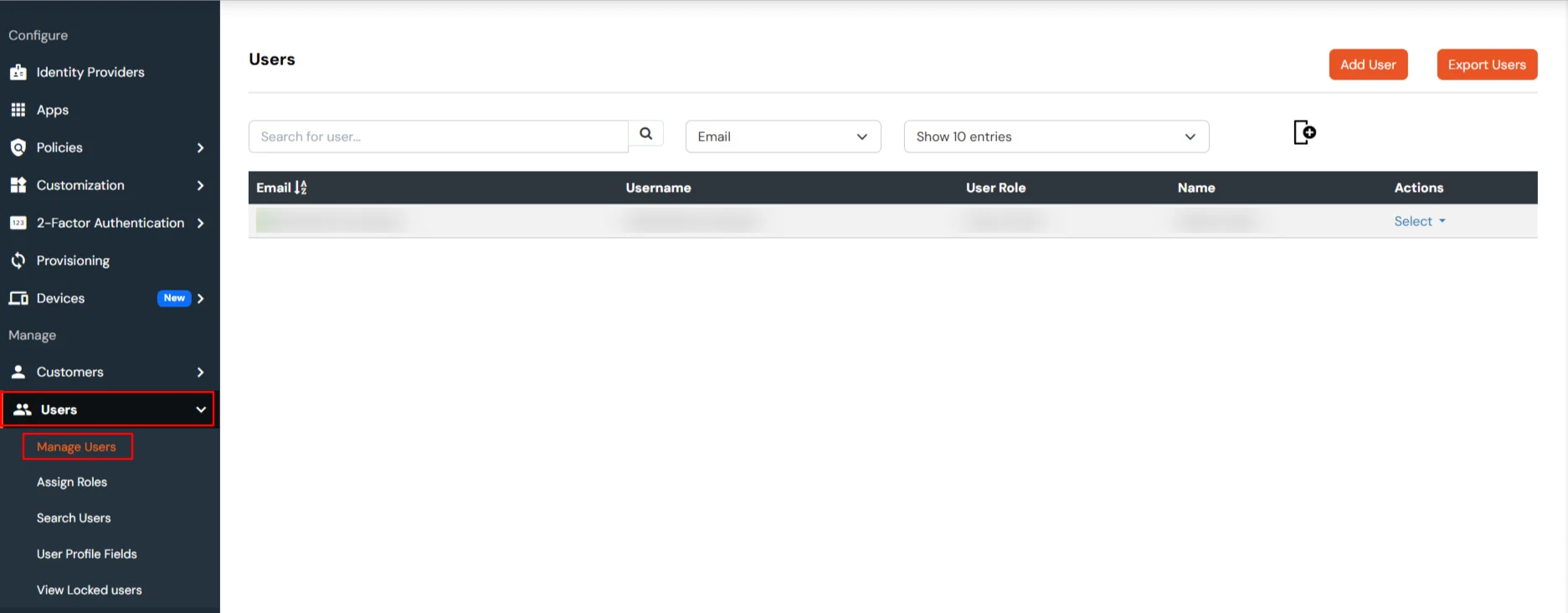
  • From the left navigation menu, go to Users >> Manage Users.
  • miniOrange Partner Portal Handbook: Manage Users dashboard

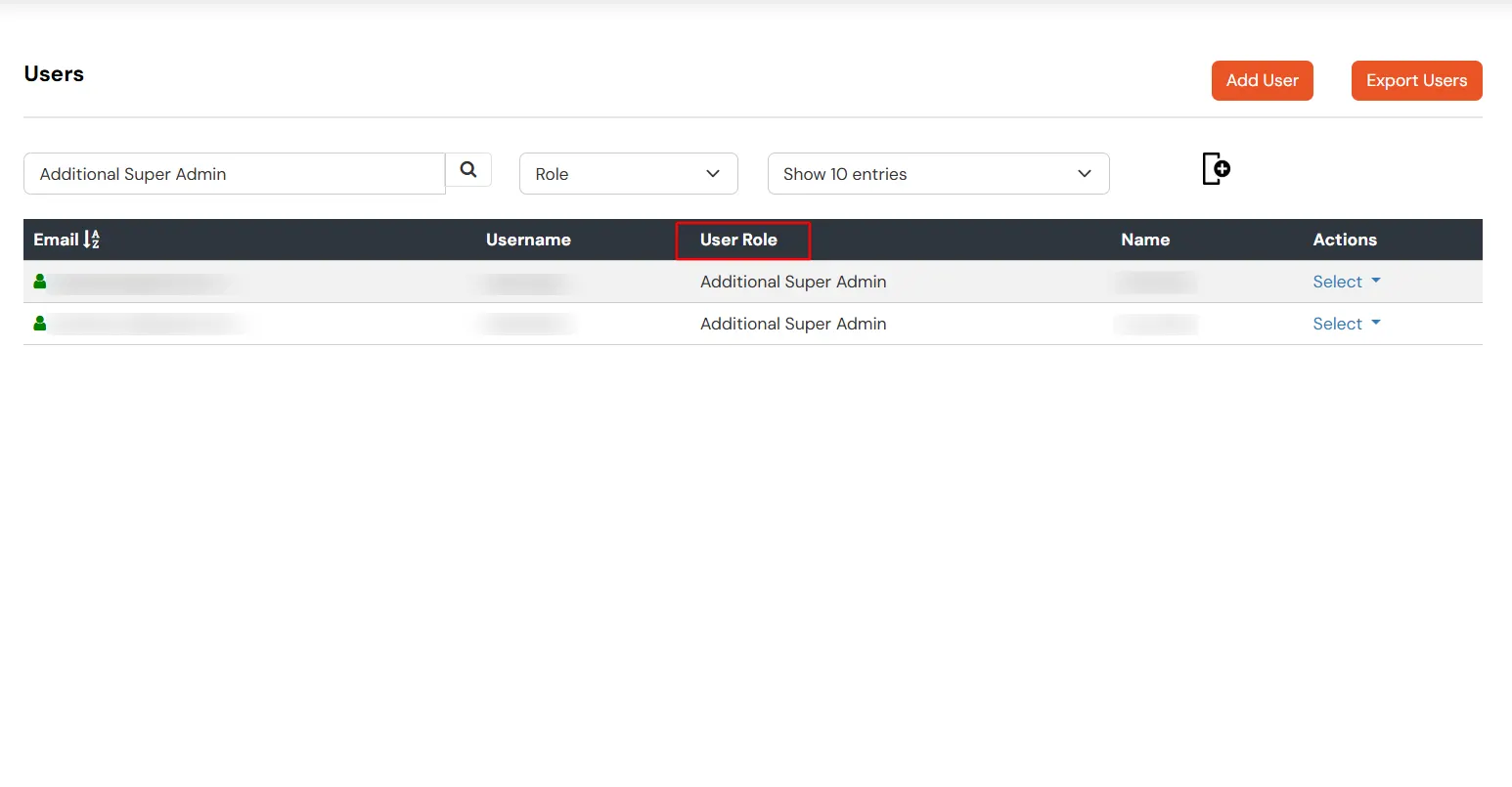
  • The User Role column identifies the role assigned to each user.
  • miniOrange Partner Portal Handbook: User role column

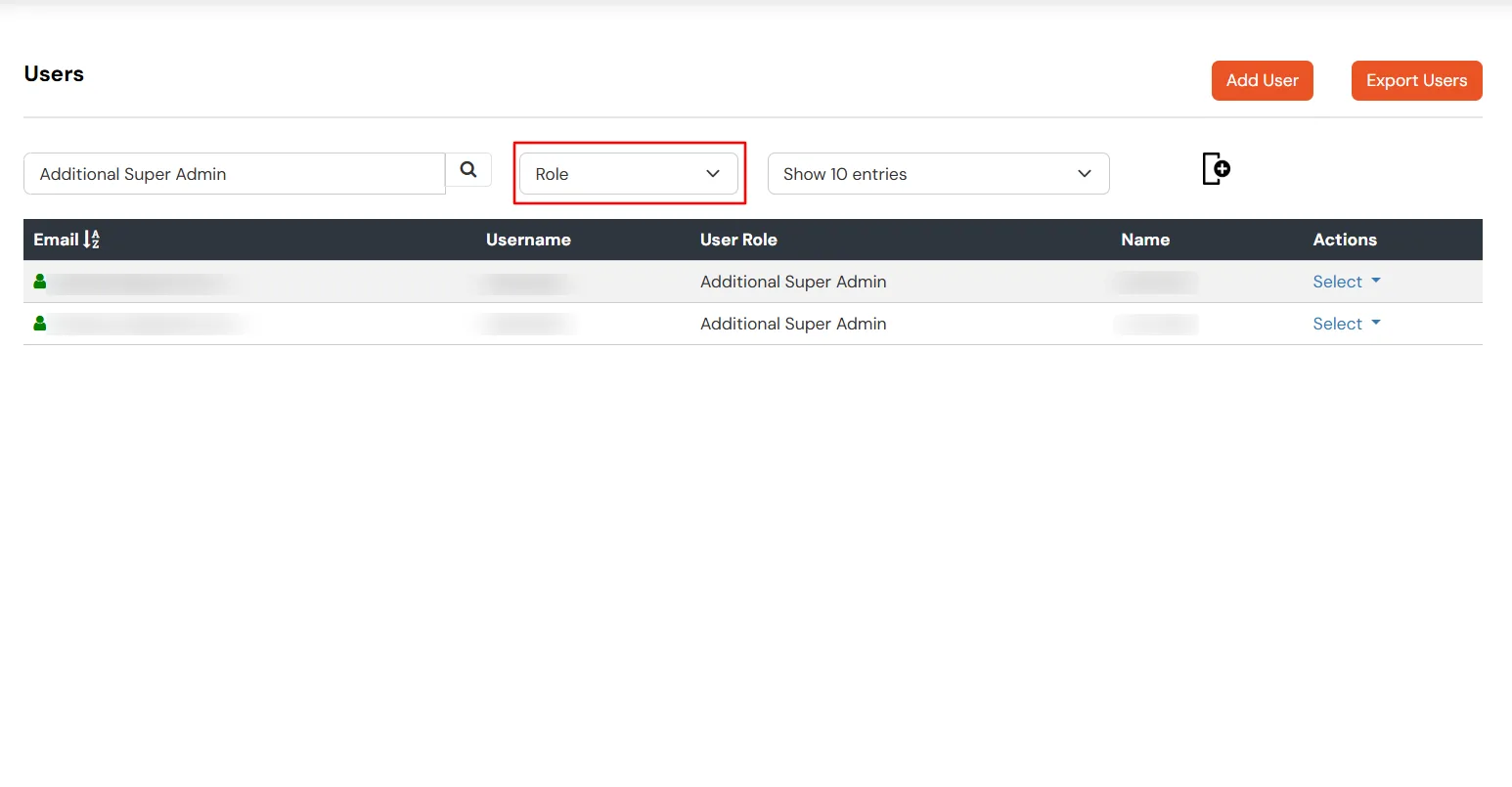
  • Click the dropdown next to the search field and select Role.
  • Enter Additional Super Admin in the search field and click Search.
  • The user list will be filtered to display only users with the Additional Super Admin role.
  • miniOrange Partner Portal Handbook: Search users role

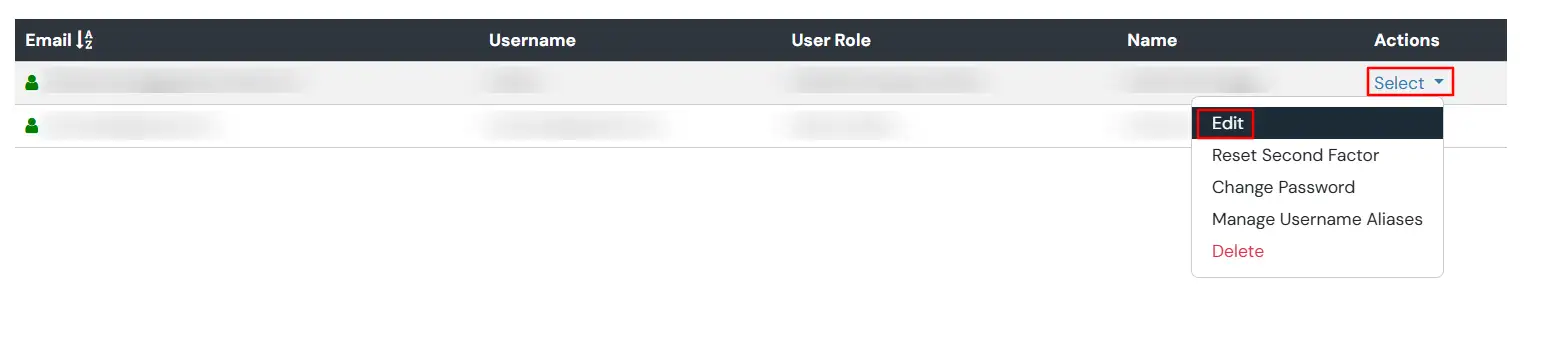
  • Open the Additional Super Admin's profile. Locate the required Additional Super Admin and click Select >> Edit under the Action column.
  • miniOrange Partner Portal Handbook: Edit the Super Admin's profile

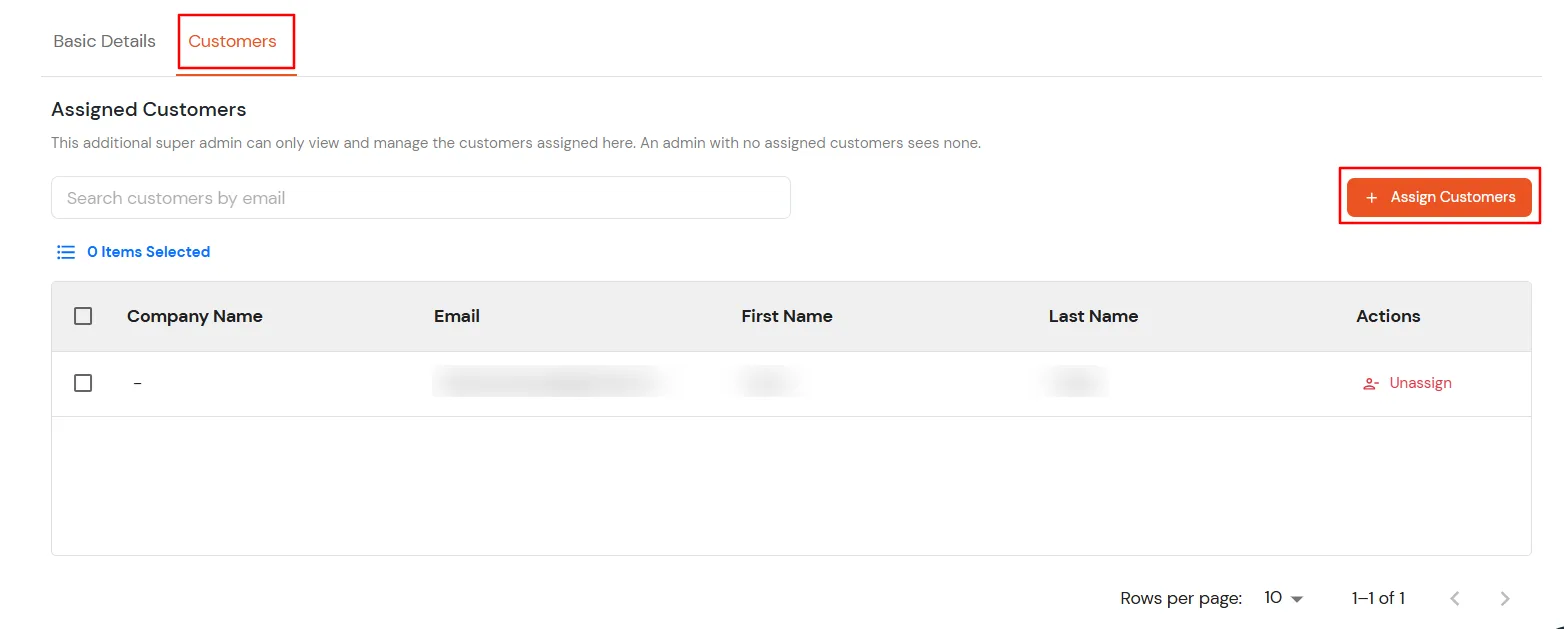
  • The user's profile opens on the Basic Details tab. Click the Customers tab to manage the customers assigned to the Additional Super Admin.
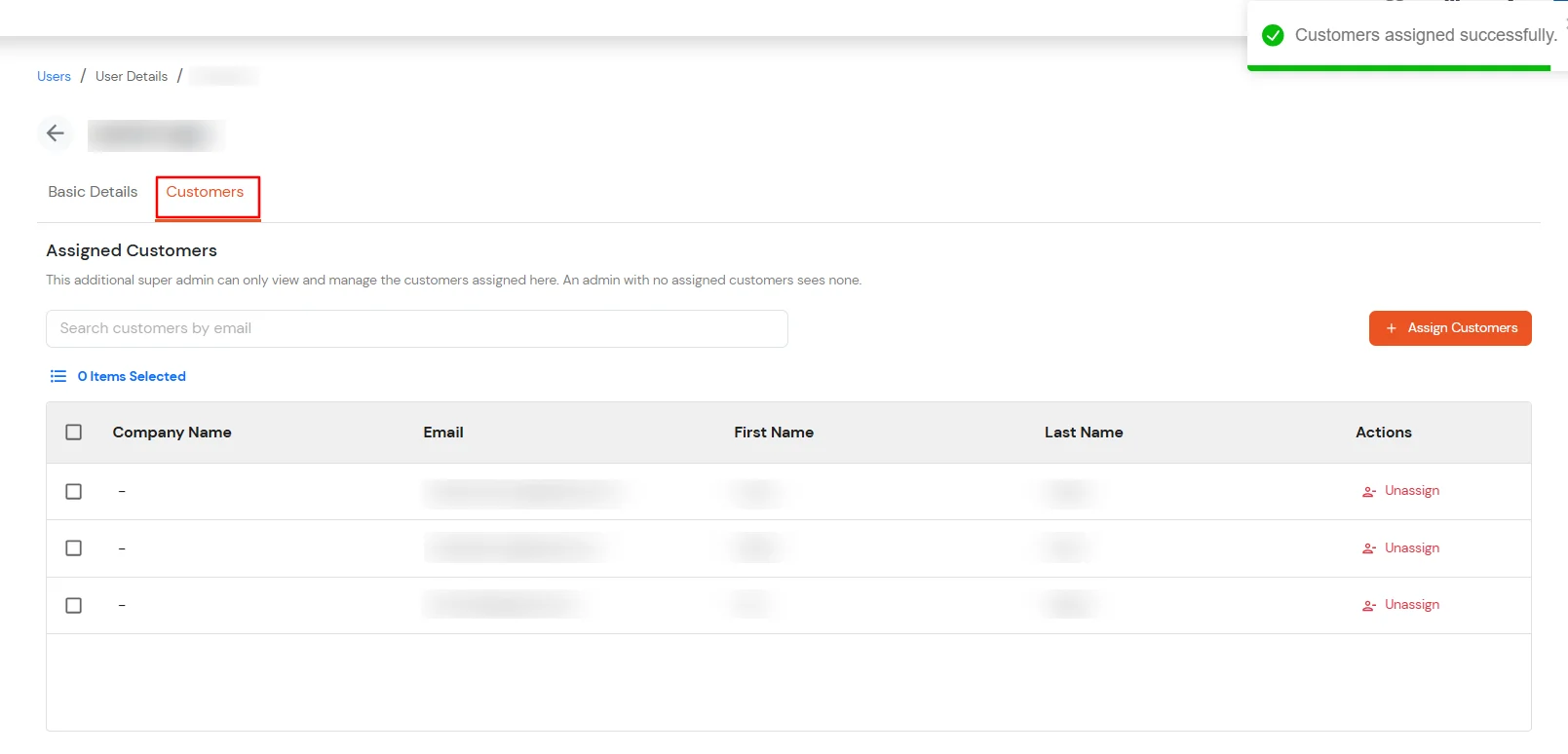
  • The Customers tab displays the currently assigned customers along with their company name, email address, first name, and last name. You can also search the assigned customers by email address.
  • miniOrange Partner Portal Handbook: Customers tab

  • Click Assign Customers.
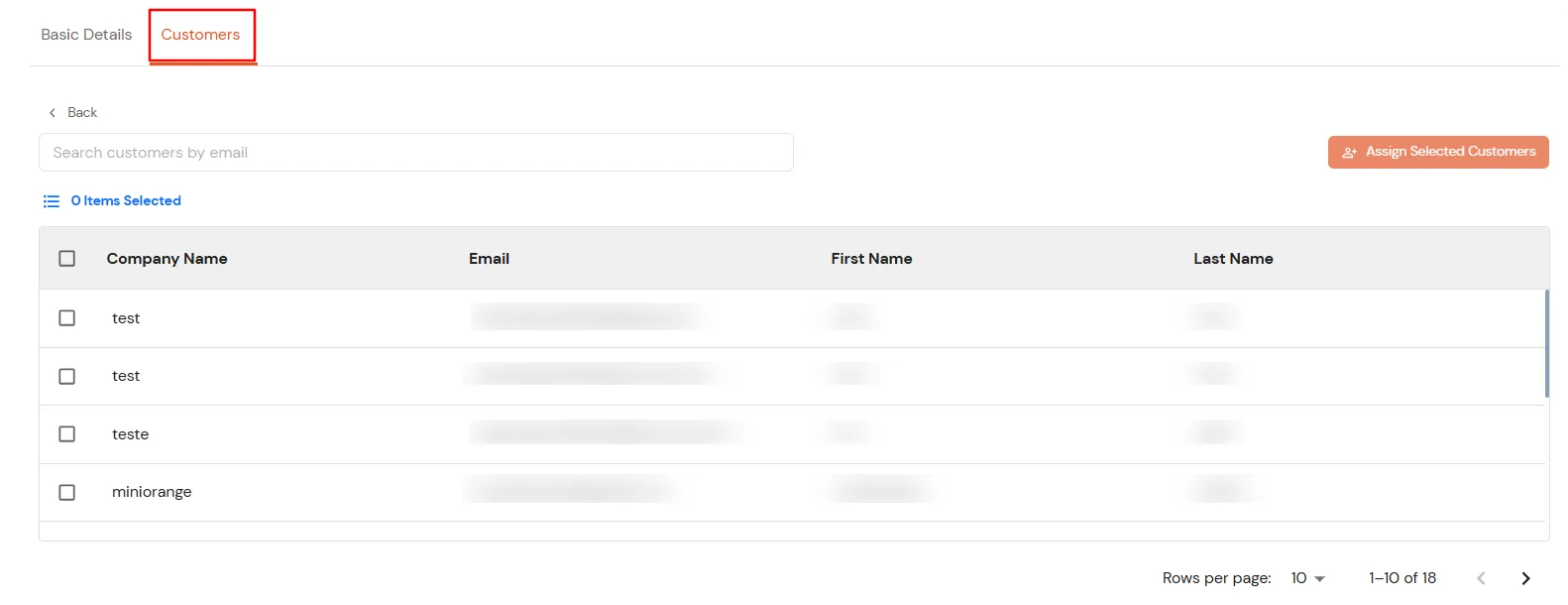
  • The customer selection window displays customers that are not currently assigned to the Additional Super Admin.
  • miniOrange Partner Portal Handbook: Customer selection window

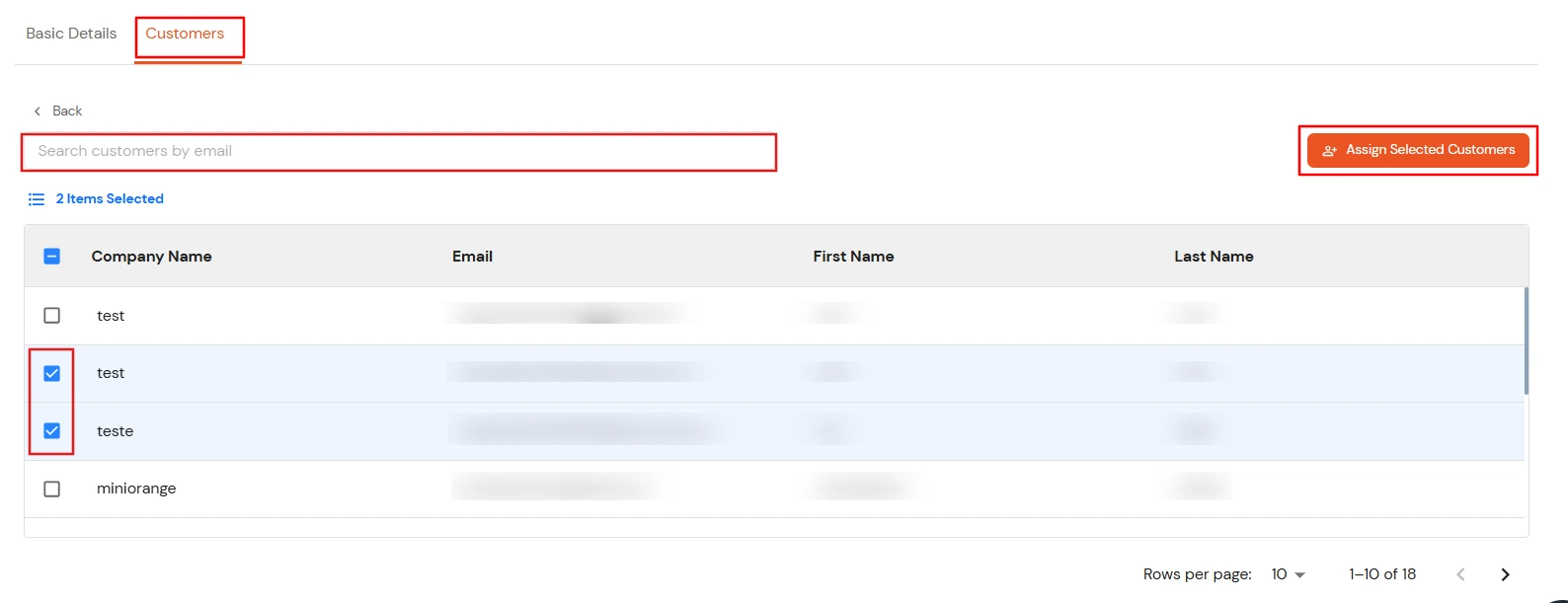
  • Use the search field to find a customer by email address.
  • Select the checkbox next to each customer you want to assign.
  • You can select and assign multiple customers at once.
  • miniOrange Partner Portal Handbook: Select and assign customers

  • Click Assign Selected Customers to assign the selected customers.
  • After the customers are assigned, a Customers assigned successfully message is displayed.
  • The newly assigned customers appear in the Assigned Customers table. Verify that all the intended customers are listed.
  • miniOrange Partner Portal Handbook: Customer assigned successfully

    To unassign a customer:

    • Go to the Customers tab of the required Additional Super Admin.
    • Locate the customer you want to remove from the Additional Super Admin's access.
    • Click Unassign for that customer.
    • The customer is removed from the Assigned Customers list and becomes available for assignment again.

Verify customer access

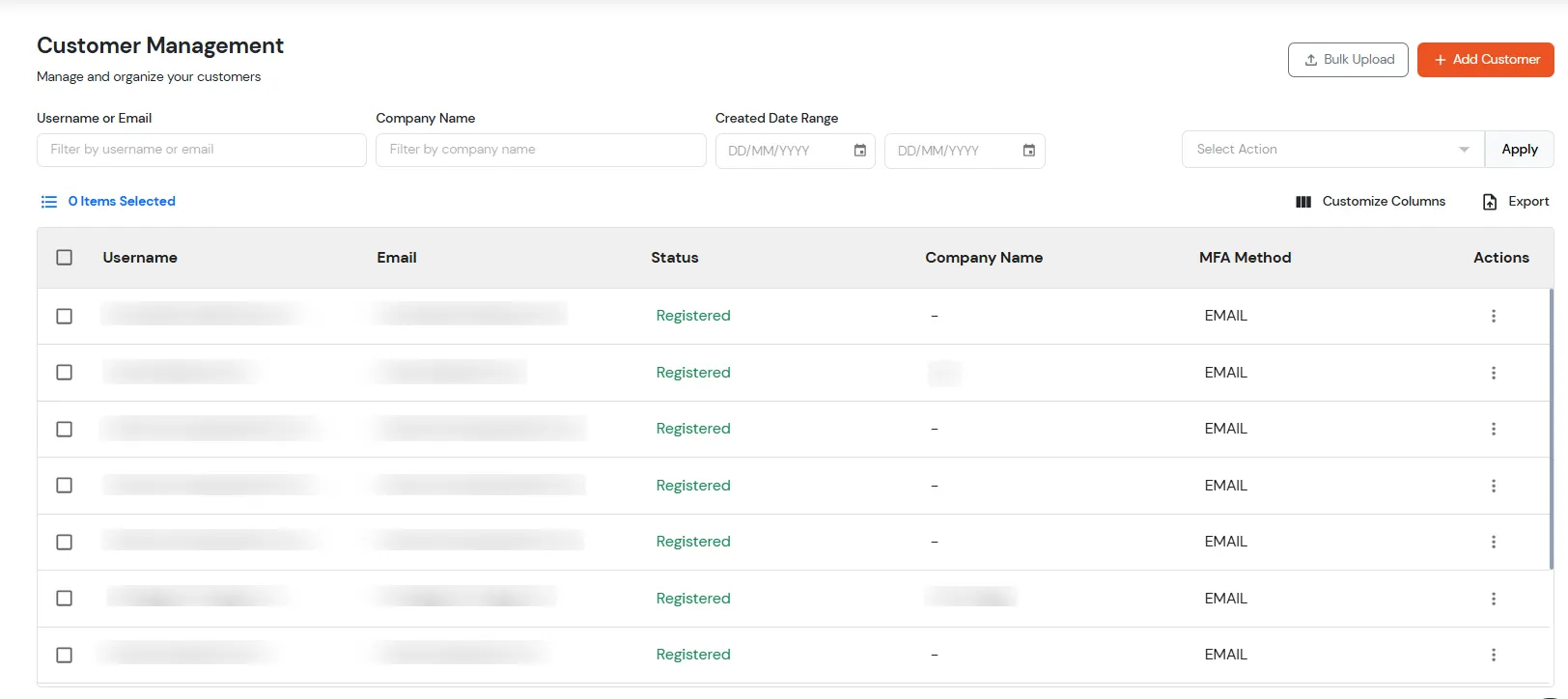
  • After assigning customers, log in to the Partner Portal as the Additional Super Admin and open the Customers list.
  • miniOrange Partner Portal Handbook: Verify customer access

  • The Additional Super Admin should be able to view and manage only the customers assigned to them. Customer-level actions such as editing the customer, resetting or changing the password, managing second-factor authentication, setting transaction limits, deleting the customer, and clearing active sessions should be available only for the assigned customers.
  • Note: Customer assignment can be performed only by a Super Admin. An Additional Super Admin cannot assign customers to themselves or to another Additional Super Admin. The same customer can be assigned to multiple Additional Super Admins.