Hello there!
Need Help? We are right here!

Need Help? We are right here!
Search Results:
×Password Policies allow administrators to enforce password security requirements for users within miniOrange. Administrators can configure password complexity rules, password expiry settings, password similarity restrictions, password history checks, account lockout controls, and end-user password reset requirements to strengthen account security and comply with organizational password standards.
Click on the Policies menu from the left navigation and select the Password Policy option.
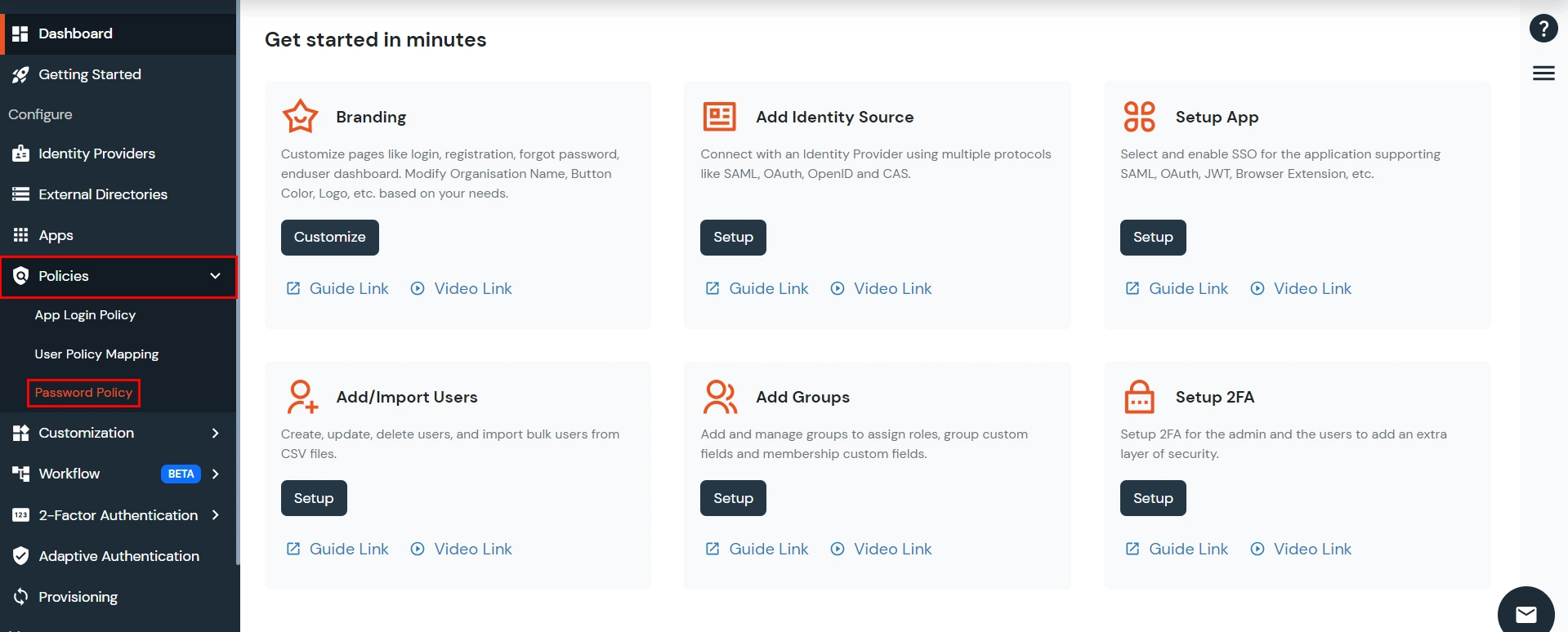
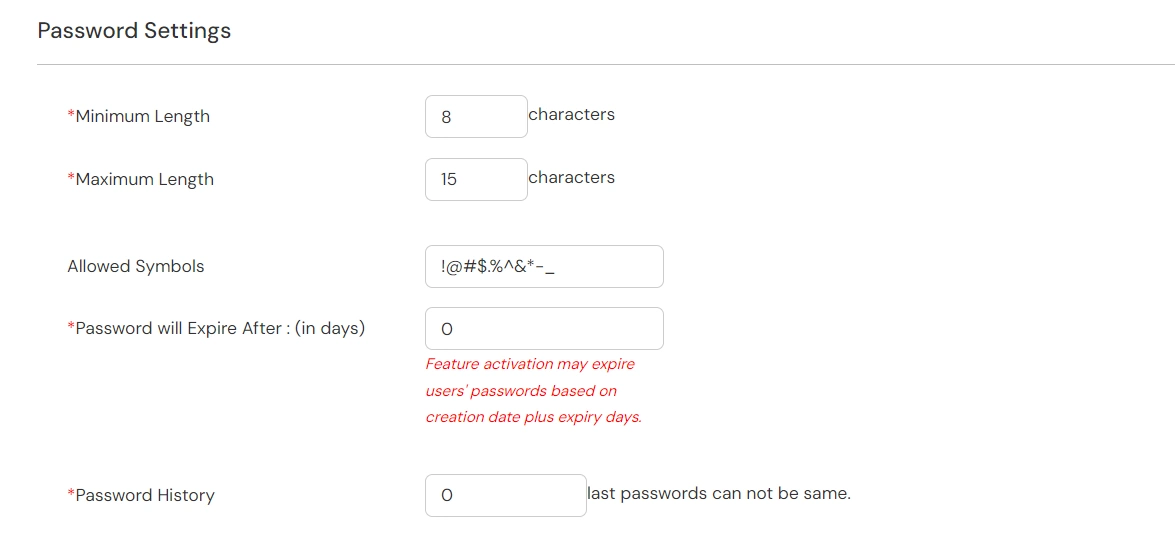
Configure the required password policy settings under the Basic and Advanced tabs.
Configure restrictions to prevent users from creating passwords containing personal or easily guessable information. This helps enhance password security and prevent unauthorized access.
This feature controls how much of a user’s personal information can be reused in their password. This enhances security by preventing easily guessable passwords derived from user details.
Customer/ Superadmin can choose which personal attributes should be restricted from being used in passwords. The selected items will be validated against the password during creation or change.
The following attributes can be restricted:
Only the selected attributes are checked for password similarity.
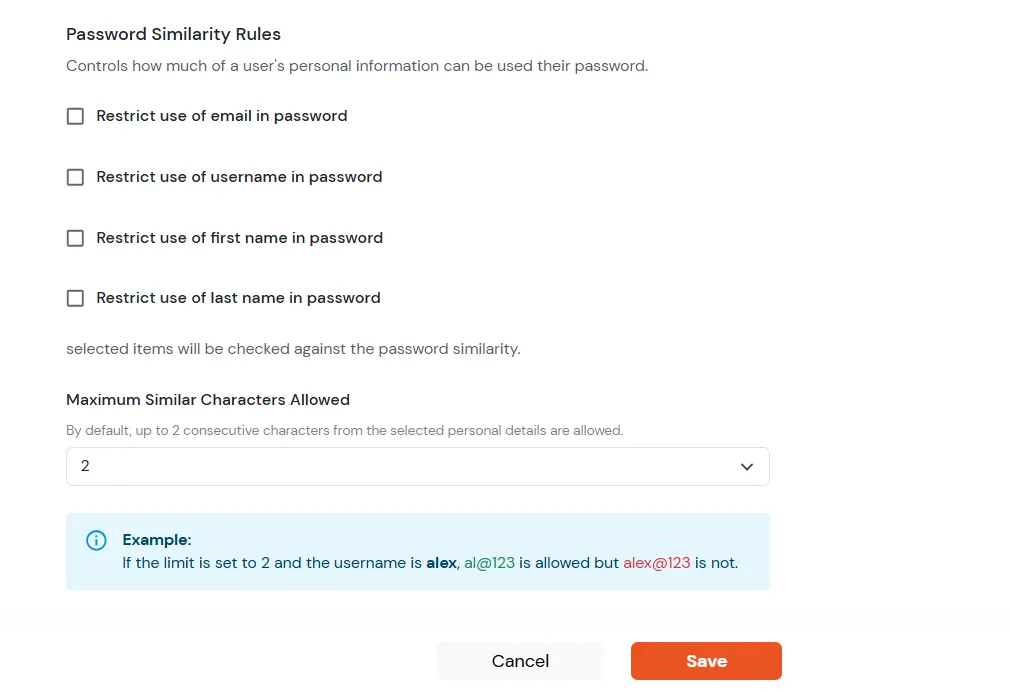
This setting defines the maximum number of consecutive characters from the selected personal details that are allowed in a password. By default, up to 2 consecutive characters from the selected personal are allowed.
Validation is performed against all selected personal attributes
Example: Username: alexa [Maximum Similar Characters Allowed: 4]
| Password | Result | Reason |
|---|---|---|
| al@123 | Allowed | Contains only 2 consecutive characters (al) |
| alexa@123 | Not Allowed | Contains 5 consecutive characters (alexa) |
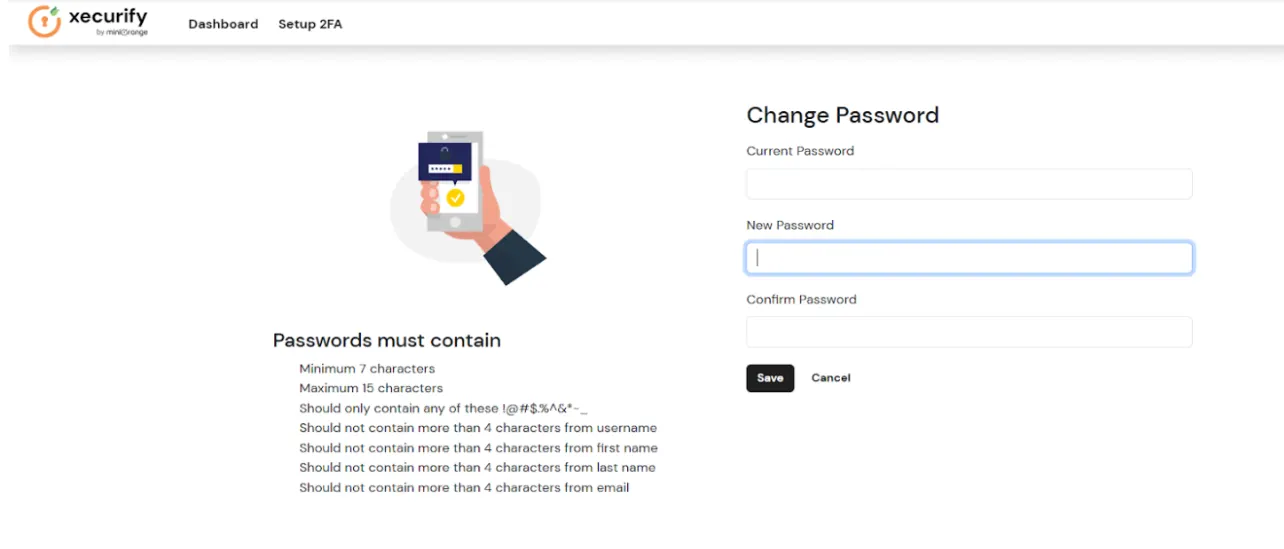
Validation while changing password: Based on the selected options under Password Similarity Rules, an inline validation message is shown on the Change Password screen describing the exact password policy requirements.
Configure additional password security controls related to password reuse, password history, maximum login attempts, account lockout, and end-user password management.
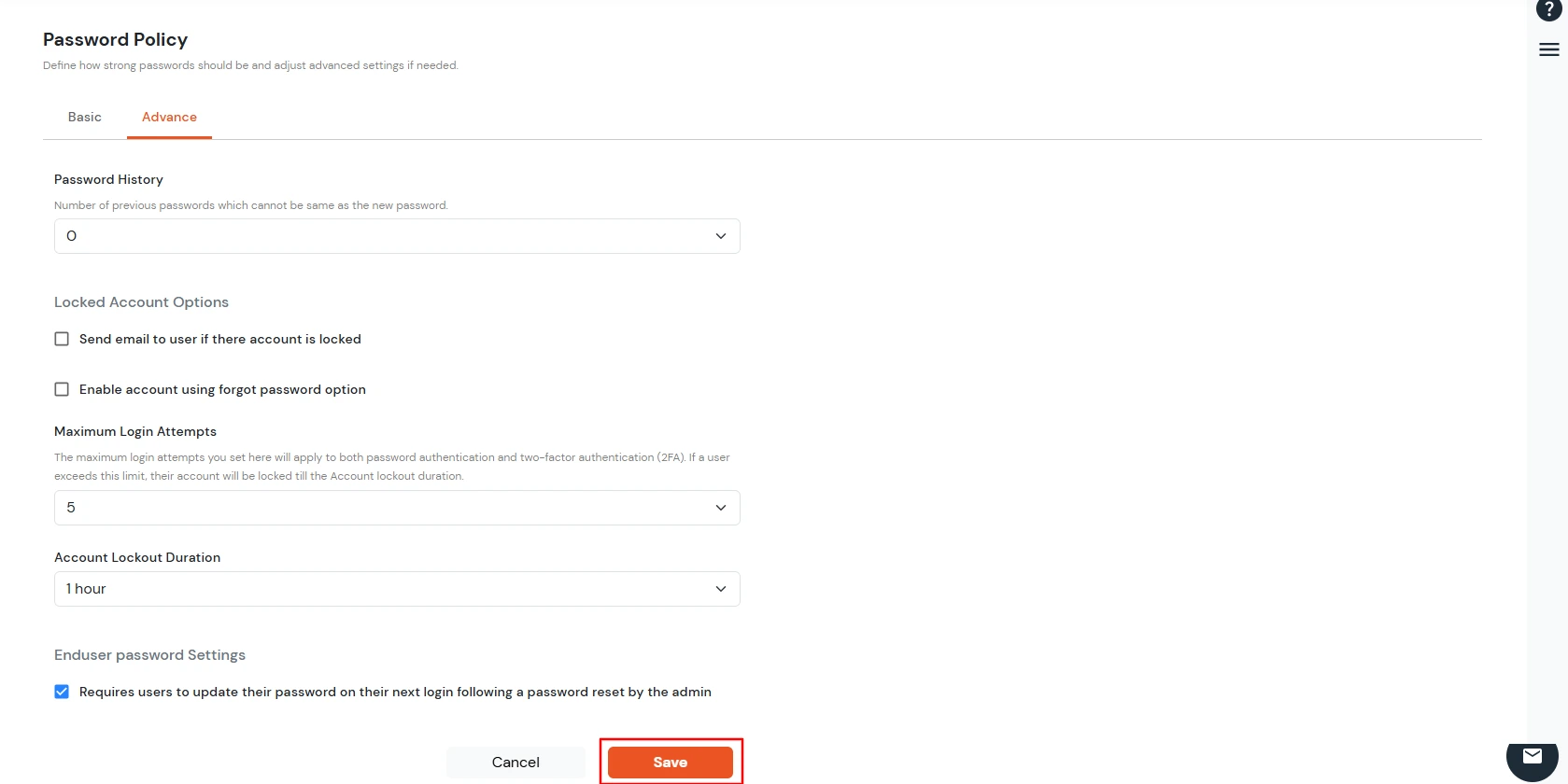
The value for password history cannot be less than 0 or more than 10.
This value indicates that the last 'n' passwords, cannot be same as the new password you will set for customer admin or its end users while changing or resetting password.
For Instance :
You also have the option to set the password difficulty or complexity. Select the aspects you want in the passwords.
Configure actions and restrictions applied when user accounts are locked due to failed login attempts.
Define the maximum number of failed login attempts allowed before the account is locked.
Configure the duration for which the user account remains locked after exceeding the maximum login attempts.
Configure additional password update requirements for end users.
Click on Save to apply the configured password policy settings.
The configured password policy will be enforced for users within the organization.
