MFA Agents
The MFA Agent Visibility & Audit System helps administrators easily monitor and manage MFA agents across all enrolled devices from a single dashboard. It keeps track of important activities such as agent installation, updates, configuration changes, and version upgrades. The system also supports offline audit logging, ensuring that audit records are captured even when devices are not connected to the network.
How to open the MFA Agents Dashboard
- Sign in to the miniOrange Admin Console.
- In the left sidebar, open Configure >> Devices >> MFA Agents.
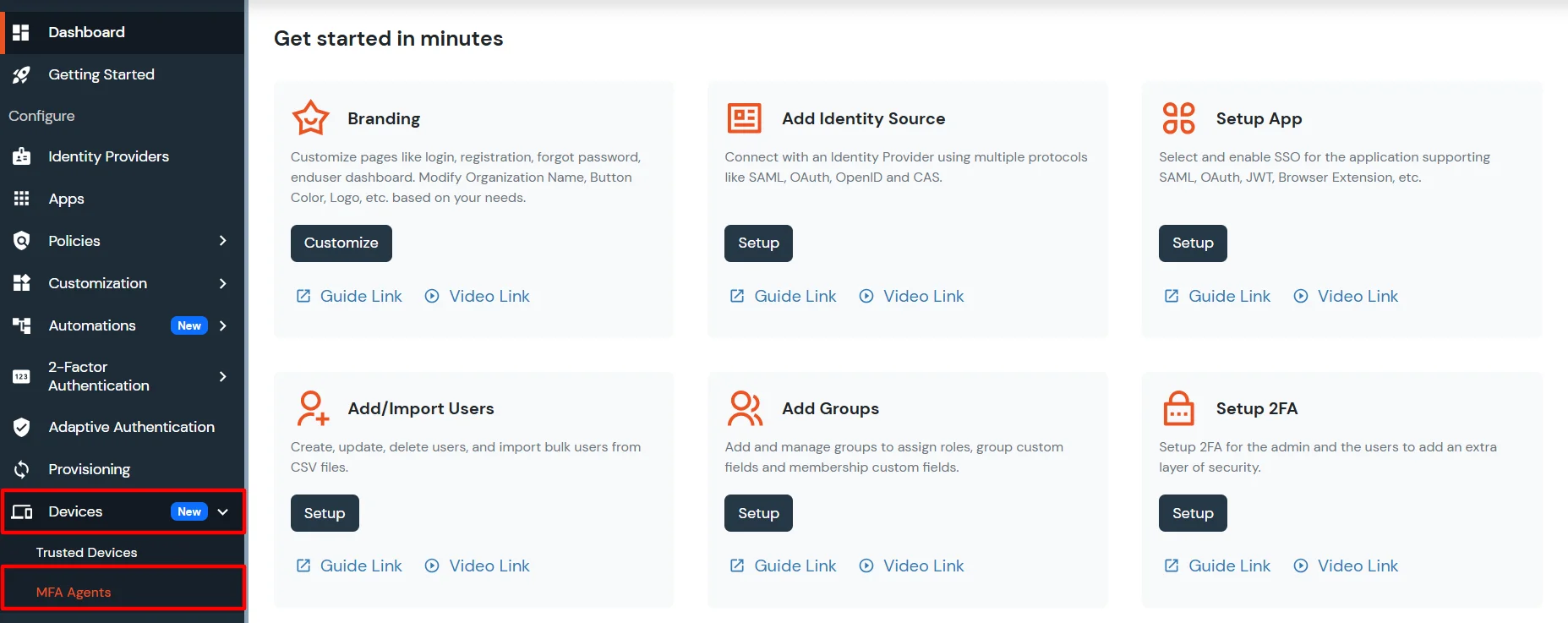
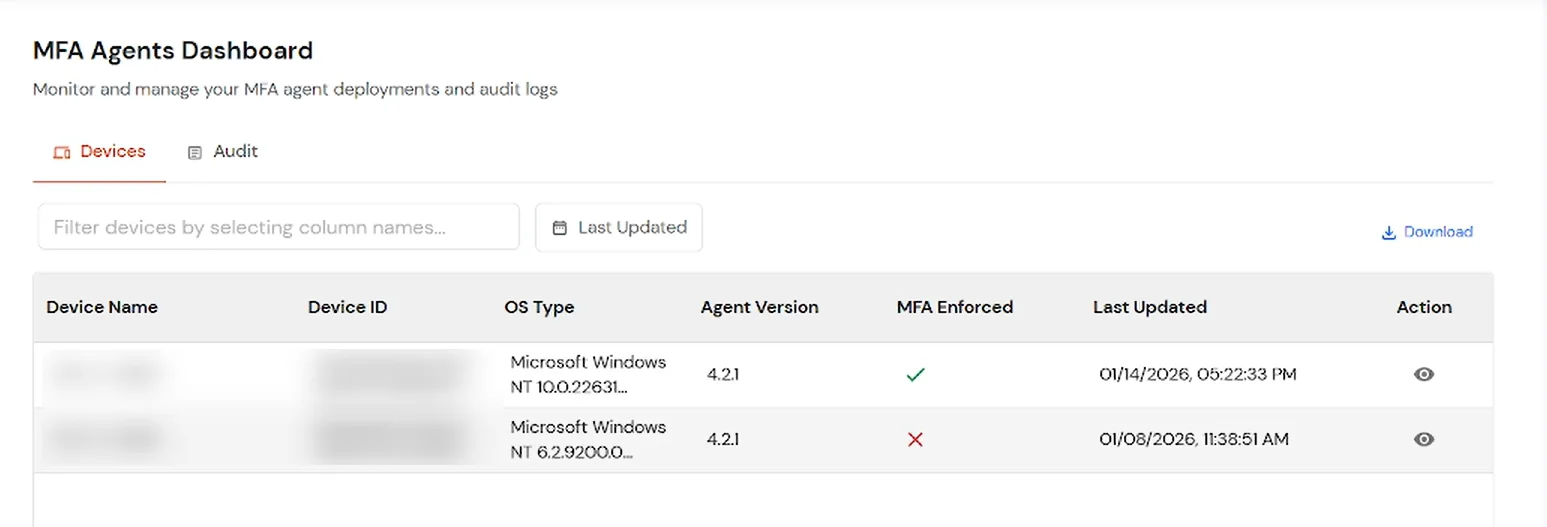
- The MFA Agents Dashboard will open, showing a list of all enrolled devices and related audit activity. Use the Devices and Audit tabs to switch between the device inventory and the event log.
1. Devices tab
The Devices tab lists all endpoints where an MFA agent has registered with your tenant. You can review enrollment status at a glance, open details for a specific machine, filter the list, and export device data for reporting.
View Device details
- On the Devices tab, locate the device in the table. In the Action column, click the eye icon to open the device details panel.
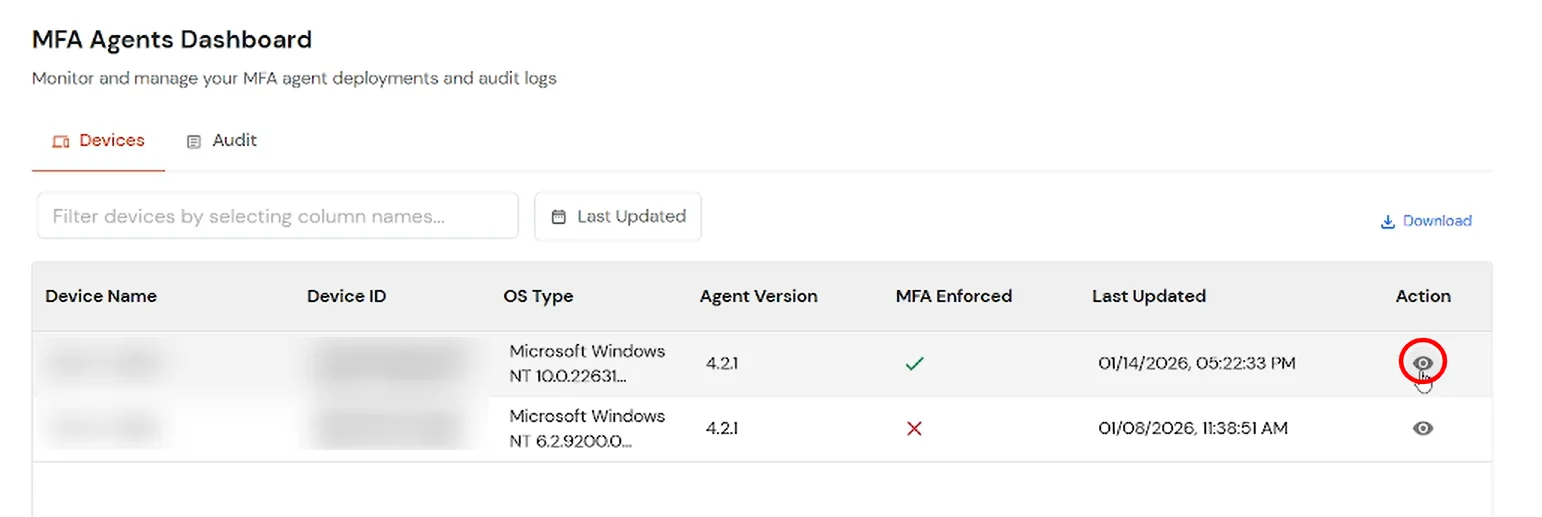
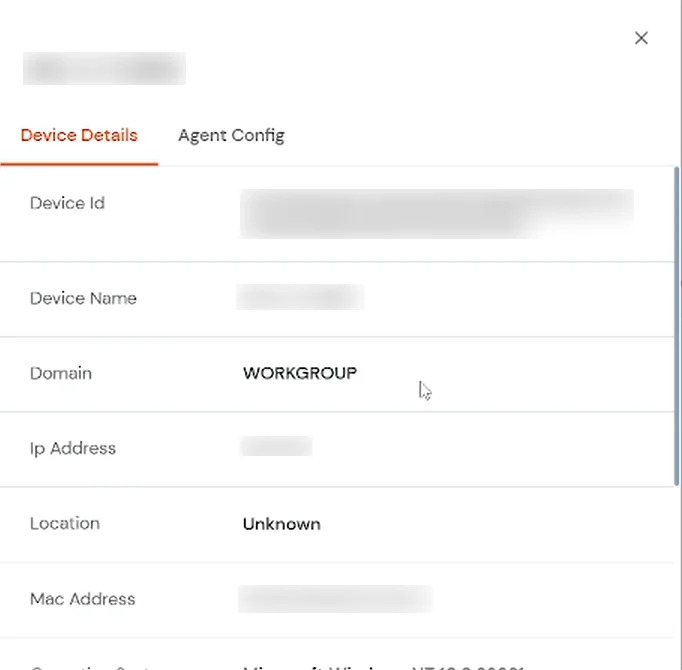
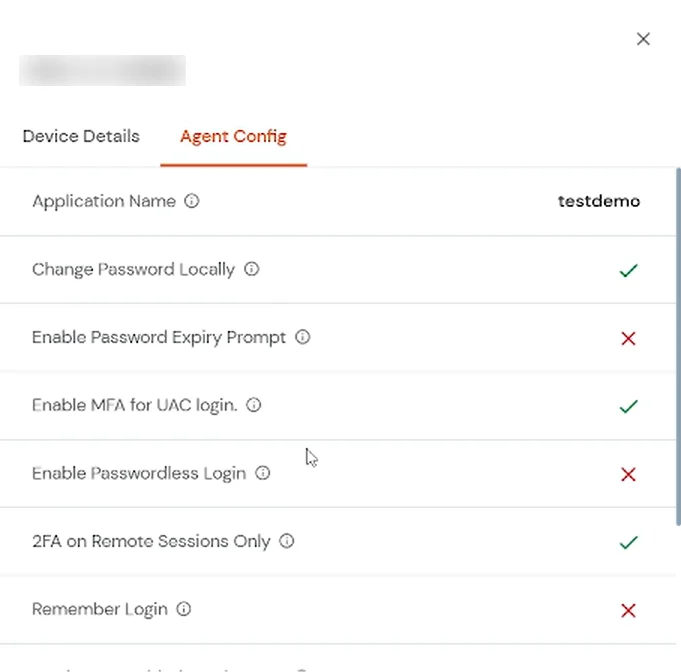
- The panel has two tabs:
| Device Details |
Displays identity and network information for the endpoint, such as Device Id, Domain, Ip Address, Mac Address, and Operating System. |
| Agent Config |
Displays the MFA agent configuration applied on that device, including settings such as Application Name, Enable MFA for UAC login, and 2FA on Remote Sessions Only. A green checkmark indicates the setting is enabled; a red X indicates it is disabled. Click the info icon next to a setting for additional details. |
- Click the Device Details tab to review endpoint fields.
- Click the Agent Config tab to review MFA agent settings on that device.
- Click X in the top-right corner to close the panel.
Filter and export devices
Use the filter box to narrow the device list, set a Last Updated date range, and download the results as PDF or CSV.
- In the filter box, search for Filter devices by selecting column names and select a column from the dropdown to filter by that field.
- Click Last Updated, select a From and To date range in the dialog, and click Apply.
- Click the Download link to open the export dialog. Choose PDF or CSV, then select an export scope:
- Visible Rows — export all rows currently visible in the table.
- Date Range — export all data within a specific date range. Select From and To dates in the date dialog.
- Applied Filters — export data based on all currently applied filters, including column filters and the date range. Select a date range to further refine the results.

2. Audit tab
Click the Audit tab on the same page to review MFA agent–related events in a table. The audit log helps you track what happened on each endpoint, when it occurred, and which device was involved. Common events include installation, uninstallation, and configuration changes.
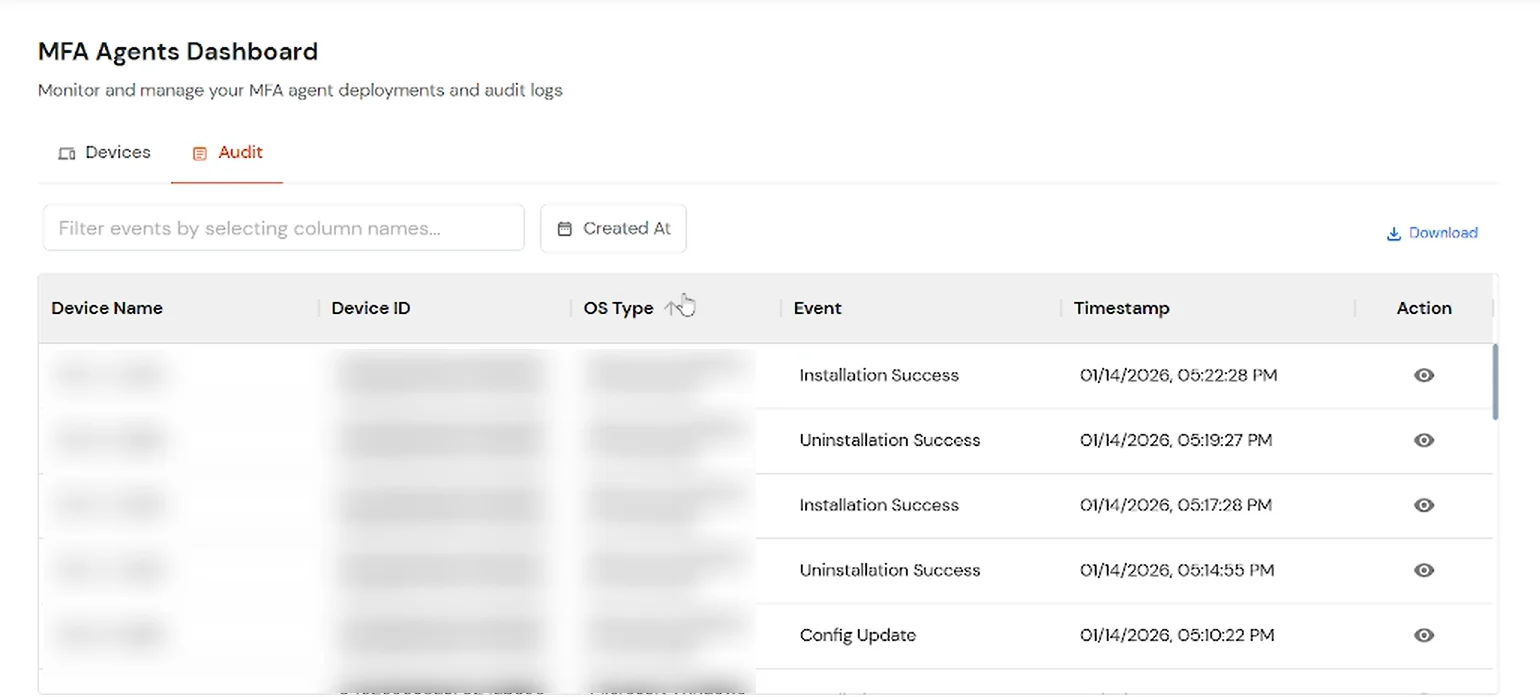
View Device Audit details
- Locate the device in the audit table. In the Action column, click the eye icon to open the Event Details panel.
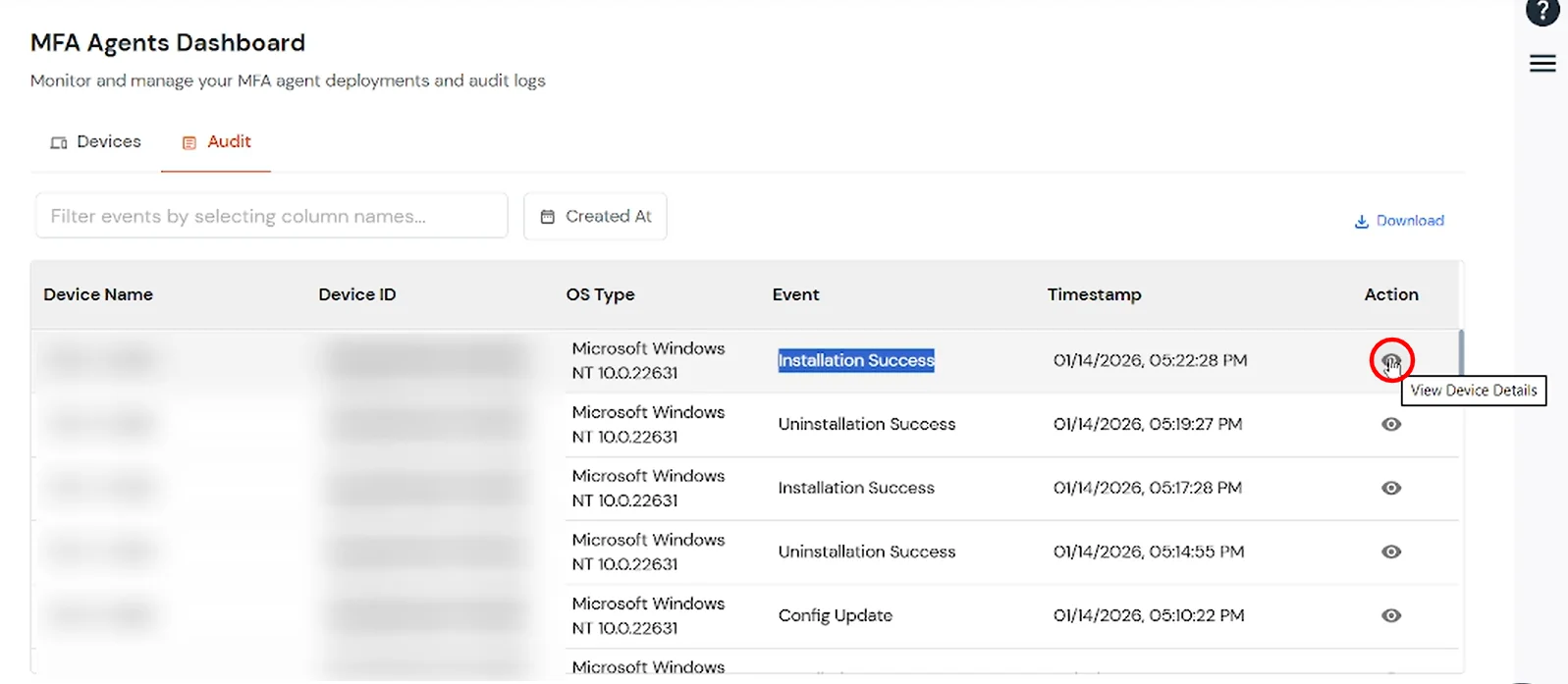
- The panel displays a summary of the selected event, including Event type, Device name, Time, Operating System, OS Version, and Agent Version at the time of the event.
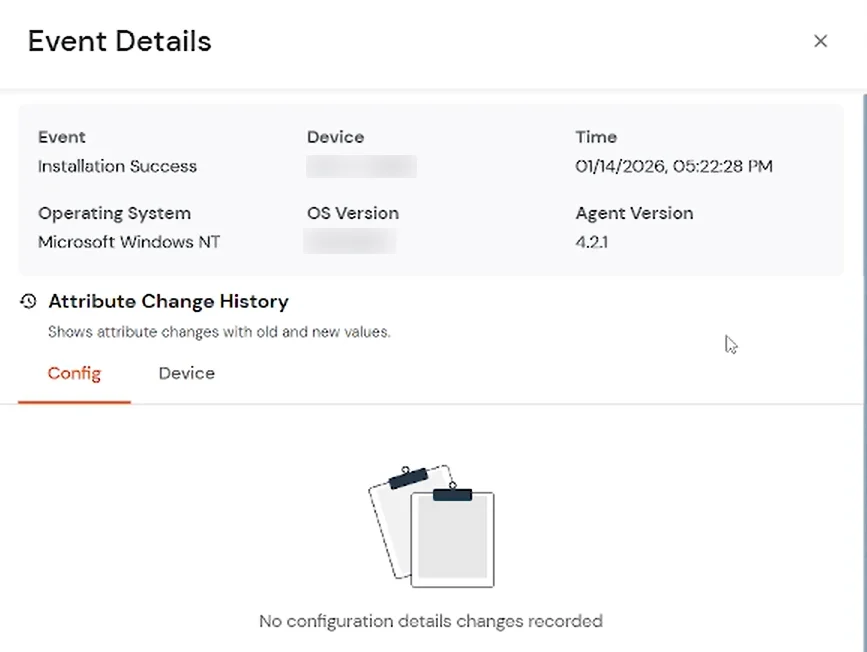
- Under Attribute Change History, review attribute changes with old and new values. The section has two tabs:
| Config |
Lists configuration attribute changes recorded for the event. |
| Device |
Lists device attribute changes recorded for the event. |
- Click X in the top-right corner to close the panel.
Filter audit events
Use the filter box to narrow the event list, set a Created At date range, and combine multiple filters as needed.
- In the filter box, search for Filter events by selecting column names and select a column from the dropdown. Applied filters appear as chips below the filter box. Use the and dropdown between chips to change how multiple filters are combined.
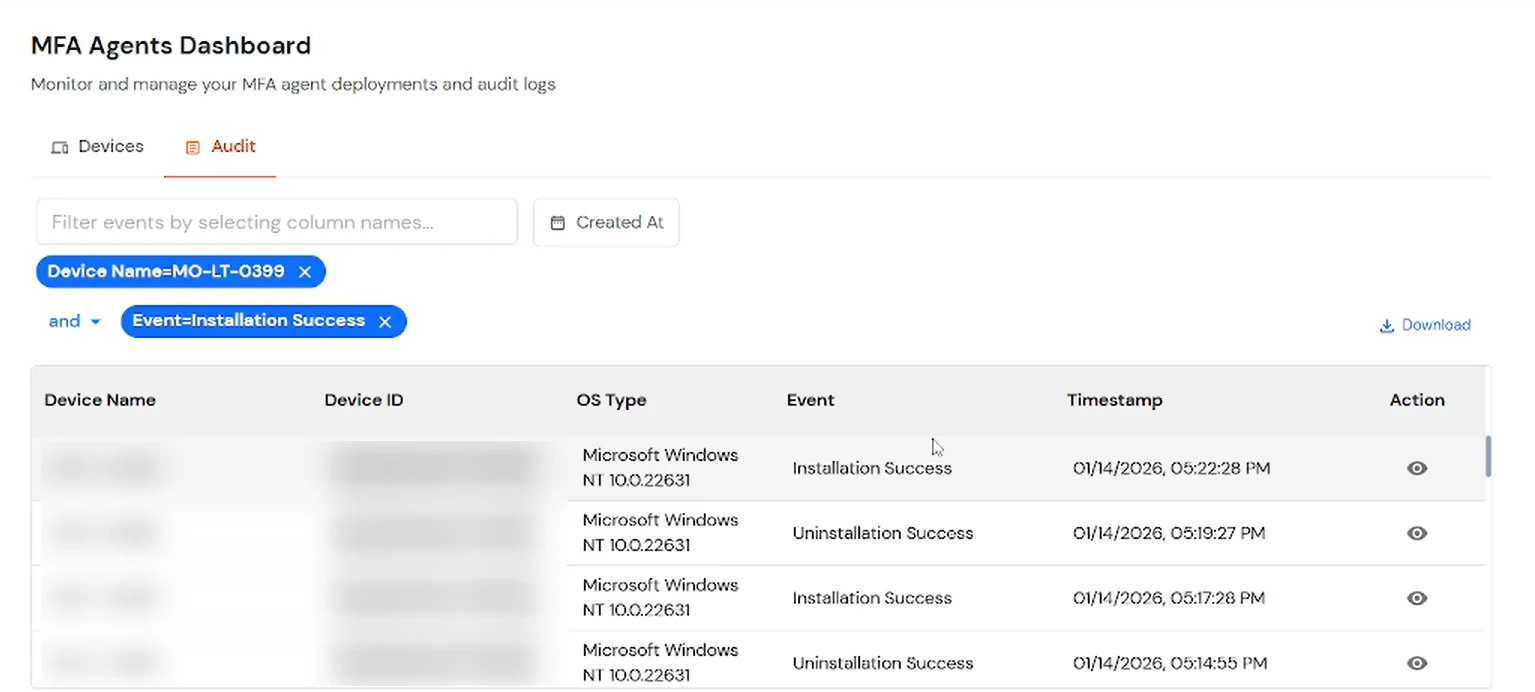
- Click Created At, select a From and To date range, and click Apply.
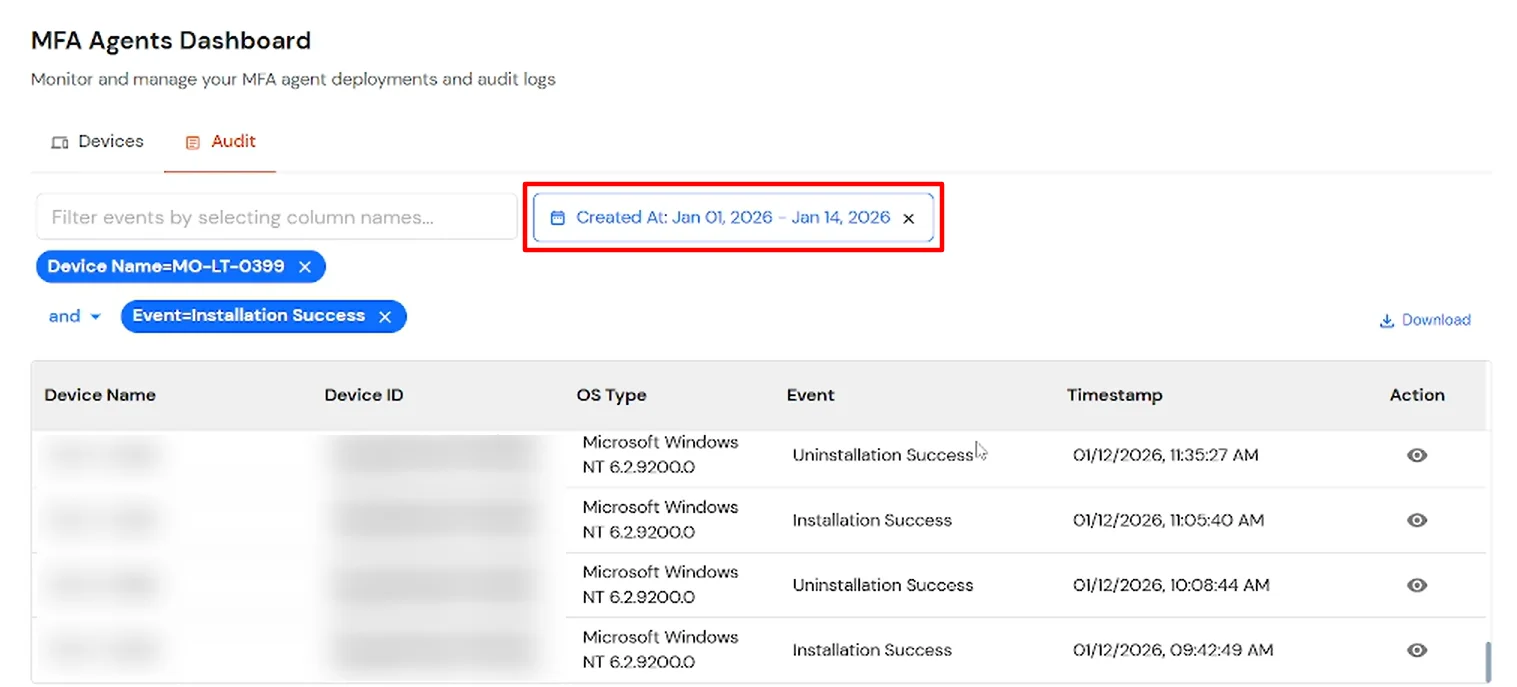
Export audit events
Use the Download link to export audit data as PDF or CSV for compliance review or offline analysis.
- Click the Download link to open the export dialog. Choose PDF or CSV, then select an export scope:
- Visible Rows — export only the rows currently visible in the table based on your active page and filters.
- Date Range — export all data within a specific date range. Select From and To dates in the date dialog.
- Applied Filters — export data matching all active filters, including column filters and the date range. Select a date range to further refine the results.
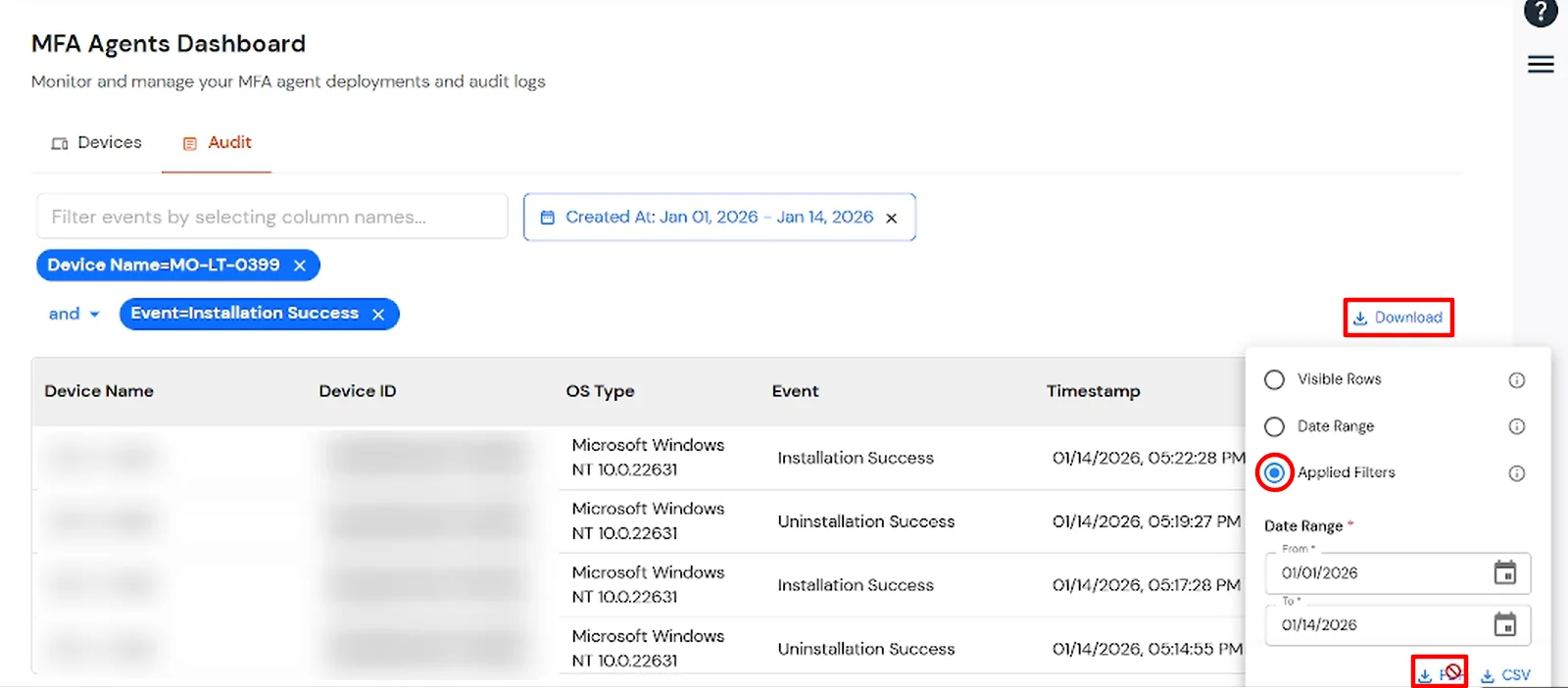
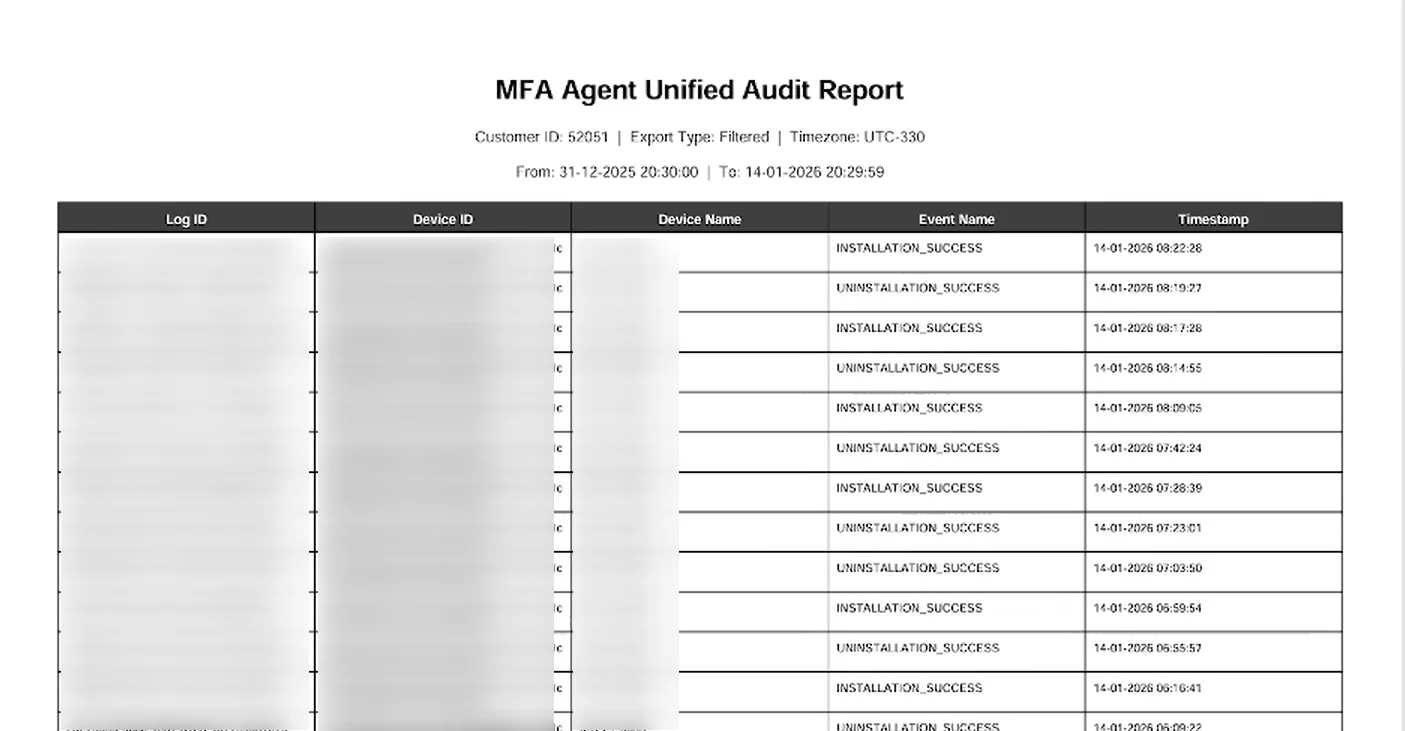
- The exported report is titled MFA Agent Unified Audit Report. It includes metadata such as Customer ID, Export Type, Timezone, and Date Range, along with a table of audit entries (Log ID, Device ID, Device Name, Event Name, and Timestamp) for the selected scope.