Hello there!
Need Help? We are right here!

Need Help? We are right here!
Search Results:
×It's crucial to provide Alternate authentication options when users forget their phone settings or lose access to their primary 2FA method.
To configure an alternate login method, follow the below steps:
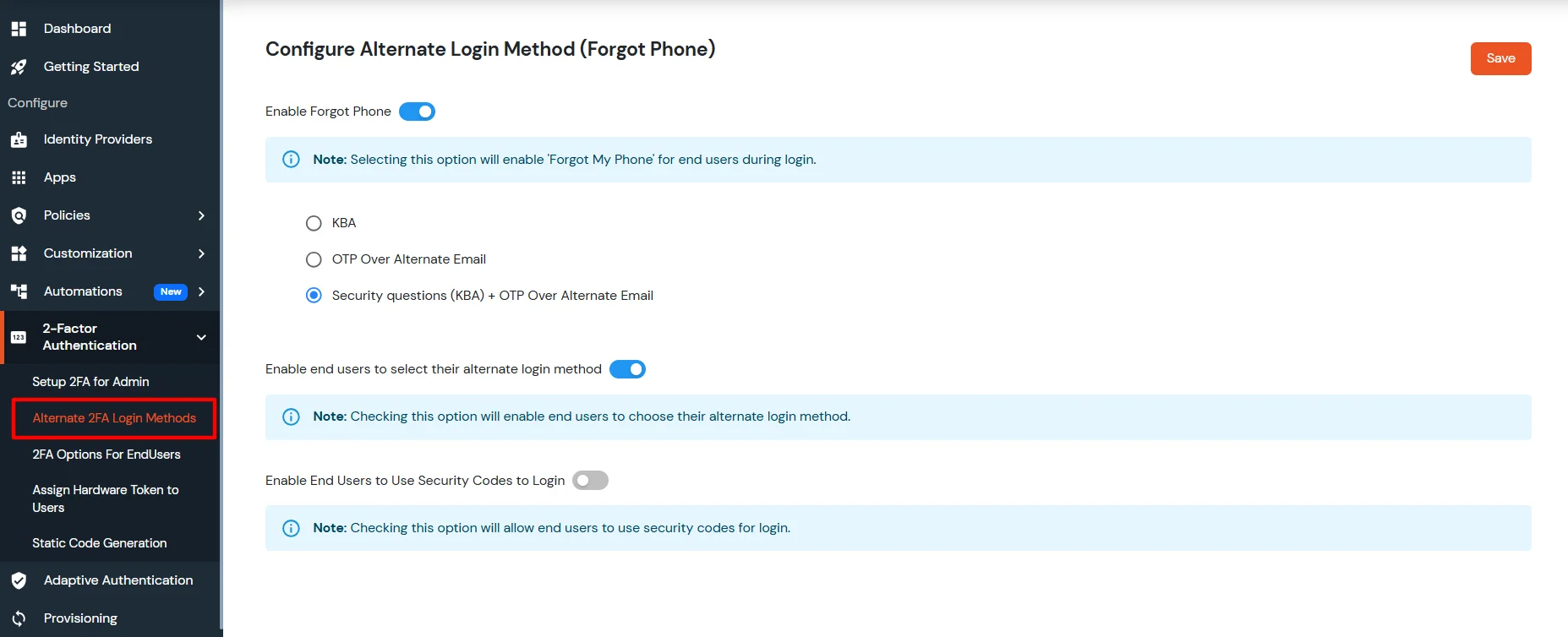
Note: Checking this option will enable Forgot My Phone for end users during Login.
Please use this configuration cautiously since it can be misused by fraudsters to bypass your desired authentication.
| Option | Description |
|---|---|
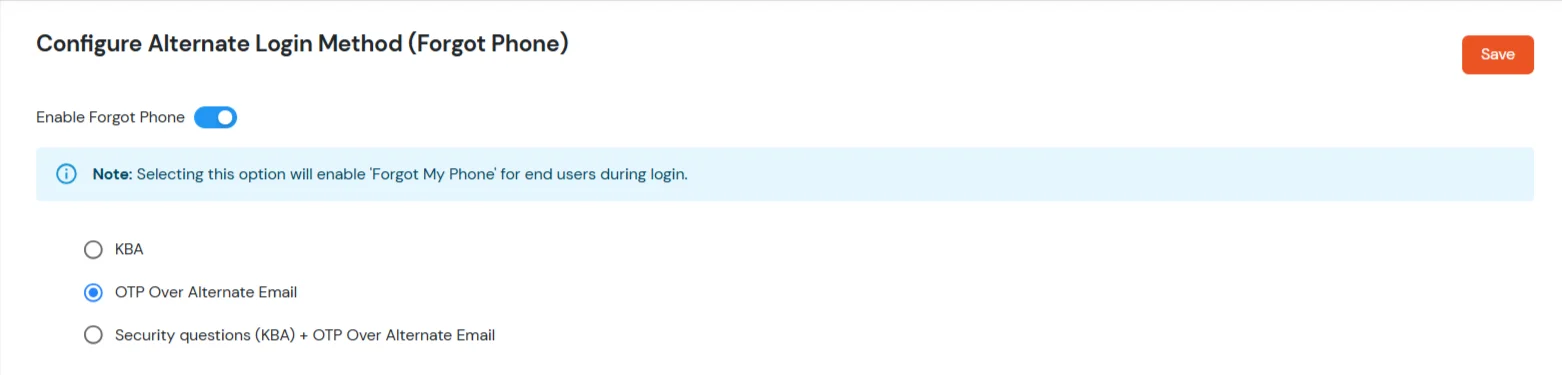
| Security Questions (KBA) | Select this option so users who use Forgot My Phone can prove their identity by answering their configured knowledge-based authentication (KBA) security questions. |
| Security Questions (KBA) + OTP Over Alternate Email | Select this option for a stronger flow. Users complete KBA and must also enter a one-time password (OTP) sent to their alternate email address. |
| OTP Over Alternate Email | Select this option so users receive a one-time password on their alternate email only, without a separate KBA step. |

[To be released soon.]
| Option | Description |
|---|---|
| Allow Static Long Lived Codes | Select this option to enable static long-lived security codes. These codes do not have a time-based validity after which they expire on their own. If an end user uses a given code once for a successful login, that code expires, so each code is limited to a single login. |
| Allow One-Time Backup Code | Select this option to enable one-time backup codes. Administrators can generate a secure backup code for a user when their primary 2FA method is unavailable. Each generated code can be used only once for login or recovery. |
| Allow Both Codes Types | Select this option to enable both static long-lived codes (reusable until you replace or revoke them) and one-time backup codes (admin-generated, single-use when primary 2FA is unavailable). |
Note: If you enable both code types, the user can use either static long-lived codes or one-time backup codes for login. However, once a code is used, it expires and cannot be used again.

