Hello there!

Need Help? We are right here!

Support Icon
miniOrange Email Support
success

Thanks for your Enquiry. Our team will soon reach out to you.

If you don't hear from us within 24 hours, please feel free to send a follow-up email to info@xecurify.com

Search Results:

×

Reset MFA for Multiple Users


The Bulk Reset MFA action lets you reset the MFA configuration of multiple users in a single step from the User List. After the reset, each selected user is prompted to set up MFA again the next time they log in. Use it when users lose or replace their devices, when you need to move users to a different MFA method, or when you want to re-enroll a group of users at once.
Steps to reset MFA for multiple users

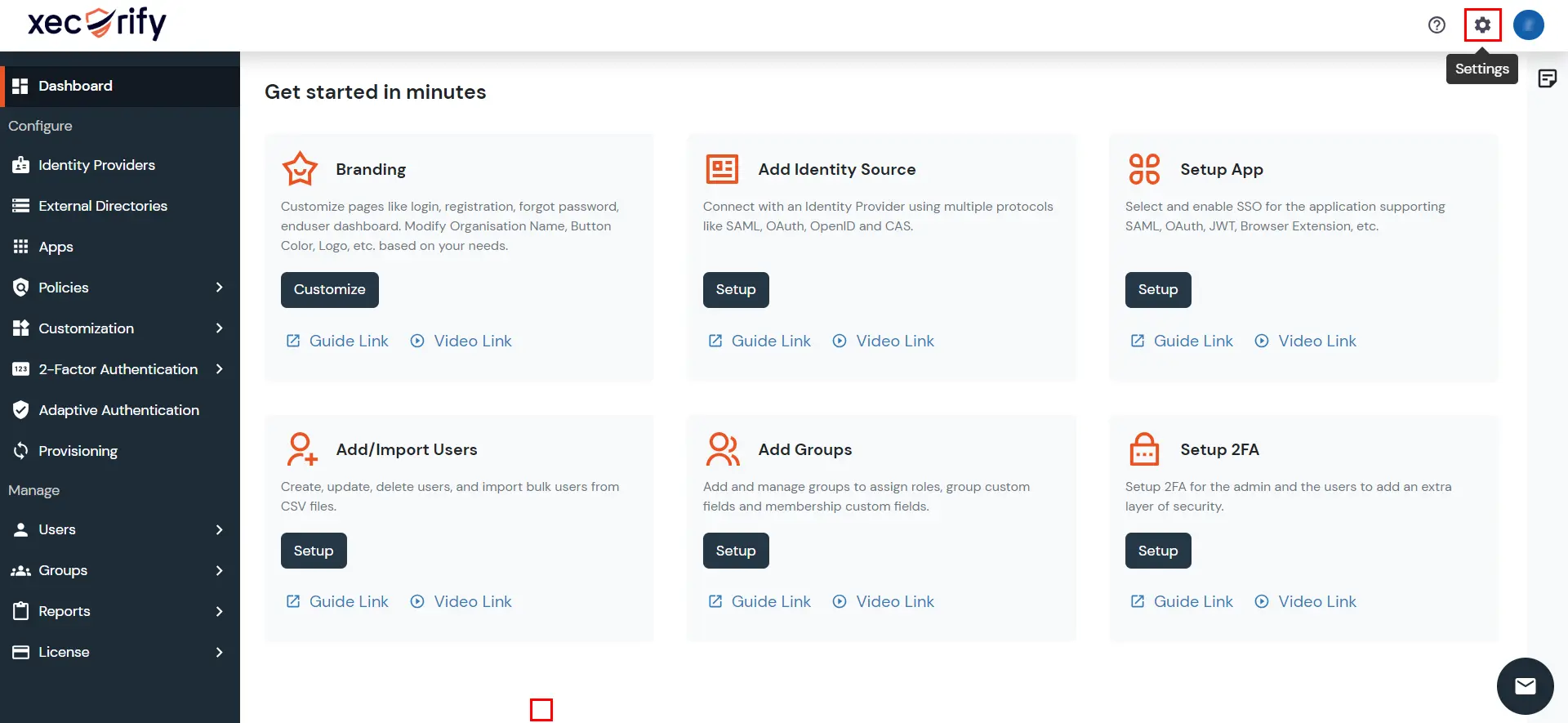
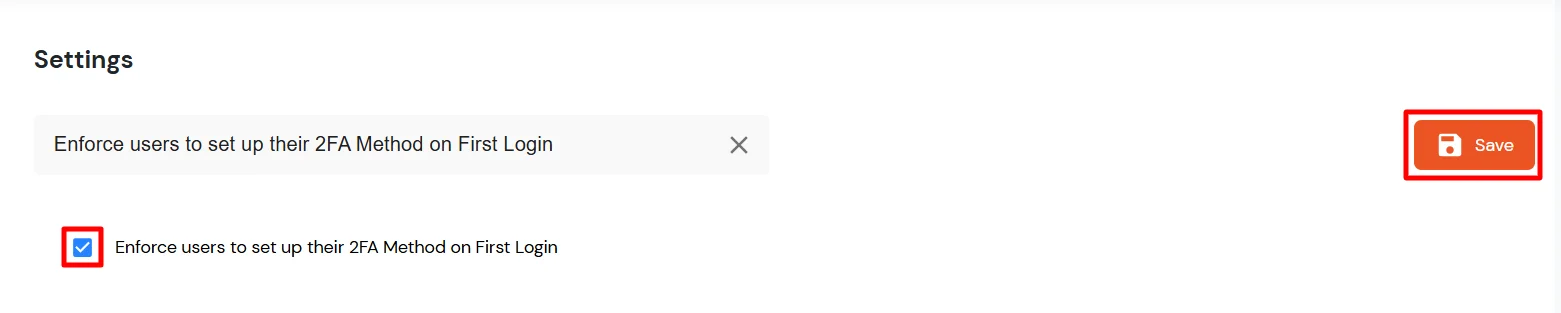
  • Go to Product Settings, search for Enforce users to set up their 2FA Method on First Login, select the checkbox, and click Save.
  • miniOrange Identity Platform Admin Handbook: Open Product Settings from the admin dashboard

    miniOrange Identity Platform Admin Handbook: Enable Enforce users to set up their 2FA Method on First Login and click Save

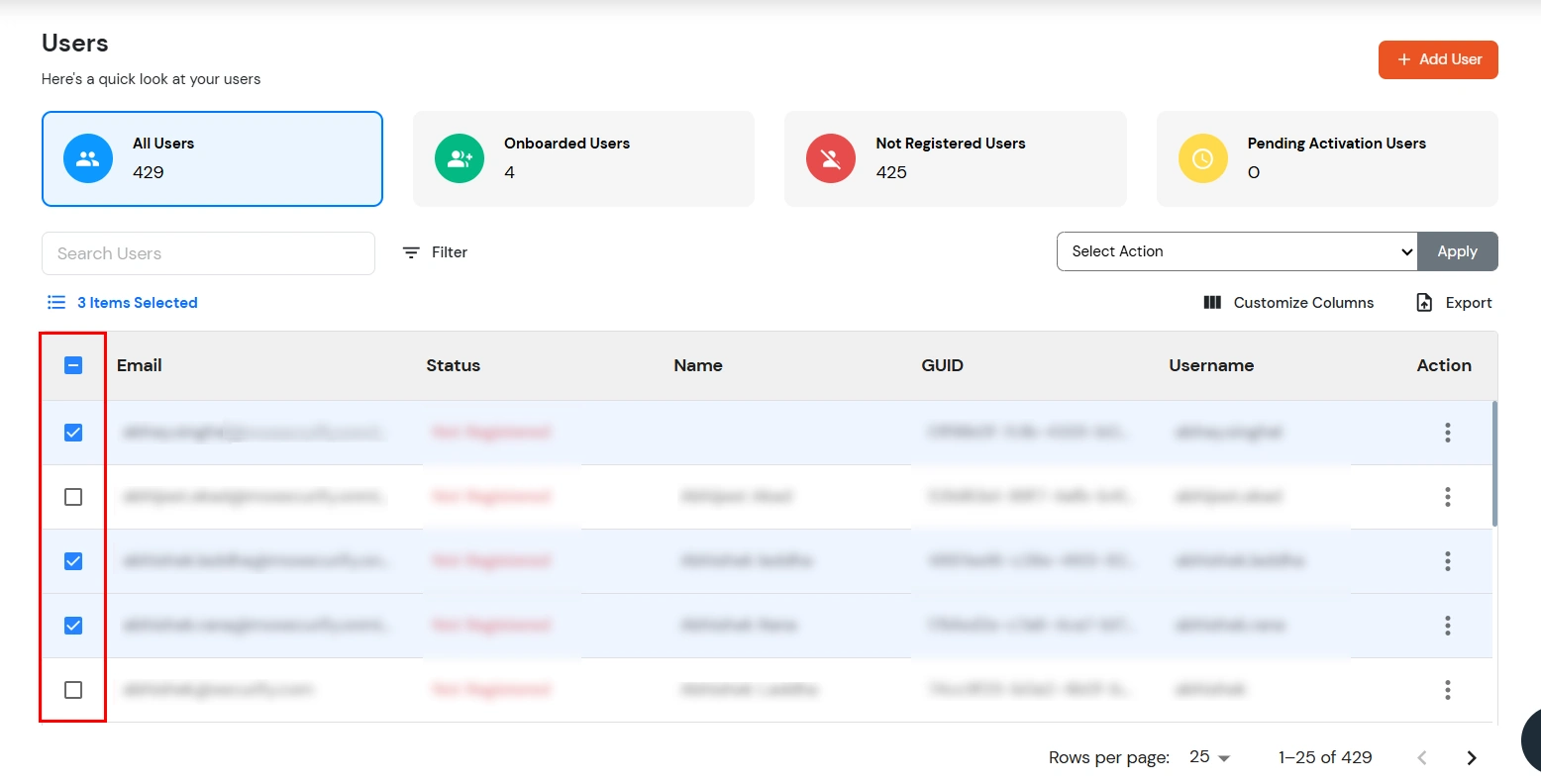
  • Go to Users >> User List from the left menu and select the checkbox next to each user whose MFA you want to reset. To select every user on the page, select the checkbox in the table header. The number of selected users is shown above the table.
  • miniOrange Identity Platform Admin Handbook: Go to Users, and scroll to User List

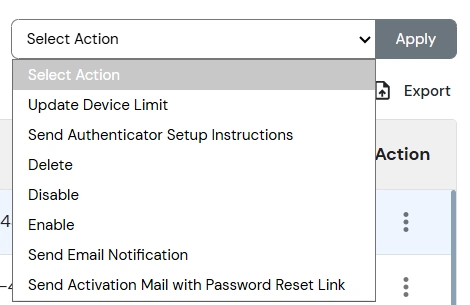
  • Open the Select Action dropdown at the top right of the table, select Reset MFA, and click Apply.
  • miniOrange Identity Platform Admin Handbook: Click Bulk Actions, and select Reset MFA

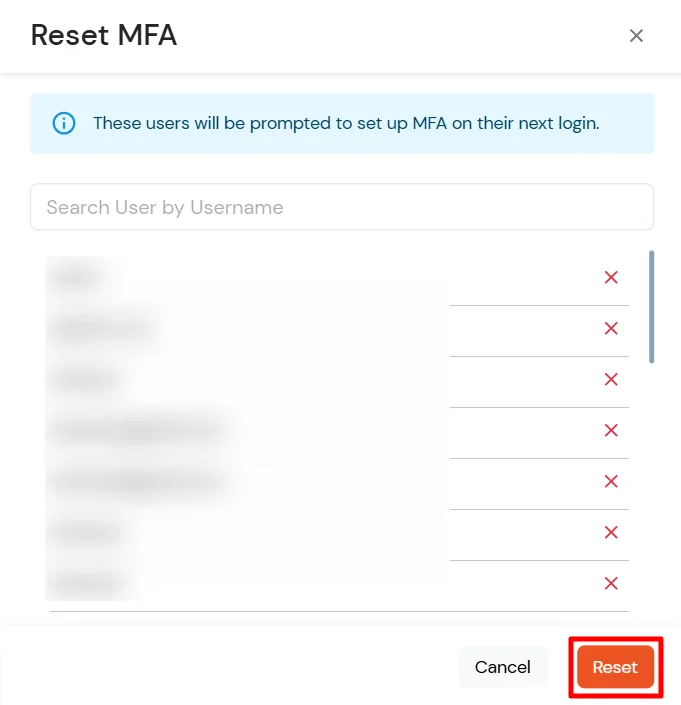
  • The Reset MFA popup lists the users you selected and notes that they will be prompted to set up MFA on their next login. Review the list before continuing:
    • To find a user in the list, use Search User by Username.
    • To exclude a user, click the red X next to their username.
    • To go back without changes, click Cancel.
    • Click Reset to reset MFA for the selected users. A notification confirms that MFA was reset successfully for the specified users.
    miniOrange Identity Platform Admin Handbook: Review the users and click Reset MFA to proceed

What users see after the reset

On their next login, users are redirected to the User Registration page, which lists the available MFA methods. The user selects and configures any one of them. Only one method can be configured during enrollment; users can add more methods later from the user self-service portal.
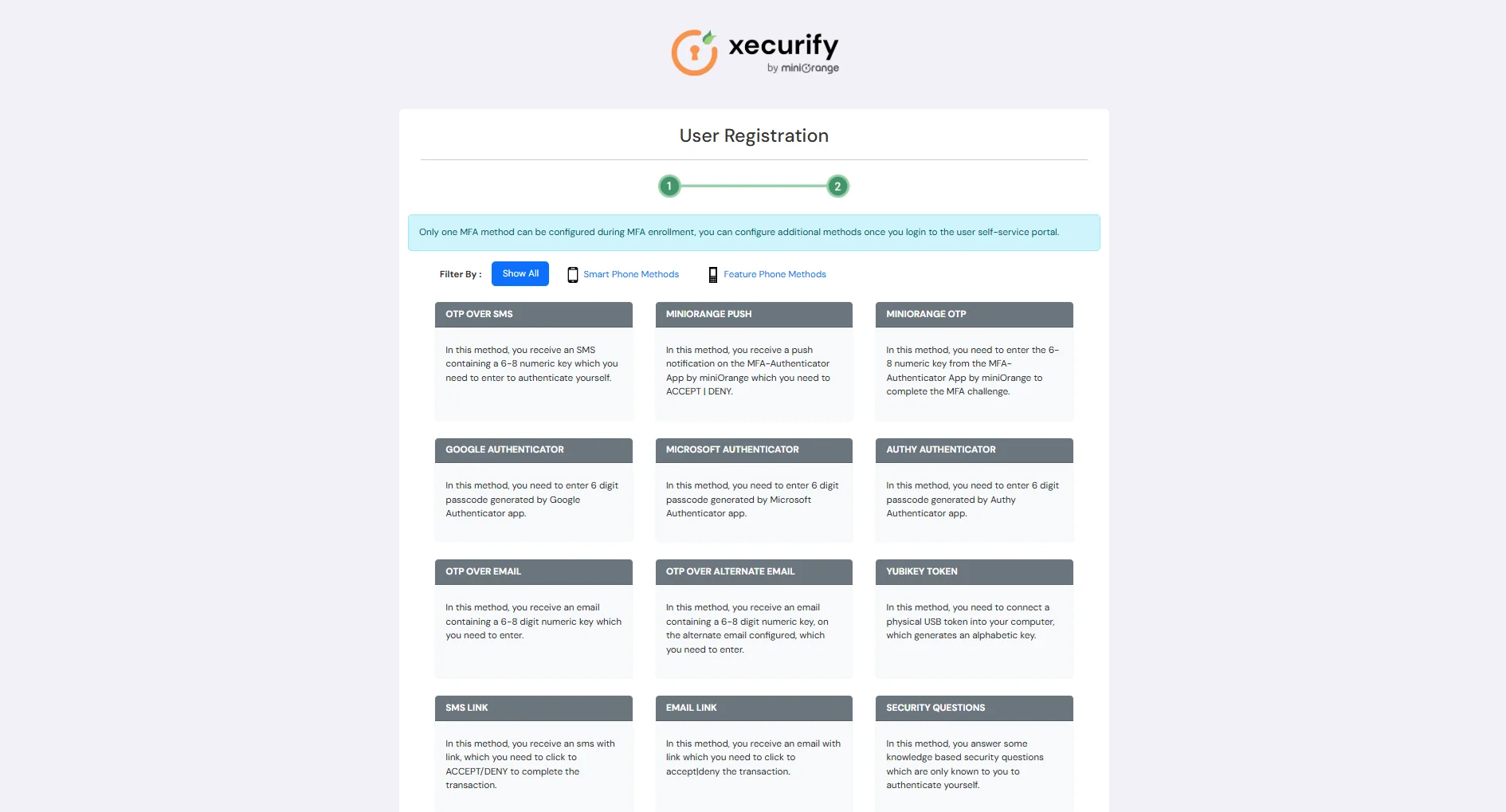
miniOrange Identity Platform Admin Handbook: User Registration page


Note: Bulk Reset MFA only clears the users' existing MFA configuration. It does not delete the users or change their other settings. Users must complete MFA setup on their next login before they can access their applications.