Trusted Devices
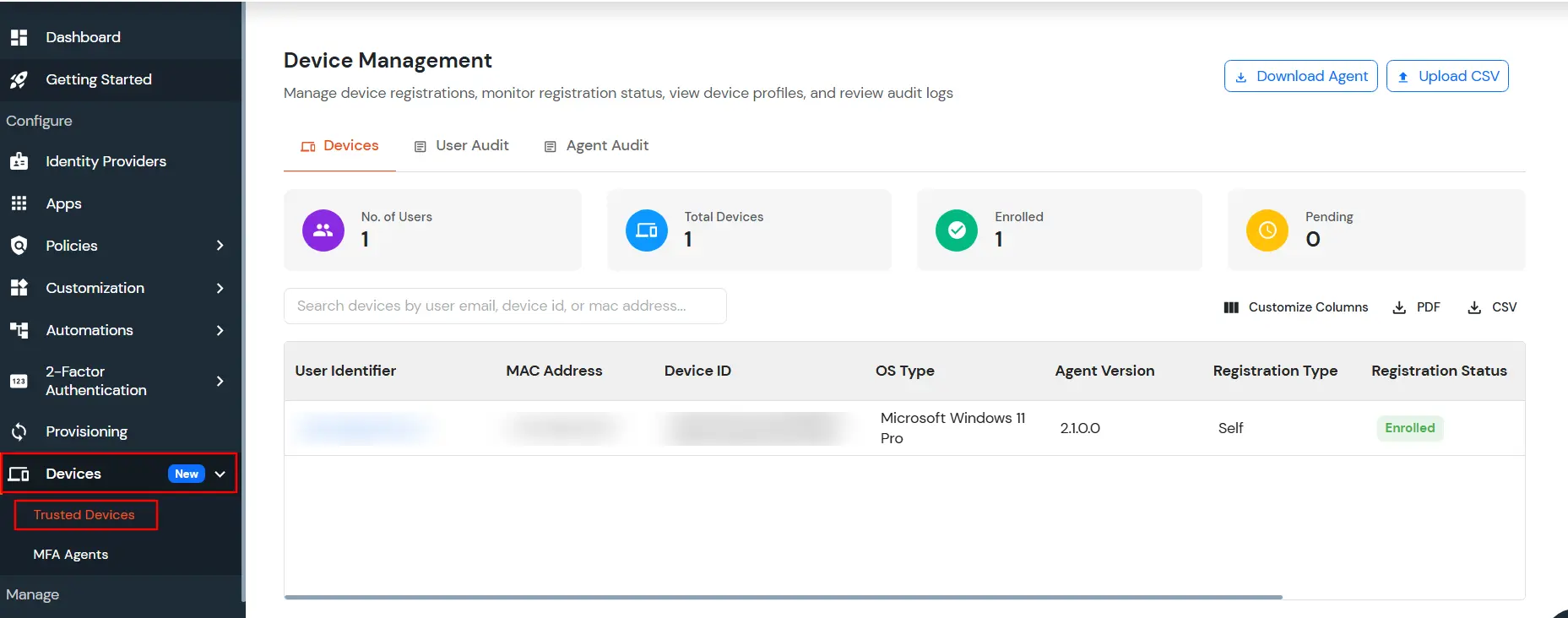
The Trusted Devices page helps administrators manage device registrations and monitor trusted devices associated with users. Administrators can download the Device Attributes Agent, upload pre-approved device data, review device registration details, and monitor user and agent audit activity from a single dashboard.
- Sign in to the miniOrange Admin Console.
- In the left sidebar, open Devices >> Trusted Devices.
- The Trusted Devices page will open, showing registered devices and options to manage device data and audit activity.
Download the Device Attributes Agent
The Device Attributes Agent collects device information required for device registration and trusted-device management. Use the Download Agent option to obtain the agent for a supported operating system.
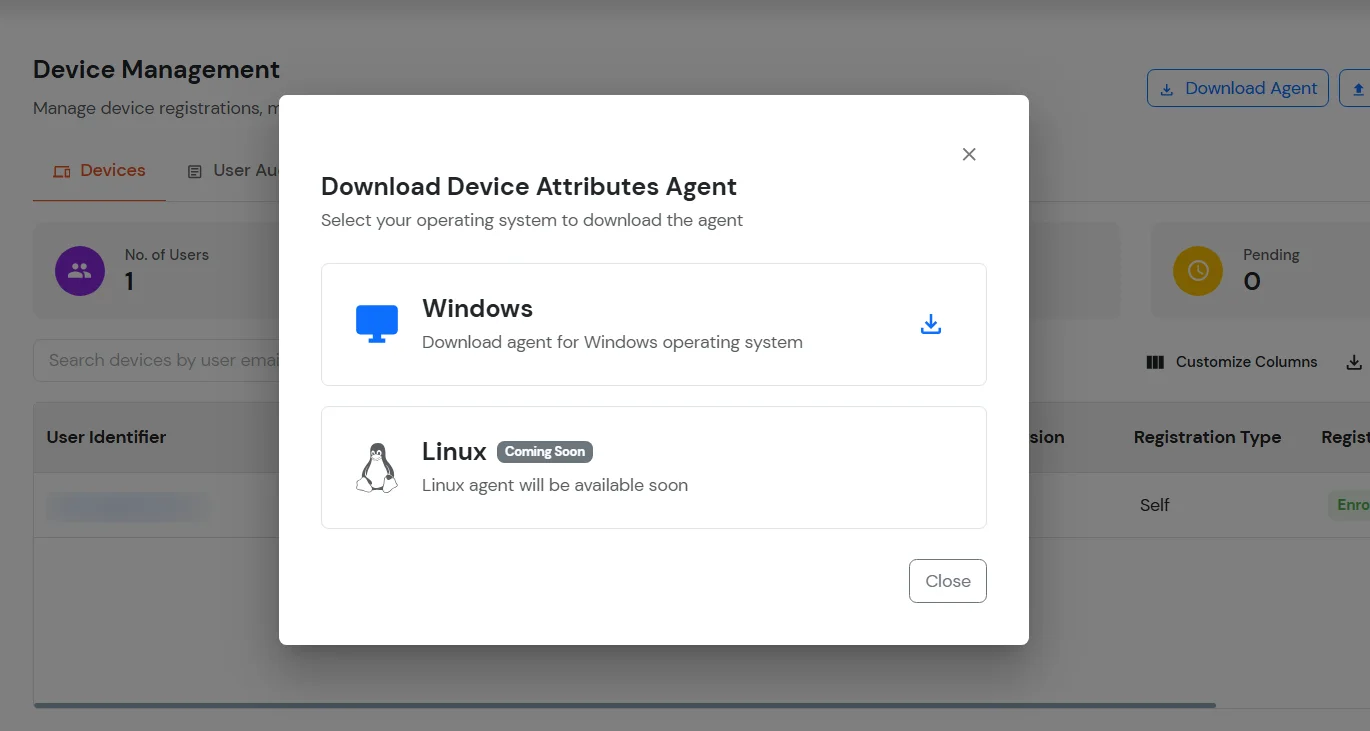
- Click Download Agent.
- In the Download Device Attributes Agent window, select the operating system for the device.
- For Windows, click the download icon to download the agent.
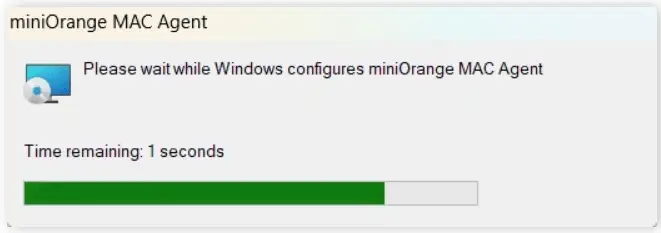
- The ZIP file is downloaded to your system. Extract the downloaded ZIP file and install the agent.
Upload pre-approved device data
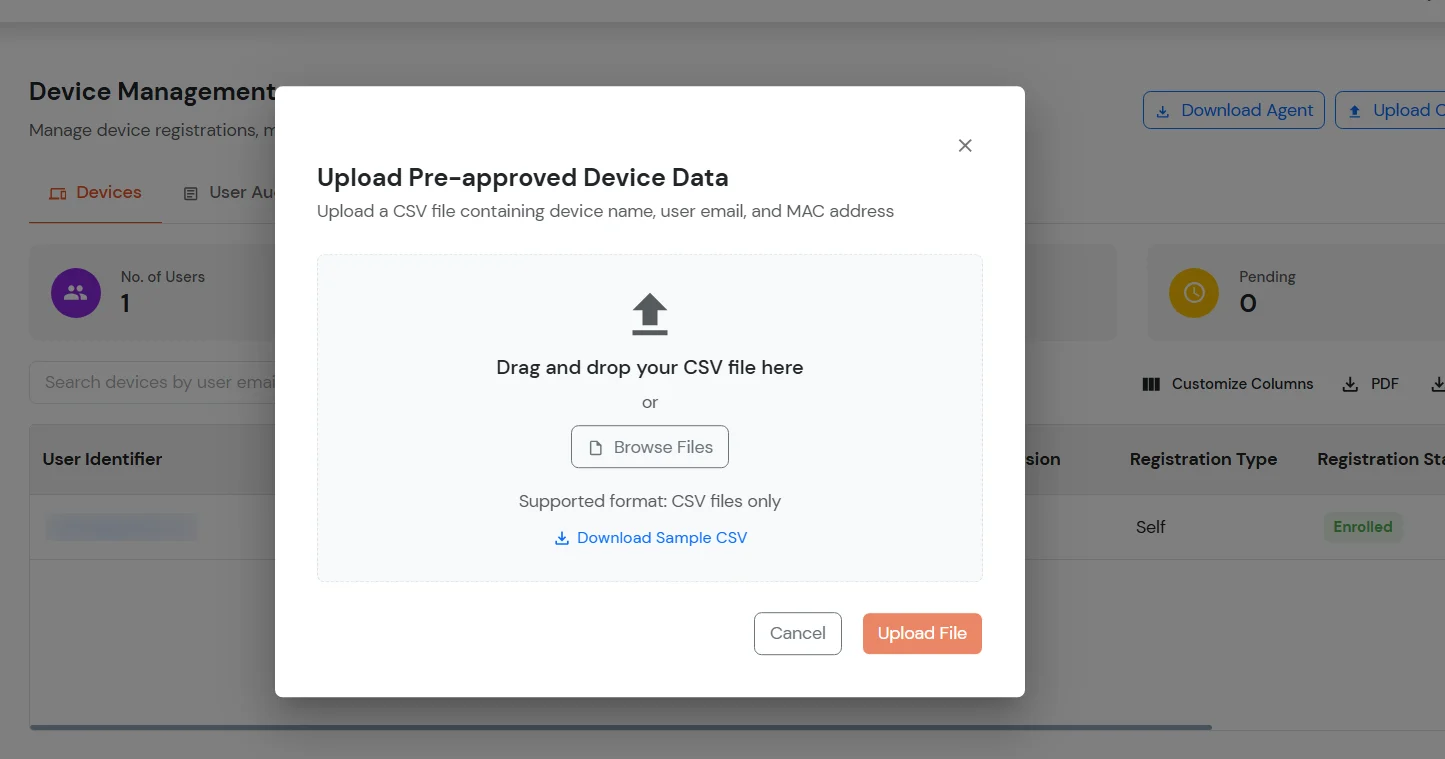
Use the Upload CSV option to add pre-approved devices in bulk. The CSV file must contain the device name, user email, and MAC address for the devices being pre-approved.
- Click Upload CSV.
- In the Upload Pre-approved Device Data window, drag and drop the CSV file or click Browse Files to select it.
- Use Download Sample CSV if you need the expected file format.
- Ensure that the file is in CSV format. Other file formats are not supported.
- Click Upload File to upload the device data.
1. Devices tab
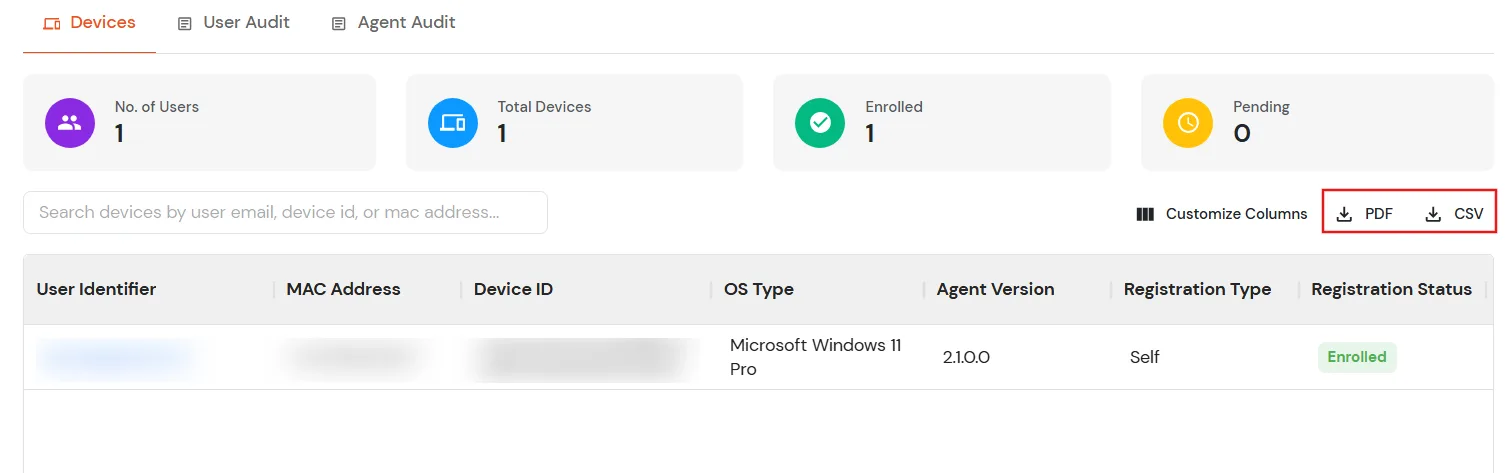
The Devices tab lists the devices registered with your tenant. You can review the summary cards to see the number of users, total devices, enrolled devices, and pending devices.
- Use the search field to find a device by user email, Device ID, or MAC address.
- Review the device table for details such as User Identifier, MAC Address, Device ID, OS Type, Agent Version, Registration Type, and Registration Status.
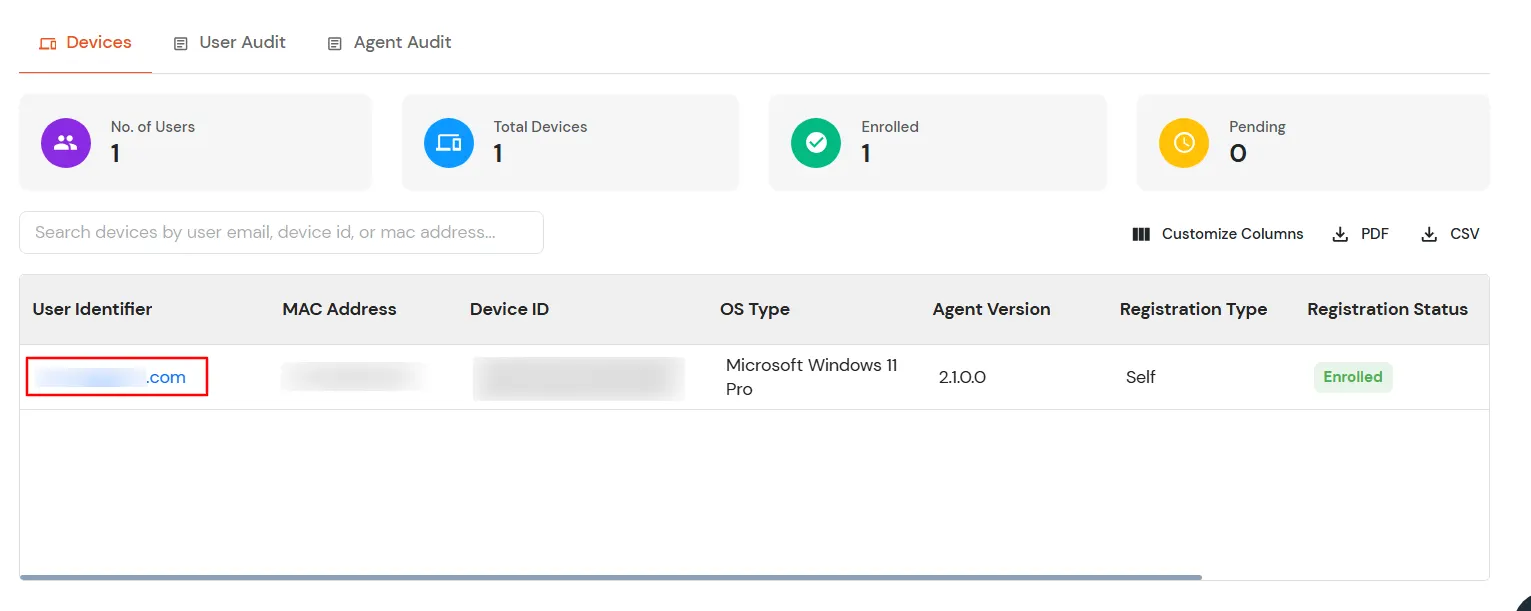
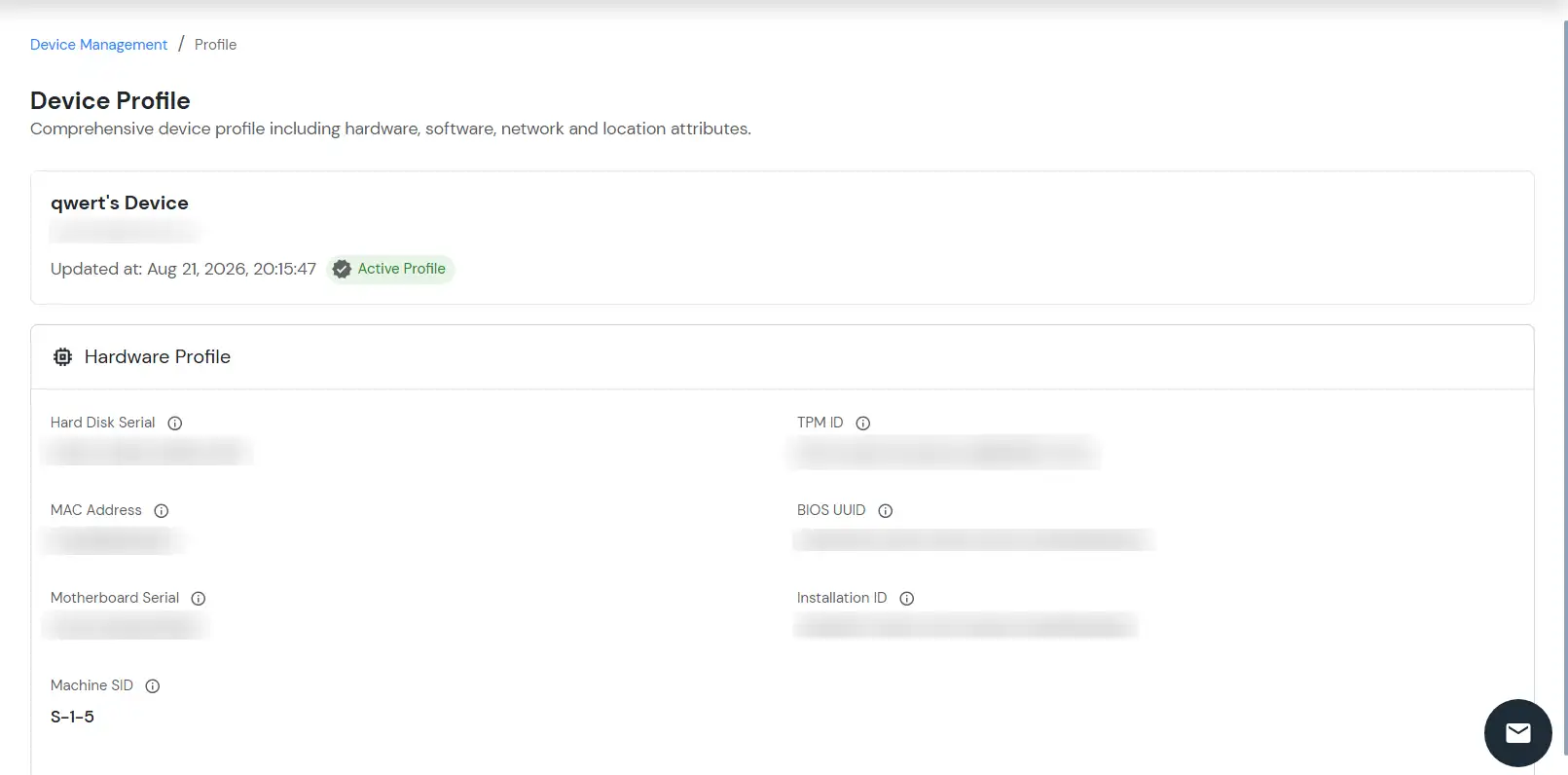
- Click the User Identifier to view the device information associated with that user, where applicable.
- Click Customize Columns to search, select, or clear optional columns. Click Submit to save your preferences, Default to restore the default column selection, or Cancel to discard changes.
- Use the PDF or CSV export option to download the displayed device data for offline review or reporting.

Device actions
Use the Actions menu for a device to quickly open audit information related to that device or remove the device record.
- Locate the required device and open its Actions menu.
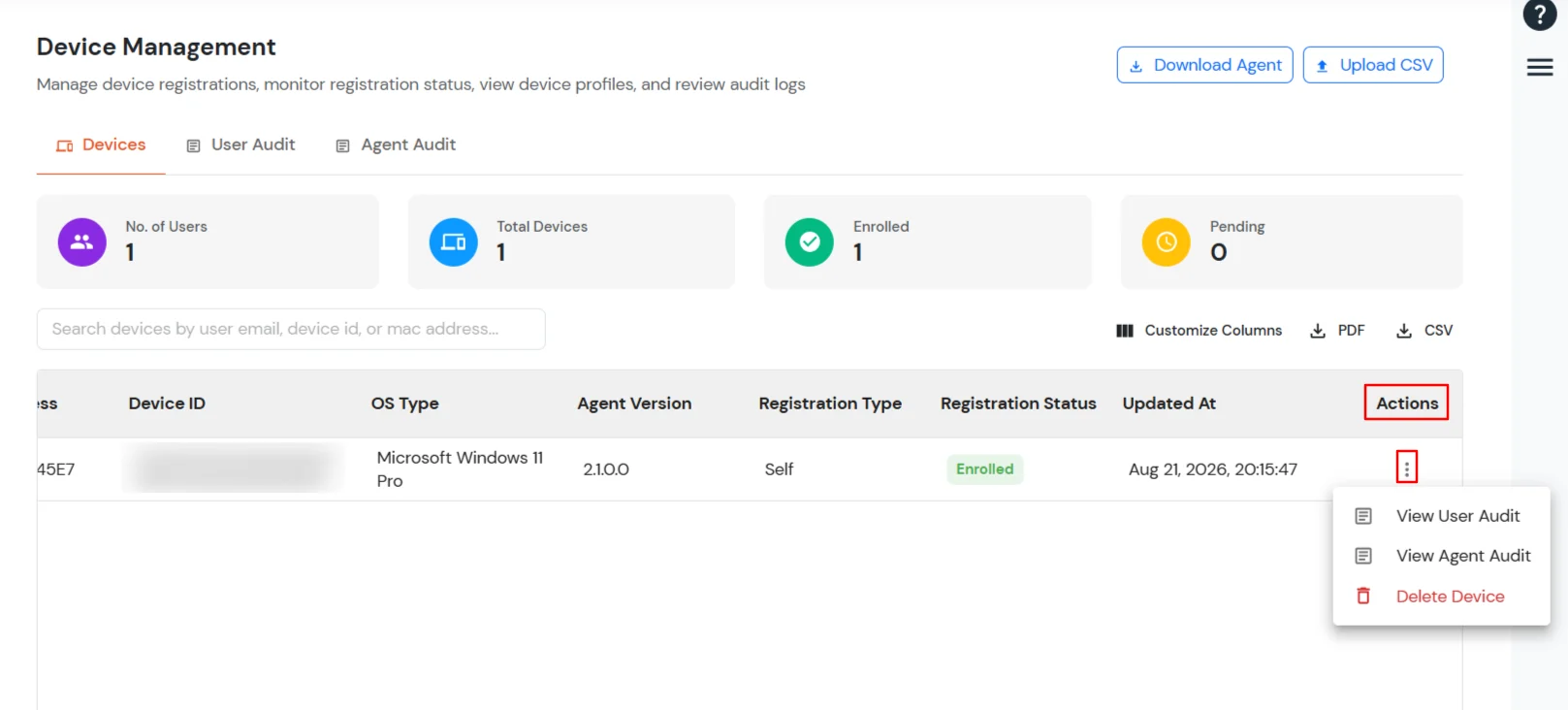
- Select View User Audit to switch to the User Audit tab and filter the audit results for the selected device.
- Select View Agent Audit to switch to the Agent Audit tab and display the agent audit log for the selected device.
- Select Delete Device only when you intend to remove the device record. Confirm the action if prompted.
2. User Audit tab
The User Audit tab is used to review audit activity associated with users. Use the available filter and search controls to narrow the displayed records and locate activity for a specific user or device.
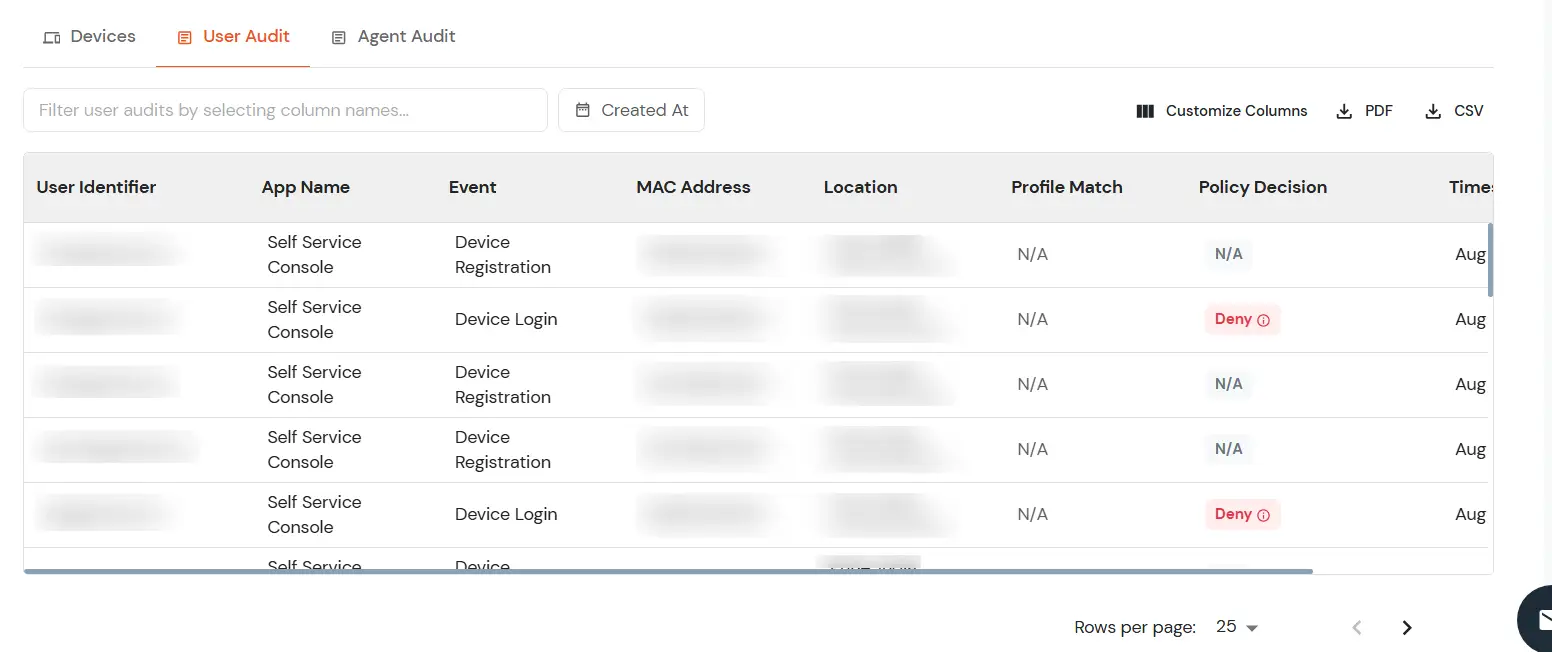
- Use the filter box to search for audit records by selecting the required column.
- Use the Created At filter to specify a From and To date range.
- Click Apply to display records within the selected date range.
- Click Customize Columns to search, select, or clear optional columns. Click Submit to save your preferences, Default to restore the default column selection, or Cancel to discard changes.
- Use the PDF or CSV export option to download the displayed User Audit data for offline review or reporting.
- When User Audit is opened through a device's View User Audit action, the audit results are filtered for that device.
3. Agent Audit tab
The Agent Audit tab displays audit events generated by the device agent. Use it to review agent-related activity, including installation, uninstallation, and upgrade events, along with the associated device and timestamp.
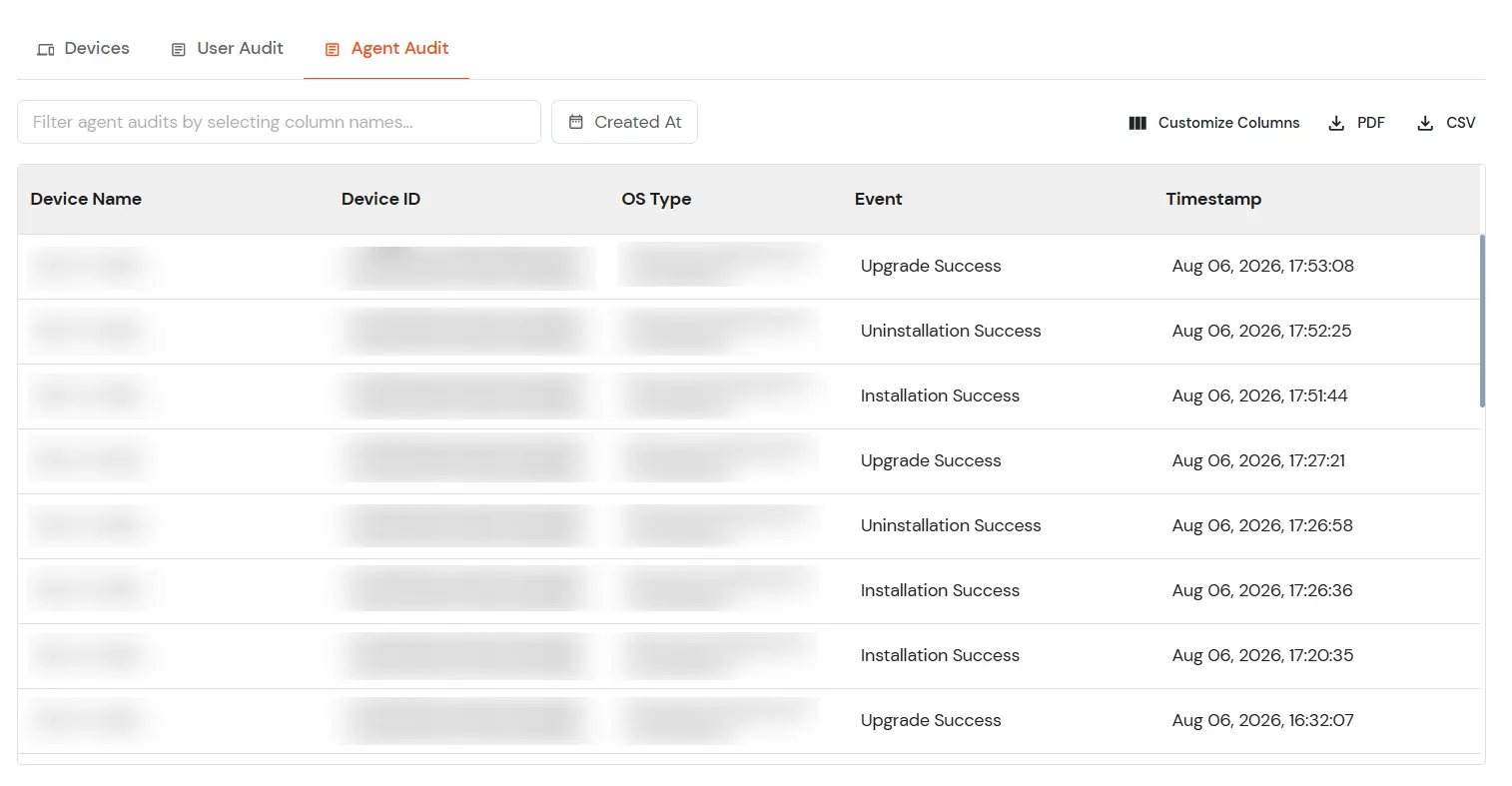
- Use the filter/search controls to narrow the displayed audit records.
- Select a column from the filter dropdown to search for records based on that field.
- Use Created At to filter records by a From and To date range, then click Apply.
- Click Customize Columns to search, select, or clear optional columns. Click Submit to save your preferences, Default to restore the default column selection, or Cancel to discard changes.
- Use the PDF or CSV export option to download the displayed Agent Audit data for offline analysis or reporting.
- When Agent Audit is opened through a device's View Agent Audit action, the audit log is filtered for that device.
Customize Columns
The Customize Columns feature is available across the Devices and audit views. It allows you to select the optional columns displayed in each table. Required columns remain selected and cannot be disabled.
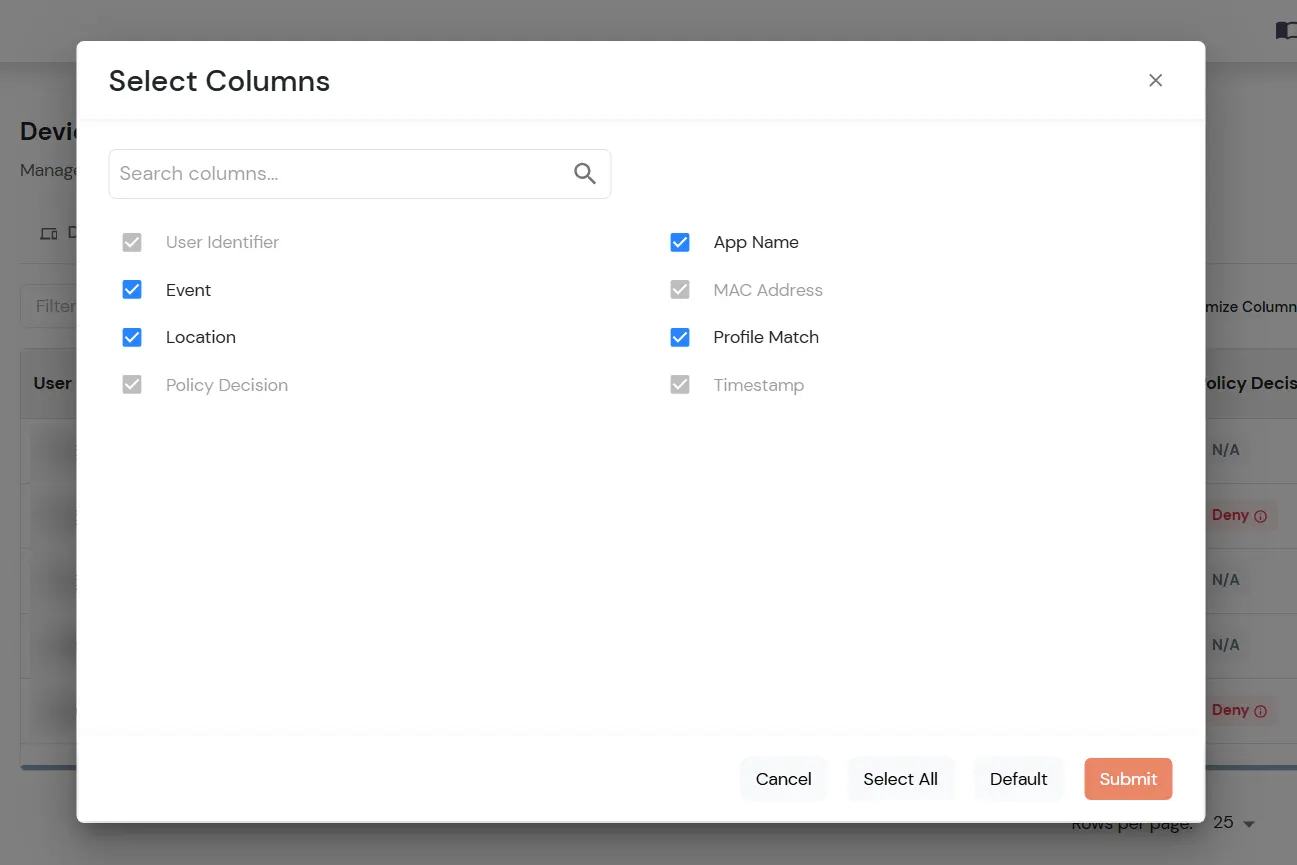
- Click Customize Columns on the required tab.
- Search for a column or select the columns you want to display.
- Required columns are already selected and disabled and cannot be cleared.
- Click Select All to select all available optional columns.
- Click Default to restore the default column selection.
- Click Submit to save your column preferences, or Cancel to close the window without saving.
Export device data
- Click PDF to export the device data as a PDF report.
- Click CSV to export the device data as a CSV file.
- The exported data reflects the columns configured for the current view.