Hello there!

Need Help? We are right here!

Support Icon
miniOrange Email Support
success

Thanks for your Enquiry. Our team will soon reach out to you.

If you don't hear from us within 24 hours, please feel free to send a follow-up email to info@xecurify.com

Search Results:

×

Email Audit Report


The Email Audit Report allows administrators to view and track email activity across the system. It provides information about emails sent from the system, including the recipient, sender, subject, status, and time of the email event.

Administrators can use the report to verify email send attempts, investigate failed emails, and review details associated with a specific email event.
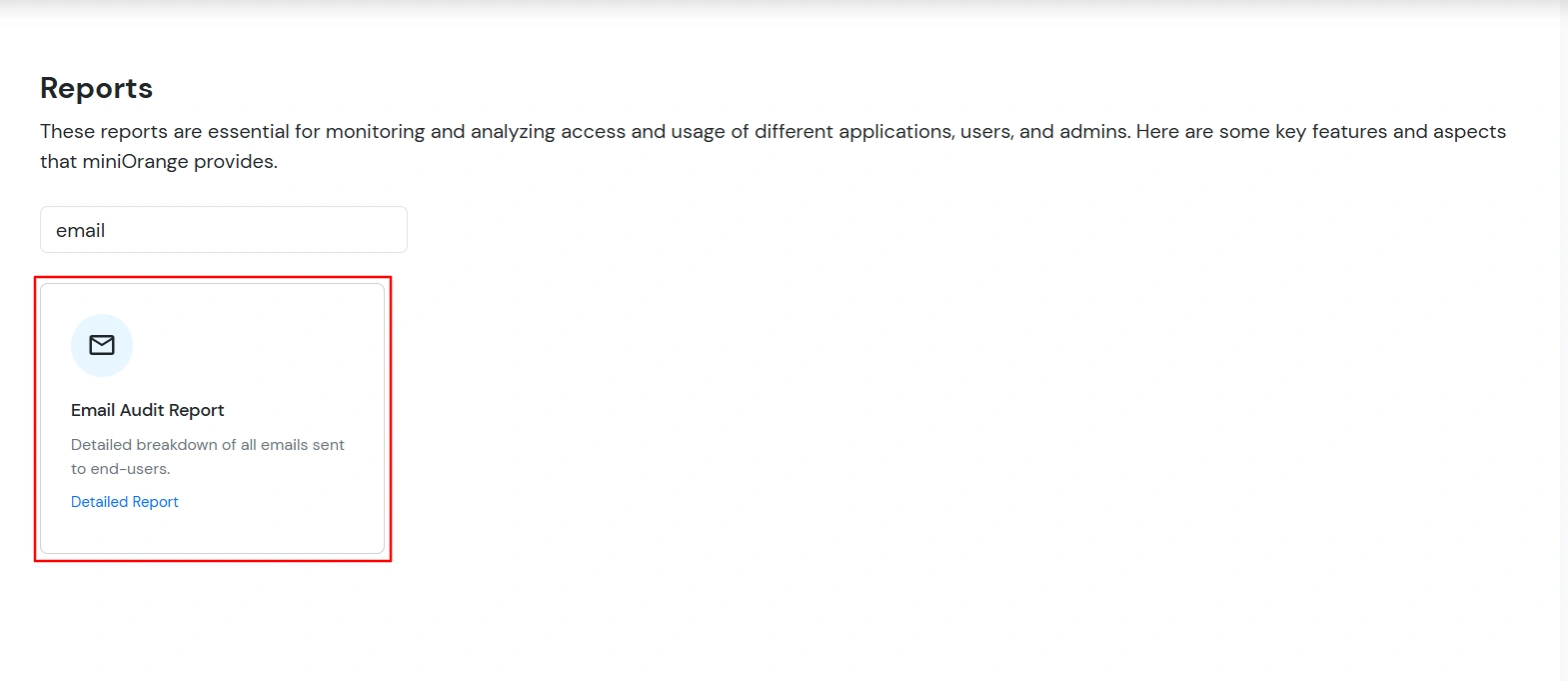
  • Navigate to Reports from the admin dashboard.
  • Search and click Email Audit Report.
miniOrange Identity Platform Admin Handbook: click email audit report

Search and Filter Email Events

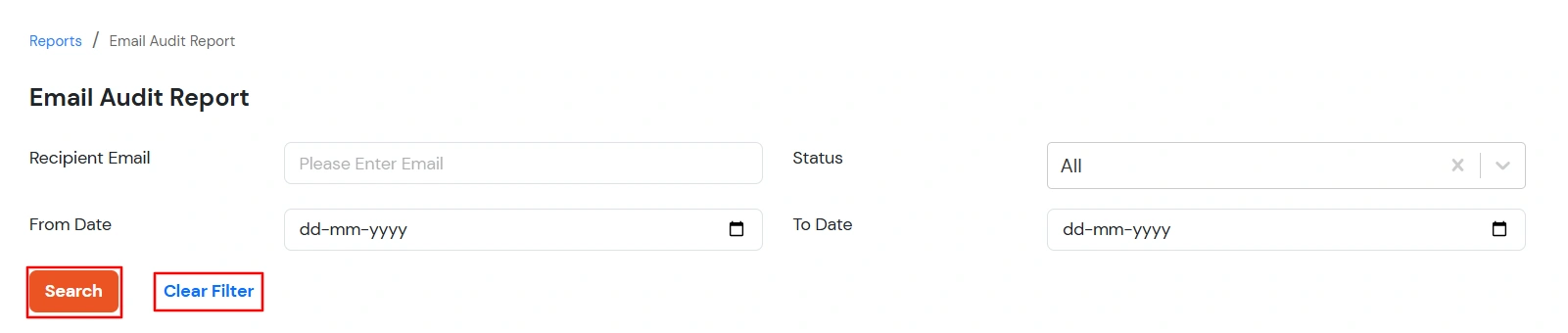
The Email Audit Report provides filters to help administrators find specific email events. You can filter the report using the following options:

Filter Description
Recipient Email Enter a full or partial recipient email address.
Status Select Success, Failed, or All to filter emails based on their send status.
From Date Select the starting date for the report.
To Date Select the ending date for the report.
  • Click Search to apply the selected filters.
  • Click Clear Filter to remove the applied filters and view the available email events again.
  • miniOrange Identity Platform Admin Handbook: email audit report filters

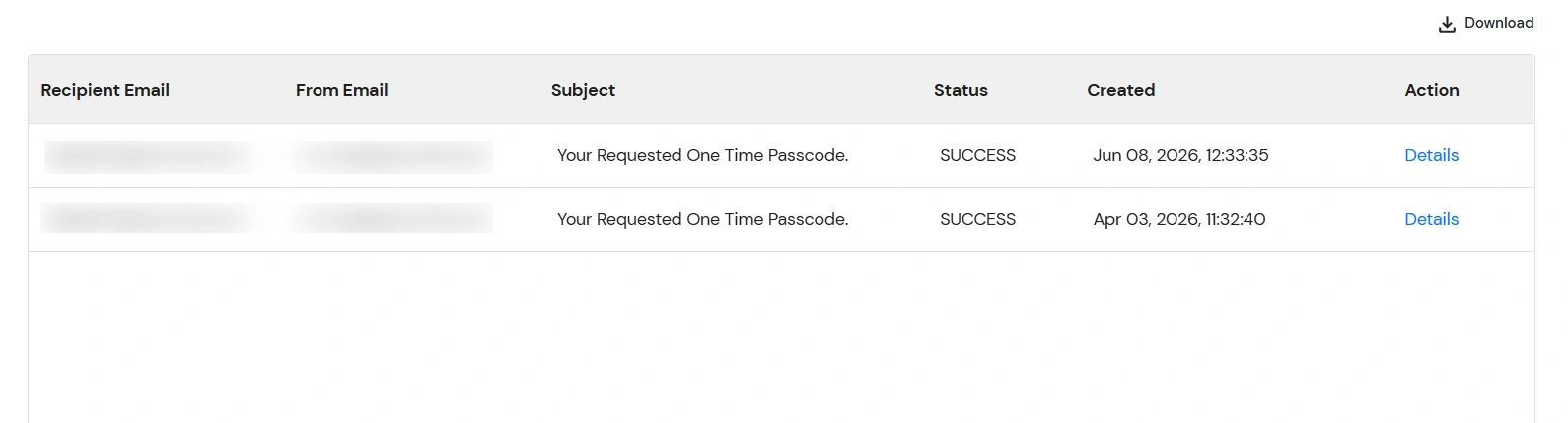
    Each email entry includes the following information:

    Field Description
    Recipient Email Displays the email address to which the email was sent.
    From Email Displays the sender email address used for the email.
    Subject Displays the subject of the email.
    Status Displays the outcome of the email send attempt, such as SUCCESS or FAILED.
    Created Displays the date and time when the email event was recorded.
    Action Provides the Details option to view additional information about the email event.
    miniOrange Identity Platform Admin Handbook: email entry details

  • To export the report, click the Download link at the top-right corner to export the data in CSV format.
  • The Details option allows administrators to view additional information associated with an email event.
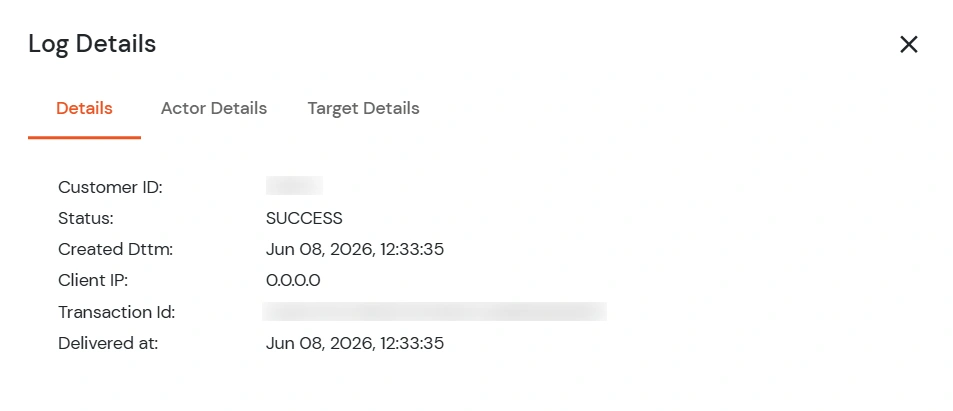
  • Click Details in the Action column. The Log Details window opens.
  • miniOrange Identity Platform Admin Handbook: email event details

  • Details: Provides information about the email event, including its status, reason for failure (if applicable), creation time, client IP, and transaction details.
  • Actor Details: Shows information about the user or administrator who triggered the email event, when available, including their display name, identifier, and user type.
  • Target Details: Displays information about the recipient or target associated with the email event, including the target’s display name, identifier, and type.

Note :

  • Access to Email Audit Report depends on the report permissions assigned to your administrator role. If the report is not available under Reports, contact a super administrator to verify your permissions.
  • The time displayed for email events is based on the local timezone of the browser.
  • A SUCCESS status indicates that the system recorded a successful email send attempt. It does not necessarily guarantee that the email was delivered to the recipient's mailbox, as final delivery may depend on the recipient's mail provider.